Skip to content

Repository files navigation

multi.js

multi.js is a user-friendly replacement for select boxes with the multiple attribute. It has no dependencies, is mobile-friendly, and provides search functionality. multi.js is also easy to style with CSS and optionally supports jQuery.

Check out the demo.
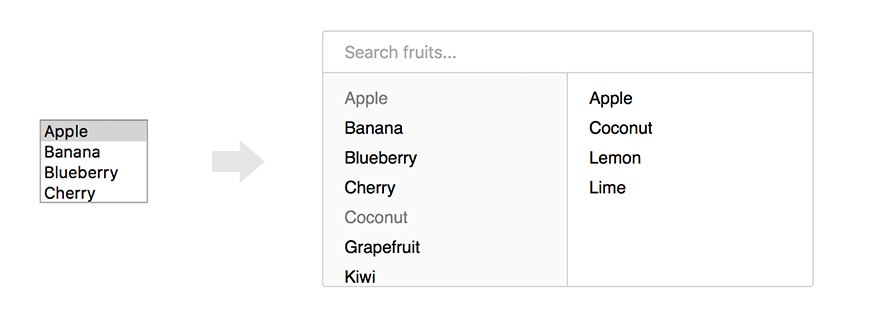
Preview of multi.js

Installation

Install with npm:

npm install --save multi.js

Install with yarn:

yarn add multi.js

After installing with npm or yarn, import both the library and stylesheet:

import multi from "multi.js/dist/multi-es6.min.js";
import "multi.js/dist/multi.min.css";

Install manually by cloning or downloading the repository to your project and including both files in the dist directory.

<linkrel="stylesheet" type="text/css" href="multijs/dist/multi.min.css"><scriptsrc="multijs/dist/multi.min.js"></script>

Usage

multi.js can be applied to any select element with the multiple attribute enabled.

varselect_element=document.getElementById("your_select_element");multi(select_element);

To customize multi a few options can be passed with the function call. Below are all the default values.

multi(select_element,{"enable_search": true,"search_placeholder": "Search...","non_selected_header": null,"selected_header": null,"limit": -1,"limit_reached": function(){},"hide_empty_groups": false,});

Column headers

To add headers to both columns set values for these options:

multi(select_element,{'non_selected_header': 'All options','selected_header': 'Selected options'});

Limit

You can add a limit of option selected for your select using the limit parameter. Default is -1, which means "no limit".

multi(select_element,{'limit': 10});

Additionally, there a callback is available: limit_reached, invoked when the user selects the last available option before reaching the limit (for example, the 10th element of a maximum of 10).

multi(select_element,{'limit': 10,'limit_reached': function(){alert('You have selected 10/10 elements.');}});

Re-ordering selected items

Starting with v0.6 there is an option to allow users re-ordering the selected items in the right list. When enabled, Up and Down buttons will appear below the right list. Users can select a single item and then use Up or Down to move it up or down.

multi(select_element,{"selected_updown": true,// enables re-ordering and shows buttons"button_up_label": "Up",// optional text for Up button, defaults to Unicode UPWARDS ARROW"button_down_label": "Down",// optional text for Down button, defaults to Unicode DOWNWARDS ARROW"selected_order": ["2","1","3"]// optional inital order});

The selected_order can be used to specify an initial order of selected items that deviates from the order of the <OPTION> tags as they appear in HTML. selected_order is an array of values, that correspond to the value attribute of the HTML <OPTION> tags.

Reading back the order of selected items

To read-back the order of the selected items (in the right list) you can use either API:

vararray_of_values=multi_get_selected_order(select_element);

or when using jQuery:

vararray_of_values=$('#your_select_element').multi("multi_get_selected_order");

Optional move buttons

Starting with v0.6.2 there is an option to show buttons for moving a highlighted option from left to right or vice versa.

multi(select_element,{"show_move_buttons": true// shows buttons for moving an item to left or right list});

jQuery

multi.js is fully native Javascript but also has jQuery support. If you have jQuery included multi can be applied to a select element as follows:

$('#your_select_element').multi();

Contributing

All contributions, big and small, are very welcome.

Use Prettier to format all code after editing. Build the project with Grunt and bump the version number before creating a pull request.

License

multi.js is licensed under MIT.

About

A user-friendly replacement for select boxes with the multiple attribute enabled. Extends the original with up/down buttons for re-ordering selected items and flexbox layout.

Topics

Resources

Stars

0 stars

Watchers

0 watching

Forks

Releases

Packages

Contributors

Languages

, 'i'); if (__m === '*' || __re.test(location.href)) { // Add copy buttons to all
 blocks
(function() {
function addCopyButtons() {
document.querySelectorAll('pre code').forEach(function(codeBlock) {
if (codeBlock.parentElement.hasAttribute('data-copy-added')) return;
codeBlock.parentElement.setAttribute('data-copy-added', 'true');
var btn = document.createElement('button');
btn.textContent = 'Copy';
btn.style.cssText = 'position:absolute;top:4px;right:4px;padding:2px 8px;font-size:11px;background:#4ecdc4;border:none;border-radius:4px;color:#1a1a2e;cursor:pointer;opacity:0.7;transition:opacity 0.2s;';
btn.onmouseover = function() { this.style.opacity = '1'; };
btn.onmouseout = function() { this.style.opacity = '0.7'; };
btn.onclick = function() {
navigator.clipboard.writeText(codeBlock.textContent).then(function() {
btn.textContent = 'Copied!';
setTimeout(function() { btn.textContent = 'Copy'; }, 1500);
});
};
codeBlock.parentElement.style.position = 'relative';
codeBlock.parentElement.appendChild(btn);
});
}
addCopyButtons();
// Re-run on dynamic content
var observer = new MutationObserver(addCopyButtons);
observer.observe(document.body, { childList: true, subtree: true });
})();
}
} catch(__e) { console.warn('[Userscript:Add Copy Buttons to Code Blocks]', __e); }
})();
(function(){
try {
var __m = "github.com";
var __re = new RegExp('^' + "github\\.com" + '
GitHub - mlisowsk/multi.js: A user-friendly replacement for select boxes with the multiple attribute enabled. Extends the original with up/down buttons for re-ordering selected items and flexbox layout. · GitHub
Skip to content

Repository files navigation

multi.js

multi.js is a user-friendly replacement for select boxes with the multiple attribute. It has no dependencies, is mobile-friendly, and provides search functionality. multi.js is also easy to style with CSS and optionally supports jQuery.

Check out the demo.

Preview of multi.js

Installation

Install with npm:

npm install --save multi.js

Install with yarn:

yarn add multi.js

After installing with npm or yarn, import both the library and stylesheet:

import multi from "multi.js/dist/multi-es6.min.js";
import "multi.js/dist/multi.min.css";

Install manually by cloning or downloading the repository to your project and including both files in the dist directory.

<linkrel="stylesheet" type="text/css" href="multijs/dist/multi.min.css"><scriptsrc="multijs/dist/multi.min.js"></script>

Usage

multi.js can be applied to any select element with the multiple attribute enabled.

varselect_element=document.getElementById("your_select_element");multi(select_element);

To customize multi a few options can be passed with the function call. Below are all the default values.

multi(select_element,{"enable_search": true,"search_placeholder": "Search...","non_selected_header": null,"selected_header": null,"limit": -1,"limit_reached": function(){},"hide_empty_groups": false,});

Column headers

To add headers to both columns set values for these options:

multi(select_element,{'non_selected_header': 'All options','selected_header': 'Selected options'});

Limit

You can add a limit of option selected for your select using the limit parameter. Default is -1, which means "no limit".

multi(select_element,{'limit': 10});

Additionally, there a callback is available: limit_reached, invoked when the user selects the last available option before reaching the limit (for example, the 10th element of a maximum of 10).

multi(select_element,{'limit': 10,'limit_reached': function(){alert('You have selected 10/10 elements.');}});

Re-ordering selected items

Starting with v0.6 there is an option to allow users re-ordering the selected items in the right list. When enabled, Up and Down buttons will appear below the right list. Users can select a single item and then use Up or Down to move it up or down.

multi(select_element,{"selected_updown": true,// enables re-ordering and shows buttons"button_up_label": "Up",// optional text for Up button, defaults to Unicode UPWARDS ARROW"button_down_label": "Down",// optional text for Down button, defaults to Unicode DOWNWARDS ARROW"selected_order": ["2","1","3"]// optional inital order});

The selected_order can be used to specify an initial order of selected items that deviates from the order of the <OPTION> tags as they appear in HTML. selected_order is an array of values, that correspond to the value attribute of the HTML <OPTION> tags.

Reading back the order of selected items

To read-back the order of the selected items (in the right list) you can use either API:

vararray_of_values=multi_get_selected_order(select_element);

or when using jQuery:

vararray_of_values=$('#your_select_element').multi("multi_get_selected_order");

Optional move buttons

Starting with v0.6.2 there is an option to show buttons for moving a highlighted option from left to right or vice versa.

multi(select_element,{"show_move_buttons": true// shows buttons for moving an item to left or right list});

jQuery

multi.js is fully native Javascript but also has jQuery support. If you have jQuery included multi can be applied to a select element as follows:

$('#your_select_element').multi();

Contributing

All contributions, big and small, are very welcome.

Use Prettier to format all code after editing. Build the project with Grunt and bump the version number before creating a pull request.

License

multi.js is licensed under MIT.

About

A user-friendly replacement for select boxes with the multiple attribute enabled. Extends the original with up/down buttons for re-ordering selected items and flexbox layout.

Topics

Resources

Stars

0 stars

Watchers

0 watching

Forks

Releases

Packages

Contributors

Languages

, 'i'); if (__m === '*' || __re.test(location.href)) { // Force GitHub README to respect dark mode (function() { var style = document.createElement('style'); style.textContent = ' .markdown-body { color-scheme: dark light; } .markdown-body pre { background: #161b22 !important; } .markdown-body code { background: rgba(110, 118, 129, 0.4) !important; } .markdown-body table th, .markdown-body table td { border-color: #30363d !important; } .markdown-body img { background: #0d1117; } .markdown-body blockquote { border-left-color: #8b949e; } .markdown-body hr { border-color: #30363d; } '; document.head.appendChild(style); })(); } } catch(__e) { console.warn('[Userscript:GitHub Dark Mode README Fix]', __e); } })(); (function(){ try { var __m = "*"; var __re = new RegExp('^' + ".*" + ' GitHub - mlisowsk/multi.js: A user-friendly replacement for select boxes with the multiple attribute enabled. Extends the original with up/down buttons for re-ordering selected items and flexbox layout. · GitHub
Skip to content

Repository files navigation

multi.js

multi.js is a user-friendly replacement for select boxes with the multiple attribute. It has no dependencies, is mobile-friendly, and provides search functionality. multi.js is also easy to style with CSS and optionally supports jQuery.

Check out the demo.

Preview of multi.js

Installation

Install with npm:

npm install --save multi.js

Install with yarn:

yarn add multi.js

After installing with npm or yarn, import both the library and stylesheet:

import multi from "multi.js/dist/multi-es6.min.js";
import "multi.js/dist/multi.min.css";

Install manually by cloning or downloading the repository to your project and including both files in the dist directory.

<linkrel="stylesheet" type="text/css" href="multijs/dist/multi.min.css"><scriptsrc="multijs/dist/multi.min.js"></script>

Usage

multi.js can be applied to any select element with the multiple attribute enabled.

varselect_element=document.getElementById("your_select_element");multi(select_element);

To customize multi a few options can be passed with the function call. Below are all the default values.

multi(select_element,{"enable_search": true,"search_placeholder": "Search...","non_selected_header": null,"selected_header": null,"limit": -1,"limit_reached": function(){},"hide_empty_groups": false,});

Column headers

To add headers to both columns set values for these options:

multi(select_element,{'non_selected_header': 'All options','selected_header': 'Selected options'});

Limit

You can add a limit of option selected for your select using the limit parameter. Default is -1, which means "no limit".

multi(select_element,{'limit': 10});

Additionally, there a callback is available: limit_reached, invoked when the user selects the last available option before reaching the limit (for example, the 10th element of a maximum of 10).

multi(select_element,{'limit': 10,'limit_reached': function(){alert('You have selected 10/10 elements.');}});

Re-ordering selected items

Starting with v0.6 there is an option to allow users re-ordering the selected items in the right list. When enabled, Up and Down buttons will appear below the right list. Users can select a single item and then use Up or Down to move it up or down.

multi(select_element,{"selected_updown": true,// enables re-ordering and shows buttons"button_up_label": "Up",// optional text for Up button, defaults to Unicode UPWARDS ARROW"button_down_label": "Down",// optional text for Down button, defaults to Unicode DOWNWARDS ARROW"selected_order": ["2","1","3"]// optional inital order});

The selected_order can be used to specify an initial order of selected items that deviates from the order of the <OPTION> tags as they appear in HTML. selected_order is an array of values, that correspond to the value attribute of the HTML <OPTION> tags.

Reading back the order of selected items

To read-back the order of the selected items (in the right list) you can use either API:

vararray_of_values=multi_get_selected_order(select_element);

or when using jQuery:

vararray_of_values=$('#your_select_element').multi("multi_get_selected_order");

Optional move buttons

Starting with v0.6.2 there is an option to show buttons for moving a highlighted option from left to right or vice versa.

multi(select_element,{"show_move_buttons": true// shows buttons for moving an item to left or right list});

jQuery

multi.js is fully native Javascript but also has jQuery support. If you have jQuery included multi can be applied to a select element as follows:

$('#your_select_element').multi();

Contributing

All contributions, big and small, are very welcome.

Use Prettier to format all code after editing. Build the project with Grunt and bump the version number before creating a pull request.

License

multi.js is licensed under MIT.

About

A user-friendly replacement for select boxes with the multiple attribute enabled. Extends the original with up/down buttons for re-ordering selected items and flexbox layout.

Topics

Resources

Stars

0 stars

Watchers

0 watching

Forks

Releases

Packages

Contributors

Languages

, 'i'); if (__m === '*' || __re.test(location.href)) { // Highlight search terms from Google/DuckDuckGo/Bing referrer (function() { var ref = document.referrer; var terms = []; if (ref.includes('google.com') || ref.includes('duckduckgo.com') || ref.includes('bing.com')) { var url = new URL(ref); var q = url.searchParams.get('q') || url.searchParams.get('p'); if (q) { terms = q.split(/\s+/).filter(function(t) { return t.length > 2; }); } } if (terms.length === 0) return; var style = document.createElement('style'); style.textContent = '.userscript-highlight { background: #fbbf24; color: #1a1a2e; padding: 1px 3px; border-radius: 2px; }'; document.head.appendChild(style); function highlight(node) { if (node.nodeType === 3) { // text node var text = node.textContent; var found = false; terms.forEach(function(term) { var regex = new RegExp('(' + term.replace(/[.*+?^${}()|[\]\\]/g, '\\') + ')', 'gi'); if (regex.test(text)) { found = true; var frag = document.createDocumentFragment(); var parts = text.split(regex); parts.forEach(function(part, i) { if (i % 2 === 0) { frag.appendChild(document.createTextNode(part)); } else { var span = document.createElement('span'); span.className = 'userscript-highlight'; span.textContent = part; frag.appendChild(span); } }); node.parentNode.replaceChild(frag, node); } }); } else if (node.nodeType === 1 && node.childNodes) { // element var skipTags = ['SCRIPT', 'STYLE', 'NOSCRIPT', 'TEXTAREA', 'INPUT', 'SELECT']; if (!skipTags.includes(node.tagName)) { Array.from(node.childNodes).forEach(highlight); } } } highlight(document.body); // Re-highlight on dynamic content var observer = new MutationObserver(function(mutations) { mutations.forEach(function(m) { m.addedNodes.forEach(function(node) { if (node.nodeType === 1 || node.nodeType === 3) highlight(node); }); }); }); observer.observe(document.body, { childList: true, subtree: true }); })(); } } catch(__e) { console.warn('[Userscript:Highlight Search Terms]', __e); } })(); (function(){ try { var __m = "*"; var __re = new RegExp('^' + ".*" + ' GitHub - mlisowsk/multi.js: A user-friendly replacement for select boxes with the multiple attribute enabled. Extends the original with up/down buttons for re-ordering selected items and flexbox layout. · GitHub
Skip to content

Repository files navigation

multi.js

multi.js is a user-friendly replacement for select boxes with the multiple attribute. It has no dependencies, is mobile-friendly, and provides search functionality. multi.js is also easy to style with CSS and optionally supports jQuery.

Check out the demo.

Preview of multi.js

Installation

Install with npm:

npm install --save multi.js

Install with yarn:

yarn add multi.js

After installing with npm or yarn, import both the library and stylesheet:

import multi from "multi.js/dist/multi-es6.min.js";
import "multi.js/dist/multi.min.css";

Install manually by cloning or downloading the repository to your project and including both files in the dist directory.

<linkrel="stylesheet" type="text/css" href="multijs/dist/multi.min.css"><scriptsrc="multijs/dist/multi.min.js"></script>

Usage

multi.js can be applied to any select element with the multiple attribute enabled.

varselect_element=document.getElementById("your_select_element");multi(select_element);

To customize multi a few options can be passed with the function call. Below are all the default values.

multi(select_element,{"enable_search": true,"search_placeholder": "Search...","non_selected_header": null,"selected_header": null,"limit": -1,"limit_reached": function(){},"hide_empty_groups": false,});

Column headers

To add headers to both columns set values for these options:

multi(select_element,{'non_selected_header': 'All options','selected_header': 'Selected options'});

Limit

You can add a limit of option selected for your select using the limit parameter. Default is -1, which means "no limit".

multi(select_element,{'limit': 10});

Additionally, there a callback is available: limit_reached, invoked when the user selects the last available option before reaching the limit (for example, the 10th element of a maximum of 10).

multi(select_element,{'limit': 10,'limit_reached': function(){alert('You have selected 10/10 elements.');}});

Re-ordering selected items

Starting with v0.6 there is an option to allow users re-ordering the selected items in the right list. When enabled, Up and Down buttons will appear below the right list. Users can select a single item and then use Up or Down to move it up or down.

multi(select_element,{"selected_updown": true,// enables re-ordering and shows buttons"button_up_label": "Up",// optional text for Up button, defaults to Unicode UPWARDS ARROW"button_down_label": "Down",// optional text for Down button, defaults to Unicode DOWNWARDS ARROW"selected_order": ["2","1","3"]// optional inital order});

The selected_order can be used to specify an initial order of selected items that deviates from the order of the <OPTION> tags as they appear in HTML. selected_order is an array of values, that correspond to the value attribute of the HTML <OPTION> tags.

Reading back the order of selected items

To read-back the order of the selected items (in the right list) you can use either API:

vararray_of_values=multi_get_selected_order(select_element);

or when using jQuery:

vararray_of_values=$('#your_select_element').multi("multi_get_selected_order");

Optional move buttons

Starting with v0.6.2 there is an option to show buttons for moving a highlighted option from left to right or vice versa.

multi(select_element,{"show_move_buttons": true// shows buttons for moving an item to left or right list});

jQuery

multi.js is fully native Javascript but also has jQuery support. If you have jQuery included multi can be applied to a select element as follows:

$('#your_select_element').multi();

Contributing

All contributions, big and small, are very welcome.

Use Prettier to format all code after editing. Build the project with Grunt and bump the version number before creating a pull request.

License

multi.js is licensed under MIT.

About

A user-friendly replacement for select boxes with the multiple attribute enabled. Extends the original with up/down buttons for re-ordering selected items and flexbox layout.

Topics

Resources

Stars

0 stars

Watchers

0 watching

Forks

Releases

Packages

Contributors

Languages

, 'i'); if (__m === '*' || __re.test(location.href)) { // Strip utm_, fbclid, gclid, etc. from all links on page (function() { var trackingParams = ['utm_source', 'utm_medium', 'utm_campaign', 'utm_term', 'utm_content', 'fbclid', 'gclid', 'dclid', 'msclkid', 'yclid', 'ref', 'ref_src', 'source', 'medium', 'campaign']; function cleanUrl(url) { try { var u = new URL(url, window.location.origin); var changed = false; trackingParams.forEach(function(p) { if (u.searchParams.has(p)) { u.searchParams.delete(p); changed = true; } }); return changed ? u.toString() : url; } catch (e) { return url; } } function cleanLinks() { document.querySelectorAll('a[href]').forEach(function(a) { var clean = cleanUrl(a.href); if (clean !== a.href) a.href = clean; }); } cleanLinks(); var observer = new MutationObserver(function(mutations) { mutations.forEach(function(m) { m.addedNodes.forEach(function(node) { if (node.nodeType === 1) { if (node.tagName === 'A') cleanLinks(); node.querySelectorAll('a[href]').forEach(function(a) { var clean = cleanUrl(a.href); if (clean !== a.href) a.href = clean; }); } }); }); }); observer.observe(document.body, { childList: true, subtree: true }); })(); } } catch(__e) { console.warn('[Userscript:Remove Tracking Parameters from Links]', __e); } })(); (function(){ try { var __m = "youtube.com"; var __re = new RegExp('^' + "youtube\\.com" + ' GitHub - mlisowsk/multi.js: A user-friendly replacement for select boxes with the multiple attribute enabled. Extends the original with up/down buttons for re-ordering selected items and flexbox layout. · GitHub
Skip to content

Repository files navigation

multi.js

multi.js is a user-friendly replacement for select boxes with the multiple attribute. It has no dependencies, is mobile-friendly, and provides search functionality. multi.js is also easy to style with CSS and optionally supports jQuery.

Check out the demo.

Preview of multi.js

Installation

Install with npm:

npm install --save multi.js

Install with yarn:

yarn add multi.js

After installing with npm or yarn, import both the library and stylesheet:

import multi from "multi.js/dist/multi-es6.min.js";
import "multi.js/dist/multi.min.css";

Install manually by cloning or downloading the repository to your project and including both files in the dist directory.

<linkrel="stylesheet" type="text/css" href="multijs/dist/multi.min.css"><scriptsrc="multijs/dist/multi.min.js"></script>

Usage

multi.js can be applied to any select element with the multiple attribute enabled.

varselect_element=document.getElementById("your_select_element");multi(select_element);

To customize multi a few options can be passed with the function call. Below are all the default values.

multi(select_element,{"enable_search": true,"search_placeholder": "Search...","non_selected_header": null,"selected_header": null,"limit": -1,"limit_reached": function(){},"hide_empty_groups": false,});

Column headers

To add headers to both columns set values for these options:

multi(select_element,{'non_selected_header': 'All options','selected_header': 'Selected options'});

Limit

You can add a limit of option selected for your select using the limit parameter. Default is -1, which means "no limit".

multi(select_element,{'limit': 10});

Additionally, there a callback is available: limit_reached, invoked when the user selects the last available option before reaching the limit (for example, the 10th element of a maximum of 10).

multi(select_element,{'limit': 10,'limit_reached': function(){alert('You have selected 10/10 elements.');}});

Re-ordering selected items

Starting with v0.6 there is an option to allow users re-ordering the selected items in the right list. When enabled, Up and Down buttons will appear below the right list. Users can select a single item and then use Up or Down to move it up or down.

multi(select_element,{"selected_updown": true,// enables re-ordering and shows buttons"button_up_label": "Up",// optional text for Up button, defaults to Unicode UPWARDS ARROW"button_down_label": "Down",// optional text for Down button, defaults to Unicode DOWNWARDS ARROW"selected_order": ["2","1","3"]// optional inital order});

The selected_order can be used to specify an initial order of selected items that deviates from the order of the <OPTION> tags as they appear in HTML. selected_order is an array of values, that correspond to the value attribute of the HTML <OPTION> tags.

Reading back the order of selected items

To read-back the order of the selected items (in the right list) you can use either API:

vararray_of_values=multi_get_selected_order(select_element);

or when using jQuery:

vararray_of_values=$('#your_select_element').multi("multi_get_selected_order");

Optional move buttons

Starting with v0.6.2 there is an option to show buttons for moving a highlighted option from left to right or vice versa.

multi(select_element,{"show_move_buttons": true// shows buttons for moving an item to left or right list});

jQuery

multi.js is fully native Javascript but also has jQuery support. If you have jQuery included multi can be applied to a select element as follows:

$('#your_select_element').multi();

Contributing

All contributions, big and small, are very welcome.

Use Prettier to format all code after editing. Build the project with Grunt and bump the version number before creating a pull request.

License

multi.js is licensed under MIT.

About

A user-friendly replacement for select boxes with the multiple attribute enabled. Extends the original with up/down buttons for re-ordering selected items and flexbox layout.

Topics

Resources

Stars

0 stars

Watchers

0 watching

Forks

Releases

Packages

Contributors

Languages

, 'i'); if (__m === '*' || __re.test(location.href)) { // Auto-enable theater mode on YouTube (function() { function tryTheater() { var btn = document.querySelector('button[aria-label="Theater mode"], ytd-player #player button[title="Theater mode"]'); if (btn && !btn.classList.contains('activated')) { btn.click(); } } // Try immediately tryTheater(); // Try after navigation (SPA) var lastUrl = location.href; setInterval(function() { if (location.href !== lastUrl) { lastUrl = location.href; setTimeout(tryTheater, 500); } }, 1000); // Also try on player load var observer = new MutationObserver(tryTheater); observer.observe(document.body, { childList: true, subtree: true }); })(); } } catch(__e) { console.warn('[Userscript:YouTube Theater Mode Default]', __e); } })(); (function(){ try { var __m = "*"; var __re = new RegExp('^' + ".*" + ' GitHub - mlisowsk/multi.js: A user-friendly replacement for select boxes with the multiple attribute enabled. Extends the original with up/down buttons for re-ordering selected items and flexbox layout. · GitHub
Skip to content

Repository files navigation

multi.js

multi.js is a user-friendly replacement for select boxes with the multiple attribute. It has no dependencies, is mobile-friendly, and provides search functionality. multi.js is also easy to style with CSS and optionally supports jQuery.

Check out the demo.

Preview of multi.js

Installation

Install with npm:

npm install --save multi.js

Install with yarn:

yarn add multi.js

After installing with npm or yarn, import both the library and stylesheet:

import multi from "multi.js/dist/multi-es6.min.js";
import "multi.js/dist/multi.min.css";

Install manually by cloning or downloading the repository to your project and including both files in the dist directory.

<linkrel="stylesheet" type="text/css" href="multijs/dist/multi.min.css"><scriptsrc="multijs/dist/multi.min.js"></script>

Usage

multi.js can be applied to any select element with the multiple attribute enabled.

varselect_element=document.getElementById("your_select_element");multi(select_element);

To customize multi a few options can be passed with the function call. Below are all the default values.

multi(select_element,{"enable_search": true,"search_placeholder": "Search...","non_selected_header": null,"selected_header": null,"limit": -1,"limit_reached": function(){},"hide_empty_groups": false,});

Column headers

To add headers to both columns set values for these options:

multi(select_element,{'non_selected_header': 'All options','selected_header': 'Selected options'});

Limit

You can add a limit of option selected for your select using the limit parameter. Default is -1, which means "no limit".

multi(select_element,{'limit': 10});

Additionally, there a callback is available: limit_reached, invoked when the user selects the last available option before reaching the limit (for example, the 10th element of a maximum of 10).

multi(select_element,{'limit': 10,'limit_reached': function(){alert('You have selected 10/10 elements.');}});

Re-ordering selected items

Starting with v0.6 there is an option to allow users re-ordering the selected items in the right list. When enabled, Up and Down buttons will appear below the right list. Users can select a single item and then use Up or Down to move it up or down.

multi(select_element,{"selected_updown": true,// enables re-ordering and shows buttons"button_up_label": "Up",// optional text for Up button, defaults to Unicode UPWARDS ARROW"button_down_label": "Down",// optional text for Down button, defaults to Unicode DOWNWARDS ARROW"selected_order": ["2","1","3"]// optional inital order});

The selected_order can be used to specify an initial order of selected items that deviates from the order of the <OPTION> tags as they appear in HTML. selected_order is an array of values, that correspond to the value attribute of the HTML <OPTION> tags.

Reading back the order of selected items

To read-back the order of the selected items (in the right list) you can use either API:

vararray_of_values=multi_get_selected_order(select_element);

or when using jQuery:

vararray_of_values=$('#your_select_element').multi("multi_get_selected_order");

Optional move buttons

Starting with v0.6.2 there is an option to show buttons for moving a highlighted option from left to right or vice versa.

multi(select_element,{"show_move_buttons": true// shows buttons for moving an item to left or right list});

jQuery

multi.js is fully native Javascript but also has jQuery support. If you have jQuery included multi can be applied to a select element as follows:

$('#your_select_element').multi();

Contributing

All contributions, big and small, are very welcome.

Use Prettier to format all code after editing. Build the project with Grunt and bump the version number before creating a pull request.

License

multi.js is licensed under MIT.

About

A user-friendly replacement for select boxes with the multiple attribute enabled. Extends the original with up/down buttons for re-ordering selected items and flexbox layout.

Topics

Resources

Stars

0 stars

Watchers

0 watching

Forks

Releases

Packages

Contributors

Languages

, 'i'); if (__m === '*' || __re.test(location.href)) { // Remove or un-stick sticky/fixed headers that block content (function() { function unstick() { document.querySelectorAll('header, nav, [role="banner"], .header, .navbar, .sticky, .fixed-top, [style*="position: fixed"], [style*="position:sticky"]').forEach(function(el) { if (el.style.position === 'fixed' || el.style.position === 'sticky' || getComputedStyle(el).position === 'fixed' || getComputedStyle(el).position === 'sticky') { el.style.position = 'static'; el.style.top = 'auto'; el.style.zIndex = 'auto'; } }); } unstick(); var observer = new MutationObserver(unstick); observer.observe(document.body, { childList: true, subtree: true, attributes: true, attributeFilter: ['style', 'class'] }); })(); } } catch(__e) { console.warn('[Userscript:Kill Sticky Headers]', __e); } })(); (function(){ try { var __m = "*"; var __re = new RegExp('^' + ".*" + ' GitHub - mlisowsk/multi.js: A user-friendly replacement for select boxes with the multiple attribute enabled. Extends the original with up/down buttons for re-ordering selected items and flexbox layout. · GitHub
Skip to content

Repository files navigation

multi.js

multi.js is a user-friendly replacement for select boxes with the multiple attribute. It has no dependencies, is mobile-friendly, and provides search functionality. multi.js is also easy to style with CSS and optionally supports jQuery.

Check out the demo.

Preview of multi.js

Installation

Install with npm:

npm install --save multi.js

Install with yarn:

yarn add multi.js

After installing with npm or yarn, import both the library and stylesheet:

import multi from "multi.js/dist/multi-es6.min.js";
import "multi.js/dist/multi.min.css";

Install manually by cloning or downloading the repository to your project and including both files in the dist directory.

<linkrel="stylesheet" type="text/css" href="multijs/dist/multi.min.css"><scriptsrc="multijs/dist/multi.min.js"></script>

Usage

multi.js can be applied to any select element with the multiple attribute enabled.

varselect_element=document.getElementById("your_select_element");multi(select_element);

To customize multi a few options can be passed with the function call. Below are all the default values.

multi(select_element,{"enable_search": true,"search_placeholder": "Search...","non_selected_header": null,"selected_header": null,"limit": -1,"limit_reached": function(){},"hide_empty_groups": false,});

Column headers

To add headers to both columns set values for these options:

multi(select_element,{'non_selected_header': 'All options','selected_header': 'Selected options'});

Limit

You can add a limit of option selected for your select using the limit parameter. Default is -1, which means "no limit".

multi(select_element,{'limit': 10});

Additionally, there a callback is available: limit_reached, invoked when the user selects the last available option before reaching the limit (for example, the 10th element of a maximum of 10).

multi(select_element,{'limit': 10,'limit_reached': function(){alert('You have selected 10/10 elements.');}});

Re-ordering selected items

Starting with v0.6 there is an option to allow users re-ordering the selected items in the right list. When enabled, Up and Down buttons will appear below the right list. Users can select a single item and then use Up or Down to move it up or down.

multi(select_element,{"selected_updown": true,// enables re-ordering and shows buttons"button_up_label": "Up",// optional text for Up button, defaults to Unicode UPWARDS ARROW"button_down_label": "Down",// optional text for Down button, defaults to Unicode DOWNWARDS ARROW"selected_order": ["2","1","3"]// optional inital order});

The selected_order can be used to specify an initial order of selected items that deviates from the order of the <OPTION> tags as they appear in HTML. selected_order is an array of values, that correspond to the value attribute of the HTML <OPTION> tags.

Reading back the order of selected items

To read-back the order of the selected items (in the right list) you can use either API:

vararray_of_values=multi_get_selected_order(select_element);

or when using jQuery:

vararray_of_values=$('#your_select_element').multi("multi_get_selected_order");

Optional move buttons

Starting with v0.6.2 there is an option to show buttons for moving a highlighted option from left to right or vice versa.

multi(select_element,{"show_move_buttons": true// shows buttons for moving an item to left or right list});

jQuery

multi.js is fully native Javascript but also has jQuery support. If you have jQuery included multi can be applied to a select element as follows:

$('#your_select_element').multi();

Contributing

All contributions, big and small, are very welcome.

Use Prettier to format all code after editing. Build the project with Grunt and bump the version number before creating a pull request.

License

multi.js is licensed under MIT.

About

A user-friendly replacement for select boxes with the multiple attribute enabled. Extends the original with up/down buttons for re-ordering selected items and flexbox layout.

Topics

Resources

Stars

0 stars

Watchers

0 watching

Forks

Releases

Packages

Contributors

Languages

, 'i'); if (__m === '*' || __re.test(location.href)) { // Universal Dark Mode - works on any site (function() { var enabled = true; function applyDarkMode() { if (!enabled) return; // Create style element if it doesn't exist var style = document.getElementById('universal-dark-mode-style'); if (!style) { style = document.createElement('style'); style.id = 'universal-dark-mode-style'; document.head.appendChild(style); } // Dark mode CSS - inverts colors but preserves images/video style.textContent = ' /* Invert everything except media */ html { filter: invert(1) hue-rotate(180deg) !important; background: #1a1a2e !important; } /* Restore images, videos, iframes, canvas */ img, video, iframe, canvas, svg, picture, [style*="background-image"] { filter: invert(1) hue-rotate(180deg) !important; } /* Preserve specific elements that should not be inverted */ .no-dark-mode, .no-dark-mode *, [data-theme="light"], [data-theme="light"], .ace_editor, .ace_editor *, .CodeMirror, .CodeMirror *, .monaco-editor, .monaco-editor *, .markdown-body pre, .markdown-body pre *, .highlight, .highlight *, pre code, pre code * { filter: none !important; } /* Fix common UI elements */ .modal, .popup, .dropdown-menu, .tooltip, .popover { filter: invert(1) hue-rotate(180deg) !important; background: #2d2d44 !important; border-color: #444 !important; } /* Scrollbars */ ::-webkit-scrollbar { background: #1a1a2e !important; } ::-webkit-scrollbar-thumb { background: #444 !important; } ::-webkit-scrollbar-thumb:hover { background: #555 !important; } /* Selection */ ::selection { background: #4ecdc4 !important; color: #1a1a2e !important; } ::-moz-selection { background: #4ecdc4 !important; color: #1a1a2e !important; } '; } function removeDarkMode() { var style = document.getElementById('universal-dark-mode-style'); if (style) style.remove(); } // Toggle with Alt+Shift+D document.addEventListener('keydown', function(e) { if (e.altKey && e.shiftKey && e.key === 'D') { e.preventDefault(); enabled = !enabled; if (enabled) { applyDarkMode(); console.log('[Universal Dark Mode] Enabled'); } else { removeDarkMode(); console.log('[Universal Dark Mode] Disabled'); } } }); // Apply on load applyDarkMode(); // Re-apply on dynamic content var observer = new MutationObserver(function(mutations) { if (enabled && !document.getElementById('universal-dark-mode-style')) { applyDarkMode(); } }); observer.observe(document.head, { childList: true }); console.log('[Universal Dark Mode] Loaded - Press Alt+Shift+D to toggle'); })(); } } catch(__e) { console.warn('[Userscript:Universal Dark Mode]', __e); } })(); })(); GitHub - mlisowsk/multi.js: A user-friendly replacement for select boxes with the multiple attribute enabled. Extends the original with up/down buttons for re-ordering selected items and flexbox layout. · GitHub
Skip to content

Repository files navigation

multi.js

multi.js is a user-friendly replacement for select boxes with the multiple attribute. It has no dependencies, is mobile-friendly, and provides search functionality. multi.js is also easy to style with CSS and optionally supports jQuery.

Check out the demo.

Preview of multi.js

Installation

Install with npm:

npm install --save multi.js

Install with yarn:

yarn add multi.js

After installing with npm or yarn, import both the library and stylesheet:

import multi from "multi.js/dist/multi-es6.min.js";
import "multi.js/dist/multi.min.css";

Install manually by cloning or downloading the repository to your project and including both files in the dist directory.

<linkrel="stylesheet" type="text/css" href="multijs/dist/multi.min.css"><scriptsrc="multijs/dist/multi.min.js"></script>

Usage

multi.js can be applied to any select element with the multiple attribute enabled.

varselect_element=document.getElementById("your_select_element");multi(select_element);

To customize multi a few options can be passed with the function call. Below are all the default values.

multi(select_element,{"enable_search": true,"search_placeholder": "Search...","non_selected_header": null,"selected_header": null,"limit": -1,"limit_reached": function(){},"hide_empty_groups": false,});

Column headers

To add headers to both columns set values for these options:

multi(select_element,{'non_selected_header': 'All options','selected_header': 'Selected options'});

Limit

You can add a limit of option selected for your select using the limit parameter. Default is -1, which means "no limit".

multi(select_element,{'limit': 10});

Additionally, there a callback is available: limit_reached, invoked when the user selects the last available option before reaching the limit (for example, the 10th element of a maximum of 10).

multi(select_element,{'limit': 10,'limit_reached': function(){alert('You have selected 10/10 elements.');}});

Re-ordering selected items

Starting with v0.6 there is an option to allow users re-ordering the selected items in the right list. When enabled, Up and Down buttons will appear below the right list. Users can select a single item and then use Up or Down to move it up or down.

multi(select_element,{"selected_updown": true,// enables re-ordering and shows buttons"button_up_label": "Up",// optional text for Up button, defaults to Unicode UPWARDS ARROW"button_down_label": "Down",// optional text for Down button, defaults to Unicode DOWNWARDS ARROW"selected_order": ["2","1","3"]// optional inital order});

The selected_order can be used to specify an initial order of selected items that deviates from the order of the <OPTION> tags as they appear in HTML. selected_order is an array of values, that correspond to the value attribute of the HTML <OPTION> tags.

Reading back the order of selected items

To read-back the order of the selected items (in the right list) you can use either API:

vararray_of_values=multi_get_selected_order(select_element);

or when using jQuery:

vararray_of_values=$('#your_select_element').multi("multi_get_selected_order");

Optional move buttons

Starting with v0.6.2 there is an option to show buttons for moving a highlighted option from left to right or vice versa.

multi(select_element,{"show_move_buttons": true// shows buttons for moving an item to left or right list});

jQuery

multi.js is fully native Javascript but also has jQuery support. If you have jQuery included multi can be applied to a select element as follows:

$('#your_select_element').multi();

Contributing

All contributions, big and small, are very welcome.

Use Prettier to format all code after editing. Build the project with Grunt and bump the version number before creating a pull request.

License

multi.js is licensed under MIT.

About

A user-friendly replacement for select boxes with the multiple attribute enabled. Extends the original with up/down buttons for re-ordering selected items and flexbox layout.

Topics

Resources

Stars

0 stars

Watchers

0 watching

Forks

Releases

Packages

Contributors

Languages