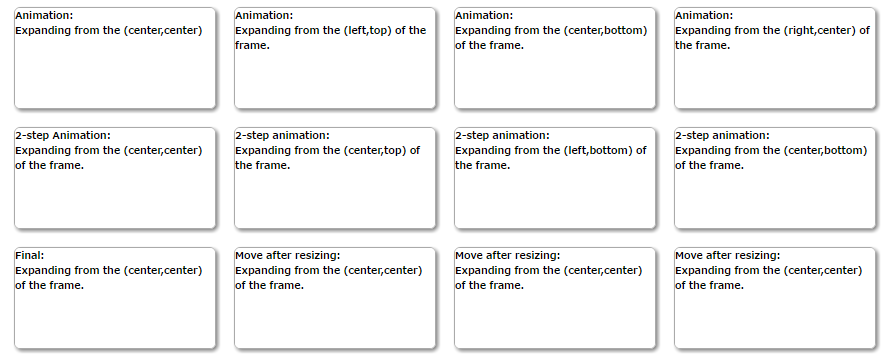
It is an independent and lightweight multi-window library for javascript.
- You can create various floating windows (called frame) and popup windows.
- You can create multi-window apps.
- You can create a modal window.
- You can create a toast.
It is licensed under MIT license.
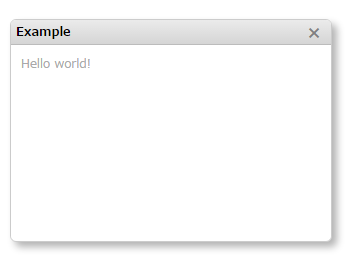
npm install jsframe.js --saveimport{JSFrame}from'jsframe.js';const{ JSFrame }=require('jsframe.js');<scriptsrc="https://cdn.jsdelivr.net/npm/jsframe.js/lib/jsframe.min.js"></script>Here's is basic example of JSFrame.js to show a simple window.
- Call the
JSFrame.createmethod with initialization parameter to show a window - Set html as a content of the window.Content could simply be some text or html.
frame.showto show the window
constjsFrame=newJSFrame();//Create windowconstframe=jsFrame.create({title: 'Window',left: 20,top: 20,width: 320,height: 220,movable: true,//Enable to be moved by mouseresizable: true,//Enable to be resized by mousehtml: '<div id="my_element" style="padding:10px;font-size:12px;color:darkgray;">Contents of window</div>'});DEMO
https://riversun.github.io/jsframe/examples/v150/simple.html
Tips
- Get DOM element from contents:
frame.$([selector])
- Get the element which id is 'my_element'
const ele = frame.$('#my_element')
- Set window position
frame.setPosition(x,y,[anchor]);
If you specify an anchor, the location of the anchor will be the specified x,y coordinate.
Anchor values 'LEFT_TOP','CENTER_TOP','RIGHT_TOP','LEFT_CENTER','CENTER_CENTER','RIGHT_CENTER','LEFT_BOTTOM','CENTER_BOTTOM','RIGHT_BOTTOM'
- Set window content
frame.setHTML(`<div>Your content</div>`);
- Want to specify individual windows You can give the window a unique window name.
constwindowName='my-example-window';frame.setName(windowName);and you can get the window by windowName
constwindowName='my-example-window';constframe=jsFrame.getWindowByName(windowName);- Want to check if a window already exists
You can use it in the following cases. Show window if it exists, create new window if window is closed
constwindowName='my-example-window';constwindowExists=jsFrame.containsWindowName(windowName);- Set
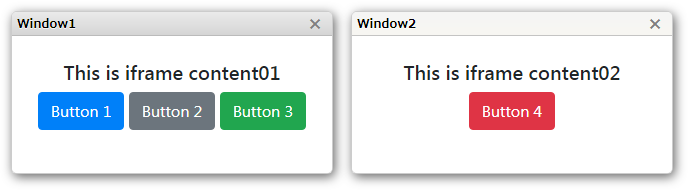
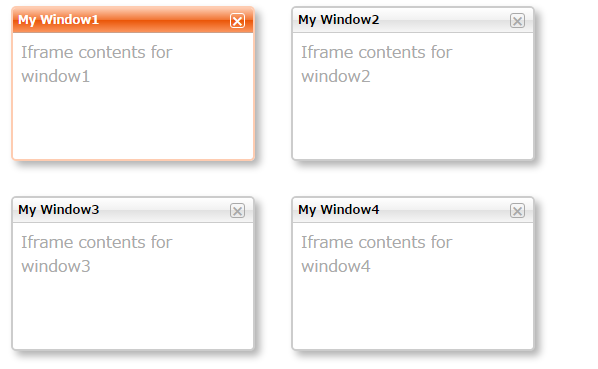
urlto the initialization parameter. - The window contents will be shown as iframe.
- Set callback function which is called after loading a page as
urlLoaded
constframe01=jsFrame.create({title: 'Window1',left: 20,top: 20,width: 320,height: 160,url: 'iframe_content01.html',//URL to display in iframe//urlLoaded:Callback function called after loading iframeurlLoaded: (frame)=>{//Called when the url finishes loading}});frame01.show();DEMO
https://riversun.github.io/jsframe/examples/v150/iframe.html
Tips
- You can also get DOM element in the page shown as window's content area specified by url(iframe) ,You can call like
frame.$('#my_element').
- Call
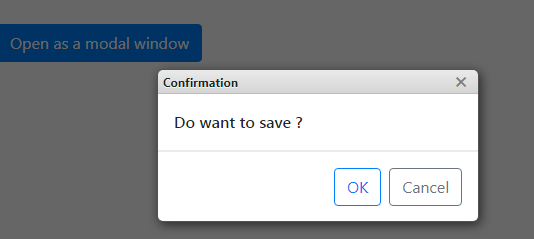
frame.showModalto show the window as a modal window. - By specifying like
showModal(callbackFunc)you can receive a callback when the modal window is closed.
constmodalFrame=jsFrame.create({title: 'modal window',left: 0,top: 0,width: 320,height: 220,html: 'something'});//Show as a modal windowmodalFrame.showModal(_frame=>{//Callback when modal window is closed.});DEMO
https://riversun.github.io/jsframe/examples/v150/modal.html
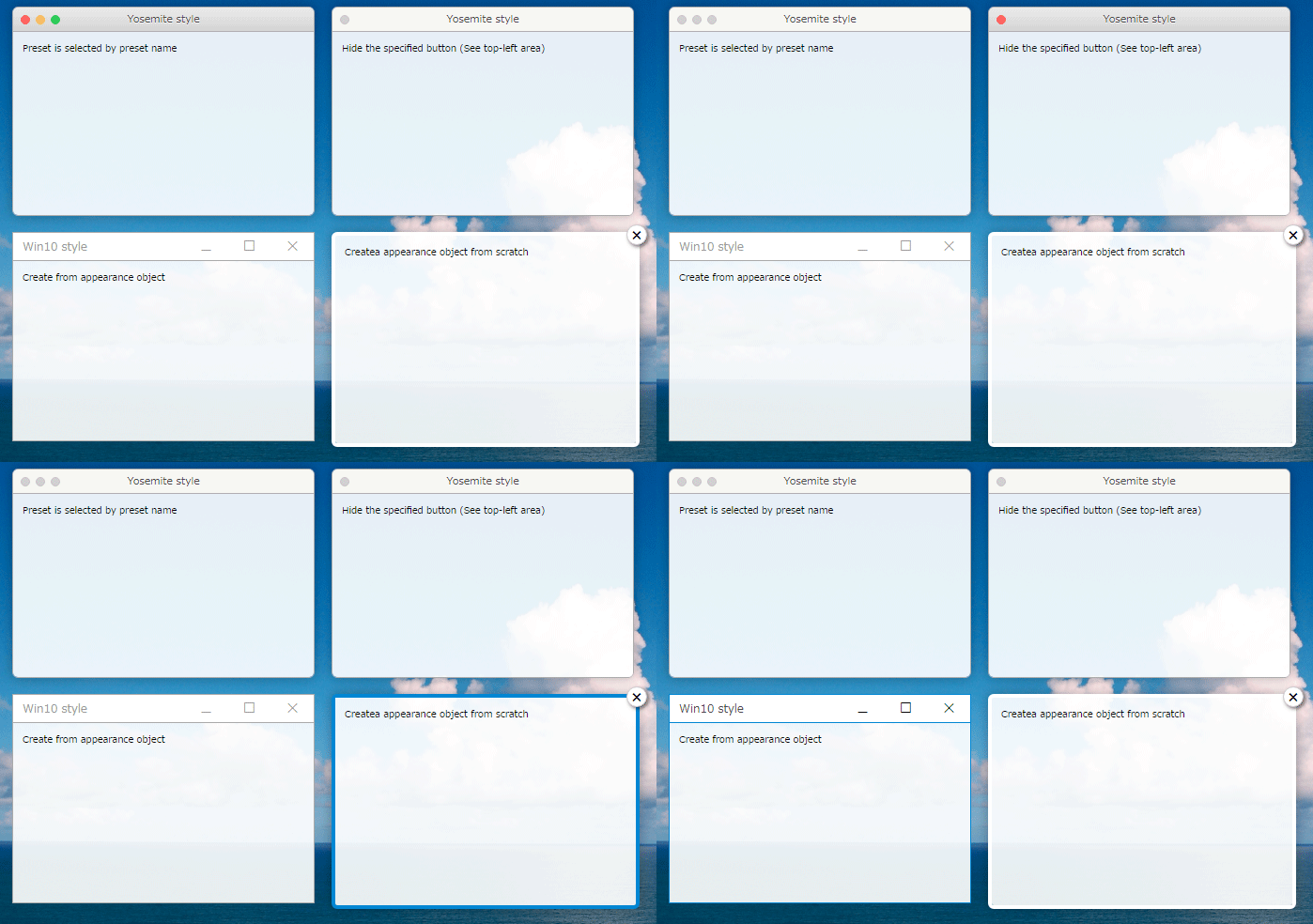
- JSFrame.js has the option where you can design the window appearance or apply style to certain elements and then apply styles to them as you want.
- You can specify style from preset or design it yourself.
- Set
appearanceNameto initialization parameter to select the window design calledappearance. - Or if you want to design appearance from scratch, you can set
appearanceto initialization parameter.
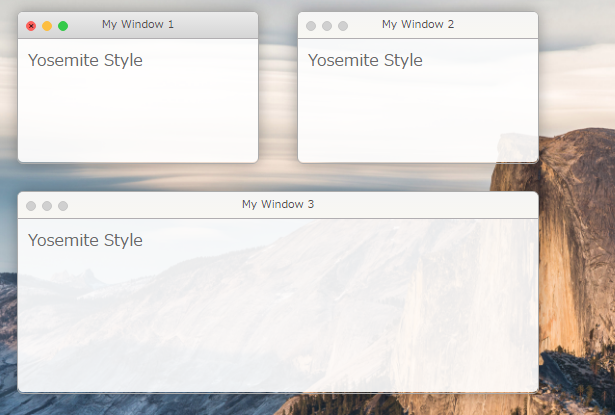
Style from preset
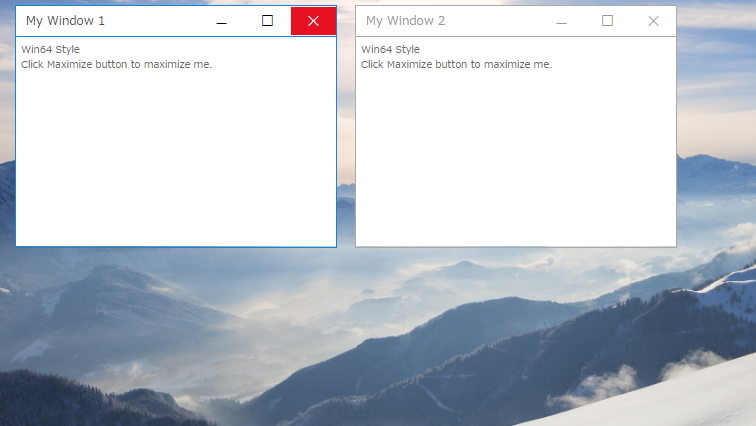
constframe01=jsFrame.create({title: 'Yosemite style',left: 20,top: 20,width: 320,height: 220,appearanceName: 'yosemite',//Now preset is selectable from 'yosemite','redstone','popup'style: {backgroundColor: 'rgba(255,255,255,0.9)',},html: '<div style="padding:10px;">Preset is selected by preset name</div>'}).show();DEMO
https://riversun.github.io/jsframe/examples/v150/styling.html
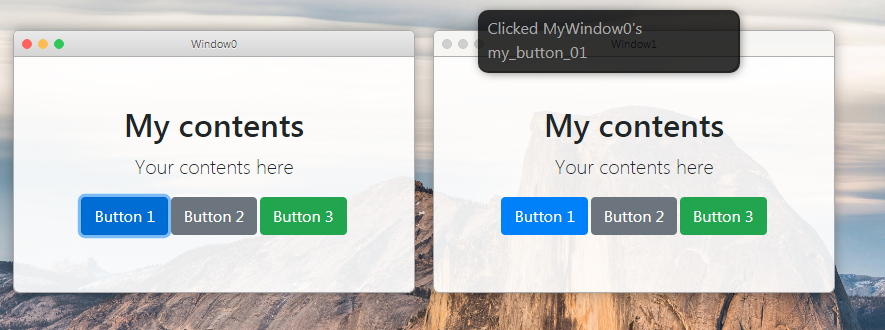
- You can set an event handler (callback function) for the DOM element in the content specified by html or url.
- You can also set an event handler for buttons on the title bar.
- Call like
frame.on(selector,'click',(_frame,event)=>{});to set click event handler functions.
//Set click handler for DOM element specified as html or url in the initialization parameters.frame.on('#bt_cancel','click',(_frame,evt)=>{});//Event handler for buttons on the title bar.frame.on('minimizeButton','click',(_frame,evt)=>{});DEMO
https://riversun.github.io/jsframe/examples/v150/event_handling.html
- A toast provides simple message about an operation in a small popup. Toasts automatically disappear after the time specified by
duration. - Call
JSFrame.showToastto show a toast. - You can customize the appearance and something.
Simple toast
constjsFrame=newJSFrame();jsFrame.showToast({html: 'Default toast'});
Specify the position
jsFrame.showToast({align: 'center',html: 'Toast displayed in the center'});You can specify the position with align like below.
align:'top' =>Toast displayed at the top
align:'center' =>Toast displayed in the center
align:'bottom' =>Toast displayed at the bottom(default)
Customize toast
jsFrame.showToast({width: 260,height: 100,duration: 2000,//Duration(millis)align: 'center',// alignment from 'top'/'center'/'bottom'(default)style: {borderRadius: '2px',backgroundColor: 'rgba(0,124,255,0.8)',},html: '<span style="color:white;">Custom toast</span>',closeButton: true,//Show close buttoncloseButtonColor: 'white'//Color of close button});DEMO
https://riversun.github.io/jsframe/examples/v150/toast.html

You can use font-awesome for titlebar icons.
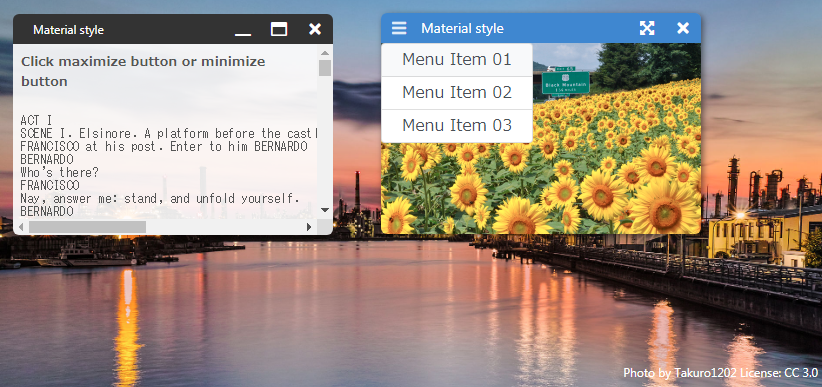
For material, describe the settings using appearanceParam as below.
{name: `Win2`,title: `Material style`,left: 360,top: 40,width: 320,height: 220,minWidth: 200,minHeight: 110,appearanceName: 'material',appearanceParam: {border: {shadow: '2px 2px 10px rgba(0, 0, 0, 0.5)',width: 0,radius: 6,},titleBar: {color: 'white',background: '#4784d4',leftMargin: 40,height: 30,fontSize: 14,buttonWidth: 36,buttonHeight: 16,buttonColor: 'white',buttons: [// buttons on the right{//Set font-awesome fonts(https://fontawesome.com/icons?d=gallery&m=free)fa: 'fas fa-times',//code of font-awesomename: 'closeButton',visible: true// visibility when window is created.},{fa: 'fas fa-expand-arrows-alt',name: 'maximizeButton',visible: true},{fa: 'fas fa-compress-arrows-alt',name: 'minimizedButton',visible: false},],buttonsOnLeft: [//buttons on the left{//Set font-awesome fonts(https://fontawesome.com/icons?d=gallery&m=free)fa: 'fas fa-bars',name: 'menu',visible: true,//html to show when this button is clicked.childMenuHTML: '<div class="list-group">'+' <div name="menu1" class="list-group-item list-group-item-action py-2">Menu Item 01</div>'+' <div name="menu2" class="list-group-item list-group-item-action py-2">Menu Item 02</div>'+' <div name="menu3" class="list-group-item list-group-item-action py-2">Menu Item 03</div>'+'</div>',childMenuWidth: 300},],},},style: {backgroundColor: 'rgba(0,0,0,0.8)',overflow: 'hidden',width: '100%',},html: 'something'}Close window
frame.closeFrame();Hide Window
frame.hide();Focus window (and pull up to the front)
frame.requestFocus();Get window by name
varframe=jsFrame.getWindowByName('my-window');Setting frame#setControl enables the mode to automatically change the window size when the button on the title bar is pressed.
frame.setControl({maximizeButton: 'maximizeButton',//Name of the button on framecomponent to maximize when pressed.demaximizeButton: 'restoreButton',//Name of the button on framecomponent to de-maximize when pressed.maximizeWithoutTitleBar: true,//If true,hide the title bar and maximize the content part.restoreKey: 'Escape',//If maximizeWithoutTitleBar is true,de-maximize the window when the key specified here is pushed.minimizeButton: 'minimizeButton',//Name of the button on framecomponent to minimize when pressed.deminimizeButton: 'deminimizeButton',//Name of the button on framecomponent to de-minimize when pressed.hideButton: 'closeButton',//Name of the button on framecomponent to hide when pressed.animation: true,//If true,execute animation during window size changinganimationDuration: 150,//Duration of animation});DEMOhttps://riversun.github.io/jsframe/examples/v150/window_control.html
frame.control.on('maximized',(frame,info)=>{jsFrame.showToast({text: 'Press "ESC" to minimize.',align: 'center'});});| EventType | Description |
| maximized | Called when maximazation is finished. |
| demaximized | Called when de-maximazation is finished. |
| minimized | Called when minimization is finished. |
| deminimized | Called when de-minimization is finished. |
| hid | Called when hiding is finished. |
| dehided | Called when de-hiding is finished. |
You can write window size operation manually like below
frame.on('maximizeButton','click',(_frame,evt)=>{_frame.control.doMaximize({hideTitleBar: false,duration: 200,restoreKey: 'Escape',restoreDuration: 100,callback: (frame,info)=>{frame.requestFocus();},restoreCallback: (frame,info)=>{jsFrame.showToast({text: frame.getName()+' '+info.eventType});},});});this.jsFrame=newJSFrame({fixed:true,//(Default)If true, it will be fixed to the screen even if the contents (background) scrolls.parentElement:document.body,//Set element to attach jsFrame.horizontalAlign: 'right',// If 'right' is set, the anchor is set at the right edge.If you specify the position of frame with 'left' in this mode, Make the value negative.Default is 'left'verticalAlign: 'bottom',//If 'bottom' is set, the anchor is set at the bottom edge.Default is 'bottom'});constframe=jsFrame.create({name: 'my-window-name',//Window name.Unique name is required.title: 'Window0',//Window titleleft: 20,//x coordinate of the upper left corner of the windowtop: 20,//y coordinate of the upper left corner of the windowwidth: 320,//width of the windowheight: 220,//height of the windowminWidth: 160,//The minimum width of the windowminHeight: 100,//The minimum height of the windowmovable: true,//true:You can move the window with mouseresizable: true,//true:You can resize the window with mouseappearance: appearanceObj,//Appearance objectappearanceName: 'yosemite',//Preset name of appearance(Not with 'appearance')style: {//Style of the content.Can be specified just like inline style attribute.backgroundColor: 'rgba(220,220,220,0.8)',//Ex.Background color of content(Opacity can be specified)overflow: 'auto',//Ex.What to do when the drawing extends beyond the content area},html: 'Contents',//HTML shown in the content(Not with 'url')url: 'content01.html',//The URL for contents.To be shown in iframe.urlLoaded: (frame)={}//Callback function when url is finished loading.});After install jsframe.js , you can use it like below.
import{JSFrame}from'jsframe';You can add an alias in your webpack config like this:
module.exports={
...
resolve: {alias: {'jsframe': 'jsframe.js/dist/jsframe.min.js',}},
...
};All examples are included in the project. You can modify,customize example after cloning the project
git clone https://github.com/riversun/JSFrame.js.git
| Methods | Details |
|---|---|
| CIfFrame createFrame(left, top, width, height, CFrameAppearance) | create CIFFrame instance.CIfFrame is a kind of 'window' called frame. |
| CFrameAppearance createFrameAppearance() | create CFrameAppearance instance. CFrameAppearance is a class for frame appearance.You can modify frame's looking as you like. |
| Methods | Details |
|---|---|
| CIfFrame setTitle(str) | Set caption in the title bar |
| CIfFrame setResizable(boolean) | Set whether the window can be resized |
| CIfFrame setMovable(boolean) | Set whether the window can be moved |
| CIfFrame setTitleBarClassName(classNameForDefault, classNameForFocused) | Set title bar style class name |
| Object getFrameView() | Get window content element. It's just a 'div' element.So you can handle it as a 'div' element. ex) frame.getFrameView().innerHTML='xxxx'; |
| Promise setUrl(url) | Open a page specified as url in the IFrame mode. It returns Promise.If you want to execute something at the timing of opening url,use 'then' . ex) frame.setUrl('http://something').then(function(){frame.show();}); |
| CIfFrame show() | Show frame |
| CIfFrame requestFocus() | Requests that this frame gets the focus. Focus and the window comes to the forefront |
| CIfFrame setSize(width,height) | set size of frame |
| CIfFrame setPosition(x,y,anchor) | anchor is optional. Default anchor is 'LEFT_TOP' You can set followings for anchor. 'LEFT_TOP', 'CENTER_TOP', 'RIGHT_TOP', 'LEFT_CENTER', 'CENTER_CENTER', 'RIGHT_CENTER', 'LEFT_BOTTOM', 'CENTER_BOTTOM', 'RIGHT_BOTTOM' |
| Methods | Details |
|---|---|
| CFrameAppearance setUseIFrame(boolean) | If 'true' ,You can set CIfFrame 'IFrame mode' and you can use CIfFrame#setUrl method for opening specified url. |
| void onInitialize() | Since this callback method is called at frame initialization,Initialization processing such as adding frameComponent should be written here. |
| Members | Details |
|---|---|
| showTitleBar | true or false |
| showCloseButton | true or false |
| titleBarCaptionFontSize | ex)'12px' |
| titleBarCaptionFontWeight | ex)'bold' |
| titleBarHeight | ex)'24px' |
| titleBarCaptionLeftMargin | ex)'10px' |
| titleBarColorDefault | Color for not focused state. ex)'#dddddd' |
| titleBarColorFocused | Color for focused state. ex)'white' |
| titleBarCaptionColorDefault | Color for not focused state. ex)'black' |
| titleBarCaptionColorFocused | Color for focused state. ex)'red' |
| titleBarBorderBottomDefault | Style for bottom of the title bar. ex)'1px solid rgba(0,0,0,0.2)' |
| titleBarBorderBottomFocused | If null,'titleBarBorderBottomDefault' will be applied. |
| frameBorderRadius | Corner radius of the window. ex)'6px' |
| frameBorderWidthDefault | Width of border line in the not focused state. ex)'1px' |
| frameBorderWidthFocused | Width of border line in the focused state. ex)'1px' |
| frameBorderColorDefault | Color of border line in the not focused state. ex)'rgba(1, 1, 1, 0.2)' |
| frameBorderColorFocused | Color of border line in the focused state. ex)'rgba(1, 1, 1, 0.2)' |
| frameBorderStyle | Border line style ex)solid |
| frameBoxShadow | Shadow style of the frame ex) '5px 5px 10px rgba(0, 0, 0, 0.3)' |
| frameBackgroundColor | Background color of the frame ex)'white' |
DEMO
https://riversun.github.io/jsframe/examples/ex01/index.html
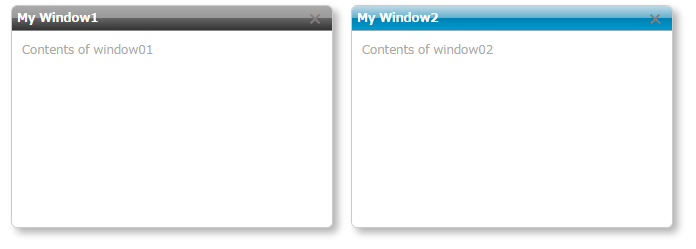
DEMO
https://riversun.github.io/jsframe/examples/ex02/index.html
DEMO
https://riversun.github.io/jsframe/examples/ex03/index.html
DEMO
https://riversun.github.io/jsframe/examples/ex04/index.html
DEMO
https://riversun.github.io/jsframe/examples/ex05/index.html

DEMO
https://riversun.github.io/jsframe/examples/ex06/index.html