
A lightweight flutter package to simplify the creation of a miniplayer by providing a builder function with the current height and percentage progress. The widget responds to tap and drag gestures and is highly customizable. What is a miniplayer? Miniplayers are commonly used in media applications like Spotify and Youtube. A miniplayer can be expanded and minified and remains on the screen when minified until dismissed by the user. See the demo below for an example.
Tutorial: https://www.youtube.com/watch?v=umhl2hakkcY

Stack(
children:<Widget>[
YourApp(),
Miniplayer(
minHeight:70,
maxHeight:370,
builder: (height, percentage) {
returnCenter(
child:Text('$height, $percentage'),
);
},
),
],
),| Parameter | Implementation | Example |
|---|---|---|
| onDismiss | Miniplayer(
onDismiss: () {
//Handle onDismissed here
}, ),
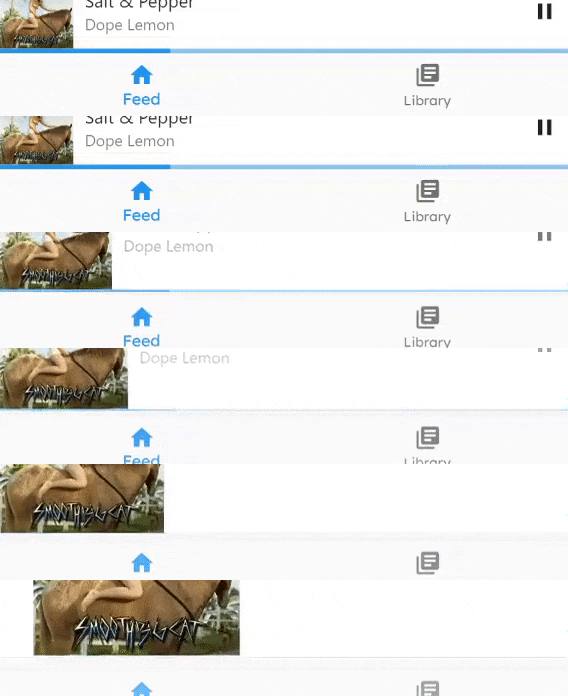
|  If onDismiss is set, the miniplayer can be dismissed |
| valueNotifier | finalValueNotifier<double> playerExpandProgress =ValueNotifier(playerMinHeight);
Miniplayer(
valueNotifier: playerExpandProgress, ),
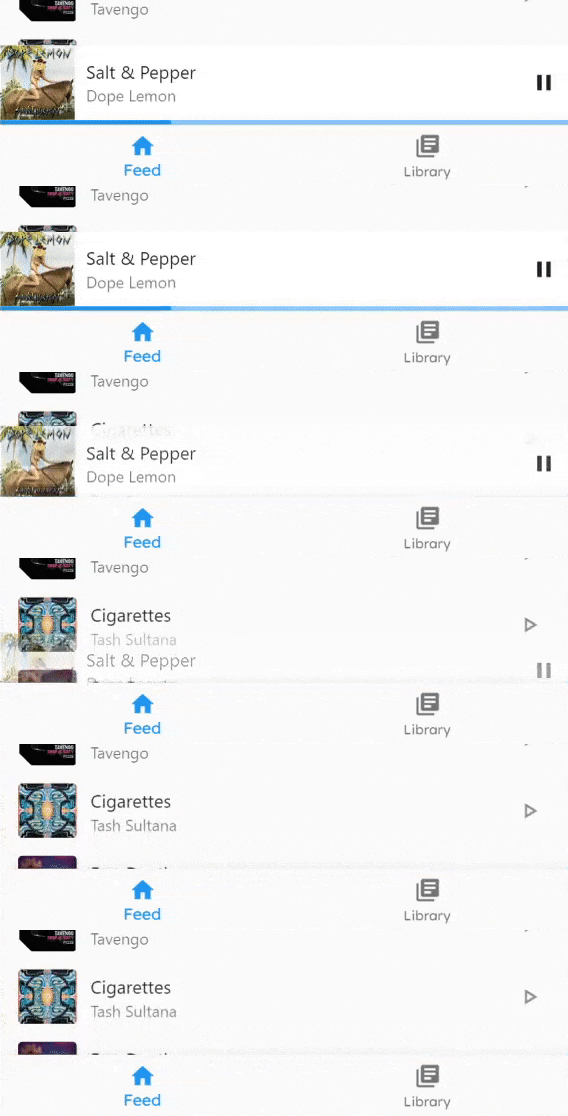
|  Allows you to use a global ValueNotifier with the current progress. This can be used to hide the BottomNavigationBar. |
| controller | finalMiniplayerController controller =MiniplayerController();
Miniplayer(
controller: controller, ),
controller.animateToHeight(state:PanelState.MAX);
|
Implementing the miniplayer as described under usage - for instance by wrapping it inside a Stack in the Scaffold body - would work out of the box but has some disadvantages. If you push a new screen via Navigator.push the miniplayer would disappear. What we want is a persistent miniplayer which stays on the screen.
If you want to archive persistency, you have the choice between two embedding options, which depends on your use case. The first method is only recommended for simple apps. If you want to use dialogs or other persistent widgets such as a BottomNavigationBar, the second (slightly more advanced) method is the right fit for you.
Using a Stack in the builder method
import'package:flutter/material.dart';
import'package:miniplayer/miniplayer.dart';
voidmain() =>runApp(MyApp());
classMyAppextendsStatelessWidget {
@overrideWidgetbuild(BuildContext context) {
returnMaterialApp(
title:'Miniplayer example',
theme:ThemeData(
visualDensity:VisualDensity.adaptivePlatformDensity,
),
home:MyHomePage(),
builder: (context, child) { // <--- Important partreturnStack(
children: [
child,
Miniplayer(
minHeight:70,
maxHeight:370,
builder: (height, percentage) {
if(percentage >0.2)
//return Text('!mini');else//return Text('mini');
},
),
],
);
},
);
}
}Using a Stack in combination with a custom Navigator
import'package:flutter/material.dart';
import'package:miniplayer/miniplayer.dart';
voidmain() =>runApp(MyApp());
final _navigatorKey =GlobalKey();
classMyAppextendsStatelessWidget {
@overrideWidgetbuild(BuildContext context) {
returnMaterialApp(
title:'Miniplayer example',
debugShowCheckedModeBanner:false,
theme:ThemeData(
primaryColor:Color(0xFFFAFAFA),
),
home:MyHomePage(),
);
}
}
classMyHomePageextendsStatelessWidget {
@overrideWidgetbuild(BuildContext context) {
returnMiniplayerWillPopScope(
onWillPop: () async {
finalNavigatorState navigator = _navigatorKey.currentState;
if (!navigator.canPop()) returntrue;
navigator.pop();
returnfalse;
},
child:Scaffold(
body:Stack(
children:<Widget>[
Navigator(
key: _navigatorKey,
onGenerateRoute: (RouteSettings settings) =>MaterialPageRoute(
settings: settings,
builder: (BuildContext context) =>FirstScreen(),
),
),
Miniplayer(
minHeight:70,
maxHeight:370,
builder: (height, percentage) =>Center(
child:Text('$height, $percentage'),
),
),
],
),
bottomNavigationBar:BottomNavigationBar(
currentIndex:0,
fixedColor:Colors.blue,
items: [
BottomNavigationBarItem(
icon:Icon(Icons.home),
label:'Home',
),
BottomNavigationBarItem(
icon:Icon(Icons.mail),
label:'Messages',
),
BottomNavigationBarItem(
icon:Icon(Icons.person),
label:'Profile',
)
],
),
),
);
}
}
classFirstScreenextendsStatelessWidget {
@overrideWidgetbuild(BuildContext context) {
returnScaffold(
appBar:AppBar(title:Text('Demo: FirstScreen')),
body:Container(
constraints:BoxConstraints.expand(),
child:Column(
mainAxisAlignment:MainAxisAlignment.center,
crossAxisAlignment:CrossAxisAlignment.center,
children: [
ElevatedButton(
onPressed: () =>Navigator.push(
context,
MaterialPageRoute(builder: (context) =>SecondScreen()),
),
child:constText('Open SecondScreen'),
),
ElevatedButton(
onPressed: () =>Navigator.of(context, rootNavigator:true).push(
MaterialPageRoute(builder: (context) =>ThirdScreen()),
),
child:constText('Open ThirdScreen with root Navigator'),
),
],
),
),
);
}
}
classSecondScreenextendsStatelessWidget {
@overrideWidgetbuild(BuildContext context) {
returnScaffold(
appBar:AppBar(title:Text('Demo: SecondScreen')),
body:Center(child:Text('SecondScreen')),
);
}
}
classThirdScreenextendsStatelessWidget {
@overrideWidgetbuild(BuildContext context) {
returnScaffold(
appBar:AppBar(title:Text('Demo: ThirdScreen')),
body:Center(child:Text('ThirdScreen')),
);
}
}- Provide better examples
- Add an option to handle horizontal gestures as well (like Spotify does)
- Rewrite the API for onDismiss (breaking change)
- Marked onDismiss ad deprecated