


NumberMorphView a view like label for displaying numbers which animate with transition using a technique called number tweening or number morphing.
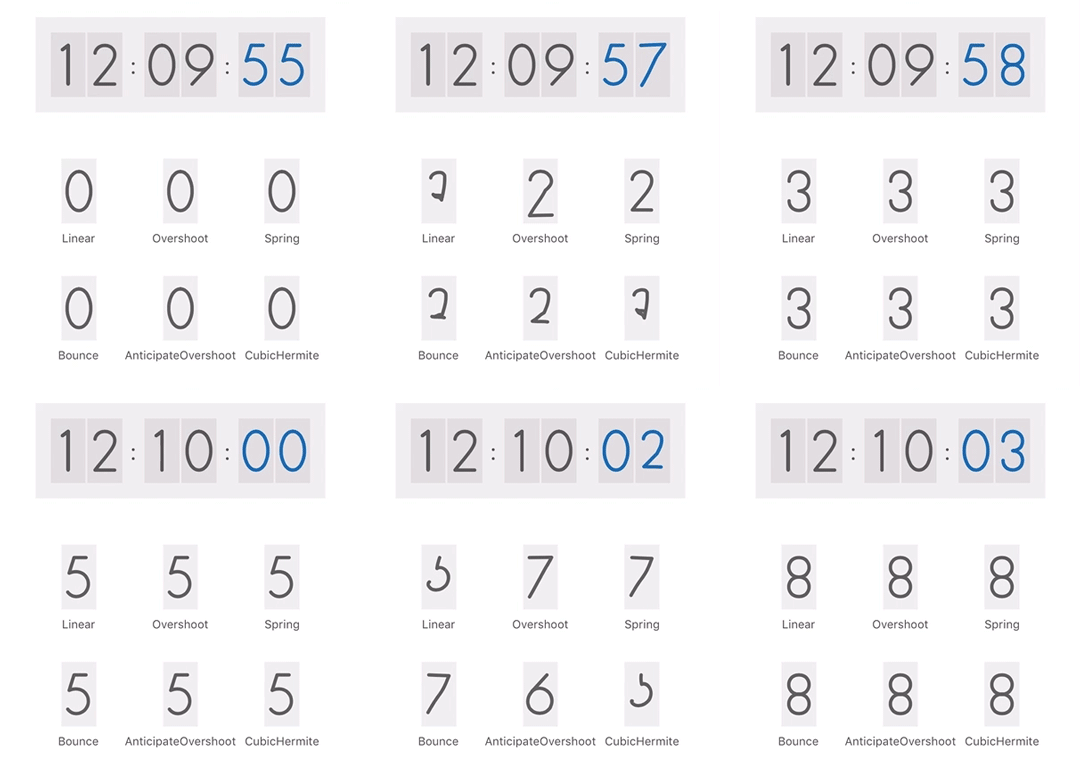
To run the example project, clone the repo, and run pod install from the Example directory first.
- Drag a UIView into your view controller.
- Change the class to
NumberMorphViewin the identity inspector. - Change intrinsic size from default to placeholder in the size inspector.
- Create an IBOutlet in your view controller.
Set the digit of number view as shown below:
numberView.currentDigit =5;Animate to nextDigit as shown below.
numberView.nextDigit =8;NumberMorphView can be used with or without auto layout. Usage of intrinsic content size is recommended.
Preferred aspect ratio of the view is 13 : 24.
letnumberView=NumberMorphView();
numberView.fontSize =64;
numberView.currentDigit =5;
letpreferedSize= numberView.intrinsicContentSize();
numberView.frame =CGRect(x:10, y:10, width: preferedSize.width, height: preferedSize.height);
self.view.addSubview(numberView);
dispatch_after(5,dispatch_get_main_queue()){
numberView.nextDigit =7;
}
Note: Intrinsic content size is changed after setting fontSize.
- To set the animation duration:
numberView.animationDuration =4;- To change the type of animation, set the interpolator.
numberView.interpolator =NumberMorphView.SpringInterpolator();Already available interpolators are LinearInterpolator, OvershootInterpolator, SpringInterpolator, BounceInterpolator, AnticipateOvershootInterpolator, and CubicHermiteInterpolator. Also you can add new interpolators. The interpolator class needs to conform to InterpolatorProtocol as shown below:
classMyLinearInterpolator:InterpolatorProtocol{func getInterpolation(x:CGFloat)->CGFloat{return x;
}}- iOS 8.0+
- Swift 2.0
NumberMorphView is available through CocoaPods. To install it, simply add the following line to your Podfile:
use_frameworks!pod"NumberMorphView"Abhinav Chauhan
NumberMorphView is available under the MIT license. See the LICENSE file for more info.