
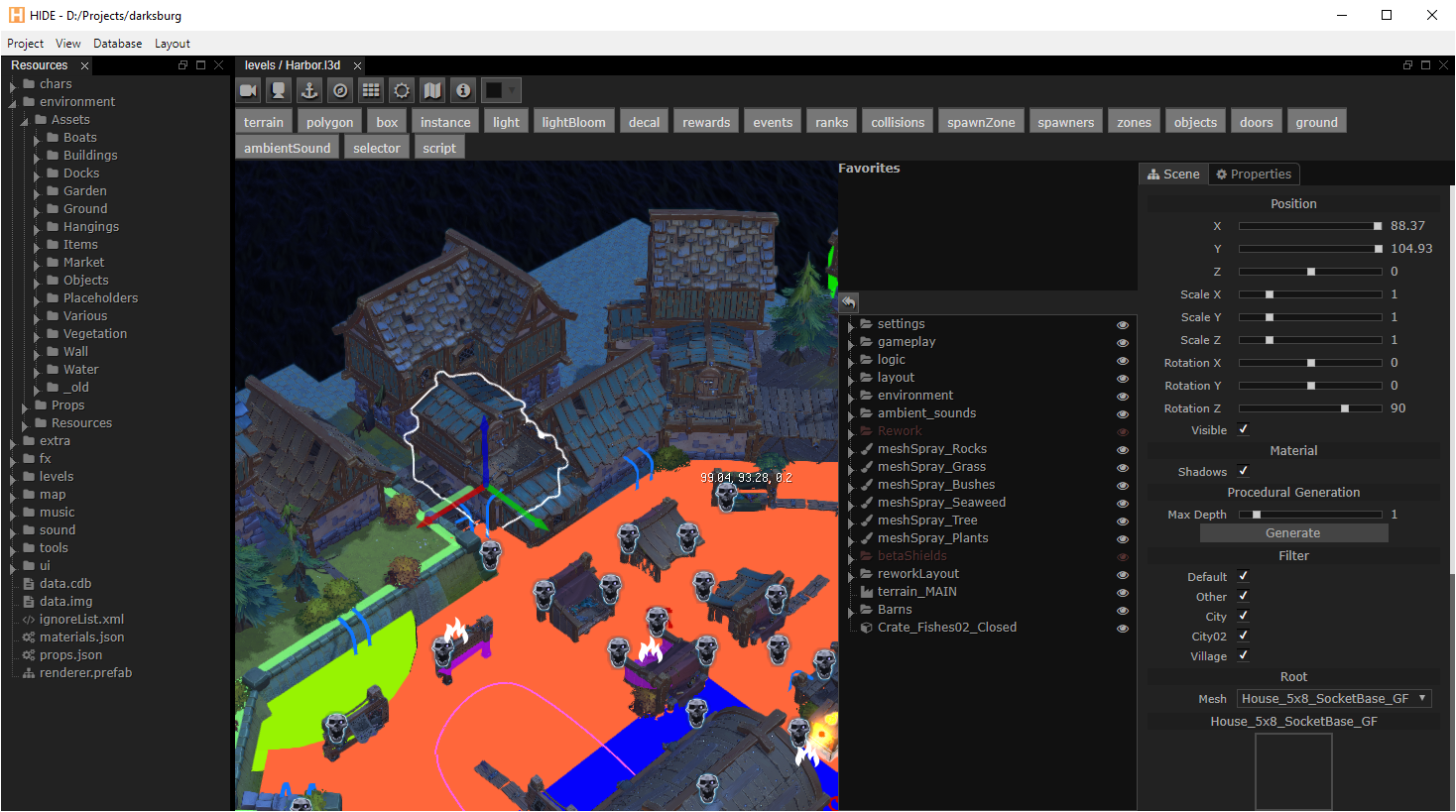
Hide (Heaps IDE) is an extensible editor that can be used as a middleware for various tasks, such as:
- preview 3D models and textures
- edit materials properties
- create timeline based visual effects and movements
- create whole 3D levels, place lights, paint terrain, bake shadow maps and volumetric light maps
- create and edit 2D and 3D particles systems
- edit and modify your Castle Database
- extend by adding game specific prefabs
- extend with your own game specific editors
If you don't want to build Hide from source, you can download a nightly build from here.
- Install Haxe using appropriate installer from https://haxe.org/download/
- Install these libraries:
haxelib git format https://github.com/HaxeFoundation/format
haxelib git heaps https://github.com/HeapsIO/heaps
haxelib git castle https://github.com/ncannasse/castle
haxelib git hxbit https://github.com/ncannasse/hxbit
haxelib git hscript https://github.com/HaxeFoundation/hscript
haxelib git hxnodejs https://github.com/HaxeFoundation/hxnodejs
haxelib git domkit https://github.com/HeapsIO/domkit
haxelib git hx3compat https://github.com/HaxeFoundation/hx3compat
haxelib git hashlink https://github.com/HaxeFoundation/hashlink master other/haxelib/- Clone this repo
- Run
haxe hide.hxml - This will create hide.js in the bin folder
- If there are errors when compiling, make sure you are using the latest libraries from git
- Download and copy NWJS SDK into the
/bin/nwjsdirectory - On OSX, copy all files from
bininto thebin/nwjs.app/Contents/Resources/app.nwfolder
- Windows: Run
hide.cmd - Linux: Run
nwjs/nw .(don't miss the trailing space and dot) - OSX: Open the NWJS application
In your project's resource folder, you can create a props.json configuration file to override Hide's default settings. Refer to bin/defaultProps.json for the list of available settings.
In your project, create an hxml configuration for building the plugin. Example:
# hide-plugin.hxml-cp src
-lib hide
-lib hxnodejs
-lib castle
--macrohide.Plugin.init()
-js hide-plugin.js
-debug
HideImports
HideImports.hx here is just a file that lists all the classes you want to embed in your plugin. Example:
// HideImports.hximportprefabs.MyPrefab1;
importprefabs.MyPrefab2;
Running haxe hide-plugin.hxml should now generate a hide-plugin.js plugin file.
In your project configuration file (res/props.json) you can now include this file like so:
{
"plugins": ["../hide-plugin.js"]
}
Aside from javascript plugins, you can add your own stylsheets:
{
"plugins": ["../hide-plugin-style.css"]
}Example of a project-specific custom prefab:
importhrt.prefab.Context;
importhrt.prefab.Library;
classMyPrefabextendshrt.prefab.Object3D {
publicfunctionnew(?parent) {
super(parent);
type="myprefab";
}
overridefunctionmake(ctx:Context):Context {
varret=super.make(ctx);
// Custom code...returnret;
}
#if editor
overridefunctiongetHideProps() :hide.prefab.HideProps {
return { icon : "cog", name : "MyPrefab" };
}
#end
staticvar_=Library.register("myprefab", MyPrefab);
}You can add your own viewers/editors for files, by extending hide.view.FileView class:
importhide.view.FileView;
classCustomViewextendsFileView {
// onDisplay should create html layout of your view. It is also called each when file is changed externally.overridepublicfunctiononDisplay()
{
// Example of initial layout setup.element.html(' <div class="flex vertical"> <div class="toolbar"></div> <div class="content"></div> </div>');
vartools=newhide.comp.Toolbar(null, element.find(".toolbar"));
varcontent=element.find(".content"));
// Importantly, use `getPath()` to obtain file path that you can use for filesystem access.varpath=getPath();
// ... your code to fill content
}
// Register the view with specific extensions.// Extensions starting with `json.` refer to `.json` files with `type` at root// object being second part of extension ("type": "customView" in this sample).// Otherwise it is treated as regular file extension.// Providing icon and createNew is optional. If createNew set, HIDE file tree will have a context menu item to create new file that FileView represents.staticvar_=hide.view.FileTree.registerExtension(CustomView, ["json.customView", "customview"], { icon: "snowflake-o", createNew: "Dialog Context" });
}