

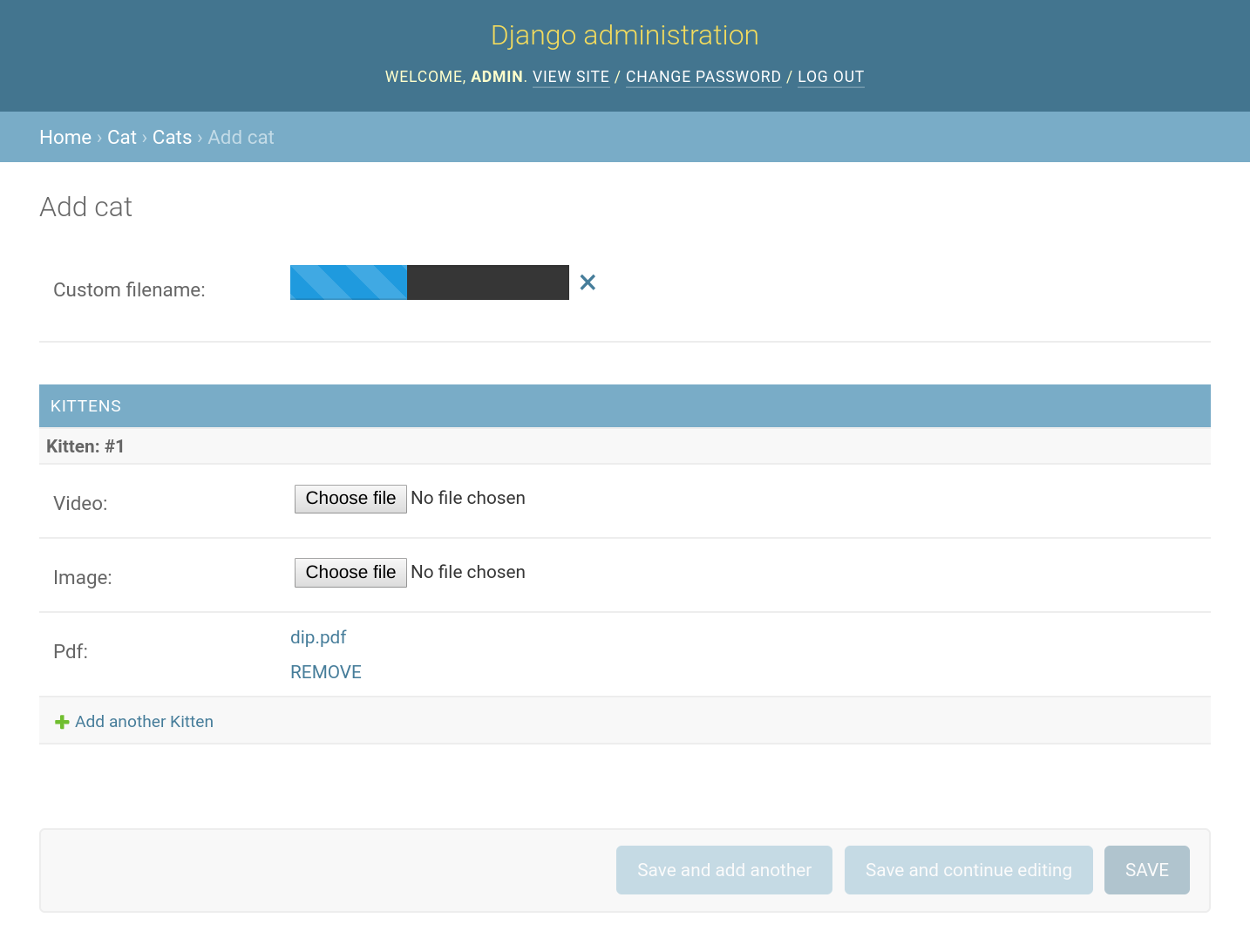
Add direct uploads to AWS S3 functionality with a progress bar to file input fields.
Install with Pip:
pip install django-s3direct
With 1.0.0 supporting multipart-upload, most of the internals have been
changed, a new endpoint has been added, and support has been dropped for
old style positional settings. There are also new requirements to allow
GET and HEAD cross-origin requests to S3, as well as
the ETAG header. Django compatibility has been raised to >=1.8.
If you used any of these features or relied on the previous behaviour,
it's recommended that you pin django-s3direct to <1.0 until you
can test the new version in your project:
pip install 'django-s3direct <1.0'You have two options of providing access to AWS resources:
- Add credentials of an IAM user to your Django settings (see below)
- Use the EC2 instance profile and its attached IAM role
Whether you are using an IAM user or a role, there needs to be an IAM policy in effect that grants permission to upload to S3:
"Statement": [
{
"Effect": "Allow",
"Action": [
"s3:GetObject",
"s3:PutObject",
"s3:PutObjectAcl",
"s3:ListMultipartUploadParts",
"s3:AbortMultipartUpload"
],
"Resource": "arn:aws:s3:::your-bucket-name/*"
}
]
If the instance profile is to be used, the IAM role needs to have a Trust Relationship configuration applied:
"Statement": [
{
"Effect": "Allow",
"Principal": {
"Service": "ec2.amazonaws.com"
},
"Action": "sts:AssumeRole"
}
]
Note that in order to use the EC2 instance profile, django-s3direct needs
to query the EC2 instance metadata using utility functions from the
botocore [] package. You already have botocore installed if boto3
is a dependency of your project.
Setup a CORS policy on your S3 bucket.
<CORSConfiguration>
<CORSRule>
<AllowedOrigin>http://yourdomain.com:8080</AllowedOrigin>
<AllowedMethod>GET</AllowedMethod>
<AllowedMethod>HEAD</AllowedMethod>
<AllowedMethod>PUT</AllowedMethod>
<AllowedMethod>POST</AllowedMethod>
<MaxAgeSeconds>3000</MaxAgeSeconds>
<ExposeHeader>ETag</ExposeHeader>
<AllowedHeader>*</AllowedHeader>
</CORSRule>
</CORSConfiguration>INSTALLED_APPS= [
...
's3direct',
...
]
TEMPLATES= [{
...
'APP_DIRS': True,
...
}]
# AWS# If these are not defined, the EC2 instance profile and IAM role are used.# This requires you to add boto3 (or botocore, which is a dependency of boto3)# to your project dependencies.AWS_ACCESS_KEY_ID=''AWS_SECRET_ACCESS_KEY=''AWS_STORAGE_BUCKET_NAME=''# The region of your bucket, more info:# http://docs.aws.amazon.com/general/latest/gr/rande.html#s3_regionS3DIRECT_REGION='us-east-1'# Destinations, with the following keys:## key [required] Where to upload the file to, can be either:# 1. '/' = Upload to root with the original filename.# 2. 'some/path' = Upload to some/path with the original filename.# 3. functionName = Pass a function and create your own path/filename.# key_args [optional] Arguments to be passed to 'key' if it's a function.# auth [optional] An ACL function to whether the current Django user can perform this action.# allowed [optional] List of allowed MIME types.# acl [optional] Give the object another ACL rather than 'public-read'.# cache_control [optional] Cache control headers, eg 'max-age=2592000'.# content_disposition [optional] Useful for sending files as attachments.# bucket [optional] Specify a different bucket for this particular object.# server_side_encryption [optional] Encryption headers for buckets that require it.S3DIRECT_DESTINATIONS= {
'example_destination': {
# REQUIRED'key': 'uploads/images',
# OPTIONAL'auth': lambdau: u.is_staff, # Default allow anybody to upload'allowed': ['image/jpeg', 'image/png', 'video/mp4'], # Default allow all mime types'bucket': 'pdf-bucket', # Default is 'AWS_STORAGE_BUCKET_NAME''acl': 'private', # Defaults to 'public-read''cache_control': 'max-age=2592000', # Default no cache-control'content_disposition': 'attachment', # Default no content disposition'content_length_range': (5000, 20000000), # Default allow any size'server_side_encryption': 'AES256', # Default no encryption
},
'example_other': {
'key': lambdafilename, args: args+'/'+filename,
'key_args': 'uploads/images', # Only if 'key' is a function
}
}urlpatterns= [
url(r'^s3direct/', include('s3direct.urls')),
]Run python manage.py collectstatic if required.
fromdjango.dbimportmodelsfroms3direct.fieldsimportS3DirectFieldclassExample(models.Model):
video=S3DirectField(dest='example_destination')fromdjangoimportformsfroms3direct.widgetsimportS3DirectWidgetclassS3DirectUploadForm(forms.Form):
images=forms.URLField(widget=S3DirectWidget(dest='example_destination'))*Optional. You can modify the HTML of the widget by overiding template s3direct/templates/s3direct-widget.tpl
fromdjango.views.genericimportFormViewfrom .formsimportS3DirectUploadFormclassMyView(FormView):
template_name='form.html'form_class=S3DirectUploadForm<html><head><metacharset="utf-8"><title>s3direct</title>
{{ form.media }}
</head><body><formaction="" method="post">{% csrf_token %}
{{ form.as_p }}
</form></body></html>Examples of both approaches can be found in the examples folder. To run them:
$ git clone git@github.com:bradleyg/django-s3direct.git
$ cd django-s3direct
$ python setup.py install
$ cd example
# Add your AWS keys to your environmentexport AWS_ACCESS_KEY_ID='…'export AWS_SECRET_ACCESS_KEY='…'export AWS_STORAGE_BUCKET_NAME='…'export S3DIRECT_REGION='…'# e.g. 'eu-west-1'
$ python manage.py migrate
$ python manage.py createsuperuser
$ python manage.py runserver 0.0.0.0:5000
Visit http://localhost:5000/admin to view the admin widget and http://localhost:5000/form to view the custom form widget.