
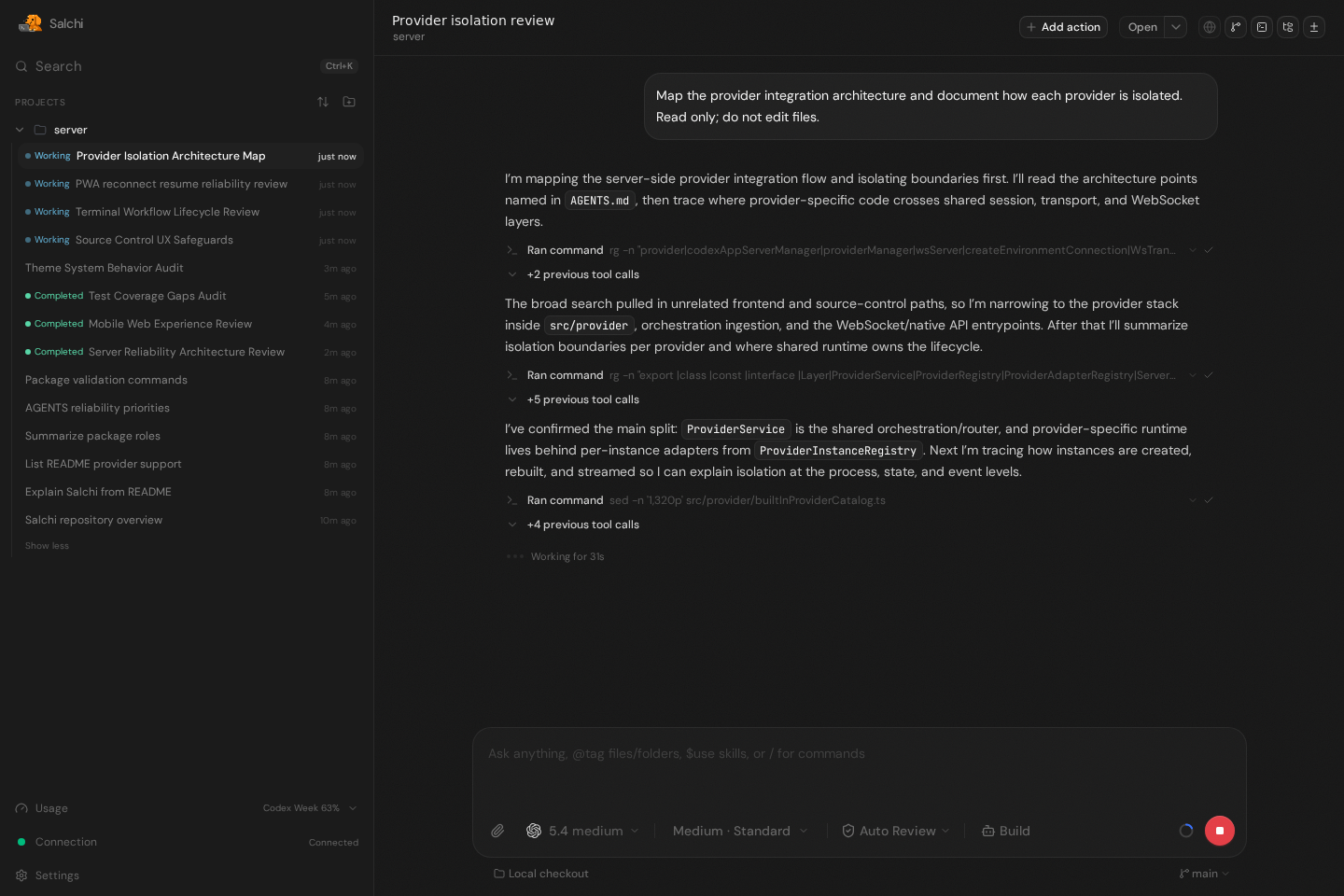
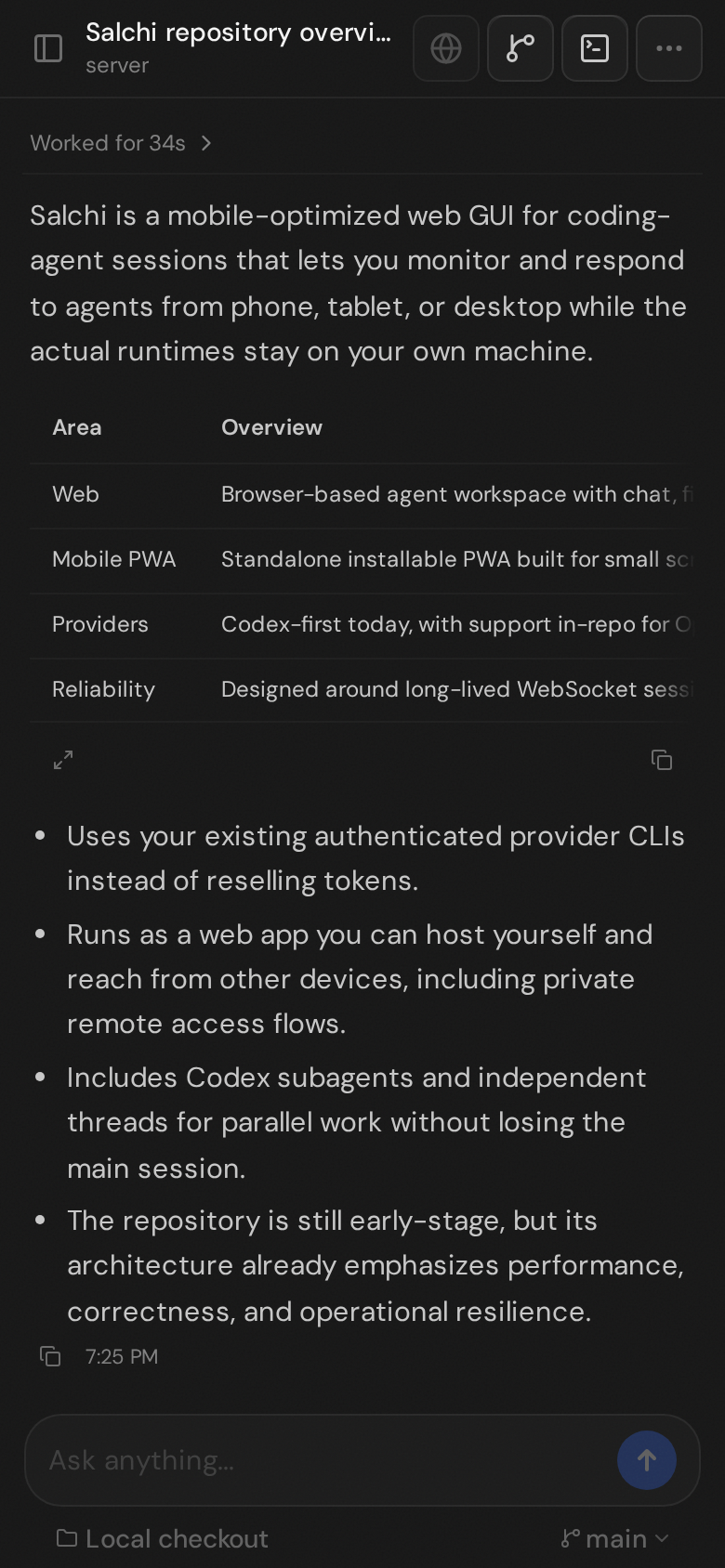
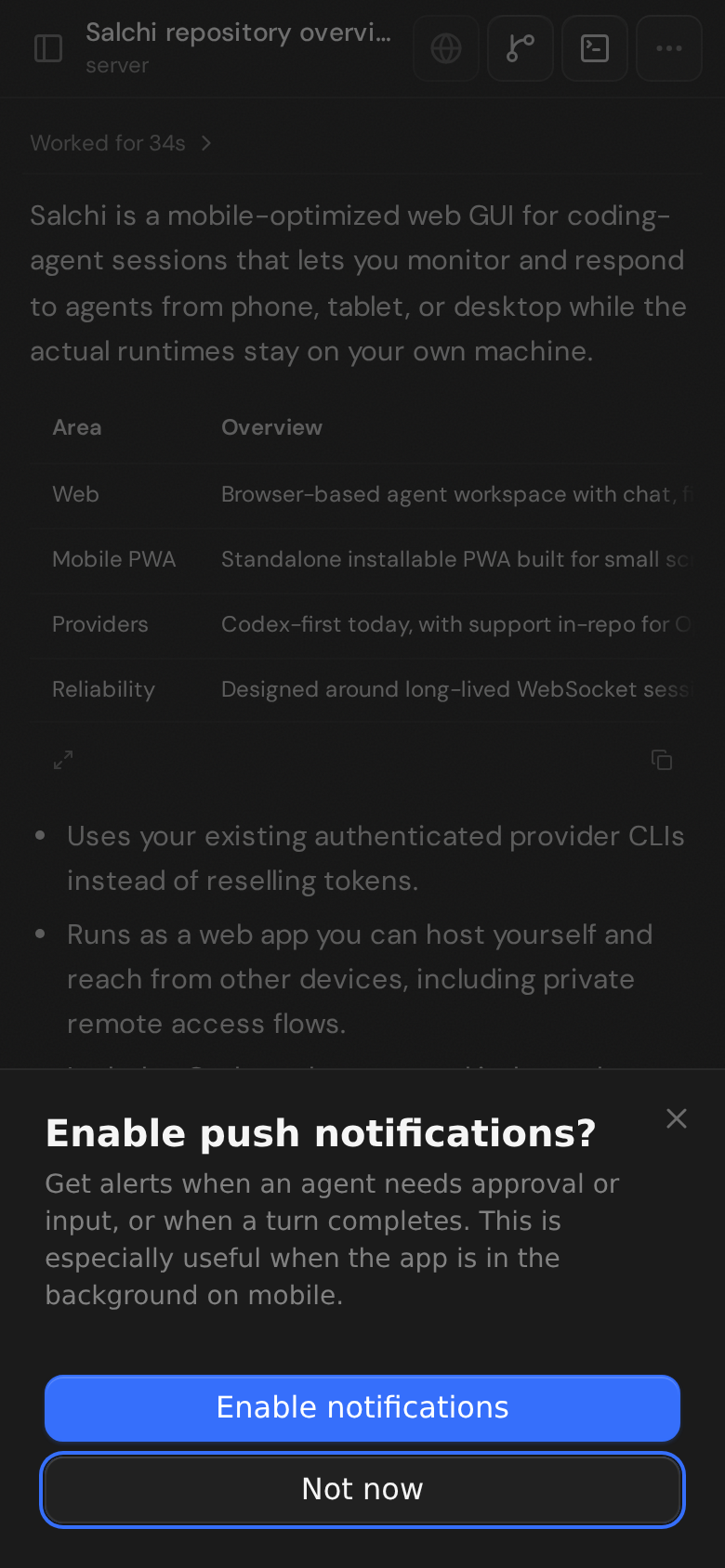
Salchi is a mobile-optimized web GUI for keeping up with coding-agent sessions from your phone, tablet, or desktop. It currently supports OpenAI/Codex, Claude, Cursor, and OpenCode, with more providers coming soon. Bring the AI subscriptions you already use; Salchi connects to your authenticated provider CLIs instead of reselling tokens.
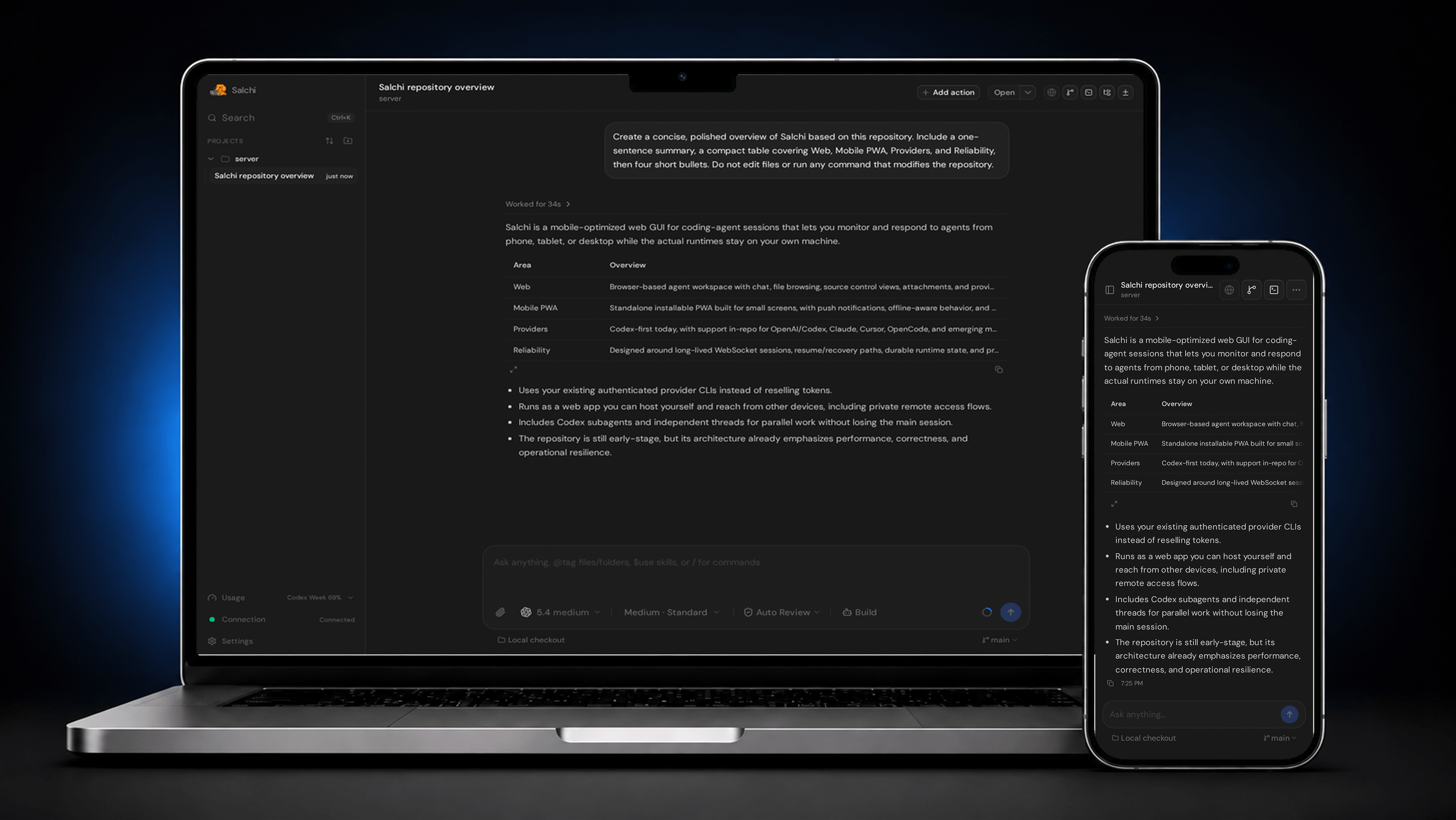
salchi-demo2.mp4
Salchi focuses on mobile-first agent consumption:
- A mobile-optimized PWA for checking in on coding-agent sessions, reading progress, and responding while away from your main machine.
- A web agent GUI you can run from your own VPS or Mac, then access from your phone, tablet, or desktop while keeping the agent runtime on the machine with your projects.
That makes Salchi useful when you want:
- Use your existing AI subscriptions for Codex, Claude, Cursor, or OpenCode instead of paying for a separate token bundle.
- Private remote access through
npx salchi@latest, the desktop app, or Tailscale Serve without exposing your editor to the public internet. - One web surface for many providers, including Claude, OpenAI/Codex, Cursor, and OpenCode.
- Built-in file explorer for browsing project files alongside agent sessions.
- Source control views for reviewing local changes without switching tools.
- Codex subagents for splitting focused work out from the main conversation.
- Independent threads for running separate AI loops while keeping your current session intact.
- PDF attachments for asking agents to inspect specs, reports, and other documents.
- Codex chat image generation for creating visual assets from the same conversation surface.
- PWA push notifications for agent activity. On mobile, install Salchi to the Home Screen first so notifications can work.
- Local microphone dictation powered by
whisper.cpp, with selectable Tiny, Base, and Small English models so you can balance transcription accuracy against CPU and memory use on your VPS or computer. On supported Linux hosts,whisper.cppand the selected model install automatically in the background. - Mobile-first PWA polish for coding-agent workflows that need to stay useful on small screens.
Warning
Salchi currently supports OpenAI/Codex, Claude, Cursor, and OpenCode. Install and authenticate at least one provider before use:
- OpenAI/Codex: install Codex CLI and run
codex login - Claude: install Claude Code and run
claude auth login - Cursor: install and authenticate the Cursor agent CLI
- OpenCode: install OpenCode and run
opencode auth login
Requires Node.js ^22.16, ^23.11, or >=24.10.
npx --yes salchi@latestSalchi stays attached to the terminal and prints a pairing URL. Open that URL in your browser.
Use this when you want to run Salchi on your Mac and access it privately from your phone, tablet, or another computer. This uses Tailscale Serve, not Funnel, so the URL stays inside your tailnet.
- Create a Tailscale account at tailscale.com/start. This creates your private tailnet.
- Install Tailscale on the Mac that will run Salchi and on each device that should open it, then sign in to the same account on all devices.
- In the Tailscale DNS settings, keep MagicDNS enabled and enable HTTPS certificates.
- Install and authenticate at least one provider CLI from the warning above on the Mac.
- Open Terminal on the Mac, change into the project you want Salchi to manage, and confirm Tailscale is connected:
cd ~/projects/my-app
tailscale status- Start a headless Salchi server and keep macOS awake while it is running:
caffeinate -ims npx salchi@latest serve --tailscale-serve --port 4888Salchi prints a pairing URL like:
https://your-mac.your-tailnet.ts.net/pair#token=...
Open that URL from another device signed into the same tailnet.
- Optional: To enable PWA push notifications, follow Tailscale Serve for PWA Push Notifications.
Use a non-default Tailscale HTTPS port with:
caffeinate -ims npx salchi@latest serve \
  --tailscale-serve \
  --tailscale-serve-port 8443 \
  --port 4888
Stop the default Tailscale Serve route afterward with:
tailscale serve --https=443 offIf you used --tailscale-serve-port 8443, stop that route with
tailscale serve --https=8443 off.
caffeinate keeps macOS awake while Salchi is running, but it will not reliably keep a Mac awake with the lid closed. Keep the lid open, or use clamshell mode with power connected and an external display, keyboard, and mouse.
Install the latest version of the desktop app from GitHub Releases.
Salchi can run one server-owned, headless Chromium session per thread. The user and supported coding agents share that browser, so agent navigation is visible in the Browser panel and the user can take over for logins, captchas, and other manual steps. Browser use is optional; the rest of Salchi continues to work if no browser is installed.
No browser setup command is normally required. The first time an owner starts
the Browser view on a server with no usable Chrome or Chromium, Salchi offers
two managed variants and shows install progress. Chromium headless shell is
the lightweight default and installs under $SALCHI_HOME/browsers; Google
Chrome is larger but more compatible with sites that block automation. The
session starts automatically when installation finishes. Agent-triggered
browser use surfaces the same setup requirement in the Browser view instead of
silently failing.
The VPS needs outbound HTTPS access for the one-time download, enough disk
space for the browser and persistent profiles, and Chromium's normal Linux
shared libraries. The Chromium sandbox is enabled by default, so the host must
also support it. The default headless-shell download stays inside SALCHI_HOME
and never uses sudo. Playwright installs branded Chrome as an operating-system
application: on supported Linux x64 hosts Salchi shows the exact elevated
command and a Check again button instead of running it; Playwright does not
provide branded Chrome for Linux Arm64. If shared libraries are missing, Salchi
likewise shows one distro-appropriate apt or dnf command.
| Managed variant | Approx. disk use | Detectability / compatibility | Linux root requirement |
|---|---|---|---|
| Chromium headless shell | ~180 MB | Lightweight default; most detectable | None for the download |
| Google Chrome | ~350 MB | Better site compatibility and captcha pass rates | Required for Playwright's system-package install on supported x64 distributions |
For difficult sites, use the Google Chrome variant together with
browserStealthMode, or point SALCHI_BROWSER_PATH at your own branded Chrome.
Changing variants keeps the unselected installation; remove it manually if you
no longer need it.
For headless provisioning or scripts, the same installer is available through:
salchi browser install --yesWithout --yes, the CLI asks for confirmation and prints terminal progress.
When running without a global installation, replace salchi with
npx --yes salchi@latest.
If you prefer a system browser, install Chrome, Chromium, or Edge on the machine running Salchi, or provide an explicit executable:
SALCHI_BROWSER_PATH=/usr/bin/chromium npx --yes salchi@latestAt launch Salchi tries, in order:
SALCHI_BROWSER_PATH;- the
browserExecutablePathserver setting; - Playwright's
chrome,chromium, andmsedgesystem channels; then - the Salchi-managed browser under
$SALCHI_HOME/browsers.
If every attempt fails, the typed error lists every attempted path/channel. The rest of Salchi and provider sessions continue to work while browser setup is unavailable or an installation is canceled.
Browser agent access is enabled by default and is registered automatically for supported provider processes. The browser starts lazily when an agent first uses it, or an owner can open Browser from a thread's right panel and select Start.
Server settings are stored in $SALCHI_HOME/userdata/settings.json (by default
~/.salchi/userdata/settings.json); restart Salchi after editing them.
browserIdleTimeout is stored in milliseconds. The client preview setting is
available under Settings and is stored per device. Environment variables
must be set on the Salchi server process.
| Name | Default | Effect |
|---|---|---|
browserAgentAccessEnabled |
true |
Automatically gives supported local provider sessions the shared browser MCP and proxy; disabling it leaves owner-operated Browser controls available. |
browserExecutablePath |
empty | Selects an explicit browser executable after SALCHI_BROWSER_PATH and before system channels or the managed install. |
browserIdleTimeout |
15 minutes (900000 ms) |
Stops Chromium after this much inactivity only when no viewport subscriber or agent proxy is attached. |
browserScreencastQuality |
45 |
Sets JPEG viewport quality from 0 through 100. |
browserScreencastEveryNthFrame |
2 |
Captures every Nth compositor frame (1–60); recent manual input temporarily boosts capture to every frame. |
browserViewportFollowsPanel |
true |
Sizes the page to the largest visible full Browser panel; disabling it keeps the default 800×600 viewport. |
browserStealthMode |
false |
Enables best-effort automation-fingerprint reduction; it does not guarantee captcha avoidance. |
browserKillRogueBrowsers |
false |
When enabled, terminates external Chromium trees launched by provider processes; detection still warns when disabled. |
browserManagedVariant |
"headless-shell" |
Selects the managed candidate and install-card default: lightweight Chromium headless shell or branded "chrome". |
Show browser preview while agent browses (showBrowserAgentPreview) |
true |
Shows the device-local, view-only auto-PiP while the current thread's agent is using the browser. |
SALCHI_BROWSER_PATH |
unset | Highest-priority path to Chrome or Chromium. |
SALCHI_BROWSER_NO_SANDBOX |
unset | Set to 1 only when the host cannot run Chromium's sandbox; Salchi logs a security warning. |
SALCHI_BROWSER_STREAM_DEBUG |
unset | Set to 1 to log browser stream, input, frame-pipeline, and event-loop timing at debug level. |
SALCHI_BROWSER_CDP_URL is not a user setting: Salchi generates and injects
that per-session capability automatically. Browser integration and benchmark
environment variables are test-only.
All browser state, frames, and controls require the owner-only
browser:operate scope. A client-role device may still see the Browser entry,
but opening it shows Owner access required. It cannot receive browser
state, tabs, frames, or the agent PiP, and it cannot start, stop, navigate, or
send input. Normal chat access is unaffected. These checks are enforced by the
server for both RPCs and the viewport WebSocket, not only by the UI.
In the full Browser panel, the first click or tap on the viewport enables interaction and forwards that same gesture. Interaction resets whenever the panel hides.
- Desktop: click, double-click, click-drag, and use the mouse wheel normally. Once the canvas is focused, keyboard input goes to the page.
- Mobile: a quick tap clicks, a double-tap double-clicks, and a one-finger drag scrolls. Hold for about 450 ms before moving to click-drag. After tapping the viewport, use the keyboard button for text, Enter, and Backspace.
The page viewport follows the full panel's available canvas area, including a portrait viewport on a phone. Resizes settle for half a second before applying; the PiP never changes page size. If the agent is actively driving the page, the latest requested size waits until that activity finishes so automation is not disrupted mid-command. Disable Fit browser viewport to panel in Settings to keep the browser at 800×600.
When the agent starts browsing and the full panel is closed, the view-only PiP appears over the chat. Tap its viewport to open the Browser panel. Close it to suppress it for the rest of the current agent-activity burst; it may appear again on the next burst. The PiP lingers briefly after activity ends, is draggable, and is resizable on desktop. Disable it with Show browser preview while agent browses in Settings.
List persistent browser profiles whose threads no longer exist:
salchi browser prune-profilesReview the list, then delete those profiles explicitly:
salchi browser prune-profiles --confirmProfile pruning never deletes the managed browser in
$SALCHI_HOME/browsers; it only affects orphaned per-thread profile data.
When running without a global installation, replace salchi with
npx --yes salchi@latest.
- Browser access assumes a single-user host. The agent proxy uses a loopback bearer capability; another OS user who can read a provider process's environment or steal that capability can control the browser. See the browser security model.
- Each root thread has a persistent profile under
~/.salchi/userdata/browser-profiles/. Cookies and logins survive browser and server restarts until the thread is deleted. Stopping Chromium does not clear them; thread deletion does, andprune-profilesremoves orphaned profiles.
We are very very early in this project. Expect bugs.
We are not accepting contributions yet.
Observability guide: docs/observability.md
Local dictation guide: docs/local-dictation.md
Before local development, prepare the environment and install dependencies:
# Optional: only needed if you use mise for dev tool management.
mise install
pnpm install --frozen-lockfile
Common development commands:
pnpm dev
pnpm dev:desktop
pnpm build
pnpm start
Repository quality checks use Vite+ directly:
vp fmt --check
vp lint --report-unused-disable-directives
vp run typecheck
vp run test
Read CONTRIBUTING.md before opening an issue or PR.