UnityEngineAnalyzer is a set of Roslyn analyzers that aim to detect common problems in Unity3D C# code. Unity3D makes it easy for us to make cross platform games, but there are hidden rules about performance and AOT, which might only come with experience, testing or reading the forums. It is hoped that such problems can be caught before compilation.
| Analyzer | Name | Gategory | Severity |
|---|---|---|---|
| UEA0001 | DoNotUseOnGUI | GC | Info |
| UEA0002 | DoNotUseStringMethods | GC | Info |
| UEA0003 | EmptyMonoBehaviourMethod | Miscellaneous | Warning |
| UEA0004 | UseCompareTag | GC | Warning |
| UEA0005 | DoNotUseFindMethodsInUpdate | Performance | Warning |
| UEA0006 | DoNotUseCoroutines | GC | Info |
| UEA0007 | DoNotUseForEachInUpdate | Performance | Warning |
| UEA0008 | UnsealedDerivedClass | Performance | Warning |
| UEA0009 | InvokeFunctionMissing | Performance | Warning |
| UEA0010 | DoNotUseStateNameInAnimator | Performance | Warning |
| UEA0011 | DoNotUseStringPropertyNames | Performance | Warning |
| UEA0012 | CameraMainIsSlow | GC | Warning |
| UEA0013 | UseNonAllocMethods | GC | Warning |
| UEA0014 | AudioSourceMuteUsesCPU | Performance | Info |
| UEA0015 | InstantiateTakeParent | Performance | Warning |
| -------------------------------------- | ---------------------------- | --------------- | ----------- |
| AOT0001 | DoNotUseRemoting | AOT | Info |
| AOT0002 | DoNotUseReflectionEmit | AOT | Info |
| AOT0003 | TypeGetType | AOT | Info |
CLI requires .NET Core 2.1
dotnet publish -c Release -r win10-x64
or
dotnet publish -c Release -r ubuntu.16.10-x64
In order to use the Command Line Interface (CLI), download the latest release of UnityEngineAnalyzer then unzip the archive (https://github.com/vad710/UnityEngineAnalyzer/releases).
- Open a Command Prompt or Powershell Window
- Run
Linty.CLI.exe <project path> - Observe the analysis results
- (Optional) In the same location as the project file are
report.jsonandUnityReport.htmlfiles containing the results of the analysis- Use command
-e customexporter exporter2 ...to load custom exporters
- Use command
- (Optional) configuration file path.
- Use command
-c configureFilePath.jsonto load custom configurations - Configuration json, allows to enable / disable analyzers
- Use command
- (Optional) minimal severity for reports
- Use command
-s Info/Warning/Errorto defined used minimal severity for reporting - Default is Warning
- Use command
- (Optional) Unity version for check
- Use command
-v UNITY_2017_1/UNITY_5_5/UNITY_4_0/...to Unity version - For default analyzer will try to find ProjectVersion.txt file and parse version automatically.
- Use command
Example:
> Linty.CLI.exe C:\Code\MyGame.CSharp.csproj
In Visual Studio 2017, go to Tools > Nuget Package Manager > Manage Nuget Packages for Solution.... Search for and install UnityEngineAnalyzer
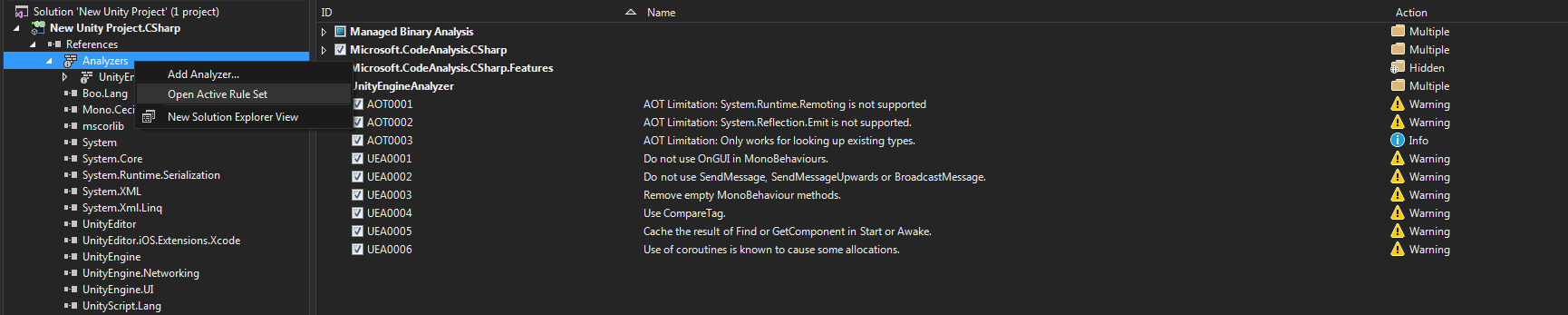
Under projects right-click Analyzers to modify the severity or to disable the rule completely.
- HTML Report requires FireFox or XOR (Corss Origin Request) enabled in other browsers
- It doesn't have rules for all of Mono's AOT Limitations
- IL2CPP might change the limitations of AOT compilation
See LICENSE