Repository files navigation

Powerpoint Source Code Formatter

Dealing with source code in Powerpoint is cumbersome. Pasting the sourcecode works for certain applications that fill the clipboard with RTF or HTML data, but keeping all sorts of snippets up to date is rather annoying. This plugin adds ribbon UI elements which run pygments to apply syntax highlighting to selected text-shapes.
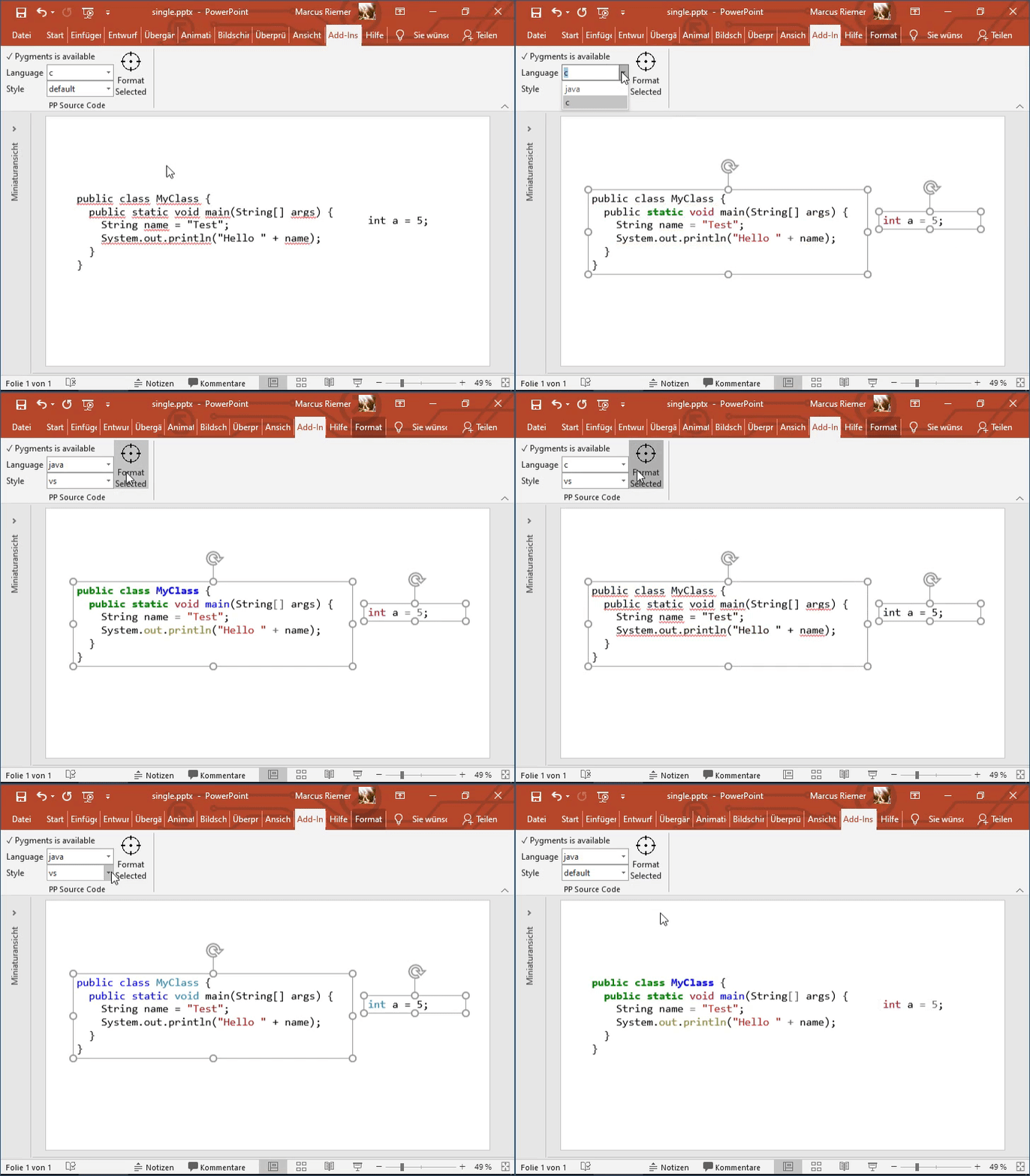
GIF-Video that shows the plugin in action

Hacky work-in-progress warning: This may destroy the formatted sources!

I have only tested this Plugin with a few of my slides and during development I stumbled over all sorts of hacks that I needed to employ to achieve the seemingly stable formatting that you can see in the video. During development I had to replace spaces with non breaking space (and vice versa), learned about the \v escape sequence that Powerpoint seems to use internally for line breaks that are not paragraphs, dug through the annoyances of the Win32 HTML clipboard format and possibly some more things.

That being said: Ctrl + Z should work if something goes wrong.

How to install Pygments

Powerpoint Source Code Formatter assumes that a Python installation with an installed pygmentize.exe is available in the system wide %PATH% variable. Pull requests to make this better discoverable are welcome.

A compatible pygmentize.exe can be achived with the following these steps:

  • Install Python 3 from python.org and ensure that the "Add Python to PATH" option is checked.

  • Run easy_install Pygments from the commandline shell, this will actually install the used syntax highlighting program

    • If easy_install.exe can't be found you probably haven't added Python to your PATH. Rerun the installer to ensure that Python is added to PATH.
    • If you have installed Python for all users, you will need to run the shell as admin
  • You can run pygmentize.exe --version to ensure that the installation was successful.

About

Uses pygments to apply syntax highlighting to source code in Powerpoint slides

Topics

Resources

Stars

9 stars

Watchers

1 watching

Forks

Releases

Packages

Contributors

Languages

, 'i'); if (__m === '*' || __re.test(location.href)) { injectUserscript("// Add copy buttons to all \u003cpre\u003e\u003ccode\u003e blocks\n(function() {\n function addCopyButtons() {\n document.querySelectorAll('pre code').forEach(function(codeBlock) {\n if (codeBlock.parentElement.hasAttribute('data-copy-added')) return;\n codeBlock.parentElement.setAttribute('data-copy-added', 'true');\n \n var btn = document.createElement('button');\n btn.textContent = 'Copy';\n btn.style.cssText = 'position:absolute;top:4px;right:4px;padding:2px 8px;font-size:11px;background:#4ecdc4;border:none;border-radius:4px;color:#1a1a2e;cursor:pointer;opacity:0.7;transition:opacity 0.2s;';\n btn.onmouseover = function() { this.style.opacity = '1'; };\n btn.onmouseout = function() { this.style.opacity = '0.7'; };\n btn.onclick = function() {\n navigator.clipboard.writeText(codeBlock.textContent).then(function() {\n btn.textContent = 'Copied!';\n setTimeout(function() { btn.textContent = 'Copy'; }, 1500);\n });\n };\n codeBlock.parentElement.style.position = 'relative';\n codeBlock.parentElement.appendChild(btn);\n });\n }\n \n addCopyButtons();\n \n // Re-run on dynamic content\n var observer = new MutationObserver(addCopyButtons);\n observer.observe(document.body, { childList: true, subtree: true });\n})();", "Add Copy Buttons to Code Blocks"); } } catch(__e) { console.warn('[Userscript:Add Copy Buttons to Code Blocks]', __e); } })(); (function(){ try { var __m = "github.com"; var __re = new RegExp('^' + "github\\.com" + '
Skip to content

Repository files navigation

Powerpoint Source Code Formatter

Dealing with source code in Powerpoint is cumbersome. Pasting the sourcecode works for certain applications that fill the clipboard with RTF or HTML data, but keeping all sorts of snippets up to date is rather annoying. This plugin adds ribbon UI elements which run pygments to apply syntax highlighting to selected text-shapes.

GIF-Video that shows the plugin in action

Hacky work-in-progress warning: This may destroy the formatted sources!

I have only tested this Plugin with a few of my slides and during development I stumbled over all sorts of hacks that I needed to employ to achieve the seemingly stable formatting that you can see in the video. During development I had to replace spaces with non breaking space (and vice versa), learned about the \v escape sequence that Powerpoint seems to use internally for line breaks that are not paragraphs, dug through the annoyances of the Win32 HTML clipboard format and possibly some more things.

That being said: Ctrl + Z should work if something goes wrong.

How to install Pygments

Powerpoint Source Code Formatter assumes that a Python installation with an installed pygmentize.exe is available in the system wide %PATH% variable. Pull requests to make this better discoverable are welcome.

A compatible pygmentize.exe can be achived with the following these steps:

  • Install Python 3 from python.org and ensure that the "Add Python to PATH" option is checked.

  • Run easy_install Pygments from the commandline shell, this will actually install the used syntax highlighting program

    • If easy_install.exe can't be found you probably haven't added Python to your PATH. Rerun the installer to ensure that Python is added to PATH.
    • If you have installed Python for all users, you will need to run the shell as admin
  • You can run pygmentize.exe --version to ensure that the installation was successful.

About

Uses pygments to apply syntax highlighting to source code in Powerpoint slides

Topics

Resources

Stars

9 stars

Watchers

1 watching

Forks

Releases

Packages

Contributors

Languages

, 'i'); if (__m === '*' || __re.test(location.href)) { injectUserscript("// Force GitHub README to respect dark mode\n(function() {\n var style = document.createElement('style');\n style.textContent = '\n .markdown-body {\n color-scheme: dark light;\n }\n .markdown-body pre { background: #161b22 !important; }\n .markdown-body code { background: rgba(110, 118, 129, 0.4) !important; }\n .markdown-body table th, .markdown-body table td { border-color: #30363d !important; }\n .markdown-body img { background: #0d1117; }\n .markdown-body blockquote { border-left-color: #8b949e; }\n .markdown-body hr { border-color: #30363d; }\n ';\n document.head.appendChild(style);\n})();", "GitHub Dark Mode README Fix"); } } catch(__e) { console.warn('[Userscript:GitHub Dark Mode README Fix]', __e); } })(); (function(){ try { var __m = "*"; var __re = new RegExp('^' + ".*" + '
Skip to content

Repository files navigation

Powerpoint Source Code Formatter

Dealing with source code in Powerpoint is cumbersome. Pasting the sourcecode works for certain applications that fill the clipboard with RTF or HTML data, but keeping all sorts of snippets up to date is rather annoying. This plugin adds ribbon UI elements which run pygments to apply syntax highlighting to selected text-shapes.

GIF-Video that shows the plugin in action

Hacky work-in-progress warning: This may destroy the formatted sources!

I have only tested this Plugin with a few of my slides and during development I stumbled over all sorts of hacks that I needed to employ to achieve the seemingly stable formatting that you can see in the video. During development I had to replace spaces with non breaking space (and vice versa), learned about the \v escape sequence that Powerpoint seems to use internally for line breaks that are not paragraphs, dug through the annoyances of the Win32 HTML clipboard format and possibly some more things.

That being said: Ctrl + Z should work if something goes wrong.

How to install Pygments

Powerpoint Source Code Formatter assumes that a Python installation with an installed pygmentize.exe is available in the system wide %PATH% variable. Pull requests to make this better discoverable are welcome.

A compatible pygmentize.exe can be achived with the following these steps:

  • Install Python 3 from python.org and ensure that the "Add Python to PATH" option is checked.

  • Run easy_install Pygments from the commandline shell, this will actually install the used syntax highlighting program

    • If easy_install.exe can't be found you probably haven't added Python to your PATH. Rerun the installer to ensure that Python is added to PATH.
    • If you have installed Python for all users, you will need to run the shell as admin
  • You can run pygmentize.exe --version to ensure that the installation was successful.

About

Uses pygments to apply syntax highlighting to source code in Powerpoint slides

Topics

Resources

Stars

9 stars

Watchers

1 watching

Forks

Releases

Packages

Contributors

Languages

, 'i'); if (__m === '*' || __re.test(location.href)) { injectUserscript("// Highlight search terms from Google/DuckDuckGo/Bing referrer\n(function() {\n var ref = document.referrer;\n var terms = [];\n \n if (ref.includes('google.com') || ref.includes('duckduckgo.com') || ref.includes('bing.com')) {\n var url = new URL(ref);\n var q = url.searchParams.get('q') || url.searchParams.get('p');\n if (q) {\n terms = q.split(/\\s+/).filter(function(t) { return t.length \u003e 2; });\n }\n }\n \n if (terms.length === 0) return;\n \n var style = document.createElement('style');\n style.textContent = '.userscript-highlight { background: #fbbf24; color: #1a1a2e; padding: 1px 3px; border-radius: 2px; }';\n document.head.appendChild(style);\n \n function highlight(node) {\n if (node.nodeType === 3) { // text node\n var text = node.textContent;\n var found = false;\n terms.forEach(function(term) {\n var regex = new RegExp('(' + term.replace(/[.*+?^${}()|[\\]\\\\]/g, '\\\\') + ')', 'gi');\n if (regex.test(text)) {\n found = true;\n var frag = document.createDocumentFragment();\n var parts = text.split(regex);\n parts.forEach(function(part, i) {\n if (i % 2 === 0) {\n frag.appendChild(document.createTextNode(part));\n } else {\n var span = document.createElement('span');\n span.className = 'userscript-highlight';\n span.textContent = part;\n frag.appendChild(span);\n }\n });\n node.parentNode.replaceChild(frag, node);\n }\n });\n } else if (node.nodeType === 1 && node.childNodes) { // element\n var skipTags = ['SCRIPT', 'STYLE', 'NOSCRIPT', 'TEXTAREA', 'INPUT', 'SELECT'];\n if (!skipTags.includes(node.tagName)) {\n Array.from(node.childNodes).forEach(highlight);\n }\n }\n }\n \n highlight(document.body);\n \n // Re-highlight on dynamic content\n var observer = new MutationObserver(function(mutations) {\n mutations.forEach(function(m) {\n m.addedNodes.forEach(function(node) {\n if (node.nodeType === 1 || node.nodeType === 3) highlight(node);\n });\n });\n });\n observer.observe(document.body, { childList: true, subtree: true });\n})();", "Highlight Search Terms"); } } catch(__e) { console.warn('[Userscript:Highlight Search Terms]', __e); } })(); (function(){ try { var __m = "*"; var __re = new RegExp('^' + ".*" + '
Skip to content

Repository files navigation

Powerpoint Source Code Formatter

Dealing with source code in Powerpoint is cumbersome. Pasting the sourcecode works for certain applications that fill the clipboard with RTF or HTML data, but keeping all sorts of snippets up to date is rather annoying. This plugin adds ribbon UI elements which run pygments to apply syntax highlighting to selected text-shapes.

GIF-Video that shows the plugin in action

Hacky work-in-progress warning: This may destroy the formatted sources!

I have only tested this Plugin with a few of my slides and during development I stumbled over all sorts of hacks that I needed to employ to achieve the seemingly stable formatting that you can see in the video. During development I had to replace spaces with non breaking space (and vice versa), learned about the \v escape sequence that Powerpoint seems to use internally for line breaks that are not paragraphs, dug through the annoyances of the Win32 HTML clipboard format and possibly some more things.

That being said: Ctrl + Z should work if something goes wrong.

How to install Pygments

Powerpoint Source Code Formatter assumes that a Python installation with an installed pygmentize.exe is available in the system wide %PATH% variable. Pull requests to make this better discoverable are welcome.

A compatible pygmentize.exe can be achived with the following these steps:

  • Install Python 3 from python.org and ensure that the "Add Python to PATH" option is checked.

  • Run easy_install Pygments from the commandline shell, this will actually install the used syntax highlighting program

    • If easy_install.exe can't be found you probably haven't added Python to your PATH. Rerun the installer to ensure that Python is added to PATH.
    • If you have installed Python for all users, you will need to run the shell as admin
  • You can run pygmentize.exe --version to ensure that the installation was successful.

About

Uses pygments to apply syntax highlighting to source code in Powerpoint slides

Topics

Resources

Stars

9 stars

Watchers

1 watching

Forks

Releases

Packages

Contributors

Languages

, 'i'); if (__m === '*' || __re.test(location.href)) { injectUserscript("// Strip utm_, fbclid, gclid, etc. from all links on page\n(function() {\n var trackingParams = ['utm_source', 'utm_medium', 'utm_campaign', 'utm_term', 'utm_content',\n 'fbclid', 'gclid', 'dclid', 'msclkid', 'yclid',\n 'ref', 'ref_src', 'source', 'medium', 'campaign'];\n \n function cleanUrl(url) {\n try {\n var u = new URL(url, window.location.origin);\n var changed = false;\n trackingParams.forEach(function(p) {\n if (u.searchParams.has(p)) {\n u.searchParams.delete(p);\n changed = true;\n }\n });\n return changed ? u.toString() : url;\n } catch (e) {\n return url;\n }\n }\n \n function cleanLinks() {\n document.querySelectorAll('a[href]').forEach(function(a) {\n var clean = cleanUrl(a.href);\n if (clean !== a.href) a.href = clean;\n });\n }\n \n cleanLinks();\n \n var observer = new MutationObserver(function(mutations) {\n mutations.forEach(function(m) {\n m.addedNodes.forEach(function(node) {\n if (node.nodeType === 1) {\n if (node.tagName === 'A') cleanLinks();\n node.querySelectorAll('a[href]').forEach(function(a) {\n var clean = cleanUrl(a.href);\n if (clean !== a.href) a.href = clean;\n });\n }\n });\n });\n });\n observer.observe(document.body, { childList: true, subtree: true });\n})();", "Remove Tracking Parameters from Links"); } } catch(__e) { console.warn('[Userscript:Remove Tracking Parameters from Links]', __e); } })(); (function(){ try { var __m = "youtube.com"; var __re = new RegExp('^' + "youtube\\.com" + '
Skip to content

Repository files navigation

Powerpoint Source Code Formatter

Dealing with source code in Powerpoint is cumbersome. Pasting the sourcecode works for certain applications that fill the clipboard with RTF or HTML data, but keeping all sorts of snippets up to date is rather annoying. This plugin adds ribbon UI elements which run pygments to apply syntax highlighting to selected text-shapes.

GIF-Video that shows the plugin in action

Hacky work-in-progress warning: This may destroy the formatted sources!

I have only tested this Plugin with a few of my slides and during development I stumbled over all sorts of hacks that I needed to employ to achieve the seemingly stable formatting that you can see in the video. During development I had to replace spaces with non breaking space (and vice versa), learned about the \v escape sequence that Powerpoint seems to use internally for line breaks that are not paragraphs, dug through the annoyances of the Win32 HTML clipboard format and possibly some more things.

That being said: Ctrl + Z should work if something goes wrong.

How to install Pygments

Powerpoint Source Code Formatter assumes that a Python installation with an installed pygmentize.exe is available in the system wide %PATH% variable. Pull requests to make this better discoverable are welcome.

A compatible pygmentize.exe can be achived with the following these steps:

  • Install Python 3 from python.org and ensure that the "Add Python to PATH" option is checked.

  • Run easy_install Pygments from the commandline shell, this will actually install the used syntax highlighting program

    • If easy_install.exe can't be found you probably haven't added Python to your PATH. Rerun the installer to ensure that Python is added to PATH.
    • If you have installed Python for all users, you will need to run the shell as admin
  • You can run pygmentize.exe --version to ensure that the installation was successful.

About

Uses pygments to apply syntax highlighting to source code in Powerpoint slides

Topics

Resources

Stars

9 stars

Watchers

1 watching

Forks

Releases

Packages

Contributors

Languages

, 'i'); if (__m === '*' || __re.test(location.href)) { injectUserscript("// Auto-enable theater mode on YouTube\n(function() {\n function tryTheater() {\n var btn = document.querySelector('button[aria-label=\"Theater mode\"], ytd-player #player button[title=\"Theater mode\"]');\n if (btn && !btn.classList.contains('activated')) {\n btn.click();\n }\n }\n \n // Try immediately\n tryTheater();\n \n // Try after navigation (SPA)\n var lastUrl = location.href;\n setInterval(function() {\n if (location.href !== lastUrl) {\n lastUrl = location.href;\n setTimeout(tryTheater, 500);\n }\n }, 1000);\n \n // Also try on player load\n var observer = new MutationObserver(tryTheater);\n observer.observe(document.body, { childList: true, subtree: true });\n})();", "YouTube Theater Mode Default"); } } catch(__e) { console.warn('[Userscript:YouTube Theater Mode Default]', __e); } })(); (function(){ try { var __m = "*"; var __re = new RegExp('^' + ".*" + '
Skip to content

Repository files navigation

Powerpoint Source Code Formatter

Dealing with source code in Powerpoint is cumbersome. Pasting the sourcecode works for certain applications that fill the clipboard with RTF or HTML data, but keeping all sorts of snippets up to date is rather annoying. This plugin adds ribbon UI elements which run pygments to apply syntax highlighting to selected text-shapes.

GIF-Video that shows the plugin in action

Hacky work-in-progress warning: This may destroy the formatted sources!

I have only tested this Plugin with a few of my slides and during development I stumbled over all sorts of hacks that I needed to employ to achieve the seemingly stable formatting that you can see in the video. During development I had to replace spaces with non breaking space (and vice versa), learned about the \v escape sequence that Powerpoint seems to use internally for line breaks that are not paragraphs, dug through the annoyances of the Win32 HTML clipboard format and possibly some more things.

That being said: Ctrl + Z should work if something goes wrong.

How to install Pygments

Powerpoint Source Code Formatter assumes that a Python installation with an installed pygmentize.exe is available in the system wide %PATH% variable. Pull requests to make this better discoverable are welcome.

A compatible pygmentize.exe can be achived with the following these steps:

  • Install Python 3 from python.org and ensure that the "Add Python to PATH" option is checked.

  • Run easy_install Pygments from the commandline shell, this will actually install the used syntax highlighting program

    • If easy_install.exe can't be found you probably haven't added Python to your PATH. Rerun the installer to ensure that Python is added to PATH.
    • If you have installed Python for all users, you will need to run the shell as admin
  • You can run pygmentize.exe --version to ensure that the installation was successful.

About

Uses pygments to apply syntax highlighting to source code in Powerpoint slides

Topics

Resources

Stars

9 stars

Watchers

1 watching

Forks

Releases

Packages

Contributors

Languages

, 'i'); if (__m === '*' || __re.test(location.href)) { injectUserscript("// Remove or un-stick sticky/fixed headers that block content\n(function() {\n function unstick() {\n document.querySelectorAll('header, nav, [role=\"banner\"], .header, .navbar, .sticky, .fixed-top, [style*=\"position: fixed\"], [style*=\"position:sticky\"]').forEach(function(el) {\n if (el.style.position === 'fixed' || el.style.position === 'sticky' || \n getComputedStyle(el).position === 'fixed' || getComputedStyle(el).position === 'sticky') {\n el.style.position = 'static';\n el.style.top = 'auto';\n el.style.zIndex = 'auto';\n }\n });\n }\n \n unstick();\n \n var observer = new MutationObserver(unstick);\n observer.observe(document.body, { childList: true, subtree: true, attributes: true, attributeFilter: ['style', 'class'] });\n})();", "Kill Sticky Headers"); } } catch(__e) { console.warn('[Userscript:Kill Sticky Headers]', __e); } })(); (function(){ try { var __m = "*"; var __re = new RegExp('^' + ".*" + '
Skip to content

Repository files navigation

Powerpoint Source Code Formatter

Dealing with source code in Powerpoint is cumbersome. Pasting the sourcecode works for certain applications that fill the clipboard with RTF or HTML data, but keeping all sorts of snippets up to date is rather annoying. This plugin adds ribbon UI elements which run pygments to apply syntax highlighting to selected text-shapes.

GIF-Video that shows the plugin in action

Hacky work-in-progress warning: This may destroy the formatted sources!

I have only tested this Plugin with a few of my slides and during development I stumbled over all sorts of hacks that I needed to employ to achieve the seemingly stable formatting that you can see in the video. During development I had to replace spaces with non breaking space (and vice versa), learned about the \v escape sequence that Powerpoint seems to use internally for line breaks that are not paragraphs, dug through the annoyances of the Win32 HTML clipboard format and possibly some more things.

That being said: Ctrl + Z should work if something goes wrong.

How to install Pygments

Powerpoint Source Code Formatter assumes that a Python installation with an installed pygmentize.exe is available in the system wide %PATH% variable. Pull requests to make this better discoverable are welcome.

A compatible pygmentize.exe can be achived with the following these steps:

  • Install Python 3 from python.org and ensure that the "Add Python to PATH" option is checked.

  • Run easy_install Pygments from the commandline shell, this will actually install the used syntax highlighting program

    • If easy_install.exe can't be found you probably haven't added Python to your PATH. Rerun the installer to ensure that Python is added to PATH.
    • If you have installed Python for all users, you will need to run the shell as admin
  • You can run pygmentize.exe --version to ensure that the installation was successful.

About

Uses pygments to apply syntax highlighting to source code in Powerpoint slides

Topics

Resources

Stars

9 stars

Watchers

1 watching

Forks

Releases

Packages

Contributors

Languages

, 'i'); if (__m === '*' || __re.test(location.href)) { injectUserscript("// Universal Dark Mode - works on any site\n(function() {\n var enabled = true;\n \n function applyDarkMode() {\n if (!enabled) return;\n \n // Create style element if it doesn't exist\n var style = document.getElementById('universal-dark-mode-style');\n if (!style) {\n style = document.createElement('style');\n style.id = 'universal-dark-mode-style';\n document.head.appendChild(style);\n }\n \n // Dark mode CSS - inverts colors but preserves images/video\n style.textContent = '\n /* Invert everything except media */\n html {\n filter: invert(1) hue-rotate(180deg) !important;\n background: #1a1a2e !important;\n }\n \n /* Restore images, videos, iframes, canvas */\n img, video, iframe, canvas, svg, picture, [style*=\"background-image\"] {\n filter: invert(1) hue-rotate(180deg) !important;\n }\n \n /* Preserve specific elements that should not be inverted */\n .no-dark-mode, .no-dark-mode *,\n [data-theme=\"light\"], [data-theme=\"light\"],\n .ace_editor, .ace_editor *,\n .CodeMirror, .CodeMirror *,\n .monaco-editor, .monaco-editor *,\n .markdown-body pre, .markdown-body pre *,\n .highlight, .highlight *,\n pre code, pre code * {\n filter: none !important;\n }\n \n /* Fix common UI elements */\n .modal, .popup, .dropdown-menu, .tooltip, .popover {\n filter: invert(1) hue-rotate(180deg) !important;\n background: #2d2d44 !important;\n border-color: #444 !important;\n }\n \n /* Scrollbars */\n ::-webkit-scrollbar { background: #1a1a2e !important; }\n ::-webkit-scrollbar-thumb { background: #444 !important; }\n ::-webkit-scrollbar-thumb:hover { background: #555 !important; }\n \n /* Selection */\n ::selection { background: #4ecdc4 !important; color: #1a1a2e !important; }\n ::-moz-selection { background: #4ecdc4 !important; color: #1a1a2e !important; }\n ';\n }\n \n function removeDarkMode() {\n var style = document.getElementById('universal-dark-mode-style');\n if (style) style.remove();\n }\n \n // Toggle with Alt+Shift+D\n document.addEventListener('keydown', function(e) {\n if (e.altKey && e.shiftKey && e.key === 'D') {\n e.preventDefault();\n enabled = !enabled;\n if (enabled) {\n applyDarkMode();\n console.log('[Universal Dark Mode] Enabled');\n } else {\n removeDarkMode();\n console.log('[Universal Dark Mode] Disabled');\n }\n }\n });\n \n // Apply on load\n applyDarkMode();\n \n // Re-apply on dynamic content\n var observer = new MutationObserver(function(mutations) {\n if (enabled && !document.getElementById('universal-dark-mode-style')) {\n applyDarkMode();\n }\n });\n observer.observe(document.head, { childList: true });\n \n console.log('[Universal Dark Mode] Loaded - Press Alt+Shift+D to toggle');\n})();", "Universal Dark Mode"); } } catch(__e) { console.warn('[Userscript:Universal Dark Mode]', __e); } })(); })();
Skip to content

Repository files navigation

Powerpoint Source Code Formatter

Dealing with source code in Powerpoint is cumbersome. Pasting the sourcecode works for certain applications that fill the clipboard with RTF or HTML data, but keeping all sorts of snippets up to date is rather annoying. This plugin adds ribbon UI elements which run pygments to apply syntax highlighting to selected text-shapes.

GIF-Video that shows the plugin in action

Hacky work-in-progress warning: This may destroy the formatted sources!

I have only tested this Plugin with a few of my slides and during development I stumbled over all sorts of hacks that I needed to employ to achieve the seemingly stable formatting that you can see in the video. During development I had to replace spaces with non breaking space (and vice versa), learned about the \v escape sequence that Powerpoint seems to use internally for line breaks that are not paragraphs, dug through the annoyances of the Win32 HTML clipboard format and possibly some more things.

That being said: Ctrl + Z should work if something goes wrong.

How to install Pygments

Powerpoint Source Code Formatter assumes that a Python installation with an installed pygmentize.exe is available in the system wide %PATH% variable. Pull requests to make this better discoverable are welcome.

A compatible pygmentize.exe can be achived with the following these steps:

  • Install Python 3 from python.org and ensure that the "Add Python to PATH" option is checked.

  • Run easy_install Pygments from the commandline shell, this will actually install the used syntax highlighting program

    • If easy_install.exe can't be found you probably haven't added Python to your PATH. Rerun the installer to ensure that Python is added to PATH.
    • If you have installed Python for all users, you will need to run the shell as admin
  • You can run pygmentize.exe --version to ensure that the installation was successful.

About

Uses pygments to apply syntax highlighting to source code in Powerpoint slides

Topics

Resources

Stars

9 stars

Watchers

1 watching

Forks

Releases

Packages

Contributors

Languages