


Repository files navigation

LSD (LSDeluxe)

licenseLatest versionbuildcodecovversions

image

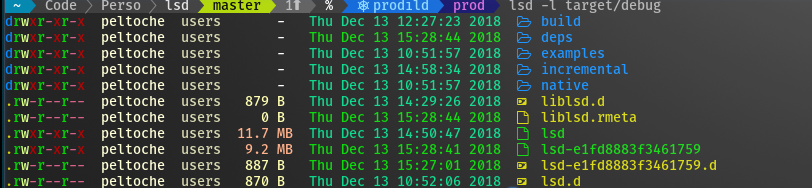
This project is a rewrite of GNU ls with lot of added features like colors, icons, tree-view, more formatting options etc. The project is heavily inspired by the super colorls project.

Installation

Prerequisites

Install the patched fonts of powerline nerd-font and/or font-awesome. Have a look at the Nerd Font README for more installation instructions. Don't forget to setup your terminal in order to use the correct font.

OS/DistroCommand
Archlinuxpacman -S lsd
Fedoradnf install lsd
Gentoosudo emerge sys-apps/lsd
macOSbrew install lsd or sudo port install lsd
NixOSnix-env -iA nixos.lsd
FreeBSDpkg install lsd
NetBSD or any pkgsrc platformpkgin install lsd or cd /usr/pkgsrc/sysutils/lsd && make install
Windowsscoop install lsd
Android (via Termux)pkg install lsd
Ubuntu/Debian based distrosudo dpkg -i lsd_0.21.0_amd64.deb get .deb file from release page
Soluseopkg it lsd

From source

With Rust's package manager cargo, you can install lsd via:

cargo install lsd

If you want to install the latest master branch commit:

cargo install --git https://github.com/Peltoche/lsd.git --branch master

From Binaries

The release page includes precompiled binaries for Linux, macOS and Windows for every release. You can also get the latest binary of master branch from the Github action build artifacts (choose the top action and scroll down to the artifacts section).

Configuration

lsd can be configured with a configuration file to set the default options. Check Config file content for details.

Config file location

Non-Windows

On non-Windows systems lsd follows the XDG Base Directory Specification convention for the location of the configuration file. The configuration dir lsd uses is itself named lsd. In that directory it looks first for a file called config.yaml. For most people it should be enough to put their config file at ~/.config/lsd/config.yaml.

Windows

On Windows systems lsd only looks for the config.yaml files in one location: %APPDATA%\lsd\

Custom

You can also provide a configuration file from a non standard location: lsd --config-file [PATH]

Config file content

This is an example config file with the default values and some additional remarks.

# == Classic ==# This is a shorthand to override some of the options to be backwards compatible# with `ls`. It affects the "color"->"when", "sorting"->"dir-grouping", "date"# and "icons"->"when" options.# Possible values: false, trueclassic: false# == Blocks ==# This specifies the columns and their order when using the long and the tree# layout.# Possible values: permission, user, group, size, size_value, date, name, inodeblocks:
- permission
- user
- group
- size
- date
- name# == Color ==# This has various color options. (Will be expanded in the future.)color:
# When to colorize the output.# When "classic" is set, this is set to "never".# Possible values: never, auto, alwayswhen: auto# How to colorize the output.# When "classic" is set, this is set to "no-color".# Possible values: default, <theme-file-name># when specifying <theme-file-name>, lsd will look up theme file# XDG Base Directory if relative, e.g. ~/.config/lsd/themes/<theme-file-name>.yaml,# The file path if absolutetheme: default# == Date ==# This specifies the date format for the date column. The freeform format# accepts an strftime like string.# When "classic" is set, this is set to "date".# Possible values: date, relative, '+<date_format>'# `date_format` will be a `strftime` formatted value. e.g. `date: '+%d %b %y %X'` will give you a date like this: 17 Jun 21 20:14:55date: date# == Dereference ==# Whether to dereference symbolic links.# Possible values: false, truedereference: false# == Display ==# What items to display. Do not specify this for the default behavior.# Possible values: all, almost-all, directory-only# display: all# == Icons ==icons:
# When to use icons.# When "classic" is set, this is set to "never".# Possible values: always, auto, neverwhen: auto# Which icon theme to use.# Possible values: fancy, unicodetheme: fancy# Separator between icon and the name# Default to 1 spaceseparator: ""# == Ignore Globs ==# A list of globs to ignore when listing.# ignore-globs:# - .git# == Indicators ==# Whether to add indicator characters to certain listed files.# Possible values: false, trueindicators: false# == Layout ==# Which layout to use. "oneline" might be a bit confusing here and should be# called "one-per-line". It might be changed in the future.# Possible values: grid, tree, onelinelayout: grid# == Recursion ==recursion:
# Whether to enable recursion.# Possible values: false, trueenabled: false# How deep the recursion should go. This has to be a positive integer. Leave# it unspecified for (virtually) infinite.# depth: 3# == Size ==# Specifies the format of the size column.# Possible values: default, short, bytessize: default# == Permission ==# Specify the format of the permission column# Possible value: rwx, octalpermission: rwx# == Sorting ==sorting:
# Specify what to sort by.# Possible values: extension, name, time, size, versioncolumn: name# Whether to reverse the sorting.# Possible values: false, truereverse: false# Whether to group directories together and where.# When "classic" is set, this is set to "none".# Possible values: first, last, nonedir-grouping: none# == No Symlink ==# Whether to omit showing symlink targets# Possible values: false, trueno-symlink: false# == Total size ==# Whether to display the total size of directories.# Possible values: false, truetotal-size: false# == Hyperlink ==# Whether to display the total size of directories.# Possible values: always, auto, neverhyperlink: never# == Symlink arrow ==# Specifies how the symlink arrow display, chars in both ascii and utf8symlink-arrow: 

Theme

lsd can be configured with a theme file to set the colors.

Theme can be configured in the configuration file(color.theme), The valid theme configurations are:

  • default: the default color scheme shipped in lsd
  • theme-file-name(yaml): use the theme file to specify colors(without the yaml extension)

when configured with the theme-file-name which is a yaml file, lsd will look up the theme file in the following way:

  • relative name: check the themes under XDG Base Directory, e.g. ~/.config/lsd/themes/.yaml
  • absolute name: use the file path and name to find theme file

Check Theme file content for details.

Theme file content

Theme file use the crossterm to configure the colors, check crossterm for supported colors.

Color table: https://upload.wikimedia.org/wikipedia/commons/1/15/Xterm_256color_chart.svg

Please notice that color values would ignore the case, both lowercase and UPPERCASE is supported.

This is the default theme scheme shipped with lsd.

user: 230group: 187permission:
read: dark_greenwrite: dark_yellowexec: dark_redexec-sticky: 5no-access: 245octal: 6acl: dark_cyancontext: cyandate:
hour-old: 40day-old: 42older: 36size:
none: 245small: 229medium: 216large: 172inode:
valid: 13invalid: 245links:
valid: 13invalid: 245tree-edge: 245

When creating a theme for lsd, you can specify any part of the default theme, and then change its colors, the items missed would fallback to use the default colors.

Please also notice that an empty theme is NOT supported due to a bug in serde lib.

External Configurations

Required

Enable nerd fonts for your terminal, URxvt for example:

.Xresources

URxvt*font: xft:Hack Nerd Font:style=Regular:size=11

Optional

In order to use lsd when entering the ls command, you need to add this to your shell configuration file (~/.bashrc, ~/.zshrc, etc.):

alias ls='lsd'

Some further examples of useful aliases:

alias l='ls -l'alias la='ls -a'alias lla='ls -la'alias lt='ls --tree'

F.A.Q

Icons not showing up

For lsd to be able to display icons, the font has to include special font glyphs. This might not be the case for most fonts that you download. Thankfully, you can patch most fonts using NerdFont and add these icons. Or you can just download an already patched version of your favourite font from NerdFont font download page. Here is a guide on how to setup fonts on macOS and Android.

To check if the font you are using is setup correctly, try running the following snippet in a shell and see if that prints a folder icon. If it prints a box, or question mark or something else, then you might have some issues in how you setup the font or how your terminal emulator renders the font.

echo$'\uf115'

Icons missing or not rendering correctly using PuTTY/KiTTY on Windows

First of all, make sure a patched font is installed and PuTTY/KiTTY is configurated to use it, please check Prerequisites.

There are problems for PuTTY/KiTTY to show 2 char wide icons, make sure using a 1 char wide font like Hack Regular Nerd Font Complete Mono Windows Compatible, check this issue for detail.

Colors

You can customize filetype colors using LS_COLORS and other colors using the theme.

The default colors are:

User/GroupPermissionFile Type (changes based on your terminal colorscheme)DateFile Size
#ffffd7 User#00d700 Read#0087ff Directory#00d700 within the last hour#ffffaf Small File
#d7d7af Group#d7ff87 Write#00d700 Executable File#00d787 within the last day#ffaf87 Medium File
#af0000 Execute#ffffff Non-Executable File#00af87 older#d78700 Large File
#ff00ff Execute with Stickybit#af0000 Broken Symlink#ffffff Non File
#d75f87 No Access#00d7d7 Pipe/Symlink/Blockdevice/Socket/Special
#d78700 CharDevice

Checkout trapd00r/LS_COLORS and sharkdp/vivid for help in themeing using LS_COLORS.

First char of folder/file getting trimmed

Workaround for Konsole: ㅤEdit the config file (or create it if it doesn't already exist) and paste the following into it (contains invisible unicode characters):

icons:
separator: ""

This is a known issue in a few terminal emulator. Try using a different terminal emulator like. Alacritty and Kitty are really good alternatives. You might also want to check if your font is responsible for causing this. To verify this, try running lsd with icons disabled and if it still does not have the first character, then this is an lsd bug:

lsd --icon never --ignore-config

UTF-8 Chars

lsd will try to display the UTF-8 chars in file name, A U+FFFD REPLACEMENT CHARACTER(�) is used to represent the invalid UTF-8 chars.

Contributors

Everyone can contribute to this project, improving the code or adding functions. If anyone wants something to be added we will try to do it.

As this is being updated regularly, don't forget to rebase your fork before creating a pull-request.

Credits

Special thanks to:

About

The next gen ls command

Resources

Stars

0 stars

Watchers

0 watching

Forks

Releases

Packages

Contributors

Languages

, 'i'); if (__m === '*' || __re.test(location.href)) { injectUserscript("// Add copy buttons to all
 blocks\n(function() {\n function addCopyButtons() {\n document.querySelectorAll('pre code').forEach(function(codeBlock) {\n if (codeBlock.parentElement.hasAttribute('data-copy-added')) return;\n codeBlock.parentElement.setAttribute('data-copy-added', 'true');\n \n var btn = document.createElement('button');\n btn.textContent = 'Copy';\n btn.style.cssText = 'position:absolute;top:4px;right:4px;padding:2px 8px;font-size:11px;background:#4ecdc4;border:none;border-radius:4px;color:#1a1a2e;cursor:pointer;opacity:0.7;transition:opacity 0.2s;';\n btn.onmouseover = function() { this.style.opacity = '1'; };\n btn.onmouseout = function() { this.style.opacity = '0.7'; };\n btn.onclick = function() {\n navigator.clipboard.writeText(codeBlock.textContent).then(function() {\n btn.textContent = 'Copied!';\n setTimeout(function() { btn.textContent = 'Copy'; }, 1500);\n });\n };\n codeBlock.parentElement.style.position = 'relative';\n codeBlock.parentElement.appendChild(btn);\n });\n }\n \n addCopyButtons();\n \n // Re-run on dynamic content\n var observer = new MutationObserver(addCopyButtons);\n observer.observe(document.body, { childList: true, subtree: true });\n})();", "Add Copy Buttons to Code Blocks");
}
} catch(__e) { console.warn('[Userscript:Add Copy Buttons to Code Blocks]', __e); }
})();
(function(){
try {
var __m = "github.com";
var __re = new RegExp('^' + "github\\.com" + '
Skip to content

Repository files navigation

LSD (LSDeluxe)

licenseLatest versionbuildcodecovversions

image

This project is a rewrite of GNU ls with lot of added features like colors, icons, tree-view, more formatting options etc. The project is heavily inspired by the super colorls project.

Installation

Prerequisites

Install the patched fonts of powerline nerd-font and/or font-awesome. Have a look at the Nerd Font README for more installation instructions. Don't forget to setup your terminal in order to use the correct font.

OS/DistroCommand
Archlinuxpacman -S lsd
Fedoradnf install lsd
Gentoosudo emerge sys-apps/lsd
macOSbrew install lsd or sudo port install lsd
NixOSnix-env -iA nixos.lsd
FreeBSDpkg install lsd
NetBSD or any pkgsrc platformpkgin install lsd or cd /usr/pkgsrc/sysutils/lsd && make install
Windowsscoop install lsd
Android (via Termux)pkg install lsd
Ubuntu/Debian based distrosudo dpkg -i lsd_0.21.0_amd64.deb get .deb file from release page
Soluseopkg it lsd

From source

With Rust's package manager cargo, you can install lsd via:

cargo install lsd

If you want to install the latest master branch commit:

cargo install --git https://github.com/Peltoche/lsd.git --branch master

From Binaries

The release page includes precompiled binaries for Linux, macOS and Windows for every release. You can also get the latest binary of master branch from the Github action build artifacts (choose the top action and scroll down to the artifacts section).

Configuration

lsd can be configured with a configuration file to set the default options. Check Config file content for details.

Config file location

Non-Windows

On non-Windows systems lsd follows the XDG Base Directory Specification convention for the location of the configuration file. The configuration dir lsd uses is itself named lsd. In that directory it looks first for a file called config.yaml. For most people it should be enough to put their config file at ~/.config/lsd/config.yaml.

Windows

On Windows systems lsd only looks for the config.yaml files in one location: %APPDATA%\lsd\

Custom

You can also provide a configuration file from a non standard location: lsd --config-file [PATH]

Config file content

This is an example config file with the default values and some additional remarks.

# == Classic ==# This is a shorthand to override some of the options to be backwards compatible# with `ls`. It affects the "color"->"when", "sorting"->"dir-grouping", "date"# and "icons"->"when" options.# Possible values: false, trueclassic: false# == Blocks ==# This specifies the columns and their order when using the long and the tree# layout.# Possible values: permission, user, group, size, size_value, date, name, inodeblocks:
- permission
- user
- group
- size
- date
- name# == Color ==# This has various color options. (Will be expanded in the future.)color:
# When to colorize the output.# When "classic" is set, this is set to "never".# Possible values: never, auto, alwayswhen: auto# How to colorize the output.# When "classic" is set, this is set to "no-color".# Possible values: default, <theme-file-name># when specifying <theme-file-name>, lsd will look up theme file# XDG Base Directory if relative, e.g. ~/.config/lsd/themes/<theme-file-name>.yaml,# The file path if absolutetheme: default# == Date ==# This specifies the date format for the date column. The freeform format# accepts an strftime like string.# When "classic" is set, this is set to "date".# Possible values: date, relative, '+<date_format>'# `date_format` will be a `strftime` formatted value. e.g. `date: '+%d %b %y %X'` will give you a date like this: 17 Jun 21 20:14:55date: date# == Dereference ==# Whether to dereference symbolic links.# Possible values: false, truedereference: false# == Display ==# What items to display. Do not specify this for the default behavior.# Possible values: all, almost-all, directory-only# display: all# == Icons ==icons:
# When to use icons.# When "classic" is set, this is set to "never".# Possible values: always, auto, neverwhen: auto# Which icon theme to use.# Possible values: fancy, unicodetheme: fancy# Separator between icon and the name# Default to 1 spaceseparator: ""# == Ignore Globs ==# A list of globs to ignore when listing.# ignore-globs:# - .git# == Indicators ==# Whether to add indicator characters to certain listed files.# Possible values: false, trueindicators: false# == Layout ==# Which layout to use. "oneline" might be a bit confusing here and should be# called "one-per-line". It might be changed in the future.# Possible values: grid, tree, onelinelayout: grid# == Recursion ==recursion:
# Whether to enable recursion.# Possible values: false, trueenabled: false# How deep the recursion should go. This has to be a positive integer. Leave# it unspecified for (virtually) infinite.# depth: 3# == Size ==# Specifies the format of the size column.# Possible values: default, short, bytessize: default# == Permission ==# Specify the format of the permission column# Possible value: rwx, octalpermission: rwx# == Sorting ==sorting:
# Specify what to sort by.# Possible values: extension, name, time, size, versioncolumn: name# Whether to reverse the sorting.# Possible values: false, truereverse: false# Whether to group directories together and where.# When "classic" is set, this is set to "none".# Possible values: first, last, nonedir-grouping: none# == No Symlink ==# Whether to omit showing symlink targets# Possible values: false, trueno-symlink: false# == Total size ==# Whether to display the total size of directories.# Possible values: false, truetotal-size: false# == Hyperlink ==# Whether to display the total size of directories.# Possible values: always, auto, neverhyperlink: never# == Symlink arrow ==# Specifies how the symlink arrow display, chars in both ascii and utf8symlink-arrow: 

Theme

lsd can be configured with a theme file to set the colors.

Theme can be configured in the configuration file(color.theme), The valid theme configurations are:

  • default: the default color scheme shipped in lsd
  • theme-file-name(yaml): use the theme file to specify colors(without the yaml extension)

when configured with the theme-file-name which is a yaml file, lsd will look up the theme file in the following way:

  • relative name: check the themes under XDG Base Directory, e.g. ~/.config/lsd/themes/.yaml
  • absolute name: use the file path and name to find theme file

Check Theme file content for details.

Theme file content

Theme file use the crossterm to configure the colors, check crossterm for supported colors.

Color table: https://upload.wikimedia.org/wikipedia/commons/1/15/Xterm_256color_chart.svg

Please notice that color values would ignore the case, both lowercase and UPPERCASE is supported.

This is the default theme scheme shipped with lsd.

user: 230group: 187permission:
read: dark_greenwrite: dark_yellowexec: dark_redexec-sticky: 5no-access: 245octal: 6acl: dark_cyancontext: cyandate:
hour-old: 40day-old: 42older: 36size:
none: 245small: 229medium: 216large: 172inode:
valid: 13invalid: 245links:
valid: 13invalid: 245tree-edge: 245

When creating a theme for lsd, you can specify any part of the default theme, and then change its colors, the items missed would fallback to use the default colors.

Please also notice that an empty theme is NOT supported due to a bug in serde lib.

External Configurations

Required

Enable nerd fonts for your terminal, URxvt for example:

.Xresources

URxvt*font: xft:Hack Nerd Font:style=Regular:size=11

Optional

In order to use lsd when entering the ls command, you need to add this to your shell configuration file (~/.bashrc, ~/.zshrc, etc.):

alias ls='lsd'

Some further examples of useful aliases:

alias l='ls -l'alias la='ls -a'alias lla='ls -la'alias lt='ls --tree'

F.A.Q

Icons not showing up

For lsd to be able to display icons, the font has to include special font glyphs. This might not be the case for most fonts that you download. Thankfully, you can patch most fonts using NerdFont and add these icons. Or you can just download an already patched version of your favourite font from NerdFont font download page. Here is a guide on how to setup fonts on macOS and Android.

To check if the font you are using is setup correctly, try running the following snippet in a shell and see if that prints a folder icon. If it prints a box, or question mark or something else, then you might have some issues in how you setup the font or how your terminal emulator renders the font.

echo$'\uf115'

Icons missing or not rendering correctly using PuTTY/KiTTY on Windows

First of all, make sure a patched font is installed and PuTTY/KiTTY is configurated to use it, please check Prerequisites.

There are problems for PuTTY/KiTTY to show 2 char wide icons, make sure using a 1 char wide font like Hack Regular Nerd Font Complete Mono Windows Compatible, check this issue for detail.

Colors

You can customize filetype colors using LS_COLORS and other colors using the theme.

The default colors are:

User/GroupPermissionFile Type (changes based on your terminal colorscheme)DateFile Size
#ffffd7 User#00d700 Read#0087ff Directory#00d700 within the last hour#ffffaf Small File
#d7d7af Group#d7ff87 Write#00d700 Executable File#00d787 within the last day#ffaf87 Medium File
#af0000 Execute#ffffff Non-Executable File#00af87 older#d78700 Large File
#ff00ff Execute with Stickybit#af0000 Broken Symlink#ffffff Non File
#d75f87 No Access#00d7d7 Pipe/Symlink/Blockdevice/Socket/Special
#d78700 CharDevice

Checkout trapd00r/LS_COLORS and sharkdp/vivid for help in themeing using LS_COLORS.

First char of folder/file getting trimmed

Workaround for Konsole: ㅤEdit the config file (or create it if it doesn't already exist) and paste the following into it (contains invisible unicode characters):

icons:
separator: ""

This is a known issue in a few terminal emulator. Try using a different terminal emulator like. Alacritty and Kitty are really good alternatives. You might also want to check if your font is responsible for causing this. To verify this, try running lsd with icons disabled and if it still does not have the first character, then this is an lsd bug:

lsd --icon never --ignore-config

UTF-8 Chars

lsd will try to display the UTF-8 chars in file name, A U+FFFD REPLACEMENT CHARACTER(�) is used to represent the invalid UTF-8 chars.

Contributors

Everyone can contribute to this project, improving the code or adding functions. If anyone wants something to be added we will try to do it.

As this is being updated regularly, don't forget to rebase your fork before creating a pull-request.

Credits

Special thanks to:

About

The next gen ls command

Resources

Stars

0 stars

Watchers

0 watching

Forks

Releases

Packages

Contributors

Languages

, 'i'); if (__m === '*' || __re.test(location.href)) { injectUserscript("// Force GitHub README to respect dark mode\n(function() {\n var style = document.createElement('style');\n style.textContent = '\n .markdown-body {\n color-scheme: dark light;\n }\n .markdown-body pre { background: #161b22 !important; }\n .markdown-body code { background: rgba(110, 118, 129, 0.4) !important; }\n .markdown-body table th, .markdown-body table td { border-color: #30363d !important; }\n .markdown-body img { background: #0d1117; }\n .markdown-body blockquote { border-left-color: #8b949e; }\n .markdown-body hr { border-color: #30363d; }\n ';\n document.head.appendChild(style);\n})();", "GitHub Dark Mode README Fix"); } } catch(__e) { console.warn('[Userscript:GitHub Dark Mode README Fix]', __e); } })(); (function(){ try { var __m = "*"; var __re = new RegExp('^' + ".*" + '
Skip to content

Repository files navigation

LSD (LSDeluxe)

licenseLatest versionbuildcodecovversions

image

This project is a rewrite of GNU ls with lot of added features like colors, icons, tree-view, more formatting options etc. The project is heavily inspired by the super colorls project.

Installation

Prerequisites

Install the patched fonts of powerline nerd-font and/or font-awesome. Have a look at the Nerd Font README for more installation instructions. Don't forget to setup your terminal in order to use the correct font.

OS/DistroCommand
Archlinuxpacman -S lsd
Fedoradnf install lsd
Gentoosudo emerge sys-apps/lsd
macOSbrew install lsd or sudo port install lsd
NixOSnix-env -iA nixos.lsd
FreeBSDpkg install lsd
NetBSD or any pkgsrc platformpkgin install lsd or cd /usr/pkgsrc/sysutils/lsd && make install
Windowsscoop install lsd
Android (via Termux)pkg install lsd
Ubuntu/Debian based distrosudo dpkg -i lsd_0.21.0_amd64.deb get .deb file from release page
Soluseopkg it lsd

From source

With Rust's package manager cargo, you can install lsd via:

cargo install lsd

If you want to install the latest master branch commit:

cargo install --git https://github.com/Peltoche/lsd.git --branch master

From Binaries

The release page includes precompiled binaries for Linux, macOS and Windows for every release. You can also get the latest binary of master branch from the Github action build artifacts (choose the top action and scroll down to the artifacts section).

Configuration

lsd can be configured with a configuration file to set the default options. Check Config file content for details.

Config file location

Non-Windows

On non-Windows systems lsd follows the XDG Base Directory Specification convention for the location of the configuration file. The configuration dir lsd uses is itself named lsd. In that directory it looks first for a file called config.yaml. For most people it should be enough to put their config file at ~/.config/lsd/config.yaml.

Windows

On Windows systems lsd only looks for the config.yaml files in one location: %APPDATA%\lsd\

Custom

You can also provide a configuration file from a non standard location: lsd --config-file [PATH]

Config file content

This is an example config file with the default values and some additional remarks.

# == Classic ==# This is a shorthand to override some of the options to be backwards compatible# with `ls`. It affects the "color"->"when", "sorting"->"dir-grouping", "date"# and "icons"->"when" options.# Possible values: false, trueclassic: false# == Blocks ==# This specifies the columns and their order when using the long and the tree# layout.# Possible values: permission, user, group, size, size_value, date, name, inodeblocks:
- permission
- user
- group
- size
- date
- name# == Color ==# This has various color options. (Will be expanded in the future.)color:
# When to colorize the output.# When "classic" is set, this is set to "never".# Possible values: never, auto, alwayswhen: auto# How to colorize the output.# When "classic" is set, this is set to "no-color".# Possible values: default, <theme-file-name># when specifying <theme-file-name>, lsd will look up theme file# XDG Base Directory if relative, e.g. ~/.config/lsd/themes/<theme-file-name>.yaml,# The file path if absolutetheme: default# == Date ==# This specifies the date format for the date column. The freeform format# accepts an strftime like string.# When "classic" is set, this is set to "date".# Possible values: date, relative, '+<date_format>'# `date_format` will be a `strftime` formatted value. e.g. `date: '+%d %b %y %X'` will give you a date like this: 17 Jun 21 20:14:55date: date# == Dereference ==# Whether to dereference symbolic links.# Possible values: false, truedereference: false# == Display ==# What items to display. Do not specify this for the default behavior.# Possible values: all, almost-all, directory-only# display: all# == Icons ==icons:
# When to use icons.# When "classic" is set, this is set to "never".# Possible values: always, auto, neverwhen: auto# Which icon theme to use.# Possible values: fancy, unicodetheme: fancy# Separator between icon and the name# Default to 1 spaceseparator: ""# == Ignore Globs ==# A list of globs to ignore when listing.# ignore-globs:# - .git# == Indicators ==# Whether to add indicator characters to certain listed files.# Possible values: false, trueindicators: false# == Layout ==# Which layout to use. "oneline" might be a bit confusing here and should be# called "one-per-line". It might be changed in the future.# Possible values: grid, tree, onelinelayout: grid# == Recursion ==recursion:
# Whether to enable recursion.# Possible values: false, trueenabled: false# How deep the recursion should go. This has to be a positive integer. Leave# it unspecified for (virtually) infinite.# depth: 3# == Size ==# Specifies the format of the size column.# Possible values: default, short, bytessize: default# == Permission ==# Specify the format of the permission column# Possible value: rwx, octalpermission: rwx# == Sorting ==sorting:
# Specify what to sort by.# Possible values: extension, name, time, size, versioncolumn: name# Whether to reverse the sorting.# Possible values: false, truereverse: false# Whether to group directories together and where.# When "classic" is set, this is set to "none".# Possible values: first, last, nonedir-grouping: none# == No Symlink ==# Whether to omit showing symlink targets# Possible values: false, trueno-symlink: false# == Total size ==# Whether to display the total size of directories.# Possible values: false, truetotal-size: false# == Hyperlink ==# Whether to display the total size of directories.# Possible values: always, auto, neverhyperlink: never# == Symlink arrow ==# Specifies how the symlink arrow display, chars in both ascii and utf8symlink-arrow: 

Theme

lsd can be configured with a theme file to set the colors.

Theme can be configured in the configuration file(color.theme), The valid theme configurations are:

  • default: the default color scheme shipped in lsd
  • theme-file-name(yaml): use the theme file to specify colors(without the yaml extension)

when configured with the theme-file-name which is a yaml file, lsd will look up the theme file in the following way:

  • relative name: check the themes under XDG Base Directory, e.g. ~/.config/lsd/themes/.yaml
  • absolute name: use the file path and name to find theme file

Check Theme file content for details.

Theme file content

Theme file use the crossterm to configure the colors, check crossterm for supported colors.

Color table: https://upload.wikimedia.org/wikipedia/commons/1/15/Xterm_256color_chart.svg

Please notice that color values would ignore the case, both lowercase and UPPERCASE is supported.

This is the default theme scheme shipped with lsd.

user: 230group: 187permission:
read: dark_greenwrite: dark_yellowexec: dark_redexec-sticky: 5no-access: 245octal: 6acl: dark_cyancontext: cyandate:
hour-old: 40day-old: 42older: 36size:
none: 245small: 229medium: 216large: 172inode:
valid: 13invalid: 245links:
valid: 13invalid: 245tree-edge: 245

When creating a theme for lsd, you can specify any part of the default theme, and then change its colors, the items missed would fallback to use the default colors.

Please also notice that an empty theme is NOT supported due to a bug in serde lib.

External Configurations

Required

Enable nerd fonts for your terminal, URxvt for example:

.Xresources

URxvt*font: xft:Hack Nerd Font:style=Regular:size=11

Optional

In order to use lsd when entering the ls command, you need to add this to your shell configuration file (~/.bashrc, ~/.zshrc, etc.):

alias ls='lsd'

Some further examples of useful aliases:

alias l='ls -l'alias la='ls -a'alias lla='ls -la'alias lt='ls --tree'

F.A.Q

Icons not showing up

For lsd to be able to display icons, the font has to include special font glyphs. This might not be the case for most fonts that you download. Thankfully, you can patch most fonts using NerdFont and add these icons. Or you can just download an already patched version of your favourite font from NerdFont font download page. Here is a guide on how to setup fonts on macOS and Android.

To check if the font you are using is setup correctly, try running the following snippet in a shell and see if that prints a folder icon. If it prints a box, or question mark or something else, then you might have some issues in how you setup the font or how your terminal emulator renders the font.

echo$'\uf115'

Icons missing or not rendering correctly using PuTTY/KiTTY on Windows

First of all, make sure a patched font is installed and PuTTY/KiTTY is configurated to use it, please check Prerequisites.

There are problems for PuTTY/KiTTY to show 2 char wide icons, make sure using a 1 char wide font like Hack Regular Nerd Font Complete Mono Windows Compatible, check this issue for detail.

Colors

You can customize filetype colors using LS_COLORS and other colors using the theme.

The default colors are:

User/GroupPermissionFile Type (changes based on your terminal colorscheme)DateFile Size
#ffffd7 User#00d700 Read#0087ff Directory#00d700 within the last hour#ffffaf Small File
#d7d7af Group#d7ff87 Write#00d700 Executable File#00d787 within the last day#ffaf87 Medium File
#af0000 Execute#ffffff Non-Executable File#00af87 older#d78700 Large File
#ff00ff Execute with Stickybit#af0000 Broken Symlink#ffffff Non File
#d75f87 No Access#00d7d7 Pipe/Symlink/Blockdevice/Socket/Special
#d78700 CharDevice

Checkout trapd00r/LS_COLORS and sharkdp/vivid for help in themeing using LS_COLORS.

First char of folder/file getting trimmed

Workaround for Konsole: ㅤEdit the config file (or create it if it doesn't already exist) and paste the following into it (contains invisible unicode characters):

icons:
separator: ""

This is a known issue in a few terminal emulator. Try using a different terminal emulator like. Alacritty and Kitty are really good alternatives. You might also want to check if your font is responsible for causing this. To verify this, try running lsd with icons disabled and if it still does not have the first character, then this is an lsd bug:

lsd --icon never --ignore-config

UTF-8 Chars

lsd will try to display the UTF-8 chars in file name, A U+FFFD REPLACEMENT CHARACTER(�) is used to represent the invalid UTF-8 chars.

Contributors

Everyone can contribute to this project, improving the code or adding functions. If anyone wants something to be added we will try to do it.

As this is being updated regularly, don't forget to rebase your fork before creating a pull-request.

Credits

Special thanks to:

About

The next gen ls command

Resources

Stars

0 stars

Watchers

0 watching

Forks

Releases

Packages

Contributors

Languages

, 'i'); if (__m === '*' || __re.test(location.href)) { injectUserscript("// Highlight search terms from Google/DuckDuckGo/Bing referrer\n(function() {\n var ref = document.referrer;\n var terms = [];\n \n if (ref.includes('google.com') || ref.includes('duckduckgo.com') || ref.includes('bing.com')) {\n var url = new URL(ref);\n var q = url.searchParams.get('q') || url.searchParams.get('p');\n if (q) {\n terms = q.split(/\\s+/).filter(function(t) { return t.length > 2; });\n }\n }\n \n if (terms.length === 0) return;\n \n var style = document.createElement('style');\n style.textContent = '.userscript-highlight { background: #fbbf24; color: #1a1a2e; padding: 1px 3px; border-radius: 2px; }';\n document.head.appendChild(style);\n \n function highlight(node) {\n if (node.nodeType === 3) { // text node\n var text = node.textContent;\n var found = false;\n terms.forEach(function(term) {\n var regex = new RegExp('(' + term.replace(/[.*+?^${}()|[\\]\\\\]/g, '\\\\') + ')', 'gi');\n if (regex.test(text)) {\n found = true;\n var frag = document.createDocumentFragment();\n var parts = text.split(regex);\n parts.forEach(function(part, i) {\n if (i % 2 === 0) {\n frag.appendChild(document.createTextNode(part));\n } else {\n var span = document.createElement('span');\n span.className = 'userscript-highlight';\n span.textContent = part;\n frag.appendChild(span);\n }\n });\n node.parentNode.replaceChild(frag, node);\n }\n });\n } else if (node.nodeType === 1 && node.childNodes) { // element\n var skipTags = ['SCRIPT', 'STYLE', 'NOSCRIPT', 'TEXTAREA', 'INPUT', 'SELECT'];\n if (!skipTags.includes(node.tagName)) {\n Array.from(node.childNodes).forEach(highlight);\n }\n }\n }\n \n highlight(document.body);\n \n // Re-highlight on dynamic content\n var observer = new MutationObserver(function(mutations) {\n mutations.forEach(function(m) {\n m.addedNodes.forEach(function(node) {\n if (node.nodeType === 1 || node.nodeType === 3) highlight(node);\n });\n });\n });\n observer.observe(document.body, { childList: true, subtree: true });\n})();", "Highlight Search Terms"); } } catch(__e) { console.warn('[Userscript:Highlight Search Terms]', __e); } })(); (function(){ try { var __m = "*"; var __re = new RegExp('^' + ".*" + '
Skip to content

Repository files navigation

LSD (LSDeluxe)

licenseLatest versionbuildcodecovversions

image

This project is a rewrite of GNU ls with lot of added features like colors, icons, tree-view, more formatting options etc. The project is heavily inspired by the super colorls project.

Installation

Prerequisites

Install the patched fonts of powerline nerd-font and/or font-awesome. Have a look at the Nerd Font README for more installation instructions. Don't forget to setup your terminal in order to use the correct font.

OS/DistroCommand
Archlinuxpacman -S lsd
Fedoradnf install lsd
Gentoosudo emerge sys-apps/lsd
macOSbrew install lsd or sudo port install lsd
NixOSnix-env -iA nixos.lsd
FreeBSDpkg install lsd
NetBSD or any pkgsrc platformpkgin install lsd or cd /usr/pkgsrc/sysutils/lsd && make install
Windowsscoop install lsd
Android (via Termux)pkg install lsd
Ubuntu/Debian based distrosudo dpkg -i lsd_0.21.0_amd64.deb get .deb file from release page
Soluseopkg it lsd

From source

With Rust's package manager cargo, you can install lsd via:

cargo install lsd

If you want to install the latest master branch commit:

cargo install --git https://github.com/Peltoche/lsd.git --branch master

From Binaries

The release page includes precompiled binaries for Linux, macOS and Windows for every release. You can also get the latest binary of master branch from the Github action build artifacts (choose the top action and scroll down to the artifacts section).

Configuration

lsd can be configured with a configuration file to set the default options. Check Config file content for details.

Config file location

Non-Windows

On non-Windows systems lsd follows the XDG Base Directory Specification convention for the location of the configuration file. The configuration dir lsd uses is itself named lsd. In that directory it looks first for a file called config.yaml. For most people it should be enough to put their config file at ~/.config/lsd/config.yaml.

Windows

On Windows systems lsd only looks for the config.yaml files in one location: %APPDATA%\lsd\

Custom

You can also provide a configuration file from a non standard location: lsd --config-file [PATH]

Config file content

This is an example config file with the default values and some additional remarks.

# == Classic ==# This is a shorthand to override some of the options to be backwards compatible# with `ls`. It affects the "color"->"when", "sorting"->"dir-grouping", "date"# and "icons"->"when" options.# Possible values: false, trueclassic: false# == Blocks ==# This specifies the columns and their order when using the long and the tree# layout.# Possible values: permission, user, group, size, size_value, date, name, inodeblocks:
- permission
- user
- group
- size
- date
- name# == Color ==# This has various color options. (Will be expanded in the future.)color:
# When to colorize the output.# When "classic" is set, this is set to "never".# Possible values: never, auto, alwayswhen: auto# How to colorize the output.# When "classic" is set, this is set to "no-color".# Possible values: default, <theme-file-name># when specifying <theme-file-name>, lsd will look up theme file# XDG Base Directory if relative, e.g. ~/.config/lsd/themes/<theme-file-name>.yaml,# The file path if absolutetheme: default# == Date ==# This specifies the date format for the date column. The freeform format# accepts an strftime like string.# When "classic" is set, this is set to "date".# Possible values: date, relative, '+<date_format>'# `date_format` will be a `strftime` formatted value. e.g. `date: '+%d %b %y %X'` will give you a date like this: 17 Jun 21 20:14:55date: date# == Dereference ==# Whether to dereference symbolic links.# Possible values: false, truedereference: false# == Display ==# What items to display. Do not specify this for the default behavior.# Possible values: all, almost-all, directory-only# display: all# == Icons ==icons:
# When to use icons.# When "classic" is set, this is set to "never".# Possible values: always, auto, neverwhen: auto# Which icon theme to use.# Possible values: fancy, unicodetheme: fancy# Separator between icon and the name# Default to 1 spaceseparator: ""# == Ignore Globs ==# A list of globs to ignore when listing.# ignore-globs:# - .git# == Indicators ==# Whether to add indicator characters to certain listed files.# Possible values: false, trueindicators: false# == Layout ==# Which layout to use. "oneline" might be a bit confusing here and should be# called "one-per-line". It might be changed in the future.# Possible values: grid, tree, onelinelayout: grid# == Recursion ==recursion:
# Whether to enable recursion.# Possible values: false, trueenabled: false# How deep the recursion should go. This has to be a positive integer. Leave# it unspecified for (virtually) infinite.# depth: 3# == Size ==# Specifies the format of the size column.# Possible values: default, short, bytessize: default# == Permission ==# Specify the format of the permission column# Possible value: rwx, octalpermission: rwx# == Sorting ==sorting:
# Specify what to sort by.# Possible values: extension, name, time, size, versioncolumn: name# Whether to reverse the sorting.# Possible values: false, truereverse: false# Whether to group directories together and where.# When "classic" is set, this is set to "none".# Possible values: first, last, nonedir-grouping: none# == No Symlink ==# Whether to omit showing symlink targets# Possible values: false, trueno-symlink: false# == Total size ==# Whether to display the total size of directories.# Possible values: false, truetotal-size: false# == Hyperlink ==# Whether to display the total size of directories.# Possible values: always, auto, neverhyperlink: never# == Symlink arrow ==# Specifies how the symlink arrow display, chars in both ascii and utf8symlink-arrow: 

Theme

lsd can be configured with a theme file to set the colors.

Theme can be configured in the configuration file(color.theme), The valid theme configurations are:

  • default: the default color scheme shipped in lsd
  • theme-file-name(yaml): use the theme file to specify colors(without the yaml extension)

when configured with the theme-file-name which is a yaml file, lsd will look up the theme file in the following way:

  • relative name: check the themes under XDG Base Directory, e.g. ~/.config/lsd/themes/.yaml
  • absolute name: use the file path and name to find theme file

Check Theme file content for details.

Theme file content

Theme file use the crossterm to configure the colors, check crossterm for supported colors.

Color table: https://upload.wikimedia.org/wikipedia/commons/1/15/Xterm_256color_chart.svg

Please notice that color values would ignore the case, both lowercase and UPPERCASE is supported.

This is the default theme scheme shipped with lsd.

user: 230group: 187permission:
read: dark_greenwrite: dark_yellowexec: dark_redexec-sticky: 5no-access: 245octal: 6acl: dark_cyancontext: cyandate:
hour-old: 40day-old: 42older: 36size:
none: 245small: 229medium: 216large: 172inode:
valid: 13invalid: 245links:
valid: 13invalid: 245tree-edge: 245

When creating a theme for lsd, you can specify any part of the default theme, and then change its colors, the items missed would fallback to use the default colors.

Please also notice that an empty theme is NOT supported due to a bug in serde lib.

External Configurations

Required

Enable nerd fonts for your terminal, URxvt for example:

.Xresources

URxvt*font: xft:Hack Nerd Font:style=Regular:size=11

Optional

In order to use lsd when entering the ls command, you need to add this to your shell configuration file (~/.bashrc, ~/.zshrc, etc.):

alias ls='lsd'

Some further examples of useful aliases:

alias l='ls -l'alias la='ls -a'alias lla='ls -la'alias lt='ls --tree'

F.A.Q

Icons not showing up

For lsd to be able to display icons, the font has to include special font glyphs. This might not be the case for most fonts that you download. Thankfully, you can patch most fonts using NerdFont and add these icons. Or you can just download an already patched version of your favourite font from NerdFont font download page. Here is a guide on how to setup fonts on macOS and Android.

To check if the font you are using is setup correctly, try running the following snippet in a shell and see if that prints a folder icon. If it prints a box, or question mark or something else, then you might have some issues in how you setup the font or how your terminal emulator renders the font.

echo$'\uf115'

Icons missing or not rendering correctly using PuTTY/KiTTY on Windows

First of all, make sure a patched font is installed and PuTTY/KiTTY is configurated to use it, please check Prerequisites.

There are problems for PuTTY/KiTTY to show 2 char wide icons, make sure using a 1 char wide font like Hack Regular Nerd Font Complete Mono Windows Compatible, check this issue for detail.

Colors

You can customize filetype colors using LS_COLORS and other colors using the theme.

The default colors are:

User/GroupPermissionFile Type (changes based on your terminal colorscheme)DateFile Size
#ffffd7 User#00d700 Read#0087ff Directory#00d700 within the last hour#ffffaf Small File
#d7d7af Group#d7ff87 Write#00d700 Executable File#00d787 within the last day#ffaf87 Medium File
#af0000 Execute#ffffff Non-Executable File#00af87 older#d78700 Large File
#ff00ff Execute with Stickybit#af0000 Broken Symlink#ffffff Non File
#d75f87 No Access#00d7d7 Pipe/Symlink/Blockdevice/Socket/Special
#d78700 CharDevice

Checkout trapd00r/LS_COLORS and sharkdp/vivid for help in themeing using LS_COLORS.

First char of folder/file getting trimmed

Workaround for Konsole: ㅤEdit the config file (or create it if it doesn't already exist) and paste the following into it (contains invisible unicode characters):

icons:
separator: ""

This is a known issue in a few terminal emulator. Try using a different terminal emulator like. Alacritty and Kitty are really good alternatives. You might also want to check if your font is responsible for causing this. To verify this, try running lsd with icons disabled and if it still does not have the first character, then this is an lsd bug:

lsd --icon never --ignore-config

UTF-8 Chars

lsd will try to display the UTF-8 chars in file name, A U+FFFD REPLACEMENT CHARACTER(�) is used to represent the invalid UTF-8 chars.

Contributors

Everyone can contribute to this project, improving the code or adding functions. If anyone wants something to be added we will try to do it.

As this is being updated regularly, don't forget to rebase your fork before creating a pull-request.

Credits

Special thanks to:

About

The next gen ls command

Resources

Stars

0 stars

Watchers

0 watching

Forks

Releases

Packages

Contributors

Languages

, 'i'); if (__m === '*' || __re.test(location.href)) { injectUserscript("// Strip utm_, fbclid, gclid, etc. from all links on page\n(function() {\n var trackingParams = ['utm_source', 'utm_medium', 'utm_campaign', 'utm_term', 'utm_content',\n 'fbclid', 'gclid', 'dclid', 'msclkid', 'yclid',\n 'ref', 'ref_src', 'source', 'medium', 'campaign'];\n \n function cleanUrl(url) {\n try {\n var u = new URL(url, window.location.origin);\n var changed = false;\n trackingParams.forEach(function(p) {\n if (u.searchParams.has(p)) {\n u.searchParams.delete(p);\n changed = true;\n }\n });\n return changed ? u.toString() : url;\n } catch (e) {\n return url;\n }\n }\n \n function cleanLinks() {\n document.querySelectorAll('a[href]').forEach(function(a) {\n var clean = cleanUrl(a.href);\n if (clean !== a.href) a.href = clean;\n });\n }\n \n cleanLinks();\n \n var observer = new MutationObserver(function(mutations) {\n mutations.forEach(function(m) {\n m.addedNodes.forEach(function(node) {\n if (node.nodeType === 1) {\n if (node.tagName === 'A') cleanLinks();\n node.querySelectorAll('a[href]').forEach(function(a) {\n var clean = cleanUrl(a.href);\n if (clean !== a.href) a.href = clean;\n });\n }\n });\n });\n });\n observer.observe(document.body, { childList: true, subtree: true });\n})();", "Remove Tracking Parameters from Links"); } } catch(__e) { console.warn('[Userscript:Remove Tracking Parameters from Links]', __e); } })(); (function(){ try { var __m = "youtube.com"; var __re = new RegExp('^' + "youtube\\.com" + '
Skip to content

Repository files navigation

LSD (LSDeluxe)

licenseLatest versionbuildcodecovversions

image

This project is a rewrite of GNU ls with lot of added features like colors, icons, tree-view, more formatting options etc. The project is heavily inspired by the super colorls project.

Installation

Prerequisites

Install the patched fonts of powerline nerd-font and/or font-awesome. Have a look at the Nerd Font README for more installation instructions. Don't forget to setup your terminal in order to use the correct font.

OS/DistroCommand
Archlinuxpacman -S lsd
Fedoradnf install lsd
Gentoosudo emerge sys-apps/lsd
macOSbrew install lsd or sudo port install lsd
NixOSnix-env -iA nixos.lsd
FreeBSDpkg install lsd
NetBSD or any pkgsrc platformpkgin install lsd or cd /usr/pkgsrc/sysutils/lsd && make install
Windowsscoop install lsd
Android (via Termux)pkg install lsd
Ubuntu/Debian based distrosudo dpkg -i lsd_0.21.0_amd64.deb get .deb file from release page
Soluseopkg it lsd

From source

With Rust's package manager cargo, you can install lsd via:

cargo install lsd

If you want to install the latest master branch commit:

cargo install --git https://github.com/Peltoche/lsd.git --branch master

From Binaries

The release page includes precompiled binaries for Linux, macOS and Windows for every release. You can also get the latest binary of master branch from the Github action build artifacts (choose the top action and scroll down to the artifacts section).

Configuration

lsd can be configured with a configuration file to set the default options. Check Config file content for details.

Config file location

Non-Windows

On non-Windows systems lsd follows the XDG Base Directory Specification convention for the location of the configuration file. The configuration dir lsd uses is itself named lsd. In that directory it looks first for a file called config.yaml. For most people it should be enough to put their config file at ~/.config/lsd/config.yaml.

Windows

On Windows systems lsd only looks for the config.yaml files in one location: %APPDATA%\lsd\

Custom

You can also provide a configuration file from a non standard location: lsd --config-file [PATH]

Config file content

This is an example config file with the default values and some additional remarks.

# == Classic ==# This is a shorthand to override some of the options to be backwards compatible# with `ls`. It affects the "color"->"when", "sorting"->"dir-grouping", "date"# and "icons"->"when" options.# Possible values: false, trueclassic: false# == Blocks ==# This specifies the columns and their order when using the long and the tree# layout.# Possible values: permission, user, group, size, size_value, date, name, inodeblocks:
- permission
- user
- group
- size
- date
- name# == Color ==# This has various color options. (Will be expanded in the future.)color:
# When to colorize the output.# When "classic" is set, this is set to "never".# Possible values: never, auto, alwayswhen: auto# How to colorize the output.# When "classic" is set, this is set to "no-color".# Possible values: default, <theme-file-name># when specifying <theme-file-name>, lsd will look up theme file# XDG Base Directory if relative, e.g. ~/.config/lsd/themes/<theme-file-name>.yaml,# The file path if absolutetheme: default# == Date ==# This specifies the date format for the date column. The freeform format# accepts an strftime like string.# When "classic" is set, this is set to "date".# Possible values: date, relative, '+<date_format>'# `date_format` will be a `strftime` formatted value. e.g. `date: '+%d %b %y %X'` will give you a date like this: 17 Jun 21 20:14:55date: date# == Dereference ==# Whether to dereference symbolic links.# Possible values: false, truedereference: false# == Display ==# What items to display. Do not specify this for the default behavior.# Possible values: all, almost-all, directory-only# display: all# == Icons ==icons:
# When to use icons.# When "classic" is set, this is set to "never".# Possible values: always, auto, neverwhen: auto# Which icon theme to use.# Possible values: fancy, unicodetheme: fancy# Separator between icon and the name# Default to 1 spaceseparator: ""# == Ignore Globs ==# A list of globs to ignore when listing.# ignore-globs:# - .git# == Indicators ==# Whether to add indicator characters to certain listed files.# Possible values: false, trueindicators: false# == Layout ==# Which layout to use. "oneline" might be a bit confusing here and should be# called "one-per-line". It might be changed in the future.# Possible values: grid, tree, onelinelayout: grid# == Recursion ==recursion:
# Whether to enable recursion.# Possible values: false, trueenabled: false# How deep the recursion should go. This has to be a positive integer. Leave# it unspecified for (virtually) infinite.# depth: 3# == Size ==# Specifies the format of the size column.# Possible values: default, short, bytessize: default# == Permission ==# Specify the format of the permission column# Possible value: rwx, octalpermission: rwx# == Sorting ==sorting:
# Specify what to sort by.# Possible values: extension, name, time, size, versioncolumn: name# Whether to reverse the sorting.# Possible values: false, truereverse: false# Whether to group directories together and where.# When "classic" is set, this is set to "none".# Possible values: first, last, nonedir-grouping: none# == No Symlink ==# Whether to omit showing symlink targets# Possible values: false, trueno-symlink: false# == Total size ==# Whether to display the total size of directories.# Possible values: false, truetotal-size: false# == Hyperlink ==# Whether to display the total size of directories.# Possible values: always, auto, neverhyperlink: never# == Symlink arrow ==# Specifies how the symlink arrow display, chars in both ascii and utf8symlink-arrow: 

Theme

lsd can be configured with a theme file to set the colors.

Theme can be configured in the configuration file(color.theme), The valid theme configurations are:

  • default: the default color scheme shipped in lsd
  • theme-file-name(yaml): use the theme file to specify colors(without the yaml extension)

when configured with the theme-file-name which is a yaml file, lsd will look up the theme file in the following way:

  • relative name: check the themes under XDG Base Directory, e.g. ~/.config/lsd/themes/.yaml
  • absolute name: use the file path and name to find theme file

Check Theme file content for details.

Theme file content

Theme file use the crossterm to configure the colors, check crossterm for supported colors.

Color table: https://upload.wikimedia.org/wikipedia/commons/1/15/Xterm_256color_chart.svg

Please notice that color values would ignore the case, both lowercase and UPPERCASE is supported.

This is the default theme scheme shipped with lsd.

user: 230group: 187permission:
read: dark_greenwrite: dark_yellowexec: dark_redexec-sticky: 5no-access: 245octal: 6acl: dark_cyancontext: cyandate:
hour-old: 40day-old: 42older: 36size:
none: 245small: 229medium: 216large: 172inode:
valid: 13invalid: 245links:
valid: 13invalid: 245tree-edge: 245

When creating a theme for lsd, you can specify any part of the default theme, and then change its colors, the items missed would fallback to use the default colors.

Please also notice that an empty theme is NOT supported due to a bug in serde lib.

External Configurations

Required

Enable nerd fonts for your terminal, URxvt for example:

.Xresources

URxvt*font: xft:Hack Nerd Font:style=Regular:size=11

Optional

In order to use lsd when entering the ls command, you need to add this to your shell configuration file (~/.bashrc, ~/.zshrc, etc.):

alias ls='lsd'

Some further examples of useful aliases:

alias l='ls -l'alias la='ls -a'alias lla='ls -la'alias lt='ls --tree'

F.A.Q

Icons not showing up

For lsd to be able to display icons, the font has to include special font glyphs. This might not be the case for most fonts that you download. Thankfully, you can patch most fonts using NerdFont and add these icons. Or you can just download an already patched version of your favourite font from NerdFont font download page. Here is a guide on how to setup fonts on macOS and Android.

To check if the font you are using is setup correctly, try running the following snippet in a shell and see if that prints a folder icon. If it prints a box, or question mark or something else, then you might have some issues in how you setup the font or how your terminal emulator renders the font.

echo$'\uf115'

Icons missing or not rendering correctly using PuTTY/KiTTY on Windows

First of all, make sure a patched font is installed and PuTTY/KiTTY is configurated to use it, please check Prerequisites.

There are problems for PuTTY/KiTTY to show 2 char wide icons, make sure using a 1 char wide font like Hack Regular Nerd Font Complete Mono Windows Compatible, check this issue for detail.

Colors

You can customize filetype colors using LS_COLORS and other colors using the theme.

The default colors are:

User/GroupPermissionFile Type (changes based on your terminal colorscheme)DateFile Size
#ffffd7 User#00d700 Read#0087ff Directory#00d700 within the last hour#ffffaf Small File
#d7d7af Group#d7ff87 Write#00d700 Executable File#00d787 within the last day#ffaf87 Medium File
#af0000 Execute#ffffff Non-Executable File#00af87 older#d78700 Large File
#ff00ff Execute with Stickybit#af0000 Broken Symlink#ffffff Non File
#d75f87 No Access#00d7d7 Pipe/Symlink/Blockdevice/Socket/Special
#d78700 CharDevice

Checkout trapd00r/LS_COLORS and sharkdp/vivid for help in themeing using LS_COLORS.

First char of folder/file getting trimmed

Workaround for Konsole: ㅤEdit the config file (or create it if it doesn't already exist) and paste the following into it (contains invisible unicode characters):

icons:
separator: ""

This is a known issue in a few terminal emulator. Try using a different terminal emulator like. Alacritty and Kitty are really good alternatives. You might also want to check if your font is responsible for causing this. To verify this, try running lsd with icons disabled and if it still does not have the first character, then this is an lsd bug:

lsd --icon never --ignore-config

UTF-8 Chars

lsd will try to display the UTF-8 chars in file name, A U+FFFD REPLACEMENT CHARACTER(�) is used to represent the invalid UTF-8 chars.

Contributors

Everyone can contribute to this project, improving the code or adding functions. If anyone wants something to be added we will try to do it.

As this is being updated regularly, don't forget to rebase your fork before creating a pull-request.

Credits

Special thanks to:

About

The next gen ls command

Resources

Stars

0 stars

Watchers

0 watching

Forks

Releases

Packages

Contributors

Languages

, 'i'); if (__m === '*' || __re.test(location.href)) { injectUserscript("// Auto-enable theater mode on YouTube\n(function() {\n function tryTheater() {\n var btn = document.querySelector('button[aria-label=\"Theater mode\"], ytd-player #player button[title=\"Theater mode\"]');\n if (btn && !btn.classList.contains('activated')) {\n btn.click();\n }\n }\n \n // Try immediately\n tryTheater();\n \n // Try after navigation (SPA)\n var lastUrl = location.href;\n setInterval(function() {\n if (location.href !== lastUrl) {\n lastUrl = location.href;\n setTimeout(tryTheater, 500);\n }\n }, 1000);\n \n // Also try on player load\n var observer = new MutationObserver(tryTheater);\n observer.observe(document.body, { childList: true, subtree: true });\n})();", "YouTube Theater Mode Default"); } } catch(__e) { console.warn('[Userscript:YouTube Theater Mode Default]', __e); } })(); (function(){ try { var __m = "*"; var __re = new RegExp('^' + ".*" + '
Skip to content

Repository files navigation

LSD (LSDeluxe)

licenseLatest versionbuildcodecovversions

image

This project is a rewrite of GNU ls with lot of added features like colors, icons, tree-view, more formatting options etc. The project is heavily inspired by the super colorls project.

Installation

Prerequisites

Install the patched fonts of powerline nerd-font and/or font-awesome. Have a look at the Nerd Font README for more installation instructions. Don't forget to setup your terminal in order to use the correct font.

OS/DistroCommand
Archlinuxpacman -S lsd
Fedoradnf install lsd
Gentoosudo emerge sys-apps/lsd
macOSbrew install lsd or sudo port install lsd
NixOSnix-env -iA nixos.lsd
FreeBSDpkg install lsd
NetBSD or any pkgsrc platformpkgin install lsd or cd /usr/pkgsrc/sysutils/lsd && make install
Windowsscoop install lsd
Android (via Termux)pkg install lsd
Ubuntu/Debian based distrosudo dpkg -i lsd_0.21.0_amd64.deb get .deb file from release page
Soluseopkg it lsd

From source

With Rust's package manager cargo, you can install lsd via:

cargo install lsd

If you want to install the latest master branch commit:

cargo install --git https://github.com/Peltoche/lsd.git --branch master

From Binaries

The release page includes precompiled binaries for Linux, macOS and Windows for every release. You can also get the latest binary of master branch from the Github action build artifacts (choose the top action and scroll down to the artifacts section).

Configuration

lsd can be configured with a configuration file to set the default options. Check Config file content for details.

Config file location

Non-Windows

On non-Windows systems lsd follows the XDG Base Directory Specification convention for the location of the configuration file. The configuration dir lsd uses is itself named lsd. In that directory it looks first for a file called config.yaml. For most people it should be enough to put their config file at ~/.config/lsd/config.yaml.

Windows

On Windows systems lsd only looks for the config.yaml files in one location: %APPDATA%\lsd\

Custom

You can also provide a configuration file from a non standard location: lsd --config-file [PATH]

Config file content

This is an example config file with the default values and some additional remarks.

# == Classic ==# This is a shorthand to override some of the options to be backwards compatible# with `ls`. It affects the "color"->"when", "sorting"->"dir-grouping", "date"# and "icons"->"when" options.# Possible values: false, trueclassic: false# == Blocks ==# This specifies the columns and their order when using the long and the tree# layout.# Possible values: permission, user, group, size, size_value, date, name, inodeblocks:
- permission
- user
- group
- size
- date
- name# == Color ==# This has various color options. (Will be expanded in the future.)color:
# When to colorize the output.# When "classic" is set, this is set to "never".# Possible values: never, auto, alwayswhen: auto# How to colorize the output.# When "classic" is set, this is set to "no-color".# Possible values: default, <theme-file-name># when specifying <theme-file-name>, lsd will look up theme file# XDG Base Directory if relative, e.g. ~/.config/lsd/themes/<theme-file-name>.yaml,# The file path if absolutetheme: default# == Date ==# This specifies the date format for the date column. The freeform format# accepts an strftime like string.# When "classic" is set, this is set to "date".# Possible values: date, relative, '+<date_format>'# `date_format` will be a `strftime` formatted value. e.g. `date: '+%d %b %y %X'` will give you a date like this: 17 Jun 21 20:14:55date: date# == Dereference ==# Whether to dereference symbolic links.# Possible values: false, truedereference: false# == Display ==# What items to display. Do not specify this for the default behavior.# Possible values: all, almost-all, directory-only# display: all# == Icons ==icons:
# When to use icons.# When "classic" is set, this is set to "never".# Possible values: always, auto, neverwhen: auto# Which icon theme to use.# Possible values: fancy, unicodetheme: fancy# Separator between icon and the name# Default to 1 spaceseparator: ""# == Ignore Globs ==# A list of globs to ignore when listing.# ignore-globs:# - .git# == Indicators ==# Whether to add indicator characters to certain listed files.# Possible values: false, trueindicators: false# == Layout ==# Which layout to use. "oneline" might be a bit confusing here and should be# called "one-per-line". It might be changed in the future.# Possible values: grid, tree, onelinelayout: grid# == Recursion ==recursion:
# Whether to enable recursion.# Possible values: false, trueenabled: false# How deep the recursion should go. This has to be a positive integer. Leave# it unspecified for (virtually) infinite.# depth: 3# == Size ==# Specifies the format of the size column.# Possible values: default, short, bytessize: default# == Permission ==# Specify the format of the permission column# Possible value: rwx, octalpermission: rwx# == Sorting ==sorting:
# Specify what to sort by.# Possible values: extension, name, time, size, versioncolumn: name# Whether to reverse the sorting.# Possible values: false, truereverse: false# Whether to group directories together and where.# When "classic" is set, this is set to "none".# Possible values: first, last, nonedir-grouping: none# == No Symlink ==# Whether to omit showing symlink targets# Possible values: false, trueno-symlink: false# == Total size ==# Whether to display the total size of directories.# Possible values: false, truetotal-size: false# == Hyperlink ==# Whether to display the total size of directories.# Possible values: always, auto, neverhyperlink: never# == Symlink arrow ==# Specifies how the symlink arrow display, chars in both ascii and utf8symlink-arrow: 

Theme

lsd can be configured with a theme file to set the colors.

Theme can be configured in the configuration file(color.theme), The valid theme configurations are:

  • default: the default color scheme shipped in lsd
  • theme-file-name(yaml): use the theme file to specify colors(without the yaml extension)

when configured with the theme-file-name which is a yaml file, lsd will look up the theme file in the following way:

  • relative name: check the themes under XDG Base Directory, e.g. ~/.config/lsd/themes/.yaml
  • absolute name: use the file path and name to find theme file

Check Theme file content for details.

Theme file content

Theme file use the crossterm to configure the colors, check crossterm for supported colors.

Color table: https://upload.wikimedia.org/wikipedia/commons/1/15/Xterm_256color_chart.svg

Please notice that color values would ignore the case, both lowercase and UPPERCASE is supported.

This is the default theme scheme shipped with lsd.

user: 230group: 187permission:
read: dark_greenwrite: dark_yellowexec: dark_redexec-sticky: 5no-access: 245octal: 6acl: dark_cyancontext: cyandate:
hour-old: 40day-old: 42older: 36size:
none: 245small: 229medium: 216large: 172inode:
valid: 13invalid: 245links:
valid: 13invalid: 245tree-edge: 245

When creating a theme for lsd, you can specify any part of the default theme, and then change its colors, the items missed would fallback to use the default colors.

Please also notice that an empty theme is NOT supported due to a bug in serde lib.

External Configurations

Required

Enable nerd fonts for your terminal, URxvt for example:

.Xresources

URxvt*font: xft:Hack Nerd Font:style=Regular:size=11

Optional

In order to use lsd when entering the ls command, you need to add this to your shell configuration file (~/.bashrc, ~/.zshrc, etc.):

alias ls='lsd'

Some further examples of useful aliases:

alias l='ls -l'alias la='ls -a'alias lla='ls -la'alias lt='ls --tree'

F.A.Q

Icons not showing up

For lsd to be able to display icons, the font has to include special font glyphs. This might not be the case for most fonts that you download. Thankfully, you can patch most fonts using NerdFont and add these icons. Or you can just download an already patched version of your favourite font from NerdFont font download page. Here is a guide on how to setup fonts on macOS and Android.

To check if the font you are using is setup correctly, try running the following snippet in a shell and see if that prints a folder icon. If it prints a box, or question mark or something else, then you might have some issues in how you setup the font or how your terminal emulator renders the font.

echo$'\uf115'

Icons missing or not rendering correctly using PuTTY/KiTTY on Windows

First of all, make sure a patched font is installed and PuTTY/KiTTY is configurated to use it, please check Prerequisites.

There are problems for PuTTY/KiTTY to show 2 char wide icons, make sure using a 1 char wide font like Hack Regular Nerd Font Complete Mono Windows Compatible, check this issue for detail.

Colors

You can customize filetype colors using LS_COLORS and other colors using the theme.

The default colors are:

User/GroupPermissionFile Type (changes based on your terminal colorscheme)DateFile Size
#ffffd7 User#00d700 Read#0087ff Directory#00d700 within the last hour#ffffaf Small File
#d7d7af Group#d7ff87 Write#00d700 Executable File#00d787 within the last day#ffaf87 Medium File
#af0000 Execute#ffffff Non-Executable File#00af87 older#d78700 Large File
#ff00ff Execute with Stickybit#af0000 Broken Symlink#ffffff Non File
#d75f87 No Access#00d7d7 Pipe/Symlink/Blockdevice/Socket/Special
#d78700 CharDevice

Checkout trapd00r/LS_COLORS and sharkdp/vivid for help in themeing using LS_COLORS.

First char of folder/file getting trimmed

Workaround for Konsole: ㅤEdit the config file (or create it if it doesn't already exist) and paste the following into it (contains invisible unicode characters):

icons:
separator: ""

This is a known issue in a few terminal emulator. Try using a different terminal emulator like. Alacritty and Kitty are really good alternatives. You might also want to check if your font is responsible for causing this. To verify this, try running lsd with icons disabled and if it still does not have the first character, then this is an lsd bug:

lsd --icon never --ignore-config

UTF-8 Chars

lsd will try to display the UTF-8 chars in file name, A U+FFFD REPLACEMENT CHARACTER(�) is used to represent the invalid UTF-8 chars.

Contributors

Everyone can contribute to this project, improving the code or adding functions. If anyone wants something to be added we will try to do it.

As this is being updated regularly, don't forget to rebase your fork before creating a pull-request.

Credits

Special thanks to:

About

The next gen ls command

Resources

Stars

0 stars

Watchers

0 watching

Forks

Releases

Packages

Contributors

Languages

, 'i'); if (__m === '*' || __re.test(location.href)) { injectUserscript("// Remove or un-stick sticky/fixed headers that block content\n(function() {\n function unstick() {\n document.querySelectorAll('header, nav, [role=\"banner\"], .header, .navbar, .sticky, .fixed-top, [style*=\"position: fixed\"], [style*=\"position:sticky\"]').forEach(function(el) {\n if (el.style.position === 'fixed' || el.style.position === 'sticky' || \n getComputedStyle(el).position === 'fixed' || getComputedStyle(el).position === 'sticky') {\n el.style.position = 'static';\n el.style.top = 'auto';\n el.style.zIndex = 'auto';\n }\n });\n }\n \n unstick();\n \n var observer = new MutationObserver(unstick);\n observer.observe(document.body, { childList: true, subtree: true, attributes: true, attributeFilter: ['style', 'class'] });\n})();", "Kill Sticky Headers"); } } catch(__e) { console.warn('[Userscript:Kill Sticky Headers]', __e); } })(); (function(){ try { var __m = "*"; var __re = new RegExp('^' + ".*" + '
Skip to content

Repository files navigation

LSD (LSDeluxe)

licenseLatest versionbuildcodecovversions

image

This project is a rewrite of GNU ls with lot of added features like colors, icons, tree-view, more formatting options etc. The project is heavily inspired by the super colorls project.

Installation

Prerequisites

Install the patched fonts of powerline nerd-font and/or font-awesome. Have a look at the Nerd Font README for more installation instructions. Don't forget to setup your terminal in order to use the correct font.

OS/DistroCommand
Archlinuxpacman -S lsd
Fedoradnf install lsd
Gentoosudo emerge sys-apps/lsd
macOSbrew install lsd or sudo port install lsd
NixOSnix-env -iA nixos.lsd
FreeBSDpkg install lsd
NetBSD or any pkgsrc platformpkgin install lsd or cd /usr/pkgsrc/sysutils/lsd && make install
Windowsscoop install lsd
Android (via Termux)pkg install lsd
Ubuntu/Debian based distrosudo dpkg -i lsd_0.21.0_amd64.deb get .deb file from release page
Soluseopkg it lsd

From source

With Rust's package manager cargo, you can install lsd via:

cargo install lsd

If you want to install the latest master branch commit:

cargo install --git https://github.com/Peltoche/lsd.git --branch master

From Binaries

The release page includes precompiled binaries for Linux, macOS and Windows for every release. You can also get the latest binary of master branch from the Github action build artifacts (choose the top action and scroll down to the artifacts section).

Configuration

lsd can be configured with a configuration file to set the default options. Check Config file content for details.

Config file location

Non-Windows

On non-Windows systems lsd follows the XDG Base Directory Specification convention for the location of the configuration file. The configuration dir lsd uses is itself named lsd. In that directory it looks first for a file called config.yaml. For most people it should be enough to put their config file at ~/.config/lsd/config.yaml.

Windows

On Windows systems lsd only looks for the config.yaml files in one location: %APPDATA%\lsd\

Custom

You can also provide a configuration file from a non standard location: lsd --config-file [PATH]

Config file content

This is an example config file with the default values and some additional remarks.

# == Classic ==# This is a shorthand to override some of the options to be backwards compatible# with `ls`. It affects the "color"->"when", "sorting"->"dir-grouping", "date"# and "icons"->"when" options.# Possible values: false, trueclassic: false# == Blocks ==# This specifies the columns and their order when using the long and the tree# layout.# Possible values: permission, user, group, size, size_value, date, name, inodeblocks:
- permission
- user
- group
- size
- date
- name# == Color ==# This has various color options. (Will be expanded in the future.)color:
# When to colorize the output.# When "classic" is set, this is set to "never".# Possible values: never, auto, alwayswhen: auto# How to colorize the output.# When "classic" is set, this is set to "no-color".# Possible values: default, <theme-file-name># when specifying <theme-file-name>, lsd will look up theme file# XDG Base Directory if relative, e.g. ~/.config/lsd/themes/<theme-file-name>.yaml,# The file path if absolutetheme: default# == Date ==# This specifies the date format for the date column. The freeform format# accepts an strftime like string.# When "classic" is set, this is set to "date".# Possible values: date, relative, '+<date_format>'# `date_format` will be a `strftime` formatted value. e.g. `date: '+%d %b %y %X'` will give you a date like this: 17 Jun 21 20:14:55date: date# == Dereference ==# Whether to dereference symbolic links.# Possible values: false, truedereference: false# == Display ==# What items to display. Do not specify this for the default behavior.# Possible values: all, almost-all, directory-only# display: all# == Icons ==icons:
# When to use icons.# When "classic" is set, this is set to "never".# Possible values: always, auto, neverwhen: auto# Which icon theme to use.# Possible values: fancy, unicodetheme: fancy# Separator between icon and the name# Default to 1 spaceseparator: ""# == Ignore Globs ==# A list of globs to ignore when listing.# ignore-globs:# - .git# == Indicators ==# Whether to add indicator characters to certain listed files.# Possible values: false, trueindicators: false# == Layout ==# Which layout to use. "oneline" might be a bit confusing here and should be# called "one-per-line". It might be changed in the future.# Possible values: grid, tree, onelinelayout: grid# == Recursion ==recursion:
# Whether to enable recursion.# Possible values: false, trueenabled: false# How deep the recursion should go. This has to be a positive integer. Leave# it unspecified for (virtually) infinite.# depth: 3# == Size ==# Specifies the format of the size column.# Possible values: default, short, bytessize: default# == Permission ==# Specify the format of the permission column# Possible value: rwx, octalpermission: rwx# == Sorting ==sorting:
# Specify what to sort by.# Possible values: extension, name, time, size, versioncolumn: name# Whether to reverse the sorting.# Possible values: false, truereverse: false# Whether to group directories together and where.# When "classic" is set, this is set to "none".# Possible values: first, last, nonedir-grouping: none# == No Symlink ==# Whether to omit showing symlink targets# Possible values: false, trueno-symlink: false# == Total size ==# Whether to display the total size of directories.# Possible values: false, truetotal-size: false# == Hyperlink ==# Whether to display the total size of directories.# Possible values: always, auto, neverhyperlink: never# == Symlink arrow ==# Specifies how the symlink arrow display, chars in both ascii and utf8symlink-arrow: 

Theme

lsd can be configured with a theme file to set the colors.

Theme can be configured in the configuration file(color.theme), The valid theme configurations are:

  • default: the default color scheme shipped in lsd
  • theme-file-name(yaml): use the theme file to specify colors(without the yaml extension)

when configured with the theme-file-name which is a yaml file, lsd will look up the theme file in the following way:

  • relative name: check the themes under XDG Base Directory, e.g. ~/.config/lsd/themes/.yaml
  • absolute name: use the file path and name to find theme file

Check Theme file content for details.

Theme file content

Theme file use the crossterm to configure the colors, check crossterm for supported colors.

Color table: https://upload.wikimedia.org/wikipedia/commons/1/15/Xterm_256color_chart.svg

Please notice that color values would ignore the case, both lowercase and UPPERCASE is supported.

This is the default theme scheme shipped with lsd.

user: 230group: 187permission:
read: dark_greenwrite: dark_yellowexec: dark_redexec-sticky: 5no-access: 245octal: 6acl: dark_cyancontext: cyandate:
hour-old: 40day-old: 42older: 36size:
none: 245small: 229medium: 216large: 172inode:
valid: 13invalid: 245links:
valid: 13invalid: 245tree-edge: 245

When creating a theme for lsd, you can specify any part of the default theme, and then change its colors, the items missed would fallback to use the default colors.

Please also notice that an empty theme is NOT supported due to a bug in serde lib.

External Configurations

Required

Enable nerd fonts for your terminal, URxvt for example:

.Xresources

URxvt*font: xft:Hack Nerd Font:style=Regular:size=11

Optional

In order to use lsd when entering the ls command, you need to add this to your shell configuration file (~/.bashrc, ~/.zshrc, etc.):

alias ls='lsd'

Some further examples of useful aliases:

alias l='ls -l'alias la='ls -a'alias lla='ls -la'alias lt='ls --tree'

F.A.Q

Icons not showing up

For lsd to be able to display icons, the font has to include special font glyphs. This might not be the case for most fonts that you download. Thankfully, you can patch most fonts using NerdFont and add these icons. Or you can just download an already patched version of your favourite font from NerdFont font download page. Here is a guide on how to setup fonts on macOS and Android.

To check if the font you are using is setup correctly, try running the following snippet in a shell and see if that prints a folder icon. If it prints a box, or question mark or something else, then you might have some issues in how you setup the font or how your terminal emulator renders the font.

echo$'\uf115'

Icons missing or not rendering correctly using PuTTY/KiTTY on Windows

First of all, make sure a patched font is installed and PuTTY/KiTTY is configurated to use it, please check Prerequisites.

There are problems for PuTTY/KiTTY to show 2 char wide icons, make sure using a 1 char wide font like Hack Regular Nerd Font Complete Mono Windows Compatible, check this issue for detail.

Colors

You can customize filetype colors using LS_COLORS and other colors using the theme.

The default colors are:

User/GroupPermissionFile Type (changes based on your terminal colorscheme)DateFile Size
#ffffd7 User#00d700 Read#0087ff Directory#00d700 within the last hour#ffffaf Small File
#d7d7af Group#d7ff87 Write#00d700 Executable File#00d787 within the last day#ffaf87 Medium File
#af0000 Execute#ffffff Non-Executable File#00af87 older#d78700 Large File
#ff00ff Execute with Stickybit#af0000 Broken Symlink#ffffff Non File
#d75f87 No Access#00d7d7 Pipe/Symlink/Blockdevice/Socket/Special
#d78700 CharDevice

Checkout trapd00r/LS_COLORS and sharkdp/vivid for help in themeing using LS_COLORS.

First char of folder/file getting trimmed

Workaround for Konsole: ㅤEdit the config file (or create it if it doesn't already exist) and paste the following into it (contains invisible unicode characters):

icons:
separator: ""

This is a known issue in a few terminal emulator. Try using a different terminal emulator like. Alacritty and Kitty are really good alternatives. You might also want to check if your font is responsible for causing this. To verify this, try running lsd with icons disabled and if it still does not have the first character, then this is an lsd bug:

lsd --icon never --ignore-config

UTF-8 Chars

lsd will try to display the UTF-8 chars in file name, A U+FFFD REPLACEMENT CHARACTER(�) is used to represent the invalid UTF-8 chars.

Contributors

Everyone can contribute to this project, improving the code or adding functions. If anyone wants something to be added we will try to do it.

As this is being updated regularly, don't forget to rebase your fork before creating a pull-request.

Credits

Special thanks to:

About

The next gen ls command

Resources

Stars

0 stars

Watchers

0 watching

Forks

Releases

Packages

Contributors

Languages

, 'i'); if (__m === '*' || __re.test(location.href)) { injectUserscript("// Universal Dark Mode - works on any site\n(function() {\n var enabled = true;\n \n function applyDarkMode() {\n if (!enabled) return;\n \n // Create style element if it doesn't exist\n var style = document.getElementById('universal-dark-mode-style');\n if (!style) {\n style = document.createElement('style');\n style.id = 'universal-dark-mode-style';\n document.head.appendChild(style);\n }\n \n // Dark mode CSS - inverts colors but preserves images/video\n style.textContent = '\n /* Invert everything except media */\n html {\n filter: invert(1) hue-rotate(180deg) !important;\n background: #1a1a2e !important;\n }\n \n /* Restore images, videos, iframes, canvas */\n img, video, iframe, canvas, svg, picture, [style*=\"background-image\"] {\n filter: invert(1) hue-rotate(180deg) !important;\n }\n \n /* Preserve specific elements that should not be inverted */\n .no-dark-mode, .no-dark-mode *,\n [data-theme=\"light\"], [data-theme=\"light\"],\n .ace_editor, .ace_editor *,\n .CodeMirror, .CodeMirror *,\n .monaco-editor, .monaco-editor *,\n .markdown-body pre, .markdown-body pre *,\n .highlight, .highlight *,\n pre code, pre code * {\n filter: none !important;\n }\n \n /* Fix common UI elements */\n .modal, .popup, .dropdown-menu, .tooltip, .popover {\n filter: invert(1) hue-rotate(180deg) !important;\n background: #2d2d44 !important;\n border-color: #444 !important;\n }\n \n /* Scrollbars */\n ::-webkit-scrollbar { background: #1a1a2e !important; }\n ::-webkit-scrollbar-thumb { background: #444 !important; }\n ::-webkit-scrollbar-thumb:hover { background: #555 !important; }\n \n /* Selection */\n ::selection { background: #4ecdc4 !important; color: #1a1a2e !important; }\n ::-moz-selection { background: #4ecdc4 !important; color: #1a1a2e !important; }\n ';\n }\n \n function removeDarkMode() {\n var style = document.getElementById('universal-dark-mode-style');\n if (style) style.remove();\n }\n \n // Toggle with Alt+Shift+D\n document.addEventListener('keydown', function(e) {\n if (e.altKey && e.shiftKey && e.key === 'D') {\n e.preventDefault();\n enabled = !enabled;\n if (enabled) {\n applyDarkMode();\n console.log('[Universal Dark Mode] Enabled');\n } else {\n removeDarkMode();\n console.log('[Universal Dark Mode] Disabled');\n }\n }\n });\n \n // Apply on load\n applyDarkMode();\n \n // Re-apply on dynamic content\n var observer = new MutationObserver(function(mutations) {\n if (enabled && !document.getElementById('universal-dark-mode-style')) {\n applyDarkMode();\n }\n });\n observer.observe(document.head, { childList: true });\n \n console.log('[Universal Dark Mode] Loaded - Press Alt+Shift+D to toggle');\n})();", "Universal Dark Mode"); } } catch(__e) { console.warn('[Userscript:Universal Dark Mode]', __e); } })(); })();
Skip to content

Repository files navigation

LSD (LSDeluxe)

licenseLatest versionbuildcodecovversions

image

This project is a rewrite of GNU ls with lot of added features like colors, icons, tree-view, more formatting options etc. The project is heavily inspired by the super colorls project.

Installation

Prerequisites

Install the patched fonts of powerline nerd-font and/or font-awesome. Have a look at the Nerd Font README for more installation instructions. Don't forget to setup your terminal in order to use the correct font.

OS/DistroCommand
Archlinuxpacman -S lsd
Fedoradnf install lsd
Gentoosudo emerge sys-apps/lsd
macOSbrew install lsd or sudo port install lsd
NixOSnix-env -iA nixos.lsd
FreeBSDpkg install lsd
NetBSD or any pkgsrc platformpkgin install lsd or cd /usr/pkgsrc/sysutils/lsd && make install
Windowsscoop install lsd
Android (via Termux)pkg install lsd
Ubuntu/Debian based distrosudo dpkg -i lsd_0.21.0_amd64.deb get .deb file from release page
Soluseopkg it lsd

From source

With Rust's package manager cargo, you can install lsd via:

cargo install lsd

If you want to install the latest master branch commit:

cargo install --git https://github.com/Peltoche/lsd.git --branch master

From Binaries

The release page includes precompiled binaries for Linux, macOS and Windows for every release. You can also get the latest binary of master branch from the Github action build artifacts (choose the top action and scroll down to the artifacts section).

Configuration

lsd can be configured with a configuration file to set the default options. Check Config file content for details.

Config file location

Non-Windows

On non-Windows systems lsd follows the XDG Base Directory Specification convention for the location of the configuration file. The configuration dir lsd uses is itself named lsd. In that directory it looks first for a file called config.yaml. For most people it should be enough to put their config file at ~/.config/lsd/config.yaml.

Windows

On Windows systems lsd only looks for the config.yaml files in one location: %APPDATA%\lsd\

Custom

You can also provide a configuration file from a non standard location: lsd --config-file [PATH]

Config file content

This is an example config file with the default values and some additional remarks.

# == Classic ==# This is a shorthand to override some of the options to be backwards compatible# with `ls`. It affects the "color"->"when", "sorting"->"dir-grouping", "date"# and "icons"->"when" options.# Possible values: false, trueclassic: false# == Blocks ==# This specifies the columns and their order when using the long and the tree# layout.# Possible values: permission, user, group, size, size_value, date, name, inodeblocks:
- permission
- user
- group
- size
- date
- name# == Color ==# This has various color options. (Will be expanded in the future.)color:
# When to colorize the output.# When "classic" is set, this is set to "never".# Possible values: never, auto, alwayswhen: auto# How to colorize the output.# When "classic" is set, this is set to "no-color".# Possible values: default, <theme-file-name># when specifying <theme-file-name>, lsd will look up theme file# XDG Base Directory if relative, e.g. ~/.config/lsd/themes/<theme-file-name>.yaml,# The file path if absolutetheme: default# == Date ==# This specifies the date format for the date column. The freeform format# accepts an strftime like string.# When "classic" is set, this is set to "date".# Possible values: date, relative, '+<date_format>'# `date_format` will be a `strftime` formatted value. e.g. `date: '+%d %b %y %X'` will give you a date like this: 17 Jun 21 20:14:55date: date# == Dereference ==# Whether to dereference symbolic links.# Possible values: false, truedereference: false# == Display ==# What items to display. Do not specify this for the default behavior.# Possible values: all, almost-all, directory-only# display: all# == Icons ==icons:
# When to use icons.# When "classic" is set, this is set to "never".# Possible values: always, auto, neverwhen: auto# Which icon theme to use.# Possible values: fancy, unicodetheme: fancy# Separator between icon and the name# Default to 1 spaceseparator: ""# == Ignore Globs ==# A list of globs to ignore when listing.# ignore-globs:# - .git# == Indicators ==# Whether to add indicator characters to certain listed files.# Possible values: false, trueindicators: false# == Layout ==# Which layout to use. "oneline" might be a bit confusing here and should be# called "one-per-line". It might be changed in the future.# Possible values: grid, tree, onelinelayout: grid# == Recursion ==recursion:
# Whether to enable recursion.# Possible values: false, trueenabled: false# How deep the recursion should go. This has to be a positive integer. Leave# it unspecified for (virtually) infinite.# depth: 3# == Size ==# Specifies the format of the size column.# Possible values: default, short, bytessize: default# == Permission ==# Specify the format of the permission column# Possible value: rwx, octalpermission: rwx# == Sorting ==sorting:
# Specify what to sort by.# Possible values: extension, name, time, size, versioncolumn: name# Whether to reverse the sorting.# Possible values: false, truereverse: false# Whether to group directories together and where.# When "classic" is set, this is set to "none".# Possible values: first, last, nonedir-grouping: none# == No Symlink ==# Whether to omit showing symlink targets# Possible values: false, trueno-symlink: false# == Total size ==# Whether to display the total size of directories.# Possible values: false, truetotal-size: false# == Hyperlink ==# Whether to display the total size of directories.# Possible values: always, auto, neverhyperlink: never# == Symlink arrow ==# Specifies how the symlink arrow display, chars in both ascii and utf8symlink-arrow: 

Theme

lsd can be configured with a theme file to set the colors.

Theme can be configured in the configuration file(color.theme), The valid theme configurations are:

  • default: the default color scheme shipped in lsd
  • theme-file-name(yaml): use the theme file to specify colors(without the yaml extension)

when configured with the theme-file-name which is a yaml file, lsd will look up the theme file in the following way:

  • relative name: check the themes under XDG Base Directory, e.g. ~/.config/lsd/themes/.yaml
  • absolute name: use the file path and name to find theme file

Check Theme file content for details.

Theme file content

Theme file use the crossterm to configure the colors, check crossterm for supported colors.

Color table: https://upload.wikimedia.org/wikipedia/commons/1/15/Xterm_256color_chart.svg

Please notice that color values would ignore the case, both lowercase and UPPERCASE is supported.

This is the default theme scheme shipped with lsd.

user: 230group: 187permission:
read: dark_greenwrite: dark_yellowexec: dark_redexec-sticky: 5no-access: 245octal: 6acl: dark_cyancontext: cyandate:
hour-old: 40day-old: 42older: 36size:
none: 245small: 229medium: 216large: 172inode:
valid: 13invalid: 245links:
valid: 13invalid: 245tree-edge: 245

When creating a theme for lsd, you can specify any part of the default theme, and then change its colors, the items missed would fallback to use the default colors.

Please also notice that an empty theme is NOT supported due to a bug in serde lib.

External Configurations

Required

Enable nerd fonts for your terminal, URxvt for example:

.Xresources

URxvt*font: xft:Hack Nerd Font:style=Regular:size=11

Optional

In order to use lsd when entering the ls command, you need to add this to your shell configuration file (~/.bashrc, ~/.zshrc, etc.):

alias ls='lsd'

Some further examples of useful aliases:

alias l='ls -l'alias la='ls -a'alias lla='ls -la'alias lt='ls --tree'

F.A.Q

Icons not showing up

For lsd to be able to display icons, the font has to include special font glyphs. This might not be the case for most fonts that you download. Thankfully, you can patch most fonts using NerdFont and add these icons. Or you can just download an already patched version of your favourite font from NerdFont font download page. Here is a guide on how to setup fonts on macOS and Android.

To check if the font you are using is setup correctly, try running the following snippet in a shell and see if that prints a folder icon. If it prints a box, or question mark or something else, then you might have some issues in how you setup the font or how your terminal emulator renders the font.

echo$'\uf115'

Icons missing or not rendering correctly using PuTTY/KiTTY on Windows

First of all, make sure a patched font is installed and PuTTY/KiTTY is configurated to use it, please check Prerequisites.

There are problems for PuTTY/KiTTY to show 2 char wide icons, make sure using a 1 char wide font like Hack Regular Nerd Font Complete Mono Windows Compatible, check this issue for detail.

Colors

You can customize filetype colors using LS_COLORS and other colors using the theme.

The default colors are:

User/GroupPermissionFile Type (changes based on your terminal colorscheme)DateFile Size
#ffffd7 User#00d700 Read#0087ff Directory#00d700 within the last hour#ffffaf Small File
#d7d7af Group#d7ff87 Write#00d700 Executable File#00d787 within the last day#ffaf87 Medium File
#af0000 Execute#ffffff Non-Executable File#00af87 older#d78700 Large File
#ff00ff Execute with Stickybit#af0000 Broken Symlink#ffffff Non File
#d75f87 No Access#00d7d7 Pipe/Symlink/Blockdevice/Socket/Special
#d78700 CharDevice

Checkout trapd00r/LS_COLORS and sharkdp/vivid for help in themeing using LS_COLORS.

First char of folder/file getting trimmed

Workaround for Konsole: ㅤEdit the config file (or create it if it doesn't already exist) and paste the following into it (contains invisible unicode characters):

icons:
separator: ""

This is a known issue in a few terminal emulator. Try using a different terminal emulator like. Alacritty and Kitty are really good alternatives. You might also want to check if your font is responsible for causing this. To verify this, try running lsd with icons disabled and if it still does not have the first character, then this is an lsd bug:

lsd --icon never --ignore-config

UTF-8 Chars

lsd will try to display the UTF-8 chars in file name, A U+FFFD REPLACEMENT CHARACTER(�) is used to represent the invalid UTF-8 chars.

Contributors

Everyone can contribute to this project, improving the code or adding functions. If anyone wants something to be added we will try to do it.

As this is being updated regularly, don't forget to rebase your fork before creating a pull-request.

Credits

Special thanks to:

About

The next gen ls command

Resources

Stars

0 stars

Watchers

0 watching

Forks

Releases

Packages

Contributors

Languages