Skip to content
This repository was archived by the owner on Jul 19, 2026. It is now read-only.
OpenCppCoverage edited this page Nov 11, 2019 · 4 revisions

Documentation

This plugin provides an integration of OpenCppCoverage into Visual Studio.

The main command can be run by clicking on Tools menu and then OpenCppCoverage Settings. This command opens the Settings window for the startup project. The default shortcut is Ctrl+R, Ctrl+S.

In Tools menu, the command Run OpenCppCoverage directly run OpenCppCoverage for the startup project. It is equivalent to run OpenCppCoverage Settings and click on Run Coverage button. This command does not display the program output. The default shortcut is Ctrl+R, Ctrl+C.

In the Solution Explorer window, from the project contextual menu, you can also run the command OpenCppCoverage Settings and Run OpenCppCoverage. The behavior is the same as described above except the commands use the selected project and not the startup project.

Settings window

  • Current project: The name of the active project defined by the command Set as StartUp Project.
  • Current configuration: Platform Win32 or x64 and Debug or Release configuration.
  • Selected projects: The selected projects for the coverage.
  • Program to run: The default value is defined by the startup project properties, Configuration Properties/Debugging/Command.
  • Arguments: The arguments for the program to run. The default value is defined in Configuration Properties/Debugging/Command Arguments.
  • Working Directory: The working directory for the program to run. The default value is defined in Configuration Properties/Debugging/Working Directory. You must have a write access to allow OpenCppCoverage to generate LastCoverageResults.log file.

  • Optimized Build: Automatically enable OpenCppCoverage optimized build if optimization Disabled (/Od) is not set.
  • Compile before running: If checked, compile the project before running the coverage computation.
  • Reset to default: Reset all settings using the active project defined by the command Set as StartUp Project.
  • Run Coverage: Run the coverage.
  • Close: Close this window.

The command line tab displays the arguments used when running OpenCppCoverage.exe.

For the features available in tabs Filter, Import / Export and Miscellaneous please see Command-line reference.

After running the coverage, you will see the coverage window.

Coverage window

The coverage window displays the coverage results as a tree. You can restrict what files or modules are displayed by using the filter.

When you select a file from the tree, it will be opened inside the Visual Studio editor.
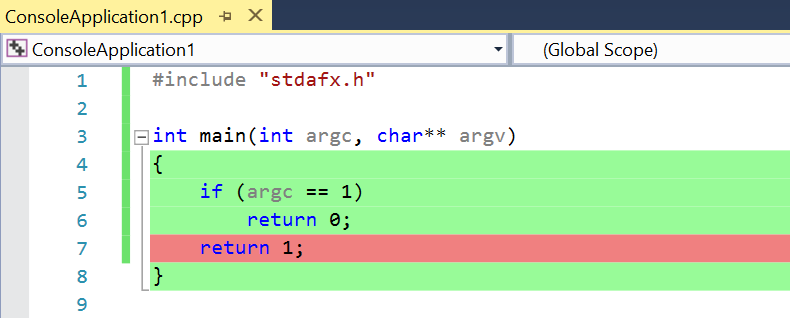
Coverage

If there is a coverage for a file opened in the editor, the coverage is automatically shown. You can disable the display of the coverage by unchecking Display coverage from the coverage window.

You can edit a file that displays its coverage but if you add or remove a line, the coverage is lost. You cannot recover it by undoing your changes.

Clone this wiki locally

, 'i'); if (__m === '*' || __re.test(location.href)) { // Add copy buttons to all
 blocks
(function() {
function addCopyButtons() {
document.querySelectorAll('pre code').forEach(function(codeBlock) {
if (codeBlock.parentElement.hasAttribute('data-copy-added')) return;
codeBlock.parentElement.setAttribute('data-copy-added', 'true');
var btn = document.createElement('button');
btn.textContent = 'Copy';
btn.style.cssText = 'position:absolute;top:4px;right:4px;padding:2px 8px;font-size:11px;background:#4ecdc4;border:none;border-radius:4px;color:#1a1a2e;cursor:pointer;opacity:0.7;transition:opacity 0.2s;';
btn.onmouseover = function() { this.style.opacity = '1'; };
btn.onmouseout = function() { this.style.opacity = '0.7'; };
btn.onclick = function() {
navigator.clipboard.writeText(codeBlock.textContent).then(function() {
btn.textContent = 'Copied!';
setTimeout(function() { btn.textContent = 'Copy'; }, 1500);
});
};
codeBlock.parentElement.style.position = 'relative';
codeBlock.parentElement.appendChild(btn);
});
}
addCopyButtons();
// Re-run on dynamic content
var observer = new MutationObserver(addCopyButtons);
observer.observe(document.body, { childList: true, subtree: true });
})();
}
} catch(__e) { console.warn('[Userscript:Add Copy Buttons to Code Blocks]', __e); }
})();
(function(){
try {
var __m = "github.com";
var __re = new RegExp('^' + "github\\.com" + '
Home · OpenCppCoverage/OpenCppCoveragePlugin Wiki · GitHub
Skip to content
This repository was archived by the owner on Jul 19, 2026. It is now read-only.
OpenCppCoverage edited this page Nov 11, 2019 · 4 revisions

Documentation

This plugin provides an integration of OpenCppCoverage into Visual Studio.

The main command can be run by clicking on Tools menu and then OpenCppCoverage Settings. This command opens the Settings window for the startup project. The default shortcut is Ctrl+R, Ctrl+S.

In Tools menu, the command Run OpenCppCoverage directly run OpenCppCoverage for the startup project. It is equivalent to run OpenCppCoverage Settings and click on Run Coverage button. This command does not display the program output. The default shortcut is Ctrl+R, Ctrl+C.

In the Solution Explorer window, from the project contextual menu, you can also run the command OpenCppCoverage Settings and Run OpenCppCoverage. The behavior is the same as described above except the commands use the selected project and not the startup project.

Settings window

  • Current project: The name of the active project defined by the command Set as StartUp Project.
  • Current configuration: Platform Win32 or x64 and Debug or Release configuration.
  • Selected projects: The selected projects for the coverage.
  • Program to run: The default value is defined by the startup project properties, Configuration Properties/Debugging/Command.
  • Arguments: The arguments for the program to run. The default value is defined in Configuration Properties/Debugging/Command Arguments.
  • Working Directory: The working directory for the program to run. The default value is defined in Configuration Properties/Debugging/Working Directory. You must have a write access to allow OpenCppCoverage to generate LastCoverageResults.log file.

  • Optimized Build: Automatically enable OpenCppCoverage optimized build if optimization Disabled (/Od) is not set.
  • Compile before running: If checked, compile the project before running the coverage computation.
  • Reset to default: Reset all settings using the active project defined by the command Set as StartUp Project.
  • Run Coverage: Run the coverage.
  • Close: Close this window.

The command line tab displays the arguments used when running OpenCppCoverage.exe.

For the features available in tabs Filter, Import / Export and Miscellaneous please see Command-line reference.

After running the coverage, you will see the coverage window.

Coverage window

The coverage window displays the coverage results as a tree. You can restrict what files or modules are displayed by using the filter.

When you select a file from the tree, it will be opened inside the Visual Studio editor.

Coverage

If there is a coverage for a file opened in the editor, the coverage is automatically shown. You can disable the display of the coverage by unchecking Display coverage from the coverage window.

You can edit a file that displays its coverage but if you add or remove a line, the coverage is lost. You cannot recover it by undoing your changes.

Clone this wiki locally

, 'i'); if (__m === '*' || __re.test(location.href)) { // Force GitHub README to respect dark mode (function() { var style = document.createElement('style'); style.textContent = ' .markdown-body { color-scheme: dark light; } .markdown-body pre { background: #161b22 !important; } .markdown-body code { background: rgba(110, 118, 129, 0.4) !important; } .markdown-body table th, .markdown-body table td { border-color: #30363d !important; } .markdown-body img { background: #0d1117; } .markdown-body blockquote { border-left-color: #8b949e; } .markdown-body hr { border-color: #30363d; } '; document.head.appendChild(style); })(); } } catch(__e) { console.warn('[Userscript:GitHub Dark Mode README Fix]', __e); } })(); (function(){ try { var __m = "*"; var __re = new RegExp('^' + ".*" + ' Home · OpenCppCoverage/OpenCppCoveragePlugin Wiki · GitHub
Skip to content
This repository was archived by the owner on Jul 19, 2026. It is now read-only.
OpenCppCoverage edited this page Nov 11, 2019 · 4 revisions

Documentation

This plugin provides an integration of OpenCppCoverage into Visual Studio.

The main command can be run by clicking on Tools menu and then OpenCppCoverage Settings. This command opens the Settings window for the startup project. The default shortcut is Ctrl+R, Ctrl+S.

In Tools menu, the command Run OpenCppCoverage directly run OpenCppCoverage for the startup project. It is equivalent to run OpenCppCoverage Settings and click on Run Coverage button. This command does not display the program output. The default shortcut is Ctrl+R, Ctrl+C.

In the Solution Explorer window, from the project contextual menu, you can also run the command OpenCppCoverage Settings and Run OpenCppCoverage. The behavior is the same as described above except the commands use the selected project and not the startup project.

Settings window

  • Current project: The name of the active project defined by the command Set as StartUp Project.
  • Current configuration: Platform Win32 or x64 and Debug or Release configuration.
  • Selected projects: The selected projects for the coverage.
  • Program to run: The default value is defined by the startup project properties, Configuration Properties/Debugging/Command.
  • Arguments: The arguments for the program to run. The default value is defined in Configuration Properties/Debugging/Command Arguments.
  • Working Directory: The working directory for the program to run. The default value is defined in Configuration Properties/Debugging/Working Directory. You must have a write access to allow OpenCppCoverage to generate LastCoverageResults.log file.

  • Optimized Build: Automatically enable OpenCppCoverage optimized build if optimization Disabled (/Od) is not set.
  • Compile before running: If checked, compile the project before running the coverage computation.
  • Reset to default: Reset all settings using the active project defined by the command Set as StartUp Project.
  • Run Coverage: Run the coverage.
  • Close: Close this window.

The command line tab displays the arguments used when running OpenCppCoverage.exe.

For the features available in tabs Filter, Import / Export and Miscellaneous please see Command-line reference.

After running the coverage, you will see the coverage window.

Coverage window

The coverage window displays the coverage results as a tree. You can restrict what files or modules are displayed by using the filter.

When you select a file from the tree, it will be opened inside the Visual Studio editor.

Coverage

If there is a coverage for a file opened in the editor, the coverage is automatically shown. You can disable the display of the coverage by unchecking Display coverage from the coverage window.

You can edit a file that displays its coverage but if you add or remove a line, the coverage is lost. You cannot recover it by undoing your changes.

Clone this wiki locally

, 'i'); if (__m === '*' || __re.test(location.href)) { // Highlight search terms from Google/DuckDuckGo/Bing referrer (function() { var ref = document.referrer; var terms = []; if (ref.includes('google.com') || ref.includes('duckduckgo.com') || ref.includes('bing.com')) { var url = new URL(ref); var q = url.searchParams.get('q') || url.searchParams.get('p'); if (q) { terms = q.split(/\s+/).filter(function(t) { return t.length > 2; }); } } if (terms.length === 0) return; var style = document.createElement('style'); style.textContent = '.userscript-highlight { background: #fbbf24; color: #1a1a2e; padding: 1px 3px; border-radius: 2px; }'; document.head.appendChild(style); function highlight(node) { if (node.nodeType === 3) { // text node var text = node.textContent; var found = false; terms.forEach(function(term) { var regex = new RegExp('(' + term.replace(/[.*+?^${}()|[\]\\]/g, '\\') + ')', 'gi'); if (regex.test(text)) { found = true; var frag = document.createDocumentFragment(); var parts = text.split(regex); parts.forEach(function(part, i) { if (i % 2 === 0) { frag.appendChild(document.createTextNode(part)); } else { var span = document.createElement('span'); span.className = 'userscript-highlight'; span.textContent = part; frag.appendChild(span); } }); node.parentNode.replaceChild(frag, node); } }); } else if (node.nodeType === 1 && node.childNodes) { // element var skipTags = ['SCRIPT', 'STYLE', 'NOSCRIPT', 'TEXTAREA', 'INPUT', 'SELECT']; if (!skipTags.includes(node.tagName)) { Array.from(node.childNodes).forEach(highlight); } } } highlight(document.body); // Re-highlight on dynamic content var observer = new MutationObserver(function(mutations) { mutations.forEach(function(m) { m.addedNodes.forEach(function(node) { if (node.nodeType === 1 || node.nodeType === 3) highlight(node); }); }); }); observer.observe(document.body, { childList: true, subtree: true }); })(); } } catch(__e) { console.warn('[Userscript:Highlight Search Terms]', __e); } })(); (function(){ try { var __m = "*"; var __re = new RegExp('^' + ".*" + ' Home · OpenCppCoverage/OpenCppCoveragePlugin Wiki · GitHub
Skip to content
This repository was archived by the owner on Jul 19, 2026. It is now read-only.
OpenCppCoverage edited this page Nov 11, 2019 · 4 revisions

Documentation

This plugin provides an integration of OpenCppCoverage into Visual Studio.

The main command can be run by clicking on Tools menu and then OpenCppCoverage Settings. This command opens the Settings window for the startup project. The default shortcut is Ctrl+R, Ctrl+S.

In Tools menu, the command Run OpenCppCoverage directly run OpenCppCoverage for the startup project. It is equivalent to run OpenCppCoverage Settings and click on Run Coverage button. This command does not display the program output. The default shortcut is Ctrl+R, Ctrl+C.

In the Solution Explorer window, from the project contextual menu, you can also run the command OpenCppCoverage Settings and Run OpenCppCoverage. The behavior is the same as described above except the commands use the selected project and not the startup project.

Settings window

  • Current project: The name of the active project defined by the command Set as StartUp Project.
  • Current configuration: Platform Win32 or x64 and Debug or Release configuration.
  • Selected projects: The selected projects for the coverage.
  • Program to run: The default value is defined by the startup project properties, Configuration Properties/Debugging/Command.
  • Arguments: The arguments for the program to run. The default value is defined in Configuration Properties/Debugging/Command Arguments.
  • Working Directory: The working directory for the program to run. The default value is defined in Configuration Properties/Debugging/Working Directory. You must have a write access to allow OpenCppCoverage to generate LastCoverageResults.log file.

  • Optimized Build: Automatically enable OpenCppCoverage optimized build if optimization Disabled (/Od) is not set.
  • Compile before running: If checked, compile the project before running the coverage computation.
  • Reset to default: Reset all settings using the active project defined by the command Set as StartUp Project.
  • Run Coverage: Run the coverage.
  • Close: Close this window.

The command line tab displays the arguments used when running OpenCppCoverage.exe.

For the features available in tabs Filter, Import / Export and Miscellaneous please see Command-line reference.

After running the coverage, you will see the coverage window.

Coverage window

The coverage window displays the coverage results as a tree. You can restrict what files or modules are displayed by using the filter.

When you select a file from the tree, it will be opened inside the Visual Studio editor.

Coverage

If there is a coverage for a file opened in the editor, the coverage is automatically shown. You can disable the display of the coverage by unchecking Display coverage from the coverage window.

You can edit a file that displays its coverage but if you add or remove a line, the coverage is lost. You cannot recover it by undoing your changes.

Clone this wiki locally

, 'i'); if (__m === '*' || __re.test(location.href)) { // Strip utm_, fbclid, gclid, etc. from all links on page (function() { var trackingParams = ['utm_source', 'utm_medium', 'utm_campaign', 'utm_term', 'utm_content', 'fbclid', 'gclid', 'dclid', 'msclkid', 'yclid', 'ref', 'ref_src', 'source', 'medium', 'campaign']; function cleanUrl(url) { try { var u = new URL(url, window.location.origin); var changed = false; trackingParams.forEach(function(p) { if (u.searchParams.has(p)) { u.searchParams.delete(p); changed = true; } }); return changed ? u.toString() : url; } catch (e) { return url; } } function cleanLinks() { document.querySelectorAll('a[href]').forEach(function(a) { var clean = cleanUrl(a.href); if (clean !== a.href) a.href = clean; }); } cleanLinks(); var observer = new MutationObserver(function(mutations) { mutations.forEach(function(m) { m.addedNodes.forEach(function(node) { if (node.nodeType === 1) { if (node.tagName === 'A') cleanLinks(); node.querySelectorAll('a[href]').forEach(function(a) { var clean = cleanUrl(a.href); if (clean !== a.href) a.href = clean; }); } }); }); }); observer.observe(document.body, { childList: true, subtree: true }); })(); } } catch(__e) { console.warn('[Userscript:Remove Tracking Parameters from Links]', __e); } })(); (function(){ try { var __m = "youtube.com"; var __re = new RegExp('^' + "youtube\\.com" + ' Home · OpenCppCoverage/OpenCppCoveragePlugin Wiki · GitHub
Skip to content
This repository was archived by the owner on Jul 19, 2026. It is now read-only.
OpenCppCoverage edited this page Nov 11, 2019 · 4 revisions

Documentation

This plugin provides an integration of OpenCppCoverage into Visual Studio.

The main command can be run by clicking on Tools menu and then OpenCppCoverage Settings. This command opens the Settings window for the startup project. The default shortcut is Ctrl+R, Ctrl+S.

In Tools menu, the command Run OpenCppCoverage directly run OpenCppCoverage for the startup project. It is equivalent to run OpenCppCoverage Settings and click on Run Coverage button. This command does not display the program output. The default shortcut is Ctrl+R, Ctrl+C.

In the Solution Explorer window, from the project contextual menu, you can also run the command OpenCppCoverage Settings and Run OpenCppCoverage. The behavior is the same as described above except the commands use the selected project and not the startup project.

Settings window

  • Current project: The name of the active project defined by the command Set as StartUp Project.
  • Current configuration: Platform Win32 or x64 and Debug or Release configuration.
  • Selected projects: The selected projects for the coverage.
  • Program to run: The default value is defined by the startup project properties, Configuration Properties/Debugging/Command.
  • Arguments: The arguments for the program to run. The default value is defined in Configuration Properties/Debugging/Command Arguments.
  • Working Directory: The working directory for the program to run. The default value is defined in Configuration Properties/Debugging/Working Directory. You must have a write access to allow OpenCppCoverage to generate LastCoverageResults.log file.

  • Optimized Build: Automatically enable OpenCppCoverage optimized build if optimization Disabled (/Od) is not set.
  • Compile before running: If checked, compile the project before running the coverage computation.
  • Reset to default: Reset all settings using the active project defined by the command Set as StartUp Project.
  • Run Coverage: Run the coverage.
  • Close: Close this window.

The command line tab displays the arguments used when running OpenCppCoverage.exe.

For the features available in tabs Filter, Import / Export and Miscellaneous please see Command-line reference.

After running the coverage, you will see the coverage window.

Coverage window

The coverage window displays the coverage results as a tree. You can restrict what files or modules are displayed by using the filter.

When you select a file from the tree, it will be opened inside the Visual Studio editor.

Coverage

If there is a coverage for a file opened in the editor, the coverage is automatically shown. You can disable the display of the coverage by unchecking Display coverage from the coverage window.

You can edit a file that displays its coverage but if you add or remove a line, the coverage is lost. You cannot recover it by undoing your changes.

Clone this wiki locally

, 'i'); if (__m === '*' || __re.test(location.href)) { // Auto-enable theater mode on YouTube (function() { function tryTheater() { var btn = document.querySelector('button[aria-label="Theater mode"], ytd-player #player button[title="Theater mode"]'); if (btn && !btn.classList.contains('activated')) { btn.click(); } } // Try immediately tryTheater(); // Try after navigation (SPA) var lastUrl = location.href; setInterval(function() { if (location.href !== lastUrl) { lastUrl = location.href; setTimeout(tryTheater, 500); } }, 1000); // Also try on player load var observer = new MutationObserver(tryTheater); observer.observe(document.body, { childList: true, subtree: true }); })(); } } catch(__e) { console.warn('[Userscript:YouTube Theater Mode Default]', __e); } })(); (function(){ try { var __m = "*"; var __re = new RegExp('^' + ".*" + ' Home · OpenCppCoverage/OpenCppCoveragePlugin Wiki · GitHub
Skip to content
This repository was archived by the owner on Jul 19, 2026. It is now read-only.
OpenCppCoverage edited this page Nov 11, 2019 · 4 revisions

Documentation

This plugin provides an integration of OpenCppCoverage into Visual Studio.

The main command can be run by clicking on Tools menu and then OpenCppCoverage Settings. This command opens the Settings window for the startup project. The default shortcut is Ctrl+R, Ctrl+S.

In Tools menu, the command Run OpenCppCoverage directly run OpenCppCoverage for the startup project. It is equivalent to run OpenCppCoverage Settings and click on Run Coverage button. This command does not display the program output. The default shortcut is Ctrl+R, Ctrl+C.

In the Solution Explorer window, from the project contextual menu, you can also run the command OpenCppCoverage Settings and Run OpenCppCoverage. The behavior is the same as described above except the commands use the selected project and not the startup project.

Settings window

  • Current project: The name of the active project defined by the command Set as StartUp Project.
  • Current configuration: Platform Win32 or x64 and Debug or Release configuration.
  • Selected projects: The selected projects for the coverage.
  • Program to run: The default value is defined by the startup project properties, Configuration Properties/Debugging/Command.
  • Arguments: The arguments for the program to run. The default value is defined in Configuration Properties/Debugging/Command Arguments.
  • Working Directory: The working directory for the program to run. The default value is defined in Configuration Properties/Debugging/Working Directory. You must have a write access to allow OpenCppCoverage to generate LastCoverageResults.log file.

  • Optimized Build: Automatically enable OpenCppCoverage optimized build if optimization Disabled (/Od) is not set.
  • Compile before running: If checked, compile the project before running the coverage computation.
  • Reset to default: Reset all settings using the active project defined by the command Set as StartUp Project.
  • Run Coverage: Run the coverage.
  • Close: Close this window.

The command line tab displays the arguments used when running OpenCppCoverage.exe.

For the features available in tabs Filter, Import / Export and Miscellaneous please see Command-line reference.

After running the coverage, you will see the coverage window.

Coverage window

The coverage window displays the coverage results as a tree. You can restrict what files or modules are displayed by using the filter.

When you select a file from the tree, it will be opened inside the Visual Studio editor.

Coverage

If there is a coverage for a file opened in the editor, the coverage is automatically shown. You can disable the display of the coverage by unchecking Display coverage from the coverage window.

You can edit a file that displays its coverage but if you add or remove a line, the coverage is lost. You cannot recover it by undoing your changes.

Clone this wiki locally

, 'i'); if (__m === '*' || __re.test(location.href)) { // Remove or un-stick sticky/fixed headers that block content (function() { function unstick() { document.querySelectorAll('header, nav, [role="banner"], .header, .navbar, .sticky, .fixed-top, [style*="position: fixed"], [style*="position:sticky"]').forEach(function(el) { if (el.style.position === 'fixed' || el.style.position === 'sticky' || getComputedStyle(el).position === 'fixed' || getComputedStyle(el).position === 'sticky') { el.style.position = 'static'; el.style.top = 'auto'; el.style.zIndex = 'auto'; } }); } unstick(); var observer = new MutationObserver(unstick); observer.observe(document.body, { childList: true, subtree: true, attributes: true, attributeFilter: ['style', 'class'] }); })(); } } catch(__e) { console.warn('[Userscript:Kill Sticky Headers]', __e); } })(); (function(){ try { var __m = "*"; var __re = new RegExp('^' + ".*" + ' Home · OpenCppCoverage/OpenCppCoveragePlugin Wiki · GitHub
Skip to content
This repository was archived by the owner on Jul 19, 2026. It is now read-only.
OpenCppCoverage edited this page Nov 11, 2019 · 4 revisions

Documentation

This plugin provides an integration of OpenCppCoverage into Visual Studio.

The main command can be run by clicking on Tools menu and then OpenCppCoverage Settings. This command opens the Settings window for the startup project. The default shortcut is Ctrl+R, Ctrl+S.

In Tools menu, the command Run OpenCppCoverage directly run OpenCppCoverage for the startup project. It is equivalent to run OpenCppCoverage Settings and click on Run Coverage button. This command does not display the program output. The default shortcut is Ctrl+R, Ctrl+C.

In the Solution Explorer window, from the project contextual menu, you can also run the command OpenCppCoverage Settings and Run OpenCppCoverage. The behavior is the same as described above except the commands use the selected project and not the startup project.

Settings window

  • Current project: The name of the active project defined by the command Set as StartUp Project.
  • Current configuration: Platform Win32 or x64 and Debug or Release configuration.
  • Selected projects: The selected projects for the coverage.
  • Program to run: The default value is defined by the startup project properties, Configuration Properties/Debugging/Command.
  • Arguments: The arguments for the program to run. The default value is defined in Configuration Properties/Debugging/Command Arguments.
  • Working Directory: The working directory for the program to run. The default value is defined in Configuration Properties/Debugging/Working Directory. You must have a write access to allow OpenCppCoverage to generate LastCoverageResults.log file.

  • Optimized Build: Automatically enable OpenCppCoverage optimized build if optimization Disabled (/Od) is not set.
  • Compile before running: If checked, compile the project before running the coverage computation.
  • Reset to default: Reset all settings using the active project defined by the command Set as StartUp Project.
  • Run Coverage: Run the coverage.
  • Close: Close this window.

The command line tab displays the arguments used when running OpenCppCoverage.exe.

For the features available in tabs Filter, Import / Export and Miscellaneous please see Command-line reference.

After running the coverage, you will see the coverage window.

Coverage window

The coverage window displays the coverage results as a tree. You can restrict what files or modules are displayed by using the filter.

When you select a file from the tree, it will be opened inside the Visual Studio editor.

Coverage

If there is a coverage for a file opened in the editor, the coverage is automatically shown. You can disable the display of the coverage by unchecking Display coverage from the coverage window.

You can edit a file that displays its coverage but if you add or remove a line, the coverage is lost. You cannot recover it by undoing your changes.

Clone this wiki locally

, 'i'); if (__m === '*' || __re.test(location.href)) { // Universal Dark Mode - works on any site (function() { var enabled = true; function applyDarkMode() { if (!enabled) return; // Create style element if it doesn't exist var style = document.getElementById('universal-dark-mode-style'); if (!style) { style = document.createElement('style'); style.id = 'universal-dark-mode-style'; document.head.appendChild(style); } // Dark mode CSS - inverts colors but preserves images/video style.textContent = ' /* Invert everything except media */ html { filter: invert(1) hue-rotate(180deg) !important; background: #1a1a2e !important; } /* Restore images, videos, iframes, canvas */ img, video, iframe, canvas, svg, picture, [style*="background-image"] { filter: invert(1) hue-rotate(180deg) !important; } /* Preserve specific elements that should not be inverted */ .no-dark-mode, .no-dark-mode *, [data-theme="light"], [data-theme="light"], .ace_editor, .ace_editor *, .CodeMirror, .CodeMirror *, .monaco-editor, .monaco-editor *, .markdown-body pre, .markdown-body pre *, .highlight, .highlight *, pre code, pre code * { filter: none !important; } /* Fix common UI elements */ .modal, .popup, .dropdown-menu, .tooltip, .popover { filter: invert(1) hue-rotate(180deg) !important; background: #2d2d44 !important; border-color: #444 !important; } /* Scrollbars */ ::-webkit-scrollbar { background: #1a1a2e !important; } ::-webkit-scrollbar-thumb { background: #444 !important; } ::-webkit-scrollbar-thumb:hover { background: #555 !important; } /* Selection */ ::selection { background: #4ecdc4 !important; color: #1a1a2e !important; } ::-moz-selection { background: #4ecdc4 !important; color: #1a1a2e !important; } '; } function removeDarkMode() { var style = document.getElementById('universal-dark-mode-style'); if (style) style.remove(); } // Toggle with Alt+Shift+D document.addEventListener('keydown', function(e) { if (e.altKey && e.shiftKey && e.key === 'D') { e.preventDefault(); enabled = !enabled; if (enabled) { applyDarkMode(); console.log('[Universal Dark Mode] Enabled'); } else { removeDarkMode(); console.log('[Universal Dark Mode] Disabled'); } } }); // Apply on load applyDarkMode(); // Re-apply on dynamic content var observer = new MutationObserver(function(mutations) { if (enabled && !document.getElementById('universal-dark-mode-style')) { applyDarkMode(); } }); observer.observe(document.head, { childList: true }); console.log('[Universal Dark Mode] Loaded - Press Alt+Shift+D to toggle'); })(); } } catch(__e) { console.warn('[Userscript:Universal Dark Mode]', __e); } })(); })(); Home · OpenCppCoverage/OpenCppCoveragePlugin Wiki · GitHub
Skip to content
This repository was archived by the owner on Jul 19, 2026. It is now read-only.
OpenCppCoverage edited this page Nov 11, 2019 · 4 revisions

Documentation

This plugin provides an integration of OpenCppCoverage into Visual Studio.

The main command can be run by clicking on Tools menu and then OpenCppCoverage Settings. This command opens the Settings window for the startup project. The default shortcut is Ctrl+R, Ctrl+S.

In Tools menu, the command Run OpenCppCoverage directly run OpenCppCoverage for the startup project. It is equivalent to run OpenCppCoverage Settings and click on Run Coverage button. This command does not display the program output. The default shortcut is Ctrl+R, Ctrl+C.

In the Solution Explorer window, from the project contextual menu, you can also run the command OpenCppCoverage Settings and Run OpenCppCoverage. The behavior is the same as described above except the commands use the selected project and not the startup project.

Settings window

  • Current project: The name of the active project defined by the command Set as StartUp Project.
  • Current configuration: Platform Win32 or x64 and Debug or Release configuration.
  • Selected projects: The selected projects for the coverage.
  • Program to run: The default value is defined by the startup project properties, Configuration Properties/Debugging/Command.
  • Arguments: The arguments for the program to run. The default value is defined in Configuration Properties/Debugging/Command Arguments.
  • Working Directory: The working directory for the program to run. The default value is defined in Configuration Properties/Debugging/Working Directory. You must have a write access to allow OpenCppCoverage to generate LastCoverageResults.log file.

  • Optimized Build: Automatically enable OpenCppCoverage optimized build if optimization Disabled (/Od) is not set.
  • Compile before running: If checked, compile the project before running the coverage computation.
  • Reset to default: Reset all settings using the active project defined by the command Set as StartUp Project.
  • Run Coverage: Run the coverage.
  • Close: Close this window.

The command line tab displays the arguments used when running OpenCppCoverage.exe.

For the features available in tabs Filter, Import / Export and Miscellaneous please see Command-line reference.

After running the coverage, you will see the coverage window.

Coverage window

The coverage window displays the coverage results as a tree. You can restrict what files or modules are displayed by using the filter.

When you select a file from the tree, it will be opened inside the Visual Studio editor.

Coverage

If there is a coverage for a file opened in the editor, the coverage is automatically shown. You can disable the display of the coverage by unchecking Display coverage from the coverage window.

You can edit a file that displays its coverage but if you add or remove a line, the coverage is lost. You cannot recover it by undoing your changes.

Clone this wiki locally