






Actual master.zip: Developer Version master.zip



GPU/CPU Mining script with intelligent auto-switching between different mining pools, algorithms and miner programs using all possible combinations of devices (NVIDIA, AMD, INTEL and CPU), optionally including the cost of electricity in profit calculations and stopping mining once it is no longer profitable. Features: easy setup wizard with ad-hoc working default (no editing of files needed), GUI-webinterface, selection of devices to be used, very low CPU usage.
- Multi-Platform (AMD, INTEL, NVIDIA, CPU) on Windows and Linux
- Optional watchdog start scripts, that restart RainbowMiner automatically after a crash (StartWD.bat / startwd.sh)
- Profit auto-switch between mining programs and algorithm for GPUs & CPUs (optimized one for each vendor vs. one for each possible device combination)
- Profit auto-switch between pools (2Miners, Abelpool, AccPool, Acepool, BaikalMine, Binance, C3pool, CpuPool, Crazypool, DeepMinerZ, EpicMine, Ethwmine, F2pool, FlockPool, Gtpool, Hashcryptos, Hashpool, HashVault, Hellominer, HeroMiners, K1Pool, Kryptex, LeafPool, LuckPool, LuckyPool, Luxor, MinerRocks, Mining4people, MiningDutch, MiningRigRentals, Mintpond, Molepool, MoneroOcean, Nanopool, Neuropool, Nicehash, Pearlhash, Poolin, RaptoreumZone, Ravenminer, RPlant, SoloPool, Sunpool, SupportXmr, SuprNova, unMineable, UUpool, ViaBTC, Vipor, WoolyPooly, XdagOrg, YadaMiners and Zpool)
- Integrate own and custom pools as user pools, maintained on the User Pools page of the web interface (see Doc/USERPOOLS.md)
- Integrate your own miner programs as custom miners, compatible with HiveOS flight sheets (see Doc/CUSTOMMINERS.md)
- Profit calculation, including real cost of electricity per miner
- Uses the top actual available miner programs (Bminer, Ccminer, Claymore, CryptoDredge, Dstm, EnemyZ, Ewbf, Gminer, NBminer, Sgminer, SrbMiner, T-Rex, Xmrig and many more)
- Easy setup wizard with ad-hoc working default - click Start.bat and off you go (RainbowMiner will ask for your credentials, no hassle with editing configuration files)
- Client\Server networking for multiple rigs - minimizes internet traffic and avoids pool bans
- Scheduler for different power prices and/or pause during specific timespans
- Built-in automatic update
- Mine with any device, arbitrarily - Mining devices freely selectable
- Finetune miner- and pool-configuration during runtime
- Bind/exclude devices to and from specific algorithms and miners
- Define algorithms and/or to mine, per pool
- Unlimited custom overclocking profiles per miner/algorithm
- Easy overclocking of GPUs (memory, core, power limit, and voltage)
- Switch MSI Afterburner profiles per miner/algorithm
- Includes OhGodAnETHlargementPill
- Very low CPU usage to increase CPU mining profit
- Pause mining without exiting the RainbowMiner
- Full automatic update
- Easy replication and setup configuration
- Very small minimum developer fee of 0.7% (10 minutes per day) to support my work
- Live monitoring web-interface at localhost:4000
- Central monitoring of all your rigs at https://rbminer.net
- Offline notifications via email and/or https://pushover.net
The following documents are the source of truth and are kept up to date with every release:
| Document | Content |
|---|---|
| Doc/UPDATE.md | how to update RainbowMiner, and what to do if the automatic update fails |
| Doc/CONFIG.md | the complete parameter reference of Config\config.txt |
| Doc/POOLS.md | every pool that RainbowMiner ships, and what it needs from you |
| Doc/POOLSCONFIG.md | the per-pool settings in Config\pools.config.txt |
| Doc/USERPOOLS.md | add your own or other pools, that RainbowMiner does not ship |
| Doc/CUSTOMMINERS.md | add your own miner programs, incl. the import of HiveOS flight sheets |
| Doc/OVERCLOCKING.md | the two overclocking options and the custom overclocking profiles |
| Doc/MININGRIGRENTALS.md | rent your rig out at MiningRigRentals.com |
| Doc/NETWORKING.md | hints for the client/server setup of multiple rigs |
| Doc/REPORTAPI.md | the status report a rig sends to the central monitoring, for your own monitoring |
| Doc/LINUX-PREREQUISITES.md | GPU driver, OpenCL and huge pages on a Linux rig |
| Doc/LINUX-SETUP-SHORTGUIDE.md | short guide to running RainbowMiner on Linux with Nvidia GPUs |
The rest of this README covers the pre-requisites, the installation, the day-to-day operation and the remaining configuration files.
Important note: RainbowMiner recommends PowerShell 7.6.5 (LTS, supported until November 2028). PowerShell 7.2 still works, but is out of support since November 2024 and receives no more security fixes. The memory leak of the early 7.3/7.4 releases has been fixed long ago. On Linux, PowerShell 7.4 and newer needs glibc 2.27 or newer (Ubuntu 18.04+, Debian 10+), on 32-bit ARM glibc 2.35 or newer (Ubuntu 22.04+, Debian 12+). Older systems should stay on PowerShell 7.2.24.
-
Install PowerShell 7: Download Installer for version 7.6.5
-
Install Microsoft .NET Framework 4.7.2 or later: Web Installer
-
Install the GPU driver of your vendor. The latest driver is not always the best one for mining, and which one is right depends on your cards - a driver that runs your rig stable is worth more than a new one. Pick it on the vendor's page:
These versions have been proven on older rigs and are a good starting point, if you are unsure or still run an older Windows:
- Nvidia Driver Version v512.15 - Windows 10/11
- Nvidia Driver Version v471.41 - Windows 7,8,8.1 (the last series that supports Windows 7/8.1)
- AMD Adrenalin 2022 Edition 22.3.2
-
If your rig contains AMD graphic cards, RainbowMiner's overclocking features rely on MSI Afterburner, you should install and run it: Download
-
If you want to have accurate power and clock values for your CPU, please install the PawnIO driver available from here: https://pawnio.eu/
Finally: check, if Powershell 7 is in your PATH, because RainbowMiner will not run correctly, if the path to powershell is missing. Sometimes C:\Program Files\PowerShell\7 has to be added manually to the PATH environment variable after installing PowerShell 7. Here is a nice tutorial, on how to add to PATH environment variable https://www.howtogeek.com/118594/how-to-edit-your-system-path-for-easy-command-line-access/amp/
Important for Windows 11: if you start RainbowMiner with Start.bat, StartHidden.bat or StartInWin.bat, run FixConsole.bat once, before you start RainbowMiner for the first time.
Windows 11 hosts every console window in Windows Terminal by default and Windows Terminal has known problems with classic console applications. RainbowMiner is hit by them directly: the RainbowMiner window may ignore all attempts to move, close, minimize or maximize it, and the -windowstyle of the start scripts (maximized/hidden/normal) is not applied reliably.
FixConsole.bat switches the default terminal application of your Windows user back to the classic Windows Console Host. It asks for confirmation first, changes nothing but this one setting and needs no administrator rights. Add the parameter /f to switch without being asked, or run FixConsole.bat /r to undo the change at any time. Details and the manual way through the Windows settings can be found in the FAQ: The RainbowMiner window cannot be moved, closed or minimized
Not needed for the watchdog start scripts StartWD.bat, StartWDHidden.bat and StartWDInWin.bat: those detect Windows 11 and relaunch themselves under the classic console host on their own (see section WATCHDOG START SCRIPTS). Running FixConsole.bat does not hurt them either.
RainbowMiner needs PowerShell 7 - install.sh installs it - plus the GPU driver and OpenCL
of your vendor. How to get those onto an Ubuntu/Debian rig, how to set the huge pages the
CryptoNight and RandomX family needs, and how to enable the Nvidia cool-bits for
overclocking, is described in Doc/LINUX-PREREQUISITES.md.
A complete walkthrough of a full rig setup, from the operating system to the autostart, is kept in Doc/LINUX-SETUP-SHORTGUIDE.md.
Important: Add the RainbowMiner directory to the exceptions of your antivirus program. Otherwise, some miners will cause false virus alerts.
On Linux, you may use git for a shortcut:
sudo apt-get update
sudo apt-get install git
git clone https://github.com/rainbowminer/RainbowMiner
On Windows:
- open RainbowMiner folder with Explorer
- right-click "Install.bat" and choose "Run as administrator"
On Linux, cd into your RainbowMiner folder, change the attributes of install.sh, start.sh and others and run the Installer:
- on a machine that allows root (sudo):
cd RainbowMiner
chmod +x *.sh
sudo ./install.sh
- on a machine that doesn't allow root (sudo), e.g. a managed server:
cd RainbowMiner
chmod +x *.sh
./install.sh
At the end of the install, you will be asked to start RainbowMiner.
If the installer fails to install PowerShell, this is the way to install it manually:
Find the matching version of PowerShell v7.6.5 for your system from here and download it to your machine.
On Windows, just run the Installer
On Linux: either use the GUI installer to install the package or do it manually, e.g. for Ubuntu:
# if not already done, download the package (use the "-lts" for LTS Linux or the second line for non-LTS)
wget https://github.com/PowerShell/PowerShell/releases/download/v7.6.5/powershell-lts_7.6.5-1.deb_amd64.deb
#wget https://github.com/PowerShell/PowerShell/releases/download/v7.6.5/powershell_7.6.5-1.deb_amd64.deb

# install powershell package (use the "-lts" for LTS Linux or the second line for non-LTS)
dpkg -i powershell-lts_7.6.5-1.deb_amd64.deb
#dpkg -i powershell_7.6.5-1.deb_amd64.deb

# install powershell dependencies
apt install -f
- open RainbowMiner folder with Explorer
- on Windows 11: run "FixConsole.bat" once, it is needed for "Start.bat" but not for the watchdog start scripts (see Windows 11: switch the default terminal application)
- right-click "Start.bat" and choose "Run as administrator"
./start.sh
Alternative: start as Linux screen:
./start-screen.sh
- press
Ctrl+A, thendto detach from screen (imagine you want to disconnect your ssh session) - use
./show-screen.shor enterscreen -R RainbowMinerto reconnect to screen
The better alternative: start as Linux tmux:
./start-tmux.sh
- press
Ctrl+B, thendto detach from the tmux session (imagine you want to disconnect your ssh session) - use
./show-tmux.shor entertmux attach-session -t RainbowMinerto reconnect to screen
Optional: if you want RainbowMiner to be restarted automatically after a crash, use the watchdog start scripts StartWD.bat (Windows) or ./startwd.sh, ./startwd-screen.sh, ./startwd-tmux.sh, ./startwd-nohup.sh (Linux) instead. See section WATCHDOG START SCRIPTS for details.
- choose your rig's WorkerName [default=rainbowminer]
- choose your RunMode:
- standalone = all config locally and direct connect to pool APIs
- server = act as server for many Clients, may also run as mining rig
- client = optionally use server's config files, connect to server for pool API data
- enter API port for webinterface at http://localhost:
- optionally protect access to the webinterface with username and password
- for client-mode:
- enter the server's name (or IP)
- enter the server's API port
- optionally enter username and password, if you have protected the access to the server's webinterface
- your btc-wallet address (one for general use, and one for Nicehash)
- your MiningRigRentals credentials, if you plan to use this pool
- your region. Valid names are: US, Europe, Asia
- your currencies. Valid currencies are: BTC, USD, EUR, GBP, ETC, ..
- the pools you want to mine, as a comma separated list.
- the algorithms you want to mine, as a comma separated list.
- the devices you want to use for mining. Valid descriptors are: gpu, cpu, nvidia, amd (RainbowMiner will show you, which devices are available on your machine) or use your device names (without spaces, without leading geforce): gtx1070, gtx1080ti ..
- be patient! This might take a while
- Anyway: it will already mine to your wallets
Valid poolnames
2Miners, 2MinersAE, 2MinersSolo, Abelpool, AccPool, Acepool, BaikalMine, BaikalMinePPS, BaikalMineSolo, Binance, C3pool, CpuPool, Crazypool, DeepMinerZ, DeepMinerZSolo, EpicMine, Ethwmine, F2pool, FlockPool, Gtpool, Hashcryptos, Hashpool, HashVault, Hellominer, HeroMiners, K1Pool, K1PoolSolo, Kryptex, KryptexSolo, LeafPool, LuckPool, LuckyPool, Luxor, MinerRocks, Mining4people, Mining4peopleSolo, MiningDutch, MiningRigRentals, Mintpond, Molepool, MoneroOcean, Nanopool, Neuropool, Nicehash, Pearlhash, Poolin, RaptoreumZone, Ravenminer, RavenminerSolo, RPlant, RPlantSolo, SoloPool, Sunpool, SupportXmr, SuprNova, unMineable, UUpool, ViaBTC, Vipor, ViporSolo, WhatToMine, WoolyPooly, WoolyPoolySolo, XdagOrg, XdagOrgSolo, YadaMiners, Zpool, ZpoolCoinsValid algorithms
Balloon, Bitcore, Blakecoin, Blake2s, BlakeVanilla, C11, Cortex, CryptoNightV8, Cuckaroo29, Cuckaroo29s, Ethash, X11, Decred, Equihash, Equihash144, Equihash192, Equihash-BTG, Groestl, Hex, HMQ1725, HSR, JHA, Keccak, Lbry, Lyra2RE2, Lyra2z, MyriadGroestl, NeoScrypt, Pascal, Phi, Phi2, Polytimos, Quark, Qubit, Scrypt, SHA256, Sib, Skunk, Skein, Tensority, Timetravel, Tribus, Veltor, X11, X12, X11evo, X16R, X16S, X17, X18, X21s, X22i, Yescrypt and many more: https://rbminer.net/algorithms/You can press the following keys, while RainbowMiner is waiting for the next run.
- E[x]it Miningscript = stop all running miner and exit RainbowMiner ([Ctrl-C] does the same)
- [N]ext round = end the waiting time and start the next round immediately
- [S]kip switching prevention = immediately start the most profitable miner, without waiting for the switching prevention
- [P]ause = stop all running miner and wait until user presses P again
- [L]ock switching = keep the currently running miners on their pools and stop all switching, press L again to unlock (not available during a rental or a donation run)
- [R]estart = stop all running miner and restart RainbowMiner
- [Q]uit and reboot = stop all running miner and reboot the computer
- start [D]ownloader = start the downloader manually (only needed, if you manually updated a miner)
- [C]onfiguration = goto the configuration setup (after setup all miners will be restarted)
- [V]erbose off/on = switch the user interface from lite(=off) to full(=on)
- [B]alances = update the pool balances now, instead of waiting for the next scheduled update
- [W]atchdog reset = clear all watchdog timers and reset the watchdog levels (this re-enables the miners, algorithms and pools, that the watchdog has put on hold)
- clear cach[E] = delete the cached pool data and restart the asyncloader
- [Y]ank asyncloader = restart the asyncloader without clearing the cache (only needed, if the asyncloader got stuck)
- [U]pdate = if a new release of RainbowMiner is available, this option will show up. Pressing this key will start the automatic update (see Doc/UPDATE.md)
- [Ctrl-U]pdate to prerelease = pressing this key will update RainbowMiner to the current development pre-release (master.zip) - be careful with that!
The very same commands are available as buttons on the Console page of the web interface. This is the way to control a rig, that runs hidden, as a service or on a headless Linux box.
- Set your Windows virtual memory size to a fixed size, to the sum of your GPU memories x 1.1, e.g. if you have 6x GTX1070 8GB installed, use at least 53000 (Computer Properties->Advanced System Settings->Performance->Advanced->Virtual Memory)
- Submit bugs and feature requests here: https://github.com/RainbowMiner/RainbowMiner/issues
- Find a lot of additional information and documentation here: https://github.com/RainbowMiner/RainbowMiner/issues?q=is%3Aissue+label%3Adocumentation
- if mining on GeForce GTX 1070/GTX 1070Ti/GTX 1080/GTX 1080Ti, it is recommended to set "Force P2-State" to "Off", so that the card will always operate in P0 state. How to set P0 state for my GTX1070 and GTX1080
- Important: NEVER EDIT THE "Start.bat" or "StartWD.bat" ! It will break the autoupdate. If you want to add commands to the start, edit .\Config\autoexec.txt
- the root directory of RainbowMiner contains the following, additional batch files:
| Windows | Linux | Description |
|---|---|---|
Start.bat |
./start.sh |
start RainbowMiner |
| - | ./start-screen.sh |
start as Linux screen, connect to screen using ./show-screen.sh or screen -R RainbowMiner, Ctrl+A then d to detach |
| - | ./show-screen.sh |
reconnect to current RainbowMiner screen, Ctrl+A then d to detach |
| - | ./start-tmux.sh |
start as Linux tmux, connect to tmux session using ./show-tmux.sh or tmux attach-session -t RainbowMiner, Ctrl+B then d to detach |
| - | ./show-tmux.sh |
reconnect to current RainbowMiner tmux session, Ctrl+B then d to detach |
| - | ./start-nohup.sh |
start as background job, run ./stopp.sh to stop rainbowminer, run ./rbmlog.sh to follow the Rainbowminer logfile, run ./minerlog.sh to follow the miner log files |
StartWD.bat |
./startwd.sh |
start RainbowMiner with crash watchdog: restarts automatically, if the PowerShell process dies unexpectedly (see section WATCHDOG START SCRIPTS) |
StartWDHidden.bat |
- | start RainbowMiner with crash watchdog in a hidden window |
StartWDInWin.bat |
- | start RainbowMiner with crash watchdog in a normal window |
| - | ./startwd-screen.sh |
start with crash watchdog as Linux screen, connect using ./show-screen.sh |
| - | ./startwd-tmux.sh |
start with crash watchdog as Linux tmux, connect using ./show-tmux.sh |
| - | ./startwd-nohup.sh |
start with crash watchdog as background job |
Setup.bat |
./setup.sh |
start RainbowMiner configuration |
Install.bat |
./install.sh |
install pre-requisites + on linux: update powershell to the newest release with ./install.sh -pu |
FixConsole.bat |
- | Windows 11: switch the default terminal to the classic Windows Console Host, needed for Start.bat, not for StartWD.bat (/f = do not ask, /r = undo) |
InitServer.bat |
sudo ./initserver.sh |
make this rig a server |
InitClient.bat |
sudo ./initclient.sh |
make this rig a client |
InitStandalone.bat |
sudo ./initstandalone.sh |
make this rig a standalone machine |
GPUtest.bat |
sudo ./gputest.sh |
create gputestresults.txt with tech details |
Updater.bat |
./updater.sh |
manually update to newest release of RainbowMiner. Make sure, you stop RainbowMiner before running this helper (see Doc/UPDATE.md) |
ListDevices.bat |
- | list all available devices |
MinerLog.bat |
./minerlog.sh |
follow the output of the miners |
| - | ./rbmlog.sh |
follow the RainbowMiner log (useful if RainbowMiner is running as background job) |
RemoveLogs.bat |
- | delete all log files to save some disk space |
RemovePresets.bat |
- | block presets from being written to miners.config.txt (see Presets) |
ResetBenchmark.bat |
- | reset all benchmarks |
ResetBenchmarkAMD.bat |
- | reset all AMD benchmarks |
ResetBenchmarkCPU.bat |
- | reset all CPU benchmarks |
ResetBenchmarkNVIDIA.bat |
- | reset all NVIDIA benchmarks |
ResetProfit.bat |
- | reset RainbowMiner's profit calculation |
TouchBenchmark.bat |
- | avoid benchmark of new miners, will set the timestamp of all miner stat files to now |
Stopp.bat |
./stopp.sh |
halt RainbowMiner at once |
In rare cases the PowerShell process itself may crash (e.g. a native CLR error or an out-of-memory kill on Linux). The regular start scripts will end in this case and the rig stops mining. The watchdog start scripts StartWD.bat, StartWDHidden.bat, StartWDInWin.bat (Windows) and ./startwd.sh, ./startwd-screen.sh, ./startwd-tmux.sh, ./startwd-nohup.sh (Linux) will restart RainbowMiner automatically after 10 seconds instead. They are a drop-in replacement for the regular start scripts, updates and restarts from within RainbowMiner keep working as usual.
How the watchdog decides:
- a regular exit (quit from the miner screen, web interface stop,
Stopp.bat/./stopp.sh,Ctrl+Cor aSIGTERMon Linux) ends the script, as before - any other, unexpected end of the PowerShell process is treated as a crash: the event is logged to
Logs\watchdog.txtand RainbowMiner is restarted after 10 seconds - if RainbowMiner crashes 5 times in a row, each within less than 120 seconds after start, the watchdog gives up (this prevents an endless restart loop on a broken installation). A run of more than 120 seconds resets the counter, so a rig that crashes now and then will be restarted forever.
Important: killing the PowerShell process by hand (task manager, kill -9) counts as a crash and will trigger a restart. Use Stopp.bat/./stopp.sh or quit from within RainbowMiner to stop a watchdog-controlled rig.
The thresholds can be changed without editing the scripts, using environment variables: WD_FAILMAX and WD_MINRUN on Windows, RBM_WD_FAILMAX and RBM_WD_MINRUN on Linux.
Note for Windows: the watchdog scripts copy themselves to StartWD.run.cmd (etc.) on start and run the copy, so that the automatic update can never touch a running script. These *.run.cmd files are recreated on every start and can be ignored.
Note for Windows 11: by default, Windows 11 hosts all console windows in Windows Terminal, which has known issues with classic console applications - the RainbowMiner window may not react to move, close or minimize, and the -windowstyle of the start scripts is not applied reliably. The watchdog start scripts detect Windows 11 and relaunch themselves under the classic console host (conhost) automatically - a short flash of an extra window on start is expected and harmless. For the regular start scripts, run FixConsole.bat once, see the FAQ ("The RainbowMiner window cannot be moved, closed or minimized").
For autostart, the watchdog scripts can be used in place of the regular start scripts in the Windows task scheduler and in the Linux crontab (see FAQ).
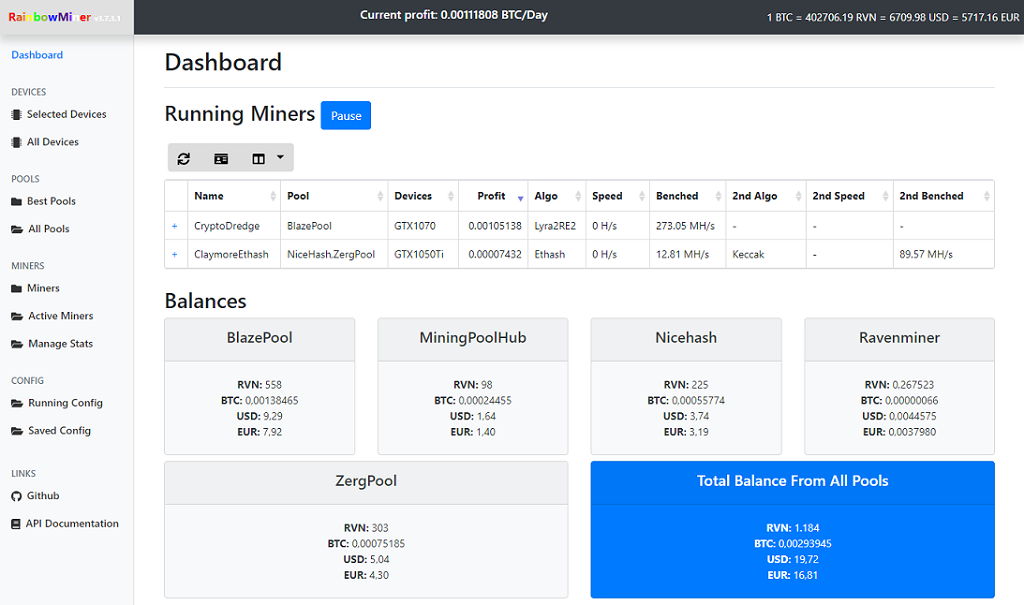
For your convenience, you can monitor and setup RainbowMiner using your web browser. The web interface very prominently shows RainbowMiner's live profitability and the current BTC exchange rates. To start the web interface, simply open the URL localhost:4000 in a new browser tab.
The pages are grouped in the menu on the left.
Main
- Dashboard: the live running miners, the remote workers (if central monitoring is enabled) and the pool balances. The buttons "Pause / Restart", "Lock / Unlock" and "Reboot" control the rig. It will take up to 20 seconds, until the miner script finalizes the pause/restart procedure, so give it some time.
- Console: the console output of RainbowMiner, plus all hotkeys as buttons - the way to control a rig, that runs hidden, as a service or on a headless Linux box. The output of the running miners is shown below it, which on Windows requires
"ShowMinerWindow": "0"(on Linux it always works); a few miners write directly to their window and cannot be captured - Rates: the rate conversion table of all currencies in use
- Network: the client/server setup of this rig, plus actions for all rigs of the network
- Support RBM: referral links and donation addresses
Devices
- Selected Devices: the devices preselected for mining, with their live clocks, temperature and power draw
- All Devices: all devices found in this rig, also the ones not used for mining
- OC Profiles: view and edit the custom overclocking profiles of
ocprofiles.config.txt
Pools
- Best Pools: the best possible pool for every algorithm
- All Pools: all available pools vs. all algorithms. The switch in front of a row turns off exactly that one pool/algorithm combination, not the whole pool - to switch a pool off completely, use
ExcludePoolName - Pool Earnings: the balances of all pools and what they earned
- Pool Totals: the calculated totals per pool
- Pool Payouts: the payouts, that the pools have made
Miners
- Miners: all miners vs. all algorithms. A miner/algorithm can be switched off and on again here (also the ones, that EnableAutoDisableMiners has disabled automatically)
- Active Miners: the best possible miners for each algorithm
- Benchmarks: monitor and reset benchmarks of failed and updated miners, reset all benchmarks
- Activity: the miners, that have been running during the past days (see MaxActivityDays)
- Watchdog: the current watchdog timers, plus a button to reset them
Config
- Setup: the complete configuration of
config.txtas a form, with a help text for every field (see Doc/CONFIG.md) - Setup Coins: the settings of
coins.config.txt - Setup Pools: the settings of
pools.config.txt, one tab per pool - User Pools: add your own or other pools, that RainbowMiner does not ship (see Doc/USERPOOLS.md)
- Custom Miners: define, import (HiveOS flight sheets) and manage your own miner programs (see Doc/CUSTOMMINERS.md)
- JSON Editor: edit any of the config files directly, with a syntax check before saving
- Running Config: the configuration, that the running RainbowMiner actually uses (config files, presets and - on a client - the server's config, all merged)
- Get setup.json: download this rig's configuration, to copy it to a new rig (see section COPY CURRENT CONFIGURATION TO NEW RIGS)
- Get Minerstats: download a backup zip of one or all miner benchmarks
- Debug File: download a zip with the miner start scripts, the miner logs, the configuration and the details of your system. This is the fastest way to collect everything that is needed for a bug report - please attach it, when you open an issue
MRR (only shown, if the pool MiningRigRentals is in use)
- MRR Stats: the statistics of your rigs at MiningRigRentals
- MRR Rigs: your rigs at MiningRigRentals, with their current rentals (see Doc/MININGRIGRENTALS.md)
Links
- Github: the RainbowMiner repository
- API Documentation: the reference of RainbowMiner's local API. The whole web interface is built on it, and it can be used to read the state of a rig or to control it from your own scripts
At the bottom of the menu, Theme switches between the daylight and the night color scheme.
The web interface is reachable from other machines in your network, if "RemoteAPI" is set to 1 in config.txt. In that case, protect it with "APIauth", "APIuser" and "APIpassword", and restrict the access with "APIallowIPs".
Additional hints for this setup are collected in Doc/NETWORKING.md.
Choose one PC to be the Server (it may be a dusty old notebook). No need to let it mine, just let RainbowMiner start in paused mode. Select all other Rigs to act as Clients. All pool API communication will then be managed by the server: no more being blocked by the pools due to excessive use of their API
There is a Network setup built-in the configuration (press [C], then enter [N]) to help with the setup.
If you want it quicker, just run one of the following init scripts for very convenient pre-setup:
| Windows | Linux | Description |
|---|---|---|
InitServer.bat |
sudo ./initserver.sh |
make this rig a server |
InitClient.bat |
sudo ./initclient.sh |
make this rig a client |
InitStandalone.bat |
sudo ./initstandalone.sh |
make this rig a standalone machine |
Of course, you may also edit the Config\config.txt directly.
If you change the RunMode of a rig, RainbowMiner needs to be restarted.
- one PC takes the role as Server
- it will act as a gateway to the pool APIs for all Clients
- enable auth: choose a username and a password.
- the server will be running on the API port
These are the server-fields to fill in the config.txt (or use the initscripts or the built-in config)
"RunMode": "server",
"APIport": 4000,
"APIauth": "1",
"APIuser": "serverusername",
"APIpassword": "serverpassword",
- all other Rigs shall be clients
- if you have enabled auth at the server: set the username and password.
- the RainbowMiner running on the server will tell you the machinename, ip address and port
- use either the machinename or the ip address of the server as servername
These are the client-fields to fill in the config.txt (or use the initscripts or the built-in config)
"RunMode": "client",
"ServerName": "machinenameofserver",
"ServerPort": 4000,
"ServerUser": "serverusername",
"ServerPassword": "serverpassword",
"EnableServerConfig": "1",
"EnableServerPools": "1",
"ServerConfigName": "config,coins,pools",
"EnableServerExcludeList": "0",
"ExcludeServerConfigVars": "WorkerName,DeviceName,ExcludeDeviceName,Proxy,APIPort,APIUser,APIPassword,APIAuth,MSIApath,NVSMIpath,CPUMiningThreads,CPUMiningAffinity,GPUMiningAffinity,ServerName,ServerPort,ServerUser,ServerPassword,EnableServerConfig,ServerConfigName,ExcludeServerConfigVars,RunMode,StartPaused",
If "EnableServerConfig" is set to "1", the client will try to download the config files specified with "ServerConfigName" from the server (config, coins, pools, algorithms, scheduler, mrralgorithms, userpools, customminers, miners, ocprofiles). If you want to provide the individual rig with specific config files, put them into a subdirectory .\Config\<workername> (linux: ./Config/<workername>) . Use lowercase letters for the subdirectory <workername>.
Setting the field "EnableServerExcludeList" to "1" lets your client use the server's "ExcludeServerConfigVars" field, instead of the local one in config.txt.
All variables defined in "ExcludeServerConfig" will not be overwritten by the server's values.
If "EnableServerPools" is set to "1", the client will download the server's pool and balance statistics and mine to exactly those pools (except for MiningRigRentals, which will always be handled locally).
RainbowMiner ships with a module for 70 pools. What each of them pays out, which wallet, username or API key it expects and how to set it up, is documented pool by pool in Doc/POOLS.md - including the notes for NiceHash and for the pools that can pay out in currencies other than BTC.
Choose the pools you want with PoolName and ExcludePoolName in Config\config.txt, or
with [C]onfiguration->[S]elections. Their wallets and per-pool settings are entered in the
configuration setup, on the Setup Pools page of the web interface, or in
Config\pools.config.txt (see Doc/POOLSCONFIG.md).
A pool that RainbowMiner does not ship can be added as a user pool: open Config > User Pools in the web interface at localhost:4000, enter the stratum host and port, the coin and your wallet and save. The pool then takes part in the profit switching like every built-in pool. Entries with the same name (other coins, algorithms or regions of the same pool) form one pool, the Duplicate button creates them quickly. If PoolName restricts the pools, the page offers to add the new name. The entries live in Config\userpools.config.txt, the wallet in pools.config.txt. The fields, the placeholders and how to read profit and statistics from a pool API are explained in Doc/USERPOOLS.md.
RainbowMiner contains a list of well approved miners in the directory Miners. Every file
there describes one miner program: where to download it, which algorithms it can mine on
which devices, and how RainbowMiner reads its hashrate.
- the binaries are downloaded on demand into a subfolder of
Binand updated automatically, as soon as a new version has been added to the miner's file. The downloaded archives are kept inDownloads(see EnableKeepDownloads), the previous version of a miner is kept as a backup inBin(see EnableMinerBackups) - every miner/algorithm/device combination is benchmarked once, before it takes part in the profit switching. Watch the progress on the Benchmarks page of the web interface, where single benchmarks can also be reset and repeated (see Repeating a single benchmark)
- select the miners with MinerName and ExcludeMinerName in config.txt, and bind them
to or exclude them from specific devices in
devices.config.txtand specific algorithms inalgorithms.config.txt - each miner's algorithm can be fine tuned for each device in your mining rig, using
miners.config.txt: extra command line parameters, an overclocking profile, a penalty, a static pool difficulty - a miner/algorithm that crashes repeatedly is put on hold by the watchdog, and disabled permanently, if EnableAutoDisableMiners is set. Both can be released again on the Miners page of the web interface
- the miner Excavator mines on NiceHash pool, only
- miners Excavator & Excavator1.4.4 run in their own miner window, even if you select to hide miner windows
The comfortable way is the Benchmarks page of the web interface: the list of all benchmarks is sortable and searchable, every row has a re-benchmark button, and several rows can be selected with the checkboxes and re-run together with "Benchmark selected". To re-benchmark one algorithm on all miners, filter for it, use the check-all box at the top of the table and click "Benchmark selected".
The same can be done from a shell, which is handy over ssh. Every benchmark is one file in
Stats\Miners, and deleting it makes RainbowMiner benchmark that combination again:
- single algorithm miners:
<DeviceVendor>-<MinerName>-<DeviceDescriptors>_<Algorithm>_HashRate.txt - dual mining:
<DeviceVendor>-<MinerName>-<Algorithm1>-<Algorithm2>-<DeviceDescriptors>_<Algorithm1 or Algorithm2>_HashRate.txt
Examples:
NVIDIA-BzMiner-Autolykos2-kHeavyHash-GPU#00-GPU#01-GPU#04_Autolykos2_HashRate.txt
NVIDIA-BzMiner-GPU#03_NexaPoW_HashRate.txt
So rm -f *NexaPoW*HashRate.txt re-benchmarks NexaPoW on every miner, and
rm -f *BzMiner*NexaPoW*HashRate.txt only on BzMiner. Watch the exact algorithm name - ETC
is mined with Etchash, not with Ethash, and deleting the wrong files changes nothing.
Related: after a heavy market move the stored pool profits can lag behind. ResetProfit.bat
starts the profit statistics over, or delete single files in Stats\Pools
(<poolname>_<algorithm>_Profit.txt). Expect more switching for a while afterwards, until
the stable price has settled again.
RainbowMiner ships with presets for a number of miner/algorithm combinations
(Data\MinersConfigDefault.ps1). They are written into Config\miners.config.txt when its
entries are created, and they are the reason why some miners already carry an "OCprofile" or
"MSIAprofile" value after the first start.
Presets never overwrite what is already in your miners.config.txt - your own entries always
win. If you prefer to start with a completely untouched file, run RemovePresets.bat before
the first start: it creates the file nopresets.txt in the RainbowMiner folder, and as long
as that file exists, no presets are written. Delete nopresets.txt to get them back.
A miner that RainbowMiner does not ship can be added as a custom miner: open Config > Custom Miners in the web interface at localhost:4000, enter where to download the program, how to start it and how the hashrate can be read, list its algorithms and save. RainbowMiner downloads the binary into Bin\Custom-<Name>, benchmarks it and includes it in the profit switching like any built-in miner. HiveOS custom miner flight sheets can be pasted into the import dialog, the pool of the sheet becomes a userpool. The definitions live in Config\customminers.config.txt. Everything about the fields, the command line placeholders and the hashrate parsing is explained in Doc/CUSTOMMINERS.md.
The following miners can be fine tuned, using config files. Most of the config files are being generated upon the first start of the miner. All config files will be written once, only, and kept through miner updates. To let RainbowMiner recreate those files, they will have to be deleted.
| Minername | Type | Path | Configfile(s) | Documentation Link |
|---|---|---|---|---|
| FireIce/XMR-Stak | AMD | Bin\Cryptonight-FireIce | amd.txt | https://github.com/fireice-uk/xmr-stak/blob/master/doc/tuning.md |
| FireIce/XMR-Stak | CPU | Bin\Cryptonight-FireIce | cpu.txt | https://github.com/fireice-uk/xmr-stak/blob/master/doc/tuning.md |
| FireIce/XMR-Stak | NVIDIA | Bin\Cryptonight-FireIce | nvidia.txt | https://github.com/fireice-uk/xmr-stak/blob/master/doc/tuning.md |
| JceminerCpu | CPU | Bin\CPU-Jceminer | config_[algorithm]-CPU.txt | https://bitcointalk.org/index.php?topic=3281187.0 |
| SrbMiner | AMD | Bin\Cryptonight-Srbminer | config_[algorithm]-[devicemodel].txt | https://bitcointalk.org/index.php?topic=3167363.0 |
| Xmrig | CPU | Bin\ANY-Xmrig | threads_[algorithm]_[hwsig].json | https://xmrig.com/docs/miner/config |
Xmrig and the CPU threads. Xmrig brings its own auto-configuration: on the first run of
an algorithm, RainbowMiner lets it detect the optimal thread layout for your CPU and stores
the result in Bin\ANY-Xmrig\threads_<Algorithm>_<hardware signature>.json. That file is
reused from then on, and it is also the reason why a CPU miner sometimes uses fewer threads
than you configured - the detection decided so, not RainbowMiner.
To change it, edit the thread list in that file. The entries are [x, y] pairs, where x is
the number of mining threads on a core/thread and y its number, so adding pairs adds
threads. If you break the file or want the detection back, simply delete it - it is rebuilt
on the next start of that algorithm.
Note that threads_*.json is not one of the protected files, so a miner update discards
your edits. To keep them, add a line threads_*.json to Config\minerconfigfiles.txt (see
the FAQ).
Ghostrider/Take2 is the exception: the two are the same algorithm, it consists of
sub-algorithms that run in random order (which is why the hashrate jumps around and
RainbowMiner shows a moving average), and Xmrig optimises it on the fly, ignoring the thread
and affinity settings. The only knob it respects is max-threads-hint, and RainbowMiner sets
that automatically from your CPUMiningThreads share of the machine's threads.
RainbowMiner uses a built-in hash table to convert different algorithm names to unique and beautified, internal representations. Because of this, you do not have to care too much about how to write an algorithm, when directly editing the Config\config.txt or using command line parameters. E.g. cryptonight-v7, cryptonight/1, cryptonightv7 would all be converted to CryptonightV7.
The different Equihash algorithms are distinguished using the following Parameters: (n, k). For example, the classic Equihash first used by Zcash used n = 200 and k = 9, so it became Equihash (200, 9). For BEAM and ZEL a new variant EquihashR has been introduced. These add an extra parameter (r).
The n, k and r values create enormous differences in the minimum memory requirement, and create enormous differences in how the actual mining software is coded in order to do the mining.
RainbowMiner uses the following naming convention:
- Equihash16x5 = Equihash (96, 5)
- Equihash20x9 = Equihash (200, 9)
- Equihash21x9 = Equihash (210, 9)
- Equihash24x5 = Equihash (144,5), e.g. BTG
- Equihash24x7 = Equihash (192,7), e.g. ZEROcoin
- EquihashR25x4 = Equihash (125,4), e.g. ZelHash
- EquihashR25x5 = Equihash (150,5), e.g. GRIMM
- EquihashR25x5x3 = Equihash (150,5,3), e.g. BEAM
The new numbers (16x5, 20x9, ..) describe the number of bits matched in each round for the algorithm, and provide a relative measure of the "hardness" of the algorithm (the numbers can be calculated, using n and k: n/(k+1) ) For EquihashR the parameter (r) will be added to the algorithm name. For r=0, nothing will be added.
RainbowMiner's built-in hash table makes it possible for you, to use many different algorithmnames. E.g. equihash-144_5, equihash1445, equihash-btg, equihash144btg will all be represented by Equihash24x5. BeamHash will be represented by EquihashR25x5x3
RainbowMiner can change the overclocking of your GPUs whenever it switches the miner or the algorithm. There are two ways to do that, and only one of them can be active at a time:
- MSI Afterburner profiles - RainbowMiner switches between the five profiles you have set up in MSI Afterburner. Recommended for rigs with at most 6 identical GPUs, works for Nvidia and AMD, needs Afterburner running. To enable, set "MSIAprofile" to the number of your default profile ([C]onfiguration->[C]ommon).
- custom overclocking profiles - RainbowMiner sets the values itself, from an unlimited
number of freely named profiles in
ocprofiles.config.txt. Recommended for rigs with more than 6 or with mixed GPUs, Nvidia only. To enable, set "EnableOCProfiles" to "1" ([C]onfiguration->[C]ommon).
To use no overclocking at all, set both "EnableOCProfiles" and "MSIAprofile" to "0".
The comparison of the two options, how to set them up, the meaning of every profile field and the profile hierarchy are documented in Doc/OVERCLOCKING.md.
Be careful when playing with OC, since this can damage your devices. RainbowMiner will not be responsible, if you kill your devices.
RainbowMiner comes with an easy setup configuration.
Open http://localhost:4000 on your current rig and click "Get setup.json" (or directly enter http://localhost:4000/setup.json into your internet browser) and you will get a setup.json file, containing your current rig's configuration files.
Extract a current RainbowMiner zip onto your new mining rig and copy the setup.json into the RainbowMiner folder. Run install.bat/install.sh to get missing system libraries, then run Start.bat/start.sh.
Now RainbowMiner will ask, if it should import the data from the setup.json. That's it!
Change this to control the setup behavior.
"Autostart": {
  "Enable": "0",
  "ConfigName": "All",
  "DeviceName": "GPU",
  "WorkerName": ""
},
Settings of the "Autostart" section explained:
"Enable"setting this to "1" will force RainbowMiner to skip the import questionnaire during start. It will import all data and begin mining at once."ConfigName"define which of the config file's should be imported. A well approved combination would be"Config,Coins,Pools"."All"will import all possible modules."DeviceName"define which devices RainbowMiner should use. Possible values are CPU, GPU, NVIDIA, AMD (and even GPU#00, GPU#01, ..). Leave empty to start without devices."WorkerName"define the workername of the new rig. If left empty, the rig's machinename will be used as workername, automatically.
RainbowMiner has a configuration function built-in: to change any parameter of the script, press key "C", while the script is running. There is no more need to edit the following config files directly.
Config files are found in directory Config
- config.txt = general settings, wallet, etc. - documented in Doc/CONFIG.md
- pools.config.txt = pool setup, set a different wallet, workername for each pool and coin
- userpools.config.txt = your own pools, that RainbowMiner does not ship - documented in Doc/USERPOOLS.md
- customminers.config.txt = your own miner programs - documented in Doc/CUSTOMMINERS.md
- miners.config.txt = individually add arguments to miner (selected by name and device names and algorithm)
- devices.config.txt = control algorithms and miners to be used by specific devices
- gpugroups.config.txt = divide GPUs of the same model into separate groups
- combos.config.txt = allow or forbid the device group combinations of mining mode "combo"
- algorithms.config.txt = globally adjust algorithms, like min. hashrate, timetofind etc.
- coins.config.txt = globally adjust specific coins, like min. hashrate, timetofind etc.
- mrr.config.txt = per worker settings for MiningRigRentals - documented in Doc/MININGRIGRENTALS.md
- mrralgorithms.config.txt = per algorithm settings for MiningRigRentals
- ocprofiles.config.txt = setup custom overclocking profiles
- scheduler.config.txt = different power prices and/or pause miners for defined timespans
- autoexec.config.txt = add executables/commands to be executed when RainbowMiner starts
Note: if you have not started the Start.bat yet, there will be no config files! Start it first! Config files are in JSON format. Look here to get an idea, how they work: https://www.tutorialspoint.com/json/index.htm Be careful, when editing these files. Every comma counts!
The general settings of a rig: wallet, worker name, devices, algorithms, miners, pools, mining mode, networking, power price and all technical switches.
Because this is by far the largest of the config files, its complete parameter reference has its own document: Doc/CONFIG.md.
There is normally no need to edit the file by hand - press [C] in the RainbowMiner window or open Config > Setup in the web interface, both write the very same parameters.
Each pool has it's own section, in the pools.config.txt. It holds the wallets, the worker name and everything that should be handled differently for this one pool: which coins and algorithms to take from it, a penalty, the data window and the moving average of its prices, the switching hysteresis and the region of its stratum.
All of it is documented in Doc/POOLSCONFIG.md, what the individual pools expect as a wallet or username in Doc/POOLS.md.
Your own pools or other pools of choice, one entry per coin (or algorithm) and region; all entries with the same name form one pool. The file is maintained by the User Pools page of the web interface (Config > User Pools), which also stores the wallet in pools.config.txt and adds the pool to PoolName. A minimal entry:
[
  {
    "Enable": "1",
    "Name": "MyPool",
    "CoinSymbol": "RVN",
    "Currency": "RVN",
    "Algorithm": "KawPOW",
    "Host": "stratum.mypool.com",
    "Port": "3333",
    "User": "$Wallet.$WorkerName",
    "Pass": "x",
    "Region": "US",
    "SSL": "0"
  }
]
Every unique pool name gets its own section in pools.config.txt (wallet per currency, params, penalty, region and SSL filter), like a built-in pool. If you restrict the pools with PoolName, add the name there. The full field reference, the placeholders ($Wallet, $WorkerName, $CoinSymbol, $Currency, $Password, $Params) and how to read profit and statistics from a pool API are documented in Doc/USERPOOLS.md.
Your own miner programs, one entry per miner, keyed by the name. The file is maintained by the Custom Miners page of the web interface (Config > Custom Miners), which also imports and exports HiveOS flight sheets. A minimal entry:
{
  "MyMiner": {
    "Enable": "1",
    "Version": "1.0",
    "Vendors": "NVIDIA,AMD",
    "Windows": { "Uri": "https://example.com/myminer_windows.zip", "Path": "myminer.exe" },
    "Linux":   { "Uri": "https://example.com/myminer_linux.tar.gz", "Path": "myminer" },
    "API": "Wrapper",
    "Port": "4028",
    "Arguments": "-a %ALGO% -o %PROTOCOL%://%URL% -u %WAL% -p %PASS% -d %DEVICES% --api-port $mport",
    "Commands": [
      { "MainAlgorithm": "KawPOW", "Algo": "kawpow", "Params": "", "Fee": "1", "MinMemGB": "3", "DAG": "1" }
    ]
  }
}
ARM rigs (Raspberry Pi, Ampere, Apple Silicon under Linux) take their download from a third block "LinuxArm": { "Uri": ..., "Path": ... } and never start a Linux x64 build. The full field reference, the list of placeholders (%ALGO%, %URL%, %WAL%, %PASS%, %DEVICES%, $mport, ...) and the ways to read the hashrate (generic output wrapper, a regular expression, or one of the built-in miner APIs) are documented in Doc/CUSTOMMINERS.md. Params, OC profiles and penalties per device model are configured in miners.config.txt, like for every other miner.
Each miner can be configured by it's own section, in the miners.config.txt
Example:
{
    "CcminerAlexis78-NVIDIA":  [
                            {
                                "MainAlgorithm":  "c11",
                                "SecondaryAlgorithm":  "",
                                "Params":  "-i 21",
                                "MSIAprofile":  "",
                                "OCprofile": "",
                                "Difficulty": ""
                            },
                            {
                                "MainAlgorithm":  "keccak",
                                "SecondaryAlgorithm":  "",
                                "Params":  "-m 2 -i 19,29",
                                "MSIAprofile":  "",
                                "OCprofile": "",
                                "Difficulty": ""
                            }
                        ],
   "CcminerAlexis78-GTX1070":  [
                            {
                                "MainAlgorithm":  "c11",
                                "SecondaryAlgorithm":  "",
                                "Params":  "-i 21",
                                "MSIAprofile":  "",
                                "OCprofile": "Profile1",
                                "Difficulty": ""
                            },
                            {
                                "MainAlgorithm":  "keccak",
                                "SecondaryAlgorithm":  "",
                                "Params":  "-m 2 -i 19,29",
                                "MSIAprofile":  "",
                                "OCprofile": "",
                                "Difficulty": ""
                            }
                        ],
    "Sgminer-AMD":  [
                            {
                                "MainAlgorithm":  "lyra2rev2",
                                "SecondaryAlgorithm":  "",
                                "Params":  "--gpu-threads 2 --worksize 128 --intensity d",
                                "MSIAprofile":  "",
                                "OCprofile": "",
                                "Difficulty": ""
                            },
                            {
                                "MainAlgorithm":  "neoscrypt",
                                "SecondaryAlgorithm":  "",
                                "Params":  "--gpu-threads 1 --worksize 64 --intensity 15",
                                "MSIAprofile":  "",
                                "OCprofile": "",
                                "Difficulty": "1000"
                            }
                        ],
    "Trex":  [
                            {
                                "MainAlgorithm":  "\*",
                                "SecondaryAlgorithm":  "",
                                "Params":  "",
                                "MSIAprofile":  "",
                                "Penalty": "12.5",
                                "Difficulty": ""
                            }
                        ]
}
.. this adds extra command line parameters "-i 21" and "-m 2 -i 19,29" to
- "CcminerAlexis78-NVIDIA": miner CcminerAlexis78 in LegacyMining mode, mine on all selected nvidia GPU, Algorithms c11 and keccak
- "CcminerAlexis78-GTX1070": miner CcminerAlexis78 in non-LegacyMining mode on selected GPU devices with model name GTX1070, Algorithms c11 and keccak
- "CcminerAlexis78-GTX1070": miner will use custom overclocking profile "Profile1"
- "Sgminer-AMD": miner Sgminer in LegacyMining mode, mine on all selected amd GPU, Algorithms c11 and keccak
- "MainAlgorithm": algorithm, for which the extra configuration will be used
- "SecondaryAlgorithm": secondary algorithm, for which the extra configuration will be used (used for dual-mining Claymore, Excavator)
- "Params": these are the extra parameters, that will be added to the miner call
- "MSIAprofile": desired MSI Afterburner profile
.. this adds a Penalty of 12.5% to all algorithms used by Trex
.. this adds a static pool difficulty of 1000 to Sgminer's Neoscrypt
To remove a certain parameter from the RainbowMiner's miner commandline, use the #-method:
- find out, which parameters are being used (e.g.
--cpu-affinityfor affinity and-tfor threads) by looking at the command line, RainbowMiner is using - edit miners.config.txt and find the miner
- now add the parameters, that you want to have removed to "Params", each followed by a blank and #
e.g.
"Params": "--cpu-affinity # -t #",
Each device group can be bound to/excluded from specific algorithm and miners by editing this config file.
Example:
{
  "RTX3060": [
    {
      "Algorithm": "Ethash,x16r",
      "ExcludeAlgorithm": "",
      "MinerName": "",
      "ExcludeMinerName": "ClaymoreEthash",
      "DisableDualMining": "1",
      "DefaultOCprofile": "Profile1",
      "PowerAdjust": "100",
      "Worker": "my3060",
      "EnableLHR": "1"
    }
  ],
  "R290X": [
    {
      "Algorithm": "",
      "ExcludeAlgorithm": "",
      "MinerName": "",
      "ExcludeMinerName": "",
      "DisableDualMining": "1",
      "DefaultOCprofile": "Profile1",
      "PowerAdjust": "87.5",
      "Worker": "",
      "EnableLHR": ""
    }
  ]
}
This configuration would:
- bind all RTX3060 in the system to Ethash and X16R mining, only, excluding the ClaymoreEthash miner
- by setting the flag "DisableDualMining" to "1", all dual-algorithm miners are removed from this device's list.
- for custom overclocking Profile1 is used as default for this GPU type
- set a power adjust factor of 87.5% to the Radeon R290X (if RainbowMiner reported 250W with factor 100%, it will now show 250W x 87.5 / 100 = 175W)
- the pool worker name for the RTX3060 will be set to "my3060". If used in combos, the individual worker names will be combined with _ (underscore)
- the miners Trex and Teamblack will be forced to use LHR magic for the RTX3060s, because "EnableLHR" is set to "1". Leave it empty for automatic use, set to "0" to not use it.
Under some circumstances you might want to divide GPUs with unique model name into multiple groups (e.g. mining on different pools). For this case, all GPUs may be grouped, using group names, to be setup in gpugroups.config.txt. To find out the GPU numbers in your system, start ListDevices.bat
Example: Assumed four GTX1070 GPUs running in this rig.
{
  "GPU#00": "A",
  "GPU#01": "A",
  "GPU#02": "Zpooler",
  "GPU#03": ""
}
Using this setup, RainbowMiner will use the following model names:
- GPU#00 and GPU#01 will get name "GTX1070A"
- GPU#02 will get name "GTX1070ZPOOLER"
- GPU#03 will keep name "GTX1070"
This will result in three separate GPU groups. Be aware, that for each device group a new entry in devices.config.txt will be created. Also, all different device group combinations will be added to miners.config.txt.
This file is used, if "MiningMode" is set to "combo" (see Select mining mode). In combo mode, RainbowMiner does not only offer every device group to the miners, but also the combinations of the device groups, so that one single miner instance can handle several groups at once. This file defines, which of these combinations are allowed.
The file is created and maintained automatically and holds one section per GPU vendor. Every entry is a combination of model names, joined with "-", and is set to "1" (combination allowed) or "0" (combination not used).
Example: a rig with two GTX1070, one GTX1080 and one RTX3070.
{
  "AMD": {},
  "INTEL": {},
  "NVIDIA": {
    "GTX1070-GTX1080": "1",
    "GTX1070-RTX3070": "0",
    "GTX1080-RTX3070": "0",
    "GTX1070-GTX1080-RTX3070": "1"
  }
}
- a vendor only gets entries, if more than one GPU model of that vendor is used for mining
- the full combination of all models of a vendor is always enabled and cannot be switched off
- new combinations are added automatically, when the devices or the GPU groups change, and combinations that no longer exist are removed
- if more than three different GPU groups are found, RainbowMiner reduces the number of combinations automatically (only GPUs of a similar architecture and memory size are combined) and writes a warning to the log. Every combination can still be enabled by hand, but expect the rounds to take significantly longer
- GPUs of the same model, that have been divided with gpugroups.config.txt, are not combined with each other, only their complete group is
Set an entry to "0", if two device groups should never be handled by one miner (e.g. because they are supposed to mine on different pools), set it to "1" to allow the combination.
Globally define parameters for algorithms:
Example:
{
  "X17": {
      "Penalty": "10",
      "MinHashrate": "50GH",
      "MinWorkers": "300",
      "MaxTimeToFind": "1.5h",
      "MSIAprofile": 4,
      "OCprofile": "Profile4",
      "MinerName": "Gminer,CcminerTpruvot",
      "ExcludeMinerName": ""
    }
}
This configuration would:
- Penalty: reduce all X17 pool prices by a "Penalty" of 10%
- MinHashrate: set a minimum X17 pool hashrate of 50 GH/s for a pool to be selected (units allowed: k=kilo, M=Mega, G=Giga, T=Tera, P=Peta)
- MinWorkers: set the minimum pool workers mining X17 to 300 for a pool to be selected
- MaxTimeToFind: set a maximum time to find for the next block of 1.5 hours (units allowed: s=seconds, m=minutes, h=hours)
- MSIAprofile: set the MSI Afterburner overclocking profile to 4 (if MSIA is used)
- OCprofile: set the overclocking profile to "Profile4" (if the RainbowMiner oc is used)
- MinerName: only Gminer and CcminerTpruvot are allowed to mine X17 (leave empty for all X17 miners)
- ExcludeMinerName: no excluded miners for X17 (in case you want to disable a specific miner for that algorithm, add it to this list)
Notes:
- the overclocking profiles define the default for a specific algorithm
- the OCprofile hierarchy: miners.config.txt over algorithms.config.txt over devices.config.txt
Globally define parameters for coins:
Example:
{
  "RVN": {
      "Penalty": "10",
      "MinHashrate": "50GH",
      "MinWorkers": "300",
      "MaxTimeToFind": "1.5h",
      "Wallet": "<YOUR_RAVENCOIN_ADDRESS>",
      "EnableAutoPool": "1",
      "PostBlockMining": "5m",
      "MinProfitPercent": "80"
    }
}
This configuration would:
- reduce all RVN pool coin prices by a "Penalty" of 10%
- set a minimum RVN pool hashrate of 50 GH/s for a pool to be selected (units allowed: k=kilo, M=Mega, G=Giga, T=Tera, P=Peta)
- set the minimum pool workers mining RVN to 300 for a pool to be selected
- set a maximum time to find for the next block of 1.5 hours (units allowed: s=seconds, m=minutes, h=hours)
- define a global RVN wallet with value <YOUR_RAVENCOIN_ADDRESS>. Every occurrence of "$RVN" in pools.config.txt will be automatically substituted with this wallet.
- each pool, that has it's parameter "EnableAutoCoin" set to "1" will use this RVN wallet
- if a RVN block has been found within the timespan of 5 minutes (PostBlockMining) at a pool that has "EnablePostBlockMining" set to "1", RainbowMiner will force mining RVN on this pool
- switching to postblock mining only, if the post block miner's profit is at least 80% of the best miner's profit (field "MinProfitPercent")
If pool MiningRigRentals is in use, this file contains per worker name specific configuration parameters: one section per worker name, holding the same parameters that the MiningRigRentals section of pools.config.txt holds. Setting any parameter to a value other than the empty string will override the same-name main parameter in pools.config.txt for that one worker.
Use it, if the rigs of one RainbowMiner installation should be rented out differently - e.g. a higher price factor for the fast rig, a shorter minimum rental time for the CPU rig, or autocreate enabled for one worker only.
Example: everything stays as configured in pools.config.txt, except that the worker "rainbowminercpu" gets its own price factor and minimum rental time.
{
  "rainbowminer": {
    "EnableAutoCreate": "",
    "PriceFactor": "",
    "MinHours": ""
  },
  "rainbowminercpu": {
    "EnableAutoCreate": "1",
    "PriceFactor": "2.5",
    "MinHours": "6"
  }
}
The sections are created automatically for every worker name that RainbowMiner knows. These parameters can be set per worker (all of them are documented in Doc/MININGRIGRENTALS.md):
EnableAutoCreate, AutoCreateMinProfitPercent, AutoCreateMinProfitBTC, AutoCreateMaxMinHours, AutoCreateAlgorithm, AutoUpdateMinPriceChangePercent, EnableAutoUpdate, EnableAutoExtend, EnableAutoExtendDifficultyCheck, AutoExtendTargetPercent, AutoExtendMaximumPercent, AutoBonusExtendForHours, AutoBonusExtendByHours, AutoBonusExtendTimes, EnableAutoPrice, EnableMinimumPrice, EnableAutoAdjustMinHours, EnableUpdateTitle, EnableUpdateDescription, EnableUpdatePriceModifier, EnablePowerDrawAddOnly, AutoPriceModifierPercent, PriceBTC, PriceFactor, PriceFactorMin, PriceFactorDecayPercent, PriceFactorDecayTime, PriceRiseExtensionPercent, PowerDrawFactor, MinHours, MaxHours, MaxMinHours, AllowExtensions, AllowRentalDuringPause, PriceCurrencies, Title, Description, ProfitAverageTime, DiffMessageTolerancyPercent
Note: AutoCreateMinProfitBTC (minimum one-day revenue for a rig to be autocreated) only exists per worker. Left empty, RainbowMiner falls back to AutoCreateMinCPUProfitBTC from pools.config.txt for a CPU rig, and to no minimum at all for a GPU rig.
If pool MiningRigRentals is in use, this file contains per algorithm specific configuration parameters.
- Enable: set to "0" in order to disable a specific algorithm for MiningRigRentals [default=1]
- PriceModifierPercent: if set to a non-empty value, this will override the PriceModifierPercent parameter in pools.config.txt and/or mrr.config.txt for an algorithm
- AllowExtensions: if set to a non-empty value ("0" or "1"), this will override the AllowExtensions parameter in pools.config.txt and/or mrr.config.txt for an algorithm
- PriceFactor: if set to a non-empty value, this will override the PriceFactor parameter in pools.config.txt and/or mrr.config.txt for an algorithm
- PriceFactorMin: if set to a non-empty value, this will override the PriceFactorMin parameter in pools.config.txt and/or mrr.config.txt for an algorithm
- PriceFactorDecayPercent: if set to a non-empty value, this will override the PriceFactorDecayPercent parameter in pools.config.txt and/or mrr.config.txt for an algorithm
- PriceFactorDecayTime: if set to a non-empty value, this will override the PriceFactorDecayTime parameter in pools.config.txt and/or mrr.config.txt for an algorithm
- PriceRiseExtensionPercent: if set to a non-empty value, this will override the PriceRiseExtensionPercent parameter in pools.config.txt and/or mrr.config.txt for an algorithm
- DiffMessageTolerancyPercent: if set to a non-empty value, this will override the DiffMessageTolerancyPercent parameter in pools.config.txt and/or mrr.config.txt for an algorithm
This file contains all custom overclocking profiles. These profiles can be assigned by name to miners in file Config\miners.config.txt or to algorithms in file Config\algorithms.config.txt, field "OCprofile".
The fields of a profile, the trick of appending a device model, a device name or a PCI bus id to the profile name, and a complete example are documented in Doc/OVERCLOCKING.md.
Define different power prices and/or pause miners for different timespans.
- Name: a name of your choice for this timespan (optional, only for your own overview)
- DayOfWeek: *=all 0=Sunday 1=Monday 2=Tuesday 3=Wednesday 4=Thursday 5=Friday 6=Saturday
- From: start of timespan, 24h notation HH:MM, e.g. 15:30
- To: end of timespan, 24h notation HH:MM, e.g. 22:45
- PowerPrice: power price for this timespan, leave empty for default powerprice
- Pause: if set to "1", miners will be paused during this timespan
- Enable: if set to "1", this timespan will be used
- EnableUpdate: set to "1" to allow automatic updates during this timespan (and if EnableUpdateWhenScheduled is set to 1 in config.txt) [default=0]
- EnableMiningHeatControl: set to "1" to allow mining heat control during this timespan (and if EnableMiningHeatControl is set to 1 in config.txt) [default=0]
- MiningHeatControl: set specific mining heat control value, during that timespan
- PauseRentals: if set to "1", all unrented rigs will be paused during this timespan
- MRRPriceFactor: set specific price factor for MiningRigRentals, during that timespan
- Algorithm: restrict mining to specific algorithms, during that timespan
- ExcludeAlgorithm: disallow mining to specific algorithms, during that timespan
- CoinSymbol: restrict mining to specific coin symbols, during that timespan
- ExcludeCoinSymbol: disallow mining to specific coin symbols, during that timespan
- PoolName: restrict mining to specific pools, during that timespan
- ExcludePoolName: disallow mining to specific pools, during that timespan
Example
[
    {
        "DayOfWeek":  "*",
        "From":  "01:15",
        "To":  "07:30",
        "PowerPrice":  "0.15",
        "Pause":  "0",
        "Enable":  "1"
    },
    {
        "DayOfWeek":  "0",
        "From":  "00:00",
        "To":  "23:59",
        "PowerPrice":  "",
        "Pause":  "0",
        "Enable":  "1"
    },
    {
        "DayOfWeek":  "1",
        "From":  "15:00",
        "To":  "16:30",
        "PowerPrice":  "",
        "Pause":  "1",
        "Enable":  "1"
    }
]
"Enable" and "Pause" are two different things, and mixing them up is the usual reason for
a schedule that seems to be ignored: "Enable" only decides whether a timespan is used at all,
and "Pause" decides what happens during it. A timespan in which mining should stop therefore
needs both "Enable": "1" and "Pause": "1" - with "Enable": "0" the entry is simply
not there, and mining continues as usual. Also make sure "DayOfWeek" is filled in everywhere,
an empty string matches no day at all.
- On sunday (dow=0), the default power price from config.txt will be used for the whole day
- On monday (dow=1), the miners will be paused during 3pm - 4:30pm
- On all other weekdays (dow=*), a power price of 0.15 will be used during 1am - 7:30am
- During all other times, the default power price from config.txt will be used
If you want RainbowMiner to start other commands before the mining begins, you may add them to file Config\autoexec.config.txt by following these rules:
- one line, one command
- command and path must be enclosed with doublequotes (")
- arguments (if any) must follow after the closing doublequote of the command
- a hashtag (#) marks the beginning of a comment, everything after it on the line will be ignored
Example:
#
# RainbowMiner autoexec
# =====================
#

"C:\Qbundle\BlagoMiner\Blagominer_avx.exe" --argument1 whatsoever1
.. would start Blagominer_avx.exe with arguments "--argument1 whatsoever1", setting the working directory to "C:\Qbundle\BlagoMiner"
Press [U] in the RainbowMiner window, as soon as a new release is available, or let
RainbowMiner do it on its own ("EnableAutoUpdate": "1" in config.txt). If the automatic
update fails, stop RainbowMiner and run Updater.bat (Windows) or ./updater.sh (Linux).
The complete update procedure, including the manual fallback, is described in Doc/UPDATE.md.
Two things can cause that, and both are intentional:
- the donation round. For the minutes per day configured in
Donate, the rig mines to the developer's pools. See Doc/CONFIG.md. - MiningRigRentals benchmarks. If you rent your rig out, algorithms that none of your own pools offers still need a benchmark. RainbowMiner benchmarks those at the developer's pools, and only those that your own setup does not already cover.
Everything else is worth a look at the Miners page: it shows for every running miner which pool it is actually on.
Mining by algorithm is not enough as soon as several coins share an algorithm. The selection
happens per pool, in pools.config.txt:
- use the coin-mining variant of the pool, if it has one (
ZpoolCoinsinstead ofZpool) - those switch by coin, while the plain variant switches by algorithm "CoinSymbol": "RVN"in that pool's section restricts it to that one coin"ExcludeCoinSymbol": "RVN,ERG"does the opposite and takes single coins out
Prefer the symbol over the name (CoinName/ExcludeCoin): the names are not spelled
consistently across pools. And keep in mind that a coin you restrict to needs a wallet at
that pool, unless it is an auto-exchange pool that pays you in another currency.
To pin the rig to one wallet completely, use "FocusWallet" - see
Doc/POOLSCONFIG.md.
On Windows 11, console windows are hosted by Windows Terminal by default. Windows Terminal has known issues with classic console applications: the RainbowMiner window may ignore all attempts to move, close, minimize or maximize it (sometimes the click is only executed after the window loses focus), and the -windowstyle used by the start scripts (maximized/hidden/normal) is not applied reliably.
The watchdog start scripts (StartWD.bat, StartWDHidden.bat, StartWDInWin.bat) handle this automatically: on Windows 11 they relaunch themselves under the classic console host, no action is needed.
For the regular start scripts (Start.bat, StartHidden.bat, StartInWin.bat) and for the window opened by RainbowMiner's built-in restart, switch the default terminal back to the classic console host once, by running FixConsole.bat:
FixConsole.bat
It shows the current setting, asks for confirmation and then sets the default terminal application of your Windows user to Windows Console Host. Only this one setting is changed, no administrator rights are needed. The new setting is used by console windows that are opened afterwards, so RainbowMiner has to be restarted. Two parameters are available:
FixConsole.bat /fswitches without asking for confirmation (useful for scripts)FixConsole.bat /rundoes the change and sets the default terminal application back toLet Windows decide
The very same can be done by hand:
- Open
Settings->System->For developers - Set
TerminaltoWindows Console Host
Alternatively, open the settings of Windows Terminal itself: Startup -> Default terminal application -> Windows Console Host. Restart RainbowMiner afterwards.
RainbowMiner reads the CPU through WMI/CIM. If that warning appears and the CPU is ignored
even though DeviceName contains CPU, the WMI repository of your Windows installation is
damaged - other programs are usually affected too, RainbowMiner just happens to notice it.
Rebuilding the repository fixes it. Open a command prompt as administrator and run:
cd C:\Windows\System32\wbem\
for /f %s in ('dir /b *.mof') do mofcomp %s
for /f %s in ('dir /b en-us\*.mfl') do mofcomp en-us\%s
The first loop takes a minute or two. Restart RainbowMiner afterwards.
If RainbowMiner keeps saying
WARNING: Pool API (Zpool) returned nothing.
WARNING: No pools available: check your configuration
then either no wallet is configured for that pool, or the pool's API cannot be reached from your rig. Both look the same in the main window, so check them in this order.
1. Is a wallet configured? A pool only delivers algorithms for currencies you have a
wallet for. If the log also says Cannot get balance on pool (...) - no wallet address specified., that is the whole story - enter your address and the pools appear. Note that
the Wallet in config.txt is the BTC address; every other currency is set at the pool
itself, see Doc/POOLSCONFIG.md.
2. Can the pool's API be reached? Look into Logs\errors_<date>.asyncloader.txt. Lines
like
Error job ... with https://www.zpool.ca/api/status using REST: 403 Forbidden (Client Error)
mean the request never got an answer from the pool. Test it outside of RainbowMiner, with the cURL that ships with RainbowMiner (run this in the RainbowMiner folder):
.\Includes\curl\x64\curl.exe -sS -D - -o nul "https://www.zpool.ca/api/status"
HTTP/2 200- the pool is reachable and the problem is elsewhereHTTP/2 403together withserver: cloudflareandcf-mitigated: challenge- Cloudflare is showing a bot challenge page instead of the API answer. A browser can solve such a challenge, no program can- a timeout or a DNS error - the host is not resolving or not answering at all
If the API is blocked, it is your connection, not RainbowMiner - and the fastest proof is to run the rig on a different line for a minute, for example on a mobile hotspot. If it works there, the blockade is between your router and the pool. Router or provider DNS is the usual cause; a different DNS server or a VPN gets around it. Local antivirus and security suites with HTTPS scanning can do the same thing.
Two things worth knowing while you test:
- a miner running fine against the same pool proves nothing. Miners talk to the stratum port over plain TCP, which is usually not filtered - RainbowMiner needs the pool's HTTPS API to learn algorithms and prices
- if, and only if, the block depends on the user agent,
UserAgentin config.txt sets a different one, see Doc/CONFIG.md
Press windows key and type schedule, click on Task Scheduler
Create a basic task
Tab "General":
- check
Run only when user is logged in - check
Run with highest privileges - Configure for:
Windows Vista, Windows Server 2008
Tab "Trigger":
- check
When I log in
Tab "Actions":
- Action=
Start a program - Program/Script=
cmd - Add Arguments=
/c "C:\Users\RainbowMiner\Desktop\current-version\Start.bat" - Start In=
C:\Users\RainbowMiner\Desktop\current-version\
Use StartWD.bat (or StartWDHidden.bat) instead of Start.bat, if you want RainbowMiner to be restarted automatically after a crash (see section WATCHDOG START SCRIPTS).
There is a quicker way, if you do not need administrator rights: press Windows key + R,
enter shell:startup and copy Start.bat (or StartWD.bat) into the folder that opens.
RainbowMiner then starts when you log in. Note the difference to the task scheduler: this
start is not elevated, so CPU miners cannot enable MSR and will hash slower - use the
task scheduler with "Run with highest privileges" if you mine on the CPU.
As the user that will be running RainbowMiner, edit the crontab file using crontab -e.
You will be promped to select the editor you want to use (emacs, vi, etc.)
Add one of the following lines to the end of the file and save:
@reboot /PATH_TO_RAINBOWMINER/start-screen.shIf you want RainbowMiner to start in a separate screen@reboot /PATH_TO_RAINBOWMINER/start-tmux.shIf you want RainbowMiner to start in a separate tmux session@reboot /PATH_TO_RAINBOWMINER/start-nohup.shIf you want RainbowMiner to run as a background process
Use startwd-screen.sh, startwd-tmux.sh or startwd-nohup.sh instead, if you want RainbowMiner to be restarted automatically after a crash (see section WATCHDOG START SCRIPTS).
Where PATH_TO_RAINBOWMINER is the RainbowMiner installation directory.
How can I rent my rig to someone at MiningRigRentals.com?
Sign up at MiningRigRentals, create your
rigs, add your API key to the MiningRigRentals section of Config\pools.config.txt and
RainbowMiner takes care of the rest: it keeps the rigs online, detects a rental the moment it
starts, runs the rented algorithm exclusively for its duration and returns to normal profit
switching afterwards.
The complete procedure and all pool parameters are documented in Doc/MININGRIGRENTALS.md.
RainbowMiner comes with easy setup configuration. Download a setup.json at http://localhost:4000/setup.json from your current rig, copy it into the new rig's RainbowMiner folder before first start (you may easily reset RainbowMiner by simply deleting the complete ".\Config" folder). Now answer two inputs and off you go.
More info can be found here.
The profit switcher can be controlled like follows. To be able to compare the pools (a "pool" is basically each available PoolName+Algorithm+CoinSymbol), an internal comparison price is being calculated.
-
all available config parameters are marked as bold in the following
-
the profit switcher uses two different price moving averages:
- StablePrice: stable price, the moving average time defaults to 1 week. It can be changed for all pools in config.txt, with parameter PoolStatAverageStable, or per pool in pools.config.txt with parameter StatAverageStable
- Price: live price, the moving average time defaults to 10 minutes. It can be changed for all pools in config.txt, with parameter PoolStatAverage, or per pool in pools.config.txt with parameter StatAverage
-
PfC is the price for comparison. It starts at either the pool's StablePrice or Price:
- PfC = StablePrice: if EnableFastSwitching is "0" (=disabled) and either ForceStablePrice is "1" (=enabled) or the pool isn't internally marked as PaysLive (like Nicehash is)
- PfC = Price: all other cases (especially NiceHash)
-
if EnableFastSwitching is set to "0" (=disabled) in config.txt:
- for Pools, that aren't currently being mined, comparison prices will be decreased
- PfC = PfC x ( 1 - ErrorMargin(%)/100 x DecayFactor(t) x PoolAccuracyWeight(%)/100 )
- for Pools, that are currently being mined, comparison prices will be increased
- if SwitchingHysteresis is set in pools.config.txt
- PfC = PfC x ( 1 + SwitchingHysteresis(%)/100 )
- else if PoolSwitchingHysteresis is set in config.txt
- PfC = PfC x ( 1 + PoolSwitchingHysteresis(%)/100 )
- if SwitchingHysteresis is set in pools.config.txt
- for Pools, that aren't currently being mined, comparison prices will be decreased
-
all prices will be decreased by a reverse exponential function, that will set hashrates into comparison to the maximum possible Algorithm+CoinSymbol hashrates PfC = PfC x ( 1 - (1 - (Hashrate/MaximumHashrate(Algorithm+CoinSymbol))^(HashrateWeightStrength(%)/100)) x (HashrateWeight(%)/100) )
-
if MaxAllowedLuck is set to a value greater than 0 (floating point, 1 equals to 100%, 1.2 equals to 120% ...)
- with Luck = TimeSinceLast/TimeToFind
- PfC = PfC / (Luck - MaxAllowedLuck + 1)

-
if MaxTimeSinceLastBlock is greater than 0 (in seconds) and the pool's time since last block is greater than MaxTimeSinceLastBlock, the comparison price will be decreased:
- PfC = PfC / ( (PoolTimeSinceLastBlock - MaxTimeSinceLastBlock)/3600 + 1 )

-
all prices will be decreased by an inverse logarithmic function, depending on how far a pool is out of sync (current-time minus last-price-or-hashrate-update time)
-
the pool with the highest PfC wins its algorithm and is the one handed to the miners
-
some miners support an algorithm only on certain pools (e.g. WildRig mines pearlhash on the Pearlhash pool only). If such a miner cannot use the winning pool, it used to be left out completely, which could leave an algorithm unmined. With EnablePoolAlternates set to "1", up to MaxPoolAlternates runner-up pools are offered to those miners, so they can fall back to the best pool they can actually use. The resulting miners compete on profit like any other.
- alternates are only taken from pools of the same rank as the winner, so an exclusive rental (MiningRigRentals), a focussed wallet, a locked miner or post block mining is never undercut by an alternate
- hashrates do not depend on the pool, so no additional benchmarks are needed
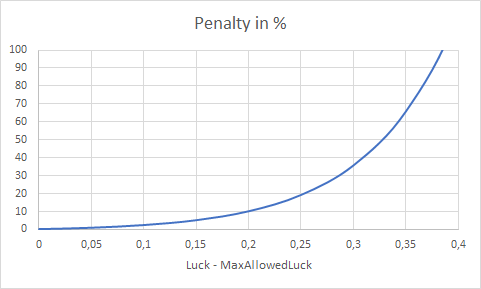

How can I make sure, my hand tuned config files in the Bin folders, will not be deleted during miner updates?
-
RainbowMiner has a built-in list of protected files (
Data\protectedminerfiles.json), that will be kept during updates:amd*.txt cpu*.txt nvidia*.txt config_*.txt config_*.json Cache/verthash.dat tune_config -
If you want to add your own userdefined files, that should be kept from update to update, edit the file
Config\minerconfigfiles.txtand add your files (wildcards are allowed), one at each row. Wildcards are allowed, paths and.exe/.dll/.binare not, and a semicolon starts a comment. -
if the automatic fails: when updating, RainbowMiner creates a backup folder that contains the full contents of the original. It is named like the original miner's folder, but date/time added with a dot (e.g. CryptoNight-SrbMiner.20181202_174533). A maximum of three backups is kept.
The miner script has initially been forked from MultiPoolMiner, for my private use, only. Since I changed and optimized the script a lot to suit my needs, I decided to make the source code public, so that others can profit from my optimizations.
If you are happy with the script, crypto donations are greatly appreciated:
- BTC: 3P7pVVNpExuuHL9wjWKAo7jzQsb9ZziUFC
- BTC: bc1q6h7k2ul4a4rtmrlaemlxd9kmhtf89nlg6s4ydu (bech32 native segwit)
- LN-BTC: donations@rbminer.net (Lightning Network)
- BCH: 1MGRzyaLjQ67ZwwL9QTbXzwLxa8x1qSTBD
- ETH: 0x3084A8657ccF9d21575e5dD8357A2DEAf1904ef6