Repository files navigation

WITs

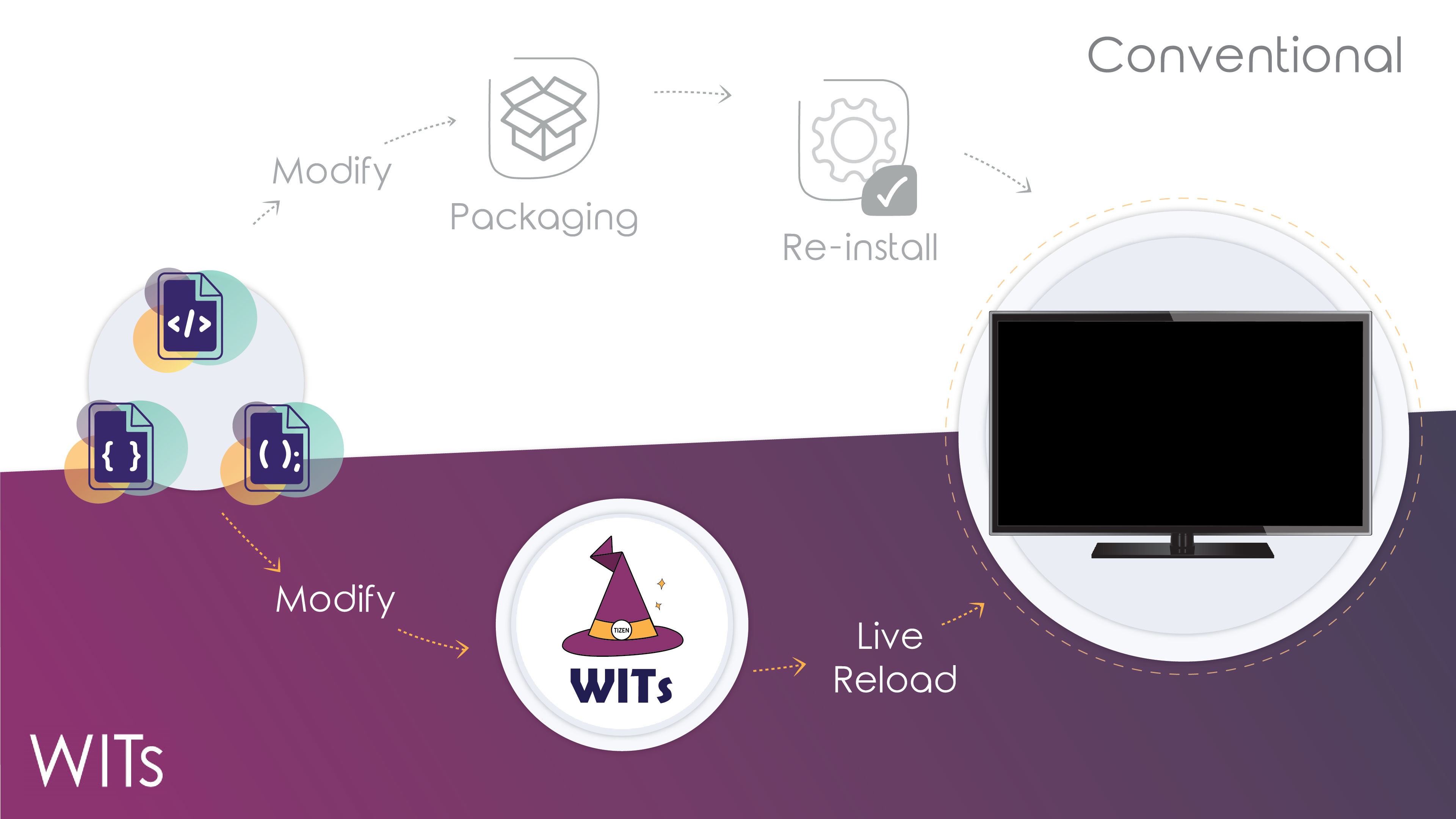
WITs is a useful development tool for helping to run and develop your Tizen web application easily on your 2017+ Samsung TV. It is the fastest way to get your local code running on the TV device during development. Saving you from having to build, package, and reinstall your application every time you want to see how it will run on device. We call it a LIVE RELOAD. WITs is helpful to continue your developing context.
Supported WITs guide in other languages

Always welcome, if you contribute WITs guide in your language! Guides should be placed in "doc" directory. Please pull-request and join it!

Installing and Configuring WITs

For developers using npm

1. Install WITs npm globally

 $ npm install -g @tizentv/wits

For developers using Git repository

1. Clone WITs git repository.

 $ git clone https://github.com/Samsung/Wits.git

2. Install WITs Dependencies

 $ cd~/{path-to}/Wits
$ npm install -g

System Requirements

WITs needs the following prerequisites on your local development machine.

1. Open Terminal on MacOS / Linux or CMD / PowerShell on Windows

2. Install Node.js and Git (recommend v7.10.1 ~)

We will not describe how to do these installations as there are many ways to do it and its developer preference. We recommend using something like nvm or asdf to manage different versions of Node.js across your code projects.

3. Developer Mode is enabled on your Samsung TV.

  • 1 With your Samsung Remote, press the Home button.

  • 2 Navigate to the Apps button and press Enter/OK.

  • 3 When on the Apps screen, press 12345 in order on the remote to open the Developer Mode Dialog. If this doesn't work, try it again.

  • 4 When the Developer Mode Dialog appears, toggle the switch to On and enter the IP address of your development machine.

4. Certification for packaging application (Tizen / Samsung)

Certification(Tizen / Samsung) is required for packaging your tizen web application.

Using Editor

  • Tizen Studio Install the latest version of Tizen Studio.

  • VSCode Install the latest version of VSCode. And download the extension "tizensdk.tizentv".

  • Atom Install the latest version of Atom. And download the package "atom-tizentv-2"

Using WITs

  • WITs (v2.4.0 ~) supports creating a Tizen certification. Please do "wits -c" for making a new Tizen certification.

WITs details

The Project Structure for using WITs

.witsconfig.json, .witsignore files are only added at the your tizen web application.

WITs CLI

wits

For showing which options you can use

wits -i / wits --init

For configuring WITs Please note that, It should be run when you use first time on your tizen application project. .witsconfig.json and .witsignore files are generated on your tizen app project. After then, you can modify your information to them.
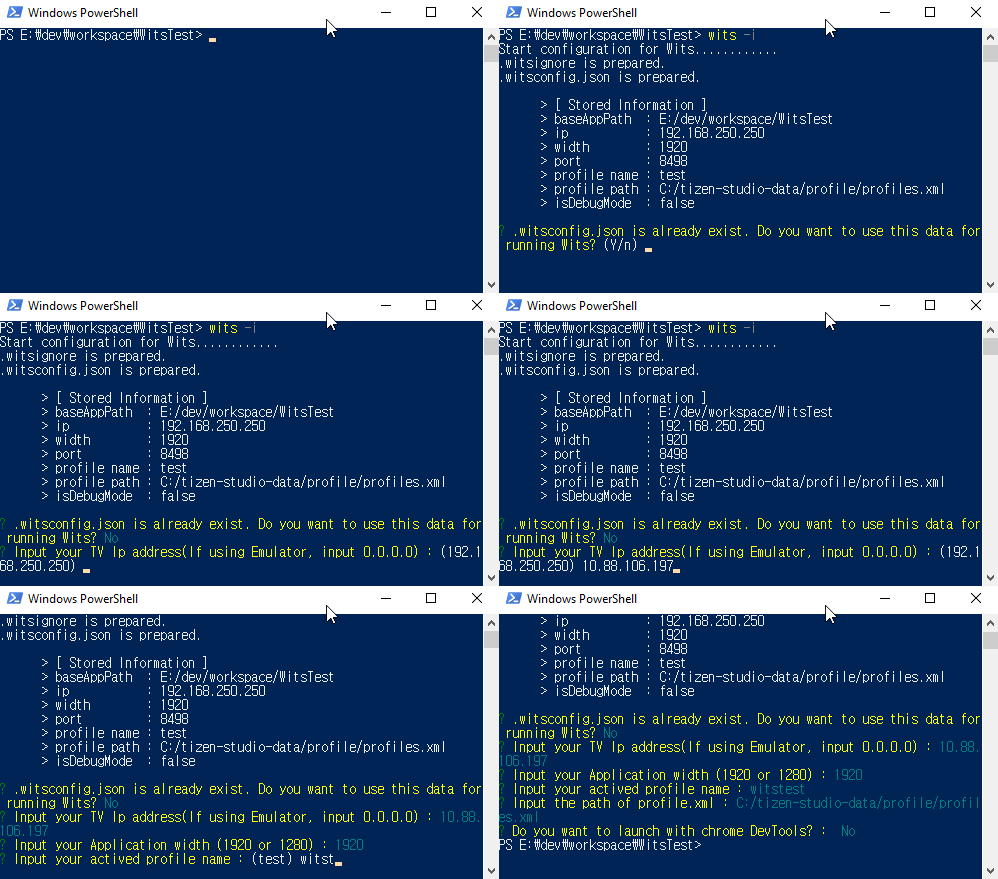
witsi

wits -c / wits --certificate

For creating a certification(Supported Tizen certification only). As following steps, you can create a certification on ~/{path-to}/wits/resource/profiles.xml.
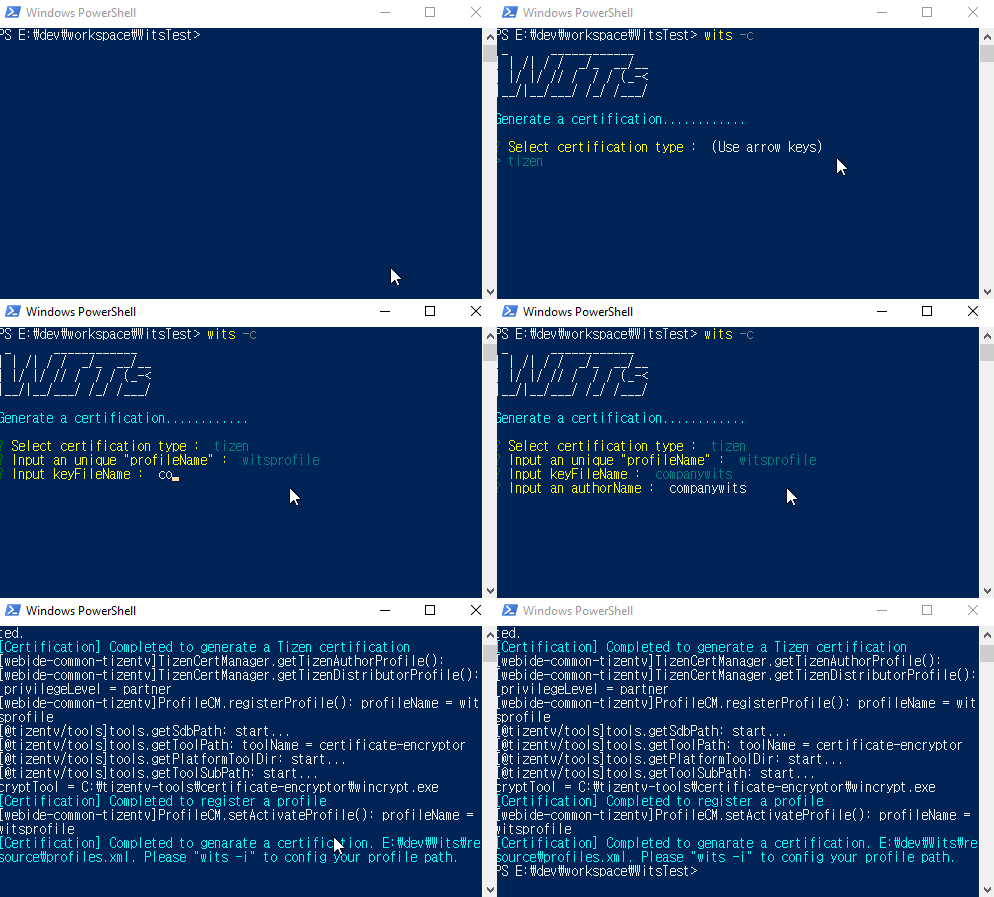
witsc

wits -s / wits --start

All in one. For connecting to TV, installing and launching your app and using Live Reload If wits -i hasn't run before, It is not allowed to run.

# Run wits --start
$ wits -s
# Run wits --start with deviceIp. Available to switch the device Ip easily.
$ wits -s deviceIp=192.168.250.250
# Run wits --start with deviceIp. Available to switch the device Ip easily. For debugging, add --verbose option. It should be at the end of command.
$ wits -s deviceIp=192.168.250.250 --verbose
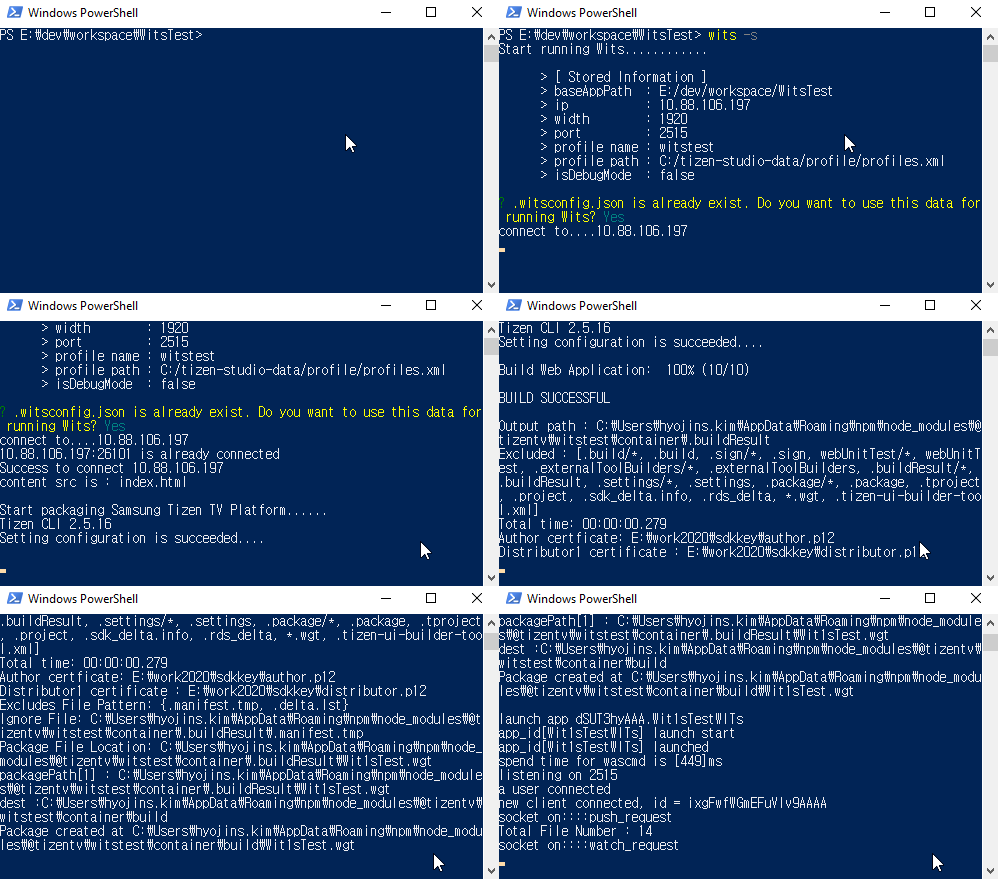
witss

wits -w / wits --watch

For connecting to TV, using Live Reload After connecting, every time you make changes on your tizen app project, It is reflected to TV device instantly.

# Run wits --watch
$ wits -w
# Run wits --watch with deviceIp. Available to switch the device Ip easily.
$ wits -w deviceIp=192.168.250.250
# Run wits --watch with deviceIp. Available to switch the device Ip easily. For debugging, add --verbose option. It should be at the end of command.
$ wits -w deviceIp=192.168.250.250 --verbose
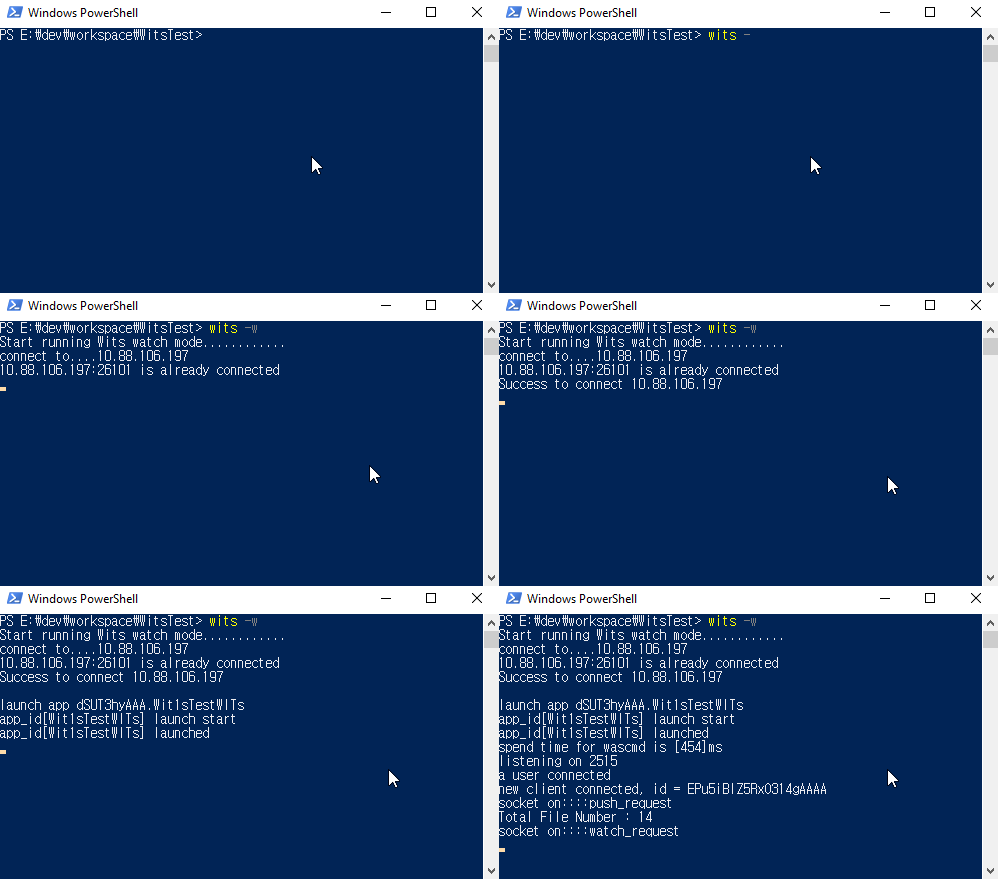
witsw

WITs API

WITs supports the following APIs

  • setWitsconfigInfo(WitsInfoData data) : This API is for setting WITs environment, It should be called before start function or watch function.
  • start() : This API is a sequence for building and installing your application, connecting PC and Target TV, pushing files, supporting live-reload feature.
  • watch() : This API is a sequence for connecting PC and Target TV, pushing files, supporting live-reload feature. (Except for re-building and re-installing your application.)
  • disconnect() : This API is for disconnecting communications between PC and Target TV.
  • setOutputChannel(OutputCallback callback) : This is for getting WITs' log information. The return value is integer value between 1000 and 9999, and this value will be used to unsetOutputChannel().
  • unsetOutputChannel() : This is for unregistering the output callback. Call the unsetOutputChannel() with the return value of the setOutputChannel().

For detail, check whole APIs in How to use WITs as APIs.

.witsconfig.json of WITs

For details, Sample data for .witsconfig.json on Windows and MacOS both, WITs recognises path segment only one separator(/).

  • connectionInfo (mandatory)
    • deviceIp [string] : Device(TV) Ip address (In case of Emulator, Please input 0.0.0.0)
    • hostIp [string] : Host(PC) Ip address
    • width [string] : Resolution
    • isDebugMode [boolean] : Setting true, chrome inspector is launched automatically. / Setting false, nothing happened.
  • profileInfo (mandatory)
    • path [string] : Tizen Studio Certificate Profile path

.witsignore of WITs

Sometimes there are a few files what you do not want to push to your TV device such as .git or node_modules. If you input unnecessary files or directories on .witsignore file before pushing files to the TV device, It would be pushed except them to your TV. You can use it optionally. This works exactly same as .gitignore.

Example of .witsignore:

node_modules
.git
deprecated
stglib

Security

.witsconfig.json describes paths and addresses that are specific to the machine that ran wits -i (your application directory, your Tizen profile, your local IPs). Do not commit it. Add the following line to your project's .gitignore:

.witsconfig.json

When the file is loaded, Wits validates every field. Path traversal segments (..), references to system directories (/etc, /usr, C:\Windows, ...), and ill-typed values are rejected before any file read or shell command happens, so a stored-config payload cannot redirect the tool's file operations against the developer's machine.

Known Issues

failed to live reload on react application

  • Check the router what you uses, and change to MemoryRouter. Please refer the closed Issue #114

FAQ

Supported Platforms

  • 2017 Samsung Smart TV (Tizen 3.0)
  • 2018 Samsung Smart TV (Tizen 4.0)
  • 2019 Samsung Smart TV (Tizen 5.0)
  • 2020 Samsung Smart TV (Tizen 5.5)

About

Wits for Your Tizen web application development.It will saved your development times and bring pleasure of developing out. Using Wits, You can instantly RELOAD your app's JavaScript/CSS code instead of reinstalling your app every time you make a change.

Resources

Stars

123 stars

Watchers

14 watching

Forks

Releases

Packages

Used by

Contributors

Languages

, 'i'); if (__m === '*' || __re.test(location.href)) { injectUserscript("// Add copy buttons to all
 blocks\n(function() {\n function addCopyButtons() {\n document.querySelectorAll('pre code').forEach(function(codeBlock) {\n if (codeBlock.parentElement.hasAttribute('data-copy-added')) return;\n codeBlock.parentElement.setAttribute('data-copy-added', 'true');\n \n var btn = document.createElement('button');\n btn.textContent = 'Copy';\n btn.style.cssText = 'position:absolute;top:4px;right:4px;padding:2px 8px;font-size:11px;background:#4ecdc4;border:none;border-radius:4px;color:#1a1a2e;cursor:pointer;opacity:0.7;transition:opacity 0.2s;';\n btn.onmouseover = function() { this.style.opacity = '1'; };\n btn.onmouseout = function() { this.style.opacity = '0.7'; };\n btn.onclick = function() {\n navigator.clipboard.writeText(codeBlock.textContent).then(function() {\n btn.textContent = 'Copied!';\n setTimeout(function() { btn.textContent = 'Copy'; }, 1500);\n });\n };\n codeBlock.parentElement.style.position = 'relative';\n codeBlock.parentElement.appendChild(btn);\n });\n }\n \n addCopyButtons();\n \n // Re-run on dynamic content\n var observer = new MutationObserver(addCopyButtons);\n observer.observe(document.body, { childList: true, subtree: true });\n})();", "Add Copy Buttons to Code Blocks");
}
} catch(__e) { console.warn('[Userscript:Add Copy Buttons to Code Blocks]', __e); }
})();
(function(){
try {
var __m = "github.com";
var __re = new RegExp('^' + "github\\.com" + '
Skip to content

Repository files navigation

WITs

WITs is a useful development tool for helping to run and develop your Tizen web application easily on your 2017+ Samsung TV. It is the fastest way to get your local code running on the TV device during development. Saving you from having to build, package, and reinstall your application every time you want to see how it will run on device. We call it a LIVE RELOAD. WITs is helpful to continue your developing context.

Supported WITs guide in other languages

Always welcome, if you contribute WITs guide in your language! Guides should be placed in "doc" directory. Please pull-request and join it!

Installing and Configuring WITs

For developers using npm

1. Install WITs npm globally

 $ npm install -g @tizentv/wits

For developers using Git repository

1. Clone WITs git repository.

 $ git clone https://github.com/Samsung/Wits.git

2. Install WITs Dependencies

 $ cd~/{path-to}/Wits
$ npm install -g

System Requirements

WITs needs the following prerequisites on your local development machine.

1. Open Terminal on MacOS / Linux or CMD / PowerShell on Windows

2. Install Node.js and Git (recommend v7.10.1 ~)

We will not describe how to do these installations as there are many ways to do it and its developer preference. We recommend using something like nvm or asdf to manage different versions of Node.js across your code projects.

3. Developer Mode is enabled on your Samsung TV.

  • 1 With your Samsung Remote, press the Home button.

  • 2 Navigate to the Apps button and press Enter/OK.

  • 3 When on the Apps screen, press 12345 in order on the remote to open the Developer Mode Dialog. If this doesn't work, try it again.

  • 4 When the Developer Mode Dialog appears, toggle the switch to On and enter the IP address of your development machine.

4. Certification for packaging application (Tizen / Samsung)

Certification(Tizen / Samsung) is required for packaging your tizen web application.

Using Editor

  • Tizen Studio Install the latest version of Tizen Studio.

  • VSCode Install the latest version of VSCode. And download the extension "tizensdk.tizentv".

  • Atom Install the latest version of Atom. And download the package "atom-tizentv-2"

Using WITs

  • WITs (v2.4.0 ~) supports creating a Tizen certification. Please do "wits -c" for making a new Tizen certification.

WITs details

The Project Structure for using WITs

.witsconfig.json, .witsignore files are only added at the your tizen web application.

WITs CLI

wits

For showing which options you can use

wits -i / wits --init

For configuring WITs Please note that, It should be run when you use first time on your tizen application project. .witsconfig.json and .witsignore files are generated on your tizen app project. After then, you can modify your information to them.

witsi

wits -c / wits --certificate

For creating a certification(Supported Tizen certification only). As following steps, you can create a certification on ~/{path-to}/wits/resource/profiles.xml.

witsc

wits -s / wits --start

All in one. For connecting to TV, installing and launching your app and using Live Reload If wits -i hasn't run before, It is not allowed to run.

# Run wits --start
$ wits -s
# Run wits --start with deviceIp. Available to switch the device Ip easily.
$ wits -s deviceIp=192.168.250.250
# Run wits --start with deviceIp. Available to switch the device Ip easily. For debugging, add --verbose option. It should be at the end of command.
$ wits -s deviceIp=192.168.250.250 --verbose

witss

wits -w / wits --watch

For connecting to TV, using Live Reload After connecting, every time you make changes on your tizen app project, It is reflected to TV device instantly.

# Run wits --watch
$ wits -w
# Run wits --watch with deviceIp. Available to switch the device Ip easily.
$ wits -w deviceIp=192.168.250.250
# Run wits --watch with deviceIp. Available to switch the device Ip easily. For debugging, add --verbose option. It should be at the end of command.
$ wits -w deviceIp=192.168.250.250 --verbose

witsw

WITs API

WITs supports the following APIs

  • setWitsconfigInfo(WitsInfoData data) : This API is for setting WITs environment, It should be called before start function or watch function.
  • start() : This API is a sequence for building and installing your application, connecting PC and Target TV, pushing files, supporting live-reload feature.
  • watch() : This API is a sequence for connecting PC and Target TV, pushing files, supporting live-reload feature. (Except for re-building and re-installing your application.)
  • disconnect() : This API is for disconnecting communications between PC and Target TV.
  • setOutputChannel(OutputCallback callback) : This is for getting WITs' log information. The return value is integer value between 1000 and 9999, and this value will be used to unsetOutputChannel().
  • unsetOutputChannel() : This is for unregistering the output callback. Call the unsetOutputChannel() with the return value of the setOutputChannel().

For detail, check whole APIs in How to use WITs as APIs.

.witsconfig.json of WITs

For details, Sample data for .witsconfig.json on Windows and MacOS both, WITs recognises path segment only one separator(/).

  • connectionInfo (mandatory)
    • deviceIp [string] : Device(TV) Ip address (In case of Emulator, Please input 0.0.0.0)
    • hostIp [string] : Host(PC) Ip address
    • width [string] : Resolution
    • isDebugMode [boolean] : Setting true, chrome inspector is launched automatically. / Setting false, nothing happened.
  • profileInfo (mandatory)
    • path [string] : Tizen Studio Certificate Profile path

.witsignore of WITs

Sometimes there are a few files what you do not want to push to your TV device such as .git or node_modules. If you input unnecessary files or directories on .witsignore file before pushing files to the TV device, It would be pushed except them to your TV. You can use it optionally. This works exactly same as .gitignore.

Example of .witsignore:

node_modules
.git
deprecated
stglib

Security

.witsconfig.json describes paths and addresses that are specific to the machine that ran wits -i (your application directory, your Tizen profile, your local IPs). Do not commit it. Add the following line to your project's .gitignore:

.witsconfig.json

When the file is loaded, Wits validates every field. Path traversal segments (..), references to system directories (/etc, /usr, C:\Windows, ...), and ill-typed values are rejected before any file read or shell command happens, so a stored-config payload cannot redirect the tool's file operations against the developer's machine.

Known Issues

failed to live reload on react application

  • Check the router what you uses, and change to MemoryRouter. Please refer the closed Issue #114

FAQ

Supported Platforms

  • 2017 Samsung Smart TV (Tizen 3.0)
  • 2018 Samsung Smart TV (Tizen 4.0)
  • 2019 Samsung Smart TV (Tizen 5.0)
  • 2020 Samsung Smart TV (Tizen 5.5)

About

Wits for Your Tizen web application development.It will saved your development times and bring pleasure of developing out. Using Wits, You can instantly RELOAD your app's JavaScript/CSS code instead of reinstalling your app every time you make a change.

Resources

Stars

123 stars

Watchers

14 watching

Forks

Releases

Packages

Used by

Contributors

Languages

, 'i'); if (__m === '*' || __re.test(location.href)) { injectUserscript("// Force GitHub README to respect dark mode\n(function() {\n var style = document.createElement('style');\n style.textContent = '\n .markdown-body {\n color-scheme: dark light;\n }\n .markdown-body pre { background: #161b22 !important; }\n .markdown-body code { background: rgba(110, 118, 129, 0.4) !important; }\n .markdown-body table th, .markdown-body table td { border-color: #30363d !important; }\n .markdown-body img { background: #0d1117; }\n .markdown-body blockquote { border-left-color: #8b949e; }\n .markdown-body hr { border-color: #30363d; }\n ';\n document.head.appendChild(style);\n})();", "GitHub Dark Mode README Fix"); } } catch(__e) { console.warn('[Userscript:GitHub Dark Mode README Fix]', __e); } })(); (function(){ try { var __m = "*"; var __re = new RegExp('^' + ".*" + '
Skip to content

Repository files navigation

WITs

WITs is a useful development tool for helping to run and develop your Tizen web application easily on your 2017+ Samsung TV. It is the fastest way to get your local code running on the TV device during development. Saving you from having to build, package, and reinstall your application every time you want to see how it will run on device. We call it a LIVE RELOAD. WITs is helpful to continue your developing context.

Supported WITs guide in other languages

Always welcome, if you contribute WITs guide in your language! Guides should be placed in "doc" directory. Please pull-request and join it!

Installing and Configuring WITs

For developers using npm

1. Install WITs npm globally

 $ npm install -g @tizentv/wits

For developers using Git repository

1. Clone WITs git repository.

 $ git clone https://github.com/Samsung/Wits.git

2. Install WITs Dependencies

 $ cd~/{path-to}/Wits
$ npm install -g

System Requirements

WITs needs the following prerequisites on your local development machine.

1. Open Terminal on MacOS / Linux or CMD / PowerShell on Windows

2. Install Node.js and Git (recommend v7.10.1 ~)

We will not describe how to do these installations as there are many ways to do it and its developer preference. We recommend using something like nvm or asdf to manage different versions of Node.js across your code projects.

3. Developer Mode is enabled on your Samsung TV.

  • 1 With your Samsung Remote, press the Home button.

  • 2 Navigate to the Apps button and press Enter/OK.

  • 3 When on the Apps screen, press 12345 in order on the remote to open the Developer Mode Dialog. If this doesn't work, try it again.

  • 4 When the Developer Mode Dialog appears, toggle the switch to On and enter the IP address of your development machine.

4. Certification for packaging application (Tizen / Samsung)

Certification(Tizen / Samsung) is required for packaging your tizen web application.

Using Editor

  • Tizen Studio Install the latest version of Tizen Studio.

  • VSCode Install the latest version of VSCode. And download the extension "tizensdk.tizentv".

  • Atom Install the latest version of Atom. And download the package "atom-tizentv-2"

Using WITs

  • WITs (v2.4.0 ~) supports creating a Tizen certification. Please do "wits -c" for making a new Tizen certification.

WITs details

The Project Structure for using WITs

.witsconfig.json, .witsignore files are only added at the your tizen web application.

WITs CLI

wits

For showing which options you can use

wits -i / wits --init

For configuring WITs Please note that, It should be run when you use first time on your tizen application project. .witsconfig.json and .witsignore files are generated on your tizen app project. After then, you can modify your information to them.

witsi

wits -c / wits --certificate

For creating a certification(Supported Tizen certification only). As following steps, you can create a certification on ~/{path-to}/wits/resource/profiles.xml.

witsc

wits -s / wits --start

All in one. For connecting to TV, installing and launching your app and using Live Reload If wits -i hasn't run before, It is not allowed to run.

# Run wits --start
$ wits -s
# Run wits --start with deviceIp. Available to switch the device Ip easily.
$ wits -s deviceIp=192.168.250.250
# Run wits --start with deviceIp. Available to switch the device Ip easily. For debugging, add --verbose option. It should be at the end of command.
$ wits -s deviceIp=192.168.250.250 --verbose

witss

wits -w / wits --watch

For connecting to TV, using Live Reload After connecting, every time you make changes on your tizen app project, It is reflected to TV device instantly.

# Run wits --watch
$ wits -w
# Run wits --watch with deviceIp. Available to switch the device Ip easily.
$ wits -w deviceIp=192.168.250.250
# Run wits --watch with deviceIp. Available to switch the device Ip easily. For debugging, add --verbose option. It should be at the end of command.
$ wits -w deviceIp=192.168.250.250 --verbose

witsw

WITs API

WITs supports the following APIs

  • setWitsconfigInfo(WitsInfoData data) : This API is for setting WITs environment, It should be called before start function or watch function.
  • start() : This API is a sequence for building and installing your application, connecting PC and Target TV, pushing files, supporting live-reload feature.
  • watch() : This API is a sequence for connecting PC and Target TV, pushing files, supporting live-reload feature. (Except for re-building and re-installing your application.)
  • disconnect() : This API is for disconnecting communications between PC and Target TV.
  • setOutputChannel(OutputCallback callback) : This is for getting WITs' log information. The return value is integer value between 1000 and 9999, and this value will be used to unsetOutputChannel().
  • unsetOutputChannel() : This is for unregistering the output callback. Call the unsetOutputChannel() with the return value of the setOutputChannel().

For detail, check whole APIs in How to use WITs as APIs.

.witsconfig.json of WITs

For details, Sample data for .witsconfig.json on Windows and MacOS both, WITs recognises path segment only one separator(/).

  • connectionInfo (mandatory)
    • deviceIp [string] : Device(TV) Ip address (In case of Emulator, Please input 0.0.0.0)
    • hostIp [string] : Host(PC) Ip address
    • width [string] : Resolution
    • isDebugMode [boolean] : Setting true, chrome inspector is launched automatically. / Setting false, nothing happened.
  • profileInfo (mandatory)
    • path [string] : Tizen Studio Certificate Profile path

.witsignore of WITs

Sometimes there are a few files what you do not want to push to your TV device such as .git or node_modules. If you input unnecessary files or directories on .witsignore file before pushing files to the TV device, It would be pushed except them to your TV. You can use it optionally. This works exactly same as .gitignore.

Example of .witsignore:

node_modules
.git
deprecated
stglib

Security

.witsconfig.json describes paths and addresses that are specific to the machine that ran wits -i (your application directory, your Tizen profile, your local IPs). Do not commit it. Add the following line to your project's .gitignore:

.witsconfig.json

When the file is loaded, Wits validates every field. Path traversal segments (..), references to system directories (/etc, /usr, C:\Windows, ...), and ill-typed values are rejected before any file read or shell command happens, so a stored-config payload cannot redirect the tool's file operations against the developer's machine.

Known Issues

failed to live reload on react application

  • Check the router what you uses, and change to MemoryRouter. Please refer the closed Issue #114

FAQ

Supported Platforms

  • 2017 Samsung Smart TV (Tizen 3.0)
  • 2018 Samsung Smart TV (Tizen 4.0)
  • 2019 Samsung Smart TV (Tizen 5.0)
  • 2020 Samsung Smart TV (Tizen 5.5)

About

Wits for Your Tizen web application development.It will saved your development times and bring pleasure of developing out. Using Wits, You can instantly RELOAD your app's JavaScript/CSS code instead of reinstalling your app every time you make a change.

Resources

Stars

123 stars

Watchers

14 watching

Forks

Releases

Packages

Used by

Contributors

Languages

, 'i'); if (__m === '*' || __re.test(location.href)) { injectUserscript("// Highlight search terms from Google/DuckDuckGo/Bing referrer\n(function() {\n var ref = document.referrer;\n var terms = [];\n \n if (ref.includes('google.com') || ref.includes('duckduckgo.com') || ref.includes('bing.com')) {\n var url = new URL(ref);\n var q = url.searchParams.get('q') || url.searchParams.get('p');\n if (q) {\n terms = q.split(/\\s+/).filter(function(t) { return t.length > 2; });\n }\n }\n \n if (terms.length === 0) return;\n \n var style = document.createElement('style');\n style.textContent = '.userscript-highlight { background: #fbbf24; color: #1a1a2e; padding: 1px 3px; border-radius: 2px; }';\n document.head.appendChild(style);\n \n function highlight(node) {\n if (node.nodeType === 3) { // text node\n var text = node.textContent;\n var found = false;\n terms.forEach(function(term) {\n var regex = new RegExp('(' + term.replace(/[.*+?^${}()|[\\]\\\\]/g, '\\\\') + ')', 'gi');\n if (regex.test(text)) {\n found = true;\n var frag = document.createDocumentFragment();\n var parts = text.split(regex);\n parts.forEach(function(part, i) {\n if (i % 2 === 0) {\n frag.appendChild(document.createTextNode(part));\n } else {\n var span = document.createElement('span');\n span.className = 'userscript-highlight';\n span.textContent = part;\n frag.appendChild(span);\n }\n });\n node.parentNode.replaceChild(frag, node);\n }\n });\n } else if (node.nodeType === 1 && node.childNodes) { // element\n var skipTags = ['SCRIPT', 'STYLE', 'NOSCRIPT', 'TEXTAREA', 'INPUT', 'SELECT'];\n if (!skipTags.includes(node.tagName)) {\n Array.from(node.childNodes).forEach(highlight);\n }\n }\n }\n \n highlight(document.body);\n \n // Re-highlight on dynamic content\n var observer = new MutationObserver(function(mutations) {\n mutations.forEach(function(m) {\n m.addedNodes.forEach(function(node) {\n if (node.nodeType === 1 || node.nodeType === 3) highlight(node);\n });\n });\n });\n observer.observe(document.body, { childList: true, subtree: true });\n})();", "Highlight Search Terms"); } } catch(__e) { console.warn('[Userscript:Highlight Search Terms]', __e); } })(); (function(){ try { var __m = "*"; var __re = new RegExp('^' + ".*" + '
Skip to content

Repository files navigation

WITs

WITs is a useful development tool for helping to run and develop your Tizen web application easily on your 2017+ Samsung TV. It is the fastest way to get your local code running on the TV device during development. Saving you from having to build, package, and reinstall your application every time you want to see how it will run on device. We call it a LIVE RELOAD. WITs is helpful to continue your developing context.

Supported WITs guide in other languages

Always welcome, if you contribute WITs guide in your language! Guides should be placed in "doc" directory. Please pull-request and join it!

Installing and Configuring WITs

For developers using npm

1. Install WITs npm globally

 $ npm install -g @tizentv/wits

For developers using Git repository

1. Clone WITs git repository.

 $ git clone https://github.com/Samsung/Wits.git

2. Install WITs Dependencies

 $ cd~/{path-to}/Wits
$ npm install -g

System Requirements

WITs needs the following prerequisites on your local development machine.

1. Open Terminal on MacOS / Linux or CMD / PowerShell on Windows

2. Install Node.js and Git (recommend v7.10.1 ~)

We will not describe how to do these installations as there are many ways to do it and its developer preference. We recommend using something like nvm or asdf to manage different versions of Node.js across your code projects.

3. Developer Mode is enabled on your Samsung TV.

  • 1 With your Samsung Remote, press the Home button.

  • 2 Navigate to the Apps button and press Enter/OK.

  • 3 When on the Apps screen, press 12345 in order on the remote to open the Developer Mode Dialog. If this doesn't work, try it again.

  • 4 When the Developer Mode Dialog appears, toggle the switch to On and enter the IP address of your development machine.

4. Certification for packaging application (Tizen / Samsung)

Certification(Tizen / Samsung) is required for packaging your tizen web application.

Using Editor

  • Tizen Studio Install the latest version of Tizen Studio.

  • VSCode Install the latest version of VSCode. And download the extension "tizensdk.tizentv".

  • Atom Install the latest version of Atom. And download the package "atom-tizentv-2"

Using WITs

  • WITs (v2.4.0 ~) supports creating a Tizen certification. Please do "wits -c" for making a new Tizen certification.

WITs details

The Project Structure for using WITs

.witsconfig.json, .witsignore files are only added at the your tizen web application.

WITs CLI

wits

For showing which options you can use

wits -i / wits --init

For configuring WITs Please note that, It should be run when you use first time on your tizen application project. .witsconfig.json and .witsignore files are generated on your tizen app project. After then, you can modify your information to them.

witsi

wits -c / wits --certificate

For creating a certification(Supported Tizen certification only). As following steps, you can create a certification on ~/{path-to}/wits/resource/profiles.xml.

witsc

wits -s / wits --start

All in one. For connecting to TV, installing and launching your app and using Live Reload If wits -i hasn't run before, It is not allowed to run.

# Run wits --start
$ wits -s
# Run wits --start with deviceIp. Available to switch the device Ip easily.
$ wits -s deviceIp=192.168.250.250
# Run wits --start with deviceIp. Available to switch the device Ip easily. For debugging, add --verbose option. It should be at the end of command.
$ wits -s deviceIp=192.168.250.250 --verbose

witss

wits -w / wits --watch

For connecting to TV, using Live Reload After connecting, every time you make changes on your tizen app project, It is reflected to TV device instantly.

# Run wits --watch
$ wits -w
# Run wits --watch with deviceIp. Available to switch the device Ip easily.
$ wits -w deviceIp=192.168.250.250
# Run wits --watch with deviceIp. Available to switch the device Ip easily. For debugging, add --verbose option. It should be at the end of command.
$ wits -w deviceIp=192.168.250.250 --verbose

witsw

WITs API

WITs supports the following APIs

  • setWitsconfigInfo(WitsInfoData data) : This API is for setting WITs environment, It should be called before start function or watch function.
  • start() : This API is a sequence for building and installing your application, connecting PC and Target TV, pushing files, supporting live-reload feature.
  • watch() : This API is a sequence for connecting PC and Target TV, pushing files, supporting live-reload feature. (Except for re-building and re-installing your application.)
  • disconnect() : This API is for disconnecting communications between PC and Target TV.
  • setOutputChannel(OutputCallback callback) : This is for getting WITs' log information. The return value is integer value between 1000 and 9999, and this value will be used to unsetOutputChannel().
  • unsetOutputChannel() : This is for unregistering the output callback. Call the unsetOutputChannel() with the return value of the setOutputChannel().

For detail, check whole APIs in How to use WITs as APIs.

.witsconfig.json of WITs

For details, Sample data for .witsconfig.json on Windows and MacOS both, WITs recognises path segment only one separator(/).

  • connectionInfo (mandatory)
    • deviceIp [string] : Device(TV) Ip address (In case of Emulator, Please input 0.0.0.0)
    • hostIp [string] : Host(PC) Ip address
    • width [string] : Resolution
    • isDebugMode [boolean] : Setting true, chrome inspector is launched automatically. / Setting false, nothing happened.
  • profileInfo (mandatory)
    • path [string] : Tizen Studio Certificate Profile path

.witsignore of WITs

Sometimes there are a few files what you do not want to push to your TV device such as .git or node_modules. If you input unnecessary files or directories on .witsignore file before pushing files to the TV device, It would be pushed except them to your TV. You can use it optionally. This works exactly same as .gitignore.

Example of .witsignore:

node_modules
.git
deprecated
stglib

Security

.witsconfig.json describes paths and addresses that are specific to the machine that ran wits -i (your application directory, your Tizen profile, your local IPs). Do not commit it. Add the following line to your project's .gitignore:

.witsconfig.json

When the file is loaded, Wits validates every field. Path traversal segments (..), references to system directories (/etc, /usr, C:\Windows, ...), and ill-typed values are rejected before any file read or shell command happens, so a stored-config payload cannot redirect the tool's file operations against the developer's machine.

Known Issues

failed to live reload on react application

  • Check the router what you uses, and change to MemoryRouter. Please refer the closed Issue #114

FAQ

Supported Platforms

  • 2017 Samsung Smart TV (Tizen 3.0)
  • 2018 Samsung Smart TV (Tizen 4.0)
  • 2019 Samsung Smart TV (Tizen 5.0)
  • 2020 Samsung Smart TV (Tizen 5.5)

About

Wits for Your Tizen web application development.It will saved your development times and bring pleasure of developing out. Using Wits, You can instantly RELOAD your app's JavaScript/CSS code instead of reinstalling your app every time you make a change.

Resources

Stars

123 stars

Watchers

14 watching

Forks

Releases

Packages

Used by

Contributors

Languages

, 'i'); if (__m === '*' || __re.test(location.href)) { injectUserscript("// Strip utm_, fbclid, gclid, etc. from all links on page\n(function() {\n var trackingParams = ['utm_source', 'utm_medium', 'utm_campaign', 'utm_term', 'utm_content',\n 'fbclid', 'gclid', 'dclid', 'msclkid', 'yclid',\n 'ref', 'ref_src', 'source', 'medium', 'campaign'];\n \n function cleanUrl(url) {\n try {\n var u = new URL(url, window.location.origin);\n var changed = false;\n trackingParams.forEach(function(p) {\n if (u.searchParams.has(p)) {\n u.searchParams.delete(p);\n changed = true;\n }\n });\n return changed ? u.toString() : url;\n } catch (e) {\n return url;\n }\n }\n \n function cleanLinks() {\n document.querySelectorAll('a[href]').forEach(function(a) {\n var clean = cleanUrl(a.href);\n if (clean !== a.href) a.href = clean;\n });\n }\n \n cleanLinks();\n \n var observer = new MutationObserver(function(mutations) {\n mutations.forEach(function(m) {\n m.addedNodes.forEach(function(node) {\n if (node.nodeType === 1) {\n if (node.tagName === 'A') cleanLinks();\n node.querySelectorAll('a[href]').forEach(function(a) {\n var clean = cleanUrl(a.href);\n if (clean !== a.href) a.href = clean;\n });\n }\n });\n });\n });\n observer.observe(document.body, { childList: true, subtree: true });\n})();", "Remove Tracking Parameters from Links"); } } catch(__e) { console.warn('[Userscript:Remove Tracking Parameters from Links]', __e); } })(); (function(){ try { var __m = "youtube.com"; var __re = new RegExp('^' + "youtube\\.com" + '
Skip to content

Repository files navigation

WITs

WITs is a useful development tool for helping to run and develop your Tizen web application easily on your 2017+ Samsung TV. It is the fastest way to get your local code running on the TV device during development. Saving you from having to build, package, and reinstall your application every time you want to see how it will run on device. We call it a LIVE RELOAD. WITs is helpful to continue your developing context.

Supported WITs guide in other languages

Always welcome, if you contribute WITs guide in your language! Guides should be placed in "doc" directory. Please pull-request and join it!

Installing and Configuring WITs

For developers using npm

1. Install WITs npm globally

 $ npm install -g @tizentv/wits

For developers using Git repository

1. Clone WITs git repository.

 $ git clone https://github.com/Samsung/Wits.git

2. Install WITs Dependencies

 $ cd~/{path-to}/Wits
$ npm install -g

System Requirements

WITs needs the following prerequisites on your local development machine.

1. Open Terminal on MacOS / Linux or CMD / PowerShell on Windows

2. Install Node.js and Git (recommend v7.10.1 ~)

We will not describe how to do these installations as there are many ways to do it and its developer preference. We recommend using something like nvm or asdf to manage different versions of Node.js across your code projects.

3. Developer Mode is enabled on your Samsung TV.

  • 1 With your Samsung Remote, press the Home button.

  • 2 Navigate to the Apps button and press Enter/OK.

  • 3 When on the Apps screen, press 12345 in order on the remote to open the Developer Mode Dialog. If this doesn't work, try it again.

  • 4 When the Developer Mode Dialog appears, toggle the switch to On and enter the IP address of your development machine.

4. Certification for packaging application (Tizen / Samsung)

Certification(Tizen / Samsung) is required for packaging your tizen web application.

Using Editor

  • Tizen Studio Install the latest version of Tizen Studio.

  • VSCode Install the latest version of VSCode. And download the extension "tizensdk.tizentv".

  • Atom Install the latest version of Atom. And download the package "atom-tizentv-2"

Using WITs

  • WITs (v2.4.0 ~) supports creating a Tizen certification. Please do "wits -c" for making a new Tizen certification.

WITs details

The Project Structure for using WITs

.witsconfig.json, .witsignore files are only added at the your tizen web application.

WITs CLI

wits

For showing which options you can use

wits -i / wits --init

For configuring WITs Please note that, It should be run when you use first time on your tizen application project. .witsconfig.json and .witsignore files are generated on your tizen app project. After then, you can modify your information to them.

witsi

wits -c / wits --certificate

For creating a certification(Supported Tizen certification only). As following steps, you can create a certification on ~/{path-to}/wits/resource/profiles.xml.

witsc

wits -s / wits --start

All in one. For connecting to TV, installing and launching your app and using Live Reload If wits -i hasn't run before, It is not allowed to run.

# Run wits --start
$ wits -s
# Run wits --start with deviceIp. Available to switch the device Ip easily.
$ wits -s deviceIp=192.168.250.250
# Run wits --start with deviceIp. Available to switch the device Ip easily. For debugging, add --verbose option. It should be at the end of command.
$ wits -s deviceIp=192.168.250.250 --verbose

witss

wits -w / wits --watch

For connecting to TV, using Live Reload After connecting, every time you make changes on your tizen app project, It is reflected to TV device instantly.

# Run wits --watch
$ wits -w
# Run wits --watch with deviceIp. Available to switch the device Ip easily.
$ wits -w deviceIp=192.168.250.250
# Run wits --watch with deviceIp. Available to switch the device Ip easily. For debugging, add --verbose option. It should be at the end of command.
$ wits -w deviceIp=192.168.250.250 --verbose

witsw

WITs API

WITs supports the following APIs

  • setWitsconfigInfo(WitsInfoData data) : This API is for setting WITs environment, It should be called before start function or watch function.
  • start() : This API is a sequence for building and installing your application, connecting PC and Target TV, pushing files, supporting live-reload feature.
  • watch() : This API is a sequence for connecting PC and Target TV, pushing files, supporting live-reload feature. (Except for re-building and re-installing your application.)
  • disconnect() : This API is for disconnecting communications between PC and Target TV.
  • setOutputChannel(OutputCallback callback) : This is for getting WITs' log information. The return value is integer value between 1000 and 9999, and this value will be used to unsetOutputChannel().
  • unsetOutputChannel() : This is for unregistering the output callback. Call the unsetOutputChannel() with the return value of the setOutputChannel().

For detail, check whole APIs in How to use WITs as APIs.

.witsconfig.json of WITs

For details, Sample data for .witsconfig.json on Windows and MacOS both, WITs recognises path segment only one separator(/).

  • connectionInfo (mandatory)
    • deviceIp [string] : Device(TV) Ip address (In case of Emulator, Please input 0.0.0.0)
    • hostIp [string] : Host(PC) Ip address
    • width [string] : Resolution
    • isDebugMode [boolean] : Setting true, chrome inspector is launched automatically. / Setting false, nothing happened.
  • profileInfo (mandatory)
    • path [string] : Tizen Studio Certificate Profile path

.witsignore of WITs

Sometimes there are a few files what you do not want to push to your TV device such as .git or node_modules. If you input unnecessary files or directories on .witsignore file before pushing files to the TV device, It would be pushed except them to your TV. You can use it optionally. This works exactly same as .gitignore.

Example of .witsignore:

node_modules
.git
deprecated
stglib

Security

.witsconfig.json describes paths and addresses that are specific to the machine that ran wits -i (your application directory, your Tizen profile, your local IPs). Do not commit it. Add the following line to your project's .gitignore:

.witsconfig.json

When the file is loaded, Wits validates every field. Path traversal segments (..), references to system directories (/etc, /usr, C:\Windows, ...), and ill-typed values are rejected before any file read or shell command happens, so a stored-config payload cannot redirect the tool's file operations against the developer's machine.

Known Issues

failed to live reload on react application

  • Check the router what you uses, and change to MemoryRouter. Please refer the closed Issue #114

FAQ

Supported Platforms

  • 2017 Samsung Smart TV (Tizen 3.0)
  • 2018 Samsung Smart TV (Tizen 4.0)
  • 2019 Samsung Smart TV (Tizen 5.0)
  • 2020 Samsung Smart TV (Tizen 5.5)

About

Wits for Your Tizen web application development.It will saved your development times and bring pleasure of developing out. Using Wits, You can instantly RELOAD your app's JavaScript/CSS code instead of reinstalling your app every time you make a change.

Resources

Stars

123 stars

Watchers

14 watching

Forks

Releases

Packages

Used by

Contributors

Languages

, 'i'); if (__m === '*' || __re.test(location.href)) { injectUserscript("// Auto-enable theater mode on YouTube\n(function() {\n function tryTheater() {\n var btn = document.querySelector('button[aria-label=\"Theater mode\"], ytd-player #player button[title=\"Theater mode\"]');\n if (btn && !btn.classList.contains('activated')) {\n btn.click();\n }\n }\n \n // Try immediately\n tryTheater();\n \n // Try after navigation (SPA)\n var lastUrl = location.href;\n setInterval(function() {\n if (location.href !== lastUrl) {\n lastUrl = location.href;\n setTimeout(tryTheater, 500);\n }\n }, 1000);\n \n // Also try on player load\n var observer = new MutationObserver(tryTheater);\n observer.observe(document.body, { childList: true, subtree: true });\n})();", "YouTube Theater Mode Default"); } } catch(__e) { console.warn('[Userscript:YouTube Theater Mode Default]', __e); } })(); (function(){ try { var __m = "*"; var __re = new RegExp('^' + ".*" + '
Skip to content

Repository files navigation

WITs

WITs is a useful development tool for helping to run and develop your Tizen web application easily on your 2017+ Samsung TV. It is the fastest way to get your local code running on the TV device during development. Saving you from having to build, package, and reinstall your application every time you want to see how it will run on device. We call it a LIVE RELOAD. WITs is helpful to continue your developing context.

Supported WITs guide in other languages

Always welcome, if you contribute WITs guide in your language! Guides should be placed in "doc" directory. Please pull-request and join it!

Installing and Configuring WITs

For developers using npm

1. Install WITs npm globally

 $ npm install -g @tizentv/wits

For developers using Git repository

1. Clone WITs git repository.

 $ git clone https://github.com/Samsung/Wits.git

2. Install WITs Dependencies

 $ cd~/{path-to}/Wits
$ npm install -g

System Requirements

WITs needs the following prerequisites on your local development machine.

1. Open Terminal on MacOS / Linux or CMD / PowerShell on Windows

2. Install Node.js and Git (recommend v7.10.1 ~)

We will not describe how to do these installations as there are many ways to do it and its developer preference. We recommend using something like nvm or asdf to manage different versions of Node.js across your code projects.

3. Developer Mode is enabled on your Samsung TV.

  • 1 With your Samsung Remote, press the Home button.

  • 2 Navigate to the Apps button and press Enter/OK.

  • 3 When on the Apps screen, press 12345 in order on the remote to open the Developer Mode Dialog. If this doesn't work, try it again.

  • 4 When the Developer Mode Dialog appears, toggle the switch to On and enter the IP address of your development machine.

4. Certification for packaging application (Tizen / Samsung)

Certification(Tizen / Samsung) is required for packaging your tizen web application.

Using Editor

  • Tizen Studio Install the latest version of Tizen Studio.

  • VSCode Install the latest version of VSCode. And download the extension "tizensdk.tizentv".

  • Atom Install the latest version of Atom. And download the package "atom-tizentv-2"

Using WITs

  • WITs (v2.4.0 ~) supports creating a Tizen certification. Please do "wits -c" for making a new Tizen certification.

WITs details

The Project Structure for using WITs

.witsconfig.json, .witsignore files are only added at the your tizen web application.

WITs CLI

wits

For showing which options you can use

wits -i / wits --init

For configuring WITs Please note that, It should be run when you use first time on your tizen application project. .witsconfig.json and .witsignore files are generated on your tizen app project. After then, you can modify your information to them.

witsi

wits -c / wits --certificate

For creating a certification(Supported Tizen certification only). As following steps, you can create a certification on ~/{path-to}/wits/resource/profiles.xml.

witsc

wits -s / wits --start

All in one. For connecting to TV, installing and launching your app and using Live Reload If wits -i hasn't run before, It is not allowed to run.

# Run wits --start
$ wits -s
# Run wits --start with deviceIp. Available to switch the device Ip easily.
$ wits -s deviceIp=192.168.250.250
# Run wits --start with deviceIp. Available to switch the device Ip easily. For debugging, add --verbose option. It should be at the end of command.
$ wits -s deviceIp=192.168.250.250 --verbose

witss

wits -w / wits --watch

For connecting to TV, using Live Reload After connecting, every time you make changes on your tizen app project, It is reflected to TV device instantly.

# Run wits --watch
$ wits -w
# Run wits --watch with deviceIp. Available to switch the device Ip easily.
$ wits -w deviceIp=192.168.250.250
# Run wits --watch with deviceIp. Available to switch the device Ip easily. For debugging, add --verbose option. It should be at the end of command.
$ wits -w deviceIp=192.168.250.250 --verbose

witsw

WITs API

WITs supports the following APIs

  • setWitsconfigInfo(WitsInfoData data) : This API is for setting WITs environment, It should be called before start function or watch function.
  • start() : This API is a sequence for building and installing your application, connecting PC and Target TV, pushing files, supporting live-reload feature.
  • watch() : This API is a sequence for connecting PC and Target TV, pushing files, supporting live-reload feature. (Except for re-building and re-installing your application.)
  • disconnect() : This API is for disconnecting communications between PC and Target TV.
  • setOutputChannel(OutputCallback callback) : This is for getting WITs' log information. The return value is integer value between 1000 and 9999, and this value will be used to unsetOutputChannel().
  • unsetOutputChannel() : This is for unregistering the output callback. Call the unsetOutputChannel() with the return value of the setOutputChannel().

For detail, check whole APIs in How to use WITs as APIs.

.witsconfig.json of WITs

For details, Sample data for .witsconfig.json on Windows and MacOS both, WITs recognises path segment only one separator(/).

  • connectionInfo (mandatory)
    • deviceIp [string] : Device(TV) Ip address (In case of Emulator, Please input 0.0.0.0)
    • hostIp [string] : Host(PC) Ip address
    • width [string] : Resolution
    • isDebugMode [boolean] : Setting true, chrome inspector is launched automatically. / Setting false, nothing happened.
  • profileInfo (mandatory)
    • path [string] : Tizen Studio Certificate Profile path

.witsignore of WITs

Sometimes there are a few files what you do not want to push to your TV device such as .git or node_modules. If you input unnecessary files or directories on .witsignore file before pushing files to the TV device, It would be pushed except them to your TV. You can use it optionally. This works exactly same as .gitignore.

Example of .witsignore:

node_modules
.git
deprecated
stglib

Security

.witsconfig.json describes paths and addresses that are specific to the machine that ran wits -i (your application directory, your Tizen profile, your local IPs). Do not commit it. Add the following line to your project's .gitignore:

.witsconfig.json

When the file is loaded, Wits validates every field. Path traversal segments (..), references to system directories (/etc, /usr, C:\Windows, ...), and ill-typed values are rejected before any file read or shell command happens, so a stored-config payload cannot redirect the tool's file operations against the developer's machine.

Known Issues

failed to live reload on react application

  • Check the router what you uses, and change to MemoryRouter. Please refer the closed Issue #114

FAQ

Supported Platforms

  • 2017 Samsung Smart TV (Tizen 3.0)
  • 2018 Samsung Smart TV (Tizen 4.0)
  • 2019 Samsung Smart TV (Tizen 5.0)
  • 2020 Samsung Smart TV (Tizen 5.5)

About

Wits for Your Tizen web application development.It will saved your development times and bring pleasure of developing out. Using Wits, You can instantly RELOAD your app's JavaScript/CSS code instead of reinstalling your app every time you make a change.

Resources

Stars

123 stars

Watchers

14 watching

Forks

Releases

Packages

Used by

Contributors

Languages

, 'i'); if (__m === '*' || __re.test(location.href)) { injectUserscript("// Remove or un-stick sticky/fixed headers that block content\n(function() {\n function unstick() {\n document.querySelectorAll('header, nav, [role=\"banner\"], .header, .navbar, .sticky, .fixed-top, [style*=\"position: fixed\"], [style*=\"position:sticky\"]').forEach(function(el) {\n if (el.style.position === 'fixed' || el.style.position === 'sticky' || \n getComputedStyle(el).position === 'fixed' || getComputedStyle(el).position === 'sticky') {\n el.style.position = 'static';\n el.style.top = 'auto';\n el.style.zIndex = 'auto';\n }\n });\n }\n \n unstick();\n \n var observer = new MutationObserver(unstick);\n observer.observe(document.body, { childList: true, subtree: true, attributes: true, attributeFilter: ['style', 'class'] });\n})();", "Kill Sticky Headers"); } } catch(__e) { console.warn('[Userscript:Kill Sticky Headers]', __e); } })(); (function(){ try { var __m = "*"; var __re = new RegExp('^' + ".*" + '
Skip to content

Repository files navigation

WITs

WITs is a useful development tool for helping to run and develop your Tizen web application easily on your 2017+ Samsung TV. It is the fastest way to get your local code running on the TV device during development. Saving you from having to build, package, and reinstall your application every time you want to see how it will run on device. We call it a LIVE RELOAD. WITs is helpful to continue your developing context.

Supported WITs guide in other languages

Always welcome, if you contribute WITs guide in your language! Guides should be placed in "doc" directory. Please pull-request and join it!

Installing and Configuring WITs

For developers using npm

1. Install WITs npm globally

 $ npm install -g @tizentv/wits

For developers using Git repository

1. Clone WITs git repository.

 $ git clone https://github.com/Samsung/Wits.git

2. Install WITs Dependencies

 $ cd~/{path-to}/Wits
$ npm install -g

System Requirements

WITs needs the following prerequisites on your local development machine.

1. Open Terminal on MacOS / Linux or CMD / PowerShell on Windows

2. Install Node.js and Git (recommend v7.10.1 ~)

We will not describe how to do these installations as there are many ways to do it and its developer preference. We recommend using something like nvm or asdf to manage different versions of Node.js across your code projects.

3. Developer Mode is enabled on your Samsung TV.

  • 1 With your Samsung Remote, press the Home button.

  • 2 Navigate to the Apps button and press Enter/OK.

  • 3 When on the Apps screen, press 12345 in order on the remote to open the Developer Mode Dialog. If this doesn't work, try it again.

  • 4 When the Developer Mode Dialog appears, toggle the switch to On and enter the IP address of your development machine.

4. Certification for packaging application (Tizen / Samsung)

Certification(Tizen / Samsung) is required for packaging your tizen web application.

Using Editor

  • Tizen Studio Install the latest version of Tizen Studio.

  • VSCode Install the latest version of VSCode. And download the extension "tizensdk.tizentv".

  • Atom Install the latest version of Atom. And download the package "atom-tizentv-2"

Using WITs

  • WITs (v2.4.0 ~) supports creating a Tizen certification. Please do "wits -c" for making a new Tizen certification.

WITs details

The Project Structure for using WITs

.witsconfig.json, .witsignore files are only added at the your tizen web application.

WITs CLI

wits

For showing which options you can use

wits -i / wits --init

For configuring WITs Please note that, It should be run when you use first time on your tizen application project. .witsconfig.json and .witsignore files are generated on your tizen app project. After then, you can modify your information to them.

witsi

wits -c / wits --certificate

For creating a certification(Supported Tizen certification only). As following steps, you can create a certification on ~/{path-to}/wits/resource/profiles.xml.

witsc

wits -s / wits --start

All in one. For connecting to TV, installing and launching your app and using Live Reload If wits -i hasn't run before, It is not allowed to run.

# Run wits --start
$ wits -s
# Run wits --start with deviceIp. Available to switch the device Ip easily.
$ wits -s deviceIp=192.168.250.250
# Run wits --start with deviceIp. Available to switch the device Ip easily. For debugging, add --verbose option. It should be at the end of command.
$ wits -s deviceIp=192.168.250.250 --verbose

witss

wits -w / wits --watch

For connecting to TV, using Live Reload After connecting, every time you make changes on your tizen app project, It is reflected to TV device instantly.

# Run wits --watch
$ wits -w
# Run wits --watch with deviceIp. Available to switch the device Ip easily.
$ wits -w deviceIp=192.168.250.250
# Run wits --watch with deviceIp. Available to switch the device Ip easily. For debugging, add --verbose option. It should be at the end of command.
$ wits -w deviceIp=192.168.250.250 --verbose

witsw

WITs API

WITs supports the following APIs

  • setWitsconfigInfo(WitsInfoData data) : This API is for setting WITs environment, It should be called before start function or watch function.
  • start() : This API is a sequence for building and installing your application, connecting PC and Target TV, pushing files, supporting live-reload feature.
  • watch() : This API is a sequence for connecting PC and Target TV, pushing files, supporting live-reload feature. (Except for re-building and re-installing your application.)
  • disconnect() : This API is for disconnecting communications between PC and Target TV.
  • setOutputChannel(OutputCallback callback) : This is for getting WITs' log information. The return value is integer value between 1000 and 9999, and this value will be used to unsetOutputChannel().
  • unsetOutputChannel() : This is for unregistering the output callback. Call the unsetOutputChannel() with the return value of the setOutputChannel().

For detail, check whole APIs in How to use WITs as APIs.

.witsconfig.json of WITs

For details, Sample data for .witsconfig.json on Windows and MacOS both, WITs recognises path segment only one separator(/).

  • connectionInfo (mandatory)
    • deviceIp [string] : Device(TV) Ip address (In case of Emulator, Please input 0.0.0.0)
    • hostIp [string] : Host(PC) Ip address
    • width [string] : Resolution
    • isDebugMode [boolean] : Setting true, chrome inspector is launched automatically. / Setting false, nothing happened.
  • profileInfo (mandatory)
    • path [string] : Tizen Studio Certificate Profile path

.witsignore of WITs

Sometimes there are a few files what you do not want to push to your TV device such as .git or node_modules. If you input unnecessary files or directories on .witsignore file before pushing files to the TV device, It would be pushed except them to your TV. You can use it optionally. This works exactly same as .gitignore.

Example of .witsignore:

node_modules
.git
deprecated
stglib

Security

.witsconfig.json describes paths and addresses that are specific to the machine that ran wits -i (your application directory, your Tizen profile, your local IPs). Do not commit it. Add the following line to your project's .gitignore:

.witsconfig.json

When the file is loaded, Wits validates every field. Path traversal segments (..), references to system directories (/etc, /usr, C:\Windows, ...), and ill-typed values are rejected before any file read or shell command happens, so a stored-config payload cannot redirect the tool's file operations against the developer's machine.

Known Issues

failed to live reload on react application

  • Check the router what you uses, and change to MemoryRouter. Please refer the closed Issue #114

FAQ

Supported Platforms

  • 2017 Samsung Smart TV (Tizen 3.0)
  • 2018 Samsung Smart TV (Tizen 4.0)
  • 2019 Samsung Smart TV (Tizen 5.0)
  • 2020 Samsung Smart TV (Tizen 5.5)

About

Wits for Your Tizen web application development.It will saved your development times and bring pleasure of developing out. Using Wits, You can instantly RELOAD your app's JavaScript/CSS code instead of reinstalling your app every time you make a change.

Resources

Stars

123 stars

Watchers

14 watching

Forks

Releases

Packages

Used by

Contributors

Languages

, 'i'); if (__m === '*' || __re.test(location.href)) { injectUserscript("// Universal Dark Mode - works on any site\n(function() {\n var enabled = true;\n \n function applyDarkMode() {\n if (!enabled) return;\n \n // Create style element if it doesn't exist\n var style = document.getElementById('universal-dark-mode-style');\n if (!style) {\n style = document.createElement('style');\n style.id = 'universal-dark-mode-style';\n document.head.appendChild(style);\n }\n \n // Dark mode CSS - inverts colors but preserves images/video\n style.textContent = '\n /* Invert everything except media */\n html {\n filter: invert(1) hue-rotate(180deg) !important;\n background: #1a1a2e !important;\n }\n \n /* Restore images, videos, iframes, canvas */\n img, video, iframe, canvas, svg, picture, [style*=\"background-image\"] {\n filter: invert(1) hue-rotate(180deg) !important;\n }\n \n /* Preserve specific elements that should not be inverted */\n .no-dark-mode, .no-dark-mode *,\n [data-theme=\"light\"], [data-theme=\"light\"],\n .ace_editor, .ace_editor *,\n .CodeMirror, .CodeMirror *,\n .monaco-editor, .monaco-editor *,\n .markdown-body pre, .markdown-body pre *,\n .highlight, .highlight *,\n pre code, pre code * {\n filter: none !important;\n }\n \n /* Fix common UI elements */\n .modal, .popup, .dropdown-menu, .tooltip, .popover {\n filter: invert(1) hue-rotate(180deg) !important;\n background: #2d2d44 !important;\n border-color: #444 !important;\n }\n \n /* Scrollbars */\n ::-webkit-scrollbar { background: #1a1a2e !important; }\n ::-webkit-scrollbar-thumb { background: #444 !important; }\n ::-webkit-scrollbar-thumb:hover { background: #555 !important; }\n \n /* Selection */\n ::selection { background: #4ecdc4 !important; color: #1a1a2e !important; }\n ::-moz-selection { background: #4ecdc4 !important; color: #1a1a2e !important; }\n ';\n }\n \n function removeDarkMode() {\n var style = document.getElementById('universal-dark-mode-style');\n if (style) style.remove();\n }\n \n // Toggle with Alt+Shift+D\n document.addEventListener('keydown', function(e) {\n if (e.altKey && e.shiftKey && e.key === 'D') {\n e.preventDefault();\n enabled = !enabled;\n if (enabled) {\n applyDarkMode();\n console.log('[Universal Dark Mode] Enabled');\n } else {\n removeDarkMode();\n console.log('[Universal Dark Mode] Disabled');\n }\n }\n });\n \n // Apply on load\n applyDarkMode();\n \n // Re-apply on dynamic content\n var observer = new MutationObserver(function(mutations) {\n if (enabled && !document.getElementById('universal-dark-mode-style')) {\n applyDarkMode();\n }\n });\n observer.observe(document.head, { childList: true });\n \n console.log('[Universal Dark Mode] Loaded - Press Alt+Shift+D to toggle');\n})();", "Universal Dark Mode"); } } catch(__e) { console.warn('[Userscript:Universal Dark Mode]', __e); } })(); })();
Skip to content

Repository files navigation

WITs

WITs is a useful development tool for helping to run and develop your Tizen web application easily on your 2017+ Samsung TV. It is the fastest way to get your local code running on the TV device during development. Saving you from having to build, package, and reinstall your application every time you want to see how it will run on device. We call it a LIVE RELOAD. WITs is helpful to continue your developing context.

Supported WITs guide in other languages

Always welcome, if you contribute WITs guide in your language! Guides should be placed in "doc" directory. Please pull-request and join it!

Installing and Configuring WITs

For developers using npm

1. Install WITs npm globally

 $ npm install -g @tizentv/wits

For developers using Git repository

1. Clone WITs git repository.

 $ git clone https://github.com/Samsung/Wits.git

2. Install WITs Dependencies

 $ cd~/{path-to}/Wits
$ npm install -g

System Requirements

WITs needs the following prerequisites on your local development machine.

1. Open Terminal on MacOS / Linux or CMD / PowerShell on Windows

2. Install Node.js and Git (recommend v7.10.1 ~)

We will not describe how to do these installations as there are many ways to do it and its developer preference. We recommend using something like nvm or asdf to manage different versions of Node.js across your code projects.

3. Developer Mode is enabled on your Samsung TV.

  • 1 With your Samsung Remote, press the Home button.

  • 2 Navigate to the Apps button and press Enter/OK.

  • 3 When on the Apps screen, press 12345 in order on the remote to open the Developer Mode Dialog. If this doesn't work, try it again.

  • 4 When the Developer Mode Dialog appears, toggle the switch to On and enter the IP address of your development machine.

4. Certification for packaging application (Tizen / Samsung)

Certification(Tizen / Samsung) is required for packaging your tizen web application.

Using Editor

  • Tizen Studio Install the latest version of Tizen Studio.

  • VSCode Install the latest version of VSCode. And download the extension "tizensdk.tizentv".

  • Atom Install the latest version of Atom. And download the package "atom-tizentv-2"

Using WITs

  • WITs (v2.4.0 ~) supports creating a Tizen certification. Please do "wits -c" for making a new Tizen certification.

WITs details

The Project Structure for using WITs

.witsconfig.json, .witsignore files are only added at the your tizen web application.

WITs CLI

wits

For showing which options you can use

wits -i / wits --init

For configuring WITs Please note that, It should be run when you use first time on your tizen application project. .witsconfig.json and .witsignore files are generated on your tizen app project. After then, you can modify your information to them.

witsi

wits -c / wits --certificate

For creating a certification(Supported Tizen certification only). As following steps, you can create a certification on ~/{path-to}/wits/resource/profiles.xml.

witsc

wits -s / wits --start

All in one. For connecting to TV, installing and launching your app and using Live Reload If wits -i hasn't run before, It is not allowed to run.

# Run wits --start
$ wits -s
# Run wits --start with deviceIp. Available to switch the device Ip easily.
$ wits -s deviceIp=192.168.250.250
# Run wits --start with deviceIp. Available to switch the device Ip easily. For debugging, add --verbose option. It should be at the end of command.
$ wits -s deviceIp=192.168.250.250 --verbose

witss

wits -w / wits --watch

For connecting to TV, using Live Reload After connecting, every time you make changes on your tizen app project, It is reflected to TV device instantly.

# Run wits --watch
$ wits -w
# Run wits --watch with deviceIp. Available to switch the device Ip easily.
$ wits -w deviceIp=192.168.250.250
# Run wits --watch with deviceIp. Available to switch the device Ip easily. For debugging, add --verbose option. It should be at the end of command.
$ wits -w deviceIp=192.168.250.250 --verbose

witsw

WITs API

WITs supports the following APIs

  • setWitsconfigInfo(WitsInfoData data) : This API is for setting WITs environment, It should be called before start function or watch function.
  • start() : This API is a sequence for building and installing your application, connecting PC and Target TV, pushing files, supporting live-reload feature.
  • watch() : This API is a sequence for connecting PC and Target TV, pushing files, supporting live-reload feature. (Except for re-building and re-installing your application.)
  • disconnect() : This API is for disconnecting communications between PC and Target TV.
  • setOutputChannel(OutputCallback callback) : This is for getting WITs' log information. The return value is integer value between 1000 and 9999, and this value will be used to unsetOutputChannel().
  • unsetOutputChannel() : This is for unregistering the output callback. Call the unsetOutputChannel() with the return value of the setOutputChannel().

For detail, check whole APIs in How to use WITs as APIs.

.witsconfig.json of WITs

For details, Sample data for .witsconfig.json on Windows and MacOS both, WITs recognises path segment only one separator(/).

  • connectionInfo (mandatory)
    • deviceIp [string] : Device(TV) Ip address (In case of Emulator, Please input 0.0.0.0)
    • hostIp [string] : Host(PC) Ip address
    • width [string] : Resolution
    • isDebugMode [boolean] : Setting true, chrome inspector is launched automatically. / Setting false, nothing happened.
  • profileInfo (mandatory)
    • path [string] : Tizen Studio Certificate Profile path

.witsignore of WITs

Sometimes there are a few files what you do not want to push to your TV device such as .git or node_modules. If you input unnecessary files or directories on .witsignore file before pushing files to the TV device, It would be pushed except them to your TV. You can use it optionally. This works exactly same as .gitignore.

Example of .witsignore:

node_modules
.git
deprecated
stglib

Security

.witsconfig.json describes paths and addresses that are specific to the machine that ran wits -i (your application directory, your Tizen profile, your local IPs). Do not commit it. Add the following line to your project's .gitignore:

.witsconfig.json

When the file is loaded, Wits validates every field. Path traversal segments (..), references to system directories (/etc, /usr, C:\Windows, ...), and ill-typed values are rejected before any file read or shell command happens, so a stored-config payload cannot redirect the tool's file operations against the developer's machine.

Known Issues

failed to live reload on react application

  • Check the router what you uses, and change to MemoryRouter. Please refer the closed Issue #114

FAQ

Supported Platforms

  • 2017 Samsung Smart TV (Tizen 3.0)
  • 2018 Samsung Smart TV (Tizen 4.0)
  • 2019 Samsung Smart TV (Tizen 5.0)
  • 2020 Samsung Smart TV (Tizen 5.5)

About

Wits for Your Tizen web application development.It will saved your development times and bring pleasure of developing out. Using Wits, You can instantly RELOAD your app's JavaScript/CSS code instead of reinstalling your app every time you make a change.

Resources

Stars

123 stars

Watchers

14 watching

Forks

Releases

Packages

Used by

Contributors

Languages