


A component used for importing XLS / XLSX / CSV documents built with Chakra UI. Import flow combines:
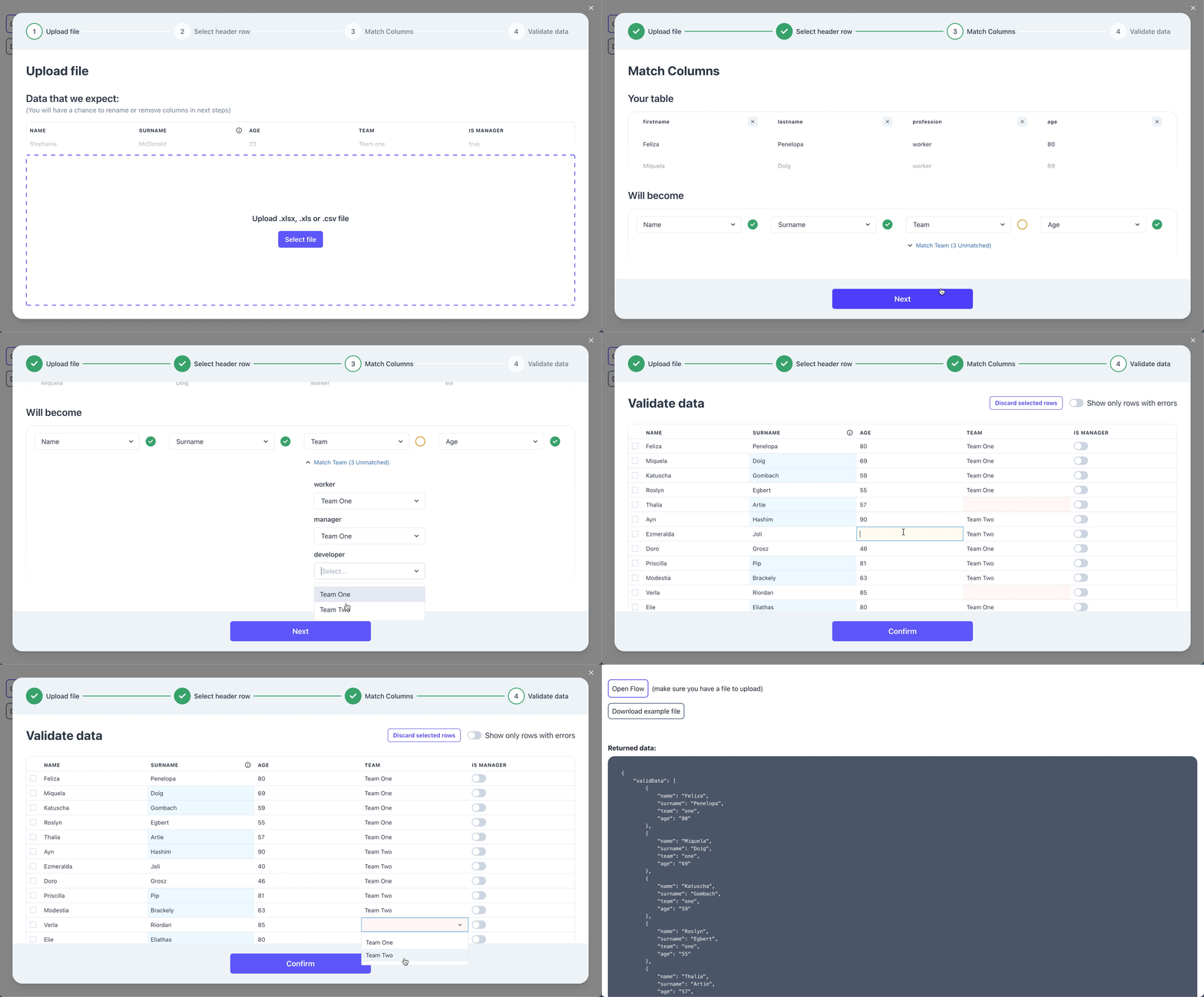
- 📥 Uploader
- ⚙️ Parser
- 📊 File preview
- 🧪 UI for column mapping
- ✏ UI for validating and editing data
✨ Demo ✨
- Custom styles - edit Chakra UI theme to match your project's styles 🎨
- Custom validation rules - make sure valid data is being imported, easily spot and correct errors
- Hooks - alter raw data after upload or make adjustments on data changes
- Auto-mapping columns - automatically map most likely value to your template values, e.g.
name->firstName
We provide full figma designs. You can copy the designs here
npm i react-spreadsheet-importUsing the component: (it's up to you when the flow is open and what you do on submit with the imported data)
import{ReactSpreadsheetImport}from"react-spreadsheet-import";<ReactSpreadsheetImportisOpen={isOpen}onClose={onClose}onSubmit={onSubmit}fields={fields}/>// Determines if modal is visible.
isOpen: Boolean// Called when flow is closed without reaching submit.
onClose: ()=>void// Called after user completes the flow. Provides data array, where data keys matches your field keys. onSubmit: (data,file)=>void|Promise<any>Fields describe what data you are trying to collect.
constfields=[{// Visible in table header and when matching columns.label: "Name",// This is the key used for this field when we call onSubmit.key: "name",// Allows for better automatic column matching. Optional.alternateMatches: ["first name","first"],// Used when editing and validating information.fieldType: {// There are 3 types - "input" / "checkbox" / "select".type: "input",},// Used in the first step to provide an example of what data is expected in this field. Optional.example: "Stephanie",// Can have multiple validations that are visible in Validation Step table.validations: [{// Can be "required" / "unique" / "regex"rule: "required",errorMessage: "Name is required",// There can be "info" / "warning" / "error" levels. Optional. Default "error".level: "error",},],},]asconstYou can transform and validate data with custom hooks. There are hooks after each step:
- uploadStepHook - runs only once after uploading the file.
- selectHeaderStepHook - runs only once after selecting the header row in spreadsheet.
- matchColumnsStepHook - runs only once after column matching. Operations on data that are expensive should be done here.
The last step - validation step has 2 unique hooks that run only in that step with different performance tradeoffs:
- tableHook - runs at the start and on any change. Runs on all rows. Very expensive, but can change rows that depend on other rows.
- rowHook - runs at the start and on any row change. Runs only on the rows changed. Fastest, most validations and transformations should be done here.
Example:
<ReactSpreadsheetImportrowHook={(data,addError)=>{// Validationif(data.name==="John"){addError("name",{message: "No Johns allowed",level: "info"})}// Transformationreturn{ ...data,name: "Not John"}// Sorry John}}/>In rare case when you need to skip the beginning of the flow, you can start the flow from any of the steps.
- initialStepState - initial state of component that will be rendered on load.
initialStepState?: StepStatetypeStepState=|{type: StepType.upload}|{type: StepType.selectSheetworkbook: XLSX.WorkBook}|{type: StepType.selectHeaderdata: RawData[]}|{type: StepType.matchColumnsdata: RawData[]headerValues: RawData}|{type: StepType.validateDatadata: any[]}typeRawData=Array<string|undefined>// XLSX.workbook type is native to SheetJS and can be viewed here: https://github.com/SheetJS/sheetjs/blob/83ddb4c1203f6bac052d8c1608b32fead02ea32f/types/index.d.ts#L269Example:
import{ReactSpreadsheetImport,StepType}from"react-spreadsheet-import";<ReactSpreadsheetImportinitialStepState={{type: StepType.matchColumns,data: [["Josh","2"],["Charlie","3"],["Lena","50"],],headerValues: ["name","age"],}}/>Excel stores dates and times as numbers - offsets from an epoch. When reading xlsx files SheetJS provides date formatting helpers.
Default date import format is yyyy-mm-dd. Date parsing with SheetJS sometimes yields unexpected results, therefore thorough date validations are recommended.
- dateFormat - sets SheetJS
dateNFoption. Can be used to format dates when importing sheet data. - parseRaw - sets SheetJS
rawoption. Iftrue, date formatting will be applied to XLSX date fields only. Default istrue
Common date-time formats can be viewed here.
// Allows submitting with errors. Default: true
allowInvalidSubmit?: boolean// Translations for each text. See customisation bellow
translations?: object// Theme configuration passed to underlying Chakra-UI. See customisation bellow
customTheme?: object// Specifies maximum number of rows for a single import
maxRecords?: number// Maximum upload filesize (in bytes)
maxFileSize?: number// Automatically map imported headers to specified fields if possible. Default: true
autoMapHeaders?: boolean// When field type is "select", automatically match values if possible. Default: false
autoMapSelectValues?: boolean// Headers matching accuracy: 1 for strict and up for more flexible matching. Default: 2
autoMapDistance?: number// Enable navigation in stepper component and show back button. Default: false
isNavigationEnabled?: booleanYou can see default theme we use here. Your override should match this object's structure.
There are 3 ways you can style the component:
1.) Change theme colors globally
<ReactSpreadsheetImport{...mockRsiValues}isOpen={isOpen}onClose={onClose}onSubmit={setData}customTheme={{colors: {background: 'white',
...
rsi: {// your brand colors should go here50: '...'...500: 'teal',
...
900: "...",},},}}/>
2.) Change all components of the same type, like all Buttons, at the same time
<ReactSpreadsheetImport{...mockRsiValues}isOpen={isOpen}onClose={onClose}onSubmit={setData}customTheme={{components: {Button: {baseStyle: {borderRadius: "none",},defaultProps: {colorScheme: "yellow",},},},}}/>
3.) Change components specifically in each Step.
<ReactSpreadsheetImport{...mockRsiValues}isOpen={isOpen}onClose={onClose}onSubmit={setData}customTheme={{components: {UploadStep: {baseStyle: {dropzoneButton: {bg: "red",},},},},}}/>
Underneath we use Chakra-UI, you can send in a custom theme for us to apply. Read more about themes here
You can change any text in the flow:
<ReactSpreadsheetImporttranslations={{uploadStep: {title: "Upload Employees",},}}/>You can see all the translation keys here
Flatfile vs react-spreadsheet-import and Dromo vs react-spreadsheet-import:
| RSI | Flatfile | Dromo | |
|---|---|---|---|
| Licence | MIT | Proprietary | Proprietary |
| Price | Free | Paid | Paid |
| Support | Github Issues | Enterprise | Enterprise |
| Self-host | Yes | Paid | Paid |
| Hosted solution | In development | Yes | Yes |
| On-prem deployment | N/A | Yes | Yes |
| Hooks | Yes | Yes | Yes |
| Automatic header matching | Yes | Yes | Yes |
| Data validation | Yes | Yes | Yes |
| Custom styling | Yes | Yes | Yes |
| Translations | Yes | Yes | Yes |
Trademarked words Data Hooks | No | Yes | No |
React-spreadsheet-import can be used as a free and open-source alternative to Flatfile and Dromo.
Feel free to open issues if you have any questions or notice bugs. If you want different component behaviour, consider forking the project.
Created by Ugnis. Julita Kriauciunaite and Karolis Masiulis. You can contact us at info@ugnis.com