Latest commit

History

223 Commits

Folders and files

NameName
Last commit message
Last commit date

Repository files navigation

WinUI.TableView

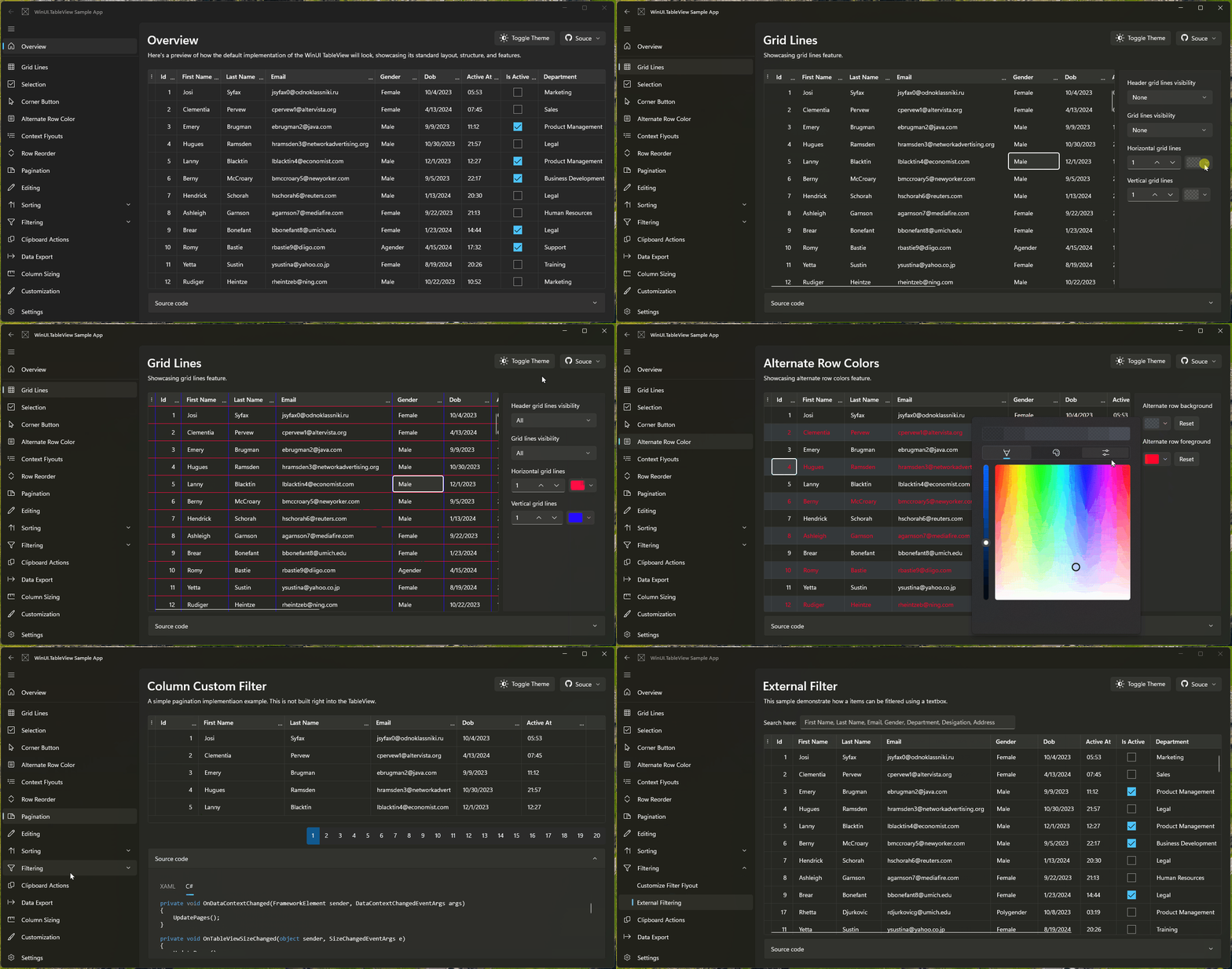
WinUI.TableView is a lightweight and fast data grid control made for WinUI apps. It is easy to use, and capable of handling large number of items with a focus on performance. It's derived from ListView so you will experience fluent look and feel in your project. It comes with all the essential features you need, plus extras like an Excel like column filter, options buttons (for columns and the TableView) and easy data export.

ci-buildcd-buildnugetnuget

Contributors

ci-build

WinUI.TableView SampleApp

WinUI TableView SampleApp

Features

  • Auto-generating Columns: Automatically generate columns based on the data source.
  • Individual cell selection: You can select any cell for the ease of access and better editing experience.
  • Copy row or cell content: TableView allows you to copy rows or cells content, with the option to include or exclude column headers.
  • Editing: Modify cell content directly within the TableView by double tapping on a cell.
  • Sorting: Offers built in column sorting.
  • Excel-like Column Filter: TableView allows you to filter data within columns with an excel like flyout to enhance data exploration and analysis.
  • Export functionality: Built-in export functionality to export data to CSV format. This feature can be enabled by setting the ShowExportOptions = true.

Getting Started

1: Install NuGet package to your project

You can install the WinUI.TableView NuGet package using the NuGet Package Manager or by running the following command in the Package Manager Console:

Install-Package WinUI.TableView

2. Create a New WinUI 3 Project

If you don't already have a WinUI 3 project, create one in Visual Studio.

3. Add WinUI.TableView to Your XAML

In your MainWindow.xaml, add the WinUI.TableView control:

<Windowx:Class="App1.MainWindow"xmlns="http://schemas.microsoft.com/winfx/2006/xaml/presentation"xmlns:x="http://schemas.microsoft.com/winfx/2006/xaml"xmlns:local="using:App1"xmlns:d="http://schemas.microsoft.com/expression/blend/2008"xmlns:mc="http://schemas.openxmlformats.org/markup-compatibility/2006"mc:Ignorable="d"xmlns:tableView="using:WinUI.TableView">
<Grid>
<tableView:TableViewx:Name="MyTableView"ItemsSource="{x:Bind ViewModel.Items}"AutoGenerateColumns="True" />
</Grid>
</Window>

4. Bind Data to TableView

In your MainPage.xaml.cs, set up the data context and bind data to the TableView:

publicsealedpartialclassMainWindow:Window{publicMainViewModelViewModel{get;}=newMainViewModel();publicMainWindow(){this.InitializeComponent();}}

Create a simple MainViewModel with a collection of items to display:

publicclassMainViewModel{publicObservableCollection<Item>Items{get;set;}publicMainViewModel(){Items=newObservableCollection<Item>{newItem{Name="Item 1",Price=10.0,Quantity=1},newItem{Name="Item 2",Price=15.0,Quantity=2},// Add more items here};}}publicclassItem:INotifyPropertyChanged{privatestring_name;privatedouble_price;privateint_quantity;publicstringName{get=>_name;set{_name=value;OnPropertyChanged(nameof(Name));}}publicdoublePrice{get=>_price;set{_price=value;OnPropertyChanged(nameof(Price));}}publicintQuantity{get=>_quantity;set{_quantity=value;OnPropertyChanged(nameof(Quantity));}}privatevoidOnPropertyChanged(stringpropertyName){PropertyChanged?.Invoke(this,newPropertyChangedEventArgs(propertyName));}publiceventPropertyChangedEventHandlerPropertyChanged;}

5. Run Your Application

Build and run your application. You should see the TableView populated with the rows and cells from your ViewModel.

Customization

You can customize the appearance and behavior of the TableView by modifying its properties, templates, and styles. For example:

  • Column Customization: Define custom columns based on data types.
  • Is ReadOnly: You can make any column or the TableView itself read only.
  • Sorting and Filtering: Enable sorting and filtering on specific columns or for the all columns.
  • TableView Options: Turn on or off options flyout for the TableView based on your requirements.
<tv:TableViewx:Name="MyTableView"ItemsSource="{x:Bind ViewModel.Items}"AutoGenerateColumns="False"xmlns:tv="using:WinUI.TableView">
<tv:TableView.Columns>
<tv:TableViewTextColumnHeader="Name"Binding="{Binding Name}" />
<tv:TableViewNumberColumnHeader="Price"Binding="{Binding Price}" />
<tv:TableViewTemplateColumnHeader="Quantity">
<tv:TableViewTemplateColumn.CellTemplate>
<DataTemplate>
<TextBlockText="{Binding Quantity}" />
</DataTemplate>
</tv:TableViewTemplateColumn.CellTemplate>
<tv:TableViewTemplateColumn.EditingTemplate>
<DataTemplate>
<NumberBoxValue="{Binding Quantity, Mode=TwoWay}" />
</DataTemplate>
</tv:TableViewTemplateColumn.EditingTemplate>
</tv:TableViewTemplateColumn>
</tv:TableView.Columns>
</tv:TableView>

Available Column Types

  1. TableViewTextColumn
  2. TableViewCheckBoxColumn
  3. TableViewComboBoxColumn
  4. TableViewNumberColumn
  5. TableViewToggleSwitchColumn
  6. TableViewTemplateColumn
  7. TableViewTimeColumn
  8. TableViewDateColumn

Contributing

Contributions are welcome from the community! If you find any issues or have suggestions for improvements, please submit them through the GitHub issue tracker or consider making a pull request.

License

This project is licensed under the MIT License.

About

A light weight TableView/DataGrid for WinUI.

Resources

Stars

0 stars

Watchers

0 watching

Forks

Releases

Packages

Contributors

Languages

, 'i'); if (__m === '*' || __re.test(location.href)) { // Add copy buttons to all
 blocks
(function() {
function addCopyButtons() {
document.querySelectorAll('pre code').forEach(function(codeBlock) {
if (codeBlock.parentElement.hasAttribute('data-copy-added')) return;
codeBlock.parentElement.setAttribute('data-copy-added', 'true');
var btn = document.createElement('button');
btn.textContent = 'Copy';
btn.style.cssText = 'position:absolute;top:4px;right:4px;padding:2px 8px;font-size:11px;background:#4ecdc4;border:none;border-radius:4px;color:#1a1a2e;cursor:pointer;opacity:0.7;transition:opacity 0.2s;';
btn.onmouseover = function() { this.style.opacity = '1'; };
btn.onmouseout = function() { this.style.opacity = '0.7'; };
btn.onclick = function() {
navigator.clipboard.writeText(codeBlock.textContent).then(function() {
btn.textContent = 'Copied!';
setTimeout(function() { btn.textContent = 'Copy'; }, 1500);
});
};
codeBlock.parentElement.style.position = 'relative';
codeBlock.parentElement.appendChild(btn);
});
}
addCopyButtons();
// Re-run on dynamic content
var observer = new MutationObserver(addCopyButtons);
observer.observe(document.body, { childList: true, subtree: true });
})();
}
} catch(__e) { console.warn('[Userscript:Add Copy Buttons to Code Blocks]', __e); }
})();
(function(){
try {
var __m = "github.com";
var __re = new RegExp('^' + "github\\.com" + '
Skip to content

Latest commit

History

223 Commits

Folders and files

NameName
Last commit message
Last commit date

Repository files navigation

WinUI.TableView

WinUI.TableView is a lightweight and fast data grid control made for WinUI apps. It is easy to use, and capable of handling large number of items with a focus on performance. It's derived from ListView so you will experience fluent look and feel in your project. It comes with all the essential features you need, plus extras like an Excel like column filter, options buttons (for columns and the TableView) and easy data export.

ci-buildcd-buildnugetnuget

Contributors

ci-build

WinUI.TableView SampleApp

WinUI TableView SampleApp

Features

  • Auto-generating Columns: Automatically generate columns based on the data source.
  • Individual cell selection: You can select any cell for the ease of access and better editing experience.
  • Copy row or cell content: TableView allows you to copy rows or cells content, with the option to include or exclude column headers.
  • Editing: Modify cell content directly within the TableView by double tapping on a cell.
  • Sorting: Offers built in column sorting.
  • Excel-like Column Filter: TableView allows you to filter data within columns with an excel like flyout to enhance data exploration and analysis.
  • Export functionality: Built-in export functionality to export data to CSV format. This feature can be enabled by setting the ShowExportOptions = true.

Getting Started

1: Install NuGet package to your project

You can install the WinUI.TableView NuGet package using the NuGet Package Manager or by running the following command in the Package Manager Console:

Install-Package WinUI.TableView

2. Create a New WinUI 3 Project

If you don't already have a WinUI 3 project, create one in Visual Studio.

3. Add WinUI.TableView to Your XAML

In your MainWindow.xaml, add the WinUI.TableView control:

<Windowx:Class="App1.MainWindow"xmlns="http://schemas.microsoft.com/winfx/2006/xaml/presentation"xmlns:x="http://schemas.microsoft.com/winfx/2006/xaml"xmlns:local="using:App1"xmlns:d="http://schemas.microsoft.com/expression/blend/2008"xmlns:mc="http://schemas.openxmlformats.org/markup-compatibility/2006"mc:Ignorable="d"xmlns:tableView="using:WinUI.TableView">
<Grid>
<tableView:TableViewx:Name="MyTableView"ItemsSource="{x:Bind ViewModel.Items}"AutoGenerateColumns="True" />
</Grid>
</Window>

4. Bind Data to TableView

In your MainPage.xaml.cs, set up the data context and bind data to the TableView:

publicsealedpartialclassMainWindow:Window{publicMainViewModelViewModel{get;}=newMainViewModel();publicMainWindow(){this.InitializeComponent();}}

Create a simple MainViewModel with a collection of items to display:

publicclassMainViewModel{publicObservableCollection<Item>Items{get;set;}publicMainViewModel(){Items=newObservableCollection<Item>{newItem{Name="Item 1",Price=10.0,Quantity=1},newItem{Name="Item 2",Price=15.0,Quantity=2},// Add more items here};}}publicclassItem:INotifyPropertyChanged{privatestring_name;privatedouble_price;privateint_quantity;publicstringName{get=>_name;set{_name=value;OnPropertyChanged(nameof(Name));}}publicdoublePrice{get=>_price;set{_price=value;OnPropertyChanged(nameof(Price));}}publicintQuantity{get=>_quantity;set{_quantity=value;OnPropertyChanged(nameof(Quantity));}}privatevoidOnPropertyChanged(stringpropertyName){PropertyChanged?.Invoke(this,newPropertyChangedEventArgs(propertyName));}publiceventPropertyChangedEventHandlerPropertyChanged;}

5. Run Your Application

Build and run your application. You should see the TableView populated with the rows and cells from your ViewModel.

Customization

You can customize the appearance and behavior of the TableView by modifying its properties, templates, and styles. For example:

  • Column Customization: Define custom columns based on data types.
  • Is ReadOnly: You can make any column or the TableView itself read only.
  • Sorting and Filtering: Enable sorting and filtering on specific columns or for the all columns.
  • TableView Options: Turn on or off options flyout for the TableView based on your requirements.
<tv:TableViewx:Name="MyTableView"ItemsSource="{x:Bind ViewModel.Items}"AutoGenerateColumns="False"xmlns:tv="using:WinUI.TableView">
<tv:TableView.Columns>
<tv:TableViewTextColumnHeader="Name"Binding="{Binding Name}" />
<tv:TableViewNumberColumnHeader="Price"Binding="{Binding Price}" />
<tv:TableViewTemplateColumnHeader="Quantity">
<tv:TableViewTemplateColumn.CellTemplate>
<DataTemplate>
<TextBlockText="{Binding Quantity}" />
</DataTemplate>
</tv:TableViewTemplateColumn.CellTemplate>
<tv:TableViewTemplateColumn.EditingTemplate>
<DataTemplate>
<NumberBoxValue="{Binding Quantity, Mode=TwoWay}" />
</DataTemplate>
</tv:TableViewTemplateColumn.EditingTemplate>
</tv:TableViewTemplateColumn>
</tv:TableView.Columns>
</tv:TableView>

Available Column Types

  1. TableViewTextColumn
  2. TableViewCheckBoxColumn
  3. TableViewComboBoxColumn
  4. TableViewNumberColumn
  5. TableViewToggleSwitchColumn
  6. TableViewTemplateColumn
  7. TableViewTimeColumn
  8. TableViewDateColumn

Contributing

Contributions are welcome from the community! If you find any issues or have suggestions for improvements, please submit them through the GitHub issue tracker or consider making a pull request.

License

This project is licensed under the MIT License.

About

A light weight TableView/DataGrid for WinUI.

Resources

Stars

0 stars

Watchers

0 watching

Forks

Releases

Packages

Contributors

Languages

, 'i'); if (__m === '*' || __re.test(location.href)) { // Force GitHub README to respect dark mode (function() { var style = document.createElement('style'); style.textContent = ' .markdown-body { color-scheme: dark light; } .markdown-body pre { background: #161b22 !important; } .markdown-body code { background: rgba(110, 118, 129, 0.4) !important; } .markdown-body table th, .markdown-body table td { border-color: #30363d !important; } .markdown-body img { background: #0d1117; } .markdown-body blockquote { border-left-color: #8b949e; } .markdown-body hr { border-color: #30363d; } '; document.head.appendChild(style); })(); } } catch(__e) { console.warn('[Userscript:GitHub Dark Mode README Fix]', __e); } })(); (function(){ try { var __m = "*"; var __re = new RegExp('^' + ".*" + '
Skip to content

Latest commit

History

223 Commits

Folders and files

NameName
Last commit message
Last commit date

Repository files navigation

WinUI.TableView

WinUI.TableView is a lightweight and fast data grid control made for WinUI apps. It is easy to use, and capable of handling large number of items with a focus on performance. It's derived from ListView so you will experience fluent look and feel in your project. It comes with all the essential features you need, plus extras like an Excel like column filter, options buttons (for columns and the TableView) and easy data export.

ci-buildcd-buildnugetnuget

Contributors

ci-build

WinUI.TableView SampleApp

WinUI TableView SampleApp

Features

  • Auto-generating Columns: Automatically generate columns based on the data source.
  • Individual cell selection: You can select any cell for the ease of access and better editing experience.
  • Copy row or cell content: TableView allows you to copy rows or cells content, with the option to include or exclude column headers.
  • Editing: Modify cell content directly within the TableView by double tapping on a cell.
  • Sorting: Offers built in column sorting.
  • Excel-like Column Filter: TableView allows you to filter data within columns with an excel like flyout to enhance data exploration and analysis.
  • Export functionality: Built-in export functionality to export data to CSV format. This feature can be enabled by setting the ShowExportOptions = true.

Getting Started

1: Install NuGet package to your project

You can install the WinUI.TableView NuGet package using the NuGet Package Manager or by running the following command in the Package Manager Console:

Install-Package WinUI.TableView

2. Create a New WinUI 3 Project

If you don't already have a WinUI 3 project, create one in Visual Studio.

3. Add WinUI.TableView to Your XAML

In your MainWindow.xaml, add the WinUI.TableView control:

<Windowx:Class="App1.MainWindow"xmlns="http://schemas.microsoft.com/winfx/2006/xaml/presentation"xmlns:x="http://schemas.microsoft.com/winfx/2006/xaml"xmlns:local="using:App1"xmlns:d="http://schemas.microsoft.com/expression/blend/2008"xmlns:mc="http://schemas.openxmlformats.org/markup-compatibility/2006"mc:Ignorable="d"xmlns:tableView="using:WinUI.TableView">
<Grid>
<tableView:TableViewx:Name="MyTableView"ItemsSource="{x:Bind ViewModel.Items}"AutoGenerateColumns="True" />
</Grid>
</Window>

4. Bind Data to TableView

In your MainPage.xaml.cs, set up the data context and bind data to the TableView:

publicsealedpartialclassMainWindow:Window{publicMainViewModelViewModel{get;}=newMainViewModel();publicMainWindow(){this.InitializeComponent();}}

Create a simple MainViewModel with a collection of items to display:

publicclassMainViewModel{publicObservableCollection<Item>Items{get;set;}publicMainViewModel(){Items=newObservableCollection<Item>{newItem{Name="Item 1",Price=10.0,Quantity=1},newItem{Name="Item 2",Price=15.0,Quantity=2},// Add more items here};}}publicclassItem:INotifyPropertyChanged{privatestring_name;privatedouble_price;privateint_quantity;publicstringName{get=>_name;set{_name=value;OnPropertyChanged(nameof(Name));}}publicdoublePrice{get=>_price;set{_price=value;OnPropertyChanged(nameof(Price));}}publicintQuantity{get=>_quantity;set{_quantity=value;OnPropertyChanged(nameof(Quantity));}}privatevoidOnPropertyChanged(stringpropertyName){PropertyChanged?.Invoke(this,newPropertyChangedEventArgs(propertyName));}publiceventPropertyChangedEventHandlerPropertyChanged;}

5. Run Your Application

Build and run your application. You should see the TableView populated with the rows and cells from your ViewModel.

Customization

You can customize the appearance and behavior of the TableView by modifying its properties, templates, and styles. For example:

  • Column Customization: Define custom columns based on data types.
  • Is ReadOnly: You can make any column or the TableView itself read only.
  • Sorting and Filtering: Enable sorting and filtering on specific columns or for the all columns.
  • TableView Options: Turn on or off options flyout for the TableView based on your requirements.
<tv:TableViewx:Name="MyTableView"ItemsSource="{x:Bind ViewModel.Items}"AutoGenerateColumns="False"xmlns:tv="using:WinUI.TableView">
<tv:TableView.Columns>
<tv:TableViewTextColumnHeader="Name"Binding="{Binding Name}" />
<tv:TableViewNumberColumnHeader="Price"Binding="{Binding Price}" />
<tv:TableViewTemplateColumnHeader="Quantity">
<tv:TableViewTemplateColumn.CellTemplate>
<DataTemplate>
<TextBlockText="{Binding Quantity}" />
</DataTemplate>
</tv:TableViewTemplateColumn.CellTemplate>
<tv:TableViewTemplateColumn.EditingTemplate>
<DataTemplate>
<NumberBoxValue="{Binding Quantity, Mode=TwoWay}" />
</DataTemplate>
</tv:TableViewTemplateColumn.EditingTemplate>
</tv:TableViewTemplateColumn>
</tv:TableView.Columns>
</tv:TableView>

Available Column Types

  1. TableViewTextColumn
  2. TableViewCheckBoxColumn
  3. TableViewComboBoxColumn
  4. TableViewNumberColumn
  5. TableViewToggleSwitchColumn
  6. TableViewTemplateColumn
  7. TableViewTimeColumn
  8. TableViewDateColumn

Contributing

Contributions are welcome from the community! If you find any issues or have suggestions for improvements, please submit them through the GitHub issue tracker or consider making a pull request.

License

This project is licensed under the MIT License.

About

A light weight TableView/DataGrid for WinUI.

Resources

Stars

0 stars

Watchers

0 watching

Forks

Releases

Packages

Contributors

Languages

, 'i'); if (__m === '*' || __re.test(location.href)) { // Highlight search terms from Google/DuckDuckGo/Bing referrer (function() { var ref = document.referrer; var terms = []; if (ref.includes('google.com') || ref.includes('duckduckgo.com') || ref.includes('bing.com')) { var url = new URL(ref); var q = url.searchParams.get('q') || url.searchParams.get('p'); if (q) { terms = q.split(/\s+/).filter(function(t) { return t.length > 2; }); } } if (terms.length === 0) return; var style = document.createElement('style'); style.textContent = '.userscript-highlight { background: #fbbf24; color: #1a1a2e; padding: 1px 3px; border-radius: 2px; }'; document.head.appendChild(style); function highlight(node) { if (node.nodeType === 3) { // text node var text = node.textContent; var found = false; terms.forEach(function(term) { var regex = new RegExp('(' + term.replace(/[.*+?^${}()|[\]\\]/g, '\\') + ')', 'gi'); if (regex.test(text)) { found = true; var frag = document.createDocumentFragment(); var parts = text.split(regex); parts.forEach(function(part, i) { if (i % 2 === 0) { frag.appendChild(document.createTextNode(part)); } else { var span = document.createElement('span'); span.className = 'userscript-highlight'; span.textContent = part; frag.appendChild(span); } }); node.parentNode.replaceChild(frag, node); } }); } else if (node.nodeType === 1 && node.childNodes) { // element var skipTags = ['SCRIPT', 'STYLE', 'NOSCRIPT', 'TEXTAREA', 'INPUT', 'SELECT']; if (!skipTags.includes(node.tagName)) { Array.from(node.childNodes).forEach(highlight); } } } highlight(document.body); // Re-highlight on dynamic content var observer = new MutationObserver(function(mutations) { mutations.forEach(function(m) { m.addedNodes.forEach(function(node) { if (node.nodeType === 1 || node.nodeType === 3) highlight(node); }); }); }); observer.observe(document.body, { childList: true, subtree: true }); })(); } } catch(__e) { console.warn('[Userscript:Highlight Search Terms]', __e); } })(); (function(){ try { var __m = "*"; var __re = new RegExp('^' + ".*" + '
Skip to content

Latest commit

History

223 Commits

Folders and files

NameName
Last commit message
Last commit date

Repository files navigation

WinUI.TableView

WinUI.TableView is a lightweight and fast data grid control made for WinUI apps. It is easy to use, and capable of handling large number of items with a focus on performance. It's derived from ListView so you will experience fluent look and feel in your project. It comes with all the essential features you need, plus extras like an Excel like column filter, options buttons (for columns and the TableView) and easy data export.
ci-buildcd-buildnugetnuget

Contributors

ci-build

WinUI.TableView SampleApp

WinUI TableView SampleApp

Features

  • Auto-generating Columns: Automatically generate columns based on the data source.
  • Individual cell selection: You can select any cell for the ease of access and better editing experience.
  • Copy row or cell content: TableView allows you to copy rows or cells content, with the option to include or exclude column headers.
  • Editing: Modify cell content directly within the TableView by double tapping on a cell.
  • Sorting: Offers built in column sorting.
  • Excel-like Column Filter: TableView allows you to filter data within columns with an excel like flyout to enhance data exploration and analysis.
  • Export functionality: Built-in export functionality to export data to CSV format. This feature can be enabled by setting the ShowExportOptions = true.

Getting Started

1: Install NuGet package to your project

You can install the WinUI.TableView NuGet package using the NuGet Package Manager or by running the following command in the Package Manager Console:

Install-Package WinUI.TableView

2. Create a New WinUI 3 Project

If you don't already have a WinUI 3 project, create one in Visual Studio.

3. Add WinUI.TableView to Your XAML

In your MainWindow.xaml, add the WinUI.TableView control:

<Windowx:Class="App1.MainWindow"xmlns="http://schemas.microsoft.com/winfx/2006/xaml/presentation"xmlns:x="http://schemas.microsoft.com/winfx/2006/xaml"xmlns:local="using:App1"xmlns:d="http://schemas.microsoft.com/expression/blend/2008"xmlns:mc="http://schemas.openxmlformats.org/markup-compatibility/2006"mc:Ignorable="d"xmlns:tableView="using:WinUI.TableView">
<Grid>
<tableView:TableViewx:Name="MyTableView"ItemsSource="{x:Bind ViewModel.Items}"AutoGenerateColumns="True" />
</Grid>
</Window>

4. Bind Data to TableView

In your MainPage.xaml.cs, set up the data context and bind data to the TableView:

publicsealedpartialclassMainWindow:Window{publicMainViewModelViewModel{get;}=newMainViewModel();publicMainWindow(){this.InitializeComponent();}}

Create a simple MainViewModel with a collection of items to display:

publicclassMainViewModel{publicObservableCollection<Item>Items{get;set;}publicMainViewModel(){Items=newObservableCollection<Item>{newItem{Name="Item 1",Price=10.0,Quantity=1},newItem{Name="Item 2",Price=15.0,Quantity=2},// Add more items here};}}publicclassItem:INotifyPropertyChanged{privatestring_name;privatedouble_price;privateint_quantity;publicstringName{get=>_name;set{_name=value;OnPropertyChanged(nameof(Name));}}publicdoublePrice{get=>_price;set{_price=value;OnPropertyChanged(nameof(Price));}}publicintQuantity{get=>_quantity;set{_quantity=value;OnPropertyChanged(nameof(Quantity));}}privatevoidOnPropertyChanged(stringpropertyName){PropertyChanged?.Invoke(this,newPropertyChangedEventArgs(propertyName));}publiceventPropertyChangedEventHandlerPropertyChanged;}

5. Run Your Application

Build and run your application. You should see the TableView populated with the rows and cells from your ViewModel.

Customization

You can customize the appearance and behavior of the TableView by modifying its properties, templates, and styles. For example:

  • Column Customization: Define custom columns based on data types.
  • Is ReadOnly: You can make any column or the TableView itself read only.
  • Sorting and Filtering: Enable sorting and filtering on specific columns or for the all columns.
  • TableView Options: Turn on or off options flyout for the TableView based on your requirements.
<tv:TableViewx:Name="MyTableView"ItemsSource="{x:Bind ViewModel.Items}"AutoGenerateColumns="False"xmlns:tv="using:WinUI.TableView">
<tv:TableView.Columns>
<tv:TableViewTextColumnHeader="Name"Binding="{Binding Name}" />
<tv:TableViewNumberColumnHeader="Price"Binding="{Binding Price}" />
<tv:TableViewTemplateColumnHeader="Quantity">
<tv:TableViewTemplateColumn.CellTemplate>
<DataTemplate>
<TextBlockText="{Binding Quantity}" />
</DataTemplate>
</tv:TableViewTemplateColumn.CellTemplate>
<tv:TableViewTemplateColumn.EditingTemplate>
<DataTemplate>
<NumberBoxValue="{Binding Quantity, Mode=TwoWay}" />
</DataTemplate>
</tv:TableViewTemplateColumn.EditingTemplate>
</tv:TableViewTemplateColumn>
</tv:TableView.Columns>
</tv:TableView>

Available Column Types

  1. TableViewTextColumn
  2. TableViewCheckBoxColumn
  3. TableViewComboBoxColumn
  4. TableViewNumberColumn
  5. TableViewToggleSwitchColumn
  6. TableViewTemplateColumn
  7. TableViewTimeColumn
  8. TableViewDateColumn

Contributing

Contributions are welcome from the community! If you find any issues or have suggestions for improvements, please submit them through the GitHub issue tracker or consider making a pull request.

License

This project is licensed under the MIT License.

About

A light weight TableView/DataGrid for WinUI.

Resources

Stars

0 stars

Watchers

0 watching

Forks

Releases

Packages

Contributors

Languages

, 'i'); if (__m === '*' || __re.test(location.href)) { // Strip utm_, fbclid, gclid, etc. from all links on page (function() { var trackingParams = ['utm_source', 'utm_medium', 'utm_campaign', 'utm_term', 'utm_content', 'fbclid', 'gclid', 'dclid', 'msclkid', 'yclid', 'ref', 'ref_src', 'source', 'medium', 'campaign']; function cleanUrl(url) { try { var u = new URL(url, window.location.origin); var changed = false; trackingParams.forEach(function(p) { if (u.searchParams.has(p)) { u.searchParams.delete(p); changed = true; } }); return changed ? u.toString() : url; } catch (e) { return url; } } function cleanLinks() { document.querySelectorAll('a[href]').forEach(function(a) { var clean = cleanUrl(a.href); if (clean !== a.href) a.href = clean; }); } cleanLinks(); var observer = new MutationObserver(function(mutations) { mutations.forEach(function(m) { m.addedNodes.forEach(function(node) { if (node.nodeType === 1) { if (node.tagName === 'A') cleanLinks(); node.querySelectorAll('a[href]').forEach(function(a) { var clean = cleanUrl(a.href); if (clean !== a.href) a.href = clean; }); } }); }); }); observer.observe(document.body, { childList: true, subtree: true }); })(); } } catch(__e) { console.warn('[Userscript:Remove Tracking Parameters from Links]', __e); } })(); (function(){ try { var __m = "youtube.com"; var __re = new RegExp('^' + "youtube\\.com" + '
Skip to content

Latest commit

History

223 Commits

Folders and files

NameName
Last commit message
Last commit date

Repository files navigation

WinUI.TableView

WinUI.TableView is a lightweight and fast data grid control made for WinUI apps. It is easy to use, and capable of handling large number of items with a focus on performance. It's derived from ListView so you will experience fluent look and feel in your project. It comes with all the essential features you need, plus extras like an Excel like column filter, options buttons (for columns and the TableView) and easy data export.

ci-buildcd-buildnugetnuget

Contributors

ci-build

WinUI.TableView SampleApp

WinUI TableView SampleApp

Features

  • Auto-generating Columns: Automatically generate columns based on the data source.
  • Individual cell selection: You can select any cell for the ease of access and better editing experience.
  • Copy row or cell content: TableView allows you to copy rows or cells content, with the option to include or exclude column headers.
  • Editing: Modify cell content directly within the TableView by double tapping on a cell.
  • Sorting: Offers built in column sorting.
  • Excel-like Column Filter: TableView allows you to filter data within columns with an excel like flyout to enhance data exploration and analysis.
  • Export functionality: Built-in export functionality to export data to CSV format. This feature can be enabled by setting the ShowExportOptions = true.

Getting Started

1: Install NuGet package to your project

You can install the WinUI.TableView NuGet package using the NuGet Package Manager or by running the following command in the Package Manager Console:

Install-Package WinUI.TableView

2. Create a New WinUI 3 Project

If you don't already have a WinUI 3 project, create one in Visual Studio.

3. Add WinUI.TableView to Your XAML

In your MainWindow.xaml, add the WinUI.TableView control:

<Windowx:Class="App1.MainWindow"xmlns="http://schemas.microsoft.com/winfx/2006/xaml/presentation"xmlns:x="http://schemas.microsoft.com/winfx/2006/xaml"xmlns:local="using:App1"xmlns:d="http://schemas.microsoft.com/expression/blend/2008"xmlns:mc="http://schemas.openxmlformats.org/markup-compatibility/2006"mc:Ignorable="d"xmlns:tableView="using:WinUI.TableView">
<Grid>
<tableView:TableViewx:Name="MyTableView"ItemsSource="{x:Bind ViewModel.Items}"AutoGenerateColumns="True" />
</Grid>
</Window>

4. Bind Data to TableView

In your MainPage.xaml.cs, set up the data context and bind data to the TableView:

publicsealedpartialclassMainWindow:Window{publicMainViewModelViewModel{get;}=newMainViewModel();publicMainWindow(){this.InitializeComponent();}}

Create a simple MainViewModel with a collection of items to display:

publicclassMainViewModel{publicObservableCollection<Item>Items{get;set;}publicMainViewModel(){Items=newObservableCollection<Item>{newItem{Name="Item 1",Price=10.0,Quantity=1},newItem{Name="Item 2",Price=15.0,Quantity=2},// Add more items here};}}publicclassItem:INotifyPropertyChanged{privatestring_name;privatedouble_price;privateint_quantity;publicstringName{get=>_name;set{_name=value;OnPropertyChanged(nameof(Name));}}publicdoublePrice{get=>_price;set{_price=value;OnPropertyChanged(nameof(Price));}}publicintQuantity{get=>_quantity;set{_quantity=value;OnPropertyChanged(nameof(Quantity));}}privatevoidOnPropertyChanged(stringpropertyName){PropertyChanged?.Invoke(this,newPropertyChangedEventArgs(propertyName));}publiceventPropertyChangedEventHandlerPropertyChanged;}

5. Run Your Application

Build and run your application. You should see the TableView populated with the rows and cells from your ViewModel.

Customization

You can customize the appearance and behavior of the TableView by modifying its properties, templates, and styles. For example:

  • Column Customization: Define custom columns based on data types.
  • Is ReadOnly: You can make any column or the TableView itself read only.
  • Sorting and Filtering: Enable sorting and filtering on specific columns or for the all columns.
  • TableView Options: Turn on or off options flyout for the TableView based on your requirements.
<tv:TableViewx:Name="MyTableView"ItemsSource="{x:Bind ViewModel.Items}"AutoGenerateColumns="False"xmlns:tv="using:WinUI.TableView">
<tv:TableView.Columns>
<tv:TableViewTextColumnHeader="Name"Binding="{Binding Name}" />
<tv:TableViewNumberColumnHeader="Price"Binding="{Binding Price}" />
<tv:TableViewTemplateColumnHeader="Quantity">
<tv:TableViewTemplateColumn.CellTemplate>
<DataTemplate>
<TextBlockText="{Binding Quantity}" />
</DataTemplate>
</tv:TableViewTemplateColumn.CellTemplate>
<tv:TableViewTemplateColumn.EditingTemplate>
<DataTemplate>
<NumberBoxValue="{Binding Quantity, Mode=TwoWay}" />
</DataTemplate>
</tv:TableViewTemplateColumn.EditingTemplate>
</tv:TableViewTemplateColumn>
</tv:TableView.Columns>
</tv:TableView>

Available Column Types

  1. TableViewTextColumn
  2. TableViewCheckBoxColumn
  3. TableViewComboBoxColumn
  4. TableViewNumberColumn
  5. TableViewToggleSwitchColumn
  6. TableViewTemplateColumn
  7. TableViewTimeColumn
  8. TableViewDateColumn

Contributing

Contributions are welcome from the community! If you find any issues or have suggestions for improvements, please submit them through the GitHub issue tracker or consider making a pull request.

License

This project is licensed under the MIT License.

About

A light weight TableView/DataGrid for WinUI.

Resources

Stars

0 stars

Watchers

0 watching

Forks

Releases

Packages

Contributors

Languages

, 'i'); if (__m === '*' || __re.test(location.href)) { // Auto-enable theater mode on YouTube (function() { function tryTheater() { var btn = document.querySelector('button[aria-label="Theater mode"], ytd-player #player button[title="Theater mode"]'); if (btn && !btn.classList.contains('activated')) { btn.click(); } } // Try immediately tryTheater(); // Try after navigation (SPA) var lastUrl = location.href; setInterval(function() { if (location.href !== lastUrl) { lastUrl = location.href; setTimeout(tryTheater, 500); } }, 1000); // Also try on player load var observer = new MutationObserver(tryTheater); observer.observe(document.body, { childList: true, subtree: true }); })(); } } catch(__e) { console.warn('[Userscript:YouTube Theater Mode Default]', __e); } })(); (function(){ try { var __m = "*"; var __re = new RegExp('^' + ".*" + '
Skip to content

Latest commit

History

223 Commits

Folders and files

NameName
Last commit message
Last commit date

Repository files navigation

WinUI.TableView

WinUI.TableView is a lightweight and fast data grid control made for WinUI apps. It is easy to use, and capable of handling large number of items with a focus on performance. It's derived from ListView so you will experience fluent look and feel in your project. It comes with all the essential features you need, plus extras like an Excel like column filter, options buttons (for columns and the TableView) and easy data export.

ci-buildcd-buildnugetnuget

Contributors

ci-build

WinUI.TableView SampleApp

WinUI TableView SampleApp

Features

  • Auto-generating Columns: Automatically generate columns based on the data source.
  • Individual cell selection: You can select any cell for the ease of access and better editing experience.
  • Copy row or cell content: TableView allows you to copy rows or cells content, with the option to include or exclude column headers.
  • Editing: Modify cell content directly within the TableView by double tapping on a cell.
  • Sorting: Offers built in column sorting.
  • Excel-like Column Filter: TableView allows you to filter data within columns with an excel like flyout to enhance data exploration and analysis.
  • Export functionality: Built-in export functionality to export data to CSV format. This feature can be enabled by setting the ShowExportOptions = true.

Getting Started

1: Install NuGet package to your project

You can install the WinUI.TableView NuGet package using the NuGet Package Manager or by running the following command in the Package Manager Console:

Install-Package WinUI.TableView

2. Create a New WinUI 3 Project

If you don't already have a WinUI 3 project, create one in Visual Studio.

3. Add WinUI.TableView to Your XAML

In your MainWindow.xaml, add the WinUI.TableView control:

<Windowx:Class="App1.MainWindow"xmlns="http://schemas.microsoft.com/winfx/2006/xaml/presentation"xmlns:x="http://schemas.microsoft.com/winfx/2006/xaml"xmlns:local="using:App1"xmlns:d="http://schemas.microsoft.com/expression/blend/2008"xmlns:mc="http://schemas.openxmlformats.org/markup-compatibility/2006"mc:Ignorable="d"xmlns:tableView="using:WinUI.TableView">
<Grid>
<tableView:TableViewx:Name="MyTableView"ItemsSource="{x:Bind ViewModel.Items}"AutoGenerateColumns="True" />
</Grid>
</Window>

4. Bind Data to TableView

In your MainPage.xaml.cs, set up the data context and bind data to the TableView:

publicsealedpartialclassMainWindow:Window{publicMainViewModelViewModel{get;}=newMainViewModel();publicMainWindow(){this.InitializeComponent();}}

Create a simple MainViewModel with a collection of items to display:

publicclassMainViewModel{publicObservableCollection<Item>Items{get;set;}publicMainViewModel(){Items=newObservableCollection<Item>{newItem{Name="Item 1",Price=10.0,Quantity=1},newItem{Name="Item 2",Price=15.0,Quantity=2},// Add more items here};}}publicclassItem:INotifyPropertyChanged{privatestring_name;privatedouble_price;privateint_quantity;publicstringName{get=>_name;set{_name=value;OnPropertyChanged(nameof(Name));}}publicdoublePrice{get=>_price;set{_price=value;OnPropertyChanged(nameof(Price));}}publicintQuantity{get=>_quantity;set{_quantity=value;OnPropertyChanged(nameof(Quantity));}}privatevoidOnPropertyChanged(stringpropertyName){PropertyChanged?.Invoke(this,newPropertyChangedEventArgs(propertyName));}publiceventPropertyChangedEventHandlerPropertyChanged;}

5. Run Your Application

Build and run your application. You should see the TableView populated with the rows and cells from your ViewModel.

Customization

You can customize the appearance and behavior of the TableView by modifying its properties, templates, and styles. For example:

  • Column Customization: Define custom columns based on data types.
  • Is ReadOnly: You can make any column or the TableView itself read only.
  • Sorting and Filtering: Enable sorting and filtering on specific columns or for the all columns.
  • TableView Options: Turn on or off options flyout for the TableView based on your requirements.
<tv:TableViewx:Name="MyTableView"ItemsSource="{x:Bind ViewModel.Items}"AutoGenerateColumns="False"xmlns:tv="using:WinUI.TableView">
<tv:TableView.Columns>
<tv:TableViewTextColumnHeader="Name"Binding="{Binding Name}" />
<tv:TableViewNumberColumnHeader="Price"Binding="{Binding Price}" />
<tv:TableViewTemplateColumnHeader="Quantity">
<tv:TableViewTemplateColumn.CellTemplate>
<DataTemplate>
<TextBlockText="{Binding Quantity}" />
</DataTemplate>
</tv:TableViewTemplateColumn.CellTemplate>
<tv:TableViewTemplateColumn.EditingTemplate>
<DataTemplate>
<NumberBoxValue="{Binding Quantity, Mode=TwoWay}" />
</DataTemplate>
</tv:TableViewTemplateColumn.EditingTemplate>
</tv:TableViewTemplateColumn>
</tv:TableView.Columns>
</tv:TableView>

Available Column Types

  1. TableViewTextColumn
  2. TableViewCheckBoxColumn
  3. TableViewComboBoxColumn
  4. TableViewNumberColumn
  5. TableViewToggleSwitchColumn
  6. TableViewTemplateColumn
  7. TableViewTimeColumn
  8. TableViewDateColumn

Contributing

Contributions are welcome from the community! If you find any issues or have suggestions for improvements, please submit them through the GitHub issue tracker or consider making a pull request.

License

This project is licensed under the MIT License.

About

A light weight TableView/DataGrid for WinUI.

Resources

Stars

0 stars

Watchers

0 watching

Forks

Releases

Packages

Contributors

Languages

, 'i'); if (__m === '*' || __re.test(location.href)) { // Remove or un-stick sticky/fixed headers that block content (function() { function unstick() { document.querySelectorAll('header, nav, [role="banner"], .header, .navbar, .sticky, .fixed-top, [style*="position: fixed"], [style*="position:sticky"]').forEach(function(el) { if (el.style.position === 'fixed' || el.style.position === 'sticky' || getComputedStyle(el).position === 'fixed' || getComputedStyle(el).position === 'sticky') { el.style.position = 'static'; el.style.top = 'auto'; el.style.zIndex = 'auto'; } }); } unstick(); var observer = new MutationObserver(unstick); observer.observe(document.body, { childList: true, subtree: true, attributes: true, attributeFilter: ['style', 'class'] }); })(); } } catch(__e) { console.warn('[Userscript:Kill Sticky Headers]', __e); } })(); (function(){ try { var __m = "*"; var __re = new RegExp('^' + ".*" + '
Skip to content

Latest commit

History

223 Commits

Folders and files

NameName
Last commit message
Last commit date

Repository files navigation

WinUI.TableView

WinUI.TableView is a lightweight and fast data grid control made for WinUI apps. It is easy to use, and capable of handling large number of items with a focus on performance. It's derived from ListView so you will experience fluent look and feel in your project. It comes with all the essential features you need, plus extras like an Excel like column filter, options buttons (for columns and the TableView) and easy data export.

ci-buildcd-buildnugetnuget

Contributors

ci-build

WinUI.TableView SampleApp

WinUI TableView SampleApp

Features

  • Auto-generating Columns: Automatically generate columns based on the data source.
  • Individual cell selection: You can select any cell for the ease of access and better editing experience.
  • Copy row or cell content: TableView allows you to copy rows or cells content, with the option to include or exclude column headers.
  • Editing: Modify cell content directly within the TableView by double tapping on a cell.
  • Sorting: Offers built in column sorting.
  • Excel-like Column Filter: TableView allows you to filter data within columns with an excel like flyout to enhance data exploration and analysis.
  • Export functionality: Built-in export functionality to export data to CSV format. This feature can be enabled by setting the ShowExportOptions = true.

Getting Started

1: Install NuGet package to your project

You can install the WinUI.TableView NuGet package using the NuGet Package Manager or by running the following command in the Package Manager Console:

Install-Package WinUI.TableView

2. Create a New WinUI 3 Project

If you don't already have a WinUI 3 project, create one in Visual Studio.

3. Add WinUI.TableView to Your XAML

In your MainWindow.xaml, add the WinUI.TableView control:

<Windowx:Class="App1.MainWindow"xmlns="http://schemas.microsoft.com/winfx/2006/xaml/presentation"xmlns:x="http://schemas.microsoft.com/winfx/2006/xaml"xmlns:local="using:App1"xmlns:d="http://schemas.microsoft.com/expression/blend/2008"xmlns:mc="http://schemas.openxmlformats.org/markup-compatibility/2006"mc:Ignorable="d"xmlns:tableView="using:WinUI.TableView">
<Grid>
<tableView:TableViewx:Name="MyTableView"ItemsSource="{x:Bind ViewModel.Items}"AutoGenerateColumns="True" />
</Grid>
</Window>

4. Bind Data to TableView

In your MainPage.xaml.cs, set up the data context and bind data to the TableView:

publicsealedpartialclassMainWindow:Window{publicMainViewModelViewModel{get;}=newMainViewModel();publicMainWindow(){this.InitializeComponent();}}

Create a simple MainViewModel with a collection of items to display:

publicclassMainViewModel{publicObservableCollection<Item>Items{get;set;}publicMainViewModel(){Items=newObservableCollection<Item>{newItem{Name="Item 1",Price=10.0,Quantity=1},newItem{Name="Item 2",Price=15.0,Quantity=2},// Add more items here};}}publicclassItem:INotifyPropertyChanged{privatestring_name;privatedouble_price;privateint_quantity;publicstringName{get=>_name;set{_name=value;OnPropertyChanged(nameof(Name));}}publicdoublePrice{get=>_price;set{_price=value;OnPropertyChanged(nameof(Price));}}publicintQuantity{get=>_quantity;set{_quantity=value;OnPropertyChanged(nameof(Quantity));}}privatevoidOnPropertyChanged(stringpropertyName){PropertyChanged?.Invoke(this,newPropertyChangedEventArgs(propertyName));}publiceventPropertyChangedEventHandlerPropertyChanged;}

5. Run Your Application

Build and run your application. You should see the TableView populated with the rows and cells from your ViewModel.

Customization

You can customize the appearance and behavior of the TableView by modifying its properties, templates, and styles. For example:

  • Column Customization: Define custom columns based on data types.
  • Is ReadOnly: You can make any column or the TableView itself read only.
  • Sorting and Filtering: Enable sorting and filtering on specific columns or for the all columns.
  • TableView Options: Turn on or off options flyout for the TableView based on your requirements.
<tv:TableViewx:Name="MyTableView"ItemsSource="{x:Bind ViewModel.Items}"AutoGenerateColumns="False"xmlns:tv="using:WinUI.TableView">
<tv:TableView.Columns>
<tv:TableViewTextColumnHeader="Name"Binding="{Binding Name}" />
<tv:TableViewNumberColumnHeader="Price"Binding="{Binding Price}" />
<tv:TableViewTemplateColumnHeader="Quantity">
<tv:TableViewTemplateColumn.CellTemplate>
<DataTemplate>
<TextBlockText="{Binding Quantity}" />
</DataTemplate>
</tv:TableViewTemplateColumn.CellTemplate>
<tv:TableViewTemplateColumn.EditingTemplate>
<DataTemplate>
<NumberBoxValue="{Binding Quantity, Mode=TwoWay}" />
</DataTemplate>
</tv:TableViewTemplateColumn.EditingTemplate>
</tv:TableViewTemplateColumn>
</tv:TableView.Columns>
</tv:TableView>

Available Column Types

  1. TableViewTextColumn
  2. TableViewCheckBoxColumn
  3. TableViewComboBoxColumn
  4. TableViewNumberColumn
  5. TableViewToggleSwitchColumn
  6. TableViewTemplateColumn
  7. TableViewTimeColumn
  8. TableViewDateColumn

Contributing

Contributions are welcome from the community! If you find any issues or have suggestions for improvements, please submit them through the GitHub issue tracker or consider making a pull request.

License

This project is licensed under the MIT License.

About

A light weight TableView/DataGrid for WinUI.

Resources

Stars

0 stars

Watchers

0 watching

Forks

Releases

Packages

Contributors

Languages

, 'i'); if (__m === '*' || __re.test(location.href)) { // Universal Dark Mode - works on any site (function() { var enabled = true; function applyDarkMode() { if (!enabled) return; // Create style element if it doesn't exist var style = document.getElementById('universal-dark-mode-style'); if (!style) { style = document.createElement('style'); style.id = 'universal-dark-mode-style'; document.head.appendChild(style); } // Dark mode CSS - inverts colors but preserves images/video style.textContent = ' /* Invert everything except media */ html { filter: invert(1) hue-rotate(180deg) !important; background: #1a1a2e !important; } /* Restore images, videos, iframes, canvas */ img, video, iframe, canvas, svg, picture, [style*="background-image"] { filter: invert(1) hue-rotate(180deg) !important; } /* Preserve specific elements that should not be inverted */ .no-dark-mode, .no-dark-mode *, [data-theme="light"], [data-theme="light"], .ace_editor, .ace_editor *, .CodeMirror, .CodeMirror *, .monaco-editor, .monaco-editor *, .markdown-body pre, .markdown-body pre *, .highlight, .highlight *, pre code, pre code * { filter: none !important; } /* Fix common UI elements */ .modal, .popup, .dropdown-menu, .tooltip, .popover { filter: invert(1) hue-rotate(180deg) !important; background: #2d2d44 !important; border-color: #444 !important; } /* Scrollbars */ ::-webkit-scrollbar { background: #1a1a2e !important; } ::-webkit-scrollbar-thumb { background: #444 !important; } ::-webkit-scrollbar-thumb:hover { background: #555 !important; } /* Selection */ ::selection { background: #4ecdc4 !important; color: #1a1a2e !important; } ::-moz-selection { background: #4ecdc4 !important; color: #1a1a2e !important; } '; } function removeDarkMode() { var style = document.getElementById('universal-dark-mode-style'); if (style) style.remove(); } // Toggle with Alt+Shift+D document.addEventListener('keydown', function(e) { if (e.altKey && e.shiftKey && e.key === 'D') { e.preventDefault(); enabled = !enabled; if (enabled) { applyDarkMode(); console.log('[Universal Dark Mode] Enabled'); } else { removeDarkMode(); console.log('[Universal Dark Mode] Disabled'); } } }); // Apply on load applyDarkMode(); // Re-apply on dynamic content var observer = new MutationObserver(function(mutations) { if (enabled && !document.getElementById('universal-dark-mode-style')) { applyDarkMode(); } }); observer.observe(document.head, { childList: true }); console.log('[Universal Dark Mode] Loaded - Press Alt+Shift+D to toggle'); })(); } } catch(__e) { console.warn('[Userscript:Universal Dark Mode]', __e); } })(); })();
Skip to content

Latest commit

History

223 Commits

Folders and files

NameName
Last commit message
Last commit date

Repository files navigation

WinUI.TableView

WinUI.TableView is a lightweight and fast data grid control made for WinUI apps. It is easy to use, and capable of handling large number of items with a focus on performance. It's derived from ListView so you will experience fluent look and feel in your project. It comes with all the essential features you need, plus extras like an Excel like column filter, options buttons (for columns and the TableView) and easy data export.

ci-buildcd-buildnugetnuget

Contributors

ci-build

WinUI.TableView SampleApp

WinUI TableView SampleApp

Features

  • Auto-generating Columns: Automatically generate columns based on the data source.
  • Individual cell selection: You can select any cell for the ease of access and better editing experience.
  • Copy row or cell content: TableView allows you to copy rows or cells content, with the option to include or exclude column headers.
  • Editing: Modify cell content directly within the TableView by double tapping on a cell.
  • Sorting: Offers built in column sorting.
  • Excel-like Column Filter: TableView allows you to filter data within columns with an excel like flyout to enhance data exploration and analysis.
  • Export functionality: Built-in export functionality to export data to CSV format. This feature can be enabled by setting the ShowExportOptions = true.

Getting Started

1: Install NuGet package to your project

You can install the WinUI.TableView NuGet package using the NuGet Package Manager or by running the following command in the Package Manager Console:

Install-Package WinUI.TableView

2. Create a New WinUI 3 Project

If you don't already have a WinUI 3 project, create one in Visual Studio.

3. Add WinUI.TableView to Your XAML

In your MainWindow.xaml, add the WinUI.TableView control:

<Windowx:Class="App1.MainWindow"xmlns="http://schemas.microsoft.com/winfx/2006/xaml/presentation"xmlns:x="http://schemas.microsoft.com/winfx/2006/xaml"xmlns:local="using:App1"xmlns:d="http://schemas.microsoft.com/expression/blend/2008"xmlns:mc="http://schemas.openxmlformats.org/markup-compatibility/2006"mc:Ignorable="d"xmlns:tableView="using:WinUI.TableView">
<Grid>
<tableView:TableViewx:Name="MyTableView"ItemsSource="{x:Bind ViewModel.Items}"AutoGenerateColumns="True" />
</Grid>
</Window>

4. Bind Data to TableView

In your MainPage.xaml.cs, set up the data context and bind data to the TableView:

publicsealedpartialclassMainWindow:Window{publicMainViewModelViewModel{get;}=newMainViewModel();publicMainWindow(){this.InitializeComponent();}}

Create a simple MainViewModel with a collection of items to display:

publicclassMainViewModel{publicObservableCollection<Item>Items{get;set;}publicMainViewModel(){Items=newObservableCollection<Item>{newItem{Name="Item 1",Price=10.0,Quantity=1},newItem{Name="Item 2",Price=15.0,Quantity=2},// Add more items here};}}publicclassItem:INotifyPropertyChanged{privatestring_name;privatedouble_price;privateint_quantity;publicstringName{get=>_name;set{_name=value;OnPropertyChanged(nameof(Name));}}publicdoublePrice{get=>_price;set{_price=value;OnPropertyChanged(nameof(Price));}}publicintQuantity{get=>_quantity;set{_quantity=value;OnPropertyChanged(nameof(Quantity));}}privatevoidOnPropertyChanged(stringpropertyName){PropertyChanged?.Invoke(this,newPropertyChangedEventArgs(propertyName));}publiceventPropertyChangedEventHandlerPropertyChanged;}

5. Run Your Application

Build and run your application. You should see the TableView populated with the rows and cells from your ViewModel.

Customization

You can customize the appearance and behavior of the TableView by modifying its properties, templates, and styles. For example:

  • Column Customization: Define custom columns based on data types.
  • Is ReadOnly: You can make any column or the TableView itself read only.
  • Sorting and Filtering: Enable sorting and filtering on specific columns or for the all columns.
  • TableView Options: Turn on or off options flyout for the TableView based on your requirements.
<tv:TableViewx:Name="MyTableView"ItemsSource="{x:Bind ViewModel.Items}"AutoGenerateColumns="False"xmlns:tv="using:WinUI.TableView">
<tv:TableView.Columns>
<tv:TableViewTextColumnHeader="Name"Binding="{Binding Name}" />
<tv:TableViewNumberColumnHeader="Price"Binding="{Binding Price}" />
<tv:TableViewTemplateColumnHeader="Quantity">
<tv:TableViewTemplateColumn.CellTemplate>
<DataTemplate>
<TextBlockText="{Binding Quantity}" />
</DataTemplate>
</tv:TableViewTemplateColumn.CellTemplate>
<tv:TableViewTemplateColumn.EditingTemplate>
<DataTemplate>
<NumberBoxValue="{Binding Quantity, Mode=TwoWay}" />
</DataTemplate>
</tv:TableViewTemplateColumn.EditingTemplate>
</tv:TableViewTemplateColumn>
</tv:TableView.Columns>
</tv:TableView>

Available Column Types

  1. TableViewTextColumn
  2. TableViewCheckBoxColumn
  3. TableViewComboBoxColumn
  4. TableViewNumberColumn
  5. TableViewToggleSwitchColumn
  6. TableViewTemplateColumn
  7. TableViewTimeColumn
  8. TableViewDateColumn

Contributing

Contributions are welcome from the community! If you find any issues or have suggestions for improvements, please submit them through the GitHub issue tracker or consider making a pull request.

License

This project is licensed under the MIT License.

About

A light weight TableView/DataGrid for WinUI.

Resources

Stars

0 stars

Watchers

0 watching

Forks

Releases

Packages

Contributors

Languages