
A two-panel console file manager inspired by Midnight Commander, written in Python.
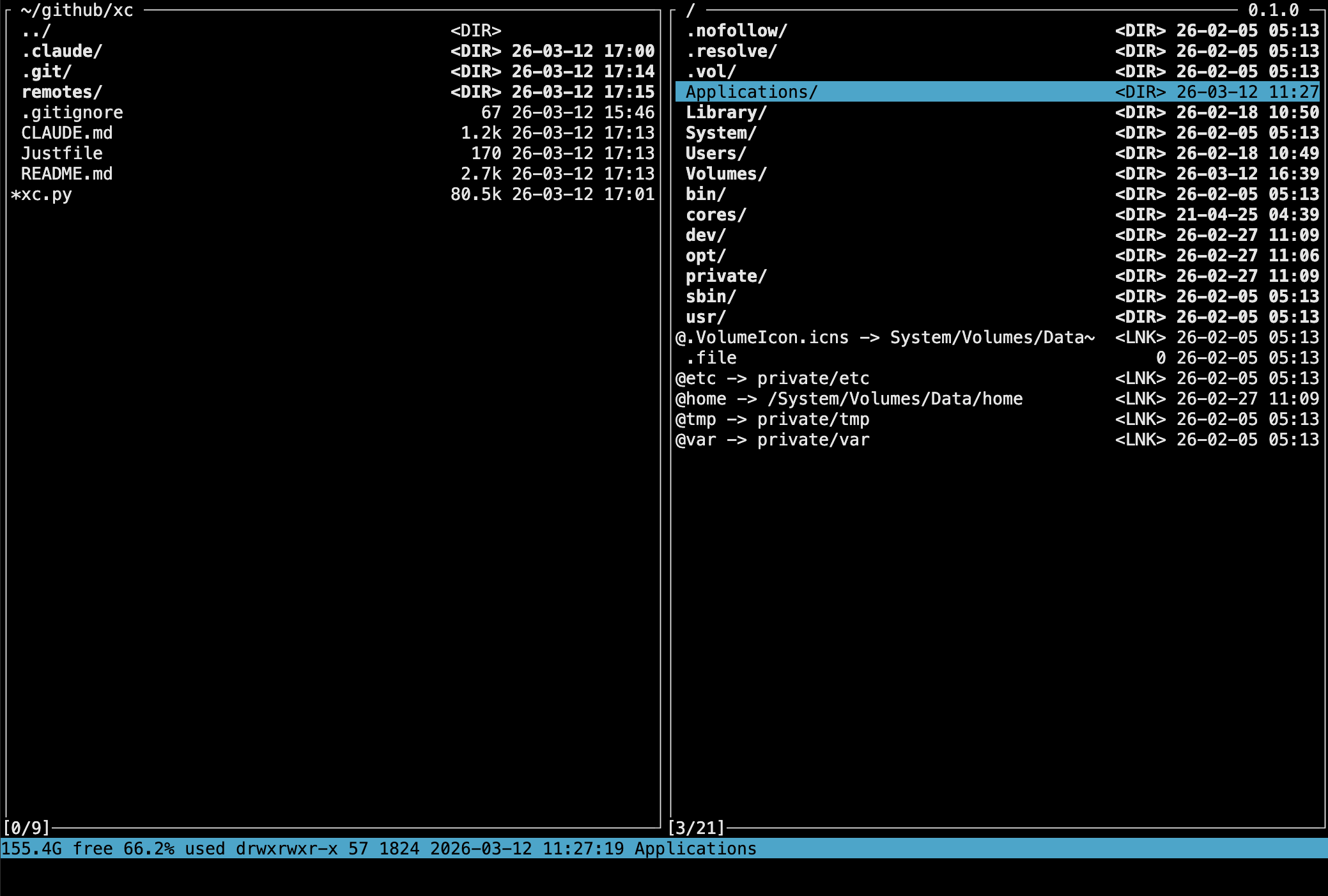
The Python version of xc is a single self-contained script (xc.py) that runs via uv. This means:
- Zero setup -- no virtualenv, no
pip install, norequirements.txt. Just runuvx xcfm. - Inline dependencies -- the script header declares its own dependencies (
boto3,google-cloud-storage,oci,google-api-python-client), and uv resolves and caches them automatically on the first run. - Reproducible -- uv pins the Python version (
>=3.11) and handles isolation, so the script works the same way on any machine. - Single file to deploy -- copy
xc.pyto a server, a dotfiles repo, or a USB stick. There is nothing else to carry.
# macOS / Linux
curl -LsSf https://astral.sh/uv/install.sh | sh
# Homebrew
brew install uv
# Windows
powershell -ExecutionPolicy ByPass -c "irm https://astral.sh/uv/install.ps1 | iex"
After installing, run the file manager with:
uvx xcfmOr download the script and make it executable as "xc":
curl -fsSL https://raw.githubusercontent.com/begoon/xc/main/install.sh | shOr download the script directly:
curl -LO https://raw.githubusercontent.com/begoon/xc/main/xc.py
chmod +x xc.py
uv run xc.py
Or directly from a cloned repo:
uv run xc.pyThe script has a shebang line, so you can rename it, make it executable, and put it on your PATH:
cp xc.py ~/.local/bin/xc
chmod +x ~/.local/bin/xc
xcxc [folder1 [folder2]]| Argument | Meaning |
|---|---|
folder1 | Directory to open in the active panel |
folder2 | Directory to open in the other (inactive) panel |
-u | Self-update from GitHub and exit |
Paths may be relative and may use ~. With no arguments, the active panel opens in the current working directory and the inactive panel restores the path from the previous session.
The pyproject.toml in the repository is only used for local development tooling (e.g. black formatter settings). It is not needed to run xc -- xc.py is fully self-contained with its own inline dependency declarations.
To update xc to the latest version from GitHub:
xc -uThis fetches the latest xc.py from the repository, compares versions, and replaces the current binary if a newer version is available. The previous version is saved as xc.prev next to the executable.
xc shows two file panels side by side. One panel is active (highlighted border), the other is inactive. You navigate files in the active panel and use the inactive panel as a target for file operations like copy and move. Press Tab to switch the active panel. Press h / l to activate the left / right panel directly.
On startup the active panel opens in the current working directory (or folder1 if given on the command line). The inactive panel restores the path from the previous session (or opens folder2).
| Key | Action |
|---|---|
Up / Ctrl-P | Move cursor up |
Down / j | Move cursor down |
Enter | Enter directory or open VFS |
Backspace | Go to parent directory (or exit VFS) |
Left / Right | Page up / page down |
PgUp / PgDn | Page up / page down |
Home / ^ | Jump to first file |
End / G | Jump to last file |
Ctrl-D / Ctrl-U | Half-page down / up |
Ctrl-L | Reload current directory |
Tab | Switch active panel |
h / l | Activate left / right panel |
q | Quit |
Press x to open the command menu:
| Key | Action |
|---|---|
c | Copy -- copy file or tagged files from active to inactive panel |
m | Move -- move (rename) file or tagged files |
d | Delete -- delete file or tagged files |
k | Mkdir -- create a new directory |
t | Touch -- create an empty file |
p | Chmod -- change file permissions |
r | Rename -- rename the selected file |
g | Chdir -- type a path to navigate to |
Copy and move operations use the inactive panel's current path as the default destination. A prompt lets you edit the destination before confirming.
If a copy, move, or rename target already exists, a confirmation dialog appears showing the size and modification time of both the new and the existing file (directories are shown as <DIR>):
| Button | Action |
|---|---|
Overwrite | Replace the existing file |
Skip | Leave the existing file and continue with the remaining ones |
All | Overwrite this and all further conflicts without asking |
Cancel | Stop the remaining operation (Esc does the same) |
Buttons respond to their first letter (o, s, a, c), Tab/arrow keys, and Enter. Rename shows only Overwrite / Cancel.
On move, a source file is deleted only after it has been fully copied -- skipped, cancelled, or failed files always keep their originals. Existence checks work on remote VFS too (the target directory listing is fetched once per operation).
Press Space on a file to tag it (marked with +). Tagged files are used as the source for copy, move, delete, and chmod. If nothing is tagged, the operation applies to the file under the cursor.
| Key | Action |
|---|---|
Space | Toggle tag on current file and move down |
+ | Tag all files in current directory |
_ | Untag all |
i | Calculate sizes of tagged (or selected) directories |
Press b to open the bookmark menu for quick jumps to common directories (home, desktop, downloads, etc.).
Press r to open the remote menu. This scans ~/.xc/remotes/ for VFS config files (.s3, .gcs, .oci, .gdrive, .ssh) and presents them as a selector. Choosing a remote opens it on the active panel, just like pressing Enter on a VFS config file.
This lets you keep all your remote connections in one place and access them from any directory without navigating to where the config files live.
Example setup:
~/.xc/remotes/
production.s3
analytics.gcs
storage.oci
shared-drive.gdrive
webserver.ssh
Press e to open a file in an editor, or v to view it. These menus launch external commands with the current file path substituted via macros (see below). On remote VFS (SSH, S3, GCS, OCI, GDrive), the file is automatically downloaded to a temp location, opened locally, and uploaded back if modified.
There are two command-line modes:
| Key | Mode | Behavior |
|---|---|---|
; | Direct | Run a command interactively in the terminal |
: | Piped | Run a command; output is piped through less |
Both modes support macro expansion. The command runs in the active panel's current directory. If the command exits with a non-zero code, the error is shown in the bottom line.
xc runs on the terminal's alternate screen -- the panels never mix with your shell's scroll buffer. When you run a shell command (; or :), xc temporarily switches back to the main screen so the command's output is preserved in the normal scroll buffer.
To review previous command output without running anything:
| Key | Action |
|---|---|
EscEsc | Switch to main screen |
Ctrl-O | Switch to main screen |
Esc or Ctrl-O | Return to panels (main screen) |
Once on the main screen you can scroll through your terminal's history as usual. Press Esc or Ctrl-O to return to the file panels.
Press / to start an incremental search. Type characters to filter -- the cursor jumps to the first matching file. Press Enter to accept or Esc to cancel.
Press s to search by file name pattern, or S to search file contents (grep).
s-- File search. Asearchprompt appears. Enter a glob pattern (e.g.*.py) to find matching files recursively.S-- Grep search. A two-step prompt:- File pattern --
searchprompt appears. Enter a glob pattern to filter by filename (default*.*). - Search string --
search *.py grep forprompt appears. Enter the text to find in file contents.
- File pattern --
The file pattern uses Unix shell-style wildcards (matched against the filename only, not the path):
| Pattern | Meaning | Example |
|---|---|---|
* | Matches everything | *.py -- all Python |
? | Matches any single character | ?.txt -- a.txt |
[seq] | Matches any character in seq | [abc].py |
[!seq] | Matches any character not in seq | [!.]cfg |
Patterns do not support ** (recursive globs) or path separators -- they match the base filename only.
Search is implemented in pure Python -- no external tools required. Binary files are automatically skipped. Hidden directories (starting with .) are excluded. A spinner shows progress during search; press ESC to cancel.
Results are displayed as a virtual filesystem tree (GREP) on the current panel. Navigate the results normally -- directories expand, .. exits back to the real filesystem.
Search works only on local filesystems.
Press p to open a modal showing all running processes with PID, user, full command line (middle-truncated with ... to fit), and any listening TCP/UDP ports.
The layout is:
- Filter input at the top — space-separated words. All words must appear in the command line, ports, pid, or user. A word prefixed with
-excludes matches containing that word. - Process list with the filtered results.
- Full command line of the selected process, below the list.
- Environment variables of the selected process at the bottom (read from
/proc/<pid>/environon Linux, orps ewwon macOS).
| Key | Action |
|---|---|
Tab | Cycle focus: filter → list → env |
Up / Down | Navigate one entry up / down |
PgUp / PgDn / Left / Right | Navigate one page up / down |
Home / End | Jump to first / last entry |
letters / Backspace | Edit the filter |
k (list focus) / Ctrl-K | Send SIGKILL (kill -9) with y/N confirmation |
Ctrl-R | Refresh the process list |
Esc | Close the modal |
Listening ports are gathered via lsof -iTCP -sTCP:LISTEN -iUDP. On machines where lsof is restricted or not installed, the ports column will simply be empty.
Press o to open a modal listing every directory in $PATH with the number of executable files it contains. Missing directories are flagged as missing (dimmed and coloured as errors).
Press Enter on an existing entry to open a second modal showing a scrollable list of the executables in that directory.
| Key | Action |
|---|---|
Up / Down | Navigate one entry up / down |
PgUp / PgDn / Left / Right | Navigate one page up / down |
Home / End | Jump to first / last entry |
Enter | Show executables in selected path |
Ctrl-R | Rescan $PATH |
Esc | Close (inner modal first) |
Press k to open a modal listing every variable from the current process environment, sorted by key. Each row is KEY=value; long values are middle-truncated with ... in the list. The full value of the selected variable is displayed below the list.
| Key | Action |
|---|---|
Up / Down | Navigate one entry up / down |
PgUp / PgDn / Left / Right | Navigate one page up / down |
Home / End | Jump to first / last entry |
Ctrl-R | Refresh the env list |
Esc | Close the modal |
In command-line mode (; or :), press Esc then h to open a history selector showing previously executed commands. Use Up / Down to browse, Enter to accept, Esc to cancel. History is persisted across sessions (up to 100 entries).
xc is a single Python script. Menus and keymaps are defined at the bottom of the file as plain data -- just edit them to add your own editors, bookmarks, or commands:
app.add_menu("editor", [
MenuItem("v", "vi", lambda: app.action_run("vi %F")),
MenuItem("c", "code", lambda: app.action_run("code %F")),
])
There is no config file on purpose. The script is the config.
Entering certain files opens them as virtual directories:
| Extension | VFS | Description |
|---|---|---|
.tar, .tar.gz, .tgz, .tar.bz2 | TAR | Browse tar archives |
.zip | ZIP | Browse zip archives |
.gz, .bz2, .xz, .lzma | - | View compressed single files |
.s3 | S3 | Browse Amazon S3 buckets |
.gcs | GCS | Browse Google Cloud Storage buckets |
.oci | OCI | Browse Oracle Cloud Object Storage |
.gdrive | GDrive | Browse Google Drive folders |
.ssh | SSH | Browse remote servers over SSH |
VFS config files (.s3, .gcs, .oci, .gdrive, .ssh) are simple key=value text files. The path header shows the VFS type, e.g. ~/servers/prod.ssh (SSH).
S3 example (production.s3):
type=s3
bucket=my-data-bucket
AWS_PROFILE=production
AWS_REGION=eu-west-1
AWS_PROFILE selects a named profile from ~/.aws/credentials. You can also specify AWS_ACCESS_KEY_ID and AWS_SECRET_ACCESS_KEY inline, but using a profile is recommended. If all credentials are omitted, the default AWS credential chain is used.
GCS example (analytics.gcs):
type=gcs
bucket=my-analytics-bucket
key=service-account.json
The key path can be relative (resolved from the active panel's current directory), absolute, or use ~, $HOME, or $(HOME) to refer to the home directory. If omitted, application default credentials are used.
OCI example (storage.oci):
type=oci
bucket=my-bucket
OCI_BUCKET_NAMESPACE=mynamespace
OCI_USER=ocid1.user.oc1..aaa...
OCI_FINGERPRINT=aa:bb:cc:...
OCI_TENANCY=ocid1.tenancy.oc1..aaa...
OCI_REGION=uk-london-1
OCI_KEY_FILE=my-key.pem
OCI_KEY_FILE is a path to a PEM private key file. Alternatively, use OCI_KEY_BASE64 to embed the key inline as base64. If neither is provided, the default OCI config (~/.oci/config) is used.
Google Drive example (shared.gdrive):
type=gdrive
folder=1Z_NJ0-LAPzaO7eursL92DWPmFKQT3lpK
key=service-account.json
The folder is the ID from the Google Drive folder URL. The key path points to a service account JSON credentials file (relative paths are resolved from the config file's directory). If omitted, application default credentials are used. Shared drives and folders shared from other accounts are supported.
SSH example (prod.ssh):
kind=ssh
host=prod-server
user=deploy
identity=~/.ssh/id_ed25519
port=22
Only host is required. All other fields are optional -- SSH will pick them up from ~/.ssh/config. The host value can be an SSH config alias. The identity path supports ~, $HOME, and $(HOME) prefixes.
The %F macro works transparently on remote VFS (SSH, S3, GCS, OCI, GDrive). When you run a command like vi %F on a remote file, xc automatically:
- Downloads the file to a local temp location
- Runs the command against the local copy
- If the command exits successfully and the file was modified, uploads it back
This means editors, viewers, and any shell command work on remote files the same way as local ones.
Editor, view, and shell command modes (; and :) all support macro expansion. Macros are prefixed with % and let you refer to the current file, directory, or tagged selection in your commands.
| Macro | Description |
|---|---|
%f | Current file name |
%F | Current file full path |
%x | Current file name without extension |
%X | Current file full path without extension |
%d | Current directory name |
%D | Current directory full path |
%m | Tagged file names (space-separated, shell-quoted) |
%M | Tagged file full paths (space-separated, shell-quoted) |
%& | Run command in the background (no terminal output) |
All macros are automatically shell-quoted. To disable quoting, prefix the macro letter with ~:
| Macro | Description |
|---|---|
%~f | File name, unquoted |
%~F | File path, unquoted |
%~m | Tagged file names, unquoted |
%~M | Tagged file paths, unquoted |
vi %F → vi '/home/user/hello world.txt'
less %F → less '/home/user/notes.md'
tar czf %x.tar.gz %~f → tar czf 'mydir.tar.gz' mydir
echo %m → echo 'file1.txt' 'file2.txt'
cp %M /tmp %& → cp '/home/user/a.txt' '/home/user/b.txt' /tmp (background)