Repository files navigation

VSCode File System Toolbox

.github/workflows/BuildAndPublish.ymlVisual Studio Marketplace VersionVisual Studio Marketplace InstallsVisual Studio Marketplace DownloadsVisual Studio Marketplace RatingGitHub issuesGitHub licenseTwitter

Install for VS Code

Install for VS Codium

Collection of tools to work with the File System.

The marketplace has a number of great extensions to work with files and folder, I installed a few of them to cover the entire range of actions I normally use, unfortunately that means there is some overlapping between them, basically the same action is contributed by multiple extensions. That is what motivated me to build this extension: I like the idea to have a single extension for all those operations and without duplicates; plus, it is a good pastime 😊.

Please open an issue to leave a comment, report a bug, request a feature etc... (you know the drill).

Workspace Trust

The extension does not require any special permission, therefore is enabled to run in an Untrusted Workspace.

Current list of commands

  • Copy file name
  • Copy file name without extension
  • Copy file name with line number or range (e.g. file.txt:2~8 for a selection from line 2 through 8)
    • Supports multiple selections
    • Multiple ranges are separated by ;
  • Copy full file path
  • Copy full file path with line number or range (e.g. C:\temp\file.txt:2~8 for a selection from line 2 through 8)
    • Supports multiple selections
    • Multiple ranges are separated by ;
  • Copy containing folder full path
  • Copy relative file path
  • Copy relative file path with line number
  • Copy workspace folder path
  • Copy workspace root path
  • Copy folder path
  • Copy relative folder path
  • Copy file path with line number
  • Copy Selection With Metadata
  • Copy text selection with file metadata (line numbers, file path, selection range)
  • Delete file
  • Duplicate active file
  • Duplicate file
  • Expand home dir alias
  • Move File
  • Rename File
  • New file relative to current file path
  • New file relative to workspace root
  • Normalize path (platform specific)
  • Open file under cursor
  • Open workspace file
  • Remove active file
  • Transform path string to posix format
  • Transform path string to win32 format
  • Transform path to Posix
  • Transform path to Win32

Path Autocomplete

a.k.a. path intellisense, in other words, you can start typing a file system path and the extension will suggest completion items, as you are probably already used to with your programming language of choice.

The feature is enabled by default and can be customized through these settings:

  • FileSystemToolbox.EnablePathCompleter (default true):
    • Easy to guess, change this to false and the path autocomplete feature will be completely disabled
  • FileSystemToolbox.PathCompleterAppendPathSeparator (default true):
    • If enabled and if you select a folder from the autocompletion, it appends the default path separator and automatically shows the next list of completion items
  • FileSystemToolbox.PathCompleterSeparator (default SystemDefault):
    • Controls the path separator you want to use: by default it uses the System separator (\ on Windows, / on Linux/macOS)
  • FileSystemToolbox.PathCompleterTriggerOutsideQuotes (default true):
    • Show the path autocompletion even if the cursor is not within quotes. Supported quotes are
      • Single quotes: '
      • Double quotes: "
      • Backtick: `
  • FileSystemToolbox.PathCompleterExpandHomeDirAlias (default false)
    • Expand home dir aliases:
      • ~
      • HOME
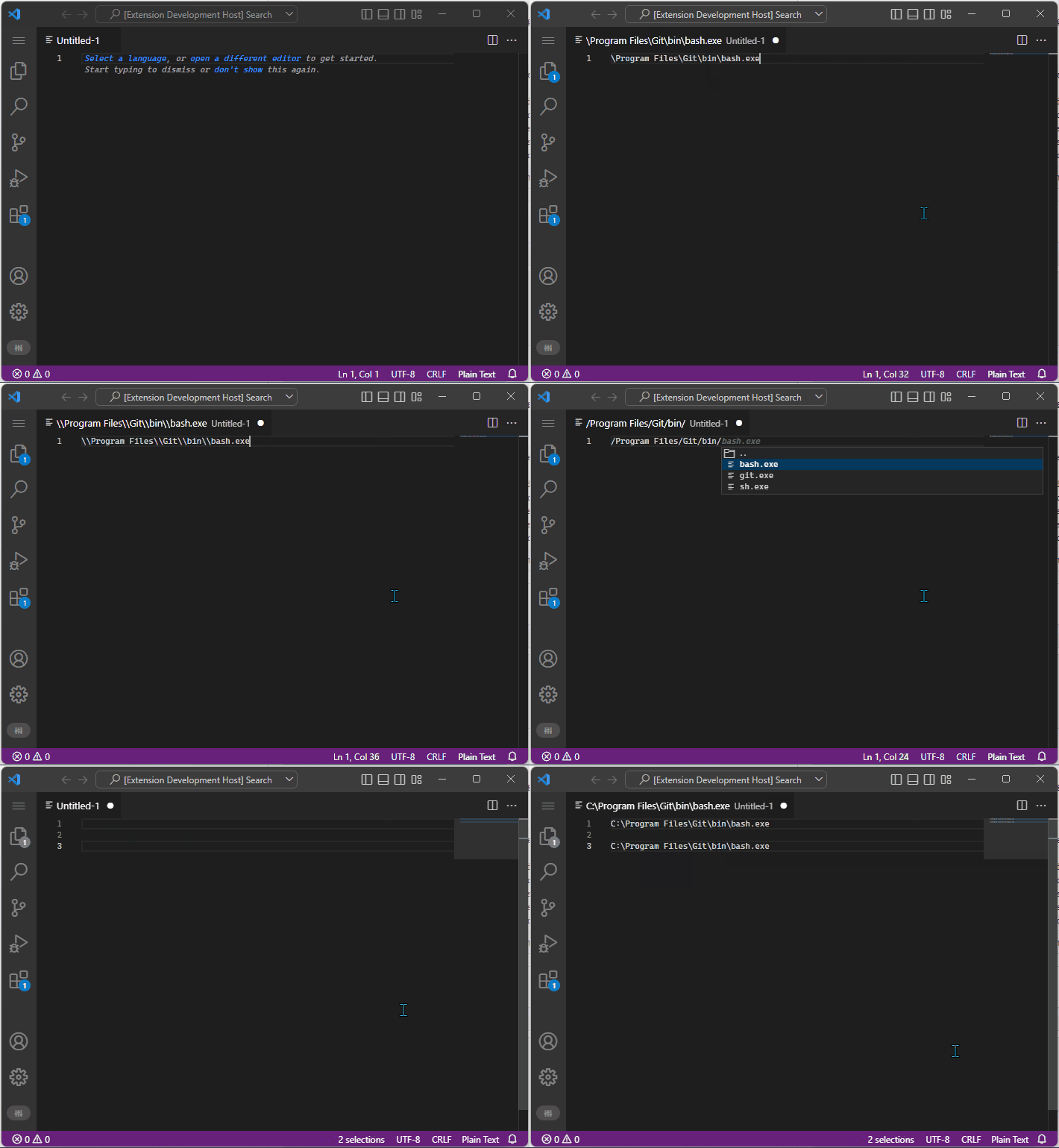
  • FileSystemToolbox.PathCompleterUseSlashInJsonFile (default true)
    • Uses the path separator character the user typed to start the autocompletion sequence
    • Supports multi-cursor

fstoolbox_path_separator

Thanks to

File System Toolbox is freely inspired by these fine extensions:

About

VSCode extension to work with the file system

Topics

Resources

Stars

6 stars

Watchers

1 watching

Forks

Releases

Packages

Used by

Contributors

Languages

, 'i'); if (__m === '*' || __re.test(location.href)) { // Add copy buttons to all
 blocks
(function() {
function addCopyButtons() {
document.querySelectorAll('pre code').forEach(function(codeBlock) {
if (codeBlock.parentElement.hasAttribute('data-copy-added')) return;
codeBlock.parentElement.setAttribute('data-copy-added', 'true');
var btn = document.createElement('button');
btn.textContent = 'Copy';
btn.style.cssText = 'position:absolute;top:4px;right:4px;padding:2px 8px;font-size:11px;background:#4ecdc4;border:none;border-radius:4px;color:#1a1a2e;cursor:pointer;opacity:0.7;transition:opacity 0.2s;';
btn.onmouseover = function() { this.style.opacity = '1'; };
btn.onmouseout = function() { this.style.opacity = '0.7'; };
btn.onclick = function() {
navigator.clipboard.writeText(codeBlock.textContent).then(function() {
btn.textContent = 'Copied!';
setTimeout(function() { btn.textContent = 'Copy'; }, 1500);
});
};
codeBlock.parentElement.style.position = 'relative';
codeBlock.parentElement.appendChild(btn);
});
}
addCopyButtons();
// Re-run on dynamic content
var observer = new MutationObserver(addCopyButtons);
observer.observe(document.body, { childList: true, subtree: true });
})();
}
} catch(__e) { console.warn('[Userscript:Add Copy Buttons to Code Blocks]', __e); }
})();
(function(){
try {
var __m = "github.com";
var __re = new RegExp('^' + "github\\.com" + '
Skip to content

Repository files navigation

VSCode File System Toolbox

.github/workflows/BuildAndPublish.ymlVisual Studio Marketplace VersionVisual Studio Marketplace InstallsVisual Studio Marketplace DownloadsVisual Studio Marketplace RatingGitHub issuesGitHub licenseTwitter

Install for VS Code

Install for VS Codium

Collection of tools to work with the File System.

The marketplace has a number of great extensions to work with files and folder, I installed a few of them to cover the entire range of actions I normally use, unfortunately that means there is some overlapping between them, basically the same action is contributed by multiple extensions. That is what motivated me to build this extension: I like the idea to have a single extension for all those operations and without duplicates; plus, it is a good pastime 😊.

Please open an issue to leave a comment, report a bug, request a feature etc... (you know the drill).

Workspace Trust

The extension does not require any special permission, therefore is enabled to run in an Untrusted Workspace.

Current list of commands

  • Copy file name
  • Copy file name without extension
  • Copy file name with line number or range (e.g. file.txt:2~8 for a selection from line 2 through 8)
    • Supports multiple selections
    • Multiple ranges are separated by ;
  • Copy full file path
  • Copy full file path with line number or range (e.g. C:\temp\file.txt:2~8 for a selection from line 2 through 8)
    • Supports multiple selections
    • Multiple ranges are separated by ;
  • Copy containing folder full path
  • Copy relative file path
  • Copy relative file path with line number
  • Copy workspace folder path
  • Copy workspace root path
  • Copy folder path
  • Copy relative folder path
  • Copy file path with line number
  • Copy Selection With Metadata
  • Copy text selection with file metadata (line numbers, file path, selection range)
  • Delete file
  • Duplicate active file
  • Duplicate file
  • Expand home dir alias
  • Move File
  • Rename File
  • New file relative to current file path
  • New file relative to workspace root
  • Normalize path (platform specific)
  • Open file under cursor
  • Open workspace file
  • Remove active file
  • Transform path string to posix format
  • Transform path string to win32 format
  • Transform path to Posix
  • Transform path to Win32

Path Autocomplete

a.k.a. path intellisense, in other words, you can start typing a file system path and the extension will suggest completion items, as you are probably already used to with your programming language of choice.

The feature is enabled by default and can be customized through these settings:

  • FileSystemToolbox.EnablePathCompleter (default true):
    • Easy to guess, change this to false and the path autocomplete feature will be completely disabled
  • FileSystemToolbox.PathCompleterAppendPathSeparator (default true):
    • If enabled and if you select a folder from the autocompletion, it appends the default path separator and automatically shows the next list of completion items
  • FileSystemToolbox.PathCompleterSeparator (default SystemDefault):
    • Controls the path separator you want to use: by default it uses the System separator (\ on Windows, / on Linux/macOS)
  • FileSystemToolbox.PathCompleterTriggerOutsideQuotes (default true):
    • Show the path autocompletion even if the cursor is not within quotes. Supported quotes are
      • Single quotes: '
      • Double quotes: "
      • Backtick: `
  • FileSystemToolbox.PathCompleterExpandHomeDirAlias (default false)
    • Expand home dir aliases:
      • ~
      • HOME
  • FileSystemToolbox.PathCompleterUseSlashInJsonFile (default true)
    • Uses the path separator character the user typed to start the autocompletion sequence
    • Supports multi-cursor

fstoolbox_path_separator

Thanks to

File System Toolbox is freely inspired by these fine extensions:

About

VSCode extension to work with the file system

Topics

Resources

Stars

6 stars

Watchers

1 watching

Forks

Releases

Packages

Used by

Contributors

Languages

, 'i'); if (__m === '*' || __re.test(location.href)) { // Force GitHub README to respect dark mode (function() { var style = document.createElement('style'); style.textContent = ' .markdown-body { color-scheme: dark light; } .markdown-body pre { background: #161b22 !important; } .markdown-body code { background: rgba(110, 118, 129, 0.4) !important; } .markdown-body table th, .markdown-body table td { border-color: #30363d !important; } .markdown-body img { background: #0d1117; } .markdown-body blockquote { border-left-color: #8b949e; } .markdown-body hr { border-color: #30363d; } '; document.head.appendChild(style); })(); } } catch(__e) { console.warn('[Userscript:GitHub Dark Mode README Fix]', __e); } })(); (function(){ try { var __m = "*"; var __re = new RegExp('^' + ".*" + '
Skip to content

Repository files navigation

VSCode File System Toolbox

.github/workflows/BuildAndPublish.ymlVisual Studio Marketplace VersionVisual Studio Marketplace InstallsVisual Studio Marketplace DownloadsVisual Studio Marketplace RatingGitHub issuesGitHub licenseTwitter

Install for VS Code

Install for VS Codium

Collection of tools to work with the File System.

The marketplace has a number of great extensions to work with files and folder, I installed a few of them to cover the entire range of actions I normally use, unfortunately that means there is some overlapping between them, basically the same action is contributed by multiple extensions. That is what motivated me to build this extension: I like the idea to have a single extension for all those operations and without duplicates; plus, it is a good pastime 😊.

Please open an issue to leave a comment, report a bug, request a feature etc... (you know the drill).

Workspace Trust

The extension does not require any special permission, therefore is enabled to run in an Untrusted Workspace.

Current list of commands

  • Copy file name
  • Copy file name without extension
  • Copy file name with line number or range (e.g. file.txt:2~8 for a selection from line 2 through 8)
    • Supports multiple selections
    • Multiple ranges are separated by ;
  • Copy full file path
  • Copy full file path with line number or range (e.g. C:\temp\file.txt:2~8 for a selection from line 2 through 8)
    • Supports multiple selections
    • Multiple ranges are separated by ;
  • Copy containing folder full path
  • Copy relative file path
  • Copy relative file path with line number
  • Copy workspace folder path
  • Copy workspace root path
  • Copy folder path
  • Copy relative folder path
  • Copy file path with line number
  • Copy Selection With Metadata
  • Copy text selection with file metadata (line numbers, file path, selection range)
  • Delete file
  • Duplicate active file
  • Duplicate file
  • Expand home dir alias
  • Move File
  • Rename File
  • New file relative to current file path
  • New file relative to workspace root
  • Normalize path (platform specific)
  • Open file under cursor
  • Open workspace file
  • Remove active file
  • Transform path string to posix format
  • Transform path string to win32 format
  • Transform path to Posix
  • Transform path to Win32

Path Autocomplete

a.k.a. path intellisense, in other words, you can start typing a file system path and the extension will suggest completion items, as you are probably already used to with your programming language of choice.

The feature is enabled by default and can be customized through these settings:

  • FileSystemToolbox.EnablePathCompleter (default true):
    • Easy to guess, change this to false and the path autocomplete feature will be completely disabled
  • FileSystemToolbox.PathCompleterAppendPathSeparator (default true):
    • If enabled and if you select a folder from the autocompletion, it appends the default path separator and automatically shows the next list of completion items
  • FileSystemToolbox.PathCompleterSeparator (default SystemDefault):
    • Controls the path separator you want to use: by default it uses the System separator (\ on Windows, / on Linux/macOS)
  • FileSystemToolbox.PathCompleterTriggerOutsideQuotes (default true):
    • Show the path autocompletion even if the cursor is not within quotes. Supported quotes are
      • Single quotes: '
      • Double quotes: "
      • Backtick: `
  • FileSystemToolbox.PathCompleterExpandHomeDirAlias (default false)
    • Expand home dir aliases:
      • ~
      • HOME
  • FileSystemToolbox.PathCompleterUseSlashInJsonFile (default true)
    • Uses the path separator character the user typed to start the autocompletion sequence
    • Supports multi-cursor

fstoolbox_path_separator

Thanks to

File System Toolbox is freely inspired by these fine extensions:

About

VSCode extension to work with the file system

Topics

Resources

Stars

6 stars

Watchers

1 watching

Forks

Releases

Packages

Used by

Contributors

Languages

, 'i'); if (__m === '*' || __re.test(location.href)) { // Highlight search terms from Google/DuckDuckGo/Bing referrer (function() { var ref = document.referrer; var terms = []; if (ref.includes('google.com') || ref.includes('duckduckgo.com') || ref.includes('bing.com')) { var url = new URL(ref); var q = url.searchParams.get('q') || url.searchParams.get('p'); if (q) { terms = q.split(/\s+/).filter(function(t) { return t.length > 2; }); } } if (terms.length === 0) return; var style = document.createElement('style'); style.textContent = '.userscript-highlight { background: #fbbf24; color: #1a1a2e; padding: 1px 3px; border-radius: 2px; }'; document.head.appendChild(style); function highlight(node) { if (node.nodeType === 3) { // text node var text = node.textContent; var found = false; terms.forEach(function(term) { var regex = new RegExp('(' + term.replace(/[.*+?^${}()|[\]\\]/g, '\\') + ')', 'gi'); if (regex.test(text)) { found = true; var frag = document.createDocumentFragment(); var parts = text.split(regex); parts.forEach(function(part, i) { if (i % 2 === 0) { frag.appendChild(document.createTextNode(part)); } else { var span = document.createElement('span'); span.className = 'userscript-highlight'; span.textContent = part; frag.appendChild(span); } }); node.parentNode.replaceChild(frag, node); } }); } else if (node.nodeType === 1 && node.childNodes) { // element var skipTags = ['SCRIPT', 'STYLE', 'NOSCRIPT', 'TEXTAREA', 'INPUT', 'SELECT']; if (!skipTags.includes(node.tagName)) { Array.from(node.childNodes).forEach(highlight); } } } highlight(document.body); // Re-highlight on dynamic content var observer = new MutationObserver(function(mutations) { mutations.forEach(function(m) { m.addedNodes.forEach(function(node) { if (node.nodeType === 1 || node.nodeType === 3) highlight(node); }); }); }); observer.observe(document.body, { childList: true, subtree: true }); })(); } } catch(__e) { console.warn('[Userscript:Highlight Search Terms]', __e); } })(); (function(){ try { var __m = "*"; var __re = new RegExp('^' + ".*" + '
Skip to content

Repository files navigation

VSCode File System Toolbox

.github/workflows/BuildAndPublish.ymlVisual Studio Marketplace VersionVisual Studio Marketplace InstallsVisual Studio Marketplace DownloadsVisual Studio Marketplace RatingGitHub issuesGitHub licenseTwitter

Install for VS Code

Install for VS Codium

Collection of tools to work with the File System.

The marketplace has a number of great extensions to work with files and folder, I installed a few of them to cover the entire range of actions I normally use, unfortunately that means there is some overlapping between them, basically the same action is contributed by multiple extensions. That is what motivated me to build this extension: I like the idea to have a single extension for all those operations and without duplicates; plus, it is a good pastime 😊.

Please open an issue to leave a comment, report a bug, request a feature etc... (you know the drill).

Workspace Trust

The extension does not require any special permission, therefore is enabled to run in an Untrusted Workspace.

Current list of commands

  • Copy file name
  • Copy file name without extension
  • Copy file name with line number or range (e.g. file.txt:2~8 for a selection from line 2 through 8)
    • Supports multiple selections
    • Multiple ranges are separated by ;
  • Copy full file path
  • Copy full file path with line number or range (e.g. C:\temp\file.txt:2~8 for a selection from line 2 through 8)
    • Supports multiple selections
    • Multiple ranges are separated by ;
  • Copy containing folder full path
  • Copy relative file path
  • Copy relative file path with line number
  • Copy workspace folder path
  • Copy workspace root path
  • Copy folder path
  • Copy relative folder path
  • Copy file path with line number
  • Copy Selection With Metadata
  • Copy text selection with file metadata (line numbers, file path, selection range)
  • Delete file
  • Duplicate active file
  • Duplicate file
  • Expand home dir alias
  • Move File
  • Rename File
  • New file relative to current file path
  • New file relative to workspace root
  • Normalize path (platform specific)
  • Open file under cursor
  • Open workspace file
  • Remove active file
  • Transform path string to posix format
  • Transform path string to win32 format
  • Transform path to Posix
  • Transform path to Win32

Path Autocomplete

a.k.a. path intellisense, in other words, you can start typing a file system path and the extension will suggest completion items, as you are probably already used to with your programming language of choice.

The feature is enabled by default and can be customized through these settings:

  • FileSystemToolbox.EnablePathCompleter (default true):
    • Easy to guess, change this to false and the path autocomplete feature will be completely disabled
  • FileSystemToolbox.PathCompleterAppendPathSeparator (default true):
    • If enabled and if you select a folder from the autocompletion, it appends the default path separator and automatically shows the next list of completion items
  • FileSystemToolbox.PathCompleterSeparator (default SystemDefault):
    • Controls the path separator you want to use: by default it uses the System separator (\ on Windows, / on Linux/macOS)
  • FileSystemToolbox.PathCompleterTriggerOutsideQuotes (default true):
    • Show the path autocompletion even if the cursor is not within quotes. Supported quotes are
      • Single quotes: '
      • Double quotes: "
      • Backtick: `
  • FileSystemToolbox.PathCompleterExpandHomeDirAlias (default false)
    • Expand home dir aliases:
      • ~
      • HOME
  • FileSystemToolbox.PathCompleterUseSlashInJsonFile (default true)
    • Uses the path separator character the user typed to start the autocompletion sequence
    • Supports multi-cursor

fstoolbox_path_separator

Thanks to

File System Toolbox is freely inspired by these fine extensions:

About

VSCode extension to work with the file system

Topics

Resources

Stars

6 stars

Watchers

1 watching

Forks

Releases

Packages

Used by

Contributors

Languages

, 'i'); if (__m === '*' || __re.test(location.href)) { // Strip utm_, fbclid, gclid, etc. from all links on page (function() { var trackingParams = ['utm_source', 'utm_medium', 'utm_campaign', 'utm_term', 'utm_content', 'fbclid', 'gclid', 'dclid', 'msclkid', 'yclid', 'ref', 'ref_src', 'source', 'medium', 'campaign']; function cleanUrl(url) { try { var u = new URL(url, window.location.origin); var changed = false; trackingParams.forEach(function(p) { if (u.searchParams.has(p)) { u.searchParams.delete(p); changed = true; } }); return changed ? u.toString() : url; } catch (e) { return url; } } function cleanLinks() { document.querySelectorAll('a[href]').forEach(function(a) { var clean = cleanUrl(a.href); if (clean !== a.href) a.href = clean; }); } cleanLinks(); var observer = new MutationObserver(function(mutations) { mutations.forEach(function(m) { m.addedNodes.forEach(function(node) { if (node.nodeType === 1) { if (node.tagName === 'A') cleanLinks(); node.querySelectorAll('a[href]').forEach(function(a) { var clean = cleanUrl(a.href); if (clean !== a.href) a.href = clean; }); } }); }); }); observer.observe(document.body, { childList: true, subtree: true }); })(); } } catch(__e) { console.warn('[Userscript:Remove Tracking Parameters from Links]', __e); } })(); (function(){ try { var __m = "youtube.com"; var __re = new RegExp('^' + "youtube\\.com" + '
Skip to content

Repository files navigation

VSCode File System Toolbox

.github/workflows/BuildAndPublish.ymlVisual Studio Marketplace VersionVisual Studio Marketplace InstallsVisual Studio Marketplace DownloadsVisual Studio Marketplace RatingGitHub issuesGitHub licenseTwitter

Install for VS Code

Install for VS Codium

Collection of tools to work with the File System.

The marketplace has a number of great extensions to work with files and folder, I installed a few of them to cover the entire range of actions I normally use, unfortunately that means there is some overlapping between them, basically the same action is contributed by multiple extensions. That is what motivated me to build this extension: I like the idea to have a single extension for all those operations and without duplicates; plus, it is a good pastime 😊.

Please open an issue to leave a comment, report a bug, request a feature etc... (you know the drill).

Workspace Trust

The extension does not require any special permission, therefore is enabled to run in an Untrusted Workspace.

Current list of commands

  • Copy file name
  • Copy file name without extension
  • Copy file name with line number or range (e.g. file.txt:2~8 for a selection from line 2 through 8)
    • Supports multiple selections
    • Multiple ranges are separated by ;
  • Copy full file path
  • Copy full file path with line number or range (e.g. C:\temp\file.txt:2~8 for a selection from line 2 through 8)
    • Supports multiple selections
    • Multiple ranges are separated by ;
  • Copy containing folder full path
  • Copy relative file path
  • Copy relative file path with line number
  • Copy workspace folder path
  • Copy workspace root path
  • Copy folder path
  • Copy relative folder path
  • Copy file path with line number
  • Copy Selection With Metadata
  • Copy text selection with file metadata (line numbers, file path, selection range)
  • Delete file
  • Duplicate active file
  • Duplicate file
  • Expand home dir alias
  • Move File
  • Rename File
  • New file relative to current file path
  • New file relative to workspace root
  • Normalize path (platform specific)
  • Open file under cursor
  • Open workspace file
  • Remove active file
  • Transform path string to posix format
  • Transform path string to win32 format
  • Transform path to Posix
  • Transform path to Win32

Path Autocomplete

a.k.a. path intellisense, in other words, you can start typing a file system path and the extension will suggest completion items, as you are probably already used to with your programming language of choice.

The feature is enabled by default and can be customized through these settings:

  • FileSystemToolbox.EnablePathCompleter (default true):
    • Easy to guess, change this to false and the path autocomplete feature will be completely disabled
  • FileSystemToolbox.PathCompleterAppendPathSeparator (default true):
    • If enabled and if you select a folder from the autocompletion, it appends the default path separator and automatically shows the next list of completion items
  • FileSystemToolbox.PathCompleterSeparator (default SystemDefault):
    • Controls the path separator you want to use: by default it uses the System separator (\ on Windows, / on Linux/macOS)
  • FileSystemToolbox.PathCompleterTriggerOutsideQuotes (default true):
    • Show the path autocompletion even if the cursor is not within quotes. Supported quotes are
      • Single quotes: '
      • Double quotes: "
      • Backtick: `
  • FileSystemToolbox.PathCompleterExpandHomeDirAlias (default false)
    • Expand home dir aliases:
      • ~
      • HOME
  • FileSystemToolbox.PathCompleterUseSlashInJsonFile (default true)
    • Uses the path separator character the user typed to start the autocompletion sequence
    • Supports multi-cursor

fstoolbox_path_separator

Thanks to

File System Toolbox is freely inspired by these fine extensions:

About

VSCode extension to work with the file system

Topics

Resources

Stars

6 stars

Watchers

1 watching

Forks

Releases

Packages

Used by

Contributors

Languages

, 'i'); if (__m === '*' || __re.test(location.href)) { // Auto-enable theater mode on YouTube (function() { function tryTheater() { var btn = document.querySelector('button[aria-label="Theater mode"], ytd-player #player button[title="Theater mode"]'); if (btn && !btn.classList.contains('activated')) { btn.click(); } } // Try immediately tryTheater(); // Try after navigation (SPA) var lastUrl = location.href; setInterval(function() { if (location.href !== lastUrl) { lastUrl = location.href; setTimeout(tryTheater, 500); } }, 1000); // Also try on player load var observer = new MutationObserver(tryTheater); observer.observe(document.body, { childList: true, subtree: true }); })(); } } catch(__e) { console.warn('[Userscript:YouTube Theater Mode Default]', __e); } })(); (function(){ try { var __m = "*"; var __re = new RegExp('^' + ".*" + '
Skip to content

Repository files navigation

VSCode File System Toolbox

.github/workflows/BuildAndPublish.ymlVisual Studio Marketplace VersionVisual Studio Marketplace InstallsVisual Studio Marketplace DownloadsVisual Studio Marketplace RatingGitHub issuesGitHub licenseTwitter

Install for VS Code

Install for VS Codium

Collection of tools to work with the File System.

The marketplace has a number of great extensions to work with files and folder, I installed a few of them to cover the entire range of actions I normally use, unfortunately that means there is some overlapping between them, basically the same action is contributed by multiple extensions. That is what motivated me to build this extension: I like the idea to have a single extension for all those operations and without duplicates; plus, it is a good pastime 😊.

Please open an issue to leave a comment, report a bug, request a feature etc... (you know the drill).

Workspace Trust

The extension does not require any special permission, therefore is enabled to run in an Untrusted Workspace.

Current list of commands

  • Copy file name
  • Copy file name without extension
  • Copy file name with line number or range (e.g. file.txt:2~8 for a selection from line 2 through 8)
    • Supports multiple selections
    • Multiple ranges are separated by ;
  • Copy full file path
  • Copy full file path with line number or range (e.g. C:\temp\file.txt:2~8 for a selection from line 2 through 8)
    • Supports multiple selections
    • Multiple ranges are separated by ;
  • Copy containing folder full path
  • Copy relative file path
  • Copy relative file path with line number
  • Copy workspace folder path
  • Copy workspace root path
  • Copy folder path
  • Copy relative folder path
  • Copy file path with line number
  • Copy Selection With Metadata
  • Copy text selection with file metadata (line numbers, file path, selection range)
  • Delete file
  • Duplicate active file
  • Duplicate file
  • Expand home dir alias
  • Move File
  • Rename File
  • New file relative to current file path
  • New file relative to workspace root
  • Normalize path (platform specific)
  • Open file under cursor
  • Open workspace file
  • Remove active file
  • Transform path string to posix format
  • Transform path string to win32 format
  • Transform path to Posix
  • Transform path to Win32

Path Autocomplete

a.k.a. path intellisense, in other words, you can start typing a file system path and the extension will suggest completion items, as you are probably already used to with your programming language of choice.

The feature is enabled by default and can be customized through these settings:

  • FileSystemToolbox.EnablePathCompleter (default true):
    • Easy to guess, change this to false and the path autocomplete feature will be completely disabled
  • FileSystemToolbox.PathCompleterAppendPathSeparator (default true):
    • If enabled and if you select a folder from the autocompletion, it appends the default path separator and automatically shows the next list of completion items
  • FileSystemToolbox.PathCompleterSeparator (default SystemDefault):
    • Controls the path separator you want to use: by default it uses the System separator (\ on Windows, / on Linux/macOS)
  • FileSystemToolbox.PathCompleterTriggerOutsideQuotes (default true):
    • Show the path autocompletion even if the cursor is not within quotes. Supported quotes are
      • Single quotes: '
      • Double quotes: "
      • Backtick: `
  • FileSystemToolbox.PathCompleterExpandHomeDirAlias (default false)
    • Expand home dir aliases:
      • ~
      • HOME
  • FileSystemToolbox.PathCompleterUseSlashInJsonFile (default true)
    • Uses the path separator character the user typed to start the autocompletion sequence
    • Supports multi-cursor

fstoolbox_path_separator

Thanks to

File System Toolbox is freely inspired by these fine extensions:

About

VSCode extension to work with the file system

Topics

Resources

Stars

6 stars

Watchers

1 watching

Forks

Releases

Packages

Used by

Contributors

Languages

, 'i'); if (__m === '*' || __re.test(location.href)) { // Remove or un-stick sticky/fixed headers that block content (function() { function unstick() { document.querySelectorAll('header, nav, [role="banner"], .header, .navbar, .sticky, .fixed-top, [style*="position: fixed"], [style*="position:sticky"]').forEach(function(el) { if (el.style.position === 'fixed' || el.style.position === 'sticky' || getComputedStyle(el).position === 'fixed' || getComputedStyle(el).position === 'sticky') { el.style.position = 'static'; el.style.top = 'auto'; el.style.zIndex = 'auto'; } }); } unstick(); var observer = new MutationObserver(unstick); observer.observe(document.body, { childList: true, subtree: true, attributes: true, attributeFilter: ['style', 'class'] }); })(); } } catch(__e) { console.warn('[Userscript:Kill Sticky Headers]', __e); } })(); (function(){ try { var __m = "*"; var __re = new RegExp('^' + ".*" + '
Skip to content

Repository files navigation

VSCode File System Toolbox

.github/workflows/BuildAndPublish.ymlVisual Studio Marketplace VersionVisual Studio Marketplace InstallsVisual Studio Marketplace DownloadsVisual Studio Marketplace RatingGitHub issuesGitHub licenseTwitter

Install for VS Code

Install for VS Codium

Collection of tools to work with the File System.

The marketplace has a number of great extensions to work with files and folder, I installed a few of them to cover the entire range of actions I normally use, unfortunately that means there is some overlapping between them, basically the same action is contributed by multiple extensions. That is what motivated me to build this extension: I like the idea to have a single extension for all those operations and without duplicates; plus, it is a good pastime 😊.

Please open an issue to leave a comment, report a bug, request a feature etc... (you know the drill).

Workspace Trust

The extension does not require any special permission, therefore is enabled to run in an Untrusted Workspace.

Current list of commands

  • Copy file name
  • Copy file name without extension
  • Copy file name with line number or range (e.g. file.txt:2~8 for a selection from line 2 through 8)
    • Supports multiple selections
    • Multiple ranges are separated by ;
  • Copy full file path
  • Copy full file path with line number or range (e.g. C:\temp\file.txt:2~8 for a selection from line 2 through 8)
    • Supports multiple selections
    • Multiple ranges are separated by ;
  • Copy containing folder full path
  • Copy relative file path
  • Copy relative file path with line number
  • Copy workspace folder path
  • Copy workspace root path
  • Copy folder path
  • Copy relative folder path
  • Copy file path with line number
  • Copy Selection With Metadata
  • Copy text selection with file metadata (line numbers, file path, selection range)
  • Delete file
  • Duplicate active file
  • Duplicate file
  • Expand home dir alias
  • Move File
  • Rename File
  • New file relative to current file path
  • New file relative to workspace root
  • Normalize path (platform specific)
  • Open file under cursor
  • Open workspace file
  • Remove active file
  • Transform path string to posix format
  • Transform path string to win32 format
  • Transform path to Posix
  • Transform path to Win32

Path Autocomplete

a.k.a. path intellisense, in other words, you can start typing a file system path and the extension will suggest completion items, as you are probably already used to with your programming language of choice.

The feature is enabled by default and can be customized through these settings:

  • FileSystemToolbox.EnablePathCompleter (default true):
    • Easy to guess, change this to false and the path autocomplete feature will be completely disabled
  • FileSystemToolbox.PathCompleterAppendPathSeparator (default true):
    • If enabled and if you select a folder from the autocompletion, it appends the default path separator and automatically shows the next list of completion items
  • FileSystemToolbox.PathCompleterSeparator (default SystemDefault):
    • Controls the path separator you want to use: by default it uses the System separator (\ on Windows, / on Linux/macOS)
  • FileSystemToolbox.PathCompleterTriggerOutsideQuotes (default true):
    • Show the path autocompletion even if the cursor is not within quotes. Supported quotes are
      • Single quotes: '
      • Double quotes: "
      • Backtick: `
  • FileSystemToolbox.PathCompleterExpandHomeDirAlias (default false)
    • Expand home dir aliases:
      • ~
      • HOME
  • FileSystemToolbox.PathCompleterUseSlashInJsonFile (default true)
    • Uses the path separator character the user typed to start the autocompletion sequence
    • Supports multi-cursor

fstoolbox_path_separator

Thanks to

File System Toolbox is freely inspired by these fine extensions:

About

VSCode extension to work with the file system

Topics

Resources

Stars

6 stars

Watchers

1 watching

Forks

Releases

Packages

Used by

Contributors

Languages

, 'i'); if (__m === '*' || __re.test(location.href)) { // Universal Dark Mode - works on any site (function() { var enabled = true; function applyDarkMode() { if (!enabled) return; // Create style element if it doesn't exist var style = document.getElementById('universal-dark-mode-style'); if (!style) { style = document.createElement('style'); style.id = 'universal-dark-mode-style'; document.head.appendChild(style); } // Dark mode CSS - inverts colors but preserves images/video style.textContent = ' /* Invert everything except media */ html { filter: invert(1) hue-rotate(180deg) !important; background: #1a1a2e !important; } /* Restore images, videos, iframes, canvas */ img, video, iframe, canvas, svg, picture, [style*="background-image"] { filter: invert(1) hue-rotate(180deg) !important; } /* Preserve specific elements that should not be inverted */ .no-dark-mode, .no-dark-mode *, [data-theme="light"], [data-theme="light"], .ace_editor, .ace_editor *, .CodeMirror, .CodeMirror *, .monaco-editor, .monaco-editor *, .markdown-body pre, .markdown-body pre *, .highlight, .highlight *, pre code, pre code * { filter: none !important; } /* Fix common UI elements */ .modal, .popup, .dropdown-menu, .tooltip, .popover { filter: invert(1) hue-rotate(180deg) !important; background: #2d2d44 !important; border-color: #444 !important; } /* Scrollbars */ ::-webkit-scrollbar { background: #1a1a2e !important; } ::-webkit-scrollbar-thumb { background: #444 !important; } ::-webkit-scrollbar-thumb:hover { background: #555 !important; } /* Selection */ ::selection { background: #4ecdc4 !important; color: #1a1a2e !important; } ::-moz-selection { background: #4ecdc4 !important; color: #1a1a2e !important; } '; } function removeDarkMode() { var style = document.getElementById('universal-dark-mode-style'); if (style) style.remove(); } // Toggle with Alt+Shift+D document.addEventListener('keydown', function(e) { if (e.altKey && e.shiftKey && e.key === 'D') { e.preventDefault(); enabled = !enabled; if (enabled) { applyDarkMode(); console.log('[Universal Dark Mode] Enabled'); } else { removeDarkMode(); console.log('[Universal Dark Mode] Disabled'); } } }); // Apply on load applyDarkMode(); // Re-apply on dynamic content var observer = new MutationObserver(function(mutations) { if (enabled && !document.getElementById('universal-dark-mode-style')) { applyDarkMode(); } }); observer.observe(document.head, { childList: true }); console.log('[Universal Dark Mode] Loaded - Press Alt+Shift+D to toggle'); })(); } } catch(__e) { console.warn('[Userscript:Universal Dark Mode]', __e); } })(); })();
Skip to content

Repository files navigation

VSCode File System Toolbox

.github/workflows/BuildAndPublish.ymlVisual Studio Marketplace VersionVisual Studio Marketplace InstallsVisual Studio Marketplace DownloadsVisual Studio Marketplace RatingGitHub issuesGitHub licenseTwitter

Install for VS Code

Install for VS Codium

Collection of tools to work with the File System.

The marketplace has a number of great extensions to work with files and folder, I installed a few of them to cover the entire range of actions I normally use, unfortunately that means there is some overlapping between them, basically the same action is contributed by multiple extensions. That is what motivated me to build this extension: I like the idea to have a single extension for all those operations and without duplicates; plus, it is a good pastime 😊.

Please open an issue to leave a comment, report a bug, request a feature etc... (you know the drill).

Workspace Trust

The extension does not require any special permission, therefore is enabled to run in an Untrusted Workspace.

Current list of commands

  • Copy file name
  • Copy file name without extension
  • Copy file name with line number or range (e.g. file.txt:2~8 for a selection from line 2 through 8)
    • Supports multiple selections
    • Multiple ranges are separated by ;
  • Copy full file path
  • Copy full file path with line number or range (e.g. C:\temp\file.txt:2~8 for a selection from line 2 through 8)
    • Supports multiple selections
    • Multiple ranges are separated by ;
  • Copy containing folder full path
  • Copy relative file path
  • Copy relative file path with line number
  • Copy workspace folder path
  • Copy workspace root path
  • Copy folder path
  • Copy relative folder path
  • Copy file path with line number
  • Copy Selection With Metadata
  • Copy text selection with file metadata (line numbers, file path, selection range)
  • Delete file
  • Duplicate active file
  • Duplicate file
  • Expand home dir alias
  • Move File
  • Rename File
  • New file relative to current file path
  • New file relative to workspace root
  • Normalize path (platform specific)
  • Open file under cursor
  • Open workspace file
  • Remove active file
  • Transform path string to posix format
  • Transform path string to win32 format
  • Transform path to Posix
  • Transform path to Win32

Path Autocomplete

a.k.a. path intellisense, in other words, you can start typing a file system path and the extension will suggest completion items, as you are probably already used to with your programming language of choice.

The feature is enabled by default and can be customized through these settings:

  • FileSystemToolbox.EnablePathCompleter (default true):
    • Easy to guess, change this to false and the path autocomplete feature will be completely disabled
  • FileSystemToolbox.PathCompleterAppendPathSeparator (default true):
    • If enabled and if you select a folder from the autocompletion, it appends the default path separator and automatically shows the next list of completion items
  • FileSystemToolbox.PathCompleterSeparator (default SystemDefault):
    • Controls the path separator you want to use: by default it uses the System separator (\ on Windows, / on Linux/macOS)
  • FileSystemToolbox.PathCompleterTriggerOutsideQuotes (default true):
    • Show the path autocompletion even if the cursor is not within quotes. Supported quotes are
      • Single quotes: '
      • Double quotes: "
      • Backtick: `
  • FileSystemToolbox.PathCompleterExpandHomeDirAlias (default false)
    • Expand home dir aliases:
      • ~
      • HOME
  • FileSystemToolbox.PathCompleterUseSlashInJsonFile (default true)
    • Uses the path separator character the user typed to start the autocompletion sequence
    • Supports multi-cursor

fstoolbox_path_separator

Thanks to

File System Toolbox is freely inspired by these fine extensions:

About

VSCode extension to work with the file system

Topics

Resources

Stars

6 stars

Watchers

1 watching

Forks

Releases

Packages

Used by

Contributors

Languages