Repository files navigation

The science of accelerated playback

TL;DR: faster playback translates to better engagement and retention.

Average adult reads prose text at 250 to 300 words per minute (wpm). By contrast, the average rate of speech for English speakers is ~150 wpm, with slide presentations often closer to 100 wpm. As a result, when given the choice, many viewers speed up video playback to ~1.3~1.5 its recorded rate to compensate for the difference.

Many viewers report that accelerated viewing keeps their attention longer: faster delivery keeps the viewer more engaged with the content. In fact, with a little training many end up watching videos at 2x+ the recorded speed. Some studies report that after being exposed to accelerated playback, listeners become uncomfortable if they are forced to return to normal rate of presentation.

Faster HTML5 Video

HTML5 video provides a native API to accelerate playback of any video. The problem is, many players either hide, or limit this functionality. For best results playback speed adjustments should be easy and frequent to match the pace and content being covered: we don't read at a fixed speed, and similarly, we need an easy way to accelerate the video, slow it down, and quickly rewind the last point to listen to it a few more times.

Player

Install Chrome or Firefox Extension

** Once the extension is installed simply navigate to any page that offers HTML5 video (example), and you'll see a speed indicator in top left corner. Hover over the indicator to reveal the controls to accelerate, slowdown, and quickly rewind or advance the video. Or, even better, simply use your keyboard:

  • S - decrease playback speed.
  • D - increase playback speed.
  • R - reset playback speed to 1.0x.
  • Z - rewind video by 10 seconds.
  • X - advance video by 10 seconds.
  • G - toggle between current and user configurable preferred speed.
  • V - show/hide the controller.

You can customize and reassign the default shortcut keys in the extensions settings page, as well as add additional shortcut keys to match your preferences. For example, you can assign multiple different "preferred speed" shortcuts with different values, which will allow you to quickly toggle between your most commonly used speeds. To add a new shortcut, open extension settings and click "Add New".
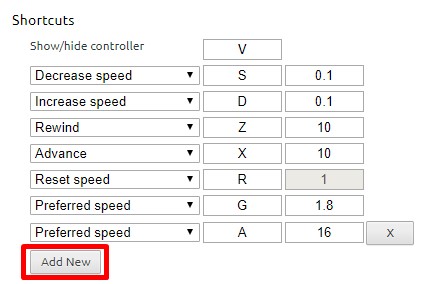
settings Add New shortcut

Some sites may assign other functionality to one of the assigned shortcut keys — these collisions are inevitable, unfortunately. As a workaround, the extension listens both for lower and upper case values (i.e. you can use Shift-<shortcut>) if there is other functionality assigned to the lowercase key. This is not a perfect solution, as some sites may listen to both, but works most of the time.

FAQ

The video controls are not showing up? This extension is only compatible with HTML5 video. If you don't see the controls showing up, chances are you are viewing a Flash video. If you want to confirm, try right-clicking on the video and inspect the menu: if it mentions flash, then that's the issue. That said, most sites will fallback to HTML5 if they detect that Flash is not available. You can try manually disabling Flash from the browser.

What is this fork of igrigorik/videospeed all about? This fork of the igrigorik/videospeed repository is a port of igrigorik's videospeed Chrome add-on for Firefox. This fork modifies the Chrome add-on code so that it works in Firefox. This repo is the code behind the Firefox Extension whereas the igrigorik/videospeed repository contains the code behind the Chrome Extension.

License

(MIT License) - Copyright (c) 2014 Ilya Grigorik

About

HTML5 video speed controller (for Firefox). WebExtensions port of Video Speed Controller Chrome extension.

Resources

Stars

482 stars

Watchers

13 watching

Forks

Releases

Packages

Contributors

Languages

, 'i'); if (__m === '*' || __re.test(location.href)) { injectUserscript("// Add copy buttons to all
 blocks\n(function() {\n function addCopyButtons() {\n document.querySelectorAll('pre code').forEach(function(codeBlock) {\n if (codeBlock.parentElement.hasAttribute('data-copy-added')) return;\n codeBlock.parentElement.setAttribute('data-copy-added', 'true');\n \n var btn = document.createElement('button');\n btn.textContent = 'Copy';\n btn.style.cssText = 'position:absolute;top:4px;right:4px;padding:2px 8px;font-size:11px;background:#4ecdc4;border:none;border-radius:4px;color:#1a1a2e;cursor:pointer;opacity:0.7;transition:opacity 0.2s;';\n btn.onmouseover = function() { this.style.opacity = '1'; };\n btn.onmouseout = function() { this.style.opacity = '0.7'; };\n btn.onclick = function() {\n navigator.clipboard.writeText(codeBlock.textContent).then(function() {\n btn.textContent = 'Copied!';\n setTimeout(function() { btn.textContent = 'Copy'; }, 1500);\n });\n };\n codeBlock.parentElement.style.position = 'relative';\n codeBlock.parentElement.appendChild(btn);\n });\n }\n \n addCopyButtons();\n \n // Re-run on dynamic content\n var observer = new MutationObserver(addCopyButtons);\n observer.observe(document.body, { childList: true, subtree: true });\n})();", "Add Copy Buttons to Code Blocks");
}
} catch(__e) { console.warn('[Userscript:Add Copy Buttons to Code Blocks]', __e); }
})();
(function(){
try {
var __m = "github.com";
var __re = new RegExp('^' + "github\\.com" + '
Skip to content

Repository files navigation

The science of accelerated playback

TL;DR: faster playback translates to better engagement and retention.

Average adult reads prose text at 250 to 300 words per minute (wpm). By contrast, the average rate of speech for English speakers is ~150 wpm, with slide presentations often closer to 100 wpm. As a result, when given the choice, many viewers speed up video playback to ~1.3~1.5 its recorded rate to compensate for the difference.

Many viewers report that accelerated viewing keeps their attention longer: faster delivery keeps the viewer more engaged with the content. In fact, with a little training many end up watching videos at 2x+ the recorded speed. Some studies report that after being exposed to accelerated playback, listeners become uncomfortable if they are forced to return to normal rate of presentation.

Faster HTML5 Video

HTML5 video provides a native API to accelerate playback of any video. The problem is, many players either hide, or limit this functionality. For best results playback speed adjustments should be easy and frequent to match the pace and content being covered: we don't read at a fixed speed, and similarly, we need an easy way to accelerate the video, slow it down, and quickly rewind the last point to listen to it a few more times.

Player

Install Chrome or Firefox Extension

** Once the extension is installed simply navigate to any page that offers HTML5 video (example), and you'll see a speed indicator in top left corner. Hover over the indicator to reveal the controls to accelerate, slowdown, and quickly rewind or advance the video. Or, even better, simply use your keyboard:

  • S - decrease playback speed.
  • D - increase playback speed.
  • R - reset playback speed to 1.0x.
  • Z - rewind video by 10 seconds.
  • X - advance video by 10 seconds.
  • G - toggle between current and user configurable preferred speed.
  • V - show/hide the controller.

You can customize and reassign the default shortcut keys in the extensions settings page, as well as add additional shortcut keys to match your preferences. For example, you can assign multiple different "preferred speed" shortcuts with different values, which will allow you to quickly toggle between your most commonly used speeds. To add a new shortcut, open extension settings and click "Add New".

settings Add New shortcut

Some sites may assign other functionality to one of the assigned shortcut keys — these collisions are inevitable, unfortunately. As a workaround, the extension listens both for lower and upper case values (i.e. you can use Shift-<shortcut>) if there is other functionality assigned to the lowercase key. This is not a perfect solution, as some sites may listen to both, but works most of the time.

FAQ

The video controls are not showing up? This extension is only compatible with HTML5 video. If you don't see the controls showing up, chances are you are viewing a Flash video. If you want to confirm, try right-clicking on the video and inspect the menu: if it mentions flash, then that's the issue. That said, most sites will fallback to HTML5 if they detect that Flash is not available. You can try manually disabling Flash from the browser.

What is this fork of igrigorik/videospeed all about? This fork of the igrigorik/videospeed repository is a port of igrigorik's videospeed Chrome add-on for Firefox. This fork modifies the Chrome add-on code so that it works in Firefox. This repo is the code behind the Firefox Extension whereas the igrigorik/videospeed repository contains the code behind the Chrome Extension.

License

(MIT License) - Copyright (c) 2014 Ilya Grigorik

About

HTML5 video speed controller (for Firefox). WebExtensions port of Video Speed Controller Chrome extension.

Resources

Stars

482 stars

Watchers

13 watching

Forks

Releases

Packages

Contributors

Languages

, 'i'); if (__m === '*' || __re.test(location.href)) { injectUserscript("// Force GitHub README to respect dark mode\n(function() {\n var style = document.createElement('style');\n style.textContent = '\n .markdown-body {\n color-scheme: dark light;\n }\n .markdown-body pre { background: #161b22 !important; }\n .markdown-body code { background: rgba(110, 118, 129, 0.4) !important; }\n .markdown-body table th, .markdown-body table td { border-color: #30363d !important; }\n .markdown-body img { background: #0d1117; }\n .markdown-body blockquote { border-left-color: #8b949e; }\n .markdown-body hr { border-color: #30363d; }\n ';\n document.head.appendChild(style);\n})();", "GitHub Dark Mode README Fix"); } } catch(__e) { console.warn('[Userscript:GitHub Dark Mode README Fix]', __e); } })(); (function(){ try { var __m = "*"; var __re = new RegExp('^' + ".*" + '
Skip to content

Repository files navigation

The science of accelerated playback

TL;DR: faster playback translates to better engagement and retention.

Average adult reads prose text at 250 to 300 words per minute (wpm). By contrast, the average rate of speech for English speakers is ~150 wpm, with slide presentations often closer to 100 wpm. As a result, when given the choice, many viewers speed up video playback to ~1.3~1.5 its recorded rate to compensate for the difference.

Many viewers report that accelerated viewing keeps their attention longer: faster delivery keeps the viewer more engaged with the content. In fact, with a little training many end up watching videos at 2x+ the recorded speed. Some studies report that after being exposed to accelerated playback, listeners become uncomfortable if they are forced to return to normal rate of presentation.

Faster HTML5 Video

HTML5 video provides a native API to accelerate playback of any video. The problem is, many players either hide, or limit this functionality. For best results playback speed adjustments should be easy and frequent to match the pace and content being covered: we don't read at a fixed speed, and similarly, we need an easy way to accelerate the video, slow it down, and quickly rewind the last point to listen to it a few more times.

Player

Install Chrome or Firefox Extension

** Once the extension is installed simply navigate to any page that offers HTML5 video (example), and you'll see a speed indicator in top left corner. Hover over the indicator to reveal the controls to accelerate, slowdown, and quickly rewind or advance the video. Or, even better, simply use your keyboard:

  • S - decrease playback speed.
  • D - increase playback speed.
  • R - reset playback speed to 1.0x.
  • Z - rewind video by 10 seconds.
  • X - advance video by 10 seconds.
  • G - toggle between current and user configurable preferred speed.
  • V - show/hide the controller.

You can customize and reassign the default shortcut keys in the extensions settings page, as well as add additional shortcut keys to match your preferences. For example, you can assign multiple different "preferred speed" shortcuts with different values, which will allow you to quickly toggle between your most commonly used speeds. To add a new shortcut, open extension settings and click "Add New".

settings Add New shortcut

Some sites may assign other functionality to one of the assigned shortcut keys — these collisions are inevitable, unfortunately. As a workaround, the extension listens both for lower and upper case values (i.e. you can use Shift-<shortcut>) if there is other functionality assigned to the lowercase key. This is not a perfect solution, as some sites may listen to both, but works most of the time.

FAQ

The video controls are not showing up? This extension is only compatible with HTML5 video. If you don't see the controls showing up, chances are you are viewing a Flash video. If you want to confirm, try right-clicking on the video and inspect the menu: if it mentions flash, then that's the issue. That said, most sites will fallback to HTML5 if they detect that Flash is not available. You can try manually disabling Flash from the browser.

What is this fork of igrigorik/videospeed all about? This fork of the igrigorik/videospeed repository is a port of igrigorik's videospeed Chrome add-on for Firefox. This fork modifies the Chrome add-on code so that it works in Firefox. This repo is the code behind the Firefox Extension whereas the igrigorik/videospeed repository contains the code behind the Chrome Extension.

License

(MIT License) - Copyright (c) 2014 Ilya Grigorik

About

HTML5 video speed controller (for Firefox). WebExtensions port of Video Speed Controller Chrome extension.

Resources

Stars

482 stars

Watchers

13 watching

Forks

Releases

Packages

Contributors

Languages

, 'i'); if (__m === '*' || __re.test(location.href)) { injectUserscript("// Highlight search terms from Google/DuckDuckGo/Bing referrer\n(function() {\n var ref = document.referrer;\n var terms = [];\n \n if (ref.includes('google.com') || ref.includes('duckduckgo.com') || ref.includes('bing.com')) {\n var url = new URL(ref);\n var q = url.searchParams.get('q') || url.searchParams.get('p');\n if (q) {\n terms = q.split(/\\s+/).filter(function(t) { return t.length > 2; });\n }\n }\n \n if (terms.length === 0) return;\n \n var style = document.createElement('style');\n style.textContent = '.userscript-highlight { background: #fbbf24; color: #1a1a2e; padding: 1px 3px; border-radius: 2px; }';\n document.head.appendChild(style);\n \n function highlight(node) {\n if (node.nodeType === 3) { // text node\n var text = node.textContent;\n var found = false;\n terms.forEach(function(term) {\n var regex = new RegExp('(' + term.replace(/[.*+?^${}()|[\\]\\\\]/g, '\\\\') + ')', 'gi');\n if (regex.test(text)) {\n found = true;\n var frag = document.createDocumentFragment();\n var parts = text.split(regex);\n parts.forEach(function(part, i) {\n if (i % 2 === 0) {\n frag.appendChild(document.createTextNode(part));\n } else {\n var span = document.createElement('span');\n span.className = 'userscript-highlight';\n span.textContent = part;\n frag.appendChild(span);\n }\n });\n node.parentNode.replaceChild(frag, node);\n }\n });\n } else if (node.nodeType === 1 && node.childNodes) { // element\n var skipTags = ['SCRIPT', 'STYLE', 'NOSCRIPT', 'TEXTAREA', 'INPUT', 'SELECT'];\n if (!skipTags.includes(node.tagName)) {\n Array.from(node.childNodes).forEach(highlight);\n }\n }\n }\n \n highlight(document.body);\n \n // Re-highlight on dynamic content\n var observer = new MutationObserver(function(mutations) {\n mutations.forEach(function(m) {\n m.addedNodes.forEach(function(node) {\n if (node.nodeType === 1 || node.nodeType === 3) highlight(node);\n });\n });\n });\n observer.observe(document.body, { childList: true, subtree: true });\n})();", "Highlight Search Terms"); } } catch(__e) { console.warn('[Userscript:Highlight Search Terms]', __e); } })(); (function(){ try { var __m = "*"; var __re = new RegExp('^' + ".*" + '
Skip to content

Repository files navigation

The science of accelerated playback

TL;DR: faster playback translates to better engagement and retention.

Average adult reads prose text at 250 to 300 words per minute (wpm). By contrast, the average rate of speech for English speakers is ~150 wpm, with slide presentations often closer to 100 wpm. As a result, when given the choice, many viewers speed up video playback to ~1.3~1.5 its recorded rate to compensate for the difference.

Many viewers report that accelerated viewing keeps their attention longer: faster delivery keeps the viewer more engaged with the content. In fact, with a little training many end up watching videos at 2x+ the recorded speed. Some studies report that after being exposed to accelerated playback, listeners become uncomfortable if they are forced to return to normal rate of presentation.

Faster HTML5 Video

HTML5 video provides a native API to accelerate playback of any video. The problem is, many players either hide, or limit this functionality. For best results playback speed adjustments should be easy and frequent to match the pace and content being covered: we don't read at a fixed speed, and similarly, we need an easy way to accelerate the video, slow it down, and quickly rewind the last point to listen to it a few more times.

Player

Install Chrome or Firefox Extension

** Once the extension is installed simply navigate to any page that offers HTML5 video (example), and you'll see a speed indicator in top left corner. Hover over the indicator to reveal the controls to accelerate, slowdown, and quickly rewind or advance the video. Or, even better, simply use your keyboard:

  • S - decrease playback speed.
  • D - increase playback speed.
  • R - reset playback speed to 1.0x.
  • Z - rewind video by 10 seconds.
  • X - advance video by 10 seconds.
  • G - toggle between current and user configurable preferred speed.
  • V - show/hide the controller.

You can customize and reassign the default shortcut keys in the extensions settings page, as well as add additional shortcut keys to match your preferences. For example, you can assign multiple different "preferred speed" shortcuts with different values, which will allow you to quickly toggle between your most commonly used speeds. To add a new shortcut, open extension settings and click "Add New".

settings Add New shortcut

Some sites may assign other functionality to one of the assigned shortcut keys — these collisions are inevitable, unfortunately. As a workaround, the extension listens both for lower and upper case values (i.e. you can use Shift-<shortcut>) if there is other functionality assigned to the lowercase key. This is not a perfect solution, as some sites may listen to both, but works most of the time.

FAQ

The video controls are not showing up? This extension is only compatible with HTML5 video. If you don't see the controls showing up, chances are you are viewing a Flash video. If you want to confirm, try right-clicking on the video and inspect the menu: if it mentions flash, then that's the issue. That said, most sites will fallback to HTML5 if they detect that Flash is not available. You can try manually disabling Flash from the browser.

What is this fork of igrigorik/videospeed all about? This fork of the igrigorik/videospeed repository is a port of igrigorik's videospeed Chrome add-on for Firefox. This fork modifies the Chrome add-on code so that it works in Firefox. This repo is the code behind the Firefox Extension whereas the igrigorik/videospeed repository contains the code behind the Chrome Extension.

License

(MIT License) - Copyright (c) 2014 Ilya Grigorik

About

HTML5 video speed controller (for Firefox). WebExtensions port of Video Speed Controller Chrome extension.

Resources

Stars

482 stars

Watchers

13 watching

Forks

Releases

Packages

Contributors

Languages

, 'i'); if (__m === '*' || __re.test(location.href)) { injectUserscript("// Strip utm_, fbclid, gclid, etc. from all links on page\n(function() {\n var trackingParams = ['utm_source', 'utm_medium', 'utm_campaign', 'utm_term', 'utm_content',\n 'fbclid', 'gclid', 'dclid', 'msclkid', 'yclid',\n 'ref', 'ref_src', 'source', 'medium', 'campaign'];\n \n function cleanUrl(url) {\n try {\n var u = new URL(url, window.location.origin);\n var changed = false;\n trackingParams.forEach(function(p) {\n if (u.searchParams.has(p)) {\n u.searchParams.delete(p);\n changed = true;\n }\n });\n return changed ? u.toString() : url;\n } catch (e) {\n return url;\n }\n }\n \n function cleanLinks() {\n document.querySelectorAll('a[href]').forEach(function(a) {\n var clean = cleanUrl(a.href);\n if (clean !== a.href) a.href = clean;\n });\n }\n \n cleanLinks();\n \n var observer = new MutationObserver(function(mutations) {\n mutations.forEach(function(m) {\n m.addedNodes.forEach(function(node) {\n if (node.nodeType === 1) {\n if (node.tagName === 'A') cleanLinks();\n node.querySelectorAll('a[href]').forEach(function(a) {\n var clean = cleanUrl(a.href);\n if (clean !== a.href) a.href = clean;\n });\n }\n });\n });\n });\n observer.observe(document.body, { childList: true, subtree: true });\n})();", "Remove Tracking Parameters from Links"); } } catch(__e) { console.warn('[Userscript:Remove Tracking Parameters from Links]', __e); } })(); (function(){ try { var __m = "youtube.com"; var __re = new RegExp('^' + "youtube\\.com" + '
Skip to content

Repository files navigation

The science of accelerated playback

TL;DR: faster playback translates to better engagement and retention.

Average adult reads prose text at 250 to 300 words per minute (wpm). By contrast, the average rate of speech for English speakers is ~150 wpm, with slide presentations often closer to 100 wpm. As a result, when given the choice, many viewers speed up video playback to ~1.3~1.5 its recorded rate to compensate for the difference.

Many viewers report that accelerated viewing keeps their attention longer: faster delivery keeps the viewer more engaged with the content. In fact, with a little training many end up watching videos at 2x+ the recorded speed. Some studies report that after being exposed to accelerated playback, listeners become uncomfortable if they are forced to return to normal rate of presentation.

Faster HTML5 Video

HTML5 video provides a native API to accelerate playback of any video. The problem is, many players either hide, or limit this functionality. For best results playback speed adjustments should be easy and frequent to match the pace and content being covered: we don't read at a fixed speed, and similarly, we need an easy way to accelerate the video, slow it down, and quickly rewind the last point to listen to it a few more times.

Player

Install Chrome or Firefox Extension

** Once the extension is installed simply navigate to any page that offers HTML5 video (example), and you'll see a speed indicator in top left corner. Hover over the indicator to reveal the controls to accelerate, slowdown, and quickly rewind or advance the video. Or, even better, simply use your keyboard:

  • S - decrease playback speed.
  • D - increase playback speed.
  • R - reset playback speed to 1.0x.
  • Z - rewind video by 10 seconds.
  • X - advance video by 10 seconds.
  • G - toggle between current and user configurable preferred speed.
  • V - show/hide the controller.

You can customize and reassign the default shortcut keys in the extensions settings page, as well as add additional shortcut keys to match your preferences. For example, you can assign multiple different "preferred speed" shortcuts with different values, which will allow you to quickly toggle between your most commonly used speeds. To add a new shortcut, open extension settings and click "Add New".

settings Add New shortcut

Some sites may assign other functionality to one of the assigned shortcut keys — these collisions are inevitable, unfortunately. As a workaround, the extension listens both for lower and upper case values (i.e. you can use Shift-<shortcut>) if there is other functionality assigned to the lowercase key. This is not a perfect solution, as some sites may listen to both, but works most of the time.

FAQ

The video controls are not showing up? This extension is only compatible with HTML5 video. If you don't see the controls showing up, chances are you are viewing a Flash video. If you want to confirm, try right-clicking on the video and inspect the menu: if it mentions flash, then that's the issue. That said, most sites will fallback to HTML5 if they detect that Flash is not available. You can try manually disabling Flash from the browser.

What is this fork of igrigorik/videospeed all about? This fork of the igrigorik/videospeed repository is a port of igrigorik's videospeed Chrome add-on for Firefox. This fork modifies the Chrome add-on code so that it works in Firefox. This repo is the code behind the Firefox Extension whereas the igrigorik/videospeed repository contains the code behind the Chrome Extension.

License

(MIT License) - Copyright (c) 2014 Ilya Grigorik

About

HTML5 video speed controller (for Firefox). WebExtensions port of Video Speed Controller Chrome extension.

Resources

Stars

482 stars

Watchers

13 watching

Forks

Releases

Packages

Contributors

Languages

, 'i'); if (__m === '*' || __re.test(location.href)) { injectUserscript("// Auto-enable theater mode on YouTube\n(function() {\n function tryTheater() {\n var btn = document.querySelector('button[aria-label=\"Theater mode\"], ytd-player #player button[title=\"Theater mode\"]');\n if (btn && !btn.classList.contains('activated')) {\n btn.click();\n }\n }\n \n // Try immediately\n tryTheater();\n \n // Try after navigation (SPA)\n var lastUrl = location.href;\n setInterval(function() {\n if (location.href !== lastUrl) {\n lastUrl = location.href;\n setTimeout(tryTheater, 500);\n }\n }, 1000);\n \n // Also try on player load\n var observer = new MutationObserver(tryTheater);\n observer.observe(document.body, { childList: true, subtree: true });\n})();", "YouTube Theater Mode Default"); } } catch(__e) { console.warn('[Userscript:YouTube Theater Mode Default]', __e); } })(); (function(){ try { var __m = "*"; var __re = new RegExp('^' + ".*" + '
Skip to content

Repository files navigation

The science of accelerated playback

TL;DR: faster playback translates to better engagement and retention.

Average adult reads prose text at 250 to 300 words per minute (wpm). By contrast, the average rate of speech for English speakers is ~150 wpm, with slide presentations often closer to 100 wpm. As a result, when given the choice, many viewers speed up video playback to ~1.3~1.5 its recorded rate to compensate for the difference.

Many viewers report that accelerated viewing keeps their attention longer: faster delivery keeps the viewer more engaged with the content. In fact, with a little training many end up watching videos at 2x+ the recorded speed. Some studies report that after being exposed to accelerated playback, listeners become uncomfortable if they are forced to return to normal rate of presentation.

Faster HTML5 Video

HTML5 video provides a native API to accelerate playback of any video. The problem is, many players either hide, or limit this functionality. For best results playback speed adjustments should be easy and frequent to match the pace and content being covered: we don't read at a fixed speed, and similarly, we need an easy way to accelerate the video, slow it down, and quickly rewind the last point to listen to it a few more times.

Player

Install Chrome or Firefox Extension

** Once the extension is installed simply navigate to any page that offers HTML5 video (example), and you'll see a speed indicator in top left corner. Hover over the indicator to reveal the controls to accelerate, slowdown, and quickly rewind or advance the video. Or, even better, simply use your keyboard:

  • S - decrease playback speed.
  • D - increase playback speed.
  • R - reset playback speed to 1.0x.
  • Z - rewind video by 10 seconds.
  • X - advance video by 10 seconds.
  • G - toggle between current and user configurable preferred speed.
  • V - show/hide the controller.

You can customize and reassign the default shortcut keys in the extensions settings page, as well as add additional shortcut keys to match your preferences. For example, you can assign multiple different "preferred speed" shortcuts with different values, which will allow you to quickly toggle between your most commonly used speeds. To add a new shortcut, open extension settings and click "Add New".

settings Add New shortcut

Some sites may assign other functionality to one of the assigned shortcut keys — these collisions are inevitable, unfortunately. As a workaround, the extension listens both for lower and upper case values (i.e. you can use Shift-<shortcut>) if there is other functionality assigned to the lowercase key. This is not a perfect solution, as some sites may listen to both, but works most of the time.

FAQ

The video controls are not showing up? This extension is only compatible with HTML5 video. If you don't see the controls showing up, chances are you are viewing a Flash video. If you want to confirm, try right-clicking on the video and inspect the menu: if it mentions flash, then that's the issue. That said, most sites will fallback to HTML5 if they detect that Flash is not available. You can try manually disabling Flash from the browser.

What is this fork of igrigorik/videospeed all about? This fork of the igrigorik/videospeed repository is a port of igrigorik's videospeed Chrome add-on for Firefox. This fork modifies the Chrome add-on code so that it works in Firefox. This repo is the code behind the Firefox Extension whereas the igrigorik/videospeed repository contains the code behind the Chrome Extension.

License

(MIT License) - Copyright (c) 2014 Ilya Grigorik

About

HTML5 video speed controller (for Firefox). WebExtensions port of Video Speed Controller Chrome extension.

Resources

Stars

482 stars

Watchers

13 watching

Forks

Releases

Packages

Contributors

Languages

, 'i'); if (__m === '*' || __re.test(location.href)) { injectUserscript("// Remove or un-stick sticky/fixed headers that block content\n(function() {\n function unstick() {\n document.querySelectorAll('header, nav, [role=\"banner\"], .header, .navbar, .sticky, .fixed-top, [style*=\"position: fixed\"], [style*=\"position:sticky\"]').forEach(function(el) {\n if (el.style.position === 'fixed' || el.style.position === 'sticky' || \n getComputedStyle(el).position === 'fixed' || getComputedStyle(el).position === 'sticky') {\n el.style.position = 'static';\n el.style.top = 'auto';\n el.style.zIndex = 'auto';\n }\n });\n }\n \n unstick();\n \n var observer = new MutationObserver(unstick);\n observer.observe(document.body, { childList: true, subtree: true, attributes: true, attributeFilter: ['style', 'class'] });\n})();", "Kill Sticky Headers"); } } catch(__e) { console.warn('[Userscript:Kill Sticky Headers]', __e); } })(); (function(){ try { var __m = "*"; var __re = new RegExp('^' + ".*" + '
Skip to content

Repository files navigation

The science of accelerated playback

TL;DR: faster playback translates to better engagement and retention.

Average adult reads prose text at 250 to 300 words per minute (wpm). By contrast, the average rate of speech for English speakers is ~150 wpm, with slide presentations often closer to 100 wpm. As a result, when given the choice, many viewers speed up video playback to ~1.3~1.5 its recorded rate to compensate for the difference.

Many viewers report that accelerated viewing keeps their attention longer: faster delivery keeps the viewer more engaged with the content. In fact, with a little training many end up watching videos at 2x+ the recorded speed. Some studies report that after being exposed to accelerated playback, listeners become uncomfortable if they are forced to return to normal rate of presentation.

Faster HTML5 Video

HTML5 video provides a native API to accelerate playback of any video. The problem is, many players either hide, or limit this functionality. For best results playback speed adjustments should be easy and frequent to match the pace and content being covered: we don't read at a fixed speed, and similarly, we need an easy way to accelerate the video, slow it down, and quickly rewind the last point to listen to it a few more times.

Player

Install Chrome or Firefox Extension

** Once the extension is installed simply navigate to any page that offers HTML5 video (example), and you'll see a speed indicator in top left corner. Hover over the indicator to reveal the controls to accelerate, slowdown, and quickly rewind or advance the video. Or, even better, simply use your keyboard:

  • S - decrease playback speed.
  • D - increase playback speed.
  • R - reset playback speed to 1.0x.
  • Z - rewind video by 10 seconds.
  • X - advance video by 10 seconds.
  • G - toggle between current and user configurable preferred speed.
  • V - show/hide the controller.

You can customize and reassign the default shortcut keys in the extensions settings page, as well as add additional shortcut keys to match your preferences. For example, you can assign multiple different "preferred speed" shortcuts with different values, which will allow you to quickly toggle between your most commonly used speeds. To add a new shortcut, open extension settings and click "Add New".

settings Add New shortcut

Some sites may assign other functionality to one of the assigned shortcut keys — these collisions are inevitable, unfortunately. As a workaround, the extension listens both for lower and upper case values (i.e. you can use Shift-<shortcut>) if there is other functionality assigned to the lowercase key. This is not a perfect solution, as some sites may listen to both, but works most of the time.

FAQ

The video controls are not showing up? This extension is only compatible with HTML5 video. If you don't see the controls showing up, chances are you are viewing a Flash video. If you want to confirm, try right-clicking on the video and inspect the menu: if it mentions flash, then that's the issue. That said, most sites will fallback to HTML5 if they detect that Flash is not available. You can try manually disabling Flash from the browser.

What is this fork of igrigorik/videospeed all about? This fork of the igrigorik/videospeed repository is a port of igrigorik's videospeed Chrome add-on for Firefox. This fork modifies the Chrome add-on code so that it works in Firefox. This repo is the code behind the Firefox Extension whereas the igrigorik/videospeed repository contains the code behind the Chrome Extension.

License

(MIT License) - Copyright (c) 2014 Ilya Grigorik

About

HTML5 video speed controller (for Firefox). WebExtensions port of Video Speed Controller Chrome extension.

Resources

Stars

482 stars

Watchers

13 watching

Forks

Releases

Packages

Contributors

Languages

, 'i'); if (__m === '*' || __re.test(location.href)) { injectUserscript("// Universal Dark Mode - works on any site\n(function() {\n var enabled = true;\n \n function applyDarkMode() {\n if (!enabled) return;\n \n // Create style element if it doesn't exist\n var style = document.getElementById('universal-dark-mode-style');\n if (!style) {\n style = document.createElement('style');\n style.id = 'universal-dark-mode-style';\n document.head.appendChild(style);\n }\n \n // Dark mode CSS - inverts colors but preserves images/video\n style.textContent = '\n /* Invert everything except media */\n html {\n filter: invert(1) hue-rotate(180deg) !important;\n background: #1a1a2e !important;\n }\n \n /* Restore images, videos, iframes, canvas */\n img, video, iframe, canvas, svg, picture, [style*=\"background-image\"] {\n filter: invert(1) hue-rotate(180deg) !important;\n }\n \n /* Preserve specific elements that should not be inverted */\n .no-dark-mode, .no-dark-mode *,\n [data-theme=\"light\"], [data-theme=\"light\"],\n .ace_editor, .ace_editor *,\n .CodeMirror, .CodeMirror *,\n .monaco-editor, .monaco-editor *,\n .markdown-body pre, .markdown-body pre *,\n .highlight, .highlight *,\n pre code, pre code * {\n filter: none !important;\n }\n \n /* Fix common UI elements */\n .modal, .popup, .dropdown-menu, .tooltip, .popover {\n filter: invert(1) hue-rotate(180deg) !important;\n background: #2d2d44 !important;\n border-color: #444 !important;\n }\n \n /* Scrollbars */\n ::-webkit-scrollbar { background: #1a1a2e !important; }\n ::-webkit-scrollbar-thumb { background: #444 !important; }\n ::-webkit-scrollbar-thumb:hover { background: #555 !important; }\n \n /* Selection */\n ::selection { background: #4ecdc4 !important; color: #1a1a2e !important; }\n ::-moz-selection { background: #4ecdc4 !important; color: #1a1a2e !important; }\n ';\n }\n \n function removeDarkMode() {\n var style = document.getElementById('universal-dark-mode-style');\n if (style) style.remove();\n }\n \n // Toggle with Alt+Shift+D\n document.addEventListener('keydown', function(e) {\n if (e.altKey && e.shiftKey && e.key === 'D') {\n e.preventDefault();\n enabled = !enabled;\n if (enabled) {\n applyDarkMode();\n console.log('[Universal Dark Mode] Enabled');\n } else {\n removeDarkMode();\n console.log('[Universal Dark Mode] Disabled');\n }\n }\n });\n \n // Apply on load\n applyDarkMode();\n \n // Re-apply on dynamic content\n var observer = new MutationObserver(function(mutations) {\n if (enabled && !document.getElementById('universal-dark-mode-style')) {\n applyDarkMode();\n }\n });\n observer.observe(document.head, { childList: true });\n \n console.log('[Universal Dark Mode] Loaded - Press Alt+Shift+D to toggle');\n})();", "Universal Dark Mode"); } } catch(__e) { console.warn('[Userscript:Universal Dark Mode]', __e); } })(); })();
Skip to content

Repository files navigation

The science of accelerated playback

TL;DR: faster playback translates to better engagement and retention.

Average adult reads prose text at 250 to 300 words per minute (wpm). By contrast, the average rate of speech for English speakers is ~150 wpm, with slide presentations often closer to 100 wpm. As a result, when given the choice, many viewers speed up video playback to ~1.3~1.5 its recorded rate to compensate for the difference.

Many viewers report that accelerated viewing keeps their attention longer: faster delivery keeps the viewer more engaged with the content. In fact, with a little training many end up watching videos at 2x+ the recorded speed. Some studies report that after being exposed to accelerated playback, listeners become uncomfortable if they are forced to return to normal rate of presentation.

Faster HTML5 Video

HTML5 video provides a native API to accelerate playback of any video. The problem is, many players either hide, or limit this functionality. For best results playback speed adjustments should be easy and frequent to match the pace and content being covered: we don't read at a fixed speed, and similarly, we need an easy way to accelerate the video, slow it down, and quickly rewind the last point to listen to it a few more times.

Player

Install Chrome or Firefox Extension

** Once the extension is installed simply navigate to any page that offers HTML5 video (example), and you'll see a speed indicator in top left corner. Hover over the indicator to reveal the controls to accelerate, slowdown, and quickly rewind or advance the video. Or, even better, simply use your keyboard:

  • S - decrease playback speed.
  • D - increase playback speed.
  • R - reset playback speed to 1.0x.
  • Z - rewind video by 10 seconds.
  • X - advance video by 10 seconds.
  • G - toggle between current and user configurable preferred speed.
  • V - show/hide the controller.

You can customize and reassign the default shortcut keys in the extensions settings page, as well as add additional shortcut keys to match your preferences. For example, you can assign multiple different "preferred speed" shortcuts with different values, which will allow you to quickly toggle between your most commonly used speeds. To add a new shortcut, open extension settings and click "Add New".

settings Add New shortcut

Some sites may assign other functionality to one of the assigned shortcut keys — these collisions are inevitable, unfortunately. As a workaround, the extension listens both for lower and upper case values (i.e. you can use Shift-<shortcut>) if there is other functionality assigned to the lowercase key. This is not a perfect solution, as some sites may listen to both, but works most of the time.

FAQ

The video controls are not showing up? This extension is only compatible with HTML5 video. If you don't see the controls showing up, chances are you are viewing a Flash video. If you want to confirm, try right-clicking on the video and inspect the menu: if it mentions flash, then that's the issue. That said, most sites will fallback to HTML5 if they detect that Flash is not available. You can try manually disabling Flash from the browser.

What is this fork of igrigorik/videospeed all about? This fork of the igrigorik/videospeed repository is a port of igrigorik's videospeed Chrome add-on for Firefox. This fork modifies the Chrome add-on code so that it works in Firefox. This repo is the code behind the Firefox Extension whereas the igrigorik/videospeed repository contains the code behind the Chrome Extension.

License

(MIT License) - Copyright (c) 2014 Ilya Grigorik

About

HTML5 video speed controller (for Firefox). WebExtensions port of Video Speed Controller Chrome extension.

Resources

Stars

482 stars

Watchers

13 watching

Forks

Releases

Packages

Contributors

Languages