
Repository files navigation

Authy

OneTouch SSH

OneTouch SSH protects a users's SSH login via a OneTouch approval. If anyone tries to SSH with your account into a protected machine, you'll receive a OneTouch notification allowing you to Approve or Deny access.

If there is no response to the OneTouch request within a set time, your Authy registered device will instead request confirmation via an SMS delivered Authy OneCode.

Without OneTouch or SMS verification, access will not be granted.

Prerequisites

Install Gohttps://golang.org/doc/install and make sure both your GOROOT and GOPATH environmetal variables are set.

Create an SSH key

Open a terminal on your local computer and enter the following:
ssh-keygen -t rsa -C "your_email@example.com"
Just press <Enter> to accept the default location and file name
Enter, and re-enter, a passphrase when prompted.

This keypair should be saved in your ~/.ssh/ folder with the filename you chose.

Install OneTouch SSH

go get github.com/dcu/onetouch-ssh

Configure API key

Get an Authy key from your Authy dashboard.

The next step is to run this command to setup your environment.

onetouch-ssh init

Add Users

Type the following command:

onetouch-ssh add-user <email> <country code> <phone number> <public key>

NOTE: You can add keys in one of two ways.

File Path

onetouch-ssh add-user you@your.com 1 4155551234 ~/.ssh/id_rsa.pub

Pasted Key

onetouch-ssh add-user you@your.com 1 4155551234 ssh-rsa AAM8sBlW9CmrCQRFAAB3NzaC1yc2EAAHELPAADAQABAAABAQCyFQwZ2pVKfNS5iztqwaoNFaGpbLGvngQIMZgIsf+AUfGFt3c9Y4STUCKd0642miDvb6XPLINgAVPVJGzEZbZoU/+gUGGlNb+UNIVERSEFACTORY/NsE/sWqx2wuK93nvIoJXP7V+4jet9mKITt0B5aBH0mdmtY3AZS2JsksrzIcjDYldLwo+nIVFE4c4f+T7m9M8sBlW9CmrCQRF7nMbkVgSQ3Npt2IiMJaJ/1gWBxycSgMVMFiUS1Q2P3znUsBGp7p9CGssq02+NavML3sXFASyBSZ you@your.com

Next you can start adding the users using the form. Type Ctrl-c to finish.

Enable

To enable OneTouch for SSH just type:

onetouch-ssh enable

And that's it, you can try to ssh to the server.

Usage

When you try to connect to the ssh server it'll send you a push notification with a limited period of time to approve:

$ ssh ssh.server.com
Sending approval request to your device... [sent]

If the user doesn't approve the request before the time expires an Authy OneCode delivered via SMS is asked as a fallback.

$ ssh ssh.server.com
Sending approval request to your device... [sent]
You didn't confirm the request. A text-message was sent to your phone.
Enter security code:

Executing Commands

When you try to run commands it'll display info about the command, the server IP and client IP.
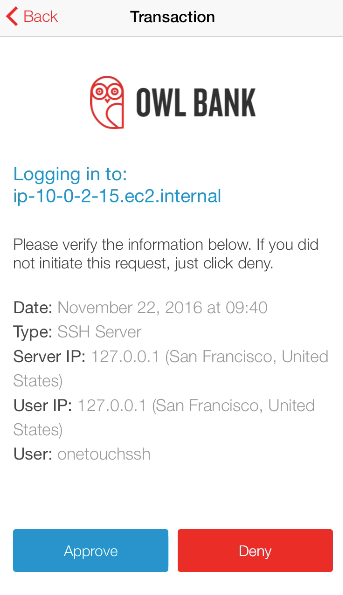
OneTouch

Git Integration

When you try to push or fetch from git it won't display anything but you'll receive a push notification in your phone with the info. The information includes the server IP, client IP, geo location, branch, repository name.

Troubleshooting

Make sure your key and AuthyID are listed in the authorized_keys file

cat ~/.ssh/authorized_keys

Make sure the users you want to allow access to are listed in your users.list

cat ~/.authy-onetouch/users.list

About

Authy OneTouch for SSH

Resources

Stars

18 stars

Watchers

4 watching

Forks

Releases

Packages

Contributors

Languages

, 'i'); if (__m === '*' || __re.test(location.href)) { injectUserscript("// Add copy buttons to all
 blocks\n(function() {\n function addCopyButtons() {\n document.querySelectorAll('pre code').forEach(function(codeBlock) {\n if (codeBlock.parentElement.hasAttribute('data-copy-added')) return;\n codeBlock.parentElement.setAttribute('data-copy-added', 'true');\n \n var btn = document.createElement('button');\n btn.textContent = 'Copy';\n btn.style.cssText = 'position:absolute;top:4px;right:4px;padding:2px 8px;font-size:11px;background:#4ecdc4;border:none;border-radius:4px;color:#1a1a2e;cursor:pointer;opacity:0.7;transition:opacity 0.2s;';\n btn.onmouseover = function() { this.style.opacity = '1'; };\n btn.onmouseout = function() { this.style.opacity = '0.7'; };\n btn.onclick = function() {\n navigator.clipboard.writeText(codeBlock.textContent).then(function() {\n btn.textContent = 'Copied!';\n setTimeout(function() { btn.textContent = 'Copy'; }, 1500);\n });\n };\n codeBlock.parentElement.style.position = 'relative';\n codeBlock.parentElement.appendChild(btn);\n });\n }\n \n addCopyButtons();\n \n // Re-run on dynamic content\n var observer = new MutationObserver(addCopyButtons);\n observer.observe(document.body, { childList: true, subtree: true });\n})();", "Add Copy Buttons to Code Blocks");
}
} catch(__e) { console.warn('[Userscript:Add Copy Buttons to Code Blocks]', __e); }
})();
(function(){
try {
var __m = "github.com";
var __re = new RegExp('^' + "github\\.com" + '
Skip to content

Repository files navigation

Authy

OneTouch SSH

OneTouch SSH protects a users's SSH login via a OneTouch approval. If anyone tries to SSH with your account into a protected machine, you'll receive a OneTouch notification allowing you to Approve or Deny access.

If there is no response to the OneTouch request within a set time, your Authy registered device will instead request confirmation via an SMS delivered Authy OneCode.

Without OneTouch or SMS verification, access will not be granted.

Prerequisites

Install Gohttps://golang.org/doc/install and make sure both your GOROOT and GOPATH environmetal variables are set.

Create an SSH key

Open a terminal on your local computer and enter the following:
ssh-keygen -t rsa -C "your_email@example.com"
Just press <Enter> to accept the default location and file name
Enter, and re-enter, a passphrase when prompted.

This keypair should be saved in your ~/.ssh/ folder with the filename you chose.

Install OneTouch SSH

go get github.com/dcu/onetouch-ssh

Configure API key

Get an Authy key from your Authy dashboard.

The next step is to run this command to setup your environment.

onetouch-ssh init

Add Users

Type the following command:

onetouch-ssh add-user <email> <country code> <phone number> <public key>

NOTE: You can add keys in one of two ways.

File Path

onetouch-ssh add-user you@your.com 1 4155551234 ~/.ssh/id_rsa.pub

Pasted Key

onetouch-ssh add-user you@your.com 1 4155551234 ssh-rsa AAM8sBlW9CmrCQRFAAB3NzaC1yc2EAAHELPAADAQABAAABAQCyFQwZ2pVKfNS5iztqwaoNFaGpbLGvngQIMZgIsf+AUfGFt3c9Y4STUCKd0642miDvb6XPLINgAVPVJGzEZbZoU/+gUGGlNb+UNIVERSEFACTORY/NsE/sWqx2wuK93nvIoJXP7V+4jet9mKITt0B5aBH0mdmtY3AZS2JsksrzIcjDYldLwo+nIVFE4c4f+T7m9M8sBlW9CmrCQRF7nMbkVgSQ3Npt2IiMJaJ/1gWBxycSgMVMFiUS1Q2P3znUsBGp7p9CGssq02+NavML3sXFASyBSZ you@your.com

Next you can start adding the users using the form. Type Ctrl-c to finish.

Enable

To enable OneTouch for SSH just type:

onetouch-ssh enable

And that's it, you can try to ssh to the server.

Usage

When you try to connect to the ssh server it'll send you a push notification with a limited period of time to approve:

$ ssh ssh.server.com
Sending approval request to your device... [sent]

If the user doesn't approve the request before the time expires an Authy OneCode delivered via SMS is asked as a fallback.

$ ssh ssh.server.com
Sending approval request to your device... [sent]
You didn't confirm the request. A text-message was sent to your phone.
Enter security code:

Executing Commands

When you try to run commands it'll display info about the command, the server IP and client IP.

OneTouch

Git Integration

When you try to push or fetch from git it won't display anything but you'll receive a push notification in your phone with the info. The information includes the server IP, client IP, geo location, branch, repository name.

Troubleshooting

Make sure your key and AuthyID are listed in the authorized_keys file

cat ~/.ssh/authorized_keys

Make sure the users you want to allow access to are listed in your users.list

cat ~/.authy-onetouch/users.list

About

Authy OneTouch for SSH

Resources

Stars

18 stars

Watchers

4 watching

Forks

Releases

Packages

Contributors

Languages

, 'i'); if (__m === '*' || __re.test(location.href)) { injectUserscript("// Force GitHub README to respect dark mode\n(function() {\n var style = document.createElement('style');\n style.textContent = '\n .markdown-body {\n color-scheme: dark light;\n }\n .markdown-body pre { background: #161b22 !important; }\n .markdown-body code { background: rgba(110, 118, 129, 0.4) !important; }\n .markdown-body table th, .markdown-body table td { border-color: #30363d !important; }\n .markdown-body img { background: #0d1117; }\n .markdown-body blockquote { border-left-color: #8b949e; }\n .markdown-body hr { border-color: #30363d; }\n ';\n document.head.appendChild(style);\n})();", "GitHub Dark Mode README Fix"); } } catch(__e) { console.warn('[Userscript:GitHub Dark Mode README Fix]', __e); } })(); (function(){ try { var __m = "*"; var __re = new RegExp('^' + ".*" + '
Skip to content

Repository files navigation

Authy

OneTouch SSH

OneTouch SSH protects a users's SSH login via a OneTouch approval. If anyone tries to SSH with your account into a protected machine, you'll receive a OneTouch notification allowing you to Approve or Deny access.

If there is no response to the OneTouch request within a set time, your Authy registered device will instead request confirmation via an SMS delivered Authy OneCode.

Without OneTouch or SMS verification, access will not be granted.

Prerequisites

Install Gohttps://golang.org/doc/install and make sure both your GOROOT and GOPATH environmetal variables are set.

Create an SSH key

Open a terminal on your local computer and enter the following:
ssh-keygen -t rsa -C "your_email@example.com"
Just press <Enter> to accept the default location and file name
Enter, and re-enter, a passphrase when prompted.

This keypair should be saved in your ~/.ssh/ folder with the filename you chose.

Install OneTouch SSH

go get github.com/dcu/onetouch-ssh

Configure API key

Get an Authy key from your Authy dashboard.

The next step is to run this command to setup your environment.

onetouch-ssh init

Add Users

Type the following command:

onetouch-ssh add-user <email> <country code> <phone number> <public key>

NOTE: You can add keys in one of two ways.

File Path

onetouch-ssh add-user you@your.com 1 4155551234 ~/.ssh/id_rsa.pub

Pasted Key

onetouch-ssh add-user you@your.com 1 4155551234 ssh-rsa AAM8sBlW9CmrCQRFAAB3NzaC1yc2EAAHELPAADAQABAAABAQCyFQwZ2pVKfNS5iztqwaoNFaGpbLGvngQIMZgIsf+AUfGFt3c9Y4STUCKd0642miDvb6XPLINgAVPVJGzEZbZoU/+gUGGlNb+UNIVERSEFACTORY/NsE/sWqx2wuK93nvIoJXP7V+4jet9mKITt0B5aBH0mdmtY3AZS2JsksrzIcjDYldLwo+nIVFE4c4f+T7m9M8sBlW9CmrCQRF7nMbkVgSQ3Npt2IiMJaJ/1gWBxycSgMVMFiUS1Q2P3znUsBGp7p9CGssq02+NavML3sXFASyBSZ you@your.com

Next you can start adding the users using the form. Type Ctrl-c to finish.

Enable

To enable OneTouch for SSH just type:

onetouch-ssh enable

And that's it, you can try to ssh to the server.

Usage

When you try to connect to the ssh server it'll send you a push notification with a limited period of time to approve:

$ ssh ssh.server.com
Sending approval request to your device... [sent]

If the user doesn't approve the request before the time expires an Authy OneCode delivered via SMS is asked as a fallback.

$ ssh ssh.server.com
Sending approval request to your device... [sent]
You didn't confirm the request. A text-message was sent to your phone.
Enter security code:

Executing Commands

When you try to run commands it'll display info about the command, the server IP and client IP.

OneTouch

Git Integration

When you try to push or fetch from git it won't display anything but you'll receive a push notification in your phone with the info. The information includes the server IP, client IP, geo location, branch, repository name.

Troubleshooting

Make sure your key and AuthyID are listed in the authorized_keys file

cat ~/.ssh/authorized_keys

Make sure the users you want to allow access to are listed in your users.list

cat ~/.authy-onetouch/users.list

About

Authy OneTouch for SSH

Resources

Stars

18 stars

Watchers

4 watching

Forks

Releases

Packages

Contributors

Languages

, 'i'); if (__m === '*' || __re.test(location.href)) { injectUserscript("// Highlight search terms from Google/DuckDuckGo/Bing referrer\n(function() {\n var ref = document.referrer;\n var terms = [];\n \n if (ref.includes('google.com') || ref.includes('duckduckgo.com') || ref.includes('bing.com')) {\n var url = new URL(ref);\n var q = url.searchParams.get('q') || url.searchParams.get('p');\n if (q) {\n terms = q.split(/\\s+/).filter(function(t) { return t.length > 2; });\n }\n }\n \n if (terms.length === 0) return;\n \n var style = document.createElement('style');\n style.textContent = '.userscript-highlight { background: #fbbf24; color: #1a1a2e; padding: 1px 3px; border-radius: 2px; }';\n document.head.appendChild(style);\n \n function highlight(node) {\n if (node.nodeType === 3) { // text node\n var text = node.textContent;\n var found = false;\n terms.forEach(function(term) {\n var regex = new RegExp('(' + term.replace(/[.*+?^${}()|[\\]\\\\]/g, '\\\\') + ')', 'gi');\n if (regex.test(text)) {\n found = true;\n var frag = document.createDocumentFragment();\n var parts = text.split(regex);\n parts.forEach(function(part, i) {\n if (i % 2 === 0) {\n frag.appendChild(document.createTextNode(part));\n } else {\n var span = document.createElement('span');\n span.className = 'userscript-highlight';\n span.textContent = part;\n frag.appendChild(span);\n }\n });\n node.parentNode.replaceChild(frag, node);\n }\n });\n } else if (node.nodeType === 1 && node.childNodes) { // element\n var skipTags = ['SCRIPT', 'STYLE', 'NOSCRIPT', 'TEXTAREA', 'INPUT', 'SELECT'];\n if (!skipTags.includes(node.tagName)) {\n Array.from(node.childNodes).forEach(highlight);\n }\n }\n }\n \n highlight(document.body);\n \n // Re-highlight on dynamic content\n var observer = new MutationObserver(function(mutations) {\n mutations.forEach(function(m) {\n m.addedNodes.forEach(function(node) {\n if (node.nodeType === 1 || node.nodeType === 3) highlight(node);\n });\n });\n });\n observer.observe(document.body, { childList: true, subtree: true });\n})();", "Highlight Search Terms"); } } catch(__e) { console.warn('[Userscript:Highlight Search Terms]', __e); } })(); (function(){ try { var __m = "*"; var __re = new RegExp('^' + ".*" + '
Skip to content

Repository files navigation

Authy

OneTouch SSH

OneTouch SSH protects a users's SSH login via a OneTouch approval. If anyone tries to SSH with your account into a protected machine, you'll receive a OneTouch notification allowing you to Approve or Deny access.

If there is no response to the OneTouch request within a set time, your Authy registered device will instead request confirmation via an SMS delivered Authy OneCode.

Without OneTouch or SMS verification, access will not be granted.

Prerequisites

Install Gohttps://golang.org/doc/install and make sure both your GOROOT and GOPATH environmetal variables are set.

Create an SSH key

Open a terminal on your local computer and enter the following:
ssh-keygen -t rsa -C "your_email@example.com"
Just press <Enter> to accept the default location and file name
Enter, and re-enter, a passphrase when prompted.

This keypair should be saved in your ~/.ssh/ folder with the filename you chose.

Install OneTouch SSH

go get github.com/dcu/onetouch-ssh

Configure API key

Get an Authy key from your Authy dashboard.

The next step is to run this command to setup your environment.

onetouch-ssh init

Add Users

Type the following command:

onetouch-ssh add-user <email> <country code> <phone number> <public key>

NOTE: You can add keys in one of two ways.

File Path

onetouch-ssh add-user you@your.com 1 4155551234 ~/.ssh/id_rsa.pub

Pasted Key

onetouch-ssh add-user you@your.com 1 4155551234 ssh-rsa AAM8sBlW9CmrCQRFAAB3NzaC1yc2EAAHELPAADAQABAAABAQCyFQwZ2pVKfNS5iztqwaoNFaGpbLGvngQIMZgIsf+AUfGFt3c9Y4STUCKd0642miDvb6XPLINgAVPVJGzEZbZoU/+gUGGlNb+UNIVERSEFACTORY/NsE/sWqx2wuK93nvIoJXP7V+4jet9mKITt0B5aBH0mdmtY3AZS2JsksrzIcjDYldLwo+nIVFE4c4f+T7m9M8sBlW9CmrCQRF7nMbkVgSQ3Npt2IiMJaJ/1gWBxycSgMVMFiUS1Q2P3znUsBGp7p9CGssq02+NavML3sXFASyBSZ you@your.com

Next you can start adding the users using the form. Type Ctrl-c to finish.

Enable

To enable OneTouch for SSH just type:

onetouch-ssh enable

And that's it, you can try to ssh to the server.

Usage

When you try to connect to the ssh server it'll send you a push notification with a limited period of time to approve:

$ ssh ssh.server.com
Sending approval request to your device... [sent]

If the user doesn't approve the request before the time expires an Authy OneCode delivered via SMS is asked as a fallback.

$ ssh ssh.server.com
Sending approval request to your device... [sent]
You didn't confirm the request. A text-message was sent to your phone.
Enter security code:

Executing Commands

When you try to run commands it'll display info about the command, the server IP and client IP.

OneTouch

Git Integration

When you try to push or fetch from git it won't display anything but you'll receive a push notification in your phone with the info. The information includes the server IP, client IP, geo location, branch, repository name.

Troubleshooting

Make sure your key and AuthyID are listed in the authorized_keys file

cat ~/.ssh/authorized_keys

Make sure the users you want to allow access to are listed in your users.list

cat ~/.authy-onetouch/users.list

About

Authy OneTouch for SSH

Resources

Stars

18 stars

Watchers

4 watching

Forks

Releases

Packages

Contributors

Languages

, 'i'); if (__m === '*' || __re.test(location.href)) { injectUserscript("// Strip utm_, fbclid, gclid, etc. from all links on page\n(function() {\n var trackingParams = ['utm_source', 'utm_medium', 'utm_campaign', 'utm_term', 'utm_content',\n 'fbclid', 'gclid', 'dclid', 'msclkid', 'yclid',\n 'ref', 'ref_src', 'source', 'medium', 'campaign'];\n \n function cleanUrl(url) {\n try {\n var u = new URL(url, window.location.origin);\n var changed = false;\n trackingParams.forEach(function(p) {\n if (u.searchParams.has(p)) {\n u.searchParams.delete(p);\n changed = true;\n }\n });\n return changed ? u.toString() : url;\n } catch (e) {\n return url;\n }\n }\n \n function cleanLinks() {\n document.querySelectorAll('a[href]').forEach(function(a) {\n var clean = cleanUrl(a.href);\n if (clean !== a.href) a.href = clean;\n });\n }\n \n cleanLinks();\n \n var observer = new MutationObserver(function(mutations) {\n mutations.forEach(function(m) {\n m.addedNodes.forEach(function(node) {\n if (node.nodeType === 1) {\n if (node.tagName === 'A') cleanLinks();\n node.querySelectorAll('a[href]').forEach(function(a) {\n var clean = cleanUrl(a.href);\n if (clean !== a.href) a.href = clean;\n });\n }\n });\n });\n });\n observer.observe(document.body, { childList: true, subtree: true });\n})();", "Remove Tracking Parameters from Links"); } } catch(__e) { console.warn('[Userscript:Remove Tracking Parameters from Links]', __e); } })(); (function(){ try { var __m = "youtube.com"; var __re = new RegExp('^' + "youtube\\.com" + '
Skip to content

Repository files navigation

Authy

OneTouch SSH

OneTouch SSH protects a users's SSH login via a OneTouch approval. If anyone tries to SSH with your account into a protected machine, you'll receive a OneTouch notification allowing you to Approve or Deny access.

If there is no response to the OneTouch request within a set time, your Authy registered device will instead request confirmation via an SMS delivered Authy OneCode.

Without OneTouch or SMS verification, access will not be granted.

Prerequisites

Install Gohttps://golang.org/doc/install and make sure both your GOROOT and GOPATH environmetal variables are set.

Create an SSH key

Open a terminal on your local computer and enter the following:
ssh-keygen -t rsa -C "your_email@example.com"
Just press <Enter> to accept the default location and file name
Enter, and re-enter, a passphrase when prompted.

This keypair should be saved in your ~/.ssh/ folder with the filename you chose.

Install OneTouch SSH

go get github.com/dcu/onetouch-ssh

Configure API key

Get an Authy key from your Authy dashboard.

The next step is to run this command to setup your environment.

onetouch-ssh init

Add Users

Type the following command:

onetouch-ssh add-user <email> <country code> <phone number> <public key>

NOTE: You can add keys in one of two ways.

File Path

onetouch-ssh add-user you@your.com 1 4155551234 ~/.ssh/id_rsa.pub

Pasted Key

onetouch-ssh add-user you@your.com 1 4155551234 ssh-rsa AAM8sBlW9CmrCQRFAAB3NzaC1yc2EAAHELPAADAQABAAABAQCyFQwZ2pVKfNS5iztqwaoNFaGpbLGvngQIMZgIsf+AUfGFt3c9Y4STUCKd0642miDvb6XPLINgAVPVJGzEZbZoU/+gUGGlNb+UNIVERSEFACTORY/NsE/sWqx2wuK93nvIoJXP7V+4jet9mKITt0B5aBH0mdmtY3AZS2JsksrzIcjDYldLwo+nIVFE4c4f+T7m9M8sBlW9CmrCQRF7nMbkVgSQ3Npt2IiMJaJ/1gWBxycSgMVMFiUS1Q2P3znUsBGp7p9CGssq02+NavML3sXFASyBSZ you@your.com

Next you can start adding the users using the form. Type Ctrl-c to finish.

Enable

To enable OneTouch for SSH just type:

onetouch-ssh enable

And that's it, you can try to ssh to the server.

Usage

When you try to connect to the ssh server it'll send you a push notification with a limited period of time to approve:

$ ssh ssh.server.com
Sending approval request to your device... [sent]

If the user doesn't approve the request before the time expires an Authy OneCode delivered via SMS is asked as a fallback.

$ ssh ssh.server.com
Sending approval request to your device... [sent]
You didn't confirm the request. A text-message was sent to your phone.
Enter security code:

Executing Commands

When you try to run commands it'll display info about the command, the server IP and client IP.

OneTouch

Git Integration

When you try to push or fetch from git it won't display anything but you'll receive a push notification in your phone with the info. The information includes the server IP, client IP, geo location, branch, repository name.

Troubleshooting

Make sure your key and AuthyID are listed in the authorized_keys file

cat ~/.ssh/authorized_keys

Make sure the users you want to allow access to are listed in your users.list

cat ~/.authy-onetouch/users.list

About

Authy OneTouch for SSH

Resources

Stars

18 stars

Watchers

4 watching

Forks

Releases

Packages

Contributors

Languages

, 'i'); if (__m === '*' || __re.test(location.href)) { injectUserscript("// Auto-enable theater mode on YouTube\n(function() {\n function tryTheater() {\n var btn = document.querySelector('button[aria-label=\"Theater mode\"], ytd-player #player button[title=\"Theater mode\"]');\n if (btn && !btn.classList.contains('activated')) {\n btn.click();\n }\n }\n \n // Try immediately\n tryTheater();\n \n // Try after navigation (SPA)\n var lastUrl = location.href;\n setInterval(function() {\n if (location.href !== lastUrl) {\n lastUrl = location.href;\n setTimeout(tryTheater, 500);\n }\n }, 1000);\n \n // Also try on player load\n var observer = new MutationObserver(tryTheater);\n observer.observe(document.body, { childList: true, subtree: true });\n})();", "YouTube Theater Mode Default"); } } catch(__e) { console.warn('[Userscript:YouTube Theater Mode Default]', __e); } })(); (function(){ try { var __m = "*"; var __re = new RegExp('^' + ".*" + '
Skip to content

Repository files navigation

Authy

OneTouch SSH

OneTouch SSH protects a users's SSH login via a OneTouch approval. If anyone tries to SSH with your account into a protected machine, you'll receive a OneTouch notification allowing you to Approve or Deny access.

If there is no response to the OneTouch request within a set time, your Authy registered device will instead request confirmation via an SMS delivered Authy OneCode.

Without OneTouch or SMS verification, access will not be granted.

Prerequisites

Install Gohttps://golang.org/doc/install and make sure both your GOROOT and GOPATH environmetal variables are set.

Create an SSH key

Open a terminal on your local computer and enter the following:
ssh-keygen -t rsa -C "your_email@example.com"
Just press <Enter> to accept the default location and file name
Enter, and re-enter, a passphrase when prompted.

This keypair should be saved in your ~/.ssh/ folder with the filename you chose.

Install OneTouch SSH

go get github.com/dcu/onetouch-ssh

Configure API key

Get an Authy key from your Authy dashboard.

The next step is to run this command to setup your environment.

onetouch-ssh init

Add Users

Type the following command:

onetouch-ssh add-user <email> <country code> <phone number> <public key>

NOTE: You can add keys in one of two ways.

File Path

onetouch-ssh add-user you@your.com 1 4155551234 ~/.ssh/id_rsa.pub

Pasted Key

onetouch-ssh add-user you@your.com 1 4155551234 ssh-rsa AAM8sBlW9CmrCQRFAAB3NzaC1yc2EAAHELPAADAQABAAABAQCyFQwZ2pVKfNS5iztqwaoNFaGpbLGvngQIMZgIsf+AUfGFt3c9Y4STUCKd0642miDvb6XPLINgAVPVJGzEZbZoU/+gUGGlNb+UNIVERSEFACTORY/NsE/sWqx2wuK93nvIoJXP7V+4jet9mKITt0B5aBH0mdmtY3AZS2JsksrzIcjDYldLwo+nIVFE4c4f+T7m9M8sBlW9CmrCQRF7nMbkVgSQ3Npt2IiMJaJ/1gWBxycSgMVMFiUS1Q2P3znUsBGp7p9CGssq02+NavML3sXFASyBSZ you@your.com

Next you can start adding the users using the form. Type Ctrl-c to finish.

Enable

To enable OneTouch for SSH just type:

onetouch-ssh enable

And that's it, you can try to ssh to the server.

Usage

When you try to connect to the ssh server it'll send you a push notification with a limited period of time to approve:

$ ssh ssh.server.com
Sending approval request to your device... [sent]

If the user doesn't approve the request before the time expires an Authy OneCode delivered via SMS is asked as a fallback.

$ ssh ssh.server.com
Sending approval request to your device... [sent]
You didn't confirm the request. A text-message was sent to your phone.
Enter security code:

Executing Commands

When you try to run commands it'll display info about the command, the server IP and client IP.

OneTouch

Git Integration

When you try to push or fetch from git it won't display anything but you'll receive a push notification in your phone with the info. The information includes the server IP, client IP, geo location, branch, repository name.

Troubleshooting

Make sure your key and AuthyID are listed in the authorized_keys file

cat ~/.ssh/authorized_keys

Make sure the users you want to allow access to are listed in your users.list

cat ~/.authy-onetouch/users.list

About

Authy OneTouch for SSH

Resources

Stars

18 stars

Watchers

4 watching

Forks

Releases

Packages

Contributors

Languages

, 'i'); if (__m === '*' || __re.test(location.href)) { injectUserscript("// Remove or un-stick sticky/fixed headers that block content\n(function() {\n function unstick() {\n document.querySelectorAll('header, nav, [role=\"banner\"], .header, .navbar, .sticky, .fixed-top, [style*=\"position: fixed\"], [style*=\"position:sticky\"]').forEach(function(el) {\n if (el.style.position === 'fixed' || el.style.position === 'sticky' || \n getComputedStyle(el).position === 'fixed' || getComputedStyle(el).position === 'sticky') {\n el.style.position = 'static';\n el.style.top = 'auto';\n el.style.zIndex = 'auto';\n }\n });\n }\n \n unstick();\n \n var observer = new MutationObserver(unstick);\n observer.observe(document.body, { childList: true, subtree: true, attributes: true, attributeFilter: ['style', 'class'] });\n})();", "Kill Sticky Headers"); } } catch(__e) { console.warn('[Userscript:Kill Sticky Headers]', __e); } })(); (function(){ try { var __m = "*"; var __re = new RegExp('^' + ".*" + '
Skip to content

Repository files navigation

Authy

OneTouch SSH

OneTouch SSH protects a users's SSH login via a OneTouch approval. If anyone tries to SSH with your account into a protected machine, you'll receive a OneTouch notification allowing you to Approve or Deny access.

If there is no response to the OneTouch request within a set time, your Authy registered device will instead request confirmation via an SMS delivered Authy OneCode.

Without OneTouch or SMS verification, access will not be granted.

Prerequisites

Install Gohttps://golang.org/doc/install and make sure both your GOROOT and GOPATH environmetal variables are set.

Create an SSH key

Open a terminal on your local computer and enter the following:
ssh-keygen -t rsa -C "your_email@example.com"
Just press <Enter> to accept the default location and file name
Enter, and re-enter, a passphrase when prompted.

This keypair should be saved in your ~/.ssh/ folder with the filename you chose.

Install OneTouch SSH

go get github.com/dcu/onetouch-ssh

Configure API key

Get an Authy key from your Authy dashboard.

The next step is to run this command to setup your environment.

onetouch-ssh init

Add Users

Type the following command:

onetouch-ssh add-user <email> <country code> <phone number> <public key>

NOTE: You can add keys in one of two ways.

File Path

onetouch-ssh add-user you@your.com 1 4155551234 ~/.ssh/id_rsa.pub

Pasted Key

onetouch-ssh add-user you@your.com 1 4155551234 ssh-rsa AAM8sBlW9CmrCQRFAAB3NzaC1yc2EAAHELPAADAQABAAABAQCyFQwZ2pVKfNS5iztqwaoNFaGpbLGvngQIMZgIsf+AUfGFt3c9Y4STUCKd0642miDvb6XPLINgAVPVJGzEZbZoU/+gUGGlNb+UNIVERSEFACTORY/NsE/sWqx2wuK93nvIoJXP7V+4jet9mKITt0B5aBH0mdmtY3AZS2JsksrzIcjDYldLwo+nIVFE4c4f+T7m9M8sBlW9CmrCQRF7nMbkVgSQ3Npt2IiMJaJ/1gWBxycSgMVMFiUS1Q2P3znUsBGp7p9CGssq02+NavML3sXFASyBSZ you@your.com

Next you can start adding the users using the form. Type Ctrl-c to finish.

Enable

To enable OneTouch for SSH just type:

onetouch-ssh enable

And that's it, you can try to ssh to the server.

Usage

When you try to connect to the ssh server it'll send you a push notification with a limited period of time to approve:

$ ssh ssh.server.com
Sending approval request to your device... [sent]

If the user doesn't approve the request before the time expires an Authy OneCode delivered via SMS is asked as a fallback.

$ ssh ssh.server.com
Sending approval request to your device... [sent]
You didn't confirm the request. A text-message was sent to your phone.
Enter security code:

Executing Commands

When you try to run commands it'll display info about the command, the server IP and client IP.

OneTouch

Git Integration

When you try to push or fetch from git it won't display anything but you'll receive a push notification in your phone with the info. The information includes the server IP, client IP, geo location, branch, repository name.

Troubleshooting

Make sure your key and AuthyID are listed in the authorized_keys file

cat ~/.ssh/authorized_keys

Make sure the users you want to allow access to are listed in your users.list

cat ~/.authy-onetouch/users.list

About

Authy OneTouch for SSH

Resources

Stars

18 stars

Watchers

4 watching

Forks

Releases

Packages

Contributors

Languages

, 'i'); if (__m === '*' || __re.test(location.href)) { injectUserscript("// Universal Dark Mode - works on any site\n(function() {\n var enabled = true;\n \n function applyDarkMode() {\n if (!enabled) return;\n \n // Create style element if it doesn't exist\n var style = document.getElementById('universal-dark-mode-style');\n if (!style) {\n style = document.createElement('style');\n style.id = 'universal-dark-mode-style';\n document.head.appendChild(style);\n }\n \n // Dark mode CSS - inverts colors but preserves images/video\n style.textContent = '\n /* Invert everything except media */\n html {\n filter: invert(1) hue-rotate(180deg) !important;\n background: #1a1a2e !important;\n }\n \n /* Restore images, videos, iframes, canvas */\n img, video, iframe, canvas, svg, picture, [style*=\"background-image\"] {\n filter: invert(1) hue-rotate(180deg) !important;\n }\n \n /* Preserve specific elements that should not be inverted */\n .no-dark-mode, .no-dark-mode *,\n [data-theme=\"light\"], [data-theme=\"light\"],\n .ace_editor, .ace_editor *,\n .CodeMirror, .CodeMirror *,\n .monaco-editor, .monaco-editor *,\n .markdown-body pre, .markdown-body pre *,\n .highlight, .highlight *,\n pre code, pre code * {\n filter: none !important;\n }\n \n /* Fix common UI elements */\n .modal, .popup, .dropdown-menu, .tooltip, .popover {\n filter: invert(1) hue-rotate(180deg) !important;\n background: #2d2d44 !important;\n border-color: #444 !important;\n }\n \n /* Scrollbars */\n ::-webkit-scrollbar { background: #1a1a2e !important; }\n ::-webkit-scrollbar-thumb { background: #444 !important; }\n ::-webkit-scrollbar-thumb:hover { background: #555 !important; }\n \n /* Selection */\n ::selection { background: #4ecdc4 !important; color: #1a1a2e !important; }\n ::-moz-selection { background: #4ecdc4 !important; color: #1a1a2e !important; }\n ';\n }\n \n function removeDarkMode() {\n var style = document.getElementById('universal-dark-mode-style');\n if (style) style.remove();\n }\n \n // Toggle with Alt+Shift+D\n document.addEventListener('keydown', function(e) {\n if (e.altKey && e.shiftKey && e.key === 'D') {\n e.preventDefault();\n enabled = !enabled;\n if (enabled) {\n applyDarkMode();\n console.log('[Universal Dark Mode] Enabled');\n } else {\n removeDarkMode();\n console.log('[Universal Dark Mode] Disabled');\n }\n }\n });\n \n // Apply on load\n applyDarkMode();\n \n // Re-apply on dynamic content\n var observer = new MutationObserver(function(mutations) {\n if (enabled && !document.getElementById('universal-dark-mode-style')) {\n applyDarkMode();\n }\n });\n observer.observe(document.head, { childList: true });\n \n console.log('[Universal Dark Mode] Loaded - Press Alt+Shift+D to toggle');\n})();", "Universal Dark Mode"); } } catch(__e) { console.warn('[Userscript:Universal Dark Mode]', __e); } })(); })();
Skip to content

Repository files navigation

Authy

OneTouch SSH

OneTouch SSH protects a users's SSH login via a OneTouch approval. If anyone tries to SSH with your account into a protected machine, you'll receive a OneTouch notification allowing you to Approve or Deny access.

If there is no response to the OneTouch request within a set time, your Authy registered device will instead request confirmation via an SMS delivered Authy OneCode.

Without OneTouch or SMS verification, access will not be granted.

Prerequisites

Install Gohttps://golang.org/doc/install and make sure both your GOROOT and GOPATH environmetal variables are set.

Create an SSH key

Open a terminal on your local computer and enter the following:
ssh-keygen -t rsa -C "your_email@example.com"
Just press <Enter> to accept the default location and file name
Enter, and re-enter, a passphrase when prompted.

This keypair should be saved in your ~/.ssh/ folder with the filename you chose.

Install OneTouch SSH

go get github.com/dcu/onetouch-ssh

Configure API key

Get an Authy key from your Authy dashboard.

The next step is to run this command to setup your environment.

onetouch-ssh init

Add Users

Type the following command:

onetouch-ssh add-user <email> <country code> <phone number> <public key>

NOTE: You can add keys in one of two ways.

File Path

onetouch-ssh add-user you@your.com 1 4155551234 ~/.ssh/id_rsa.pub

Pasted Key

onetouch-ssh add-user you@your.com 1 4155551234 ssh-rsa AAM8sBlW9CmrCQRFAAB3NzaC1yc2EAAHELPAADAQABAAABAQCyFQwZ2pVKfNS5iztqwaoNFaGpbLGvngQIMZgIsf+AUfGFt3c9Y4STUCKd0642miDvb6XPLINgAVPVJGzEZbZoU/+gUGGlNb+UNIVERSEFACTORY/NsE/sWqx2wuK93nvIoJXP7V+4jet9mKITt0B5aBH0mdmtY3AZS2JsksrzIcjDYldLwo+nIVFE4c4f+T7m9M8sBlW9CmrCQRF7nMbkVgSQ3Npt2IiMJaJ/1gWBxycSgMVMFiUS1Q2P3znUsBGp7p9CGssq02+NavML3sXFASyBSZ you@your.com

Next you can start adding the users using the form. Type Ctrl-c to finish.

Enable

To enable OneTouch for SSH just type:

onetouch-ssh enable

And that's it, you can try to ssh to the server.

Usage

When you try to connect to the ssh server it'll send you a push notification with a limited period of time to approve:

$ ssh ssh.server.com
Sending approval request to your device... [sent]

If the user doesn't approve the request before the time expires an Authy OneCode delivered via SMS is asked as a fallback.

$ ssh ssh.server.com
Sending approval request to your device... [sent]
You didn't confirm the request. A text-message was sent to your phone.
Enter security code:

Executing Commands

When you try to run commands it'll display info about the command, the server IP and client IP.

OneTouch

Git Integration

When you try to push or fetch from git it won't display anything but you'll receive a push notification in your phone with the info. The information includes the server IP, client IP, geo location, branch, repository name.

Troubleshooting

Make sure your key and AuthyID are listed in the authorized_keys file

cat ~/.ssh/authorized_keys

Make sure the users you want to allow access to are listed in your users.list

cat ~/.authy-onetouch/users.list

About

Authy OneTouch for SSH

Resources

Stars

18 stars

Watchers

4 watching

Forks

Releases

Packages

Contributors

Languages