Since the script was written specifically for Ubuntu 18.04 which is outdated, so this repository has been archived.
Installing macOS themes on your favourite Linux Distro.
- Operating System : Any Debian based OS like Ubuntu, Kali Linux etc.
- Desktop Environment : Gnome
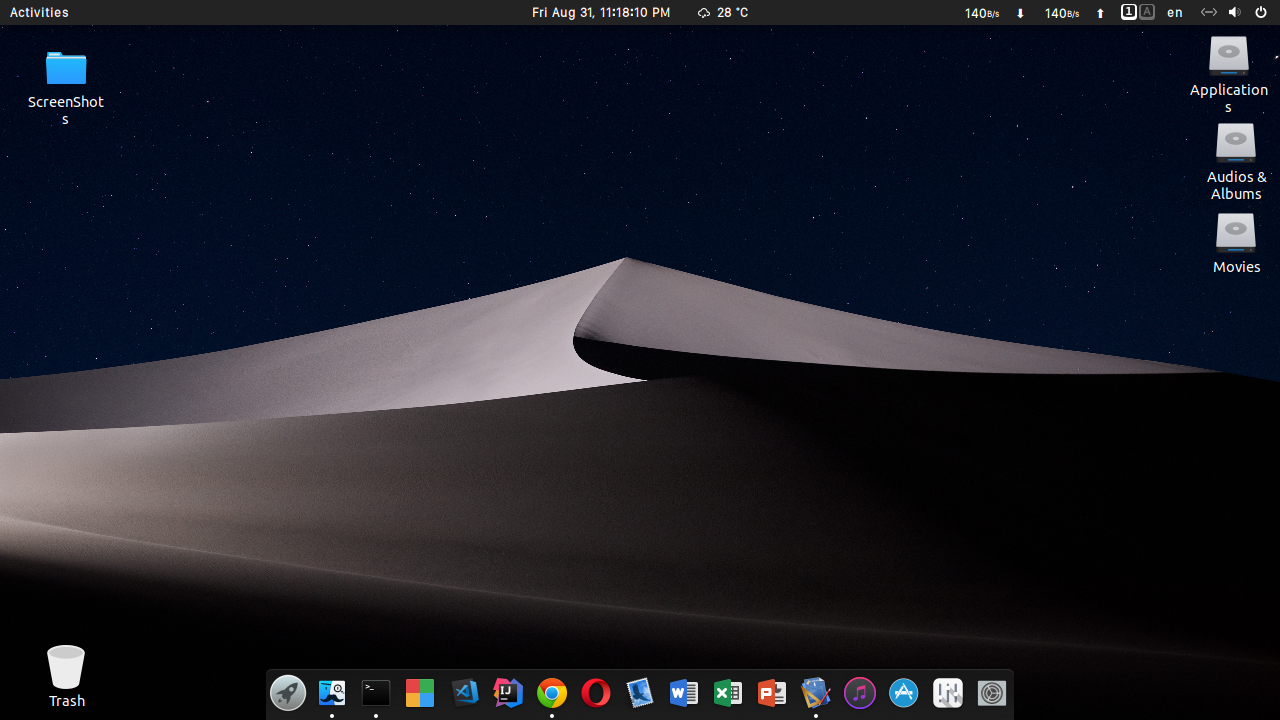
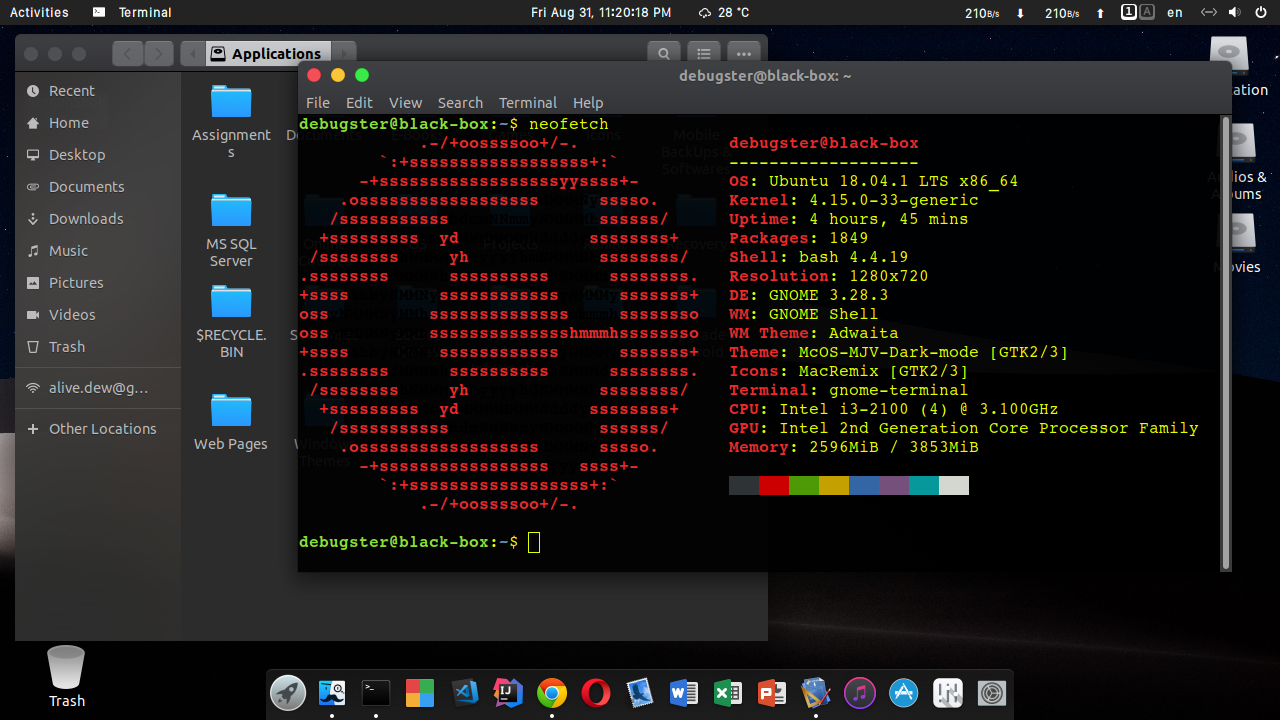
- Ubuntu 18.04 LTS with Gnome 3.28.2
- Ubuntu 18.04.1 LTS with Gnome 3.28.2
- Kali Linux 2018.2 with Gnome 3.28
- 2 GTK Themes
- 2 Gnome Shell Themes
- 2 Cursor Themes
- 4 Icon Themes
- 2 Wallpapers
- 2 Fonts (For Gnome Shell)
- 1 Plymouth Theme (Optional, only for Ubuntu)
- xterm must be installed in the system. To install xterm, open Terminal and execute:
sudo apt update
sudo apt install xterm- Save this script on your desktop.
Don't run this script as sudo.
This script will open xterm several times to install some required packages. When promted, enter your password on xterm window.
Open Terminal again and execute:
cd Desktop
chmod +x macUbuntu.sh
./macUbuntu.sh- Log Out/Restart your computer.
- xterm must be installed in the system. To install xterm, open Terminal and execute:
sudo apt update
sudo apt install xterm- Save this script on your desktop.
Don't run this script as sudo except you are the root user.
This script will open xterm several times to install some required packages. When promted, enter your password on xterm window (except root user).
Open Terminal again and execute:
cd Desktop
chmod +x macKali.sh
./macKali.shThe installation of boot splash screen is made optional. To install it, follow:
- Open File Manager using root access. Open Terminal and execute:
sudo nautilus- Go to Downloads/Apple-Darwin-For-Plymouth/ folder and Copy darwin folder.
- Go to /usr/share/plymouth/themes/ and Paste.
- Open Terminal again and execute:
sudo update-alternatives --install /usr/share/plymouth/themes/default.plymouth default.plymouth /usr/share/plymouth/themes/darwin/darwin.plymouth 100
sudo update-alternatives --config default.plymouth- After executing the last command, you will be promted with a list of plymouth themes. Enter the id of Darwin plymouth theme.
- Finally execute:
sudo update-initramfs -uIf you like to install Albert Spotlight, you may follow:
- Open Terminal end execute:
wget -nv -O Release.key \
https://build.opensuse.org/projects/home:manuelschneid3r/public_key
sudo apt-key add - < Release.key
sudo apt update
sudo sh -c "echo 'deb http://download.opensuse.org/repositories/home:/manuelschneid3r/xUbuntu_18.04/ /' > /etc/apt/sources.list.d/home:manuelschneid3r.list"
sudo apt update
sudo apt install albertwget -nv -O Release.key \
https://build.opensuse.org/projects/home:manuelschneid3r/public_key
sudo apt-key add - < Release.key
sudo apt update
sudo echo'deb http://download.opensuse.org/repositories/home:/manuelschneid3r/Debian_Testing/ /'> /etc/apt/sources.list.d/home:manuelschneid3r.list
sudo apt update
sudo apt install albert- After installation, you can open Albert from Menu/Dash and set hotkey to activate albert.
- This is because those applications are installed as snap packages. To verify, execute:
snap list- The snap execution environment doesn't see any of the themes on your system (local or system-wide). So this is somewhat an expected behaviour.
- As a workaround, you may want to remove those snap applications. To remove those, execute:
sudo snap remove gnome-system-monitor
sudo snap remove gnome-calculator- And install their apt versions. To install, execute:
sudo apt install gnome-system-monitor gnome-calculator