Repository files navigation

Parvus

Overlays suck, but if you need one, consider using Parvus. Parvus is an open source, dependency free image lightbox with the goal of being accessible.
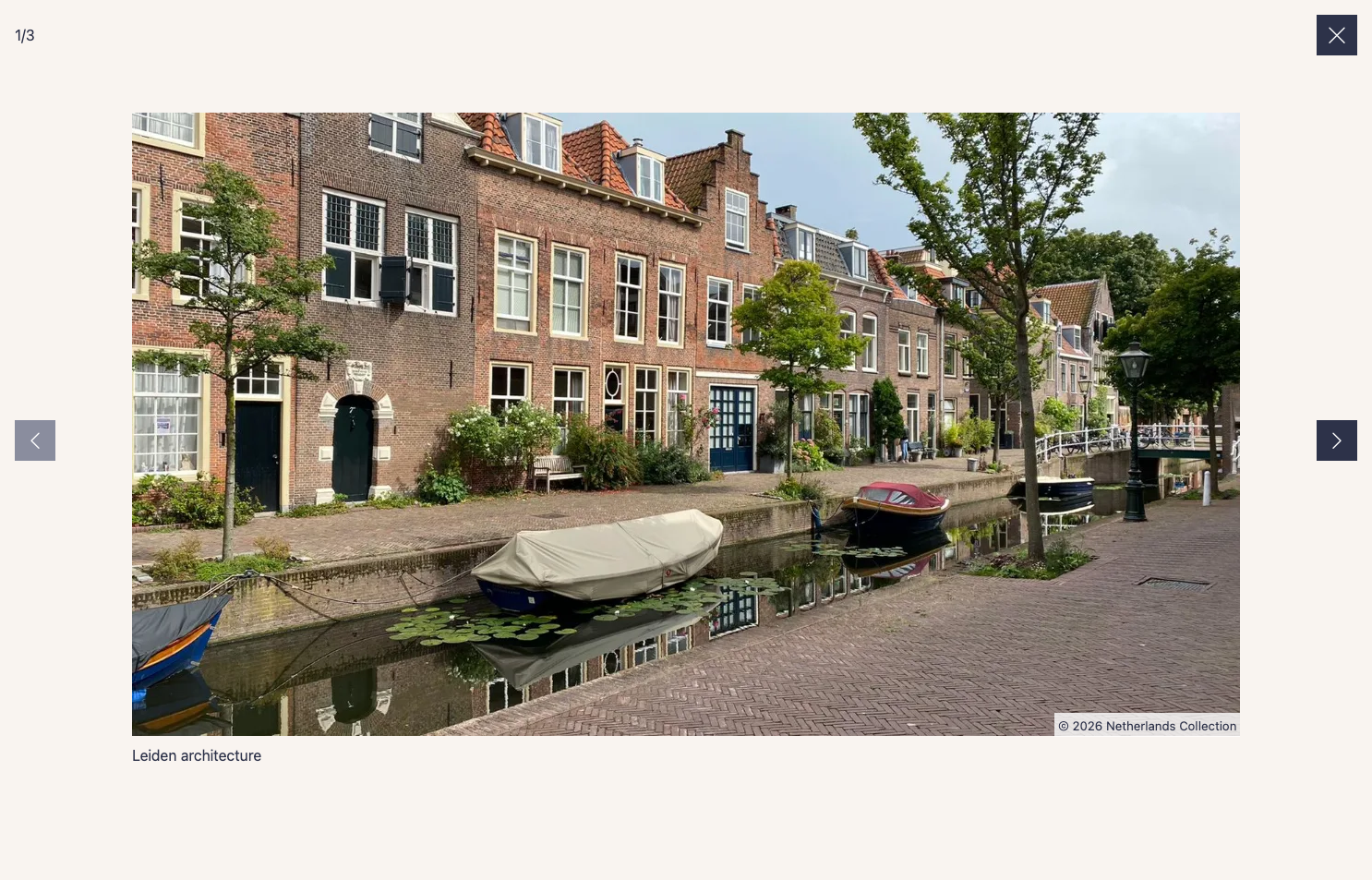
Screenshot of Parvus. It shows the first picture of a gallery.

Open in CodePen

Table of Contents

Installation

Download

  • CSS:
    • dist/css/parvus.min.css (minified) or
    • dist/css/parvus.css (un-minified)
  • JavaScript:
    • dist/js/parvus.min.js (minified) or
    • dist/js/parvus.js (un-minified)

Link the .css and .js files in your HTML:

<!DOCTYPE html><htmllang="en"><head><metacharset="UTF-8"><metaname="viewport" content="width=device-width, initial-scale=1"><title>Page title</title><!-- CSS --><linkhref="path/to/parvus.min.css" rel="stylesheet"></head><body><!-- HTML content --><!-- JS --><scriptsrc="path/to/parvus.min.js"></script></body></html>

Package Managers

You can also install Parvus using npm or yarn:

npm install parvus

or

yarn add parvus

After installation, import Parvus into your JavaScript codebase:

importParvusfrom'parvus'

Be sure to include the corresponding SCSS or CSS file.

Usage

Link a thumbnail image with the class lightbox to a larger image:

<ahref="path/to/image.jpg" class="lightbox"><imgsrc="path/to/thumbnail.jpg" alt=""></a>

Initialize the script:

constprvs=newParvus()

Captions

There are three ways to add a caption to an image:

Reference by ID

You can add an ID to your caption element and reference it from the trigger element using the data-caption-id attribute.

<figure><ahref="path/to/image.jpg" class="lightbox" data-caption-id="caption-1"><imgsrc="path/to/thumbnail.jpg" alt=""></a><figcaptionid="caption-1">
I'm a caption, and I live outside the link.
</figcaption></figure>

Direct Attribute

You can add a data-caption attribute directly to the trigger element.

<ahref="path/to/image.jpg" class="lightbox" data-caption="I'm a simple caption"><imgsrc="path/to/thumbnail.jpg" alt=""></a>

Child Element

Alternatively, set the option captionsSelector to select a caption from a child element's innerHTML.

<ahref="path/to/image.jpg" class="lightbox"><figureclass="figure"><imgsrc="path/to/thumbnail.jpg" alt=""><figcaptionclass="figure__caption">
I'm a caption inside a child element
</figcaption></figure></a>
constprvs=newParvus({captionsSelector: '.figure__caption',})

Copyright

There are three ways to add copyright information to an image:

Reference by ID

You can add an ID to your copyright element and reference it from the trigger element using the data-copyright-id attribute.

<ahref="path/to/image.jpg" class="lightbox" data-copyright-id="copyright-1"><imgsrc="path/to/thumbnail.jpg" alt=""></a><smallid="copyright-1" hidden>
© 2026 Photographer Name
</small>

Direct Attribute

You can add a data-copyright attribute directly to the trigger element.

<ahref="path/to/image.jpg" class="lightbox" data-copyright="© 2026 Photographer Name"><imgsrc="path/to/thumbnail.jpg" alt=""></a>

Child Element

Alternatively, set the option copyrightSelector to select a copyright from a child element's innerHTML.

<ahref="path/to/image.jpg" class="lightbox"><figureclass="figure"><imgsrc="path/to/thumbnail.jpg" alt=""><smallclass="figure__copyright">
© 2026 Photographer Name
</small></figure></a>
constprvs=newParvus({copyrightSelector: '.figure__copyright',})

Gallery

To group related images into a set, add a data-group attribute:

<ahref="path/to/image.jpg" class="lightbox" data-group="Berlin"><imgsrc="path/to/thumbnail.jpg" alt=""></a><ahref="path/to/image_2.jpg" class="lightbox" data-group="Berlin"><imgsrc="path/to/thumbnail_2.jpg" alt=""></a>
//...
<ahref="path/to/image_8.jpg" class="lightbox" data-group="Kassel"><imgsrc="path/to/thumbnail_8.jpg" alt=""></a>

Alternatively, set the option gallerySelector to group all images with a specific class within a selector:

<divclass="gallery"><ahref="path/to/image.jpg" class="lightbox"><imgsrc="path/to/thumbnail.jpg" alt=""></a><ahref="path/to/image_2.jpg" class="lightbox"><imgsrc="path/to/thumbnail_2.jpg" alt=""></a>
// ...
</div>
constprvs=newParvus({gallerySelector: '.gallery',})

Responsive Images

Specify different image sources and sizes using the data-srcset and data-sizes attributes:

<ahref="path/to/image.jpg" class="lightbox"
data-srcset="path/to/small.jpg 700w, path/to/medium.jpg 1000w, path/to/large.jpg 1200w"
data-sizes="(max-width: 75em) 100vw, 75em"
><imgsrc="path/to/thumbnail.jpg" alt=""></a>

Localization

Import the language module and set it as an option for localization:

importdefrom'parvus/src/l10n/de'constprvs=newParvus({l10n: de})

Options

Customize Parvus by passing an options object when initializing:

constprvs=newParvus({// Clicking outside does not close ParvusdocClose: false})

Available options include:

{// Selector for elements that trigger Parvusselector: '.lightbox',// Selector for a group of elements combined as a gallery, overrides the `data-group` attribute.gallerySelector: null,// Display zoom indicatorzoomIndicator: true,// Display captions if availablecaptions: true,// Selector for the element where the caption is displayed; use "self" for the `a` tag itself.captionsSelector: 'self',// Attribute to get the caption fromcaptionsAttribute: 'data-caption',// Display copyright if availablecopyright: true,// Selector for the element where the copyright is displayed; use "self" for the `a` tag itself.copyrightSelector: 'self',// Attribute to get the copyright fromcopyrightAttribute: 'data-copyright',// Clicking outside closes ParvusdocClose: true,// Close Parvus by swiping up/downswipeClose: true,// Accept mouse events like touch events (click and drag to change slides)simulateTouch: true,// Touch dragging threshold in pixelsthreshold: 100,// Hide browser scrollbarhideScrollbar: true,// IconslightboxIndicatorIcon: '<svg xmlns="http://www.w3.org/2000/svg" viewBox="0 0 24 24" aria-hidden="true" focusable="false"><path d="M8 3H5a2 2 0 00-2 2v3m18 0V5a2 2 0 00-2-2h-3m0 18h3a2 2 0 002-2v-3M3 16v3a2 2 0 002 2h3"/></svg>',previousButtonIcon: '<svg xmlns="http://www.w3.org/2000/svg" viewBox="0 0 24 24" aria-hidden="true" focusable="false"><path stroke="none" d="M0 0h24v24H0z"/><polyline points="15 6 9 12 15 18" /></svg>',nextButtonIcon: '<svg xmlns="http://www.w3.org/2000/svg" viewBox="0 0 24 24" aria-hidden="true" focusable="false"><path stroke="none" d="M0 0h24v24H0z"/><polyline points="9 6 15 12 9 18" /></svg>',closeButtonIcon: '<svg xmlns="http://www.w3.org/2000/svg" viewBox="0 0 24 24" aria-hidden="true" focusable="false"><path d="M18 6L6 18M6 6l12 12"/></svg>',// Localization of stringsl10n: en}

API

Parvus provides the following API functions:

FunctionDescription
open(element)Open the specified element (DOM element)
close()Close Parvus
previous()Show the previous image
next()Show the next image
select(index)Select a slide with the specified index (integer)
add(element)Add the specified element (DOM element)
remove(element)Remove the specified element (DOM element)
destroy()Destroy Parvus
isOpen()Check if Parvus is currently open
currentIndex()Get the index of the currently displayed slide
use(plugin, options)Register a plugin
addHook(hookName, callback)Add a hook callback
getPlugins()Get list of registered plugins

Events

Bind and unbind events using the .on() and .off() methods:

constprvs=newParvus()constlistener=()=>{console.log('eventName happened')}// Bind event listenerprvs.on(eventName,listener)// Unbind event listenerprvs.off(eventName,listener)

Available events:

eventNameDescription
openTriggered after Parvus has opened
selectTriggered when a slide is selected
closeTriggered after Parvus has closed
destroyTriggered after Parvus has destroyed

Plugins

Parvus supports a plugin system that allows you to extend its functionality.

Using Plugins

To use a plugin, call the .use() method after initialization:

importParvusfrom'parvus'importMyPluginfrom'./my-plugin.js'constprvs=newParvus()// Register pluginprvs.use(MyPlugin,{// Plugin-specific optionsoption1: 'value1',option2: 'value2'})

Creating Plugins

A plugin is an object with a name and an install function:

constMyPlugin={name: 'MyPlugin',install(parvus,options={}){// Plugin initialization codeconsole.log('Plugin installed with options: ',options)}}exportdefaultMyPlugin

Plugin Hooks

Plugins can hook into various lifecycle events:

Hook NameWhen TriggeredProvided Data
afterInitAfter lightbox DOM is created (once){ state }
afterOpenAfter lightbox opens{ element, state }
afterCloseAfter lightbox closes{ state }
slideChangeWhen slide changes{ index, oldIndex, state }

Example using hooks:

constMyPlugin={name: 'MyPlugin',install(parvus,options){// Add a custom button on initparvus.addHook('afterInit',({ state })=>{constbtn=document.createElement('button')btn.classList.add('parvus__btn')btn.classList.add('parvus__btn--my-plugin')btn.textContent='Custom'btn.type='button'// Add to controls as first elementif(state.controls){state.controls.prepend(btn)}})// Track slide changesparvus.addHook('slideChange',({ index, oldIndex })=>{console.log(`Changed from slide ${oldIndex} to ${index}`)})}}

Browser Support

Parvus is supported on the latest versions of the following browsers:

  • Chrome
  • Edge
  • Firefox
  • Safari

About

An open source, dependency free image lightbox with the goal of being accessible.

Topics

Resources

Stars

537 stars

Watchers

5 watching

Forks

Releases

Sponsor this project

Contributors

Languages

, 'i'); if (__m === '*' || __re.test(location.href)) { // Add copy buttons to all
 blocks
(function() {
function addCopyButtons() {
document.querySelectorAll('pre code').forEach(function(codeBlock) {
if (codeBlock.parentElement.hasAttribute('data-copy-added')) return;
codeBlock.parentElement.setAttribute('data-copy-added', 'true');
var btn = document.createElement('button');
btn.textContent = 'Copy';
btn.style.cssText = 'position:absolute;top:4px;right:4px;padding:2px 8px;font-size:11px;background:#4ecdc4;border:none;border-radius:4px;color:#1a1a2e;cursor:pointer;opacity:0.7;transition:opacity 0.2s;';
btn.onmouseover = function() { this.style.opacity = '1'; };
btn.onmouseout = function() { this.style.opacity = '0.7'; };
btn.onclick = function() {
navigator.clipboard.writeText(codeBlock.textContent).then(function() {
btn.textContent = 'Copied!';
setTimeout(function() { btn.textContent = 'Copy'; }, 1500);
});
};
codeBlock.parentElement.style.position = 'relative';
codeBlock.parentElement.appendChild(btn);
});
}
addCopyButtons();
// Re-run on dynamic content
var observer = new MutationObserver(addCopyButtons);
observer.observe(document.body, { childList: true, subtree: true });
})();
}
} catch(__e) { console.warn('[Userscript:Add Copy Buttons to Code Blocks]', __e); }
})();
(function(){
try {
var __m = "github.com";
var __re = new RegExp('^' + "github\\.com" + '
Skip to content

Repository files navigation

Parvus

Overlays suck, but if you need one, consider using Parvus. Parvus is an open source, dependency free image lightbox with the goal of being accessible.

Screenshot of Parvus. It shows the first picture of a gallery.

Open in CodePen

Table of Contents

Installation

Download

  • CSS:
    • dist/css/parvus.min.css (minified) or
    • dist/css/parvus.css (un-minified)
  • JavaScript:
    • dist/js/parvus.min.js (minified) or
    • dist/js/parvus.js (un-minified)

Link the .css and .js files in your HTML:

<!DOCTYPE html><htmllang="en"><head><metacharset="UTF-8"><metaname="viewport" content="width=device-width, initial-scale=1"><title>Page title</title><!-- CSS --><linkhref="path/to/parvus.min.css" rel="stylesheet"></head><body><!-- HTML content --><!-- JS --><scriptsrc="path/to/parvus.min.js"></script></body></html>

Package Managers

You can also install Parvus using npm or yarn:

npm install parvus

or

yarn add parvus

After installation, import Parvus into your JavaScript codebase:

importParvusfrom'parvus'

Be sure to include the corresponding SCSS or CSS file.

Usage

Link a thumbnail image with the class lightbox to a larger image:

<ahref="path/to/image.jpg" class="lightbox"><imgsrc="path/to/thumbnail.jpg" alt=""></a>

Initialize the script:

constprvs=newParvus()

Captions

There are three ways to add a caption to an image:

Reference by ID

You can add an ID to your caption element and reference it from the trigger element using the data-caption-id attribute.

<figure><ahref="path/to/image.jpg" class="lightbox" data-caption-id="caption-1"><imgsrc="path/to/thumbnail.jpg" alt=""></a><figcaptionid="caption-1">
I'm a caption, and I live outside the link.
</figcaption></figure>

Direct Attribute

You can add a data-caption attribute directly to the trigger element.

<ahref="path/to/image.jpg" class="lightbox" data-caption="I'm a simple caption"><imgsrc="path/to/thumbnail.jpg" alt=""></a>

Child Element

Alternatively, set the option captionsSelector to select a caption from a child element's innerHTML.

<ahref="path/to/image.jpg" class="lightbox"><figureclass="figure"><imgsrc="path/to/thumbnail.jpg" alt=""><figcaptionclass="figure__caption">
I'm a caption inside a child element
</figcaption></figure></a>
constprvs=newParvus({captionsSelector: '.figure__caption',})

Copyright

There are three ways to add copyright information to an image:

Reference by ID

You can add an ID to your copyright element and reference it from the trigger element using the data-copyright-id attribute.

<ahref="path/to/image.jpg" class="lightbox" data-copyright-id="copyright-1"><imgsrc="path/to/thumbnail.jpg" alt=""></a><smallid="copyright-1" hidden>
© 2026 Photographer Name
</small>

Direct Attribute

You can add a data-copyright attribute directly to the trigger element.

<ahref="path/to/image.jpg" class="lightbox" data-copyright="© 2026 Photographer Name"><imgsrc="path/to/thumbnail.jpg" alt=""></a>

Child Element

Alternatively, set the option copyrightSelector to select a copyright from a child element's innerHTML.

<ahref="path/to/image.jpg" class="lightbox"><figureclass="figure"><imgsrc="path/to/thumbnail.jpg" alt=""><smallclass="figure__copyright">
© 2026 Photographer Name
</small></figure></a>
constprvs=newParvus({copyrightSelector: '.figure__copyright',})

Gallery

To group related images into a set, add a data-group attribute:

<ahref="path/to/image.jpg" class="lightbox" data-group="Berlin"><imgsrc="path/to/thumbnail.jpg" alt=""></a><ahref="path/to/image_2.jpg" class="lightbox" data-group="Berlin"><imgsrc="path/to/thumbnail_2.jpg" alt=""></a>
//...
<ahref="path/to/image_8.jpg" class="lightbox" data-group="Kassel"><imgsrc="path/to/thumbnail_8.jpg" alt=""></a>

Alternatively, set the option gallerySelector to group all images with a specific class within a selector:

<divclass="gallery"><ahref="path/to/image.jpg" class="lightbox"><imgsrc="path/to/thumbnail.jpg" alt=""></a><ahref="path/to/image_2.jpg" class="lightbox"><imgsrc="path/to/thumbnail_2.jpg" alt=""></a>
// ...
</div>
constprvs=newParvus({gallerySelector: '.gallery',})

Responsive Images

Specify different image sources and sizes using the data-srcset and data-sizes attributes:

<ahref="path/to/image.jpg" class="lightbox"
data-srcset="path/to/small.jpg 700w, path/to/medium.jpg 1000w, path/to/large.jpg 1200w"
data-sizes="(max-width: 75em) 100vw, 75em"
><imgsrc="path/to/thumbnail.jpg" alt=""></a>

Localization

Import the language module and set it as an option for localization:

importdefrom'parvus/src/l10n/de'constprvs=newParvus({l10n: de})

Options

Customize Parvus by passing an options object when initializing:

constprvs=newParvus({// Clicking outside does not close ParvusdocClose: false})

Available options include:

{// Selector for elements that trigger Parvusselector: '.lightbox',// Selector for a group of elements combined as a gallery, overrides the `data-group` attribute.gallerySelector: null,// Display zoom indicatorzoomIndicator: true,// Display captions if availablecaptions: true,// Selector for the element where the caption is displayed; use "self" for the `a` tag itself.captionsSelector: 'self',// Attribute to get the caption fromcaptionsAttribute: 'data-caption',// Display copyright if availablecopyright: true,// Selector for the element where the copyright is displayed; use "self" for the `a` tag itself.copyrightSelector: 'self',// Attribute to get the copyright fromcopyrightAttribute: 'data-copyright',// Clicking outside closes ParvusdocClose: true,// Close Parvus by swiping up/downswipeClose: true,// Accept mouse events like touch events (click and drag to change slides)simulateTouch: true,// Touch dragging threshold in pixelsthreshold: 100,// Hide browser scrollbarhideScrollbar: true,// IconslightboxIndicatorIcon: '<svg xmlns="http://www.w3.org/2000/svg" viewBox="0 0 24 24" aria-hidden="true" focusable="false"><path d="M8 3H5a2 2 0 00-2 2v3m18 0V5a2 2 0 00-2-2h-3m0 18h3a2 2 0 002-2v-3M3 16v3a2 2 0 002 2h3"/></svg>',previousButtonIcon: '<svg xmlns="http://www.w3.org/2000/svg" viewBox="0 0 24 24" aria-hidden="true" focusable="false"><path stroke="none" d="M0 0h24v24H0z"/><polyline points="15 6 9 12 15 18" /></svg>',nextButtonIcon: '<svg xmlns="http://www.w3.org/2000/svg" viewBox="0 0 24 24" aria-hidden="true" focusable="false"><path stroke="none" d="M0 0h24v24H0z"/><polyline points="9 6 15 12 9 18" /></svg>',closeButtonIcon: '<svg xmlns="http://www.w3.org/2000/svg" viewBox="0 0 24 24" aria-hidden="true" focusable="false"><path d="M18 6L6 18M6 6l12 12"/></svg>',// Localization of stringsl10n: en}

API

Parvus provides the following API functions:

FunctionDescription
open(element)Open the specified element (DOM element)
close()Close Parvus
previous()Show the previous image
next()Show the next image
select(index)Select a slide with the specified index (integer)
add(element)Add the specified element (DOM element)
remove(element)Remove the specified element (DOM element)
destroy()Destroy Parvus
isOpen()Check if Parvus is currently open
currentIndex()Get the index of the currently displayed slide
use(plugin, options)Register a plugin
addHook(hookName, callback)Add a hook callback
getPlugins()Get list of registered plugins

Events

Bind and unbind events using the .on() and .off() methods:

constprvs=newParvus()constlistener=()=>{console.log('eventName happened')}// Bind event listenerprvs.on(eventName,listener)// Unbind event listenerprvs.off(eventName,listener)

Available events:

eventNameDescription
openTriggered after Parvus has opened
selectTriggered when a slide is selected
closeTriggered after Parvus has closed
destroyTriggered after Parvus has destroyed

Plugins

Parvus supports a plugin system that allows you to extend its functionality.

Using Plugins

To use a plugin, call the .use() method after initialization:

importParvusfrom'parvus'importMyPluginfrom'./my-plugin.js'constprvs=newParvus()// Register pluginprvs.use(MyPlugin,{// Plugin-specific optionsoption1: 'value1',option2: 'value2'})

Creating Plugins

A plugin is an object with a name and an install function:

constMyPlugin={name: 'MyPlugin',install(parvus,options={}){// Plugin initialization codeconsole.log('Plugin installed with options: ',options)}}exportdefaultMyPlugin

Plugin Hooks

Plugins can hook into various lifecycle events:

Hook NameWhen TriggeredProvided Data
afterInitAfter lightbox DOM is created (once){ state }
afterOpenAfter lightbox opens{ element, state }
afterCloseAfter lightbox closes{ state }
slideChangeWhen slide changes{ index, oldIndex, state }

Example using hooks:

constMyPlugin={name: 'MyPlugin',install(parvus,options){// Add a custom button on initparvus.addHook('afterInit',({ state })=>{constbtn=document.createElement('button')btn.classList.add('parvus__btn')btn.classList.add('parvus__btn--my-plugin')btn.textContent='Custom'btn.type='button'// Add to controls as first elementif(state.controls){state.controls.prepend(btn)}})// Track slide changesparvus.addHook('slideChange',({ index, oldIndex })=>{console.log(`Changed from slide ${oldIndex} to ${index}`)})}}

Browser Support

Parvus is supported on the latest versions of the following browsers:

  • Chrome
  • Edge
  • Firefox
  • Safari

About

An open source, dependency free image lightbox with the goal of being accessible.

Topics

Resources

Stars

537 stars

Watchers

5 watching

Forks

Releases

Sponsor this project

Contributors

Languages

, 'i'); if (__m === '*' || __re.test(location.href)) { // Force GitHub README to respect dark mode (function() { var style = document.createElement('style'); style.textContent = ' .markdown-body { color-scheme: dark light; } .markdown-body pre { background: #161b22 !important; } .markdown-body code { background: rgba(110, 118, 129, 0.4) !important; } .markdown-body table th, .markdown-body table td { border-color: #30363d !important; } .markdown-body img { background: #0d1117; } .markdown-body blockquote { border-left-color: #8b949e; } .markdown-body hr { border-color: #30363d; } '; document.head.appendChild(style); })(); } } catch(__e) { console.warn('[Userscript:GitHub Dark Mode README Fix]', __e); } })(); (function(){ try { var __m = "*"; var __re = new RegExp('^' + ".*" + '
Skip to content

Repository files navigation

Parvus

Overlays suck, but if you need one, consider using Parvus. Parvus is an open source, dependency free image lightbox with the goal of being accessible.

Screenshot of Parvus. It shows the first picture of a gallery.

Open in CodePen

Table of Contents

Installation

Download

  • CSS:
    • dist/css/parvus.min.css (minified) or
    • dist/css/parvus.css (un-minified)
  • JavaScript:
    • dist/js/parvus.min.js (minified) or
    • dist/js/parvus.js (un-minified)

Link the .css and .js files in your HTML:

<!DOCTYPE html><htmllang="en"><head><metacharset="UTF-8"><metaname="viewport" content="width=device-width, initial-scale=1"><title>Page title</title><!-- CSS --><linkhref="path/to/parvus.min.css" rel="stylesheet"></head><body><!-- HTML content --><!-- JS --><scriptsrc="path/to/parvus.min.js"></script></body></html>

Package Managers

You can also install Parvus using npm or yarn:

npm install parvus

or

yarn add parvus

After installation, import Parvus into your JavaScript codebase:

importParvusfrom'parvus'

Be sure to include the corresponding SCSS or CSS file.

Usage

Link a thumbnail image with the class lightbox to a larger image:

<ahref="path/to/image.jpg" class="lightbox"><imgsrc="path/to/thumbnail.jpg" alt=""></a>

Initialize the script:

constprvs=newParvus()

Captions

There are three ways to add a caption to an image:

Reference by ID

You can add an ID to your caption element and reference it from the trigger element using the data-caption-id attribute.

<figure><ahref="path/to/image.jpg" class="lightbox" data-caption-id="caption-1"><imgsrc="path/to/thumbnail.jpg" alt=""></a><figcaptionid="caption-1">
I'm a caption, and I live outside the link.
</figcaption></figure>

Direct Attribute

You can add a data-caption attribute directly to the trigger element.

<ahref="path/to/image.jpg" class="lightbox" data-caption="I'm a simple caption"><imgsrc="path/to/thumbnail.jpg" alt=""></a>

Child Element

Alternatively, set the option captionsSelector to select a caption from a child element's innerHTML.

<ahref="path/to/image.jpg" class="lightbox"><figureclass="figure"><imgsrc="path/to/thumbnail.jpg" alt=""><figcaptionclass="figure__caption">
I'm a caption inside a child element
</figcaption></figure></a>
constprvs=newParvus({captionsSelector: '.figure__caption',})

Copyright

There are three ways to add copyright information to an image:

Reference by ID

You can add an ID to your copyright element and reference it from the trigger element using the data-copyright-id attribute.

<ahref="path/to/image.jpg" class="lightbox" data-copyright-id="copyright-1"><imgsrc="path/to/thumbnail.jpg" alt=""></a><smallid="copyright-1" hidden>
© 2026 Photographer Name
</small>

Direct Attribute

You can add a data-copyright attribute directly to the trigger element.

<ahref="path/to/image.jpg" class="lightbox" data-copyright="© 2026 Photographer Name"><imgsrc="path/to/thumbnail.jpg" alt=""></a>

Child Element

Alternatively, set the option copyrightSelector to select a copyright from a child element's innerHTML.

<ahref="path/to/image.jpg" class="lightbox"><figureclass="figure"><imgsrc="path/to/thumbnail.jpg" alt=""><smallclass="figure__copyright">
© 2026 Photographer Name
</small></figure></a>
constprvs=newParvus({copyrightSelector: '.figure__copyright',})

Gallery

To group related images into a set, add a data-group attribute:

<ahref="path/to/image.jpg" class="lightbox" data-group="Berlin"><imgsrc="path/to/thumbnail.jpg" alt=""></a><ahref="path/to/image_2.jpg" class="lightbox" data-group="Berlin"><imgsrc="path/to/thumbnail_2.jpg" alt=""></a>
//...
<ahref="path/to/image_8.jpg" class="lightbox" data-group="Kassel"><imgsrc="path/to/thumbnail_8.jpg" alt=""></a>

Alternatively, set the option gallerySelector to group all images with a specific class within a selector:

<divclass="gallery"><ahref="path/to/image.jpg" class="lightbox"><imgsrc="path/to/thumbnail.jpg" alt=""></a><ahref="path/to/image_2.jpg" class="lightbox"><imgsrc="path/to/thumbnail_2.jpg" alt=""></a>
// ...
</div>
constprvs=newParvus({gallerySelector: '.gallery',})

Responsive Images

Specify different image sources and sizes using the data-srcset and data-sizes attributes:

<ahref="path/to/image.jpg" class="lightbox"
data-srcset="path/to/small.jpg 700w, path/to/medium.jpg 1000w, path/to/large.jpg 1200w"
data-sizes="(max-width: 75em) 100vw, 75em"
><imgsrc="path/to/thumbnail.jpg" alt=""></a>

Localization

Import the language module and set it as an option for localization:

importdefrom'parvus/src/l10n/de'constprvs=newParvus({l10n: de})

Options

Customize Parvus by passing an options object when initializing:

constprvs=newParvus({// Clicking outside does not close ParvusdocClose: false})

Available options include:

{// Selector for elements that trigger Parvusselector: '.lightbox',// Selector for a group of elements combined as a gallery, overrides the `data-group` attribute.gallerySelector: null,// Display zoom indicatorzoomIndicator: true,// Display captions if availablecaptions: true,// Selector for the element where the caption is displayed; use "self" for the `a` tag itself.captionsSelector: 'self',// Attribute to get the caption fromcaptionsAttribute: 'data-caption',// Display copyright if availablecopyright: true,// Selector for the element where the copyright is displayed; use "self" for the `a` tag itself.copyrightSelector: 'self',// Attribute to get the copyright fromcopyrightAttribute: 'data-copyright',// Clicking outside closes ParvusdocClose: true,// Close Parvus by swiping up/downswipeClose: true,// Accept mouse events like touch events (click and drag to change slides)simulateTouch: true,// Touch dragging threshold in pixelsthreshold: 100,// Hide browser scrollbarhideScrollbar: true,// IconslightboxIndicatorIcon: '<svg xmlns="http://www.w3.org/2000/svg" viewBox="0 0 24 24" aria-hidden="true" focusable="false"><path d="M8 3H5a2 2 0 00-2 2v3m18 0V5a2 2 0 00-2-2h-3m0 18h3a2 2 0 002-2v-3M3 16v3a2 2 0 002 2h3"/></svg>',previousButtonIcon: '<svg xmlns="http://www.w3.org/2000/svg" viewBox="0 0 24 24" aria-hidden="true" focusable="false"><path stroke="none" d="M0 0h24v24H0z"/><polyline points="15 6 9 12 15 18" /></svg>',nextButtonIcon: '<svg xmlns="http://www.w3.org/2000/svg" viewBox="0 0 24 24" aria-hidden="true" focusable="false"><path stroke="none" d="M0 0h24v24H0z"/><polyline points="9 6 15 12 9 18" /></svg>',closeButtonIcon: '<svg xmlns="http://www.w3.org/2000/svg" viewBox="0 0 24 24" aria-hidden="true" focusable="false"><path d="M18 6L6 18M6 6l12 12"/></svg>',// Localization of stringsl10n: en}

API

Parvus provides the following API functions:

FunctionDescription
open(element)Open the specified element (DOM element)
close()Close Parvus
previous()Show the previous image
next()Show the next image
select(index)Select a slide with the specified index (integer)
add(element)Add the specified element (DOM element)
remove(element)Remove the specified element (DOM element)
destroy()Destroy Parvus
isOpen()Check if Parvus is currently open
currentIndex()Get the index of the currently displayed slide
use(plugin, options)Register a plugin
addHook(hookName, callback)Add a hook callback
getPlugins()Get list of registered plugins

Events

Bind and unbind events using the .on() and .off() methods:

constprvs=newParvus()constlistener=()=>{console.log('eventName happened')}// Bind event listenerprvs.on(eventName,listener)// Unbind event listenerprvs.off(eventName,listener)

Available events:

eventNameDescription
openTriggered after Parvus has opened
selectTriggered when a slide is selected
closeTriggered after Parvus has closed
destroyTriggered after Parvus has destroyed

Plugins

Parvus supports a plugin system that allows you to extend its functionality.

Using Plugins

To use a plugin, call the .use() method after initialization:

importParvusfrom'parvus'importMyPluginfrom'./my-plugin.js'constprvs=newParvus()// Register pluginprvs.use(MyPlugin,{// Plugin-specific optionsoption1: 'value1',option2: 'value2'})

Creating Plugins

A plugin is an object with a name and an install function:

constMyPlugin={name: 'MyPlugin',install(parvus,options={}){// Plugin initialization codeconsole.log('Plugin installed with options: ',options)}}exportdefaultMyPlugin

Plugin Hooks

Plugins can hook into various lifecycle events:

Hook NameWhen TriggeredProvided Data
afterInitAfter lightbox DOM is created (once){ state }
afterOpenAfter lightbox opens{ element, state }
afterCloseAfter lightbox closes{ state }
slideChangeWhen slide changes{ index, oldIndex, state }

Example using hooks:

constMyPlugin={name: 'MyPlugin',install(parvus,options){// Add a custom button on initparvus.addHook('afterInit',({ state })=>{constbtn=document.createElement('button')btn.classList.add('parvus__btn')btn.classList.add('parvus__btn--my-plugin')btn.textContent='Custom'btn.type='button'// Add to controls as first elementif(state.controls){state.controls.prepend(btn)}})// Track slide changesparvus.addHook('slideChange',({ index, oldIndex })=>{console.log(`Changed from slide ${oldIndex} to ${index}`)})}}

Browser Support

Parvus is supported on the latest versions of the following browsers:

  • Chrome
  • Edge
  • Firefox
  • Safari

About

An open source, dependency free image lightbox with the goal of being accessible.

Topics

Resources

Stars

537 stars

Watchers

5 watching

Forks

Releases

Sponsor this project

Contributors

Languages

, 'i'); if (__m === '*' || __re.test(location.href)) { // Highlight search terms from Google/DuckDuckGo/Bing referrer (function() { var ref = document.referrer; var terms = []; if (ref.includes('google.com') || ref.includes('duckduckgo.com') || ref.includes('bing.com')) { var url = new URL(ref); var q = url.searchParams.get('q') || url.searchParams.get('p'); if (q) { terms = q.split(/\s+/).filter(function(t) { return t.length > 2; }); } } if (terms.length === 0) return; var style = document.createElement('style'); style.textContent = '.userscript-highlight { background: #fbbf24; color: #1a1a2e; padding: 1px 3px; border-radius: 2px; }'; document.head.appendChild(style); function highlight(node) { if (node.nodeType === 3) { // text node var text = node.textContent; var found = false; terms.forEach(function(term) { var regex = new RegExp('(' + term.replace(/[.*+?^${}()|[\]\\]/g, '\\') + ')', 'gi'); if (regex.test(text)) { found = true; var frag = document.createDocumentFragment(); var parts = text.split(regex); parts.forEach(function(part, i) { if (i % 2 === 0) { frag.appendChild(document.createTextNode(part)); } else { var span = document.createElement('span'); span.className = 'userscript-highlight'; span.textContent = part; frag.appendChild(span); } }); node.parentNode.replaceChild(frag, node); } }); } else if (node.nodeType === 1 && node.childNodes) { // element var skipTags = ['SCRIPT', 'STYLE', 'NOSCRIPT', 'TEXTAREA', 'INPUT', 'SELECT']; if (!skipTags.includes(node.tagName)) { Array.from(node.childNodes).forEach(highlight); } } } highlight(document.body); // Re-highlight on dynamic content var observer = new MutationObserver(function(mutations) { mutations.forEach(function(m) { m.addedNodes.forEach(function(node) { if (node.nodeType === 1 || node.nodeType === 3) highlight(node); }); }); }); observer.observe(document.body, { childList: true, subtree: true }); })(); } } catch(__e) { console.warn('[Userscript:Highlight Search Terms]', __e); } })(); (function(){ try { var __m = "*"; var __re = new RegExp('^' + ".*" + '
Skip to content

Repository files navigation

Parvus

Overlays suck, but if you need one, consider using Parvus. Parvus is an open source, dependency free image lightbox with the goal of being accessible.

Screenshot of Parvus. It shows the first picture of a gallery.

Open in CodePen

Table of Contents

Installation

Download

  • CSS:
    • dist/css/parvus.min.css (minified) or
    • dist/css/parvus.css (un-minified)
  • JavaScript:
    • dist/js/parvus.min.js (minified) or
    • dist/js/parvus.js (un-minified)

Link the .css and .js files in your HTML:

<!DOCTYPE html><htmllang="en"><head><metacharset="UTF-8"><metaname="viewport" content="width=device-width, initial-scale=1"><title>Page title</title><!-- CSS --><linkhref="path/to/parvus.min.css" rel="stylesheet"></head><body><!-- HTML content --><!-- JS --><scriptsrc="path/to/parvus.min.js"></script></body></html>

Package Managers

You can also install Parvus using npm or yarn:

npm install parvus

or

yarn add parvus

After installation, import Parvus into your JavaScript codebase:

importParvusfrom'parvus'

Be sure to include the corresponding SCSS or CSS file.

Usage

Link a thumbnail image with the class lightbox to a larger image:

<ahref="path/to/image.jpg" class="lightbox"><imgsrc="path/to/thumbnail.jpg" alt=""></a>

Initialize the script:

constprvs=newParvus()

Captions

There are three ways to add a caption to an image:

Reference by ID

You can add an ID to your caption element and reference it from the trigger element using the data-caption-id attribute.

<figure><ahref="path/to/image.jpg" class="lightbox" data-caption-id="caption-1"><imgsrc="path/to/thumbnail.jpg" alt=""></a><figcaptionid="caption-1">
I'm a caption, and I live outside the link.
</figcaption></figure>

Direct Attribute

You can add a data-caption attribute directly to the trigger element.

<ahref="path/to/image.jpg" class="lightbox" data-caption="I'm a simple caption"><imgsrc="path/to/thumbnail.jpg" alt=""></a>

Child Element

Alternatively, set the option captionsSelector to select a caption from a child element's innerHTML.

<ahref="path/to/image.jpg" class="lightbox"><figureclass="figure"><imgsrc="path/to/thumbnail.jpg" alt=""><figcaptionclass="figure__caption">
I'm a caption inside a child element
</figcaption></figure></a>
constprvs=newParvus({captionsSelector: '.figure__caption',})

Copyright

There are three ways to add copyright information to an image:

Reference by ID

You can add an ID to your copyright element and reference it from the trigger element using the data-copyright-id attribute.

<ahref="path/to/image.jpg" class="lightbox" data-copyright-id="copyright-1"><imgsrc="path/to/thumbnail.jpg" alt=""></a><smallid="copyright-1" hidden>
© 2026 Photographer Name
</small>

Direct Attribute

You can add a data-copyright attribute directly to the trigger element.

<ahref="path/to/image.jpg" class="lightbox" data-copyright="© 2026 Photographer Name"><imgsrc="path/to/thumbnail.jpg" alt=""></a>

Child Element

Alternatively, set the option copyrightSelector to select a copyright from a child element's innerHTML.

<ahref="path/to/image.jpg" class="lightbox"><figureclass="figure"><imgsrc="path/to/thumbnail.jpg" alt=""><smallclass="figure__copyright">
© 2026 Photographer Name
</small></figure></a>
constprvs=newParvus({copyrightSelector: '.figure__copyright',})

Gallery

To group related images into a set, add a data-group attribute:

<ahref="path/to/image.jpg" class="lightbox" data-group="Berlin"><imgsrc="path/to/thumbnail.jpg" alt=""></a><ahref="path/to/image_2.jpg" class="lightbox" data-group="Berlin"><imgsrc="path/to/thumbnail_2.jpg" alt=""></a>
//...
<ahref="path/to/image_8.jpg" class="lightbox" data-group="Kassel"><imgsrc="path/to/thumbnail_8.jpg" alt=""></a>

Alternatively, set the option gallerySelector to group all images with a specific class within a selector:

<divclass="gallery"><ahref="path/to/image.jpg" class="lightbox"><imgsrc="path/to/thumbnail.jpg" alt=""></a><ahref="path/to/image_2.jpg" class="lightbox"><imgsrc="path/to/thumbnail_2.jpg" alt=""></a>
// ...
</div>
constprvs=newParvus({gallerySelector: '.gallery',})

Responsive Images

Specify different image sources and sizes using the data-srcset and data-sizes attributes:

<ahref="path/to/image.jpg" class="lightbox"
data-srcset="path/to/small.jpg 700w, path/to/medium.jpg 1000w, path/to/large.jpg 1200w"
data-sizes="(max-width: 75em) 100vw, 75em"
><imgsrc="path/to/thumbnail.jpg" alt=""></a>

Localization

Import the language module and set it as an option for localization:

importdefrom'parvus/src/l10n/de'constprvs=newParvus({l10n: de})

Options

Customize Parvus by passing an options object when initializing:

constprvs=newParvus({// Clicking outside does not close ParvusdocClose: false})

Available options include:

{// Selector for elements that trigger Parvusselector: '.lightbox',// Selector for a group of elements combined as a gallery, overrides the `data-group` attribute.gallerySelector: null,// Display zoom indicatorzoomIndicator: true,// Display captions if availablecaptions: true,// Selector for the element where the caption is displayed; use "self" for the `a` tag itself.captionsSelector: 'self',// Attribute to get the caption fromcaptionsAttribute: 'data-caption',// Display copyright if availablecopyright: true,// Selector for the element where the copyright is displayed; use "self" for the `a` tag itself.copyrightSelector: 'self',// Attribute to get the copyright fromcopyrightAttribute: 'data-copyright',// Clicking outside closes ParvusdocClose: true,// Close Parvus by swiping up/downswipeClose: true,// Accept mouse events like touch events (click and drag to change slides)simulateTouch: true,// Touch dragging threshold in pixelsthreshold: 100,// Hide browser scrollbarhideScrollbar: true,// IconslightboxIndicatorIcon: '<svg xmlns="http://www.w3.org/2000/svg" viewBox="0 0 24 24" aria-hidden="true" focusable="false"><path d="M8 3H5a2 2 0 00-2 2v3m18 0V5a2 2 0 00-2-2h-3m0 18h3a2 2 0 002-2v-3M3 16v3a2 2 0 002 2h3"/></svg>',previousButtonIcon: '<svg xmlns="http://www.w3.org/2000/svg" viewBox="0 0 24 24" aria-hidden="true" focusable="false"><path stroke="none" d="M0 0h24v24H0z"/><polyline points="15 6 9 12 15 18" /></svg>',nextButtonIcon: '<svg xmlns="http://www.w3.org/2000/svg" viewBox="0 0 24 24" aria-hidden="true" focusable="false"><path stroke="none" d="M0 0h24v24H0z"/><polyline points="9 6 15 12 9 18" /></svg>',closeButtonIcon: '<svg xmlns="http://www.w3.org/2000/svg" viewBox="0 0 24 24" aria-hidden="true" focusable="false"><path d="M18 6L6 18M6 6l12 12"/></svg>',// Localization of stringsl10n: en}

API

Parvus provides the following API functions:

FunctionDescription
open(element)Open the specified element (DOM element)
close()Close Parvus
previous()Show the previous image
next()Show the next image
select(index)Select a slide with the specified index (integer)
add(element)Add the specified element (DOM element)
remove(element)Remove the specified element (DOM element)
destroy()Destroy Parvus
isOpen()Check if Parvus is currently open
currentIndex()Get the index of the currently displayed slide
use(plugin, options)Register a plugin
addHook(hookName, callback)Add a hook callback
getPlugins()Get list of registered plugins

Events

Bind and unbind events using the .on() and .off() methods:

constprvs=newParvus()constlistener=()=>{console.log('eventName happened')}// Bind event listenerprvs.on(eventName,listener)// Unbind event listenerprvs.off(eventName,listener)

Available events:

eventNameDescription
openTriggered after Parvus has opened
selectTriggered when a slide is selected
closeTriggered after Parvus has closed
destroyTriggered after Parvus has destroyed

Plugins

Parvus supports a plugin system that allows you to extend its functionality.

Using Plugins

To use a plugin, call the .use() method after initialization:

importParvusfrom'parvus'importMyPluginfrom'./my-plugin.js'constprvs=newParvus()// Register pluginprvs.use(MyPlugin,{// Plugin-specific optionsoption1: 'value1',option2: 'value2'})

Creating Plugins

A plugin is an object with a name and an install function:

constMyPlugin={name: 'MyPlugin',install(parvus,options={}){// Plugin initialization codeconsole.log('Plugin installed with options: ',options)}}exportdefaultMyPlugin

Plugin Hooks

Plugins can hook into various lifecycle events:

Hook NameWhen TriggeredProvided Data
afterInitAfter lightbox DOM is created (once){ state }
afterOpenAfter lightbox opens{ element, state }
afterCloseAfter lightbox closes{ state }
slideChangeWhen slide changes{ index, oldIndex, state }

Example using hooks:

constMyPlugin={name: 'MyPlugin',install(parvus,options){// Add a custom button on initparvus.addHook('afterInit',({ state })=>{constbtn=document.createElement('button')btn.classList.add('parvus__btn')btn.classList.add('parvus__btn--my-plugin')btn.textContent='Custom'btn.type='button'// Add to controls as first elementif(state.controls){state.controls.prepend(btn)}})// Track slide changesparvus.addHook('slideChange',({ index, oldIndex })=>{console.log(`Changed from slide ${oldIndex} to ${index}`)})}}

Browser Support

Parvus is supported on the latest versions of the following browsers:

  • Chrome
  • Edge
  • Firefox
  • Safari

About

An open source, dependency free image lightbox with the goal of being accessible.

Topics

Resources

Stars

537 stars

Watchers

5 watching

Forks

Releases

Sponsor this project

Contributors

Languages

, 'i'); if (__m === '*' || __re.test(location.href)) { // Strip utm_, fbclid, gclid, etc. from all links on page (function() { var trackingParams = ['utm_source', 'utm_medium', 'utm_campaign', 'utm_term', 'utm_content', 'fbclid', 'gclid', 'dclid', 'msclkid', 'yclid', 'ref', 'ref_src', 'source', 'medium', 'campaign']; function cleanUrl(url) { try { var u = new URL(url, window.location.origin); var changed = false; trackingParams.forEach(function(p) { if (u.searchParams.has(p)) { u.searchParams.delete(p); changed = true; } }); return changed ? u.toString() : url; } catch (e) { return url; } } function cleanLinks() { document.querySelectorAll('a[href]').forEach(function(a) { var clean = cleanUrl(a.href); if (clean !== a.href) a.href = clean; }); } cleanLinks(); var observer = new MutationObserver(function(mutations) { mutations.forEach(function(m) { m.addedNodes.forEach(function(node) { if (node.nodeType === 1) { if (node.tagName === 'A') cleanLinks(); node.querySelectorAll('a[href]').forEach(function(a) { var clean = cleanUrl(a.href); if (clean !== a.href) a.href = clean; }); } }); }); }); observer.observe(document.body, { childList: true, subtree: true }); })(); } } catch(__e) { console.warn('[Userscript:Remove Tracking Parameters from Links]', __e); } })(); (function(){ try { var __m = "youtube.com"; var __re = new RegExp('^' + "youtube\\.com" + '
Skip to content

Repository files navigation

Parvus

Overlays suck, but if you need one, consider using Parvus. Parvus is an open source, dependency free image lightbox with the goal of being accessible.

Screenshot of Parvus. It shows the first picture of a gallery.

Open in CodePen

Table of Contents

Installation

Download

  • CSS:
    • dist/css/parvus.min.css (minified) or
    • dist/css/parvus.css (un-minified)
  • JavaScript:
    • dist/js/parvus.min.js (minified) or
    • dist/js/parvus.js (un-minified)

Link the .css and .js files in your HTML:

<!DOCTYPE html><htmllang="en"><head><metacharset="UTF-8"><metaname="viewport" content="width=device-width, initial-scale=1"><title>Page title</title><!-- CSS --><linkhref="path/to/parvus.min.css" rel="stylesheet"></head><body><!-- HTML content --><!-- JS --><scriptsrc="path/to/parvus.min.js"></script></body></html>

Package Managers

You can also install Parvus using npm or yarn:

npm install parvus

or

yarn add parvus

After installation, import Parvus into your JavaScript codebase:

importParvusfrom'parvus'

Be sure to include the corresponding SCSS or CSS file.

Usage

Link a thumbnail image with the class lightbox to a larger image:

<ahref="path/to/image.jpg" class="lightbox"><imgsrc="path/to/thumbnail.jpg" alt=""></a>

Initialize the script:

constprvs=newParvus()

Captions

There are three ways to add a caption to an image:

Reference by ID

You can add an ID to your caption element and reference it from the trigger element using the data-caption-id attribute.

<figure><ahref="path/to/image.jpg" class="lightbox" data-caption-id="caption-1"><imgsrc="path/to/thumbnail.jpg" alt=""></a><figcaptionid="caption-1">
I'm a caption, and I live outside the link.
</figcaption></figure>

Direct Attribute

You can add a data-caption attribute directly to the trigger element.

<ahref="path/to/image.jpg" class="lightbox" data-caption="I'm a simple caption"><imgsrc="path/to/thumbnail.jpg" alt=""></a>

Child Element

Alternatively, set the option captionsSelector to select a caption from a child element's innerHTML.

<ahref="path/to/image.jpg" class="lightbox"><figureclass="figure"><imgsrc="path/to/thumbnail.jpg" alt=""><figcaptionclass="figure__caption">
I'm a caption inside a child element
</figcaption></figure></a>
constprvs=newParvus({captionsSelector: '.figure__caption',})

Copyright

There are three ways to add copyright information to an image:

Reference by ID

You can add an ID to your copyright element and reference it from the trigger element using the data-copyright-id attribute.

<ahref="path/to/image.jpg" class="lightbox" data-copyright-id="copyright-1"><imgsrc="path/to/thumbnail.jpg" alt=""></a><smallid="copyright-1" hidden>
© 2026 Photographer Name
</small>

Direct Attribute

You can add a data-copyright attribute directly to the trigger element.

<ahref="path/to/image.jpg" class="lightbox" data-copyright="© 2026 Photographer Name"><imgsrc="path/to/thumbnail.jpg" alt=""></a>

Child Element

Alternatively, set the option copyrightSelector to select a copyright from a child element's innerHTML.

<ahref="path/to/image.jpg" class="lightbox"><figureclass="figure"><imgsrc="path/to/thumbnail.jpg" alt=""><smallclass="figure__copyright">
© 2026 Photographer Name
</small></figure></a>
constprvs=newParvus({copyrightSelector: '.figure__copyright',})

Gallery

To group related images into a set, add a data-group attribute:

<ahref="path/to/image.jpg" class="lightbox" data-group="Berlin"><imgsrc="path/to/thumbnail.jpg" alt=""></a><ahref="path/to/image_2.jpg" class="lightbox" data-group="Berlin"><imgsrc="path/to/thumbnail_2.jpg" alt=""></a>
//...
<ahref="path/to/image_8.jpg" class="lightbox" data-group="Kassel"><imgsrc="path/to/thumbnail_8.jpg" alt=""></a>

Alternatively, set the option gallerySelector to group all images with a specific class within a selector:

<divclass="gallery"><ahref="path/to/image.jpg" class="lightbox"><imgsrc="path/to/thumbnail.jpg" alt=""></a><ahref="path/to/image_2.jpg" class="lightbox"><imgsrc="path/to/thumbnail_2.jpg" alt=""></a>
// ...
</div>
constprvs=newParvus({gallerySelector: '.gallery',})

Responsive Images

Specify different image sources and sizes using the data-srcset and data-sizes attributes:

<ahref="path/to/image.jpg" class="lightbox"
data-srcset="path/to/small.jpg 700w, path/to/medium.jpg 1000w, path/to/large.jpg 1200w"
data-sizes="(max-width: 75em) 100vw, 75em"
><imgsrc="path/to/thumbnail.jpg" alt=""></a>

Localization

Import the language module and set it as an option for localization:

importdefrom'parvus/src/l10n/de'constprvs=newParvus({l10n: de})

Options

Customize Parvus by passing an options object when initializing:

constprvs=newParvus({// Clicking outside does not close ParvusdocClose: false})

Available options include:

{// Selector for elements that trigger Parvusselector: '.lightbox',// Selector for a group of elements combined as a gallery, overrides the `data-group` attribute.gallerySelector: null,// Display zoom indicatorzoomIndicator: true,// Display captions if availablecaptions: true,// Selector for the element where the caption is displayed; use "self" for the `a` tag itself.captionsSelector: 'self',// Attribute to get the caption fromcaptionsAttribute: 'data-caption',// Display copyright if availablecopyright: true,// Selector for the element where the copyright is displayed; use "self" for the `a` tag itself.copyrightSelector: 'self',// Attribute to get the copyright fromcopyrightAttribute: 'data-copyright',// Clicking outside closes ParvusdocClose: true,// Close Parvus by swiping up/downswipeClose: true,// Accept mouse events like touch events (click and drag to change slides)simulateTouch: true,// Touch dragging threshold in pixelsthreshold: 100,// Hide browser scrollbarhideScrollbar: true,// IconslightboxIndicatorIcon: '<svg xmlns="http://www.w3.org/2000/svg" viewBox="0 0 24 24" aria-hidden="true" focusable="false"><path d="M8 3H5a2 2 0 00-2 2v3m18 0V5a2 2 0 00-2-2h-3m0 18h3a2 2 0 002-2v-3M3 16v3a2 2 0 002 2h3"/></svg>',previousButtonIcon: '<svg xmlns="http://www.w3.org/2000/svg" viewBox="0 0 24 24" aria-hidden="true" focusable="false"><path stroke="none" d="M0 0h24v24H0z"/><polyline points="15 6 9 12 15 18" /></svg>',nextButtonIcon: '<svg xmlns="http://www.w3.org/2000/svg" viewBox="0 0 24 24" aria-hidden="true" focusable="false"><path stroke="none" d="M0 0h24v24H0z"/><polyline points="9 6 15 12 9 18" /></svg>',closeButtonIcon: '<svg xmlns="http://www.w3.org/2000/svg" viewBox="0 0 24 24" aria-hidden="true" focusable="false"><path d="M18 6L6 18M6 6l12 12"/></svg>',// Localization of stringsl10n: en}

API

Parvus provides the following API functions:

FunctionDescription
open(element)Open the specified element (DOM element)
close()Close Parvus
previous()Show the previous image
next()Show the next image
select(index)Select a slide with the specified index (integer)
add(element)Add the specified element (DOM element)
remove(element)Remove the specified element (DOM element)
destroy()Destroy Parvus
isOpen()Check if Parvus is currently open
currentIndex()Get the index of the currently displayed slide
use(plugin, options)Register a plugin
addHook(hookName, callback)Add a hook callback
getPlugins()Get list of registered plugins

Events

Bind and unbind events using the .on() and .off() methods:

constprvs=newParvus()constlistener=()=>{console.log('eventName happened')}// Bind event listenerprvs.on(eventName,listener)// Unbind event listenerprvs.off(eventName,listener)

Available events:

eventNameDescription
openTriggered after Parvus has opened
selectTriggered when a slide is selected
closeTriggered after Parvus has closed
destroyTriggered after Parvus has destroyed

Plugins

Parvus supports a plugin system that allows you to extend its functionality.

Using Plugins

To use a plugin, call the .use() method after initialization:

importParvusfrom'parvus'importMyPluginfrom'./my-plugin.js'constprvs=newParvus()// Register pluginprvs.use(MyPlugin,{// Plugin-specific optionsoption1: 'value1',option2: 'value2'})

Creating Plugins

A plugin is an object with a name and an install function:

constMyPlugin={name: 'MyPlugin',install(parvus,options={}){// Plugin initialization codeconsole.log('Plugin installed with options: ',options)}}exportdefaultMyPlugin

Plugin Hooks

Plugins can hook into various lifecycle events:

Hook NameWhen TriggeredProvided Data
afterInitAfter lightbox DOM is created (once){ state }
afterOpenAfter lightbox opens{ element, state }
afterCloseAfter lightbox closes{ state }
slideChangeWhen slide changes{ index, oldIndex, state }

Example using hooks:

constMyPlugin={name: 'MyPlugin',install(parvus,options){// Add a custom button on initparvus.addHook('afterInit',({ state })=>{constbtn=document.createElement('button')btn.classList.add('parvus__btn')btn.classList.add('parvus__btn--my-plugin')btn.textContent='Custom'btn.type='button'// Add to controls as first elementif(state.controls){state.controls.prepend(btn)}})// Track slide changesparvus.addHook('slideChange',({ index, oldIndex })=>{console.log(`Changed from slide ${oldIndex} to ${index}`)})}}

Browser Support

Parvus is supported on the latest versions of the following browsers:

  • Chrome
  • Edge
  • Firefox
  • Safari

About

An open source, dependency free image lightbox with the goal of being accessible.

Topics

Resources

Stars

537 stars

Watchers

5 watching

Forks

Releases

Sponsor this project

Contributors

Languages

, 'i'); if (__m === '*' || __re.test(location.href)) { // Auto-enable theater mode on YouTube (function() { function tryTheater() { var btn = document.querySelector('button[aria-label="Theater mode"], ytd-player #player button[title="Theater mode"]'); if (btn && !btn.classList.contains('activated')) { btn.click(); } } // Try immediately tryTheater(); // Try after navigation (SPA) var lastUrl = location.href; setInterval(function() { if (location.href !== lastUrl) { lastUrl = location.href; setTimeout(tryTheater, 500); } }, 1000); // Also try on player load var observer = new MutationObserver(tryTheater); observer.observe(document.body, { childList: true, subtree: true }); })(); } } catch(__e) { console.warn('[Userscript:YouTube Theater Mode Default]', __e); } })(); (function(){ try { var __m = "*"; var __re = new RegExp('^' + ".*" + '
Skip to content

Repository files navigation

Parvus

Overlays suck, but if you need one, consider using Parvus. Parvus is an open source, dependency free image lightbox with the goal of being accessible.

Screenshot of Parvus. It shows the first picture of a gallery.

Open in CodePen

Table of Contents

Installation

Download

  • CSS:
    • dist/css/parvus.min.css (minified) or
    • dist/css/parvus.css (un-minified)
  • JavaScript:
    • dist/js/parvus.min.js (minified) or
    • dist/js/parvus.js (un-minified)

Link the .css and .js files in your HTML:

<!DOCTYPE html><htmllang="en"><head><metacharset="UTF-8"><metaname="viewport" content="width=device-width, initial-scale=1"><title>Page title</title><!-- CSS --><linkhref="path/to/parvus.min.css" rel="stylesheet"></head><body><!-- HTML content --><!-- JS --><scriptsrc="path/to/parvus.min.js"></script></body></html>

Package Managers

You can also install Parvus using npm or yarn:

npm install parvus

or

yarn add parvus

After installation, import Parvus into your JavaScript codebase:

importParvusfrom'parvus'

Be sure to include the corresponding SCSS or CSS file.

Usage

Link a thumbnail image with the class lightbox to a larger image:

<ahref="path/to/image.jpg" class="lightbox"><imgsrc="path/to/thumbnail.jpg" alt=""></a>

Initialize the script:

constprvs=newParvus()

Captions

There are three ways to add a caption to an image:

Reference by ID

You can add an ID to your caption element and reference it from the trigger element using the data-caption-id attribute.

<figure><ahref="path/to/image.jpg" class="lightbox" data-caption-id="caption-1"><imgsrc="path/to/thumbnail.jpg" alt=""></a><figcaptionid="caption-1">
I'm a caption, and I live outside the link.
</figcaption></figure>

Direct Attribute

You can add a data-caption attribute directly to the trigger element.

<ahref="path/to/image.jpg" class="lightbox" data-caption="I'm a simple caption"><imgsrc="path/to/thumbnail.jpg" alt=""></a>

Child Element

Alternatively, set the option captionsSelector to select a caption from a child element's innerHTML.

<ahref="path/to/image.jpg" class="lightbox"><figureclass="figure"><imgsrc="path/to/thumbnail.jpg" alt=""><figcaptionclass="figure__caption">
I'm a caption inside a child element
</figcaption></figure></a>
constprvs=newParvus({captionsSelector: '.figure__caption',})

Copyright

There are three ways to add copyright information to an image:

Reference by ID

You can add an ID to your copyright element and reference it from the trigger element using the data-copyright-id attribute.

<ahref="path/to/image.jpg" class="lightbox" data-copyright-id="copyright-1"><imgsrc="path/to/thumbnail.jpg" alt=""></a><smallid="copyright-1" hidden>
© 2026 Photographer Name
</small>

Direct Attribute

You can add a data-copyright attribute directly to the trigger element.

<ahref="path/to/image.jpg" class="lightbox" data-copyright="© 2026 Photographer Name"><imgsrc="path/to/thumbnail.jpg" alt=""></a>

Child Element

Alternatively, set the option copyrightSelector to select a copyright from a child element's innerHTML.

<ahref="path/to/image.jpg" class="lightbox"><figureclass="figure"><imgsrc="path/to/thumbnail.jpg" alt=""><smallclass="figure__copyright">
© 2026 Photographer Name
</small></figure></a>
constprvs=newParvus({copyrightSelector: '.figure__copyright',})

Gallery

To group related images into a set, add a data-group attribute:

<ahref="path/to/image.jpg" class="lightbox" data-group="Berlin"><imgsrc="path/to/thumbnail.jpg" alt=""></a><ahref="path/to/image_2.jpg" class="lightbox" data-group="Berlin"><imgsrc="path/to/thumbnail_2.jpg" alt=""></a>
//...
<ahref="path/to/image_8.jpg" class="lightbox" data-group="Kassel"><imgsrc="path/to/thumbnail_8.jpg" alt=""></a>

Alternatively, set the option gallerySelector to group all images with a specific class within a selector:

<divclass="gallery"><ahref="path/to/image.jpg" class="lightbox"><imgsrc="path/to/thumbnail.jpg" alt=""></a><ahref="path/to/image_2.jpg" class="lightbox"><imgsrc="path/to/thumbnail_2.jpg" alt=""></a>
// ...
</div>
constprvs=newParvus({gallerySelector: '.gallery',})

Responsive Images

Specify different image sources and sizes using the data-srcset and data-sizes attributes:

<ahref="path/to/image.jpg" class="lightbox"
data-srcset="path/to/small.jpg 700w, path/to/medium.jpg 1000w, path/to/large.jpg 1200w"
data-sizes="(max-width: 75em) 100vw, 75em"
><imgsrc="path/to/thumbnail.jpg" alt=""></a>

Localization

Import the language module and set it as an option for localization:

importdefrom'parvus/src/l10n/de'constprvs=newParvus({l10n: de})

Options

Customize Parvus by passing an options object when initializing:

constprvs=newParvus({// Clicking outside does not close ParvusdocClose: false})

Available options include:

{// Selector for elements that trigger Parvusselector: '.lightbox',// Selector for a group of elements combined as a gallery, overrides the `data-group` attribute.gallerySelector: null,// Display zoom indicatorzoomIndicator: true,// Display captions if availablecaptions: true,// Selector for the element where the caption is displayed; use "self" for the `a` tag itself.captionsSelector: 'self',// Attribute to get the caption fromcaptionsAttribute: 'data-caption',// Display copyright if availablecopyright: true,// Selector for the element where the copyright is displayed; use "self" for the `a` tag itself.copyrightSelector: 'self',// Attribute to get the copyright fromcopyrightAttribute: 'data-copyright',// Clicking outside closes ParvusdocClose: true,// Close Parvus by swiping up/downswipeClose: true,// Accept mouse events like touch events (click and drag to change slides)simulateTouch: true,// Touch dragging threshold in pixelsthreshold: 100,// Hide browser scrollbarhideScrollbar: true,// IconslightboxIndicatorIcon: '<svg xmlns="http://www.w3.org/2000/svg" viewBox="0 0 24 24" aria-hidden="true" focusable="false"><path d="M8 3H5a2 2 0 00-2 2v3m18 0V5a2 2 0 00-2-2h-3m0 18h3a2 2 0 002-2v-3M3 16v3a2 2 0 002 2h3"/></svg>',previousButtonIcon: '<svg xmlns="http://www.w3.org/2000/svg" viewBox="0 0 24 24" aria-hidden="true" focusable="false"><path stroke="none" d="M0 0h24v24H0z"/><polyline points="15 6 9 12 15 18" /></svg>',nextButtonIcon: '<svg xmlns="http://www.w3.org/2000/svg" viewBox="0 0 24 24" aria-hidden="true" focusable="false"><path stroke="none" d="M0 0h24v24H0z"/><polyline points="9 6 15 12 9 18" /></svg>',closeButtonIcon: '<svg xmlns="http://www.w3.org/2000/svg" viewBox="0 0 24 24" aria-hidden="true" focusable="false"><path d="M18 6L6 18M6 6l12 12"/></svg>',// Localization of stringsl10n: en}

API

Parvus provides the following API functions:

FunctionDescription
open(element)Open the specified element (DOM element)
close()Close Parvus
previous()Show the previous image
next()Show the next image
select(index)Select a slide with the specified index (integer)
add(element)Add the specified element (DOM element)
remove(element)Remove the specified element (DOM element)
destroy()Destroy Parvus
isOpen()Check if Parvus is currently open
currentIndex()Get the index of the currently displayed slide
use(plugin, options)Register a plugin
addHook(hookName, callback)Add a hook callback
getPlugins()Get list of registered plugins

Events

Bind and unbind events using the .on() and .off() methods:

constprvs=newParvus()constlistener=()=>{console.log('eventName happened')}// Bind event listenerprvs.on(eventName,listener)// Unbind event listenerprvs.off(eventName,listener)

Available events:

eventNameDescription
openTriggered after Parvus has opened
selectTriggered when a slide is selected
closeTriggered after Parvus has closed
destroyTriggered after Parvus has destroyed

Plugins

Parvus supports a plugin system that allows you to extend its functionality.

Using Plugins

To use a plugin, call the .use() method after initialization:

importParvusfrom'parvus'importMyPluginfrom'./my-plugin.js'constprvs=newParvus()// Register pluginprvs.use(MyPlugin,{// Plugin-specific optionsoption1: 'value1',option2: 'value2'})

Creating Plugins

A plugin is an object with a name and an install function:

constMyPlugin={name: 'MyPlugin',install(parvus,options={}){// Plugin initialization codeconsole.log('Plugin installed with options: ',options)}}exportdefaultMyPlugin

Plugin Hooks

Plugins can hook into various lifecycle events:

Hook NameWhen TriggeredProvided Data
afterInitAfter lightbox DOM is created (once){ state }
afterOpenAfter lightbox opens{ element, state }
afterCloseAfter lightbox closes{ state }
slideChangeWhen slide changes{ index, oldIndex, state }

Example using hooks:

constMyPlugin={name: 'MyPlugin',install(parvus,options){// Add a custom button on initparvus.addHook('afterInit',({ state })=>{constbtn=document.createElement('button')btn.classList.add('parvus__btn')btn.classList.add('parvus__btn--my-plugin')btn.textContent='Custom'btn.type='button'// Add to controls as first elementif(state.controls){state.controls.prepend(btn)}})// Track slide changesparvus.addHook('slideChange',({ index, oldIndex })=>{console.log(`Changed from slide ${oldIndex} to ${index}`)})}}

Browser Support

Parvus is supported on the latest versions of the following browsers:

  • Chrome
  • Edge
  • Firefox
  • Safari

About

An open source, dependency free image lightbox with the goal of being accessible.

Topics

Resources

Stars

537 stars

Watchers

5 watching

Forks

Releases

Sponsor this project

Contributors

Languages

, 'i'); if (__m === '*' || __re.test(location.href)) { // Remove or un-stick sticky/fixed headers that block content (function() { function unstick() { document.querySelectorAll('header, nav, [role="banner"], .header, .navbar, .sticky, .fixed-top, [style*="position: fixed"], [style*="position:sticky"]').forEach(function(el) { if (el.style.position === 'fixed' || el.style.position === 'sticky' || getComputedStyle(el).position === 'fixed' || getComputedStyle(el).position === 'sticky') { el.style.position = 'static'; el.style.top = 'auto'; el.style.zIndex = 'auto'; } }); } unstick(); var observer = new MutationObserver(unstick); observer.observe(document.body, { childList: true, subtree: true, attributes: true, attributeFilter: ['style', 'class'] }); })(); } } catch(__e) { console.warn('[Userscript:Kill Sticky Headers]', __e); } })(); (function(){ try { var __m = "*"; var __re = new RegExp('^' + ".*" + '
Skip to content

Repository files navigation

Parvus

Overlays suck, but if you need one, consider using Parvus. Parvus is an open source, dependency free image lightbox with the goal of being accessible.

Screenshot of Parvus. It shows the first picture of a gallery.

Open in CodePen

Table of Contents

Installation

Download

  • CSS:
    • dist/css/parvus.min.css (minified) or
    • dist/css/parvus.css (un-minified)
  • JavaScript:
    • dist/js/parvus.min.js (minified) or
    • dist/js/parvus.js (un-minified)

Link the .css and .js files in your HTML:

<!DOCTYPE html><htmllang="en"><head><metacharset="UTF-8"><metaname="viewport" content="width=device-width, initial-scale=1"><title>Page title</title><!-- CSS --><linkhref="path/to/parvus.min.css" rel="stylesheet"></head><body><!-- HTML content --><!-- JS --><scriptsrc="path/to/parvus.min.js"></script></body></html>

Package Managers

You can also install Parvus using npm or yarn:

npm install parvus

or

yarn add parvus

After installation, import Parvus into your JavaScript codebase:

importParvusfrom'parvus'

Be sure to include the corresponding SCSS or CSS file.

Usage

Link a thumbnail image with the class lightbox to a larger image:

<ahref="path/to/image.jpg" class="lightbox"><imgsrc="path/to/thumbnail.jpg" alt=""></a>

Initialize the script:

constprvs=newParvus()

Captions

There are three ways to add a caption to an image:

Reference by ID

You can add an ID to your caption element and reference it from the trigger element using the data-caption-id attribute.

<figure><ahref="path/to/image.jpg" class="lightbox" data-caption-id="caption-1"><imgsrc="path/to/thumbnail.jpg" alt=""></a><figcaptionid="caption-1">
I'm a caption, and I live outside the link.
</figcaption></figure>

Direct Attribute

You can add a data-caption attribute directly to the trigger element.

<ahref="path/to/image.jpg" class="lightbox" data-caption="I'm a simple caption"><imgsrc="path/to/thumbnail.jpg" alt=""></a>

Child Element

Alternatively, set the option captionsSelector to select a caption from a child element's innerHTML.

<ahref="path/to/image.jpg" class="lightbox"><figureclass="figure"><imgsrc="path/to/thumbnail.jpg" alt=""><figcaptionclass="figure__caption">
I'm a caption inside a child element
</figcaption></figure></a>
constprvs=newParvus({captionsSelector: '.figure__caption',})

Copyright

There are three ways to add copyright information to an image:

Reference by ID

You can add an ID to your copyright element and reference it from the trigger element using the data-copyright-id attribute.

<ahref="path/to/image.jpg" class="lightbox" data-copyright-id="copyright-1"><imgsrc="path/to/thumbnail.jpg" alt=""></a><smallid="copyright-1" hidden>
© 2026 Photographer Name
</small>

Direct Attribute

You can add a data-copyright attribute directly to the trigger element.

<ahref="path/to/image.jpg" class="lightbox" data-copyright="© 2026 Photographer Name"><imgsrc="path/to/thumbnail.jpg" alt=""></a>

Child Element

Alternatively, set the option copyrightSelector to select a copyright from a child element's innerHTML.

<ahref="path/to/image.jpg" class="lightbox"><figureclass="figure"><imgsrc="path/to/thumbnail.jpg" alt=""><smallclass="figure__copyright">
© 2026 Photographer Name
</small></figure></a>
constprvs=newParvus({copyrightSelector: '.figure__copyright',})

Gallery

To group related images into a set, add a data-group attribute:

<ahref="path/to/image.jpg" class="lightbox" data-group="Berlin"><imgsrc="path/to/thumbnail.jpg" alt=""></a><ahref="path/to/image_2.jpg" class="lightbox" data-group="Berlin"><imgsrc="path/to/thumbnail_2.jpg" alt=""></a>
//...
<ahref="path/to/image_8.jpg" class="lightbox" data-group="Kassel"><imgsrc="path/to/thumbnail_8.jpg" alt=""></a>

Alternatively, set the option gallerySelector to group all images with a specific class within a selector:

<divclass="gallery"><ahref="path/to/image.jpg" class="lightbox"><imgsrc="path/to/thumbnail.jpg" alt=""></a><ahref="path/to/image_2.jpg" class="lightbox"><imgsrc="path/to/thumbnail_2.jpg" alt=""></a>
// ...
</div>
constprvs=newParvus({gallerySelector: '.gallery',})

Responsive Images

Specify different image sources and sizes using the data-srcset and data-sizes attributes:

<ahref="path/to/image.jpg" class="lightbox"
data-srcset="path/to/small.jpg 700w, path/to/medium.jpg 1000w, path/to/large.jpg 1200w"
data-sizes="(max-width: 75em) 100vw, 75em"
><imgsrc="path/to/thumbnail.jpg" alt=""></a>

Localization

Import the language module and set it as an option for localization:

importdefrom'parvus/src/l10n/de'constprvs=newParvus({l10n: de})

Options

Customize Parvus by passing an options object when initializing:

constprvs=newParvus({// Clicking outside does not close ParvusdocClose: false})

Available options include:

{// Selector for elements that trigger Parvusselector: '.lightbox',// Selector for a group of elements combined as a gallery, overrides the `data-group` attribute.gallerySelector: null,// Display zoom indicatorzoomIndicator: true,// Display captions if availablecaptions: true,// Selector for the element where the caption is displayed; use "self" for the `a` tag itself.captionsSelector: 'self',// Attribute to get the caption fromcaptionsAttribute: 'data-caption',// Display copyright if availablecopyright: true,// Selector for the element where the copyright is displayed; use "self" for the `a` tag itself.copyrightSelector: 'self',// Attribute to get the copyright fromcopyrightAttribute: 'data-copyright',// Clicking outside closes ParvusdocClose: true,// Close Parvus by swiping up/downswipeClose: true,// Accept mouse events like touch events (click and drag to change slides)simulateTouch: true,// Touch dragging threshold in pixelsthreshold: 100,// Hide browser scrollbarhideScrollbar: true,// IconslightboxIndicatorIcon: '<svg xmlns="http://www.w3.org/2000/svg" viewBox="0 0 24 24" aria-hidden="true" focusable="false"><path d="M8 3H5a2 2 0 00-2 2v3m18 0V5a2 2 0 00-2-2h-3m0 18h3a2 2 0 002-2v-3M3 16v3a2 2 0 002 2h3"/></svg>',previousButtonIcon: '<svg xmlns="http://www.w3.org/2000/svg" viewBox="0 0 24 24" aria-hidden="true" focusable="false"><path stroke="none" d="M0 0h24v24H0z"/><polyline points="15 6 9 12 15 18" /></svg>',nextButtonIcon: '<svg xmlns="http://www.w3.org/2000/svg" viewBox="0 0 24 24" aria-hidden="true" focusable="false"><path stroke="none" d="M0 0h24v24H0z"/><polyline points="9 6 15 12 9 18" /></svg>',closeButtonIcon: '<svg xmlns="http://www.w3.org/2000/svg" viewBox="0 0 24 24" aria-hidden="true" focusable="false"><path d="M18 6L6 18M6 6l12 12"/></svg>',// Localization of stringsl10n: en}

API

Parvus provides the following API functions:

FunctionDescription
open(element)Open the specified element (DOM element)
close()Close Parvus
previous()Show the previous image
next()Show the next image
select(index)Select a slide with the specified index (integer)
add(element)Add the specified element (DOM element)
remove(element)Remove the specified element (DOM element)
destroy()Destroy Parvus
isOpen()Check if Parvus is currently open
currentIndex()Get the index of the currently displayed slide
use(plugin, options)Register a plugin
addHook(hookName, callback)Add a hook callback
getPlugins()Get list of registered plugins

Events

Bind and unbind events using the .on() and .off() methods:

constprvs=newParvus()constlistener=()=>{console.log('eventName happened')}// Bind event listenerprvs.on(eventName,listener)// Unbind event listenerprvs.off(eventName,listener)

Available events:

eventNameDescription
openTriggered after Parvus has opened
selectTriggered when a slide is selected
closeTriggered after Parvus has closed
destroyTriggered after Parvus has destroyed

Plugins

Parvus supports a plugin system that allows you to extend its functionality.

Using Plugins

To use a plugin, call the .use() method after initialization:

importParvusfrom'parvus'importMyPluginfrom'./my-plugin.js'constprvs=newParvus()// Register pluginprvs.use(MyPlugin,{// Plugin-specific optionsoption1: 'value1',option2: 'value2'})

Creating Plugins

A plugin is an object with a name and an install function:

constMyPlugin={name: 'MyPlugin',install(parvus,options={}){// Plugin initialization codeconsole.log('Plugin installed with options: ',options)}}exportdefaultMyPlugin

Plugin Hooks

Plugins can hook into various lifecycle events:

Hook NameWhen TriggeredProvided Data
afterInitAfter lightbox DOM is created (once){ state }
afterOpenAfter lightbox opens{ element, state }
afterCloseAfter lightbox closes{ state }
slideChangeWhen slide changes{ index, oldIndex, state }

Example using hooks:

constMyPlugin={name: 'MyPlugin',install(parvus,options){// Add a custom button on initparvus.addHook('afterInit',({ state })=>{constbtn=document.createElement('button')btn.classList.add('parvus__btn')btn.classList.add('parvus__btn--my-plugin')btn.textContent='Custom'btn.type='button'// Add to controls as first elementif(state.controls){state.controls.prepend(btn)}})// Track slide changesparvus.addHook('slideChange',({ index, oldIndex })=>{console.log(`Changed from slide ${oldIndex} to ${index}`)})}}

Browser Support

Parvus is supported on the latest versions of the following browsers:

  • Chrome
  • Edge
  • Firefox
  • Safari

About

An open source, dependency free image lightbox with the goal of being accessible.

Topics

Resources

Stars

537 stars

Watchers

5 watching

Forks

Releases

Sponsor this project

Contributors

Languages

, 'i'); if (__m === '*' || __re.test(location.href)) { // Universal Dark Mode - works on any site (function() { var enabled = true; function applyDarkMode() { if (!enabled) return; // Create style element if it doesn't exist var style = document.getElementById('universal-dark-mode-style'); if (!style) { style = document.createElement('style'); style.id = 'universal-dark-mode-style'; document.head.appendChild(style); } // Dark mode CSS - inverts colors but preserves images/video style.textContent = ' /* Invert everything except media */ html { filter: invert(1) hue-rotate(180deg) !important; background: #1a1a2e !important; } /* Restore images, videos, iframes, canvas */ img, video, iframe, canvas, svg, picture, [style*="background-image"] { filter: invert(1) hue-rotate(180deg) !important; } /* Preserve specific elements that should not be inverted */ .no-dark-mode, .no-dark-mode *, [data-theme="light"], [data-theme="light"], .ace_editor, .ace_editor *, .CodeMirror, .CodeMirror *, .monaco-editor, .monaco-editor *, .markdown-body pre, .markdown-body pre *, .highlight, .highlight *, pre code, pre code * { filter: none !important; } /* Fix common UI elements */ .modal, .popup, .dropdown-menu, .tooltip, .popover { filter: invert(1) hue-rotate(180deg) !important; background: #2d2d44 !important; border-color: #444 !important; } /* Scrollbars */ ::-webkit-scrollbar { background: #1a1a2e !important; } ::-webkit-scrollbar-thumb { background: #444 !important; } ::-webkit-scrollbar-thumb:hover { background: #555 !important; } /* Selection */ ::selection { background: #4ecdc4 !important; color: #1a1a2e !important; } ::-moz-selection { background: #4ecdc4 !important; color: #1a1a2e !important; } '; } function removeDarkMode() { var style = document.getElementById('universal-dark-mode-style'); if (style) style.remove(); } // Toggle with Alt+Shift+D document.addEventListener('keydown', function(e) { if (e.altKey && e.shiftKey && e.key === 'D') { e.preventDefault(); enabled = !enabled; if (enabled) { applyDarkMode(); console.log('[Universal Dark Mode] Enabled'); } else { removeDarkMode(); console.log('[Universal Dark Mode] Disabled'); } } }); // Apply on load applyDarkMode(); // Re-apply on dynamic content var observer = new MutationObserver(function(mutations) { if (enabled && !document.getElementById('universal-dark-mode-style')) { applyDarkMode(); } }); observer.observe(document.head, { childList: true }); console.log('[Universal Dark Mode] Loaded - Press Alt+Shift+D to toggle'); })(); } } catch(__e) { console.warn('[Userscript:Universal Dark Mode]', __e); } })(); })();
Skip to content

Repository files navigation

Parvus

Overlays suck, but if you need one, consider using Parvus. Parvus is an open source, dependency free image lightbox with the goal of being accessible.

Screenshot of Parvus. It shows the first picture of a gallery.

Open in CodePen

Table of Contents

Installation

Download

  • CSS:
    • dist/css/parvus.min.css (minified) or
    • dist/css/parvus.css (un-minified)
  • JavaScript:
    • dist/js/parvus.min.js (minified) or
    • dist/js/parvus.js (un-minified)

Link the .css and .js files in your HTML:

<!DOCTYPE html><htmllang="en"><head><metacharset="UTF-8"><metaname="viewport" content="width=device-width, initial-scale=1"><title>Page title</title><!-- CSS --><linkhref="path/to/parvus.min.css" rel="stylesheet"></head><body><!-- HTML content --><!-- JS --><scriptsrc="path/to/parvus.min.js"></script></body></html>

Package Managers

You can also install Parvus using npm or yarn:

npm install parvus

or

yarn add parvus

After installation, import Parvus into your JavaScript codebase:

importParvusfrom'parvus'

Be sure to include the corresponding SCSS or CSS file.

Usage

Link a thumbnail image with the class lightbox to a larger image:

<ahref="path/to/image.jpg" class="lightbox"><imgsrc="path/to/thumbnail.jpg" alt=""></a>

Initialize the script:

constprvs=newParvus()

Captions

There are three ways to add a caption to an image:

Reference by ID

You can add an ID to your caption element and reference it from the trigger element using the data-caption-id attribute.

<figure><ahref="path/to/image.jpg" class="lightbox" data-caption-id="caption-1"><imgsrc="path/to/thumbnail.jpg" alt=""></a><figcaptionid="caption-1">
I'm a caption, and I live outside the link.
</figcaption></figure>

Direct Attribute

You can add a data-caption attribute directly to the trigger element.

<ahref="path/to/image.jpg" class="lightbox" data-caption="I'm a simple caption"><imgsrc="path/to/thumbnail.jpg" alt=""></a>

Child Element

Alternatively, set the option captionsSelector to select a caption from a child element's innerHTML.

<ahref="path/to/image.jpg" class="lightbox"><figureclass="figure"><imgsrc="path/to/thumbnail.jpg" alt=""><figcaptionclass="figure__caption">
I'm a caption inside a child element
</figcaption></figure></a>
constprvs=newParvus({captionsSelector: '.figure__caption',})

Copyright

There are three ways to add copyright information to an image:

Reference by ID

You can add an ID to your copyright element and reference it from the trigger element using the data-copyright-id attribute.

<ahref="path/to/image.jpg" class="lightbox" data-copyright-id="copyright-1"><imgsrc="path/to/thumbnail.jpg" alt=""></a><smallid="copyright-1" hidden>
© 2026 Photographer Name
</small>

Direct Attribute

You can add a data-copyright attribute directly to the trigger element.

<ahref="path/to/image.jpg" class="lightbox" data-copyright="© 2026 Photographer Name"><imgsrc="path/to/thumbnail.jpg" alt=""></a>

Child Element

Alternatively, set the option copyrightSelector to select a copyright from a child element's innerHTML.

<ahref="path/to/image.jpg" class="lightbox"><figureclass="figure"><imgsrc="path/to/thumbnail.jpg" alt=""><smallclass="figure__copyright">
© 2026 Photographer Name
</small></figure></a>
constprvs=newParvus({copyrightSelector: '.figure__copyright',})

Gallery

To group related images into a set, add a data-group attribute:

<ahref="path/to/image.jpg" class="lightbox" data-group="Berlin"><imgsrc="path/to/thumbnail.jpg" alt=""></a><ahref="path/to/image_2.jpg" class="lightbox" data-group="Berlin"><imgsrc="path/to/thumbnail_2.jpg" alt=""></a>
//...
<ahref="path/to/image_8.jpg" class="lightbox" data-group="Kassel"><imgsrc="path/to/thumbnail_8.jpg" alt=""></a>

Alternatively, set the option gallerySelector to group all images with a specific class within a selector:

<divclass="gallery"><ahref="path/to/image.jpg" class="lightbox"><imgsrc="path/to/thumbnail.jpg" alt=""></a><ahref="path/to/image_2.jpg" class="lightbox"><imgsrc="path/to/thumbnail_2.jpg" alt=""></a>
// ...
</div>
constprvs=newParvus({gallerySelector: '.gallery',})

Responsive Images

Specify different image sources and sizes using the data-srcset and data-sizes attributes:

<ahref="path/to/image.jpg" class="lightbox"
data-srcset="path/to/small.jpg 700w, path/to/medium.jpg 1000w, path/to/large.jpg 1200w"
data-sizes="(max-width: 75em) 100vw, 75em"
><imgsrc="path/to/thumbnail.jpg" alt=""></a>

Localization

Import the language module and set it as an option for localization:

importdefrom'parvus/src/l10n/de'constprvs=newParvus({l10n: de})

Options

Customize Parvus by passing an options object when initializing:

constprvs=newParvus({// Clicking outside does not close ParvusdocClose: false})

Available options include:

{// Selector for elements that trigger Parvusselector: '.lightbox',// Selector for a group of elements combined as a gallery, overrides the `data-group` attribute.gallerySelector: null,// Display zoom indicatorzoomIndicator: true,// Display captions if availablecaptions: true,// Selector for the element where the caption is displayed; use "self" for the `a` tag itself.captionsSelector: 'self',// Attribute to get the caption fromcaptionsAttribute: 'data-caption',// Display copyright if availablecopyright: true,// Selector for the element where the copyright is displayed; use "self" for the `a` tag itself.copyrightSelector: 'self',// Attribute to get the copyright fromcopyrightAttribute: 'data-copyright',// Clicking outside closes ParvusdocClose: true,// Close Parvus by swiping up/downswipeClose: true,// Accept mouse events like touch events (click and drag to change slides)simulateTouch: true,// Touch dragging threshold in pixelsthreshold: 100,// Hide browser scrollbarhideScrollbar: true,// IconslightboxIndicatorIcon: '<svg xmlns="http://www.w3.org/2000/svg" viewBox="0 0 24 24" aria-hidden="true" focusable="false"><path d="M8 3H5a2 2 0 00-2 2v3m18 0V5a2 2 0 00-2-2h-3m0 18h3a2 2 0 002-2v-3M3 16v3a2 2 0 002 2h3"/></svg>',previousButtonIcon: '<svg xmlns="http://www.w3.org/2000/svg" viewBox="0 0 24 24" aria-hidden="true" focusable="false"><path stroke="none" d="M0 0h24v24H0z"/><polyline points="15 6 9 12 15 18" /></svg>',nextButtonIcon: '<svg xmlns="http://www.w3.org/2000/svg" viewBox="0 0 24 24" aria-hidden="true" focusable="false"><path stroke="none" d="M0 0h24v24H0z"/><polyline points="9 6 15 12 9 18" /></svg>',closeButtonIcon: '<svg xmlns="http://www.w3.org/2000/svg" viewBox="0 0 24 24" aria-hidden="true" focusable="false"><path d="M18 6L6 18M6 6l12 12"/></svg>',// Localization of stringsl10n: en}

API

Parvus provides the following API functions:

FunctionDescription
open(element)Open the specified element (DOM element)
close()Close Parvus
previous()Show the previous image
next()Show the next image
select(index)Select a slide with the specified index (integer)
add(element)Add the specified element (DOM element)
remove(element)Remove the specified element (DOM element)
destroy()Destroy Parvus
isOpen()Check if Parvus is currently open
currentIndex()Get the index of the currently displayed slide
use(plugin, options)Register a plugin
addHook(hookName, callback)Add a hook callback
getPlugins()Get list of registered plugins

Events

Bind and unbind events using the .on() and .off() methods:

constprvs=newParvus()constlistener=()=>{console.log('eventName happened')}// Bind event listenerprvs.on(eventName,listener)// Unbind event listenerprvs.off(eventName,listener)

Available events:

eventNameDescription
openTriggered after Parvus has opened
selectTriggered when a slide is selected
closeTriggered after Parvus has closed
destroyTriggered after Parvus has destroyed

Plugins

Parvus supports a plugin system that allows you to extend its functionality.

Using Plugins

To use a plugin, call the .use() method after initialization:

importParvusfrom'parvus'importMyPluginfrom'./my-plugin.js'constprvs=newParvus()// Register pluginprvs.use(MyPlugin,{// Plugin-specific optionsoption1: 'value1',option2: 'value2'})

Creating Plugins

A plugin is an object with a name and an install function:

constMyPlugin={name: 'MyPlugin',install(parvus,options={}){// Plugin initialization codeconsole.log('Plugin installed with options: ',options)}}exportdefaultMyPlugin

Plugin Hooks

Plugins can hook into various lifecycle events:

Hook NameWhen TriggeredProvided Data
afterInitAfter lightbox DOM is created (once){ state }
afterOpenAfter lightbox opens{ element, state }
afterCloseAfter lightbox closes{ state }
slideChangeWhen slide changes{ index, oldIndex, state }

Example using hooks:

constMyPlugin={name: 'MyPlugin',install(parvus,options){// Add a custom button on initparvus.addHook('afterInit',({ state })=>{constbtn=document.createElement('button')btn.classList.add('parvus__btn')btn.classList.add('parvus__btn--my-plugin')btn.textContent='Custom'btn.type='button'// Add to controls as first elementif(state.controls){state.controls.prepend(btn)}})// Track slide changesparvus.addHook('slideChange',({ index, oldIndex })=>{console.log(`Changed from slide ${oldIndex} to ${index}`)})}}

Browser Support

Parvus is supported on the latest versions of the following browsers:

  • Chrome
  • Edge
  • Firefox
  • Safari

About

An open source, dependency free image lightbox with the goal of being accessible.

Topics

Resources

Stars

537 stars

Watchers

5 watching

Forks

Releases

Sponsor this project

Contributors

Languages