




xAI .NET SDK based on the official gRPC API reference from xAI with integration for Microsoft.Extensions.AI and Microsoft.Agents.AI.
To ensure the long-term sustainability of this project, users of this package who generate revenue must pay an Open Source Maintenance Fee. While the source code is freely available under the terms of the License, this package and other aspects of the project require adherence to the Maintenance Fee.
To pay the Maintenance Fee, become a Sponsor at the proper OSMF tier. A single fee covers all of Devlooped packages.
xAI/Grok integration for Microsoft.Extensions.AI IChatClient with full support for all
agentic tools:
varchat=newGrokClient(Environment.GetEnvironmentVariable("XAI_API_KEY")!).AsIChatClient("grok-4.1-fast");varimages=newGrokClient(Environment.GetEnvironmentVariable("XAI_API_KEY")!).AsIImageGenerator("grok-imagine-image");varspeech=newGrokClient(Environment.GetEnvironmentVariable("XAI_API_KEY")!).AsITextToSpeechClient();varaudio=awaitspeech.GetAudioAsync("Hello! Welcome to xAI text to speech.",newTextToSpeechOptions{VoiceId="eve",Language="en"});vartranscription=newGrokClient(Environment.GetEnvironmentVariable("XAI_API_KEY")!).AsISpeechToTextClient();vartext=awaittranscription.GetTextAsync(File.OpenRead("audio.mp3"),newSpeechToTextOptions{TextLanguage="en"});You can attach files to messages using DataContent to enable Grok to analyze documents,
PDFs, and other file types:
vargrok=newGrokClient(Environment.GetEnvironmentVariable("XAI_API_KEY")!).AsIChatClient("grok-4.1-fast");varmessage=newChatMessage(ChatRole.User,[newDataContent(File.ReadAllBytes("document.pdf"),"application/pdf"),newTextContent("What does this document contain?")]);varresponse=awaitgrok.GetResponseAsync(message);Console.WriteLine(response.Text);You can combine file attachments with text in the same message:
varmessage=newChatMessage(ChatRole.User,[newDataContent(File.ReadAllBytes("preferences.pdf"),"application/pdf"){Name="preferences.pdf"},newDataContent(File.ReadAllBytes("requirements.txt"),"text/plain"){Name="requirements.txt"},newTextContent("Summarize these documents for me.")]);varresponse=awaitgrok.GetResponseAsync(message);Supported file types include PDFs, images, text documents, and other formats supported by the Grok API.
varmessages=newChat(){{"system","You are an AI assistant that knows how to search the web."},{"user","What's Tesla stock worth today? Search X and the news for latest info."},};vargrok=newGrokClient(Environment.GetEnvironmentVariable("XAI_API_KEY")!).AsIChatClient("grok-4.1-fast");varoptions=newChatOptions{Tools=[newHostedWebSearchTool()]// 👈 compatible with OpenAI};varresponse=awaitgrok.GetResponseAsync(messages,options);In addition to basic web search as shown above, Grok supports more advanced search scenarios, which can be opted-in by using Grok-specific types:
vargrok=newGrokChatClient(Environment.GetEnvironmentVariable("XAI_API_KEY")!).AsIChatClient("grok-4.1-fast");varresponse=awaitgrok.GetResponseAsync("What are the latest product news by Tesla?",newChatOptions{Tools=[newGrokSearchTool(){AllowedDomains=["ir.tesla.com"]}]});You can alternatively set ExcludedDomains instead, and enable image
understanding with EnableImageUndestanding. Learn more about these filters
at web search parameters.
In addition to web search, Grok also supports searching on X (formerly Twitter):
varresponse=awaitgrok.GetResponseAsync("What's the latest on Optimus?",newChatOptions{Tools=[newGrokXSearchTool{// AllowedHandles = [...],// ExcludedHandles = [...],// EnableImageUnderstanding = true,// EnableVideoUnderstanding = true,// FromDate = ...,// ToDate = ...,}]});Learn more about available filters at X search parameters.
You can combine both web and X search in the same request by adding both tools.
The code execution tool enables Grok to write and execute Python code in real-time, dramatically expanding its capabilities beyond text generation. This powerful feature allows Grok to perform precise calculations, complex data analysis, statistical computations, and solve mathematical problems that would be impossible through text alone.
This is Grok's equivalent of the OpenAI code interpreter, and is configured the same way:
vargrok=newGrokClient(Configuration["XAI_API_KEY"]!).AsIChatClient("grok-4-fast");varresponse=awaitgrok.GetResponseAsync("Calculate the compound interest for $10,000 at 5% annually for 10 years",newChatOptions{Tools=[newHostedCodeInterpreterTool()]});vartext=response.Text;Assert.Contains("$6,288.95",text);If you want to access the output from the code execution, you can add that as an include in the options:
vargrok=newGrokClient(Configuration["XAI_API_KEY"]!).AsIChatClient("grok-4-fast");varoptions=newGrokChatOptions{Include={IncludeOption.CodeExecutionCallOutput},Tools=[newHostedCodeInterpreterTool()]};varresponse=awaitgrok.GetResponseAsync("Calculate the compound interest for $10,000 at 5% annually for 10 years",options);varcontent=response.Messages.SelectMany(x =>x.Contents).OfType<CodeInterpreterToolResultContent>().First();foreach(AIContentoutputincontent.Outputs)// process outputs from code interpreterLearn more about the code execution tool.
If you maintain a collection, Grok can perform semantic search on it:
varoptions=newChatOptions{Tools=[newHostedFileSearchTool{Inputs=[newHostedVectorStoreContent("[collection_id]")]}]};To receive the actual search results and file references, include CollectionsSearchCallOutput in the options:
varoptions=newGrokChatOptions{Include=[IncludeOption.CollectionsSearchCallOutput],Tools=[newHostedFileSearchTool{Inputs=[newHostedVectorStoreContent("[collection_id]")]}]};varresponse=awaitgrok.GetResponseAsync(messages,options);// Access the search results with file referencesvarresults=response.Messages.SelectMany(x =>x.Contents).OfType<CollectionSearchToolResultContent>();foreach(varresultinresults){// Each result contains files that were found and referencedvarfiles=result.Outputs?.OfType<HostedFileContent>();foreach(varfileinfiles??[]){Console.WriteLine($"File: {file.Name} (ID: {file.FileId})");// Files include citation annotations with snippetsforeach(varcitationinfile.Annotations?.OfType<CitationAnnotation>()??[]){Console.WriteLine($" Title: {citation.Title}");Console.WriteLine($" Snippet: {citation.Snippet}");Console.WriteLine($" URL: {citation.Url}");// collections://[collection_id]/files/[file_id]}}}Citations from collection search include:
- Title: Extracted from the first line of the chunk content (if available), typically the file name or heading
- Snippet: The relevant text excerpt from the document
- FileId: Identifier of the source file in the collection
- Url: A
collections://URI pointing to the specific file within the collection - ToolName: Always set to
"collections_search"
Learn more about collection search.
Remote MCP Tools allow Grok to connect to external MCP (Model Context Protocol) servers. This example sets up the GitHub MCP server so queries about releases (limited specifically in this case):
varoptions=newChatOptions{Tools=[newHostedMcpServerTool("GitHub","https://api.githubcopilot.com/mcp/"){AuthorizationToken=Configuration["GITHUB_TOKEN"]!,AllowedTools=["list_releases"],}]};Just like with code execution, you can opt-in to surfacing the MCP outputs in the response:
varoptions=newGrokChatOptions{// Exposes McpServerToolResultContent in responsesInclude={IncludeOption.McpCallOutput},Tools=[newHostedMcpServerTool("GitHub","https://api.githubcopilot.com/mcp/"){AuthorizationToken=Configuration["GITHUB_TOKEN"]!,AllowedTools=["list_releases"],}]};Learn more about Remote MCP tools.
Grok also supports image generation using the IImageGenerator abstraction from
Microsoft.Extensions.AI. Use the AsIImageGenerator extension method to get an
image generator client:
varimageGenerator=newGrokClient(Environment.GetEnvironmentVariable("XAI_API_KEY")!).AsIImageGenerator("grok-imagine-image");varrequest=newImageGenerationRequest("A cat sitting on a tree branch");varoptions=newImageGenerationOptions{ResponseFormat=ImageGenerationResponseFormat.Uri,Count=1};varresponse=awaitimageGenerator.GenerateAsync(request,options);varimage=(UriContent)response.Contents.First();Console.WriteLine($"Generated image URL: {image.Uri}");Use GrokImageGenerationOptions to control aspect ratio and resolution — features
unique to grok-imagine models:
varimageGenerator=newGrokClient(Environment.GetEnvironmentVariable("XAI_API_KEY")!).AsIImageGenerator("grok-imagine-image");varrequest=newImageGenerationRequest("A futuristic cityscape at sunset");varoptions=newGrokImageGenerationOptions{ResponseFormat=ImageGenerationResponseFormat.Uri,AspectRatio=ImageAspectRatio.ImgAspectRatio16_9,Resolution=ImageResolution.ImgResolution2K,};varresponse=awaitimageGenerator.GenerateAsync(request,options);varimage=(UriContent)response.Contents.First();Console.WriteLine($"Generated image URL: {image.Uri}");Aspect ratio defaults to 1:1 and resolution defaults to 1k when not specified. 2k output is generated at 1k and then upscaled with super-resolution.
You can also edit previously generated images by passing them as input to a new generation request:
varimageGenerator=newGrokClient(Environment.GetEnvironmentVariable("XAI_API_KEY")!).AsIImageGenerator("grok-imagine-image");// First, generate the original imagevarrequest=newImageGenerationRequest("A cat sitting on a tree branch");varoptions=newImageGenerationOptions{ResponseFormat=ImageGenerationResponseFormat.Uri,Count=1};varresponse=awaitimageGenerator.GenerateAsync(request,options);varimage=(UriContent)response.Contents.First();// Now edit the image by providing it as input along with the edit instructionsvaredit=awaitimageGenerator.GenerateAsync(newImageGenerationRequest("Edit provided image by adding a batman mask",[image]),options);vareditedImage=(UriContent)edit.Contents.First();Console.WriteLine($"Edited image URL: {editedImage.Uri}");When two or more reference images are provided, Grok uses all of them together as editing inputs — useful for style transfer, composition, or blending scenes:
varimageGenerator=newGrokClient(Environment.GetEnvironmentVariable("XAI_API_KEY")!).AsIImageGenerator("grok-imagine-image");varoptions=newImageGenerationOptions{ResponseFormat=ImageGenerationResponseFormat.Uri};// Generate two source imagesvarcat=(UriContent)(awaitimageGenerator.GenerateAsync(newImageGenerationRequest("A tabby cat on a sunny porch"),options)).Contents.First();varbackground=(UriContent)(awaitimageGenerator.GenerateAsync(newImageGenerationRequest("A moonlit forest clearing"),options)).Contents.First();// Blend both images into a single edited resultvarresult=awaitimageGenerator.GenerateAsync(newImageGenerationRequest("Place the cat from the first image into the forest scene from the second image",[cat,background]),options);vareditedImage=(UriContent)result.Contents.First();Console.WriteLine($"Edited image URL: {editedImage.Uri}");Grok supports text to speech via the ITextToSpeechClient abstraction from Microsoft.Extensions.AI.
See the xAI text to speech docs
for supported voices, formats, and streaming details.
Use AsITextToSpeechClient to get a TTS client:
varspeech=newGrokClient(Environment.GetEnvironmentVariable("XAI_API_KEY")!).AsITextToSpeechClient();Call GetAudioAsync to synthesize speech in a single request. The result contains a DataContent
with the audio bytes and media type:
varresponse=awaitspeech.GetAudioAsync("Hello! Welcome to xAI text to speech.",newTextToSpeechOptions{VoiceId="eve",Language="en"});varaudio=(DataContent)response.Contents.First();// audio.MediaType == "audio/mpeg" (MP3 by default)awaitFile.WriteAllBytesAsync("output.mp3",audio.Data.ToArray());Available voices include ara, eve, leo, rex, and sal. Defaults to eve and English when
VoiceId/Language are not specified.
Call GetStreamingAudioAsync to receive audio chunks as they are generated, enabling low-latency
playback or progressive file writes:
awaitusingvarfileStream=File.Create("output.mp3");awaitforeach(varupdateinspeech.GetStreamingAudioAsync("Hello from streaming TTS!",newTextToSpeechOptions{VoiceId="eve",AudioFormat="mp3"})){if(update.Kind==TextToSpeechResponseUpdateKind.AudioUpdating){foreach(varcontentinupdate.Contents.OfType<DataContent>())awaitfileStream.WriteAsync(content.Data);}}Use GrokTextToSpeechOptions to control audio quality and streaming behavior beyond the base
TextToSpeechOptions:
varoptions=newGrokTextToSpeechOptions{VoiceId="rex",Language="en",AudioFormat="mp3",// mp3 | wav | pcm | mulaw | alawSampleRate=24000,// HzBitRate=128000,// bits per second (MP3 only)OptimizeStreamingLatency=1,// 0–4; higher trades quality for lower latencyTextNormalization=true,// expand abbreviations and numbers before synthesis};varresponse=awaitspeech.GetAudioAsync("Streaming at 24 kHz, 128 kbps.",options);Grok supports speech to text via the ISpeechToTextClient abstraction from Microsoft.Extensions.AI.
See the xAI speech to text docs
for supported languages, audio formats, diarization, multichannel audio, and streaming details.
Use AsISpeechToTextClient to get an STT client:
vartranscription=newGrokClient(Environment.GetEnvironmentVariable("XAI_API_KEY")!).AsISpeechToTextClient();Call GetTextAsync to transcribe an audio file in a single request. The result contains transcript
text, timing information, and the raw xAI response:
awaitusingvaraudio=File.OpenRead("meeting.mp3");varresponse=awaittranscription.GetTextAsync(audio,newGrokSpeechToTextOptions{TextLanguage="en",Format=true,});Console.WriteLine(response.Text);Set Format = true with TextLanguage to enable xAI's inverse text normalization, such as converting
spoken numbers and currencies into written form.
Call GetStreamingTextAsync to stream raw audio and receive transcript updates as speech is processed.
The xAI streaming endpoint expects raw encoded audio such as PCM, µ-law, or A-law rather than MP3/WAV
container bytes:
awaitusingvaraudio=File.OpenRead("audio.pcm");awaitforeach(varupdateintranscription.GetStreamingTextAsync(audio,newGrokSpeechToTextOptions{AudioFormat="pcm",SpeechSampleRate=16000,TextLanguage="en",InterimResults=true,})){if(update.KindisSpeechToTextResponseUpdateKind.TextUpdating or
SpeechToTextResponseUpdateKind.TextUpdated){Console.WriteLine(update.Text);}}Use GrokSpeechToTextOptions to control xAI transcription behavior beyond the base
SpeechToTextOptions:
varoptions=newGrokSpeechToTextOptions{TextLanguage="en",SpeechSampleRate=16000,Format=true,// normalize spoken numbers, currencies, and unitsAudioFormat="pcm",// pcm | mulaw | alaw for raw audioDiarize=true,// include speaker IDs on words when availableMultichannel=true,// transcribe each channel independentlyChannels=2,InterimResults=true,// streaming onlyEndpointing=10,// streaming silence duration in milliseconds};varresponse=awaittranscription.GetTextAsync(File.OpenRead("call.pcm"),options);

The xAI.Protocol package provides a .NET client for the gRPC API from xAI with full support for all services documented in the official API reference and corresponding proto files.
varbuilder=Host.CreateApplicationBuilder(args);// or WebApplication.CreateBuilder(args);builder.Services.AddxAIProtocol(Environment.GetEnvironmentVariable("XAI_API_KEY")!);varapp=builder.Build();This package leverages the gRPC client factory integration for seamless dependency injection:
classMyService(Chat.ChatClientchat,Documents.DocumentsClientdocs,Embedder.EmbedderClientembed){// use clients}This project contains an automated mechanism to always fetch the latest version of the official .proto files from XAI, ensuring it remains up-to-date with any changes or additions made to the API as soon as they are published.
See for example the introduction of tool output and citations.


Sample Grok CLI client based on the xAI
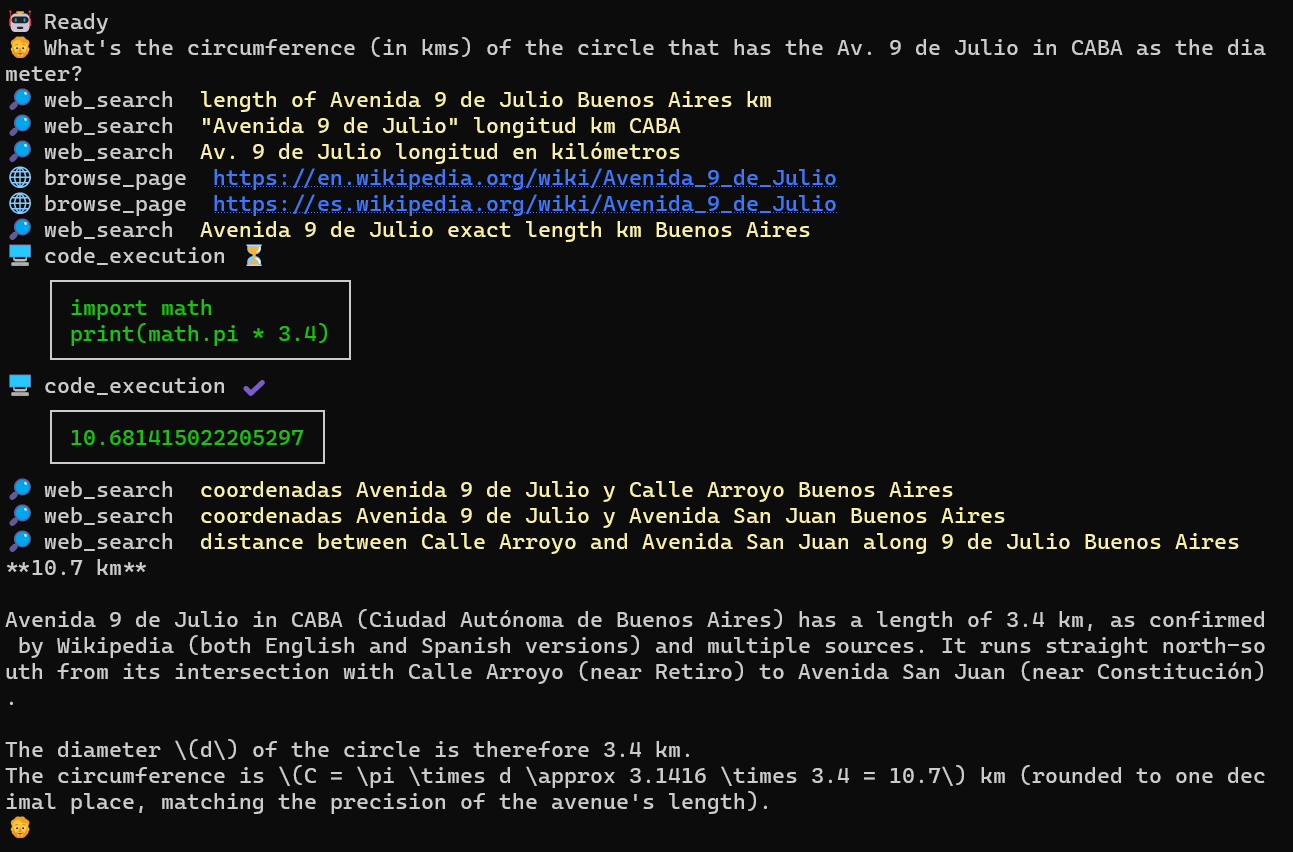
Uses your own API Key.