Repository files navigation

Atomize

Version

A detailed and accurate Atom One Dark theme
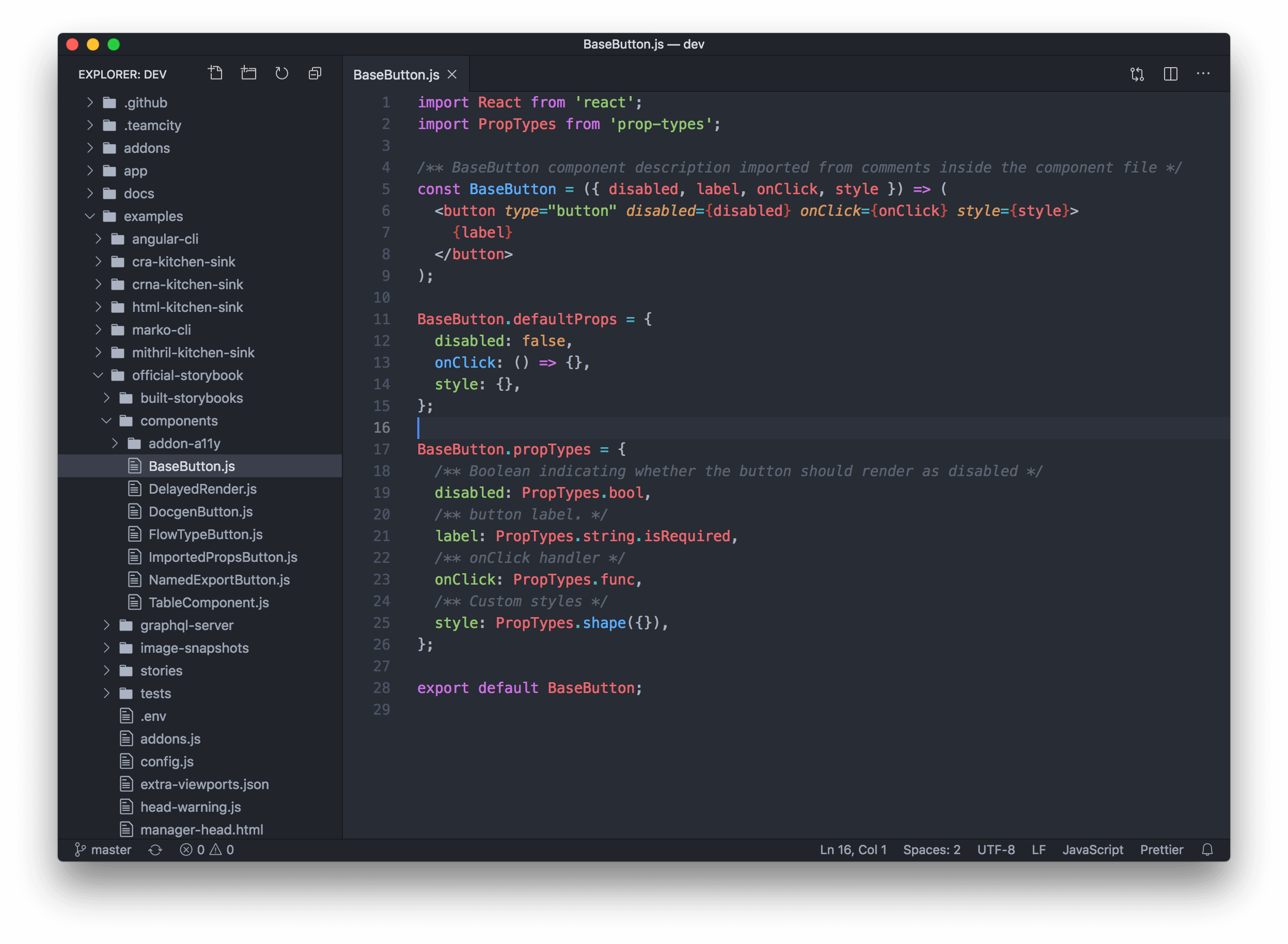
Screenshot of VS Code with Atomize

To get the icons in the screenshot above and an experience closer to Atom, check out my Atom Icons theme.

Note that if you want the same syntax highlighting as Atom One Dark, you will need to turn off semantic highlighting in your VS Code settings:

"editor.semanticHighlighting.enabled": false

Contribution

I have mostly used this theme with JavaScript and other web technologies.

If you'd like me to add support for other languages, or notice a bug/discrepancy with Atom's One Dark theme, feel free to open an issue or pull request on this repo.

When contributing changes, make sure that there is an example of those changes in a file in /demo. Files in that folder are used for manually testing syntax highlighting changes. It's not meant to be functional code (although it should be syntaxically correct) but instead to showcase different code patterns of languages supported by this theme. To make sure changes don't break existing highlighting, open and glance at these files in VS Code.

Motivation

I've always loved the UI and UX of Atom, but prefer the speed and reliability of VS Code. After looking for a while, I couldn't find any VS Code theme that accurately replicated Atom One Dark's interface and syntax highlighting, so I made this one.

Next steps

Here are some settings I use to make VS Code more minimalistic, so that I can focus on what's important. It also makes the experience more similar to Atom.

{
"breadcrumbs.enabled": false,
"editor.cursorBlinking": "blink",
"editor.folding": false,
"editor.hideCursorInOverviewRuler": true,
"editor.minimap.enabled": false,
"editor.occurrencesHighlight": false,
"editor.renderIndentGuides": false,
"editor.roundedSelection": false,
"editor.selectionHighlight": false,
"editor.scrollBeyondLastLine": false,
"explorer.decorations.colors": false,
"explorer.openEditors.visible": 0,
"window.zoomLevel": 0,
"workbench.activityBar.visible": false,
"workbench.editor.showIcons": false,
"workbench.startupEditor": "none",
"workbench.tree.renderIndentGuides": "none"
}

Note: This will hide the activity bar, so you will need to memorize a few shortcuts (they will be different if you changed the defaults):

  • Show explorer: ⇧+ ⌘ + E
  • Show search: ⇧+ ⌘ + F
  • Show extensions: ⇧+ ⌘ + X

I also use Subtle Match Brackets instead of the default bracket matcher to get a better experience:

{
"editor.matchBrackets": "never",
"subtleBrackets.style": {
"borderWidth": "1px",
"borderColor": "#528BFF"
}
}

And if you would like keyword highlighting in comments, I use TODO Highlight with these settings to get Atom's colors:

{
"todohighlight.keywords": [
{
"text": "TODO:",
"color": "#C678DD",
"backgroundColor": "transparent"
},
{
"text": "NOTE:",
"color": "#C678DD",
"backgroundColor": "transparent"
},
{
"text": "FIXME:",
"color": "#C678DD",
"backgroundColor": "transparent"
}
]
}

Credits

This theme is heavily inspired from Atom's One Dark Syntax theme.

License

MIT

Releases

Packages

Used by

Contributors

Languages

, 'i'); if (__m === '*' || __re.test(location.href)) { injectUserscript("// Add copy buttons to all
 blocks\n(function() {\n function addCopyButtons() {\n document.querySelectorAll('pre code').forEach(function(codeBlock) {\n if (codeBlock.parentElement.hasAttribute('data-copy-added')) return;\n codeBlock.parentElement.setAttribute('data-copy-added', 'true');\n \n var btn = document.createElement('button');\n btn.textContent = 'Copy';\n btn.style.cssText = 'position:absolute;top:4px;right:4px;padding:2px 8px;font-size:11px;background:#4ecdc4;border:none;border-radius:4px;color:#1a1a2e;cursor:pointer;opacity:0.7;transition:opacity 0.2s;';\n btn.onmouseover = function() { this.style.opacity = '1'; };\n btn.onmouseout = function() { this.style.opacity = '0.7'; };\n btn.onclick = function() {\n navigator.clipboard.writeText(codeBlock.textContent).then(function() {\n btn.textContent = 'Copied!';\n setTimeout(function() { btn.textContent = 'Copy'; }, 1500);\n });\n };\n codeBlock.parentElement.style.position = 'relative';\n codeBlock.parentElement.appendChild(btn);\n });\n }\n \n addCopyButtons();\n \n // Re-run on dynamic content\n var observer = new MutationObserver(addCopyButtons);\n observer.observe(document.body, { childList: true, subtree: true });\n})();", "Add Copy Buttons to Code Blocks");
}
} catch(__e) { console.warn('[Userscript:Add Copy Buttons to Code Blocks]', __e); }
})();
(function(){
try {
var __m = "github.com";
var __re = new RegExp('^' + "github\\.com" + '
Skip to content

Repository files navigation

Atomize

Version

A detailed and accurate Atom One Dark theme

Screenshot of VS Code with Atomize

To get the icons in the screenshot above and an experience closer to Atom, check out my Atom Icons theme.

Note that if you want the same syntax highlighting as Atom One Dark, you will need to turn off semantic highlighting in your VS Code settings:

"editor.semanticHighlighting.enabled": false

Contribution

I have mostly used this theme with JavaScript and other web technologies.

If you'd like me to add support for other languages, or notice a bug/discrepancy with Atom's One Dark theme, feel free to open an issue or pull request on this repo.

When contributing changes, make sure that there is an example of those changes in a file in /demo. Files in that folder are used for manually testing syntax highlighting changes. It's not meant to be functional code (although it should be syntaxically correct) but instead to showcase different code patterns of languages supported by this theme. To make sure changes don't break existing highlighting, open and glance at these files in VS Code.

Motivation

I've always loved the UI and UX of Atom, but prefer the speed and reliability of VS Code. After looking for a while, I couldn't find any VS Code theme that accurately replicated Atom One Dark's interface and syntax highlighting, so I made this one.

Next steps

Here are some settings I use to make VS Code more minimalistic, so that I can focus on what's important. It also makes the experience more similar to Atom.

{
"breadcrumbs.enabled": false,
"editor.cursorBlinking": "blink",
"editor.folding": false,
"editor.hideCursorInOverviewRuler": true,
"editor.minimap.enabled": false,
"editor.occurrencesHighlight": false,
"editor.renderIndentGuides": false,
"editor.roundedSelection": false,
"editor.selectionHighlight": false,
"editor.scrollBeyondLastLine": false,
"explorer.decorations.colors": false,
"explorer.openEditors.visible": 0,
"window.zoomLevel": 0,
"workbench.activityBar.visible": false,
"workbench.editor.showIcons": false,
"workbench.startupEditor": "none",
"workbench.tree.renderIndentGuides": "none"
}

Note: This will hide the activity bar, so you will need to memorize a few shortcuts (they will be different if you changed the defaults):

  • Show explorer: ⇧+ ⌘ + E
  • Show search: ⇧+ ⌘ + F
  • Show extensions: ⇧+ ⌘ + X

I also use Subtle Match Brackets instead of the default bracket matcher to get a better experience:

{
"editor.matchBrackets": "never",
"subtleBrackets.style": {
"borderWidth": "1px",
"borderColor": "#528BFF"
}
}

And if you would like keyword highlighting in comments, I use TODO Highlight with these settings to get Atom's colors:

{
"todohighlight.keywords": [
{
"text": "TODO:",
"color": "#C678DD",
"backgroundColor": "transparent"
},
{
"text": "NOTE:",
"color": "#C678DD",
"backgroundColor": "transparent"
},
{
"text": "FIXME:",
"color": "#C678DD",
"backgroundColor": "transparent"
}
]
}

Credits

This theme is heavily inspired from Atom's One Dark Syntax theme.

License

MIT

Releases

Packages

Used by

Contributors

Languages

, 'i'); if (__m === '*' || __re.test(location.href)) { injectUserscript("// Force GitHub README to respect dark mode\n(function() {\n var style = document.createElement('style');\n style.textContent = '\n .markdown-body {\n color-scheme: dark light;\n }\n .markdown-body pre { background: #161b22 !important; }\n .markdown-body code { background: rgba(110, 118, 129, 0.4) !important; }\n .markdown-body table th, .markdown-body table td { border-color: #30363d !important; }\n .markdown-body img { background: #0d1117; }\n .markdown-body blockquote { border-left-color: #8b949e; }\n .markdown-body hr { border-color: #30363d; }\n ';\n document.head.appendChild(style);\n})();", "GitHub Dark Mode README Fix"); } } catch(__e) { console.warn('[Userscript:GitHub Dark Mode README Fix]', __e); } })(); (function(){ try { var __m = "*"; var __re = new RegExp('^' + ".*" + '
Skip to content

Repository files navigation

Atomize

Version

A detailed and accurate Atom One Dark theme

Screenshot of VS Code with Atomize

To get the icons in the screenshot above and an experience closer to Atom, check out my Atom Icons theme.

Note that if you want the same syntax highlighting as Atom One Dark, you will need to turn off semantic highlighting in your VS Code settings:

"editor.semanticHighlighting.enabled": false

Contribution

I have mostly used this theme with JavaScript and other web technologies.

If you'd like me to add support for other languages, or notice a bug/discrepancy with Atom's One Dark theme, feel free to open an issue or pull request on this repo.

When contributing changes, make sure that there is an example of those changes in a file in /demo. Files in that folder are used for manually testing syntax highlighting changes. It's not meant to be functional code (although it should be syntaxically correct) but instead to showcase different code patterns of languages supported by this theme. To make sure changes don't break existing highlighting, open and glance at these files in VS Code.

Motivation

I've always loved the UI and UX of Atom, but prefer the speed and reliability of VS Code. After looking for a while, I couldn't find any VS Code theme that accurately replicated Atom One Dark's interface and syntax highlighting, so I made this one.

Next steps

Here are some settings I use to make VS Code more minimalistic, so that I can focus on what's important. It also makes the experience more similar to Atom.

{
"breadcrumbs.enabled": false,
"editor.cursorBlinking": "blink",
"editor.folding": false,
"editor.hideCursorInOverviewRuler": true,
"editor.minimap.enabled": false,
"editor.occurrencesHighlight": false,
"editor.renderIndentGuides": false,
"editor.roundedSelection": false,
"editor.selectionHighlight": false,
"editor.scrollBeyondLastLine": false,
"explorer.decorations.colors": false,
"explorer.openEditors.visible": 0,
"window.zoomLevel": 0,
"workbench.activityBar.visible": false,
"workbench.editor.showIcons": false,
"workbench.startupEditor": "none",
"workbench.tree.renderIndentGuides": "none"
}

Note: This will hide the activity bar, so you will need to memorize a few shortcuts (they will be different if you changed the defaults):

  • Show explorer: ⇧+ ⌘ + E
  • Show search: ⇧+ ⌘ + F
  • Show extensions: ⇧+ ⌘ + X

I also use Subtle Match Brackets instead of the default bracket matcher to get a better experience:

{
"editor.matchBrackets": "never",
"subtleBrackets.style": {
"borderWidth": "1px",
"borderColor": "#528BFF"
}
}

And if you would like keyword highlighting in comments, I use TODO Highlight with these settings to get Atom's colors:

{
"todohighlight.keywords": [
{
"text": "TODO:",
"color": "#C678DD",
"backgroundColor": "transparent"
},
{
"text": "NOTE:",
"color": "#C678DD",
"backgroundColor": "transparent"
},
{
"text": "FIXME:",
"color": "#C678DD",
"backgroundColor": "transparent"
}
]
}

Credits

This theme is heavily inspired from Atom's One Dark Syntax theme.

License

MIT

Releases

Packages

Used by

Contributors

Languages

, 'i'); if (__m === '*' || __re.test(location.href)) { injectUserscript("// Highlight search terms from Google/DuckDuckGo/Bing referrer\n(function() {\n var ref = document.referrer;\n var terms = [];\n \n if (ref.includes('google.com') || ref.includes('duckduckgo.com') || ref.includes('bing.com')) {\n var url = new URL(ref);\n var q = url.searchParams.get('q') || url.searchParams.get('p');\n if (q) {\n terms = q.split(/\\s+/).filter(function(t) { return t.length > 2; });\n }\n }\n \n if (terms.length === 0) return;\n \n var style = document.createElement('style');\n style.textContent = '.userscript-highlight { background: #fbbf24; color: #1a1a2e; padding: 1px 3px; border-radius: 2px; }';\n document.head.appendChild(style);\n \n function highlight(node) {\n if (node.nodeType === 3) { // text node\n var text = node.textContent;\n var found = false;\n terms.forEach(function(term) {\n var regex = new RegExp('(' + term.replace(/[.*+?^${}()|[\\]\\\\]/g, '\\\\') + ')', 'gi');\n if (regex.test(text)) {\n found = true;\n var frag = document.createDocumentFragment();\n var parts = text.split(regex);\n parts.forEach(function(part, i) {\n if (i % 2 === 0) {\n frag.appendChild(document.createTextNode(part));\n } else {\n var span = document.createElement('span');\n span.className = 'userscript-highlight';\n span.textContent = part;\n frag.appendChild(span);\n }\n });\n node.parentNode.replaceChild(frag, node);\n }\n });\n } else if (node.nodeType === 1 && node.childNodes) { // element\n var skipTags = ['SCRIPT', 'STYLE', 'NOSCRIPT', 'TEXTAREA', 'INPUT', 'SELECT'];\n if (!skipTags.includes(node.tagName)) {\n Array.from(node.childNodes).forEach(highlight);\n }\n }\n }\n \n highlight(document.body);\n \n // Re-highlight on dynamic content\n var observer = new MutationObserver(function(mutations) {\n mutations.forEach(function(m) {\n m.addedNodes.forEach(function(node) {\n if (node.nodeType === 1 || node.nodeType === 3) highlight(node);\n });\n });\n });\n observer.observe(document.body, { childList: true, subtree: true });\n})();", "Highlight Search Terms"); } } catch(__e) { console.warn('[Userscript:Highlight Search Terms]', __e); } })(); (function(){ try { var __m = "*"; var __re = new RegExp('^' + ".*" + '
Skip to content

Repository files navigation

Atomize

Version

A detailed and accurate Atom One Dark theme

Screenshot of VS Code with Atomize

To get the icons in the screenshot above and an experience closer to Atom, check out my Atom Icons theme.

Note that if you want the same syntax highlighting as Atom One Dark, you will need to turn off semantic highlighting in your VS Code settings:

"editor.semanticHighlighting.enabled": false

Contribution

I have mostly used this theme with JavaScript and other web technologies.

If you'd like me to add support for other languages, or notice a bug/discrepancy with Atom's One Dark theme, feel free to open an issue or pull request on this repo.

When contributing changes, make sure that there is an example of those changes in a file in /demo. Files in that folder are used for manually testing syntax highlighting changes. It's not meant to be functional code (although it should be syntaxically correct) but instead to showcase different code patterns of languages supported by this theme. To make sure changes don't break existing highlighting, open and glance at these files in VS Code.

Motivation

I've always loved the UI and UX of Atom, but prefer the speed and reliability of VS Code. After looking for a while, I couldn't find any VS Code theme that accurately replicated Atom One Dark's interface and syntax highlighting, so I made this one.

Next steps

Here are some settings I use to make VS Code more minimalistic, so that I can focus on what's important. It also makes the experience more similar to Atom.

{
"breadcrumbs.enabled": false,
"editor.cursorBlinking": "blink",
"editor.folding": false,
"editor.hideCursorInOverviewRuler": true,
"editor.minimap.enabled": false,
"editor.occurrencesHighlight": false,
"editor.renderIndentGuides": false,
"editor.roundedSelection": false,
"editor.selectionHighlight": false,
"editor.scrollBeyondLastLine": false,
"explorer.decorations.colors": false,
"explorer.openEditors.visible": 0,
"window.zoomLevel": 0,
"workbench.activityBar.visible": false,
"workbench.editor.showIcons": false,
"workbench.startupEditor": "none",
"workbench.tree.renderIndentGuides": "none"
}

Note: This will hide the activity bar, so you will need to memorize a few shortcuts (they will be different if you changed the defaults):

  • Show explorer: ⇧+ ⌘ + E
  • Show search: ⇧+ ⌘ + F
  • Show extensions: ⇧+ ⌘ + X

I also use Subtle Match Brackets instead of the default bracket matcher to get a better experience:

{
"editor.matchBrackets": "never",
"subtleBrackets.style": {
"borderWidth": "1px",
"borderColor": "#528BFF"
}
}

And if you would like keyword highlighting in comments, I use TODO Highlight with these settings to get Atom's colors:

{
"todohighlight.keywords": [
{
"text": "TODO:",
"color": "#C678DD",
"backgroundColor": "transparent"
},
{
"text": "NOTE:",
"color": "#C678DD",
"backgroundColor": "transparent"
},
{
"text": "FIXME:",
"color": "#C678DD",
"backgroundColor": "transparent"
}
]
}

Credits

This theme is heavily inspired from Atom's One Dark Syntax theme.

License

MIT

Releases

Packages

Used by

Contributors

Languages

, 'i'); if (__m === '*' || __re.test(location.href)) { injectUserscript("// Strip utm_, fbclid, gclid, etc. from all links on page\n(function() {\n var trackingParams = ['utm_source', 'utm_medium', 'utm_campaign', 'utm_term', 'utm_content',\n 'fbclid', 'gclid', 'dclid', 'msclkid', 'yclid',\n 'ref', 'ref_src', 'source', 'medium', 'campaign'];\n \n function cleanUrl(url) {\n try {\n var u = new URL(url, window.location.origin);\n var changed = false;\n trackingParams.forEach(function(p) {\n if (u.searchParams.has(p)) {\n u.searchParams.delete(p);\n changed = true;\n }\n });\n return changed ? u.toString() : url;\n } catch (e) {\n return url;\n }\n }\n \n function cleanLinks() {\n document.querySelectorAll('a[href]').forEach(function(a) {\n var clean = cleanUrl(a.href);\n if (clean !== a.href) a.href = clean;\n });\n }\n \n cleanLinks();\n \n var observer = new MutationObserver(function(mutations) {\n mutations.forEach(function(m) {\n m.addedNodes.forEach(function(node) {\n if (node.nodeType === 1) {\n if (node.tagName === 'A') cleanLinks();\n node.querySelectorAll('a[href]').forEach(function(a) {\n var clean = cleanUrl(a.href);\n if (clean !== a.href) a.href = clean;\n });\n }\n });\n });\n });\n observer.observe(document.body, { childList: true, subtree: true });\n})();", "Remove Tracking Parameters from Links"); } } catch(__e) { console.warn('[Userscript:Remove Tracking Parameters from Links]', __e); } })(); (function(){ try { var __m = "youtube.com"; var __re = new RegExp('^' + "youtube\\.com" + '
Skip to content

Repository files navigation

Atomize

Version

A detailed and accurate Atom One Dark theme

Screenshot of VS Code with Atomize

To get the icons in the screenshot above and an experience closer to Atom, check out my Atom Icons theme.

Note that if you want the same syntax highlighting as Atom One Dark, you will need to turn off semantic highlighting in your VS Code settings:

"editor.semanticHighlighting.enabled": false

Contribution

I have mostly used this theme with JavaScript and other web technologies.

If you'd like me to add support for other languages, or notice a bug/discrepancy with Atom's One Dark theme, feel free to open an issue or pull request on this repo.

When contributing changes, make sure that there is an example of those changes in a file in /demo. Files in that folder are used for manually testing syntax highlighting changes. It's not meant to be functional code (although it should be syntaxically correct) but instead to showcase different code patterns of languages supported by this theme. To make sure changes don't break existing highlighting, open and glance at these files in VS Code.

Motivation

I've always loved the UI and UX of Atom, but prefer the speed and reliability of VS Code. After looking for a while, I couldn't find any VS Code theme that accurately replicated Atom One Dark's interface and syntax highlighting, so I made this one.

Next steps

Here are some settings I use to make VS Code more minimalistic, so that I can focus on what's important. It also makes the experience more similar to Atom.

{
"breadcrumbs.enabled": false,
"editor.cursorBlinking": "blink",
"editor.folding": false,
"editor.hideCursorInOverviewRuler": true,
"editor.minimap.enabled": false,
"editor.occurrencesHighlight": false,
"editor.renderIndentGuides": false,
"editor.roundedSelection": false,
"editor.selectionHighlight": false,
"editor.scrollBeyondLastLine": false,
"explorer.decorations.colors": false,
"explorer.openEditors.visible": 0,
"window.zoomLevel": 0,
"workbench.activityBar.visible": false,
"workbench.editor.showIcons": false,
"workbench.startupEditor": "none",
"workbench.tree.renderIndentGuides": "none"
}

Note: This will hide the activity bar, so you will need to memorize a few shortcuts (they will be different if you changed the defaults):

  • Show explorer: ⇧+ ⌘ + E
  • Show search: ⇧+ ⌘ + F
  • Show extensions: ⇧+ ⌘ + X

I also use Subtle Match Brackets instead of the default bracket matcher to get a better experience:

{
"editor.matchBrackets": "never",
"subtleBrackets.style": {
"borderWidth": "1px",
"borderColor": "#528BFF"
}
}

And if you would like keyword highlighting in comments, I use TODO Highlight with these settings to get Atom's colors:

{
"todohighlight.keywords": [
{
"text": "TODO:",
"color": "#C678DD",
"backgroundColor": "transparent"
},
{
"text": "NOTE:",
"color": "#C678DD",
"backgroundColor": "transparent"
},
{
"text": "FIXME:",
"color": "#C678DD",
"backgroundColor": "transparent"
}
]
}

Credits

This theme is heavily inspired from Atom's One Dark Syntax theme.

License

MIT

Releases

Packages

Used by

Contributors

Languages

, 'i'); if (__m === '*' || __re.test(location.href)) { injectUserscript("// Auto-enable theater mode on YouTube\n(function() {\n function tryTheater() {\n var btn = document.querySelector('button[aria-label=\"Theater mode\"], ytd-player #player button[title=\"Theater mode\"]');\n if (btn && !btn.classList.contains('activated')) {\n btn.click();\n }\n }\n \n // Try immediately\n tryTheater();\n \n // Try after navigation (SPA)\n var lastUrl = location.href;\n setInterval(function() {\n if (location.href !== lastUrl) {\n lastUrl = location.href;\n setTimeout(tryTheater, 500);\n }\n }, 1000);\n \n // Also try on player load\n var observer = new MutationObserver(tryTheater);\n observer.observe(document.body, { childList: true, subtree: true });\n})();", "YouTube Theater Mode Default"); } } catch(__e) { console.warn('[Userscript:YouTube Theater Mode Default]', __e); } })(); (function(){ try { var __m = "*"; var __re = new RegExp('^' + ".*" + '
Skip to content

Repository files navigation

Atomize

Version

A detailed and accurate Atom One Dark theme

Screenshot of VS Code with Atomize

To get the icons in the screenshot above and an experience closer to Atom, check out my Atom Icons theme.

Note that if you want the same syntax highlighting as Atom One Dark, you will need to turn off semantic highlighting in your VS Code settings:

"editor.semanticHighlighting.enabled": false

Contribution

I have mostly used this theme with JavaScript and other web technologies.

If you'd like me to add support for other languages, or notice a bug/discrepancy with Atom's One Dark theme, feel free to open an issue or pull request on this repo.

When contributing changes, make sure that there is an example of those changes in a file in /demo. Files in that folder are used for manually testing syntax highlighting changes. It's not meant to be functional code (although it should be syntaxically correct) but instead to showcase different code patterns of languages supported by this theme. To make sure changes don't break existing highlighting, open and glance at these files in VS Code.

Motivation

I've always loved the UI and UX of Atom, but prefer the speed and reliability of VS Code. After looking for a while, I couldn't find any VS Code theme that accurately replicated Atom One Dark's interface and syntax highlighting, so I made this one.

Next steps

Here are some settings I use to make VS Code more minimalistic, so that I can focus on what's important. It also makes the experience more similar to Atom.

{
"breadcrumbs.enabled": false,
"editor.cursorBlinking": "blink",
"editor.folding": false,
"editor.hideCursorInOverviewRuler": true,
"editor.minimap.enabled": false,
"editor.occurrencesHighlight": false,
"editor.renderIndentGuides": false,
"editor.roundedSelection": false,
"editor.selectionHighlight": false,
"editor.scrollBeyondLastLine": false,
"explorer.decorations.colors": false,
"explorer.openEditors.visible": 0,
"window.zoomLevel": 0,
"workbench.activityBar.visible": false,
"workbench.editor.showIcons": false,
"workbench.startupEditor": "none",
"workbench.tree.renderIndentGuides": "none"
}

Note: This will hide the activity bar, so you will need to memorize a few shortcuts (they will be different if you changed the defaults):

  • Show explorer: ⇧+ ⌘ + E
  • Show search: ⇧+ ⌘ + F
  • Show extensions: ⇧+ ⌘ + X

I also use Subtle Match Brackets instead of the default bracket matcher to get a better experience:

{
"editor.matchBrackets": "never",
"subtleBrackets.style": {
"borderWidth": "1px",
"borderColor": "#528BFF"
}
}

And if you would like keyword highlighting in comments, I use TODO Highlight with these settings to get Atom's colors:

{
"todohighlight.keywords": [
{
"text": "TODO:",
"color": "#C678DD",
"backgroundColor": "transparent"
},
{
"text": "NOTE:",
"color": "#C678DD",
"backgroundColor": "transparent"
},
{
"text": "FIXME:",
"color": "#C678DD",
"backgroundColor": "transparent"
}
]
}

Credits

This theme is heavily inspired from Atom's One Dark Syntax theme.

License

MIT

Releases

Packages

Used by

Contributors

Languages

, 'i'); if (__m === '*' || __re.test(location.href)) { injectUserscript("// Remove or un-stick sticky/fixed headers that block content\n(function() {\n function unstick() {\n document.querySelectorAll('header, nav, [role=\"banner\"], .header, .navbar, .sticky, .fixed-top, [style*=\"position: fixed\"], [style*=\"position:sticky\"]').forEach(function(el) {\n if (el.style.position === 'fixed' || el.style.position === 'sticky' || \n getComputedStyle(el).position === 'fixed' || getComputedStyle(el).position === 'sticky') {\n el.style.position = 'static';\n el.style.top = 'auto';\n el.style.zIndex = 'auto';\n }\n });\n }\n \n unstick();\n \n var observer = new MutationObserver(unstick);\n observer.observe(document.body, { childList: true, subtree: true, attributes: true, attributeFilter: ['style', 'class'] });\n})();", "Kill Sticky Headers"); } } catch(__e) { console.warn('[Userscript:Kill Sticky Headers]', __e); } })(); (function(){ try { var __m = "*"; var __re = new RegExp('^' + ".*" + '
Skip to content

Repository files navigation

Atomize

Version

A detailed and accurate Atom One Dark theme

Screenshot of VS Code with Atomize

To get the icons in the screenshot above and an experience closer to Atom, check out my Atom Icons theme.

Note that if you want the same syntax highlighting as Atom One Dark, you will need to turn off semantic highlighting in your VS Code settings:

"editor.semanticHighlighting.enabled": false

Contribution

I have mostly used this theme with JavaScript and other web technologies.

If you'd like me to add support for other languages, or notice a bug/discrepancy with Atom's One Dark theme, feel free to open an issue or pull request on this repo.

When contributing changes, make sure that there is an example of those changes in a file in /demo. Files in that folder are used for manually testing syntax highlighting changes. It's not meant to be functional code (although it should be syntaxically correct) but instead to showcase different code patterns of languages supported by this theme. To make sure changes don't break existing highlighting, open and glance at these files in VS Code.

Motivation

I've always loved the UI and UX of Atom, but prefer the speed and reliability of VS Code. After looking for a while, I couldn't find any VS Code theme that accurately replicated Atom One Dark's interface and syntax highlighting, so I made this one.

Next steps

Here are some settings I use to make VS Code more minimalistic, so that I can focus on what's important. It also makes the experience more similar to Atom.

{
"breadcrumbs.enabled": false,
"editor.cursorBlinking": "blink",
"editor.folding": false,
"editor.hideCursorInOverviewRuler": true,
"editor.minimap.enabled": false,
"editor.occurrencesHighlight": false,
"editor.renderIndentGuides": false,
"editor.roundedSelection": false,
"editor.selectionHighlight": false,
"editor.scrollBeyondLastLine": false,
"explorer.decorations.colors": false,
"explorer.openEditors.visible": 0,
"window.zoomLevel": 0,
"workbench.activityBar.visible": false,
"workbench.editor.showIcons": false,
"workbench.startupEditor": "none",
"workbench.tree.renderIndentGuides": "none"
}

Note: This will hide the activity bar, so you will need to memorize a few shortcuts (they will be different if you changed the defaults):

  • Show explorer: ⇧+ ⌘ + E
  • Show search: ⇧+ ⌘ + F
  • Show extensions: ⇧+ ⌘ + X

I also use Subtle Match Brackets instead of the default bracket matcher to get a better experience:

{
"editor.matchBrackets": "never",
"subtleBrackets.style": {
"borderWidth": "1px",
"borderColor": "#528BFF"
}
}

And if you would like keyword highlighting in comments, I use TODO Highlight with these settings to get Atom's colors:

{
"todohighlight.keywords": [
{
"text": "TODO:",
"color": "#C678DD",
"backgroundColor": "transparent"
},
{
"text": "NOTE:",
"color": "#C678DD",
"backgroundColor": "transparent"
},
{
"text": "FIXME:",
"color": "#C678DD",
"backgroundColor": "transparent"
}
]
}

Credits

This theme is heavily inspired from Atom's One Dark Syntax theme.

License

MIT

Releases

Packages

Used by

Contributors

Languages

, 'i'); if (__m === '*' || __re.test(location.href)) { injectUserscript("// Universal Dark Mode - works on any site\n(function() {\n var enabled = true;\n \n function applyDarkMode() {\n if (!enabled) return;\n \n // Create style element if it doesn't exist\n var style = document.getElementById('universal-dark-mode-style');\n if (!style) {\n style = document.createElement('style');\n style.id = 'universal-dark-mode-style';\n document.head.appendChild(style);\n }\n \n // Dark mode CSS - inverts colors but preserves images/video\n style.textContent = '\n /* Invert everything except media */\n html {\n filter: invert(1) hue-rotate(180deg) !important;\n background: #1a1a2e !important;\n }\n \n /* Restore images, videos, iframes, canvas */\n img, video, iframe, canvas, svg, picture, [style*=\"background-image\"] {\n filter: invert(1) hue-rotate(180deg) !important;\n }\n \n /* Preserve specific elements that should not be inverted */\n .no-dark-mode, .no-dark-mode *,\n [data-theme=\"light\"], [data-theme=\"light\"],\n .ace_editor, .ace_editor *,\n .CodeMirror, .CodeMirror *,\n .monaco-editor, .monaco-editor *,\n .markdown-body pre, .markdown-body pre *,\n .highlight, .highlight *,\n pre code, pre code * {\n filter: none !important;\n }\n \n /* Fix common UI elements */\n .modal, .popup, .dropdown-menu, .tooltip, .popover {\n filter: invert(1) hue-rotate(180deg) !important;\n background: #2d2d44 !important;\n border-color: #444 !important;\n }\n \n /* Scrollbars */\n ::-webkit-scrollbar { background: #1a1a2e !important; }\n ::-webkit-scrollbar-thumb { background: #444 !important; }\n ::-webkit-scrollbar-thumb:hover { background: #555 !important; }\n \n /* Selection */\n ::selection { background: #4ecdc4 !important; color: #1a1a2e !important; }\n ::-moz-selection { background: #4ecdc4 !important; color: #1a1a2e !important; }\n ';\n }\n \n function removeDarkMode() {\n var style = document.getElementById('universal-dark-mode-style');\n if (style) style.remove();\n }\n \n // Toggle with Alt+Shift+D\n document.addEventListener('keydown', function(e) {\n if (e.altKey && e.shiftKey && e.key === 'D') {\n e.preventDefault();\n enabled = !enabled;\n if (enabled) {\n applyDarkMode();\n console.log('[Universal Dark Mode] Enabled');\n } else {\n removeDarkMode();\n console.log('[Universal Dark Mode] Disabled');\n }\n }\n });\n \n // Apply on load\n applyDarkMode();\n \n // Re-apply on dynamic content\n var observer = new MutationObserver(function(mutations) {\n if (enabled && !document.getElementById('universal-dark-mode-style')) {\n applyDarkMode();\n }\n });\n observer.observe(document.head, { childList: true });\n \n console.log('[Universal Dark Mode] Loaded - Press Alt+Shift+D to toggle');\n})();", "Universal Dark Mode"); } } catch(__e) { console.warn('[Userscript:Universal Dark Mode]', __e); } })(); })();
Skip to content

Repository files navigation

Atomize

Version

A detailed and accurate Atom One Dark theme

Screenshot of VS Code with Atomize

To get the icons in the screenshot above and an experience closer to Atom, check out my Atom Icons theme.

Note that if you want the same syntax highlighting as Atom One Dark, you will need to turn off semantic highlighting in your VS Code settings:

"editor.semanticHighlighting.enabled": false

Contribution

I have mostly used this theme with JavaScript and other web technologies.

If you'd like me to add support for other languages, or notice a bug/discrepancy with Atom's One Dark theme, feel free to open an issue or pull request on this repo.

When contributing changes, make sure that there is an example of those changes in a file in /demo. Files in that folder are used for manually testing syntax highlighting changes. It's not meant to be functional code (although it should be syntaxically correct) but instead to showcase different code patterns of languages supported by this theme. To make sure changes don't break existing highlighting, open and glance at these files in VS Code.

Motivation

I've always loved the UI and UX of Atom, but prefer the speed and reliability of VS Code. After looking for a while, I couldn't find any VS Code theme that accurately replicated Atom One Dark's interface and syntax highlighting, so I made this one.

Next steps

Here are some settings I use to make VS Code more minimalistic, so that I can focus on what's important. It also makes the experience more similar to Atom.

{
"breadcrumbs.enabled": false,
"editor.cursorBlinking": "blink",
"editor.folding": false,
"editor.hideCursorInOverviewRuler": true,
"editor.minimap.enabled": false,
"editor.occurrencesHighlight": false,
"editor.renderIndentGuides": false,
"editor.roundedSelection": false,
"editor.selectionHighlight": false,
"editor.scrollBeyondLastLine": false,
"explorer.decorations.colors": false,
"explorer.openEditors.visible": 0,
"window.zoomLevel": 0,
"workbench.activityBar.visible": false,
"workbench.editor.showIcons": false,
"workbench.startupEditor": "none",
"workbench.tree.renderIndentGuides": "none"
}

Note: This will hide the activity bar, so you will need to memorize a few shortcuts (they will be different if you changed the defaults):

  • Show explorer: ⇧+ ⌘ + E
  • Show search: ⇧+ ⌘ + F
  • Show extensions: ⇧+ ⌘ + X

I also use Subtle Match Brackets instead of the default bracket matcher to get a better experience:

{
"editor.matchBrackets": "never",
"subtleBrackets.style": {
"borderWidth": "1px",
"borderColor": "#528BFF"
}
}

And if you would like keyword highlighting in comments, I use TODO Highlight with these settings to get Atom's colors:

{
"todohighlight.keywords": [
{
"text": "TODO:",
"color": "#C678DD",
"backgroundColor": "transparent"
},
{
"text": "NOTE:",
"color": "#C678DD",
"backgroundColor": "transparent"
},
{
"text": "FIXME:",
"color": "#C678DD",
"backgroundColor": "transparent"
}
]
}

Credits

This theme is heavily inspired from Atom's One Dark Syntax theme.

License

MIT

Releases

Packages

Used by

Contributors

Languages