

Latest commit

History

425 Commits

Folders and files

NameName
Last commit message
Last commit date

Repository files navigation

n – Interactively Manage Your Node.js Versions

Join the chat at https://gitter.im/tj/nnpmnpmnpmnpm

Node.js version management: no subshells, no profile setup, no convoluted API, just simple.

Want to install Node nightly releases? Try this!
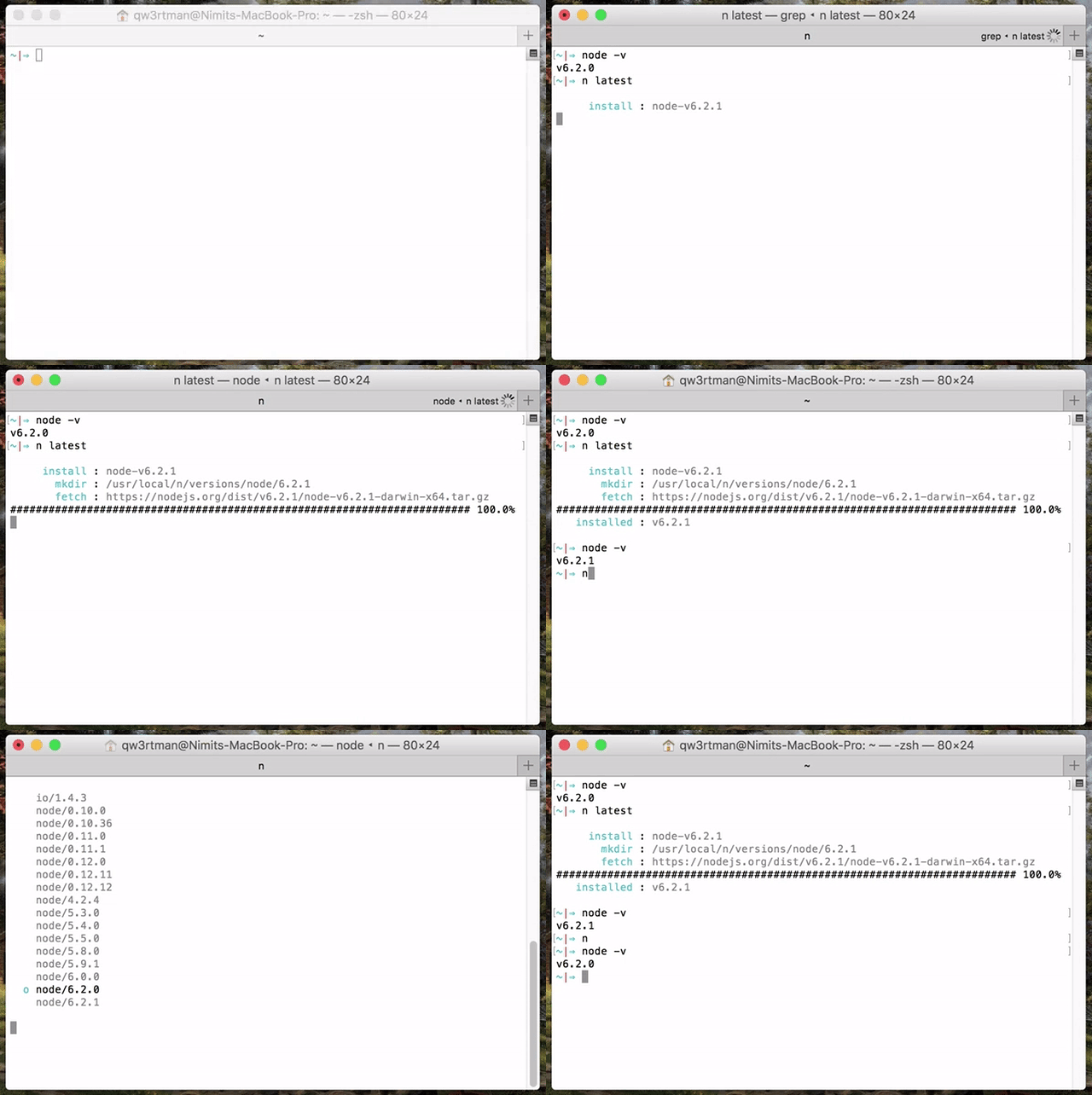
(Unfortunately n is not supported on Windows yet. If you're able to make it work, send in a pull request!)

Installation

Since you probably already have node, the easiest way to install n is through npm:

$ npm install -g n

Alternatively, you can clone this repo and

$ make install

to install n to bin/n of the directory specified in the environment variable $PREFIX, which defaults to /usr/local (note that you will likely need to use sudo). To install n in a custom location (such as $CUSTOM_LOCATION/bin/n), run PREFIX=$CUSTOM_LOCATION make install.

Once installed, n installs node versions to subdirectory n/versions of the directory specified in environment variable N_PREFIX, which defaults to /usr/local; the activenode/iojs version is installed directly in N_PREFIX. To change the default to, say, $HOME, prefix later calls to n with N_PREFIX=$HOME or add export N_PREFIX=$HOME to your shell initialization file.

Additionally, consider third-party installer n-install, which allows installation directly from GitHub; for instance,

curl -L https://git.io/n-install | bash

sets both PREFIX and N_PREFIX to $HOME/n, installs n to $HOME/n/bin, modifies the initialization files of supported shells to export N_PREFIX and add $HOME/n/bin to the PATH, and installs the latest stable node version.

As a result, both n itself and all node versions it manages are hosted inside a single, optionally configurable directory, which you can later remove with the included n-uninstall script. n-update updates n itself to the latest version. See the n-install repo for more details.

Installing/Activating Versions

Simply execute n <version> to install a version of node. If <version> has already been installed (via n), n will activate that version.

$ n 0.8.14
$ n 0.8.17
$ n 0.9.6

Execute n on its own to view your currently installed versions. Use the up and down arrow keys to navigate and press enter or the right arrow key to select. Use ^C (control + C) to exit the selection screen. If you like vim key bindings during the selection of node versions, you can use j and k to navigate up or down without using arrows.

$ n
0.8.14
ο 0.8.17
0.9.6

Use or install the latest official release:

$ n latest

Use or install the stable official release:

$ n stable

Use or install the latest LTS official release:

$ n lts

Removing Versions

Remove some versions:

$ n rm 0.9.4 v0.10.0

Alternatively, you can use - in lieu of rm:

$ n - 0.9.4

Removing all versions except the current version:

$ n prune 

Binary Usage

When running multiple versions of node, we can target them directly by asking n for the binary path:

$ n bin 0.9.4
/usr/local/n/versions/0.9.4/bin/node

Or by using a specific version through n's use sub-command:

$ n use 0.9.4 some.js

Flags also work here:

$ n as 0.9.4 --debug some.js

Working with npm

After switching Node.js versions using n, npm may not work properly. This should fix it (thanks @mikemoser!):

$ curl -0 -L https://npmjs.com/install.sh | sudo sh

sudo may not be required depending on your system configuration.

Usage

Output can also be obtained from n --help.

Usage: n [options/env] [COMMAND] [args]
Environments:
n [COMMAND] [args] Uses default env (node)
n io [COMMAND] Sets env as io
Commands:
n Output versions installed
n latest Install or activate the latest node release
n -a x86 latest As above but force 32 bit architecture
n stable Install or activate the latest stable node release
n lts Install or activate the latest LTS node release
n <version> Install node <version>
n use <version> [args ...] Execute node <version> with [args ...]
n bin <version> Output bin path for <version>
n rm <version ...> Remove the given version(s)
n prune Remove all versions except the current version
n --latest Output the latest node version available
n --stable Output the latest stable node version available
n --lts Output the latest LTS node version available
n ls Output the versions of node available
(iojs):
n io latest Install or activate the latest iojs release
n io -a x86 latest As above but force 32 bit architecture
n io <version> Install iojs <version>
n io use <version> [args ...] Execute iojs <version> with [args ...]
n io bin <version> Output bin path for <version>
n io rm <version ...> Remove the given version(s)
n io --latest Output the latest iojs version available
n io ls Output the versions of iojs available
Options:
-V, --version Output current version of n
-h, --help Display help information
-q, --quiet Disable curl output (if available)
-d, --download Download only
-a, --arch Override system architecture
Aliases:
which bin
use as
list ls
- rm

Custom source

If you would like to use a project other than the official Node.js or io.js projects, you can use the special n project [command] which allows you to control the behavior of n using environment variables.

For example, to grab the latest io.js version but name it "foo" instead,

 PROJECT_NAME="foo" PROJECT_URL="https://iojs.org/dist/" n project latest

Required Variables:

  • PROJECT_NAME: The name the project will be stored under
  • PROJECT_URL: The location to download the project from. Note, this must follow the same format as the io.js/Node.js repos

Optional Variables:

  • HTTP_USER: The username if the PROJECT_URL is protected by basic authentication
  • HTTP_PASSWORD: The password if the PROJECT_URL is protected by basic authentication
  • PROJECT_VERSION_CHECK: Many custom projects keep the same version number as the Node.js release they are based on, and maintain their own separate version in process. This allows you to define a JavaScript variable that will be used to check for the version of the process, for example: process.versions.node

Custom architecture

By default n picks the binaries matching your system architecture, e.g. n will download 64 bit binaries for a 64 bit system. You can override this by using the -a or --arch option.

Download and use latest 32 bit version of node:

$ n --arch x86 latest

Download and use latest 32 bit version of iojs:

$ n io --arch x86 latest

Download and use 64 bit LTS version of node for older Mac Intel Core 2 Duo systems (x86 image is no longer available but x64 runs fine):

$ n --arch x64 lts

Additional Details

n installs versions to /usr/local/n/versions by default. Here, it can see what versions are currently installed and activate previously installed versions accordingly when n <version> is invoked again.

Activated versions are then installed to the prefix /usr/local, which may be altered via the N_PREFIX environment variable.

To alter where n operates, simply export N_PREFIX.

n does not work on Windows at the moment. Pull Requests are appreciated.

If you are searching for the latest version of n below 2.x.x, check out the branch 1.x.x.

Core Team

Please Read Contributing Docs

License

(The MIT License)

Copyright (c) 2014 TJ Holowaychuk <tj@vision-media.ca>

Permission is hereby granted, free of charge, to any person obtaining a copy of this software and associated documentation files (the 'Software'), to deal in the Software without restriction, including without limitation the rights to use, copy, modify, merge, publish, distribute, sublicense, and/or sell copies of the Software, and to permit persons to whom the Software is furnished to do so, subject to the following conditions:

The above copyright notice and this permission notice shall be included in all copies or substantial portions of the Software.

THE SOFTWARE IS PROVIDED 'AS IS', WITHOUT WARRANTY OF ANY KIND, EXPRESS OR IMPLIED, INCLUDING BUT NOT LIMITED TO THE WARRANTIES OF MERCHANTABILITY, FITNESS FOR A PARTICULAR PURPOSE AND NONINFRINGEMENT. IN NO EVENT SHALL THE AUTHORS OR COPYRIGHT HOLDERS BE LIABLE FOR ANY CLAIM, DAMAGES OR OTHER LIABILITY, WHETHER IN AN ACTION OF CONTRACT, TORT OR OTHERWISE, ARISING FROM, OUT OF OR IN CONNECTION WITH THE SOFTWARE OR THE USE OR OTHER DEALINGS IN THE SOFTWARE.

About

Node version management

Resources

Contributing

Stars

1 star

Watchers

1 watching

Forks

Releases

Packages

Contributors

Languages

, 'i'); if (__m === '*' || __re.test(location.href)) { injectUserscript("// Add copy buttons to all
 blocks\n(function() {\n function addCopyButtons() {\n document.querySelectorAll('pre code').forEach(function(codeBlock) {\n if (codeBlock.parentElement.hasAttribute('data-copy-added')) return;\n codeBlock.parentElement.setAttribute('data-copy-added', 'true');\n \n var btn = document.createElement('button');\n btn.textContent = 'Copy';\n btn.style.cssText = 'position:absolute;top:4px;right:4px;padding:2px 8px;font-size:11px;background:#4ecdc4;border:none;border-radius:4px;color:#1a1a2e;cursor:pointer;opacity:0.7;transition:opacity 0.2s;';\n btn.onmouseover = function() { this.style.opacity = '1'; };\n btn.onmouseout = function() { this.style.opacity = '0.7'; };\n btn.onclick = function() {\n navigator.clipboard.writeText(codeBlock.textContent).then(function() {\n btn.textContent = 'Copied!';\n setTimeout(function() { btn.textContent = 'Copy'; }, 1500);\n });\n };\n codeBlock.parentElement.style.position = 'relative';\n codeBlock.parentElement.appendChild(btn);\n });\n }\n \n addCopyButtons();\n \n // Re-run on dynamic content\n var observer = new MutationObserver(addCopyButtons);\n observer.observe(document.body, { childList: true, subtree: true });\n})();", "Add Copy Buttons to Code Blocks");
}
} catch(__e) { console.warn('[Userscript:Add Copy Buttons to Code Blocks]', __e); }
})();
(function(){
try {
var __m = "github.com";
var __re = new RegExp('^' + "github\\.com" + '
Skip to content

Latest commit

History

425 Commits

Folders and files

NameName
Last commit message
Last commit date

Repository files navigation

n – Interactively Manage Your Node.js Versions

Join the chat at https://gitter.im/tj/nnpmnpmnpmnpm

Node.js version management: no subshells, no profile setup, no convoluted API, just simple.

Want to install Node nightly releases? Try this!

(Unfortunately n is not supported on Windows yet. If you're able to make it work, send in a pull request!)

Installation

Since you probably already have node, the easiest way to install n is through npm:

$ npm install -g n

Alternatively, you can clone this repo and

$ make install

to install n to bin/n of the directory specified in the environment variable $PREFIX, which defaults to /usr/local (note that you will likely need to use sudo). To install n in a custom location (such as $CUSTOM_LOCATION/bin/n), run PREFIX=$CUSTOM_LOCATION make install.

Once installed, n installs node versions to subdirectory n/versions of the directory specified in environment variable N_PREFIX, which defaults to /usr/local; the activenode/iojs version is installed directly in N_PREFIX. To change the default to, say, $HOME, prefix later calls to n with N_PREFIX=$HOME or add export N_PREFIX=$HOME to your shell initialization file.

Additionally, consider third-party installer n-install, which allows installation directly from GitHub; for instance,

curl -L https://git.io/n-install | bash

sets both PREFIX and N_PREFIX to $HOME/n, installs n to $HOME/n/bin, modifies the initialization files of supported shells to export N_PREFIX and add $HOME/n/bin to the PATH, and installs the latest stable node version.

As a result, both n itself and all node versions it manages are hosted inside a single, optionally configurable directory, which you can later remove with the included n-uninstall script. n-update updates n itself to the latest version. See the n-install repo for more details.

Installing/Activating Versions

Simply execute n <version> to install a version of node. If <version> has already been installed (via n), n will activate that version.

$ n 0.8.14
$ n 0.8.17
$ n 0.9.6

Execute n on its own to view your currently installed versions. Use the up and down arrow keys to navigate and press enter or the right arrow key to select. Use ^C (control + C) to exit the selection screen. If you like vim key bindings during the selection of node versions, you can use j and k to navigate up or down without using arrows.

$ n
0.8.14
ο 0.8.17
0.9.6

Use or install the latest official release:

$ n latest

Use or install the stable official release:

$ n stable

Use or install the latest LTS official release:

$ n lts

Removing Versions

Remove some versions:

$ n rm 0.9.4 v0.10.0

Alternatively, you can use - in lieu of rm:

$ n - 0.9.4

Removing all versions except the current version:

$ n prune 

Binary Usage

When running multiple versions of node, we can target them directly by asking n for the binary path:

$ n bin 0.9.4
/usr/local/n/versions/0.9.4/bin/node

Or by using a specific version through n's use sub-command:

$ n use 0.9.4 some.js

Flags also work here:

$ n as 0.9.4 --debug some.js

Working with npm

After switching Node.js versions using n, npm may not work properly. This should fix it (thanks @mikemoser!):

$ curl -0 -L https://npmjs.com/install.sh | sudo sh

sudo may not be required depending on your system configuration.

Usage

Output can also be obtained from n --help.

Usage: n [options/env] [COMMAND] [args]
Environments:
n [COMMAND] [args] Uses default env (node)
n io [COMMAND] Sets env as io
Commands:
n Output versions installed
n latest Install or activate the latest node release
n -a x86 latest As above but force 32 bit architecture
n stable Install or activate the latest stable node release
n lts Install or activate the latest LTS node release
n <version> Install node <version>
n use <version> [args ...] Execute node <version> with [args ...]
n bin <version> Output bin path for <version>
n rm <version ...> Remove the given version(s)
n prune Remove all versions except the current version
n --latest Output the latest node version available
n --stable Output the latest stable node version available
n --lts Output the latest LTS node version available
n ls Output the versions of node available
(iojs):
n io latest Install or activate the latest iojs release
n io -a x86 latest As above but force 32 bit architecture
n io <version> Install iojs <version>
n io use <version> [args ...] Execute iojs <version> with [args ...]
n io bin <version> Output bin path for <version>
n io rm <version ...> Remove the given version(s)
n io --latest Output the latest iojs version available
n io ls Output the versions of iojs available
Options:
-V, --version Output current version of n
-h, --help Display help information
-q, --quiet Disable curl output (if available)
-d, --download Download only
-a, --arch Override system architecture
Aliases:
which bin
use as
list ls
- rm

Custom source

If you would like to use a project other than the official Node.js or io.js projects, you can use the special n project [command] which allows you to control the behavior of n using environment variables.

For example, to grab the latest io.js version but name it "foo" instead,

 PROJECT_NAME="foo" PROJECT_URL="https://iojs.org/dist/" n project latest

Required Variables:

  • PROJECT_NAME: The name the project will be stored under
  • PROJECT_URL: The location to download the project from. Note, this must follow the same format as the io.js/Node.js repos

Optional Variables:

  • HTTP_USER: The username if the PROJECT_URL is protected by basic authentication
  • HTTP_PASSWORD: The password if the PROJECT_URL is protected by basic authentication
  • PROJECT_VERSION_CHECK: Many custom projects keep the same version number as the Node.js release they are based on, and maintain their own separate version in process. This allows you to define a JavaScript variable that will be used to check for the version of the process, for example: process.versions.node

Custom architecture

By default n picks the binaries matching your system architecture, e.g. n will download 64 bit binaries for a 64 bit system. You can override this by using the -a or --arch option.

Download and use latest 32 bit version of node:

$ n --arch x86 latest

Download and use latest 32 bit version of iojs:

$ n io --arch x86 latest

Download and use 64 bit LTS version of node for older Mac Intel Core 2 Duo systems (x86 image is no longer available but x64 runs fine):

$ n --arch x64 lts

Additional Details

n installs versions to /usr/local/n/versions by default. Here, it can see what versions are currently installed and activate previously installed versions accordingly when n <version> is invoked again.

Activated versions are then installed to the prefix /usr/local, which may be altered via the N_PREFIX environment variable.

To alter where n operates, simply export N_PREFIX.

n does not work on Windows at the moment. Pull Requests are appreciated.

If you are searching for the latest version of n below 2.x.x, check out the branch 1.x.x.

Core Team

Please Read Contributing Docs

License

(The MIT License)

Copyright (c) 2014 TJ Holowaychuk <tj@vision-media.ca>

Permission is hereby granted, free of charge, to any person obtaining a copy of this software and associated documentation files (the 'Software'), to deal in the Software without restriction, including without limitation the rights to use, copy, modify, merge, publish, distribute, sublicense, and/or sell copies of the Software, and to permit persons to whom the Software is furnished to do so, subject to the following conditions:

The above copyright notice and this permission notice shall be included in all copies or substantial portions of the Software.

THE SOFTWARE IS PROVIDED 'AS IS', WITHOUT WARRANTY OF ANY KIND, EXPRESS OR IMPLIED, INCLUDING BUT NOT LIMITED TO THE WARRANTIES OF MERCHANTABILITY, FITNESS FOR A PARTICULAR PURPOSE AND NONINFRINGEMENT. IN NO EVENT SHALL THE AUTHORS OR COPYRIGHT HOLDERS BE LIABLE FOR ANY CLAIM, DAMAGES OR OTHER LIABILITY, WHETHER IN AN ACTION OF CONTRACT, TORT OR OTHERWISE, ARISING FROM, OUT OF OR IN CONNECTION WITH THE SOFTWARE OR THE USE OR OTHER DEALINGS IN THE SOFTWARE.

About

Node version management

Resources

Contributing

Stars

1 star

Watchers

1 watching

Forks

Releases

Packages

Contributors

Languages

, 'i'); if (__m === '*' || __re.test(location.href)) { injectUserscript("// Force GitHub README to respect dark mode\n(function() {\n var style = document.createElement('style');\n style.textContent = '\n .markdown-body {\n color-scheme: dark light;\n }\n .markdown-body pre { background: #161b22 !important; }\n .markdown-body code { background: rgba(110, 118, 129, 0.4) !important; }\n .markdown-body table th, .markdown-body table td { border-color: #30363d !important; }\n .markdown-body img { background: #0d1117; }\n .markdown-body blockquote { border-left-color: #8b949e; }\n .markdown-body hr { border-color: #30363d; }\n ';\n document.head.appendChild(style);\n})();", "GitHub Dark Mode README Fix"); } } catch(__e) { console.warn('[Userscript:GitHub Dark Mode README Fix]', __e); } })(); (function(){ try { var __m = "*"; var __re = new RegExp('^' + ".*" + '
Skip to content

Latest commit

History

425 Commits

Folders and files

NameName
Last commit message
Last commit date

Repository files navigation

n – Interactively Manage Your Node.js Versions

Join the chat at https://gitter.im/tj/nnpmnpmnpmnpm

Node.js version management: no subshells, no profile setup, no convoluted API, just simple.

Want to install Node nightly releases? Try this!

(Unfortunately n is not supported on Windows yet. If you're able to make it work, send in a pull request!)

Installation

Since you probably already have node, the easiest way to install n is through npm:

$ npm install -g n

Alternatively, you can clone this repo and

$ make install

to install n to bin/n of the directory specified in the environment variable $PREFIX, which defaults to /usr/local (note that you will likely need to use sudo). To install n in a custom location (such as $CUSTOM_LOCATION/bin/n), run PREFIX=$CUSTOM_LOCATION make install.

Once installed, n installs node versions to subdirectory n/versions of the directory specified in environment variable N_PREFIX, which defaults to /usr/local; the activenode/iojs version is installed directly in N_PREFIX. To change the default to, say, $HOME, prefix later calls to n with N_PREFIX=$HOME or add export N_PREFIX=$HOME to your shell initialization file.

Additionally, consider third-party installer n-install, which allows installation directly from GitHub; for instance,

curl -L https://git.io/n-install | bash

sets both PREFIX and N_PREFIX to $HOME/n, installs n to $HOME/n/bin, modifies the initialization files of supported shells to export N_PREFIX and add $HOME/n/bin to the PATH, and installs the latest stable node version.

As a result, both n itself and all node versions it manages are hosted inside a single, optionally configurable directory, which you can later remove with the included n-uninstall script. n-update updates n itself to the latest version. See the n-install repo for more details.

Installing/Activating Versions

Simply execute n <version> to install a version of node. If <version> has already been installed (via n), n will activate that version.

$ n 0.8.14
$ n 0.8.17
$ n 0.9.6

Execute n on its own to view your currently installed versions. Use the up and down arrow keys to navigate and press enter or the right arrow key to select. Use ^C (control + C) to exit the selection screen. If you like vim key bindings during the selection of node versions, you can use j and k to navigate up or down without using arrows.

$ n
0.8.14
ο 0.8.17
0.9.6

Use or install the latest official release:

$ n latest

Use or install the stable official release:

$ n stable

Use or install the latest LTS official release:

$ n lts

Removing Versions

Remove some versions:

$ n rm 0.9.4 v0.10.0

Alternatively, you can use - in lieu of rm:

$ n - 0.9.4

Removing all versions except the current version:

$ n prune 

Binary Usage

When running multiple versions of node, we can target them directly by asking n for the binary path:

$ n bin 0.9.4
/usr/local/n/versions/0.9.4/bin/node

Or by using a specific version through n's use sub-command:

$ n use 0.9.4 some.js

Flags also work here:

$ n as 0.9.4 --debug some.js

Working with npm

After switching Node.js versions using n, npm may not work properly. This should fix it (thanks @mikemoser!):

$ curl -0 -L https://npmjs.com/install.sh | sudo sh

sudo may not be required depending on your system configuration.

Usage

Output can also be obtained from n --help.

Usage: n [options/env] [COMMAND] [args]
Environments:
n [COMMAND] [args] Uses default env (node)
n io [COMMAND] Sets env as io
Commands:
n Output versions installed
n latest Install or activate the latest node release
n -a x86 latest As above but force 32 bit architecture
n stable Install or activate the latest stable node release
n lts Install or activate the latest LTS node release
n <version> Install node <version>
n use <version> [args ...] Execute node <version> with [args ...]
n bin <version> Output bin path for <version>
n rm <version ...> Remove the given version(s)
n prune Remove all versions except the current version
n --latest Output the latest node version available
n --stable Output the latest stable node version available
n --lts Output the latest LTS node version available
n ls Output the versions of node available
(iojs):
n io latest Install or activate the latest iojs release
n io -a x86 latest As above but force 32 bit architecture
n io <version> Install iojs <version>
n io use <version> [args ...] Execute iojs <version> with [args ...]
n io bin <version> Output bin path for <version>
n io rm <version ...> Remove the given version(s)
n io --latest Output the latest iojs version available
n io ls Output the versions of iojs available
Options:
-V, --version Output current version of n
-h, --help Display help information
-q, --quiet Disable curl output (if available)
-d, --download Download only
-a, --arch Override system architecture
Aliases:
which bin
use as
list ls
- rm

Custom source

If you would like to use a project other than the official Node.js or io.js projects, you can use the special n project [command] which allows you to control the behavior of n using environment variables.

For example, to grab the latest io.js version but name it "foo" instead,

 PROJECT_NAME="foo" PROJECT_URL="https://iojs.org/dist/" n project latest

Required Variables:

  • PROJECT_NAME: The name the project will be stored under
  • PROJECT_URL: The location to download the project from. Note, this must follow the same format as the io.js/Node.js repos

Optional Variables:

  • HTTP_USER: The username if the PROJECT_URL is protected by basic authentication
  • HTTP_PASSWORD: The password if the PROJECT_URL is protected by basic authentication
  • PROJECT_VERSION_CHECK: Many custom projects keep the same version number as the Node.js release they are based on, and maintain their own separate version in process. This allows you to define a JavaScript variable that will be used to check for the version of the process, for example: process.versions.node

Custom architecture

By default n picks the binaries matching your system architecture, e.g. n will download 64 bit binaries for a 64 bit system. You can override this by using the -a or --arch option.

Download and use latest 32 bit version of node:

$ n --arch x86 latest

Download and use latest 32 bit version of iojs:

$ n io --arch x86 latest

Download and use 64 bit LTS version of node for older Mac Intel Core 2 Duo systems (x86 image is no longer available but x64 runs fine):

$ n --arch x64 lts

Additional Details

n installs versions to /usr/local/n/versions by default. Here, it can see what versions are currently installed and activate previously installed versions accordingly when n <version> is invoked again.

Activated versions are then installed to the prefix /usr/local, which may be altered via the N_PREFIX environment variable.

To alter where n operates, simply export N_PREFIX.

n does not work on Windows at the moment. Pull Requests are appreciated.

If you are searching for the latest version of n below 2.x.x, check out the branch 1.x.x.

Core Team

Please Read Contributing Docs

License

(The MIT License)

Copyright (c) 2014 TJ Holowaychuk <tj@vision-media.ca>

Permission is hereby granted, free of charge, to any person obtaining a copy of this software and associated documentation files (the 'Software'), to deal in the Software without restriction, including without limitation the rights to use, copy, modify, merge, publish, distribute, sublicense, and/or sell copies of the Software, and to permit persons to whom the Software is furnished to do so, subject to the following conditions:

The above copyright notice and this permission notice shall be included in all copies or substantial portions of the Software.

THE SOFTWARE IS PROVIDED 'AS IS', WITHOUT WARRANTY OF ANY KIND, EXPRESS OR IMPLIED, INCLUDING BUT NOT LIMITED TO THE WARRANTIES OF MERCHANTABILITY, FITNESS FOR A PARTICULAR PURPOSE AND NONINFRINGEMENT. IN NO EVENT SHALL THE AUTHORS OR COPYRIGHT HOLDERS BE LIABLE FOR ANY CLAIM, DAMAGES OR OTHER LIABILITY, WHETHER IN AN ACTION OF CONTRACT, TORT OR OTHERWISE, ARISING FROM, OUT OF OR IN CONNECTION WITH THE SOFTWARE OR THE USE OR OTHER DEALINGS IN THE SOFTWARE.

About

Node version management

Resources

Contributing

Stars

1 star

Watchers

1 watching

Forks

Releases

Packages

Contributors

Languages

, 'i'); if (__m === '*' || __re.test(location.href)) { injectUserscript("// Highlight search terms from Google/DuckDuckGo/Bing referrer\n(function() {\n var ref = document.referrer;\n var terms = [];\n \n if (ref.includes('google.com') || ref.includes('duckduckgo.com') || ref.includes('bing.com')) {\n var url = new URL(ref);\n var q = url.searchParams.get('q') || url.searchParams.get('p');\n if (q) {\n terms = q.split(/\\s+/).filter(function(t) { return t.length > 2; });\n }\n }\n \n if (terms.length === 0) return;\n \n var style = document.createElement('style');\n style.textContent = '.userscript-highlight { background: #fbbf24; color: #1a1a2e; padding: 1px 3px; border-radius: 2px; }';\n document.head.appendChild(style);\n \n function highlight(node) {\n if (node.nodeType === 3) { // text node\n var text = node.textContent;\n var found = false;\n terms.forEach(function(term) {\n var regex = new RegExp('(' + term.replace(/[.*+?^${}()|[\\]\\\\]/g, '\\\\') + ')', 'gi');\n if (regex.test(text)) {\n found = true;\n var frag = document.createDocumentFragment();\n var parts = text.split(regex);\n parts.forEach(function(part, i) {\n if (i % 2 === 0) {\n frag.appendChild(document.createTextNode(part));\n } else {\n var span = document.createElement('span');\n span.className = 'userscript-highlight';\n span.textContent = part;\n frag.appendChild(span);\n }\n });\n node.parentNode.replaceChild(frag, node);\n }\n });\n } else if (node.nodeType === 1 && node.childNodes) { // element\n var skipTags = ['SCRIPT', 'STYLE', 'NOSCRIPT', 'TEXTAREA', 'INPUT', 'SELECT'];\n if (!skipTags.includes(node.tagName)) {\n Array.from(node.childNodes).forEach(highlight);\n }\n }\n }\n \n highlight(document.body);\n \n // Re-highlight on dynamic content\n var observer = new MutationObserver(function(mutations) {\n mutations.forEach(function(m) {\n m.addedNodes.forEach(function(node) {\n if (node.nodeType === 1 || node.nodeType === 3) highlight(node);\n });\n });\n });\n observer.observe(document.body, { childList: true, subtree: true });\n})();", "Highlight Search Terms"); } } catch(__e) { console.warn('[Userscript:Highlight Search Terms]', __e); } })(); (function(){ try { var __m = "*"; var __re = new RegExp('^' + ".*" + '
Skip to content

Latest commit

History

425 Commits

Folders and files

NameName
Last commit message
Last commit date

Repository files navigation

n – Interactively Manage Your Node.js Versions

Join the chat at https://gitter.im/tj/nnpmnpmnpmnpm

Node.js version management: no subshells, no profile setup, no convoluted API, just simple.

Want to install Node nightly releases? Try this!

(Unfortunately n is not supported on Windows yet. If you're able to make it work, send in a pull request!)

Installation

Since you probably already have node, the easiest way to install n is through npm:

$ npm install -g n

Alternatively, you can clone this repo and

$ make install

to install n to bin/n of the directory specified in the environment variable $PREFIX, which defaults to /usr/local (note that you will likely need to use sudo). To install n in a custom location (such as $CUSTOM_LOCATION/bin/n), run PREFIX=$CUSTOM_LOCATION make install.

Once installed, n installs node versions to subdirectory n/versions of the directory specified in environment variable N_PREFIX, which defaults to /usr/local; the activenode/iojs version is installed directly in N_PREFIX. To change the default to, say, $HOME, prefix later calls to n with N_PREFIX=$HOME or add export N_PREFIX=$HOME to your shell initialization file.

Additionally, consider third-party installer n-install, which allows installation directly from GitHub; for instance,

curl -L https://git.io/n-install | bash

sets both PREFIX and N_PREFIX to $HOME/n, installs n to $HOME/n/bin, modifies the initialization files of supported shells to export N_PREFIX and add $HOME/n/bin to the PATH, and installs the latest stable node version.

As a result, both n itself and all node versions it manages are hosted inside a single, optionally configurable directory, which you can later remove with the included n-uninstall script. n-update updates n itself to the latest version. See the n-install repo for more details.

Installing/Activating Versions

Simply execute n <version> to install a version of node. If <version> has already been installed (via n), n will activate that version.

$ n 0.8.14
$ n 0.8.17
$ n 0.9.6

Execute n on its own to view your currently installed versions. Use the up and down arrow keys to navigate and press enter or the right arrow key to select. Use ^C (control + C) to exit the selection screen. If you like vim key bindings during the selection of node versions, you can use j and k to navigate up or down without using arrows.

$ n
0.8.14
ο 0.8.17
0.9.6

Use or install the latest official release:

$ n latest

Use or install the stable official release:

$ n stable

Use or install the latest LTS official release:

$ n lts

Removing Versions

Remove some versions:

$ n rm 0.9.4 v0.10.0

Alternatively, you can use - in lieu of rm:

$ n - 0.9.4

Removing all versions except the current version:

$ n prune 

Binary Usage

When running multiple versions of node, we can target them directly by asking n for the binary path:

$ n bin 0.9.4
/usr/local/n/versions/0.9.4/bin/node

Or by using a specific version through n's use sub-command:

$ n use 0.9.4 some.js

Flags also work here:

$ n as 0.9.4 --debug some.js

Working with npm

After switching Node.js versions using n, npm may not work properly. This should fix it (thanks @mikemoser!):

$ curl -0 -L https://npmjs.com/install.sh | sudo sh

sudo may not be required depending on your system configuration.

Usage

Output can also be obtained from n --help.

Usage: n [options/env] [COMMAND] [args]
Environments:
n [COMMAND] [args] Uses default env (node)
n io [COMMAND] Sets env as io
Commands:
n Output versions installed
n latest Install or activate the latest node release
n -a x86 latest As above but force 32 bit architecture
n stable Install or activate the latest stable node release
n lts Install or activate the latest LTS node release
n <version> Install node <version>
n use <version> [args ...] Execute node <version> with [args ...]
n bin <version> Output bin path for <version>
n rm <version ...> Remove the given version(s)
n prune Remove all versions except the current version
n --latest Output the latest node version available
n --stable Output the latest stable node version available
n --lts Output the latest LTS node version available
n ls Output the versions of node available
(iojs):
n io latest Install or activate the latest iojs release
n io -a x86 latest As above but force 32 bit architecture
n io <version> Install iojs <version>
n io use <version> [args ...] Execute iojs <version> with [args ...]
n io bin <version> Output bin path for <version>
n io rm <version ...> Remove the given version(s)
n io --latest Output the latest iojs version available
n io ls Output the versions of iojs available
Options:
-V, --version Output current version of n
-h, --help Display help information
-q, --quiet Disable curl output (if available)
-d, --download Download only
-a, --arch Override system architecture
Aliases:
which bin
use as
list ls
- rm

Custom source

If you would like to use a project other than the official Node.js or io.js projects, you can use the special n project [command] which allows you to control the behavior of n using environment variables.

For example, to grab the latest io.js version but name it "foo" instead,

 PROJECT_NAME="foo" PROJECT_URL="https://iojs.org/dist/" n project latest

Required Variables:

  • PROJECT_NAME: The name the project will be stored under
  • PROJECT_URL: The location to download the project from. Note, this must follow the same format as the io.js/Node.js repos

Optional Variables:

  • HTTP_USER: The username if the PROJECT_URL is protected by basic authentication
  • HTTP_PASSWORD: The password if the PROJECT_URL is protected by basic authentication
  • PROJECT_VERSION_CHECK: Many custom projects keep the same version number as the Node.js release they are based on, and maintain their own separate version in process. This allows you to define a JavaScript variable that will be used to check for the version of the process, for example: process.versions.node

Custom architecture

By default n picks the binaries matching your system architecture, e.g. n will download 64 bit binaries for a 64 bit system. You can override this by using the -a or --arch option.

Download and use latest 32 bit version of node:

$ n --arch x86 latest

Download and use latest 32 bit version of iojs:

$ n io --arch x86 latest

Download and use 64 bit LTS version of node for older Mac Intel Core 2 Duo systems (x86 image is no longer available but x64 runs fine):

$ n --arch x64 lts

Additional Details

n installs versions to /usr/local/n/versions by default. Here, it can see what versions are currently installed and activate previously installed versions accordingly when n <version> is invoked again.

Activated versions are then installed to the prefix /usr/local, which may be altered via the N_PREFIX environment variable.

To alter where n operates, simply export N_PREFIX.

n does not work on Windows at the moment. Pull Requests are appreciated.

If you are searching for the latest version of n below 2.x.x, check out the branch 1.x.x.

Core Team

Please Read Contributing Docs

License

(The MIT License)

Copyright (c) 2014 TJ Holowaychuk <tj@vision-media.ca>

Permission is hereby granted, free of charge, to any person obtaining a copy of this software and associated documentation files (the 'Software'), to deal in the Software without restriction, including without limitation the rights to use, copy, modify, merge, publish, distribute, sublicense, and/or sell copies of the Software, and to permit persons to whom the Software is furnished to do so, subject to the following conditions:

The above copyright notice and this permission notice shall be included in all copies or substantial portions of the Software.

THE SOFTWARE IS PROVIDED 'AS IS', WITHOUT WARRANTY OF ANY KIND, EXPRESS OR IMPLIED, INCLUDING BUT NOT LIMITED TO THE WARRANTIES OF MERCHANTABILITY, FITNESS FOR A PARTICULAR PURPOSE AND NONINFRINGEMENT. IN NO EVENT SHALL THE AUTHORS OR COPYRIGHT HOLDERS BE LIABLE FOR ANY CLAIM, DAMAGES OR OTHER LIABILITY, WHETHER IN AN ACTION OF CONTRACT, TORT OR OTHERWISE, ARISING FROM, OUT OF OR IN CONNECTION WITH THE SOFTWARE OR THE USE OR OTHER DEALINGS IN THE SOFTWARE.

About

Node version management

Resources

Contributing

Stars

1 star

Watchers

1 watching

Forks

Releases

Packages

Contributors

Languages

, 'i'); if (__m === '*' || __re.test(location.href)) { injectUserscript("// Strip utm_, fbclid, gclid, etc. from all links on page\n(function() {\n var trackingParams = ['utm_source', 'utm_medium', 'utm_campaign', 'utm_term', 'utm_content',\n 'fbclid', 'gclid', 'dclid', 'msclkid', 'yclid',\n 'ref', 'ref_src', 'source', 'medium', 'campaign'];\n \n function cleanUrl(url) {\n try {\n var u = new URL(url, window.location.origin);\n var changed = false;\n trackingParams.forEach(function(p) {\n if (u.searchParams.has(p)) {\n u.searchParams.delete(p);\n changed = true;\n }\n });\n return changed ? u.toString() : url;\n } catch (e) {\n return url;\n }\n }\n \n function cleanLinks() {\n document.querySelectorAll('a[href]').forEach(function(a) {\n var clean = cleanUrl(a.href);\n if (clean !== a.href) a.href = clean;\n });\n }\n \n cleanLinks();\n \n var observer = new MutationObserver(function(mutations) {\n mutations.forEach(function(m) {\n m.addedNodes.forEach(function(node) {\n if (node.nodeType === 1) {\n if (node.tagName === 'A') cleanLinks();\n node.querySelectorAll('a[href]').forEach(function(a) {\n var clean = cleanUrl(a.href);\n if (clean !== a.href) a.href = clean;\n });\n }\n });\n });\n });\n observer.observe(document.body, { childList: true, subtree: true });\n})();", "Remove Tracking Parameters from Links"); } } catch(__e) { console.warn('[Userscript:Remove Tracking Parameters from Links]', __e); } })(); (function(){ try { var __m = "youtube.com"; var __re = new RegExp('^' + "youtube\\.com" + '
Skip to content

Latest commit

History

425 Commits

Folders and files

NameName
Last commit message
Last commit date

Repository files navigation

n – Interactively Manage Your Node.js Versions

Join the chat at https://gitter.im/tj/nnpmnpmnpmnpm

Node.js version management: no subshells, no profile setup, no convoluted API, just simple.

Want to install Node nightly releases? Try this!

(Unfortunately n is not supported on Windows yet. If you're able to make it work, send in a pull request!)

Installation

Since you probably already have node, the easiest way to install n is through npm:

$ npm install -g n

Alternatively, you can clone this repo and

$ make install

to install n to bin/n of the directory specified in the environment variable $PREFIX, which defaults to /usr/local (note that you will likely need to use sudo). To install n in a custom location (such as $CUSTOM_LOCATION/bin/n), run PREFIX=$CUSTOM_LOCATION make install.

Once installed, n installs node versions to subdirectory n/versions of the directory specified in environment variable N_PREFIX, which defaults to /usr/local; the activenode/iojs version is installed directly in N_PREFIX. To change the default to, say, $HOME, prefix later calls to n with N_PREFIX=$HOME or add export N_PREFIX=$HOME to your shell initialization file.

Additionally, consider third-party installer n-install, which allows installation directly from GitHub; for instance,

curl -L https://git.io/n-install | bash

sets both PREFIX and N_PREFIX to $HOME/n, installs n to $HOME/n/bin, modifies the initialization files of supported shells to export N_PREFIX and add $HOME/n/bin to the PATH, and installs the latest stable node version.

As a result, both n itself and all node versions it manages are hosted inside a single, optionally configurable directory, which you can later remove with the included n-uninstall script. n-update updates n itself to the latest version. See the n-install repo for more details.

Installing/Activating Versions

Simply execute n <version> to install a version of node. If <version> has already been installed (via n), n will activate that version.

$ n 0.8.14
$ n 0.8.17
$ n 0.9.6

Execute n on its own to view your currently installed versions. Use the up and down arrow keys to navigate and press enter or the right arrow key to select. Use ^C (control + C) to exit the selection screen. If you like vim key bindings during the selection of node versions, you can use j and k to navigate up or down without using arrows.

$ n
0.8.14
ο 0.8.17
0.9.6

Use or install the latest official release:

$ n latest

Use or install the stable official release:

$ n stable

Use or install the latest LTS official release:

$ n lts

Removing Versions

Remove some versions:

$ n rm 0.9.4 v0.10.0

Alternatively, you can use - in lieu of rm:

$ n - 0.9.4

Removing all versions except the current version:

$ n prune 

Binary Usage

When running multiple versions of node, we can target them directly by asking n for the binary path:

$ n bin 0.9.4
/usr/local/n/versions/0.9.4/bin/node

Or by using a specific version through n's use sub-command:

$ n use 0.9.4 some.js

Flags also work here:

$ n as 0.9.4 --debug some.js

Working with npm

After switching Node.js versions using n, npm may not work properly. This should fix it (thanks @mikemoser!):

$ curl -0 -L https://npmjs.com/install.sh | sudo sh

sudo may not be required depending on your system configuration.

Usage

Output can also be obtained from n --help.

Usage: n [options/env] [COMMAND] [args]
Environments:
n [COMMAND] [args] Uses default env (node)
n io [COMMAND] Sets env as io
Commands:
n Output versions installed
n latest Install or activate the latest node release
n -a x86 latest As above but force 32 bit architecture
n stable Install or activate the latest stable node release
n lts Install or activate the latest LTS node release
n <version> Install node <version>
n use <version> [args ...] Execute node <version> with [args ...]
n bin <version> Output bin path for <version>
n rm <version ...> Remove the given version(s)
n prune Remove all versions except the current version
n --latest Output the latest node version available
n --stable Output the latest stable node version available
n --lts Output the latest LTS node version available
n ls Output the versions of node available
(iojs):
n io latest Install or activate the latest iojs release
n io -a x86 latest As above but force 32 bit architecture
n io <version> Install iojs <version>
n io use <version> [args ...] Execute iojs <version> with [args ...]
n io bin <version> Output bin path for <version>
n io rm <version ...> Remove the given version(s)
n io --latest Output the latest iojs version available
n io ls Output the versions of iojs available
Options:
-V, --version Output current version of n
-h, --help Display help information
-q, --quiet Disable curl output (if available)
-d, --download Download only
-a, --arch Override system architecture
Aliases:
which bin
use as
list ls
- rm

Custom source

If you would like to use a project other than the official Node.js or io.js projects, you can use the special n project [command] which allows you to control the behavior of n using environment variables.

For example, to grab the latest io.js version but name it "foo" instead,

 PROJECT_NAME="foo" PROJECT_URL="https://iojs.org/dist/" n project latest

Required Variables:

  • PROJECT_NAME: The name the project will be stored under
  • PROJECT_URL: The location to download the project from. Note, this must follow the same format as the io.js/Node.js repos

Optional Variables:

  • HTTP_USER: The username if the PROJECT_URL is protected by basic authentication
  • HTTP_PASSWORD: The password if the PROJECT_URL is protected by basic authentication
  • PROJECT_VERSION_CHECK: Many custom projects keep the same version number as the Node.js release they are based on, and maintain their own separate version in process. This allows you to define a JavaScript variable that will be used to check for the version of the process, for example: process.versions.node

Custom architecture

By default n picks the binaries matching your system architecture, e.g. n will download 64 bit binaries for a 64 bit system. You can override this by using the -a or --arch option.

Download and use latest 32 bit version of node:

$ n --arch x86 latest

Download and use latest 32 bit version of iojs:

$ n io --arch x86 latest

Download and use 64 bit LTS version of node for older Mac Intel Core 2 Duo systems (x86 image is no longer available but x64 runs fine):

$ n --arch x64 lts

Additional Details

n installs versions to /usr/local/n/versions by default. Here, it can see what versions are currently installed and activate previously installed versions accordingly when n <version> is invoked again.

Activated versions are then installed to the prefix /usr/local, which may be altered via the N_PREFIX environment variable.

To alter where n operates, simply export N_PREFIX.

n does not work on Windows at the moment. Pull Requests are appreciated.

If you are searching for the latest version of n below 2.x.x, check out the branch 1.x.x.

Core Team

Please Read Contributing Docs

License

(The MIT License)

Copyright (c) 2014 TJ Holowaychuk <tj@vision-media.ca>

Permission is hereby granted, free of charge, to any person obtaining a copy of this software and associated documentation files (the 'Software'), to deal in the Software without restriction, including without limitation the rights to use, copy, modify, merge, publish, distribute, sublicense, and/or sell copies of the Software, and to permit persons to whom the Software is furnished to do so, subject to the following conditions:

The above copyright notice and this permission notice shall be included in all copies or substantial portions of the Software.

THE SOFTWARE IS PROVIDED 'AS IS', WITHOUT WARRANTY OF ANY KIND, EXPRESS OR IMPLIED, INCLUDING BUT NOT LIMITED TO THE WARRANTIES OF MERCHANTABILITY, FITNESS FOR A PARTICULAR PURPOSE AND NONINFRINGEMENT. IN NO EVENT SHALL THE AUTHORS OR COPYRIGHT HOLDERS BE LIABLE FOR ANY CLAIM, DAMAGES OR OTHER LIABILITY, WHETHER IN AN ACTION OF CONTRACT, TORT OR OTHERWISE, ARISING FROM, OUT OF OR IN CONNECTION WITH THE SOFTWARE OR THE USE OR OTHER DEALINGS IN THE SOFTWARE.

About

Node version management

Resources

Contributing

Stars

1 star

Watchers

1 watching

Forks

Releases

Packages

Contributors

Languages

, 'i'); if (__m === '*' || __re.test(location.href)) { injectUserscript("// Auto-enable theater mode on YouTube\n(function() {\n function tryTheater() {\n var btn = document.querySelector('button[aria-label=\"Theater mode\"], ytd-player #player button[title=\"Theater mode\"]');\n if (btn && !btn.classList.contains('activated')) {\n btn.click();\n }\n }\n \n // Try immediately\n tryTheater();\n \n // Try after navigation (SPA)\n var lastUrl = location.href;\n setInterval(function() {\n if (location.href !== lastUrl) {\n lastUrl = location.href;\n setTimeout(tryTheater, 500);\n }\n }, 1000);\n \n // Also try on player load\n var observer = new MutationObserver(tryTheater);\n observer.observe(document.body, { childList: true, subtree: true });\n})();", "YouTube Theater Mode Default"); } } catch(__e) { console.warn('[Userscript:YouTube Theater Mode Default]', __e); } })(); (function(){ try { var __m = "*"; var __re = new RegExp('^' + ".*" + '
Skip to content

Latest commit

History

425 Commits

Folders and files

NameName
Last commit message
Last commit date

Repository files navigation

n – Interactively Manage Your Node.js Versions

Join the chat at https://gitter.im/tj/nnpmnpmnpmnpm

Node.js version management: no subshells, no profile setup, no convoluted API, just simple.

Want to install Node nightly releases? Try this!

(Unfortunately n is not supported on Windows yet. If you're able to make it work, send in a pull request!)

Installation

Since you probably already have node, the easiest way to install n is through npm:

$ npm install -g n

Alternatively, you can clone this repo and

$ make install

to install n to bin/n of the directory specified in the environment variable $PREFIX, which defaults to /usr/local (note that you will likely need to use sudo). To install n in a custom location (such as $CUSTOM_LOCATION/bin/n), run PREFIX=$CUSTOM_LOCATION make install.

Once installed, n installs node versions to subdirectory n/versions of the directory specified in environment variable N_PREFIX, which defaults to /usr/local; the activenode/iojs version is installed directly in N_PREFIX. To change the default to, say, $HOME, prefix later calls to n with N_PREFIX=$HOME or add export N_PREFIX=$HOME to your shell initialization file.

Additionally, consider third-party installer n-install, which allows installation directly from GitHub; for instance,

curl -L https://git.io/n-install | bash

sets both PREFIX and N_PREFIX to $HOME/n, installs n to $HOME/n/bin, modifies the initialization files of supported shells to export N_PREFIX and add $HOME/n/bin to the PATH, and installs the latest stable node version.

As a result, both n itself and all node versions it manages are hosted inside a single, optionally configurable directory, which you can later remove with the included n-uninstall script. n-update updates n itself to the latest version. See the n-install repo for more details.

Installing/Activating Versions

Simply execute n <version> to install a version of node. If <version> has already been installed (via n), n will activate that version.

$ n 0.8.14
$ n 0.8.17
$ n 0.9.6

Execute n on its own to view your currently installed versions. Use the up and down arrow keys to navigate and press enter or the right arrow key to select. Use ^C (control + C) to exit the selection screen. If you like vim key bindings during the selection of node versions, you can use j and k to navigate up or down without using arrows.

$ n
0.8.14
ο 0.8.17
0.9.6

Use or install the latest official release:

$ n latest

Use or install the stable official release:

$ n stable

Use or install the latest LTS official release:

$ n lts

Removing Versions

Remove some versions:

$ n rm 0.9.4 v0.10.0

Alternatively, you can use - in lieu of rm:

$ n - 0.9.4

Removing all versions except the current version:

$ n prune 

Binary Usage

When running multiple versions of node, we can target them directly by asking n for the binary path:

$ n bin 0.9.4
/usr/local/n/versions/0.9.4/bin/node

Or by using a specific version through n's use sub-command:

$ n use 0.9.4 some.js

Flags also work here:

$ n as 0.9.4 --debug some.js

Working with npm

After switching Node.js versions using n, npm may not work properly. This should fix it (thanks @mikemoser!):

$ curl -0 -L https://npmjs.com/install.sh | sudo sh

sudo may not be required depending on your system configuration.

Usage

Output can also be obtained from n --help.

Usage: n [options/env] [COMMAND] [args]
Environments:
n [COMMAND] [args] Uses default env (node)
n io [COMMAND] Sets env as io
Commands:
n Output versions installed
n latest Install or activate the latest node release
n -a x86 latest As above but force 32 bit architecture
n stable Install or activate the latest stable node release
n lts Install or activate the latest LTS node release
n <version> Install node <version>
n use <version> [args ...] Execute node <version> with [args ...]
n bin <version> Output bin path for <version>
n rm <version ...> Remove the given version(s)
n prune Remove all versions except the current version
n --latest Output the latest node version available
n --stable Output the latest stable node version available
n --lts Output the latest LTS node version available
n ls Output the versions of node available
(iojs):
n io latest Install or activate the latest iojs release
n io -a x86 latest As above but force 32 bit architecture
n io <version> Install iojs <version>
n io use <version> [args ...] Execute iojs <version> with [args ...]
n io bin <version> Output bin path for <version>
n io rm <version ...> Remove the given version(s)
n io --latest Output the latest iojs version available
n io ls Output the versions of iojs available
Options:
-V, --version Output current version of n
-h, --help Display help information
-q, --quiet Disable curl output (if available)
-d, --download Download only
-a, --arch Override system architecture
Aliases:
which bin
use as
list ls
- rm

Custom source

If you would like to use a project other than the official Node.js or io.js projects, you can use the special n project [command] which allows you to control the behavior of n using environment variables.

For example, to grab the latest io.js version but name it "foo" instead,

 PROJECT_NAME="foo" PROJECT_URL="https://iojs.org/dist/" n project latest

Required Variables:

  • PROJECT_NAME: The name the project will be stored under
  • PROJECT_URL: The location to download the project from. Note, this must follow the same format as the io.js/Node.js repos

Optional Variables:

  • HTTP_USER: The username if the PROJECT_URL is protected by basic authentication
  • HTTP_PASSWORD: The password if the PROJECT_URL is protected by basic authentication
  • PROJECT_VERSION_CHECK: Many custom projects keep the same version number as the Node.js release they are based on, and maintain their own separate version in process. This allows you to define a JavaScript variable that will be used to check for the version of the process, for example: process.versions.node

Custom architecture

By default n picks the binaries matching your system architecture, e.g. n will download 64 bit binaries for a 64 bit system. You can override this by using the -a or --arch option.

Download and use latest 32 bit version of node:

$ n --arch x86 latest

Download and use latest 32 bit version of iojs:

$ n io --arch x86 latest

Download and use 64 bit LTS version of node for older Mac Intel Core 2 Duo systems (x86 image is no longer available but x64 runs fine):

$ n --arch x64 lts

Additional Details

n installs versions to /usr/local/n/versions by default. Here, it can see what versions are currently installed and activate previously installed versions accordingly when n <version> is invoked again.

Activated versions are then installed to the prefix /usr/local, which may be altered via the N_PREFIX environment variable.

To alter where n operates, simply export N_PREFIX.

n does not work on Windows at the moment. Pull Requests are appreciated.

If you are searching for the latest version of n below 2.x.x, check out the branch 1.x.x.

Core Team

Please Read Contributing Docs

License

(The MIT License)

Copyright (c) 2014 TJ Holowaychuk <tj@vision-media.ca>

Permission is hereby granted, free of charge, to any person obtaining a copy of this software and associated documentation files (the 'Software'), to deal in the Software without restriction, including without limitation the rights to use, copy, modify, merge, publish, distribute, sublicense, and/or sell copies of the Software, and to permit persons to whom the Software is furnished to do so, subject to the following conditions:

The above copyright notice and this permission notice shall be included in all copies or substantial portions of the Software.

THE SOFTWARE IS PROVIDED 'AS IS', WITHOUT WARRANTY OF ANY KIND, EXPRESS OR IMPLIED, INCLUDING BUT NOT LIMITED TO THE WARRANTIES OF MERCHANTABILITY, FITNESS FOR A PARTICULAR PURPOSE AND NONINFRINGEMENT. IN NO EVENT SHALL THE AUTHORS OR COPYRIGHT HOLDERS BE LIABLE FOR ANY CLAIM, DAMAGES OR OTHER LIABILITY, WHETHER IN AN ACTION OF CONTRACT, TORT OR OTHERWISE, ARISING FROM, OUT OF OR IN CONNECTION WITH THE SOFTWARE OR THE USE OR OTHER DEALINGS IN THE SOFTWARE.

About

Node version management

Resources

Contributing

Stars

1 star

Watchers

1 watching

Forks

Releases

Packages

Contributors

Languages

, 'i'); if (__m === '*' || __re.test(location.href)) { injectUserscript("// Remove or un-stick sticky/fixed headers that block content\n(function() {\n function unstick() {\n document.querySelectorAll('header, nav, [role=\"banner\"], .header, .navbar, .sticky, .fixed-top, [style*=\"position: fixed\"], [style*=\"position:sticky\"]').forEach(function(el) {\n if (el.style.position === 'fixed' || el.style.position === 'sticky' || \n getComputedStyle(el).position === 'fixed' || getComputedStyle(el).position === 'sticky') {\n el.style.position = 'static';\n el.style.top = 'auto';\n el.style.zIndex = 'auto';\n }\n });\n }\n \n unstick();\n \n var observer = new MutationObserver(unstick);\n observer.observe(document.body, { childList: true, subtree: true, attributes: true, attributeFilter: ['style', 'class'] });\n})();", "Kill Sticky Headers"); } } catch(__e) { console.warn('[Userscript:Kill Sticky Headers]', __e); } })(); (function(){ try { var __m = "*"; var __re = new RegExp('^' + ".*" + '
Skip to content

Latest commit

History

425 Commits

Folders and files

NameName
Last commit message
Last commit date

Repository files navigation

n – Interactively Manage Your Node.js Versions

Join the chat at https://gitter.im/tj/nnpmnpmnpmnpm

Node.js version management: no subshells, no profile setup, no convoluted API, just simple.

Want to install Node nightly releases? Try this!

(Unfortunately n is not supported on Windows yet. If you're able to make it work, send in a pull request!)

Installation

Since you probably already have node, the easiest way to install n is through npm:

$ npm install -g n

Alternatively, you can clone this repo and

$ make install

to install n to bin/n of the directory specified in the environment variable $PREFIX, which defaults to /usr/local (note that you will likely need to use sudo). To install n in a custom location (such as $CUSTOM_LOCATION/bin/n), run PREFIX=$CUSTOM_LOCATION make install.

Once installed, n installs node versions to subdirectory n/versions of the directory specified in environment variable N_PREFIX, which defaults to /usr/local; the activenode/iojs version is installed directly in N_PREFIX. To change the default to, say, $HOME, prefix later calls to n with N_PREFIX=$HOME or add export N_PREFIX=$HOME to your shell initialization file.

Additionally, consider third-party installer n-install, which allows installation directly from GitHub; for instance,

curl -L https://git.io/n-install | bash

sets both PREFIX and N_PREFIX to $HOME/n, installs n to $HOME/n/bin, modifies the initialization files of supported shells to export N_PREFIX and add $HOME/n/bin to the PATH, and installs the latest stable node version.

As a result, both n itself and all node versions it manages are hosted inside a single, optionally configurable directory, which you can later remove with the included n-uninstall script. n-update updates n itself to the latest version. See the n-install repo for more details.

Installing/Activating Versions

Simply execute n <version> to install a version of node. If <version> has already been installed (via n), n will activate that version.

$ n 0.8.14
$ n 0.8.17
$ n 0.9.6

Execute n on its own to view your currently installed versions. Use the up and down arrow keys to navigate and press enter or the right arrow key to select. Use ^C (control + C) to exit the selection screen. If you like vim key bindings during the selection of node versions, you can use j and k to navigate up or down without using arrows.

$ n
0.8.14
ο 0.8.17
0.9.6

Use or install the latest official release:

$ n latest

Use or install the stable official release:

$ n stable

Use or install the latest LTS official release:

$ n lts

Removing Versions

Remove some versions:

$ n rm 0.9.4 v0.10.0

Alternatively, you can use - in lieu of rm:

$ n - 0.9.4

Removing all versions except the current version:

$ n prune 

Binary Usage

When running multiple versions of node, we can target them directly by asking n for the binary path:

$ n bin 0.9.4
/usr/local/n/versions/0.9.4/bin/node

Or by using a specific version through n's use sub-command:

$ n use 0.9.4 some.js

Flags also work here:

$ n as 0.9.4 --debug some.js

Working with npm

After switching Node.js versions using n, npm may not work properly. This should fix it (thanks @mikemoser!):

$ curl -0 -L https://npmjs.com/install.sh | sudo sh

sudo may not be required depending on your system configuration.

Usage

Output can also be obtained from n --help.

Usage: n [options/env] [COMMAND] [args]
Environments:
n [COMMAND] [args] Uses default env (node)
n io [COMMAND] Sets env as io
Commands:
n Output versions installed
n latest Install or activate the latest node release
n -a x86 latest As above but force 32 bit architecture
n stable Install or activate the latest stable node release
n lts Install or activate the latest LTS node release
n <version> Install node <version>
n use <version> [args ...] Execute node <version> with [args ...]
n bin <version> Output bin path for <version>
n rm <version ...> Remove the given version(s)
n prune Remove all versions except the current version
n --latest Output the latest node version available
n --stable Output the latest stable node version available
n --lts Output the latest LTS node version available
n ls Output the versions of node available
(iojs):
n io latest Install or activate the latest iojs release
n io -a x86 latest As above but force 32 bit architecture
n io <version> Install iojs <version>
n io use <version> [args ...] Execute iojs <version> with [args ...]
n io bin <version> Output bin path for <version>
n io rm <version ...> Remove the given version(s)
n io --latest Output the latest iojs version available
n io ls Output the versions of iojs available
Options:
-V, --version Output current version of n
-h, --help Display help information
-q, --quiet Disable curl output (if available)
-d, --download Download only
-a, --arch Override system architecture
Aliases:
which bin
use as
list ls
- rm

Custom source

If you would like to use a project other than the official Node.js or io.js projects, you can use the special n project [command] which allows you to control the behavior of n using environment variables.

For example, to grab the latest io.js version but name it "foo" instead,

 PROJECT_NAME="foo" PROJECT_URL="https://iojs.org/dist/" n project latest

Required Variables:

  • PROJECT_NAME: The name the project will be stored under
  • PROJECT_URL: The location to download the project from. Note, this must follow the same format as the io.js/Node.js repos

Optional Variables:

  • HTTP_USER: The username if the PROJECT_URL is protected by basic authentication
  • HTTP_PASSWORD: The password if the PROJECT_URL is protected by basic authentication
  • PROJECT_VERSION_CHECK: Many custom projects keep the same version number as the Node.js release they are based on, and maintain their own separate version in process. This allows you to define a JavaScript variable that will be used to check for the version of the process, for example: process.versions.node

Custom architecture

By default n picks the binaries matching your system architecture, e.g. n will download 64 bit binaries for a 64 bit system. You can override this by using the -a or --arch option.

Download and use latest 32 bit version of node:

$ n --arch x86 latest

Download and use latest 32 bit version of iojs:

$ n io --arch x86 latest

Download and use 64 bit LTS version of node for older Mac Intel Core 2 Duo systems (x86 image is no longer available but x64 runs fine):

$ n --arch x64 lts

Additional Details

n installs versions to /usr/local/n/versions by default. Here, it can see what versions are currently installed and activate previously installed versions accordingly when n <version> is invoked again.

Activated versions are then installed to the prefix /usr/local, which may be altered via the N_PREFIX environment variable.

To alter where n operates, simply export N_PREFIX.

n does not work on Windows at the moment. Pull Requests are appreciated.

If you are searching for the latest version of n below 2.x.x, check out the branch 1.x.x.

Core Team

Please Read Contributing Docs

License

(The MIT License)

Copyright (c) 2014 TJ Holowaychuk <tj@vision-media.ca>

Permission is hereby granted, free of charge, to any person obtaining a copy of this software and associated documentation files (the 'Software'), to deal in the Software without restriction, including without limitation the rights to use, copy, modify, merge, publish, distribute, sublicense, and/or sell copies of the Software, and to permit persons to whom the Software is furnished to do so, subject to the following conditions:

The above copyright notice and this permission notice shall be included in all copies or substantial portions of the Software.

THE SOFTWARE IS PROVIDED 'AS IS', WITHOUT WARRANTY OF ANY KIND, EXPRESS OR IMPLIED, INCLUDING BUT NOT LIMITED TO THE WARRANTIES OF MERCHANTABILITY, FITNESS FOR A PARTICULAR PURPOSE AND NONINFRINGEMENT. IN NO EVENT SHALL THE AUTHORS OR COPYRIGHT HOLDERS BE LIABLE FOR ANY CLAIM, DAMAGES OR OTHER LIABILITY, WHETHER IN AN ACTION OF CONTRACT, TORT OR OTHERWISE, ARISING FROM, OUT OF OR IN CONNECTION WITH THE SOFTWARE OR THE USE OR OTHER DEALINGS IN THE SOFTWARE.

About

Node version management

Resources

Contributing

Stars

1 star

Watchers

1 watching

Forks

Releases

Packages

Contributors

Languages

, 'i'); if (__m === '*' || __re.test(location.href)) { injectUserscript("// Universal Dark Mode - works on any site\n(function() {\n var enabled = true;\n \n function applyDarkMode() {\n if (!enabled) return;\n \n // Create style element if it doesn't exist\n var style = document.getElementById('universal-dark-mode-style');\n if (!style) {\n style = document.createElement('style');\n style.id = 'universal-dark-mode-style';\n document.head.appendChild(style);\n }\n \n // Dark mode CSS - inverts colors but preserves images/video\n style.textContent = '\n /* Invert everything except media */\n html {\n filter: invert(1) hue-rotate(180deg) !important;\n background: #1a1a2e !important;\n }\n \n /* Restore images, videos, iframes, canvas */\n img, video, iframe, canvas, svg, picture, [style*=\"background-image\"] {\n filter: invert(1) hue-rotate(180deg) !important;\n }\n \n /* Preserve specific elements that should not be inverted */\n .no-dark-mode, .no-dark-mode *,\n [data-theme=\"light\"], [data-theme=\"light\"],\n .ace_editor, .ace_editor *,\n .CodeMirror, .CodeMirror *,\n .monaco-editor, .monaco-editor *,\n .markdown-body pre, .markdown-body pre *,\n .highlight, .highlight *,\n pre code, pre code * {\n filter: none !important;\n }\n \n /* Fix common UI elements */\n .modal, .popup, .dropdown-menu, .tooltip, .popover {\n filter: invert(1) hue-rotate(180deg) !important;\n background: #2d2d44 !important;\n border-color: #444 !important;\n }\n \n /* Scrollbars */\n ::-webkit-scrollbar { background: #1a1a2e !important; }\n ::-webkit-scrollbar-thumb { background: #444 !important; }\n ::-webkit-scrollbar-thumb:hover { background: #555 !important; }\n \n /* Selection */\n ::selection { background: #4ecdc4 !important; color: #1a1a2e !important; }\n ::-moz-selection { background: #4ecdc4 !important; color: #1a1a2e !important; }\n ';\n }\n \n function removeDarkMode() {\n var style = document.getElementById('universal-dark-mode-style');\n if (style) style.remove();\n }\n \n // Toggle with Alt+Shift+D\n document.addEventListener('keydown', function(e) {\n if (e.altKey && e.shiftKey && e.key === 'D') {\n e.preventDefault();\n enabled = !enabled;\n if (enabled) {\n applyDarkMode();\n console.log('[Universal Dark Mode] Enabled');\n } else {\n removeDarkMode();\n console.log('[Universal Dark Mode] Disabled');\n }\n }\n });\n \n // Apply on load\n applyDarkMode();\n \n // Re-apply on dynamic content\n var observer = new MutationObserver(function(mutations) {\n if (enabled && !document.getElementById('universal-dark-mode-style')) {\n applyDarkMode();\n }\n });\n observer.observe(document.head, { childList: true });\n \n console.log('[Universal Dark Mode] Loaded - Press Alt+Shift+D to toggle');\n})();", "Universal Dark Mode"); } } catch(__e) { console.warn('[Userscript:Universal Dark Mode]', __e); } })(); })();
Skip to content

Latest commit

History

425 Commits

Folders and files

NameName
Last commit message
Last commit date

Repository files navigation

n – Interactively Manage Your Node.js Versions

Join the chat at https://gitter.im/tj/nnpmnpmnpmnpm

Node.js version management: no subshells, no profile setup, no convoluted API, just simple.

Want to install Node nightly releases? Try this!

(Unfortunately n is not supported on Windows yet. If you're able to make it work, send in a pull request!)

Installation

Since you probably already have node, the easiest way to install n is through npm:

$ npm install -g n

Alternatively, you can clone this repo and

$ make install

to install n to bin/n of the directory specified in the environment variable $PREFIX, which defaults to /usr/local (note that you will likely need to use sudo). To install n in a custom location (such as $CUSTOM_LOCATION/bin/n), run PREFIX=$CUSTOM_LOCATION make install.

Once installed, n installs node versions to subdirectory n/versions of the directory specified in environment variable N_PREFIX, which defaults to /usr/local; the activenode/iojs version is installed directly in N_PREFIX. To change the default to, say, $HOME, prefix later calls to n with N_PREFIX=$HOME or add export N_PREFIX=$HOME to your shell initialization file.

Additionally, consider third-party installer n-install, which allows installation directly from GitHub; for instance,

curl -L https://git.io/n-install | bash

sets both PREFIX and N_PREFIX to $HOME/n, installs n to $HOME/n/bin, modifies the initialization files of supported shells to export N_PREFIX and add $HOME/n/bin to the PATH, and installs the latest stable node version.

As a result, both n itself and all node versions it manages are hosted inside a single, optionally configurable directory, which you can later remove with the included n-uninstall script. n-update updates n itself to the latest version. See the n-install repo for more details.

Installing/Activating Versions

Simply execute n <version> to install a version of node. If <version> has already been installed (via n), n will activate that version.

$ n 0.8.14
$ n 0.8.17
$ n 0.9.6

Execute n on its own to view your currently installed versions. Use the up and down arrow keys to navigate and press enter or the right arrow key to select. Use ^C (control + C) to exit the selection screen. If you like vim key bindings during the selection of node versions, you can use j and k to navigate up or down without using arrows.

$ n
0.8.14
ο 0.8.17
0.9.6

Use or install the latest official release:

$ n latest

Use or install the stable official release:

$ n stable

Use or install the latest LTS official release:

$ n lts

Removing Versions

Remove some versions:

$ n rm 0.9.4 v0.10.0

Alternatively, you can use - in lieu of rm:

$ n - 0.9.4

Removing all versions except the current version:

$ n prune 

Binary Usage

When running multiple versions of node, we can target them directly by asking n for the binary path:

$ n bin 0.9.4
/usr/local/n/versions/0.9.4/bin/node

Or by using a specific version through n's use sub-command:

$ n use 0.9.4 some.js

Flags also work here:

$ n as 0.9.4 --debug some.js

Working with npm

After switching Node.js versions using n, npm may not work properly. This should fix it (thanks @mikemoser!):

$ curl -0 -L https://npmjs.com/install.sh | sudo sh

sudo may not be required depending on your system configuration.

Usage

Output can also be obtained from n --help.

Usage: n [options/env] [COMMAND] [args]
Environments:
n [COMMAND] [args] Uses default env (node)
n io [COMMAND] Sets env as io
Commands:
n Output versions installed
n latest Install or activate the latest node release
n -a x86 latest As above but force 32 bit architecture
n stable Install or activate the latest stable node release
n lts Install or activate the latest LTS node release
n <version> Install node <version>
n use <version> [args ...] Execute node <version> with [args ...]
n bin <version> Output bin path for <version>
n rm <version ...> Remove the given version(s)
n prune Remove all versions except the current version
n --latest Output the latest node version available
n --stable Output the latest stable node version available
n --lts Output the latest LTS node version available
n ls Output the versions of node available
(iojs):
n io latest Install or activate the latest iojs release
n io -a x86 latest As above but force 32 bit architecture
n io <version> Install iojs <version>
n io use <version> [args ...] Execute iojs <version> with [args ...]
n io bin <version> Output bin path for <version>
n io rm <version ...> Remove the given version(s)
n io --latest Output the latest iojs version available
n io ls Output the versions of iojs available
Options:
-V, --version Output current version of n
-h, --help Display help information
-q, --quiet Disable curl output (if available)
-d, --download Download only
-a, --arch Override system architecture
Aliases:
which bin
use as
list ls
- rm

Custom source

If you would like to use a project other than the official Node.js or io.js projects, you can use the special n project [command] which allows you to control the behavior of n using environment variables.

For example, to grab the latest io.js version but name it "foo" instead,

 PROJECT_NAME="foo" PROJECT_URL="https://iojs.org/dist/" n project latest

Required Variables:

  • PROJECT_NAME: The name the project will be stored under
  • PROJECT_URL: The location to download the project from. Note, this must follow the same format as the io.js/Node.js repos

Optional Variables:

  • HTTP_USER: The username if the PROJECT_URL is protected by basic authentication
  • HTTP_PASSWORD: The password if the PROJECT_URL is protected by basic authentication
  • PROJECT_VERSION_CHECK: Many custom projects keep the same version number as the Node.js release they are based on, and maintain their own separate version in process. This allows you to define a JavaScript variable that will be used to check for the version of the process, for example: process.versions.node

Custom architecture

By default n picks the binaries matching your system architecture, e.g. n will download 64 bit binaries for a 64 bit system. You can override this by using the -a or --arch option.

Download and use latest 32 bit version of node:

$ n --arch x86 latest

Download and use latest 32 bit version of iojs:

$ n io --arch x86 latest

Download and use 64 bit LTS version of node for older Mac Intel Core 2 Duo systems (x86 image is no longer available but x64 runs fine):

$ n --arch x64 lts

Additional Details

n installs versions to /usr/local/n/versions by default. Here, it can see what versions are currently installed and activate previously installed versions accordingly when n <version> is invoked again.

Activated versions are then installed to the prefix /usr/local, which may be altered via the N_PREFIX environment variable.

To alter where n operates, simply export N_PREFIX.

n does not work on Windows at the moment. Pull Requests are appreciated.

If you are searching for the latest version of n below 2.x.x, check out the branch 1.x.x.

Core Team

Please Read Contributing Docs

License

(The MIT License)

Copyright (c) 2014 TJ Holowaychuk <tj@vision-media.ca>

Permission is hereby granted, free of charge, to any person obtaining a copy of this software and associated documentation files (the 'Software'), to deal in the Software without restriction, including without limitation the rights to use, copy, modify, merge, publish, distribute, sublicense, and/or sell copies of the Software, and to permit persons to whom the Software is furnished to do so, subject to the following conditions:

The above copyright notice and this permission notice shall be included in all copies or substantial portions of the Software.

THE SOFTWARE IS PROVIDED 'AS IS', WITHOUT WARRANTY OF ANY KIND, EXPRESS OR IMPLIED, INCLUDING BUT NOT LIMITED TO THE WARRANTIES OF MERCHANTABILITY, FITNESS FOR A PARTICULAR PURPOSE AND NONINFRINGEMENT. IN NO EVENT SHALL THE AUTHORS OR COPYRIGHT HOLDERS BE LIABLE FOR ANY CLAIM, DAMAGES OR OTHER LIABILITY, WHETHER IN AN ACTION OF CONTRACT, TORT OR OTHERWISE, ARISING FROM, OUT OF OR IN CONNECTION WITH THE SOFTWARE OR THE USE OR OTHER DEALINGS IN THE SOFTWARE.

About

Node version management

Resources

Contributing

Stars

1 star

Watchers

1 watching

Forks

Releases

Packages

Contributors

Languages