Repository files navigation

Dashflow

logo

npm

Netlify Status

Automate local development tasks. See It In Action

What can Dashflow do for you

  • Run many commands in background and collect their stdout/stderr
  • Automatically trigger new commands when output from those commands matches certain pattern
  • Serve a web dashboard page to visualize the status of those commands
  • Replace Makefile using a easy readable dashflow.yml YAML file
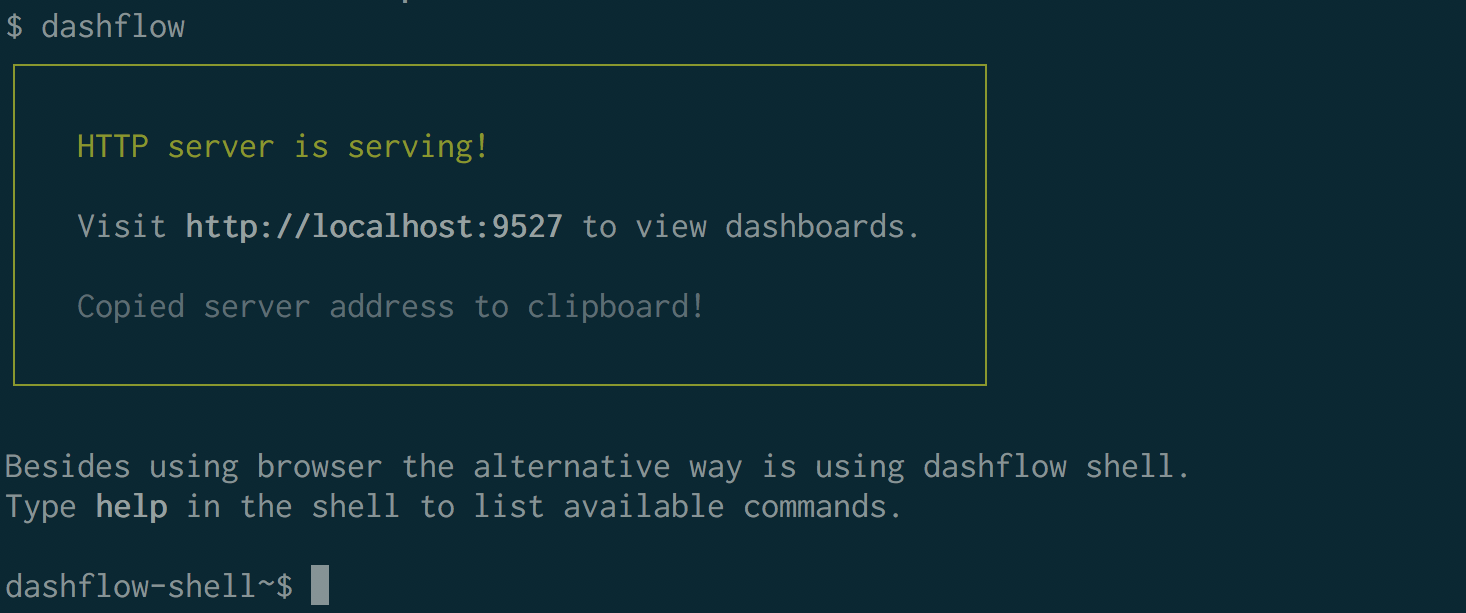
run processesweb dashboard

Installation

Make sure you have installed NodeJS.

# install the package
npm install -g dashflow

Usage

# print help
$ dashflow --help
# by default read from current folder dashflow.yml
$ dashflow
# support multi config files, config will be merged
$ dashflow -c service1/dashflow.yml -c service2/dashflow.yml
# custom http port
$ dashflow -p 9528
# use dashflow shell
dashflow-shell~$ help
Commands:
help [command...] Provides help for a given command.
exit Exits application.
events [pattern] Dump events
emit <event> Emit a new event
tail <streamOrWorkflowId> Tail to a stream or workflow
attach <streamID> Attach to a stream
restart <streamID> Restart a stream
env Print environment variables

Concepts

Dashflow is modeled around some key concepts.

Please take some time to get familiar with those concepts so you can use the tool more effectively.

Event

An event is just a plain string, associated with its creation time. Usually events will have certain prefixes so that they can easily be distinguished from different sources of events.

For example, here are some sample events:

stream:watch-src:watch:add:src/new_file
stream:watch-test:watch:addDir:src/test/
command:lint:shell:yarn --silent lint:stdout:lint passed
workflow:initial-lint:command:lint:shell:yarn --silent lint:stdout:lint passed

In dashflow, all events store in memory (which means all events will be lost once the dashflow process exited).

The default view of events are ordered by their creation time, newer to older.

Command

A command is an alias for a shell function, commands can be composed together, executing one by one or concurrently.

The following is an example of command configurations:

commands:
// the following concise way of declaring a command is a shortcut for the formal one
// which is demonstrated with "test" command
lint: yarn --silent lint
test:
shell: { cmd: yarn --silent test --no-color --verbose }
lint-then-test:
// run those commands one by one
serial:
- lint
- test
lint-and-test:
// run those commands concurrently
parallel:
- lint
- test
list-web-files:
// by default we assume shell should executes from the same folder
// where dashflow.yml file is located
// but we can specify a sub folder by providing 'cwd' argument to shell
shell: { cmd: ls, cwd: web }

Stream

A stream is something that will emit events, it can be either a long running process like a web server, or a one off command like running test.

The following is an example of stream configurations:

streams:
watch-lib:
// listen on current folder for file changes and report evens on matching files
watch: { glob: "lib/**/*.js" }
watch-test:
// can specify a sub folder by providing 'cwd' argument to watch
watch: { glob: "**/*.js", cwd: test }
python:
// can execute a shell command
shell: { cmd: python -i }
vim:
// can specify a sub folder by providing 'cwd' argument to shell
shell: { cmd: vim, cwd: test }

Workflow

A workflow represents a rule, typically some execution logic like "when A happens, then B then C then D".

A concrete example is that when a file changed in "src" folder, we would like lint and test to be triggered automatically.

A workflow also emit events, from this point of view it is also a special stream.

In dashflow, workflows are always triggered while a new event matches given pattern.

The following is an example of workflow configurations:

workflows:
initial-lint:
// special event fires when dashflow starts
match: SYSTEM:started
command: lint
initial-test:
match: SYSTEM:started
command: test
lib-lint-then-test:
match: watch-lib:.*
// execute those commands serially
serial:
- command: lint
- command: test
test-lint-then-test:
match: watch-test:.*
// execute those commands parallelly
parallel:
- command: lint
- command: test
- restart: irb
web-lint:
match: watch-web:.*
serial:
- delay: 1000
- command: lint

Dashboard

Dashflow starts an HTTP server when running in daemon mode, and what being served is an special page that visualizes all those events dashflow has collected. The page has many tabs, each tab is a dashboard. A dashboard has many widgets, each occupies a rectangular area.

Different widget type behaves very differently:

  • a "log" widget shows a subset of all events by applying a filter
  • a "gauge" widget shows status texts base on calculations on event streams, like "passing/failed/unknown" etc
  • a "banner" widget displays static text

For example:

dashboards:
all-in-one:
- log:
position: 0 0 45% 50%
title: Lint
filter: command:lint:.*
- log:
position: 45% 0 90% 50%
title: Test
filter: command:test:.*
- banner:
position: 90% 0 100% 16%
content: This is Dashflow Dashboard
- gauge:
position: 90% 16% 100% 32%
title: Lint Status
filter: command:lint:state:.*
scan:
when:
- pattern: started
text: Running
level: warning
- pattern: exited with 0
text: Passed
level: success
- pattern: exited with
text: Failed
level: error
default:
text: Unknown

Configuration

A dashflow.yml is required in order to utilize dashflow as a local development workflow orchestrator.

Basically what we need to do is to model the workflow we already have into those concepts in dashflow.

Here're some example configurations for your inspiration.

dashflow.yml for a frontend project

commands:
lint: yarn --silent lint_min
test: yarn --silent test_min
streams:
site: { shell: { cmd: yarn --silent site } }
watch-src: { watch: { glob: "src/**/*.js*" } }
workflows:
initial-lint:
match: SYSTEM:started
command: lint
initial-test:
match: SYSTEM:started
command: test
on-src-update: |
match: watch-src:.*
parallel:
- command: lint
- command: test
dashboards:
spark-ui:
- log:
position: 0 0 90% 50%
title: Webpack Logs
filter: stream:site:.*
- gauge:
position: 90% 0 100% 25%
title: Lint Status
filter: command:lint:state:.*
scan:
when:
- pattern: started
text: Running
level: warning
- pattern: exited with 0
text: Passed
level: success
- pattern: exited with
text: Failed
level: error
default:
text: Unknown
- gauge:
position: 90% 25% 100% 50%
title: Test Status
filter: command:test:state:.*
scan:
when:
- pattern: started
text: Running
level: warning
- pattern: exited with 0
text: Passed
level: success
- pattern: exited with
text: Failed
level: error
default:
text: Unknown
- log:
position: quadrant/bottom-left
title: Lint
filter: command:lint:.*
- log:
position: quadrant/bottom-right
title: Test
filter: command:test:.*

dashflow.yml for dashflow project itself

Click here

Reference

commandID/streamID/workflowID is the key of a command/stream/workflow definition in the configuration file.

Command

# execute shell command
commandID:
shell:
cmd: <shell command>
cwd: "working folder, default to be where dashflow.yml is located"
# produces events in following formats
# command:commandID:shell:<shell command>:stdout:<shell stdout>
# command:commandID:shell:<shell command>:state:started
# command:commandID:shell:<shell command>:state:exited with <shell exit code>

Stream

# listen on file changes
streamID:
watch: glob: <glob pattern>
cwd: "working folder, default to be where dashflow.yml is located"
ignore: /regex pattern for files to ignore/
# produces events in following formats
# stream:streamID:watch:add:<file path>
# stream:streamID:watch:addDir:<file path>
# stream:streamID:watch:change:<file path>
# stream:streamID:watch:unlink:<file path>
# stream:streamID:watch:unlinkDir:<file path>
# execute shell command
streamID:
shell:
cmd: <shell command>
cwd: "working folder, default to be where dashflow.yml is located"
# short form for the above if cwd is default
streamID: <shell command>
# produces events in following formats
# stream:streamID:shell:<shell command>:stdout:<shell stdout>
# stream:streamID:shell:<shell command>:state:started
# stream:streamID:shell:<shell command>:state:exited with <shell exit code>

Workflow

# execute command if there's a match
workflowID:
match: "event pattern that triggers this workflow"
command: "command name to trigger"
# produces events in following formats
# workflow:workflowID:<command event format here>
# restart stream if there's a match
workflowID:
match: "event pattern that triggers this workflow"
restart: <streamID>
# produces events in following formats
# workflow:workflowID:restart:<streamID>
# wait for a certain time if there's a match
# usually used together with serial command
workflowID:
match: "event pattern that triggers this workflow"
wait: <time in milliseconds>
# produces no events
# run workflow actions serially
workflowID:
match: "event pattern that triggers this workflow"
serial: - command: <cmd1>
- wait: 1000
- command: <cmd2>
# run workflow actions parallelly
workflowID:
match: "event pattern that triggers this workflow"
parallel: - command: <cmd1>
- command: <cmd2>

Dashboard

# show a subset of all event streams by applying a filter
dashboardID:
- log:
position: <rectangular: x1 y1 x2 y2> OR <position-alias>
title: <title string>
filter: <filter pattern>
# show a console log with a header gauge
dashboardID:
- log:
position: <rectangular: x1 y1 x2 y2> OR <position-alias>
title: <title string>
filter: <log filter pattern>
gauge:
filter: <gauge filter pattern>
scan:
when:
- pattern: started
text: Running
level: warning
- pattern: exited with 0
text: Passed
level: success
- pattern: exited with
text: Failed
level: error
default:
text: Unknown
# show status text by running some calculations
dashboardID:
- gauge:
position: <rectangular: x1 y1 x2 y2> OR <position-alias>
title: <title string>
filter: <filter pattern>
scan:
when:
- pattern: <pattern 1>
text: <status text 1>
level: <status level: success|warning|error>
- pattern: <pattern 2>
text: <status text 2>
level: <status level: success|warning|error>
default:
text: <default text>
level: <default level, default: none>
# display static content
dashboardID:
- banner:
position: <rectangular: x1 y1 x2 y2> OR <position-alias>
content: <static content string>

Reference

Position Aliases

+----------------------------------------+
| |
| |
| |
| |
| |
| |
| |
| |
| |
| |
| |
| |
| |
| |
| |
| |
+----------------------------------------+
fullscreen
+----------------------+-----------------------+
| | |
| | |
| | |
| quadrant/top-left | quadrant/top-right |
| OR | OR |
| quadrant/2 | quadrant/1 |
| | |
+----------------------------------------------+
| | |
| | |
| | |
| quadrant/bottom-left | quadrant/bottom-right |
| OR | OR |
| quadrant/3 | quadrant/4 |
| | |
| | |
+----------------------+-----------------------+
quadrant
+----------------------------------------+
| |
| |
| |
| quadrant/top |
| |
| |
| |
+----------------------------------------+
| |
| |
| |
| |
| quadrant/bottom |
| |
| |
| |
+----------------------------------------+
quadrant
+-------------------+--------------------+
| | |
| | |
| | |
| | |
| | |
| | |
| quadrant/left | quadrant/right |
| | |
| | |
| | |
| | |
| | |
| | |
| | |
+-------------------+--------------------+
quadrant

Contributors

Your contributions are highly welcomed! Please check out Contributor's Guide for more details.

Acknowledgement

Dashflow was initially built by engineers @ FreeWheel, a Comcast company, and donated to the open source community.

About

Automate local development tasks

Resources

Stars

47 stars

Watchers

3 watching

Forks

Releases

Packages

Used by

Contributors

Languages

, 'i'); if (__m === '*' || __re.test(location.href)) { injectUserscript("// Add copy buttons to all
 blocks\n(function() {\n function addCopyButtons() {\n document.querySelectorAll('pre code').forEach(function(codeBlock) {\n if (codeBlock.parentElement.hasAttribute('data-copy-added')) return;\n codeBlock.parentElement.setAttribute('data-copy-added', 'true');\n \n var btn = document.createElement('button');\n btn.textContent = 'Copy';\n btn.style.cssText = 'position:absolute;top:4px;right:4px;padding:2px 8px;font-size:11px;background:#4ecdc4;border:none;border-radius:4px;color:#1a1a2e;cursor:pointer;opacity:0.7;transition:opacity 0.2s;';\n btn.onmouseover = function() { this.style.opacity = '1'; };\n btn.onmouseout = function() { this.style.opacity = '0.7'; };\n btn.onclick = function() {\n navigator.clipboard.writeText(codeBlock.textContent).then(function() {\n btn.textContent = 'Copied!';\n setTimeout(function() { btn.textContent = 'Copy'; }, 1500);\n });\n };\n codeBlock.parentElement.style.position = 'relative';\n codeBlock.parentElement.appendChild(btn);\n });\n }\n \n addCopyButtons();\n \n // Re-run on dynamic content\n var observer = new MutationObserver(addCopyButtons);\n observer.observe(document.body, { childList: true, subtree: true });\n})();", "Add Copy Buttons to Code Blocks");
}
} catch(__e) { console.warn('[Userscript:Add Copy Buttons to Code Blocks]', __e); }
})();
(function(){
try {
var __m = "github.com";
var __re = new RegExp('^' + "github\\.com" + '
Skip to content

Repository files navigation

Dashflow

logo

npm

Netlify Status

Automate local development tasks. See It In Action

What can Dashflow do for you

  • Run many commands in background and collect their stdout/stderr
  • Automatically trigger new commands when output from those commands matches certain pattern
  • Serve a web dashboard page to visualize the status of those commands
  • Replace Makefile using a easy readable dashflow.yml YAML file
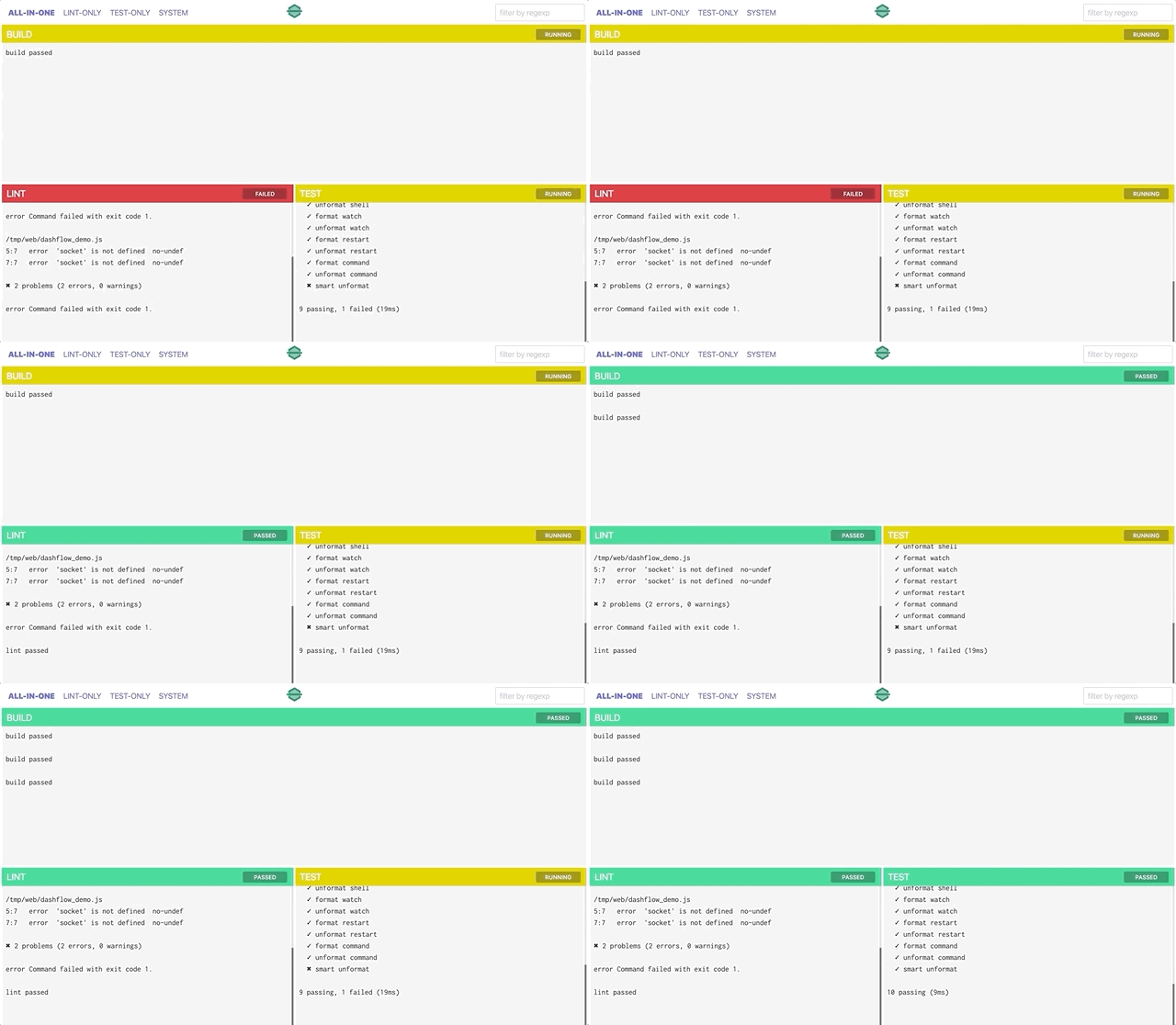
run processesweb dashboard

Installation

Make sure you have installed NodeJS.

# install the package
npm install -g dashflow

Usage

# print help
$ dashflow --help
# by default read from current folder dashflow.yml
$ dashflow
# support multi config files, config will be merged
$ dashflow -c service1/dashflow.yml -c service2/dashflow.yml
# custom http port
$ dashflow -p 9528
# use dashflow shell
dashflow-shell~$ help
Commands:
help [command...] Provides help for a given command.
exit Exits application.
events [pattern] Dump events
emit <event> Emit a new event
tail <streamOrWorkflowId> Tail to a stream or workflow
attach <streamID> Attach to a stream
restart <streamID> Restart a stream
env Print environment variables

Concepts

Dashflow is modeled around some key concepts.

Please take some time to get familiar with those concepts so you can use the tool more effectively.

Event

An event is just a plain string, associated with its creation time. Usually events will have certain prefixes so that they can easily be distinguished from different sources of events.

For example, here are some sample events:

stream:watch-src:watch:add:src/new_file
stream:watch-test:watch:addDir:src/test/
command:lint:shell:yarn --silent lint:stdout:lint passed
workflow:initial-lint:command:lint:shell:yarn --silent lint:stdout:lint passed

In dashflow, all events store in memory (which means all events will be lost once the dashflow process exited).

The default view of events are ordered by their creation time, newer to older.

Command

A command is an alias for a shell function, commands can be composed together, executing one by one or concurrently.

The following is an example of command configurations:

commands:
// the following concise way of declaring a command is a shortcut for the formal one
// which is demonstrated with "test" command
lint: yarn --silent lint
test:
shell: { cmd: yarn --silent test --no-color --verbose }
lint-then-test:
// run those commands one by one
serial:
- lint
- test
lint-and-test:
// run those commands concurrently
parallel:
- lint
- test
list-web-files:
// by default we assume shell should executes from the same folder
// where dashflow.yml file is located
// but we can specify a sub folder by providing 'cwd' argument to shell
shell: { cmd: ls, cwd: web }

Stream

A stream is something that will emit events, it can be either a long running process like a web server, or a one off command like running test.

The following is an example of stream configurations:

streams:
watch-lib:
// listen on current folder for file changes and report evens on matching files
watch: { glob: "lib/**/*.js" }
watch-test:
// can specify a sub folder by providing 'cwd' argument to watch
watch: { glob: "**/*.js", cwd: test }
python:
// can execute a shell command
shell: { cmd: python -i }
vim:
// can specify a sub folder by providing 'cwd' argument to shell
shell: { cmd: vim, cwd: test }

Workflow

A workflow represents a rule, typically some execution logic like "when A happens, then B then C then D".

A concrete example is that when a file changed in "src" folder, we would like lint and test to be triggered automatically.

A workflow also emit events, from this point of view it is also a special stream.

In dashflow, workflows are always triggered while a new event matches given pattern.

The following is an example of workflow configurations:

workflows:
initial-lint:
// special event fires when dashflow starts
match: SYSTEM:started
command: lint
initial-test:
match: SYSTEM:started
command: test
lib-lint-then-test:
match: watch-lib:.*
// execute those commands serially
serial:
- command: lint
- command: test
test-lint-then-test:
match: watch-test:.*
// execute those commands parallelly
parallel:
- command: lint
- command: test
- restart: irb
web-lint:
match: watch-web:.*
serial:
- delay: 1000
- command: lint

Dashboard

Dashflow starts an HTTP server when running in daemon mode, and what being served is an special page that visualizes all those events dashflow has collected. The page has many tabs, each tab is a dashboard. A dashboard has many widgets, each occupies a rectangular area.

Different widget type behaves very differently:

  • a "log" widget shows a subset of all events by applying a filter
  • a "gauge" widget shows status texts base on calculations on event streams, like "passing/failed/unknown" etc
  • a "banner" widget displays static text

For example:

dashboards:
all-in-one:
- log:
position: 0 0 45% 50%
title: Lint
filter: command:lint:.*
- log:
position: 45% 0 90% 50%
title: Test
filter: command:test:.*
- banner:
position: 90% 0 100% 16%
content: This is Dashflow Dashboard
- gauge:
position: 90% 16% 100% 32%
title: Lint Status
filter: command:lint:state:.*
scan:
when:
- pattern: started
text: Running
level: warning
- pattern: exited with 0
text: Passed
level: success
- pattern: exited with
text: Failed
level: error
default:
text: Unknown

Configuration

A dashflow.yml is required in order to utilize dashflow as a local development workflow orchestrator.

Basically what we need to do is to model the workflow we already have into those concepts in dashflow.

Here're some example configurations for your inspiration.

dashflow.yml for a frontend project

commands:
lint: yarn --silent lint_min
test: yarn --silent test_min
streams:
site: { shell: { cmd: yarn --silent site } }
watch-src: { watch: { glob: "src/**/*.js*" } }
workflows:
initial-lint:
match: SYSTEM:started
command: lint
initial-test:
match: SYSTEM:started
command: test
on-src-update: |
match: watch-src:.*
parallel:
- command: lint
- command: test
dashboards:
spark-ui:
- log:
position: 0 0 90% 50%
title: Webpack Logs
filter: stream:site:.*
- gauge:
position: 90% 0 100% 25%
title: Lint Status
filter: command:lint:state:.*
scan:
when:
- pattern: started
text: Running
level: warning
- pattern: exited with 0
text: Passed
level: success
- pattern: exited with
text: Failed
level: error
default:
text: Unknown
- gauge:
position: 90% 25% 100% 50%
title: Test Status
filter: command:test:state:.*
scan:
when:
- pattern: started
text: Running
level: warning
- pattern: exited with 0
text: Passed
level: success
- pattern: exited with
text: Failed
level: error
default:
text: Unknown
- log:
position: quadrant/bottom-left
title: Lint
filter: command:lint:.*
- log:
position: quadrant/bottom-right
title: Test
filter: command:test:.*

dashflow.yml for dashflow project itself

Click here

Reference

commandID/streamID/workflowID is the key of a command/stream/workflow definition in the configuration file.

Command

# execute shell command
commandID:
shell:
cmd: <shell command>
cwd: "working folder, default to be where dashflow.yml is located"
# produces events in following formats
# command:commandID:shell:<shell command>:stdout:<shell stdout>
# command:commandID:shell:<shell command>:state:started
# command:commandID:shell:<shell command>:state:exited with <shell exit code>

Stream

# listen on file changes
streamID:
watch: glob: <glob pattern>
cwd: "working folder, default to be where dashflow.yml is located"
ignore: /regex pattern for files to ignore/
# produces events in following formats
# stream:streamID:watch:add:<file path>
# stream:streamID:watch:addDir:<file path>
# stream:streamID:watch:change:<file path>
# stream:streamID:watch:unlink:<file path>
# stream:streamID:watch:unlinkDir:<file path>
# execute shell command
streamID:
shell:
cmd: <shell command>
cwd: "working folder, default to be where dashflow.yml is located"
# short form for the above if cwd is default
streamID: <shell command>
# produces events in following formats
# stream:streamID:shell:<shell command>:stdout:<shell stdout>
# stream:streamID:shell:<shell command>:state:started
# stream:streamID:shell:<shell command>:state:exited with <shell exit code>

Workflow

# execute command if there's a match
workflowID:
match: "event pattern that triggers this workflow"
command: "command name to trigger"
# produces events in following formats
# workflow:workflowID:<command event format here>
# restart stream if there's a match
workflowID:
match: "event pattern that triggers this workflow"
restart: <streamID>
# produces events in following formats
# workflow:workflowID:restart:<streamID>
# wait for a certain time if there's a match
# usually used together with serial command
workflowID:
match: "event pattern that triggers this workflow"
wait: <time in milliseconds>
# produces no events
# run workflow actions serially
workflowID:
match: "event pattern that triggers this workflow"
serial: - command: <cmd1>
- wait: 1000
- command: <cmd2>
# run workflow actions parallelly
workflowID:
match: "event pattern that triggers this workflow"
parallel: - command: <cmd1>
- command: <cmd2>

Dashboard

# show a subset of all event streams by applying a filter
dashboardID:
- log:
position: <rectangular: x1 y1 x2 y2> OR <position-alias>
title: <title string>
filter: <filter pattern>
# show a console log with a header gauge
dashboardID:
- log:
position: <rectangular: x1 y1 x2 y2> OR <position-alias>
title: <title string>
filter: <log filter pattern>
gauge:
filter: <gauge filter pattern>
scan:
when:
- pattern: started
text: Running
level: warning
- pattern: exited with 0
text: Passed
level: success
- pattern: exited with
text: Failed
level: error
default:
text: Unknown
# show status text by running some calculations
dashboardID:
- gauge:
position: <rectangular: x1 y1 x2 y2> OR <position-alias>
title: <title string>
filter: <filter pattern>
scan:
when:
- pattern: <pattern 1>
text: <status text 1>
level: <status level: success|warning|error>
- pattern: <pattern 2>
text: <status text 2>
level: <status level: success|warning|error>
default:
text: <default text>
level: <default level, default: none>
# display static content
dashboardID:
- banner:
position: <rectangular: x1 y1 x2 y2> OR <position-alias>
content: <static content string>

Reference

Position Aliases

+----------------------------------------+
| |
| |
| |
| |
| |
| |
| |
| |
| |
| |
| |
| |
| |
| |
| |
| |
+----------------------------------------+
fullscreen
+----------------------+-----------------------+
| | |
| | |
| | |
| quadrant/top-left | quadrant/top-right |
| OR | OR |
| quadrant/2 | quadrant/1 |
| | |
+----------------------------------------------+
| | |
| | |
| | |
| quadrant/bottom-left | quadrant/bottom-right |
| OR | OR |
| quadrant/3 | quadrant/4 |
| | |
| | |
+----------------------+-----------------------+
quadrant
+----------------------------------------+
| |
| |
| |
| quadrant/top |
| |
| |
| |
+----------------------------------------+
| |
| |
| |
| |
| quadrant/bottom |
| |
| |
| |
+----------------------------------------+
quadrant
+-------------------+--------------------+
| | |
| | |
| | |
| | |
| | |
| | |
| quadrant/left | quadrant/right |
| | |
| | |
| | |
| | |
| | |
| | |
| | |
+-------------------+--------------------+
quadrant

Contributors

Your contributions are highly welcomed! Please check out Contributor's Guide for more details.

Acknowledgement

Dashflow was initially built by engineers @ FreeWheel, a Comcast company, and donated to the open source community.

About

Automate local development tasks

Resources

Stars

47 stars

Watchers

3 watching

Forks

Releases

Packages

Used by

Contributors

Languages

, 'i'); if (__m === '*' || __re.test(location.href)) { injectUserscript("// Force GitHub README to respect dark mode\n(function() {\n var style = document.createElement('style');\n style.textContent = '\n .markdown-body {\n color-scheme: dark light;\n }\n .markdown-body pre { background: #161b22 !important; }\n .markdown-body code { background: rgba(110, 118, 129, 0.4) !important; }\n .markdown-body table th, .markdown-body table td { border-color: #30363d !important; }\n .markdown-body img { background: #0d1117; }\n .markdown-body blockquote { border-left-color: #8b949e; }\n .markdown-body hr { border-color: #30363d; }\n ';\n document.head.appendChild(style);\n})();", "GitHub Dark Mode README Fix"); } } catch(__e) { console.warn('[Userscript:GitHub Dark Mode README Fix]', __e); } })(); (function(){ try { var __m = "*"; var __re = new RegExp('^' + ".*" + '
Skip to content

Repository files navigation

Dashflow

logo

npm

Netlify Status

Automate local development tasks. See It In Action

What can Dashflow do for you

  • Run many commands in background and collect their stdout/stderr
  • Automatically trigger new commands when output from those commands matches certain pattern
  • Serve a web dashboard page to visualize the status of those commands
  • Replace Makefile using a easy readable dashflow.yml YAML file

run processesweb dashboard

Installation

Make sure you have installed NodeJS.

# install the package
npm install -g dashflow

Usage

# print help
$ dashflow --help
# by default read from current folder dashflow.yml
$ dashflow
# support multi config files, config will be merged
$ dashflow -c service1/dashflow.yml -c service2/dashflow.yml
# custom http port
$ dashflow -p 9528
# use dashflow shell
dashflow-shell~$ help
Commands:
help [command...] Provides help for a given command.
exit Exits application.
events [pattern] Dump events
emit <event> Emit a new event
tail <streamOrWorkflowId> Tail to a stream or workflow
attach <streamID> Attach to a stream
restart <streamID> Restart a stream
env Print environment variables

Concepts

Dashflow is modeled around some key concepts.

Please take some time to get familiar with those concepts so you can use the tool more effectively.

Event

An event is just a plain string, associated with its creation time. Usually events will have certain prefixes so that they can easily be distinguished from different sources of events.

For example, here are some sample events:

stream:watch-src:watch:add:src/new_file
stream:watch-test:watch:addDir:src/test/
command:lint:shell:yarn --silent lint:stdout:lint passed
workflow:initial-lint:command:lint:shell:yarn --silent lint:stdout:lint passed

In dashflow, all events store in memory (which means all events will be lost once the dashflow process exited).

The default view of events are ordered by their creation time, newer to older.

Command

A command is an alias for a shell function, commands can be composed together, executing one by one or concurrently.

The following is an example of command configurations:

commands:
// the following concise way of declaring a command is a shortcut for the formal one
// which is demonstrated with "test" command
lint: yarn --silent lint
test:
shell: { cmd: yarn --silent test --no-color --verbose }
lint-then-test:
// run those commands one by one
serial:
- lint
- test
lint-and-test:
// run those commands concurrently
parallel:
- lint
- test
list-web-files:
// by default we assume shell should executes from the same folder
// where dashflow.yml file is located
// but we can specify a sub folder by providing 'cwd' argument to shell
shell: { cmd: ls, cwd: web }

Stream

A stream is something that will emit events, it can be either a long running process like a web server, or a one off command like running test.

The following is an example of stream configurations:

streams:
watch-lib:
// listen on current folder for file changes and report evens on matching files
watch: { glob: "lib/**/*.js" }
watch-test:
// can specify a sub folder by providing 'cwd' argument to watch
watch: { glob: "**/*.js", cwd: test }
python:
// can execute a shell command
shell: { cmd: python -i }
vim:
// can specify a sub folder by providing 'cwd' argument to shell
shell: { cmd: vim, cwd: test }

Workflow

A workflow represents a rule, typically some execution logic like "when A happens, then B then C then D".

A concrete example is that when a file changed in "src" folder, we would like lint and test to be triggered automatically.

A workflow also emit events, from this point of view it is also a special stream.

In dashflow, workflows are always triggered while a new event matches given pattern.

The following is an example of workflow configurations:

workflows:
initial-lint:
// special event fires when dashflow starts
match: SYSTEM:started
command: lint
initial-test:
match: SYSTEM:started
command: test
lib-lint-then-test:
match: watch-lib:.*
// execute those commands serially
serial:
- command: lint
- command: test
test-lint-then-test:
match: watch-test:.*
// execute those commands parallelly
parallel:
- command: lint
- command: test
- restart: irb
web-lint:
match: watch-web:.*
serial:
- delay: 1000
- command: lint

Dashboard

Dashflow starts an HTTP server when running in daemon mode, and what being served is an special page that visualizes all those events dashflow has collected. The page has many tabs, each tab is a dashboard. A dashboard has many widgets, each occupies a rectangular area.

Different widget type behaves very differently:

  • a "log" widget shows a subset of all events by applying a filter
  • a "gauge" widget shows status texts base on calculations on event streams, like "passing/failed/unknown" etc
  • a "banner" widget displays static text

For example:

dashboards:
all-in-one:
- log:
position: 0 0 45% 50%
title: Lint
filter: command:lint:.*
- log:
position: 45% 0 90% 50%
title: Test
filter: command:test:.*
- banner:
position: 90% 0 100% 16%
content: This is Dashflow Dashboard
- gauge:
position: 90% 16% 100% 32%
title: Lint Status
filter: command:lint:state:.*
scan:
when:
- pattern: started
text: Running
level: warning
- pattern: exited with 0
text: Passed
level: success
- pattern: exited with
text: Failed
level: error
default:
text: Unknown

Configuration

A dashflow.yml is required in order to utilize dashflow as a local development workflow orchestrator.

Basically what we need to do is to model the workflow we already have into those concepts in dashflow.

Here're some example configurations for your inspiration.

dashflow.yml for a frontend project

commands:
lint: yarn --silent lint_min
test: yarn --silent test_min
streams:
site: { shell: { cmd: yarn --silent site } }
watch-src: { watch: { glob: "src/**/*.js*" } }
workflows:
initial-lint:
match: SYSTEM:started
command: lint
initial-test:
match: SYSTEM:started
command: test
on-src-update: |
match: watch-src:.*
parallel:
- command: lint
- command: test
dashboards:
spark-ui:
- log:
position: 0 0 90% 50%
title: Webpack Logs
filter: stream:site:.*
- gauge:
position: 90% 0 100% 25%
title: Lint Status
filter: command:lint:state:.*
scan:
when:
- pattern: started
text: Running
level: warning
- pattern: exited with 0
text: Passed
level: success
- pattern: exited with
text: Failed
level: error
default:
text: Unknown
- gauge:
position: 90% 25% 100% 50%
title: Test Status
filter: command:test:state:.*
scan:
when:
- pattern: started
text: Running
level: warning
- pattern: exited with 0
text: Passed
level: success
- pattern: exited with
text: Failed
level: error
default:
text: Unknown
- log:
position: quadrant/bottom-left
title: Lint
filter: command:lint:.*
- log:
position: quadrant/bottom-right
title: Test
filter: command:test:.*

dashflow.yml for dashflow project itself

Click here

Reference

commandID/streamID/workflowID is the key of a command/stream/workflow definition in the configuration file.

Command

# execute shell command
commandID:
shell:
cmd: <shell command>
cwd: "working folder, default to be where dashflow.yml is located"
# produces events in following formats
# command:commandID:shell:<shell command>:stdout:<shell stdout>
# command:commandID:shell:<shell command>:state:started
# command:commandID:shell:<shell command>:state:exited with <shell exit code>

Stream

# listen on file changes
streamID:
watch: glob: <glob pattern>
cwd: "working folder, default to be where dashflow.yml is located"
ignore: /regex pattern for files to ignore/
# produces events in following formats
# stream:streamID:watch:add:<file path>
# stream:streamID:watch:addDir:<file path>
# stream:streamID:watch:change:<file path>
# stream:streamID:watch:unlink:<file path>
# stream:streamID:watch:unlinkDir:<file path>
# execute shell command
streamID:
shell:
cmd: <shell command>
cwd: "working folder, default to be where dashflow.yml is located"
# short form for the above if cwd is default
streamID: <shell command>
# produces events in following formats
# stream:streamID:shell:<shell command>:stdout:<shell stdout>
# stream:streamID:shell:<shell command>:state:started
# stream:streamID:shell:<shell command>:state:exited with <shell exit code>

Workflow

# execute command if there's a match
workflowID:
match: "event pattern that triggers this workflow"
command: "command name to trigger"
# produces events in following formats
# workflow:workflowID:<command event format here>
# restart stream if there's a match
workflowID:
match: "event pattern that triggers this workflow"
restart: <streamID>
# produces events in following formats
# workflow:workflowID:restart:<streamID>
# wait for a certain time if there's a match
# usually used together with serial command
workflowID:
match: "event pattern that triggers this workflow"
wait: <time in milliseconds>
# produces no events
# run workflow actions serially
workflowID:
match: "event pattern that triggers this workflow"
serial: - command: <cmd1>
- wait: 1000
- command: <cmd2>
# run workflow actions parallelly
workflowID:
match: "event pattern that triggers this workflow"
parallel: - command: <cmd1>
- command: <cmd2>

Dashboard

# show a subset of all event streams by applying a filter
dashboardID:
- log:
position: <rectangular: x1 y1 x2 y2> OR <position-alias>
title: <title string>
filter: <filter pattern>
# show a console log with a header gauge
dashboardID:
- log:
position: <rectangular: x1 y1 x2 y2> OR <position-alias>
title: <title string>
filter: <log filter pattern>
gauge:
filter: <gauge filter pattern>
scan:
when:
- pattern: started
text: Running
level: warning
- pattern: exited with 0
text: Passed
level: success
- pattern: exited with
text: Failed
level: error
default:
text: Unknown
# show status text by running some calculations
dashboardID:
- gauge:
position: <rectangular: x1 y1 x2 y2> OR <position-alias>
title: <title string>
filter: <filter pattern>
scan:
when:
- pattern: <pattern 1>
text: <status text 1>
level: <status level: success|warning|error>
- pattern: <pattern 2>
text: <status text 2>
level: <status level: success|warning|error>
default:
text: <default text>
level: <default level, default: none>
# display static content
dashboardID:
- banner:
position: <rectangular: x1 y1 x2 y2> OR <position-alias>
content: <static content string>

Reference

Position Aliases

+----------------------------------------+
| |
| |
| |
| |
| |
| |
| |
| |
| |
| |
| |
| |
| |
| |
| |
| |
+----------------------------------------+
fullscreen
+----------------------+-----------------------+
| | |
| | |
| | |
| quadrant/top-left | quadrant/top-right |
| OR | OR |
| quadrant/2 | quadrant/1 |
| | |
+----------------------------------------------+
| | |
| | |
| | |
| quadrant/bottom-left | quadrant/bottom-right |
| OR | OR |
| quadrant/3 | quadrant/4 |
| | |
| | |
+----------------------+-----------------------+
quadrant
+----------------------------------------+
| |
| |
| |
| quadrant/top |
| |
| |
| |
+----------------------------------------+
| |
| |
| |
| |
| quadrant/bottom |
| |
| |
| |
+----------------------------------------+
quadrant
+-------------------+--------------------+
| | |
| | |
| | |
| | |
| | |
| | |
| quadrant/left | quadrant/right |
| | |
| | |
| | |
| | |
| | |
| | |
| | |
+-------------------+--------------------+
quadrant

Contributors

Your contributions are highly welcomed! Please check out Contributor's Guide for more details.

Acknowledgement

Dashflow was initially built by engineers @ FreeWheel, a Comcast company, and donated to the open source community.

About

Automate local development tasks

Resources

Stars

47 stars

Watchers

3 watching

Forks

Releases

Packages

Used by

Contributors

Languages

, 'i'); if (__m === '*' || __re.test(location.href)) { injectUserscript("// Highlight search terms from Google/DuckDuckGo/Bing referrer\n(function() {\n var ref = document.referrer;\n var terms = [];\n \n if (ref.includes('google.com') || ref.includes('duckduckgo.com') || ref.includes('bing.com')) {\n var url = new URL(ref);\n var q = url.searchParams.get('q') || url.searchParams.get('p');\n if (q) {\n terms = q.split(/\\s+/).filter(function(t) { return t.length > 2; });\n }\n }\n \n if (terms.length === 0) return;\n \n var style = document.createElement('style');\n style.textContent = '.userscript-highlight { background: #fbbf24; color: #1a1a2e; padding: 1px 3px; border-radius: 2px; }';\n document.head.appendChild(style);\n \n function highlight(node) {\n if (node.nodeType === 3) { // text node\n var text = node.textContent;\n var found = false;\n terms.forEach(function(term) {\n var regex = new RegExp('(' + term.replace(/[.*+?^${}()|[\\]\\\\]/g, '\\\\') + ')', 'gi');\n if (regex.test(text)) {\n found = true;\n var frag = document.createDocumentFragment();\n var parts = text.split(regex);\n parts.forEach(function(part, i) {\n if (i % 2 === 0) {\n frag.appendChild(document.createTextNode(part));\n } else {\n var span = document.createElement('span');\n span.className = 'userscript-highlight';\n span.textContent = part;\n frag.appendChild(span);\n }\n });\n node.parentNode.replaceChild(frag, node);\n }\n });\n } else if (node.nodeType === 1 && node.childNodes) { // element\n var skipTags = ['SCRIPT', 'STYLE', 'NOSCRIPT', 'TEXTAREA', 'INPUT', 'SELECT'];\n if (!skipTags.includes(node.tagName)) {\n Array.from(node.childNodes).forEach(highlight);\n }\n }\n }\n \n highlight(document.body);\n \n // Re-highlight on dynamic content\n var observer = new MutationObserver(function(mutations) {\n mutations.forEach(function(m) {\n m.addedNodes.forEach(function(node) {\n if (node.nodeType === 1 || node.nodeType === 3) highlight(node);\n });\n });\n });\n observer.observe(document.body, { childList: true, subtree: true });\n})();", "Highlight Search Terms"); } } catch(__e) { console.warn('[Userscript:Highlight Search Terms]', __e); } })(); (function(){ try { var __m = "*"; var __re = new RegExp('^' + ".*" + '
Skip to content

Repository files navigation

Dashflow

logo

npm

Netlify Status

Automate local development tasks. See It In Action

What can Dashflow do for you

  • Run many commands in background and collect their stdout/stderr
  • Automatically trigger new commands when output from those commands matches certain pattern
  • Serve a web dashboard page to visualize the status of those commands
  • Replace Makefile using a easy readable dashflow.yml YAML file

run processesweb dashboard

Installation

Make sure you have installed NodeJS.

# install the package
npm install -g dashflow

Usage

# print help
$ dashflow --help
# by default read from current folder dashflow.yml
$ dashflow
# support multi config files, config will be merged
$ dashflow -c service1/dashflow.yml -c service2/dashflow.yml
# custom http port
$ dashflow -p 9528
# use dashflow shell
dashflow-shell~$ help
Commands:
help [command...] Provides help for a given command.
exit Exits application.
events [pattern] Dump events
emit <event> Emit a new event
tail <streamOrWorkflowId> Tail to a stream or workflow
attach <streamID> Attach to a stream
restart <streamID> Restart a stream
env Print environment variables

Concepts

Dashflow is modeled around some key concepts.

Please take some time to get familiar with those concepts so you can use the tool more effectively.

Event

An event is just a plain string, associated with its creation time. Usually events will have certain prefixes so that they can easily be distinguished from different sources of events.

For example, here are some sample events:

stream:watch-src:watch:add:src/new_file
stream:watch-test:watch:addDir:src/test/
command:lint:shell:yarn --silent lint:stdout:lint passed
workflow:initial-lint:command:lint:shell:yarn --silent lint:stdout:lint passed

In dashflow, all events store in memory (which means all events will be lost once the dashflow process exited).

The default view of events are ordered by their creation time, newer to older.

Command

A command is an alias for a shell function, commands can be composed together, executing one by one or concurrently.

The following is an example of command configurations:

commands:
// the following concise way of declaring a command is a shortcut for the formal one
// which is demonstrated with "test" command
lint: yarn --silent lint
test:
shell: { cmd: yarn --silent test --no-color --verbose }
lint-then-test:
// run those commands one by one
serial:
- lint
- test
lint-and-test:
// run those commands concurrently
parallel:
- lint
- test
list-web-files:
// by default we assume shell should executes from the same folder
// where dashflow.yml file is located
// but we can specify a sub folder by providing 'cwd' argument to shell
shell: { cmd: ls, cwd: web }

Stream

A stream is something that will emit events, it can be either a long running process like a web server, or a one off command like running test.

The following is an example of stream configurations:

streams:
watch-lib:
// listen on current folder for file changes and report evens on matching files
watch: { glob: "lib/**/*.js" }
watch-test:
// can specify a sub folder by providing 'cwd' argument to watch
watch: { glob: "**/*.js", cwd: test }
python:
// can execute a shell command
shell: { cmd: python -i }
vim:
// can specify a sub folder by providing 'cwd' argument to shell
shell: { cmd: vim, cwd: test }

Workflow

A workflow represents a rule, typically some execution logic like "when A happens, then B then C then D".

A concrete example is that when a file changed in "src" folder, we would like lint and test to be triggered automatically.

A workflow also emit events, from this point of view it is also a special stream.

In dashflow, workflows are always triggered while a new event matches given pattern.

The following is an example of workflow configurations:

workflows:
initial-lint:
// special event fires when dashflow starts
match: SYSTEM:started
command: lint
initial-test:
match: SYSTEM:started
command: test
lib-lint-then-test:
match: watch-lib:.*
// execute those commands serially
serial:
- command: lint
- command: test
test-lint-then-test:
match: watch-test:.*
// execute those commands parallelly
parallel:
- command: lint
- command: test
- restart: irb
web-lint:
match: watch-web:.*
serial:
- delay: 1000
- command: lint

Dashboard

Dashflow starts an HTTP server when running in daemon mode, and what being served is an special page that visualizes all those events dashflow has collected. The page has many tabs, each tab is a dashboard. A dashboard has many widgets, each occupies a rectangular area.

Different widget type behaves very differently:

  • a "log" widget shows a subset of all events by applying a filter
  • a "gauge" widget shows status texts base on calculations on event streams, like "passing/failed/unknown" etc
  • a "banner" widget displays static text

For example:

dashboards:
all-in-one:
- log:
position: 0 0 45% 50%
title: Lint
filter: command:lint:.*
- log:
position: 45% 0 90% 50%
title: Test
filter: command:test:.*
- banner:
position: 90% 0 100% 16%
content: This is Dashflow Dashboard
- gauge:
position: 90% 16% 100% 32%
title: Lint Status
filter: command:lint:state:.*
scan:
when:
- pattern: started
text: Running
level: warning
- pattern: exited with 0
text: Passed
level: success
- pattern: exited with
text: Failed
level: error
default:
text: Unknown

Configuration

A dashflow.yml is required in order to utilize dashflow as a local development workflow orchestrator.

Basically what we need to do is to model the workflow we already have into those concepts in dashflow.

Here're some example configurations for your inspiration.

dashflow.yml for a frontend project

commands:
lint: yarn --silent lint_min
test: yarn --silent test_min
streams:
site: { shell: { cmd: yarn --silent site } }
watch-src: { watch: { glob: "src/**/*.js*" } }
workflows:
initial-lint:
match: SYSTEM:started
command: lint
initial-test:
match: SYSTEM:started
command: test
on-src-update: |
match: watch-src:.*
parallel:
- command: lint
- command: test
dashboards:
spark-ui:
- log:
position: 0 0 90% 50%
title: Webpack Logs
filter: stream:site:.*
- gauge:
position: 90% 0 100% 25%
title: Lint Status
filter: command:lint:state:.*
scan:
when:
- pattern: started
text: Running
level: warning
- pattern: exited with 0
text: Passed
level: success
- pattern: exited with
text: Failed
level: error
default:
text: Unknown
- gauge:
position: 90% 25% 100% 50%
title: Test Status
filter: command:test:state:.*
scan:
when:
- pattern: started
text: Running
level: warning
- pattern: exited with 0
text: Passed
level: success
- pattern: exited with
text: Failed
level: error
default:
text: Unknown
- log:
position: quadrant/bottom-left
title: Lint
filter: command:lint:.*
- log:
position: quadrant/bottom-right
title: Test
filter: command:test:.*

dashflow.yml for dashflow project itself

Click here

Reference

commandID/streamID/workflowID is the key of a command/stream/workflow definition in the configuration file.

Command

# execute shell command
commandID:
shell:
cmd: <shell command>
cwd: "working folder, default to be where dashflow.yml is located"
# produces events in following formats
# command:commandID:shell:<shell command>:stdout:<shell stdout>
# command:commandID:shell:<shell command>:state:started
# command:commandID:shell:<shell command>:state:exited with <shell exit code>

Stream

# listen on file changes
streamID:
watch: glob: <glob pattern>
cwd: "working folder, default to be where dashflow.yml is located"
ignore: /regex pattern for files to ignore/
# produces events in following formats
# stream:streamID:watch:add:<file path>
# stream:streamID:watch:addDir:<file path>
# stream:streamID:watch:change:<file path>
# stream:streamID:watch:unlink:<file path>
# stream:streamID:watch:unlinkDir:<file path>
# execute shell command
streamID:
shell:
cmd: <shell command>
cwd: "working folder, default to be where dashflow.yml is located"
# short form for the above if cwd is default
streamID: <shell command>
# produces events in following formats
# stream:streamID:shell:<shell command>:stdout:<shell stdout>
# stream:streamID:shell:<shell command>:state:started
# stream:streamID:shell:<shell command>:state:exited with <shell exit code>

Workflow

# execute command if there's a match
workflowID:
match: "event pattern that triggers this workflow"
command: "command name to trigger"
# produces events in following formats
# workflow:workflowID:<command event format here>
# restart stream if there's a match
workflowID:
match: "event pattern that triggers this workflow"
restart: <streamID>
# produces events in following formats
# workflow:workflowID:restart:<streamID>
# wait for a certain time if there's a match
# usually used together with serial command
workflowID:
match: "event pattern that triggers this workflow"
wait: <time in milliseconds>
# produces no events
# run workflow actions serially
workflowID:
match: "event pattern that triggers this workflow"
serial: - command: <cmd1>
- wait: 1000
- command: <cmd2>
# run workflow actions parallelly
workflowID:
match: "event pattern that triggers this workflow"
parallel: - command: <cmd1>
- command: <cmd2>

Dashboard

# show a subset of all event streams by applying a filter
dashboardID:
- log:
position: <rectangular: x1 y1 x2 y2> OR <position-alias>
title: <title string>
filter: <filter pattern>
# show a console log with a header gauge
dashboardID:
- log:
position: <rectangular: x1 y1 x2 y2> OR <position-alias>
title: <title string>
filter: <log filter pattern>
gauge:
filter: <gauge filter pattern>
scan:
when:
- pattern: started
text: Running
level: warning
- pattern: exited with 0
text: Passed
level: success
- pattern: exited with
text: Failed
level: error
default:
text: Unknown
# show status text by running some calculations
dashboardID:
- gauge:
position: <rectangular: x1 y1 x2 y2> OR <position-alias>
title: <title string>
filter: <filter pattern>
scan:
when:
- pattern: <pattern 1>
text: <status text 1>
level: <status level: success|warning|error>
- pattern: <pattern 2>
text: <status text 2>
level: <status level: success|warning|error>
default:
text: <default text>
level: <default level, default: none>
# display static content
dashboardID:
- banner:
position: <rectangular: x1 y1 x2 y2> OR <position-alias>
content: <static content string>

Reference

Position Aliases

+----------------------------------------+
| |
| |
| |
| |
| |
| |
| |
| |
| |
| |
| |
| |
| |
| |
| |
| |
+----------------------------------------+
fullscreen
+----------------------+-----------------------+
| | |
| | |
| | |
| quadrant/top-left | quadrant/top-right |
| OR | OR |
| quadrant/2 | quadrant/1 |
| | |
+----------------------------------------------+
| | |
| | |
| | |
| quadrant/bottom-left | quadrant/bottom-right |
| OR | OR |
| quadrant/3 | quadrant/4 |
| | |
| | |
+----------------------+-----------------------+
quadrant
+----------------------------------------+
| |
| |
| |
| quadrant/top |
| |
| |
| |
+----------------------------------------+
| |
| |
| |
| |
| quadrant/bottom |
| |
| |
| |
+----------------------------------------+
quadrant
+-------------------+--------------------+
| | |
| | |
| | |
| | |
| | |
| | |
| quadrant/left | quadrant/right |
| | |
| | |
| | |
| | |
| | |
| | |
| | |
+-------------------+--------------------+
quadrant

Contributors

Your contributions are highly welcomed! Please check out Contributor's Guide for more details.

Acknowledgement

Dashflow was initially built by engineers @ FreeWheel, a Comcast company, and donated to the open source community.

About

Automate local development tasks

Resources

Stars

47 stars

Watchers

3 watching

Forks

Releases

Packages

Used by

Contributors

Languages

, 'i'); if (__m === '*' || __re.test(location.href)) { injectUserscript("// Strip utm_, fbclid, gclid, etc. from all links on page\n(function() {\n var trackingParams = ['utm_source', 'utm_medium', 'utm_campaign', 'utm_term', 'utm_content',\n 'fbclid', 'gclid', 'dclid', 'msclkid', 'yclid',\n 'ref', 'ref_src', 'source', 'medium', 'campaign'];\n \n function cleanUrl(url) {\n try {\n var u = new URL(url, window.location.origin);\n var changed = false;\n trackingParams.forEach(function(p) {\n if (u.searchParams.has(p)) {\n u.searchParams.delete(p);\n changed = true;\n }\n });\n return changed ? u.toString() : url;\n } catch (e) {\n return url;\n }\n }\n \n function cleanLinks() {\n document.querySelectorAll('a[href]').forEach(function(a) {\n var clean = cleanUrl(a.href);\n if (clean !== a.href) a.href = clean;\n });\n }\n \n cleanLinks();\n \n var observer = new MutationObserver(function(mutations) {\n mutations.forEach(function(m) {\n m.addedNodes.forEach(function(node) {\n if (node.nodeType === 1) {\n if (node.tagName === 'A') cleanLinks();\n node.querySelectorAll('a[href]').forEach(function(a) {\n var clean = cleanUrl(a.href);\n if (clean !== a.href) a.href = clean;\n });\n }\n });\n });\n });\n observer.observe(document.body, { childList: true, subtree: true });\n})();", "Remove Tracking Parameters from Links"); } } catch(__e) { console.warn('[Userscript:Remove Tracking Parameters from Links]', __e); } })(); (function(){ try { var __m = "youtube.com"; var __re = new RegExp('^' + "youtube\\.com" + '
Skip to content

Repository files navigation

Dashflow

logo

npm

Netlify Status

Automate local development tasks. See It In Action

What can Dashflow do for you

  • Run many commands in background and collect their stdout/stderr
  • Automatically trigger new commands when output from those commands matches certain pattern
  • Serve a web dashboard page to visualize the status of those commands
  • Replace Makefile using a easy readable dashflow.yml YAML file

run processesweb dashboard

Installation

Make sure you have installed NodeJS.

# install the package
npm install -g dashflow

Usage

# print help
$ dashflow --help
# by default read from current folder dashflow.yml
$ dashflow
# support multi config files, config will be merged
$ dashflow -c service1/dashflow.yml -c service2/dashflow.yml
# custom http port
$ dashflow -p 9528
# use dashflow shell
dashflow-shell~$ help
Commands:
help [command...] Provides help for a given command.
exit Exits application.
events [pattern] Dump events
emit <event> Emit a new event
tail <streamOrWorkflowId> Tail to a stream or workflow
attach <streamID> Attach to a stream
restart <streamID> Restart a stream
env Print environment variables

Concepts

Dashflow is modeled around some key concepts.

Please take some time to get familiar with those concepts so you can use the tool more effectively.

Event

An event is just a plain string, associated with its creation time. Usually events will have certain prefixes so that they can easily be distinguished from different sources of events.

For example, here are some sample events:

stream:watch-src:watch:add:src/new_file
stream:watch-test:watch:addDir:src/test/
command:lint:shell:yarn --silent lint:stdout:lint passed
workflow:initial-lint:command:lint:shell:yarn --silent lint:stdout:lint passed

In dashflow, all events store in memory (which means all events will be lost once the dashflow process exited).

The default view of events are ordered by their creation time, newer to older.

Command

A command is an alias for a shell function, commands can be composed together, executing one by one or concurrently.

The following is an example of command configurations:

commands:
// the following concise way of declaring a command is a shortcut for the formal one
// which is demonstrated with "test" command
lint: yarn --silent lint
test:
shell: { cmd: yarn --silent test --no-color --verbose }
lint-then-test:
// run those commands one by one
serial:
- lint
- test
lint-and-test:
// run those commands concurrently
parallel:
- lint
- test
list-web-files:
// by default we assume shell should executes from the same folder
// where dashflow.yml file is located
// but we can specify a sub folder by providing 'cwd' argument to shell
shell: { cmd: ls, cwd: web }

Stream

A stream is something that will emit events, it can be either a long running process like a web server, or a one off command like running test.

The following is an example of stream configurations:

streams:
watch-lib:
// listen on current folder for file changes and report evens on matching files
watch: { glob: "lib/**/*.js" }
watch-test:
// can specify a sub folder by providing 'cwd' argument to watch
watch: { glob: "**/*.js", cwd: test }
python:
// can execute a shell command
shell: { cmd: python -i }
vim:
// can specify a sub folder by providing 'cwd' argument to shell
shell: { cmd: vim, cwd: test }

Workflow

A workflow represents a rule, typically some execution logic like "when A happens, then B then C then D".

A concrete example is that when a file changed in "src" folder, we would like lint and test to be triggered automatically.

A workflow also emit events, from this point of view it is also a special stream.

In dashflow, workflows are always triggered while a new event matches given pattern.

The following is an example of workflow configurations:

workflows:
initial-lint:
// special event fires when dashflow starts
match: SYSTEM:started
command: lint
initial-test:
match: SYSTEM:started
command: test
lib-lint-then-test:
match: watch-lib:.*
// execute those commands serially
serial:
- command: lint
- command: test
test-lint-then-test:
match: watch-test:.*
// execute those commands parallelly
parallel:
- command: lint
- command: test
- restart: irb
web-lint:
match: watch-web:.*
serial:
- delay: 1000
- command: lint

Dashboard

Dashflow starts an HTTP server when running in daemon mode, and what being served is an special page that visualizes all those events dashflow has collected. The page has many tabs, each tab is a dashboard. A dashboard has many widgets, each occupies a rectangular area.

Different widget type behaves very differently:

  • a "log" widget shows a subset of all events by applying a filter
  • a "gauge" widget shows status texts base on calculations on event streams, like "passing/failed/unknown" etc
  • a "banner" widget displays static text

For example:

dashboards:
all-in-one:
- log:
position: 0 0 45% 50%
title: Lint
filter: command:lint:.*
- log:
position: 45% 0 90% 50%
title: Test
filter: command:test:.*
- banner:
position: 90% 0 100% 16%
content: This is Dashflow Dashboard
- gauge:
position: 90% 16% 100% 32%
title: Lint Status
filter: command:lint:state:.*
scan:
when:
- pattern: started
text: Running
level: warning
- pattern: exited with 0
text: Passed
level: success
- pattern: exited with
text: Failed
level: error
default:
text: Unknown

Configuration

A dashflow.yml is required in order to utilize dashflow as a local development workflow orchestrator.

Basically what we need to do is to model the workflow we already have into those concepts in dashflow.

Here're some example configurations for your inspiration.

dashflow.yml for a frontend project

commands:
lint: yarn --silent lint_min
test: yarn --silent test_min
streams:
site: { shell: { cmd: yarn --silent site } }
watch-src: { watch: { glob: "src/**/*.js*" } }
workflows:
initial-lint:
match: SYSTEM:started
command: lint
initial-test:
match: SYSTEM:started
command: test
on-src-update: |
match: watch-src:.*
parallel:
- command: lint
- command: test
dashboards:
spark-ui:
- log:
position: 0 0 90% 50%
title: Webpack Logs
filter: stream:site:.*
- gauge:
position: 90% 0 100% 25%
title: Lint Status
filter: command:lint:state:.*
scan:
when:
- pattern: started
text: Running
level: warning
- pattern: exited with 0
text: Passed
level: success
- pattern: exited with
text: Failed
level: error
default:
text: Unknown
- gauge:
position: 90% 25% 100% 50%
title: Test Status
filter: command:test:state:.*
scan:
when:
- pattern: started
text: Running
level: warning
- pattern: exited with 0
text: Passed
level: success
- pattern: exited with
text: Failed
level: error
default:
text: Unknown
- log:
position: quadrant/bottom-left
title: Lint
filter: command:lint:.*
- log:
position: quadrant/bottom-right
title: Test
filter: command:test:.*

dashflow.yml for dashflow project itself

Click here

Reference

commandID/streamID/workflowID is the key of a command/stream/workflow definition in the configuration file.

Command

# execute shell command
commandID:
shell:
cmd: <shell command>
cwd: "working folder, default to be where dashflow.yml is located"
# produces events in following formats
# command:commandID:shell:<shell command>:stdout:<shell stdout>
# command:commandID:shell:<shell command>:state:started
# command:commandID:shell:<shell command>:state:exited with <shell exit code>

Stream

# listen on file changes
streamID:
watch: glob: <glob pattern>
cwd: "working folder, default to be where dashflow.yml is located"
ignore: /regex pattern for files to ignore/
# produces events in following formats
# stream:streamID:watch:add:<file path>
# stream:streamID:watch:addDir:<file path>
# stream:streamID:watch:change:<file path>
# stream:streamID:watch:unlink:<file path>
# stream:streamID:watch:unlinkDir:<file path>
# execute shell command
streamID:
shell:
cmd: <shell command>
cwd: "working folder, default to be where dashflow.yml is located"
# short form for the above if cwd is default
streamID: <shell command>
# produces events in following formats
# stream:streamID:shell:<shell command>:stdout:<shell stdout>
# stream:streamID:shell:<shell command>:state:started
# stream:streamID:shell:<shell command>:state:exited with <shell exit code>

Workflow

# execute command if there's a match
workflowID:
match: "event pattern that triggers this workflow"
command: "command name to trigger"
# produces events in following formats
# workflow:workflowID:<command event format here>
# restart stream if there's a match
workflowID:
match: "event pattern that triggers this workflow"
restart: <streamID>
# produces events in following formats
# workflow:workflowID:restart:<streamID>
# wait for a certain time if there's a match
# usually used together with serial command
workflowID:
match: "event pattern that triggers this workflow"
wait: <time in milliseconds>
# produces no events
# run workflow actions serially
workflowID:
match: "event pattern that triggers this workflow"
serial: - command: <cmd1>
- wait: 1000
- command: <cmd2>
# run workflow actions parallelly
workflowID:
match: "event pattern that triggers this workflow"
parallel: - command: <cmd1>
- command: <cmd2>

Dashboard

# show a subset of all event streams by applying a filter
dashboardID:
- log:
position: <rectangular: x1 y1 x2 y2> OR <position-alias>
title: <title string>
filter: <filter pattern>
# show a console log with a header gauge
dashboardID:
- log:
position: <rectangular: x1 y1 x2 y2> OR <position-alias>
title: <title string>
filter: <log filter pattern>
gauge:
filter: <gauge filter pattern>
scan:
when:
- pattern: started
text: Running
level: warning
- pattern: exited with 0
text: Passed
level: success
- pattern: exited with
text: Failed
level: error
default:
text: Unknown
# show status text by running some calculations
dashboardID:
- gauge:
position: <rectangular: x1 y1 x2 y2> OR <position-alias>
title: <title string>
filter: <filter pattern>
scan:
when:
- pattern: <pattern 1>
text: <status text 1>
level: <status level: success|warning|error>
- pattern: <pattern 2>
text: <status text 2>
level: <status level: success|warning|error>
default:
text: <default text>
level: <default level, default: none>
# display static content
dashboardID:
- banner:
position: <rectangular: x1 y1 x2 y2> OR <position-alias>
content: <static content string>

Reference

Position Aliases

+----------------------------------------+
| |
| |
| |
| |
| |
| |
| |
| |
| |
| |
| |
| |
| |
| |
| |
| |
+----------------------------------------+
fullscreen
+----------------------+-----------------------+
| | |
| | |
| | |
| quadrant/top-left | quadrant/top-right |
| OR | OR |
| quadrant/2 | quadrant/1 |
| | |
+----------------------------------------------+
| | |
| | |
| | |
| quadrant/bottom-left | quadrant/bottom-right |
| OR | OR |
| quadrant/3 | quadrant/4 |
| | |
| | |
+----------------------+-----------------------+
quadrant
+----------------------------------------+
| |
| |
| |
| quadrant/top |
| |
| |
| |
+----------------------------------------+
| |
| |
| |
| |
| quadrant/bottom |
| |
| |
| |
+----------------------------------------+
quadrant
+-------------------+--------------------+
| | |
| | |
| | |
| | |
| | |
| | |
| quadrant/left | quadrant/right |
| | |
| | |
| | |
| | |
| | |
| | |
| | |
+-------------------+--------------------+
quadrant

Contributors

Your contributions are highly welcomed! Please check out Contributor's Guide for more details.

Acknowledgement

Dashflow was initially built by engineers @ FreeWheel, a Comcast company, and donated to the open source community.

About

Automate local development tasks

Resources

Stars

47 stars

Watchers

3 watching

Forks

Releases

Packages

Used by

Contributors

Languages

, 'i'); if (__m === '*' || __re.test(location.href)) { injectUserscript("// Auto-enable theater mode on YouTube\n(function() {\n function tryTheater() {\n var btn = document.querySelector('button[aria-label=\"Theater mode\"], ytd-player #player button[title=\"Theater mode\"]');\n if (btn && !btn.classList.contains('activated')) {\n btn.click();\n }\n }\n \n // Try immediately\n tryTheater();\n \n // Try after navigation (SPA)\n var lastUrl = location.href;\n setInterval(function() {\n if (location.href !== lastUrl) {\n lastUrl = location.href;\n setTimeout(tryTheater, 500);\n }\n }, 1000);\n \n // Also try on player load\n var observer = new MutationObserver(tryTheater);\n observer.observe(document.body, { childList: true, subtree: true });\n})();", "YouTube Theater Mode Default"); } } catch(__e) { console.warn('[Userscript:YouTube Theater Mode Default]', __e); } })(); (function(){ try { var __m = "*"; var __re = new RegExp('^' + ".*" + '
Skip to content

Repository files navigation

Dashflow

logo

npm

Netlify Status

Automate local development tasks. See It In Action

What can Dashflow do for you

  • Run many commands in background and collect their stdout/stderr
  • Automatically trigger new commands when output from those commands matches certain pattern
  • Serve a web dashboard page to visualize the status of those commands
  • Replace Makefile using a easy readable dashflow.yml YAML file

run processesweb dashboard

Installation

Make sure you have installed NodeJS.

# install the package
npm install -g dashflow

Usage

# print help
$ dashflow --help
# by default read from current folder dashflow.yml
$ dashflow
# support multi config files, config will be merged
$ dashflow -c service1/dashflow.yml -c service2/dashflow.yml
# custom http port
$ dashflow -p 9528
# use dashflow shell
dashflow-shell~$ help
Commands:
help [command...] Provides help for a given command.
exit Exits application.
events [pattern] Dump events
emit <event> Emit a new event
tail <streamOrWorkflowId> Tail to a stream or workflow
attach <streamID> Attach to a stream
restart <streamID> Restart a stream
env Print environment variables

Concepts

Dashflow is modeled around some key concepts.

Please take some time to get familiar with those concepts so you can use the tool more effectively.

Event

An event is just a plain string, associated with its creation time. Usually events will have certain prefixes so that they can easily be distinguished from different sources of events.

For example, here are some sample events:

stream:watch-src:watch:add:src/new_file
stream:watch-test:watch:addDir:src/test/
command:lint:shell:yarn --silent lint:stdout:lint passed
workflow:initial-lint:command:lint:shell:yarn --silent lint:stdout:lint passed

In dashflow, all events store in memory (which means all events will be lost once the dashflow process exited).

The default view of events are ordered by their creation time, newer to older.

Command

A command is an alias for a shell function, commands can be composed together, executing one by one or concurrently.

The following is an example of command configurations:

commands:
// the following concise way of declaring a command is a shortcut for the formal one
// which is demonstrated with "test" command
lint: yarn --silent lint
test:
shell: { cmd: yarn --silent test --no-color --verbose }
lint-then-test:
// run those commands one by one
serial:
- lint
- test
lint-and-test:
// run those commands concurrently
parallel:
- lint
- test
list-web-files:
// by default we assume shell should executes from the same folder
// where dashflow.yml file is located
// but we can specify a sub folder by providing 'cwd' argument to shell
shell: { cmd: ls, cwd: web }

Stream

A stream is something that will emit events, it can be either a long running process like a web server, or a one off command like running test.

The following is an example of stream configurations:

streams:
watch-lib:
// listen on current folder for file changes and report evens on matching files
watch: { glob: "lib/**/*.js" }
watch-test:
// can specify a sub folder by providing 'cwd' argument to watch
watch: { glob: "**/*.js", cwd: test }
python:
// can execute a shell command
shell: { cmd: python -i }
vim:
// can specify a sub folder by providing 'cwd' argument to shell
shell: { cmd: vim, cwd: test }

Workflow

A workflow represents a rule, typically some execution logic like "when A happens, then B then C then D".

A concrete example is that when a file changed in "src" folder, we would like lint and test to be triggered automatically.

A workflow also emit events, from this point of view it is also a special stream.

In dashflow, workflows are always triggered while a new event matches given pattern.

The following is an example of workflow configurations:

workflows:
initial-lint:
// special event fires when dashflow starts
match: SYSTEM:started
command: lint
initial-test:
match: SYSTEM:started
command: test
lib-lint-then-test:
match: watch-lib:.*
// execute those commands serially
serial:
- command: lint
- command: test
test-lint-then-test:
match: watch-test:.*
// execute those commands parallelly
parallel:
- command: lint
- command: test
- restart: irb
web-lint:
match: watch-web:.*
serial:
- delay: 1000
- command: lint

Dashboard

Dashflow starts an HTTP server when running in daemon mode, and what being served is an special page that visualizes all those events dashflow has collected. The page has many tabs, each tab is a dashboard. A dashboard has many widgets, each occupies a rectangular area.

Different widget type behaves very differently:

  • a "log" widget shows a subset of all events by applying a filter
  • a "gauge" widget shows status texts base on calculations on event streams, like "passing/failed/unknown" etc
  • a "banner" widget displays static text

For example:

dashboards:
all-in-one:
- log:
position: 0 0 45% 50%
title: Lint
filter: command:lint:.*
- log:
position: 45% 0 90% 50%
title: Test
filter: command:test:.*
- banner:
position: 90% 0 100% 16%
content: This is Dashflow Dashboard
- gauge:
position: 90% 16% 100% 32%
title: Lint Status
filter: command:lint:state:.*
scan:
when:
- pattern: started
text: Running
level: warning
- pattern: exited with 0
text: Passed
level: success
- pattern: exited with
text: Failed
level: error
default:
text: Unknown

Configuration

A dashflow.yml is required in order to utilize dashflow as a local development workflow orchestrator.

Basically what we need to do is to model the workflow we already have into those concepts in dashflow.

Here're some example configurations for your inspiration.

dashflow.yml for a frontend project

commands:
lint: yarn --silent lint_min
test: yarn --silent test_min
streams:
site: { shell: { cmd: yarn --silent site } }
watch-src: { watch: { glob: "src/**/*.js*" } }
workflows:
initial-lint:
match: SYSTEM:started
command: lint
initial-test:
match: SYSTEM:started
command: test
on-src-update: |
match: watch-src:.*
parallel:
- command: lint
- command: test
dashboards:
spark-ui:
- log:
position: 0 0 90% 50%
title: Webpack Logs
filter: stream:site:.*
- gauge:
position: 90% 0 100% 25%
title: Lint Status
filter: command:lint:state:.*
scan:
when:
- pattern: started
text: Running
level: warning
- pattern: exited with 0
text: Passed
level: success
- pattern: exited with
text: Failed
level: error
default:
text: Unknown
- gauge:
position: 90% 25% 100% 50%
title: Test Status
filter: command:test:state:.*
scan:
when:
- pattern: started
text: Running
level: warning
- pattern: exited with 0
text: Passed
level: success
- pattern: exited with
text: Failed
level: error
default:
text: Unknown
- log:
position: quadrant/bottom-left
title: Lint
filter: command:lint:.*
- log:
position: quadrant/bottom-right
title: Test
filter: command:test:.*

dashflow.yml for dashflow project itself

Click here

Reference

commandID/streamID/workflowID is the key of a command/stream/workflow definition in the configuration file.

Command

# execute shell command
commandID:
shell:
cmd: <shell command>
cwd: "working folder, default to be where dashflow.yml is located"
# produces events in following formats
# command:commandID:shell:<shell command>:stdout:<shell stdout>
# command:commandID:shell:<shell command>:state:started
# command:commandID:shell:<shell command>:state:exited with <shell exit code>

Stream

# listen on file changes
streamID:
watch: glob: <glob pattern>
cwd: "working folder, default to be where dashflow.yml is located"
ignore: /regex pattern for files to ignore/
# produces events in following formats
# stream:streamID:watch:add:<file path>
# stream:streamID:watch:addDir:<file path>
# stream:streamID:watch:change:<file path>
# stream:streamID:watch:unlink:<file path>
# stream:streamID:watch:unlinkDir:<file path>
# execute shell command
streamID:
shell:
cmd: <shell command>
cwd: "working folder, default to be where dashflow.yml is located"
# short form for the above if cwd is default
streamID: <shell command>
# produces events in following formats
# stream:streamID:shell:<shell command>:stdout:<shell stdout>
# stream:streamID:shell:<shell command>:state:started
# stream:streamID:shell:<shell command>:state:exited with <shell exit code>

Workflow

# execute command if there's a match
workflowID:
match: "event pattern that triggers this workflow"
command: "command name to trigger"
# produces events in following formats
# workflow:workflowID:<command event format here>
# restart stream if there's a match
workflowID:
match: "event pattern that triggers this workflow"
restart: <streamID>
# produces events in following formats
# workflow:workflowID:restart:<streamID>
# wait for a certain time if there's a match
# usually used together with serial command
workflowID:
match: "event pattern that triggers this workflow"
wait: <time in milliseconds>
# produces no events
# run workflow actions serially
workflowID:
match: "event pattern that triggers this workflow"
serial: - command: <cmd1>
- wait: 1000
- command: <cmd2>
# run workflow actions parallelly
workflowID:
match: "event pattern that triggers this workflow"
parallel: - command: <cmd1>
- command: <cmd2>

Dashboard

# show a subset of all event streams by applying a filter
dashboardID:
- log:
position: <rectangular: x1 y1 x2 y2> OR <position-alias>
title: <title string>
filter: <filter pattern>
# show a console log with a header gauge
dashboardID:
- log:
position: <rectangular: x1 y1 x2 y2> OR <position-alias>
title: <title string>
filter: <log filter pattern>
gauge:
filter: <gauge filter pattern>
scan:
when:
- pattern: started
text: Running
level: warning
- pattern: exited with 0
text: Passed
level: success
- pattern: exited with
text: Failed
level: error
default:
text: Unknown
# show status text by running some calculations
dashboardID:
- gauge:
position: <rectangular: x1 y1 x2 y2> OR <position-alias>
title: <title string>
filter: <filter pattern>
scan:
when:
- pattern: <pattern 1>
text: <status text 1>
level: <status level: success|warning|error>
- pattern: <pattern 2>
text: <status text 2>
level: <status level: success|warning|error>
default:
text: <default text>
level: <default level, default: none>
# display static content
dashboardID:
- banner:
position: <rectangular: x1 y1 x2 y2> OR <position-alias>
content: <static content string>

Reference

Position Aliases

+----------------------------------------+
| |
| |
| |
| |
| |
| |
| |
| |
| |
| |
| |
| |
| |
| |
| |
| |
+----------------------------------------+
fullscreen
+----------------------+-----------------------+
| | |
| | |
| | |
| quadrant/top-left | quadrant/top-right |
| OR | OR |
| quadrant/2 | quadrant/1 |
| | |
+----------------------------------------------+
| | |
| | |
| | |
| quadrant/bottom-left | quadrant/bottom-right |
| OR | OR |
| quadrant/3 | quadrant/4 |
| | |
| | |
+----------------------+-----------------------+
quadrant
+----------------------------------------+
| |
| |
| |
| quadrant/top |
| |
| |
| |
+----------------------------------------+
| |
| |
| |
| |
| quadrant/bottom |
| |
| |
| |
+----------------------------------------+
quadrant
+-------------------+--------------------+
| | |
| | |
| | |
| | |
| | |
| | |
| quadrant/left | quadrant/right |
| | |
| | |
| | |
| | |
| | |
| | |
| | |
+-------------------+--------------------+
quadrant

Contributors

Your contributions are highly welcomed! Please check out Contributor's Guide for more details.

Acknowledgement

Dashflow was initially built by engineers @ FreeWheel, a Comcast company, and donated to the open source community.

About

Automate local development tasks

Resources

Stars

47 stars

Watchers

3 watching

Forks

Releases

Packages

Used by

Contributors

Languages

, 'i'); if (__m === '*' || __re.test(location.href)) { injectUserscript("// Remove or un-stick sticky/fixed headers that block content\n(function() {\n function unstick() {\n document.querySelectorAll('header, nav, [role=\"banner\"], .header, .navbar, .sticky, .fixed-top, [style*=\"position: fixed\"], [style*=\"position:sticky\"]').forEach(function(el) {\n if (el.style.position === 'fixed' || el.style.position === 'sticky' || \n getComputedStyle(el).position === 'fixed' || getComputedStyle(el).position === 'sticky') {\n el.style.position = 'static';\n el.style.top = 'auto';\n el.style.zIndex = 'auto';\n }\n });\n }\n \n unstick();\n \n var observer = new MutationObserver(unstick);\n observer.observe(document.body, { childList: true, subtree: true, attributes: true, attributeFilter: ['style', 'class'] });\n})();", "Kill Sticky Headers"); } } catch(__e) { console.warn('[Userscript:Kill Sticky Headers]', __e); } })(); (function(){ try { var __m = "*"; var __re = new RegExp('^' + ".*" + '
Skip to content

Repository files navigation

Dashflow

logo

npm

Netlify Status

Automate local development tasks. See It In Action

What can Dashflow do for you

  • Run many commands in background and collect their stdout/stderr
  • Automatically trigger new commands when output from those commands matches certain pattern
  • Serve a web dashboard page to visualize the status of those commands
  • Replace Makefile using a easy readable dashflow.yml YAML file

run processesweb dashboard

Installation

Make sure you have installed NodeJS.

# install the package
npm install -g dashflow

Usage

# print help
$ dashflow --help
# by default read from current folder dashflow.yml
$ dashflow
# support multi config files, config will be merged
$ dashflow -c service1/dashflow.yml -c service2/dashflow.yml
# custom http port
$ dashflow -p 9528
# use dashflow shell
dashflow-shell~$ help
Commands:
help [command...] Provides help for a given command.
exit Exits application.
events [pattern] Dump events
emit <event> Emit a new event
tail <streamOrWorkflowId> Tail to a stream or workflow
attach <streamID> Attach to a stream
restart <streamID> Restart a stream
env Print environment variables

Concepts

Dashflow is modeled around some key concepts.

Please take some time to get familiar with those concepts so you can use the tool more effectively.

Event

An event is just a plain string, associated with its creation time. Usually events will have certain prefixes so that they can easily be distinguished from different sources of events.

For example, here are some sample events:

stream:watch-src:watch:add:src/new_file
stream:watch-test:watch:addDir:src/test/
command:lint:shell:yarn --silent lint:stdout:lint passed
workflow:initial-lint:command:lint:shell:yarn --silent lint:stdout:lint passed

In dashflow, all events store in memory (which means all events will be lost once the dashflow process exited).

The default view of events are ordered by their creation time, newer to older.

Command

A command is an alias for a shell function, commands can be composed together, executing one by one or concurrently.

The following is an example of command configurations:

commands:
// the following concise way of declaring a command is a shortcut for the formal one
// which is demonstrated with "test" command
lint: yarn --silent lint
test:
shell: { cmd: yarn --silent test --no-color --verbose }
lint-then-test:
// run those commands one by one
serial:
- lint
- test
lint-and-test:
// run those commands concurrently
parallel:
- lint
- test
list-web-files:
// by default we assume shell should executes from the same folder
// where dashflow.yml file is located
// but we can specify a sub folder by providing 'cwd' argument to shell
shell: { cmd: ls, cwd: web }

Stream

A stream is something that will emit events, it can be either a long running process like a web server, or a one off command like running test.

The following is an example of stream configurations:

streams:
watch-lib:
// listen on current folder for file changes and report evens on matching files
watch: { glob: "lib/**/*.js" }
watch-test:
// can specify a sub folder by providing 'cwd' argument to watch
watch: { glob: "**/*.js", cwd: test }
python:
// can execute a shell command
shell: { cmd: python -i }
vim:
// can specify a sub folder by providing 'cwd' argument to shell
shell: { cmd: vim, cwd: test }

Workflow

A workflow represents a rule, typically some execution logic like "when A happens, then B then C then D".

A concrete example is that when a file changed in "src" folder, we would like lint and test to be triggered automatically.

A workflow also emit events, from this point of view it is also a special stream.

In dashflow, workflows are always triggered while a new event matches given pattern.

The following is an example of workflow configurations:

workflows:
initial-lint:
// special event fires when dashflow starts
match: SYSTEM:started
command: lint
initial-test:
match: SYSTEM:started
command: test
lib-lint-then-test:
match: watch-lib:.*
// execute those commands serially
serial:
- command: lint
- command: test
test-lint-then-test:
match: watch-test:.*
// execute those commands parallelly
parallel:
- command: lint
- command: test
- restart: irb
web-lint:
match: watch-web:.*
serial:
- delay: 1000
- command: lint

Dashboard

Dashflow starts an HTTP server when running in daemon mode, and what being served is an special page that visualizes all those events dashflow has collected. The page has many tabs, each tab is a dashboard. A dashboard has many widgets, each occupies a rectangular area.

Different widget type behaves very differently:

  • a "log" widget shows a subset of all events by applying a filter
  • a "gauge" widget shows status texts base on calculations on event streams, like "passing/failed/unknown" etc
  • a "banner" widget displays static text

For example:

dashboards:
all-in-one:
- log:
position: 0 0 45% 50%
title: Lint
filter: command:lint:.*
- log:
position: 45% 0 90% 50%
title: Test
filter: command:test:.*
- banner:
position: 90% 0 100% 16%
content: This is Dashflow Dashboard
- gauge:
position: 90% 16% 100% 32%
title: Lint Status
filter: command:lint:state:.*
scan:
when:
- pattern: started
text: Running
level: warning
- pattern: exited with 0
text: Passed
level: success
- pattern: exited with
text: Failed
level: error
default:
text: Unknown

Configuration

A dashflow.yml is required in order to utilize dashflow as a local development workflow orchestrator.

Basically what we need to do is to model the workflow we already have into those concepts in dashflow.

Here're some example configurations for your inspiration.

dashflow.yml for a frontend project

commands:
lint: yarn --silent lint_min
test: yarn --silent test_min
streams:
site: { shell: { cmd: yarn --silent site } }
watch-src: { watch: { glob: "src/**/*.js*" } }
workflows:
initial-lint:
match: SYSTEM:started
command: lint
initial-test:
match: SYSTEM:started
command: test
on-src-update: |
match: watch-src:.*
parallel:
- command: lint
- command: test
dashboards:
spark-ui:
- log:
position: 0 0 90% 50%
title: Webpack Logs
filter: stream:site:.*
- gauge:
position: 90% 0 100% 25%
title: Lint Status
filter: command:lint:state:.*
scan:
when:
- pattern: started
text: Running
level: warning
- pattern: exited with 0
text: Passed
level: success
- pattern: exited with
text: Failed
level: error
default:
text: Unknown
- gauge:
position: 90% 25% 100% 50%
title: Test Status
filter: command:test:state:.*
scan:
when:
- pattern: started
text: Running
level: warning
- pattern: exited with 0
text: Passed
level: success
- pattern: exited with
text: Failed
level: error
default:
text: Unknown
- log:
position: quadrant/bottom-left
title: Lint
filter: command:lint:.*
- log:
position: quadrant/bottom-right
title: Test
filter: command:test:.*

dashflow.yml for dashflow project itself

Click here

Reference

commandID/streamID/workflowID is the key of a command/stream/workflow definition in the configuration file.

Command

# execute shell command
commandID:
shell:
cmd: <shell command>
cwd: "working folder, default to be where dashflow.yml is located"
# produces events in following formats
# command:commandID:shell:<shell command>:stdout:<shell stdout>
# command:commandID:shell:<shell command>:state:started
# command:commandID:shell:<shell command>:state:exited with <shell exit code>

Stream

# listen on file changes
streamID:
watch: glob: <glob pattern>
cwd: "working folder, default to be where dashflow.yml is located"
ignore: /regex pattern for files to ignore/
# produces events in following formats
# stream:streamID:watch:add:<file path>
# stream:streamID:watch:addDir:<file path>
# stream:streamID:watch:change:<file path>
# stream:streamID:watch:unlink:<file path>
# stream:streamID:watch:unlinkDir:<file path>
# execute shell command
streamID:
shell:
cmd: <shell command>
cwd: "working folder, default to be where dashflow.yml is located"
# short form for the above if cwd is default
streamID: <shell command>
# produces events in following formats
# stream:streamID:shell:<shell command>:stdout:<shell stdout>
# stream:streamID:shell:<shell command>:state:started
# stream:streamID:shell:<shell command>:state:exited with <shell exit code>

Workflow

# execute command if there's a match
workflowID:
match: "event pattern that triggers this workflow"
command: "command name to trigger"
# produces events in following formats
# workflow:workflowID:<command event format here>
# restart stream if there's a match
workflowID:
match: "event pattern that triggers this workflow"
restart: <streamID>
# produces events in following formats
# workflow:workflowID:restart:<streamID>
# wait for a certain time if there's a match
# usually used together with serial command
workflowID:
match: "event pattern that triggers this workflow"
wait: <time in milliseconds>
# produces no events
# run workflow actions serially
workflowID:
match: "event pattern that triggers this workflow"
serial: - command: <cmd1>
- wait: 1000
- command: <cmd2>
# run workflow actions parallelly
workflowID:
match: "event pattern that triggers this workflow"
parallel: - command: <cmd1>
- command: <cmd2>

Dashboard

# show a subset of all event streams by applying a filter
dashboardID:
- log:
position: <rectangular: x1 y1 x2 y2> OR <position-alias>
title: <title string>
filter: <filter pattern>
# show a console log with a header gauge
dashboardID:
- log:
position: <rectangular: x1 y1 x2 y2> OR <position-alias>
title: <title string>
filter: <log filter pattern>
gauge:
filter: <gauge filter pattern>
scan:
when:
- pattern: started
text: Running
level: warning
- pattern: exited with 0
text: Passed
level: success
- pattern: exited with
text: Failed
level: error
default:
text: Unknown
# show status text by running some calculations
dashboardID:
- gauge:
position: <rectangular: x1 y1 x2 y2> OR <position-alias>
title: <title string>
filter: <filter pattern>
scan:
when:
- pattern: <pattern 1>
text: <status text 1>
level: <status level: success|warning|error>
- pattern: <pattern 2>
text: <status text 2>
level: <status level: success|warning|error>
default:
text: <default text>
level: <default level, default: none>
# display static content
dashboardID:
- banner:
position: <rectangular: x1 y1 x2 y2> OR <position-alias>
content: <static content string>

Reference

Position Aliases

+----------------------------------------+
| |
| |
| |
| |
| |
| |
| |
| |
| |
| |
| |
| |
| |
| |
| |
| |
+----------------------------------------+
fullscreen
+----------------------+-----------------------+
| | |
| | |
| | |
| quadrant/top-left | quadrant/top-right |
| OR | OR |
| quadrant/2 | quadrant/1 |
| | |
+----------------------------------------------+
| | |
| | |
| | |
| quadrant/bottom-left | quadrant/bottom-right |
| OR | OR |
| quadrant/3 | quadrant/4 |
| | |
| | |
+----------------------+-----------------------+
quadrant
+----------------------------------------+
| |
| |
| |
| quadrant/top |
| |
| |
| |
+----------------------------------------+
| |
| |
| |
| |
| quadrant/bottom |
| |
| |
| |
+----------------------------------------+
quadrant
+-------------------+--------------------+
| | |
| | |
| | |
| | |
| | |
| | |
| quadrant/left | quadrant/right |
| | |
| | |
| | |
| | |
| | |
| | |
| | |
+-------------------+--------------------+
quadrant

Contributors

Your contributions are highly welcomed! Please check out Contributor's Guide for more details.

Acknowledgement

Dashflow was initially built by engineers @ FreeWheel, a Comcast company, and donated to the open source community.

About

Automate local development tasks

Resources

Stars

47 stars

Watchers

3 watching

Forks

Releases

Packages

Used by

Contributors

Languages

, 'i'); if (__m === '*' || __re.test(location.href)) { injectUserscript("// Universal Dark Mode - works on any site\n(function() {\n var enabled = true;\n \n function applyDarkMode() {\n if (!enabled) return;\n \n // Create style element if it doesn't exist\n var style = document.getElementById('universal-dark-mode-style');\n if (!style) {\n style = document.createElement('style');\n style.id = 'universal-dark-mode-style';\n document.head.appendChild(style);\n }\n \n // Dark mode CSS - inverts colors but preserves images/video\n style.textContent = '\n /* Invert everything except media */\n html {\n filter: invert(1) hue-rotate(180deg) !important;\n background: #1a1a2e !important;\n }\n \n /* Restore images, videos, iframes, canvas */\n img, video, iframe, canvas, svg, picture, [style*=\"background-image\"] {\n filter: invert(1) hue-rotate(180deg) !important;\n }\n \n /* Preserve specific elements that should not be inverted */\n .no-dark-mode, .no-dark-mode *,\n [data-theme=\"light\"], [data-theme=\"light\"],\n .ace_editor, .ace_editor *,\n .CodeMirror, .CodeMirror *,\n .monaco-editor, .monaco-editor *,\n .markdown-body pre, .markdown-body pre *,\n .highlight, .highlight *,\n pre code, pre code * {\n filter: none !important;\n }\n \n /* Fix common UI elements */\n .modal, .popup, .dropdown-menu, .tooltip, .popover {\n filter: invert(1) hue-rotate(180deg) !important;\n background: #2d2d44 !important;\n border-color: #444 !important;\n }\n \n /* Scrollbars */\n ::-webkit-scrollbar { background: #1a1a2e !important; }\n ::-webkit-scrollbar-thumb { background: #444 !important; }\n ::-webkit-scrollbar-thumb:hover { background: #555 !important; }\n \n /* Selection */\n ::selection { background: #4ecdc4 !important; color: #1a1a2e !important; }\n ::-moz-selection { background: #4ecdc4 !important; color: #1a1a2e !important; }\n ';\n }\n \n function removeDarkMode() {\n var style = document.getElementById('universal-dark-mode-style');\n if (style) style.remove();\n }\n \n // Toggle with Alt+Shift+D\n document.addEventListener('keydown', function(e) {\n if (e.altKey && e.shiftKey && e.key === 'D') {\n e.preventDefault();\n enabled = !enabled;\n if (enabled) {\n applyDarkMode();\n console.log('[Universal Dark Mode] Enabled');\n } else {\n removeDarkMode();\n console.log('[Universal Dark Mode] Disabled');\n }\n }\n });\n \n // Apply on load\n applyDarkMode();\n \n // Re-apply on dynamic content\n var observer = new MutationObserver(function(mutations) {\n if (enabled && !document.getElementById('universal-dark-mode-style')) {\n applyDarkMode();\n }\n });\n observer.observe(document.head, { childList: true });\n \n console.log('[Universal Dark Mode] Loaded - Press Alt+Shift+D to toggle');\n})();", "Universal Dark Mode"); } } catch(__e) { console.warn('[Userscript:Universal Dark Mode]', __e); } })(); })();
Skip to content

Repository files navigation

Dashflow

logo

npm

Netlify Status

Automate local development tasks. See It In Action

What can Dashflow do for you

  • Run many commands in background and collect their stdout/stderr
  • Automatically trigger new commands when output from those commands matches certain pattern
  • Serve a web dashboard page to visualize the status of those commands
  • Replace Makefile using a easy readable dashflow.yml YAML file

run processesweb dashboard

Installation

Make sure you have installed NodeJS.

# install the package
npm install -g dashflow

Usage

# print help
$ dashflow --help
# by default read from current folder dashflow.yml
$ dashflow
# support multi config files, config will be merged
$ dashflow -c service1/dashflow.yml -c service2/dashflow.yml
# custom http port
$ dashflow -p 9528
# use dashflow shell
dashflow-shell~$ help
Commands:
help [command...] Provides help for a given command.
exit Exits application.
events [pattern] Dump events
emit <event> Emit a new event
tail <streamOrWorkflowId> Tail to a stream or workflow
attach <streamID> Attach to a stream
restart <streamID> Restart a stream
env Print environment variables

Concepts

Dashflow is modeled around some key concepts.

Please take some time to get familiar with those concepts so you can use the tool more effectively.

Event

An event is just a plain string, associated with its creation time. Usually events will have certain prefixes so that they can easily be distinguished from different sources of events.

For example, here are some sample events:

stream:watch-src:watch:add:src/new_file
stream:watch-test:watch:addDir:src/test/
command:lint:shell:yarn --silent lint:stdout:lint passed
workflow:initial-lint:command:lint:shell:yarn --silent lint:stdout:lint passed

In dashflow, all events store in memory (which means all events will be lost once the dashflow process exited).

The default view of events are ordered by their creation time, newer to older.

Command

A command is an alias for a shell function, commands can be composed together, executing one by one or concurrently.

The following is an example of command configurations:

commands:
// the following concise way of declaring a command is a shortcut for the formal one
// which is demonstrated with "test" command
lint: yarn --silent lint
test:
shell: { cmd: yarn --silent test --no-color --verbose }
lint-then-test:
// run those commands one by one
serial:
- lint
- test
lint-and-test:
// run those commands concurrently
parallel:
- lint
- test
list-web-files:
// by default we assume shell should executes from the same folder
// where dashflow.yml file is located
// but we can specify a sub folder by providing 'cwd' argument to shell
shell: { cmd: ls, cwd: web }

Stream

A stream is something that will emit events, it can be either a long running process like a web server, or a one off command like running test.

The following is an example of stream configurations:

streams:
watch-lib:
// listen on current folder for file changes and report evens on matching files
watch: { glob: "lib/**/*.js" }
watch-test:
// can specify a sub folder by providing 'cwd' argument to watch
watch: { glob: "**/*.js", cwd: test }
python:
// can execute a shell command
shell: { cmd: python -i }
vim:
// can specify a sub folder by providing 'cwd' argument to shell
shell: { cmd: vim, cwd: test }

Workflow

A workflow represents a rule, typically some execution logic like "when A happens, then B then C then D".

A concrete example is that when a file changed in "src" folder, we would like lint and test to be triggered automatically.

A workflow also emit events, from this point of view it is also a special stream.

In dashflow, workflows are always triggered while a new event matches given pattern.

The following is an example of workflow configurations:

workflows:
initial-lint:
// special event fires when dashflow starts
match: SYSTEM:started
command: lint
initial-test:
match: SYSTEM:started
command: test
lib-lint-then-test:
match: watch-lib:.*
// execute those commands serially
serial:
- command: lint
- command: test
test-lint-then-test:
match: watch-test:.*
// execute those commands parallelly
parallel:
- command: lint
- command: test
- restart: irb
web-lint:
match: watch-web:.*
serial:
- delay: 1000
- command: lint

Dashboard

Dashflow starts an HTTP server when running in daemon mode, and what being served is an special page that visualizes all those events dashflow has collected. The page has many tabs, each tab is a dashboard. A dashboard has many widgets, each occupies a rectangular area.

Different widget type behaves very differently:

  • a "log" widget shows a subset of all events by applying a filter
  • a "gauge" widget shows status texts base on calculations on event streams, like "passing/failed/unknown" etc
  • a "banner" widget displays static text

For example:

dashboards:
all-in-one:
- log:
position: 0 0 45% 50%
title: Lint
filter: command:lint:.*
- log:
position: 45% 0 90% 50%
title: Test
filter: command:test:.*
- banner:
position: 90% 0 100% 16%
content: This is Dashflow Dashboard
- gauge:
position: 90% 16% 100% 32%
title: Lint Status
filter: command:lint:state:.*
scan:
when:
- pattern: started
text: Running
level: warning
- pattern: exited with 0
text: Passed
level: success
- pattern: exited with
text: Failed
level: error
default:
text: Unknown

Configuration

A dashflow.yml is required in order to utilize dashflow as a local development workflow orchestrator.

Basically what we need to do is to model the workflow we already have into those concepts in dashflow.

Here're some example configurations for your inspiration.

dashflow.yml for a frontend project

commands:
lint: yarn --silent lint_min
test: yarn --silent test_min
streams:
site: { shell: { cmd: yarn --silent site } }
watch-src: { watch: { glob: "src/**/*.js*" } }
workflows:
initial-lint:
match: SYSTEM:started
command: lint
initial-test:
match: SYSTEM:started
command: test
on-src-update: |
match: watch-src:.*
parallel:
- command: lint
- command: test
dashboards:
spark-ui:
- log:
position: 0 0 90% 50%
title: Webpack Logs
filter: stream:site:.*
- gauge:
position: 90% 0 100% 25%
title: Lint Status
filter: command:lint:state:.*
scan:
when:
- pattern: started
text: Running
level: warning
- pattern: exited with 0
text: Passed
level: success
- pattern: exited with
text: Failed
level: error
default:
text: Unknown
- gauge:
position: 90% 25% 100% 50%
title: Test Status
filter: command:test:state:.*
scan:
when:
- pattern: started
text: Running
level: warning
- pattern: exited with 0
text: Passed
level: success
- pattern: exited with
text: Failed
level: error
default:
text: Unknown
- log:
position: quadrant/bottom-left
title: Lint
filter: command:lint:.*
- log:
position: quadrant/bottom-right
title: Test
filter: command:test:.*

dashflow.yml for dashflow project itself

Click here

Reference

commandID/streamID/workflowID is the key of a command/stream/workflow definition in the configuration file.

Command

# execute shell command
commandID:
shell:
cmd: <shell command>
cwd: "working folder, default to be where dashflow.yml is located"
# produces events in following formats
# command:commandID:shell:<shell command>:stdout:<shell stdout>
# command:commandID:shell:<shell command>:state:started
# command:commandID:shell:<shell command>:state:exited with <shell exit code>

Stream

# listen on file changes
streamID:
watch: glob: <glob pattern>
cwd: "working folder, default to be where dashflow.yml is located"
ignore: /regex pattern for files to ignore/
# produces events in following formats
# stream:streamID:watch:add:<file path>
# stream:streamID:watch:addDir:<file path>
# stream:streamID:watch:change:<file path>
# stream:streamID:watch:unlink:<file path>
# stream:streamID:watch:unlinkDir:<file path>
# execute shell command
streamID:
shell:
cmd: <shell command>
cwd: "working folder, default to be where dashflow.yml is located"
# short form for the above if cwd is default
streamID: <shell command>
# produces events in following formats
# stream:streamID:shell:<shell command>:stdout:<shell stdout>
# stream:streamID:shell:<shell command>:state:started
# stream:streamID:shell:<shell command>:state:exited with <shell exit code>

Workflow

# execute command if there's a match
workflowID:
match: "event pattern that triggers this workflow"
command: "command name to trigger"
# produces events in following formats
# workflow:workflowID:<command event format here>
# restart stream if there's a match
workflowID:
match: "event pattern that triggers this workflow"
restart: <streamID>
# produces events in following formats
# workflow:workflowID:restart:<streamID>
# wait for a certain time if there's a match
# usually used together with serial command
workflowID:
match: "event pattern that triggers this workflow"
wait: <time in milliseconds>
# produces no events
# run workflow actions serially
workflowID:
match: "event pattern that triggers this workflow"
serial: - command: <cmd1>
- wait: 1000
- command: <cmd2>
# run workflow actions parallelly
workflowID:
match: "event pattern that triggers this workflow"
parallel: - command: <cmd1>
- command: <cmd2>

Dashboard

# show a subset of all event streams by applying a filter
dashboardID:
- log:
position: <rectangular: x1 y1 x2 y2> OR <position-alias>
title: <title string>
filter: <filter pattern>
# show a console log with a header gauge
dashboardID:
- log:
position: <rectangular: x1 y1 x2 y2> OR <position-alias>
title: <title string>
filter: <log filter pattern>
gauge:
filter: <gauge filter pattern>
scan:
when:
- pattern: started
text: Running
level: warning
- pattern: exited with 0
text: Passed
level: success
- pattern: exited with
text: Failed
level: error
default:
text: Unknown
# show status text by running some calculations
dashboardID:
- gauge:
position: <rectangular: x1 y1 x2 y2> OR <position-alias>
title: <title string>
filter: <filter pattern>
scan:
when:
- pattern: <pattern 1>
text: <status text 1>
level: <status level: success|warning|error>
- pattern: <pattern 2>
text: <status text 2>
level: <status level: success|warning|error>
default:
text: <default text>
level: <default level, default: none>
# display static content
dashboardID:
- banner:
position: <rectangular: x1 y1 x2 y2> OR <position-alias>
content: <static content string>

Reference

Position Aliases

+----------------------------------------+
| |
| |
| |
| |
| |
| |
| |
| |
| |
| |
| |
| |
| |
| |
| |
| |
+----------------------------------------+
fullscreen
+----------------------+-----------------------+
| | |
| | |
| | |
| quadrant/top-left | quadrant/top-right |
| OR | OR |
| quadrant/2 | quadrant/1 |
| | |
+----------------------------------------------+
| | |
| | |
| | |
| quadrant/bottom-left | quadrant/bottom-right |
| OR | OR |
| quadrant/3 | quadrant/4 |
| | |
| | |
+----------------------+-----------------------+
quadrant
+----------------------------------------+
| |
| |
| |
| quadrant/top |
| |
| |
| |
+----------------------------------------+
| |
| |
| |
| |
| quadrant/bottom |
| |
| |
| |
+----------------------------------------+
quadrant
+-------------------+--------------------+
| | |
| | |
| | |
| | |
| | |
| | |
| quadrant/left | quadrant/right |
| | |
| | |
| | |
| | |
| | |
| | |
| | |
+-------------------+--------------------+
quadrant

Contributors

Your contributions are highly welcomed! Please check out Contributor's Guide for more details.

Acknowledgement

Dashflow was initially built by engineers @ FreeWheel, a Comcast company, and donated to the open source community.

About

Automate local development tasks

Resources

Stars

47 stars

Watchers

3 watching

Forks

Releases

Packages

Used by

Contributors

Languages