


Repository files navigation

QuickLook

licenseAppVeyorGithub All ReleasesGitHub release

Background

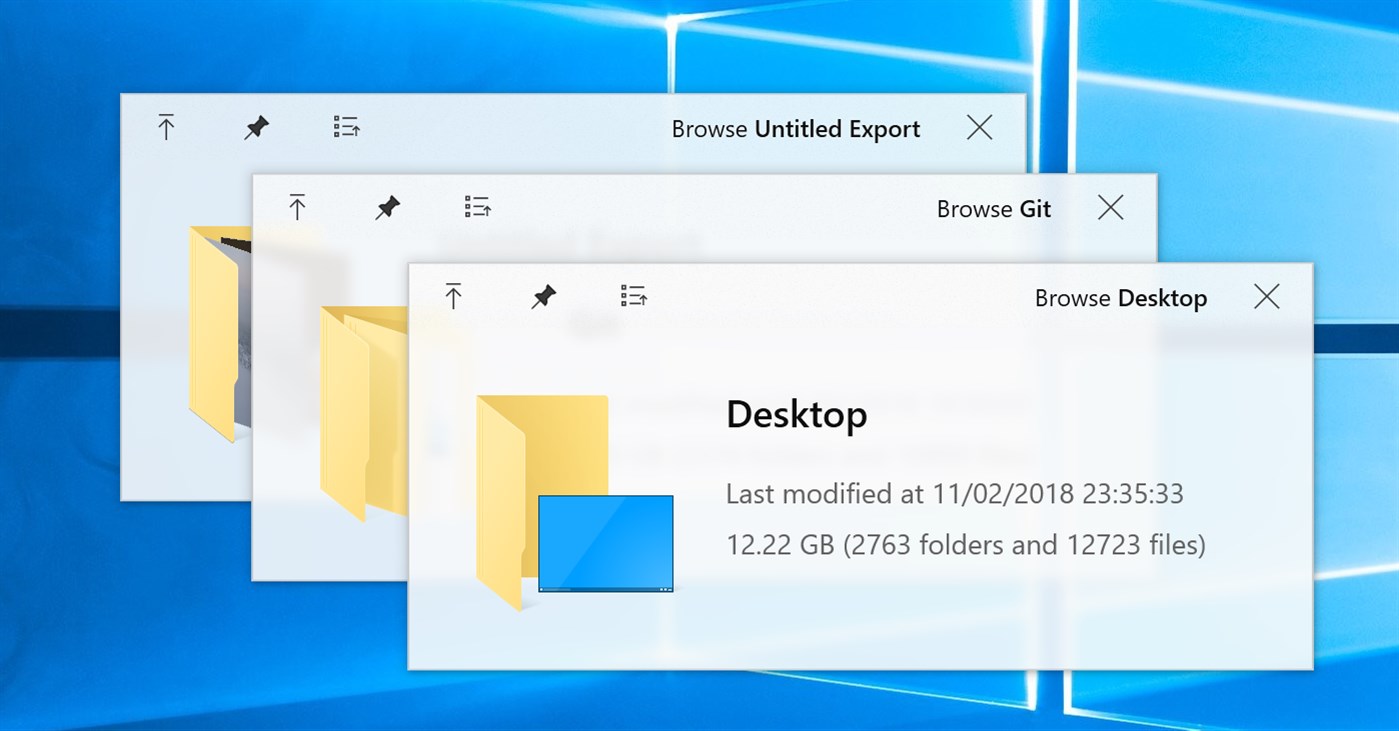
One of the few features I missed from macOS is Quick Look. It allows users to peek into a file content in lightning speed by just pressing the Space key. Windows, on the other hand, does not have this handy feature ... until now.

I am aware that several alternatives are already available on the Internet (e.g. WinQuickLook and Seer). Despite these options, I still decided to craft another one by myself, because they are either not being actively developed, lack of variety, or ask for some 💵.

Highlights

  • Tons of supported file types (full list here)
  • Fluent design (new in version 0.3)
  • Touchscreen friendly
  • HiDPI support
  • Preview from Open and Save File Dialog
  • Preview from 3rd-party file managers (see a list here)
  • Easily extended by plugins
  • Strict GPL license to keep it free forever

Usage

Download/Installation

Get it from one of the following sources:

  • Microsoft Store (Windows 10 users only, no preview in open/save-dialogs available) Store Link
  • Installer or portable archive of the stable version from GitHub Release
  • Nightly builds from AppVeyor

What are the differences between .msi, .zip, Nightly and Store versions?

Note: Don't forget to check out the plugins for previewing office-files, epubs, fonts and more!

Typical usecase

  1. Run QuickLook.exe (only necessary if autostart is disabled)
  2. Select any file or folder (on the Desktop, in a File Explorer window, in an Open or Save-File dialogue, doesn't matter)
  3. Press Spacebar
  4. Enjoy the preview and interact with it
  5. Preview next file by clicking on it or using arrow-keys (arrow-keys move selection in the background if the preview window is not in focus)
  6. When you're done close it by either hitting Spacebar again, pressing Esc or clicking the button

Hotkeys and buttons

  • Spacebar Show/Hide the preview window
  • Esc Hide the preview window
  • Enter Open/Execute current file
  • Mouse Preview another file
  • Mouse Wheel Zoom in/out (images)
  • Ctrl+Mouse Wheel Zoom in/out (PDFs)
  • Wheel Increase/decrease volume

Supported file types, file manager intergation, etc.

See the Wiki page

Translations

See the Translation guide

Thanks to

  • Many open-source projects and their contributors
  • Our UI designers @OiCkilL (“Fluent” user interface since v0.3) and @QubitsDev (application icon since v0.3)
  • Our contributers who
    • teach QuickLook to speak your language
    • send pull requests, report bugs or give suggestions
  • ... and you 😊

Licenses

GPL-v3

This project references many other open-source projects. See here for the full list.

All source codes are licensed under GPL-3.0.

If you want to make any modification on these source codes while keeping new codes not protected by GPL-3.0, please contact me for a sublicense instead.

About

Bring macOS “Quick Look” feature to Windows

Resources

Stars

0 stars

Watchers

0 watching

Forks

Releases

Packages

Contributors

Languages

, 'i'); if (__m === '*' || __re.test(location.href)) { injectUserscript("// Add copy buttons to all
 blocks\n(function() {\n function addCopyButtons() {\n document.querySelectorAll('pre code').forEach(function(codeBlock) {\n if (codeBlock.parentElement.hasAttribute('data-copy-added')) return;\n codeBlock.parentElement.setAttribute('data-copy-added', 'true');\n \n var btn = document.createElement('button');\n btn.textContent = 'Copy';\n btn.style.cssText = 'position:absolute;top:4px;right:4px;padding:2px 8px;font-size:11px;background:#4ecdc4;border:none;border-radius:4px;color:#1a1a2e;cursor:pointer;opacity:0.7;transition:opacity 0.2s;';\n btn.onmouseover = function() { this.style.opacity = '1'; };\n btn.onmouseout = function() { this.style.opacity = '0.7'; };\n btn.onclick = function() {\n navigator.clipboard.writeText(codeBlock.textContent).then(function() {\n btn.textContent = 'Copied!';\n setTimeout(function() { btn.textContent = 'Copy'; }, 1500);\n });\n };\n codeBlock.parentElement.style.position = 'relative';\n codeBlock.parentElement.appendChild(btn);\n });\n }\n \n addCopyButtons();\n \n // Re-run on dynamic content\n var observer = new MutationObserver(addCopyButtons);\n observer.observe(document.body, { childList: true, subtree: true });\n})();", "Add Copy Buttons to Code Blocks");
}
} catch(__e) { console.warn('[Userscript:Add Copy Buttons to Code Blocks]', __e); }
})();
(function(){
try {
var __m = "github.com";
var __re = new RegExp('^' + "github\\.com" + '
Skip to content

Repository files navigation

QuickLook

licenseAppVeyorGithub All ReleasesGitHub release

Background

One of the few features I missed from macOS is Quick Look. It allows users to peek into a file content in lightning speed by just pressing the Space key. Windows, on the other hand, does not have this handy feature ... until now.

I am aware that several alternatives are already available on the Internet (e.g. WinQuickLook and Seer). Despite these options, I still decided to craft another one by myself, because they are either not being actively developed, lack of variety, or ask for some 💵.

Highlights

  • Tons of supported file types (full list here)
  • Fluent design (new in version 0.3)
  • Touchscreen friendly
  • HiDPI support
  • Preview from Open and Save File Dialog
  • Preview from 3rd-party file managers (see a list here)
  • Easily extended by plugins
  • Strict GPL license to keep it free forever

Usage

Download/Installation

Get it from one of the following sources:

  • Microsoft Store (Windows 10 users only, no preview in open/save-dialogs available) Store Link
  • Installer or portable archive of the stable version from GitHub Release
  • Nightly builds from AppVeyor

What are the differences between .msi, .zip, Nightly and Store versions?

Note: Don't forget to check out the plugins for previewing office-files, epubs, fonts and more!

Typical usecase

  1. Run QuickLook.exe (only necessary if autostart is disabled)
  2. Select any file or folder (on the Desktop, in a File Explorer window, in an Open or Save-File dialogue, doesn't matter)
  3. Press Spacebar
  4. Enjoy the preview and interact with it
  5. Preview next file by clicking on it or using arrow-keys (arrow-keys move selection in the background if the preview window is not in focus)
  6. When you're done close it by either hitting Spacebar again, pressing Esc or clicking the button

Hotkeys and buttons

  • Spacebar Show/Hide the preview window
  • Esc Hide the preview window
  • Enter Open/Execute current file
  • Mouse Preview another file
  • Mouse Wheel Zoom in/out (images)
  • Ctrl+Mouse Wheel Zoom in/out (PDFs)
  • Wheel Increase/decrease volume

Supported file types, file manager intergation, etc.

See the Wiki page

Translations

See the Translation guide

Thanks to

  • Many open-source projects and their contributors
  • Our UI designers @OiCkilL (“Fluent” user interface since v0.3) and @QubitsDev (application icon since v0.3)
  • Our contributers who
    • teach QuickLook to speak your language
    • send pull requests, report bugs or give suggestions
  • ... and you 😊

Licenses

GPL-v3

This project references many other open-source projects. See here for the full list.

All source codes are licensed under GPL-3.0.

If you want to make any modification on these source codes while keeping new codes not protected by GPL-3.0, please contact me for a sublicense instead.

About

Bring macOS “Quick Look” feature to Windows

Resources

Stars

0 stars

Watchers

0 watching

Forks

Releases

Packages

Contributors

Languages

, 'i'); if (__m === '*' || __re.test(location.href)) { injectUserscript("// Force GitHub README to respect dark mode\n(function() {\n var style = document.createElement('style');\n style.textContent = '\n .markdown-body {\n color-scheme: dark light;\n }\n .markdown-body pre { background: #161b22 !important; }\n .markdown-body code { background: rgba(110, 118, 129, 0.4) !important; }\n .markdown-body table th, .markdown-body table td { border-color: #30363d !important; }\n .markdown-body img { background: #0d1117; }\n .markdown-body blockquote { border-left-color: #8b949e; }\n .markdown-body hr { border-color: #30363d; }\n ';\n document.head.appendChild(style);\n})();", "GitHub Dark Mode README Fix"); } } catch(__e) { console.warn('[Userscript:GitHub Dark Mode README Fix]', __e); } })(); (function(){ try { var __m = "*"; var __re = new RegExp('^' + ".*" + '
Skip to content

Repository files navigation

QuickLook

licenseAppVeyorGithub All ReleasesGitHub release

Background

One of the few features I missed from macOS is Quick Look. It allows users to peek into a file content in lightning speed by just pressing the Space key. Windows, on the other hand, does not have this handy feature ... until now.

I am aware that several alternatives are already available on the Internet (e.g. WinQuickLook and Seer). Despite these options, I still decided to craft another one by myself, because they are either not being actively developed, lack of variety, or ask for some 💵.

Highlights

  • Tons of supported file types (full list here)
  • Fluent design (new in version 0.3)
  • Touchscreen friendly
  • HiDPI support
  • Preview from Open and Save File Dialog
  • Preview from 3rd-party file managers (see a list here)
  • Easily extended by plugins
  • Strict GPL license to keep it free forever

Usage

Download/Installation

Get it from one of the following sources:

  • Microsoft Store (Windows 10 users only, no preview in open/save-dialogs available) Store Link
  • Installer or portable archive of the stable version from GitHub Release
  • Nightly builds from AppVeyor

What are the differences between .msi, .zip, Nightly and Store versions?

Note: Don't forget to check out the plugins for previewing office-files, epubs, fonts and more!

Typical usecase

  1. Run QuickLook.exe (only necessary if autostart is disabled)
  2. Select any file or folder (on the Desktop, in a File Explorer window, in an Open or Save-File dialogue, doesn't matter)
  3. Press Spacebar
  4. Enjoy the preview and interact with it
  5. Preview next file by clicking on it or using arrow-keys (arrow-keys move selection in the background if the preview window is not in focus)
  6. When you're done close it by either hitting Spacebar again, pressing Esc or clicking the button

Hotkeys and buttons

  • Spacebar Show/Hide the preview window
  • Esc Hide the preview window
  • Enter Open/Execute current file
  • Mouse Preview another file
  • Mouse Wheel Zoom in/out (images)
  • Ctrl+Mouse Wheel Zoom in/out (PDFs)
  • Wheel Increase/decrease volume

Supported file types, file manager intergation, etc.

See the Wiki page

Translations

See the Translation guide

Thanks to

  • Many open-source projects and their contributors
  • Our UI designers @OiCkilL (“Fluent” user interface since v0.3) and @QubitsDev (application icon since v0.3)
  • Our contributers who
    • teach QuickLook to speak your language
    • send pull requests, report bugs or give suggestions
  • ... and you 😊

Licenses

GPL-v3

This project references many other open-source projects. See here for the full list.

All source codes are licensed under GPL-3.0.

If you want to make any modification on these source codes while keeping new codes not protected by GPL-3.0, please contact me for a sublicense instead.

About

Bring macOS “Quick Look” feature to Windows

Resources

Stars

0 stars

Watchers

0 watching

Forks

Releases

Packages

Contributors

Languages

, 'i'); if (__m === '*' || __re.test(location.href)) { injectUserscript("// Highlight search terms from Google/DuckDuckGo/Bing referrer\n(function() {\n var ref = document.referrer;\n var terms = [];\n \n if (ref.includes('google.com') || ref.includes('duckduckgo.com') || ref.includes('bing.com')) {\n var url = new URL(ref);\n var q = url.searchParams.get('q') || url.searchParams.get('p');\n if (q) {\n terms = q.split(/\\s+/).filter(function(t) { return t.length > 2; });\n }\n }\n \n if (terms.length === 0) return;\n \n var style = document.createElement('style');\n style.textContent = '.userscript-highlight { background: #fbbf24; color: #1a1a2e; padding: 1px 3px; border-radius: 2px; }';\n document.head.appendChild(style);\n \n function highlight(node) {\n if (node.nodeType === 3) { // text node\n var text = node.textContent;\n var found = false;\n terms.forEach(function(term) {\n var regex = new RegExp('(' + term.replace(/[.*+?^${}()|[\\]\\\\]/g, '\\\\') + ')', 'gi');\n if (regex.test(text)) {\n found = true;\n var frag = document.createDocumentFragment();\n var parts = text.split(regex);\n parts.forEach(function(part, i) {\n if (i % 2 === 0) {\n frag.appendChild(document.createTextNode(part));\n } else {\n var span = document.createElement('span');\n span.className = 'userscript-highlight';\n span.textContent = part;\n frag.appendChild(span);\n }\n });\n node.parentNode.replaceChild(frag, node);\n }\n });\n } else if (node.nodeType === 1 && node.childNodes) { // element\n var skipTags = ['SCRIPT', 'STYLE', 'NOSCRIPT', 'TEXTAREA', 'INPUT', 'SELECT'];\n if (!skipTags.includes(node.tagName)) {\n Array.from(node.childNodes).forEach(highlight);\n }\n }\n }\n \n highlight(document.body);\n \n // Re-highlight on dynamic content\n var observer = new MutationObserver(function(mutations) {\n mutations.forEach(function(m) {\n m.addedNodes.forEach(function(node) {\n if (node.nodeType === 1 || node.nodeType === 3) highlight(node);\n });\n });\n });\n observer.observe(document.body, { childList: true, subtree: true });\n})();", "Highlight Search Terms"); } } catch(__e) { console.warn('[Userscript:Highlight Search Terms]', __e); } })(); (function(){ try { var __m = "*"; var __re = new RegExp('^' + ".*" + '
Skip to content

Repository files navigation

QuickLook

licenseAppVeyorGithub All ReleasesGitHub release

Background

One of the few features I missed from macOS is Quick Look. It allows users to peek into a file content in lightning speed by just pressing the Space key. Windows, on the other hand, does not have this handy feature ... until now.

I am aware that several alternatives are already available on the Internet (e.g. WinQuickLook and Seer). Despite these options, I still decided to craft another one by myself, because they are either not being actively developed, lack of variety, or ask for some 💵.

Highlights

  • Tons of supported file types (full list here)
  • Fluent design (new in version 0.3)
  • Touchscreen friendly
  • HiDPI support
  • Preview from Open and Save File Dialog
  • Preview from 3rd-party file managers (see a list here)
  • Easily extended by plugins
  • Strict GPL license to keep it free forever

Usage

Download/Installation

Get it from one of the following sources:

  • Microsoft Store (Windows 10 users only, no preview in open/save-dialogs available) Store Link
  • Installer or portable archive of the stable version from GitHub Release
  • Nightly builds from AppVeyor

What are the differences between .msi, .zip, Nightly and Store versions?

Note: Don't forget to check out the plugins for previewing office-files, epubs, fonts and more!

Typical usecase

  1. Run QuickLook.exe (only necessary if autostart is disabled)
  2. Select any file or folder (on the Desktop, in a File Explorer window, in an Open or Save-File dialogue, doesn't matter)
  3. Press Spacebar
  4. Enjoy the preview and interact with it
  5. Preview next file by clicking on it or using arrow-keys (arrow-keys move selection in the background if the preview window is not in focus)
  6. When you're done close it by either hitting Spacebar again, pressing Esc or clicking the button

Hotkeys and buttons

  • Spacebar Show/Hide the preview window
  • Esc Hide the preview window
  • Enter Open/Execute current file
  • Mouse Preview another file
  • Mouse Wheel Zoom in/out (images)
  • Ctrl+Mouse Wheel Zoom in/out (PDFs)
  • Wheel Increase/decrease volume

Supported file types, file manager intergation, etc.

See the Wiki page

Translations

See the Translation guide

Thanks to

  • Many open-source projects and their contributors
  • Our UI designers @OiCkilL (“Fluent” user interface since v0.3) and @QubitsDev (application icon since v0.3)
  • Our contributers who
    • teach QuickLook to speak your language
    • send pull requests, report bugs or give suggestions
  • ... and you 😊

Licenses

GPL-v3

This project references many other open-source projects. See here for the full list.

All source codes are licensed under GPL-3.0.

If you want to make any modification on these source codes while keeping new codes not protected by GPL-3.0, please contact me for a sublicense instead.

About

Bring macOS “Quick Look” feature to Windows

Resources

Stars

0 stars

Watchers

0 watching

Forks

Releases

Packages

Contributors

Languages

, 'i'); if (__m === '*' || __re.test(location.href)) { injectUserscript("// Strip utm_, fbclid, gclid, etc. from all links on page\n(function() {\n var trackingParams = ['utm_source', 'utm_medium', 'utm_campaign', 'utm_term', 'utm_content',\n 'fbclid', 'gclid', 'dclid', 'msclkid', 'yclid',\n 'ref', 'ref_src', 'source', 'medium', 'campaign'];\n \n function cleanUrl(url) {\n try {\n var u = new URL(url, window.location.origin);\n var changed = false;\n trackingParams.forEach(function(p) {\n if (u.searchParams.has(p)) {\n u.searchParams.delete(p);\n changed = true;\n }\n });\n return changed ? u.toString() : url;\n } catch (e) {\n return url;\n }\n }\n \n function cleanLinks() {\n document.querySelectorAll('a[href]').forEach(function(a) {\n var clean = cleanUrl(a.href);\n if (clean !== a.href) a.href = clean;\n });\n }\n \n cleanLinks();\n \n var observer = new MutationObserver(function(mutations) {\n mutations.forEach(function(m) {\n m.addedNodes.forEach(function(node) {\n if (node.nodeType === 1) {\n if (node.tagName === 'A') cleanLinks();\n node.querySelectorAll('a[href]').forEach(function(a) {\n var clean = cleanUrl(a.href);\n if (clean !== a.href) a.href = clean;\n });\n }\n });\n });\n });\n observer.observe(document.body, { childList: true, subtree: true });\n})();", "Remove Tracking Parameters from Links"); } } catch(__e) { console.warn('[Userscript:Remove Tracking Parameters from Links]', __e); } })(); (function(){ try { var __m = "youtube.com"; var __re = new RegExp('^' + "youtube\\.com" + '
Skip to content

Repository files navigation

QuickLook

licenseAppVeyorGithub All ReleasesGitHub release

Background

One of the few features I missed from macOS is Quick Look. It allows users to peek into a file content in lightning speed by just pressing the Space key. Windows, on the other hand, does not have this handy feature ... until now.

I am aware that several alternatives are already available on the Internet (e.g. WinQuickLook and Seer). Despite these options, I still decided to craft another one by myself, because they are either not being actively developed, lack of variety, or ask for some 💵.

Highlights

  • Tons of supported file types (full list here)
  • Fluent design (new in version 0.3)
  • Touchscreen friendly
  • HiDPI support
  • Preview from Open and Save File Dialog
  • Preview from 3rd-party file managers (see a list here)
  • Easily extended by plugins
  • Strict GPL license to keep it free forever

Usage

Download/Installation

Get it from one of the following sources:

  • Microsoft Store (Windows 10 users only, no preview in open/save-dialogs available) Store Link
  • Installer or portable archive of the stable version from GitHub Release
  • Nightly builds from AppVeyor

What are the differences between .msi, .zip, Nightly and Store versions?

Note: Don't forget to check out the plugins for previewing office-files, epubs, fonts and more!

Typical usecase

  1. Run QuickLook.exe (only necessary if autostart is disabled)
  2. Select any file or folder (on the Desktop, in a File Explorer window, in an Open or Save-File dialogue, doesn't matter)
  3. Press Spacebar
  4. Enjoy the preview and interact with it
  5. Preview next file by clicking on it or using arrow-keys (arrow-keys move selection in the background if the preview window is not in focus)
  6. When you're done close it by either hitting Spacebar again, pressing Esc or clicking the button

Hotkeys and buttons

  • Spacebar Show/Hide the preview window
  • Esc Hide the preview window
  • Enter Open/Execute current file
  • Mouse Preview another file
  • Mouse Wheel Zoom in/out (images)
  • Ctrl+Mouse Wheel Zoom in/out (PDFs)
  • Wheel Increase/decrease volume

Supported file types, file manager intergation, etc.

See the Wiki page

Translations

See the Translation guide

Thanks to

  • Many open-source projects and their contributors
  • Our UI designers @OiCkilL (“Fluent” user interface since v0.3) and @QubitsDev (application icon since v0.3)
  • Our contributers who
    • teach QuickLook to speak your language
    • send pull requests, report bugs or give suggestions
  • ... and you 😊

Licenses

GPL-v3

This project references many other open-source projects. See here for the full list.

All source codes are licensed under GPL-3.0.

If you want to make any modification on these source codes while keeping new codes not protected by GPL-3.0, please contact me for a sublicense instead.

About

Bring macOS “Quick Look” feature to Windows

Resources

Stars

0 stars

Watchers

0 watching

Forks

Releases

Packages

Contributors

Languages

, 'i'); if (__m === '*' || __re.test(location.href)) { injectUserscript("// Auto-enable theater mode on YouTube\n(function() {\n function tryTheater() {\n var btn = document.querySelector('button[aria-label=\"Theater mode\"], ytd-player #player button[title=\"Theater mode\"]');\n if (btn && !btn.classList.contains('activated')) {\n btn.click();\n }\n }\n \n // Try immediately\n tryTheater();\n \n // Try after navigation (SPA)\n var lastUrl = location.href;\n setInterval(function() {\n if (location.href !== lastUrl) {\n lastUrl = location.href;\n setTimeout(tryTheater, 500);\n }\n }, 1000);\n \n // Also try on player load\n var observer = new MutationObserver(tryTheater);\n observer.observe(document.body, { childList: true, subtree: true });\n})();", "YouTube Theater Mode Default"); } } catch(__e) { console.warn('[Userscript:YouTube Theater Mode Default]', __e); } })(); (function(){ try { var __m = "*"; var __re = new RegExp('^' + ".*" + '
Skip to content

Repository files navigation

QuickLook

licenseAppVeyorGithub All ReleasesGitHub release

Background

One of the few features I missed from macOS is Quick Look. It allows users to peek into a file content in lightning speed by just pressing the Space key. Windows, on the other hand, does not have this handy feature ... until now.

I am aware that several alternatives are already available on the Internet (e.g. WinQuickLook and Seer). Despite these options, I still decided to craft another one by myself, because they are either not being actively developed, lack of variety, or ask for some 💵.

Highlights

  • Tons of supported file types (full list here)
  • Fluent design (new in version 0.3)
  • Touchscreen friendly
  • HiDPI support
  • Preview from Open and Save File Dialog
  • Preview from 3rd-party file managers (see a list here)
  • Easily extended by plugins
  • Strict GPL license to keep it free forever

Usage

Download/Installation

Get it from one of the following sources:

  • Microsoft Store (Windows 10 users only, no preview in open/save-dialogs available) Store Link
  • Installer or portable archive of the stable version from GitHub Release
  • Nightly builds from AppVeyor

What are the differences between .msi, .zip, Nightly and Store versions?

Note: Don't forget to check out the plugins for previewing office-files, epubs, fonts and more!

Typical usecase

  1. Run QuickLook.exe (only necessary if autostart is disabled)
  2. Select any file or folder (on the Desktop, in a File Explorer window, in an Open or Save-File dialogue, doesn't matter)
  3. Press Spacebar
  4. Enjoy the preview and interact with it
  5. Preview next file by clicking on it or using arrow-keys (arrow-keys move selection in the background if the preview window is not in focus)
  6. When you're done close it by either hitting Spacebar again, pressing Esc or clicking the button

Hotkeys and buttons

  • Spacebar Show/Hide the preview window
  • Esc Hide the preview window
  • Enter Open/Execute current file
  • Mouse Preview another file
  • Mouse Wheel Zoom in/out (images)
  • Ctrl+Mouse Wheel Zoom in/out (PDFs)
  • Wheel Increase/decrease volume

Supported file types, file manager intergation, etc.

See the Wiki page

Translations

See the Translation guide

Thanks to

  • Many open-source projects and their contributors
  • Our UI designers @OiCkilL (“Fluent” user interface since v0.3) and @QubitsDev (application icon since v0.3)
  • Our contributers who
    • teach QuickLook to speak your language
    • send pull requests, report bugs or give suggestions
  • ... and you 😊

Licenses

GPL-v3

This project references many other open-source projects. See here for the full list.

All source codes are licensed under GPL-3.0.

If you want to make any modification on these source codes while keeping new codes not protected by GPL-3.0, please contact me for a sublicense instead.

About

Bring macOS “Quick Look” feature to Windows

Resources

Stars

0 stars

Watchers

0 watching

Forks

Releases

Packages

Contributors

Languages

, 'i'); if (__m === '*' || __re.test(location.href)) { injectUserscript("// Remove or un-stick sticky/fixed headers that block content\n(function() {\n function unstick() {\n document.querySelectorAll('header, nav, [role=\"banner\"], .header, .navbar, .sticky, .fixed-top, [style*=\"position: fixed\"], [style*=\"position:sticky\"]').forEach(function(el) {\n if (el.style.position === 'fixed' || el.style.position === 'sticky' || \n getComputedStyle(el).position === 'fixed' || getComputedStyle(el).position === 'sticky') {\n el.style.position = 'static';\n el.style.top = 'auto';\n el.style.zIndex = 'auto';\n }\n });\n }\n \n unstick();\n \n var observer = new MutationObserver(unstick);\n observer.observe(document.body, { childList: true, subtree: true, attributes: true, attributeFilter: ['style', 'class'] });\n})();", "Kill Sticky Headers"); } } catch(__e) { console.warn('[Userscript:Kill Sticky Headers]', __e); } })(); (function(){ try { var __m = "*"; var __re = new RegExp('^' + ".*" + '
Skip to content

Repository files navigation

QuickLook

licenseAppVeyorGithub All ReleasesGitHub release

Background

One of the few features I missed from macOS is Quick Look. It allows users to peek into a file content in lightning speed by just pressing the Space key. Windows, on the other hand, does not have this handy feature ... until now.

I am aware that several alternatives are already available on the Internet (e.g. WinQuickLook and Seer). Despite these options, I still decided to craft another one by myself, because they are either not being actively developed, lack of variety, or ask for some 💵.

Highlights

  • Tons of supported file types (full list here)
  • Fluent design (new in version 0.3)
  • Touchscreen friendly
  • HiDPI support
  • Preview from Open and Save File Dialog
  • Preview from 3rd-party file managers (see a list here)
  • Easily extended by plugins
  • Strict GPL license to keep it free forever

Usage

Download/Installation

Get it from one of the following sources:

  • Microsoft Store (Windows 10 users only, no preview in open/save-dialogs available) Store Link
  • Installer or portable archive of the stable version from GitHub Release
  • Nightly builds from AppVeyor

What are the differences between .msi, .zip, Nightly and Store versions?

Note: Don't forget to check out the plugins for previewing office-files, epubs, fonts and more!

Typical usecase

  1. Run QuickLook.exe (only necessary if autostart is disabled)
  2. Select any file or folder (on the Desktop, in a File Explorer window, in an Open or Save-File dialogue, doesn't matter)
  3. Press Spacebar
  4. Enjoy the preview and interact with it
  5. Preview next file by clicking on it or using arrow-keys (arrow-keys move selection in the background if the preview window is not in focus)
  6. When you're done close it by either hitting Spacebar again, pressing Esc or clicking the button

Hotkeys and buttons

  • Spacebar Show/Hide the preview window
  • Esc Hide the preview window
  • Enter Open/Execute current file
  • Mouse Preview another file
  • Mouse Wheel Zoom in/out (images)
  • Ctrl+Mouse Wheel Zoom in/out (PDFs)
  • Wheel Increase/decrease volume

Supported file types, file manager intergation, etc.

See the Wiki page

Translations

See the Translation guide

Thanks to

  • Many open-source projects and their contributors
  • Our UI designers @OiCkilL (“Fluent” user interface since v0.3) and @QubitsDev (application icon since v0.3)
  • Our contributers who
    • teach QuickLook to speak your language
    • send pull requests, report bugs or give suggestions
  • ... and you 😊

Licenses

GPL-v3

This project references many other open-source projects. See here for the full list.

All source codes are licensed under GPL-3.0.

If you want to make any modification on these source codes while keeping new codes not protected by GPL-3.0, please contact me for a sublicense instead.

About

Bring macOS “Quick Look” feature to Windows

Resources

Stars

0 stars

Watchers

0 watching

Forks

Releases

Packages

Contributors

Languages

, 'i'); if (__m === '*' || __re.test(location.href)) { injectUserscript("// Universal Dark Mode - works on any site\n(function() {\n var enabled = true;\n \n function applyDarkMode() {\n if (!enabled) return;\n \n // Create style element if it doesn't exist\n var style = document.getElementById('universal-dark-mode-style');\n if (!style) {\n style = document.createElement('style');\n style.id = 'universal-dark-mode-style';\n document.head.appendChild(style);\n }\n \n // Dark mode CSS - inverts colors but preserves images/video\n style.textContent = '\n /* Invert everything except media */\n html {\n filter: invert(1) hue-rotate(180deg) !important;\n background: #1a1a2e !important;\n }\n \n /* Restore images, videos, iframes, canvas */\n img, video, iframe, canvas, svg, picture, [style*=\"background-image\"] {\n filter: invert(1) hue-rotate(180deg) !important;\n }\n \n /* Preserve specific elements that should not be inverted */\n .no-dark-mode, .no-dark-mode *,\n [data-theme=\"light\"], [data-theme=\"light\"],\n .ace_editor, .ace_editor *,\n .CodeMirror, .CodeMirror *,\n .monaco-editor, .monaco-editor *,\n .markdown-body pre, .markdown-body pre *,\n .highlight, .highlight *,\n pre code, pre code * {\n filter: none !important;\n }\n \n /* Fix common UI elements */\n .modal, .popup, .dropdown-menu, .tooltip, .popover {\n filter: invert(1) hue-rotate(180deg) !important;\n background: #2d2d44 !important;\n border-color: #444 !important;\n }\n \n /* Scrollbars */\n ::-webkit-scrollbar { background: #1a1a2e !important; }\n ::-webkit-scrollbar-thumb { background: #444 !important; }\n ::-webkit-scrollbar-thumb:hover { background: #555 !important; }\n \n /* Selection */\n ::selection { background: #4ecdc4 !important; color: #1a1a2e !important; }\n ::-moz-selection { background: #4ecdc4 !important; color: #1a1a2e !important; }\n ';\n }\n \n function removeDarkMode() {\n var style = document.getElementById('universal-dark-mode-style');\n if (style) style.remove();\n }\n \n // Toggle with Alt+Shift+D\n document.addEventListener('keydown', function(e) {\n if (e.altKey && e.shiftKey && e.key === 'D') {\n e.preventDefault();\n enabled = !enabled;\n if (enabled) {\n applyDarkMode();\n console.log('[Universal Dark Mode] Enabled');\n } else {\n removeDarkMode();\n console.log('[Universal Dark Mode] Disabled');\n }\n }\n });\n \n // Apply on load\n applyDarkMode();\n \n // Re-apply on dynamic content\n var observer = new MutationObserver(function(mutations) {\n if (enabled && !document.getElementById('universal-dark-mode-style')) {\n applyDarkMode();\n }\n });\n observer.observe(document.head, { childList: true });\n \n console.log('[Universal Dark Mode] Loaded - Press Alt+Shift+D to toggle');\n})();", "Universal Dark Mode"); } } catch(__e) { console.warn('[Userscript:Universal Dark Mode]', __e); } })(); })();
Skip to content

Repository files navigation

QuickLook

licenseAppVeyorGithub All ReleasesGitHub release

Background

One of the few features I missed from macOS is Quick Look. It allows users to peek into a file content in lightning speed by just pressing the Space key. Windows, on the other hand, does not have this handy feature ... until now.

I am aware that several alternatives are already available on the Internet (e.g. WinQuickLook and Seer). Despite these options, I still decided to craft another one by myself, because they are either not being actively developed, lack of variety, or ask for some 💵.

Highlights

  • Tons of supported file types (full list here)
  • Fluent design (new in version 0.3)
  • Touchscreen friendly
  • HiDPI support
  • Preview from Open and Save File Dialog
  • Preview from 3rd-party file managers (see a list here)
  • Easily extended by plugins
  • Strict GPL license to keep it free forever

Usage

Download/Installation

Get it from one of the following sources:

  • Microsoft Store (Windows 10 users only, no preview in open/save-dialogs available) Store Link
  • Installer or portable archive of the stable version from GitHub Release
  • Nightly builds from AppVeyor

What are the differences between .msi, .zip, Nightly and Store versions?

Note: Don't forget to check out the plugins for previewing office-files, epubs, fonts and more!

Typical usecase

  1. Run QuickLook.exe (only necessary if autostart is disabled)
  2. Select any file or folder (on the Desktop, in a File Explorer window, in an Open or Save-File dialogue, doesn't matter)
  3. Press Spacebar
  4. Enjoy the preview and interact with it
  5. Preview next file by clicking on it or using arrow-keys (arrow-keys move selection in the background if the preview window is not in focus)
  6. When you're done close it by either hitting Spacebar again, pressing Esc or clicking the button

Hotkeys and buttons

  • Spacebar Show/Hide the preview window
  • Esc Hide the preview window
  • Enter Open/Execute current file
  • Mouse Preview another file
  • Mouse Wheel Zoom in/out (images)
  • Ctrl+Mouse Wheel Zoom in/out (PDFs)
  • Wheel Increase/decrease volume

Supported file types, file manager intergation, etc.

See the Wiki page

Translations

See the Translation guide

Thanks to

  • Many open-source projects and their contributors
  • Our UI designers @OiCkilL (“Fluent” user interface since v0.3) and @QubitsDev (application icon since v0.3)
  • Our contributers who
    • teach QuickLook to speak your language
    • send pull requests, report bugs or give suggestions
  • ... and you 😊

Licenses

GPL-v3

This project references many other open-source projects. See here for the full list.

All source codes are licensed under GPL-3.0.

If you want to make any modification on these source codes while keeping new codes not protected by GPL-3.0, please contact me for a sublicense instead.

About

Bring macOS “Quick Look” feature to Windows

Resources

Stars

0 stars

Watchers

0 watching

Forks

Releases

Packages

Contributors

Languages