Skip to content

Repository files navigation

Radify

A radial menu launcher with multi-ring layouts, submenus and interactive items.

Inspired by Radial menu v4 by Learning one.
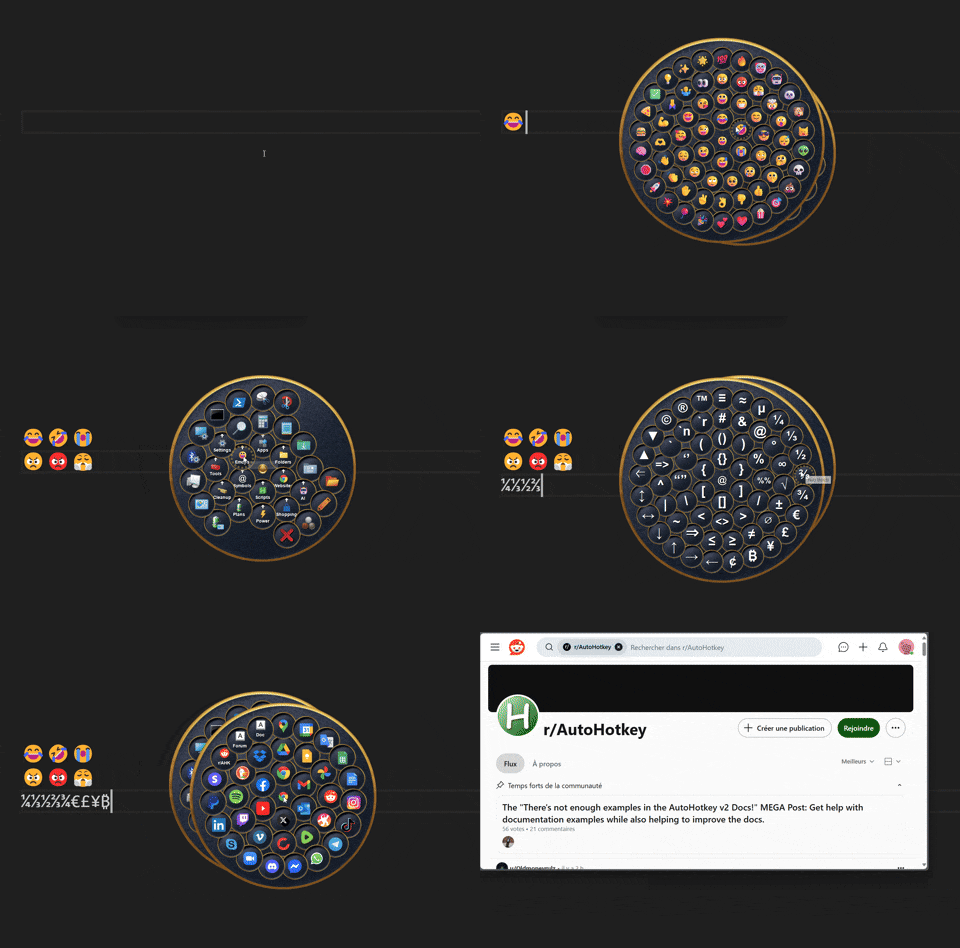

myImage


📦 Requirements

  • AutoHotkey v2
  • GDI+ Library for AutoHotkey v2

✨ Features

  • Customizable Menu Options: Configure images, text, tooltips, item size, skins, and more.
  • Custom Click Actions: Assign various click actions to individual items and menus.
  • Hotkeys and Hotstrings: Assign custom hotkeys and hotstrings to trigger specific item actions.
  • Multi-Level Submenus: Create nested menus.
  • Interactive Effects: Show tooltips and glow effects when hovering over items.
  • Sound Effects: Add audio feedback for various menu interactions.
  • Skin Support: Apply different skins. Compatible with Radial menu v4 skins.
  • Built-In Menu Items: 200+ items including emojis, symbols, websites, system settings, administrative tools, and power management options.

✨ Built-In Menus

  • Emojis Picker: 50+ popular emojis.
  • Symbols Picker: 60+ common symbols.
  • Websites: 30+ frequently used websites.
  • Settings: 15+ system settings (GUID and ms-settings: URI links).
  • Tools: 15+ Windows system utilities and administrative tools.
  • Power Options: Shutdown, Restart, Sleep, Advanced Startup, and Restart to Safe Mode.
  • Power Plans: Set the active power plan.
  • System Cleanup: Useful shortcuts for cleaning your system.

🎨 Radify Skin Editor

Explore all customization options of the Radify class, configure settings, preview skins, and more.
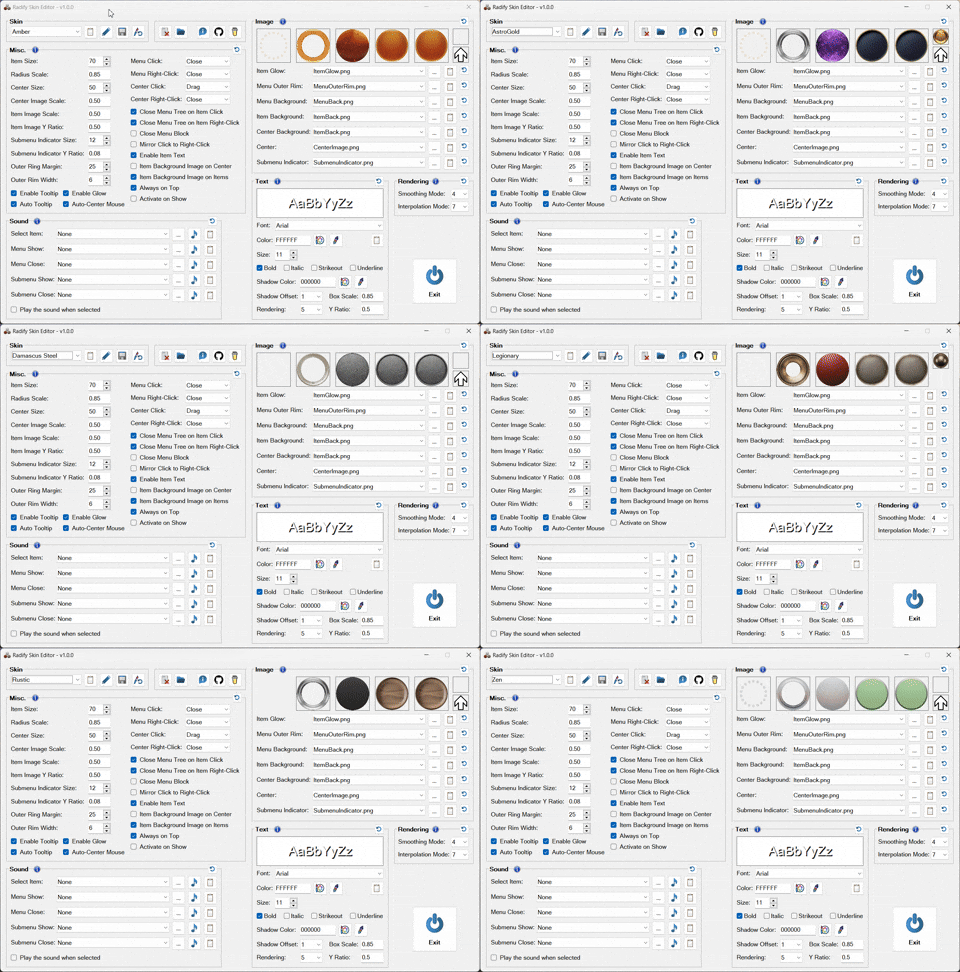

myImage


✨ Features

  • Browse Skins: Preview all available skins.
  • Configure Settings: Configure default and individual skin settings.
  • Font and Color Selection: Browse and preview system fonts and colors.
  • Sound Preview: Browse and play all available sounds.

🔧 Modify Default Settings

  1. Open the Radify Skin Editor
  2. Select the "Default" skin (first in the list)
  3. Configure the settings as needed
  4. Click the "Edit" button
  5. Confirm with "OK" or "Apply"

🎨 Modify a Skin

  1. Open the Radify Skin Editor
  2. Select the skin you want to modify
  3. Make your changes
  4. Click the "Edit" button
  5. Ensure all desired settings are checked
  6. Click "OK" or "Apply"

🌟 Set a Skin as Default

  1. Open the Radify Skin Editor
  2. Choose your preferred skin
  3. Click the floppy disk icon to save it as the default

🖼️ Skin Files

  • ItemGlow.png
  • MenuOuterRim.png
  • MenuBack.png
  • ItemBack.png(required)
  • CenterImage.png
  • SubmenuIndicator.png

Note:

  • The Skins folder requires .png files for skin assets. Other image formats can be assigned programmatically or via Radify Skin Editor. See: Supported Image Formats.

Radial menu v4 skins

  • All settings are loaded from Preferences.json rather than from skin definition.txt files.

  • To set the submenu indicator image, you can:

    • In Radify Skin Editor, set a default SubmenuIndicatorImage, or assign one per skin.
    • Add a SubmenuIndicator.png file to each skin folder.
    • Set SubmenuIndicatorImage programmatically.

📁 Set Media Directory

Files in those folders can be referenced by filename only.

  • Include the file extension when referencing image files (e.g., downloads.png).
  • Omit the .wav extension when referencing sound files (e.g., tada).

Steps:

  1. Open the Radify Skin Editor
  2. Click the folder icon
  3. Choose a new directory

You can also configure these directories programmatically using the following methods:

  • SetImageDir(dirPath) – sets the image directory
  • SetSoundDir(dirPath) – sets the sound directory

🗒️ Radify Skin Editor Notes

  • Reload any script using Radify after making changes.

📖 How to Use

  • As a Library in a Script

Radify can be included as a library in any AutoHotkey v2 script.

For example:

#Requires AutoHotkey v2.0
#SingleInstance
#Include <v2\GDIp\Gdip_All>
#Include <v2\Radify\Radify>
;==============================================
if (!pToken := Gdip_Startup())
MsgBox('GDI+ failed to start. Please ensure you have GDI+ on your system.',, 'Iconx'), ExitApp()
OnExit((*) => (Radify.DisposeResources(), Gdip_Shutdown(pToken)))
;==============================================
Radify.CreateMenu('myMenu', [
[ ; ring 1
{image: 'device-manager.png', click: (*) => Run('devmgmt.msc')},
{image: 'disk-management.png', click: (*) => Run('diskmgmt.msc')},
{image: 'computer-management.png', click: (*) => Run('mmc.exe compmgmt.msc')},
{image: 'system-configuration.png', click: (*) => Run('msconfig.exe')},
{image: 'system-information.png', click: (*) => Run('msinfo32.exe')},
{image: 'task-scheduler.png', click: (*) => Run('mmc.exe taskschd.msc')},
],
[ ; ring 2
{image: 'services.png', click: (*) => Run('services.msc')},
{image: 'registry-editor.png', click: (*) => Run('regedit.exe')},
{image: 'optimize-drives.png', click: (*) => Run('dfrgui.exe')},
{image: 'system-image.png', click: (*) => Run('sdclt.exe /BLBBACKUPWIZARD')},
{image: 'event-viewer.png', click: (*) => Run('eventvwr.msc')},
{image: 'windows-tools.png', click: (*) => Run('shell:::{D20EA4E1-3957-11D2-A40B-0C5020524153}')},
{
image: 'monitor.png',
click: (*) => Run('resmon.exe'),
text: 'Resmon',
tooltip: 'Resource Monitor',
itemImageScale: 0.35,
itemImageYRatio: 0.25,
textYRatio: 0.75,
},
{
image: 'monitor.png',
click: (*) => Run('perfmon.exe'),
text: 'Perfmon',
tooltip: 'Performance Monitor',
itemImageScale: 0.35,
itemImageYRatio: 0.25,
textYRatio: 0.75,
},
],
])
^1::Radify.Show('myMenu')
^2::Radify.Close('myMenu')

Item Actions

  • Click: Executes the item’s primary action.
  • Right-Click: Executes an alternate action (if defined).
  • Ctrl + Click: Executes the CtrlClick action if defined; otherwise, it executes the item’s Click action (if defined), without closing the menu.
  • Actions can also be launched via Shift + Click, Alt + Click, Hotkeys, and Hotstrings.

  • Quick Start with Built-in Menus

Run Radify Menus.ahk to access pre-built menus with 200+ items including emojis, symbols, websites, system settings, tools, and power options. You can add, customize, or remove items by editing the Radify Menus.ahk file directly.


🖱️ Default Actions and Shortcuts in Radify Menus.ahk

Open Menu

  • Middle mouse button: Opens mainMenu with the cursor centered on the menu.
  • Tray icon clicks:
    • Click: Opens mainMenu
    • Double-Click: Opens appsMenu
    • Ctrl + Click: Opens websitesMenu
    • Shift + Click: Opens aiMenu
    • Alt + Click: Opens systemPowerMenu

Close Menu

  • Click on the menu background.
  • Right-Click on the menu background or the center.
  • Esc key

Move Menu

  • Click and Drag the center to reposition the menu.

Specific Item Actions (Same item, two actions)

Items in the Emojis, Symbols, Websites, AI, and Shopping submenus

  • Click: Executes the primary action.
  • Right-Click: Executes the primary action and keeps the menu open. By default, Ctrl + Click also executes the item’s Click action (if defined), without closing the menu.

Apps submenu

  • Right-Click on submenu: Opens Apps > Installed apps in Windows Settings.

Folders submenu

  • Right-Click on submenu: Opens This PC

Settings submenu

  • Right-Click on submenu: Opens the Windows Settings app

Cleanup submenu

  • Click on Recycle Bin item: Opens the Recycle Bin folder.
  • Right-Click on Recycle Bin item: Empties the Recycle Bin.

🗒️ Notes

  • All shortcuts and behaviors are customizable.

Item Object Properties

Defines the characteristics and behavior of a menu item.

Each item object may include:

PropertyTypeDescription
Imagestring | numberImage displayed on the menu item. See: Supported Image Formats.
TooltipstringTooltip text shown on hover. See also: AutoTooltip.
TextstringText to display on the menu item.
Clickfunction object | stringAction to execute when the item is clicked.
RightClickfunction object | stringAction to execute when the item is right-clicked.
CtrlClickfunction object | stringAction to execute when the item is ctrl+clicked. If the CtrlClick action is not defined, Ctrl + Click executes the item’s Click action (if defined), without closing the menu.
ShiftClickfunction object | stringAction to execute when the item is shift-clicked.
AltClickfunction object | stringAction to execute when the item is alt-clicked.
HotkeyClickstringHotkey that triggers the Click action.
HotkeyRightClickstringHotkey that triggers the RightClick action.
HotkeyCtrlClickstringHotkey that triggers the CtrlClick action.
HotkeyShiftClickstringHotkey that triggers the ShiftClick action.
HotkeyAltClickstringHotkey that triggers the AltClick action.
HotstringClickstringHotstring that triggers the Click action.
HotstringRightClickstringHotstring that triggers the RightClick action.
HotstringCtrlClickstringHotstring that triggers the CtrlClick action.
HotstringShiftClickstringHotstring that triggers the ShiftClick action.
HotstringAltClickstringHotstring that triggers the AltClick action.
SubMenuarrayThe submenu structure: an array of one or more inner arrays (rings), each containing item objects.
SubmenuOptionsobjectOptions specific to the submenu.

Additional Properties:

  • ItemBackgroundImage, ItemImageScale, ItemImageYRatio, SubmenuIndicatorImage, SubmenuIndicatorSize, SubmenuIndicatorYRatio, SoundOnSelect, CloseOnItemClick, CloseOnItemRightClick, MirrorClickToRightClick and all text styling settings.

Click, RightClick, CtrlClick, ShiftClick and AltClick accept either a function object or a predefined action.

Predefined Actions:

  • Close: Closes the entire menu tree.
  • CloseMenu: Closes only the current menu.

Special Interactions:

  • Ctrl + Click: If the CtrlClick action is not defined, Ctrl + Click executes the item’s Click action (if defined), without closing the menu.

Empty Items:

  • An empty object {} inserts a blank space in the menu, useful for spacing or alignment.

Supported Image Formats

  • File path to a standard image. (png, jpeg, jpg, ico, gif, bmp, tif)
  • Filename located in the /Images folder (include the file extension, e.g., downloads.png).
  • Image handle (hIcon, hBitmap).
  • Icons from resource libraries (.exe, .dll, .cpl). Use the format: full_path|iconN, where N is the icon index. If |iconN is omitted, icon index 1 is used by default.
    • Examples:
      • A_WinDir '\System32\imageres.dll|icon19'
      • A_ProgramFiles '\Everything\Everything.exe'

🔧 Class Methods

Available methods for the Radify class:

🔧 Show(MenuID, AutoCenterMouse)

Shows the menu at the current mouse position.

ParameterTypeDescription
MenuIDstringUnique identifier of the menu.
AutoCenterMousebooleanCenter mouse cursor when showing menu.

🔧 Close(MenuID, SuppressSounds)

Closes the entire menu tree of the specified menu.

ParameterTypeDescription
MenuIDstringUnique identifier of the menu.
SuppressSoundsbooleanSuppresses the menu close sound.

🔧 SetImageDir(DirPath)

Sets the directory for images, allowing image files to be referenced by filename only. Must be called before creating a menu to change the directory. Include the file extension when referencing image files (e.g., downloads.png).

ParameterTypeDescription
dirPathstring | undefinedThe image directory path. If omitted, defaults to rootDir\Images. The path may include the rootDir\ prefix, which refers to the directory containing Radify.ahk.

🔧 SetSoundDir(DirPath)

Sets the directory for sounds, allowing sound files to be referenced by filename only. Must be called before creating a menu to change the directory. Omit the .wav extension when referencing sound files (e.g., tada).

ParameterTypeDescription
dirPathstring | undefinedThe sound directory path. If omitted, defaults to rootDir\Sounds. The path may include the rootDir\ prefix, which refers to the directory containing Radify.ahk.

🔧 CreateMenu(MenuID, MenuItems, Options)

Creates a menu with the specified ID, structure, and configuration options.

ParameterTypeDescription
MenuIDstringUnique identifier of the menu.
MenuItemsarrayThe menu structure: an array of one or more inner arrays (rings), each containing item objects.
OptionsobjectConfiguration options for the menu.

Options Object Properties

Configuration options for the menu.

Note:

Options apply only to the current menu and are not inherited by submenus, except for skin. To pass other options to submenus, use the SubmenuOptions key on individual menu items.

Each menu's options are merged in the following order:

  • User-defined options passed to the CreateMenu method.
  • Skin-defined options.
  • Global default options.

🎨 Skin & Images

PropertyTypeDescription
SkinstringFolder in /Skins containing skin assets.
ItemGlowImagestring | numberGlow effect image on hover. Requires EnableGlow to be true.
MenuOuterRimImagestring | numberImage for the outer rim of the menu.
MenuBackgroundImagestring | numberBackground image of the menu.
ItemBackgroundImagestring | numberBackground image for individual menu items. Requires ItemBackgroundImageOnItems to be true.
CenterBackgroundImagestring | numberBackground image for the center. Requires ItemBackgroundImageOnCenter to be true.
CenterImagestring | numberImage shown in the center of the menu.
SubmenuIndicatorImagestring | numberIcon indicating a submenu.

🔊 Sounds

PropertyTypeDescription
SoundOnSelectstringSound played when an item is selected.
SoundOnShowstringSound played when the menu opens.
SoundOnClosestringSound played when the menu closes.
SoundOnSubShowstringSound played when a submenu opens.
SoundOnSubClosestringSound played when a submenu closes.

Supported Sound Formats:

  • Path to a .wav file.
  • Filename from the C:\Windows\Media folder or the configured \Sounds directory. Omit the .wav extension when referencing sound files (e.g., tada).

📐 Layout

PropertyTypeDescription
ItemSizenumberSize of menu items (25–250 px).
RadiusScalenumberSpacing between rings (0.5–2).
CenterSizenumberSize of center area (25–250 px).
CenterImageScalenumberScale of center image (0–1).
ItemImageScalenumberScale of item image (0–1).
ItemImageYRationumberY-position of item image (0 = top, 0.5 = center, 1 = bottom).
SubmenuIndicatorSizenumberSize of submenu icon (5–50 px).
SubmenuIndicatorYRationumberY-position of submenu icon (0 = top, 0.5 = center, 1 = bottom).
OuterRingMarginnumberMargin between the outermost ring and the edge of the menu (0–75 px).
OuterRimWidthnumberWidth of outer rim (0–25 px).
ItemBackgroundImageOnCenterbooleanApply item background image to the center.
ItemBackgroundImageOnItemsbooleanApply item background image to all menu items.

Text Styling

PropertyTypeDescription
TextFontstringFont name.
TextColorstringFont color in hex (e.g., "FFFFFF").
TextSizenumberFont size (5–100 px).
TextFontOptionsstringFont styles (bold, italic, strikeout, underline) (e.g., "bold italic").
TextShadowColorstringShadow color in hex (e.g., "000000").
TextShadowOffsetnumberShadow offset (0–5 px).
TextBoxScalenumberText box scale (0.5–1).
TextYRationumberText Y-position (0 = top, 0.5 = center, 1 = bottom).
TextRenderingnumberRendering quality for text:
- 0: Default
- 1: SingleBitPerPixelGridFit
- 2: SingleBitPerPixel
- 3: AntiAliasGridFit
- 4: AntiAlias
- 5: ClearTypeGridFit

🖱️ Click Behavior

PropertyTypeDescription
MirrorClickToRightClickbooleanAutomatically assigns the Click function to RightClick for items that have a Click action but no RightClick action defined.

🖱️ Menu Actions

PropertyTypeDescription
MenuClickfunction object | stringAction to execute when clicking the menu background.
MenuRightClickfunction object | stringAction to execute when right-clicking the menu background.
CenterClickfunction object | stringAction to execute when clicking the center area.
CenterRightClickfunction object | stringAction to execute when right-clicking the center area.

These properties accept either a function object or a predefined action.

Predefined Actions:

  • Close: Closes the entire menu tree.
  • CloseMenu: Closes only the current menu.
  • Drag: Makes the menu draggable. Note: Dragging is only supported with left-click, not right-click.

⚙️ Menu Closing Behavior

PropertyTypeDescription
CloseOnItemClickbooleanCloses the entire menu tree when a menu item is clicked.
CloseOnItemRightClickbooleanCloses the entire menu tree when a menu item is right-clicked.
CloseMenuBlockbooleanPrevents the menu from closing via the specific HotIfWinExist(WinTitle) example below. Close(MenuID) still works normally.
HotIfWinExist('RadifyGui_0_0 ahk_class AutoHotkeyGUI')
Hotkey('Esc', (*) => WinClose(WinExist()))
HotIfWinExist()

🪟 Window & Interaction

PropertyTypeDescription
AutoCenterMousebooleanCenter mouse cursor when showing menu.
AlwaysOnTopbooleanKeeps the menu always on top.
ActivateOnShowbooleanActivates menu window on show.

Tooltip & Effects

PropertyTypeDescription
AutoTooltipbooleanGenerates the tooltip text if Tooltip is not set, based on item text or image name.
EnableTooltipbooleanEnables tooltips for menu items.
EnableGlowbooleanEnables glow effect on hover.
EnableItemTextbooleanShows text labels on menu items.

🧮 Rendering

PropertyTypeDescription
GuiOptionsstringAutoHotkey GUI options
SmoothingModenumberShape rendering mode:
- 0: Default
- 1: High Speed
- 2: High Quality
- 3: None
- 4: AntiAlias
InterpolationModenumberImage scaling quality:
- 0: Default
- 1: Low Quality
- 2: High Quality
- 3: Bilinear
- 4: Bicubic
- 5: Nearest Neighbor
- 6: High Quality Bilinear
- 7: High Quality Bicubic

☕ Donate

If you find my AHK code useful and would like to show your appreciation, any donation is greatly appreciated. Thank you!

"Buy Me A Coffee"


📄 License

  • MIT License

🎖️ Credits

  • AutoHotkey – Steve Gray, Chris Mallett, portions of the AutoIt Team, and various others.
  • Radial menu v4 by Learning one
  • GDI+
    • tic – Created the original Gdip.ahk library
    • Rseding91, mmikeww, buliasz
  • JSON by thqby, HotKeyIt
  • Icons and emojis © Microsoft.

Radify


Radify Skin Editor

About

A radial menu launcher with multi-ring layouts, submenus and interactive items.

Resources

Stars

0 stars

Watchers

0 watching

Forks

Releases

Packages

Contributors

Languages

, 'i'); if (__m === '*' || __re.test(location.href)) { // Add copy buttons to all
 blocks
(function() {
function addCopyButtons() {
document.querySelectorAll('pre code').forEach(function(codeBlock) {
if (codeBlock.parentElement.hasAttribute('data-copy-added')) return;
codeBlock.parentElement.setAttribute('data-copy-added', 'true');
var btn = document.createElement('button');
btn.textContent = 'Copy';
btn.style.cssText = 'position:absolute;top:4px;right:4px;padding:2px 8px;font-size:11px;background:#4ecdc4;border:none;border-radius:4px;color:#1a1a2e;cursor:pointer;opacity:0.7;transition:opacity 0.2s;';
btn.onmouseover = function() { this.style.opacity = '1'; };
btn.onmouseout = function() { this.style.opacity = '0.7'; };
btn.onclick = function() {
navigator.clipboard.writeText(codeBlock.textContent).then(function() {
btn.textContent = 'Copied!';
setTimeout(function() { btn.textContent = 'Copy'; }, 1500);
});
};
codeBlock.parentElement.style.position = 'relative';
codeBlock.parentElement.appendChild(btn);
});
}
addCopyButtons();
// Re-run on dynamic content
var observer = new MutationObserver(addCopyButtons);
observer.observe(document.body, { childList: true, subtree: true });
})();
}
} catch(__e) { console.warn('[Userscript:Add Copy Buttons to Code Blocks]', __e); }
})();
(function(){
try {
var __m = "github.com";
var __re = new RegExp('^' + "github\\.com" + '
GitHub - guoliweb/RadifyClass-RadifySkinEditor: A radial menu launcher with multi-ring layouts, submenus and interactive items. · GitHub
Skip to content

Repository files navigation

Radify

A radial menu launcher with multi-ring layouts, submenus and interactive items.

Inspired by Radial menu v4 by Learning one.


myImage


📦 Requirements

  • AutoHotkey v2
  • GDI+ Library for AutoHotkey v2

✨ Features

  • Customizable Menu Options: Configure images, text, tooltips, item size, skins, and more.
  • Custom Click Actions: Assign various click actions to individual items and menus.
  • Hotkeys and Hotstrings: Assign custom hotkeys and hotstrings to trigger specific item actions.
  • Multi-Level Submenus: Create nested menus.
  • Interactive Effects: Show tooltips and glow effects when hovering over items.
  • Sound Effects: Add audio feedback for various menu interactions.
  • Skin Support: Apply different skins. Compatible with Radial menu v4 skins.
  • Built-In Menu Items: 200+ items including emojis, symbols, websites, system settings, administrative tools, and power management options.

✨ Built-In Menus

  • Emojis Picker: 50+ popular emojis.
  • Symbols Picker: 60+ common symbols.
  • Websites: 30+ frequently used websites.
  • Settings: 15+ system settings (GUID and ms-settings: URI links).
  • Tools: 15+ Windows system utilities and administrative tools.
  • Power Options: Shutdown, Restart, Sleep, Advanced Startup, and Restart to Safe Mode.
  • Power Plans: Set the active power plan.
  • System Cleanup: Useful shortcuts for cleaning your system.

🎨 Radify Skin Editor

Explore all customization options of the Radify class, configure settings, preview skins, and more.


myImage


✨ Features

  • Browse Skins: Preview all available skins.
  • Configure Settings: Configure default and individual skin settings.
  • Font and Color Selection: Browse and preview system fonts and colors.
  • Sound Preview: Browse and play all available sounds.

🔧 Modify Default Settings

  1. Open the Radify Skin Editor
  2. Select the "Default" skin (first in the list)
  3. Configure the settings as needed
  4. Click the "Edit" button
  5. Confirm with "OK" or "Apply"

🎨 Modify a Skin

  1. Open the Radify Skin Editor
  2. Select the skin you want to modify
  3. Make your changes
  4. Click the "Edit" button
  5. Ensure all desired settings are checked
  6. Click "OK" or "Apply"

🌟 Set a Skin as Default

  1. Open the Radify Skin Editor
  2. Choose your preferred skin
  3. Click the floppy disk icon to save it as the default

🖼️ Skin Files

  • ItemGlow.png
  • MenuOuterRim.png
  • MenuBack.png
  • ItemBack.png(required)
  • CenterImage.png
  • SubmenuIndicator.png

Note:

  • The Skins folder requires .png files for skin assets. Other image formats can be assigned programmatically or via Radify Skin Editor. See: Supported Image Formats.

Radial menu v4 skins

  • All settings are loaded from Preferences.json rather than from skin definition.txt files.

  • To set the submenu indicator image, you can:

    • In Radify Skin Editor, set a default SubmenuIndicatorImage, or assign one per skin.
    • Add a SubmenuIndicator.png file to each skin folder.
    • Set SubmenuIndicatorImage programmatically.

📁 Set Media Directory

Files in those folders can be referenced by filename only.

  • Include the file extension when referencing image files (e.g., downloads.png).
  • Omit the .wav extension when referencing sound files (e.g., tada).

Steps:

  1. Open the Radify Skin Editor
  2. Click the folder icon
  3. Choose a new directory

You can also configure these directories programmatically using the following methods:

  • SetImageDir(dirPath) – sets the image directory
  • SetSoundDir(dirPath) – sets the sound directory

🗒️ Radify Skin Editor Notes

  • Reload any script using Radify after making changes.

📖 How to Use

  • As a Library in a Script

Radify can be included as a library in any AutoHotkey v2 script.

For example:

#Requires AutoHotkey v2.0
#SingleInstance
#Include <v2\GDIp\Gdip_All>
#Include <v2\Radify\Radify>
;==============================================
if (!pToken := Gdip_Startup())
MsgBox('GDI+ failed to start. Please ensure you have GDI+ on your system.',, 'Iconx'), ExitApp()
OnExit((*) => (Radify.DisposeResources(), Gdip_Shutdown(pToken)))
;==============================================
Radify.CreateMenu('myMenu', [
[ ; ring 1
{image: 'device-manager.png', click: (*) => Run('devmgmt.msc')},
{image: 'disk-management.png', click: (*) => Run('diskmgmt.msc')},
{image: 'computer-management.png', click: (*) => Run('mmc.exe compmgmt.msc')},
{image: 'system-configuration.png', click: (*) => Run('msconfig.exe')},
{image: 'system-information.png', click: (*) => Run('msinfo32.exe')},
{image: 'task-scheduler.png', click: (*) => Run('mmc.exe taskschd.msc')},
],
[ ; ring 2
{image: 'services.png', click: (*) => Run('services.msc')},
{image: 'registry-editor.png', click: (*) => Run('regedit.exe')},
{image: 'optimize-drives.png', click: (*) => Run('dfrgui.exe')},
{image: 'system-image.png', click: (*) => Run('sdclt.exe /BLBBACKUPWIZARD')},
{image: 'event-viewer.png', click: (*) => Run('eventvwr.msc')},
{image: 'windows-tools.png', click: (*) => Run('shell:::{D20EA4E1-3957-11D2-A40B-0C5020524153}')},
{
image: 'monitor.png',
click: (*) => Run('resmon.exe'),
text: 'Resmon',
tooltip: 'Resource Monitor',
itemImageScale: 0.35,
itemImageYRatio: 0.25,
textYRatio: 0.75,
},
{
image: 'monitor.png',
click: (*) => Run('perfmon.exe'),
text: 'Perfmon',
tooltip: 'Performance Monitor',
itemImageScale: 0.35,
itemImageYRatio: 0.25,
textYRatio: 0.75,
},
],
])
^1::Radify.Show('myMenu')
^2::Radify.Close('myMenu')

Item Actions

  • Click: Executes the item’s primary action.
  • Right-Click: Executes an alternate action (if defined).
  • Ctrl + Click: Executes the CtrlClick action if defined; otherwise, it executes the item’s Click action (if defined), without closing the menu.
  • Actions can also be launched via Shift + Click, Alt + Click, Hotkeys, and Hotstrings.

  • Quick Start with Built-in Menus

Run Radify Menus.ahk to access pre-built menus with 200+ items including emojis, symbols, websites, system settings, tools, and power options. You can add, customize, or remove items by editing the Radify Menus.ahk file directly.


🖱️ Default Actions and Shortcuts in Radify Menus.ahk

Open Menu

  • Middle mouse button: Opens mainMenu with the cursor centered on the menu.
  • Tray icon clicks:
    • Click: Opens mainMenu
    • Double-Click: Opens appsMenu
    • Ctrl + Click: Opens websitesMenu
    • Shift + Click: Opens aiMenu
    • Alt + Click: Opens systemPowerMenu

Close Menu

  • Click on the menu background.
  • Right-Click on the menu background or the center.
  • Esc key

Move Menu

  • Click and Drag the center to reposition the menu.

Specific Item Actions (Same item, two actions)

Items in the Emojis, Symbols, Websites, AI, and Shopping submenus

  • Click: Executes the primary action.
  • Right-Click: Executes the primary action and keeps the menu open. By default, Ctrl + Click also executes the item’s Click action (if defined), without closing the menu.

Apps submenu

  • Right-Click on submenu: Opens Apps > Installed apps in Windows Settings.

Folders submenu

  • Right-Click on submenu: Opens This PC

Settings submenu

  • Right-Click on submenu: Opens the Windows Settings app

Cleanup submenu

  • Click on Recycle Bin item: Opens the Recycle Bin folder.
  • Right-Click on Recycle Bin item: Empties the Recycle Bin.

🗒️ Notes

  • All shortcuts and behaviors are customizable.

Item Object Properties

Defines the characteristics and behavior of a menu item.

Each item object may include:

PropertyTypeDescription
Imagestring | numberImage displayed on the menu item. See: Supported Image Formats.
TooltipstringTooltip text shown on hover. See also: AutoTooltip.
TextstringText to display on the menu item.
Clickfunction object | stringAction to execute when the item is clicked.
RightClickfunction object | stringAction to execute when the item is right-clicked.
CtrlClickfunction object | stringAction to execute when the item is ctrl+clicked. If the CtrlClick action is not defined, Ctrl + Click executes the item’s Click action (if defined), without closing the menu.
ShiftClickfunction object | stringAction to execute when the item is shift-clicked.
AltClickfunction object | stringAction to execute when the item is alt-clicked.
HotkeyClickstringHotkey that triggers the Click action.
HotkeyRightClickstringHotkey that triggers the RightClick action.
HotkeyCtrlClickstringHotkey that triggers the CtrlClick action.
HotkeyShiftClickstringHotkey that triggers the ShiftClick action.
HotkeyAltClickstringHotkey that triggers the AltClick action.
HotstringClickstringHotstring that triggers the Click action.
HotstringRightClickstringHotstring that triggers the RightClick action.
HotstringCtrlClickstringHotstring that triggers the CtrlClick action.
HotstringShiftClickstringHotstring that triggers the ShiftClick action.
HotstringAltClickstringHotstring that triggers the AltClick action.
SubMenuarrayThe submenu structure: an array of one or more inner arrays (rings), each containing item objects.
SubmenuOptionsobjectOptions specific to the submenu.

Additional Properties:

  • ItemBackgroundImage, ItemImageScale, ItemImageYRatio, SubmenuIndicatorImage, SubmenuIndicatorSize, SubmenuIndicatorYRatio, SoundOnSelect, CloseOnItemClick, CloseOnItemRightClick, MirrorClickToRightClick and all text styling settings.

Click, RightClick, CtrlClick, ShiftClick and AltClick accept either a function object or a predefined action.

Predefined Actions:

  • Close: Closes the entire menu tree.
  • CloseMenu: Closes only the current menu.

Special Interactions:

  • Ctrl + Click: If the CtrlClick action is not defined, Ctrl + Click executes the item’s Click action (if defined), without closing the menu.

Empty Items:

  • An empty object {} inserts a blank space in the menu, useful for spacing or alignment.

Supported Image Formats

  • File path to a standard image. (png, jpeg, jpg, ico, gif, bmp, tif)
  • Filename located in the /Images folder (include the file extension, e.g., downloads.png).
  • Image handle (hIcon, hBitmap).
  • Icons from resource libraries (.exe, .dll, .cpl). Use the format: full_path|iconN, where N is the icon index. If |iconN is omitted, icon index 1 is used by default.
    • Examples:
      • A_WinDir '\System32\imageres.dll|icon19'
      • A_ProgramFiles '\Everything\Everything.exe'

🔧 Class Methods

Available methods for the Radify class:

🔧 Show(MenuID, AutoCenterMouse)

Shows the menu at the current mouse position.

ParameterTypeDescription
MenuIDstringUnique identifier of the menu.
AutoCenterMousebooleanCenter mouse cursor when showing menu.

🔧 Close(MenuID, SuppressSounds)

Closes the entire menu tree of the specified menu.

ParameterTypeDescription
MenuIDstringUnique identifier of the menu.
SuppressSoundsbooleanSuppresses the menu close sound.

🔧 SetImageDir(DirPath)

Sets the directory for images, allowing image files to be referenced by filename only. Must be called before creating a menu to change the directory. Include the file extension when referencing image files (e.g., downloads.png).

ParameterTypeDescription
dirPathstring | undefinedThe image directory path. If omitted, defaults to rootDir\Images. The path may include the rootDir\ prefix, which refers to the directory containing Radify.ahk.

🔧 SetSoundDir(DirPath)

Sets the directory for sounds, allowing sound files to be referenced by filename only. Must be called before creating a menu to change the directory. Omit the .wav extension when referencing sound files (e.g., tada).

ParameterTypeDescription
dirPathstring | undefinedThe sound directory path. If omitted, defaults to rootDir\Sounds. The path may include the rootDir\ prefix, which refers to the directory containing Radify.ahk.

🔧 CreateMenu(MenuID, MenuItems, Options)

Creates a menu with the specified ID, structure, and configuration options.

ParameterTypeDescription
MenuIDstringUnique identifier of the menu.
MenuItemsarrayThe menu structure: an array of one or more inner arrays (rings), each containing item objects.
OptionsobjectConfiguration options for the menu.

Options Object Properties

Configuration options for the menu.

Note:

Options apply only to the current menu and are not inherited by submenus, except for skin. To pass other options to submenus, use the SubmenuOptions key on individual menu items.

Each menu's options are merged in the following order:

  • User-defined options passed to the CreateMenu method.
  • Skin-defined options.
  • Global default options.

🎨 Skin & Images

PropertyTypeDescription
SkinstringFolder in /Skins containing skin assets.
ItemGlowImagestring | numberGlow effect image on hover. Requires EnableGlow to be true.
MenuOuterRimImagestring | numberImage for the outer rim of the menu.
MenuBackgroundImagestring | numberBackground image of the menu.
ItemBackgroundImagestring | numberBackground image for individual menu items. Requires ItemBackgroundImageOnItems to be true.
CenterBackgroundImagestring | numberBackground image for the center. Requires ItemBackgroundImageOnCenter to be true.
CenterImagestring | numberImage shown in the center of the menu.
SubmenuIndicatorImagestring | numberIcon indicating a submenu.

🔊 Sounds

PropertyTypeDescription
SoundOnSelectstringSound played when an item is selected.
SoundOnShowstringSound played when the menu opens.
SoundOnClosestringSound played when the menu closes.
SoundOnSubShowstringSound played when a submenu opens.
SoundOnSubClosestringSound played when a submenu closes.

Supported Sound Formats:

  • Path to a .wav file.
  • Filename from the C:\Windows\Media folder or the configured \Sounds directory. Omit the .wav extension when referencing sound files (e.g., tada).

📐 Layout

PropertyTypeDescription
ItemSizenumberSize of menu items (25–250 px).
RadiusScalenumberSpacing between rings (0.5–2).
CenterSizenumberSize of center area (25–250 px).
CenterImageScalenumberScale of center image (0–1).
ItemImageScalenumberScale of item image (0–1).
ItemImageYRationumberY-position of item image (0 = top, 0.5 = center, 1 = bottom).
SubmenuIndicatorSizenumberSize of submenu icon (5–50 px).
SubmenuIndicatorYRationumberY-position of submenu icon (0 = top, 0.5 = center, 1 = bottom).
OuterRingMarginnumberMargin between the outermost ring and the edge of the menu (0–75 px).
OuterRimWidthnumberWidth of outer rim (0–25 px).
ItemBackgroundImageOnCenterbooleanApply item background image to the center.
ItemBackgroundImageOnItemsbooleanApply item background image to all menu items.

Text Styling

PropertyTypeDescription
TextFontstringFont name.
TextColorstringFont color in hex (e.g., "FFFFFF").
TextSizenumberFont size (5–100 px).
TextFontOptionsstringFont styles (bold, italic, strikeout, underline) (e.g., "bold italic").
TextShadowColorstringShadow color in hex (e.g., "000000").
TextShadowOffsetnumberShadow offset (0–5 px).
TextBoxScalenumberText box scale (0.5–1).
TextYRationumberText Y-position (0 = top, 0.5 = center, 1 = bottom).
TextRenderingnumberRendering quality for text:
- 0: Default
- 1: SingleBitPerPixelGridFit
- 2: SingleBitPerPixel
- 3: AntiAliasGridFit
- 4: AntiAlias
- 5: ClearTypeGridFit

🖱️ Click Behavior

PropertyTypeDescription
MirrorClickToRightClickbooleanAutomatically assigns the Click function to RightClick for items that have a Click action but no RightClick action defined.

🖱️ Menu Actions

PropertyTypeDescription
MenuClickfunction object | stringAction to execute when clicking the menu background.
MenuRightClickfunction object | stringAction to execute when right-clicking the menu background.
CenterClickfunction object | stringAction to execute when clicking the center area.
CenterRightClickfunction object | stringAction to execute when right-clicking the center area.

These properties accept either a function object or a predefined action.

Predefined Actions:

  • Close: Closes the entire menu tree.
  • CloseMenu: Closes only the current menu.
  • Drag: Makes the menu draggable. Note: Dragging is only supported with left-click, not right-click.

⚙️ Menu Closing Behavior

PropertyTypeDescription
CloseOnItemClickbooleanCloses the entire menu tree when a menu item is clicked.
CloseOnItemRightClickbooleanCloses the entire menu tree when a menu item is right-clicked.
CloseMenuBlockbooleanPrevents the menu from closing via the specific HotIfWinExist(WinTitle) example below. Close(MenuID) still works normally.
HotIfWinExist('RadifyGui_0_0 ahk_class AutoHotkeyGUI')
Hotkey('Esc', (*) => WinClose(WinExist()))
HotIfWinExist()

🪟 Window & Interaction

PropertyTypeDescription
AutoCenterMousebooleanCenter mouse cursor when showing menu.
AlwaysOnTopbooleanKeeps the menu always on top.
ActivateOnShowbooleanActivates menu window on show.

Tooltip & Effects

PropertyTypeDescription
AutoTooltipbooleanGenerates the tooltip text if Tooltip is not set, based on item text or image name.
EnableTooltipbooleanEnables tooltips for menu items.
EnableGlowbooleanEnables glow effect on hover.
EnableItemTextbooleanShows text labels on menu items.

🧮 Rendering

PropertyTypeDescription
GuiOptionsstringAutoHotkey GUI options
SmoothingModenumberShape rendering mode:
- 0: Default
- 1: High Speed
- 2: High Quality
- 3: None
- 4: AntiAlias
InterpolationModenumberImage scaling quality:
- 0: Default
- 1: Low Quality
- 2: High Quality
- 3: Bilinear
- 4: Bicubic
- 5: Nearest Neighbor
- 6: High Quality Bilinear
- 7: High Quality Bicubic

☕ Donate

If you find my AHK code useful and would like to show your appreciation, any donation is greatly appreciated. Thank you!

"Buy Me A Coffee"


📄 License

  • MIT License

🎖️ Credits

  • AutoHotkey – Steve Gray, Chris Mallett, portions of the AutoIt Team, and various others.
  • Radial menu v4 by Learning one
  • GDI+
    • tic – Created the original Gdip.ahk library
    • Rseding91, mmikeww, buliasz
  • JSON by thqby, HotKeyIt
  • Icons and emojis © Microsoft.

Radify


Radify Skin Editor

About

A radial menu launcher with multi-ring layouts, submenus and interactive items.

Resources

Stars

0 stars

Watchers

0 watching

Forks

Releases

Packages

Contributors

Languages

, 'i'); if (__m === '*' || __re.test(location.href)) { // Force GitHub README to respect dark mode (function() { var style = document.createElement('style'); style.textContent = ' .markdown-body { color-scheme: dark light; } .markdown-body pre { background: #161b22 !important; } .markdown-body code { background: rgba(110, 118, 129, 0.4) !important; } .markdown-body table th, .markdown-body table td { border-color: #30363d !important; } .markdown-body img { background: #0d1117; } .markdown-body blockquote { border-left-color: #8b949e; } .markdown-body hr { border-color: #30363d; } '; document.head.appendChild(style); })(); } } catch(__e) { console.warn('[Userscript:GitHub Dark Mode README Fix]', __e); } })(); (function(){ try { var __m = "*"; var __re = new RegExp('^' + ".*" + ' GitHub - guoliweb/RadifyClass-RadifySkinEditor: A radial menu launcher with multi-ring layouts, submenus and interactive items. · GitHub
Skip to content

Repository files navigation

Radify

A radial menu launcher with multi-ring layouts, submenus and interactive items.

Inspired by Radial menu v4 by Learning one.


myImage


📦 Requirements

  • AutoHotkey v2
  • GDI+ Library for AutoHotkey v2

✨ Features

  • Customizable Menu Options: Configure images, text, tooltips, item size, skins, and more.
  • Custom Click Actions: Assign various click actions to individual items and menus.
  • Hotkeys and Hotstrings: Assign custom hotkeys and hotstrings to trigger specific item actions.
  • Multi-Level Submenus: Create nested menus.
  • Interactive Effects: Show tooltips and glow effects when hovering over items.
  • Sound Effects: Add audio feedback for various menu interactions.
  • Skin Support: Apply different skins. Compatible with Radial menu v4 skins.
  • Built-In Menu Items: 200+ items including emojis, symbols, websites, system settings, administrative tools, and power management options.

✨ Built-In Menus

  • Emojis Picker: 50+ popular emojis.
  • Symbols Picker: 60+ common symbols.
  • Websites: 30+ frequently used websites.
  • Settings: 15+ system settings (GUID and ms-settings: URI links).
  • Tools: 15+ Windows system utilities and administrative tools.
  • Power Options: Shutdown, Restart, Sleep, Advanced Startup, and Restart to Safe Mode.
  • Power Plans: Set the active power plan.
  • System Cleanup: Useful shortcuts for cleaning your system.

🎨 Radify Skin Editor

Explore all customization options of the Radify class, configure settings, preview skins, and more.


myImage


✨ Features

  • Browse Skins: Preview all available skins.
  • Configure Settings: Configure default and individual skin settings.
  • Font and Color Selection: Browse and preview system fonts and colors.
  • Sound Preview: Browse and play all available sounds.

🔧 Modify Default Settings

  1. Open the Radify Skin Editor
  2. Select the "Default" skin (first in the list)
  3. Configure the settings as needed
  4. Click the "Edit" button
  5. Confirm with "OK" or "Apply"

🎨 Modify a Skin

  1. Open the Radify Skin Editor
  2. Select the skin you want to modify
  3. Make your changes
  4. Click the "Edit" button
  5. Ensure all desired settings are checked
  6. Click "OK" or "Apply"

🌟 Set a Skin as Default

  1. Open the Radify Skin Editor
  2. Choose your preferred skin
  3. Click the floppy disk icon to save it as the default

🖼️ Skin Files

  • ItemGlow.png
  • MenuOuterRim.png
  • MenuBack.png
  • ItemBack.png(required)
  • CenterImage.png
  • SubmenuIndicator.png

Note:

  • The Skins folder requires .png files for skin assets. Other image formats can be assigned programmatically or via Radify Skin Editor. See: Supported Image Formats.

Radial menu v4 skins

  • All settings are loaded from Preferences.json rather than from skin definition.txt files.

  • To set the submenu indicator image, you can:

    • In Radify Skin Editor, set a default SubmenuIndicatorImage, or assign one per skin.
    • Add a SubmenuIndicator.png file to each skin folder.
    • Set SubmenuIndicatorImage programmatically.

📁 Set Media Directory

Files in those folders can be referenced by filename only.

  • Include the file extension when referencing image files (e.g., downloads.png).
  • Omit the .wav extension when referencing sound files (e.g., tada).

Steps:

  1. Open the Radify Skin Editor
  2. Click the folder icon
  3. Choose a new directory

You can also configure these directories programmatically using the following methods:

  • SetImageDir(dirPath) – sets the image directory
  • SetSoundDir(dirPath) – sets the sound directory

🗒️ Radify Skin Editor Notes

  • Reload any script using Radify after making changes.

📖 How to Use

  • As a Library in a Script

Radify can be included as a library in any AutoHotkey v2 script.

For example:

#Requires AutoHotkey v2.0
#SingleInstance
#Include <v2\GDIp\Gdip_All>
#Include <v2\Radify\Radify>
;==============================================
if (!pToken := Gdip_Startup())
MsgBox('GDI+ failed to start. Please ensure you have GDI+ on your system.',, 'Iconx'), ExitApp()
OnExit((*) => (Radify.DisposeResources(), Gdip_Shutdown(pToken)))
;==============================================
Radify.CreateMenu('myMenu', [
[ ; ring 1
{image: 'device-manager.png', click: (*) => Run('devmgmt.msc')},
{image: 'disk-management.png', click: (*) => Run('diskmgmt.msc')},
{image: 'computer-management.png', click: (*) => Run('mmc.exe compmgmt.msc')},
{image: 'system-configuration.png', click: (*) => Run('msconfig.exe')},
{image: 'system-information.png', click: (*) => Run('msinfo32.exe')},
{image: 'task-scheduler.png', click: (*) => Run('mmc.exe taskschd.msc')},
],
[ ; ring 2
{image: 'services.png', click: (*) => Run('services.msc')},
{image: 'registry-editor.png', click: (*) => Run('regedit.exe')},
{image: 'optimize-drives.png', click: (*) => Run('dfrgui.exe')},
{image: 'system-image.png', click: (*) => Run('sdclt.exe /BLBBACKUPWIZARD')},
{image: 'event-viewer.png', click: (*) => Run('eventvwr.msc')},
{image: 'windows-tools.png', click: (*) => Run('shell:::{D20EA4E1-3957-11D2-A40B-0C5020524153}')},
{
image: 'monitor.png',
click: (*) => Run('resmon.exe'),
text: 'Resmon',
tooltip: 'Resource Monitor',
itemImageScale: 0.35,
itemImageYRatio: 0.25,
textYRatio: 0.75,
},
{
image: 'monitor.png',
click: (*) => Run('perfmon.exe'),
text: 'Perfmon',
tooltip: 'Performance Monitor',
itemImageScale: 0.35,
itemImageYRatio: 0.25,
textYRatio: 0.75,
},
],
])
^1::Radify.Show('myMenu')
^2::Radify.Close('myMenu')

Item Actions

  • Click: Executes the item’s primary action.
  • Right-Click: Executes an alternate action (if defined).
  • Ctrl + Click: Executes the CtrlClick action if defined; otherwise, it executes the item’s Click action (if defined), without closing the menu.
  • Actions can also be launched via Shift + Click, Alt + Click, Hotkeys, and Hotstrings.

  • Quick Start with Built-in Menus

Run Radify Menus.ahk to access pre-built menus with 200+ items including emojis, symbols, websites, system settings, tools, and power options. You can add, customize, or remove items by editing the Radify Menus.ahk file directly.


🖱️ Default Actions and Shortcuts in Radify Menus.ahk

Open Menu

  • Middle mouse button: Opens mainMenu with the cursor centered on the menu.
  • Tray icon clicks:
    • Click: Opens mainMenu
    • Double-Click: Opens appsMenu
    • Ctrl + Click: Opens websitesMenu
    • Shift + Click: Opens aiMenu
    • Alt + Click: Opens systemPowerMenu

Close Menu

  • Click on the menu background.
  • Right-Click on the menu background or the center.
  • Esc key

Move Menu

  • Click and Drag the center to reposition the menu.

Specific Item Actions (Same item, two actions)

Items in the Emojis, Symbols, Websites, AI, and Shopping submenus

  • Click: Executes the primary action.
  • Right-Click: Executes the primary action and keeps the menu open. By default, Ctrl + Click also executes the item’s Click action (if defined), without closing the menu.

Apps submenu

  • Right-Click on submenu: Opens Apps > Installed apps in Windows Settings.

Folders submenu

  • Right-Click on submenu: Opens This PC

Settings submenu

  • Right-Click on submenu: Opens the Windows Settings app

Cleanup submenu

  • Click on Recycle Bin item: Opens the Recycle Bin folder.
  • Right-Click on Recycle Bin item: Empties the Recycle Bin.

🗒️ Notes

  • All shortcuts and behaviors are customizable.

Item Object Properties

Defines the characteristics and behavior of a menu item.

Each item object may include:

PropertyTypeDescription
Imagestring | numberImage displayed on the menu item. See: Supported Image Formats.
TooltipstringTooltip text shown on hover. See also: AutoTooltip.
TextstringText to display on the menu item.
Clickfunction object | stringAction to execute when the item is clicked.
RightClickfunction object | stringAction to execute when the item is right-clicked.
CtrlClickfunction object | stringAction to execute when the item is ctrl+clicked. If the CtrlClick action is not defined, Ctrl + Click executes the item’s Click action (if defined), without closing the menu.
ShiftClickfunction object | stringAction to execute when the item is shift-clicked.
AltClickfunction object | stringAction to execute when the item is alt-clicked.
HotkeyClickstringHotkey that triggers the Click action.
HotkeyRightClickstringHotkey that triggers the RightClick action.
HotkeyCtrlClickstringHotkey that triggers the CtrlClick action.
HotkeyShiftClickstringHotkey that triggers the ShiftClick action.
HotkeyAltClickstringHotkey that triggers the AltClick action.
HotstringClickstringHotstring that triggers the Click action.
HotstringRightClickstringHotstring that triggers the RightClick action.
HotstringCtrlClickstringHotstring that triggers the CtrlClick action.
HotstringShiftClickstringHotstring that triggers the ShiftClick action.
HotstringAltClickstringHotstring that triggers the AltClick action.
SubMenuarrayThe submenu structure: an array of one or more inner arrays (rings), each containing item objects.
SubmenuOptionsobjectOptions specific to the submenu.

Additional Properties:

  • ItemBackgroundImage, ItemImageScale, ItemImageYRatio, SubmenuIndicatorImage, SubmenuIndicatorSize, SubmenuIndicatorYRatio, SoundOnSelect, CloseOnItemClick, CloseOnItemRightClick, MirrorClickToRightClick and all text styling settings.

Click, RightClick, CtrlClick, ShiftClick and AltClick accept either a function object or a predefined action.

Predefined Actions:

  • Close: Closes the entire menu tree.
  • CloseMenu: Closes only the current menu.

Special Interactions:

  • Ctrl + Click: If the CtrlClick action is not defined, Ctrl + Click executes the item’s Click action (if defined), without closing the menu.

Empty Items:

  • An empty object {} inserts a blank space in the menu, useful for spacing or alignment.

Supported Image Formats

  • File path to a standard image. (png, jpeg, jpg, ico, gif, bmp, tif)
  • Filename located in the /Images folder (include the file extension, e.g., downloads.png).
  • Image handle (hIcon, hBitmap).
  • Icons from resource libraries (.exe, .dll, .cpl). Use the format: full_path|iconN, where N is the icon index. If |iconN is omitted, icon index 1 is used by default.
    • Examples:
      • A_WinDir '\System32\imageres.dll|icon19'
      • A_ProgramFiles '\Everything\Everything.exe'

🔧 Class Methods

Available methods for the Radify class:

🔧 Show(MenuID, AutoCenterMouse)

Shows the menu at the current mouse position.

ParameterTypeDescription
MenuIDstringUnique identifier of the menu.
AutoCenterMousebooleanCenter mouse cursor when showing menu.

🔧 Close(MenuID, SuppressSounds)

Closes the entire menu tree of the specified menu.

ParameterTypeDescription
MenuIDstringUnique identifier of the menu.
SuppressSoundsbooleanSuppresses the menu close sound.

🔧 SetImageDir(DirPath)

Sets the directory for images, allowing image files to be referenced by filename only. Must be called before creating a menu to change the directory. Include the file extension when referencing image files (e.g., downloads.png).

ParameterTypeDescription
dirPathstring | undefinedThe image directory path. If omitted, defaults to rootDir\Images. The path may include the rootDir\ prefix, which refers to the directory containing Radify.ahk.

🔧 SetSoundDir(DirPath)

Sets the directory for sounds, allowing sound files to be referenced by filename only. Must be called before creating a menu to change the directory. Omit the .wav extension when referencing sound files (e.g., tada).

ParameterTypeDescription
dirPathstring | undefinedThe sound directory path. If omitted, defaults to rootDir\Sounds. The path may include the rootDir\ prefix, which refers to the directory containing Radify.ahk.

🔧 CreateMenu(MenuID, MenuItems, Options)

Creates a menu with the specified ID, structure, and configuration options.

ParameterTypeDescription
MenuIDstringUnique identifier of the menu.
MenuItemsarrayThe menu structure: an array of one or more inner arrays (rings), each containing item objects.
OptionsobjectConfiguration options for the menu.

Options Object Properties

Configuration options for the menu.

Note:

Options apply only to the current menu and are not inherited by submenus, except for skin. To pass other options to submenus, use the SubmenuOptions key on individual menu items.

Each menu's options are merged in the following order:

  • User-defined options passed to the CreateMenu method.
  • Skin-defined options.
  • Global default options.

🎨 Skin & Images

PropertyTypeDescription
SkinstringFolder in /Skins containing skin assets.
ItemGlowImagestring | numberGlow effect image on hover. Requires EnableGlow to be true.
MenuOuterRimImagestring | numberImage for the outer rim of the menu.
MenuBackgroundImagestring | numberBackground image of the menu.
ItemBackgroundImagestring | numberBackground image for individual menu items. Requires ItemBackgroundImageOnItems to be true.
CenterBackgroundImagestring | numberBackground image for the center. Requires ItemBackgroundImageOnCenter to be true.
CenterImagestring | numberImage shown in the center of the menu.
SubmenuIndicatorImagestring | numberIcon indicating a submenu.

🔊 Sounds

PropertyTypeDescription
SoundOnSelectstringSound played when an item is selected.
SoundOnShowstringSound played when the menu opens.
SoundOnClosestringSound played when the menu closes.
SoundOnSubShowstringSound played when a submenu opens.
SoundOnSubClosestringSound played when a submenu closes.

Supported Sound Formats:

  • Path to a .wav file.
  • Filename from the C:\Windows\Media folder or the configured \Sounds directory. Omit the .wav extension when referencing sound files (e.g., tada).

📐 Layout

PropertyTypeDescription
ItemSizenumberSize of menu items (25–250 px).
RadiusScalenumberSpacing between rings (0.5–2).
CenterSizenumberSize of center area (25–250 px).
CenterImageScalenumberScale of center image (0–1).
ItemImageScalenumberScale of item image (0–1).
ItemImageYRationumberY-position of item image (0 = top, 0.5 = center, 1 = bottom).
SubmenuIndicatorSizenumberSize of submenu icon (5–50 px).
SubmenuIndicatorYRationumberY-position of submenu icon (0 = top, 0.5 = center, 1 = bottom).
OuterRingMarginnumberMargin between the outermost ring and the edge of the menu (0–75 px).
OuterRimWidthnumberWidth of outer rim (0–25 px).
ItemBackgroundImageOnCenterbooleanApply item background image to the center.
ItemBackgroundImageOnItemsbooleanApply item background image to all menu items.

Text Styling

PropertyTypeDescription
TextFontstringFont name.
TextColorstringFont color in hex (e.g., "FFFFFF").
TextSizenumberFont size (5–100 px).
TextFontOptionsstringFont styles (bold, italic, strikeout, underline) (e.g., "bold italic").
TextShadowColorstringShadow color in hex (e.g., "000000").
TextShadowOffsetnumberShadow offset (0–5 px).
TextBoxScalenumberText box scale (0.5–1).
TextYRationumberText Y-position (0 = top, 0.5 = center, 1 = bottom).
TextRenderingnumberRendering quality for text:
- 0: Default
- 1: SingleBitPerPixelGridFit
- 2: SingleBitPerPixel
- 3: AntiAliasGridFit
- 4: AntiAlias
- 5: ClearTypeGridFit

🖱️ Click Behavior

PropertyTypeDescription
MirrorClickToRightClickbooleanAutomatically assigns the Click function to RightClick for items that have a Click action but no RightClick action defined.

🖱️ Menu Actions

PropertyTypeDescription
MenuClickfunction object | stringAction to execute when clicking the menu background.
MenuRightClickfunction object | stringAction to execute when right-clicking the menu background.
CenterClickfunction object | stringAction to execute when clicking the center area.
CenterRightClickfunction object | stringAction to execute when right-clicking the center area.

These properties accept either a function object or a predefined action.

Predefined Actions:

  • Close: Closes the entire menu tree.
  • CloseMenu: Closes only the current menu.
  • Drag: Makes the menu draggable. Note: Dragging is only supported with left-click, not right-click.

⚙️ Menu Closing Behavior

PropertyTypeDescription
CloseOnItemClickbooleanCloses the entire menu tree when a menu item is clicked.
CloseOnItemRightClickbooleanCloses the entire menu tree when a menu item is right-clicked.
CloseMenuBlockbooleanPrevents the menu from closing via the specific HotIfWinExist(WinTitle) example below. Close(MenuID) still works normally.
HotIfWinExist('RadifyGui_0_0 ahk_class AutoHotkeyGUI')
Hotkey('Esc', (*) => WinClose(WinExist()))
HotIfWinExist()

🪟 Window & Interaction

PropertyTypeDescription
AutoCenterMousebooleanCenter mouse cursor when showing menu.
AlwaysOnTopbooleanKeeps the menu always on top.
ActivateOnShowbooleanActivates menu window on show.

Tooltip & Effects

PropertyTypeDescription
AutoTooltipbooleanGenerates the tooltip text if Tooltip is not set, based on item text or image name.
EnableTooltipbooleanEnables tooltips for menu items.
EnableGlowbooleanEnables glow effect on hover.
EnableItemTextbooleanShows text labels on menu items.

🧮 Rendering

PropertyTypeDescription
GuiOptionsstringAutoHotkey GUI options
SmoothingModenumberShape rendering mode:
- 0: Default
- 1: High Speed
- 2: High Quality
- 3: None
- 4: AntiAlias
InterpolationModenumberImage scaling quality:
- 0: Default
- 1: Low Quality
- 2: High Quality
- 3: Bilinear
- 4: Bicubic
- 5: Nearest Neighbor
- 6: High Quality Bilinear
- 7: High Quality Bicubic

☕ Donate

If you find my AHK code useful and would like to show your appreciation, any donation is greatly appreciated. Thank you!

"Buy Me A Coffee"


📄 License

  • MIT License

🎖️ Credits

  • AutoHotkey – Steve Gray, Chris Mallett, portions of the AutoIt Team, and various others.
  • Radial menu v4 by Learning one
  • GDI+
    • tic – Created the original Gdip.ahk library
    • Rseding91, mmikeww, buliasz
  • JSON by thqby, HotKeyIt
  • Icons and emojis © Microsoft.

Radify


Radify Skin Editor

About

A radial menu launcher with multi-ring layouts, submenus and interactive items.

Resources

Stars

0 stars

Watchers

0 watching

Forks

Releases

Packages

Contributors

Languages

, 'i'); if (__m === '*' || __re.test(location.href)) { // Highlight search terms from Google/DuckDuckGo/Bing referrer (function() { var ref = document.referrer; var terms = []; if (ref.includes('google.com') || ref.includes('duckduckgo.com') || ref.includes('bing.com')) { var url = new URL(ref); var q = url.searchParams.get('q') || url.searchParams.get('p'); if (q) { terms = q.split(/\s+/).filter(function(t) { return t.length > 2; }); } } if (terms.length === 0) return; var style = document.createElement('style'); style.textContent = '.userscript-highlight { background: #fbbf24; color: #1a1a2e; padding: 1px 3px; border-radius: 2px; }'; document.head.appendChild(style); function highlight(node) { if (node.nodeType === 3) { // text node var text = node.textContent; var found = false; terms.forEach(function(term) { var regex = new RegExp('(' + term.replace(/[.*+?^${}()|[\]\\]/g, '\\') + ')', 'gi'); if (regex.test(text)) { found = true; var frag = document.createDocumentFragment(); var parts = text.split(regex); parts.forEach(function(part, i) { if (i % 2 === 0) { frag.appendChild(document.createTextNode(part)); } else { var span = document.createElement('span'); span.className = 'userscript-highlight'; span.textContent = part; frag.appendChild(span); } }); node.parentNode.replaceChild(frag, node); } }); } else if (node.nodeType === 1 && node.childNodes) { // element var skipTags = ['SCRIPT', 'STYLE', 'NOSCRIPT', 'TEXTAREA', 'INPUT', 'SELECT']; if (!skipTags.includes(node.tagName)) { Array.from(node.childNodes).forEach(highlight); } } } highlight(document.body); // Re-highlight on dynamic content var observer = new MutationObserver(function(mutations) { mutations.forEach(function(m) { m.addedNodes.forEach(function(node) { if (node.nodeType === 1 || node.nodeType === 3) highlight(node); }); }); }); observer.observe(document.body, { childList: true, subtree: true }); })(); } } catch(__e) { console.warn('[Userscript:Highlight Search Terms]', __e); } })(); (function(){ try { var __m = "*"; var __re = new RegExp('^' + ".*" + ' GitHub - guoliweb/RadifyClass-RadifySkinEditor: A radial menu launcher with multi-ring layouts, submenus and interactive items. · GitHub
Skip to content

Repository files navigation

Radify

A radial menu launcher with multi-ring layouts, submenus and interactive items.

Inspired by Radial menu v4 by Learning one.


myImage


📦 Requirements

  • AutoHotkey v2
  • GDI+ Library for AutoHotkey v2

✨ Features

  • Customizable Menu Options: Configure images, text, tooltips, item size, skins, and more.
  • Custom Click Actions: Assign various click actions to individual items and menus.
  • Hotkeys and Hotstrings: Assign custom hotkeys and hotstrings to trigger specific item actions.
  • Multi-Level Submenus: Create nested menus.
  • Interactive Effects: Show tooltips and glow effects when hovering over items.
  • Sound Effects: Add audio feedback for various menu interactions.
  • Skin Support: Apply different skins. Compatible with Radial menu v4 skins.
  • Built-In Menu Items: 200+ items including emojis, symbols, websites, system settings, administrative tools, and power management options.

✨ Built-In Menus

  • Emojis Picker: 50+ popular emojis.
  • Symbols Picker: 60+ common symbols.
  • Websites: 30+ frequently used websites.
  • Settings: 15+ system settings (GUID and ms-settings: URI links).
  • Tools: 15+ Windows system utilities and administrative tools.
  • Power Options: Shutdown, Restart, Sleep, Advanced Startup, and Restart to Safe Mode.
  • Power Plans: Set the active power plan.
  • System Cleanup: Useful shortcuts for cleaning your system.

🎨 Radify Skin Editor

Explore all customization options of the Radify class, configure settings, preview skins, and more.


myImage


✨ Features

  • Browse Skins: Preview all available skins.
  • Configure Settings: Configure default and individual skin settings.
  • Font and Color Selection: Browse and preview system fonts and colors.
  • Sound Preview: Browse and play all available sounds.

🔧 Modify Default Settings

  1. Open the Radify Skin Editor
  2. Select the "Default" skin (first in the list)
  3. Configure the settings as needed
  4. Click the "Edit" button
  5. Confirm with "OK" or "Apply"

🎨 Modify a Skin

  1. Open the Radify Skin Editor
  2. Select the skin you want to modify
  3. Make your changes
  4. Click the "Edit" button
  5. Ensure all desired settings are checked
  6. Click "OK" or "Apply"

🌟 Set a Skin as Default

  1. Open the Radify Skin Editor
  2. Choose your preferred skin
  3. Click the floppy disk icon to save it as the default

🖼️ Skin Files

  • ItemGlow.png
  • MenuOuterRim.png
  • MenuBack.png
  • ItemBack.png(required)
  • CenterImage.png
  • SubmenuIndicator.png

Note:

  • The Skins folder requires .png files for skin assets. Other image formats can be assigned programmatically or via Radify Skin Editor. See: Supported Image Formats.

Radial menu v4 skins

  • All settings are loaded from Preferences.json rather than from skin definition.txt files.

  • To set the submenu indicator image, you can:

    • In Radify Skin Editor, set a default SubmenuIndicatorImage, or assign one per skin.
    • Add a SubmenuIndicator.png file to each skin folder.
    • Set SubmenuIndicatorImage programmatically.

📁 Set Media Directory

Files in those folders can be referenced by filename only.

  • Include the file extension when referencing image files (e.g., downloads.png).
  • Omit the .wav extension when referencing sound files (e.g., tada).

Steps:

  1. Open the Radify Skin Editor
  2. Click the folder icon
  3. Choose a new directory

You can also configure these directories programmatically using the following methods:

  • SetImageDir(dirPath) – sets the image directory
  • SetSoundDir(dirPath) – sets the sound directory

🗒️ Radify Skin Editor Notes

  • Reload any script using Radify after making changes.

📖 How to Use

  • As a Library in a Script

Radify can be included as a library in any AutoHotkey v2 script.

For example:

#Requires AutoHotkey v2.0
#SingleInstance
#Include <v2\GDIp\Gdip_All>
#Include <v2\Radify\Radify>
;==============================================
if (!pToken := Gdip_Startup())
MsgBox('GDI+ failed to start. Please ensure you have GDI+ on your system.',, 'Iconx'), ExitApp()
OnExit((*) => (Radify.DisposeResources(), Gdip_Shutdown(pToken)))
;==============================================
Radify.CreateMenu('myMenu', [
[ ; ring 1
{image: 'device-manager.png', click: (*) => Run('devmgmt.msc')},
{image: 'disk-management.png', click: (*) => Run('diskmgmt.msc')},
{image: 'computer-management.png', click: (*) => Run('mmc.exe compmgmt.msc')},
{image: 'system-configuration.png', click: (*) => Run('msconfig.exe')},
{image: 'system-information.png', click: (*) => Run('msinfo32.exe')},
{image: 'task-scheduler.png', click: (*) => Run('mmc.exe taskschd.msc')},
],
[ ; ring 2
{image: 'services.png', click: (*) => Run('services.msc')},
{image: 'registry-editor.png', click: (*) => Run('regedit.exe')},
{image: 'optimize-drives.png', click: (*) => Run('dfrgui.exe')},
{image: 'system-image.png', click: (*) => Run('sdclt.exe /BLBBACKUPWIZARD')},
{image: 'event-viewer.png', click: (*) => Run('eventvwr.msc')},
{image: 'windows-tools.png', click: (*) => Run('shell:::{D20EA4E1-3957-11D2-A40B-0C5020524153}')},
{
image: 'monitor.png',
click: (*) => Run('resmon.exe'),
text: 'Resmon',
tooltip: 'Resource Monitor',
itemImageScale: 0.35,
itemImageYRatio: 0.25,
textYRatio: 0.75,
},
{
image: 'monitor.png',
click: (*) => Run('perfmon.exe'),
text: 'Perfmon',
tooltip: 'Performance Monitor',
itemImageScale: 0.35,
itemImageYRatio: 0.25,
textYRatio: 0.75,
},
],
])
^1::Radify.Show('myMenu')
^2::Radify.Close('myMenu')

Item Actions

  • Click: Executes the item’s primary action.
  • Right-Click: Executes an alternate action (if defined).
  • Ctrl + Click: Executes the CtrlClick action if defined; otherwise, it executes the item’s Click action (if defined), without closing the menu.
  • Actions can also be launched via Shift + Click, Alt + Click, Hotkeys, and Hotstrings.

  • Quick Start with Built-in Menus

Run Radify Menus.ahk to access pre-built menus with 200+ items including emojis, symbols, websites, system settings, tools, and power options. You can add, customize, or remove items by editing the Radify Menus.ahk file directly.


🖱️ Default Actions and Shortcuts in Radify Menus.ahk

Open Menu

  • Middle mouse button: Opens mainMenu with the cursor centered on the menu.
  • Tray icon clicks:
    • Click: Opens mainMenu
    • Double-Click: Opens appsMenu
    • Ctrl + Click: Opens websitesMenu
    • Shift + Click: Opens aiMenu
    • Alt + Click: Opens systemPowerMenu

Close Menu

  • Click on the menu background.
  • Right-Click on the menu background or the center.
  • Esc key

Move Menu

  • Click and Drag the center to reposition the menu.

Specific Item Actions (Same item, two actions)

Items in the Emojis, Symbols, Websites, AI, and Shopping submenus

  • Click: Executes the primary action.
  • Right-Click: Executes the primary action and keeps the menu open. By default, Ctrl + Click also executes the item’s Click action (if defined), without closing the menu.

Apps submenu

  • Right-Click on submenu: Opens Apps > Installed apps in Windows Settings.

Folders submenu

  • Right-Click on submenu: Opens This PC

Settings submenu

  • Right-Click on submenu: Opens the Windows Settings app

Cleanup submenu

  • Click on Recycle Bin item: Opens the Recycle Bin folder.
  • Right-Click on Recycle Bin item: Empties the Recycle Bin.

🗒️ Notes

  • All shortcuts and behaviors are customizable.

Item Object Properties

Defines the characteristics and behavior of a menu item.

Each item object may include:

PropertyTypeDescription
Imagestring | numberImage displayed on the menu item. See: Supported Image Formats.
TooltipstringTooltip text shown on hover. See also: AutoTooltip.
TextstringText to display on the menu item.
Clickfunction object | stringAction to execute when the item is clicked.
RightClickfunction object | stringAction to execute when the item is right-clicked.
CtrlClickfunction object | stringAction to execute when the item is ctrl+clicked. If the CtrlClick action is not defined, Ctrl + Click executes the item’s Click action (if defined), without closing the menu.
ShiftClickfunction object | stringAction to execute when the item is shift-clicked.
AltClickfunction object | stringAction to execute when the item is alt-clicked.
HotkeyClickstringHotkey that triggers the Click action.
HotkeyRightClickstringHotkey that triggers the RightClick action.
HotkeyCtrlClickstringHotkey that triggers the CtrlClick action.
HotkeyShiftClickstringHotkey that triggers the ShiftClick action.
HotkeyAltClickstringHotkey that triggers the AltClick action.
HotstringClickstringHotstring that triggers the Click action.
HotstringRightClickstringHotstring that triggers the RightClick action.
HotstringCtrlClickstringHotstring that triggers the CtrlClick action.
HotstringShiftClickstringHotstring that triggers the ShiftClick action.
HotstringAltClickstringHotstring that triggers the AltClick action.
SubMenuarrayThe submenu structure: an array of one or more inner arrays (rings), each containing item objects.
SubmenuOptionsobjectOptions specific to the submenu.

Additional Properties:

  • ItemBackgroundImage, ItemImageScale, ItemImageYRatio, SubmenuIndicatorImage, SubmenuIndicatorSize, SubmenuIndicatorYRatio, SoundOnSelect, CloseOnItemClick, CloseOnItemRightClick, MirrorClickToRightClick and all text styling settings.

Click, RightClick, CtrlClick, ShiftClick and AltClick accept either a function object or a predefined action.

Predefined Actions:

  • Close: Closes the entire menu tree.
  • CloseMenu: Closes only the current menu.

Special Interactions:

  • Ctrl + Click: If the CtrlClick action is not defined, Ctrl + Click executes the item’s Click action (if defined), without closing the menu.

Empty Items:

  • An empty object {} inserts a blank space in the menu, useful for spacing or alignment.

Supported Image Formats

  • File path to a standard image. (png, jpeg, jpg, ico, gif, bmp, tif)
  • Filename located in the /Images folder (include the file extension, e.g., downloads.png).
  • Image handle (hIcon, hBitmap).
  • Icons from resource libraries (.exe, .dll, .cpl). Use the format: full_path|iconN, where N is the icon index. If |iconN is omitted, icon index 1 is used by default.
    • Examples:
      • A_WinDir '\System32\imageres.dll|icon19'
      • A_ProgramFiles '\Everything\Everything.exe'

🔧 Class Methods

Available methods for the Radify class:

🔧 Show(MenuID, AutoCenterMouse)

Shows the menu at the current mouse position.

ParameterTypeDescription
MenuIDstringUnique identifier of the menu.
AutoCenterMousebooleanCenter mouse cursor when showing menu.

🔧 Close(MenuID, SuppressSounds)

Closes the entire menu tree of the specified menu.

ParameterTypeDescription
MenuIDstringUnique identifier of the menu.
SuppressSoundsbooleanSuppresses the menu close sound.

🔧 SetImageDir(DirPath)

Sets the directory for images, allowing image files to be referenced by filename only. Must be called before creating a menu to change the directory. Include the file extension when referencing image files (e.g., downloads.png).

ParameterTypeDescription
dirPathstring | undefinedThe image directory path. If omitted, defaults to rootDir\Images. The path may include the rootDir\ prefix, which refers to the directory containing Radify.ahk.

🔧 SetSoundDir(DirPath)

Sets the directory for sounds, allowing sound files to be referenced by filename only. Must be called before creating a menu to change the directory. Omit the .wav extension when referencing sound files (e.g., tada).

ParameterTypeDescription
dirPathstring | undefinedThe sound directory path. If omitted, defaults to rootDir\Sounds. The path may include the rootDir\ prefix, which refers to the directory containing Radify.ahk.

🔧 CreateMenu(MenuID, MenuItems, Options)

Creates a menu with the specified ID, structure, and configuration options.

ParameterTypeDescription
MenuIDstringUnique identifier of the menu.
MenuItemsarrayThe menu structure: an array of one or more inner arrays (rings), each containing item objects.
OptionsobjectConfiguration options for the menu.

Options Object Properties

Configuration options for the menu.

Note:

Options apply only to the current menu and are not inherited by submenus, except for skin. To pass other options to submenus, use the SubmenuOptions key on individual menu items.

Each menu's options are merged in the following order:

  • User-defined options passed to the CreateMenu method.
  • Skin-defined options.
  • Global default options.

🎨 Skin & Images

PropertyTypeDescription
SkinstringFolder in /Skins containing skin assets.
ItemGlowImagestring | numberGlow effect image on hover. Requires EnableGlow to be true.
MenuOuterRimImagestring | numberImage for the outer rim of the menu.
MenuBackgroundImagestring | numberBackground image of the menu.
ItemBackgroundImagestring | numberBackground image for individual menu items. Requires ItemBackgroundImageOnItems to be true.
CenterBackgroundImagestring | numberBackground image for the center. Requires ItemBackgroundImageOnCenter to be true.
CenterImagestring | numberImage shown in the center of the menu.
SubmenuIndicatorImagestring | numberIcon indicating a submenu.

🔊 Sounds

PropertyTypeDescription
SoundOnSelectstringSound played when an item is selected.
SoundOnShowstringSound played when the menu opens.
SoundOnClosestringSound played when the menu closes.
SoundOnSubShowstringSound played when a submenu opens.
SoundOnSubClosestringSound played when a submenu closes.

Supported Sound Formats:

  • Path to a .wav file.
  • Filename from the C:\Windows\Media folder or the configured \Sounds directory. Omit the .wav extension when referencing sound files (e.g., tada).

📐 Layout

PropertyTypeDescription
ItemSizenumberSize of menu items (25–250 px).
RadiusScalenumberSpacing between rings (0.5–2).
CenterSizenumberSize of center area (25–250 px).
CenterImageScalenumberScale of center image (0–1).
ItemImageScalenumberScale of item image (0–1).
ItemImageYRationumberY-position of item image (0 = top, 0.5 = center, 1 = bottom).
SubmenuIndicatorSizenumberSize of submenu icon (5–50 px).
SubmenuIndicatorYRationumberY-position of submenu icon (0 = top, 0.5 = center, 1 = bottom).
OuterRingMarginnumberMargin between the outermost ring and the edge of the menu (0–75 px).
OuterRimWidthnumberWidth of outer rim (0–25 px).
ItemBackgroundImageOnCenterbooleanApply item background image to the center.
ItemBackgroundImageOnItemsbooleanApply item background image to all menu items.

Text Styling

PropertyTypeDescription
TextFontstringFont name.
TextColorstringFont color in hex (e.g., "FFFFFF").
TextSizenumberFont size (5–100 px).
TextFontOptionsstringFont styles (bold, italic, strikeout, underline) (e.g., "bold italic").
TextShadowColorstringShadow color in hex (e.g., "000000").
TextShadowOffsetnumberShadow offset (0–5 px).
TextBoxScalenumberText box scale (0.5–1).
TextYRationumberText Y-position (0 = top, 0.5 = center, 1 = bottom).
TextRenderingnumberRendering quality for text:
- 0: Default
- 1: SingleBitPerPixelGridFit
- 2: SingleBitPerPixel
- 3: AntiAliasGridFit
- 4: AntiAlias
- 5: ClearTypeGridFit

🖱️ Click Behavior

PropertyTypeDescription
MirrorClickToRightClickbooleanAutomatically assigns the Click function to RightClick for items that have a Click action but no RightClick action defined.

🖱️ Menu Actions

PropertyTypeDescription
MenuClickfunction object | stringAction to execute when clicking the menu background.
MenuRightClickfunction object | stringAction to execute when right-clicking the menu background.
CenterClickfunction object | stringAction to execute when clicking the center area.
CenterRightClickfunction object | stringAction to execute when right-clicking the center area.

These properties accept either a function object or a predefined action.

Predefined Actions:

  • Close: Closes the entire menu tree.
  • CloseMenu: Closes only the current menu.
  • Drag: Makes the menu draggable. Note: Dragging is only supported with left-click, not right-click.

⚙️ Menu Closing Behavior

PropertyTypeDescription
CloseOnItemClickbooleanCloses the entire menu tree when a menu item is clicked.
CloseOnItemRightClickbooleanCloses the entire menu tree when a menu item is right-clicked.
CloseMenuBlockbooleanPrevents the menu from closing via the specific HotIfWinExist(WinTitle) example below. Close(MenuID) still works normally.
HotIfWinExist('RadifyGui_0_0 ahk_class AutoHotkeyGUI')
Hotkey('Esc', (*) => WinClose(WinExist()))
HotIfWinExist()

🪟 Window & Interaction

PropertyTypeDescription
AutoCenterMousebooleanCenter mouse cursor when showing menu.
AlwaysOnTopbooleanKeeps the menu always on top.
ActivateOnShowbooleanActivates menu window on show.

Tooltip & Effects

PropertyTypeDescription
AutoTooltipbooleanGenerates the tooltip text if Tooltip is not set, based on item text or image name.
EnableTooltipbooleanEnables tooltips for menu items.
EnableGlowbooleanEnables glow effect on hover.
EnableItemTextbooleanShows text labels on menu items.

🧮 Rendering

PropertyTypeDescription
GuiOptionsstringAutoHotkey GUI options
SmoothingModenumberShape rendering mode:
- 0: Default
- 1: High Speed
- 2: High Quality
- 3: None
- 4: AntiAlias
InterpolationModenumberImage scaling quality:
- 0: Default
- 1: Low Quality
- 2: High Quality
- 3: Bilinear
- 4: Bicubic
- 5: Nearest Neighbor
- 6: High Quality Bilinear
- 7: High Quality Bicubic

☕ Donate

If you find my AHK code useful and would like to show your appreciation, any donation is greatly appreciated. Thank you!

"Buy Me A Coffee"


📄 License

  • MIT License

🎖️ Credits

  • AutoHotkey – Steve Gray, Chris Mallett, portions of the AutoIt Team, and various others.
  • Radial menu v4 by Learning one
  • GDI+
    • tic – Created the original Gdip.ahk library
    • Rseding91, mmikeww, buliasz
  • JSON by thqby, HotKeyIt
  • Icons and emojis © Microsoft.

Radify


Radify Skin Editor

About

A radial menu launcher with multi-ring layouts, submenus and interactive items.

Resources

Stars

0 stars

Watchers

0 watching

Forks

Releases

Packages

Contributors

Languages

, 'i'); if (__m === '*' || __re.test(location.href)) { // Strip utm_, fbclid, gclid, etc. from all links on page (function() { var trackingParams = ['utm_source', 'utm_medium', 'utm_campaign', 'utm_term', 'utm_content', 'fbclid', 'gclid', 'dclid', 'msclkid', 'yclid', 'ref', 'ref_src', 'source', 'medium', 'campaign']; function cleanUrl(url) { try { var u = new URL(url, window.location.origin); var changed = false; trackingParams.forEach(function(p) { if (u.searchParams.has(p)) { u.searchParams.delete(p); changed = true; } }); return changed ? u.toString() : url; } catch (e) { return url; } } function cleanLinks() { document.querySelectorAll('a[href]').forEach(function(a) { var clean = cleanUrl(a.href); if (clean !== a.href) a.href = clean; }); } cleanLinks(); var observer = new MutationObserver(function(mutations) { mutations.forEach(function(m) { m.addedNodes.forEach(function(node) { if (node.nodeType === 1) { if (node.tagName === 'A') cleanLinks(); node.querySelectorAll('a[href]').forEach(function(a) { var clean = cleanUrl(a.href); if (clean !== a.href) a.href = clean; }); } }); }); }); observer.observe(document.body, { childList: true, subtree: true }); })(); } } catch(__e) { console.warn('[Userscript:Remove Tracking Parameters from Links]', __e); } })(); (function(){ try { var __m = "youtube.com"; var __re = new RegExp('^' + "youtube\\.com" + ' GitHub - guoliweb/RadifyClass-RadifySkinEditor: A radial menu launcher with multi-ring layouts, submenus and interactive items. · GitHub
Skip to content

Repository files navigation

Radify

A radial menu launcher with multi-ring layouts, submenus and interactive items.

Inspired by Radial menu v4 by Learning one.


myImage


📦 Requirements

  • AutoHotkey v2
  • GDI+ Library for AutoHotkey v2

✨ Features

  • Customizable Menu Options: Configure images, text, tooltips, item size, skins, and more.
  • Custom Click Actions: Assign various click actions to individual items and menus.
  • Hotkeys and Hotstrings: Assign custom hotkeys and hotstrings to trigger specific item actions.
  • Multi-Level Submenus: Create nested menus.
  • Interactive Effects: Show tooltips and glow effects when hovering over items.
  • Sound Effects: Add audio feedback for various menu interactions.
  • Skin Support: Apply different skins. Compatible with Radial menu v4 skins.
  • Built-In Menu Items: 200+ items including emojis, symbols, websites, system settings, administrative tools, and power management options.

✨ Built-In Menus

  • Emojis Picker: 50+ popular emojis.
  • Symbols Picker: 60+ common symbols.
  • Websites: 30+ frequently used websites.
  • Settings: 15+ system settings (GUID and ms-settings: URI links).
  • Tools: 15+ Windows system utilities and administrative tools.
  • Power Options: Shutdown, Restart, Sleep, Advanced Startup, and Restart to Safe Mode.
  • Power Plans: Set the active power plan.
  • System Cleanup: Useful shortcuts for cleaning your system.

🎨 Radify Skin Editor

Explore all customization options of the Radify class, configure settings, preview skins, and more.


myImage


✨ Features

  • Browse Skins: Preview all available skins.
  • Configure Settings: Configure default and individual skin settings.
  • Font and Color Selection: Browse and preview system fonts and colors.
  • Sound Preview: Browse and play all available sounds.

🔧 Modify Default Settings

  1. Open the Radify Skin Editor
  2. Select the "Default" skin (first in the list)
  3. Configure the settings as needed
  4. Click the "Edit" button
  5. Confirm with "OK" or "Apply"

🎨 Modify a Skin

  1. Open the Radify Skin Editor
  2. Select the skin you want to modify
  3. Make your changes
  4. Click the "Edit" button
  5. Ensure all desired settings are checked
  6. Click "OK" or "Apply"

🌟 Set a Skin as Default

  1. Open the Radify Skin Editor
  2. Choose your preferred skin
  3. Click the floppy disk icon to save it as the default

🖼️ Skin Files

  • ItemGlow.png
  • MenuOuterRim.png
  • MenuBack.png
  • ItemBack.png(required)
  • CenterImage.png
  • SubmenuIndicator.png

Note:

  • The Skins folder requires .png files for skin assets. Other image formats can be assigned programmatically or via Radify Skin Editor. See: Supported Image Formats.

Radial menu v4 skins

  • All settings are loaded from Preferences.json rather than from skin definition.txt files.

  • To set the submenu indicator image, you can:

    • In Radify Skin Editor, set a default SubmenuIndicatorImage, or assign one per skin.
    • Add a SubmenuIndicator.png file to each skin folder.
    • Set SubmenuIndicatorImage programmatically.

📁 Set Media Directory

Files in those folders can be referenced by filename only.

  • Include the file extension when referencing image files (e.g., downloads.png).
  • Omit the .wav extension when referencing sound files (e.g., tada).

Steps:

  1. Open the Radify Skin Editor
  2. Click the folder icon
  3. Choose a new directory

You can also configure these directories programmatically using the following methods:

  • SetImageDir(dirPath) – sets the image directory
  • SetSoundDir(dirPath) – sets the sound directory

🗒️ Radify Skin Editor Notes

  • Reload any script using Radify after making changes.

📖 How to Use

  • As a Library in a Script

Radify can be included as a library in any AutoHotkey v2 script.

For example:

#Requires AutoHotkey v2.0
#SingleInstance
#Include <v2\GDIp\Gdip_All>
#Include <v2\Radify\Radify>
;==============================================
if (!pToken := Gdip_Startup())
MsgBox('GDI+ failed to start. Please ensure you have GDI+ on your system.',, 'Iconx'), ExitApp()
OnExit((*) => (Radify.DisposeResources(), Gdip_Shutdown(pToken)))
;==============================================
Radify.CreateMenu('myMenu', [
[ ; ring 1
{image: 'device-manager.png', click: (*) => Run('devmgmt.msc')},
{image: 'disk-management.png', click: (*) => Run('diskmgmt.msc')},
{image: 'computer-management.png', click: (*) => Run('mmc.exe compmgmt.msc')},
{image: 'system-configuration.png', click: (*) => Run('msconfig.exe')},
{image: 'system-information.png', click: (*) => Run('msinfo32.exe')},
{image: 'task-scheduler.png', click: (*) => Run('mmc.exe taskschd.msc')},
],
[ ; ring 2
{image: 'services.png', click: (*) => Run('services.msc')},
{image: 'registry-editor.png', click: (*) => Run('regedit.exe')},
{image: 'optimize-drives.png', click: (*) => Run('dfrgui.exe')},
{image: 'system-image.png', click: (*) => Run('sdclt.exe /BLBBACKUPWIZARD')},
{image: 'event-viewer.png', click: (*) => Run('eventvwr.msc')},
{image: 'windows-tools.png', click: (*) => Run('shell:::{D20EA4E1-3957-11D2-A40B-0C5020524153}')},
{
image: 'monitor.png',
click: (*) => Run('resmon.exe'),
text: 'Resmon',
tooltip: 'Resource Monitor',
itemImageScale: 0.35,
itemImageYRatio: 0.25,
textYRatio: 0.75,
},
{
image: 'monitor.png',
click: (*) => Run('perfmon.exe'),
text: 'Perfmon',
tooltip: 'Performance Monitor',
itemImageScale: 0.35,
itemImageYRatio: 0.25,
textYRatio: 0.75,
},
],
])
^1::Radify.Show('myMenu')
^2::Radify.Close('myMenu')

Item Actions

  • Click: Executes the item’s primary action.
  • Right-Click: Executes an alternate action (if defined).
  • Ctrl + Click: Executes the CtrlClick action if defined; otherwise, it executes the item’s Click action (if defined), without closing the menu.
  • Actions can also be launched via Shift + Click, Alt + Click, Hotkeys, and Hotstrings.

  • Quick Start with Built-in Menus

Run Radify Menus.ahk to access pre-built menus with 200+ items including emojis, symbols, websites, system settings, tools, and power options. You can add, customize, or remove items by editing the Radify Menus.ahk file directly.


🖱️ Default Actions and Shortcuts in Radify Menus.ahk

Open Menu

  • Middle mouse button: Opens mainMenu with the cursor centered on the menu.
  • Tray icon clicks:
    • Click: Opens mainMenu
    • Double-Click: Opens appsMenu
    • Ctrl + Click: Opens websitesMenu
    • Shift + Click: Opens aiMenu
    • Alt + Click: Opens systemPowerMenu

Close Menu

  • Click on the menu background.
  • Right-Click on the menu background or the center.
  • Esc key

Move Menu

  • Click and Drag the center to reposition the menu.

Specific Item Actions (Same item, two actions)

Items in the Emojis, Symbols, Websites, AI, and Shopping submenus

  • Click: Executes the primary action.
  • Right-Click: Executes the primary action and keeps the menu open. By default, Ctrl + Click also executes the item’s Click action (if defined), without closing the menu.

Apps submenu

  • Right-Click on submenu: Opens Apps > Installed apps in Windows Settings.

Folders submenu

  • Right-Click on submenu: Opens This PC

Settings submenu

  • Right-Click on submenu: Opens the Windows Settings app

Cleanup submenu

  • Click on Recycle Bin item: Opens the Recycle Bin folder.
  • Right-Click on Recycle Bin item: Empties the Recycle Bin.

🗒️ Notes

  • All shortcuts and behaviors are customizable.

Item Object Properties

Defines the characteristics and behavior of a menu item.

Each item object may include:

PropertyTypeDescription
Imagestring | numberImage displayed on the menu item. See: Supported Image Formats.
TooltipstringTooltip text shown on hover. See also: AutoTooltip.
TextstringText to display on the menu item.
Clickfunction object | stringAction to execute when the item is clicked.
RightClickfunction object | stringAction to execute when the item is right-clicked.
CtrlClickfunction object | stringAction to execute when the item is ctrl+clicked. If the CtrlClick action is not defined, Ctrl + Click executes the item’s Click action (if defined), without closing the menu.
ShiftClickfunction object | stringAction to execute when the item is shift-clicked.
AltClickfunction object | stringAction to execute when the item is alt-clicked.
HotkeyClickstringHotkey that triggers the Click action.
HotkeyRightClickstringHotkey that triggers the RightClick action.
HotkeyCtrlClickstringHotkey that triggers the CtrlClick action.
HotkeyShiftClickstringHotkey that triggers the ShiftClick action.
HotkeyAltClickstringHotkey that triggers the AltClick action.
HotstringClickstringHotstring that triggers the Click action.
HotstringRightClickstringHotstring that triggers the RightClick action.
HotstringCtrlClickstringHotstring that triggers the CtrlClick action.
HotstringShiftClickstringHotstring that triggers the ShiftClick action.
HotstringAltClickstringHotstring that triggers the AltClick action.
SubMenuarrayThe submenu structure: an array of one or more inner arrays (rings), each containing item objects.
SubmenuOptionsobjectOptions specific to the submenu.

Additional Properties:

  • ItemBackgroundImage, ItemImageScale, ItemImageYRatio, SubmenuIndicatorImage, SubmenuIndicatorSize, SubmenuIndicatorYRatio, SoundOnSelect, CloseOnItemClick, CloseOnItemRightClick, MirrorClickToRightClick and all text styling settings.

Click, RightClick, CtrlClick, ShiftClick and AltClick accept either a function object or a predefined action.

Predefined Actions:

  • Close: Closes the entire menu tree.
  • CloseMenu: Closes only the current menu.

Special Interactions:

  • Ctrl + Click: If the CtrlClick action is not defined, Ctrl + Click executes the item’s Click action (if defined), without closing the menu.

Empty Items:

  • An empty object {} inserts a blank space in the menu, useful for spacing or alignment.

Supported Image Formats

  • File path to a standard image. (png, jpeg, jpg, ico, gif, bmp, tif)
  • Filename located in the /Images folder (include the file extension, e.g., downloads.png).
  • Image handle (hIcon, hBitmap).
  • Icons from resource libraries (.exe, .dll, .cpl). Use the format: full_path|iconN, where N is the icon index. If |iconN is omitted, icon index 1 is used by default.
    • Examples:
      • A_WinDir '\System32\imageres.dll|icon19'
      • A_ProgramFiles '\Everything\Everything.exe'

🔧 Class Methods

Available methods for the Radify class:

🔧 Show(MenuID, AutoCenterMouse)

Shows the menu at the current mouse position.

ParameterTypeDescription
MenuIDstringUnique identifier of the menu.
AutoCenterMousebooleanCenter mouse cursor when showing menu.

🔧 Close(MenuID, SuppressSounds)

Closes the entire menu tree of the specified menu.

ParameterTypeDescription
MenuIDstringUnique identifier of the menu.
SuppressSoundsbooleanSuppresses the menu close sound.

🔧 SetImageDir(DirPath)

Sets the directory for images, allowing image files to be referenced by filename only. Must be called before creating a menu to change the directory. Include the file extension when referencing image files (e.g., downloads.png).

ParameterTypeDescription
dirPathstring | undefinedThe image directory path. If omitted, defaults to rootDir\Images. The path may include the rootDir\ prefix, which refers to the directory containing Radify.ahk.

🔧 SetSoundDir(DirPath)

Sets the directory for sounds, allowing sound files to be referenced by filename only. Must be called before creating a menu to change the directory. Omit the .wav extension when referencing sound files (e.g., tada).

ParameterTypeDescription
dirPathstring | undefinedThe sound directory path. If omitted, defaults to rootDir\Sounds. The path may include the rootDir\ prefix, which refers to the directory containing Radify.ahk.

🔧 CreateMenu(MenuID, MenuItems, Options)

Creates a menu with the specified ID, structure, and configuration options.

ParameterTypeDescription
MenuIDstringUnique identifier of the menu.
MenuItemsarrayThe menu structure: an array of one or more inner arrays (rings), each containing item objects.
OptionsobjectConfiguration options for the menu.

Options Object Properties

Configuration options for the menu.

Note:

Options apply only to the current menu and are not inherited by submenus, except for skin. To pass other options to submenus, use the SubmenuOptions key on individual menu items.

Each menu's options are merged in the following order:

  • User-defined options passed to the CreateMenu method.
  • Skin-defined options.
  • Global default options.

🎨 Skin & Images

PropertyTypeDescription
SkinstringFolder in /Skins containing skin assets.
ItemGlowImagestring | numberGlow effect image on hover. Requires EnableGlow to be true.
MenuOuterRimImagestring | numberImage for the outer rim of the menu.
MenuBackgroundImagestring | numberBackground image of the menu.
ItemBackgroundImagestring | numberBackground image for individual menu items. Requires ItemBackgroundImageOnItems to be true.
CenterBackgroundImagestring | numberBackground image for the center. Requires ItemBackgroundImageOnCenter to be true.
CenterImagestring | numberImage shown in the center of the menu.
SubmenuIndicatorImagestring | numberIcon indicating a submenu.

🔊 Sounds

PropertyTypeDescription
SoundOnSelectstringSound played when an item is selected.
SoundOnShowstringSound played when the menu opens.
SoundOnClosestringSound played when the menu closes.
SoundOnSubShowstringSound played when a submenu opens.
SoundOnSubClosestringSound played when a submenu closes.

Supported Sound Formats:

  • Path to a .wav file.
  • Filename from the C:\Windows\Media folder or the configured \Sounds directory. Omit the .wav extension when referencing sound files (e.g., tada).

📐 Layout

PropertyTypeDescription
ItemSizenumberSize of menu items (25–250 px).
RadiusScalenumberSpacing between rings (0.5–2).
CenterSizenumberSize of center area (25–250 px).
CenterImageScalenumberScale of center image (0–1).
ItemImageScalenumberScale of item image (0–1).
ItemImageYRationumberY-position of item image (0 = top, 0.5 = center, 1 = bottom).
SubmenuIndicatorSizenumberSize of submenu icon (5–50 px).
SubmenuIndicatorYRationumberY-position of submenu icon (0 = top, 0.5 = center, 1 = bottom).
OuterRingMarginnumberMargin between the outermost ring and the edge of the menu (0–75 px).
OuterRimWidthnumberWidth of outer rim (0–25 px).
ItemBackgroundImageOnCenterbooleanApply item background image to the center.
ItemBackgroundImageOnItemsbooleanApply item background image to all menu items.

Text Styling

PropertyTypeDescription
TextFontstringFont name.
TextColorstringFont color in hex (e.g., "FFFFFF").
TextSizenumberFont size (5–100 px).
TextFontOptionsstringFont styles (bold, italic, strikeout, underline) (e.g., "bold italic").
TextShadowColorstringShadow color in hex (e.g., "000000").
TextShadowOffsetnumberShadow offset (0–5 px).
TextBoxScalenumberText box scale (0.5–1).
TextYRationumberText Y-position (0 = top, 0.5 = center, 1 = bottom).
TextRenderingnumberRendering quality for text:
- 0: Default
- 1: SingleBitPerPixelGridFit
- 2: SingleBitPerPixel
- 3: AntiAliasGridFit
- 4: AntiAlias
- 5: ClearTypeGridFit

🖱️ Click Behavior

PropertyTypeDescription
MirrorClickToRightClickbooleanAutomatically assigns the Click function to RightClick for items that have a Click action but no RightClick action defined.

🖱️ Menu Actions

PropertyTypeDescription
MenuClickfunction object | stringAction to execute when clicking the menu background.
MenuRightClickfunction object | stringAction to execute when right-clicking the menu background.
CenterClickfunction object | stringAction to execute when clicking the center area.
CenterRightClickfunction object | stringAction to execute when right-clicking the center area.

These properties accept either a function object or a predefined action.

Predefined Actions:

  • Close: Closes the entire menu tree.
  • CloseMenu: Closes only the current menu.
  • Drag: Makes the menu draggable. Note: Dragging is only supported with left-click, not right-click.

⚙️ Menu Closing Behavior

PropertyTypeDescription
CloseOnItemClickbooleanCloses the entire menu tree when a menu item is clicked.
CloseOnItemRightClickbooleanCloses the entire menu tree when a menu item is right-clicked.
CloseMenuBlockbooleanPrevents the menu from closing via the specific HotIfWinExist(WinTitle) example below. Close(MenuID) still works normally.
HotIfWinExist('RadifyGui_0_0 ahk_class AutoHotkeyGUI')
Hotkey('Esc', (*) => WinClose(WinExist()))
HotIfWinExist()

🪟 Window & Interaction

PropertyTypeDescription
AutoCenterMousebooleanCenter mouse cursor when showing menu.
AlwaysOnTopbooleanKeeps the menu always on top.
ActivateOnShowbooleanActivates menu window on show.

Tooltip & Effects

PropertyTypeDescription
AutoTooltipbooleanGenerates the tooltip text if Tooltip is not set, based on item text or image name.
EnableTooltipbooleanEnables tooltips for menu items.
EnableGlowbooleanEnables glow effect on hover.
EnableItemTextbooleanShows text labels on menu items.

🧮 Rendering

PropertyTypeDescription
GuiOptionsstringAutoHotkey GUI options
SmoothingModenumberShape rendering mode:
- 0: Default
- 1: High Speed
- 2: High Quality
- 3: None
- 4: AntiAlias
InterpolationModenumberImage scaling quality:
- 0: Default
- 1: Low Quality
- 2: High Quality
- 3: Bilinear
- 4: Bicubic
- 5: Nearest Neighbor
- 6: High Quality Bilinear
- 7: High Quality Bicubic

☕ Donate

If you find my AHK code useful and would like to show your appreciation, any donation is greatly appreciated. Thank you!

"Buy Me A Coffee"


📄 License

  • MIT License

🎖️ Credits

  • AutoHotkey – Steve Gray, Chris Mallett, portions of the AutoIt Team, and various others.
  • Radial menu v4 by Learning one
  • GDI+
    • tic – Created the original Gdip.ahk library
    • Rseding91, mmikeww, buliasz
  • JSON by thqby, HotKeyIt
  • Icons and emojis © Microsoft.

Radify


Radify Skin Editor

About

A radial menu launcher with multi-ring layouts, submenus and interactive items.

Resources

Stars

0 stars

Watchers

0 watching

Forks

Releases

Packages

Contributors

Languages

, 'i'); if (__m === '*' || __re.test(location.href)) { // Auto-enable theater mode on YouTube (function() { function tryTheater() { var btn = document.querySelector('button[aria-label="Theater mode"], ytd-player #player button[title="Theater mode"]'); if (btn && !btn.classList.contains('activated')) { btn.click(); } } // Try immediately tryTheater(); // Try after navigation (SPA) var lastUrl = location.href; setInterval(function() { if (location.href !== lastUrl) { lastUrl = location.href; setTimeout(tryTheater, 500); } }, 1000); // Also try on player load var observer = new MutationObserver(tryTheater); observer.observe(document.body, { childList: true, subtree: true }); })(); } } catch(__e) { console.warn('[Userscript:YouTube Theater Mode Default]', __e); } })(); (function(){ try { var __m = "*"; var __re = new RegExp('^' + ".*" + ' GitHub - guoliweb/RadifyClass-RadifySkinEditor: A radial menu launcher with multi-ring layouts, submenus and interactive items. · GitHub
Skip to content

Repository files navigation

Radify

A radial menu launcher with multi-ring layouts, submenus and interactive items.

Inspired by Radial menu v4 by Learning one.


myImage


📦 Requirements

  • AutoHotkey v2
  • GDI+ Library for AutoHotkey v2

✨ Features

  • Customizable Menu Options: Configure images, text, tooltips, item size, skins, and more.
  • Custom Click Actions: Assign various click actions to individual items and menus.
  • Hotkeys and Hotstrings: Assign custom hotkeys and hotstrings to trigger specific item actions.
  • Multi-Level Submenus: Create nested menus.
  • Interactive Effects: Show tooltips and glow effects when hovering over items.
  • Sound Effects: Add audio feedback for various menu interactions.
  • Skin Support: Apply different skins. Compatible with Radial menu v4 skins.
  • Built-In Menu Items: 200+ items including emojis, symbols, websites, system settings, administrative tools, and power management options.

✨ Built-In Menus

  • Emojis Picker: 50+ popular emojis.
  • Symbols Picker: 60+ common symbols.
  • Websites: 30+ frequently used websites.
  • Settings: 15+ system settings (GUID and ms-settings: URI links).
  • Tools: 15+ Windows system utilities and administrative tools.
  • Power Options: Shutdown, Restart, Sleep, Advanced Startup, and Restart to Safe Mode.
  • Power Plans: Set the active power plan.
  • System Cleanup: Useful shortcuts for cleaning your system.

🎨 Radify Skin Editor

Explore all customization options of the Radify class, configure settings, preview skins, and more.


myImage


✨ Features

  • Browse Skins: Preview all available skins.
  • Configure Settings: Configure default and individual skin settings.
  • Font and Color Selection: Browse and preview system fonts and colors.
  • Sound Preview: Browse and play all available sounds.

🔧 Modify Default Settings

  1. Open the Radify Skin Editor
  2. Select the "Default" skin (first in the list)
  3. Configure the settings as needed
  4. Click the "Edit" button
  5. Confirm with "OK" or "Apply"

🎨 Modify a Skin

  1. Open the Radify Skin Editor
  2. Select the skin you want to modify
  3. Make your changes
  4. Click the "Edit" button
  5. Ensure all desired settings are checked
  6. Click "OK" or "Apply"

🌟 Set a Skin as Default

  1. Open the Radify Skin Editor
  2. Choose your preferred skin
  3. Click the floppy disk icon to save it as the default

🖼️ Skin Files

  • ItemGlow.png
  • MenuOuterRim.png
  • MenuBack.png
  • ItemBack.png(required)
  • CenterImage.png
  • SubmenuIndicator.png

Note:

  • The Skins folder requires .png files for skin assets. Other image formats can be assigned programmatically or via Radify Skin Editor. See: Supported Image Formats.

Radial menu v4 skins

  • All settings are loaded from Preferences.json rather than from skin definition.txt files.

  • To set the submenu indicator image, you can:

    • In Radify Skin Editor, set a default SubmenuIndicatorImage, or assign one per skin.
    • Add a SubmenuIndicator.png file to each skin folder.
    • Set SubmenuIndicatorImage programmatically.

📁 Set Media Directory

Files in those folders can be referenced by filename only.

  • Include the file extension when referencing image files (e.g., downloads.png).
  • Omit the .wav extension when referencing sound files (e.g., tada).

Steps:

  1. Open the Radify Skin Editor
  2. Click the folder icon
  3. Choose a new directory

You can also configure these directories programmatically using the following methods:

  • SetImageDir(dirPath) – sets the image directory
  • SetSoundDir(dirPath) – sets the sound directory

🗒️ Radify Skin Editor Notes

  • Reload any script using Radify after making changes.

📖 How to Use

  • As a Library in a Script

Radify can be included as a library in any AutoHotkey v2 script.

For example:

#Requires AutoHotkey v2.0
#SingleInstance
#Include <v2\GDIp\Gdip_All>
#Include <v2\Radify\Radify>
;==============================================
if (!pToken := Gdip_Startup())
MsgBox('GDI+ failed to start. Please ensure you have GDI+ on your system.',, 'Iconx'), ExitApp()
OnExit((*) => (Radify.DisposeResources(), Gdip_Shutdown(pToken)))
;==============================================
Radify.CreateMenu('myMenu', [
[ ; ring 1
{image: 'device-manager.png', click: (*) => Run('devmgmt.msc')},
{image: 'disk-management.png', click: (*) => Run('diskmgmt.msc')},
{image: 'computer-management.png', click: (*) => Run('mmc.exe compmgmt.msc')},
{image: 'system-configuration.png', click: (*) => Run('msconfig.exe')},
{image: 'system-information.png', click: (*) => Run('msinfo32.exe')},
{image: 'task-scheduler.png', click: (*) => Run('mmc.exe taskschd.msc')},
],
[ ; ring 2
{image: 'services.png', click: (*) => Run('services.msc')},
{image: 'registry-editor.png', click: (*) => Run('regedit.exe')},
{image: 'optimize-drives.png', click: (*) => Run('dfrgui.exe')},
{image: 'system-image.png', click: (*) => Run('sdclt.exe /BLBBACKUPWIZARD')},
{image: 'event-viewer.png', click: (*) => Run('eventvwr.msc')},
{image: 'windows-tools.png', click: (*) => Run('shell:::{D20EA4E1-3957-11D2-A40B-0C5020524153}')},
{
image: 'monitor.png',
click: (*) => Run('resmon.exe'),
text: 'Resmon',
tooltip: 'Resource Monitor',
itemImageScale: 0.35,
itemImageYRatio: 0.25,
textYRatio: 0.75,
},
{
image: 'monitor.png',
click: (*) => Run('perfmon.exe'),
text: 'Perfmon',
tooltip: 'Performance Monitor',
itemImageScale: 0.35,
itemImageYRatio: 0.25,
textYRatio: 0.75,
},
],
])
^1::Radify.Show('myMenu')
^2::Radify.Close('myMenu')

Item Actions

  • Click: Executes the item’s primary action.
  • Right-Click: Executes an alternate action (if defined).
  • Ctrl + Click: Executes the CtrlClick action if defined; otherwise, it executes the item’s Click action (if defined), without closing the menu.
  • Actions can also be launched via Shift + Click, Alt + Click, Hotkeys, and Hotstrings.

  • Quick Start with Built-in Menus

Run Radify Menus.ahk to access pre-built menus with 200+ items including emojis, symbols, websites, system settings, tools, and power options. You can add, customize, or remove items by editing the Radify Menus.ahk file directly.


🖱️ Default Actions and Shortcuts in Radify Menus.ahk

Open Menu

  • Middle mouse button: Opens mainMenu with the cursor centered on the menu.
  • Tray icon clicks:
    • Click: Opens mainMenu
    • Double-Click: Opens appsMenu
    • Ctrl + Click: Opens websitesMenu
    • Shift + Click: Opens aiMenu
    • Alt + Click: Opens systemPowerMenu

Close Menu

  • Click on the menu background.
  • Right-Click on the menu background or the center.
  • Esc key

Move Menu

  • Click and Drag the center to reposition the menu.

Specific Item Actions (Same item, two actions)

Items in the Emojis, Symbols, Websites, AI, and Shopping submenus

  • Click: Executes the primary action.
  • Right-Click: Executes the primary action and keeps the menu open. By default, Ctrl + Click also executes the item’s Click action (if defined), without closing the menu.

Apps submenu

  • Right-Click on submenu: Opens Apps > Installed apps in Windows Settings.

Folders submenu

  • Right-Click on submenu: Opens This PC

Settings submenu

  • Right-Click on submenu: Opens the Windows Settings app

Cleanup submenu

  • Click on Recycle Bin item: Opens the Recycle Bin folder.
  • Right-Click on Recycle Bin item: Empties the Recycle Bin.

🗒️ Notes

  • All shortcuts and behaviors are customizable.

Item Object Properties

Defines the characteristics and behavior of a menu item.

Each item object may include:

PropertyTypeDescription
Imagestring | numberImage displayed on the menu item. See: Supported Image Formats.
TooltipstringTooltip text shown on hover. See also: AutoTooltip.
TextstringText to display on the menu item.
Clickfunction object | stringAction to execute when the item is clicked.
RightClickfunction object | stringAction to execute when the item is right-clicked.
CtrlClickfunction object | stringAction to execute when the item is ctrl+clicked. If the CtrlClick action is not defined, Ctrl + Click executes the item’s Click action (if defined), without closing the menu.
ShiftClickfunction object | stringAction to execute when the item is shift-clicked.
AltClickfunction object | stringAction to execute when the item is alt-clicked.
HotkeyClickstringHotkey that triggers the Click action.
HotkeyRightClickstringHotkey that triggers the RightClick action.
HotkeyCtrlClickstringHotkey that triggers the CtrlClick action.
HotkeyShiftClickstringHotkey that triggers the ShiftClick action.
HotkeyAltClickstringHotkey that triggers the AltClick action.
HotstringClickstringHotstring that triggers the Click action.
HotstringRightClickstringHotstring that triggers the RightClick action.
HotstringCtrlClickstringHotstring that triggers the CtrlClick action.
HotstringShiftClickstringHotstring that triggers the ShiftClick action.
HotstringAltClickstringHotstring that triggers the AltClick action.
SubMenuarrayThe submenu structure: an array of one or more inner arrays (rings), each containing item objects.
SubmenuOptionsobjectOptions specific to the submenu.

Additional Properties:

  • ItemBackgroundImage, ItemImageScale, ItemImageYRatio, SubmenuIndicatorImage, SubmenuIndicatorSize, SubmenuIndicatorYRatio, SoundOnSelect, CloseOnItemClick, CloseOnItemRightClick, MirrorClickToRightClick and all text styling settings.

Click, RightClick, CtrlClick, ShiftClick and AltClick accept either a function object or a predefined action.

Predefined Actions:

  • Close: Closes the entire menu tree.
  • CloseMenu: Closes only the current menu.

Special Interactions:

  • Ctrl + Click: If the CtrlClick action is not defined, Ctrl + Click executes the item’s Click action (if defined), without closing the menu.

Empty Items:

  • An empty object {} inserts a blank space in the menu, useful for spacing or alignment.

Supported Image Formats

  • File path to a standard image. (png, jpeg, jpg, ico, gif, bmp, tif)
  • Filename located in the /Images folder (include the file extension, e.g., downloads.png).
  • Image handle (hIcon, hBitmap).
  • Icons from resource libraries (.exe, .dll, .cpl). Use the format: full_path|iconN, where N is the icon index. If |iconN is omitted, icon index 1 is used by default.
    • Examples:
      • A_WinDir '\System32\imageres.dll|icon19'
      • A_ProgramFiles '\Everything\Everything.exe'

🔧 Class Methods

Available methods for the Radify class:

🔧 Show(MenuID, AutoCenterMouse)

Shows the menu at the current mouse position.

ParameterTypeDescription
MenuIDstringUnique identifier of the menu.
AutoCenterMousebooleanCenter mouse cursor when showing menu.

🔧 Close(MenuID, SuppressSounds)

Closes the entire menu tree of the specified menu.

ParameterTypeDescription
MenuIDstringUnique identifier of the menu.
SuppressSoundsbooleanSuppresses the menu close sound.

🔧 SetImageDir(DirPath)

Sets the directory for images, allowing image files to be referenced by filename only. Must be called before creating a menu to change the directory. Include the file extension when referencing image files (e.g., downloads.png).

ParameterTypeDescription
dirPathstring | undefinedThe image directory path. If omitted, defaults to rootDir\Images. The path may include the rootDir\ prefix, which refers to the directory containing Radify.ahk.

🔧 SetSoundDir(DirPath)

Sets the directory for sounds, allowing sound files to be referenced by filename only. Must be called before creating a menu to change the directory. Omit the .wav extension when referencing sound files (e.g., tada).

ParameterTypeDescription
dirPathstring | undefinedThe sound directory path. If omitted, defaults to rootDir\Sounds. The path may include the rootDir\ prefix, which refers to the directory containing Radify.ahk.

🔧 CreateMenu(MenuID, MenuItems, Options)

Creates a menu with the specified ID, structure, and configuration options.

ParameterTypeDescription
MenuIDstringUnique identifier of the menu.
MenuItemsarrayThe menu structure: an array of one or more inner arrays (rings), each containing item objects.
OptionsobjectConfiguration options for the menu.

Options Object Properties

Configuration options for the menu.

Note:

Options apply only to the current menu and are not inherited by submenus, except for skin. To pass other options to submenus, use the SubmenuOptions key on individual menu items.

Each menu's options are merged in the following order:

  • User-defined options passed to the CreateMenu method.
  • Skin-defined options.
  • Global default options.

🎨 Skin & Images

PropertyTypeDescription
SkinstringFolder in /Skins containing skin assets.
ItemGlowImagestring | numberGlow effect image on hover. Requires EnableGlow to be true.
MenuOuterRimImagestring | numberImage for the outer rim of the menu.
MenuBackgroundImagestring | numberBackground image of the menu.
ItemBackgroundImagestring | numberBackground image for individual menu items. Requires ItemBackgroundImageOnItems to be true.
CenterBackgroundImagestring | numberBackground image for the center. Requires ItemBackgroundImageOnCenter to be true.
CenterImagestring | numberImage shown in the center of the menu.
SubmenuIndicatorImagestring | numberIcon indicating a submenu.

🔊 Sounds

PropertyTypeDescription
SoundOnSelectstringSound played when an item is selected.
SoundOnShowstringSound played when the menu opens.
SoundOnClosestringSound played when the menu closes.
SoundOnSubShowstringSound played when a submenu opens.
SoundOnSubClosestringSound played when a submenu closes.

Supported Sound Formats:

  • Path to a .wav file.
  • Filename from the C:\Windows\Media folder or the configured \Sounds directory. Omit the .wav extension when referencing sound files (e.g., tada).

📐 Layout

PropertyTypeDescription
ItemSizenumberSize of menu items (25–250 px).
RadiusScalenumberSpacing between rings (0.5–2).
CenterSizenumberSize of center area (25–250 px).
CenterImageScalenumberScale of center image (0–1).
ItemImageScalenumberScale of item image (0–1).
ItemImageYRationumberY-position of item image (0 = top, 0.5 = center, 1 = bottom).
SubmenuIndicatorSizenumberSize of submenu icon (5–50 px).
SubmenuIndicatorYRationumberY-position of submenu icon (0 = top, 0.5 = center, 1 = bottom).
OuterRingMarginnumberMargin between the outermost ring and the edge of the menu (0–75 px).
OuterRimWidthnumberWidth of outer rim (0–25 px).
ItemBackgroundImageOnCenterbooleanApply item background image to the center.
ItemBackgroundImageOnItemsbooleanApply item background image to all menu items.

Text Styling

PropertyTypeDescription
TextFontstringFont name.
TextColorstringFont color in hex (e.g., "FFFFFF").
TextSizenumberFont size (5–100 px).
TextFontOptionsstringFont styles (bold, italic, strikeout, underline) (e.g., "bold italic").
TextShadowColorstringShadow color in hex (e.g., "000000").
TextShadowOffsetnumberShadow offset (0–5 px).
TextBoxScalenumberText box scale (0.5–1).
TextYRationumberText Y-position (0 = top, 0.5 = center, 1 = bottom).
TextRenderingnumberRendering quality for text:
- 0: Default
- 1: SingleBitPerPixelGridFit
- 2: SingleBitPerPixel
- 3: AntiAliasGridFit
- 4: AntiAlias
- 5: ClearTypeGridFit

🖱️ Click Behavior

PropertyTypeDescription
MirrorClickToRightClickbooleanAutomatically assigns the Click function to RightClick for items that have a Click action but no RightClick action defined.

🖱️ Menu Actions

PropertyTypeDescription
MenuClickfunction object | stringAction to execute when clicking the menu background.
MenuRightClickfunction object | stringAction to execute when right-clicking the menu background.
CenterClickfunction object | stringAction to execute when clicking the center area.
CenterRightClickfunction object | stringAction to execute when right-clicking the center area.

These properties accept either a function object or a predefined action.

Predefined Actions:

  • Close: Closes the entire menu tree.
  • CloseMenu: Closes only the current menu.
  • Drag: Makes the menu draggable. Note: Dragging is only supported with left-click, not right-click.

⚙️ Menu Closing Behavior

PropertyTypeDescription
CloseOnItemClickbooleanCloses the entire menu tree when a menu item is clicked.
CloseOnItemRightClickbooleanCloses the entire menu tree when a menu item is right-clicked.
CloseMenuBlockbooleanPrevents the menu from closing via the specific HotIfWinExist(WinTitle) example below. Close(MenuID) still works normally.
HotIfWinExist('RadifyGui_0_0 ahk_class AutoHotkeyGUI')
Hotkey('Esc', (*) => WinClose(WinExist()))
HotIfWinExist()

🪟 Window & Interaction

PropertyTypeDescription
AutoCenterMousebooleanCenter mouse cursor when showing menu.
AlwaysOnTopbooleanKeeps the menu always on top.
ActivateOnShowbooleanActivates menu window on show.

Tooltip & Effects

PropertyTypeDescription
AutoTooltipbooleanGenerates the tooltip text if Tooltip is not set, based on item text or image name.
EnableTooltipbooleanEnables tooltips for menu items.
EnableGlowbooleanEnables glow effect on hover.
EnableItemTextbooleanShows text labels on menu items.

🧮 Rendering

PropertyTypeDescription
GuiOptionsstringAutoHotkey GUI options
SmoothingModenumberShape rendering mode:
- 0: Default
- 1: High Speed
- 2: High Quality
- 3: None
- 4: AntiAlias
InterpolationModenumberImage scaling quality:
- 0: Default
- 1: Low Quality
- 2: High Quality
- 3: Bilinear
- 4: Bicubic
- 5: Nearest Neighbor
- 6: High Quality Bilinear
- 7: High Quality Bicubic

☕ Donate

If you find my AHK code useful and would like to show your appreciation, any donation is greatly appreciated. Thank you!

"Buy Me A Coffee"


📄 License

  • MIT License

🎖️ Credits

  • AutoHotkey – Steve Gray, Chris Mallett, portions of the AutoIt Team, and various others.
  • Radial menu v4 by Learning one
  • GDI+
    • tic – Created the original Gdip.ahk library
    • Rseding91, mmikeww, buliasz
  • JSON by thqby, HotKeyIt
  • Icons and emojis © Microsoft.

Radify


Radify Skin Editor

About

A radial menu launcher with multi-ring layouts, submenus and interactive items.

Resources

Stars

0 stars

Watchers

0 watching

Forks

Releases

Packages

Contributors

Languages

, 'i'); if (__m === '*' || __re.test(location.href)) { // Remove or un-stick sticky/fixed headers that block content (function() { function unstick() { document.querySelectorAll('header, nav, [role="banner"], .header, .navbar, .sticky, .fixed-top, [style*="position: fixed"], [style*="position:sticky"]').forEach(function(el) { if (el.style.position === 'fixed' || el.style.position === 'sticky' || getComputedStyle(el).position === 'fixed' || getComputedStyle(el).position === 'sticky') { el.style.position = 'static'; el.style.top = 'auto'; el.style.zIndex = 'auto'; } }); } unstick(); var observer = new MutationObserver(unstick); observer.observe(document.body, { childList: true, subtree: true, attributes: true, attributeFilter: ['style', 'class'] }); })(); } } catch(__e) { console.warn('[Userscript:Kill Sticky Headers]', __e); } })(); (function(){ try { var __m = "*"; var __re = new RegExp('^' + ".*" + ' GitHub - guoliweb/RadifyClass-RadifySkinEditor: A radial menu launcher with multi-ring layouts, submenus and interactive items. · GitHub
Skip to content

Repository files navigation

Radify

A radial menu launcher with multi-ring layouts, submenus and interactive items.

Inspired by Radial menu v4 by Learning one.


myImage


📦 Requirements

  • AutoHotkey v2
  • GDI+ Library for AutoHotkey v2

✨ Features

  • Customizable Menu Options: Configure images, text, tooltips, item size, skins, and more.
  • Custom Click Actions: Assign various click actions to individual items and menus.
  • Hotkeys and Hotstrings: Assign custom hotkeys and hotstrings to trigger specific item actions.
  • Multi-Level Submenus: Create nested menus.
  • Interactive Effects: Show tooltips and glow effects when hovering over items.
  • Sound Effects: Add audio feedback for various menu interactions.
  • Skin Support: Apply different skins. Compatible with Radial menu v4 skins.
  • Built-In Menu Items: 200+ items including emojis, symbols, websites, system settings, administrative tools, and power management options.

✨ Built-In Menus

  • Emojis Picker: 50+ popular emojis.
  • Symbols Picker: 60+ common symbols.
  • Websites: 30+ frequently used websites.
  • Settings: 15+ system settings (GUID and ms-settings: URI links).
  • Tools: 15+ Windows system utilities and administrative tools.
  • Power Options: Shutdown, Restart, Sleep, Advanced Startup, and Restart to Safe Mode.
  • Power Plans: Set the active power plan.
  • System Cleanup: Useful shortcuts for cleaning your system.

🎨 Radify Skin Editor

Explore all customization options of the Radify class, configure settings, preview skins, and more.


myImage


✨ Features

  • Browse Skins: Preview all available skins.
  • Configure Settings: Configure default and individual skin settings.
  • Font and Color Selection: Browse and preview system fonts and colors.
  • Sound Preview: Browse and play all available sounds.

🔧 Modify Default Settings

  1. Open the Radify Skin Editor
  2. Select the "Default" skin (first in the list)
  3. Configure the settings as needed
  4. Click the "Edit" button
  5. Confirm with "OK" or "Apply"

🎨 Modify a Skin

  1. Open the Radify Skin Editor
  2. Select the skin you want to modify
  3. Make your changes
  4. Click the "Edit" button
  5. Ensure all desired settings are checked
  6. Click "OK" or "Apply"

🌟 Set a Skin as Default

  1. Open the Radify Skin Editor
  2. Choose your preferred skin
  3. Click the floppy disk icon to save it as the default

🖼️ Skin Files

  • ItemGlow.png
  • MenuOuterRim.png
  • MenuBack.png
  • ItemBack.png(required)
  • CenterImage.png
  • SubmenuIndicator.png

Note:

  • The Skins folder requires .png files for skin assets. Other image formats can be assigned programmatically or via Radify Skin Editor. See: Supported Image Formats.

Radial menu v4 skins

  • All settings are loaded from Preferences.json rather than from skin definition.txt files.

  • To set the submenu indicator image, you can:

    • In Radify Skin Editor, set a default SubmenuIndicatorImage, or assign one per skin.
    • Add a SubmenuIndicator.png file to each skin folder.
    • Set SubmenuIndicatorImage programmatically.

📁 Set Media Directory

Files in those folders can be referenced by filename only.

  • Include the file extension when referencing image files (e.g., downloads.png).
  • Omit the .wav extension when referencing sound files (e.g., tada).

Steps:

  1. Open the Radify Skin Editor
  2. Click the folder icon
  3. Choose a new directory

You can also configure these directories programmatically using the following methods:

  • SetImageDir(dirPath) – sets the image directory
  • SetSoundDir(dirPath) – sets the sound directory

🗒️ Radify Skin Editor Notes

  • Reload any script using Radify after making changes.

📖 How to Use

  • As a Library in a Script

Radify can be included as a library in any AutoHotkey v2 script.

For example:

#Requires AutoHotkey v2.0
#SingleInstance
#Include <v2\GDIp\Gdip_All>
#Include <v2\Radify\Radify>
;==============================================
if (!pToken := Gdip_Startup())
MsgBox('GDI+ failed to start. Please ensure you have GDI+ on your system.',, 'Iconx'), ExitApp()
OnExit((*) => (Radify.DisposeResources(), Gdip_Shutdown(pToken)))
;==============================================
Radify.CreateMenu('myMenu', [
[ ; ring 1
{image: 'device-manager.png', click: (*) => Run('devmgmt.msc')},
{image: 'disk-management.png', click: (*) => Run('diskmgmt.msc')},
{image: 'computer-management.png', click: (*) => Run('mmc.exe compmgmt.msc')},
{image: 'system-configuration.png', click: (*) => Run('msconfig.exe')},
{image: 'system-information.png', click: (*) => Run('msinfo32.exe')},
{image: 'task-scheduler.png', click: (*) => Run('mmc.exe taskschd.msc')},
],
[ ; ring 2
{image: 'services.png', click: (*) => Run('services.msc')},
{image: 'registry-editor.png', click: (*) => Run('regedit.exe')},
{image: 'optimize-drives.png', click: (*) => Run('dfrgui.exe')},
{image: 'system-image.png', click: (*) => Run('sdclt.exe /BLBBACKUPWIZARD')},
{image: 'event-viewer.png', click: (*) => Run('eventvwr.msc')},
{image: 'windows-tools.png', click: (*) => Run('shell:::{D20EA4E1-3957-11D2-A40B-0C5020524153}')},
{
image: 'monitor.png',
click: (*) => Run('resmon.exe'),
text: 'Resmon',
tooltip: 'Resource Monitor',
itemImageScale: 0.35,
itemImageYRatio: 0.25,
textYRatio: 0.75,
},
{
image: 'monitor.png',
click: (*) => Run('perfmon.exe'),
text: 'Perfmon',
tooltip: 'Performance Monitor',
itemImageScale: 0.35,
itemImageYRatio: 0.25,
textYRatio: 0.75,
},
],
])
^1::Radify.Show('myMenu')
^2::Radify.Close('myMenu')

Item Actions

  • Click: Executes the item’s primary action.
  • Right-Click: Executes an alternate action (if defined).
  • Ctrl + Click: Executes the CtrlClick action if defined; otherwise, it executes the item’s Click action (if defined), without closing the menu.
  • Actions can also be launched via Shift + Click, Alt + Click, Hotkeys, and Hotstrings.

  • Quick Start with Built-in Menus

Run Radify Menus.ahk to access pre-built menus with 200+ items including emojis, symbols, websites, system settings, tools, and power options. You can add, customize, or remove items by editing the Radify Menus.ahk file directly.


🖱️ Default Actions and Shortcuts in Radify Menus.ahk

Open Menu

  • Middle mouse button: Opens mainMenu with the cursor centered on the menu.
  • Tray icon clicks:
    • Click: Opens mainMenu
    • Double-Click: Opens appsMenu
    • Ctrl + Click: Opens websitesMenu
    • Shift + Click: Opens aiMenu
    • Alt + Click: Opens systemPowerMenu

Close Menu

  • Click on the menu background.
  • Right-Click on the menu background or the center.
  • Esc key

Move Menu

  • Click and Drag the center to reposition the menu.

Specific Item Actions (Same item, two actions)

Items in the Emojis, Symbols, Websites, AI, and Shopping submenus

  • Click: Executes the primary action.
  • Right-Click: Executes the primary action and keeps the menu open. By default, Ctrl + Click also executes the item’s Click action (if defined), without closing the menu.

Apps submenu

  • Right-Click on submenu: Opens Apps > Installed apps in Windows Settings.

Folders submenu

  • Right-Click on submenu: Opens This PC

Settings submenu

  • Right-Click on submenu: Opens the Windows Settings app

Cleanup submenu

  • Click on Recycle Bin item: Opens the Recycle Bin folder.
  • Right-Click on Recycle Bin item: Empties the Recycle Bin.

🗒️ Notes

  • All shortcuts and behaviors are customizable.

Item Object Properties

Defines the characteristics and behavior of a menu item.

Each item object may include:

PropertyTypeDescription
Imagestring | numberImage displayed on the menu item. See: Supported Image Formats.
TooltipstringTooltip text shown on hover. See also: AutoTooltip.
TextstringText to display on the menu item.
Clickfunction object | stringAction to execute when the item is clicked.
RightClickfunction object | stringAction to execute when the item is right-clicked.
CtrlClickfunction object | stringAction to execute when the item is ctrl+clicked. If the CtrlClick action is not defined, Ctrl + Click executes the item’s Click action (if defined), without closing the menu.
ShiftClickfunction object | stringAction to execute when the item is shift-clicked.
AltClickfunction object | stringAction to execute when the item is alt-clicked.
HotkeyClickstringHotkey that triggers the Click action.
HotkeyRightClickstringHotkey that triggers the RightClick action.
HotkeyCtrlClickstringHotkey that triggers the CtrlClick action.
HotkeyShiftClickstringHotkey that triggers the ShiftClick action.
HotkeyAltClickstringHotkey that triggers the AltClick action.
HotstringClickstringHotstring that triggers the Click action.
HotstringRightClickstringHotstring that triggers the RightClick action.
HotstringCtrlClickstringHotstring that triggers the CtrlClick action.
HotstringShiftClickstringHotstring that triggers the ShiftClick action.
HotstringAltClickstringHotstring that triggers the AltClick action.
SubMenuarrayThe submenu structure: an array of one or more inner arrays (rings), each containing item objects.
SubmenuOptionsobjectOptions specific to the submenu.

Additional Properties:

  • ItemBackgroundImage, ItemImageScale, ItemImageYRatio, SubmenuIndicatorImage, SubmenuIndicatorSize, SubmenuIndicatorYRatio, SoundOnSelect, CloseOnItemClick, CloseOnItemRightClick, MirrorClickToRightClick and all text styling settings.

Click, RightClick, CtrlClick, ShiftClick and AltClick accept either a function object or a predefined action.

Predefined Actions:

  • Close: Closes the entire menu tree.
  • CloseMenu: Closes only the current menu.

Special Interactions:

  • Ctrl + Click: If the CtrlClick action is not defined, Ctrl + Click executes the item’s Click action (if defined), without closing the menu.

Empty Items:

  • An empty object {} inserts a blank space in the menu, useful for spacing or alignment.

Supported Image Formats

  • File path to a standard image. (png, jpeg, jpg, ico, gif, bmp, tif)
  • Filename located in the /Images folder (include the file extension, e.g., downloads.png).
  • Image handle (hIcon, hBitmap).
  • Icons from resource libraries (.exe, .dll, .cpl). Use the format: full_path|iconN, where N is the icon index. If |iconN is omitted, icon index 1 is used by default.
    • Examples:
      • A_WinDir '\System32\imageres.dll|icon19'
      • A_ProgramFiles '\Everything\Everything.exe'

🔧 Class Methods

Available methods for the Radify class:

🔧 Show(MenuID, AutoCenterMouse)

Shows the menu at the current mouse position.

ParameterTypeDescription
MenuIDstringUnique identifier of the menu.
AutoCenterMousebooleanCenter mouse cursor when showing menu.

🔧 Close(MenuID, SuppressSounds)

Closes the entire menu tree of the specified menu.

ParameterTypeDescription
MenuIDstringUnique identifier of the menu.
SuppressSoundsbooleanSuppresses the menu close sound.

🔧 SetImageDir(DirPath)

Sets the directory for images, allowing image files to be referenced by filename only. Must be called before creating a menu to change the directory. Include the file extension when referencing image files (e.g., downloads.png).

ParameterTypeDescription
dirPathstring | undefinedThe image directory path. If omitted, defaults to rootDir\Images. The path may include the rootDir\ prefix, which refers to the directory containing Radify.ahk.

🔧 SetSoundDir(DirPath)

Sets the directory for sounds, allowing sound files to be referenced by filename only. Must be called before creating a menu to change the directory. Omit the .wav extension when referencing sound files (e.g., tada).

ParameterTypeDescription
dirPathstring | undefinedThe sound directory path. If omitted, defaults to rootDir\Sounds. The path may include the rootDir\ prefix, which refers to the directory containing Radify.ahk.

🔧 CreateMenu(MenuID, MenuItems, Options)

Creates a menu with the specified ID, structure, and configuration options.

ParameterTypeDescription
MenuIDstringUnique identifier of the menu.
MenuItemsarrayThe menu structure: an array of one or more inner arrays (rings), each containing item objects.
OptionsobjectConfiguration options for the menu.

Options Object Properties

Configuration options for the menu.

Note:

Options apply only to the current menu and are not inherited by submenus, except for skin. To pass other options to submenus, use the SubmenuOptions key on individual menu items.

Each menu's options are merged in the following order:

  • User-defined options passed to the CreateMenu method.
  • Skin-defined options.
  • Global default options.

🎨 Skin & Images

PropertyTypeDescription
SkinstringFolder in /Skins containing skin assets.
ItemGlowImagestring | numberGlow effect image on hover. Requires EnableGlow to be true.
MenuOuterRimImagestring | numberImage for the outer rim of the menu.
MenuBackgroundImagestring | numberBackground image of the menu.
ItemBackgroundImagestring | numberBackground image for individual menu items. Requires ItemBackgroundImageOnItems to be true.
CenterBackgroundImagestring | numberBackground image for the center. Requires ItemBackgroundImageOnCenter to be true.
CenterImagestring | numberImage shown in the center of the menu.
SubmenuIndicatorImagestring | numberIcon indicating a submenu.

🔊 Sounds

PropertyTypeDescription
SoundOnSelectstringSound played when an item is selected.
SoundOnShowstringSound played when the menu opens.
SoundOnClosestringSound played when the menu closes.
SoundOnSubShowstringSound played when a submenu opens.
SoundOnSubClosestringSound played when a submenu closes.

Supported Sound Formats:

  • Path to a .wav file.
  • Filename from the C:\Windows\Media folder or the configured \Sounds directory. Omit the .wav extension when referencing sound files (e.g., tada).

📐 Layout

PropertyTypeDescription
ItemSizenumberSize of menu items (25–250 px).
RadiusScalenumberSpacing between rings (0.5–2).
CenterSizenumberSize of center area (25–250 px).
CenterImageScalenumberScale of center image (0–1).
ItemImageScalenumberScale of item image (0–1).
ItemImageYRationumberY-position of item image (0 = top, 0.5 = center, 1 = bottom).
SubmenuIndicatorSizenumberSize of submenu icon (5–50 px).
SubmenuIndicatorYRationumberY-position of submenu icon (0 = top, 0.5 = center, 1 = bottom).
OuterRingMarginnumberMargin between the outermost ring and the edge of the menu (0–75 px).
OuterRimWidthnumberWidth of outer rim (0–25 px).
ItemBackgroundImageOnCenterbooleanApply item background image to the center.
ItemBackgroundImageOnItemsbooleanApply item background image to all menu items.

Text Styling

PropertyTypeDescription
TextFontstringFont name.
TextColorstringFont color in hex (e.g., "FFFFFF").
TextSizenumberFont size (5–100 px).
TextFontOptionsstringFont styles (bold, italic, strikeout, underline) (e.g., "bold italic").
TextShadowColorstringShadow color in hex (e.g., "000000").
TextShadowOffsetnumberShadow offset (0–5 px).
TextBoxScalenumberText box scale (0.5–1).
TextYRationumberText Y-position (0 = top, 0.5 = center, 1 = bottom).
TextRenderingnumberRendering quality for text:
- 0: Default
- 1: SingleBitPerPixelGridFit
- 2: SingleBitPerPixel
- 3: AntiAliasGridFit
- 4: AntiAlias
- 5: ClearTypeGridFit

🖱️ Click Behavior

PropertyTypeDescription
MirrorClickToRightClickbooleanAutomatically assigns the Click function to RightClick for items that have a Click action but no RightClick action defined.

🖱️ Menu Actions

PropertyTypeDescription
MenuClickfunction object | stringAction to execute when clicking the menu background.
MenuRightClickfunction object | stringAction to execute when right-clicking the menu background.
CenterClickfunction object | stringAction to execute when clicking the center area.
CenterRightClickfunction object | stringAction to execute when right-clicking the center area.

These properties accept either a function object or a predefined action.

Predefined Actions:

  • Close: Closes the entire menu tree.
  • CloseMenu: Closes only the current menu.
  • Drag: Makes the menu draggable. Note: Dragging is only supported with left-click, not right-click.

⚙️ Menu Closing Behavior

PropertyTypeDescription
CloseOnItemClickbooleanCloses the entire menu tree when a menu item is clicked.
CloseOnItemRightClickbooleanCloses the entire menu tree when a menu item is right-clicked.
CloseMenuBlockbooleanPrevents the menu from closing via the specific HotIfWinExist(WinTitle) example below. Close(MenuID) still works normally.
HotIfWinExist('RadifyGui_0_0 ahk_class AutoHotkeyGUI')
Hotkey('Esc', (*) => WinClose(WinExist()))
HotIfWinExist()

🪟 Window & Interaction

PropertyTypeDescription
AutoCenterMousebooleanCenter mouse cursor when showing menu.
AlwaysOnTopbooleanKeeps the menu always on top.
ActivateOnShowbooleanActivates menu window on show.

Tooltip & Effects

PropertyTypeDescription
AutoTooltipbooleanGenerates the tooltip text if Tooltip is not set, based on item text or image name.
EnableTooltipbooleanEnables tooltips for menu items.
EnableGlowbooleanEnables glow effect on hover.
EnableItemTextbooleanShows text labels on menu items.

🧮 Rendering

PropertyTypeDescription
GuiOptionsstringAutoHotkey GUI options
SmoothingModenumberShape rendering mode:
- 0: Default
- 1: High Speed
- 2: High Quality
- 3: None
- 4: AntiAlias
InterpolationModenumberImage scaling quality:
- 0: Default
- 1: Low Quality
- 2: High Quality
- 3: Bilinear
- 4: Bicubic
- 5: Nearest Neighbor
- 6: High Quality Bilinear
- 7: High Quality Bicubic

☕ Donate

If you find my AHK code useful and would like to show your appreciation, any donation is greatly appreciated. Thank you!

"Buy Me A Coffee"


📄 License

  • MIT License

🎖️ Credits

  • AutoHotkey – Steve Gray, Chris Mallett, portions of the AutoIt Team, and various others.
  • Radial menu v4 by Learning one
  • GDI+
    • tic – Created the original Gdip.ahk library
    • Rseding91, mmikeww, buliasz
  • JSON by thqby, HotKeyIt
  • Icons and emojis © Microsoft.

Radify


Radify Skin Editor

About

A radial menu launcher with multi-ring layouts, submenus and interactive items.

Resources

Stars

0 stars

Watchers

0 watching

Forks

Releases

Packages

Contributors

Languages

, 'i'); if (__m === '*' || __re.test(location.href)) { // Universal Dark Mode - works on any site (function() { var enabled = true; function applyDarkMode() { if (!enabled) return; // Create style element if it doesn't exist var style = document.getElementById('universal-dark-mode-style'); if (!style) { style = document.createElement('style'); style.id = 'universal-dark-mode-style'; document.head.appendChild(style); } // Dark mode CSS - inverts colors but preserves images/video style.textContent = ' /* Invert everything except media */ html { filter: invert(1) hue-rotate(180deg) !important; background: #1a1a2e !important; } /* Restore images, videos, iframes, canvas */ img, video, iframe, canvas, svg, picture, [style*="background-image"] { filter: invert(1) hue-rotate(180deg) !important; } /* Preserve specific elements that should not be inverted */ .no-dark-mode, .no-dark-mode *, [data-theme="light"], [data-theme="light"], .ace_editor, .ace_editor *, .CodeMirror, .CodeMirror *, .monaco-editor, .monaco-editor *, .markdown-body pre, .markdown-body pre *, .highlight, .highlight *, pre code, pre code * { filter: none !important; } /* Fix common UI elements */ .modal, .popup, .dropdown-menu, .tooltip, .popover { filter: invert(1) hue-rotate(180deg) !important; background: #2d2d44 !important; border-color: #444 !important; } /* Scrollbars */ ::-webkit-scrollbar { background: #1a1a2e !important; } ::-webkit-scrollbar-thumb { background: #444 !important; } ::-webkit-scrollbar-thumb:hover { background: #555 !important; } /* Selection */ ::selection { background: #4ecdc4 !important; color: #1a1a2e !important; } ::-moz-selection { background: #4ecdc4 !important; color: #1a1a2e !important; } '; } function removeDarkMode() { var style = document.getElementById('universal-dark-mode-style'); if (style) style.remove(); } // Toggle with Alt+Shift+D document.addEventListener('keydown', function(e) { if (e.altKey && e.shiftKey && e.key === 'D') { e.preventDefault(); enabled = !enabled; if (enabled) { applyDarkMode(); console.log('[Universal Dark Mode] Enabled'); } else { removeDarkMode(); console.log('[Universal Dark Mode] Disabled'); } } }); // Apply on load applyDarkMode(); // Re-apply on dynamic content var observer = new MutationObserver(function(mutations) { if (enabled && !document.getElementById('universal-dark-mode-style')) { applyDarkMode(); } }); observer.observe(document.head, { childList: true }); console.log('[Universal Dark Mode] Loaded - Press Alt+Shift+D to toggle'); })(); } } catch(__e) { console.warn('[Userscript:Universal Dark Mode]', __e); } })(); })(); GitHub - guoliweb/RadifyClass-RadifySkinEditor: A radial menu launcher with multi-ring layouts, submenus and interactive items. · GitHub
Skip to content

Repository files navigation

Radify

A radial menu launcher with multi-ring layouts, submenus and interactive items.

Inspired by Radial menu v4 by Learning one.


myImage


📦 Requirements

  • AutoHotkey v2
  • GDI+ Library for AutoHotkey v2

✨ Features

  • Customizable Menu Options: Configure images, text, tooltips, item size, skins, and more.
  • Custom Click Actions: Assign various click actions to individual items and menus.
  • Hotkeys and Hotstrings: Assign custom hotkeys and hotstrings to trigger specific item actions.
  • Multi-Level Submenus: Create nested menus.
  • Interactive Effects: Show tooltips and glow effects when hovering over items.
  • Sound Effects: Add audio feedback for various menu interactions.
  • Skin Support: Apply different skins. Compatible with Radial menu v4 skins.
  • Built-In Menu Items: 200+ items including emojis, symbols, websites, system settings, administrative tools, and power management options.

✨ Built-In Menus

  • Emojis Picker: 50+ popular emojis.
  • Symbols Picker: 60+ common symbols.
  • Websites: 30+ frequently used websites.
  • Settings: 15+ system settings (GUID and ms-settings: URI links).
  • Tools: 15+ Windows system utilities and administrative tools.
  • Power Options: Shutdown, Restart, Sleep, Advanced Startup, and Restart to Safe Mode.
  • Power Plans: Set the active power plan.
  • System Cleanup: Useful shortcuts for cleaning your system.

🎨 Radify Skin Editor

Explore all customization options of the Radify class, configure settings, preview skins, and more.


myImage


✨ Features

  • Browse Skins: Preview all available skins.
  • Configure Settings: Configure default and individual skin settings.
  • Font and Color Selection: Browse and preview system fonts and colors.
  • Sound Preview: Browse and play all available sounds.

🔧 Modify Default Settings

  1. Open the Radify Skin Editor
  2. Select the "Default" skin (first in the list)
  3. Configure the settings as needed
  4. Click the "Edit" button
  5. Confirm with "OK" or "Apply"

🎨 Modify a Skin

  1. Open the Radify Skin Editor
  2. Select the skin you want to modify
  3. Make your changes
  4. Click the "Edit" button
  5. Ensure all desired settings are checked
  6. Click "OK" or "Apply"

🌟 Set a Skin as Default

  1. Open the Radify Skin Editor
  2. Choose your preferred skin
  3. Click the floppy disk icon to save it as the default

🖼️ Skin Files

  • ItemGlow.png
  • MenuOuterRim.png
  • MenuBack.png
  • ItemBack.png(required)
  • CenterImage.png
  • SubmenuIndicator.png

Note:

  • The Skins folder requires .png files for skin assets. Other image formats can be assigned programmatically or via Radify Skin Editor. See: Supported Image Formats.

Radial menu v4 skins

  • All settings are loaded from Preferences.json rather than from skin definition.txt files.

  • To set the submenu indicator image, you can:

    • In Radify Skin Editor, set a default SubmenuIndicatorImage, or assign one per skin.
    • Add a SubmenuIndicator.png file to each skin folder.
    • Set SubmenuIndicatorImage programmatically.

📁 Set Media Directory

Files in those folders can be referenced by filename only.

  • Include the file extension when referencing image files (e.g., downloads.png).
  • Omit the .wav extension when referencing sound files (e.g., tada).

Steps:

  1. Open the Radify Skin Editor
  2. Click the folder icon
  3. Choose a new directory

You can also configure these directories programmatically using the following methods:

  • SetImageDir(dirPath) – sets the image directory
  • SetSoundDir(dirPath) – sets the sound directory

🗒️ Radify Skin Editor Notes

  • Reload any script using Radify after making changes.

📖 How to Use

  • As a Library in a Script

Radify can be included as a library in any AutoHotkey v2 script.

For example:

#Requires AutoHotkey v2.0
#SingleInstance
#Include <v2\GDIp\Gdip_All>
#Include <v2\Radify\Radify>
;==============================================
if (!pToken := Gdip_Startup())
MsgBox('GDI+ failed to start. Please ensure you have GDI+ on your system.',, 'Iconx'), ExitApp()
OnExit((*) => (Radify.DisposeResources(), Gdip_Shutdown(pToken)))
;==============================================
Radify.CreateMenu('myMenu', [
[ ; ring 1
{image: 'device-manager.png', click: (*) => Run('devmgmt.msc')},
{image: 'disk-management.png', click: (*) => Run('diskmgmt.msc')},
{image: 'computer-management.png', click: (*) => Run('mmc.exe compmgmt.msc')},
{image: 'system-configuration.png', click: (*) => Run('msconfig.exe')},
{image: 'system-information.png', click: (*) => Run('msinfo32.exe')},
{image: 'task-scheduler.png', click: (*) => Run('mmc.exe taskschd.msc')},
],
[ ; ring 2
{image: 'services.png', click: (*) => Run('services.msc')},
{image: 'registry-editor.png', click: (*) => Run('regedit.exe')},
{image: 'optimize-drives.png', click: (*) => Run('dfrgui.exe')},
{image: 'system-image.png', click: (*) => Run('sdclt.exe /BLBBACKUPWIZARD')},
{image: 'event-viewer.png', click: (*) => Run('eventvwr.msc')},
{image: 'windows-tools.png', click: (*) => Run('shell:::{D20EA4E1-3957-11D2-A40B-0C5020524153}')},
{
image: 'monitor.png',
click: (*) => Run('resmon.exe'),
text: 'Resmon',
tooltip: 'Resource Monitor',
itemImageScale: 0.35,
itemImageYRatio: 0.25,
textYRatio: 0.75,
},
{
image: 'monitor.png',
click: (*) => Run('perfmon.exe'),
text: 'Perfmon',
tooltip: 'Performance Monitor',
itemImageScale: 0.35,
itemImageYRatio: 0.25,
textYRatio: 0.75,
},
],
])
^1::Radify.Show('myMenu')
^2::Radify.Close('myMenu')

Item Actions

  • Click: Executes the item’s primary action.
  • Right-Click: Executes an alternate action (if defined).
  • Ctrl + Click: Executes the CtrlClick action if defined; otherwise, it executes the item’s Click action (if defined), without closing the menu.
  • Actions can also be launched via Shift + Click, Alt + Click, Hotkeys, and Hotstrings.

  • Quick Start with Built-in Menus

Run Radify Menus.ahk to access pre-built menus with 200+ items including emojis, symbols, websites, system settings, tools, and power options. You can add, customize, or remove items by editing the Radify Menus.ahk file directly.


🖱️ Default Actions and Shortcuts in Radify Menus.ahk

Open Menu

  • Middle mouse button: Opens mainMenu with the cursor centered on the menu.
  • Tray icon clicks:
    • Click: Opens mainMenu
    • Double-Click: Opens appsMenu
    • Ctrl + Click: Opens websitesMenu
    • Shift + Click: Opens aiMenu
    • Alt + Click: Opens systemPowerMenu

Close Menu

  • Click on the menu background.
  • Right-Click on the menu background or the center.
  • Esc key

Move Menu

  • Click and Drag the center to reposition the menu.

Specific Item Actions (Same item, two actions)

Items in the Emojis, Symbols, Websites, AI, and Shopping submenus

  • Click: Executes the primary action.
  • Right-Click: Executes the primary action and keeps the menu open. By default, Ctrl + Click also executes the item’s Click action (if defined), without closing the menu.

Apps submenu

  • Right-Click on submenu: Opens Apps > Installed apps in Windows Settings.

Folders submenu

  • Right-Click on submenu: Opens This PC

Settings submenu

  • Right-Click on submenu: Opens the Windows Settings app

Cleanup submenu

  • Click on Recycle Bin item: Opens the Recycle Bin folder.
  • Right-Click on Recycle Bin item: Empties the Recycle Bin.

🗒️ Notes

  • All shortcuts and behaviors are customizable.

Item Object Properties

Defines the characteristics and behavior of a menu item.

Each item object may include:

PropertyTypeDescription
Imagestring | numberImage displayed on the menu item. See: Supported Image Formats.
TooltipstringTooltip text shown on hover. See also: AutoTooltip.
TextstringText to display on the menu item.
Clickfunction object | stringAction to execute when the item is clicked.
RightClickfunction object | stringAction to execute when the item is right-clicked.
CtrlClickfunction object | stringAction to execute when the item is ctrl+clicked. If the CtrlClick action is not defined, Ctrl + Click executes the item’s Click action (if defined), without closing the menu.
ShiftClickfunction object | stringAction to execute when the item is shift-clicked.
AltClickfunction object | stringAction to execute when the item is alt-clicked.
HotkeyClickstringHotkey that triggers the Click action.
HotkeyRightClickstringHotkey that triggers the RightClick action.
HotkeyCtrlClickstringHotkey that triggers the CtrlClick action.
HotkeyShiftClickstringHotkey that triggers the ShiftClick action.
HotkeyAltClickstringHotkey that triggers the AltClick action.
HotstringClickstringHotstring that triggers the Click action.
HotstringRightClickstringHotstring that triggers the RightClick action.
HotstringCtrlClickstringHotstring that triggers the CtrlClick action.
HotstringShiftClickstringHotstring that triggers the ShiftClick action.
HotstringAltClickstringHotstring that triggers the AltClick action.
SubMenuarrayThe submenu structure: an array of one or more inner arrays (rings), each containing item objects.
SubmenuOptionsobjectOptions specific to the submenu.

Additional Properties:

  • ItemBackgroundImage, ItemImageScale, ItemImageYRatio, SubmenuIndicatorImage, SubmenuIndicatorSize, SubmenuIndicatorYRatio, SoundOnSelect, CloseOnItemClick, CloseOnItemRightClick, MirrorClickToRightClick and all text styling settings.

Click, RightClick, CtrlClick, ShiftClick and AltClick accept either a function object or a predefined action.

Predefined Actions:

  • Close: Closes the entire menu tree.
  • CloseMenu: Closes only the current menu.

Special Interactions:

  • Ctrl + Click: If the CtrlClick action is not defined, Ctrl + Click executes the item’s Click action (if defined), without closing the menu.

Empty Items:

  • An empty object {} inserts a blank space in the menu, useful for spacing or alignment.

Supported Image Formats

  • File path to a standard image. (png, jpeg, jpg, ico, gif, bmp, tif)
  • Filename located in the /Images folder (include the file extension, e.g., downloads.png).
  • Image handle (hIcon, hBitmap).
  • Icons from resource libraries (.exe, .dll, .cpl). Use the format: full_path|iconN, where N is the icon index. If |iconN is omitted, icon index 1 is used by default.
    • Examples:
      • A_WinDir '\System32\imageres.dll|icon19'
      • A_ProgramFiles '\Everything\Everything.exe'

🔧 Class Methods

Available methods for the Radify class:

🔧 Show(MenuID, AutoCenterMouse)

Shows the menu at the current mouse position.

ParameterTypeDescription
MenuIDstringUnique identifier of the menu.
AutoCenterMousebooleanCenter mouse cursor when showing menu.

🔧 Close(MenuID, SuppressSounds)

Closes the entire menu tree of the specified menu.

ParameterTypeDescription
MenuIDstringUnique identifier of the menu.
SuppressSoundsbooleanSuppresses the menu close sound.

🔧 SetImageDir(DirPath)

Sets the directory for images, allowing image files to be referenced by filename only. Must be called before creating a menu to change the directory. Include the file extension when referencing image files (e.g., downloads.png).

ParameterTypeDescription
dirPathstring | undefinedThe image directory path. If omitted, defaults to rootDir\Images. The path may include the rootDir\ prefix, which refers to the directory containing Radify.ahk.

🔧 SetSoundDir(DirPath)

Sets the directory for sounds, allowing sound files to be referenced by filename only. Must be called before creating a menu to change the directory. Omit the .wav extension when referencing sound files (e.g., tada).

ParameterTypeDescription
dirPathstring | undefinedThe sound directory path. If omitted, defaults to rootDir\Sounds. The path may include the rootDir\ prefix, which refers to the directory containing Radify.ahk.

🔧 CreateMenu(MenuID, MenuItems, Options)

Creates a menu with the specified ID, structure, and configuration options.

ParameterTypeDescription
MenuIDstringUnique identifier of the menu.
MenuItemsarrayThe menu structure: an array of one or more inner arrays (rings), each containing item objects.
OptionsobjectConfiguration options for the menu.

Options Object Properties

Configuration options for the menu.

Note:

Options apply only to the current menu and are not inherited by submenus, except for skin. To pass other options to submenus, use the SubmenuOptions key on individual menu items.

Each menu's options are merged in the following order:

  • User-defined options passed to the CreateMenu method.
  • Skin-defined options.
  • Global default options.

🎨 Skin & Images

PropertyTypeDescription
SkinstringFolder in /Skins containing skin assets.
ItemGlowImagestring | numberGlow effect image on hover. Requires EnableGlow to be true.
MenuOuterRimImagestring | numberImage for the outer rim of the menu.
MenuBackgroundImagestring | numberBackground image of the menu.
ItemBackgroundImagestring | numberBackground image for individual menu items. Requires ItemBackgroundImageOnItems to be true.
CenterBackgroundImagestring | numberBackground image for the center. Requires ItemBackgroundImageOnCenter to be true.
CenterImagestring | numberImage shown in the center of the menu.
SubmenuIndicatorImagestring | numberIcon indicating a submenu.

🔊 Sounds

PropertyTypeDescription
SoundOnSelectstringSound played when an item is selected.
SoundOnShowstringSound played when the menu opens.
SoundOnClosestringSound played when the menu closes.
SoundOnSubShowstringSound played when a submenu opens.
SoundOnSubClosestringSound played when a submenu closes.

Supported Sound Formats:

  • Path to a .wav file.
  • Filename from the C:\Windows\Media folder or the configured \Sounds directory. Omit the .wav extension when referencing sound files (e.g., tada).

📐 Layout

PropertyTypeDescription
ItemSizenumberSize of menu items (25–250 px).
RadiusScalenumberSpacing between rings (0.5–2).
CenterSizenumberSize of center area (25–250 px).
CenterImageScalenumberScale of center image (0–1).
ItemImageScalenumberScale of item image (0–1).
ItemImageYRationumberY-position of item image (0 = top, 0.5 = center, 1 = bottom).
SubmenuIndicatorSizenumberSize of submenu icon (5–50 px).
SubmenuIndicatorYRationumberY-position of submenu icon (0 = top, 0.5 = center, 1 = bottom).
OuterRingMarginnumberMargin between the outermost ring and the edge of the menu (0–75 px).
OuterRimWidthnumberWidth of outer rim (0–25 px).
ItemBackgroundImageOnCenterbooleanApply item background image to the center.
ItemBackgroundImageOnItemsbooleanApply item background image to all menu items.

Text Styling

PropertyTypeDescription
TextFontstringFont name.
TextColorstringFont color in hex (e.g., "FFFFFF").
TextSizenumberFont size (5–100 px).
TextFontOptionsstringFont styles (bold, italic, strikeout, underline) (e.g., "bold italic").
TextShadowColorstringShadow color in hex (e.g., "000000").
TextShadowOffsetnumberShadow offset (0–5 px).
TextBoxScalenumberText box scale (0.5–1).
TextYRationumberText Y-position (0 = top, 0.5 = center, 1 = bottom).
TextRenderingnumberRendering quality for text:
- 0: Default
- 1: SingleBitPerPixelGridFit
- 2: SingleBitPerPixel
- 3: AntiAliasGridFit
- 4: AntiAlias
- 5: ClearTypeGridFit

🖱️ Click Behavior

PropertyTypeDescription
MirrorClickToRightClickbooleanAutomatically assigns the Click function to RightClick for items that have a Click action but no RightClick action defined.

🖱️ Menu Actions

PropertyTypeDescription
MenuClickfunction object | stringAction to execute when clicking the menu background.
MenuRightClickfunction object | stringAction to execute when right-clicking the menu background.
CenterClickfunction object | stringAction to execute when clicking the center area.
CenterRightClickfunction object | stringAction to execute when right-clicking the center area.

These properties accept either a function object or a predefined action.

Predefined Actions:

  • Close: Closes the entire menu tree.
  • CloseMenu: Closes only the current menu.
  • Drag: Makes the menu draggable. Note: Dragging is only supported with left-click, not right-click.

⚙️ Menu Closing Behavior

PropertyTypeDescription
CloseOnItemClickbooleanCloses the entire menu tree when a menu item is clicked.
CloseOnItemRightClickbooleanCloses the entire menu tree when a menu item is right-clicked.
CloseMenuBlockbooleanPrevents the menu from closing via the specific HotIfWinExist(WinTitle) example below. Close(MenuID) still works normally.
HotIfWinExist('RadifyGui_0_0 ahk_class AutoHotkeyGUI')
Hotkey('Esc', (*) => WinClose(WinExist()))
HotIfWinExist()

🪟 Window & Interaction

PropertyTypeDescription
AutoCenterMousebooleanCenter mouse cursor when showing menu.
AlwaysOnTopbooleanKeeps the menu always on top.
ActivateOnShowbooleanActivates menu window on show.

Tooltip & Effects

PropertyTypeDescription
AutoTooltipbooleanGenerates the tooltip text if Tooltip is not set, based on item text or image name.
EnableTooltipbooleanEnables tooltips for menu items.
EnableGlowbooleanEnables glow effect on hover.
EnableItemTextbooleanShows text labels on menu items.

🧮 Rendering

PropertyTypeDescription
GuiOptionsstringAutoHotkey GUI options
SmoothingModenumberShape rendering mode:
- 0: Default
- 1: High Speed
- 2: High Quality
- 3: None
- 4: AntiAlias
InterpolationModenumberImage scaling quality:
- 0: Default
- 1: Low Quality
- 2: High Quality
- 3: Bilinear
- 4: Bicubic
- 5: Nearest Neighbor
- 6: High Quality Bilinear
- 7: High Quality Bicubic

☕ Donate

If you find my AHK code useful and would like to show your appreciation, any donation is greatly appreciated. Thank you!

"Buy Me A Coffee"


📄 License

  • MIT License

🎖️ Credits

  • AutoHotkey – Steve Gray, Chris Mallett, portions of the AutoIt Team, and various others.
  • Radial menu v4 by Learning one
  • GDI+
    • tic – Created the original Gdip.ahk library
    • Rseding91, mmikeww, buliasz
  • JSON by thqby, HotKeyIt
  • Icons and emojis © Microsoft.

Radify


Radify Skin Editor

About

A radial menu launcher with multi-ring layouts, submenus and interactive items.

Resources

Stars

0 stars

Watchers

0 watching

Forks

Releases

Packages

Contributors

Languages