Turn your Markdown files into interactive slide decks instantly.
Present your documents directly from VS Code—just like PowerPoint, but powered by the simplicity of plain text.
Markdown Presentation Tool is a lightweight extension designed to present documentation, meeting notes, or architecture diagrams without the friction of external software.
Stop wasting time exporting to PDF or building clunky PPT files. Write your content in Markdown and launch a beautiful, navigable slideshow with a single click.
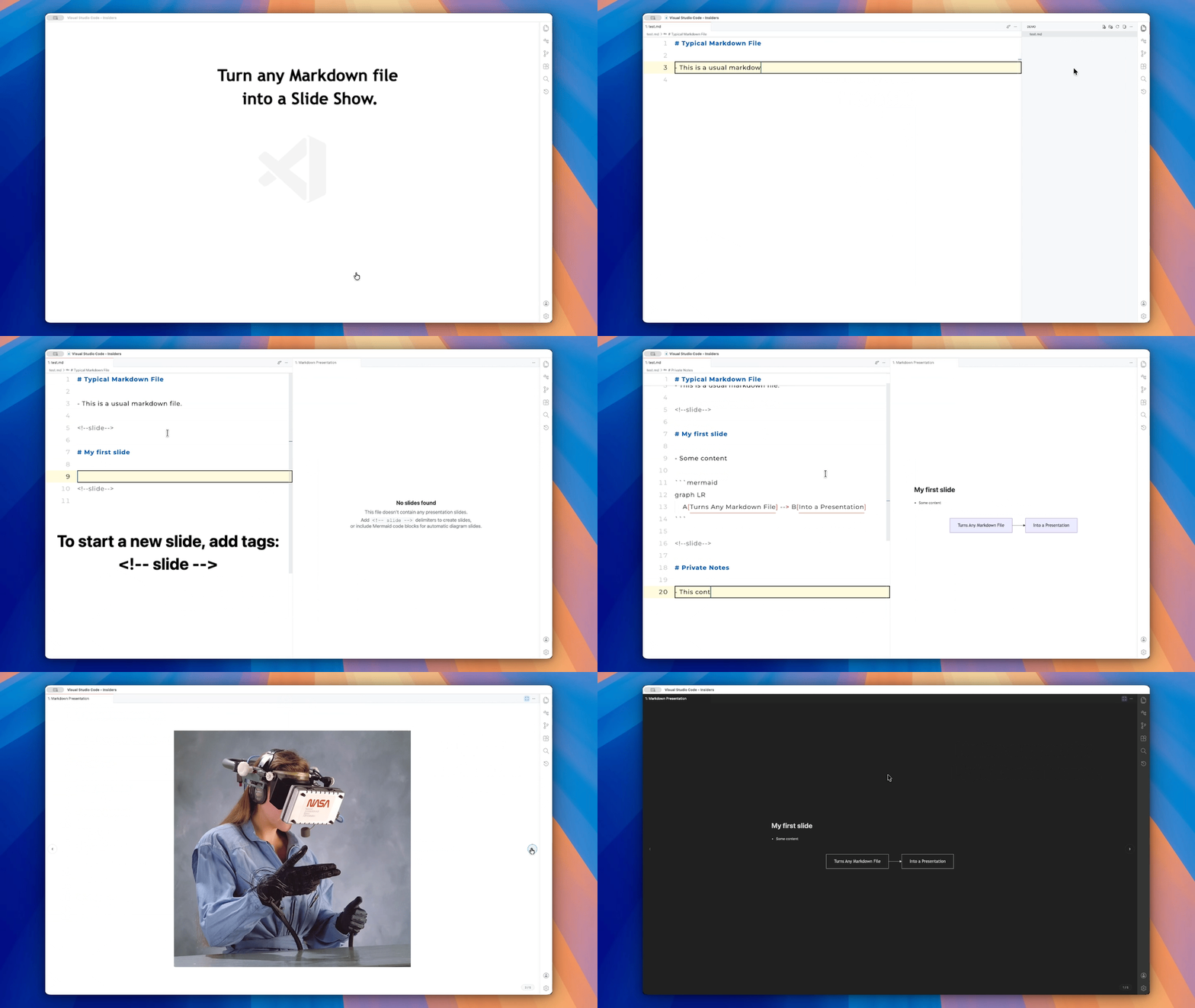
- Native VS Code Integration: Plugs directly into your existing workflow.
- Zero Configuration: Works just like the built-in Markdown preview. Simply click the presentation icon and go.
- Real-Time Live Sync: Editor changes reflect instantly in the slideshow view.
- Full Markdown Support: Headings, lists, blockquotes, and code blocks render perfectly.
- Rich Media & Diagrams: Full support for Mermaid.js diagrams and remote images.
- Customizable Styles: Control alignment, font size, and background colors to suit your brand.
- Theme Awareness: Automatically syncs with your VS Code theme (Light/Dark) for a seamless look.
- Clean Document Structure: Uses
<!-- slide -->and<!-- /slide -->tags that remain invisible in standard Markdown previews, keeping your source files clean.
- Install the extension from the VS Code Marketplace.
- Open any Markdown (
.md) file. - Launch the Presentation:
- Click the Presentation Icon in the editor title bar (top right).
- OR open the Command Palette (
Cmd+Shift+P/Ctrl+Shift+P) and typeMarkdown: Show Markdown Presentation.
| Action | Input |
|---|---|
| Next Slide | Right Arrow, Down Arrow, PageDown, Space, or Scroll Down |
| Previous Slide | Left Arrow, Up Arrow, PageUp, or Scroll Up |
| Internal Scroll | Shift + Scroll (for long slides) |
| Visual Navigation | Interactive arrow overlays on screen edges |
Adjust these in VS Code Settings (Cmd+, / Ctrl+,) under Markdown Presentation Tool.
| Category | Setting | Default | Description |
|---|---|---|---|
| Mermaid | markdownPresentation.slide.mermaidTheme | default | default (auto), dark, forest, or neutral |
| Appearance | markdownPresentation.slide.headingAlignment | left | left, center, or right |
| Appearance | markdownPresentation.slide.contentAlignment | left | left, center, or right |
| Appearance | markdownPresentation.slide.fontSize | medium | small (0.85em), medium (1em), or large (1.25em) |
| Appearance | markdownPresentation.slide.backgroundColor | (empty) | Custom hex code (e.g., #1e1e1e) |
| UI | markdownPresentation.slide.showCounter | true | Toggle the slide counter (bottom-right) |
| UI | markdownPresentation.slide.showNavigationArrows | true | Toggle the on-screen navigation arrows |
Defining a slide is simple. Use <!-- slide --> to open a slide and <!-- /slide --> to close it.
<!-- slide --># My First Slide
Welcome to the presentation!
<!-- /slide -->
Speaker notes, draft text, or reminders can live here.
They stay in the editor and never appear in the slideshow.
<!-- slide --># Mermaid Diagrams Also Work Natively```mermaidgraph LR A[Markdown File] --> B[Presentation]```- Images from the web work too!
<!-- /slide -->- Content outside slide tags is not shown during the presentation.
- Keep speaker notes, prompts, or draft edits in the same file without leaking them onto slides.- Contributions: We welcome your help! See our Development Guide for local setup instructions.
- Codebase: Check out the Architecture Guide to understand the project structure and design.