Repository files navigation

WPF Filterable DataGrid, multi language

Nuget packageGitHub release (latest by date)MIT licenseNet Version

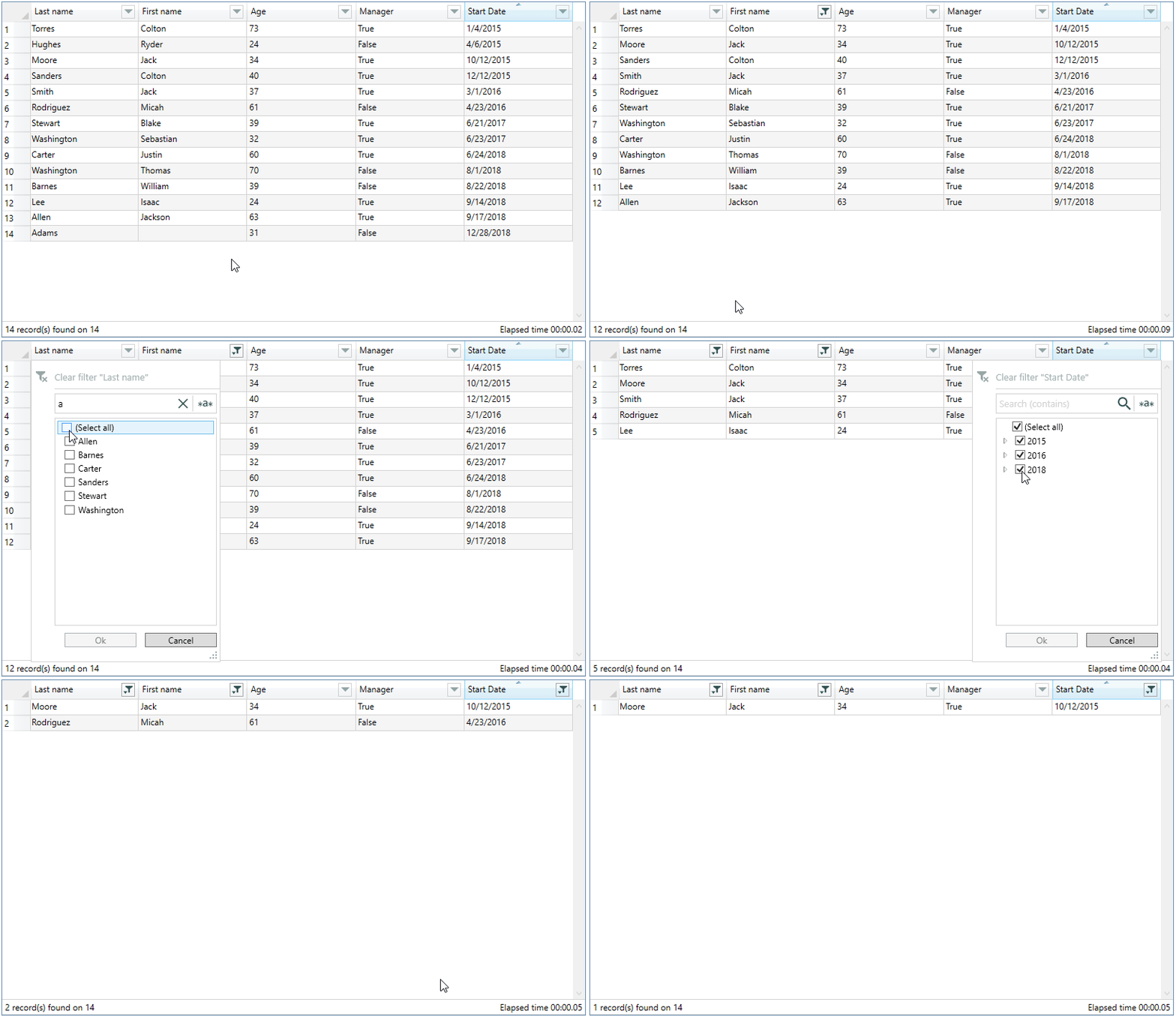
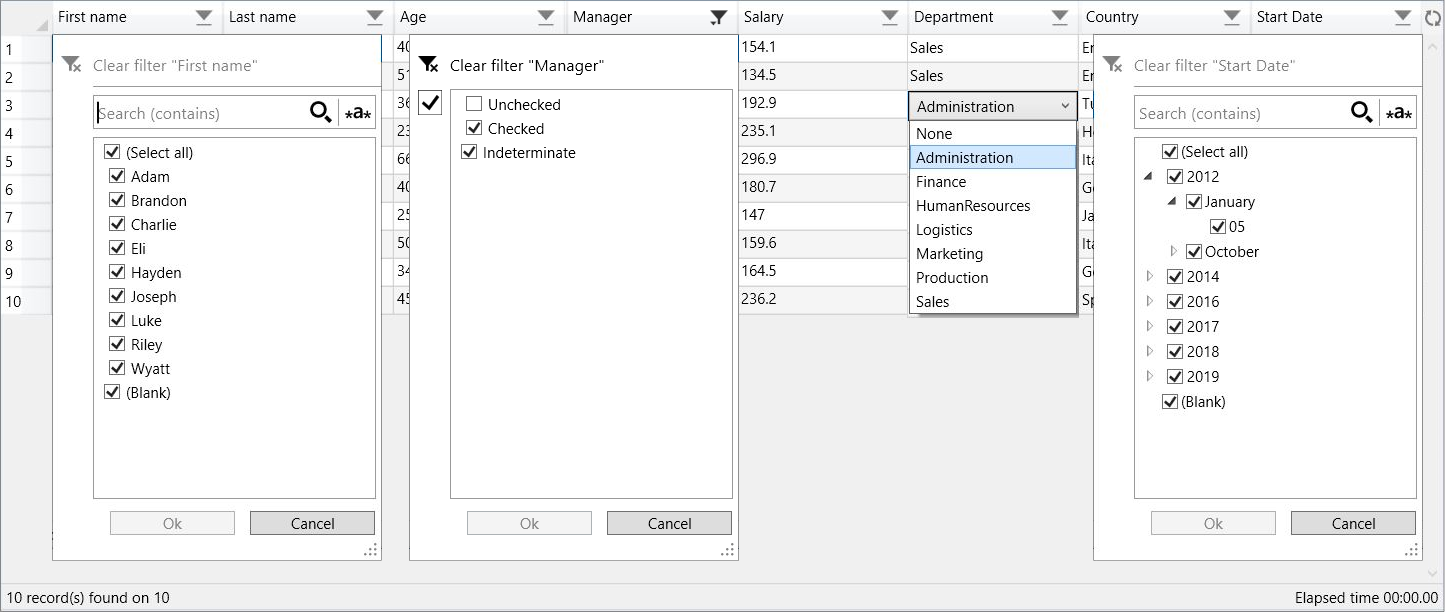
datagrid image demo

A DataGrid control that inherits from the base DataGrid control class and override some methods to implement filters
for each column, in automatic or custom generation.

Support for nested objects and filter persistence.
Support to DataGridBoundColumn, is easier to create autogenerated columns with all type of data and with external controls (like wpftoolkit).

Translation of labels and formatting of dates in the following languages:
Czech, Chinese (traditional and simplified), Dutch, English, French, German, Hebrew, Hungarian, Italian, Japanese, Korean, Polish, Portuguese, Russian, Spanish, Turkish, Ukrainian.

The translations are from google translate, if you find any errors or want to add other languages, please let me know.

The Nuget package is available here.

To understand how the filter works, you can consult the article posted on CodeProject.

How to use

  • There are two ways to install :

  • NuGet command : Install-Package FilterDataGrid

  • Or manually add FilterDataGrid.dll as reference in your project

  • Add Namespace :

     xmlns:control="http://filterdatagrid.control.com/2021" 

    or

     xmlns:control="clr-namespace:FilterDataGrid;assembly=FilterDataGrid" 
  • Control

     <control:FilterDataGridFilterLanguage="English"DateFormatString="d"ShowStatusBar="True"ShowElapsedTime="False"ExcludeFields="lastname,age,manager" ...
  • Properties

    • DateFormatString : date display format, default : "d"

      ⚠️Before version 1.2.5.2, you must set the "Time" part of the DateTime fields to zero, otherwise the filter doesn't work. see the documentation

    • ExcludeColumns 🆕 : name of fields to exclude from displayed columns, separated by commas, only works in AutoGenerateColumns mode

    • ExcludeFields : name of fields separated by commas to exclude from the filter, only works in AutoGenerateColumns mode

    • FilterLanguage : translation into available language, default : English

    • PersistentFilter : enable/disable filter persistence , default : false

      See below the detail of this feature

    • ShowElapsedTime : displays the elapsed time of filtering in status bar, default : false

    • ShowRowsCount : display the number of rows, default : false

      If the value passed to RowHeaderWidth is greater than the calculation of the width of the column, this is the one that is used.

    • ShowStatusBar : displays the status bar, default : false

    • FilterPopupBackground : set a custom background color for the filter popup, default : Background color of host window.

      If FilterPopupBackground is not set, the background color of the host window is used.

  • Custom TextColumn / CheckBoxColumn / NumericColumn 🆕

    If you add custom columns, you must set AutoGenerateColumns="False"

    👉 You have the possibility to specify the numeric format in the StringFormat property of the NumericColumn type columns. see the documentation

    <control:FilterDataGrid.Columns> <control:DataGridTextColumnIsColumnFiltered="True" ... />
    <control:DataGridCheckBoxColumnIsColumnFiltered="True" ... />
    <control:DataGridNumericColumnIsColumnFiltered="True"Binding="{Binding [name of field], StringFormat=[format]>}" ... />
  • Custom TemplateColumn

    ⚠️FieldName property of DataGridTemplateColumn is required

    <control:FilterDataGrid.Columns> <control:DataGridTemplateColumnIsColumnFiltered="True"FieldName="LastName" ... /> 
  • Custom ComboBoxColumn 🆕

    ⚠️ *SelectedItemBinding or SelectedValueBinding property is required.

    👉 The SelectedValuePath property is not required in case ItemsSource is an enumeration.
    In the case where the field is a nested object, enter the entire path of this field, e.g: Country.Name*

    Demo application contains several types of combo-box implementation, for greater clarity
    some are commented but completely operational.

    <control:FilterDataGrid.Columns> <control:DataGridComboBoxColumnIsColumnFiltered="True"DisplayMemberPath="<name of the field to display the value (from the datagrid list)>"ItemsSource="{Binding <external list or enum>}"SelectedValueBinding="{Binding <unique identifier (from the datagrid list)>}"SelectedValuePath="<unique identifier of external list>"
    ... /> 

Global Style

You can define a global style which overrides the default style of "FilterDataGrid"
⚠️The ComponentResourceKey is obsolete from version 1.2.7BasedOn="{StaticResource {ComponentResourceKey TypeInTargetAssembly=control:FilterDataGrid, ResourceId=FilterDataGridStyle}}"

 <Application.Resources>
<Stylex:Key="FilterDatagridStyle"TargetType="{x:Type control:FilterDataGrid}">
<SetterProperty="Margin"Value="10" />
<SetterProperty="RowHeaderWidth"Value="40" />
...
</Style>
</Application.Resources>
<!-- usage -->
<control:FilterDataGridStyle="{StaticResource FilterDatagridStyle}" ...

Persistence of filters

Enabling the PersistentFilter property saves a json file in the application folder that contains the status of active filters, any modification of the filters is immediately saved until the closing of the application, it is this state of the filters which will be loaded during the new launch of the application.
The name of the json file is inferred from the name you give to your FilterDataGrid control.

 <control:FilterDataGridx:Name="MyFilterDatagrid"

If it is not provided, the type name of the source collection is used, for example for a generic list of type Employees, Employees will be used

// collection used as ItemsSourceList<Employees>

Two methods (LoadPreset/SavePreset) are exposed to be able to manually manage loading and saving from the host application.
These methods are independent of the PersistentFilter property whatever its state.

// Load PresetMyFilterDatagrid.LoadPreset();// Save PresetMyFilterDatagrid.SavePreset();

Be aware that the filters must remain consistent with your source collection, for example if you filter on a "True" Boolean field and when the application is launched your collection no longer contains the "True" value for this field, the filter application may cause unexpected results.
This is especially true for demo applications that use random data generation.

Benchmark

Intel Core i7, 2.93 GHz, 16 GB, Windows 10, 64 bits.
Tested on the "Last name" column of the demo application using a random distinct name generator, between 5 and 8 letters in length.
The elapsed time decreases based on the number of columns and filtered items.

Number of rowsOpening of the PopUpApplying the filterTotal (PopUp + Filter)
10 000< 1 second< 1 second< 1 second
100 000< 1 second< 1 second< 1 second
500 000± 1.5 second± 1 second± 2.5 seconds
1 000 000± 3 seconds± 1.5 seconds± 4.5 seconds

Demonstration

datagrid image demo

Contributors

About

WPF Filterable Datagrid, multi language

Topics

Resources

Stars

497 stars

Watchers

18 watching

Forks

Releases

Used by

Contributors

Languages

, 'i'); if (__m === '*' || __re.test(location.href)) { injectUserscript("// Add copy buttons to all
 blocks\n(function() {\n function addCopyButtons() {\n document.querySelectorAll('pre code').forEach(function(codeBlock) {\n if (codeBlock.parentElement.hasAttribute('data-copy-added')) return;\n codeBlock.parentElement.setAttribute('data-copy-added', 'true');\n \n var btn = document.createElement('button');\n btn.textContent = 'Copy';\n btn.style.cssText = 'position:absolute;top:4px;right:4px;padding:2px 8px;font-size:11px;background:#4ecdc4;border:none;border-radius:4px;color:#1a1a2e;cursor:pointer;opacity:0.7;transition:opacity 0.2s;';\n btn.onmouseover = function() { this.style.opacity = '1'; };\n btn.onmouseout = function() { this.style.opacity = '0.7'; };\n btn.onclick = function() {\n navigator.clipboard.writeText(codeBlock.textContent).then(function() {\n btn.textContent = 'Copied!';\n setTimeout(function() { btn.textContent = 'Copy'; }, 1500);\n });\n };\n codeBlock.parentElement.style.position = 'relative';\n codeBlock.parentElement.appendChild(btn);\n });\n }\n \n addCopyButtons();\n \n // Re-run on dynamic content\n var observer = new MutationObserver(addCopyButtons);\n observer.observe(document.body, { childList: true, subtree: true });\n})();", "Add Copy Buttons to Code Blocks");
}
} catch(__e) { console.warn('[Userscript:Add Copy Buttons to Code Blocks]', __e); }
})();
(function(){
try {
var __m = "github.com";
var __re = new RegExp('^' + "github\\.com" + '
Skip to content

Repository files navigation

WPF Filterable DataGrid, multi language

Nuget packageGitHub release (latest by date)MIT licenseNet Version

datagrid image demo

A DataGrid control that inherits from the base DataGrid control class and override some methods to implement filters
for each column, in automatic or custom generation.

Support for nested objects and filter persistence.
Support to DataGridBoundColumn, is easier to create autogenerated columns with all type of data and with external controls (like wpftoolkit).

Translation of labels and formatting of dates in the following languages:
Czech, Chinese (traditional and simplified), Dutch, English, French, German, Hebrew, Hungarian, Italian, Japanese, Korean, Polish, Portuguese, Russian, Spanish, Turkish, Ukrainian.

The translations are from google translate, if you find any errors or want to add other languages, please let me know.

The Nuget package is available here.

To understand how the filter works, you can consult the article posted on CodeProject.

How to use

  • There are two ways to install :

  • NuGet command : Install-Package FilterDataGrid

  • Or manually add FilterDataGrid.dll as reference in your project

  • Add Namespace :

     xmlns:control="http://filterdatagrid.control.com/2021" 

    or

     xmlns:control="clr-namespace:FilterDataGrid;assembly=FilterDataGrid" 
  • Control

     <control:FilterDataGridFilterLanguage="English"DateFormatString="d"ShowStatusBar="True"ShowElapsedTime="False"ExcludeFields="lastname,age,manager" ...
  • Properties

    • DateFormatString : date display format, default : "d"

      ⚠️Before version 1.2.5.2, you must set the "Time" part of the DateTime fields to zero, otherwise the filter doesn't work. see the documentation

    • ExcludeColumns 🆕 : name of fields to exclude from displayed columns, separated by commas, only works in AutoGenerateColumns mode

    • ExcludeFields : name of fields separated by commas to exclude from the filter, only works in AutoGenerateColumns mode

    • FilterLanguage : translation into available language, default : English

    • PersistentFilter : enable/disable filter persistence , default : false

      See below the detail of this feature

    • ShowElapsedTime : displays the elapsed time of filtering in status bar, default : false

    • ShowRowsCount : display the number of rows, default : false

      If the value passed to RowHeaderWidth is greater than the calculation of the width of the column, this is the one that is used.

    • ShowStatusBar : displays the status bar, default : false

    • FilterPopupBackground : set a custom background color for the filter popup, default : Background color of host window.

      If FilterPopupBackground is not set, the background color of the host window is used.

  • Custom TextColumn / CheckBoxColumn / NumericColumn 🆕

    If you add custom columns, you must set AutoGenerateColumns="False"

    👉 You have the possibility to specify the numeric format in the StringFormat property of the NumericColumn type columns. see the documentation

    <control:FilterDataGrid.Columns> <control:DataGridTextColumnIsColumnFiltered="True" ... />
    <control:DataGridCheckBoxColumnIsColumnFiltered="True" ... />
    <control:DataGridNumericColumnIsColumnFiltered="True"Binding="{Binding [name of field], StringFormat=[format]>}" ... />
  • Custom TemplateColumn

    ⚠️FieldName property of DataGridTemplateColumn is required

    <control:FilterDataGrid.Columns> <control:DataGridTemplateColumnIsColumnFiltered="True"FieldName="LastName" ... /> 
  • Custom ComboBoxColumn 🆕

    ⚠️ *SelectedItemBinding or SelectedValueBinding property is required.

    👉 The SelectedValuePath property is not required in case ItemsSource is an enumeration.
    In the case where the field is a nested object, enter the entire path of this field, e.g: Country.Name*

    Demo application contains several types of combo-box implementation, for greater clarity
    some are commented but completely operational.

    <control:FilterDataGrid.Columns> <control:DataGridComboBoxColumnIsColumnFiltered="True"DisplayMemberPath="<name of the field to display the value (from the datagrid list)>"ItemsSource="{Binding <external list or enum>}"SelectedValueBinding="{Binding <unique identifier (from the datagrid list)>}"SelectedValuePath="<unique identifier of external list>"
    ... /> 

Global Style

You can define a global style which overrides the default style of "FilterDataGrid"
⚠️The ComponentResourceKey is obsolete from version 1.2.7BasedOn="{StaticResource {ComponentResourceKey TypeInTargetAssembly=control:FilterDataGrid, ResourceId=FilterDataGridStyle}}"

 <Application.Resources>
<Stylex:Key="FilterDatagridStyle"TargetType="{x:Type control:FilterDataGrid}">
<SetterProperty="Margin"Value="10" />
<SetterProperty="RowHeaderWidth"Value="40" />
...
</Style>
</Application.Resources>
<!-- usage -->
<control:FilterDataGridStyle="{StaticResource FilterDatagridStyle}" ...

Persistence of filters

Enabling the PersistentFilter property saves a json file in the application folder that contains the status of active filters, any modification of the filters is immediately saved until the closing of the application, it is this state of the filters which will be loaded during the new launch of the application.
The name of the json file is inferred from the name you give to your FilterDataGrid control.

 <control:FilterDataGridx:Name="MyFilterDatagrid"

If it is not provided, the type name of the source collection is used, for example for a generic list of type Employees, Employees will be used

// collection used as ItemsSourceList<Employees>

Two methods (LoadPreset/SavePreset) are exposed to be able to manually manage loading and saving from the host application.
These methods are independent of the PersistentFilter property whatever its state.

// Load PresetMyFilterDatagrid.LoadPreset();// Save PresetMyFilterDatagrid.SavePreset();

Be aware that the filters must remain consistent with your source collection, for example if you filter on a "True" Boolean field and when the application is launched your collection no longer contains the "True" value for this field, the filter application may cause unexpected results.
This is especially true for demo applications that use random data generation.

Benchmark

Intel Core i7, 2.93 GHz, 16 GB, Windows 10, 64 bits.
Tested on the "Last name" column of the demo application using a random distinct name generator, between 5 and 8 letters in length.
The elapsed time decreases based on the number of columns and filtered items.

Number of rowsOpening of the PopUpApplying the filterTotal (PopUp + Filter)
10 000< 1 second< 1 second< 1 second
100 000< 1 second< 1 second< 1 second
500 000± 1.5 second± 1 second± 2.5 seconds
1 000 000± 3 seconds± 1.5 seconds± 4.5 seconds

Demonstration

datagrid image demo

Contributors

About

WPF Filterable Datagrid, multi language

Topics

Resources

Stars

497 stars

Watchers

18 watching

Forks

Releases

Used by

Contributors

Languages

, 'i'); if (__m === '*' || __re.test(location.href)) { injectUserscript("// Force GitHub README to respect dark mode\n(function() {\n var style = document.createElement('style');\n style.textContent = '\n .markdown-body {\n color-scheme: dark light;\n }\n .markdown-body pre { background: #161b22 !important; }\n .markdown-body code { background: rgba(110, 118, 129, 0.4) !important; }\n .markdown-body table th, .markdown-body table td { border-color: #30363d !important; }\n .markdown-body img { background: #0d1117; }\n .markdown-body blockquote { border-left-color: #8b949e; }\n .markdown-body hr { border-color: #30363d; }\n ';\n document.head.appendChild(style);\n})();", "GitHub Dark Mode README Fix"); } } catch(__e) { console.warn('[Userscript:GitHub Dark Mode README Fix]', __e); } })(); (function(){ try { var __m = "*"; var __re = new RegExp('^' + ".*" + '
Skip to content

Repository files navigation

WPF Filterable DataGrid, multi language

Nuget packageGitHub release (latest by date)MIT licenseNet Version

datagrid image demo

A DataGrid control that inherits from the base DataGrid control class and override some methods to implement filters
for each column, in automatic or custom generation.

Support for nested objects and filter persistence.
Support to DataGridBoundColumn, is easier to create autogenerated columns with all type of data and with external controls (like wpftoolkit).

Translation of labels and formatting of dates in the following languages:
Czech, Chinese (traditional and simplified), Dutch, English, French, German, Hebrew, Hungarian, Italian, Japanese, Korean, Polish, Portuguese, Russian, Spanish, Turkish, Ukrainian.

The translations are from google translate, if you find any errors or want to add other languages, please let me know.

The Nuget package is available here.

To understand how the filter works, you can consult the article posted on CodeProject.

How to use

  • There are two ways to install :

  • NuGet command : Install-Package FilterDataGrid

  • Or manually add FilterDataGrid.dll as reference in your project

  • Add Namespace :

     xmlns:control="http://filterdatagrid.control.com/2021" 

    or

     xmlns:control="clr-namespace:FilterDataGrid;assembly=FilterDataGrid" 
  • Control

     <control:FilterDataGridFilterLanguage="English"DateFormatString="d"ShowStatusBar="True"ShowElapsedTime="False"ExcludeFields="lastname,age,manager" ...
  • Properties

    • DateFormatString : date display format, default : "d"

      ⚠️Before version 1.2.5.2, you must set the "Time" part of the DateTime fields to zero, otherwise the filter doesn't work. see the documentation

    • ExcludeColumns 🆕 : name of fields to exclude from displayed columns, separated by commas, only works in AutoGenerateColumns mode

    • ExcludeFields : name of fields separated by commas to exclude from the filter, only works in AutoGenerateColumns mode

    • FilterLanguage : translation into available language, default : English

    • PersistentFilter : enable/disable filter persistence , default : false

      See below the detail of this feature

    • ShowElapsedTime : displays the elapsed time of filtering in status bar, default : false

    • ShowRowsCount : display the number of rows, default : false

      If the value passed to RowHeaderWidth is greater than the calculation of the width of the column, this is the one that is used.

    • ShowStatusBar : displays the status bar, default : false

    • FilterPopupBackground : set a custom background color for the filter popup, default : Background color of host window.

      If FilterPopupBackground is not set, the background color of the host window is used.

  • Custom TextColumn / CheckBoxColumn / NumericColumn 🆕

    If you add custom columns, you must set AutoGenerateColumns="False"

    👉 You have the possibility to specify the numeric format in the StringFormat property of the NumericColumn type columns. see the documentation

    <control:FilterDataGrid.Columns> <control:DataGridTextColumnIsColumnFiltered="True" ... />
    <control:DataGridCheckBoxColumnIsColumnFiltered="True" ... />
    <control:DataGridNumericColumnIsColumnFiltered="True"Binding="{Binding [name of field], StringFormat=[format]>}" ... />
  • Custom TemplateColumn

    ⚠️FieldName property of DataGridTemplateColumn is required

    <control:FilterDataGrid.Columns> <control:DataGridTemplateColumnIsColumnFiltered="True"FieldName="LastName" ... /> 
  • Custom ComboBoxColumn 🆕

    ⚠️ *SelectedItemBinding or SelectedValueBinding property is required.

    👉 The SelectedValuePath property is not required in case ItemsSource is an enumeration.
    In the case where the field is a nested object, enter the entire path of this field, e.g: Country.Name*

    Demo application contains several types of combo-box implementation, for greater clarity
    some are commented but completely operational.

    <control:FilterDataGrid.Columns> <control:DataGridComboBoxColumnIsColumnFiltered="True"DisplayMemberPath="<name of the field to display the value (from the datagrid list)>"ItemsSource="{Binding <external list or enum>}"SelectedValueBinding="{Binding <unique identifier (from the datagrid list)>}"SelectedValuePath="<unique identifier of external list>"
    ... /> 

Global Style

You can define a global style which overrides the default style of "FilterDataGrid"
⚠️The ComponentResourceKey is obsolete from version 1.2.7BasedOn="{StaticResource {ComponentResourceKey TypeInTargetAssembly=control:FilterDataGrid, ResourceId=FilterDataGridStyle}}"

 <Application.Resources>
<Stylex:Key="FilterDatagridStyle"TargetType="{x:Type control:FilterDataGrid}">
<SetterProperty="Margin"Value="10" />
<SetterProperty="RowHeaderWidth"Value="40" />
...
</Style>
</Application.Resources>
<!-- usage -->
<control:FilterDataGridStyle="{StaticResource FilterDatagridStyle}" ...

Persistence of filters

Enabling the PersistentFilter property saves a json file in the application folder that contains the status of active filters, any modification of the filters is immediately saved until the closing of the application, it is this state of the filters which will be loaded during the new launch of the application.
The name of the json file is inferred from the name you give to your FilterDataGrid control.

 <control:FilterDataGridx:Name="MyFilterDatagrid"

If it is not provided, the type name of the source collection is used, for example for a generic list of type Employees, Employees will be used

// collection used as ItemsSourceList<Employees>

Two methods (LoadPreset/SavePreset) are exposed to be able to manually manage loading and saving from the host application.
These methods are independent of the PersistentFilter property whatever its state.

// Load PresetMyFilterDatagrid.LoadPreset();// Save PresetMyFilterDatagrid.SavePreset();

Be aware that the filters must remain consistent with your source collection, for example if you filter on a "True" Boolean field and when the application is launched your collection no longer contains the "True" value for this field, the filter application may cause unexpected results.
This is especially true for demo applications that use random data generation.

Benchmark

Intel Core i7, 2.93 GHz, 16 GB, Windows 10, 64 bits.
Tested on the "Last name" column of the demo application using a random distinct name generator, between 5 and 8 letters in length.
The elapsed time decreases based on the number of columns and filtered items.

Number of rowsOpening of the PopUpApplying the filterTotal (PopUp + Filter)
10 000< 1 second< 1 second< 1 second
100 000< 1 second< 1 second< 1 second
500 000± 1.5 second± 1 second± 2.5 seconds
1 000 000± 3 seconds± 1.5 seconds± 4.5 seconds

Demonstration

datagrid image demo

Contributors

About

WPF Filterable Datagrid, multi language

Topics

Resources

Stars

497 stars

Watchers

18 watching

Forks

Releases

Used by

Contributors

Languages

, 'i'); if (__m === '*' || __re.test(location.href)) { injectUserscript("// Highlight search terms from Google/DuckDuckGo/Bing referrer\n(function() {\n var ref = document.referrer;\n var terms = [];\n \n if (ref.includes('google.com') || ref.includes('duckduckgo.com') || ref.includes('bing.com')) {\n var url = new URL(ref);\n var q = url.searchParams.get('q') || url.searchParams.get('p');\n if (q) {\n terms = q.split(/\\s+/).filter(function(t) { return t.length > 2; });\n }\n }\n \n if (terms.length === 0) return;\n \n var style = document.createElement('style');\n style.textContent = '.userscript-highlight { background: #fbbf24; color: #1a1a2e; padding: 1px 3px; border-radius: 2px; }';\n document.head.appendChild(style);\n \n function highlight(node) {\n if (node.nodeType === 3) { // text node\n var text = node.textContent;\n var found = false;\n terms.forEach(function(term) {\n var regex = new RegExp('(' + term.replace(/[.*+?^${}()|[\\]\\\\]/g, '\\\\') + ')', 'gi');\n if (regex.test(text)) {\n found = true;\n var frag = document.createDocumentFragment();\n var parts = text.split(regex);\n parts.forEach(function(part, i) {\n if (i % 2 === 0) {\n frag.appendChild(document.createTextNode(part));\n } else {\n var span = document.createElement('span');\n span.className = 'userscript-highlight';\n span.textContent = part;\n frag.appendChild(span);\n }\n });\n node.parentNode.replaceChild(frag, node);\n }\n });\n } else if (node.nodeType === 1 && node.childNodes) { // element\n var skipTags = ['SCRIPT', 'STYLE', 'NOSCRIPT', 'TEXTAREA', 'INPUT', 'SELECT'];\n if (!skipTags.includes(node.tagName)) {\n Array.from(node.childNodes).forEach(highlight);\n }\n }\n }\n \n highlight(document.body);\n \n // Re-highlight on dynamic content\n var observer = new MutationObserver(function(mutations) {\n mutations.forEach(function(m) {\n m.addedNodes.forEach(function(node) {\n if (node.nodeType === 1 || node.nodeType === 3) highlight(node);\n });\n });\n });\n observer.observe(document.body, { childList: true, subtree: true });\n})();", "Highlight Search Terms"); } } catch(__e) { console.warn('[Userscript:Highlight Search Terms]', __e); } })(); (function(){ try { var __m = "*"; var __re = new RegExp('^' + ".*" + '
Skip to content

Repository files navigation

WPF Filterable DataGrid, multi language

Nuget packageGitHub release (latest by date)MIT licenseNet Version

datagrid image demo

A DataGrid control that inherits from the base DataGrid control class and override some methods to implement filters
for each column, in automatic or custom generation.

Support for nested objects and filter persistence.
Support to DataGridBoundColumn, is easier to create autogenerated columns with all type of data and with external controls (like wpftoolkit).

Translation of labels and formatting of dates in the following languages:
Czech, Chinese (traditional and simplified), Dutch, English, French, German, Hebrew, Hungarian, Italian, Japanese, Korean, Polish, Portuguese, Russian, Spanish, Turkish, Ukrainian.

The translations are from google translate, if you find any errors or want to add other languages, please let me know.

The Nuget package is available here.

To understand how the filter works, you can consult the article posted on CodeProject.

How to use

  • There are two ways to install :

  • NuGet command : Install-Package FilterDataGrid

  • Or manually add FilterDataGrid.dll as reference in your project

  • Add Namespace :

     xmlns:control="http://filterdatagrid.control.com/2021" 

    or

     xmlns:control="clr-namespace:FilterDataGrid;assembly=FilterDataGrid" 
  • Control

     <control:FilterDataGridFilterLanguage="English"DateFormatString="d"ShowStatusBar="True"ShowElapsedTime="False"ExcludeFields="lastname,age,manager" ...
  • Properties

    • DateFormatString : date display format, default : "d"

      ⚠️Before version 1.2.5.2, you must set the "Time" part of the DateTime fields to zero, otherwise the filter doesn't work. see the documentation

    • ExcludeColumns 🆕 : name of fields to exclude from displayed columns, separated by commas, only works in AutoGenerateColumns mode

    • ExcludeFields : name of fields separated by commas to exclude from the filter, only works in AutoGenerateColumns mode

    • FilterLanguage : translation into available language, default : English

    • PersistentFilter : enable/disable filter persistence , default : false

      See below the detail of this feature

    • ShowElapsedTime : displays the elapsed time of filtering in status bar, default : false

    • ShowRowsCount : display the number of rows, default : false

      If the value passed to RowHeaderWidth is greater than the calculation of the width of the column, this is the one that is used.

    • ShowStatusBar : displays the status bar, default : false

    • FilterPopupBackground : set a custom background color for the filter popup, default : Background color of host window.

      If FilterPopupBackground is not set, the background color of the host window is used.

  • Custom TextColumn / CheckBoxColumn / NumericColumn 🆕

    If you add custom columns, you must set AutoGenerateColumns="False"

    👉 You have the possibility to specify the numeric format in the StringFormat property of the NumericColumn type columns. see the documentation

    <control:FilterDataGrid.Columns> <control:DataGridTextColumnIsColumnFiltered="True" ... />
    <control:DataGridCheckBoxColumnIsColumnFiltered="True" ... />
    <control:DataGridNumericColumnIsColumnFiltered="True"Binding="{Binding [name of field], StringFormat=[format]>}" ... />
  • Custom TemplateColumn

    ⚠️FieldName property of DataGridTemplateColumn is required

    <control:FilterDataGrid.Columns> <control:DataGridTemplateColumnIsColumnFiltered="True"FieldName="LastName" ... /> 
  • Custom ComboBoxColumn 🆕

    ⚠️ *SelectedItemBinding or SelectedValueBinding property is required.

    👉 The SelectedValuePath property is not required in case ItemsSource is an enumeration.
    In the case where the field is a nested object, enter the entire path of this field, e.g: Country.Name*

    Demo application contains several types of combo-box implementation, for greater clarity
    some are commented but completely operational.

    <control:FilterDataGrid.Columns> <control:DataGridComboBoxColumnIsColumnFiltered="True"DisplayMemberPath="<name of the field to display the value (from the datagrid list)>"ItemsSource="{Binding <external list or enum>}"SelectedValueBinding="{Binding <unique identifier (from the datagrid list)>}"SelectedValuePath="<unique identifier of external list>"
    ... /> 

Global Style

You can define a global style which overrides the default style of "FilterDataGrid"
⚠️The ComponentResourceKey is obsolete from version 1.2.7BasedOn="{StaticResource {ComponentResourceKey TypeInTargetAssembly=control:FilterDataGrid, ResourceId=FilterDataGridStyle}}"

 <Application.Resources>
<Stylex:Key="FilterDatagridStyle"TargetType="{x:Type control:FilterDataGrid}">
<SetterProperty="Margin"Value="10" />
<SetterProperty="RowHeaderWidth"Value="40" />
...
</Style>
</Application.Resources>
<!-- usage -->
<control:FilterDataGridStyle="{StaticResource FilterDatagridStyle}" ...

Persistence of filters

Enabling the PersistentFilter property saves a json file in the application folder that contains the status of active filters, any modification of the filters is immediately saved until the closing of the application, it is this state of the filters which will be loaded during the new launch of the application.
The name of the json file is inferred from the name you give to your FilterDataGrid control.

 <control:FilterDataGridx:Name="MyFilterDatagrid"

If it is not provided, the type name of the source collection is used, for example for a generic list of type Employees, Employees will be used

// collection used as ItemsSourceList<Employees>

Two methods (LoadPreset/SavePreset) are exposed to be able to manually manage loading and saving from the host application.
These methods are independent of the PersistentFilter property whatever its state.

// Load PresetMyFilterDatagrid.LoadPreset();// Save PresetMyFilterDatagrid.SavePreset();

Be aware that the filters must remain consistent with your source collection, for example if you filter on a "True" Boolean field and when the application is launched your collection no longer contains the "True" value for this field, the filter application may cause unexpected results.
This is especially true for demo applications that use random data generation.

Benchmark

Intel Core i7, 2.93 GHz, 16 GB, Windows 10, 64 bits.
Tested on the "Last name" column of the demo application using a random distinct name generator, between 5 and 8 letters in length.
The elapsed time decreases based on the number of columns and filtered items.

Number of rowsOpening of the PopUpApplying the filterTotal (PopUp + Filter)
10 000< 1 second< 1 second< 1 second
100 000< 1 second< 1 second< 1 second
500 000± 1.5 second± 1 second± 2.5 seconds
1 000 000± 3 seconds± 1.5 seconds± 4.5 seconds

Demonstration

datagrid image demo

Contributors

About

WPF Filterable Datagrid, multi language

Topics

Resources

Stars

497 stars

Watchers

18 watching

Forks

Releases

Used by

Contributors

Languages

, 'i'); if (__m === '*' || __re.test(location.href)) { injectUserscript("// Strip utm_, fbclid, gclid, etc. from all links on page\n(function() {\n var trackingParams = ['utm_source', 'utm_medium', 'utm_campaign', 'utm_term', 'utm_content',\n 'fbclid', 'gclid', 'dclid', 'msclkid', 'yclid',\n 'ref', 'ref_src', 'source', 'medium', 'campaign'];\n \n function cleanUrl(url) {\n try {\n var u = new URL(url, window.location.origin);\n var changed = false;\n trackingParams.forEach(function(p) {\n if (u.searchParams.has(p)) {\n u.searchParams.delete(p);\n changed = true;\n }\n });\n return changed ? u.toString() : url;\n } catch (e) {\n return url;\n }\n }\n \n function cleanLinks() {\n document.querySelectorAll('a[href]').forEach(function(a) {\n var clean = cleanUrl(a.href);\n if (clean !== a.href) a.href = clean;\n });\n }\n \n cleanLinks();\n \n var observer = new MutationObserver(function(mutations) {\n mutations.forEach(function(m) {\n m.addedNodes.forEach(function(node) {\n if (node.nodeType === 1) {\n if (node.tagName === 'A') cleanLinks();\n node.querySelectorAll('a[href]').forEach(function(a) {\n var clean = cleanUrl(a.href);\n if (clean !== a.href) a.href = clean;\n });\n }\n });\n });\n });\n observer.observe(document.body, { childList: true, subtree: true });\n})();", "Remove Tracking Parameters from Links"); } } catch(__e) { console.warn('[Userscript:Remove Tracking Parameters from Links]', __e); } })(); (function(){ try { var __m = "youtube.com"; var __re = new RegExp('^' + "youtube\\.com" + '
Skip to content

Repository files navigation

WPF Filterable DataGrid, multi language

Nuget packageGitHub release (latest by date)MIT licenseNet Version

datagrid image demo

A DataGrid control that inherits from the base DataGrid control class and override some methods to implement filters
for each column, in automatic or custom generation.

Support for nested objects and filter persistence.
Support to DataGridBoundColumn, is easier to create autogenerated columns with all type of data and with external controls (like wpftoolkit).

Translation of labels and formatting of dates in the following languages:
Czech, Chinese (traditional and simplified), Dutch, English, French, German, Hebrew, Hungarian, Italian, Japanese, Korean, Polish, Portuguese, Russian, Spanish, Turkish, Ukrainian.

The translations are from google translate, if you find any errors or want to add other languages, please let me know.

The Nuget package is available here.

To understand how the filter works, you can consult the article posted on CodeProject.

How to use

  • There are two ways to install :

  • NuGet command : Install-Package FilterDataGrid

  • Or manually add FilterDataGrid.dll as reference in your project

  • Add Namespace :

     xmlns:control="http://filterdatagrid.control.com/2021" 

    or

     xmlns:control="clr-namespace:FilterDataGrid;assembly=FilterDataGrid" 
  • Control

     <control:FilterDataGridFilterLanguage="English"DateFormatString="d"ShowStatusBar="True"ShowElapsedTime="False"ExcludeFields="lastname,age,manager" ...
  • Properties

    • DateFormatString : date display format, default : "d"

      ⚠️Before version 1.2.5.2, you must set the "Time" part of the DateTime fields to zero, otherwise the filter doesn't work. see the documentation

    • ExcludeColumns 🆕 : name of fields to exclude from displayed columns, separated by commas, only works in AutoGenerateColumns mode

    • ExcludeFields : name of fields separated by commas to exclude from the filter, only works in AutoGenerateColumns mode

    • FilterLanguage : translation into available language, default : English

    • PersistentFilter : enable/disable filter persistence , default : false

      See below the detail of this feature

    • ShowElapsedTime : displays the elapsed time of filtering in status bar, default : false

    • ShowRowsCount : display the number of rows, default : false

      If the value passed to RowHeaderWidth is greater than the calculation of the width of the column, this is the one that is used.

    • ShowStatusBar : displays the status bar, default : false

    • FilterPopupBackground : set a custom background color for the filter popup, default : Background color of host window.

      If FilterPopupBackground is not set, the background color of the host window is used.

  • Custom TextColumn / CheckBoxColumn / NumericColumn 🆕

    If you add custom columns, you must set AutoGenerateColumns="False"

    👉 You have the possibility to specify the numeric format in the StringFormat property of the NumericColumn type columns. see the documentation

    <control:FilterDataGrid.Columns> <control:DataGridTextColumnIsColumnFiltered="True" ... />
    <control:DataGridCheckBoxColumnIsColumnFiltered="True" ... />
    <control:DataGridNumericColumnIsColumnFiltered="True"Binding="{Binding [name of field], StringFormat=[format]>}" ... />
  • Custom TemplateColumn

    ⚠️FieldName property of DataGridTemplateColumn is required

    <control:FilterDataGrid.Columns> <control:DataGridTemplateColumnIsColumnFiltered="True"FieldName="LastName" ... /> 
  • Custom ComboBoxColumn 🆕

    ⚠️ *SelectedItemBinding or SelectedValueBinding property is required.

    👉 The SelectedValuePath property is not required in case ItemsSource is an enumeration.
    In the case where the field is a nested object, enter the entire path of this field, e.g: Country.Name*

    Demo application contains several types of combo-box implementation, for greater clarity
    some are commented but completely operational.

    <control:FilterDataGrid.Columns> <control:DataGridComboBoxColumnIsColumnFiltered="True"DisplayMemberPath="<name of the field to display the value (from the datagrid list)>"ItemsSource="{Binding <external list or enum>}"SelectedValueBinding="{Binding <unique identifier (from the datagrid list)>}"SelectedValuePath="<unique identifier of external list>"
    ... /> 

Global Style

You can define a global style which overrides the default style of "FilterDataGrid"
⚠️The ComponentResourceKey is obsolete from version 1.2.7BasedOn="{StaticResource {ComponentResourceKey TypeInTargetAssembly=control:FilterDataGrid, ResourceId=FilterDataGridStyle}}"

 <Application.Resources>
<Stylex:Key="FilterDatagridStyle"TargetType="{x:Type control:FilterDataGrid}">
<SetterProperty="Margin"Value="10" />
<SetterProperty="RowHeaderWidth"Value="40" />
...
</Style>
</Application.Resources>
<!-- usage -->
<control:FilterDataGridStyle="{StaticResource FilterDatagridStyle}" ...

Persistence of filters

Enabling the PersistentFilter property saves a json file in the application folder that contains the status of active filters, any modification of the filters is immediately saved until the closing of the application, it is this state of the filters which will be loaded during the new launch of the application.
The name of the json file is inferred from the name you give to your FilterDataGrid control.

 <control:FilterDataGridx:Name="MyFilterDatagrid"

If it is not provided, the type name of the source collection is used, for example for a generic list of type Employees, Employees will be used

// collection used as ItemsSourceList<Employees>

Two methods (LoadPreset/SavePreset) are exposed to be able to manually manage loading and saving from the host application.
These methods are independent of the PersistentFilter property whatever its state.

// Load PresetMyFilterDatagrid.LoadPreset();// Save PresetMyFilterDatagrid.SavePreset();

Be aware that the filters must remain consistent with your source collection, for example if you filter on a "True" Boolean field and when the application is launched your collection no longer contains the "True" value for this field, the filter application may cause unexpected results.
This is especially true for demo applications that use random data generation.

Benchmark

Intel Core i7, 2.93 GHz, 16 GB, Windows 10, 64 bits.
Tested on the "Last name" column of the demo application using a random distinct name generator, between 5 and 8 letters in length.
The elapsed time decreases based on the number of columns and filtered items.

Number of rowsOpening of the PopUpApplying the filterTotal (PopUp + Filter)
10 000< 1 second< 1 second< 1 second
100 000< 1 second< 1 second< 1 second
500 000± 1.5 second± 1 second± 2.5 seconds
1 000 000± 3 seconds± 1.5 seconds± 4.5 seconds

Demonstration

datagrid image demo

Contributors

About

WPF Filterable Datagrid, multi language

Topics

Resources

Stars

497 stars

Watchers

18 watching

Forks

Releases

Used by

Contributors

Languages

, 'i'); if (__m === '*' || __re.test(location.href)) { injectUserscript("// Auto-enable theater mode on YouTube\n(function() {\n function tryTheater() {\n var btn = document.querySelector('button[aria-label=\"Theater mode\"], ytd-player #player button[title=\"Theater mode\"]');\n if (btn && !btn.classList.contains('activated')) {\n btn.click();\n }\n }\n \n // Try immediately\n tryTheater();\n \n // Try after navigation (SPA)\n var lastUrl = location.href;\n setInterval(function() {\n if (location.href !== lastUrl) {\n lastUrl = location.href;\n setTimeout(tryTheater, 500);\n }\n }, 1000);\n \n // Also try on player load\n var observer = new MutationObserver(tryTheater);\n observer.observe(document.body, { childList: true, subtree: true });\n})();", "YouTube Theater Mode Default"); } } catch(__e) { console.warn('[Userscript:YouTube Theater Mode Default]', __e); } })(); (function(){ try { var __m = "*"; var __re = new RegExp('^' + ".*" + '
Skip to content

Repository files navigation

WPF Filterable DataGrid, multi language

Nuget packageGitHub release (latest by date)MIT licenseNet Version

datagrid image demo

A DataGrid control that inherits from the base DataGrid control class and override some methods to implement filters
for each column, in automatic or custom generation.

Support for nested objects and filter persistence.
Support to DataGridBoundColumn, is easier to create autogenerated columns with all type of data and with external controls (like wpftoolkit).

Translation of labels and formatting of dates in the following languages:
Czech, Chinese (traditional and simplified), Dutch, English, French, German, Hebrew, Hungarian, Italian, Japanese, Korean, Polish, Portuguese, Russian, Spanish, Turkish, Ukrainian.

The translations are from google translate, if you find any errors or want to add other languages, please let me know.

The Nuget package is available here.

To understand how the filter works, you can consult the article posted on CodeProject.

How to use

  • There are two ways to install :

  • NuGet command : Install-Package FilterDataGrid

  • Or manually add FilterDataGrid.dll as reference in your project

  • Add Namespace :

     xmlns:control="http://filterdatagrid.control.com/2021" 

    or

     xmlns:control="clr-namespace:FilterDataGrid;assembly=FilterDataGrid" 
  • Control

     <control:FilterDataGridFilterLanguage="English"DateFormatString="d"ShowStatusBar="True"ShowElapsedTime="False"ExcludeFields="lastname,age,manager" ...
  • Properties

    • DateFormatString : date display format, default : "d"

      ⚠️Before version 1.2.5.2, you must set the "Time" part of the DateTime fields to zero, otherwise the filter doesn't work. see the documentation

    • ExcludeColumns 🆕 : name of fields to exclude from displayed columns, separated by commas, only works in AutoGenerateColumns mode

    • ExcludeFields : name of fields separated by commas to exclude from the filter, only works in AutoGenerateColumns mode

    • FilterLanguage : translation into available language, default : English

    • PersistentFilter : enable/disable filter persistence , default : false

      See below the detail of this feature

    • ShowElapsedTime : displays the elapsed time of filtering in status bar, default : false

    • ShowRowsCount : display the number of rows, default : false

      If the value passed to RowHeaderWidth is greater than the calculation of the width of the column, this is the one that is used.

    • ShowStatusBar : displays the status bar, default : false

    • FilterPopupBackground : set a custom background color for the filter popup, default : Background color of host window.

      If FilterPopupBackground is not set, the background color of the host window is used.

  • Custom TextColumn / CheckBoxColumn / NumericColumn 🆕

    If you add custom columns, you must set AutoGenerateColumns="False"

    👉 You have the possibility to specify the numeric format in the StringFormat property of the NumericColumn type columns. see the documentation

    <control:FilterDataGrid.Columns> <control:DataGridTextColumnIsColumnFiltered="True" ... />
    <control:DataGridCheckBoxColumnIsColumnFiltered="True" ... />
    <control:DataGridNumericColumnIsColumnFiltered="True"Binding="{Binding [name of field], StringFormat=[format]>}" ... />
  • Custom TemplateColumn

    ⚠️FieldName property of DataGridTemplateColumn is required

    <control:FilterDataGrid.Columns> <control:DataGridTemplateColumnIsColumnFiltered="True"FieldName="LastName" ... /> 
  • Custom ComboBoxColumn 🆕

    ⚠️ *SelectedItemBinding or SelectedValueBinding property is required.

    👉 The SelectedValuePath property is not required in case ItemsSource is an enumeration.
    In the case where the field is a nested object, enter the entire path of this field, e.g: Country.Name*

    Demo application contains several types of combo-box implementation, for greater clarity
    some are commented but completely operational.

    <control:FilterDataGrid.Columns> <control:DataGridComboBoxColumnIsColumnFiltered="True"DisplayMemberPath="<name of the field to display the value (from the datagrid list)>"ItemsSource="{Binding <external list or enum>}"SelectedValueBinding="{Binding <unique identifier (from the datagrid list)>}"SelectedValuePath="<unique identifier of external list>"
    ... /> 

Global Style

You can define a global style which overrides the default style of "FilterDataGrid"
⚠️The ComponentResourceKey is obsolete from version 1.2.7BasedOn="{StaticResource {ComponentResourceKey TypeInTargetAssembly=control:FilterDataGrid, ResourceId=FilterDataGridStyle}}"

 <Application.Resources>
<Stylex:Key="FilterDatagridStyle"TargetType="{x:Type control:FilterDataGrid}">
<SetterProperty="Margin"Value="10" />
<SetterProperty="RowHeaderWidth"Value="40" />
...
</Style>
</Application.Resources>
<!-- usage -->
<control:FilterDataGridStyle="{StaticResource FilterDatagridStyle}" ...

Persistence of filters

Enabling the PersistentFilter property saves a json file in the application folder that contains the status of active filters, any modification of the filters is immediately saved until the closing of the application, it is this state of the filters which will be loaded during the new launch of the application.
The name of the json file is inferred from the name you give to your FilterDataGrid control.

 <control:FilterDataGridx:Name="MyFilterDatagrid"

If it is not provided, the type name of the source collection is used, for example for a generic list of type Employees, Employees will be used

// collection used as ItemsSourceList<Employees>

Two methods (LoadPreset/SavePreset) are exposed to be able to manually manage loading and saving from the host application.
These methods are independent of the PersistentFilter property whatever its state.

// Load PresetMyFilterDatagrid.LoadPreset();// Save PresetMyFilterDatagrid.SavePreset();

Be aware that the filters must remain consistent with your source collection, for example if you filter on a "True" Boolean field and when the application is launched your collection no longer contains the "True" value for this field, the filter application may cause unexpected results.
This is especially true for demo applications that use random data generation.

Benchmark

Intel Core i7, 2.93 GHz, 16 GB, Windows 10, 64 bits.
Tested on the "Last name" column of the demo application using a random distinct name generator, between 5 and 8 letters in length.
The elapsed time decreases based on the number of columns and filtered items.

Number of rowsOpening of the PopUpApplying the filterTotal (PopUp + Filter)
10 000< 1 second< 1 second< 1 second
100 000< 1 second< 1 second< 1 second
500 000± 1.5 second± 1 second± 2.5 seconds
1 000 000± 3 seconds± 1.5 seconds± 4.5 seconds

Demonstration

datagrid image demo

Contributors

About

WPF Filterable Datagrid, multi language

Topics

Resources

Stars

497 stars

Watchers

18 watching

Forks

Releases

Used by

Contributors

Languages

, 'i'); if (__m === '*' || __re.test(location.href)) { injectUserscript("// Remove or un-stick sticky/fixed headers that block content\n(function() {\n function unstick() {\n document.querySelectorAll('header, nav, [role=\"banner\"], .header, .navbar, .sticky, .fixed-top, [style*=\"position: fixed\"], [style*=\"position:sticky\"]').forEach(function(el) {\n if (el.style.position === 'fixed' || el.style.position === 'sticky' || \n getComputedStyle(el).position === 'fixed' || getComputedStyle(el).position === 'sticky') {\n el.style.position = 'static';\n el.style.top = 'auto';\n el.style.zIndex = 'auto';\n }\n });\n }\n \n unstick();\n \n var observer = new MutationObserver(unstick);\n observer.observe(document.body, { childList: true, subtree: true, attributes: true, attributeFilter: ['style', 'class'] });\n})();", "Kill Sticky Headers"); } } catch(__e) { console.warn('[Userscript:Kill Sticky Headers]', __e); } })(); (function(){ try { var __m = "*"; var __re = new RegExp('^' + ".*" + '
Skip to content

Repository files navigation

WPF Filterable DataGrid, multi language

Nuget packageGitHub release (latest by date)MIT licenseNet Version

datagrid image demo

A DataGrid control that inherits from the base DataGrid control class and override some methods to implement filters
for each column, in automatic or custom generation.

Support for nested objects and filter persistence.
Support to DataGridBoundColumn, is easier to create autogenerated columns with all type of data and with external controls (like wpftoolkit).

Translation of labels and formatting of dates in the following languages:
Czech, Chinese (traditional and simplified), Dutch, English, French, German, Hebrew, Hungarian, Italian, Japanese, Korean, Polish, Portuguese, Russian, Spanish, Turkish, Ukrainian.

The translations are from google translate, if you find any errors or want to add other languages, please let me know.

The Nuget package is available here.

To understand how the filter works, you can consult the article posted on CodeProject.

How to use

  • There are two ways to install :

  • NuGet command : Install-Package FilterDataGrid

  • Or manually add FilterDataGrid.dll as reference in your project

  • Add Namespace :

     xmlns:control="http://filterdatagrid.control.com/2021" 

    or

     xmlns:control="clr-namespace:FilterDataGrid;assembly=FilterDataGrid" 
  • Control

     <control:FilterDataGridFilterLanguage="English"DateFormatString="d"ShowStatusBar="True"ShowElapsedTime="False"ExcludeFields="lastname,age,manager" ...
  • Properties

    • DateFormatString : date display format, default : "d"

      ⚠️Before version 1.2.5.2, you must set the "Time" part of the DateTime fields to zero, otherwise the filter doesn't work. see the documentation

    • ExcludeColumns 🆕 : name of fields to exclude from displayed columns, separated by commas, only works in AutoGenerateColumns mode

    • ExcludeFields : name of fields separated by commas to exclude from the filter, only works in AutoGenerateColumns mode

    • FilterLanguage : translation into available language, default : English

    • PersistentFilter : enable/disable filter persistence , default : false

      See below the detail of this feature

    • ShowElapsedTime : displays the elapsed time of filtering in status bar, default : false

    • ShowRowsCount : display the number of rows, default : false

      If the value passed to RowHeaderWidth is greater than the calculation of the width of the column, this is the one that is used.

    • ShowStatusBar : displays the status bar, default : false

    • FilterPopupBackground : set a custom background color for the filter popup, default : Background color of host window.

      If FilterPopupBackground is not set, the background color of the host window is used.

  • Custom TextColumn / CheckBoxColumn / NumericColumn 🆕

    If you add custom columns, you must set AutoGenerateColumns="False"

    👉 You have the possibility to specify the numeric format in the StringFormat property of the NumericColumn type columns. see the documentation

    <control:FilterDataGrid.Columns> <control:DataGridTextColumnIsColumnFiltered="True" ... />
    <control:DataGridCheckBoxColumnIsColumnFiltered="True" ... />
    <control:DataGridNumericColumnIsColumnFiltered="True"Binding="{Binding [name of field], StringFormat=[format]>}" ... />
  • Custom TemplateColumn

    ⚠️FieldName property of DataGridTemplateColumn is required

    <control:FilterDataGrid.Columns> <control:DataGridTemplateColumnIsColumnFiltered="True"FieldName="LastName" ... /> 
  • Custom ComboBoxColumn 🆕

    ⚠️ *SelectedItemBinding or SelectedValueBinding property is required.

    👉 The SelectedValuePath property is not required in case ItemsSource is an enumeration.
    In the case where the field is a nested object, enter the entire path of this field, e.g: Country.Name*

    Demo application contains several types of combo-box implementation, for greater clarity
    some are commented but completely operational.

    <control:FilterDataGrid.Columns> <control:DataGridComboBoxColumnIsColumnFiltered="True"DisplayMemberPath="<name of the field to display the value (from the datagrid list)>"ItemsSource="{Binding <external list or enum>}"SelectedValueBinding="{Binding <unique identifier (from the datagrid list)>}"SelectedValuePath="<unique identifier of external list>"
    ... /> 

Global Style

You can define a global style which overrides the default style of "FilterDataGrid"
⚠️The ComponentResourceKey is obsolete from version 1.2.7BasedOn="{StaticResource {ComponentResourceKey TypeInTargetAssembly=control:FilterDataGrid, ResourceId=FilterDataGridStyle}}"

 <Application.Resources>
<Stylex:Key="FilterDatagridStyle"TargetType="{x:Type control:FilterDataGrid}">
<SetterProperty="Margin"Value="10" />
<SetterProperty="RowHeaderWidth"Value="40" />
...
</Style>
</Application.Resources>
<!-- usage -->
<control:FilterDataGridStyle="{StaticResource FilterDatagridStyle}" ...

Persistence of filters

Enabling the PersistentFilter property saves a json file in the application folder that contains the status of active filters, any modification of the filters is immediately saved until the closing of the application, it is this state of the filters which will be loaded during the new launch of the application.
The name of the json file is inferred from the name you give to your FilterDataGrid control.

 <control:FilterDataGridx:Name="MyFilterDatagrid"

If it is not provided, the type name of the source collection is used, for example for a generic list of type Employees, Employees will be used

// collection used as ItemsSourceList<Employees>

Two methods (LoadPreset/SavePreset) are exposed to be able to manually manage loading and saving from the host application.
These methods are independent of the PersistentFilter property whatever its state.

// Load PresetMyFilterDatagrid.LoadPreset();// Save PresetMyFilterDatagrid.SavePreset();

Be aware that the filters must remain consistent with your source collection, for example if you filter on a "True" Boolean field and when the application is launched your collection no longer contains the "True" value for this field, the filter application may cause unexpected results.
This is especially true for demo applications that use random data generation.

Benchmark

Intel Core i7, 2.93 GHz, 16 GB, Windows 10, 64 bits.
Tested on the "Last name" column of the demo application using a random distinct name generator, between 5 and 8 letters in length.
The elapsed time decreases based on the number of columns and filtered items.

Number of rowsOpening of the PopUpApplying the filterTotal (PopUp + Filter)
10 000< 1 second< 1 second< 1 second
100 000< 1 second< 1 second< 1 second
500 000± 1.5 second± 1 second± 2.5 seconds
1 000 000± 3 seconds± 1.5 seconds± 4.5 seconds

Demonstration

datagrid image demo

Contributors

About

WPF Filterable Datagrid, multi language

Topics

Resources

Stars

497 stars

Watchers

18 watching

Forks

Releases

Used by

Contributors

Languages

, 'i'); if (__m === '*' || __re.test(location.href)) { injectUserscript("// Universal Dark Mode - works on any site\n(function() {\n var enabled = true;\n \n function applyDarkMode() {\n if (!enabled) return;\n \n // Create style element if it doesn't exist\n var style = document.getElementById('universal-dark-mode-style');\n if (!style) {\n style = document.createElement('style');\n style.id = 'universal-dark-mode-style';\n document.head.appendChild(style);\n }\n \n // Dark mode CSS - inverts colors but preserves images/video\n style.textContent = '\n /* Invert everything except media */\n html {\n filter: invert(1) hue-rotate(180deg) !important;\n background: #1a1a2e !important;\n }\n \n /* Restore images, videos, iframes, canvas */\n img, video, iframe, canvas, svg, picture, [style*=\"background-image\"] {\n filter: invert(1) hue-rotate(180deg) !important;\n }\n \n /* Preserve specific elements that should not be inverted */\n .no-dark-mode, .no-dark-mode *,\n [data-theme=\"light\"], [data-theme=\"light\"],\n .ace_editor, .ace_editor *,\n .CodeMirror, .CodeMirror *,\n .monaco-editor, .monaco-editor *,\n .markdown-body pre, .markdown-body pre *,\n .highlight, .highlight *,\n pre code, pre code * {\n filter: none !important;\n }\n \n /* Fix common UI elements */\n .modal, .popup, .dropdown-menu, .tooltip, .popover {\n filter: invert(1) hue-rotate(180deg) !important;\n background: #2d2d44 !important;\n border-color: #444 !important;\n }\n \n /* Scrollbars */\n ::-webkit-scrollbar { background: #1a1a2e !important; }\n ::-webkit-scrollbar-thumb { background: #444 !important; }\n ::-webkit-scrollbar-thumb:hover { background: #555 !important; }\n \n /* Selection */\n ::selection { background: #4ecdc4 !important; color: #1a1a2e !important; }\n ::-moz-selection { background: #4ecdc4 !important; color: #1a1a2e !important; }\n ';\n }\n \n function removeDarkMode() {\n var style = document.getElementById('universal-dark-mode-style');\n if (style) style.remove();\n }\n \n // Toggle with Alt+Shift+D\n document.addEventListener('keydown', function(e) {\n if (e.altKey && e.shiftKey && e.key === 'D') {\n e.preventDefault();\n enabled = !enabled;\n if (enabled) {\n applyDarkMode();\n console.log('[Universal Dark Mode] Enabled');\n } else {\n removeDarkMode();\n console.log('[Universal Dark Mode] Disabled');\n }\n }\n });\n \n // Apply on load\n applyDarkMode();\n \n // Re-apply on dynamic content\n var observer = new MutationObserver(function(mutations) {\n if (enabled && !document.getElementById('universal-dark-mode-style')) {\n applyDarkMode();\n }\n });\n observer.observe(document.head, { childList: true });\n \n console.log('[Universal Dark Mode] Loaded - Press Alt+Shift+D to toggle');\n})();", "Universal Dark Mode"); } } catch(__e) { console.warn('[Userscript:Universal Dark Mode]', __e); } })(); })();
Skip to content

Repository files navigation

WPF Filterable DataGrid, multi language

Nuget packageGitHub release (latest by date)MIT licenseNet Version

datagrid image demo

A DataGrid control that inherits from the base DataGrid control class and override some methods to implement filters
for each column, in automatic or custom generation.

Support for nested objects and filter persistence.
Support to DataGridBoundColumn, is easier to create autogenerated columns with all type of data and with external controls (like wpftoolkit).

Translation of labels and formatting of dates in the following languages:
Czech, Chinese (traditional and simplified), Dutch, English, French, German, Hebrew, Hungarian, Italian, Japanese, Korean, Polish, Portuguese, Russian, Spanish, Turkish, Ukrainian.

The translations are from google translate, if you find any errors or want to add other languages, please let me know.

The Nuget package is available here.

To understand how the filter works, you can consult the article posted on CodeProject.

How to use

  • There are two ways to install :

  • NuGet command : Install-Package FilterDataGrid

  • Or manually add FilterDataGrid.dll as reference in your project

  • Add Namespace :

     xmlns:control="http://filterdatagrid.control.com/2021" 

    or

     xmlns:control="clr-namespace:FilterDataGrid;assembly=FilterDataGrid" 
  • Control

     <control:FilterDataGridFilterLanguage="English"DateFormatString="d"ShowStatusBar="True"ShowElapsedTime="False"ExcludeFields="lastname,age,manager" ...
  • Properties

    • DateFormatString : date display format, default : "d"

      ⚠️Before version 1.2.5.2, you must set the "Time" part of the DateTime fields to zero, otherwise the filter doesn't work. see the documentation

    • ExcludeColumns 🆕 : name of fields to exclude from displayed columns, separated by commas, only works in AutoGenerateColumns mode

    • ExcludeFields : name of fields separated by commas to exclude from the filter, only works in AutoGenerateColumns mode

    • FilterLanguage : translation into available language, default : English

    • PersistentFilter : enable/disable filter persistence , default : false

      See below the detail of this feature

    • ShowElapsedTime : displays the elapsed time of filtering in status bar, default : false

    • ShowRowsCount : display the number of rows, default : false

      If the value passed to RowHeaderWidth is greater than the calculation of the width of the column, this is the one that is used.

    • ShowStatusBar : displays the status bar, default : false

    • FilterPopupBackground : set a custom background color for the filter popup, default : Background color of host window.

      If FilterPopupBackground is not set, the background color of the host window is used.

  • Custom TextColumn / CheckBoxColumn / NumericColumn 🆕

    If you add custom columns, you must set AutoGenerateColumns="False"

    👉 You have the possibility to specify the numeric format in the StringFormat property of the NumericColumn type columns. see the documentation

    <control:FilterDataGrid.Columns> <control:DataGridTextColumnIsColumnFiltered="True" ... />
    <control:DataGridCheckBoxColumnIsColumnFiltered="True" ... />
    <control:DataGridNumericColumnIsColumnFiltered="True"Binding="{Binding [name of field], StringFormat=[format]>}" ... />
  • Custom TemplateColumn

    ⚠️FieldName property of DataGridTemplateColumn is required

    <control:FilterDataGrid.Columns> <control:DataGridTemplateColumnIsColumnFiltered="True"FieldName="LastName" ... /> 
  • Custom ComboBoxColumn 🆕

    ⚠️ *SelectedItemBinding or SelectedValueBinding property is required.

    👉 The SelectedValuePath property is not required in case ItemsSource is an enumeration.
    In the case where the field is a nested object, enter the entire path of this field, e.g: Country.Name*

    Demo application contains several types of combo-box implementation, for greater clarity
    some are commented but completely operational.

    <control:FilterDataGrid.Columns> <control:DataGridComboBoxColumnIsColumnFiltered="True"DisplayMemberPath="<name of the field to display the value (from the datagrid list)>"ItemsSource="{Binding <external list or enum>}"SelectedValueBinding="{Binding <unique identifier (from the datagrid list)>}"SelectedValuePath="<unique identifier of external list>"
    ... /> 

Global Style

You can define a global style which overrides the default style of "FilterDataGrid"
⚠️The ComponentResourceKey is obsolete from version 1.2.7BasedOn="{StaticResource {ComponentResourceKey TypeInTargetAssembly=control:FilterDataGrid, ResourceId=FilterDataGridStyle}}"

 <Application.Resources>
<Stylex:Key="FilterDatagridStyle"TargetType="{x:Type control:FilterDataGrid}">
<SetterProperty="Margin"Value="10" />
<SetterProperty="RowHeaderWidth"Value="40" />
...
</Style>
</Application.Resources>
<!-- usage -->
<control:FilterDataGridStyle="{StaticResource FilterDatagridStyle}" ...

Persistence of filters

Enabling the PersistentFilter property saves a json file in the application folder that contains the status of active filters, any modification of the filters is immediately saved until the closing of the application, it is this state of the filters which will be loaded during the new launch of the application.
The name of the json file is inferred from the name you give to your FilterDataGrid control.

 <control:FilterDataGridx:Name="MyFilterDatagrid"

If it is not provided, the type name of the source collection is used, for example for a generic list of type Employees, Employees will be used

// collection used as ItemsSourceList<Employees>

Two methods (LoadPreset/SavePreset) are exposed to be able to manually manage loading and saving from the host application.
These methods are independent of the PersistentFilter property whatever its state.

// Load PresetMyFilterDatagrid.LoadPreset();// Save PresetMyFilterDatagrid.SavePreset();

Be aware that the filters must remain consistent with your source collection, for example if you filter on a "True" Boolean field and when the application is launched your collection no longer contains the "True" value for this field, the filter application may cause unexpected results.
This is especially true for demo applications that use random data generation.

Benchmark

Intel Core i7, 2.93 GHz, 16 GB, Windows 10, 64 bits.
Tested on the "Last name" column of the demo application using a random distinct name generator, between 5 and 8 letters in length.
The elapsed time decreases based on the number of columns and filtered items.

Number of rowsOpening of the PopUpApplying the filterTotal (PopUp + Filter)
10 000< 1 second< 1 second< 1 second
100 000< 1 second< 1 second< 1 second
500 000± 1.5 second± 1 second± 2.5 seconds
1 000 000± 3 seconds± 1.5 seconds± 4.5 seconds

Demonstration

datagrid image demo

Contributors

About

WPF Filterable Datagrid, multi language

Topics

Resources

Stars

497 stars

Watchers

18 watching

Forks

Releases

Used by

Contributors

Languages