





This project is part of the .NET Foundation and operates under their code of conduct.
MiniExcel is a simple and efficient Excel processing tool for .NET, specifically designed to minimize memory usage.
At present, most popular frameworks need to load all the data from an Excel document into memory to facilitate operations, but this may cause memory consumption problems. MiniExcel's approach is different: the data is processed row by row in a streaming manner, reducing the original consumption from potentially hundreds of megabytes to just a few megabytes, effectively preventing out-of-memory(OOM) issues.
flowchart LR
A1(["Excel analysis<br>process"]) --> A2{{"Unzipping<br>XLSX file"}} --> A3{{"Parsing<br>OpenXML"}} --> A4{{"Model<br>conversion"}} --> A5(["Output"])
B1(["Other Excel<br>Frameworks"]) --> B2{{"Memory"}} --> B3{{"Memory"}} --> B4{{"Workbooks &<br>Worksheets"}} --> B5(["All rows at<br>the same time"])
C1(["MiniExcel"]) --> C2{{"Stream"}} --> C3{{"Stream"}} --> C4{{"POCO or dynamic"}} --> C5(["Deferred execution<br>row by row"])
classDef analysis fill:#D0E8FF,stroke:#1E88E5,color:#0D47A1,font-weight:bold;
classDef others fill:#FCE4EC,stroke:#EC407A,color:#880E4F,font-weight:bold;
classDef miniexcel fill:#E8F5E9,stroke:#388E3C,color:#1B5E20,font-weight:bold;
class A1,A2,A3,A4,A5 analysis;
class B1,B2,B3,B4,B5 others;
class C1,C2,C3,C4,C5 miniexcel;
- Minimizes memory consumption, preventing out-of-memory (OOM) errors and avoiding full garbage collections
- Enables real-time, row-level data operations for better performance on large datasets
- Supports LINQ with deferred execution, allowing for fast, memory-efficient paging and complex queries
- Lightweight, without the need for Microsoft Office or COM+ components, and a DLL size under 500KB
- Simple and intuitive API style to read/write/fill excel
We are working on a future MiniExcel version, with a new modular and focused API,
separate nuget packages for Core and Csv funcionalities, full support for asynchronously streamed queries through IAsyncEnumerable,
and more to come soon! The packages are gonna be available in pre-release, so feel free to check them out and give us some feedback!
If you do, make sure to also check out the new docs and the upgrade notes.
You can install the package from NuGet
Please Check Release Notes
Please Check TODO
The code for the benchmarks can be found in MiniExcel.Benchmarks.
The file used to test performance is Test1,000,000x10.xlsx, a 32MB document containing 1,000,000 rows * 10 columns whose cells are filled with the string "HelloWorld".
To run all the benchmarks use:
dotnet run -project .\benchmarks\MiniExcel.Benchmarks -c Release -f net9.0 -filter * --joinYou can find the benchmarks' results for the latest release here.
1. Execute a query and map the results to a strongly typed IEnumerable [Try it]
Recommand to use Stream.Query because of better efficiency.
publicclassUserAccount{publicGuidID{get;set;}publicstringName{get;set;}publicDateTimeBoD{get;set;}publicintAge{get;set;}publicboolVIP{get;set;}publicdecimalPoints{get;set;}}varrows=MiniExcel.Query<UserAccount>(path);// orusing(varstream=File.OpenRead(path))varrows=stream.Query<UserAccount>();
2. Execute a query and map it to a list of dynamic objects without using head [Try it]
- dynamic key is
A.B.C.D..
| MiniExcel | 1 |
|---|---|
| Github | 2 |
varrows=MiniExcel.Query(path).ToList();// orusing(varstream=File.OpenRead(path)){varrows=stream.Query().ToList();Assert.Equal("MiniExcel",rows[0].A);Assert.Equal(1,rows[0].B);Assert.Equal("Github",rows[1].A);Assert.Equal(2,rows[1].B);}3. Execute a query with first header row [Try it]
note : same column name use last right one
Input Excel :
| Column1 | Column2 |
|---|---|
| MiniExcel | 1 |
| Github | 2 |
varrows=MiniExcel.Query(useHeaderRow:true).ToList();// orusing(varstream=File.OpenRead(path)){varrows=stream.Query(useHeaderRow:true).ToList();Assert.Equal("MiniExcel",rows[0].Column1);Assert.Equal(1,rows[0].Column2);Assert.Equal("Github",rows[1].Column1);Assert.Equal(2,rows[1].Column2);}Query First
varrow=MiniExcel.Query(path).First();Assert.Equal("HelloWorld",row.A);// orusing(varstream=File.OpenRead(path)){varrow=stream.Query().First();Assert.Equal("HelloWorld",row.A);}Performance between MiniExcel/ExcelDataReader/ClosedXML/EPPlus

MiniExcel.Query(path,sheetName:"SheetName");//orstream.Query(sheetName:"SheetName");varsheetNames=MiniExcel.GetSheetNames(path);foreach(varsheetNameinsheetNames){varrows=MiniExcel.Query(path,sheetName:sheetName);}varcolumns=MiniExcel.GetColumns(path);// e.g result : ["A","B"...]varcnt=columns.Count;// get column countforeach(IDictionary<string,object>rowinMiniExcel.Query(path)){//..}// orvarrows=MiniExcel.Query(path).Cast<IDictionary<string,object>>();// or Query specified ranges (capitalized)// A2 represents the second row of column A, C3 represents the third row of column C// If you don't want to restrict rows, just don't include numbersvarrows=MiniExcel.QueryRange(path,startCell:"A2",endCell:"C3").Cast<IDictionary<string,object>>();Not recommended, because DataTable will load all data into memory and lose MiniExcel's low memory consumption feature.
vartable=MiniExcel.QueryAsDataTable(path,useHeaderRow:true);
MiniExcel.Query(path,useHeaderRow:true,startCell:"B3")
Note: The efficiency is slower compared to not using merge fill
Reason: The OpenXml standard puts mergeCells at the bottom of the file, which leads to the need to foreach the sheetxml twice
varconfig=newOpenXmlConfiguration(){FillMergedCells=true};varrows=MiniExcel.Query(path,configuration:config);
support variable length and width multi-row and column filling

If the SharedStrings size exceeds 5 MB, MiniExcel default will use local disk cache, e.g, 10x100000.xlsx(one million rows data), when disable disk cache the maximum memory usage is 195MB, but able disk cache only needs 65MB. Note, this optimization needs some efficiency cost, so this case will increase reading time from 7.4 seconds to 27.2 seconds, If you don't need it that you can disable disk cache with the following code:
varconfig=newOpenXmlConfiguration{EnableSharedStringCache=false};MiniExcel.Query(path,configuration:config)You can use SharedStringCacheSize to change the sharedString file size beyond the specified size for disk caching
varconfig=newOpenXmlConfiguration{SharedStringCacheSize=500*1024*1024};MiniExcel.Query(path,configuration:config);

Must be a non-abstract type with a public parameterless constructor .
MiniExcel support parameter IEnumerable Deferred Execution, If you want to use least memory, please do not call methods such as ToList
e.g : ToList or not memory usage

1. Anonymous or strongly type [Try it]
varpath=Path.Combine(Path.GetTempPath(),$"{Guid.NewGuid()}.xlsx");MiniExcel.SaveAs(path,new[]{new{Column1="MiniExcel",Column2=1},new{Column1="Github",Column2=2}});varvalues=newList<Dictionary<string,object>>(){newDictionary<string,object>{{"Column1","MiniExcel"},{"Column2",1}},newDictionary<string,object>{{"Column1","Github"},{"Column2",2}}};MiniExcel.SaveAs(path,values);Create File Result :
| Column1 | Column2 |
|---|---|
| MiniExcel | 1 |
| Github | 2 |
Recommended, it can avoid to load all data into memory
MiniExcel.SaveAs(path,reader);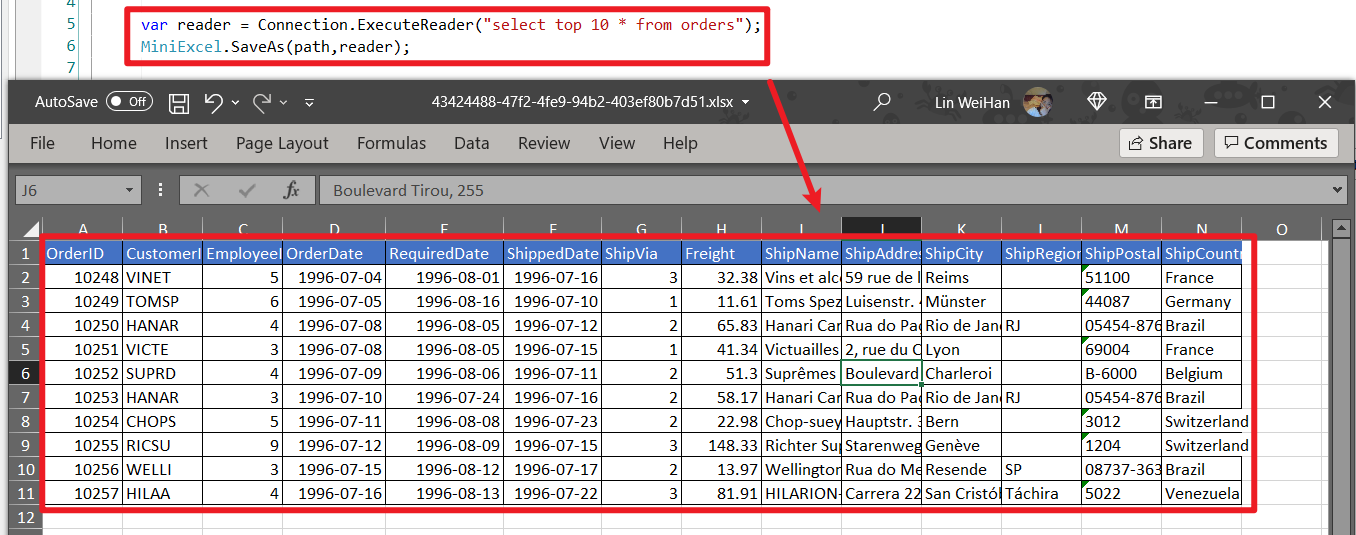
DataReader export multiple sheets (recommand by Dapper ExecuteReader)
using(varcnn=Connection){cnn.Open();varsheets=newDictionary<string,object>();sheets.Add("sheet1",cnn.ExecuteReader("select 1 id"));sheets.Add("sheet2",cnn.ExecuteReader("select 2 id"));MiniExcel.SaveAs("Demo.xlsx",sheets);}Not recommended, it will load all data into memoryDataTable use Caption for column name first, then use columname
varpath=Path.Combine(Path.GetTempPath(),$"{Guid.NewGuid()}.xlsx");vartable=newDataTable();{table.Columns.Add("Column1",typeof(string));table.Columns.Add("Column2",typeof(decimal));table.Rows.Add("MiniExcel",1);table.Rows.Add("Github",2);}MiniExcel.SaveAs(path,table);Thanks @shaofing #552 , please use CommandDefinition + CommandFlags.NoCache
using(varconnection=GetConnection(connectionString)){varrows=connection.Query(newCommandDefinition(@"select 'MiniExcel' as Column1,1 as Column2 union all select 'Github',2",flags:CommandFlags.NoCache));// Note: QueryAsync will throw close connection exceptionMiniExcel.SaveAs(path,rows);}Below code will load all data into memory
using(varconnection=GetConnection(connectionString)){varrows=connection.Query(@"select 'MiniExcel' as Column1,1 as Column2 union all select 'Github',2");MiniExcel.SaveAs(path,rows);}6. SaveAs to MemoryStream [Try it]
using(varstream=newMemoryStream())//support FileStream,MemoryStream ect.{stream.SaveAs(values);}e.g : api of export excel
publicIActionResultDownloadExcel(){varvalues=new[]{new{Column1="MiniExcel",Column2=1},new{Column1="Github",Column2=2}};varmemoryStream=newMemoryStream();memoryStream.SaveAs(values);memoryStream.Seek(0,SeekOrigin.Begin);returnnewFileStreamResult(memoryStream,"application/vnd.openxmlformats-officedocument.spreadsheetml.sheet"){FileDownloadName="demo.xlsx"};}// 1. Dictionary<string,object>varusers=new[]{new{Name="Jack",Age=25},new{Name="Mike",Age=44}};vardepartment=new[]{new{ID="01",Name="HR"},new{ID="02",Name="IT"}};varsheets=newDictionary<string,object>{["users"]=users,["department"]=department};MiniExcel.SaveAs(path,sheets);// 2. DataSetvarsheets=newDataSet();sheets.Add(UsersDataTable);sheets.Add(DepartmentDataTable);//..MiniExcel.SaveAs(path,sheets);
Default style
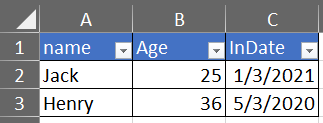
Without style configuration
varconfig=newOpenXmlConfiguration(){TableStyles=TableStyles.None};MiniExcel.SaveAs(path,value,configuration:config);
Since v0.19.0 OpenXmlConfiguration.AutoFilter can en/unable AutoFilter , default value is true, and setting AutoFilter way:
MiniExcel.SaveAs(path,value,configuration:newOpenXmlConfiguration(){AutoFilter=false});varvalue=new[]{new{Name="github",Image=File.ReadAllBytes(PathHelper.GetFile("images/github_logo.png"))},new{Name="google",Image=File.ReadAllBytes(PathHelper.GetFile("images/google_logo.png"))},new{Name="microsoft",Image=File.ReadAllBytes(PathHelper.GetFile("images/microsoft_logo.png"))},new{Name="reddit",Image=File.ReadAllBytes(PathHelper.GetFile("images/reddit_logo.png"))},new{Name="statck_overflow",Image=File.ReadAllBytes(PathHelper.GetFile("images/statck_overflow_logo.png"))},};MiniExcel.SaveAs(path,value);
Since 1.22.0, when value type is byte[] then system will save file path at cell by default, and when import system can be converted to byte[]. And if you don't want to use it, you can set OpenXmlConfiguration.EnableConvertByteArray to false, it can improve the system efficiency.

Since 1.22.0, when value type is byte[] then system will save file path at cell by default, and when import system can be converted to byte[]. And if you don't want to use it, you can set OpenXmlConfiguration.EnableConvertByteArray to false, it can improve the system efficiency.
This functionality is only supported in xlsx format and merges cells vertically between @merge and @endmerge tags.
You can use @mergelimit to limit boundaries of merging cells vertically.
varmergedFilePath=Path.Combine(Path.GetTempPath(),$"{Guid.NewGuid().ToString()}.xlsx");varpath=@"../../../../../samples/xlsx/TestMergeWithTag.xlsx";MiniExcel.MergeSameCells(mergedFilePath,path);varmemoryStream=newMemoryStream();varpath=@"../../../../../samples/xlsx/TestMergeWithTag.xlsx";memoryStream.MergeSameCells(path);File content before and after merge:
Without merge limit:


With merge limit:


New explicit option to write empty cells for null values:
DataTabledt=newDataTable();/* ... */DataRowdr=dt.NewRow();dr["Name1"]="Somebody once";dr["Name2"]=null;dr["Name3"]="told me.";dt.Rows.Add(dr);OpenXmlConfigurationconfiguration=newOpenXmlConfiguration(){EnableWriteNullValueCell=true// Default value.};MiniExcel.SaveAs(@"C:\temp\Book1.xlsx",dt,configuration:configuration);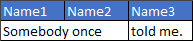
<x:rowr="2">
<x:cr="A2" t ="str"s="2">
<x:v>Somebody once</x:v>
</x:c>
<x:cr="B2"s="2"></x:c>
<x:cr="C2" t ="str"s="2">
<x:v>told me.</x:v>
</x:c>
</x:row>
Previous behavior:
/* ... */OpenXmlConfigurationconfiguration=newOpenXmlConfiguration(){EnableWriteNullValueCell=false// Default value is true.};MiniExcel.SaveAs(@"C:\temp\Book1.xlsx",dt,configuration:configuration);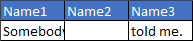
<x:rowr="2">
<x:cr="A2" t ="str"s="2">
<x:v>Somebody once</x:v>
</x:c>
<x:cr="B2" t ="str"s="2">
<x:v></x:v>
</x:c>
<x:cr="C2" t ="str"s="2">
<x:v>told me.</x:v>
</x:c>
</x:row>
Works for null and DBNull values.
/* ... */OpenXmlConfigurationconfiguration=newOpenXmlConfiguration(){FreezeRowCount=1,// default is 1FreezeColumnCount=2// default is 0};MiniExcel.SaveAs(@"C:\temp\Book1.xlsx",dt,configuration:configuration);
- The declaration is similar to Vue template
{{variable name}}, or the collection rendering{{collection name.field name}} - Collection rendering support IEnumerable/DataTable/DapperRow
Template:

Result:

Code:
// 1. By POCOvarvalue=new{Name="Jack",CreateDate=newDateTime(2021,01,01),VIP=true,Points=123};MiniExcel.SaveAsByTemplate(path,templatePath,value);// 2. By Dictionaryvarvalue=newDictionary<string,object>(){["Name"]="Jack",["CreateDate"]=newDateTime(2021,01,01),["VIP"]=true,["Points"]=123};MiniExcel.SaveAsByTemplate(path,templatePath,value);Note1: Use the first IEnumerable of the same column as the basis for filling list
Template:

Result:

Code:
//1. By POCOvarvalue=new{employees=new[]{new{name="Jack",department="HR"},new{name="Lisa",department="HR"},new{name="John",department="HR"},new{name="Mike",department="IT"},new{name="Neo",department="IT"},new{name="Loan",department="IT"}}};MiniExcel.SaveAsByTemplate(path,templatePath,value);//2. By Dictionaryvarvalue=newDictionary<string,object>(){["employees"]=new[]{new{name="Jack",department="HR"},new{name="Lisa",department="HR"},new{name="John",department="HR"},new{name="Mike",department="IT"},new{name="Neo",department="IT"},new{name="Loan",department="IT"}}};MiniExcel.SaveAsByTemplate(path,templatePath,value);Note: Support multi-sheets and using same varible
Template:

Result:

// 1. By POCOvarvalue=new{title="FooCompany",managers=new[]{new{name="Jack",department="HR"},new{name="Loan",department="IT"}},employees=new[]{new{name="Wade",department="HR"},new{name="Felix",department="HR"},new{name="Eric",department="IT"},new{name="Keaton",department="IT"}}};MiniExcel.SaveAsByTemplate(path,templatePath,value);// 2. By Dictionaryvarvalue=newDictionary<string,object>(){["title"]="FooCompany",["managers"]=new[]{new{name="Jack",department="HR"},new{name="Loan",department="IT"}},["employees"]=new[]{new{name="Wade",department="HR"},new{name="Felix",department="HR"},new{name="Eric",department="IT"},new{name="Keaton",department="IT"}}};MiniExcel.SaveAsByTemplate(path,templatePath,value);NOTE: Using IEnumerable deferred execution not ToList can save max memory usage in MiniExcel

Template

Result

Class
publicclassPoco{publicstring@string{get;set;}publicint?@int{get;set;}publicdecimal?@decimal{get;set;}publicdouble?@double{get;set;}publicDateTime?datetime{get;set;}publicbool?@bool{get;set;}publicGuid?Guid{get;set;}}Code
varpoco=newTestIEnumerableTypePoco{@string="string",@int=123,@decimal=decimal.Parse("123.45"),@double=(double)123.33,@datetime=newDateTime(2021,4,1),@bool=true,@Guid=Guid.NewGuid()};varvalue=new{Ts=new[]{poco,newTestIEnumerableTypePoco{},null,poco}};MiniExcel.SaveAsByTemplate(path,templatePath,value);Template

Result

Code
varprojects=new[]{new{Name="MiniExcel",Link="https://github.com/mini-software/MiniExcel",Star=146,CreateTime=newDateTime(2021,03,01)},new{Name="HtmlTableHelper",Link="https://github.com/mini-software/HtmlTableHelper",Star=16,CreateTime=newDateTime(2020,02,01)},new{Name="PocoClassGenerator",Link="https://github.com/mini-software/PocoClassGenerator",Star=16,CreateTime=newDateTime(2019,03,17)}};varvalue=new{User="ITWeiHan",Projects=projects,TotalStar=projects.Sum(s =>s.Star)};MiniExcel.SaveAsByTemplate(path,templatePath,value);varvalue=newDictionary<string,object>(){["employees"]=new[]{new{name="Jack",department="HR"},new{name="Jack",department="HR"},new{name="John",department="HR"},new{name="John",department="IT"},new{name="Neo",department="IT"},new{name="Loan",department="IT"}}};awaitMiniExcel.SaveAsByTemplateAsync(path,templatePath,value);Before

After

Before

After

Before

After

Rules:
- Supports DateTime, Double, Int with ==, !=, >, >=, <, <= operators.
- Supports String with ==, != operators.
- Each statement should be new line.
- Single space should be added before and after operators.
- There shouldn't be new line inside of statements.
- Cell should be in exact format as below.
@if(name==Jack){{employees.name}}
@elseif(name==Neo)
Test {{employees.name}}
@else
{{employees.department}}
@endif
Before

After

varmanagers=newDataTable();{managers.Columns.Add("name");managers.Columns.Add("department");managers.Rows.Add("Jack","HR");managers.Rows.Add("Loan","IT");}varvalue=newDictionary<string,object>(){["title"]="FooCompany",["managers"]=managers,};MiniExcel.SaveAsByTemplate(path,templatePath,value);Prefix your formula with $ and use $enumrowstart and $enumrowend to mark references to the enumerable start and end rows:

When the template is rendered, the $ prefix will be removed and $enumrowstart and $enumrowend will be replaced with the start and end row numbers of the enumerable:

| Sum | $=SUM(C{{$enumrowstart}}:C{{$enumrowend}}) |
| Alt. Average | $=SUM(C{{$enumrowstart}}:C{{$enumrowend}}) / COUNT(C{{$enumrowstart}}:C{{$enumrowend}}) |
| Range | $=MAX(C{{$enumrowstart}}:C{{$enumrowend}}) - MIN(C{{$enumrowstart}}:C{{$enumrowend}}) |
Since V1.24.0 , default ignore template missing parameter key and replace it with empty string, IgnoreTemplateParameterMissing can control throwing exception or not.
varconfig=newOpenXmlConfiguration(){IgnoreTemplateParameterMissing=false,};MiniExcel.SaveAsByTemplate(path,templatePath,value,config)
Excel Example

Code
publicclassExcelAttributeDemo{[ExcelColumnName("Column1")]publicstringTest1{get;set;}[ExcelColumnName("Column2")]publicstringTest2{get;set;}[ExcelIgnore]publicstringTest3{get;set;}[ExcelColumnIndex("I")]// system will convert "I" to 8 indexpublicstringTest4{get;set;}publicstringTest5{get;}//wihout set will ignorepublicstringTest6{get;privateset;}//un-public set will ignore[ExcelColumnIndex(3)]// start with 0publicstringTest7{get;set;}}varrows=MiniExcel.Query<ExcelAttributeDemo>(path).ToList();Assert.Equal("Column1",rows[0].Test1);Assert.Equal("Column2",rows[0].Test2);Assert.Null(rows[0].Test3);Assert.Equal("Test7",rows[0].Test4);Assert.Null(rows[0].Test5);Assert.Null(rows[0].Test6);Assert.Equal("Test4",rows[0].Test7);Since V0.21.0 support class which contains ToString(string content) method format
Class
publicclassDto{publicstringName{get;set;}[ExcelFormat("MMMM dd, yyyy")]publicDateTimeInDate{get;set;}}Code
varvalue=newDto[]{newIssue241Dto{Name="Jack",InDate=newDateTime(2021,01,04)},newIssue241Dto{Name="Henry",InDate=newDateTime(2020,04,05)},};MiniExcel.SaveAs(path,value);Result
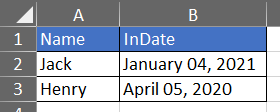
Query supports custom format conversion

publicclassDto{[ExcelColumnWidth(20)]publicintID{get;set;}[ExcelColumnWidth(15.50)]publicstringName{get;set;}}publicclassDto{[ExcelColumnName(excelColumnName:"EmployeeNo",aliases:new[]{"EmpNo","No"})]publicstringEmpno{get;set;}publicstringName{get;set;}}Since 1.24.0, system supports System.ComponentModel.DisplayNameAttribute = ExcelColumnName.excelColumnNameAttribute
publicclassTestIssueI4TXGTDto{publicintID{get;set;}publicstringName{get;set;}[DisplayName("Specification")]publicstringSpc{get;set;}[DisplayName("Unit Price")]publicdecimalUp{get;set;}}Since V1.26.0, multiple attributes can be simplified like :
publicclassTestIssueI4ZYUUDto{[ExcelColumn(Name="ID",Index=0)]publicstringMyProperty{get;set;}[ExcelColumn(Name="CreateDate",Index=1,Format="yyyy-MM",Width=100)]publicDateTimeMyProperty2{get;set;}}Since V1.26.0, we can set the attributes of Column dynamically
varconfig=newOpenXmlConfiguration{DynamicColumns=newDynamicExcelColumn[]{newDynamicExcelColumn("id"){Ignore=true},newDynamicExcelColumn("name"){Index=1,Width=10},newDynamicExcelColumn("createdate"){Index=0,Format="yyyy-MM-dd",Width=15},newDynamicExcelColumn("point"){Index=2,Name="Account Point"},}};varpath=PathHelper.GetTempPath();varvalue=new[]{new{id=1,name="Jack",createdate=newDateTime(2022,04,12),point=123.456}};MiniExcel.SaveAs(path,value,configuration:config);
Since V1.31.4 we can set the attributes of Sheet dynamically. We can set sheet name and state (visibility).
varconfiguration=newOpenXmlConfiguration{DynamicSheets=newDynamicExcelSheet[]{newDynamicExcelSheet("usersSheet"){Name="Users",State=SheetState.Visible},newDynamicExcelSheet("departmentSheet"){Name="Departments",State=SheetState.Hidden}}};varusers=new[]{new{Name="Jack",Age=25},new{Name="Mike",Age=44}};vardepartment=new[]{new{ID="01",Name="HR"},new{ID="02",Name="IT"}};varsheets=newDictionary<string,object>{["usersSheet"]=users,["departmentSheet"]=department};varpath=PathHelper.GetTempPath();MiniExcel.SaveAs(path,sheets,configuration:configuration);We can also use new attribute ExcelSheetAttribute:
[ExcelSheet(Name="Departments",State=SheetState.Hidden)]privateclassDepartmentDto{[ExcelColumn(Name="ID",Index=0)]publicstringID{get;set;}[ExcelColumn(Name="Name",Index=1)]publicstringName{get;set;}}v1.28.0 support CSV insert N rows data after last row
// Origin{varvalue=new[]{new{ID=1,Name="Jack",InDate=newDateTime(2021,01,03)},new{ID=2,Name="Henry",InDate=newDateTime(2020,05,03)},};MiniExcel.SaveAs(path,value);}// Insert 1 rows after last{varvalue=new{ID=3,Name="Mike",InDate=newDateTime(2021,04,23)};MiniExcel.Insert(path,value);}// Insert N rows after last{varvalue=new[]{new{ID=4,Name="Frank",InDate=newDateTime(2021,06,07)},new{ID=5,Name="Gloria",InDate=newDateTime(2022,05,03)},};MiniExcel.Insert(path,value);}
v1.37.0 support excel insert a new sheet into an existing workbook
// Origin excel{varvalue=new[]{new{ID=1,Name="Jack",InDate=newDateTime(2021,01,03)},new{ID=2,Name="Henry",InDate=newDateTime(2020,05,03)},};MiniExcel.SaveAs(path,value,sheetName:"Sheet1");}// Insert a new sheet{varvalue=new{ID=3,Name="Mike",InDate=newDateTime(2021,04,23)};MiniExcel.Insert(path,table,sheetName:"Sheet2");}- MiniExcel will check whether it is xlsx or csv based on the
file extensionby default, but there may be inaccuracy, please specify it manually. - Stream cannot be know from which excel, please specify it manually.
stream.SaveAs(excelType:ExcelType.CSV);//orstream.SaveAs(excelType:ExcelType.XLSX);//orstream.Query(excelType:ExcelType.CSV);//orstream.Query(excelType:ExcelType.XLSX);- Default return
stringtype, and value will not be converted to numbers or datetime, unless the type is defined by strong typing generic.
The default is , as the separator, you can modify the Seperator property for customization
varconfig=newMiniExcelLibs.Csv.CsvConfiguration(){Seperator=';'};MiniExcel.SaveAs(path,values,configuration:config);Since V1.30.1 support function to custom separator (thanks @hyzx86)
varconfig=newCsvConfiguration(){SplitFn=(row)=>Regex.Split(row,$"[\t,](?=(?:[^\"]|\"[^\"]*\")*$)").Select(s =>Regex.Replace(s.Replace("\"\"","\""),"^\"|\"$","")).ToArray()};varrows=MiniExcel.Query(path,configuration:config).ToList();The default is \r\n as the newline character, you can modify the NewLine property for customization
varconfig=newMiniExcelLibs.Csv.CsvConfiguration(){NewLine='\n'};MiniExcel.SaveAs(path,values,configuration:config);- The default encoding is "Detect Encoding From Byte Order Marks" (detectEncodingFromByteOrderMarks: true)
- f you have custom encoding requirements, please modify the StreamReaderFunc / StreamWriterFunc property
// Readvarconfig=newMiniExcelLibs.Csv.CsvConfiguration(){StreamReaderFunc=(stream)=>newStreamReader(stream,Encoding.GetEncoding("gb2312"))};varrows=MiniExcel.Query(path,true,excelType:ExcelType.CSV,configuration:config);// Writevarconfig=newMiniExcelLibs.Csv.CsvConfiguration(){StreamWriterFunc=(stream)=>newStreamWriter(stream,Encoding.GetEncoding("gb2312"))};MiniExcel.SaveAs(path,value,excelType:ExcelType.CSV,configuration:config);By default, empty values are mapped to string.Empty. You can modify this behavior
varconfig=newMiniExcelLibs.Csv.CsvConfiguration(){ReadEmptyStringAsNull=true};Since 1.23.0, you can GetDataReader
using(varreader=MiniExcel.GetReader(path,true)){while(reader.Read()){for(inti=0;i<reader.FieldCount;i++){varvalue=reader.GetValue(i);}}}- v0.17.0 support Async (thanks isdaniel ( SHIH,BING-SIOU)](https://github.com/isdaniel))
publicstaticTaskSaveAsAsync(stringpath,objectvalue,boolprintHeader=true,stringsheetName="Sheet1",ExcelTypeexcelType=ExcelType.UNKNOWN,IConfigurationconfiguration=null)publicstaticTaskSaveAsAsync(thisStreamstream,objectvalue,boolprintHeader=true,stringsheetName="Sheet1",ExcelTypeexcelType=ExcelType.XLSX,IConfigurationconfiguration=null)publicstaticTask<IEnumerable<dynamic>>QueryAsync(stringpath,booluseHeaderRow=false,stringsheetName=null,ExcelTypeexcelType=ExcelType.UNKNOWN,stringstartCell="A1",IConfigurationconfiguration=null)publicstaticTask<IEnumerable<T>>QueryAsync<T>(thisStreamstream,stringsheetName=null,ExcelTypeexcelType=ExcelType.UNKNOWN,stringstartCell="A1",IConfigurationconfiguration=null)whereT:class,new()publicstaticTask<IEnumerable<T>>QueryAsync<T>(stringpath,stringsheetName=null,ExcelTypeexcelType=ExcelType.UNKNOWN,stringstartCell="A1",IConfigurationconfiguration=null)whereT:class,new()publicstaticTask<IEnumerable<IDictionary<string,object>>>QueryAsync(thisStreamstream,booluseHeaderRow=false,stringsheetName=null,ExcelTypeexcelType=ExcelType.UNKNOWN,stringstartCell="A1",IConfigurationconfiguration=null)publicstaticTaskSaveAsByTemplateAsync(thisStreamstream,stringtemplatePath,objectvalue)publicstaticTaskSaveAsByTemplateAsync(thisStreamstream,byte[]templateBytes,objectvalue)publicstaticTaskSaveAsByTemplateAsync(stringpath,stringtemplatePath,objectvalue)publicstaticTaskSaveAsByTemplateAsync(stringpath,byte[]templateBytes,objectvalue)publicstaticTask<DataTable>QueryAsDataTableAsync(stringpath,booluseHeaderRow=true,stringsheetName=null,ExcelTypeexcelType=ExcelType.UNKNOWN,stringstartCell="A1",IConfigurationconfiguration=null)- v1.25.0 support
cancellationToken。
Be sure excel & property name same, system will auto mapping (case insensitive)

Since V0.18.0 support Enum Description
publicclassDto{publicstringName{get;set;}publicI49RYZUserTypeUserType{get;set;}}publicenumType{[Description("General User")]V1,[Description("General Administrator")]V2,[Description("Super Administrator")]V3}
Since 1.30.0 version support excel Description to Enum , thanks @KaneLeung
MiniExcel.ConvertXlsxToCsv(xlsxPath,csvPath);MiniExcel.ConvertXlsxToCsv(xlsxStream,csvStream);MiniExcel.ConvertCsvToXlsx(csvPath,xlsxPath);MiniExcel.ConvertCsvToXlsx(csvStream,xlsxStream);using(varexcelStream=newFileStream(path:filePath,FileMode.Open,FileAccess.Read))using(varcsvStream=newMemoryStream()){MiniExcel.ConvertXlsxToCsv(excelStream,csvStream);}If you need to convert Excel files to PDF, you can use MiniPdf.
Since 1.22.0, you can custom CultureInfo like below, system default CultureInfo.InvariantCulture.
varconfig=newCsvConfiguration(){Culture=newCultureInfo("fr-FR"),};MiniExcel.SaveAs(path,value,configuration:config);// orMiniExcel.Query(path,configuration:config);publicabstractclassConfiguration:IConfiguration{publicintBufferSize{get;set;}=1024*512;}System will not control memory, but you can get faster save speed.
varconfig=newOpenXmlConfiguration(){FastMode=true};MiniExcel.SaveAs(path,reader,configuration:config);Please add pictures before batch generate rows data, or system will load large memory usage when calling AddPicture.
varimages=new[]{newMiniExcelPicture{ImageBytes=File.ReadAllBytes(PathHelper.GetFile("images/github_logo.png")),SheetName=null,// default null is first sheetCellAddress="C3",// required},newMiniExcelPicture{ImageBytes=File.ReadAllBytes(PathHelper.GetFile("images/google_logo.png")),PictureType="image/png",// default PictureType = image/pngSheetName="Demo",CellAddress="C9",// requiredWidthPx=100,HeightPx=100,},};MiniExcel.AddPicture(path,images);
vardim=MiniExcel.GetSheetDimensions(path);note : please don't call ToList/ToArray methods after Query, it'll load all data into memory
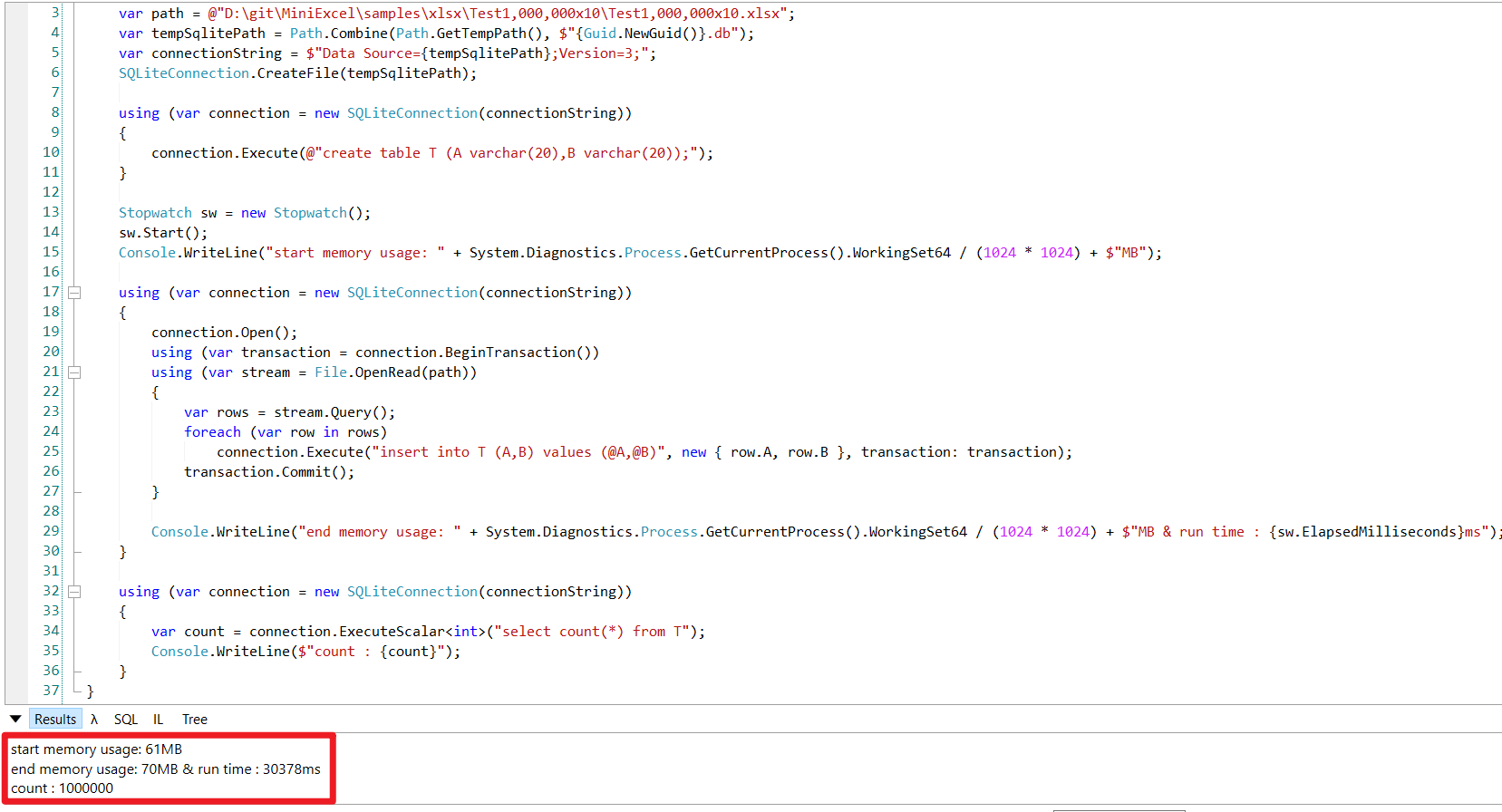
using(varconnection=newSQLiteConnection(connectionString)){connection.Open();using(vartransaction=connection.BeginTransaction())using(varstream=File.OpenRead(path)){varrows=stream.Query();foreach(varrowinrows)connection.Execute("insert into T (A,B) values (@A,@B)",new{row.A,row.B},transaction:transaction);transaction.Commit();}}performance:
2. ASP.NET Core 3.1 or MVC 5 Download/Upload Excel Xlsx API Demo Try it
publicclassApiController:Controller{publicIActionResultIndex(){returnnewContentResult{ContentType="text/html",StatusCode=(int)HttpStatusCode.OK,Content=@"<html><body><a href='api/DownloadExcel'>DownloadExcel</a><br><a href='api/DownloadExcelFromTemplatePath'>DownloadExcelFromTemplatePath</a><br><a href='api/DownloadExcelFromTemplateBytes'>DownloadExcelFromTemplateBytes</a><br><p>Upload Excel</p><form method='post' enctype='multipart/form-data' action='/api/uploadexcel'> <input type='file' name='excel'> <br> <input type='submit' ></form></body></html{{"};}publicIActionResultDownloadExcel(){varvalues=new[]{new{Column1="MiniExcel",Column2=1},new{Column1="Github",Column2=2}};varmemoryStream=newMemoryStream();memoryStream.SaveAs(values);memoryStream.Seek(0,SeekOrigin.Begin);returnnewFileStreamResult(memoryStream,"application/vnd.openxmlformats-officedocument.spreadsheetml.sheet"){FileDownloadName="demo.xlsx"};}publicIActionResultDownloadExcelFromTemplatePath(){stringtemplatePath="TestTemplateComplex.xlsx";Dictionary<string,object>value=newDictionary<string,object>(){["title"]="FooCompany",["managers"]=new[]{new{name="Jack",department="HR"},new{name="Loan",department="IT"}},["employees"]=new[]{new{name="Wade",department="HR"},new{name="Felix",department="HR"},new{name="Eric",department="IT"},new{name="Keaton",department="IT"}}};MemoryStreammemoryStream=newMemoryStream();memoryStream.SaveAsByTemplate(templatePath,value);memoryStream.Seek(0,SeekOrigin.Begin);returnnewFileStreamResult(memoryStream,"application/vnd.openxmlformats-officedocument.spreadsheetml.sheet"){FileDownloadName="demo.xlsx"};}privatestaticDictionary<string,Byte[]>TemplateBytesCache=newDictionary<string,byte[]>();staticApiController(){stringtemplatePath="TestTemplateComplex.xlsx";byte[]bytes=System.IO.File.ReadAllBytes(templatePath);TemplateBytesCache.Add(templatePath,bytes);}publicIActionResultDownloadExcelFromTemplateBytes(){byte[]bytes=TemplateBytesCache["TestTemplateComplex.xlsx"];Dictionary<string,object>value=newDictionary<string,object>(){["title"]="FooCompany",["managers"]=new[]{new{name="Jack",department="HR"},new{name="Loan",department="IT"}},["employees"]=new[]{new{name="Wade",department="HR"},new{name="Felix",department="HR"},new{name="Eric",department="IT"},new{name="Keaton",department="IT"}}};MemoryStreammemoryStream=newMemoryStream();memoryStream.SaveAsByTemplate(bytes,value);memoryStream.Seek(0,SeekOrigin.Begin);returnnewFileStreamResult(memoryStream,"application/vnd.openxmlformats-officedocument.spreadsheetml.sheet"){FileDownloadName="demo.xlsx"};}publicIActionResultUploadExcel(IFormFileexcel){varstream=newMemoryStream();excel.CopyTo(stream);foreach(variteminstream.Query(true)){// do your logic etc.}returnOk("File uploaded successfully");}}voidMain(){varrows=MiniExcel.Query(path);Console.WriteLine("==== No.1 Page ====");Console.WriteLine(Page(rows,pageSize:3,page:1));Console.WriteLine("==== No.50 Page ====");Console.WriteLine(Page(rows,pageSize:3,page:50));Console.WriteLine("==== No.5000 Page ====");Console.WriteLine(Page(rows,pageSize:3,page:5000));}publicstaticIEnumerable<T>Page<T>(IEnumerable<T>en,intpageSize,intpage){returnen.Skip(page*pageSize).Take(pageSize);}
varfileName="Demo.xlsx";varsheetName="Sheet1";HttpResponseresponse=HttpContext.Current.Response;response.Clear();response.ContentType="application/vnd.openxmlformats-officedocument.spreadsheetml.sheet";response.AddHeader("Content-Disposition",$"attachment;filename=\"{fileName}\"");varvalues=new[]{new{Column1="MiniExcel",Column2=1},new{Column1="Github",Column2=2}};varmemoryStream=newMemoryStream();memoryStream.SaveAs(values,sheetName:sheetName);memoryStream.Seek(0,SeekOrigin.Begin);memoryStream.CopyTo(Response.OutputStream);response.End();Like the example, create a method to handle i18n and permission management, and use yield return to return IEnumerable<Dictionary<string, object>> to achieve dynamic and low-memory processing effects
voidMain(){varvalue=newOrder[]{newOrder(){OrderNo="SO01",CustomerID="C001",ProductID="P001",Qty=100,Amt=500},newOrder(){OrderNo="SO02",CustomerID="C002",ProductID="P002",Qty=300,Amt=400},};Console.WriteLine("en-Us and Sales role");{varpath=Path.GetTempPath()+Guid.NewGuid()+".xlsx";varlang="en-US";varrole="Sales";MiniExcel.SaveAs(path,GetOrders(lang,role,value));MiniExcel.Query(path,true).Dump();}Console.WriteLine("zh-CN and PMC role");{varpath=Path.GetTempPath()+Guid.NewGuid()+".xlsx";varlang="zh-CN";varrole="PMC";MiniExcel.SaveAs(path,GetOrders(lang,role,value));MiniExcel.Query(path,true).Dump();}}privateIEnumerable<Dictionary<string,object>>GetOrders(stringlang,stringrole,Order[]orders){foreach(varorderinorders){varnewOrder=newDictionary<string,object>();if(lang=="zh-CN"){newOrder.Add("客户编号",order.CustomerID);newOrder.Add("订单编号",order.OrderNo);newOrder.Add("产品编号",order.ProductID);newOrder.Add("数量",order.Qty);if(role=="Sales")newOrder.Add("价格",order.Amt);yieldreturnnewOrder;}elseif(lang=="en-US"){newOrder.Add("Customer ID",order.CustomerID);newOrder.Add("Order No",order.OrderNo);newOrder.Add("Product ID",order.ProductID);newOrder.Add("Quantity",order.Qty);if(role=="Sales")newOrder.Add("Amount",order.Amt);yieldreturnnewOrder;}else{thrownewInvalidDataException($"lang {lang} wrong");}}}publicclassOrder{publicstringOrderNo{get;set;}publicstringCustomerID{get;set;}publicdecimalQty{get;set;}publicstringProductID{get;set;}publicdecimalAmt{get;set;}}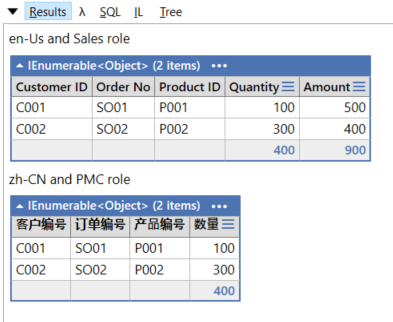
A. Please use ExcelColumnName attribute
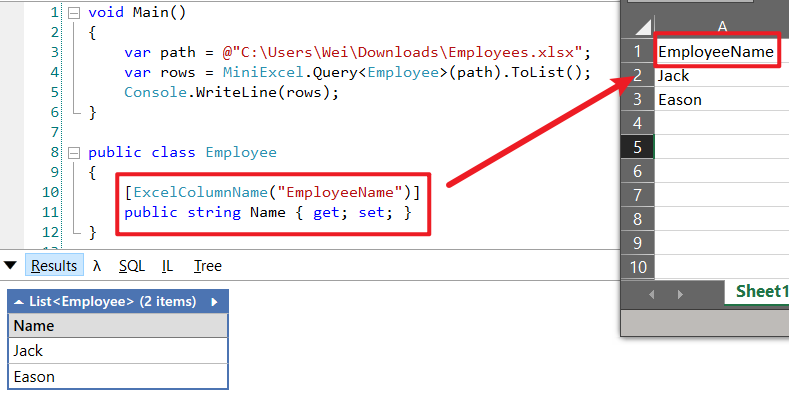
A. GetSheetNames method with Query sheetName parameter.
varsheets=MiniExcel.GetSheetNames(path);foreach(varsheetinsheets){Console.WriteLine($"sheet name : {sheet} ");varrows=MiniExcel.Query(path,useHeaderRow:true,sheetName:sheet);Console.WriteLine(rows);}
A. GetSheetInformations method.
varsheets=MiniExcel.GetSheetInformations(path);foreach(varsheetInfoinsheets){Console.WriteLine($"sheet index : {sheetInfo.Index} ");// next sheet index - numbered from 0Console.WriteLine($"sheet name : {sheetInfo.Name} ");// sheet nameConsole.WriteLine($"sheet state : {sheetInfo.State} ");// sheet visibility state - visible / hidden}A. MiniExcel template collection rendering expands vertically (top-to-bottom). Horizontal (left-to-right) fill isn't supported yet (see #619).
If you just need the final layout, transpose your data into a matrix and export it with printHeader: false:
varemployees=new[]{new{Name="Name1",Department="Department1",City="City1",Country="Country1"},new{Name="Name2",Department="Department2",City="City2",Country="Country2"},new{Name="Name3",Department="Department3",City="City3",Country="Country3"},};vartable=newDataTable();table.Columns.Add("A");for(vari=0;i<employees.Length;i++)table.Columns.Add($"B{i+1}");table.Rows.Add(newobject[]{"Name"}.Concat(employees.Select(e =>(object)e.Name)).ToArray());table.Rows.Add(newobject[]{"Department"}.Concat(employees.Select(e =>(object)e.Department)).ToArray());table.Rows.Add(newobject[]{"City"}.Concat(employees.Select(e =>(object)e.City)).ToArray());table.Rows.Add(newobject[]{"Country"}.Concat(employees.Select(e =>(object)e.Country)).ToArray());MiniExcel.SaveAs(path,table,printHeader:false);If you must use a template for styling, one option is to use scalar placeholders (e.g. {{Name_1}}, {{Name_2}} ...) and fill a dictionary (requires a fixed maximum number of columns).
No, the image test has 1 million rows*10 columns of data, the maximum memory usage is <60MB, and it takes 13.65 seconds

The default index of Query is the string Key: A,B,C.... If you want to change to numeric index, please create the following method to convert
voidMain(){varpath=@"D:\git\MiniExcel\samples\xlsx\TestTypeMapping.xlsx";varrows=MiniExcel.Query(path,true);foreach(varrinConvertToIntIndexRows(rows)){Console.Write($"column 0 : {r[0]} ,column 1 : {r[1]}");Console.WriteLine();}}privateIEnumerable<Dictionary<int,object>>ConvertToIntIndexRows(IEnumerable<object>rows){ICollection<string>keys=null;varisFirst=true;foreach(IDictionary<string,object>rinrows){if(isFirst){keys=r.Keys;isFirst=false;}vardic=newDictionary<int,object>();varindex=0;foreach(varkeyinkeys)dic[index++]=r[key];yieldreturndic;}}Because MiniExcel uses a logic similar to JSON.NET to dynamically get type from values to simplify API operations, type cannot be knew without data. You can check issue #133 for understanding.
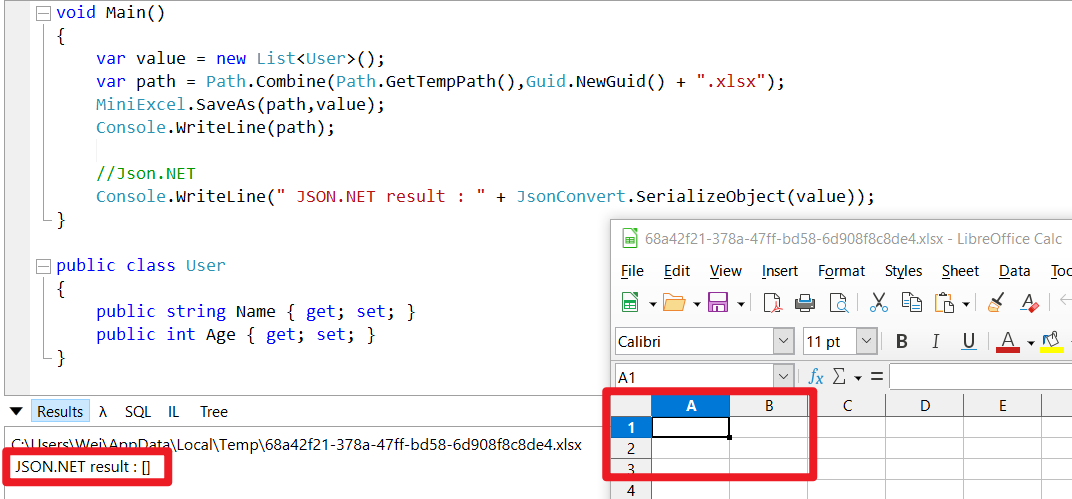
Strong type & DataTable will generate headers, but Dictionary are still empty Excel
MiniExcel can be used with LINQ TakeWhile to stop foreach iterator.


IEnumerable :
publicstaticIEnumerable<dynamic>QueryWithoutEmptyRow(Streamstream,booluseHeaderRow,stringsheetName,ExcelTypeexcelType,stringstartCell,IConfigurationconfiguration){varrows=stream.Query(useHeaderRow,sheetName,excelType,startCell,configuration);foreach(IDictionary<string,object>rowinrows){if(row.Keys.Any(key=>row[key]!=null))yieldreturnrow;}}DataTable :
publicstaticDataTableQueryAsDataTableWithoutEmptyRow(Streamstream,booluseHeaderRow,stringsheetName,ExcelTypeexcelType,stringstartCell,IConfigurationconfiguration){if(sheetName==null&&excelType!=ExcelType.CSV)/*Issue #279*/sheetName=stream.GetSheetNames().First();vardt=newDataTable(sheetName);varfirst=true;varrows=stream.Query(useHeaderRow,sheetName,excelType,startCell,configuration);foreach(IDictionary<string,object>rowinrows){if(first){foreach(varkeyinrow.Keys){varcolumn=newDataColumn(key,typeof(object)){Caption=key};dt.Columns.Add(column);}dt.BeginLoadData();first=false;}varnewRow=dt.NewRow();varisNull=true;foreach(varkeyinrow.Keys){var_v=row[key];if(_v!=null)isNull=false;newRow[key]=_v;}if(!isNull)dt.Rows.Add(newRow);}dt.EndLoadData();returndt;}Q. How SaveAs(path,value) to replace exists file and without throwing "The file ...xlsx already exists error"
Please use Stream class to custom file creating logic, e.g:
using(varstream=File.Create("Demo.xlsx"))MiniExcel.SaveAs(stream,value);or, since V1.25.0, SaveAs support overwriteFile parameter for enable/unable overwriting exist file
MiniExcel.SaveAs(path,value,overwriteFile:true);- Not support xls and encrypted file now
- xlsm only support Query
ExcelDataReader / ClosedXML / Dapper / ExcelNumberFormat

Thanks for providing a free All product IDE for this project (License)

Link https://github.com/orgs/mini-software/discussions/754