Latest commit

History

23 Commits

Folders and files

NameName
Last commit message
Last commit date

Repository files navigation

Kick-Start

What is Docker?

  • Docker by Docker Official Website :

    Docker is the company driving the container movement and the only container platform provider to address every application across the hybrid cloud. Today’s businesses are under pressure to digitally transform but are constrained by existing applications and infrastructure while rationalizing an increasingly diverse portfolio of clouds, datacenters and application architectures. Docker enables true independence between applications and infrastructure and developers and IT ops to unlock their potential and creates a model for better collaboration and innovation.

  • Docker by Wikipedia

    an open-source project that automates the deployment of software applications inside containersby providing an additional layer of abstraction and automation of OS-level virtualization on Linux.

  • In summary:

    docker is an open-source project that use OS-level virtualization technology to provide an isolated context called container to run application without overheads of virtual machines technology that used tereditionally!

in few next paragraphs we will talk about virtualization technology!you can jump to Docker Hello World if you are not intrest!

Virtualization history

Virtualization is a broad concept that refers to the creation of a virtual version of something, whether hardware, a software environment, storage, or a network.

In a virtualized environment there are three major components:

  • Guest: represents the system component that interacts with the virtualization layer rather than with the host, as would normally happen
  • Host: represents the original environment where the guest is supposed to be managed
  • Virtualization layer: is responsible for recreating the same or a different environment where the guest will operate

Pre-Virtualization World

Day 0, you're alone, no virtual machines , no hypervisor oh God whole damn resources are yours!each application run on a dedicated server with a goddamn super-fast host OS. but does God really forget us?

  • benefits:

    • no overhead!
    • security
    • full and total access to its resources
    • performs an extremely high volume of read and/or write actions to the hard disk
  • disadvantage:

    • waste of money

    • waste of energy

    • waste of resource

    • no elasticity

    • no scalability

    • slow deploy

    • hard to migrate

Hypervisor-based Virtualization

i believe that God sent hypervisors to save our money!The hypervisor or virtual machine manager (VMM) is generally a program or a combination of software and hardware that allows the abstraction of the underlying physical hardware.

there are two major types of hypervisor :

  • Type I hypervisors (native virtual machine) run directly on top of the hardware

    • Therefore, they take the place of the operating systems and interact directly with the ISA interface exposed by the underlying hardware, and they emulate this interface in order to allow the management of guest operating systems
  • Type II hypervisors (hosted virtual machines) require the support of an operating system to provide virtualization services

    • This means that they are programs managed by the operating system, which interact with it through the ABI and emulate the ISA of virtual hardware for guest operating systems

Moreover, virtualization technologies provide a virtual environment for not only executing applications but also for storage, memory, and networking

  • benefits:

    • pay as need

    • cost efficient or sth like that

    • security(isolated context for deploying applications)

    • energy efficient

    • migration

    • easy to scale

  • disadvantage:

    • long boot time

    • hard to migrate

    • overhead

    • slow deploy

    • not so frugel

    • security(opens the door to a new and unexpected form of phishing)

container-based Virtualization

Container virtualization (often referred as operating system virtualization) is more than just a different kind of hypervisor. Containers use the **host operating system **as their base, and not the hypervisor. Rather than virtualizing the hardware (which requires full virtualized operating system images for each guest), containers virtualize the OS itself, sharing the host OS kernel and its resources with both the host and other containers.

container

  • benefits:

    • pay as you need
    • elasticity
    • scalibility
    • fast deployment
    • easy to migrate
    • less overhead
    • fast boot
    • energy efficient
    • consistent environment
    • layered filesystem
    • easy CI/CD
    • easy versioning
    • super easy configuration
  • disadvantage:

    • Containers don't run at bare-metal speeds. Containers consume resources more efficiently than virtual machines. But containers are still subject to performance overhead due to overlay networking, interfacing between containers and the host system and so on. If you want 100 percent bare-metal performance, you need to use bare metal, not containers.
    • Persistent data storage is complicated. By design, all of the data inside a container disappears forever when the container shuts down, unless you save it somewhere else first. There are ways to save data persistently in Docker, such as Docker Data Volumes, but this is arguably a challenge that still has yet to be addressed in a seamless way.
    • Graphical applications don't work well. Docker was designed as a solution for deploying server applications that don't require a graphical interface. While there are some creative strategies (such as X11 video forwarding) that you can use to run a GUI app inside a container, these solutions are clunky at best.
    • Not all applications benefit from containers. In general, only applications that are designed to run as a set of discreet microservices stand to gain the most from containers. Otherwise, Docker's only real benefit is that it can simplify application delivery by providing an easy packaging mechanism. honestly i mean micro-services!

    VM Vs. Container

Docker Performance and architecture

Architecture

Docker uses a client-server architecture. The Docker client talks to the Docker daemon, which does the heavy lifting of building, running, and distributing your Docker containers. The Docker client and daemon can run on the same system, or you can connect a Docker client to a remote Docker daemon. The Docker client and daemon communicate using a REST API, over UNIX sockets or a network interface.

Docker Achitecture

Docker on Linux

On Linux systems, Docker directly leverages the kernel of the host system, and file system mounts are native. (home sweet home)

Docker on WIndows

In Docker for Windows does each container run in separate VM?

There are two types of Windows containers... Windows Containers & Hyper-V Containers. Windows Containers work the same way you know Linux based containers work... one or more in a host where the host can be a VM. Hyper-V containers are different though in that they run a single container within a tiny Hyper-V VM.

We (not me) interviewed the guy who owns the Windows Container story for Microsoft recently on our podcast if you're interested in learning not only more about this, but where they are going & helping. I found it fascinating how much an old engineering team like Windows is contributing to an open source project!

http://www.microsoftcloudshow.com/podcast/Episodes/137-windows-containers-are-coming-talking-to-taylor-brown-about-the-container-wave-coming-to-the-microsoft-world480

Docker on Mac

In June 2016 Docker announced Docker for Mac. The “new” way to run Docker on Mac with much easier installation and a more Linux-y experience for Docker users. Docker for Mac still starts a virtual machine (even though it is super hidden). It also brought its own hypervisor hyperkit and shared file system osxfs. Unfortunately, “osxfs” wasn’t very fast, and from the beginning there have been long discussions about it (Docker, Github).

Docker has steadily been working on performance improvements for Docker for Mac and released improvements with 17.04 CE. 17.04 CE now brings new performance flags to mountpoints of Docker Volumes (“delegated” and “cached”). Docker talks about an 2x — 3.5x improvement when comparing Docker for Mac 17.04 CE vs older versions. I mean don't use docker for mac as a production level environment.

Mountpoint flags:

  • consistent: perfect consistency (host and container have an identical view of the mount at all times)

  • cached: the host’s view is authoritative (permit delays before updates on the host appear in the container)

  • delegated: the container’s view is authoritative (permit delays before updates on the container appear in the host)

Hello World

now we'll run our first docker image and create a new container:

docker run hello-world

and the result is:

Unable to find image 'hello-world:latest' locally
docker: Error response from daemon: error parsing HTTP 403 response body: invalid character '<' looking forbeginning of value: "<html><body><h1>403 Forbidden</h1>\nSince Docker is a US company, we must comply with US export control regulations. In an effort to comply with these, we now block all IP addresses that are locatedin Cuba, Iran, North Korea, Republic of Crimea, Sudan, and Syria. If you are not in one of these cities, countries, or regions and are blocked, please reach out to https://support.docker.com\n</body></html>\n\n".See 'docker run --help'.

lets see what happend! read the first line of output,we have diffrent scenario when we run a docker image:

  • scenario 1

    after you try tu run hello-world image, docker search for this image on your local machine,if its stored there from befor, new container create from image will be create and sart

  • scenario 2

    but what if docker cant find image locally?if you're not connected from Iran, North Korea, Republic of Crimea, Sudan, and Syria, in this scenario docker should search on an online repository to find this image!this repositories called Registery! after finding image docker will pull this requested image to your local machine storage and start your image to create new container

    but if you're a citizen of banned regions probeblly you will see this error:

    docker: Error response from daemon: error parsing HTTP 403 response body: invalid character '<' looking forbeginning of value: "<html><body><h1>403 Forbidden</h1>\nSince Docker is a US company, we must comply with US export control regulations. In an effort to comply with these, we now block all IP addresses that are locatedin Cuba, Iran, North Korea, Republic of Crimea, Sudan, and Syria. If you are not in one of these cities, countries, or regions and are blocked, please reach out to https://support.docker.com\n</body></html>\n\n".See 'docker run --help'.

    All you need is a VPN!

OK, lets try again:

makbns-MacBook-Pro:~ makbn$ docker run hello-world
Unable to find image 'hello-world:latest' locally
latest: Pulling from library/hello-world
ca4f61b1923c: Pull complete Digest: sha256:445b2fe9afea8b4aa0b2f27fe49dd6ad130dfe7a8fd0832be5de99625dad47cd
Status: Downloaded newer image for hello-world:latest
Hello from Docker!
This message shows that your installation appears to be working correctly.
To generate this message, Docker took the following steps:
1. The Docker client contacted the Docker daemon.
2. The Docker daemon pulled the "hello-world" image from the Docker Hub.
(amd64)
3. The Docker daemon created a new container from that image which runs the
executable that produces the output you are currently reading.
4. The Docker daemon streamed that output to the Docker client, which sent it
to your terminal.

docker couldn't find image locally then tries to download it from registery!after download finished, image saved locally and stared by docker deamon!

Docker objects

When you use Docker, you are creating and using images, containers, networks, volumes, plugins, and other objects. This section is a brief overview of some of those objects.

IMAGES

An image is a read-only template with instructions for creating a Docker container. Often, an image is based onanother image, with some additional customization. For example, you may build an image which is based on the ubuntu image, but installs the Apache web server and your application, as well as the configuration details needed to make your application run.

You might create your own images or you might only use those created by others and published in a registry. To build your own image, you create a Dockerfile with a simple syntax for defining the steps needed to create the image and run it. Each instruction in a Dockerfile creates a layer in the image. When you change the Dockerfile and rebuild the image, only those layers which have changed are rebuilt. This is part of what makes images so lightweight, small, and fast, when compared to other virtualization technologies.

CONTAINERS

A container is a runnable instance of an image. You can create, start, stop, move, or delete a container using the Docker API or CLI. You can connect a container to one or more networks, attach storage to it, or even create a new image based on its current state.

By default, a container is relatively well isolated from other containers and its host machine. You can control how isolated a container’s network, storage, or other underlying subsystems are from other containers or from the host machine.

A container is defined by its image as well as any configuration options you provide to it when you create or start it. When a container is removed, any changes to its state that are not stored in persistent storage disappear.

Docker Basic Commands

docker run

Run a command in a new container

docker run [OPTIONS] IMAGE [COMMAND] [ARG...]

options

Name, shorthandDefaultDescription
--env , -eSet environment variables
--exposeExpose a port or a range of ports
--rmAutomatically remove the container when it exits
--tty , -tAllocate a pseudo-TTY
--interactive , -iKeep STDIN open even if not attached
-drun in detached mode all the time

example

docker run -it --name ubuntu_cont ubuntu:latest bash
docker run -it busybox:latest echo "hello world"

docker start

Start one or more stopped containers in detached mode

docker start [OPTIONS] CONTAINER [CONTAINER...]

options

Name, shorthandDefaultDescription
--interactive , -iAttach container’s STDIN

example

docker start -i ca765vb

docker ps

list of containers

docker ps [OPTIONS]

options

Name, shorthandDefaultDescription
—all , -ashow all containers

example

docker ps -a

docker images

list of images

docker images [OPTIONS] [REPOSITORY[:TAG]]

options

Name, shorthandDefaultDescription
—all , -ashow all images
  • docker image have intermediate layers that increase reusability, decrease disk usage and spped up docker build by allowing each step to be cached! these intermediat layer are not shoen by default.

example

docker images -a

docker stop

Stop one or more running container

docker stop [OPTIONS] CONTAINER [CONTAINER...]

options

Name, shorthandDefaultDescription
—time, -t10seconds to wait for stop before killing it

example

docker stop -t 10034tfer 

docker kill

Kill one or more running containers

docker kill [OPTIONS] CONTAINER [CONTAINER...]

options

Name, shorthandDefaultDescription
--signal , -sKILLSignal to send to the container
  • stop vs. kill?

example

docker kill cae40c

docker exec

Run a command in a running container

dockrexec [OPTIONS] CONTAINER [ARGS...]

options

Name, shorthandDefaultDescription
--detach , -dDetached mode: run command in the background
--interactive , -iKeep STDIN open even if not attached
--tty , -tAllocate a pseudo-TTY
  • COMMAND should be an executable, a chained or a quoted command will not work. Example:
    • docker exec -ti my_container "echo a && echo b" will not work, but
    • docker exec -ti my_container sh -c "echo a && echo b" will.

example

docker exec -it 120 bash

docker cp

Copy files/folders between a container and the local filesystem

docker cp [OPTIONS] CONTAINER:SRC_PATH DEST_PATH|-
docker cp [OPTIONS] SRC_PATH|- CONTAINER:DEST_PATH

example

docker cp /file_from_host my_cnt:/dir_in_cnt/

docker rm

Remove one or more containers

docker rm [OPTIONS] CONTAINER [CONTAINER...]

options

Name, shorthandDefaultDescription
--force , -fForce the removal of a running container (uses SIGKILL)
--link , -lRemove the specified link
--volumes , -vRemove the volumes associated with the container

example

docker rm 34fg 6hfg 

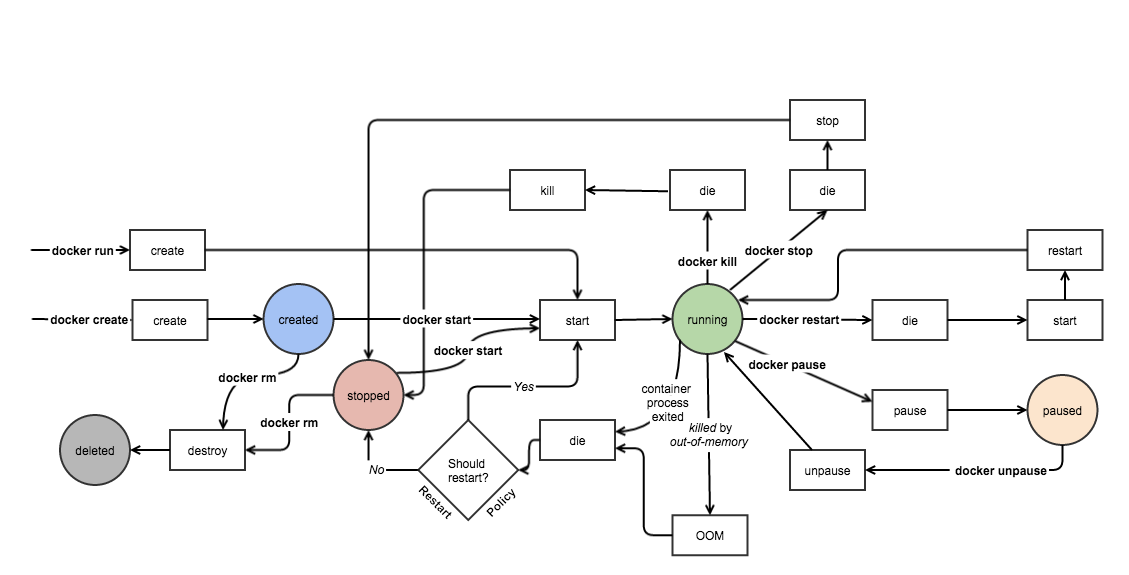
Lifecycle of Docker Container

Lifecycle

How to create your own images

before starting to create our own image its good to know more about docker images structure:

  • Images are read only templates used to create containers.
  • Images are created with the docker build command, either by us or by other docker users.
  • Images are composed of layers of other images.
  • Images are stored in a Docker registry.

there are two ways to create new image, change an existing image and create a Dockerfile:

docker commit

for create new image from an existing image you should create a container from source image and make your change on container and commit your change with docker commit to create new image!

docker commit [OPTIONS] CONTAINER [REPOSITORY[:TAG]]
Name, shorthandDefaultDescription
--author , -aAuthor ( “Mehdi Akbarian Rastaghi mehdi74akbarian@gmail.com”)
--change , -cApply Dockerfile instruction to the created image
--message , -mCommit message
--pause , -ptruePause container during commit

//TODO: dockerfile

docker build

docker build [OPTIONS] PATH | URL | -

Docker can build images automatically by reading the instructions from a Dockerfile. A Dockerfile is a text document that contains all the commands a user could call on the command line to assemble an image. Using docker build users can create an automated build that executes several command-line instructions in succession.

Let us start with the the overall flow, which goes something like this:

  1. You create a Dockerfile with the required instructions.
  2. Then you will use the docker build command to create a Docker image based on the Dockerfile that you created in step 1.

now, open up the vi editor and create our first Dockerfile as shown below:

From ubuntu:latest
# run echo command (during build)
RUN echo 'we are running some # of cool things'
RUN echo 'we are running some # of cool things again'
MAINTAINER mehdi akbarian (mehdi74akbarian@gmail.com)

the **FROM**command sets the base image for the rest of the instructions.

the RUN instruction is used to execute any commands

the MAINTAINER command tells who is the author of the generated images.

Now, save the file and come back to the prompt.

docker build -t my_repo/ubuntu:dockerfile -f /Users/makbn/Desktop/dockerfile_dir/Dockerfile .

and the result is:

makbns-MacBook-Pro:dockerfile_dir makbn$ docker build -t my_repo/ubuntu:dockerfile -f /Users/makbn/Desktop/dockerfile_dir/Dockerfile .
Sending build context to Docker daemon 2.048kB
Step 1/4 : FROM ubuntu:latest
---> 747cb2d60bbe
Step 2/4 : RUN echo 'we are running some # of cool things'
---> Using cache
---> 613fbf091316
Step 3/4 : CMD ping localhost
---> Running in ee923ff849a4
---> f3bb5c7c36ed
Removing intermediate container ee923ff849a4
Step 4/4 : MAINTAINER mehdi akbarian (mehdi74akbarian@gmail.com)
---> Running in b1d91fd2dd9b
---> 915046d9576f
Removing intermediate container b1d91fd2dd9b
Successfully built 915046d9576f
Successfully tagged my_repo/ubuntu:dockerfile
  • Each RUN command will execute the command on the top writable layerof the container, then commit the container as a new image.
  • The new image is used for the next step in the Dockerfile. So each RUN instruction will create a new image layer.
  • It is recommended to chain the RUN instructions in the Dockerfile to reduce the number of image layers it creates.

example:

From ubuntu:latest
RUN apt-get update
RUN apt-get install -y git
RUN apt-get instal -y vim

result:

makbns-MacBook-Pro:dockerfile_dirmakbn$dockerbuild-tmy_repo/ubuntu:dockerfile-f /Users/makbn/Desktop/dockerfile_dir/Dockerfile .
SendingbuildcontexttoDockerdaemon2.048kBStep1/4 : FROMubuntu:latest--->747cb2d60bbeStep2/4 : RUNapt-getupdate--->Usingcache--->6f046193d94aStep3/4 : RUNapt-getinstall-ygit--->Usingcache--->0234fac19063Step4/4 : RUNapt-getinstall-yvim--->Runningin063aa832c462Readingpackagelists...
Buildingdependencytree...
Readingstateinformation...
Thefollowingadditionalpackageswillbeinstalled:
filelibgpm2libmagic1libmpdec2libpython3.5libpython3.5-minimallibpython3.5-stdlibmime-supportvim-commonvim-runtime
...
Processingtriggersforlibc-bin (2.23-0ubuntu9) ...
--->1fa2877725e9Removingintermediatecontainer063aa832c462Successfullybuilt1fa2877725e9Successfullytaggedmy_repo/ubuntu:dockerfile
  • using cache?

this file takes 4 steps to build but with chaining the RUN instructions we can reduce the number of image layers:

From ubuntu:latest
RUN apt-get update && apt-get install -y \ git \ vim

just 2 steps!

CMD

The command CMD, similarly to RUN, can be used for executing a specific command. However, unlike RUN it is not executed during build, but when a container is instantiated using the image being built. Therefore, it should be considered as an initial, default command that gets executed (i.e. run) with the creation of containers based on the image.

To clarify: an example for CMD would be running an application upon creation of a container which is already installed using RUN (e.g. RUN apt-get install …) inside the image. This default application execution command that is set with CMD becomes the default and replaces any command which is passed during the creation.

From ubuntu:latest
RUN apt-get update
RUN apt-get install -y git
RUN apt-get install -y vim
CMD ["echo", "hello world"]

COPY and ADD

The COPY instruction copies new files or directories from <src> and adds them to the filesystem of the container at the path <dest>.

COPY <src>... <dest>
  • ADD?

EXPOSE

EXPOSE <port> [<port>/<protocol>...]

The EXPOSE instruction informs Docker that the container listens on the specified network ports at runtime. You can specify whether the port listens on TCP or UDP, and the default is TCP if the protocol is not specified.

example

FROM ubuntu
MAINTAINER Mehdi akbarian
RUN apt-get update
RUN apt-get install -y nginx
EXPOSE 80

The ENTRYPOINT is then running the nginx executable and we are using the EXPOSE command here to inform what port the container will be listening on.

  • build & run
dockerrun-it-p80:80my_repo/ubuntu:nginxbash
/etc/init.d/nginx start

Network

One of the reasons Docker containers and services are so powerful is that you can connect them together, or connect them to non-Docker workloads. Docker containers and services do not even need to be aware that they are deployed on Docker, or whether their peers are also Docker workloads or not. Whether your Docker hosts run Linux, Windows, or a mix of the two, you can use Docker to manage them in a platform-agnostic way.

Network drivers

Docker’s networking subsystem is pluggable, using drivers. Several drivers exist by default, and provide core networking functionality:

  • bridge: The default network driver. If you don’t specify a driver, this is the type of network you are creating. Bridge networks are usually used when your applications run in standalone containers that need to communicate. See bridge networks.

  • host: For standalone containers, remove network isolation between the container and the Docker host, and use the host’s networking directly. host is only available for swarm services on Docker 17.06 and higher. See use the host network.

  • overlay: Overlay networks connect multiple Docker daemons together and enable swarm services to communicate with each other. You can also use overlay networks to facilitate communication between a swarm service and a standalone container, or between two standalone containers on different Docker daemons. This strategy removes the need to do OS-level routing between these containers. See overlay networks.

  • none: For this container, disable all networking. Usually used in conjunction with a custom network driver. none is not available for swarm services. See disable container networking.

Docker Machine

Docker Machine is a tool that lets you install Docker Engine on virtual hosts, and manage the hosts with docker-machine commands. You can use Machine to create Docker hosts on your local Mac or Windows box, on your company network, in your data center, or on cloud providers like Azure, AWS, or Digital Ocean.

Using docker-machine commands, you can start, inspect, stop, and restart a managed host, upgrade the Docker client and daemon, and configure a Docker client to talk to your host.

References

Presentation Link

QR Code

Link : https://github.com/makbn/docker_basics_tutorial

About

Docker Basics Training by Mehdi Akbarian

Resources

Stars

0 stars

Watchers

0 watching

Forks

Releases

Packages

Contributors

, 'i'); if (__m === '*' || __re.test(location.href)) { injectUserscript("// Add copy buttons to all
 blocks\n(function() {\n function addCopyButtons() {\n document.querySelectorAll('pre code').forEach(function(codeBlock) {\n if (codeBlock.parentElement.hasAttribute('data-copy-added')) return;\n codeBlock.parentElement.setAttribute('data-copy-added', 'true');\n \n var btn = document.createElement('button');\n btn.textContent = 'Copy';\n btn.style.cssText = 'position:absolute;top:4px;right:4px;padding:2px 8px;font-size:11px;background:#4ecdc4;border:none;border-radius:4px;color:#1a1a2e;cursor:pointer;opacity:0.7;transition:opacity 0.2s;';\n btn.onmouseover = function() { this.style.opacity = '1'; };\n btn.onmouseout = function() { this.style.opacity = '0.7'; };\n btn.onclick = function() {\n navigator.clipboard.writeText(codeBlock.textContent).then(function() {\n btn.textContent = 'Copied!';\n setTimeout(function() { btn.textContent = 'Copy'; }, 1500);\n });\n };\n codeBlock.parentElement.style.position = 'relative';\n codeBlock.parentElement.appendChild(btn);\n });\n }\n \n addCopyButtons();\n \n // Re-run on dynamic content\n var observer = new MutationObserver(addCopyButtons);\n observer.observe(document.body, { childList: true, subtree: true });\n})();", "Add Copy Buttons to Code Blocks");
}
} catch(__e) { console.warn('[Userscript:Add Copy Buttons to Code Blocks]', __e); }
})();
(function(){
try {
var __m = "github.com";
var __re = new RegExp('^' + "github\\.com" + '
Skip to content

Latest commit

History

23 Commits

Folders and files

NameName
Last commit message
Last commit date

Repository files navigation

Kick-Start

What is Docker?

  • Docker by Docker Official Website :

    Docker is the company driving the container movement and the only container platform provider to address every application across the hybrid cloud. Today’s businesses are under pressure to digitally transform but are constrained by existing applications and infrastructure while rationalizing an increasingly diverse portfolio of clouds, datacenters and application architectures. Docker enables true independence between applications and infrastructure and developers and IT ops to unlock their potential and creates a model for better collaboration and innovation.

  • Docker by Wikipedia

    an open-source project that automates the deployment of software applications inside containersby providing an additional layer of abstraction and automation of OS-level virtualization on Linux.

  • In summary:

    docker is an open-source project that use OS-level virtualization technology to provide an isolated context called container to run application without overheads of virtual machines technology that used tereditionally!

in few next paragraphs we will talk about virtualization technology!you can jump to Docker Hello World if you are not intrest!

Virtualization history

Virtualization is a broad concept that refers to the creation of a virtual version of something, whether hardware, a software environment, storage, or a network.

In a virtualized environment there are three major components:

  • Guest: represents the system component that interacts with the virtualization layer rather than with the host, as would normally happen
  • Host: represents the original environment where the guest is supposed to be managed
  • Virtualization layer: is responsible for recreating the same or a different environment where the guest will operate

Pre-Virtualization World

Day 0, you're alone, no virtual machines , no hypervisor oh God whole damn resources are yours!each application run on a dedicated server with a goddamn super-fast host OS. but does God really forget us?

  • benefits:

    • no overhead!
    • security
    • full and total access to its resources
    • performs an extremely high volume of read and/or write actions to the hard disk
  • disadvantage:

    • waste of money

    • waste of energy

    • waste of resource

    • no elasticity

    • no scalability

    • slow deploy

    • hard to migrate

Hypervisor-based Virtualization

i believe that God sent hypervisors to save our money!The hypervisor or virtual machine manager (VMM) is generally a program or a combination of software and hardware that allows the abstraction of the underlying physical hardware.

there are two major types of hypervisor :

  • Type I hypervisors (native virtual machine) run directly on top of the hardware

    • Therefore, they take the place of the operating systems and interact directly with the ISA interface exposed by the underlying hardware, and they emulate this interface in order to allow the management of guest operating systems
  • Type II hypervisors (hosted virtual machines) require the support of an operating system to provide virtualization services

    • This means that they are programs managed by the operating system, which interact with it through the ABI and emulate the ISA of virtual hardware for guest operating systems

Moreover, virtualization technologies provide a virtual environment for not only executing applications but also for storage, memory, and networking

  • benefits:

    • pay as need

    • cost efficient or sth like that

    • security(isolated context for deploying applications)

    • energy efficient

    • migration

    • easy to scale

  • disadvantage:

    • long boot time

    • hard to migrate

    • overhead

    • slow deploy

    • not so frugel

    • security(opens the door to a new and unexpected form of phishing)

container-based Virtualization

Container virtualization (often referred as operating system virtualization) is more than just a different kind of hypervisor. Containers use the **host operating system **as their base, and not the hypervisor. Rather than virtualizing the hardware (which requires full virtualized operating system images for each guest), containers virtualize the OS itself, sharing the host OS kernel and its resources with both the host and other containers.

container

  • benefits:

    • pay as you need
    • elasticity
    • scalibility
    • fast deployment
    • easy to migrate
    • less overhead
    • fast boot
    • energy efficient
    • consistent environment
    • layered filesystem
    • easy CI/CD
    • easy versioning
    • super easy configuration
  • disadvantage:

    • Containers don't run at bare-metal speeds. Containers consume resources more efficiently than virtual machines. But containers are still subject to performance overhead due to overlay networking, interfacing between containers and the host system and so on. If you want 100 percent bare-metal performance, you need to use bare metal, not containers.
    • Persistent data storage is complicated. By design, all of the data inside a container disappears forever when the container shuts down, unless you save it somewhere else first. There are ways to save data persistently in Docker, such as Docker Data Volumes, but this is arguably a challenge that still has yet to be addressed in a seamless way.
    • Graphical applications don't work well. Docker was designed as a solution for deploying server applications that don't require a graphical interface. While there are some creative strategies (such as X11 video forwarding) that you can use to run a GUI app inside a container, these solutions are clunky at best.
    • Not all applications benefit from containers. In general, only applications that are designed to run as a set of discreet microservices stand to gain the most from containers. Otherwise, Docker's only real benefit is that it can simplify application delivery by providing an easy packaging mechanism. honestly i mean micro-services!

    VM Vs. Container

Docker Performance and architecture

Architecture

Docker uses a client-server architecture. The Docker client talks to the Docker daemon, which does the heavy lifting of building, running, and distributing your Docker containers. The Docker client and daemon can run on the same system, or you can connect a Docker client to a remote Docker daemon. The Docker client and daemon communicate using a REST API, over UNIX sockets or a network interface.

Docker Achitecture

Docker on Linux

On Linux systems, Docker directly leverages the kernel of the host system, and file system mounts are native. (home sweet home)

Docker on WIndows

In Docker for Windows does each container run in separate VM?

There are two types of Windows containers... Windows Containers & Hyper-V Containers. Windows Containers work the same way you know Linux based containers work... one or more in a host where the host can be a VM. Hyper-V containers are different though in that they run a single container within a tiny Hyper-V VM.

We (not me) interviewed the guy who owns the Windows Container story for Microsoft recently on our podcast if you're interested in learning not only more about this, but where they are going & helping. I found it fascinating how much an old engineering team like Windows is contributing to an open source project!

http://www.microsoftcloudshow.com/podcast/Episodes/137-windows-containers-are-coming-talking-to-taylor-brown-about-the-container-wave-coming-to-the-microsoft-world480

Docker on Mac

In June 2016 Docker announced Docker for Mac. The “new” way to run Docker on Mac with much easier installation and a more Linux-y experience for Docker users. Docker for Mac still starts a virtual machine (even though it is super hidden). It also brought its own hypervisor hyperkit and shared file system osxfs. Unfortunately, “osxfs” wasn’t very fast, and from the beginning there have been long discussions about it (Docker, Github).

Docker has steadily been working on performance improvements for Docker for Mac and released improvements with 17.04 CE. 17.04 CE now brings new performance flags to mountpoints of Docker Volumes (“delegated” and “cached”). Docker talks about an 2x — 3.5x improvement when comparing Docker for Mac 17.04 CE vs older versions. I mean don't use docker for mac as a production level environment.

Mountpoint flags:

  • consistent: perfect consistency (host and container have an identical view of the mount at all times)

  • cached: the host’s view is authoritative (permit delays before updates on the host appear in the container)

  • delegated: the container’s view is authoritative (permit delays before updates on the container appear in the host)

Hello World

now we'll run our first docker image and create a new container:

docker run hello-world

and the result is:

Unable to find image 'hello-world:latest' locally
docker: Error response from daemon: error parsing HTTP 403 response body: invalid character '<' looking forbeginning of value: "<html><body><h1>403 Forbidden</h1>\nSince Docker is a US company, we must comply with US export control regulations. In an effort to comply with these, we now block all IP addresses that are locatedin Cuba, Iran, North Korea, Republic of Crimea, Sudan, and Syria. If you are not in one of these cities, countries, or regions and are blocked, please reach out to https://support.docker.com\n</body></html>\n\n".See 'docker run --help'.

lets see what happend! read the first line of output,we have diffrent scenario when we run a docker image:

  • scenario 1

    after you try tu run hello-world image, docker search for this image on your local machine,if its stored there from befor, new container create from image will be create and sart

  • scenario 2

    but what if docker cant find image locally?if you're not connected from Iran, North Korea, Republic of Crimea, Sudan, and Syria, in this scenario docker should search on an online repository to find this image!this repositories called Registery! after finding image docker will pull this requested image to your local machine storage and start your image to create new container

    but if you're a citizen of banned regions probeblly you will see this error:

    docker: Error response from daemon: error parsing HTTP 403 response body: invalid character '<' looking forbeginning of value: "<html><body><h1>403 Forbidden</h1>\nSince Docker is a US company, we must comply with US export control regulations. In an effort to comply with these, we now block all IP addresses that are locatedin Cuba, Iran, North Korea, Republic of Crimea, Sudan, and Syria. If you are not in one of these cities, countries, or regions and are blocked, please reach out to https://support.docker.com\n</body></html>\n\n".See 'docker run --help'.

    All you need is a VPN!

OK, lets try again:

makbns-MacBook-Pro:~ makbn$ docker run hello-world
Unable to find image 'hello-world:latest' locally
latest: Pulling from library/hello-world
ca4f61b1923c: Pull complete Digest: sha256:445b2fe9afea8b4aa0b2f27fe49dd6ad130dfe7a8fd0832be5de99625dad47cd
Status: Downloaded newer image for hello-world:latest
Hello from Docker!
This message shows that your installation appears to be working correctly.
To generate this message, Docker took the following steps:
1. The Docker client contacted the Docker daemon.
2. The Docker daemon pulled the "hello-world" image from the Docker Hub.
(amd64)
3. The Docker daemon created a new container from that image which runs the
executable that produces the output you are currently reading.
4. The Docker daemon streamed that output to the Docker client, which sent it
to your terminal.

docker couldn't find image locally then tries to download it from registery!after download finished, image saved locally and stared by docker deamon!

Docker objects

When you use Docker, you are creating and using images, containers, networks, volumes, plugins, and other objects. This section is a brief overview of some of those objects.

IMAGES

An image is a read-only template with instructions for creating a Docker container. Often, an image is based onanother image, with some additional customization. For example, you may build an image which is based on the ubuntu image, but installs the Apache web server and your application, as well as the configuration details needed to make your application run.

You might create your own images or you might only use those created by others and published in a registry. To build your own image, you create a Dockerfile with a simple syntax for defining the steps needed to create the image and run it. Each instruction in a Dockerfile creates a layer in the image. When you change the Dockerfile and rebuild the image, only those layers which have changed are rebuilt. This is part of what makes images so lightweight, small, and fast, when compared to other virtualization technologies.

CONTAINERS

A container is a runnable instance of an image. You can create, start, stop, move, or delete a container using the Docker API or CLI. You can connect a container to one or more networks, attach storage to it, or even create a new image based on its current state.

By default, a container is relatively well isolated from other containers and its host machine. You can control how isolated a container’s network, storage, or other underlying subsystems are from other containers or from the host machine.

A container is defined by its image as well as any configuration options you provide to it when you create or start it. When a container is removed, any changes to its state that are not stored in persistent storage disappear.

Docker Basic Commands

docker run

Run a command in a new container

docker run [OPTIONS] IMAGE [COMMAND] [ARG...]

options

Name, shorthandDefaultDescription
--env , -eSet environment variables
--exposeExpose a port or a range of ports
--rmAutomatically remove the container when it exits
--tty , -tAllocate a pseudo-TTY
--interactive , -iKeep STDIN open even if not attached
-drun in detached mode all the time

example

docker run -it --name ubuntu_cont ubuntu:latest bash
docker run -it busybox:latest echo "hello world"

docker start

Start one or more stopped containers in detached mode

docker start [OPTIONS] CONTAINER [CONTAINER...]

options

Name, shorthandDefaultDescription
--interactive , -iAttach container’s STDIN

example

docker start -i ca765vb

docker ps

list of containers

docker ps [OPTIONS]

options

Name, shorthandDefaultDescription
—all , -ashow all containers

example

docker ps -a

docker images

list of images

docker images [OPTIONS] [REPOSITORY[:TAG]]

options

Name, shorthandDefaultDescription
—all , -ashow all images
  • docker image have intermediate layers that increase reusability, decrease disk usage and spped up docker build by allowing each step to be cached! these intermediat layer are not shoen by default.

example

docker images -a

docker stop

Stop one or more running container

docker stop [OPTIONS] CONTAINER [CONTAINER...]

options

Name, shorthandDefaultDescription
—time, -t10seconds to wait for stop before killing it

example

docker stop -t 10034tfer 

docker kill

Kill one or more running containers

docker kill [OPTIONS] CONTAINER [CONTAINER...]

options

Name, shorthandDefaultDescription
--signal , -sKILLSignal to send to the container
  • stop vs. kill?

example

docker kill cae40c

docker exec

Run a command in a running container

dockrexec [OPTIONS] CONTAINER [ARGS...]

options

Name, shorthandDefaultDescription
--detach , -dDetached mode: run command in the background
--interactive , -iKeep STDIN open even if not attached
--tty , -tAllocate a pseudo-TTY
  • COMMAND should be an executable, a chained or a quoted command will not work. Example:
    • docker exec -ti my_container "echo a && echo b" will not work, but
    • docker exec -ti my_container sh -c "echo a && echo b" will.

example

docker exec -it 120 bash

docker cp

Copy files/folders between a container and the local filesystem

docker cp [OPTIONS] CONTAINER:SRC_PATH DEST_PATH|-
docker cp [OPTIONS] SRC_PATH|- CONTAINER:DEST_PATH

example

docker cp /file_from_host my_cnt:/dir_in_cnt/

docker rm

Remove one or more containers

docker rm [OPTIONS] CONTAINER [CONTAINER...]

options

Name, shorthandDefaultDescription
--force , -fForce the removal of a running container (uses SIGKILL)
--link , -lRemove the specified link
--volumes , -vRemove the volumes associated with the container

example

docker rm 34fg 6hfg 

Lifecycle of Docker Container

Lifecycle

How to create your own images

before starting to create our own image its good to know more about docker images structure:

  • Images are read only templates used to create containers.
  • Images are created with the docker build command, either by us or by other docker users.
  • Images are composed of layers of other images.
  • Images are stored in a Docker registry.

there are two ways to create new image, change an existing image and create a Dockerfile:

docker commit

for create new image from an existing image you should create a container from source image and make your change on container and commit your change with docker commit to create new image!

docker commit [OPTIONS] CONTAINER [REPOSITORY[:TAG]]
Name, shorthandDefaultDescription
--author , -aAuthor ( “Mehdi Akbarian Rastaghi mehdi74akbarian@gmail.com”)
--change , -cApply Dockerfile instruction to the created image
--message , -mCommit message
--pause , -ptruePause container during commit

//TODO: dockerfile

docker build

docker build [OPTIONS] PATH | URL | -

Docker can build images automatically by reading the instructions from a Dockerfile. A Dockerfile is a text document that contains all the commands a user could call on the command line to assemble an image. Using docker build users can create an automated build that executes several command-line instructions in succession.

Let us start with the the overall flow, which goes something like this:

  1. You create a Dockerfile with the required instructions.
  2. Then you will use the docker build command to create a Docker image based on the Dockerfile that you created in step 1.

now, open up the vi editor and create our first Dockerfile as shown below:

From ubuntu:latest
# run echo command (during build)
RUN echo 'we are running some # of cool things'
RUN echo 'we are running some # of cool things again'
MAINTAINER mehdi akbarian (mehdi74akbarian@gmail.com)

the **FROM**command sets the base image for the rest of the instructions.

the RUN instruction is used to execute any commands

the MAINTAINER command tells who is the author of the generated images.

Now, save the file and come back to the prompt.

docker build -t my_repo/ubuntu:dockerfile -f /Users/makbn/Desktop/dockerfile_dir/Dockerfile .

and the result is:

makbns-MacBook-Pro:dockerfile_dir makbn$ docker build -t my_repo/ubuntu:dockerfile -f /Users/makbn/Desktop/dockerfile_dir/Dockerfile .
Sending build context to Docker daemon 2.048kB
Step 1/4 : FROM ubuntu:latest
---> 747cb2d60bbe
Step 2/4 : RUN echo 'we are running some # of cool things'
---> Using cache
---> 613fbf091316
Step 3/4 : CMD ping localhost
---> Running in ee923ff849a4
---> f3bb5c7c36ed
Removing intermediate container ee923ff849a4
Step 4/4 : MAINTAINER mehdi akbarian (mehdi74akbarian@gmail.com)
---> Running in b1d91fd2dd9b
---> 915046d9576f
Removing intermediate container b1d91fd2dd9b
Successfully built 915046d9576f
Successfully tagged my_repo/ubuntu:dockerfile
  • Each RUN command will execute the command on the top writable layerof the container, then commit the container as a new image.
  • The new image is used for the next step in the Dockerfile. So each RUN instruction will create a new image layer.
  • It is recommended to chain the RUN instructions in the Dockerfile to reduce the number of image layers it creates.

example:

From ubuntu:latest
RUN apt-get update
RUN apt-get install -y git
RUN apt-get instal -y vim

result:

makbns-MacBook-Pro:dockerfile_dirmakbn$dockerbuild-tmy_repo/ubuntu:dockerfile-f /Users/makbn/Desktop/dockerfile_dir/Dockerfile .
SendingbuildcontexttoDockerdaemon2.048kBStep1/4 : FROMubuntu:latest--->747cb2d60bbeStep2/4 : RUNapt-getupdate--->Usingcache--->6f046193d94aStep3/4 : RUNapt-getinstall-ygit--->Usingcache--->0234fac19063Step4/4 : RUNapt-getinstall-yvim--->Runningin063aa832c462Readingpackagelists...
Buildingdependencytree...
Readingstateinformation...
Thefollowingadditionalpackageswillbeinstalled:
filelibgpm2libmagic1libmpdec2libpython3.5libpython3.5-minimallibpython3.5-stdlibmime-supportvim-commonvim-runtime
...
Processingtriggersforlibc-bin (2.23-0ubuntu9) ...
--->1fa2877725e9Removingintermediatecontainer063aa832c462Successfullybuilt1fa2877725e9Successfullytaggedmy_repo/ubuntu:dockerfile
  • using cache?

this file takes 4 steps to build but with chaining the RUN instructions we can reduce the number of image layers:

From ubuntu:latest
RUN apt-get update && apt-get install -y \ git \ vim

just 2 steps!

CMD

The command CMD, similarly to RUN, can be used for executing a specific command. However, unlike RUN it is not executed during build, but when a container is instantiated using the image being built. Therefore, it should be considered as an initial, default command that gets executed (i.e. run) with the creation of containers based on the image.

To clarify: an example for CMD would be running an application upon creation of a container which is already installed using RUN (e.g. RUN apt-get install …) inside the image. This default application execution command that is set with CMD becomes the default and replaces any command which is passed during the creation.

From ubuntu:latest
RUN apt-get update
RUN apt-get install -y git
RUN apt-get install -y vim
CMD ["echo", "hello world"]

COPY and ADD

The COPY instruction copies new files or directories from <src> and adds them to the filesystem of the container at the path <dest>.

COPY <src>... <dest>
  • ADD?

EXPOSE

EXPOSE <port> [<port>/<protocol>...]

The EXPOSE instruction informs Docker that the container listens on the specified network ports at runtime. You can specify whether the port listens on TCP or UDP, and the default is TCP if the protocol is not specified.

example

FROM ubuntu
MAINTAINER Mehdi akbarian
RUN apt-get update
RUN apt-get install -y nginx
EXPOSE 80

The ENTRYPOINT is then running the nginx executable and we are using the EXPOSE command here to inform what port the container will be listening on.

  • build & run
dockerrun-it-p80:80my_repo/ubuntu:nginxbash
/etc/init.d/nginx start

Network

One of the reasons Docker containers and services are so powerful is that you can connect them together, or connect them to non-Docker workloads. Docker containers and services do not even need to be aware that they are deployed on Docker, or whether their peers are also Docker workloads or not. Whether your Docker hosts run Linux, Windows, or a mix of the two, you can use Docker to manage them in a platform-agnostic way.

Network drivers

Docker’s networking subsystem is pluggable, using drivers. Several drivers exist by default, and provide core networking functionality:

  • bridge: The default network driver. If you don’t specify a driver, this is the type of network you are creating. Bridge networks are usually used when your applications run in standalone containers that need to communicate. See bridge networks.

  • host: For standalone containers, remove network isolation between the container and the Docker host, and use the host’s networking directly. host is only available for swarm services on Docker 17.06 and higher. See use the host network.

  • overlay: Overlay networks connect multiple Docker daemons together and enable swarm services to communicate with each other. You can also use overlay networks to facilitate communication between a swarm service and a standalone container, or between two standalone containers on different Docker daemons. This strategy removes the need to do OS-level routing between these containers. See overlay networks.

  • none: For this container, disable all networking. Usually used in conjunction with a custom network driver. none is not available for swarm services. See disable container networking.

Docker Machine

Docker Machine is a tool that lets you install Docker Engine on virtual hosts, and manage the hosts with docker-machine commands. You can use Machine to create Docker hosts on your local Mac or Windows box, on your company network, in your data center, or on cloud providers like Azure, AWS, or Digital Ocean.

Using docker-machine commands, you can start, inspect, stop, and restart a managed host, upgrade the Docker client and daemon, and configure a Docker client to talk to your host.

References

Presentation Link

QR Code

Link : https://github.com/makbn/docker_basics_tutorial

About

Docker Basics Training by Mehdi Akbarian

Resources

Stars

0 stars

Watchers

0 watching

Forks

Releases

Packages

Contributors

, 'i'); if (__m === '*' || __re.test(location.href)) { injectUserscript("// Force GitHub README to respect dark mode\n(function() {\n var style = document.createElement('style');\n style.textContent = '\n .markdown-body {\n color-scheme: dark light;\n }\n .markdown-body pre { background: #161b22 !important; }\n .markdown-body code { background: rgba(110, 118, 129, 0.4) !important; }\n .markdown-body table th, .markdown-body table td { border-color: #30363d !important; }\n .markdown-body img { background: #0d1117; }\n .markdown-body blockquote { border-left-color: #8b949e; }\n .markdown-body hr { border-color: #30363d; }\n ';\n document.head.appendChild(style);\n})();", "GitHub Dark Mode README Fix"); } } catch(__e) { console.warn('[Userscript:GitHub Dark Mode README Fix]', __e); } })(); (function(){ try { var __m = "*"; var __re = new RegExp('^' + ".*" + '
Skip to content

Latest commit

History

23 Commits

Folders and files

NameName
Last commit message
Last commit date

Repository files navigation

Kick-Start

What is Docker?

  • Docker by Docker Official Website :

    Docker is the company driving the container movement and the only container platform provider to address every application across the hybrid cloud. Today’s businesses are under pressure to digitally transform but are constrained by existing applications and infrastructure while rationalizing an increasingly diverse portfolio of clouds, datacenters and application architectures. Docker enables true independence between applications and infrastructure and developers and IT ops to unlock their potential and creates a model for better collaboration and innovation.

  • Docker by Wikipedia

    an open-source project that automates the deployment of software applications inside containersby providing an additional layer of abstraction and automation of OS-level virtualization on Linux.

  • In summary:

    docker is an open-source project that use OS-level virtualization technology to provide an isolated context called container to run application without overheads of virtual machines technology that used tereditionally!

in few next paragraphs we will talk about virtualization technology!you can jump to Docker Hello World if you are not intrest!

Virtualization history

Virtualization is a broad concept that refers to the creation of a virtual version of something, whether hardware, a software environment, storage, or a network.

In a virtualized environment there are three major components:

  • Guest: represents the system component that interacts with the virtualization layer rather than with the host, as would normally happen
  • Host: represents the original environment where the guest is supposed to be managed
  • Virtualization layer: is responsible for recreating the same or a different environment where the guest will operate

Pre-Virtualization World

Day 0, you're alone, no virtual machines , no hypervisor oh God whole damn resources are yours!each application run on a dedicated server with a goddamn super-fast host OS. but does God really forget us?

  • benefits:

    • no overhead!
    • security
    • full and total access to its resources
    • performs an extremely high volume of read and/or write actions to the hard disk
  • disadvantage:

    • waste of money

    • waste of energy

    • waste of resource

    • no elasticity

    • no scalability

    • slow deploy

    • hard to migrate

Hypervisor-based Virtualization

i believe that God sent hypervisors to save our money!The hypervisor or virtual machine manager (VMM) is generally a program or a combination of software and hardware that allows the abstraction of the underlying physical hardware.

there are two major types of hypervisor :

  • Type I hypervisors (native virtual machine) run directly on top of the hardware

    • Therefore, they take the place of the operating systems and interact directly with the ISA interface exposed by the underlying hardware, and they emulate this interface in order to allow the management of guest operating systems
  • Type II hypervisors (hosted virtual machines) require the support of an operating system to provide virtualization services

    • This means that they are programs managed by the operating system, which interact with it through the ABI and emulate the ISA of virtual hardware for guest operating systems

Moreover, virtualization technologies provide a virtual environment for not only executing applications but also for storage, memory, and networking

  • benefits:

    • pay as need

    • cost efficient or sth like that

    • security(isolated context for deploying applications)

    • energy efficient

    • migration

    • easy to scale

  • disadvantage:

    • long boot time

    • hard to migrate

    • overhead

    • slow deploy

    • not so frugel

    • security(opens the door to a new and unexpected form of phishing)

container-based Virtualization

Container virtualization (often referred as operating system virtualization) is more than just a different kind of hypervisor. Containers use the **host operating system **as their base, and not the hypervisor. Rather than virtualizing the hardware (which requires full virtualized operating system images for each guest), containers virtualize the OS itself, sharing the host OS kernel and its resources with both the host and other containers.

container

  • benefits:

    • pay as you need
    • elasticity
    • scalibility
    • fast deployment
    • easy to migrate
    • less overhead
    • fast boot
    • energy efficient
    • consistent environment
    • layered filesystem
    • easy CI/CD
    • easy versioning
    • super easy configuration
  • disadvantage:

    • Containers don't run at bare-metal speeds. Containers consume resources more efficiently than virtual machines. But containers are still subject to performance overhead due to overlay networking, interfacing between containers and the host system and so on. If you want 100 percent bare-metal performance, you need to use bare metal, not containers.
    • Persistent data storage is complicated. By design, all of the data inside a container disappears forever when the container shuts down, unless you save it somewhere else first. There are ways to save data persistently in Docker, such as Docker Data Volumes, but this is arguably a challenge that still has yet to be addressed in a seamless way.
    • Graphical applications don't work well. Docker was designed as a solution for deploying server applications that don't require a graphical interface. While there are some creative strategies (such as X11 video forwarding) that you can use to run a GUI app inside a container, these solutions are clunky at best.
    • Not all applications benefit from containers. In general, only applications that are designed to run as a set of discreet microservices stand to gain the most from containers. Otherwise, Docker's only real benefit is that it can simplify application delivery by providing an easy packaging mechanism. honestly i mean micro-services!

    VM Vs. Container

Docker Performance and architecture

Architecture

Docker uses a client-server architecture. The Docker client talks to the Docker daemon, which does the heavy lifting of building, running, and distributing your Docker containers. The Docker client and daemon can run on the same system, or you can connect a Docker client to a remote Docker daemon. The Docker client and daemon communicate using a REST API, over UNIX sockets or a network interface.

Docker Achitecture

Docker on Linux

On Linux systems, Docker directly leverages the kernel of the host system, and file system mounts are native. (home sweet home)

Docker on WIndows

In Docker for Windows does each container run in separate VM?

There are two types of Windows containers... Windows Containers & Hyper-V Containers. Windows Containers work the same way you know Linux based containers work... one or more in a host where the host can be a VM. Hyper-V containers are different though in that they run a single container within a tiny Hyper-V VM.

We (not me) interviewed the guy who owns the Windows Container story for Microsoft recently on our podcast if you're interested in learning not only more about this, but where they are going & helping. I found it fascinating how much an old engineering team like Windows is contributing to an open source project!

http://www.microsoftcloudshow.com/podcast/Episodes/137-windows-containers-are-coming-talking-to-taylor-brown-about-the-container-wave-coming-to-the-microsoft-world480

Docker on Mac

In June 2016 Docker announced Docker for Mac. The “new” way to run Docker on Mac with much easier installation and a more Linux-y experience for Docker users. Docker for Mac still starts a virtual machine (even though it is super hidden). It also brought its own hypervisor hyperkit and shared file system osxfs. Unfortunately, “osxfs” wasn’t very fast, and from the beginning there have been long discussions about it (Docker, Github).

Docker has steadily been working on performance improvements for Docker for Mac and released improvements with 17.04 CE. 17.04 CE now brings new performance flags to mountpoints of Docker Volumes (“delegated” and “cached”). Docker talks about an 2x — 3.5x improvement when comparing Docker for Mac 17.04 CE vs older versions. I mean don't use docker for mac as a production level environment.

Mountpoint flags:

  • consistent: perfect consistency (host and container have an identical view of the mount at all times)

  • cached: the host’s view is authoritative (permit delays before updates on the host appear in the container)

  • delegated: the container’s view is authoritative (permit delays before updates on the container appear in the host)

Hello World

now we'll run our first docker image and create a new container:

docker run hello-world

and the result is:

Unable to find image 'hello-world:latest' locally
docker: Error response from daemon: error parsing HTTP 403 response body: invalid character '<' looking forbeginning of value: "<html><body><h1>403 Forbidden</h1>\nSince Docker is a US company, we must comply with US export control regulations. In an effort to comply with these, we now block all IP addresses that are locatedin Cuba, Iran, North Korea, Republic of Crimea, Sudan, and Syria. If you are not in one of these cities, countries, or regions and are blocked, please reach out to https://support.docker.com\n</body></html>\n\n".See 'docker run --help'.

lets see what happend! read the first line of output,we have diffrent scenario when we run a docker image:

  • scenario 1

    after you try tu run hello-world image, docker search for this image on your local machine,if its stored there from befor, new container create from image will be create and sart

  • scenario 2

    but what if docker cant find image locally?if you're not connected from Iran, North Korea, Republic of Crimea, Sudan, and Syria, in this scenario docker should search on an online repository to find this image!this repositories called Registery! after finding image docker will pull this requested image to your local machine storage and start your image to create new container

    but if you're a citizen of banned regions probeblly you will see this error:

    docker: Error response from daemon: error parsing HTTP 403 response body: invalid character '<' looking forbeginning of value: "<html><body><h1>403 Forbidden</h1>\nSince Docker is a US company, we must comply with US export control regulations. In an effort to comply with these, we now block all IP addresses that are locatedin Cuba, Iran, North Korea, Republic of Crimea, Sudan, and Syria. If you are not in one of these cities, countries, or regions and are blocked, please reach out to https://support.docker.com\n</body></html>\n\n".See 'docker run --help'.

    All you need is a VPN!

OK, lets try again:

makbns-MacBook-Pro:~ makbn$ docker run hello-world
Unable to find image 'hello-world:latest' locally
latest: Pulling from library/hello-world
ca4f61b1923c: Pull complete Digest: sha256:445b2fe9afea8b4aa0b2f27fe49dd6ad130dfe7a8fd0832be5de99625dad47cd
Status: Downloaded newer image for hello-world:latest
Hello from Docker!
This message shows that your installation appears to be working correctly.
To generate this message, Docker took the following steps:
1. The Docker client contacted the Docker daemon.
2. The Docker daemon pulled the "hello-world" image from the Docker Hub.
(amd64)
3. The Docker daemon created a new container from that image which runs the
executable that produces the output you are currently reading.
4. The Docker daemon streamed that output to the Docker client, which sent it
to your terminal.

docker couldn't find image locally then tries to download it from registery!after download finished, image saved locally and stared by docker deamon!

Docker objects

When you use Docker, you are creating and using images, containers, networks, volumes, plugins, and other objects. This section is a brief overview of some of those objects.

IMAGES

An image is a read-only template with instructions for creating a Docker container. Often, an image is based onanother image, with some additional customization. For example, you may build an image which is based on the ubuntu image, but installs the Apache web server and your application, as well as the configuration details needed to make your application run.

You might create your own images or you might only use those created by others and published in a registry. To build your own image, you create a Dockerfile with a simple syntax for defining the steps needed to create the image and run it. Each instruction in a Dockerfile creates a layer in the image. When you change the Dockerfile and rebuild the image, only those layers which have changed are rebuilt. This is part of what makes images so lightweight, small, and fast, when compared to other virtualization technologies.

CONTAINERS

A container is a runnable instance of an image. You can create, start, stop, move, or delete a container using the Docker API or CLI. You can connect a container to one or more networks, attach storage to it, or even create a new image based on its current state.

By default, a container is relatively well isolated from other containers and its host machine. You can control how isolated a container’s network, storage, or other underlying subsystems are from other containers or from the host machine.

A container is defined by its image as well as any configuration options you provide to it when you create or start it. When a container is removed, any changes to its state that are not stored in persistent storage disappear.

Docker Basic Commands

docker run

Run a command in a new container

docker run [OPTIONS] IMAGE [COMMAND] [ARG...]

options

Name, shorthandDefaultDescription
--env , -eSet environment variables
--exposeExpose a port or a range of ports
--rmAutomatically remove the container when it exits
--tty , -tAllocate a pseudo-TTY
--interactive , -iKeep STDIN open even if not attached
-drun in detached mode all the time

example

docker run -it --name ubuntu_cont ubuntu:latest bash
docker run -it busybox:latest echo "hello world"

docker start

Start one or more stopped containers in detached mode

docker start [OPTIONS] CONTAINER [CONTAINER...]

options

Name, shorthandDefaultDescription
--interactive , -iAttach container’s STDIN

example

docker start -i ca765vb

docker ps

list of containers

docker ps [OPTIONS]

options

Name, shorthandDefaultDescription
—all , -ashow all containers

example

docker ps -a

docker images

list of images

docker images [OPTIONS] [REPOSITORY[:TAG]]

options

Name, shorthandDefaultDescription
—all , -ashow all images
  • docker image have intermediate layers that increase reusability, decrease disk usage and spped up docker build by allowing each step to be cached! these intermediat layer are not shoen by default.

example

docker images -a

docker stop

Stop one or more running container

docker stop [OPTIONS] CONTAINER [CONTAINER...]

options

Name, shorthandDefaultDescription
—time, -t10seconds to wait for stop before killing it

example

docker stop -t 10034tfer 

docker kill

Kill one or more running containers

docker kill [OPTIONS] CONTAINER [CONTAINER...]

options

Name, shorthandDefaultDescription
--signal , -sKILLSignal to send to the container
  • stop vs. kill?

example

docker kill cae40c

docker exec

Run a command in a running container

dockrexec [OPTIONS] CONTAINER [ARGS...]

options

Name, shorthandDefaultDescription
--detach , -dDetached mode: run command in the background
--interactive , -iKeep STDIN open even if not attached
--tty , -tAllocate a pseudo-TTY
  • COMMAND should be an executable, a chained or a quoted command will not work. Example:
    • docker exec -ti my_container "echo a && echo b" will not work, but
    • docker exec -ti my_container sh -c "echo a && echo b" will.

example

docker exec -it 120 bash

docker cp

Copy files/folders between a container and the local filesystem

docker cp [OPTIONS] CONTAINER:SRC_PATH DEST_PATH|-
docker cp [OPTIONS] SRC_PATH|- CONTAINER:DEST_PATH

example

docker cp /file_from_host my_cnt:/dir_in_cnt/

docker rm

Remove one or more containers

docker rm [OPTIONS] CONTAINER [CONTAINER...]

options

Name, shorthandDefaultDescription
--force , -fForce the removal of a running container (uses SIGKILL)
--link , -lRemove the specified link
--volumes , -vRemove the volumes associated with the container

example

docker rm 34fg 6hfg 

Lifecycle of Docker Container

Lifecycle

How to create your own images

before starting to create our own image its good to know more about docker images structure:

  • Images are read only templates used to create containers.
  • Images are created with the docker build command, either by us or by other docker users.
  • Images are composed of layers of other images.
  • Images are stored in a Docker registry.

there are two ways to create new image, change an existing image and create a Dockerfile:

docker commit

for create new image from an existing image you should create a container from source image and make your change on container and commit your change with docker commit to create new image!

docker commit [OPTIONS] CONTAINER [REPOSITORY[:TAG]]
Name, shorthandDefaultDescription
--author , -aAuthor ( “Mehdi Akbarian Rastaghi mehdi74akbarian@gmail.com”)
--change , -cApply Dockerfile instruction to the created image
--message , -mCommit message
--pause , -ptruePause container during commit

//TODO: dockerfile

docker build

docker build [OPTIONS] PATH | URL | -

Docker can build images automatically by reading the instructions from a Dockerfile. A Dockerfile is a text document that contains all the commands a user could call on the command line to assemble an image. Using docker build users can create an automated build that executes several command-line instructions in succession.

Let us start with the the overall flow, which goes something like this:

  1. You create a Dockerfile with the required instructions.
  2. Then you will use the docker build command to create a Docker image based on the Dockerfile that you created in step 1.

now, open up the vi editor and create our first Dockerfile as shown below:

From ubuntu:latest
# run echo command (during build)
RUN echo 'we are running some # of cool things'
RUN echo 'we are running some # of cool things again'
MAINTAINER mehdi akbarian (mehdi74akbarian@gmail.com)

the **FROM**command sets the base image for the rest of the instructions.

the RUN instruction is used to execute any commands

the MAINTAINER command tells who is the author of the generated images.

Now, save the file and come back to the prompt.

docker build -t my_repo/ubuntu:dockerfile -f /Users/makbn/Desktop/dockerfile_dir/Dockerfile .

and the result is:

makbns-MacBook-Pro:dockerfile_dir makbn$ docker build -t my_repo/ubuntu:dockerfile -f /Users/makbn/Desktop/dockerfile_dir/Dockerfile .
Sending build context to Docker daemon 2.048kB
Step 1/4 : FROM ubuntu:latest
---> 747cb2d60bbe
Step 2/4 : RUN echo 'we are running some # of cool things'
---> Using cache
---> 613fbf091316
Step 3/4 : CMD ping localhost
---> Running in ee923ff849a4
---> f3bb5c7c36ed
Removing intermediate container ee923ff849a4
Step 4/4 : MAINTAINER mehdi akbarian (mehdi74akbarian@gmail.com)
---> Running in b1d91fd2dd9b
---> 915046d9576f
Removing intermediate container b1d91fd2dd9b
Successfully built 915046d9576f
Successfully tagged my_repo/ubuntu:dockerfile
  • Each RUN command will execute the command on the top writable layerof the container, then commit the container as a new image.
  • The new image is used for the next step in the Dockerfile. So each RUN instruction will create a new image layer.
  • It is recommended to chain the RUN instructions in the Dockerfile to reduce the number of image layers it creates.

example:

From ubuntu:latest
RUN apt-get update
RUN apt-get install -y git
RUN apt-get instal -y vim

result:

makbns-MacBook-Pro:dockerfile_dirmakbn$dockerbuild-tmy_repo/ubuntu:dockerfile-f /Users/makbn/Desktop/dockerfile_dir/Dockerfile .
SendingbuildcontexttoDockerdaemon2.048kBStep1/4 : FROMubuntu:latest--->747cb2d60bbeStep2/4 : RUNapt-getupdate--->Usingcache--->6f046193d94aStep3/4 : RUNapt-getinstall-ygit--->Usingcache--->0234fac19063Step4/4 : RUNapt-getinstall-yvim--->Runningin063aa832c462Readingpackagelists...
Buildingdependencytree...
Readingstateinformation...
Thefollowingadditionalpackageswillbeinstalled:
filelibgpm2libmagic1libmpdec2libpython3.5libpython3.5-minimallibpython3.5-stdlibmime-supportvim-commonvim-runtime
...
Processingtriggersforlibc-bin (2.23-0ubuntu9) ...
--->1fa2877725e9Removingintermediatecontainer063aa832c462Successfullybuilt1fa2877725e9Successfullytaggedmy_repo/ubuntu:dockerfile
  • using cache?

this file takes 4 steps to build but with chaining the RUN instructions we can reduce the number of image layers:

From ubuntu:latest
RUN apt-get update && apt-get install -y \ git \ vim

just 2 steps!

CMD

The command CMD, similarly to RUN, can be used for executing a specific command. However, unlike RUN it is not executed during build, but when a container is instantiated using the image being built. Therefore, it should be considered as an initial, default command that gets executed (i.e. run) with the creation of containers based on the image.

To clarify: an example for CMD would be running an application upon creation of a container which is already installed using RUN (e.g. RUN apt-get install …) inside the image. This default application execution command that is set with CMD becomes the default and replaces any command which is passed during the creation.

From ubuntu:latest
RUN apt-get update
RUN apt-get install -y git
RUN apt-get install -y vim
CMD ["echo", "hello world"]

COPY and ADD

The COPY instruction copies new files or directories from <src> and adds them to the filesystem of the container at the path <dest>.

COPY <src>... <dest>
  • ADD?

EXPOSE

EXPOSE <port> [<port>/<protocol>...]

The EXPOSE instruction informs Docker that the container listens on the specified network ports at runtime. You can specify whether the port listens on TCP or UDP, and the default is TCP if the protocol is not specified.

example

FROM ubuntu
MAINTAINER Mehdi akbarian
RUN apt-get update
RUN apt-get install -y nginx
EXPOSE 80

The ENTRYPOINT is then running the nginx executable and we are using the EXPOSE command here to inform what port the container will be listening on.

  • build & run
dockerrun-it-p80:80my_repo/ubuntu:nginxbash
/etc/init.d/nginx start

Network

One of the reasons Docker containers and services are so powerful is that you can connect them together, or connect them to non-Docker workloads. Docker containers and services do not even need to be aware that they are deployed on Docker, or whether their peers are also Docker workloads or not. Whether your Docker hosts run Linux, Windows, or a mix of the two, you can use Docker to manage them in a platform-agnostic way.

Network drivers

Docker’s networking subsystem is pluggable, using drivers. Several drivers exist by default, and provide core networking functionality:

  • bridge: The default network driver. If you don’t specify a driver, this is the type of network you are creating. Bridge networks are usually used when your applications run in standalone containers that need to communicate. See bridge networks.

  • host: For standalone containers, remove network isolation between the container and the Docker host, and use the host’s networking directly. host is only available for swarm services on Docker 17.06 and higher. See use the host network.

  • overlay: Overlay networks connect multiple Docker daemons together and enable swarm services to communicate with each other. You can also use overlay networks to facilitate communication between a swarm service and a standalone container, or between two standalone containers on different Docker daemons. This strategy removes the need to do OS-level routing between these containers. See overlay networks.

  • none: For this container, disable all networking. Usually used in conjunction with a custom network driver. none is not available for swarm services. See disable container networking.

Docker Machine

Docker Machine is a tool that lets you install Docker Engine on virtual hosts, and manage the hosts with docker-machine commands. You can use Machine to create Docker hosts on your local Mac or Windows box, on your company network, in your data center, or on cloud providers like Azure, AWS, or Digital Ocean.

Using docker-machine commands, you can start, inspect, stop, and restart a managed host, upgrade the Docker client and daemon, and configure a Docker client to talk to your host.

References

Presentation Link

QR Code

Link : https://github.com/makbn/docker_basics_tutorial

About

Docker Basics Training by Mehdi Akbarian

Resources

Stars

0 stars

Watchers

0 watching

Forks

Releases

Packages

Contributors

, 'i'); if (__m === '*' || __re.test(location.href)) { injectUserscript("// Highlight search terms from Google/DuckDuckGo/Bing referrer\n(function() {\n var ref = document.referrer;\n var terms = [];\n \n if (ref.includes('google.com') || ref.includes('duckduckgo.com') || ref.includes('bing.com')) {\n var url = new URL(ref);\n var q = url.searchParams.get('q') || url.searchParams.get('p');\n if (q) {\n terms = q.split(/\\s+/).filter(function(t) { return t.length > 2; });\n }\n }\n \n if (terms.length === 0) return;\n \n var style = document.createElement('style');\n style.textContent = '.userscript-highlight { background: #fbbf24; color: #1a1a2e; padding: 1px 3px; border-radius: 2px; }';\n document.head.appendChild(style);\n \n function highlight(node) {\n if (node.nodeType === 3) { // text node\n var text = node.textContent;\n var found = false;\n terms.forEach(function(term) {\n var regex = new RegExp('(' + term.replace(/[.*+?^${}()|[\\]\\\\]/g, '\\\\') + ')', 'gi');\n if (regex.test(text)) {\n found = true;\n var frag = document.createDocumentFragment();\n var parts = text.split(regex);\n parts.forEach(function(part, i) {\n if (i % 2 === 0) {\n frag.appendChild(document.createTextNode(part));\n } else {\n var span = document.createElement('span');\n span.className = 'userscript-highlight';\n span.textContent = part;\n frag.appendChild(span);\n }\n });\n node.parentNode.replaceChild(frag, node);\n }\n });\n } else if (node.nodeType === 1 && node.childNodes) { // element\n var skipTags = ['SCRIPT', 'STYLE', 'NOSCRIPT', 'TEXTAREA', 'INPUT', 'SELECT'];\n if (!skipTags.includes(node.tagName)) {\n Array.from(node.childNodes).forEach(highlight);\n }\n }\n }\n \n highlight(document.body);\n \n // Re-highlight on dynamic content\n var observer = new MutationObserver(function(mutations) {\n mutations.forEach(function(m) {\n m.addedNodes.forEach(function(node) {\n if (node.nodeType === 1 || node.nodeType === 3) highlight(node);\n });\n });\n });\n observer.observe(document.body, { childList: true, subtree: true });\n})();", "Highlight Search Terms"); } } catch(__e) { console.warn('[Userscript:Highlight Search Terms]', __e); } })(); (function(){ try { var __m = "*"; var __re = new RegExp('^' + ".*" + '
Skip to content

Latest commit

History

23 Commits

Folders and files

NameName
Last commit message
Last commit date

Repository files navigation

Kick-Start

What is Docker?

  • Docker by Docker Official Website :

    Docker is the company driving the container movement and the only container platform provider to address every application across the hybrid cloud. Today’s businesses are under pressure to digitally transform but are constrained by existing applications and infrastructure while rationalizing an increasingly diverse portfolio of clouds, datacenters and application architectures. Docker enables true independence between applications and infrastructure and developers and IT ops to unlock their potential and creates a model for better collaboration and innovation.

  • Docker by Wikipedia

    an open-source project that automates the deployment of software applications inside containersby providing an additional layer of abstraction and automation of OS-level virtualization on Linux.

  • In summary:

    docker is an open-source project that use OS-level virtualization technology to provide an isolated context called container to run application without overheads of virtual machines technology that used tereditionally!

in few next paragraphs we will talk about virtualization technology!you can jump to Docker Hello World if you are not intrest!

Virtualization history

Virtualization is a broad concept that refers to the creation of a virtual version of something, whether hardware, a software environment, storage, or a network.

In a virtualized environment there are three major components:

  • Guest: represents the system component that interacts with the virtualization layer rather than with the host, as would normally happen
  • Host: represents the original environment where the guest is supposed to be managed
  • Virtualization layer: is responsible for recreating the same or a different environment where the guest will operate

Pre-Virtualization World

Day 0, you're alone, no virtual machines , no hypervisor oh God whole damn resources are yours!each application run on a dedicated server with a goddamn super-fast host OS. but does God really forget us?

  • benefits:

    • no overhead!
    • security
    • full and total access to its resources
    • performs an extremely high volume of read and/or write actions to the hard disk
  • disadvantage:

    • waste of money

    • waste of energy

    • waste of resource

    • no elasticity

    • no scalability

    • slow deploy

    • hard to migrate

Hypervisor-based Virtualization

i believe that God sent hypervisors to save our money!The hypervisor or virtual machine manager (VMM) is generally a program or a combination of software and hardware that allows the abstraction of the underlying physical hardware.

there are two major types of hypervisor :

  • Type I hypervisors (native virtual machine) run directly on top of the hardware

    • Therefore, they take the place of the operating systems and interact directly with the ISA interface exposed by the underlying hardware, and they emulate this interface in order to allow the management of guest operating systems
  • Type II hypervisors (hosted virtual machines) require the support of an operating system to provide virtualization services

    • This means that they are programs managed by the operating system, which interact with it through the ABI and emulate the ISA of virtual hardware for guest operating systems

Moreover, virtualization technologies provide a virtual environment for not only executing applications but also for storage, memory, and networking

  • benefits:

    • pay as need

    • cost efficient or sth like that

    • security(isolated context for deploying applications)

    • energy efficient

    • migration

    • easy to scale

  • disadvantage:

    • long boot time

    • hard to migrate

    • overhead

    • slow deploy

    • not so frugel

    • security(opens the door to a new and unexpected form of phishing)

container-based Virtualization

Container virtualization (often referred as operating system virtualization) is more than just a different kind of hypervisor. Containers use the **host operating system **as their base, and not the hypervisor. Rather than virtualizing the hardware (which requires full virtualized operating system images for each guest), containers virtualize the OS itself, sharing the host OS kernel and its resources with both the host and other containers.

container

  • benefits:

    • pay as you need
    • elasticity
    • scalibility
    • fast deployment
    • easy to migrate
    • less overhead
    • fast boot
    • energy efficient
    • consistent environment
    • layered filesystem
    • easy CI/CD
    • easy versioning
    • super easy configuration
  • disadvantage:

    • Containers don't run at bare-metal speeds. Containers consume resources more efficiently than virtual machines. But containers are still subject to performance overhead due to overlay networking, interfacing between containers and the host system and so on. If you want 100 percent bare-metal performance, you need to use bare metal, not containers.
    • Persistent data storage is complicated. By design, all of the data inside a container disappears forever when the container shuts down, unless you save it somewhere else first. There are ways to save data persistently in Docker, such as Docker Data Volumes, but this is arguably a challenge that still has yet to be addressed in a seamless way.
    • Graphical applications don't work well. Docker was designed as a solution for deploying server applications that don't require a graphical interface. While there are some creative strategies (such as X11 video forwarding) that you can use to run a GUI app inside a container, these solutions are clunky at best.
    • Not all applications benefit from containers. In general, only applications that are designed to run as a set of discreet microservices stand to gain the most from containers. Otherwise, Docker's only real benefit is that it can simplify application delivery by providing an easy packaging mechanism. honestly i mean micro-services!

    VM Vs. Container

Docker Performance and architecture

Architecture

Docker uses a client-server architecture. The Docker client talks to the Docker daemon, which does the heavy lifting of building, running, and distributing your Docker containers. The Docker client and daemon can run on the same system, or you can connect a Docker client to a remote Docker daemon. The Docker client and daemon communicate using a REST API, over UNIX sockets or a network interface.

Docker Achitecture

Docker on Linux

On Linux systems, Docker directly leverages the kernel of the host system, and file system mounts are native. (home sweet home)

Docker on WIndows

In Docker for Windows does each container run in separate VM?

There are two types of Windows containers... Windows Containers & Hyper-V Containers. Windows Containers work the same way you know Linux based containers work... one or more in a host where the host can be a VM. Hyper-V containers are different though in that they run a single container within a tiny Hyper-V VM.

We (not me) interviewed the guy who owns the Windows Container story for Microsoft recently on our podcast if you're interested in learning not only more about this, but where they are going & helping. I found it fascinating how much an old engineering team like Windows is contributing to an open source project!

http://www.microsoftcloudshow.com/podcast/Episodes/137-windows-containers-are-coming-talking-to-taylor-brown-about-the-container-wave-coming-to-the-microsoft-world480

Docker on Mac

In June 2016 Docker announced Docker for Mac. The “new” way to run Docker on Mac with much easier installation and a more Linux-y experience for Docker users. Docker for Mac still starts a virtual machine (even though it is super hidden). It also brought its own hypervisor hyperkit and shared file system osxfs. Unfortunately, “osxfs” wasn’t very fast, and from the beginning there have been long discussions about it (Docker, Github).

Docker has steadily been working on performance improvements for Docker for Mac and released improvements with 17.04 CE. 17.04 CE now brings new performance flags to mountpoints of Docker Volumes (“delegated” and “cached”). Docker talks about an 2x — 3.5x improvement when comparing Docker for Mac 17.04 CE vs older versions. I mean don't use docker for mac as a production level environment.

Mountpoint flags:

  • consistent: perfect consistency (host and container have an identical view of the mount at all times)

  • cached: the host’s view is authoritative (permit delays before updates on the host appear in the container)

  • delegated: the container’s view is authoritative (permit delays before updates on the container appear in the host)

Hello World

now we'll run our first docker image and create a new container:

docker run hello-world

and the result is:

Unable to find image 'hello-world:latest' locally
docker: Error response from daemon: error parsing HTTP 403 response body: invalid character '<' looking forbeginning of value: "<html><body><h1>403 Forbidden</h1>\nSince Docker is a US company, we must comply with US export control regulations. In an effort to comply with these, we now block all IP addresses that are locatedin Cuba, Iran, North Korea, Republic of Crimea, Sudan, and Syria. If you are not in one of these cities, countries, or regions and are blocked, please reach out to https://support.docker.com\n</body></html>\n\n".See 'docker run --help'.

lets see what happend! read the first line of output,we have diffrent scenario when we run a docker image:

  • scenario 1

    after you try tu run hello-world image, docker search for this image on your local machine,if its stored there from befor, new container create from image will be create and sart

  • scenario 2

    but what if docker cant find image locally?if you're not connected from Iran, North Korea, Republic of Crimea, Sudan, and Syria, in this scenario docker should search on an online repository to find this image!this repositories called Registery! after finding image docker will pull this requested image to your local machine storage and start your image to create new container

    but if you're a citizen of banned regions probeblly you will see this error:

    docker: Error response from daemon: error parsing HTTP 403 response body: invalid character '<' looking forbeginning of value: "<html><body><h1>403 Forbidden</h1>\nSince Docker is a US company, we must comply with US export control regulations. In an effort to comply with these, we now block all IP addresses that are locatedin Cuba, Iran, North Korea, Republic of Crimea, Sudan, and Syria. If you are not in one of these cities, countries, or regions and are blocked, please reach out to https://support.docker.com\n</body></html>\n\n".See 'docker run --help'.

    All you need is a VPN!

OK, lets try again:

makbns-MacBook-Pro:~ makbn$ docker run hello-world
Unable to find image 'hello-world:latest' locally
latest: Pulling from library/hello-world
ca4f61b1923c: Pull complete Digest: sha256:445b2fe9afea8b4aa0b2f27fe49dd6ad130dfe7a8fd0832be5de99625dad47cd
Status: Downloaded newer image for hello-world:latest
Hello from Docker!
This message shows that your installation appears to be working correctly.
To generate this message, Docker took the following steps:
1. The Docker client contacted the Docker daemon.
2. The Docker daemon pulled the "hello-world" image from the Docker Hub.
(amd64)
3. The Docker daemon created a new container from that image which runs the
executable that produces the output you are currently reading.
4. The Docker daemon streamed that output to the Docker client, which sent it
to your terminal.

docker couldn't find image locally then tries to download it from registery!after download finished, image saved locally and stared by docker deamon!

Docker objects

When you use Docker, you are creating and using images, containers, networks, volumes, plugins, and other objects. This section is a brief overview of some of those objects.

IMAGES

An image is a read-only template with instructions for creating a Docker container. Often, an image is based onanother image, with some additional customization. For example, you may build an image which is based on the ubuntu image, but installs the Apache web server and your application, as well as the configuration details needed to make your application run.

You might create your own images or you might only use those created by others and published in a registry. To build your own image, you create a Dockerfile with a simple syntax for defining the steps needed to create the image and run it. Each instruction in a Dockerfile creates a layer in the image. When you change the Dockerfile and rebuild the image, only those layers which have changed are rebuilt. This is part of what makes images so lightweight, small, and fast, when compared to other virtualization technologies.

CONTAINERS

A container is a runnable instance of an image. You can create, start, stop, move, or delete a container using the Docker API or CLI. You can connect a container to one or more networks, attach storage to it, or even create a new image based on its current state.

By default, a container is relatively well isolated from other containers and its host machine. You can control how isolated a container’s network, storage, or other underlying subsystems are from other containers or from the host machine.

A container is defined by its image as well as any configuration options you provide to it when you create or start it. When a container is removed, any changes to its state that are not stored in persistent storage disappear.

Docker Basic Commands

docker run

Run a command in a new container

docker run [OPTIONS] IMAGE [COMMAND] [ARG...]

options

Name, shorthandDefaultDescription
--env , -eSet environment variables
--exposeExpose a port or a range of ports
--rmAutomatically remove the container when it exits
--tty , -tAllocate a pseudo-TTY
--interactive , -iKeep STDIN open even if not attached
-drun in detached mode all the time

example

docker run -it --name ubuntu_cont ubuntu:latest bash
docker run -it busybox:latest echo "hello world"

docker start

Start one or more stopped containers in detached mode

docker start [OPTIONS] CONTAINER [CONTAINER...]

options

Name, shorthandDefaultDescription
--interactive , -iAttach container’s STDIN

example

docker start -i ca765vb

docker ps

list of containers

docker ps [OPTIONS]

options

Name, shorthandDefaultDescription
—all , -ashow all containers

example

docker ps -a

docker images

list of images

docker images [OPTIONS] [REPOSITORY[:TAG]]

options

Name, shorthandDefaultDescription
—all , -ashow all images
  • docker image have intermediate layers that increase reusability, decrease disk usage and spped up docker build by allowing each step to be cached! these intermediat layer are not shoen by default.

example

docker images -a

docker stop

Stop one or more running container

docker stop [OPTIONS] CONTAINER [CONTAINER...]

options

Name, shorthandDefaultDescription
—time, -t10seconds to wait for stop before killing it

example

docker stop -t 10034tfer 

docker kill

Kill one or more running containers

docker kill [OPTIONS] CONTAINER [CONTAINER...]

options

Name, shorthandDefaultDescription
--signal , -sKILLSignal to send to the container
  • stop vs. kill?

example

docker kill cae40c

docker exec

Run a command in a running container

dockrexec [OPTIONS] CONTAINER [ARGS...]

options

Name, shorthandDefaultDescription
--detach , -dDetached mode: run command in the background
--interactive , -iKeep STDIN open even if not attached
--tty , -tAllocate a pseudo-TTY
  • COMMAND should be an executable, a chained or a quoted command will not work. Example:
    • docker exec -ti my_container "echo a && echo b" will not work, but
    • docker exec -ti my_container sh -c "echo a && echo b" will.

example

docker exec -it 120 bash

docker cp

Copy files/folders between a container and the local filesystem

docker cp [OPTIONS] CONTAINER:SRC_PATH DEST_PATH|-
docker cp [OPTIONS] SRC_PATH|- CONTAINER:DEST_PATH

example

docker cp /file_from_host my_cnt:/dir_in_cnt/

docker rm

Remove one or more containers

docker rm [OPTIONS] CONTAINER [CONTAINER...]

options

Name, shorthandDefaultDescription
--force , -fForce the removal of a running container (uses SIGKILL)
--link , -lRemove the specified link
--volumes , -vRemove the volumes associated with the container

example

docker rm 34fg 6hfg 

Lifecycle of Docker Container

Lifecycle

How to create your own images

before starting to create our own image its good to know more about docker images structure:

  • Images are read only templates used to create containers.
  • Images are created with the docker build command, either by us or by other docker users.
  • Images are composed of layers of other images.
  • Images are stored in a Docker registry.

there are two ways to create new image, change an existing image and create a Dockerfile:

docker commit

for create new image from an existing image you should create a container from source image and make your change on container and commit your change with docker commit to create new image!

docker commit [OPTIONS] CONTAINER [REPOSITORY[:TAG]]
Name, shorthandDefaultDescription
--author , -aAuthor ( “Mehdi Akbarian Rastaghi mehdi74akbarian@gmail.com”)
--change , -cApply Dockerfile instruction to the created image
--message , -mCommit message
--pause , -ptruePause container during commit

//TODO: dockerfile

docker build

docker build [OPTIONS] PATH | URL | -

Docker can build images automatically by reading the instructions from a Dockerfile. A Dockerfile is a text document that contains all the commands a user could call on the command line to assemble an image. Using docker build users can create an automated build that executes several command-line instructions in succession.

Let us start with the the overall flow, which goes something like this:

  1. You create a Dockerfile with the required instructions.
  2. Then you will use the docker build command to create a Docker image based on the Dockerfile that you created in step 1.

now, open up the vi editor and create our first Dockerfile as shown below:

From ubuntu:latest
# run echo command (during build)
RUN echo 'we are running some # of cool things'
RUN echo 'we are running some # of cool things again'
MAINTAINER mehdi akbarian (mehdi74akbarian@gmail.com)

the **FROM**command sets the base image for the rest of the instructions.

the RUN instruction is used to execute any commands

the MAINTAINER command tells who is the author of the generated images.

Now, save the file and come back to the prompt.

docker build -t my_repo/ubuntu:dockerfile -f /Users/makbn/Desktop/dockerfile_dir/Dockerfile .

and the result is:

makbns-MacBook-Pro:dockerfile_dir makbn$ docker build -t my_repo/ubuntu:dockerfile -f /Users/makbn/Desktop/dockerfile_dir/Dockerfile .
Sending build context to Docker daemon 2.048kB
Step 1/4 : FROM ubuntu:latest
---> 747cb2d60bbe
Step 2/4 : RUN echo 'we are running some # of cool things'
---> Using cache
---> 613fbf091316
Step 3/4 : CMD ping localhost
---> Running in ee923ff849a4
---> f3bb5c7c36ed
Removing intermediate container ee923ff849a4
Step 4/4 : MAINTAINER mehdi akbarian (mehdi74akbarian@gmail.com)
---> Running in b1d91fd2dd9b
---> 915046d9576f
Removing intermediate container b1d91fd2dd9b
Successfully built 915046d9576f
Successfully tagged my_repo/ubuntu:dockerfile
  • Each RUN command will execute the command on the top writable layerof the container, then commit the container as a new image.
  • The new image is used for the next step in the Dockerfile. So each RUN instruction will create a new image layer.
  • It is recommended to chain the RUN instructions in the Dockerfile to reduce the number of image layers it creates.

example:

From ubuntu:latest
RUN apt-get update
RUN apt-get install -y git
RUN apt-get instal -y vim

result:

makbns-MacBook-Pro:dockerfile_dirmakbn$dockerbuild-tmy_repo/ubuntu:dockerfile-f /Users/makbn/Desktop/dockerfile_dir/Dockerfile .
SendingbuildcontexttoDockerdaemon2.048kBStep1/4 : FROMubuntu:latest--->747cb2d60bbeStep2/4 : RUNapt-getupdate--->Usingcache--->6f046193d94aStep3/4 : RUNapt-getinstall-ygit--->Usingcache--->0234fac19063Step4/4 : RUNapt-getinstall-yvim--->Runningin063aa832c462Readingpackagelists...
Buildingdependencytree...
Readingstateinformation...
Thefollowingadditionalpackageswillbeinstalled:
filelibgpm2libmagic1libmpdec2libpython3.5libpython3.5-minimallibpython3.5-stdlibmime-supportvim-commonvim-runtime
...
Processingtriggersforlibc-bin (2.23-0ubuntu9) ...
--->1fa2877725e9Removingintermediatecontainer063aa832c462Successfullybuilt1fa2877725e9Successfullytaggedmy_repo/ubuntu:dockerfile
  • using cache?

this file takes 4 steps to build but with chaining the RUN instructions we can reduce the number of image layers:

From ubuntu:latest
RUN apt-get update && apt-get install -y \ git \ vim

just 2 steps!

CMD

The command CMD, similarly to RUN, can be used for executing a specific command. However, unlike RUN it is not executed during build, but when a container is instantiated using the image being built. Therefore, it should be considered as an initial, default command that gets executed (i.e. run) with the creation of containers based on the image.

To clarify: an example for CMD would be running an application upon creation of a container which is already installed using RUN (e.g. RUN apt-get install …) inside the image. This default application execution command that is set with CMD becomes the default and replaces any command which is passed during the creation.

From ubuntu:latest
RUN apt-get update
RUN apt-get install -y git
RUN apt-get install -y vim
CMD ["echo", "hello world"]

COPY and ADD

The COPY instruction copies new files or directories from <src> and adds them to the filesystem of the container at the path <dest>.

COPY <src>... <dest>
  • ADD?

EXPOSE

EXPOSE <port> [<port>/<protocol>...]

The EXPOSE instruction informs Docker that the container listens on the specified network ports at runtime. You can specify whether the port listens on TCP or UDP, and the default is TCP if the protocol is not specified.

example

FROM ubuntu
MAINTAINER Mehdi akbarian
RUN apt-get update
RUN apt-get install -y nginx
EXPOSE 80

The ENTRYPOINT is then running the nginx executable and we are using the EXPOSE command here to inform what port the container will be listening on.

  • build & run
dockerrun-it-p80:80my_repo/ubuntu:nginxbash
/etc/init.d/nginx start

Network

One of the reasons Docker containers and services are so powerful is that you can connect them together, or connect them to non-Docker workloads. Docker containers and services do not even need to be aware that they are deployed on Docker, or whether their peers are also Docker workloads or not. Whether your Docker hosts run Linux, Windows, or a mix of the two, you can use Docker to manage them in a platform-agnostic way.

Network drivers

Docker’s networking subsystem is pluggable, using drivers. Several drivers exist by default, and provide core networking functionality:

  • bridge: The default network driver. If you don’t specify a driver, this is the type of network you are creating. Bridge networks are usually used when your applications run in standalone containers that need to communicate. See bridge networks.

  • host: For standalone containers, remove network isolation between the container and the Docker host, and use the host’s networking directly. host is only available for swarm services on Docker 17.06 and higher. See use the host network.

  • overlay: Overlay networks connect multiple Docker daemons together and enable swarm services to communicate with each other. You can also use overlay networks to facilitate communication between a swarm service and a standalone container, or between two standalone containers on different Docker daemons. This strategy removes the need to do OS-level routing between these containers. See overlay networks.

  • none: For this container, disable all networking. Usually used in conjunction with a custom network driver. none is not available for swarm services. See disable container networking.

Docker Machine

Docker Machine is a tool that lets you install Docker Engine on virtual hosts, and manage the hosts with docker-machine commands. You can use Machine to create Docker hosts on your local Mac or Windows box, on your company network, in your data center, or on cloud providers like Azure, AWS, or Digital Ocean.

Using docker-machine commands, you can start, inspect, stop, and restart a managed host, upgrade the Docker client and daemon, and configure a Docker client to talk to your host.

References

Presentation Link

QR Code

Link : https://github.com/makbn/docker_basics_tutorial

About

Docker Basics Training by Mehdi Akbarian

Resources

Stars

0 stars

Watchers

0 watching

Forks

Releases

Packages

Contributors

, 'i'); if (__m === '*' || __re.test(location.href)) { injectUserscript("// Strip utm_, fbclid, gclid, etc. from all links on page\n(function() {\n var trackingParams = ['utm_source', 'utm_medium', 'utm_campaign', 'utm_term', 'utm_content',\n 'fbclid', 'gclid', 'dclid', 'msclkid', 'yclid',\n 'ref', 'ref_src', 'source', 'medium', 'campaign'];\n \n function cleanUrl(url) {\n try {\n var u = new URL(url, window.location.origin);\n var changed = false;\n trackingParams.forEach(function(p) {\n if (u.searchParams.has(p)) {\n u.searchParams.delete(p);\n changed = true;\n }\n });\n return changed ? u.toString() : url;\n } catch (e) {\n return url;\n }\n }\n \n function cleanLinks() {\n document.querySelectorAll('a[href]').forEach(function(a) {\n var clean = cleanUrl(a.href);\n if (clean !== a.href) a.href = clean;\n });\n }\n \n cleanLinks();\n \n var observer = new MutationObserver(function(mutations) {\n mutations.forEach(function(m) {\n m.addedNodes.forEach(function(node) {\n if (node.nodeType === 1) {\n if (node.tagName === 'A') cleanLinks();\n node.querySelectorAll('a[href]').forEach(function(a) {\n var clean = cleanUrl(a.href);\n if (clean !== a.href) a.href = clean;\n });\n }\n });\n });\n });\n observer.observe(document.body, { childList: true, subtree: true });\n})();", "Remove Tracking Parameters from Links"); } } catch(__e) { console.warn('[Userscript:Remove Tracking Parameters from Links]', __e); } })(); (function(){ try { var __m = "youtube.com"; var __re = new RegExp('^' + "youtube\\.com" + '
Skip to content

Latest commit

History

23 Commits

Folders and files

NameName
Last commit message
Last commit date

Repository files navigation

Kick-Start

What is Docker?

  • Docker by Docker Official Website :

    Docker is the company driving the container movement and the only container platform provider to address every application across the hybrid cloud. Today’s businesses are under pressure to digitally transform but are constrained by existing applications and infrastructure while rationalizing an increasingly diverse portfolio of clouds, datacenters and application architectures. Docker enables true independence between applications and infrastructure and developers and IT ops to unlock their potential and creates a model for better collaboration and innovation.

  • Docker by Wikipedia

    an open-source project that automates the deployment of software applications inside containersby providing an additional layer of abstraction and automation of OS-level virtualization on Linux.

  • In summary:

    docker is an open-source project that use OS-level virtualization technology to provide an isolated context called container to run application without overheads of virtual machines technology that used tereditionally!

in few next paragraphs we will talk about virtualization technology!you can jump to Docker Hello World if you are not intrest!

Virtualization history

Virtualization is a broad concept that refers to the creation of a virtual version of something, whether hardware, a software environment, storage, or a network.

In a virtualized environment there are three major components:

  • Guest: represents the system component that interacts with the virtualization layer rather than with the host, as would normally happen
  • Host: represents the original environment where the guest is supposed to be managed
  • Virtualization layer: is responsible for recreating the same or a different environment where the guest will operate

Pre-Virtualization World

Day 0, you're alone, no virtual machines , no hypervisor oh God whole damn resources are yours!each application run on a dedicated server with a goddamn super-fast host OS. but does God really forget us?

  • benefits:

    • no overhead!
    • security
    • full and total access to its resources
    • performs an extremely high volume of read and/or write actions to the hard disk
  • disadvantage:

    • waste of money

    • waste of energy

    • waste of resource

    • no elasticity

    • no scalability

    • slow deploy

    • hard to migrate

Hypervisor-based Virtualization

i believe that God sent hypervisors to save our money!The hypervisor or virtual machine manager (VMM) is generally a program or a combination of software and hardware that allows the abstraction of the underlying physical hardware.

there are two major types of hypervisor :

  • Type I hypervisors (native virtual machine) run directly on top of the hardware

    • Therefore, they take the place of the operating systems and interact directly with the ISA interface exposed by the underlying hardware, and they emulate this interface in order to allow the management of guest operating systems
  • Type II hypervisors (hosted virtual machines) require the support of an operating system to provide virtualization services

    • This means that they are programs managed by the operating system, which interact with it through the ABI and emulate the ISA of virtual hardware for guest operating systems

Moreover, virtualization technologies provide a virtual environment for not only executing applications but also for storage, memory, and networking

  • benefits:

    • pay as need

    • cost efficient or sth like that

    • security(isolated context for deploying applications)

    • energy efficient

    • migration

    • easy to scale

  • disadvantage:

    • long boot time

    • hard to migrate

    • overhead

    • slow deploy

    • not so frugel

    • security(opens the door to a new and unexpected form of phishing)

container-based Virtualization

Container virtualization (often referred as operating system virtualization) is more than just a different kind of hypervisor. Containers use the **host operating system **as their base, and not the hypervisor. Rather than virtualizing the hardware (which requires full virtualized operating system images for each guest), containers virtualize the OS itself, sharing the host OS kernel and its resources with both the host and other containers.

container

  • benefits:

    • pay as you need
    • elasticity
    • scalibility
    • fast deployment
    • easy to migrate
    • less overhead
    • fast boot
    • energy efficient
    • consistent environment
    • layered filesystem
    • easy CI/CD
    • easy versioning
    • super easy configuration
  • disadvantage:

    • Containers don't run at bare-metal speeds. Containers consume resources more efficiently than virtual machines. But containers are still subject to performance overhead due to overlay networking, interfacing between containers and the host system and so on. If you want 100 percent bare-metal performance, you need to use bare metal, not containers.
    • Persistent data storage is complicated. By design, all of the data inside a container disappears forever when the container shuts down, unless you save it somewhere else first. There are ways to save data persistently in Docker, such as Docker Data Volumes, but this is arguably a challenge that still has yet to be addressed in a seamless way.
    • Graphical applications don't work well. Docker was designed as a solution for deploying server applications that don't require a graphical interface. While there are some creative strategies (such as X11 video forwarding) that you can use to run a GUI app inside a container, these solutions are clunky at best.
    • Not all applications benefit from containers. In general, only applications that are designed to run as a set of discreet microservices stand to gain the most from containers. Otherwise, Docker's only real benefit is that it can simplify application delivery by providing an easy packaging mechanism. honestly i mean micro-services!

    VM Vs. Container

Docker Performance and architecture

Architecture

Docker uses a client-server architecture. The Docker client talks to the Docker daemon, which does the heavy lifting of building, running, and distributing your Docker containers. The Docker client and daemon can run on the same system, or you can connect a Docker client to a remote Docker daemon. The Docker client and daemon communicate using a REST API, over UNIX sockets or a network interface.

Docker Achitecture

Docker on Linux

On Linux systems, Docker directly leverages the kernel of the host system, and file system mounts are native. (home sweet home)

Docker on WIndows

In Docker for Windows does each container run in separate VM?

There are two types of Windows containers... Windows Containers & Hyper-V Containers. Windows Containers work the same way you know Linux based containers work... one or more in a host where the host can be a VM. Hyper-V containers are different though in that they run a single container within a tiny Hyper-V VM.

We (not me) interviewed the guy who owns the Windows Container story for Microsoft recently on our podcast if you're interested in learning not only more about this, but where they are going & helping. I found it fascinating how much an old engineering team like Windows is contributing to an open source project!

http://www.microsoftcloudshow.com/podcast/Episodes/137-windows-containers-are-coming-talking-to-taylor-brown-about-the-container-wave-coming-to-the-microsoft-world480

Docker on Mac

In June 2016 Docker announced Docker for Mac. The “new” way to run Docker on Mac with much easier installation and a more Linux-y experience for Docker users. Docker for Mac still starts a virtual machine (even though it is super hidden). It also brought its own hypervisor hyperkit and shared file system osxfs. Unfortunately, “osxfs” wasn’t very fast, and from the beginning there have been long discussions about it (Docker, Github).

Docker has steadily been working on performance improvements for Docker for Mac and released improvements with 17.04 CE. 17.04 CE now brings new performance flags to mountpoints of Docker Volumes (“delegated” and “cached”). Docker talks about an 2x — 3.5x improvement when comparing Docker for Mac 17.04 CE vs older versions. I mean don't use docker for mac as a production level environment.

Mountpoint flags:

  • consistent: perfect consistency (host and container have an identical view of the mount at all times)

  • cached: the host’s view is authoritative (permit delays before updates on the host appear in the container)

  • delegated: the container’s view is authoritative (permit delays before updates on the container appear in the host)

Hello World

now we'll run our first docker image and create a new container:

docker run hello-world

and the result is:

Unable to find image 'hello-world:latest' locally
docker: Error response from daemon: error parsing HTTP 403 response body: invalid character '<' looking forbeginning of value: "<html><body><h1>403 Forbidden</h1>\nSince Docker is a US company, we must comply with US export control regulations. In an effort to comply with these, we now block all IP addresses that are locatedin Cuba, Iran, North Korea, Republic of Crimea, Sudan, and Syria. If you are not in one of these cities, countries, or regions and are blocked, please reach out to https://support.docker.com\n</body></html>\n\n".See 'docker run --help'.

lets see what happend! read the first line of output,we have diffrent scenario when we run a docker image:

  • scenario 1

    after you try tu run hello-world image, docker search for this image on your local machine,if its stored there from befor, new container create from image will be create and sart

  • scenario 2

    but what if docker cant find image locally?if you're not connected from Iran, North Korea, Republic of Crimea, Sudan, and Syria, in this scenario docker should search on an online repository to find this image!this repositories called Registery! after finding image docker will pull this requested image to your local machine storage and start your image to create new container

    but if you're a citizen of banned regions probeblly you will see this error:

    docker: Error response from daemon: error parsing HTTP 403 response body: invalid character '<' looking forbeginning of value: "<html><body><h1>403 Forbidden</h1>\nSince Docker is a US company, we must comply with US export control regulations. In an effort to comply with these, we now block all IP addresses that are locatedin Cuba, Iran, North Korea, Republic of Crimea, Sudan, and Syria. If you are not in one of these cities, countries, or regions and are blocked, please reach out to https://support.docker.com\n</body></html>\n\n".See 'docker run --help'.

    All you need is a VPN!

OK, lets try again:

makbns-MacBook-Pro:~ makbn$ docker run hello-world
Unable to find image 'hello-world:latest' locally
latest: Pulling from library/hello-world
ca4f61b1923c: Pull complete Digest: sha256:445b2fe9afea8b4aa0b2f27fe49dd6ad130dfe7a8fd0832be5de99625dad47cd
Status: Downloaded newer image for hello-world:latest
Hello from Docker!
This message shows that your installation appears to be working correctly.
To generate this message, Docker took the following steps:
1. The Docker client contacted the Docker daemon.
2. The Docker daemon pulled the "hello-world" image from the Docker Hub.
(amd64)
3. The Docker daemon created a new container from that image which runs the
executable that produces the output you are currently reading.
4. The Docker daemon streamed that output to the Docker client, which sent it
to your terminal.

docker couldn't find image locally then tries to download it from registery!after download finished, image saved locally and stared by docker deamon!

Docker objects

When you use Docker, you are creating and using images, containers, networks, volumes, plugins, and other objects. This section is a brief overview of some of those objects.

IMAGES

An image is a read-only template with instructions for creating a Docker container. Often, an image is based onanother image, with some additional customization. For example, you may build an image which is based on the ubuntu image, but installs the Apache web server and your application, as well as the configuration details needed to make your application run.

You might create your own images or you might only use those created by others and published in a registry. To build your own image, you create a Dockerfile with a simple syntax for defining the steps needed to create the image and run it. Each instruction in a Dockerfile creates a layer in the image. When you change the Dockerfile and rebuild the image, only those layers which have changed are rebuilt. This is part of what makes images so lightweight, small, and fast, when compared to other virtualization technologies.

CONTAINERS

A container is a runnable instance of an image. You can create, start, stop, move, or delete a container using the Docker API or CLI. You can connect a container to one or more networks, attach storage to it, or even create a new image based on its current state.

By default, a container is relatively well isolated from other containers and its host machine. You can control how isolated a container’s network, storage, or other underlying subsystems are from other containers or from the host machine.

A container is defined by its image as well as any configuration options you provide to it when you create or start it. When a container is removed, any changes to its state that are not stored in persistent storage disappear.

Docker Basic Commands

docker run

Run a command in a new container

docker run [OPTIONS] IMAGE [COMMAND] [ARG...]

options

Name, shorthandDefaultDescription
--env , -eSet environment variables
--exposeExpose a port or a range of ports
--rmAutomatically remove the container when it exits
--tty , -tAllocate a pseudo-TTY
--interactive , -iKeep STDIN open even if not attached
-drun in detached mode all the time

example

docker run -it --name ubuntu_cont ubuntu:latest bash
docker run -it busybox:latest echo "hello world"

docker start

Start one or more stopped containers in detached mode

docker start [OPTIONS] CONTAINER [CONTAINER...]

options

Name, shorthandDefaultDescription
--interactive , -iAttach container’s STDIN

example

docker start -i ca765vb

docker ps

list of containers

docker ps [OPTIONS]

options

Name, shorthandDefaultDescription
—all , -ashow all containers

example

docker ps -a

docker images

list of images

docker images [OPTIONS] [REPOSITORY[:TAG]]

options

Name, shorthandDefaultDescription
—all , -ashow all images
  • docker image have intermediate layers that increase reusability, decrease disk usage and spped up docker build by allowing each step to be cached! these intermediat layer are not shoen by default.

example

docker images -a

docker stop

Stop one or more running container

docker stop [OPTIONS] CONTAINER [CONTAINER...]

options

Name, shorthandDefaultDescription
—time, -t10seconds to wait for stop before killing it

example

docker stop -t 10034tfer 

docker kill

Kill one or more running containers

docker kill [OPTIONS] CONTAINER [CONTAINER...]

options

Name, shorthandDefaultDescription
--signal , -sKILLSignal to send to the container
  • stop vs. kill?

example

docker kill cae40c

docker exec

Run a command in a running container

dockrexec [OPTIONS] CONTAINER [ARGS...]

options

Name, shorthandDefaultDescription
--detach , -dDetached mode: run command in the background
--interactive , -iKeep STDIN open even if not attached
--tty , -tAllocate a pseudo-TTY
  • COMMAND should be an executable, a chained or a quoted command will not work. Example:
    • docker exec -ti my_container "echo a && echo b" will not work, but
    • docker exec -ti my_container sh -c "echo a && echo b" will.

example

docker exec -it 120 bash

docker cp

Copy files/folders between a container and the local filesystem

docker cp [OPTIONS] CONTAINER:SRC_PATH DEST_PATH|-
docker cp [OPTIONS] SRC_PATH|- CONTAINER:DEST_PATH

example

docker cp /file_from_host my_cnt:/dir_in_cnt/

docker rm

Remove one or more containers

docker rm [OPTIONS] CONTAINER [CONTAINER...]

options

Name, shorthandDefaultDescription
--force , -fForce the removal of a running container (uses SIGKILL)
--link , -lRemove the specified link
--volumes , -vRemove the volumes associated with the container

example

docker rm 34fg 6hfg 

Lifecycle of Docker Container

Lifecycle

How to create your own images

before starting to create our own image its good to know more about docker images structure:

  • Images are read only templates used to create containers.
  • Images are created with the docker build command, either by us or by other docker users.
  • Images are composed of layers of other images.
  • Images are stored in a Docker registry.

there are two ways to create new image, change an existing image and create a Dockerfile:

docker commit

for create new image from an existing image you should create a container from source image and make your change on container and commit your change with docker commit to create new image!

docker commit [OPTIONS] CONTAINER [REPOSITORY[:TAG]]
Name, shorthandDefaultDescription
--author , -aAuthor ( “Mehdi Akbarian Rastaghi mehdi74akbarian@gmail.com”)
--change , -cApply Dockerfile instruction to the created image
--message , -mCommit message
--pause , -ptruePause container during commit

//TODO: dockerfile

docker build

docker build [OPTIONS] PATH | URL | -

Docker can build images automatically by reading the instructions from a Dockerfile. A Dockerfile is a text document that contains all the commands a user could call on the command line to assemble an image. Using docker build users can create an automated build that executes several command-line instructions in succession.

Let us start with the the overall flow, which goes something like this:

  1. You create a Dockerfile with the required instructions.
  2. Then you will use the docker build command to create a Docker image based on the Dockerfile that you created in step 1.

now, open up the vi editor and create our first Dockerfile as shown below:

From ubuntu:latest
# run echo command (during build)
RUN echo 'we are running some # of cool things'
RUN echo 'we are running some # of cool things again'
MAINTAINER mehdi akbarian (mehdi74akbarian@gmail.com)

the **FROM**command sets the base image for the rest of the instructions.

the RUN instruction is used to execute any commands

the MAINTAINER command tells who is the author of the generated images.

Now, save the file and come back to the prompt.

docker build -t my_repo/ubuntu:dockerfile -f /Users/makbn/Desktop/dockerfile_dir/Dockerfile .

and the result is:

makbns-MacBook-Pro:dockerfile_dir makbn$ docker build -t my_repo/ubuntu:dockerfile -f /Users/makbn/Desktop/dockerfile_dir/Dockerfile .
Sending build context to Docker daemon 2.048kB
Step 1/4 : FROM ubuntu:latest
---> 747cb2d60bbe
Step 2/4 : RUN echo 'we are running some # of cool things'
---> Using cache
---> 613fbf091316
Step 3/4 : CMD ping localhost
---> Running in ee923ff849a4
---> f3bb5c7c36ed
Removing intermediate container ee923ff849a4
Step 4/4 : MAINTAINER mehdi akbarian (mehdi74akbarian@gmail.com)
---> Running in b1d91fd2dd9b
---> 915046d9576f
Removing intermediate container b1d91fd2dd9b
Successfully built 915046d9576f
Successfully tagged my_repo/ubuntu:dockerfile
  • Each RUN command will execute the command on the top writable layerof the container, then commit the container as a new image.
  • The new image is used for the next step in the Dockerfile. So each RUN instruction will create a new image layer.
  • It is recommended to chain the RUN instructions in the Dockerfile to reduce the number of image layers it creates.

example:

From ubuntu:latest
RUN apt-get update
RUN apt-get install -y git
RUN apt-get instal -y vim

result:

makbns-MacBook-Pro:dockerfile_dirmakbn$dockerbuild-tmy_repo/ubuntu:dockerfile-f /Users/makbn/Desktop/dockerfile_dir/Dockerfile .
SendingbuildcontexttoDockerdaemon2.048kBStep1/4 : FROMubuntu:latest--->747cb2d60bbeStep2/4 : RUNapt-getupdate--->Usingcache--->6f046193d94aStep3/4 : RUNapt-getinstall-ygit--->Usingcache--->0234fac19063Step4/4 : RUNapt-getinstall-yvim--->Runningin063aa832c462Readingpackagelists...
Buildingdependencytree...
Readingstateinformation...
Thefollowingadditionalpackageswillbeinstalled:
filelibgpm2libmagic1libmpdec2libpython3.5libpython3.5-minimallibpython3.5-stdlibmime-supportvim-commonvim-runtime
...
Processingtriggersforlibc-bin (2.23-0ubuntu9) ...
--->1fa2877725e9Removingintermediatecontainer063aa832c462Successfullybuilt1fa2877725e9Successfullytaggedmy_repo/ubuntu:dockerfile
  • using cache?

this file takes 4 steps to build but with chaining the RUN instructions we can reduce the number of image layers:

From ubuntu:latest
RUN apt-get update && apt-get install -y \ git \ vim

just 2 steps!

CMD

The command CMD, similarly to RUN, can be used for executing a specific command. However, unlike RUN it is not executed during build, but when a container is instantiated using the image being built. Therefore, it should be considered as an initial, default command that gets executed (i.e. run) with the creation of containers based on the image.

To clarify: an example for CMD would be running an application upon creation of a container which is already installed using RUN (e.g. RUN apt-get install …) inside the image. This default application execution command that is set with CMD becomes the default and replaces any command which is passed during the creation.

From ubuntu:latest
RUN apt-get update
RUN apt-get install -y git
RUN apt-get install -y vim
CMD ["echo", "hello world"]

COPY and ADD

The COPY instruction copies new files or directories from <src> and adds them to the filesystem of the container at the path <dest>.

COPY <src>... <dest>
  • ADD?

EXPOSE

EXPOSE <port> [<port>/<protocol>...]

The EXPOSE instruction informs Docker that the container listens on the specified network ports at runtime. You can specify whether the port listens on TCP or UDP, and the default is TCP if the protocol is not specified.

example

FROM ubuntu
MAINTAINER Mehdi akbarian
RUN apt-get update
RUN apt-get install -y nginx
EXPOSE 80

The ENTRYPOINT is then running the nginx executable and we are using the EXPOSE command here to inform what port the container will be listening on.

  • build & run
dockerrun-it-p80:80my_repo/ubuntu:nginxbash
/etc/init.d/nginx start

Network

One of the reasons Docker containers and services are so powerful is that you can connect them together, or connect them to non-Docker workloads. Docker containers and services do not even need to be aware that they are deployed on Docker, or whether their peers are also Docker workloads or not. Whether your Docker hosts run Linux, Windows, or a mix of the two, you can use Docker to manage them in a platform-agnostic way.

Network drivers

Docker’s networking subsystem is pluggable, using drivers. Several drivers exist by default, and provide core networking functionality:

  • bridge: The default network driver. If you don’t specify a driver, this is the type of network you are creating. Bridge networks are usually used when your applications run in standalone containers that need to communicate. See bridge networks.

  • host: For standalone containers, remove network isolation between the container and the Docker host, and use the host’s networking directly. host is only available for swarm services on Docker 17.06 and higher. See use the host network.

  • overlay: Overlay networks connect multiple Docker daemons together and enable swarm services to communicate with each other. You can also use overlay networks to facilitate communication between a swarm service and a standalone container, or between two standalone containers on different Docker daemons. This strategy removes the need to do OS-level routing between these containers. See overlay networks.

  • none: For this container, disable all networking. Usually used in conjunction with a custom network driver. none is not available for swarm services. See disable container networking.

Docker Machine

Docker Machine is a tool that lets you install Docker Engine on virtual hosts, and manage the hosts with docker-machine commands. You can use Machine to create Docker hosts on your local Mac or Windows box, on your company network, in your data center, or on cloud providers like Azure, AWS, or Digital Ocean.

Using docker-machine commands, you can start, inspect, stop, and restart a managed host, upgrade the Docker client and daemon, and configure a Docker client to talk to your host.

References

Presentation Link

QR Code

Link : https://github.com/makbn/docker_basics_tutorial

About

Docker Basics Training by Mehdi Akbarian

Resources

Stars

0 stars

Watchers

0 watching

Forks

Releases

Packages

Contributors

, 'i'); if (__m === '*' || __re.test(location.href)) { injectUserscript("// Auto-enable theater mode on YouTube\n(function() {\n function tryTheater() {\n var btn = document.querySelector('button[aria-label=\"Theater mode\"], ytd-player #player button[title=\"Theater mode\"]');\n if (btn && !btn.classList.contains('activated')) {\n btn.click();\n }\n }\n \n // Try immediately\n tryTheater();\n \n // Try after navigation (SPA)\n var lastUrl = location.href;\n setInterval(function() {\n if (location.href !== lastUrl) {\n lastUrl = location.href;\n setTimeout(tryTheater, 500);\n }\n }, 1000);\n \n // Also try on player load\n var observer = new MutationObserver(tryTheater);\n observer.observe(document.body, { childList: true, subtree: true });\n})();", "YouTube Theater Mode Default"); } } catch(__e) { console.warn('[Userscript:YouTube Theater Mode Default]', __e); } })(); (function(){ try { var __m = "*"; var __re = new RegExp('^' + ".*" + '
Skip to content

Latest commit

History

23 Commits

Folders and files

NameName
Last commit message
Last commit date

Repository files navigation

Kick-Start

What is Docker?

  • Docker by Docker Official Website :

    Docker is the company driving the container movement and the only container platform provider to address every application across the hybrid cloud. Today’s businesses are under pressure to digitally transform but are constrained by existing applications and infrastructure while rationalizing an increasingly diverse portfolio of clouds, datacenters and application architectures. Docker enables true independence between applications and infrastructure and developers and IT ops to unlock their potential and creates a model for better collaboration and innovation.

  • Docker by Wikipedia

    an open-source project that automates the deployment of software applications inside containersby providing an additional layer of abstraction and automation of OS-level virtualization on Linux.

  • In summary:

    docker is an open-source project that use OS-level virtualization technology to provide an isolated context called container to run application without overheads of virtual machines technology that used tereditionally!

in few next paragraphs we will talk about virtualization technology!you can jump to Docker Hello World if you are not intrest!

Virtualization history

Virtualization is a broad concept that refers to the creation of a virtual version of something, whether hardware, a software environment, storage, or a network.

In a virtualized environment there are three major components:

  • Guest: represents the system component that interacts with the virtualization layer rather than with the host, as would normally happen
  • Host: represents the original environment where the guest is supposed to be managed
  • Virtualization layer: is responsible for recreating the same or a different environment where the guest will operate

Pre-Virtualization World

Day 0, you're alone, no virtual machines , no hypervisor oh God whole damn resources are yours!each application run on a dedicated server with a goddamn super-fast host OS. but does God really forget us?

  • benefits:

    • no overhead!
    • security
    • full and total access to its resources
    • performs an extremely high volume of read and/or write actions to the hard disk
  • disadvantage:

    • waste of money

    • waste of energy

    • waste of resource

    • no elasticity

    • no scalability

    • slow deploy

    • hard to migrate

Hypervisor-based Virtualization

i believe that God sent hypervisors to save our money!The hypervisor or virtual machine manager (VMM) is generally a program or a combination of software and hardware that allows the abstraction of the underlying physical hardware.

there are two major types of hypervisor :

  • Type I hypervisors (native virtual machine) run directly on top of the hardware

    • Therefore, they take the place of the operating systems and interact directly with the ISA interface exposed by the underlying hardware, and they emulate this interface in order to allow the management of guest operating systems
  • Type II hypervisors (hosted virtual machines) require the support of an operating system to provide virtualization services

    • This means that they are programs managed by the operating system, which interact with it through the ABI and emulate the ISA of virtual hardware for guest operating systems

Moreover, virtualization technologies provide a virtual environment for not only executing applications but also for storage, memory, and networking

  • benefits:

    • pay as need

    • cost efficient or sth like that

    • security(isolated context for deploying applications)

    • energy efficient

    • migration

    • easy to scale

  • disadvantage:

    • long boot time

    • hard to migrate

    • overhead

    • slow deploy

    • not so frugel

    • security(opens the door to a new and unexpected form of phishing)

container-based Virtualization

Container virtualization (often referred as operating system virtualization) is more than just a different kind of hypervisor. Containers use the **host operating system **as their base, and not the hypervisor. Rather than virtualizing the hardware (which requires full virtualized operating system images for each guest), containers virtualize the OS itself, sharing the host OS kernel and its resources with both the host and other containers.

container

  • benefits:

    • pay as you need
    • elasticity
    • scalibility
    • fast deployment
    • easy to migrate
    • less overhead
    • fast boot
    • energy efficient
    • consistent environment
    • layered filesystem
    • easy CI/CD
    • easy versioning
    • super easy configuration
  • disadvantage:

    • Containers don't run at bare-metal speeds. Containers consume resources more efficiently than virtual machines. But containers are still subject to performance overhead due to overlay networking, interfacing between containers and the host system and so on. If you want 100 percent bare-metal performance, you need to use bare metal, not containers.
    • Persistent data storage is complicated. By design, all of the data inside a container disappears forever when the container shuts down, unless you save it somewhere else first. There are ways to save data persistently in Docker, such as Docker Data Volumes, but this is arguably a challenge that still has yet to be addressed in a seamless way.
    • Graphical applications don't work well. Docker was designed as a solution for deploying server applications that don't require a graphical interface. While there are some creative strategies (such as X11 video forwarding) that you can use to run a GUI app inside a container, these solutions are clunky at best.
    • Not all applications benefit from containers. In general, only applications that are designed to run as a set of discreet microservices stand to gain the most from containers. Otherwise, Docker's only real benefit is that it can simplify application delivery by providing an easy packaging mechanism. honestly i mean micro-services!

    VM Vs. Container

Docker Performance and architecture

Architecture

Docker uses a client-server architecture. The Docker client talks to the Docker daemon, which does the heavy lifting of building, running, and distributing your Docker containers. The Docker client and daemon can run on the same system, or you can connect a Docker client to a remote Docker daemon. The Docker client and daemon communicate using a REST API, over UNIX sockets or a network interface.

Docker Achitecture

Docker on Linux

On Linux systems, Docker directly leverages the kernel of the host system, and file system mounts are native. (home sweet home)

Docker on WIndows

In Docker for Windows does each container run in separate VM?

There are two types of Windows containers... Windows Containers & Hyper-V Containers. Windows Containers work the same way you know Linux based containers work... one or more in a host where the host can be a VM. Hyper-V containers are different though in that they run a single container within a tiny Hyper-V VM.

We (not me) interviewed the guy who owns the Windows Container story for Microsoft recently on our podcast if you're interested in learning not only more about this, but where they are going & helping. I found it fascinating how much an old engineering team like Windows is contributing to an open source project!

http://www.microsoftcloudshow.com/podcast/Episodes/137-windows-containers-are-coming-talking-to-taylor-brown-about-the-container-wave-coming-to-the-microsoft-world480

Docker on Mac

In June 2016 Docker announced Docker for Mac. The “new” way to run Docker on Mac with much easier installation and a more Linux-y experience for Docker users. Docker for Mac still starts a virtual machine (even though it is super hidden). It also brought its own hypervisor hyperkit and shared file system osxfs. Unfortunately, “osxfs” wasn’t very fast, and from the beginning there have been long discussions about it (Docker, Github).

Docker has steadily been working on performance improvements for Docker for Mac and released improvements with 17.04 CE. 17.04 CE now brings new performance flags to mountpoints of Docker Volumes (“delegated” and “cached”). Docker talks about an 2x — 3.5x improvement when comparing Docker for Mac 17.04 CE vs older versions. I mean don't use docker for mac as a production level environment.

Mountpoint flags:

  • consistent: perfect consistency (host and container have an identical view of the mount at all times)

  • cached: the host’s view is authoritative (permit delays before updates on the host appear in the container)

  • delegated: the container’s view is authoritative (permit delays before updates on the container appear in the host)

Hello World

now we'll run our first docker image and create a new container:

docker run hello-world

and the result is:

Unable to find image 'hello-world:latest' locally
docker: Error response from daemon: error parsing HTTP 403 response body: invalid character '<' looking forbeginning of value: "<html><body><h1>403 Forbidden</h1>\nSince Docker is a US company, we must comply with US export control regulations. In an effort to comply with these, we now block all IP addresses that are locatedin Cuba, Iran, North Korea, Republic of Crimea, Sudan, and Syria. If you are not in one of these cities, countries, or regions and are blocked, please reach out to https://support.docker.com\n</body></html>\n\n".See 'docker run --help'.

lets see what happend! read the first line of output,we have diffrent scenario when we run a docker image:

  • scenario 1

    after you try tu run hello-world image, docker search for this image on your local machine,if its stored there from befor, new container create from image will be create and sart

  • scenario 2

    but what if docker cant find image locally?if you're not connected from Iran, North Korea, Republic of Crimea, Sudan, and Syria, in this scenario docker should search on an online repository to find this image!this repositories called Registery! after finding image docker will pull this requested image to your local machine storage and start your image to create new container

    but if you're a citizen of banned regions probeblly you will see this error:

    docker: Error response from daemon: error parsing HTTP 403 response body: invalid character '<' looking forbeginning of value: "<html><body><h1>403 Forbidden</h1>\nSince Docker is a US company, we must comply with US export control regulations. In an effort to comply with these, we now block all IP addresses that are locatedin Cuba, Iran, North Korea, Republic of Crimea, Sudan, and Syria. If you are not in one of these cities, countries, or regions and are blocked, please reach out to https://support.docker.com\n</body></html>\n\n".See 'docker run --help'.

    All you need is a VPN!

OK, lets try again:

makbns-MacBook-Pro:~ makbn$ docker run hello-world
Unable to find image 'hello-world:latest' locally
latest: Pulling from library/hello-world
ca4f61b1923c: Pull complete Digest: sha256:445b2fe9afea8b4aa0b2f27fe49dd6ad130dfe7a8fd0832be5de99625dad47cd
Status: Downloaded newer image for hello-world:latest
Hello from Docker!
This message shows that your installation appears to be working correctly.
To generate this message, Docker took the following steps:
1. The Docker client contacted the Docker daemon.
2. The Docker daemon pulled the "hello-world" image from the Docker Hub.
(amd64)
3. The Docker daemon created a new container from that image which runs the
executable that produces the output you are currently reading.
4. The Docker daemon streamed that output to the Docker client, which sent it
to your terminal.

docker couldn't find image locally then tries to download it from registery!after download finished, image saved locally and stared by docker deamon!

Docker objects

When you use Docker, you are creating and using images, containers, networks, volumes, plugins, and other objects. This section is a brief overview of some of those objects.

IMAGES

An image is a read-only template with instructions for creating a Docker container. Often, an image is based onanother image, with some additional customization. For example, you may build an image which is based on the ubuntu image, but installs the Apache web server and your application, as well as the configuration details needed to make your application run.

You might create your own images or you might only use those created by others and published in a registry. To build your own image, you create a Dockerfile with a simple syntax for defining the steps needed to create the image and run it. Each instruction in a Dockerfile creates a layer in the image. When you change the Dockerfile and rebuild the image, only those layers which have changed are rebuilt. This is part of what makes images so lightweight, small, and fast, when compared to other virtualization technologies.

CONTAINERS

A container is a runnable instance of an image. You can create, start, stop, move, or delete a container using the Docker API or CLI. You can connect a container to one or more networks, attach storage to it, or even create a new image based on its current state.

By default, a container is relatively well isolated from other containers and its host machine. You can control how isolated a container’s network, storage, or other underlying subsystems are from other containers or from the host machine.

A container is defined by its image as well as any configuration options you provide to it when you create or start it. When a container is removed, any changes to its state that are not stored in persistent storage disappear.

Docker Basic Commands

docker run

Run a command in a new container

docker run [OPTIONS] IMAGE [COMMAND] [ARG...]

options

Name, shorthandDefaultDescription
--env , -eSet environment variables
--exposeExpose a port or a range of ports
--rmAutomatically remove the container when it exits
--tty , -tAllocate a pseudo-TTY
--interactive , -iKeep STDIN open even if not attached
-drun in detached mode all the time

example

docker run -it --name ubuntu_cont ubuntu:latest bash
docker run -it busybox:latest echo "hello world"

docker start

Start one or more stopped containers in detached mode

docker start [OPTIONS] CONTAINER [CONTAINER...]

options

Name, shorthandDefaultDescription
--interactive , -iAttach container’s STDIN

example

docker start -i ca765vb

docker ps

list of containers

docker ps [OPTIONS]

options

Name, shorthandDefaultDescription
—all , -ashow all containers

example

docker ps -a

docker images

list of images

docker images [OPTIONS] [REPOSITORY[:TAG]]

options

Name, shorthandDefaultDescription
—all , -ashow all images
  • docker image have intermediate layers that increase reusability, decrease disk usage and spped up docker build by allowing each step to be cached! these intermediat layer are not shoen by default.

example

docker images -a

docker stop

Stop one or more running container

docker stop [OPTIONS] CONTAINER [CONTAINER...]

options

Name, shorthandDefaultDescription
—time, -t10seconds to wait for stop before killing it

example

docker stop -t 10034tfer 

docker kill

Kill one or more running containers

docker kill [OPTIONS] CONTAINER [CONTAINER...]

options

Name, shorthandDefaultDescription
--signal , -sKILLSignal to send to the container
  • stop vs. kill?

example

docker kill cae40c

docker exec

Run a command in a running container

dockrexec [OPTIONS] CONTAINER [ARGS...]

options

Name, shorthandDefaultDescription
--detach , -dDetached mode: run command in the background
--interactive , -iKeep STDIN open even if not attached
--tty , -tAllocate a pseudo-TTY
  • COMMAND should be an executable, a chained or a quoted command will not work. Example:
    • docker exec -ti my_container "echo a && echo b" will not work, but
    • docker exec -ti my_container sh -c "echo a && echo b" will.

example

docker exec -it 120 bash

docker cp

Copy files/folders between a container and the local filesystem

docker cp [OPTIONS] CONTAINER:SRC_PATH DEST_PATH|-
docker cp [OPTIONS] SRC_PATH|- CONTAINER:DEST_PATH

example

docker cp /file_from_host my_cnt:/dir_in_cnt/

docker rm

Remove one or more containers

docker rm [OPTIONS] CONTAINER [CONTAINER...]

options

Name, shorthandDefaultDescription
--force , -fForce the removal of a running container (uses SIGKILL)
--link , -lRemove the specified link
--volumes , -vRemove the volumes associated with the container

example

docker rm 34fg 6hfg 

Lifecycle of Docker Container

Lifecycle

How to create your own images

before starting to create our own image its good to know more about docker images structure:

  • Images are read only templates used to create containers.
  • Images are created with the docker build command, either by us or by other docker users.
  • Images are composed of layers of other images.
  • Images are stored in a Docker registry.

there are two ways to create new image, change an existing image and create a Dockerfile:

docker commit

for create new image from an existing image you should create a container from source image and make your change on container and commit your change with docker commit to create new image!

docker commit [OPTIONS] CONTAINER [REPOSITORY[:TAG]]
Name, shorthandDefaultDescription
--author , -aAuthor ( “Mehdi Akbarian Rastaghi mehdi74akbarian@gmail.com”)
--change , -cApply Dockerfile instruction to the created image
--message , -mCommit message
--pause , -ptruePause container during commit

//TODO: dockerfile

docker build

docker build [OPTIONS] PATH | URL | -

Docker can build images automatically by reading the instructions from a Dockerfile. A Dockerfile is a text document that contains all the commands a user could call on the command line to assemble an image. Using docker build users can create an automated build that executes several command-line instructions in succession.

Let us start with the the overall flow, which goes something like this:

  1. You create a Dockerfile with the required instructions.
  2. Then you will use the docker build command to create a Docker image based on the Dockerfile that you created in step 1.

now, open up the vi editor and create our first Dockerfile as shown below:

From ubuntu:latest
# run echo command (during build)
RUN echo 'we are running some # of cool things'
RUN echo 'we are running some # of cool things again'
MAINTAINER mehdi akbarian (mehdi74akbarian@gmail.com)

the **FROM**command sets the base image for the rest of the instructions.

the RUN instruction is used to execute any commands

the MAINTAINER command tells who is the author of the generated images.

Now, save the file and come back to the prompt.

docker build -t my_repo/ubuntu:dockerfile -f /Users/makbn/Desktop/dockerfile_dir/Dockerfile .

and the result is:

makbns-MacBook-Pro:dockerfile_dir makbn$ docker build -t my_repo/ubuntu:dockerfile -f /Users/makbn/Desktop/dockerfile_dir/Dockerfile .
Sending build context to Docker daemon 2.048kB
Step 1/4 : FROM ubuntu:latest
---> 747cb2d60bbe
Step 2/4 : RUN echo 'we are running some # of cool things'
---> Using cache
---> 613fbf091316
Step 3/4 : CMD ping localhost
---> Running in ee923ff849a4
---> f3bb5c7c36ed
Removing intermediate container ee923ff849a4
Step 4/4 : MAINTAINER mehdi akbarian (mehdi74akbarian@gmail.com)
---> Running in b1d91fd2dd9b
---> 915046d9576f
Removing intermediate container b1d91fd2dd9b
Successfully built 915046d9576f
Successfully tagged my_repo/ubuntu:dockerfile
  • Each RUN command will execute the command on the top writable layerof the container, then commit the container as a new image.
  • The new image is used for the next step in the Dockerfile. So each RUN instruction will create a new image layer.
  • It is recommended to chain the RUN instructions in the Dockerfile to reduce the number of image layers it creates.

example:

From ubuntu:latest
RUN apt-get update
RUN apt-get install -y git
RUN apt-get instal -y vim

result:

makbns-MacBook-Pro:dockerfile_dirmakbn$dockerbuild-tmy_repo/ubuntu:dockerfile-f /Users/makbn/Desktop/dockerfile_dir/Dockerfile .
SendingbuildcontexttoDockerdaemon2.048kBStep1/4 : FROMubuntu:latest--->747cb2d60bbeStep2/4 : RUNapt-getupdate--->Usingcache--->6f046193d94aStep3/4 : RUNapt-getinstall-ygit--->Usingcache--->0234fac19063Step4/4 : RUNapt-getinstall-yvim--->Runningin063aa832c462Readingpackagelists...
Buildingdependencytree...
Readingstateinformation...
Thefollowingadditionalpackageswillbeinstalled:
filelibgpm2libmagic1libmpdec2libpython3.5libpython3.5-minimallibpython3.5-stdlibmime-supportvim-commonvim-runtime
...
Processingtriggersforlibc-bin (2.23-0ubuntu9) ...
--->1fa2877725e9Removingintermediatecontainer063aa832c462Successfullybuilt1fa2877725e9Successfullytaggedmy_repo/ubuntu:dockerfile
  • using cache?

this file takes 4 steps to build but with chaining the RUN instructions we can reduce the number of image layers:

From ubuntu:latest
RUN apt-get update && apt-get install -y \ git \ vim

just 2 steps!

CMD

The command CMD, similarly to RUN, can be used for executing a specific command. However, unlike RUN it is not executed during build, but when a container is instantiated using the image being built. Therefore, it should be considered as an initial, default command that gets executed (i.e. run) with the creation of containers based on the image.

To clarify: an example for CMD would be running an application upon creation of a container which is already installed using RUN (e.g. RUN apt-get install …) inside the image. This default application execution command that is set with CMD becomes the default and replaces any command which is passed during the creation.

From ubuntu:latest
RUN apt-get update
RUN apt-get install -y git
RUN apt-get install -y vim
CMD ["echo", "hello world"]

COPY and ADD

The COPY instruction copies new files or directories from <src> and adds them to the filesystem of the container at the path <dest>.

COPY <src>... <dest>
  • ADD?

EXPOSE

EXPOSE <port> [<port>/<protocol>...]

The EXPOSE instruction informs Docker that the container listens on the specified network ports at runtime. You can specify whether the port listens on TCP or UDP, and the default is TCP if the protocol is not specified.

example

FROM ubuntu
MAINTAINER Mehdi akbarian
RUN apt-get update
RUN apt-get install -y nginx
EXPOSE 80

The ENTRYPOINT is then running the nginx executable and we are using the EXPOSE command here to inform what port the container will be listening on.

  • build & run
dockerrun-it-p80:80my_repo/ubuntu:nginxbash
/etc/init.d/nginx start

Network

One of the reasons Docker containers and services are so powerful is that you can connect them together, or connect them to non-Docker workloads. Docker containers and services do not even need to be aware that they are deployed on Docker, or whether their peers are also Docker workloads or not. Whether your Docker hosts run Linux, Windows, or a mix of the two, you can use Docker to manage them in a platform-agnostic way.

Network drivers

Docker’s networking subsystem is pluggable, using drivers. Several drivers exist by default, and provide core networking functionality:

  • bridge: The default network driver. If you don’t specify a driver, this is the type of network you are creating. Bridge networks are usually used when your applications run in standalone containers that need to communicate. See bridge networks.

  • host: For standalone containers, remove network isolation between the container and the Docker host, and use the host’s networking directly. host is only available for swarm services on Docker 17.06 and higher. See use the host network.

  • overlay: Overlay networks connect multiple Docker daemons together and enable swarm services to communicate with each other. You can also use overlay networks to facilitate communication between a swarm service and a standalone container, or between two standalone containers on different Docker daemons. This strategy removes the need to do OS-level routing between these containers. See overlay networks.

  • none: For this container, disable all networking. Usually used in conjunction with a custom network driver. none is not available for swarm services. See disable container networking.

Docker Machine

Docker Machine is a tool that lets you install Docker Engine on virtual hosts, and manage the hosts with docker-machine commands. You can use Machine to create Docker hosts on your local Mac or Windows box, on your company network, in your data center, or on cloud providers like Azure, AWS, or Digital Ocean.

Using docker-machine commands, you can start, inspect, stop, and restart a managed host, upgrade the Docker client and daemon, and configure a Docker client to talk to your host.

References

Presentation Link

QR Code

Link : https://github.com/makbn/docker_basics_tutorial

About

Docker Basics Training by Mehdi Akbarian

Resources

Stars

0 stars

Watchers

0 watching

Forks

Releases

Packages

Contributors

, 'i'); if (__m === '*' || __re.test(location.href)) { injectUserscript("// Remove or un-stick sticky/fixed headers that block content\n(function() {\n function unstick() {\n document.querySelectorAll('header, nav, [role=\"banner\"], .header, .navbar, .sticky, .fixed-top, [style*=\"position: fixed\"], [style*=\"position:sticky\"]').forEach(function(el) {\n if (el.style.position === 'fixed' || el.style.position === 'sticky' || \n getComputedStyle(el).position === 'fixed' || getComputedStyle(el).position === 'sticky') {\n el.style.position = 'static';\n el.style.top = 'auto';\n el.style.zIndex = 'auto';\n }\n });\n }\n \n unstick();\n \n var observer = new MutationObserver(unstick);\n observer.observe(document.body, { childList: true, subtree: true, attributes: true, attributeFilter: ['style', 'class'] });\n})();", "Kill Sticky Headers"); } } catch(__e) { console.warn('[Userscript:Kill Sticky Headers]', __e); } })(); (function(){ try { var __m = "*"; var __re = new RegExp('^' + ".*" + '
Skip to content

Latest commit

History

23 Commits

Folders and files

NameName
Last commit message
Last commit date

Repository files navigation

Kick-Start

What is Docker?

  • Docker by Docker Official Website :

    Docker is the company driving the container movement and the only container platform provider to address every application across the hybrid cloud. Today’s businesses are under pressure to digitally transform but are constrained by existing applications and infrastructure while rationalizing an increasingly diverse portfolio of clouds, datacenters and application architectures. Docker enables true independence between applications and infrastructure and developers and IT ops to unlock their potential and creates a model for better collaboration and innovation.

  • Docker by Wikipedia

    an open-source project that automates the deployment of software applications inside containersby providing an additional layer of abstraction and automation of OS-level virtualization on Linux.

  • In summary:

    docker is an open-source project that use OS-level virtualization technology to provide an isolated context called container to run application without overheads of virtual machines technology that used tereditionally!

in few next paragraphs we will talk about virtualization technology!you can jump to Docker Hello World if you are not intrest!

Virtualization history

Virtualization is a broad concept that refers to the creation of a virtual version of something, whether hardware, a software environment, storage, or a network.

In a virtualized environment there are three major components:

  • Guest: represents the system component that interacts with the virtualization layer rather than with the host, as would normally happen
  • Host: represents the original environment where the guest is supposed to be managed
  • Virtualization layer: is responsible for recreating the same or a different environment where the guest will operate

Pre-Virtualization World

Day 0, you're alone, no virtual machines , no hypervisor oh God whole damn resources are yours!each application run on a dedicated server with a goddamn super-fast host OS. but does God really forget us?

  • benefits:

    • no overhead!
    • security
    • full and total access to its resources
    • performs an extremely high volume of read and/or write actions to the hard disk
  • disadvantage:

    • waste of money

    • waste of energy

    • waste of resource

    • no elasticity

    • no scalability

    • slow deploy

    • hard to migrate

Hypervisor-based Virtualization

i believe that God sent hypervisors to save our money!The hypervisor or virtual machine manager (VMM) is generally a program or a combination of software and hardware that allows the abstraction of the underlying physical hardware.

there are two major types of hypervisor :

  • Type I hypervisors (native virtual machine) run directly on top of the hardware

    • Therefore, they take the place of the operating systems and interact directly with the ISA interface exposed by the underlying hardware, and they emulate this interface in order to allow the management of guest operating systems
  • Type II hypervisors (hosted virtual machines) require the support of an operating system to provide virtualization services

    • This means that they are programs managed by the operating system, which interact with it through the ABI and emulate the ISA of virtual hardware for guest operating systems

Moreover, virtualization technologies provide a virtual environment for not only executing applications but also for storage, memory, and networking

  • benefits:

    • pay as need

    • cost efficient or sth like that

    • security(isolated context for deploying applications)

    • energy efficient

    • migration

    • easy to scale

  • disadvantage:

    • long boot time

    • hard to migrate

    • overhead

    • slow deploy

    • not so frugel

    • security(opens the door to a new and unexpected form of phishing)

container-based Virtualization

Container virtualization (often referred as operating system virtualization) is more than just a different kind of hypervisor. Containers use the **host operating system **as their base, and not the hypervisor. Rather than virtualizing the hardware (which requires full virtualized operating system images for each guest), containers virtualize the OS itself, sharing the host OS kernel and its resources with both the host and other containers.

container

  • benefits:

    • pay as you need
    • elasticity
    • scalibility
    • fast deployment
    • easy to migrate
    • less overhead
    • fast boot
    • energy efficient
    • consistent environment
    • layered filesystem
    • easy CI/CD
    • easy versioning
    • super easy configuration
  • disadvantage:

    • Containers don't run at bare-metal speeds. Containers consume resources more efficiently than virtual machines. But containers are still subject to performance overhead due to overlay networking, interfacing between containers and the host system and so on. If you want 100 percent bare-metal performance, you need to use bare metal, not containers.
    • Persistent data storage is complicated. By design, all of the data inside a container disappears forever when the container shuts down, unless you save it somewhere else first. There are ways to save data persistently in Docker, such as Docker Data Volumes, but this is arguably a challenge that still has yet to be addressed in a seamless way.
    • Graphical applications don't work well. Docker was designed as a solution for deploying server applications that don't require a graphical interface. While there are some creative strategies (such as X11 video forwarding) that you can use to run a GUI app inside a container, these solutions are clunky at best.
    • Not all applications benefit from containers. In general, only applications that are designed to run as a set of discreet microservices stand to gain the most from containers. Otherwise, Docker's only real benefit is that it can simplify application delivery by providing an easy packaging mechanism. honestly i mean micro-services!

    VM Vs. Container

Docker Performance and architecture

Architecture

Docker uses a client-server architecture. The Docker client talks to the Docker daemon, which does the heavy lifting of building, running, and distributing your Docker containers. The Docker client and daemon can run on the same system, or you can connect a Docker client to a remote Docker daemon. The Docker client and daemon communicate using a REST API, over UNIX sockets or a network interface.

Docker Achitecture

Docker on Linux

On Linux systems, Docker directly leverages the kernel of the host system, and file system mounts are native. (home sweet home)

Docker on WIndows

In Docker for Windows does each container run in separate VM?

There are two types of Windows containers... Windows Containers & Hyper-V Containers. Windows Containers work the same way you know Linux based containers work... one or more in a host where the host can be a VM. Hyper-V containers are different though in that they run a single container within a tiny Hyper-V VM.

We (not me) interviewed the guy who owns the Windows Container story for Microsoft recently on our podcast if you're interested in learning not only more about this, but where they are going & helping. I found it fascinating how much an old engineering team like Windows is contributing to an open source project!

http://www.microsoftcloudshow.com/podcast/Episodes/137-windows-containers-are-coming-talking-to-taylor-brown-about-the-container-wave-coming-to-the-microsoft-world480

Docker on Mac

In June 2016 Docker announced Docker for Mac. The “new” way to run Docker on Mac with much easier installation and a more Linux-y experience for Docker users. Docker for Mac still starts a virtual machine (even though it is super hidden). It also brought its own hypervisor hyperkit and shared file system osxfs. Unfortunately, “osxfs” wasn’t very fast, and from the beginning there have been long discussions about it (Docker, Github).

Docker has steadily been working on performance improvements for Docker for Mac and released improvements with 17.04 CE. 17.04 CE now brings new performance flags to mountpoints of Docker Volumes (“delegated” and “cached”). Docker talks about an 2x — 3.5x improvement when comparing Docker for Mac 17.04 CE vs older versions. I mean don't use docker for mac as a production level environment.

Mountpoint flags:

  • consistent: perfect consistency (host and container have an identical view of the mount at all times)

  • cached: the host’s view is authoritative (permit delays before updates on the host appear in the container)

  • delegated: the container’s view is authoritative (permit delays before updates on the container appear in the host)

Hello World

now we'll run our first docker image and create a new container:

docker run hello-world

and the result is:

Unable to find image 'hello-world:latest' locally
docker: Error response from daemon: error parsing HTTP 403 response body: invalid character '<' looking forbeginning of value: "<html><body><h1>403 Forbidden</h1>\nSince Docker is a US company, we must comply with US export control regulations. In an effort to comply with these, we now block all IP addresses that are locatedin Cuba, Iran, North Korea, Republic of Crimea, Sudan, and Syria. If you are not in one of these cities, countries, or regions and are blocked, please reach out to https://support.docker.com\n</body></html>\n\n".See 'docker run --help'.

lets see what happend! read the first line of output,we have diffrent scenario when we run a docker image:

  • scenario 1

    after you try tu run hello-world image, docker search for this image on your local machine,if its stored there from befor, new container create from image will be create and sart

  • scenario 2

    but what if docker cant find image locally?if you're not connected from Iran, North Korea, Republic of Crimea, Sudan, and Syria, in this scenario docker should search on an online repository to find this image!this repositories called Registery! after finding image docker will pull this requested image to your local machine storage and start your image to create new container

    but if you're a citizen of banned regions probeblly you will see this error:

    docker: Error response from daemon: error parsing HTTP 403 response body: invalid character '<' looking forbeginning of value: "<html><body><h1>403 Forbidden</h1>\nSince Docker is a US company, we must comply with US export control regulations. In an effort to comply with these, we now block all IP addresses that are locatedin Cuba, Iran, North Korea, Republic of Crimea, Sudan, and Syria. If you are not in one of these cities, countries, or regions and are blocked, please reach out to https://support.docker.com\n</body></html>\n\n".See 'docker run --help'.

    All you need is a VPN!

OK, lets try again:

makbns-MacBook-Pro:~ makbn$ docker run hello-world
Unable to find image 'hello-world:latest' locally
latest: Pulling from library/hello-world
ca4f61b1923c: Pull complete Digest: sha256:445b2fe9afea8b4aa0b2f27fe49dd6ad130dfe7a8fd0832be5de99625dad47cd
Status: Downloaded newer image for hello-world:latest
Hello from Docker!
This message shows that your installation appears to be working correctly.
To generate this message, Docker took the following steps:
1. The Docker client contacted the Docker daemon.
2. The Docker daemon pulled the "hello-world" image from the Docker Hub.
(amd64)
3. The Docker daemon created a new container from that image which runs the
executable that produces the output you are currently reading.
4. The Docker daemon streamed that output to the Docker client, which sent it
to your terminal.

docker couldn't find image locally then tries to download it from registery!after download finished, image saved locally and stared by docker deamon!

Docker objects

When you use Docker, you are creating and using images, containers, networks, volumes, plugins, and other objects. This section is a brief overview of some of those objects.

IMAGES

An image is a read-only template with instructions for creating a Docker container. Often, an image is based onanother image, with some additional customization. For example, you may build an image which is based on the ubuntu image, but installs the Apache web server and your application, as well as the configuration details needed to make your application run.

You might create your own images or you might only use those created by others and published in a registry. To build your own image, you create a Dockerfile with a simple syntax for defining the steps needed to create the image and run it. Each instruction in a Dockerfile creates a layer in the image. When you change the Dockerfile and rebuild the image, only those layers which have changed are rebuilt. This is part of what makes images so lightweight, small, and fast, when compared to other virtualization technologies.

CONTAINERS

A container is a runnable instance of an image. You can create, start, stop, move, or delete a container using the Docker API or CLI. You can connect a container to one or more networks, attach storage to it, or even create a new image based on its current state.

By default, a container is relatively well isolated from other containers and its host machine. You can control how isolated a container’s network, storage, or other underlying subsystems are from other containers or from the host machine.

A container is defined by its image as well as any configuration options you provide to it when you create or start it. When a container is removed, any changes to its state that are not stored in persistent storage disappear.

Docker Basic Commands

docker run

Run a command in a new container

docker run [OPTIONS] IMAGE [COMMAND] [ARG...]

options

Name, shorthandDefaultDescription
--env , -eSet environment variables
--exposeExpose a port or a range of ports
--rmAutomatically remove the container when it exits
--tty , -tAllocate a pseudo-TTY
--interactive , -iKeep STDIN open even if not attached
-drun in detached mode all the time

example

docker run -it --name ubuntu_cont ubuntu:latest bash
docker run -it busybox:latest echo "hello world"

docker start

Start one or more stopped containers in detached mode

docker start [OPTIONS] CONTAINER [CONTAINER...]

options

Name, shorthandDefaultDescription
--interactive , -iAttach container’s STDIN

example

docker start -i ca765vb

docker ps

list of containers

docker ps [OPTIONS]

options

Name, shorthandDefaultDescription
—all , -ashow all containers

example

docker ps -a

docker images

list of images

docker images [OPTIONS] [REPOSITORY[:TAG]]

options

Name, shorthandDefaultDescription
—all , -ashow all images
  • docker image have intermediate layers that increase reusability, decrease disk usage and spped up docker build by allowing each step to be cached! these intermediat layer are not shoen by default.

example

docker images -a

docker stop

Stop one or more running container

docker stop [OPTIONS] CONTAINER [CONTAINER...]

options

Name, shorthandDefaultDescription
—time, -t10seconds to wait for stop before killing it

example

docker stop -t 10034tfer 

docker kill

Kill one or more running containers

docker kill [OPTIONS] CONTAINER [CONTAINER...]

options

Name, shorthandDefaultDescription
--signal , -sKILLSignal to send to the container
  • stop vs. kill?

example

docker kill cae40c

docker exec

Run a command in a running container

dockrexec [OPTIONS] CONTAINER [ARGS...]

options

Name, shorthandDefaultDescription
--detach , -dDetached mode: run command in the background
--interactive , -iKeep STDIN open even if not attached
--tty , -tAllocate a pseudo-TTY
  • COMMAND should be an executable, a chained or a quoted command will not work. Example:
    • docker exec -ti my_container "echo a && echo b" will not work, but
    • docker exec -ti my_container sh -c "echo a && echo b" will.

example

docker exec -it 120 bash

docker cp

Copy files/folders between a container and the local filesystem

docker cp [OPTIONS] CONTAINER:SRC_PATH DEST_PATH|-
docker cp [OPTIONS] SRC_PATH|- CONTAINER:DEST_PATH

example

docker cp /file_from_host my_cnt:/dir_in_cnt/

docker rm

Remove one or more containers

docker rm [OPTIONS] CONTAINER [CONTAINER...]

options

Name, shorthandDefaultDescription
--force , -fForce the removal of a running container (uses SIGKILL)
--link , -lRemove the specified link
--volumes , -vRemove the volumes associated with the container

example

docker rm 34fg 6hfg 

Lifecycle of Docker Container

Lifecycle

How to create your own images

before starting to create our own image its good to know more about docker images structure:

  • Images are read only templates used to create containers.
  • Images are created with the docker build command, either by us or by other docker users.
  • Images are composed of layers of other images.
  • Images are stored in a Docker registry.

there are two ways to create new image, change an existing image and create a Dockerfile:

docker commit

for create new image from an existing image you should create a container from source image and make your change on container and commit your change with docker commit to create new image!

docker commit [OPTIONS] CONTAINER [REPOSITORY[:TAG]]
Name, shorthandDefaultDescription
--author , -aAuthor ( “Mehdi Akbarian Rastaghi mehdi74akbarian@gmail.com”)
--change , -cApply Dockerfile instruction to the created image
--message , -mCommit message
--pause , -ptruePause container during commit

//TODO: dockerfile

docker build

docker build [OPTIONS] PATH | URL | -

Docker can build images automatically by reading the instructions from a Dockerfile. A Dockerfile is a text document that contains all the commands a user could call on the command line to assemble an image. Using docker build users can create an automated build that executes several command-line instructions in succession.

Let us start with the the overall flow, which goes something like this:

  1. You create a Dockerfile with the required instructions.
  2. Then you will use the docker build command to create a Docker image based on the Dockerfile that you created in step 1.

now, open up the vi editor and create our first Dockerfile as shown below:

From ubuntu:latest
# run echo command (during build)
RUN echo 'we are running some # of cool things'
RUN echo 'we are running some # of cool things again'
MAINTAINER mehdi akbarian (mehdi74akbarian@gmail.com)

the **FROM**command sets the base image for the rest of the instructions.

the RUN instruction is used to execute any commands

the MAINTAINER command tells who is the author of the generated images.

Now, save the file and come back to the prompt.

docker build -t my_repo/ubuntu:dockerfile -f /Users/makbn/Desktop/dockerfile_dir/Dockerfile .

and the result is:

makbns-MacBook-Pro:dockerfile_dir makbn$ docker build -t my_repo/ubuntu:dockerfile -f /Users/makbn/Desktop/dockerfile_dir/Dockerfile .
Sending build context to Docker daemon 2.048kB
Step 1/4 : FROM ubuntu:latest
---> 747cb2d60bbe
Step 2/4 : RUN echo 'we are running some # of cool things'
---> Using cache
---> 613fbf091316
Step 3/4 : CMD ping localhost
---> Running in ee923ff849a4
---> f3bb5c7c36ed
Removing intermediate container ee923ff849a4
Step 4/4 : MAINTAINER mehdi akbarian (mehdi74akbarian@gmail.com)
---> Running in b1d91fd2dd9b
---> 915046d9576f
Removing intermediate container b1d91fd2dd9b
Successfully built 915046d9576f
Successfully tagged my_repo/ubuntu:dockerfile
  • Each RUN command will execute the command on the top writable layerof the container, then commit the container as a new image.
  • The new image is used for the next step in the Dockerfile. So each RUN instruction will create a new image layer.
  • It is recommended to chain the RUN instructions in the Dockerfile to reduce the number of image layers it creates.

example:

From ubuntu:latest
RUN apt-get update
RUN apt-get install -y git
RUN apt-get instal -y vim

result:

makbns-MacBook-Pro:dockerfile_dirmakbn$dockerbuild-tmy_repo/ubuntu:dockerfile-f /Users/makbn/Desktop/dockerfile_dir/Dockerfile .
SendingbuildcontexttoDockerdaemon2.048kBStep1/4 : FROMubuntu:latest--->747cb2d60bbeStep2/4 : RUNapt-getupdate--->Usingcache--->6f046193d94aStep3/4 : RUNapt-getinstall-ygit--->Usingcache--->0234fac19063Step4/4 : RUNapt-getinstall-yvim--->Runningin063aa832c462Readingpackagelists...
Buildingdependencytree...
Readingstateinformation...
Thefollowingadditionalpackageswillbeinstalled:
filelibgpm2libmagic1libmpdec2libpython3.5libpython3.5-minimallibpython3.5-stdlibmime-supportvim-commonvim-runtime
...
Processingtriggersforlibc-bin (2.23-0ubuntu9) ...
--->1fa2877725e9Removingintermediatecontainer063aa832c462Successfullybuilt1fa2877725e9Successfullytaggedmy_repo/ubuntu:dockerfile
  • using cache?

this file takes 4 steps to build but with chaining the RUN instructions we can reduce the number of image layers:

From ubuntu:latest
RUN apt-get update && apt-get install -y \ git \ vim

just 2 steps!

CMD

The command CMD, similarly to RUN, can be used for executing a specific command. However, unlike RUN it is not executed during build, but when a container is instantiated using the image being built. Therefore, it should be considered as an initial, default command that gets executed (i.e. run) with the creation of containers based on the image.

To clarify: an example for CMD would be running an application upon creation of a container which is already installed using RUN (e.g. RUN apt-get install …) inside the image. This default application execution command that is set with CMD becomes the default and replaces any command which is passed during the creation.

From ubuntu:latest
RUN apt-get update
RUN apt-get install -y git
RUN apt-get install -y vim
CMD ["echo", "hello world"]

COPY and ADD

The COPY instruction copies new files or directories from <src> and adds them to the filesystem of the container at the path <dest>.

COPY <src>... <dest>
  • ADD?

EXPOSE

EXPOSE <port> [<port>/<protocol>...]

The EXPOSE instruction informs Docker that the container listens on the specified network ports at runtime. You can specify whether the port listens on TCP or UDP, and the default is TCP if the protocol is not specified.

example

FROM ubuntu
MAINTAINER Mehdi akbarian
RUN apt-get update
RUN apt-get install -y nginx
EXPOSE 80

The ENTRYPOINT is then running the nginx executable and we are using the EXPOSE command here to inform what port the container will be listening on.

  • build & run
dockerrun-it-p80:80my_repo/ubuntu:nginxbash
/etc/init.d/nginx start

Network

One of the reasons Docker containers and services are so powerful is that you can connect them together, or connect them to non-Docker workloads. Docker containers and services do not even need to be aware that they are deployed on Docker, or whether their peers are also Docker workloads or not. Whether your Docker hosts run Linux, Windows, or a mix of the two, you can use Docker to manage them in a platform-agnostic way.

Network drivers

Docker’s networking subsystem is pluggable, using drivers. Several drivers exist by default, and provide core networking functionality:

  • bridge: The default network driver. If you don’t specify a driver, this is the type of network you are creating. Bridge networks are usually used when your applications run in standalone containers that need to communicate. See bridge networks.

  • host: For standalone containers, remove network isolation between the container and the Docker host, and use the host’s networking directly. host is only available for swarm services on Docker 17.06 and higher. See use the host network.

  • overlay: Overlay networks connect multiple Docker daemons together and enable swarm services to communicate with each other. You can also use overlay networks to facilitate communication between a swarm service and a standalone container, or between two standalone containers on different Docker daemons. This strategy removes the need to do OS-level routing between these containers. See overlay networks.

  • none: For this container, disable all networking. Usually used in conjunction with a custom network driver. none is not available for swarm services. See disable container networking.

Docker Machine

Docker Machine is a tool that lets you install Docker Engine on virtual hosts, and manage the hosts with docker-machine commands. You can use Machine to create Docker hosts on your local Mac or Windows box, on your company network, in your data center, or on cloud providers like Azure, AWS, or Digital Ocean.

Using docker-machine commands, you can start, inspect, stop, and restart a managed host, upgrade the Docker client and daemon, and configure a Docker client to talk to your host.

References

Presentation Link

QR Code

Link : https://github.com/makbn/docker_basics_tutorial

About

Docker Basics Training by Mehdi Akbarian

Resources

Stars

0 stars

Watchers

0 watching

Forks

Releases

Packages

Contributors

, 'i'); if (__m === '*' || __re.test(location.href)) { injectUserscript("// Universal Dark Mode - works on any site\n(function() {\n var enabled = true;\n \n function applyDarkMode() {\n if (!enabled) return;\n \n // Create style element if it doesn't exist\n var style = document.getElementById('universal-dark-mode-style');\n if (!style) {\n style = document.createElement('style');\n style.id = 'universal-dark-mode-style';\n document.head.appendChild(style);\n }\n \n // Dark mode CSS - inverts colors but preserves images/video\n style.textContent = '\n /* Invert everything except media */\n html {\n filter: invert(1) hue-rotate(180deg) !important;\n background: #1a1a2e !important;\n }\n \n /* Restore images, videos, iframes, canvas */\n img, video, iframe, canvas, svg, picture, [style*=\"background-image\"] {\n filter: invert(1) hue-rotate(180deg) !important;\n }\n \n /* Preserve specific elements that should not be inverted */\n .no-dark-mode, .no-dark-mode *,\n [data-theme=\"light\"], [data-theme=\"light\"],\n .ace_editor, .ace_editor *,\n .CodeMirror, .CodeMirror *,\n .monaco-editor, .monaco-editor *,\n .markdown-body pre, .markdown-body pre *,\n .highlight, .highlight *,\n pre code, pre code * {\n filter: none !important;\n }\n \n /* Fix common UI elements */\n .modal, .popup, .dropdown-menu, .tooltip, .popover {\n filter: invert(1) hue-rotate(180deg) !important;\n background: #2d2d44 !important;\n border-color: #444 !important;\n }\n \n /* Scrollbars */\n ::-webkit-scrollbar { background: #1a1a2e !important; }\n ::-webkit-scrollbar-thumb { background: #444 !important; }\n ::-webkit-scrollbar-thumb:hover { background: #555 !important; }\n \n /* Selection */\n ::selection { background: #4ecdc4 !important; color: #1a1a2e !important; }\n ::-moz-selection { background: #4ecdc4 !important; color: #1a1a2e !important; }\n ';\n }\n \n function removeDarkMode() {\n var style = document.getElementById('universal-dark-mode-style');\n if (style) style.remove();\n }\n \n // Toggle with Alt+Shift+D\n document.addEventListener('keydown', function(e) {\n if (e.altKey && e.shiftKey && e.key === 'D') {\n e.preventDefault();\n enabled = !enabled;\n if (enabled) {\n applyDarkMode();\n console.log('[Universal Dark Mode] Enabled');\n } else {\n removeDarkMode();\n console.log('[Universal Dark Mode] Disabled');\n }\n }\n });\n \n // Apply on load\n applyDarkMode();\n \n // Re-apply on dynamic content\n var observer = new MutationObserver(function(mutations) {\n if (enabled && !document.getElementById('universal-dark-mode-style')) {\n applyDarkMode();\n }\n });\n observer.observe(document.head, { childList: true });\n \n console.log('[Universal Dark Mode] Loaded - Press Alt+Shift+D to toggle');\n})();", "Universal Dark Mode"); } } catch(__e) { console.warn('[Userscript:Universal Dark Mode]', __e); } })(); })();
Skip to content

Latest commit

History

23 Commits

Folders and files

NameName
Last commit message
Last commit date

Repository files navigation

Kick-Start

What is Docker?

  • Docker by Docker Official Website :

    Docker is the company driving the container movement and the only container platform provider to address every application across the hybrid cloud. Today’s businesses are under pressure to digitally transform but are constrained by existing applications and infrastructure while rationalizing an increasingly diverse portfolio of clouds, datacenters and application architectures. Docker enables true independence between applications and infrastructure and developers and IT ops to unlock their potential and creates a model for better collaboration and innovation.

  • Docker by Wikipedia

    an open-source project that automates the deployment of software applications inside containersby providing an additional layer of abstraction and automation of OS-level virtualization on Linux.

  • In summary:

    docker is an open-source project that use OS-level virtualization technology to provide an isolated context called container to run application without overheads of virtual machines technology that used tereditionally!

in few next paragraphs we will talk about virtualization technology!you can jump to Docker Hello World if you are not intrest!

Virtualization history

Virtualization is a broad concept that refers to the creation of a virtual version of something, whether hardware, a software environment, storage, or a network.

In a virtualized environment there are three major components:

  • Guest: represents the system component that interacts with the virtualization layer rather than with the host, as would normally happen
  • Host: represents the original environment where the guest is supposed to be managed
  • Virtualization layer: is responsible for recreating the same or a different environment where the guest will operate

Pre-Virtualization World

Day 0, you're alone, no virtual machines , no hypervisor oh God whole damn resources are yours!each application run on a dedicated server with a goddamn super-fast host OS. but does God really forget us?

  • benefits:

    • no overhead!
    • security
    • full and total access to its resources
    • performs an extremely high volume of read and/or write actions to the hard disk
  • disadvantage:

    • waste of money

    • waste of energy

    • waste of resource

    • no elasticity

    • no scalability

    • slow deploy

    • hard to migrate

Hypervisor-based Virtualization

i believe that God sent hypervisors to save our money!The hypervisor or virtual machine manager (VMM) is generally a program or a combination of software and hardware that allows the abstraction of the underlying physical hardware.

there are two major types of hypervisor :

  • Type I hypervisors (native virtual machine) run directly on top of the hardware

    • Therefore, they take the place of the operating systems and interact directly with the ISA interface exposed by the underlying hardware, and they emulate this interface in order to allow the management of guest operating systems
  • Type II hypervisors (hosted virtual machines) require the support of an operating system to provide virtualization services

    • This means that they are programs managed by the operating system, which interact with it through the ABI and emulate the ISA of virtual hardware for guest operating systems

Moreover, virtualization technologies provide a virtual environment for not only executing applications but also for storage, memory, and networking

  • benefits:

    • pay as need

    • cost efficient or sth like that

    • security(isolated context for deploying applications)

    • energy efficient

    • migration

    • easy to scale

  • disadvantage:

    • long boot time

    • hard to migrate

    • overhead

    • slow deploy

    • not so frugel

    • security(opens the door to a new and unexpected form of phishing)

container-based Virtualization

Container virtualization (often referred as operating system virtualization) is more than just a different kind of hypervisor. Containers use the **host operating system **as their base, and not the hypervisor. Rather than virtualizing the hardware (which requires full virtualized operating system images for each guest), containers virtualize the OS itself, sharing the host OS kernel and its resources with both the host and other containers.

container

  • benefits:

    • pay as you need
    • elasticity
    • scalibility
    • fast deployment
    • easy to migrate
    • less overhead
    • fast boot
    • energy efficient
    • consistent environment
    • layered filesystem
    • easy CI/CD
    • easy versioning
    • super easy configuration
  • disadvantage:

    • Containers don't run at bare-metal speeds. Containers consume resources more efficiently than virtual machines. But containers are still subject to performance overhead due to overlay networking, interfacing between containers and the host system and so on. If you want 100 percent bare-metal performance, you need to use bare metal, not containers.
    • Persistent data storage is complicated. By design, all of the data inside a container disappears forever when the container shuts down, unless you save it somewhere else first. There are ways to save data persistently in Docker, such as Docker Data Volumes, but this is arguably a challenge that still has yet to be addressed in a seamless way.
    • Graphical applications don't work well. Docker was designed as a solution for deploying server applications that don't require a graphical interface. While there are some creative strategies (such as X11 video forwarding) that you can use to run a GUI app inside a container, these solutions are clunky at best.
    • Not all applications benefit from containers. In general, only applications that are designed to run as a set of discreet microservices stand to gain the most from containers. Otherwise, Docker's only real benefit is that it can simplify application delivery by providing an easy packaging mechanism. honestly i mean micro-services!

    VM Vs. Container

Docker Performance and architecture

Architecture

Docker uses a client-server architecture. The Docker client talks to the Docker daemon, which does the heavy lifting of building, running, and distributing your Docker containers. The Docker client and daemon can run on the same system, or you can connect a Docker client to a remote Docker daemon. The Docker client and daemon communicate using a REST API, over UNIX sockets or a network interface.

Docker Achitecture

Docker on Linux

On Linux systems, Docker directly leverages the kernel of the host system, and file system mounts are native. (home sweet home)

Docker on WIndows

In Docker for Windows does each container run in separate VM?

There are two types of Windows containers... Windows Containers & Hyper-V Containers. Windows Containers work the same way you know Linux based containers work... one or more in a host where the host can be a VM. Hyper-V containers are different though in that they run a single container within a tiny Hyper-V VM.

We (not me) interviewed the guy who owns the Windows Container story for Microsoft recently on our podcast if you're interested in learning not only more about this, but where they are going & helping. I found it fascinating how much an old engineering team like Windows is contributing to an open source project!

http://www.microsoftcloudshow.com/podcast/Episodes/137-windows-containers-are-coming-talking-to-taylor-brown-about-the-container-wave-coming-to-the-microsoft-world480

Docker on Mac

In June 2016 Docker announced Docker for Mac. The “new” way to run Docker on Mac with much easier installation and a more Linux-y experience for Docker users. Docker for Mac still starts a virtual machine (even though it is super hidden). It also brought its own hypervisor hyperkit and shared file system osxfs. Unfortunately, “osxfs” wasn’t very fast, and from the beginning there have been long discussions about it (Docker, Github).

Docker has steadily been working on performance improvements for Docker for Mac and released improvements with 17.04 CE. 17.04 CE now brings new performance flags to mountpoints of Docker Volumes (“delegated” and “cached”). Docker talks about an 2x — 3.5x improvement when comparing Docker for Mac 17.04 CE vs older versions. I mean don't use docker for mac as a production level environment.

Mountpoint flags:

  • consistent: perfect consistency (host and container have an identical view of the mount at all times)

  • cached: the host’s view is authoritative (permit delays before updates on the host appear in the container)

  • delegated: the container’s view is authoritative (permit delays before updates on the container appear in the host)

Hello World

now we'll run our first docker image and create a new container:

docker run hello-world

and the result is:

Unable to find image 'hello-world:latest' locally
docker: Error response from daemon: error parsing HTTP 403 response body: invalid character '<' looking forbeginning of value: "<html><body><h1>403 Forbidden</h1>\nSince Docker is a US company, we must comply with US export control regulations. In an effort to comply with these, we now block all IP addresses that are locatedin Cuba, Iran, North Korea, Republic of Crimea, Sudan, and Syria. If you are not in one of these cities, countries, or regions and are blocked, please reach out to https://support.docker.com\n</body></html>\n\n".See 'docker run --help'.

lets see what happend! read the first line of output,we have diffrent scenario when we run a docker image:

  • scenario 1

    after you try tu run hello-world image, docker search for this image on your local machine,if its stored there from befor, new container create from image will be create and sart

  • scenario 2

    but what if docker cant find image locally?if you're not connected from Iran, North Korea, Republic of Crimea, Sudan, and Syria, in this scenario docker should search on an online repository to find this image!this repositories called Registery! after finding image docker will pull this requested image to your local machine storage and start your image to create new container

    but if you're a citizen of banned regions probeblly you will see this error:

    docker: Error response from daemon: error parsing HTTP 403 response body: invalid character '<' looking forbeginning of value: "<html><body><h1>403 Forbidden</h1>\nSince Docker is a US company, we must comply with US export control regulations. In an effort to comply with these, we now block all IP addresses that are locatedin Cuba, Iran, North Korea, Republic of Crimea, Sudan, and Syria. If you are not in one of these cities, countries, or regions and are blocked, please reach out to https://support.docker.com\n</body></html>\n\n".See 'docker run --help'.

    All you need is a VPN!

OK, lets try again:

makbns-MacBook-Pro:~ makbn$ docker run hello-world
Unable to find image 'hello-world:latest' locally
latest: Pulling from library/hello-world
ca4f61b1923c: Pull complete Digest: sha256:445b2fe9afea8b4aa0b2f27fe49dd6ad130dfe7a8fd0832be5de99625dad47cd
Status: Downloaded newer image for hello-world:latest
Hello from Docker!
This message shows that your installation appears to be working correctly.
To generate this message, Docker took the following steps:
1. The Docker client contacted the Docker daemon.
2. The Docker daemon pulled the "hello-world" image from the Docker Hub.
(amd64)
3. The Docker daemon created a new container from that image which runs the
executable that produces the output you are currently reading.
4. The Docker daemon streamed that output to the Docker client, which sent it
to your terminal.

docker couldn't find image locally then tries to download it from registery!after download finished, image saved locally and stared by docker deamon!

Docker objects

When you use Docker, you are creating and using images, containers, networks, volumes, plugins, and other objects. This section is a brief overview of some of those objects.

IMAGES

An image is a read-only template with instructions for creating a Docker container. Often, an image is based onanother image, with some additional customization. For example, you may build an image which is based on the ubuntu image, but installs the Apache web server and your application, as well as the configuration details needed to make your application run.

You might create your own images or you might only use those created by others and published in a registry. To build your own image, you create a Dockerfile with a simple syntax for defining the steps needed to create the image and run it. Each instruction in a Dockerfile creates a layer in the image. When you change the Dockerfile and rebuild the image, only those layers which have changed are rebuilt. This is part of what makes images so lightweight, small, and fast, when compared to other virtualization technologies.

CONTAINERS

A container is a runnable instance of an image. You can create, start, stop, move, or delete a container using the Docker API or CLI. You can connect a container to one or more networks, attach storage to it, or even create a new image based on its current state.

By default, a container is relatively well isolated from other containers and its host machine. You can control how isolated a container’s network, storage, or other underlying subsystems are from other containers or from the host machine.

A container is defined by its image as well as any configuration options you provide to it when you create or start it. When a container is removed, any changes to its state that are not stored in persistent storage disappear.

Docker Basic Commands

docker run

Run a command in a new container

docker run [OPTIONS] IMAGE [COMMAND] [ARG...]

options

Name, shorthandDefaultDescription
--env , -eSet environment variables
--exposeExpose a port or a range of ports
--rmAutomatically remove the container when it exits
--tty , -tAllocate a pseudo-TTY
--interactive , -iKeep STDIN open even if not attached
-drun in detached mode all the time

example

docker run -it --name ubuntu_cont ubuntu:latest bash
docker run -it busybox:latest echo "hello world"

docker start

Start one or more stopped containers in detached mode

docker start [OPTIONS] CONTAINER [CONTAINER...]

options

Name, shorthandDefaultDescription
--interactive , -iAttach container’s STDIN

example

docker start -i ca765vb

docker ps

list of containers

docker ps [OPTIONS]

options

Name, shorthandDefaultDescription
—all , -ashow all containers

example

docker ps -a

docker images

list of images

docker images [OPTIONS] [REPOSITORY[:TAG]]

options

Name, shorthandDefaultDescription
—all , -ashow all images
  • docker image have intermediate layers that increase reusability, decrease disk usage and spped up docker build by allowing each step to be cached! these intermediat layer are not shoen by default.

example

docker images -a

docker stop

Stop one or more running container

docker stop [OPTIONS] CONTAINER [CONTAINER...]

options

Name, shorthandDefaultDescription
—time, -t10seconds to wait for stop before killing it

example

docker stop -t 10034tfer 

docker kill

Kill one or more running containers

docker kill [OPTIONS] CONTAINER [CONTAINER...]

options

Name, shorthandDefaultDescription
--signal , -sKILLSignal to send to the container
  • stop vs. kill?

example

docker kill cae40c

docker exec

Run a command in a running container

dockrexec [OPTIONS] CONTAINER [ARGS...]

options

Name, shorthandDefaultDescription
--detach , -dDetached mode: run command in the background
--interactive , -iKeep STDIN open even if not attached
--tty , -tAllocate a pseudo-TTY
  • COMMAND should be an executable, a chained or a quoted command will not work. Example:
    • docker exec -ti my_container "echo a && echo b" will not work, but
    • docker exec -ti my_container sh -c "echo a && echo b" will.

example

docker exec -it 120 bash

docker cp

Copy files/folders between a container and the local filesystem

docker cp [OPTIONS] CONTAINER:SRC_PATH DEST_PATH|-
docker cp [OPTIONS] SRC_PATH|- CONTAINER:DEST_PATH

example

docker cp /file_from_host my_cnt:/dir_in_cnt/

docker rm

Remove one or more containers

docker rm [OPTIONS] CONTAINER [CONTAINER...]

options

Name, shorthandDefaultDescription
--force , -fForce the removal of a running container (uses SIGKILL)
--link , -lRemove the specified link
--volumes , -vRemove the volumes associated with the container

example

docker rm 34fg 6hfg 

Lifecycle of Docker Container

Lifecycle

How to create your own images

before starting to create our own image its good to know more about docker images structure:

  • Images are read only templates used to create containers.
  • Images are created with the docker build command, either by us or by other docker users.
  • Images are composed of layers of other images.
  • Images are stored in a Docker registry.

there are two ways to create new image, change an existing image and create a Dockerfile:

docker commit

for create new image from an existing image you should create a container from source image and make your change on container and commit your change with docker commit to create new image!

docker commit [OPTIONS] CONTAINER [REPOSITORY[:TAG]]
Name, shorthandDefaultDescription
--author , -aAuthor ( “Mehdi Akbarian Rastaghi mehdi74akbarian@gmail.com”)
--change , -cApply Dockerfile instruction to the created image
--message , -mCommit message
--pause , -ptruePause container during commit

//TODO: dockerfile

docker build

docker build [OPTIONS] PATH | URL | -

Docker can build images automatically by reading the instructions from a Dockerfile. A Dockerfile is a text document that contains all the commands a user could call on the command line to assemble an image. Using docker build users can create an automated build that executes several command-line instructions in succession.

Let us start with the the overall flow, which goes something like this:

  1. You create a Dockerfile with the required instructions.
  2. Then you will use the docker build command to create a Docker image based on the Dockerfile that you created in step 1.

now, open up the vi editor and create our first Dockerfile as shown below:

From ubuntu:latest
# run echo command (during build)
RUN echo 'we are running some # of cool things'
RUN echo 'we are running some # of cool things again'
MAINTAINER mehdi akbarian (mehdi74akbarian@gmail.com)

the **FROM**command sets the base image for the rest of the instructions.

the RUN instruction is used to execute any commands

the MAINTAINER command tells who is the author of the generated images.

Now, save the file and come back to the prompt.

docker build -t my_repo/ubuntu:dockerfile -f /Users/makbn/Desktop/dockerfile_dir/Dockerfile .

and the result is:

makbns-MacBook-Pro:dockerfile_dir makbn$ docker build -t my_repo/ubuntu:dockerfile -f /Users/makbn/Desktop/dockerfile_dir/Dockerfile .
Sending build context to Docker daemon 2.048kB
Step 1/4 : FROM ubuntu:latest
---> 747cb2d60bbe
Step 2/4 : RUN echo 'we are running some # of cool things'
---> Using cache
---> 613fbf091316
Step 3/4 : CMD ping localhost
---> Running in ee923ff849a4
---> f3bb5c7c36ed
Removing intermediate container ee923ff849a4
Step 4/4 : MAINTAINER mehdi akbarian (mehdi74akbarian@gmail.com)
---> Running in b1d91fd2dd9b
---> 915046d9576f
Removing intermediate container b1d91fd2dd9b
Successfully built 915046d9576f
Successfully tagged my_repo/ubuntu:dockerfile
  • Each RUN command will execute the command on the top writable layerof the container, then commit the container as a new image.
  • The new image is used for the next step in the Dockerfile. So each RUN instruction will create a new image layer.
  • It is recommended to chain the RUN instructions in the Dockerfile to reduce the number of image layers it creates.

example:

From ubuntu:latest
RUN apt-get update
RUN apt-get install -y git
RUN apt-get instal -y vim

result:

makbns-MacBook-Pro:dockerfile_dirmakbn$dockerbuild-tmy_repo/ubuntu:dockerfile-f /Users/makbn/Desktop/dockerfile_dir/Dockerfile .
SendingbuildcontexttoDockerdaemon2.048kBStep1/4 : FROMubuntu:latest--->747cb2d60bbeStep2/4 : RUNapt-getupdate--->Usingcache--->6f046193d94aStep3/4 : RUNapt-getinstall-ygit--->Usingcache--->0234fac19063Step4/4 : RUNapt-getinstall-yvim--->Runningin063aa832c462Readingpackagelists...
Buildingdependencytree...
Readingstateinformation...
Thefollowingadditionalpackageswillbeinstalled:
filelibgpm2libmagic1libmpdec2libpython3.5libpython3.5-minimallibpython3.5-stdlibmime-supportvim-commonvim-runtime
...
Processingtriggersforlibc-bin (2.23-0ubuntu9) ...
--->1fa2877725e9Removingintermediatecontainer063aa832c462Successfullybuilt1fa2877725e9Successfullytaggedmy_repo/ubuntu:dockerfile
  • using cache?

this file takes 4 steps to build but with chaining the RUN instructions we can reduce the number of image layers:

From ubuntu:latest
RUN apt-get update && apt-get install -y \ git \ vim

just 2 steps!

CMD

The command CMD, similarly to RUN, can be used for executing a specific command. However, unlike RUN it is not executed during build, but when a container is instantiated using the image being built. Therefore, it should be considered as an initial, default command that gets executed (i.e. run) with the creation of containers based on the image.

To clarify: an example for CMD would be running an application upon creation of a container which is already installed using RUN (e.g. RUN apt-get install …) inside the image. This default application execution command that is set with CMD becomes the default and replaces any command which is passed during the creation.

From ubuntu:latest
RUN apt-get update
RUN apt-get install -y git
RUN apt-get install -y vim
CMD ["echo", "hello world"]

COPY and ADD

The COPY instruction copies new files or directories from <src> and adds them to the filesystem of the container at the path <dest>.

COPY <src>... <dest>
  • ADD?

EXPOSE

EXPOSE <port> [<port>/<protocol>...]

The EXPOSE instruction informs Docker that the container listens on the specified network ports at runtime. You can specify whether the port listens on TCP or UDP, and the default is TCP if the protocol is not specified.

example

FROM ubuntu
MAINTAINER Mehdi akbarian
RUN apt-get update
RUN apt-get install -y nginx
EXPOSE 80

The ENTRYPOINT is then running the nginx executable and we are using the EXPOSE command here to inform what port the container will be listening on.

  • build & run
dockerrun-it-p80:80my_repo/ubuntu:nginxbash
/etc/init.d/nginx start

Network

One of the reasons Docker containers and services are so powerful is that you can connect them together, or connect them to non-Docker workloads. Docker containers and services do not even need to be aware that they are deployed on Docker, or whether their peers are also Docker workloads or not. Whether your Docker hosts run Linux, Windows, or a mix of the two, you can use Docker to manage them in a platform-agnostic way.

Network drivers

Docker’s networking subsystem is pluggable, using drivers. Several drivers exist by default, and provide core networking functionality:

  • bridge: The default network driver. If you don’t specify a driver, this is the type of network you are creating. Bridge networks are usually used when your applications run in standalone containers that need to communicate. See bridge networks.

  • host: For standalone containers, remove network isolation between the container and the Docker host, and use the host’s networking directly. host is only available for swarm services on Docker 17.06 and higher. See use the host network.

  • overlay: Overlay networks connect multiple Docker daemons together and enable swarm services to communicate with each other. You can also use overlay networks to facilitate communication between a swarm service and a standalone container, or between two standalone containers on different Docker daemons. This strategy removes the need to do OS-level routing between these containers. See overlay networks.

  • none: For this container, disable all networking. Usually used in conjunction with a custom network driver. none is not available for swarm services. See disable container networking.

Docker Machine

Docker Machine is a tool that lets you install Docker Engine on virtual hosts, and manage the hosts with docker-machine commands. You can use Machine to create Docker hosts on your local Mac or Windows box, on your company network, in your data center, or on cloud providers like Azure, AWS, or Digital Ocean.

Using docker-machine commands, you can start, inspect, stop, and restart a managed host, upgrade the Docker client and daemon, and configure a Docker client to talk to your host.

References

Presentation Link

QR Code

Link : https://github.com/makbn/docker_basics_tutorial

About

Docker Basics Training by Mehdi Akbarian

Resources

Stars

0 stars

Watchers

0 watching

Forks

Releases

Packages

Contributors