Quick start and create a new theme by using this template. Follow the below 4 steps:
Refer this link for detailed theme documentation after following the below steps:
Login with github: https://github.com/login
Create a new repository using this template.
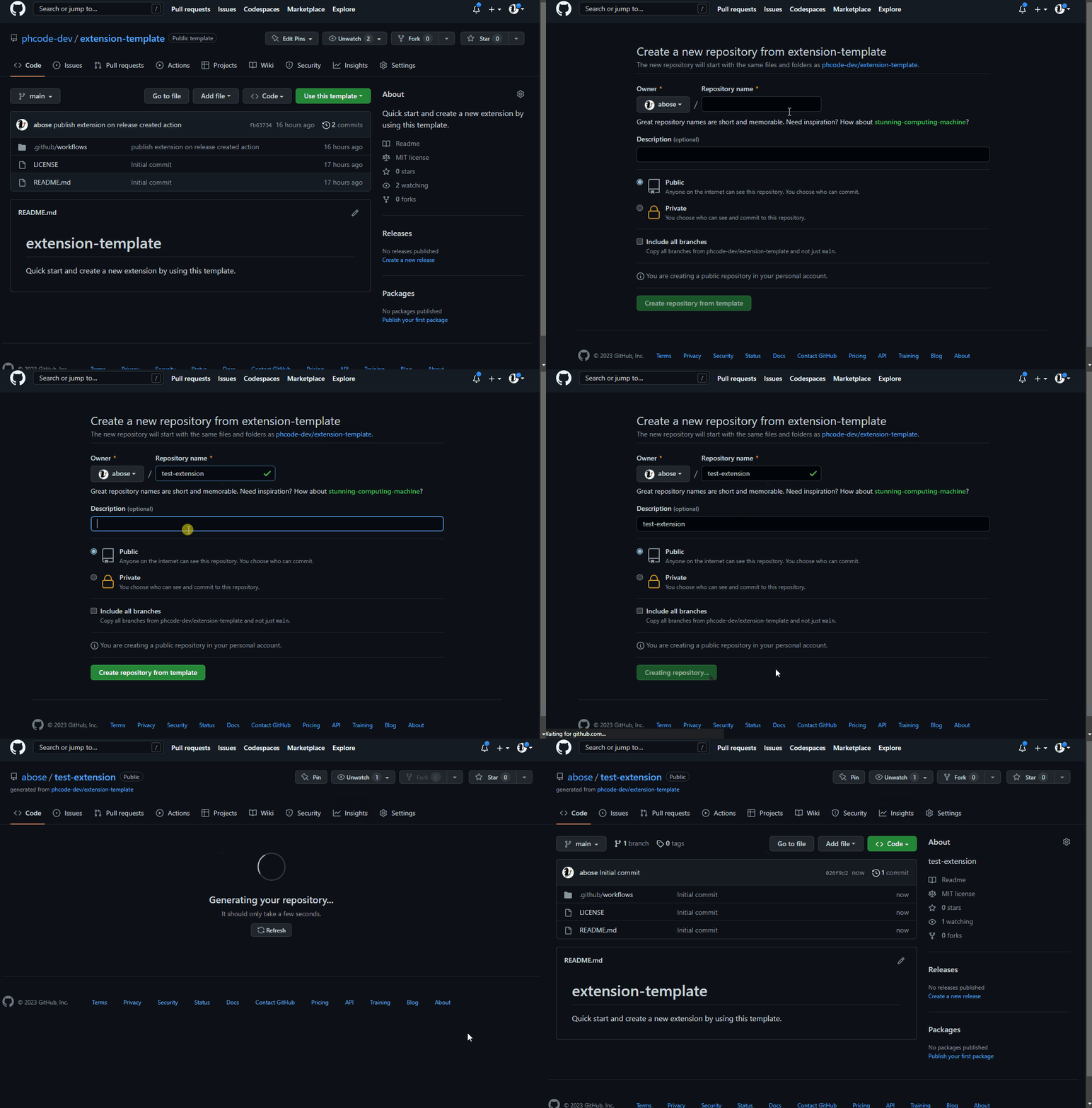
- Clone your GitHub Repository created from
step 2. See this link to learn how to clone a repository from GitHub. - Edit
package.jsonfile in template, make sure to update the following fields accordingly:
| Field | Description |
|---|---|
title | Replace "Name of the extension" with the actual title of your extension. |
name | Change github-<owner>-<repo> to your specific package name, formatted as github-yourusername-reponame. |
description | Update to a brief, relevant description of what your extension does. |
version | Start with "0.0.1" or update to reflect your current version following semantic versioning. |
license | Confirm "MIT" is suitable or specify another license if necessary. |
author | Replace with your name and a link to your GitHub profile or another URL. |
homepage | Set to the URL of your project’s homepage or GitHub repository. |
engines | Ensure compatibility with the required Brackets version, e.g., ">=3.0.0". |
categories | Update "demo" with relevant categories that fit your extension. |
keywords | Update or append additional keywords that describe your extension. |
files | Ensure this includes all necessary files and folders for your extension. |
- Go to https://create.phcode.dev .This is a special development centric website of phcode.dev which shows non minified js/css files in the browser developer tools.
- Open the cloned folder and select
Debug > Load Project As Extension
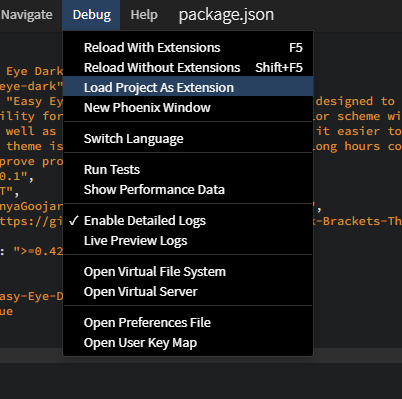
- You can now make code changes to your theme and live preview theme changes as you edit your theme css.

- You can also select
Debug> Reload With Extensionsto test the new code changes. - When you are done developing the extension/theme, select
Debug> Unload Project As Extensionto unload the extension/theme.
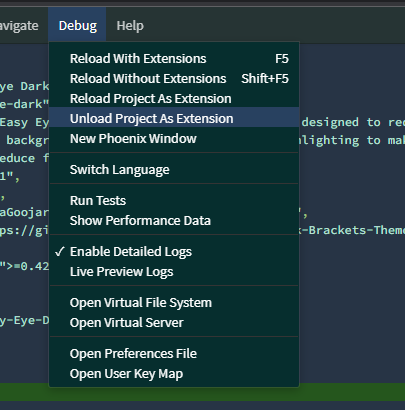
Please go to https://docs.phcode.dev/api/creating-themes for more documentation/community support links.
Once you have built your theme, you can publish the theme to phcode.dev extension store in a single step directly from this repository. Please see publish section in this link for more details: Publishing extension and themes