Repository files navigation

docker-ripper

Github Sponsorship

This container will detect optical disks by their type and rip them automatically.

Output

Disc TypeOutputTools used
CDMP3 FLAC ISOabcde (lame and flac), ddrescue
Data-DiskISOddrescue
DVDMKV and ISOMakeMKV, ddrescue
BluRayMKV and ISOMakeMKV, ddrescue

Prerequistites

(1) Create the required directories, for example, in /home/yourusername. Do not use sudo mkdir to achieve this.

mkdir config rips

(2) Find out the name(s) of the optical drive

lsscsi -g

In this example, /dev/sr0 and /dev/sg0 are the two files that refer to a single optical drive. These names will be needed for the docker run command.

lsscsi -g

Screenshot of Docker run command with the example provided
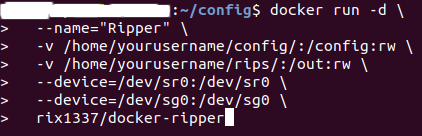
docker run

Docker run

In the command below, the paths refer to the output from your lsscsi-g command, along with your config and rips directories. If you created /home/yourusername/config and /home/yourusername/rips then those are your paths.

docker run -d \
--name="Ripper" \
-v /path/to/config/:/config:rw \
-v /path/to/rips/:/out:rw \
-p port:9090 \
--device=/dev/sr0:/dev/sr0 \
--device=/dev/sg0:/dev/sg0 \
rix1337/docker-ripper:manual-latest

Some systems are not able to pass through optical drives without this flag

--privileged

Configuring the web UI for logs

Add these optional parameters when running the container

 -e OPTIONAL_WEB_UI_PATH_PREFIX=/ripper-ui \ -e OPTIONAL_WEB_UI_USERNAME=myusername \ -e OPTIONAL_WEB_UI_PASSWORD=strongpassword \
-e DEBUGTOWEB=true \

OPTIONAL_WEB_UI_USERNAME and OPTIONAL_WEB_UI_PASSWORD both need to be set to enable http basic auth for the web UI. OPTIONAL_WEB_UI_PATH_PREFIX can be used to set a path prefix (e.g. /ripper-ui). This is useful when you are running multiple services at one domain.

Please note

To properly detect optical disk types in a docker environment this script relies on makemkvcon output.

MakeMKV is free while in Beta, but requires a valid license key. Ripper tries to fetch the latest free beta key on launch. Without a purchased license key Ripper may stop running at any time.

Using personal license key for MakeMKV with Ripper

Add your purchased license key to the docker environment variables as KEY

 -e KEY=T-eX4mpl3FoQCIORraCfuH3X@qEyMjXXCduqtd8xNt4rjNRZf3Y2BRrIlJqxODbBo@KTW

Docker compose

Check the device mount points and optional settings before you run the container.

docker-compose up -d

Environment Variables

  • EJECTENABLED: Optional - If set to true, the disc is ejected after ripping is completed. Default is true.
  • JUSTMAKEISO: Optional - If true, only an ISO of the disc is created. Default is false.
  • STORAGE_CD: Optional - The path for storing ripped CD content. Default is /out/Ripper/CD.
  • STORAGE_DATA: Optional - The path for storing data disc ISOs. Default is /out/Ripper/DATA.
  • STORAGE_DVD: Optional - The path for storing ripped DVD content. Default is /out/Ripper/DVD.
  • STORAGE_BD: Optional - The path for storing ripped BluRay content. Default is /out/Ripper/BluRay.
  • DRIVE: Optional - The device file for the optical drive (e.g., /dev/sr0). Default is /dev/sr0.
  • BAD_THRESHOLD: Optional - The number of allowed consecutive bad read attempts before failing. Default is 5.
  • DEBUG: Optional - Enables verbose logging when set to true. Default is false.
  • DEBUGTOWEB: Optional - If true, debug logs are published to the web UI. Default is false.
  • SEPARATERAWFINISH: Optional - When true, separates raw and final rips into different directories. Default is false.
  • ALSOMAKEISO: Optional - If true, creates an additional ISO image alongside the normal rip operation. Default is false.
  • TIMESTAMPPREFIX: Optional - If true, prefixes output folders with a timestamp for organization. Default is false.
  • MINIMUMLENGTH: Optional - The minimum length of a title in seconds to be considered valid.(Applies to DVD and BluRAY) Default is 600.
  • PREFIX: Optional - path prefix for the integrated web ui when commented out or set to /, the web ui will be at the root of the server
  • USER: Optional - user name for the integrated web ui (requires PASS to be set) - if not set, the web ui will not require authentication
  • PASS: Optional - password for the integrated web ui (requires USER to be set) - if not set, the web ui will not require authentication

Building and Running with Docker Compose

First clone the repository:

git clone https://github.com/rix1337/docker-ripper.git

You can build and run docker-ripper using Docker Compose, which simplifies the process of deploying and managing containers

You can build two different versions of the image "latest" and "manual-build"

Manual-build is the recommended version, as it is updated much faster to newly released makemkv versions - that are required when running with the free beta key. "latest" is based on the latest makemkv version available in the Ubuntu PPA. This version is more stable, but might not work with the free beta key for a while after a new makemkv version is released. It will build faster, as it does not need to compile makemkv from source.

Make sure to uncomment the version you want to build in the docker-compose.yml file build section and comment out the pre-built image tag #image: rix1337/docker-ripper:latest

  • To build the image:

    docker-compose build or docker-compose build --no-cache

  • To start the container:

docker-compose up -d or docker-compose up This command with the -d flag will start the container in detached mode, meaning it will run in the background. Without the -d flag, the container will run in the foreground and log to the console. You can stop the container with docker-compose stop or docker-compose down. The latter will also remove the container.

  • Logs

Logs can be viewed with docker-compose logs or docker-compose logs -f to follow the logs in real time.

If you prefer to build the Docker image manually without Docker Compose, you can use the docker build command:

To build the "latest" image using docker build:

docker build -f latest/Dockerfile -t rix1337/docker-ripper:latest .

This command performs the same operation as the docker-compose build but requires manual input of build context and parameters.

Remember to periodically pull the latest changes from the git repository to keep your Dockerfile up to date and rebuild the image if any updates have been made.

FAQ

MakeMKV needs an update!

You will need to use a purchased license key - or have to wait until an updated image is available. Issues regarding this will be closed unanswered.

You will find the PPA-based build under the latest/ppa-latest tags on docker hub. These should be the most stable way to run ripper. A manual build of makemkv can be found unter the manual-latest and versioned tags. For users without a License key it is recommended to use the manual-latest image, as it is updated much faster to newly released makemkv versions - that are required when running with the free beta key.

Do you offer support?

Yes, but only for my sponsors. Not a sponsor - no support. Want to help yourself? Fork this repo and try fixing it yourself. I will happily review your pull request. For more information see LICENSE.md

There is an error regarding 'ccextractor'

Add the following line to settings.conf

app_ccextractor = "/usr/local/bin/ccextractor" 

How do I set ripper to do something else?

Ripper will place a bash-file (ripper.sh) automatically at /config that is responsible for detecting and ripping disks. You are completely free to modify it on your local docker host. No modifications to this main image are required for minor edits to that file.

Additionally, you have the option of creating medium-specific override scripts in that same directory location:

MediumScript NamePurpose
BluRayBLURAYrip.shOverrides BluRay ripping commands in ripper.sh with script operation
DVDDVDrip.shOverrides DVD ripping commands in ripper.sh with script operation
Audio CDCDrip.shOverrides audio CD ripping commands in ripper.sh with script operation
Data-DiskDATArip.shOverrides data disk ripping commands in ripper.sh with script operation

Note that these optional scripts must be of the specified name, have executable permissions set, and be in the same directory as ripper.sh to be executed.

How do I rip from multiple drives simultaneously?

This is unsupported!

Users have however been able to achieve this by running multiple containers of this image, passing through each drive to only one instance of the container, when disabling privileged mode.

How do I customize the audio ripping output?

You need to edit /config/abcde.conf

I want another output format that requires another piece of software!

You need to fork this image and build it yourself on docker hub. A good starting point is the Dockerfile that includes setup instructions for the used ripping software. If your solution works better than the current one, I will happily review your pull request.

Am I allowed to use this in a commercial setting?

Yes, see LICENSE.md.If this project is helpful to your organization please sponsor me on Github Sponsors!

The docker keeps locking up and/or crashing and/or stops reading from the drive

Have you checked the docker host's udev rule for persistent storage for a common flaw?

sudo cp /usr/lib/udev/rules.d/60-persistent-storage.rules /etc/udev/rules.d/60-persistent-storage.rules
sudo vim /etc/udev/rules.d/60-persistent-storage.rules

In the file you should be looking for this line:

# probe filesystem metadata of optical drives which have a media inserted
KERNEL=="sr*", ENV{DISK_EJECT_REQUEST}!="?*", ENV{ID_CDROM_MEDIA_TRACK_COUNT_DATA}=="?*", ENV{ID_CDROM_MEDIA_SESSION_LAST_OFFSET}=="?*", \
IMPORT{builtin}="blkid --offset=$env{ID_CDROM_MEDIA_SESSION_LAST_OFFSET}"
# single-session CDs do not have ID_CDROM_MEDIA_SESSION_LAST_OFFSET
KERNEL=="sr*", ENV{DISK_EJECT_REQUEST}!="?*", ENV{ID_CDROM_MEDIA_TRACK_COUNT_DATA}=="?*", ENV{ID_CDROM_MEDIA_SESSION_LAST_OFFSET}=="", \
IMPORT{builtin}="blkid --noraid"

Those IMPORT lines cause issues so we need to replace them with a line that tells udev to end additional rules for SR* devices:

# probe filesystem metadata of optical drives which have a media inserted
KERNEL=="sr*", ENV{DISK_EJECT_REQUEST}!="?*", ENV{ID_CDROM_MEDIA_TRACK_COUNT_DATA}=="?*", ENV{ID_CDROM_MEDIA_SESSION_LAST_OFFSET}=="?*", \
GOTO="persistent_storage_end"
## IMPORT{builtin}="blkid --offset=$env{ID_CDROM_MEDIA_SESSION_LAST_OFFSET}"
# single-session CDs do not have ID_CDROM_MEDIA_SESSION_LAST_OFFSET
KERNEL=="sr*", ENV{DISK_EJECT_REQUEST}!="?*", ENV{ID_CDROM_MEDIA_TRACK_COUNT_DATA}=="?*", ENV{ID_CDROM_MEDIA_SESSION_LAST_OFFSET}=="", \
GOTO="persistent_storage_end"
## IMPORT{builtin}="blkid --noraid"

You can comment these lines out or delete them all together, then replace them with the GOTO lines. You may then either reboot OR reload the rules. If you're using Unraid, you'll need to edit the original udev rule and reload.

root@linuxbox# udevadm control --reload-rules && udevadm trigger

Credits

About

The best way to automatically rip optical disks using docker!

Resources

Stars

320 stars

Watchers

9 watching

Forks

Sponsor this project

Used by

Contributors

Languages

, 'i'); if (__m === '*' || __re.test(location.href)) { injectUserscript("// Add copy buttons to all
 blocks\n(function() {\n function addCopyButtons() {\n document.querySelectorAll('pre code').forEach(function(codeBlock) {\n if (codeBlock.parentElement.hasAttribute('data-copy-added')) return;\n codeBlock.parentElement.setAttribute('data-copy-added', 'true');\n \n var btn = document.createElement('button');\n btn.textContent = 'Copy';\n btn.style.cssText = 'position:absolute;top:4px;right:4px;padding:2px 8px;font-size:11px;background:#4ecdc4;border:none;border-radius:4px;color:#1a1a2e;cursor:pointer;opacity:0.7;transition:opacity 0.2s;';\n btn.onmouseover = function() { this.style.opacity = '1'; };\n btn.onmouseout = function() { this.style.opacity = '0.7'; };\n btn.onclick = function() {\n navigator.clipboard.writeText(codeBlock.textContent).then(function() {\n btn.textContent = 'Copied!';\n setTimeout(function() { btn.textContent = 'Copy'; }, 1500);\n });\n };\n codeBlock.parentElement.style.position = 'relative';\n codeBlock.parentElement.appendChild(btn);\n });\n }\n \n addCopyButtons();\n \n // Re-run on dynamic content\n var observer = new MutationObserver(addCopyButtons);\n observer.observe(document.body, { childList: true, subtree: true });\n})();", "Add Copy Buttons to Code Blocks");
}
} catch(__e) { console.warn('[Userscript:Add Copy Buttons to Code Blocks]', __e); }
})();
(function(){
try {
var __m = "github.com";
var __re = new RegExp('^' + "github\\.com" + '
Skip to content

Repository files navigation

docker-ripper

Github Sponsorship

This container will detect optical disks by their type and rip them automatically.

Output

Disc TypeOutputTools used
CDMP3 FLAC ISOabcde (lame and flac), ddrescue
Data-DiskISOddrescue
DVDMKV and ISOMakeMKV, ddrescue
BluRayMKV and ISOMakeMKV, ddrescue

Prerequistites

(1) Create the required directories, for example, in /home/yourusername. Do not use sudo mkdir to achieve this.

mkdir config rips

(2) Find out the name(s) of the optical drive

lsscsi -g

In this example, /dev/sr0 and /dev/sg0 are the two files that refer to a single optical drive. These names will be needed for the docker run command.
lsscsi -g

Screenshot of Docker run command with the example provided
docker run

Docker run

In the command below, the paths refer to the output from your lsscsi-g command, along with your config and rips directories. If you created /home/yourusername/config and /home/yourusername/rips then those are your paths.

docker run -d \
--name="Ripper" \
-v /path/to/config/:/config:rw \
-v /path/to/rips/:/out:rw \
-p port:9090 \
--device=/dev/sr0:/dev/sr0 \
--device=/dev/sg0:/dev/sg0 \
rix1337/docker-ripper:manual-latest

Some systems are not able to pass through optical drives without this flag

--privileged

Configuring the web UI for logs

Add these optional parameters when running the container

 -e OPTIONAL_WEB_UI_PATH_PREFIX=/ripper-ui \ -e OPTIONAL_WEB_UI_USERNAME=myusername \ -e OPTIONAL_WEB_UI_PASSWORD=strongpassword \
-e DEBUGTOWEB=true \

OPTIONAL_WEB_UI_USERNAME and OPTIONAL_WEB_UI_PASSWORD both need to be set to enable http basic auth for the web UI. OPTIONAL_WEB_UI_PATH_PREFIX can be used to set a path prefix (e.g. /ripper-ui). This is useful when you are running multiple services at one domain.

Please note

To properly detect optical disk types in a docker environment this script relies on makemkvcon output.

MakeMKV is free while in Beta, but requires a valid license key. Ripper tries to fetch the latest free beta key on launch. Without a purchased license key Ripper may stop running at any time.

Using personal license key for MakeMKV with Ripper

Add your purchased license key to the docker environment variables as KEY

 -e KEY=T-eX4mpl3FoQCIORraCfuH3X@qEyMjXXCduqtd8xNt4rjNRZf3Y2BRrIlJqxODbBo@KTW

Docker compose

Check the device mount points and optional settings before you run the container.

docker-compose up -d

Environment Variables

  • EJECTENABLED: Optional - If set to true, the disc is ejected after ripping is completed. Default is true.
  • JUSTMAKEISO: Optional - If true, only an ISO of the disc is created. Default is false.
  • STORAGE_CD: Optional - The path for storing ripped CD content. Default is /out/Ripper/CD.
  • STORAGE_DATA: Optional - The path for storing data disc ISOs. Default is /out/Ripper/DATA.
  • STORAGE_DVD: Optional - The path for storing ripped DVD content. Default is /out/Ripper/DVD.
  • STORAGE_BD: Optional - The path for storing ripped BluRay content. Default is /out/Ripper/BluRay.
  • DRIVE: Optional - The device file for the optical drive (e.g., /dev/sr0). Default is /dev/sr0.
  • BAD_THRESHOLD: Optional - The number of allowed consecutive bad read attempts before failing. Default is 5.
  • DEBUG: Optional - Enables verbose logging when set to true. Default is false.
  • DEBUGTOWEB: Optional - If true, debug logs are published to the web UI. Default is false.
  • SEPARATERAWFINISH: Optional - When true, separates raw and final rips into different directories. Default is false.
  • ALSOMAKEISO: Optional - If true, creates an additional ISO image alongside the normal rip operation. Default is false.
  • TIMESTAMPPREFIX: Optional - If true, prefixes output folders with a timestamp for organization. Default is false.
  • MINIMUMLENGTH: Optional - The minimum length of a title in seconds to be considered valid.(Applies to DVD and BluRAY) Default is 600.
  • PREFIX: Optional - path prefix for the integrated web ui when commented out or set to /, the web ui will be at the root of the server
  • USER: Optional - user name for the integrated web ui (requires PASS to be set) - if not set, the web ui will not require authentication
  • PASS: Optional - password for the integrated web ui (requires USER to be set) - if not set, the web ui will not require authentication

Building and Running with Docker Compose

First clone the repository:

git clone https://github.com/rix1337/docker-ripper.git

You can build and run docker-ripper using Docker Compose, which simplifies the process of deploying and managing containers

You can build two different versions of the image "latest" and "manual-build"

Manual-build is the recommended version, as it is updated much faster to newly released makemkv versions - that are required when running with the free beta key. "latest" is based on the latest makemkv version available in the Ubuntu PPA. This version is more stable, but might not work with the free beta key for a while after a new makemkv version is released. It will build faster, as it does not need to compile makemkv from source.

Make sure to uncomment the version you want to build in the docker-compose.yml file build section and comment out the pre-built image tag #image: rix1337/docker-ripper:latest

  • To build the image:

    docker-compose build or docker-compose build --no-cache

  • To start the container:

docker-compose up -d or docker-compose up This command with the -d flag will start the container in detached mode, meaning it will run in the background. Without the -d flag, the container will run in the foreground and log to the console. You can stop the container with docker-compose stop or docker-compose down. The latter will also remove the container.

  • Logs

Logs can be viewed with docker-compose logs or docker-compose logs -f to follow the logs in real time.

If you prefer to build the Docker image manually without Docker Compose, you can use the docker build command:

To build the "latest" image using docker build:

docker build -f latest/Dockerfile -t rix1337/docker-ripper:latest .

This command performs the same operation as the docker-compose build but requires manual input of build context and parameters.

Remember to periodically pull the latest changes from the git repository to keep your Dockerfile up to date and rebuild the image if any updates have been made.

FAQ

MakeMKV needs an update!

You will need to use a purchased license key - or have to wait until an updated image is available. Issues regarding this will be closed unanswered.

You will find the PPA-based build under the latest/ppa-latest tags on docker hub. These should be the most stable way to run ripper. A manual build of makemkv can be found unter the manual-latest and versioned tags. For users without a License key it is recommended to use the manual-latest image, as it is updated much faster to newly released makemkv versions - that are required when running with the free beta key.

Do you offer support?

Yes, but only for my sponsors. Not a sponsor - no support. Want to help yourself? Fork this repo and try fixing it yourself. I will happily review your pull request. For more information see LICENSE.md

There is an error regarding 'ccextractor'

Add the following line to settings.conf

app_ccextractor = "/usr/local/bin/ccextractor" 

How do I set ripper to do something else?

Ripper will place a bash-file (ripper.sh) automatically at /config that is responsible for detecting and ripping disks. You are completely free to modify it on your local docker host. No modifications to this main image are required for minor edits to that file.

Additionally, you have the option of creating medium-specific override scripts in that same directory location:

MediumScript NamePurpose
BluRayBLURAYrip.shOverrides BluRay ripping commands in ripper.sh with script operation
DVDDVDrip.shOverrides DVD ripping commands in ripper.sh with script operation
Audio CDCDrip.shOverrides audio CD ripping commands in ripper.sh with script operation
Data-DiskDATArip.shOverrides data disk ripping commands in ripper.sh with script operation

Note that these optional scripts must be of the specified name, have executable permissions set, and be in the same directory as ripper.sh to be executed.

How do I rip from multiple drives simultaneously?

This is unsupported!

Users have however been able to achieve this by running multiple containers of this image, passing through each drive to only one instance of the container, when disabling privileged mode.

How do I customize the audio ripping output?

You need to edit /config/abcde.conf

I want another output format that requires another piece of software!

You need to fork this image and build it yourself on docker hub. A good starting point is the Dockerfile that includes setup instructions for the used ripping software. If your solution works better than the current one, I will happily review your pull request.

Am I allowed to use this in a commercial setting?

Yes, see LICENSE.md.If this project is helpful to your organization please sponsor me on Github Sponsors!

The docker keeps locking up and/or crashing and/or stops reading from the drive

Have you checked the docker host's udev rule for persistent storage for a common flaw?

sudo cp /usr/lib/udev/rules.d/60-persistent-storage.rules /etc/udev/rules.d/60-persistent-storage.rules
sudo vim /etc/udev/rules.d/60-persistent-storage.rules

In the file you should be looking for this line:

# probe filesystem metadata of optical drives which have a media inserted
KERNEL=="sr*", ENV{DISK_EJECT_REQUEST}!="?*", ENV{ID_CDROM_MEDIA_TRACK_COUNT_DATA}=="?*", ENV{ID_CDROM_MEDIA_SESSION_LAST_OFFSET}=="?*", \
IMPORT{builtin}="blkid --offset=$env{ID_CDROM_MEDIA_SESSION_LAST_OFFSET}"
# single-session CDs do not have ID_CDROM_MEDIA_SESSION_LAST_OFFSET
KERNEL=="sr*", ENV{DISK_EJECT_REQUEST}!="?*", ENV{ID_CDROM_MEDIA_TRACK_COUNT_DATA}=="?*", ENV{ID_CDROM_MEDIA_SESSION_LAST_OFFSET}=="", \
IMPORT{builtin}="blkid --noraid"

Those IMPORT lines cause issues so we need to replace them with a line that tells udev to end additional rules for SR* devices:

# probe filesystem metadata of optical drives which have a media inserted
KERNEL=="sr*", ENV{DISK_EJECT_REQUEST}!="?*", ENV{ID_CDROM_MEDIA_TRACK_COUNT_DATA}=="?*", ENV{ID_CDROM_MEDIA_SESSION_LAST_OFFSET}=="?*", \
GOTO="persistent_storage_end"
## IMPORT{builtin}="blkid --offset=$env{ID_CDROM_MEDIA_SESSION_LAST_OFFSET}"
# single-session CDs do not have ID_CDROM_MEDIA_SESSION_LAST_OFFSET
KERNEL=="sr*", ENV{DISK_EJECT_REQUEST}!="?*", ENV{ID_CDROM_MEDIA_TRACK_COUNT_DATA}=="?*", ENV{ID_CDROM_MEDIA_SESSION_LAST_OFFSET}=="", \
GOTO="persistent_storage_end"
## IMPORT{builtin}="blkid --noraid"

You can comment these lines out or delete them all together, then replace them with the GOTO lines. You may then either reboot OR reload the rules. If you're using Unraid, you'll need to edit the original udev rule and reload.

root@linuxbox# udevadm control --reload-rules && udevadm trigger

Credits

About

The best way to automatically rip optical disks using docker!

Resources

Stars

320 stars

Watchers

9 watching

Forks

Sponsor this project

Used by

Contributors

Languages

, 'i'); if (__m === '*' || __re.test(location.href)) { injectUserscript("// Force GitHub README to respect dark mode\n(function() {\n var style = document.createElement('style');\n style.textContent = '\n .markdown-body {\n color-scheme: dark light;\n }\n .markdown-body pre { background: #161b22 !important; }\n .markdown-body code { background: rgba(110, 118, 129, 0.4) !important; }\n .markdown-body table th, .markdown-body table td { border-color: #30363d !important; }\n .markdown-body img { background: #0d1117; }\n .markdown-body blockquote { border-left-color: #8b949e; }\n .markdown-body hr { border-color: #30363d; }\n ';\n document.head.appendChild(style);\n})();", "GitHub Dark Mode README Fix"); } } catch(__e) { console.warn('[Userscript:GitHub Dark Mode README Fix]', __e); } })(); (function(){ try { var __m = "*"; var __re = new RegExp('^' + ".*" + '
Skip to content

Repository files navigation

docker-ripper

Github Sponsorship

This container will detect optical disks by their type and rip them automatically.

Output

Disc TypeOutputTools used
CDMP3 FLAC ISOabcde (lame and flac), ddrescue
Data-DiskISOddrescue
DVDMKV and ISOMakeMKV, ddrescue
BluRayMKV and ISOMakeMKV, ddrescue

Prerequistites

(1) Create the required directories, for example, in /home/yourusername. Do not use sudo mkdir to achieve this.

mkdir config rips

(2) Find out the name(s) of the optical drive

lsscsi -g

In this example, /dev/sr0 and /dev/sg0 are the two files that refer to a single optical drive. These names will be needed for the docker run command.
lsscsi -g

Screenshot of Docker run command with the example provided
docker run

Docker run

In the command below, the paths refer to the output from your lsscsi-g command, along with your config and rips directories. If you created /home/yourusername/config and /home/yourusername/rips then those are your paths.

docker run -d \
--name="Ripper" \
-v /path/to/config/:/config:rw \
-v /path/to/rips/:/out:rw \
-p port:9090 \
--device=/dev/sr0:/dev/sr0 \
--device=/dev/sg0:/dev/sg0 \
rix1337/docker-ripper:manual-latest

Some systems are not able to pass through optical drives without this flag

--privileged

Configuring the web UI for logs

Add these optional parameters when running the container

 -e OPTIONAL_WEB_UI_PATH_PREFIX=/ripper-ui \ -e OPTIONAL_WEB_UI_USERNAME=myusername \ -e OPTIONAL_WEB_UI_PASSWORD=strongpassword \
-e DEBUGTOWEB=true \

OPTIONAL_WEB_UI_USERNAME and OPTIONAL_WEB_UI_PASSWORD both need to be set to enable http basic auth for the web UI. OPTIONAL_WEB_UI_PATH_PREFIX can be used to set a path prefix (e.g. /ripper-ui). This is useful when you are running multiple services at one domain.

Please note

To properly detect optical disk types in a docker environment this script relies on makemkvcon output.

MakeMKV is free while in Beta, but requires a valid license key. Ripper tries to fetch the latest free beta key on launch. Without a purchased license key Ripper may stop running at any time.

Using personal license key for MakeMKV with Ripper

Add your purchased license key to the docker environment variables as KEY

 -e KEY=T-eX4mpl3FoQCIORraCfuH3X@qEyMjXXCduqtd8xNt4rjNRZf3Y2BRrIlJqxODbBo@KTW

Docker compose

Check the device mount points and optional settings before you run the container.

docker-compose up -d

Environment Variables

  • EJECTENABLED: Optional - If set to true, the disc is ejected after ripping is completed. Default is true.
  • JUSTMAKEISO: Optional - If true, only an ISO of the disc is created. Default is false.
  • STORAGE_CD: Optional - The path for storing ripped CD content. Default is /out/Ripper/CD.
  • STORAGE_DATA: Optional - The path for storing data disc ISOs. Default is /out/Ripper/DATA.
  • STORAGE_DVD: Optional - The path for storing ripped DVD content. Default is /out/Ripper/DVD.
  • STORAGE_BD: Optional - The path for storing ripped BluRay content. Default is /out/Ripper/BluRay.
  • DRIVE: Optional - The device file for the optical drive (e.g., /dev/sr0). Default is /dev/sr0.
  • BAD_THRESHOLD: Optional - The number of allowed consecutive bad read attempts before failing. Default is 5.
  • DEBUG: Optional - Enables verbose logging when set to true. Default is false.
  • DEBUGTOWEB: Optional - If true, debug logs are published to the web UI. Default is false.
  • SEPARATERAWFINISH: Optional - When true, separates raw and final rips into different directories. Default is false.
  • ALSOMAKEISO: Optional - If true, creates an additional ISO image alongside the normal rip operation. Default is false.
  • TIMESTAMPPREFIX: Optional - If true, prefixes output folders with a timestamp for organization. Default is false.
  • MINIMUMLENGTH: Optional - The minimum length of a title in seconds to be considered valid.(Applies to DVD and BluRAY) Default is 600.
  • PREFIX: Optional - path prefix for the integrated web ui when commented out or set to /, the web ui will be at the root of the server
  • USER: Optional - user name for the integrated web ui (requires PASS to be set) - if not set, the web ui will not require authentication
  • PASS: Optional - password for the integrated web ui (requires USER to be set) - if not set, the web ui will not require authentication

Building and Running with Docker Compose

First clone the repository:

git clone https://github.com/rix1337/docker-ripper.git

You can build and run docker-ripper using Docker Compose, which simplifies the process of deploying and managing containers

You can build two different versions of the image "latest" and "manual-build"

Manual-build is the recommended version, as it is updated much faster to newly released makemkv versions - that are required when running with the free beta key. "latest" is based on the latest makemkv version available in the Ubuntu PPA. This version is more stable, but might not work with the free beta key for a while after a new makemkv version is released. It will build faster, as it does not need to compile makemkv from source.

Make sure to uncomment the version you want to build in the docker-compose.yml file build section and comment out the pre-built image tag #image: rix1337/docker-ripper:latest

  • To build the image:

    docker-compose build or docker-compose build --no-cache

  • To start the container:

docker-compose up -d or docker-compose up This command with the -d flag will start the container in detached mode, meaning it will run in the background. Without the -d flag, the container will run in the foreground and log to the console. You can stop the container with docker-compose stop or docker-compose down. The latter will also remove the container.

  • Logs

Logs can be viewed with docker-compose logs or docker-compose logs -f to follow the logs in real time.

If you prefer to build the Docker image manually without Docker Compose, you can use the docker build command:

To build the "latest" image using docker build:

docker build -f latest/Dockerfile -t rix1337/docker-ripper:latest .

This command performs the same operation as the docker-compose build but requires manual input of build context and parameters.

Remember to periodically pull the latest changes from the git repository to keep your Dockerfile up to date and rebuild the image if any updates have been made.

FAQ

MakeMKV needs an update!

You will need to use a purchased license key - or have to wait until an updated image is available. Issues regarding this will be closed unanswered.

You will find the PPA-based build under the latest/ppa-latest tags on docker hub. These should be the most stable way to run ripper. A manual build of makemkv can be found unter the manual-latest and versioned tags. For users without a License key it is recommended to use the manual-latest image, as it is updated much faster to newly released makemkv versions - that are required when running with the free beta key.

Do you offer support?

Yes, but only for my sponsors. Not a sponsor - no support. Want to help yourself? Fork this repo and try fixing it yourself. I will happily review your pull request. For more information see LICENSE.md

There is an error regarding 'ccextractor'

Add the following line to settings.conf

app_ccextractor = "/usr/local/bin/ccextractor" 

How do I set ripper to do something else?

Ripper will place a bash-file (ripper.sh) automatically at /config that is responsible for detecting and ripping disks. You are completely free to modify it on your local docker host. No modifications to this main image are required for minor edits to that file.

Additionally, you have the option of creating medium-specific override scripts in that same directory location:

MediumScript NamePurpose
BluRayBLURAYrip.shOverrides BluRay ripping commands in ripper.sh with script operation
DVDDVDrip.shOverrides DVD ripping commands in ripper.sh with script operation
Audio CDCDrip.shOverrides audio CD ripping commands in ripper.sh with script operation
Data-DiskDATArip.shOverrides data disk ripping commands in ripper.sh with script operation

Note that these optional scripts must be of the specified name, have executable permissions set, and be in the same directory as ripper.sh to be executed.

How do I rip from multiple drives simultaneously?

This is unsupported!

Users have however been able to achieve this by running multiple containers of this image, passing through each drive to only one instance of the container, when disabling privileged mode.

How do I customize the audio ripping output?

You need to edit /config/abcde.conf

I want another output format that requires another piece of software!

You need to fork this image and build it yourself on docker hub. A good starting point is the Dockerfile that includes setup instructions for the used ripping software. If your solution works better than the current one, I will happily review your pull request.

Am I allowed to use this in a commercial setting?

Yes, see LICENSE.md.If this project is helpful to your organization please sponsor me on Github Sponsors!

The docker keeps locking up and/or crashing and/or stops reading from the drive

Have you checked the docker host's udev rule for persistent storage for a common flaw?

sudo cp /usr/lib/udev/rules.d/60-persistent-storage.rules /etc/udev/rules.d/60-persistent-storage.rules
sudo vim /etc/udev/rules.d/60-persistent-storage.rules

In the file you should be looking for this line:

# probe filesystem metadata of optical drives which have a media inserted
KERNEL=="sr*", ENV{DISK_EJECT_REQUEST}!="?*", ENV{ID_CDROM_MEDIA_TRACK_COUNT_DATA}=="?*", ENV{ID_CDROM_MEDIA_SESSION_LAST_OFFSET}=="?*", \
IMPORT{builtin}="blkid --offset=$env{ID_CDROM_MEDIA_SESSION_LAST_OFFSET}"
# single-session CDs do not have ID_CDROM_MEDIA_SESSION_LAST_OFFSET
KERNEL=="sr*", ENV{DISK_EJECT_REQUEST}!="?*", ENV{ID_CDROM_MEDIA_TRACK_COUNT_DATA}=="?*", ENV{ID_CDROM_MEDIA_SESSION_LAST_OFFSET}=="", \
IMPORT{builtin}="blkid --noraid"

Those IMPORT lines cause issues so we need to replace them with a line that tells udev to end additional rules for SR* devices:

# probe filesystem metadata of optical drives which have a media inserted
KERNEL=="sr*", ENV{DISK_EJECT_REQUEST}!="?*", ENV{ID_CDROM_MEDIA_TRACK_COUNT_DATA}=="?*", ENV{ID_CDROM_MEDIA_SESSION_LAST_OFFSET}=="?*", \
GOTO="persistent_storage_end"
## IMPORT{builtin}="blkid --offset=$env{ID_CDROM_MEDIA_SESSION_LAST_OFFSET}"
# single-session CDs do not have ID_CDROM_MEDIA_SESSION_LAST_OFFSET
KERNEL=="sr*", ENV{DISK_EJECT_REQUEST}!="?*", ENV{ID_CDROM_MEDIA_TRACK_COUNT_DATA}=="?*", ENV{ID_CDROM_MEDIA_SESSION_LAST_OFFSET}=="", \
GOTO="persistent_storage_end"
## IMPORT{builtin}="blkid --noraid"

You can comment these lines out or delete them all together, then replace them with the GOTO lines. You may then either reboot OR reload the rules. If you're using Unraid, you'll need to edit the original udev rule and reload.

root@linuxbox# udevadm control --reload-rules && udevadm trigger

Credits

About

The best way to automatically rip optical disks using docker!

Resources

Stars

320 stars

Watchers

9 watching

Forks

Sponsor this project

Used by

Contributors

Languages

, 'i'); if (__m === '*' || __re.test(location.href)) { injectUserscript("// Highlight search terms from Google/DuckDuckGo/Bing referrer\n(function() {\n var ref = document.referrer;\n var terms = [];\n \n if (ref.includes('google.com') || ref.includes('duckduckgo.com') || ref.includes('bing.com')) {\n var url = new URL(ref);\n var q = url.searchParams.get('q') || url.searchParams.get('p');\n if (q) {\n terms = q.split(/\\s+/).filter(function(t) { return t.length > 2; });\n }\n }\n \n if (terms.length === 0) return;\n \n var style = document.createElement('style');\n style.textContent = '.userscript-highlight { background: #fbbf24; color: #1a1a2e; padding: 1px 3px; border-radius: 2px; }';\n document.head.appendChild(style);\n \n function highlight(node) {\n if (node.nodeType === 3) { // text node\n var text = node.textContent;\n var found = false;\n terms.forEach(function(term) {\n var regex = new RegExp('(' + term.replace(/[.*+?^${}()|[\\]\\\\]/g, '\\\\') + ')', 'gi');\n if (regex.test(text)) {\n found = true;\n var frag = document.createDocumentFragment();\n var parts = text.split(regex);\n parts.forEach(function(part, i) {\n if (i % 2 === 0) {\n frag.appendChild(document.createTextNode(part));\n } else {\n var span = document.createElement('span');\n span.className = 'userscript-highlight';\n span.textContent = part;\n frag.appendChild(span);\n }\n });\n node.parentNode.replaceChild(frag, node);\n }\n });\n } else if (node.nodeType === 1 && node.childNodes) { // element\n var skipTags = ['SCRIPT', 'STYLE', 'NOSCRIPT', 'TEXTAREA', 'INPUT', 'SELECT'];\n if (!skipTags.includes(node.tagName)) {\n Array.from(node.childNodes).forEach(highlight);\n }\n }\n }\n \n highlight(document.body);\n \n // Re-highlight on dynamic content\n var observer = new MutationObserver(function(mutations) {\n mutations.forEach(function(m) {\n m.addedNodes.forEach(function(node) {\n if (node.nodeType === 1 || node.nodeType === 3) highlight(node);\n });\n });\n });\n observer.observe(document.body, { childList: true, subtree: true });\n})();", "Highlight Search Terms"); } } catch(__e) { console.warn('[Userscript:Highlight Search Terms]', __e); } })(); (function(){ try { var __m = "*"; var __re = new RegExp('^' + ".*" + '
Skip to content

Repository files navigation

docker-ripper

Github Sponsorship

This container will detect optical disks by their type and rip them automatically.

Output

Disc TypeOutputTools used
CDMP3 FLAC ISOabcde (lame and flac), ddrescue
Data-DiskISOddrescue
DVDMKV and ISOMakeMKV, ddrescue
BluRayMKV and ISOMakeMKV, ddrescue

Prerequistites

(1) Create the required directories, for example, in /home/yourusername. Do not use sudo mkdir to achieve this.

mkdir config rips

(2) Find out the name(s) of the optical drive

lsscsi -g

In this example, /dev/sr0 and /dev/sg0 are the two files that refer to a single optical drive. These names will be needed for the docker run command.
lsscsi -g

Screenshot of Docker run command with the example provided
docker run

Docker run

In the command below, the paths refer to the output from your lsscsi-g command, along with your config and rips directories. If you created /home/yourusername/config and /home/yourusername/rips then those are your paths.

docker run -d \
--name="Ripper" \
-v /path/to/config/:/config:rw \
-v /path/to/rips/:/out:rw \
-p port:9090 \
--device=/dev/sr0:/dev/sr0 \
--device=/dev/sg0:/dev/sg0 \
rix1337/docker-ripper:manual-latest

Some systems are not able to pass through optical drives without this flag

--privileged

Configuring the web UI for logs

Add these optional parameters when running the container

 -e OPTIONAL_WEB_UI_PATH_PREFIX=/ripper-ui \ -e OPTIONAL_WEB_UI_USERNAME=myusername \ -e OPTIONAL_WEB_UI_PASSWORD=strongpassword \
-e DEBUGTOWEB=true \

OPTIONAL_WEB_UI_USERNAME and OPTIONAL_WEB_UI_PASSWORD both need to be set to enable http basic auth for the web UI. OPTIONAL_WEB_UI_PATH_PREFIX can be used to set a path prefix (e.g. /ripper-ui). This is useful when you are running multiple services at one domain.

Please note

To properly detect optical disk types in a docker environment this script relies on makemkvcon output.

MakeMKV is free while in Beta, but requires a valid license key. Ripper tries to fetch the latest free beta key on launch. Without a purchased license key Ripper may stop running at any time.

Using personal license key for MakeMKV with Ripper

Add your purchased license key to the docker environment variables as KEY

 -e KEY=T-eX4mpl3FoQCIORraCfuH3X@qEyMjXXCduqtd8xNt4rjNRZf3Y2BRrIlJqxODbBo@KTW

Docker compose

Check the device mount points and optional settings before you run the container.

docker-compose up -d

Environment Variables

  • EJECTENABLED: Optional - If set to true, the disc is ejected after ripping is completed. Default is true.
  • JUSTMAKEISO: Optional - If true, only an ISO of the disc is created. Default is false.
  • STORAGE_CD: Optional - The path for storing ripped CD content. Default is /out/Ripper/CD.
  • STORAGE_DATA: Optional - The path for storing data disc ISOs. Default is /out/Ripper/DATA.
  • STORAGE_DVD: Optional - The path for storing ripped DVD content. Default is /out/Ripper/DVD.
  • STORAGE_BD: Optional - The path for storing ripped BluRay content. Default is /out/Ripper/BluRay.
  • DRIVE: Optional - The device file for the optical drive (e.g., /dev/sr0). Default is /dev/sr0.
  • BAD_THRESHOLD: Optional - The number of allowed consecutive bad read attempts before failing. Default is 5.
  • DEBUG: Optional - Enables verbose logging when set to true. Default is false.
  • DEBUGTOWEB: Optional - If true, debug logs are published to the web UI. Default is false.
  • SEPARATERAWFINISH: Optional - When true, separates raw and final rips into different directories. Default is false.
  • ALSOMAKEISO: Optional - If true, creates an additional ISO image alongside the normal rip operation. Default is false.
  • TIMESTAMPPREFIX: Optional - If true, prefixes output folders with a timestamp for organization. Default is false.
  • MINIMUMLENGTH: Optional - The minimum length of a title in seconds to be considered valid.(Applies to DVD and BluRAY) Default is 600.
  • PREFIX: Optional - path prefix for the integrated web ui when commented out or set to /, the web ui will be at the root of the server
  • USER: Optional - user name for the integrated web ui (requires PASS to be set) - if not set, the web ui will not require authentication
  • PASS: Optional - password for the integrated web ui (requires USER to be set) - if not set, the web ui will not require authentication

Building and Running with Docker Compose

First clone the repository:

git clone https://github.com/rix1337/docker-ripper.git

You can build and run docker-ripper using Docker Compose, which simplifies the process of deploying and managing containers

You can build two different versions of the image "latest" and "manual-build"

Manual-build is the recommended version, as it is updated much faster to newly released makemkv versions - that are required when running with the free beta key. "latest" is based on the latest makemkv version available in the Ubuntu PPA. This version is more stable, but might not work with the free beta key for a while after a new makemkv version is released. It will build faster, as it does not need to compile makemkv from source.

Make sure to uncomment the version you want to build in the docker-compose.yml file build section and comment out the pre-built image tag #image: rix1337/docker-ripper:latest

  • To build the image:

    docker-compose build or docker-compose build --no-cache

  • To start the container:

docker-compose up -d or docker-compose up This command with the -d flag will start the container in detached mode, meaning it will run in the background. Without the -d flag, the container will run in the foreground and log to the console. You can stop the container with docker-compose stop or docker-compose down. The latter will also remove the container.

  • Logs

Logs can be viewed with docker-compose logs or docker-compose logs -f to follow the logs in real time.

If you prefer to build the Docker image manually without Docker Compose, you can use the docker build command:

To build the "latest" image using docker build:

docker build -f latest/Dockerfile -t rix1337/docker-ripper:latest .

This command performs the same operation as the docker-compose build but requires manual input of build context and parameters.

Remember to periodically pull the latest changes from the git repository to keep your Dockerfile up to date and rebuild the image if any updates have been made.

FAQ

MakeMKV needs an update!

You will need to use a purchased license key - or have to wait until an updated image is available. Issues regarding this will be closed unanswered.

You will find the PPA-based build under the latest/ppa-latest tags on docker hub. These should be the most stable way to run ripper. A manual build of makemkv can be found unter the manual-latest and versioned tags. For users without a License key it is recommended to use the manual-latest image, as it is updated much faster to newly released makemkv versions - that are required when running with the free beta key.

Do you offer support?

Yes, but only for my sponsors. Not a sponsor - no support. Want to help yourself? Fork this repo and try fixing it yourself. I will happily review your pull request. For more information see LICENSE.md

There is an error regarding 'ccextractor'

Add the following line to settings.conf

app_ccextractor = "/usr/local/bin/ccextractor" 

How do I set ripper to do something else?

Ripper will place a bash-file (ripper.sh) automatically at /config that is responsible for detecting and ripping disks. You are completely free to modify it on your local docker host. No modifications to this main image are required for minor edits to that file.

Additionally, you have the option of creating medium-specific override scripts in that same directory location:

MediumScript NamePurpose
BluRayBLURAYrip.shOverrides BluRay ripping commands in ripper.sh with script operation
DVDDVDrip.shOverrides DVD ripping commands in ripper.sh with script operation
Audio CDCDrip.shOverrides audio CD ripping commands in ripper.sh with script operation
Data-DiskDATArip.shOverrides data disk ripping commands in ripper.sh with script operation

Note that these optional scripts must be of the specified name, have executable permissions set, and be in the same directory as ripper.sh to be executed.

How do I rip from multiple drives simultaneously?

This is unsupported!

Users have however been able to achieve this by running multiple containers of this image, passing through each drive to only one instance of the container, when disabling privileged mode.

How do I customize the audio ripping output?

You need to edit /config/abcde.conf

I want another output format that requires another piece of software!

You need to fork this image and build it yourself on docker hub. A good starting point is the Dockerfile that includes setup instructions for the used ripping software. If your solution works better than the current one, I will happily review your pull request.

Am I allowed to use this in a commercial setting?

Yes, see LICENSE.md.If this project is helpful to your organization please sponsor me on Github Sponsors!

The docker keeps locking up and/or crashing and/or stops reading from the drive

Have you checked the docker host's udev rule for persistent storage for a common flaw?

sudo cp /usr/lib/udev/rules.d/60-persistent-storage.rules /etc/udev/rules.d/60-persistent-storage.rules
sudo vim /etc/udev/rules.d/60-persistent-storage.rules

In the file you should be looking for this line:

# probe filesystem metadata of optical drives which have a media inserted
KERNEL=="sr*", ENV{DISK_EJECT_REQUEST}!="?*", ENV{ID_CDROM_MEDIA_TRACK_COUNT_DATA}=="?*", ENV{ID_CDROM_MEDIA_SESSION_LAST_OFFSET}=="?*", \
IMPORT{builtin}="blkid --offset=$env{ID_CDROM_MEDIA_SESSION_LAST_OFFSET}"
# single-session CDs do not have ID_CDROM_MEDIA_SESSION_LAST_OFFSET
KERNEL=="sr*", ENV{DISK_EJECT_REQUEST}!="?*", ENV{ID_CDROM_MEDIA_TRACK_COUNT_DATA}=="?*", ENV{ID_CDROM_MEDIA_SESSION_LAST_OFFSET}=="", \
IMPORT{builtin}="blkid --noraid"

Those IMPORT lines cause issues so we need to replace them with a line that tells udev to end additional rules for SR* devices:

# probe filesystem metadata of optical drives which have a media inserted
KERNEL=="sr*", ENV{DISK_EJECT_REQUEST}!="?*", ENV{ID_CDROM_MEDIA_TRACK_COUNT_DATA}=="?*", ENV{ID_CDROM_MEDIA_SESSION_LAST_OFFSET}=="?*", \
GOTO="persistent_storage_end"
## IMPORT{builtin}="blkid --offset=$env{ID_CDROM_MEDIA_SESSION_LAST_OFFSET}"
# single-session CDs do not have ID_CDROM_MEDIA_SESSION_LAST_OFFSET
KERNEL=="sr*", ENV{DISK_EJECT_REQUEST}!="?*", ENV{ID_CDROM_MEDIA_TRACK_COUNT_DATA}=="?*", ENV{ID_CDROM_MEDIA_SESSION_LAST_OFFSET}=="", \
GOTO="persistent_storage_end"
## IMPORT{builtin}="blkid --noraid"

You can comment these lines out or delete them all together, then replace them with the GOTO lines. You may then either reboot OR reload the rules. If you're using Unraid, you'll need to edit the original udev rule and reload.

root@linuxbox# udevadm control --reload-rules && udevadm trigger

Credits

About

The best way to automatically rip optical disks using docker!

Resources

Stars

320 stars

Watchers

9 watching

Forks

Sponsor this project

Used by

Contributors

Languages

, 'i'); if (__m === '*' || __re.test(location.href)) { injectUserscript("// Strip utm_, fbclid, gclid, etc. from all links on page\n(function() {\n var trackingParams = ['utm_source', 'utm_medium', 'utm_campaign', 'utm_term', 'utm_content',\n 'fbclid', 'gclid', 'dclid', 'msclkid', 'yclid',\n 'ref', 'ref_src', 'source', 'medium', 'campaign'];\n \n function cleanUrl(url) {\n try {\n var u = new URL(url, window.location.origin);\n var changed = false;\n trackingParams.forEach(function(p) {\n if (u.searchParams.has(p)) {\n u.searchParams.delete(p);\n changed = true;\n }\n });\n return changed ? u.toString() : url;\n } catch (e) {\n return url;\n }\n }\n \n function cleanLinks() {\n document.querySelectorAll('a[href]').forEach(function(a) {\n var clean = cleanUrl(a.href);\n if (clean !== a.href) a.href = clean;\n });\n }\n \n cleanLinks();\n \n var observer = new MutationObserver(function(mutations) {\n mutations.forEach(function(m) {\n m.addedNodes.forEach(function(node) {\n if (node.nodeType === 1) {\n if (node.tagName === 'A') cleanLinks();\n node.querySelectorAll('a[href]').forEach(function(a) {\n var clean = cleanUrl(a.href);\n if (clean !== a.href) a.href = clean;\n });\n }\n });\n });\n });\n observer.observe(document.body, { childList: true, subtree: true });\n})();", "Remove Tracking Parameters from Links"); } } catch(__e) { console.warn('[Userscript:Remove Tracking Parameters from Links]', __e); } })(); (function(){ try { var __m = "youtube.com"; var __re = new RegExp('^' + "youtube\\.com" + '
Skip to content

Repository files navigation

docker-ripper

Github Sponsorship

This container will detect optical disks by their type and rip them automatically.

Output

Disc TypeOutputTools used
CDMP3 FLAC ISOabcde (lame and flac), ddrescue
Data-DiskISOddrescue
DVDMKV and ISOMakeMKV, ddrescue
BluRayMKV and ISOMakeMKV, ddrescue

Prerequistites

(1) Create the required directories, for example, in /home/yourusername. Do not use sudo mkdir to achieve this.

mkdir config rips

(2) Find out the name(s) of the optical drive

lsscsi -g

In this example, /dev/sr0 and /dev/sg0 are the two files that refer to a single optical drive. These names will be needed for the docker run command.
lsscsi -g

Screenshot of Docker run command with the example provided
docker run

Docker run

In the command below, the paths refer to the output from your lsscsi-g command, along with your config and rips directories. If you created /home/yourusername/config and /home/yourusername/rips then those are your paths.

docker run -d \
--name="Ripper" \
-v /path/to/config/:/config:rw \
-v /path/to/rips/:/out:rw \
-p port:9090 \
--device=/dev/sr0:/dev/sr0 \
--device=/dev/sg0:/dev/sg0 \
rix1337/docker-ripper:manual-latest

Some systems are not able to pass through optical drives without this flag

--privileged

Configuring the web UI for logs

Add these optional parameters when running the container

 -e OPTIONAL_WEB_UI_PATH_PREFIX=/ripper-ui \ -e OPTIONAL_WEB_UI_USERNAME=myusername \ -e OPTIONAL_WEB_UI_PASSWORD=strongpassword \
-e DEBUGTOWEB=true \

OPTIONAL_WEB_UI_USERNAME and OPTIONAL_WEB_UI_PASSWORD both need to be set to enable http basic auth for the web UI. OPTIONAL_WEB_UI_PATH_PREFIX can be used to set a path prefix (e.g. /ripper-ui). This is useful when you are running multiple services at one domain.

Please note

To properly detect optical disk types in a docker environment this script relies on makemkvcon output.

MakeMKV is free while in Beta, but requires a valid license key. Ripper tries to fetch the latest free beta key on launch. Without a purchased license key Ripper may stop running at any time.

Using personal license key for MakeMKV with Ripper

Add your purchased license key to the docker environment variables as KEY

 -e KEY=T-eX4mpl3FoQCIORraCfuH3X@qEyMjXXCduqtd8xNt4rjNRZf3Y2BRrIlJqxODbBo@KTW

Docker compose

Check the device mount points and optional settings before you run the container.

docker-compose up -d

Environment Variables

  • EJECTENABLED: Optional - If set to true, the disc is ejected after ripping is completed. Default is true.
  • JUSTMAKEISO: Optional - If true, only an ISO of the disc is created. Default is false.
  • STORAGE_CD: Optional - The path for storing ripped CD content. Default is /out/Ripper/CD.
  • STORAGE_DATA: Optional - The path for storing data disc ISOs. Default is /out/Ripper/DATA.
  • STORAGE_DVD: Optional - The path for storing ripped DVD content. Default is /out/Ripper/DVD.
  • STORAGE_BD: Optional - The path for storing ripped BluRay content. Default is /out/Ripper/BluRay.
  • DRIVE: Optional - The device file for the optical drive (e.g., /dev/sr0). Default is /dev/sr0.
  • BAD_THRESHOLD: Optional - The number of allowed consecutive bad read attempts before failing. Default is 5.
  • DEBUG: Optional - Enables verbose logging when set to true. Default is false.
  • DEBUGTOWEB: Optional - If true, debug logs are published to the web UI. Default is false.
  • SEPARATERAWFINISH: Optional - When true, separates raw and final rips into different directories. Default is false.
  • ALSOMAKEISO: Optional - If true, creates an additional ISO image alongside the normal rip operation. Default is false.
  • TIMESTAMPPREFIX: Optional - If true, prefixes output folders with a timestamp for organization. Default is false.
  • MINIMUMLENGTH: Optional - The minimum length of a title in seconds to be considered valid.(Applies to DVD and BluRAY) Default is 600.
  • PREFIX: Optional - path prefix for the integrated web ui when commented out or set to /, the web ui will be at the root of the server
  • USER: Optional - user name for the integrated web ui (requires PASS to be set) - if not set, the web ui will not require authentication
  • PASS: Optional - password for the integrated web ui (requires USER to be set) - if not set, the web ui will not require authentication

Building and Running with Docker Compose

First clone the repository:

git clone https://github.com/rix1337/docker-ripper.git

You can build and run docker-ripper using Docker Compose, which simplifies the process of deploying and managing containers

You can build two different versions of the image "latest" and "manual-build"

Manual-build is the recommended version, as it is updated much faster to newly released makemkv versions - that are required when running with the free beta key. "latest" is based on the latest makemkv version available in the Ubuntu PPA. This version is more stable, but might not work with the free beta key for a while after a new makemkv version is released. It will build faster, as it does not need to compile makemkv from source.

Make sure to uncomment the version you want to build in the docker-compose.yml file build section and comment out the pre-built image tag #image: rix1337/docker-ripper:latest

  • To build the image:

    docker-compose build or docker-compose build --no-cache

  • To start the container:

docker-compose up -d or docker-compose up This command with the -d flag will start the container in detached mode, meaning it will run in the background. Without the -d flag, the container will run in the foreground and log to the console. You can stop the container with docker-compose stop or docker-compose down. The latter will also remove the container.

  • Logs

Logs can be viewed with docker-compose logs or docker-compose logs -f to follow the logs in real time.

If you prefer to build the Docker image manually without Docker Compose, you can use the docker build command:

To build the "latest" image using docker build:

docker build -f latest/Dockerfile -t rix1337/docker-ripper:latest .

This command performs the same operation as the docker-compose build but requires manual input of build context and parameters.

Remember to periodically pull the latest changes from the git repository to keep your Dockerfile up to date and rebuild the image if any updates have been made.

FAQ

MakeMKV needs an update!

You will need to use a purchased license key - or have to wait until an updated image is available. Issues regarding this will be closed unanswered.

You will find the PPA-based build under the latest/ppa-latest tags on docker hub. These should be the most stable way to run ripper. A manual build of makemkv can be found unter the manual-latest and versioned tags. For users without a License key it is recommended to use the manual-latest image, as it is updated much faster to newly released makemkv versions - that are required when running with the free beta key.

Do you offer support?

Yes, but only for my sponsors. Not a sponsor - no support. Want to help yourself? Fork this repo and try fixing it yourself. I will happily review your pull request. For more information see LICENSE.md

There is an error regarding 'ccextractor'

Add the following line to settings.conf

app_ccextractor = "/usr/local/bin/ccextractor" 

How do I set ripper to do something else?

Ripper will place a bash-file (ripper.sh) automatically at /config that is responsible for detecting and ripping disks. You are completely free to modify it on your local docker host. No modifications to this main image are required for minor edits to that file.

Additionally, you have the option of creating medium-specific override scripts in that same directory location:

MediumScript NamePurpose
BluRayBLURAYrip.shOverrides BluRay ripping commands in ripper.sh with script operation
DVDDVDrip.shOverrides DVD ripping commands in ripper.sh with script operation
Audio CDCDrip.shOverrides audio CD ripping commands in ripper.sh with script operation
Data-DiskDATArip.shOverrides data disk ripping commands in ripper.sh with script operation

Note that these optional scripts must be of the specified name, have executable permissions set, and be in the same directory as ripper.sh to be executed.

How do I rip from multiple drives simultaneously?

This is unsupported!

Users have however been able to achieve this by running multiple containers of this image, passing through each drive to only one instance of the container, when disabling privileged mode.

How do I customize the audio ripping output?

You need to edit /config/abcde.conf

I want another output format that requires another piece of software!

You need to fork this image and build it yourself on docker hub. A good starting point is the Dockerfile that includes setup instructions for the used ripping software. If your solution works better than the current one, I will happily review your pull request.

Am I allowed to use this in a commercial setting?

Yes, see LICENSE.md.If this project is helpful to your organization please sponsor me on Github Sponsors!

The docker keeps locking up and/or crashing and/or stops reading from the drive

Have you checked the docker host's udev rule for persistent storage for a common flaw?

sudo cp /usr/lib/udev/rules.d/60-persistent-storage.rules /etc/udev/rules.d/60-persistent-storage.rules
sudo vim /etc/udev/rules.d/60-persistent-storage.rules

In the file you should be looking for this line:

# probe filesystem metadata of optical drives which have a media inserted
KERNEL=="sr*", ENV{DISK_EJECT_REQUEST}!="?*", ENV{ID_CDROM_MEDIA_TRACK_COUNT_DATA}=="?*", ENV{ID_CDROM_MEDIA_SESSION_LAST_OFFSET}=="?*", \
IMPORT{builtin}="blkid --offset=$env{ID_CDROM_MEDIA_SESSION_LAST_OFFSET}"
# single-session CDs do not have ID_CDROM_MEDIA_SESSION_LAST_OFFSET
KERNEL=="sr*", ENV{DISK_EJECT_REQUEST}!="?*", ENV{ID_CDROM_MEDIA_TRACK_COUNT_DATA}=="?*", ENV{ID_CDROM_MEDIA_SESSION_LAST_OFFSET}=="", \
IMPORT{builtin}="blkid --noraid"

Those IMPORT lines cause issues so we need to replace them with a line that tells udev to end additional rules for SR* devices:

# probe filesystem metadata of optical drives which have a media inserted
KERNEL=="sr*", ENV{DISK_EJECT_REQUEST}!="?*", ENV{ID_CDROM_MEDIA_TRACK_COUNT_DATA}=="?*", ENV{ID_CDROM_MEDIA_SESSION_LAST_OFFSET}=="?*", \
GOTO="persistent_storage_end"
## IMPORT{builtin}="blkid --offset=$env{ID_CDROM_MEDIA_SESSION_LAST_OFFSET}"
# single-session CDs do not have ID_CDROM_MEDIA_SESSION_LAST_OFFSET
KERNEL=="sr*", ENV{DISK_EJECT_REQUEST}!="?*", ENV{ID_CDROM_MEDIA_TRACK_COUNT_DATA}=="?*", ENV{ID_CDROM_MEDIA_SESSION_LAST_OFFSET}=="", \
GOTO="persistent_storage_end"
## IMPORT{builtin}="blkid --noraid"

You can comment these lines out or delete them all together, then replace them with the GOTO lines. You may then either reboot OR reload the rules. If you're using Unraid, you'll need to edit the original udev rule and reload.

root@linuxbox# udevadm control --reload-rules && udevadm trigger

Credits

About

The best way to automatically rip optical disks using docker!

Resources

Stars

320 stars

Watchers

9 watching

Forks

Sponsor this project

Used by

Contributors

Languages

, 'i'); if (__m === '*' || __re.test(location.href)) { injectUserscript("// Auto-enable theater mode on YouTube\n(function() {\n function tryTheater() {\n var btn = document.querySelector('button[aria-label=\"Theater mode\"], ytd-player #player button[title=\"Theater mode\"]');\n if (btn && !btn.classList.contains('activated')) {\n btn.click();\n }\n }\n \n // Try immediately\n tryTheater();\n \n // Try after navigation (SPA)\n var lastUrl = location.href;\n setInterval(function() {\n if (location.href !== lastUrl) {\n lastUrl = location.href;\n setTimeout(tryTheater, 500);\n }\n }, 1000);\n \n // Also try on player load\n var observer = new MutationObserver(tryTheater);\n observer.observe(document.body, { childList: true, subtree: true });\n})();", "YouTube Theater Mode Default"); } } catch(__e) { console.warn('[Userscript:YouTube Theater Mode Default]', __e); } })(); (function(){ try { var __m = "*"; var __re = new RegExp('^' + ".*" + '
Skip to content

Repository files navigation

docker-ripper

Github Sponsorship

This container will detect optical disks by their type and rip them automatically.

Output

Disc TypeOutputTools used
CDMP3 FLAC ISOabcde (lame and flac), ddrescue
Data-DiskISOddrescue
DVDMKV and ISOMakeMKV, ddrescue
BluRayMKV and ISOMakeMKV, ddrescue

Prerequistites

(1) Create the required directories, for example, in /home/yourusername. Do not use sudo mkdir to achieve this.

mkdir config rips

(2) Find out the name(s) of the optical drive

lsscsi -g

In this example, /dev/sr0 and /dev/sg0 are the two files that refer to a single optical drive. These names will be needed for the docker run command.
lsscsi -g

Screenshot of Docker run command with the example provided
docker run

Docker run

In the command below, the paths refer to the output from your lsscsi-g command, along with your config and rips directories. If you created /home/yourusername/config and /home/yourusername/rips then those are your paths.

docker run -d \
--name="Ripper" \
-v /path/to/config/:/config:rw \
-v /path/to/rips/:/out:rw \
-p port:9090 \
--device=/dev/sr0:/dev/sr0 \
--device=/dev/sg0:/dev/sg0 \
rix1337/docker-ripper:manual-latest

Some systems are not able to pass through optical drives without this flag

--privileged

Configuring the web UI for logs

Add these optional parameters when running the container

 -e OPTIONAL_WEB_UI_PATH_PREFIX=/ripper-ui \ -e OPTIONAL_WEB_UI_USERNAME=myusername \ -e OPTIONAL_WEB_UI_PASSWORD=strongpassword \
-e DEBUGTOWEB=true \

OPTIONAL_WEB_UI_USERNAME and OPTIONAL_WEB_UI_PASSWORD both need to be set to enable http basic auth for the web UI. OPTIONAL_WEB_UI_PATH_PREFIX can be used to set a path prefix (e.g. /ripper-ui). This is useful when you are running multiple services at one domain.

Please note

To properly detect optical disk types in a docker environment this script relies on makemkvcon output.

MakeMKV is free while in Beta, but requires a valid license key. Ripper tries to fetch the latest free beta key on launch. Without a purchased license key Ripper may stop running at any time.

Using personal license key for MakeMKV with Ripper

Add your purchased license key to the docker environment variables as KEY

 -e KEY=T-eX4mpl3FoQCIORraCfuH3X@qEyMjXXCduqtd8xNt4rjNRZf3Y2BRrIlJqxODbBo@KTW

Docker compose

Check the device mount points and optional settings before you run the container.

docker-compose up -d

Environment Variables

  • EJECTENABLED: Optional - If set to true, the disc is ejected after ripping is completed. Default is true.
  • JUSTMAKEISO: Optional - If true, only an ISO of the disc is created. Default is false.
  • STORAGE_CD: Optional - The path for storing ripped CD content. Default is /out/Ripper/CD.
  • STORAGE_DATA: Optional - The path for storing data disc ISOs. Default is /out/Ripper/DATA.
  • STORAGE_DVD: Optional - The path for storing ripped DVD content. Default is /out/Ripper/DVD.
  • STORAGE_BD: Optional - The path for storing ripped BluRay content. Default is /out/Ripper/BluRay.
  • DRIVE: Optional - The device file for the optical drive (e.g., /dev/sr0). Default is /dev/sr0.
  • BAD_THRESHOLD: Optional - The number of allowed consecutive bad read attempts before failing. Default is 5.
  • DEBUG: Optional - Enables verbose logging when set to true. Default is false.
  • DEBUGTOWEB: Optional - If true, debug logs are published to the web UI. Default is false.
  • SEPARATERAWFINISH: Optional - When true, separates raw and final rips into different directories. Default is false.
  • ALSOMAKEISO: Optional - If true, creates an additional ISO image alongside the normal rip operation. Default is false.
  • TIMESTAMPPREFIX: Optional - If true, prefixes output folders with a timestamp for organization. Default is false.
  • MINIMUMLENGTH: Optional - The minimum length of a title in seconds to be considered valid.(Applies to DVD and BluRAY) Default is 600.
  • PREFIX: Optional - path prefix for the integrated web ui when commented out or set to /, the web ui will be at the root of the server
  • USER: Optional - user name for the integrated web ui (requires PASS to be set) - if not set, the web ui will not require authentication
  • PASS: Optional - password for the integrated web ui (requires USER to be set) - if not set, the web ui will not require authentication

Building and Running with Docker Compose

First clone the repository:

git clone https://github.com/rix1337/docker-ripper.git

You can build and run docker-ripper using Docker Compose, which simplifies the process of deploying and managing containers

You can build two different versions of the image "latest" and "manual-build"

Manual-build is the recommended version, as it is updated much faster to newly released makemkv versions - that are required when running with the free beta key. "latest" is based on the latest makemkv version available in the Ubuntu PPA. This version is more stable, but might not work with the free beta key for a while after a new makemkv version is released. It will build faster, as it does not need to compile makemkv from source.

Make sure to uncomment the version you want to build in the docker-compose.yml file build section and comment out the pre-built image tag #image: rix1337/docker-ripper:latest

  • To build the image:

    docker-compose build or docker-compose build --no-cache

  • To start the container:

docker-compose up -d or docker-compose up This command with the -d flag will start the container in detached mode, meaning it will run in the background. Without the -d flag, the container will run in the foreground and log to the console. You can stop the container with docker-compose stop or docker-compose down. The latter will also remove the container.

  • Logs

Logs can be viewed with docker-compose logs or docker-compose logs -f to follow the logs in real time.

If you prefer to build the Docker image manually without Docker Compose, you can use the docker build command:

To build the "latest" image using docker build:

docker build -f latest/Dockerfile -t rix1337/docker-ripper:latest .

This command performs the same operation as the docker-compose build but requires manual input of build context and parameters.

Remember to periodically pull the latest changes from the git repository to keep your Dockerfile up to date and rebuild the image if any updates have been made.

FAQ

MakeMKV needs an update!

You will need to use a purchased license key - or have to wait until an updated image is available. Issues regarding this will be closed unanswered.

You will find the PPA-based build under the latest/ppa-latest tags on docker hub. These should be the most stable way to run ripper. A manual build of makemkv can be found unter the manual-latest and versioned tags. For users without a License key it is recommended to use the manual-latest image, as it is updated much faster to newly released makemkv versions - that are required when running with the free beta key.

Do you offer support?

Yes, but only for my sponsors. Not a sponsor - no support. Want to help yourself? Fork this repo and try fixing it yourself. I will happily review your pull request. For more information see LICENSE.md

There is an error regarding 'ccextractor'

Add the following line to settings.conf

app_ccextractor = "/usr/local/bin/ccextractor" 

How do I set ripper to do something else?

Ripper will place a bash-file (ripper.sh) automatically at /config that is responsible for detecting and ripping disks. You are completely free to modify it on your local docker host. No modifications to this main image are required for minor edits to that file.

Additionally, you have the option of creating medium-specific override scripts in that same directory location:

MediumScript NamePurpose
BluRayBLURAYrip.shOverrides BluRay ripping commands in ripper.sh with script operation
DVDDVDrip.shOverrides DVD ripping commands in ripper.sh with script operation
Audio CDCDrip.shOverrides audio CD ripping commands in ripper.sh with script operation
Data-DiskDATArip.shOverrides data disk ripping commands in ripper.sh with script operation

Note that these optional scripts must be of the specified name, have executable permissions set, and be in the same directory as ripper.sh to be executed.

How do I rip from multiple drives simultaneously?

This is unsupported!

Users have however been able to achieve this by running multiple containers of this image, passing through each drive to only one instance of the container, when disabling privileged mode.

How do I customize the audio ripping output?

You need to edit /config/abcde.conf

I want another output format that requires another piece of software!

You need to fork this image and build it yourself on docker hub. A good starting point is the Dockerfile that includes setup instructions for the used ripping software. If your solution works better than the current one, I will happily review your pull request.

Am I allowed to use this in a commercial setting?

Yes, see LICENSE.md.If this project is helpful to your organization please sponsor me on Github Sponsors!

The docker keeps locking up and/or crashing and/or stops reading from the drive

Have you checked the docker host's udev rule for persistent storage for a common flaw?

sudo cp /usr/lib/udev/rules.d/60-persistent-storage.rules /etc/udev/rules.d/60-persistent-storage.rules
sudo vim /etc/udev/rules.d/60-persistent-storage.rules

In the file you should be looking for this line:

# probe filesystem metadata of optical drives which have a media inserted
KERNEL=="sr*", ENV{DISK_EJECT_REQUEST}!="?*", ENV{ID_CDROM_MEDIA_TRACK_COUNT_DATA}=="?*", ENV{ID_CDROM_MEDIA_SESSION_LAST_OFFSET}=="?*", \
IMPORT{builtin}="blkid --offset=$env{ID_CDROM_MEDIA_SESSION_LAST_OFFSET}"
# single-session CDs do not have ID_CDROM_MEDIA_SESSION_LAST_OFFSET
KERNEL=="sr*", ENV{DISK_EJECT_REQUEST}!="?*", ENV{ID_CDROM_MEDIA_TRACK_COUNT_DATA}=="?*", ENV{ID_CDROM_MEDIA_SESSION_LAST_OFFSET}=="", \
IMPORT{builtin}="blkid --noraid"

Those IMPORT lines cause issues so we need to replace them with a line that tells udev to end additional rules for SR* devices:

# probe filesystem metadata of optical drives which have a media inserted
KERNEL=="sr*", ENV{DISK_EJECT_REQUEST}!="?*", ENV{ID_CDROM_MEDIA_TRACK_COUNT_DATA}=="?*", ENV{ID_CDROM_MEDIA_SESSION_LAST_OFFSET}=="?*", \
GOTO="persistent_storage_end"
## IMPORT{builtin}="blkid --offset=$env{ID_CDROM_MEDIA_SESSION_LAST_OFFSET}"
# single-session CDs do not have ID_CDROM_MEDIA_SESSION_LAST_OFFSET
KERNEL=="sr*", ENV{DISK_EJECT_REQUEST}!="?*", ENV{ID_CDROM_MEDIA_TRACK_COUNT_DATA}=="?*", ENV{ID_CDROM_MEDIA_SESSION_LAST_OFFSET}=="", \
GOTO="persistent_storage_end"
## IMPORT{builtin}="blkid --noraid"

You can comment these lines out or delete them all together, then replace them with the GOTO lines. You may then either reboot OR reload the rules. If you're using Unraid, you'll need to edit the original udev rule and reload.

root@linuxbox# udevadm control --reload-rules && udevadm trigger

Credits

About

The best way to automatically rip optical disks using docker!

Resources

Stars

320 stars

Watchers

9 watching

Forks

Sponsor this project

Used by

Contributors

Languages

, 'i'); if (__m === '*' || __re.test(location.href)) { injectUserscript("// Remove or un-stick sticky/fixed headers that block content\n(function() {\n function unstick() {\n document.querySelectorAll('header, nav, [role=\"banner\"], .header, .navbar, .sticky, .fixed-top, [style*=\"position: fixed\"], [style*=\"position:sticky\"]').forEach(function(el) {\n if (el.style.position === 'fixed' || el.style.position === 'sticky' || \n getComputedStyle(el).position === 'fixed' || getComputedStyle(el).position === 'sticky') {\n el.style.position = 'static';\n el.style.top = 'auto';\n el.style.zIndex = 'auto';\n }\n });\n }\n \n unstick();\n \n var observer = new MutationObserver(unstick);\n observer.observe(document.body, { childList: true, subtree: true, attributes: true, attributeFilter: ['style', 'class'] });\n})();", "Kill Sticky Headers"); } } catch(__e) { console.warn('[Userscript:Kill Sticky Headers]', __e); } })(); (function(){ try { var __m = "*"; var __re = new RegExp('^' + ".*" + '
Skip to content

Repository files navigation

docker-ripper

Github Sponsorship

This container will detect optical disks by their type and rip them automatically.

Output

Disc TypeOutputTools used
CDMP3 FLAC ISOabcde (lame and flac), ddrescue
Data-DiskISOddrescue
DVDMKV and ISOMakeMKV, ddrescue
BluRayMKV and ISOMakeMKV, ddrescue

Prerequistites

(1) Create the required directories, for example, in /home/yourusername. Do not use sudo mkdir to achieve this.

mkdir config rips

(2) Find out the name(s) of the optical drive

lsscsi -g

In this example, /dev/sr0 and /dev/sg0 are the two files that refer to a single optical drive. These names will be needed for the docker run command.
lsscsi -g

Screenshot of Docker run command with the example provided
docker run

Docker run

In the command below, the paths refer to the output from your lsscsi-g command, along with your config and rips directories. If you created /home/yourusername/config and /home/yourusername/rips then those are your paths.

docker run -d \
--name="Ripper" \
-v /path/to/config/:/config:rw \
-v /path/to/rips/:/out:rw \
-p port:9090 \
--device=/dev/sr0:/dev/sr0 \
--device=/dev/sg0:/dev/sg0 \
rix1337/docker-ripper:manual-latest

Some systems are not able to pass through optical drives without this flag

--privileged

Configuring the web UI for logs

Add these optional parameters when running the container

 -e OPTIONAL_WEB_UI_PATH_PREFIX=/ripper-ui \ -e OPTIONAL_WEB_UI_USERNAME=myusername \ -e OPTIONAL_WEB_UI_PASSWORD=strongpassword \
-e DEBUGTOWEB=true \

OPTIONAL_WEB_UI_USERNAME and OPTIONAL_WEB_UI_PASSWORD both need to be set to enable http basic auth for the web UI. OPTIONAL_WEB_UI_PATH_PREFIX can be used to set a path prefix (e.g. /ripper-ui). This is useful when you are running multiple services at one domain.

Please note

To properly detect optical disk types in a docker environment this script relies on makemkvcon output.

MakeMKV is free while in Beta, but requires a valid license key. Ripper tries to fetch the latest free beta key on launch. Without a purchased license key Ripper may stop running at any time.

Using personal license key for MakeMKV with Ripper

Add your purchased license key to the docker environment variables as KEY

 -e KEY=T-eX4mpl3FoQCIORraCfuH3X@qEyMjXXCduqtd8xNt4rjNRZf3Y2BRrIlJqxODbBo@KTW

Docker compose

Check the device mount points and optional settings before you run the container.

docker-compose up -d

Environment Variables

  • EJECTENABLED: Optional - If set to true, the disc is ejected after ripping is completed. Default is true.
  • JUSTMAKEISO: Optional - If true, only an ISO of the disc is created. Default is false.
  • STORAGE_CD: Optional - The path for storing ripped CD content. Default is /out/Ripper/CD.
  • STORAGE_DATA: Optional - The path for storing data disc ISOs. Default is /out/Ripper/DATA.
  • STORAGE_DVD: Optional - The path for storing ripped DVD content. Default is /out/Ripper/DVD.
  • STORAGE_BD: Optional - The path for storing ripped BluRay content. Default is /out/Ripper/BluRay.
  • DRIVE: Optional - The device file for the optical drive (e.g., /dev/sr0). Default is /dev/sr0.
  • BAD_THRESHOLD: Optional - The number of allowed consecutive bad read attempts before failing. Default is 5.
  • DEBUG: Optional - Enables verbose logging when set to true. Default is false.
  • DEBUGTOWEB: Optional - If true, debug logs are published to the web UI. Default is false.
  • SEPARATERAWFINISH: Optional - When true, separates raw and final rips into different directories. Default is false.
  • ALSOMAKEISO: Optional - If true, creates an additional ISO image alongside the normal rip operation. Default is false.
  • TIMESTAMPPREFIX: Optional - If true, prefixes output folders with a timestamp for organization. Default is false.
  • MINIMUMLENGTH: Optional - The minimum length of a title in seconds to be considered valid.(Applies to DVD and BluRAY) Default is 600.
  • PREFIX: Optional - path prefix for the integrated web ui when commented out or set to /, the web ui will be at the root of the server
  • USER: Optional - user name for the integrated web ui (requires PASS to be set) - if not set, the web ui will not require authentication
  • PASS: Optional - password for the integrated web ui (requires USER to be set) - if not set, the web ui will not require authentication

Building and Running with Docker Compose

First clone the repository:

git clone https://github.com/rix1337/docker-ripper.git

You can build and run docker-ripper using Docker Compose, which simplifies the process of deploying and managing containers

You can build two different versions of the image "latest" and "manual-build"

Manual-build is the recommended version, as it is updated much faster to newly released makemkv versions - that are required when running with the free beta key. "latest" is based on the latest makemkv version available in the Ubuntu PPA. This version is more stable, but might not work with the free beta key for a while after a new makemkv version is released. It will build faster, as it does not need to compile makemkv from source.

Make sure to uncomment the version you want to build in the docker-compose.yml file build section and comment out the pre-built image tag #image: rix1337/docker-ripper:latest

  • To build the image:

    docker-compose build or docker-compose build --no-cache

  • To start the container:

docker-compose up -d or docker-compose up This command with the -d flag will start the container in detached mode, meaning it will run in the background. Without the -d flag, the container will run in the foreground and log to the console. You can stop the container with docker-compose stop or docker-compose down. The latter will also remove the container.

  • Logs

Logs can be viewed with docker-compose logs or docker-compose logs -f to follow the logs in real time.

If you prefer to build the Docker image manually without Docker Compose, you can use the docker build command:

To build the "latest" image using docker build:

docker build -f latest/Dockerfile -t rix1337/docker-ripper:latest .

This command performs the same operation as the docker-compose build but requires manual input of build context and parameters.

Remember to periodically pull the latest changes from the git repository to keep your Dockerfile up to date and rebuild the image if any updates have been made.

FAQ

MakeMKV needs an update!

You will need to use a purchased license key - or have to wait until an updated image is available. Issues regarding this will be closed unanswered.

You will find the PPA-based build under the latest/ppa-latest tags on docker hub. These should be the most stable way to run ripper. A manual build of makemkv can be found unter the manual-latest and versioned tags. For users without a License key it is recommended to use the manual-latest image, as it is updated much faster to newly released makemkv versions - that are required when running with the free beta key.

Do you offer support?

Yes, but only for my sponsors. Not a sponsor - no support. Want to help yourself? Fork this repo and try fixing it yourself. I will happily review your pull request. For more information see LICENSE.md

There is an error regarding 'ccextractor'

Add the following line to settings.conf

app_ccextractor = "/usr/local/bin/ccextractor" 

How do I set ripper to do something else?

Ripper will place a bash-file (ripper.sh) automatically at /config that is responsible for detecting and ripping disks. You are completely free to modify it on your local docker host. No modifications to this main image are required for minor edits to that file.

Additionally, you have the option of creating medium-specific override scripts in that same directory location:

MediumScript NamePurpose
BluRayBLURAYrip.shOverrides BluRay ripping commands in ripper.sh with script operation
DVDDVDrip.shOverrides DVD ripping commands in ripper.sh with script operation
Audio CDCDrip.shOverrides audio CD ripping commands in ripper.sh with script operation
Data-DiskDATArip.shOverrides data disk ripping commands in ripper.sh with script operation

Note that these optional scripts must be of the specified name, have executable permissions set, and be in the same directory as ripper.sh to be executed.

How do I rip from multiple drives simultaneously?

This is unsupported!

Users have however been able to achieve this by running multiple containers of this image, passing through each drive to only one instance of the container, when disabling privileged mode.

How do I customize the audio ripping output?

You need to edit /config/abcde.conf

I want another output format that requires another piece of software!

You need to fork this image and build it yourself on docker hub. A good starting point is the Dockerfile that includes setup instructions for the used ripping software. If your solution works better than the current one, I will happily review your pull request.

Am I allowed to use this in a commercial setting?

Yes, see LICENSE.md.If this project is helpful to your organization please sponsor me on Github Sponsors!

The docker keeps locking up and/or crashing and/or stops reading from the drive

Have you checked the docker host's udev rule for persistent storage for a common flaw?

sudo cp /usr/lib/udev/rules.d/60-persistent-storage.rules /etc/udev/rules.d/60-persistent-storage.rules
sudo vim /etc/udev/rules.d/60-persistent-storage.rules

In the file you should be looking for this line:

# probe filesystem metadata of optical drives which have a media inserted
KERNEL=="sr*", ENV{DISK_EJECT_REQUEST}!="?*", ENV{ID_CDROM_MEDIA_TRACK_COUNT_DATA}=="?*", ENV{ID_CDROM_MEDIA_SESSION_LAST_OFFSET}=="?*", \
IMPORT{builtin}="blkid --offset=$env{ID_CDROM_MEDIA_SESSION_LAST_OFFSET}"
# single-session CDs do not have ID_CDROM_MEDIA_SESSION_LAST_OFFSET
KERNEL=="sr*", ENV{DISK_EJECT_REQUEST}!="?*", ENV{ID_CDROM_MEDIA_TRACK_COUNT_DATA}=="?*", ENV{ID_CDROM_MEDIA_SESSION_LAST_OFFSET}=="", \
IMPORT{builtin}="blkid --noraid"

Those IMPORT lines cause issues so we need to replace them with a line that tells udev to end additional rules for SR* devices:

# probe filesystem metadata of optical drives which have a media inserted
KERNEL=="sr*", ENV{DISK_EJECT_REQUEST}!="?*", ENV{ID_CDROM_MEDIA_TRACK_COUNT_DATA}=="?*", ENV{ID_CDROM_MEDIA_SESSION_LAST_OFFSET}=="?*", \
GOTO="persistent_storage_end"
## IMPORT{builtin}="blkid --offset=$env{ID_CDROM_MEDIA_SESSION_LAST_OFFSET}"
# single-session CDs do not have ID_CDROM_MEDIA_SESSION_LAST_OFFSET
KERNEL=="sr*", ENV{DISK_EJECT_REQUEST}!="?*", ENV{ID_CDROM_MEDIA_TRACK_COUNT_DATA}=="?*", ENV{ID_CDROM_MEDIA_SESSION_LAST_OFFSET}=="", \
GOTO="persistent_storage_end"
## IMPORT{builtin}="blkid --noraid"

You can comment these lines out or delete them all together, then replace them with the GOTO lines. You may then either reboot OR reload the rules. If you're using Unraid, you'll need to edit the original udev rule and reload.

root@linuxbox# udevadm control --reload-rules && udevadm trigger

Credits

About

The best way to automatically rip optical disks using docker!

Resources

Stars

320 stars

Watchers

9 watching

Forks

Sponsor this project

Used by

Contributors

Languages

, 'i'); if (__m === '*' || __re.test(location.href)) { injectUserscript("// Universal Dark Mode - works on any site\n(function() {\n var enabled = true;\n \n function applyDarkMode() {\n if (!enabled) return;\n \n // Create style element if it doesn't exist\n var style = document.getElementById('universal-dark-mode-style');\n if (!style) {\n style = document.createElement('style');\n style.id = 'universal-dark-mode-style';\n document.head.appendChild(style);\n }\n \n // Dark mode CSS - inverts colors but preserves images/video\n style.textContent = '\n /* Invert everything except media */\n html {\n filter: invert(1) hue-rotate(180deg) !important;\n background: #1a1a2e !important;\n }\n \n /* Restore images, videos, iframes, canvas */\n img, video, iframe, canvas, svg, picture, [style*=\"background-image\"] {\n filter: invert(1) hue-rotate(180deg) !important;\n }\n \n /* Preserve specific elements that should not be inverted */\n .no-dark-mode, .no-dark-mode *,\n [data-theme=\"light\"], [data-theme=\"light\"],\n .ace_editor, .ace_editor *,\n .CodeMirror, .CodeMirror *,\n .monaco-editor, .monaco-editor *,\n .markdown-body pre, .markdown-body pre *,\n .highlight, .highlight *,\n pre code, pre code * {\n filter: none !important;\n }\n \n /* Fix common UI elements */\n .modal, .popup, .dropdown-menu, .tooltip, .popover {\n filter: invert(1) hue-rotate(180deg) !important;\n background: #2d2d44 !important;\n border-color: #444 !important;\n }\n \n /* Scrollbars */\n ::-webkit-scrollbar { background: #1a1a2e !important; }\n ::-webkit-scrollbar-thumb { background: #444 !important; }\n ::-webkit-scrollbar-thumb:hover { background: #555 !important; }\n \n /* Selection */\n ::selection { background: #4ecdc4 !important; color: #1a1a2e !important; }\n ::-moz-selection { background: #4ecdc4 !important; color: #1a1a2e !important; }\n ';\n }\n \n function removeDarkMode() {\n var style = document.getElementById('universal-dark-mode-style');\n if (style) style.remove();\n }\n \n // Toggle with Alt+Shift+D\n document.addEventListener('keydown', function(e) {\n if (e.altKey && e.shiftKey && e.key === 'D') {\n e.preventDefault();\n enabled = !enabled;\n if (enabled) {\n applyDarkMode();\n console.log('[Universal Dark Mode] Enabled');\n } else {\n removeDarkMode();\n console.log('[Universal Dark Mode] Disabled');\n }\n }\n });\n \n // Apply on load\n applyDarkMode();\n \n // Re-apply on dynamic content\n var observer = new MutationObserver(function(mutations) {\n if (enabled && !document.getElementById('universal-dark-mode-style')) {\n applyDarkMode();\n }\n });\n observer.observe(document.head, { childList: true });\n \n console.log('[Universal Dark Mode] Loaded - Press Alt+Shift+D to toggle');\n})();", "Universal Dark Mode"); } } catch(__e) { console.warn('[Userscript:Universal Dark Mode]', __e); } })(); })();
Skip to content

Repository files navigation

docker-ripper

Github Sponsorship

This container will detect optical disks by their type and rip them automatically.

Output

Disc TypeOutputTools used
CDMP3 FLAC ISOabcde (lame and flac), ddrescue
Data-DiskISOddrescue
DVDMKV and ISOMakeMKV, ddrescue
BluRayMKV and ISOMakeMKV, ddrescue

Prerequistites

(1) Create the required directories, for example, in /home/yourusername. Do not use sudo mkdir to achieve this.

mkdir config rips

(2) Find out the name(s) of the optical drive

lsscsi -g

In this example, /dev/sr0 and /dev/sg0 are the two files that refer to a single optical drive. These names will be needed for the docker run command.
lsscsi -g

Screenshot of Docker run command with the example provided
docker run

Docker run

In the command below, the paths refer to the output from your lsscsi-g command, along with your config and rips directories. If you created /home/yourusername/config and /home/yourusername/rips then those are your paths.

docker run -d \
--name="Ripper" \
-v /path/to/config/:/config:rw \
-v /path/to/rips/:/out:rw \
-p port:9090 \
--device=/dev/sr0:/dev/sr0 \
--device=/dev/sg0:/dev/sg0 \
rix1337/docker-ripper:manual-latest

Some systems are not able to pass through optical drives without this flag

--privileged

Configuring the web UI for logs

Add these optional parameters when running the container

 -e OPTIONAL_WEB_UI_PATH_PREFIX=/ripper-ui \ -e OPTIONAL_WEB_UI_USERNAME=myusername \ -e OPTIONAL_WEB_UI_PASSWORD=strongpassword \
-e DEBUGTOWEB=true \

OPTIONAL_WEB_UI_USERNAME and OPTIONAL_WEB_UI_PASSWORD both need to be set to enable http basic auth for the web UI. OPTIONAL_WEB_UI_PATH_PREFIX can be used to set a path prefix (e.g. /ripper-ui). This is useful when you are running multiple services at one domain.

Please note

To properly detect optical disk types in a docker environment this script relies on makemkvcon output.

MakeMKV is free while in Beta, but requires a valid license key. Ripper tries to fetch the latest free beta key on launch. Without a purchased license key Ripper may stop running at any time.

Using personal license key for MakeMKV with Ripper

Add your purchased license key to the docker environment variables as KEY

 -e KEY=T-eX4mpl3FoQCIORraCfuH3X@qEyMjXXCduqtd8xNt4rjNRZf3Y2BRrIlJqxODbBo@KTW

Docker compose

Check the device mount points and optional settings before you run the container.

docker-compose up -d

Environment Variables

  • EJECTENABLED: Optional - If set to true, the disc is ejected after ripping is completed. Default is true.
  • JUSTMAKEISO: Optional - If true, only an ISO of the disc is created. Default is false.
  • STORAGE_CD: Optional - The path for storing ripped CD content. Default is /out/Ripper/CD.
  • STORAGE_DATA: Optional - The path for storing data disc ISOs. Default is /out/Ripper/DATA.
  • STORAGE_DVD: Optional - The path for storing ripped DVD content. Default is /out/Ripper/DVD.
  • STORAGE_BD: Optional - The path for storing ripped BluRay content. Default is /out/Ripper/BluRay.
  • DRIVE: Optional - The device file for the optical drive (e.g., /dev/sr0). Default is /dev/sr0.
  • BAD_THRESHOLD: Optional - The number of allowed consecutive bad read attempts before failing. Default is 5.
  • DEBUG: Optional - Enables verbose logging when set to true. Default is false.
  • DEBUGTOWEB: Optional - If true, debug logs are published to the web UI. Default is false.
  • SEPARATERAWFINISH: Optional - When true, separates raw and final rips into different directories. Default is false.
  • ALSOMAKEISO: Optional - If true, creates an additional ISO image alongside the normal rip operation. Default is false.
  • TIMESTAMPPREFIX: Optional - If true, prefixes output folders with a timestamp for organization. Default is false.
  • MINIMUMLENGTH: Optional - The minimum length of a title in seconds to be considered valid.(Applies to DVD and BluRAY) Default is 600.
  • PREFIX: Optional - path prefix for the integrated web ui when commented out or set to /, the web ui will be at the root of the server
  • USER: Optional - user name for the integrated web ui (requires PASS to be set) - if not set, the web ui will not require authentication
  • PASS: Optional - password for the integrated web ui (requires USER to be set) - if not set, the web ui will not require authentication

Building and Running with Docker Compose

First clone the repository:

git clone https://github.com/rix1337/docker-ripper.git

You can build and run docker-ripper using Docker Compose, which simplifies the process of deploying and managing containers

You can build two different versions of the image "latest" and "manual-build"

Manual-build is the recommended version, as it is updated much faster to newly released makemkv versions - that are required when running with the free beta key. "latest" is based on the latest makemkv version available in the Ubuntu PPA. This version is more stable, but might not work with the free beta key for a while after a new makemkv version is released. It will build faster, as it does not need to compile makemkv from source.

Make sure to uncomment the version you want to build in the docker-compose.yml file build section and comment out the pre-built image tag #image: rix1337/docker-ripper:latest

  • To build the image:

    docker-compose build or docker-compose build --no-cache

  • To start the container:

docker-compose up -d or docker-compose up This command with the -d flag will start the container in detached mode, meaning it will run in the background. Without the -d flag, the container will run in the foreground and log to the console. You can stop the container with docker-compose stop or docker-compose down. The latter will also remove the container.

  • Logs

Logs can be viewed with docker-compose logs or docker-compose logs -f to follow the logs in real time.

If you prefer to build the Docker image manually without Docker Compose, you can use the docker build command:

To build the "latest" image using docker build:

docker build -f latest/Dockerfile -t rix1337/docker-ripper:latest .

This command performs the same operation as the docker-compose build but requires manual input of build context and parameters.

Remember to periodically pull the latest changes from the git repository to keep your Dockerfile up to date and rebuild the image if any updates have been made.

FAQ

MakeMKV needs an update!

You will need to use a purchased license key - or have to wait until an updated image is available. Issues regarding this will be closed unanswered.

You will find the PPA-based build under the latest/ppa-latest tags on docker hub. These should be the most stable way to run ripper. A manual build of makemkv can be found unter the manual-latest and versioned tags. For users without a License key it is recommended to use the manual-latest image, as it is updated much faster to newly released makemkv versions - that are required when running with the free beta key.

Do you offer support?

Yes, but only for my sponsors. Not a sponsor - no support. Want to help yourself? Fork this repo and try fixing it yourself. I will happily review your pull request. For more information see LICENSE.md

There is an error regarding 'ccextractor'

Add the following line to settings.conf

app_ccextractor = "/usr/local/bin/ccextractor" 

How do I set ripper to do something else?

Ripper will place a bash-file (ripper.sh) automatically at /config that is responsible for detecting and ripping disks. You are completely free to modify it on your local docker host. No modifications to this main image are required for minor edits to that file.

Additionally, you have the option of creating medium-specific override scripts in that same directory location:

MediumScript NamePurpose
BluRayBLURAYrip.shOverrides BluRay ripping commands in ripper.sh with script operation
DVDDVDrip.shOverrides DVD ripping commands in ripper.sh with script operation
Audio CDCDrip.shOverrides audio CD ripping commands in ripper.sh with script operation
Data-DiskDATArip.shOverrides data disk ripping commands in ripper.sh with script operation

Note that these optional scripts must be of the specified name, have executable permissions set, and be in the same directory as ripper.sh to be executed.

How do I rip from multiple drives simultaneously?

This is unsupported!

Users have however been able to achieve this by running multiple containers of this image, passing through each drive to only one instance of the container, when disabling privileged mode.

How do I customize the audio ripping output?

You need to edit /config/abcde.conf

I want another output format that requires another piece of software!

You need to fork this image and build it yourself on docker hub. A good starting point is the Dockerfile that includes setup instructions for the used ripping software. If your solution works better than the current one, I will happily review your pull request.

Am I allowed to use this in a commercial setting?

Yes, see LICENSE.md.If this project is helpful to your organization please sponsor me on Github Sponsors!

The docker keeps locking up and/or crashing and/or stops reading from the drive

Have you checked the docker host's udev rule for persistent storage for a common flaw?

sudo cp /usr/lib/udev/rules.d/60-persistent-storage.rules /etc/udev/rules.d/60-persistent-storage.rules
sudo vim /etc/udev/rules.d/60-persistent-storage.rules

In the file you should be looking for this line:

# probe filesystem metadata of optical drives which have a media inserted
KERNEL=="sr*", ENV{DISK_EJECT_REQUEST}!="?*", ENV{ID_CDROM_MEDIA_TRACK_COUNT_DATA}=="?*", ENV{ID_CDROM_MEDIA_SESSION_LAST_OFFSET}=="?*", \
IMPORT{builtin}="blkid --offset=$env{ID_CDROM_MEDIA_SESSION_LAST_OFFSET}"
# single-session CDs do not have ID_CDROM_MEDIA_SESSION_LAST_OFFSET
KERNEL=="sr*", ENV{DISK_EJECT_REQUEST}!="?*", ENV{ID_CDROM_MEDIA_TRACK_COUNT_DATA}=="?*", ENV{ID_CDROM_MEDIA_SESSION_LAST_OFFSET}=="", \
IMPORT{builtin}="blkid --noraid"

Those IMPORT lines cause issues so we need to replace them with a line that tells udev to end additional rules for SR* devices:

# probe filesystem metadata of optical drives which have a media inserted
KERNEL=="sr*", ENV{DISK_EJECT_REQUEST}!="?*", ENV{ID_CDROM_MEDIA_TRACK_COUNT_DATA}=="?*", ENV{ID_CDROM_MEDIA_SESSION_LAST_OFFSET}=="?*", \
GOTO="persistent_storage_end"
## IMPORT{builtin}="blkid --offset=$env{ID_CDROM_MEDIA_SESSION_LAST_OFFSET}"
# single-session CDs do not have ID_CDROM_MEDIA_SESSION_LAST_OFFSET
KERNEL=="sr*", ENV{DISK_EJECT_REQUEST}!="?*", ENV{ID_CDROM_MEDIA_TRACK_COUNT_DATA}=="?*", ENV{ID_CDROM_MEDIA_SESSION_LAST_OFFSET}=="", \
GOTO="persistent_storage_end"
## IMPORT{builtin}="blkid --noraid"

You can comment these lines out or delete them all together, then replace them with the GOTO lines. You may then either reboot OR reload the rules. If you're using Unraid, you'll need to edit the original udev rule and reload.

root@linuxbox# udevadm control --reload-rules && udevadm trigger

Credits

About

The best way to automatically rip optical disks using docker!

Resources

Stars

320 stars

Watchers

9 watching

Forks

Sponsor this project

Used by

Contributors

Languages