
| rendering | prototype | design |
Making drawings and animations in Flutter, super simple and FUN.
Check our web 🎨 gallery !
Play with the examples directly on Zapp!
Used at Flutter Forward Extended London (Jan 2023)
GraphX compilation
Fly Dash! demo


v1.0.14 has some breaking changes, the flutter_svg dependency was removed, you can copy paste the
old SvgUtils from the repo and use your own
flutter_svg constraints. Use ResourceLoader.setSvgDataParser() to keep the svg loading support.
Check our CHANGELOG.
To get some extended, boring explanations, and eventually some sample codes, check the GraphX™ Wiki
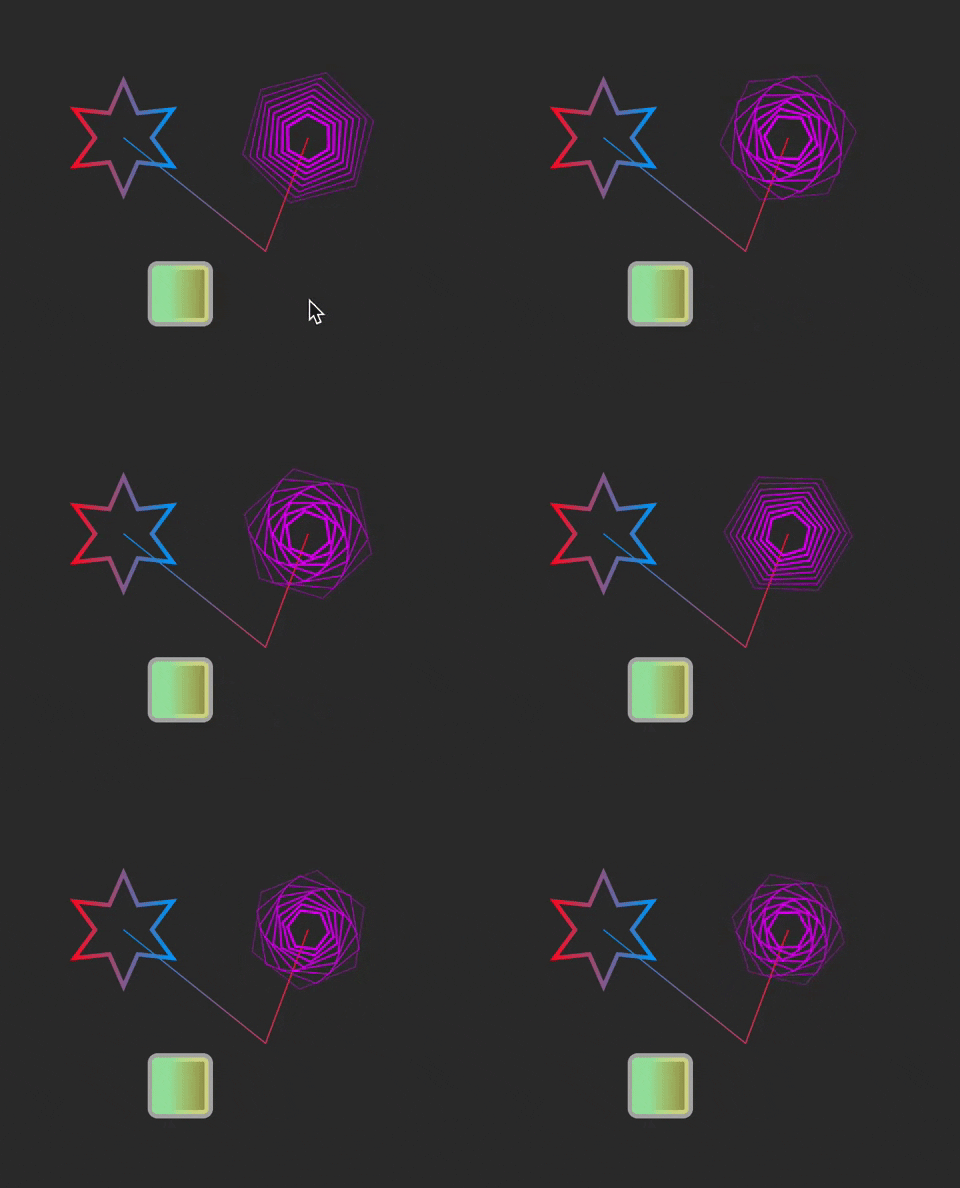
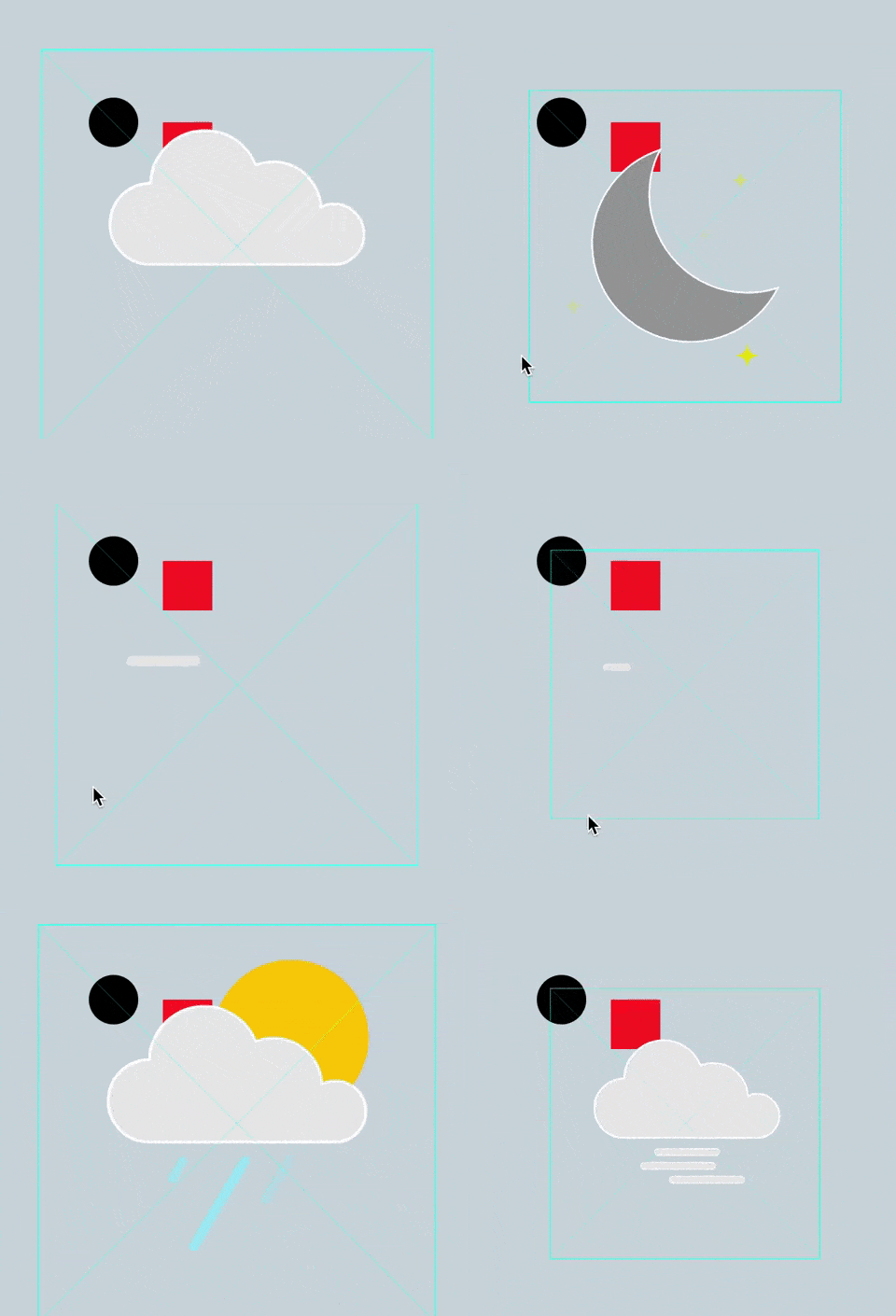
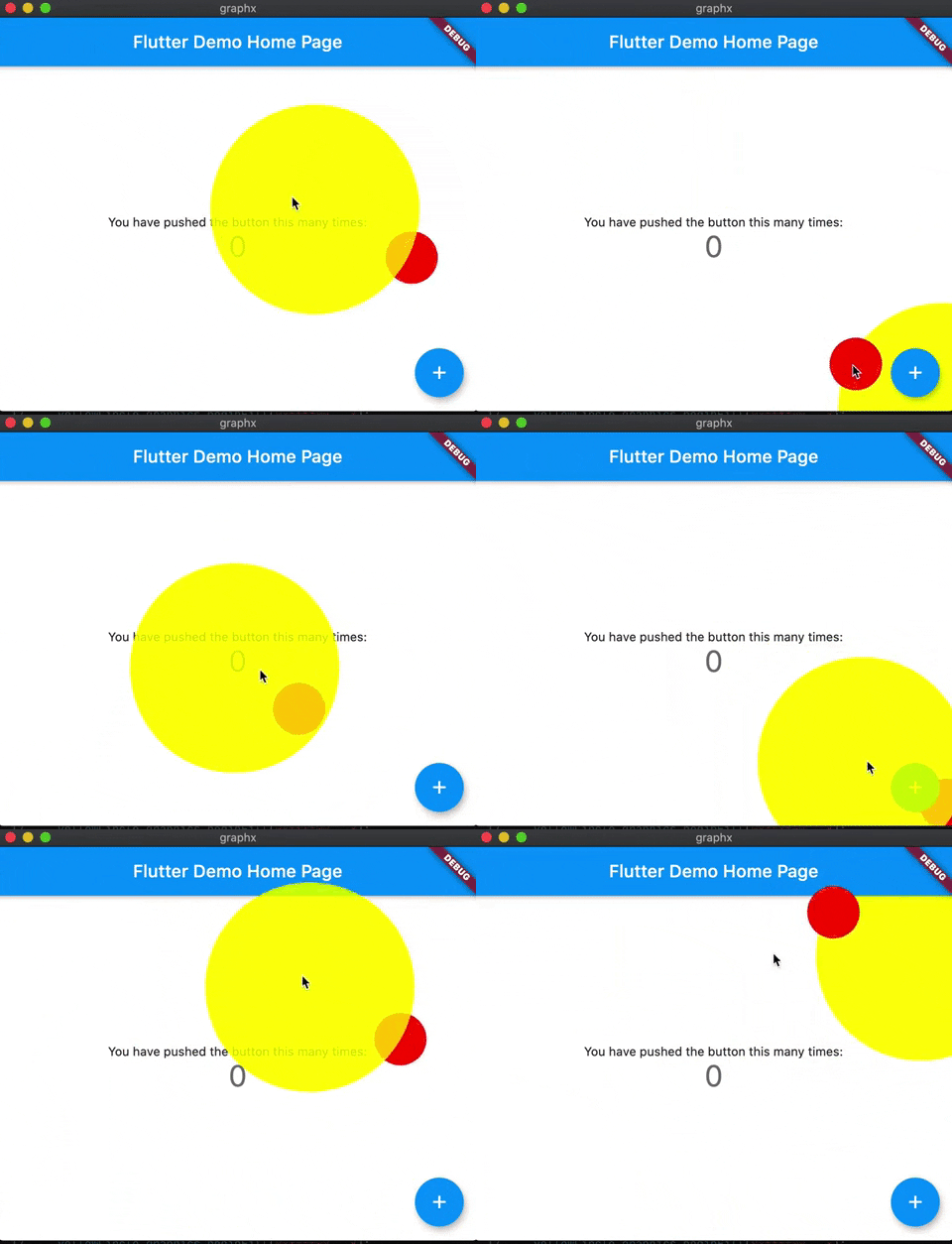
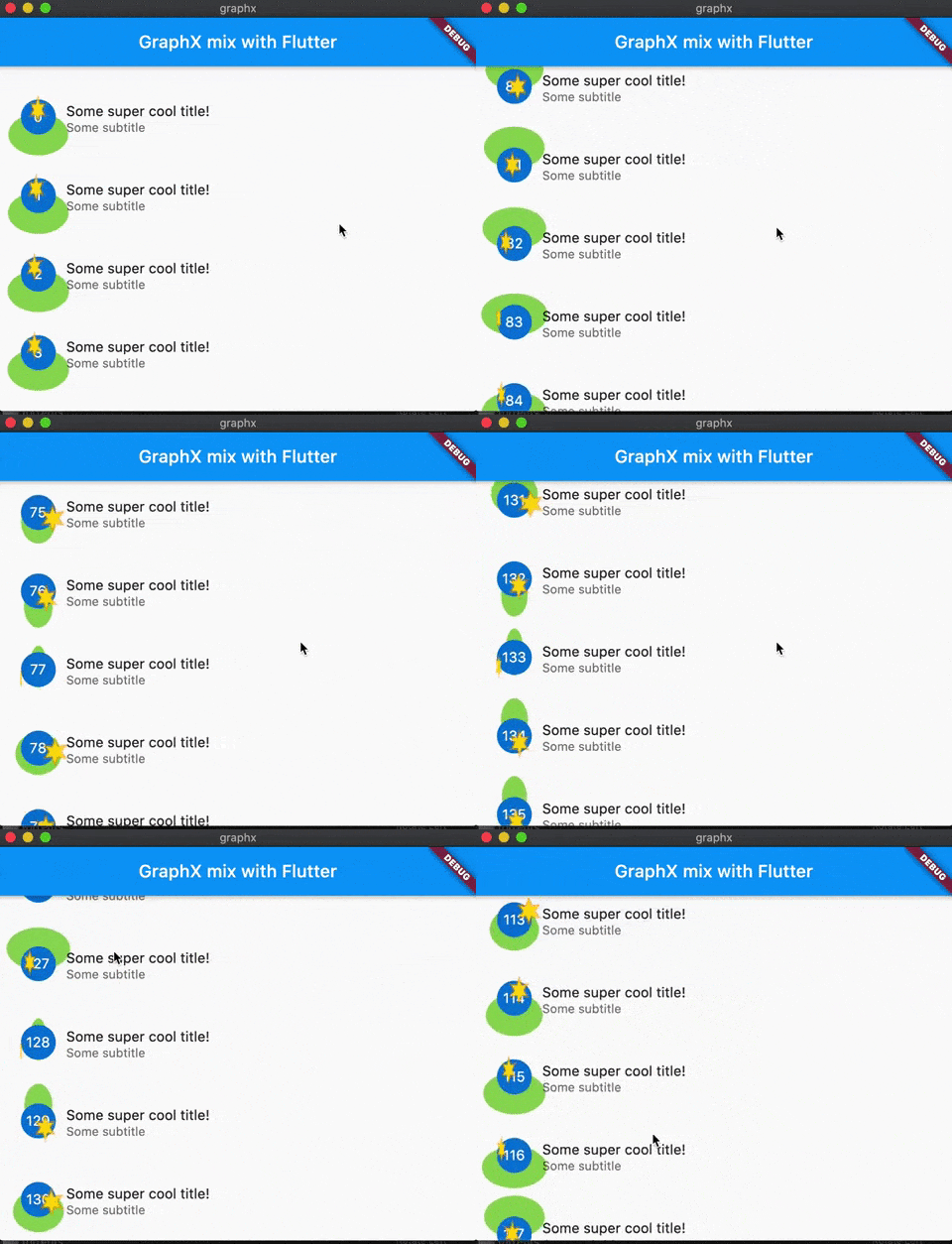
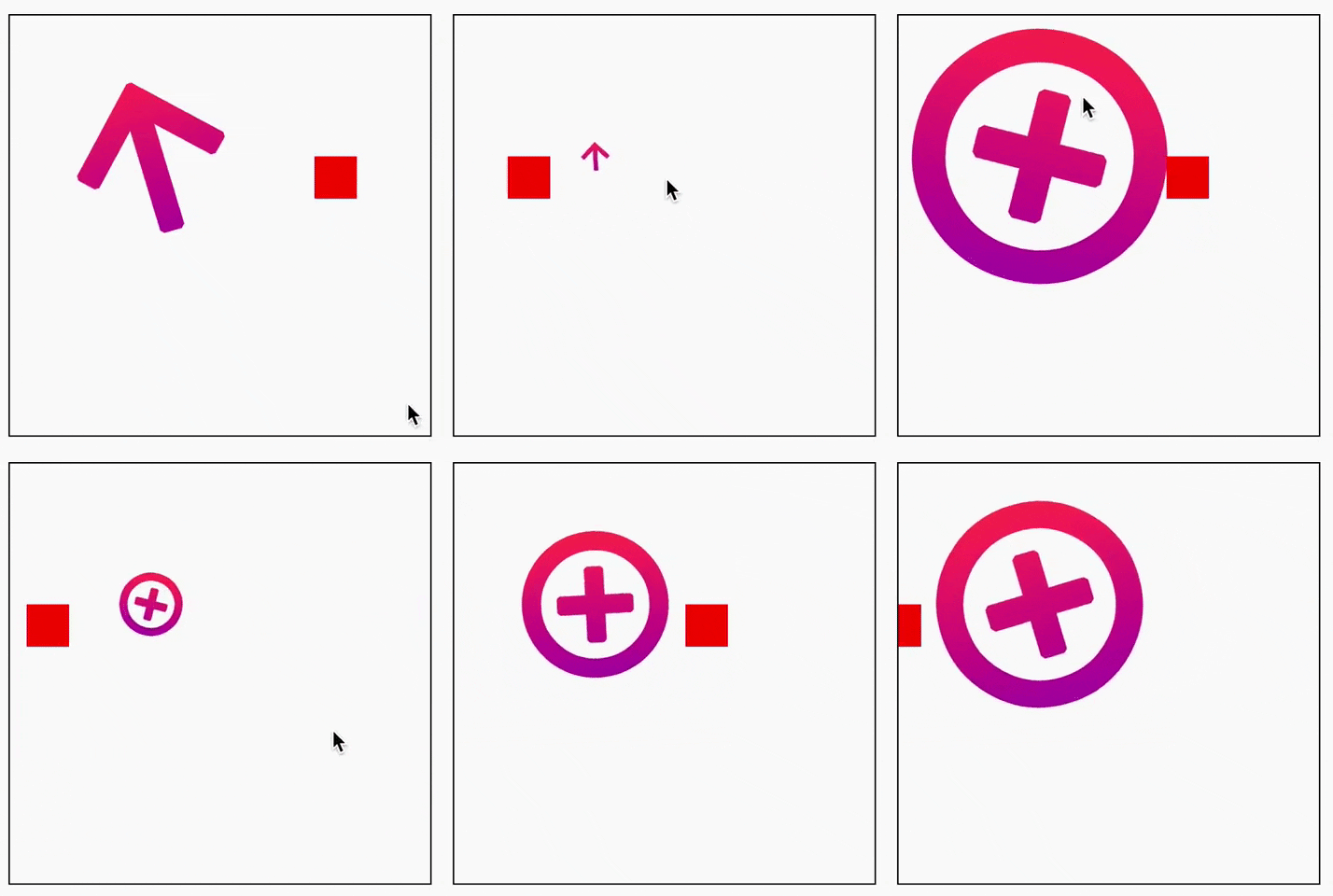
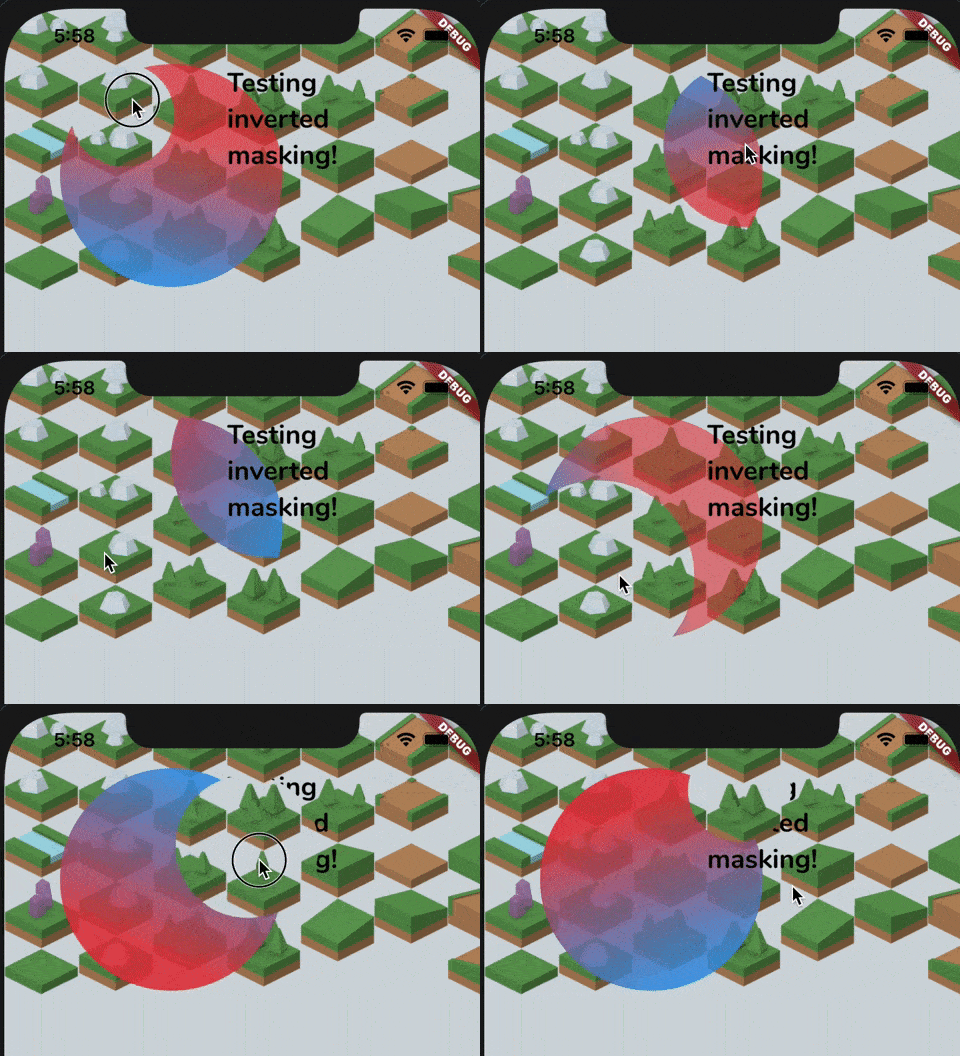
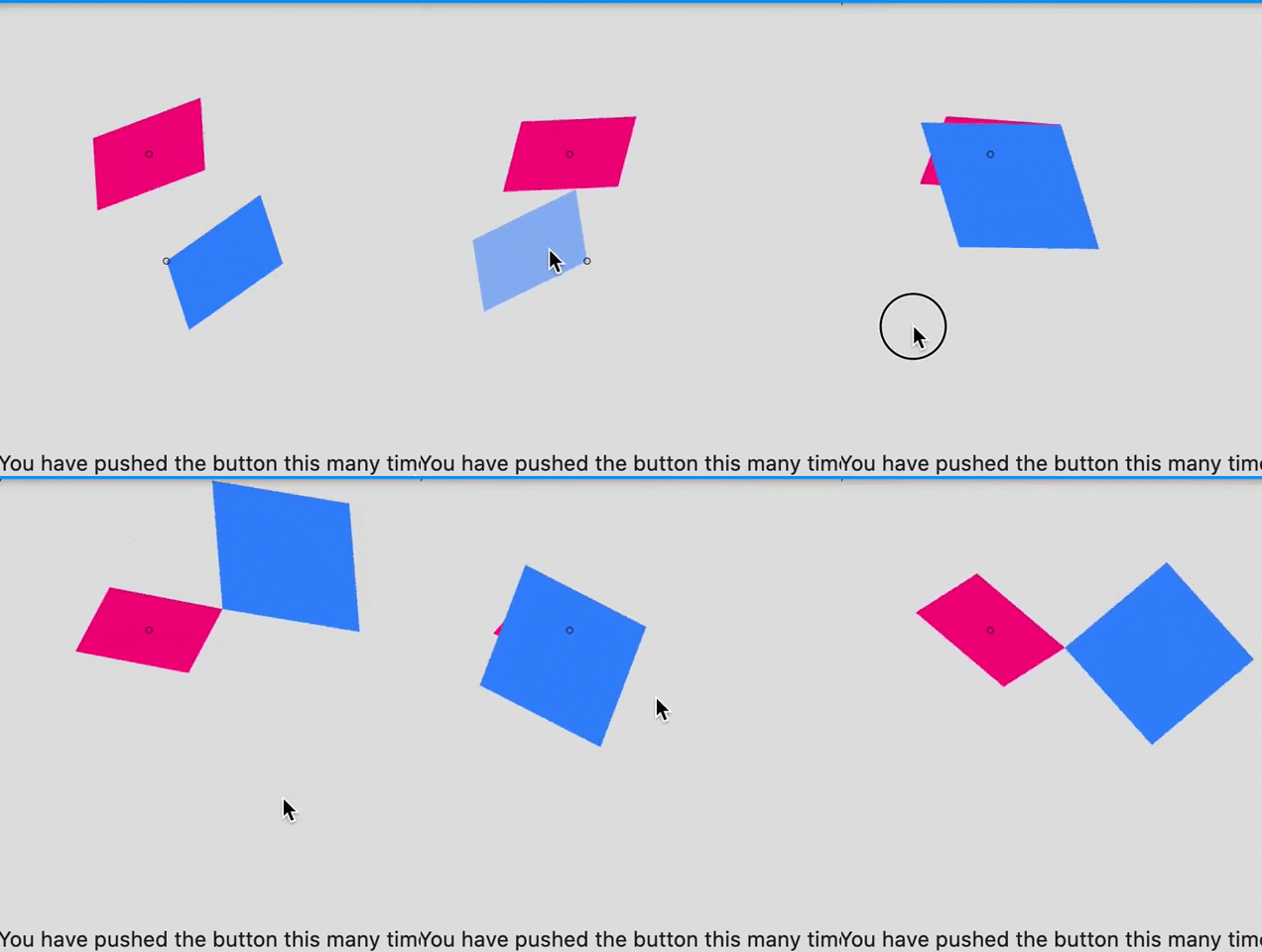
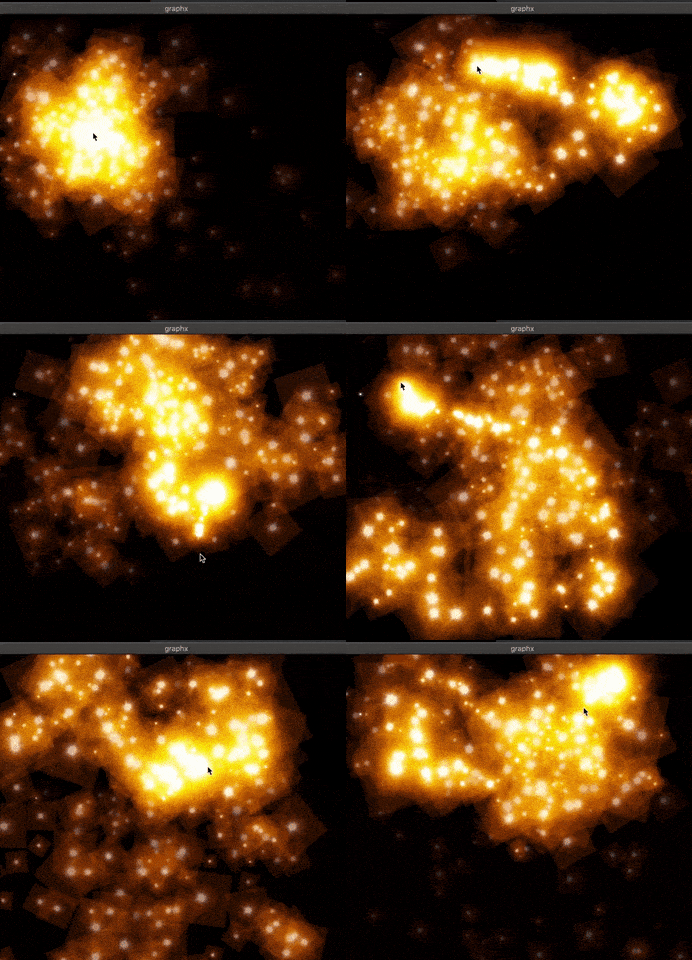
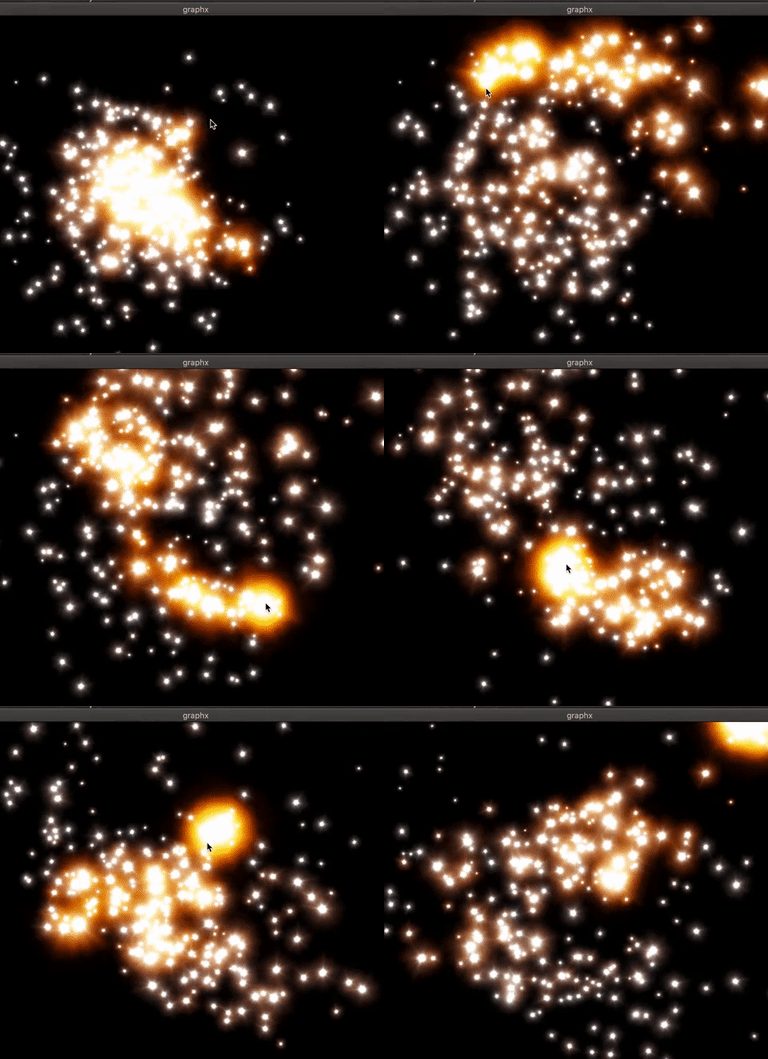
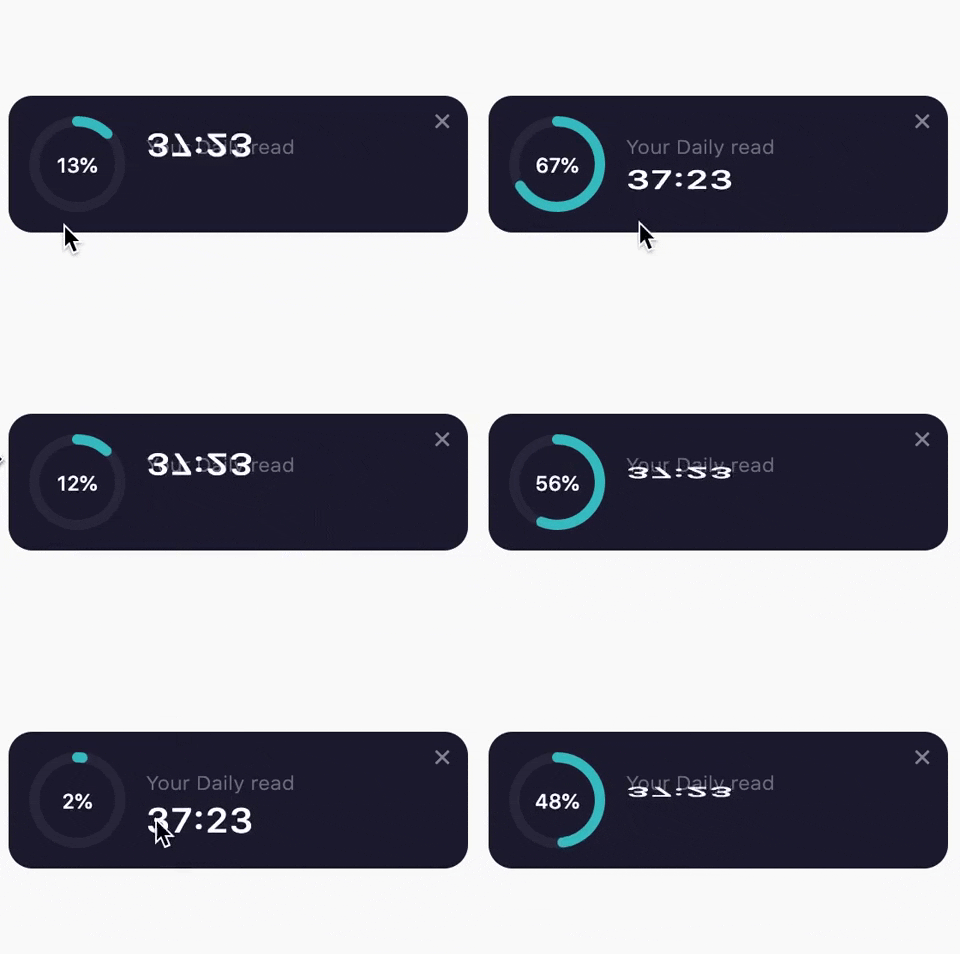
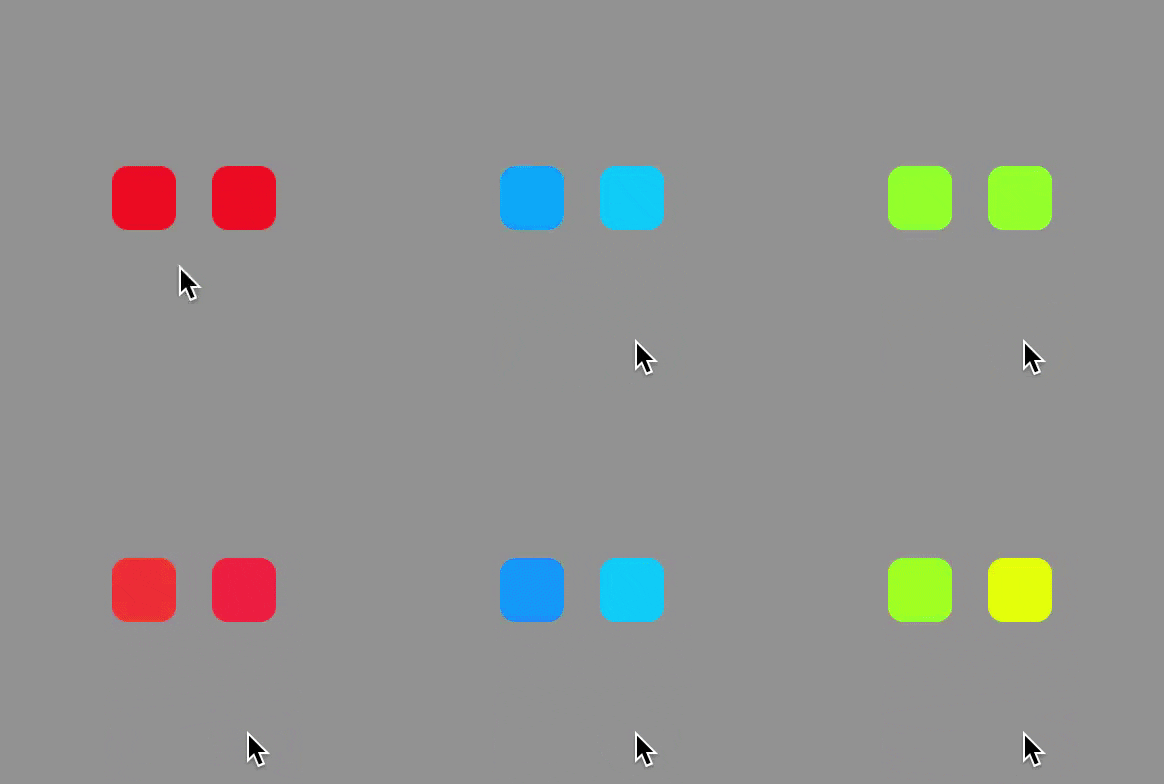
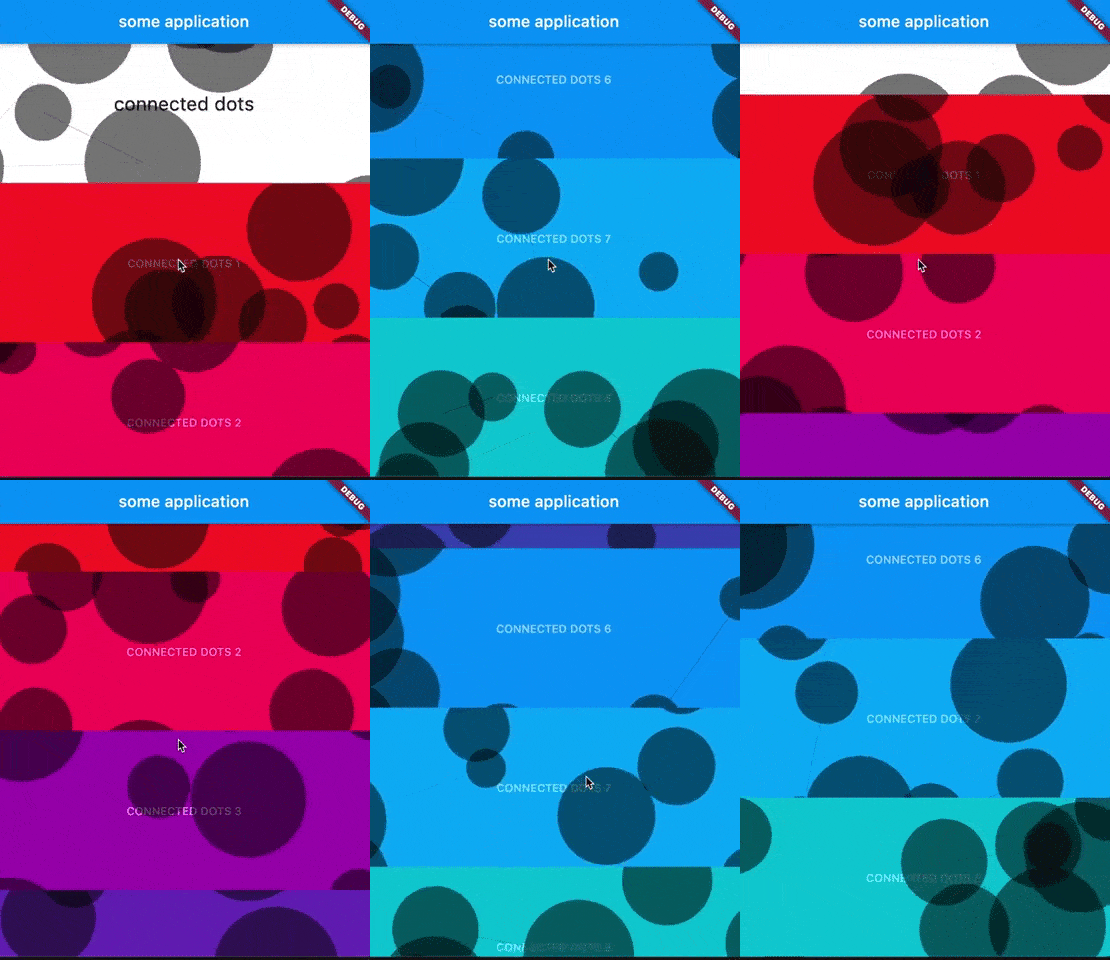
GraphX is all about visuals, here you have some screen captures of random prototypes I've been doing, while developing and testing graphx.
For your GraphX scene to support Hot Reload, you should initialize your variables and
DisplayObjects inside addedToStage, and optionally clean them in dispose.
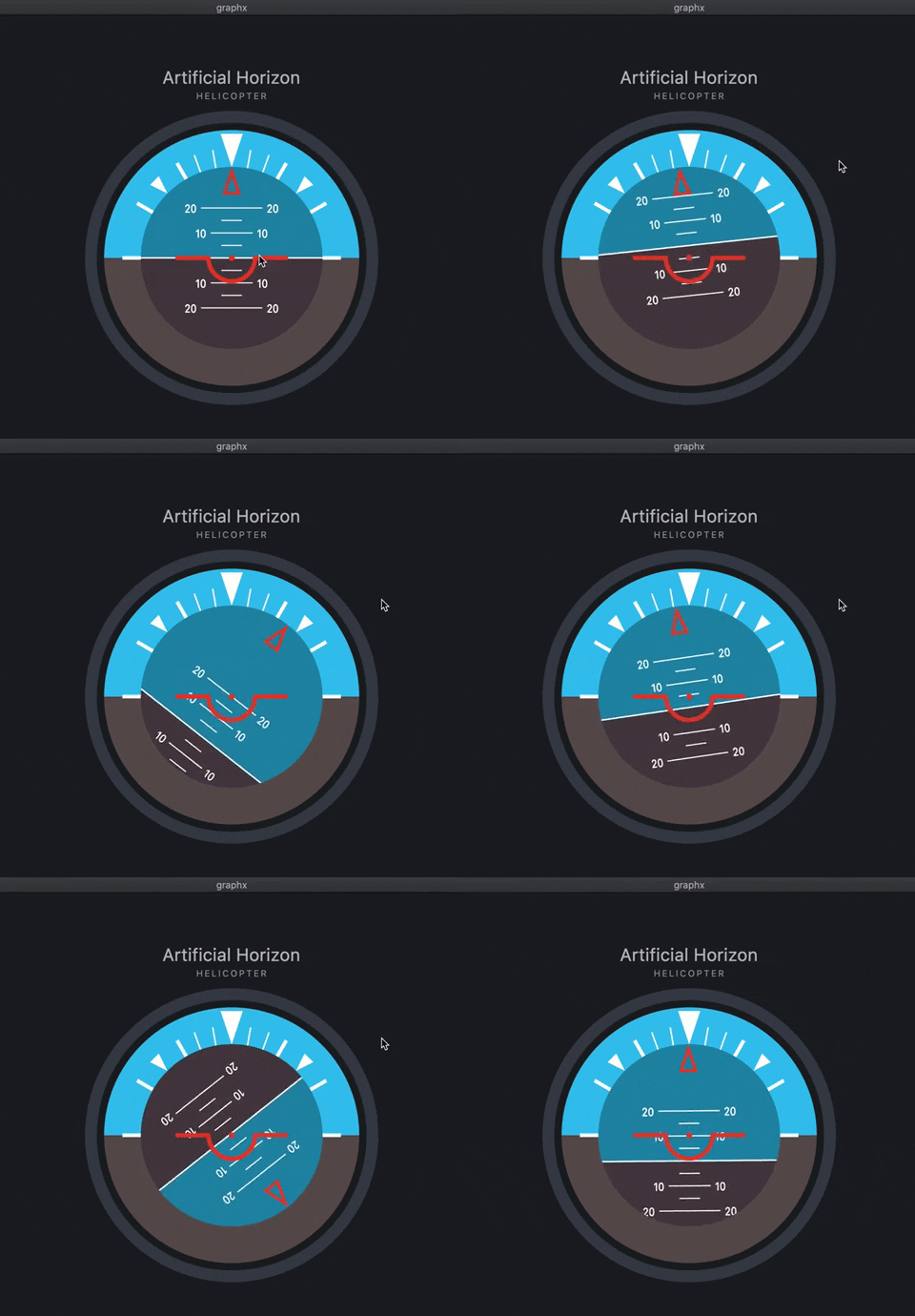
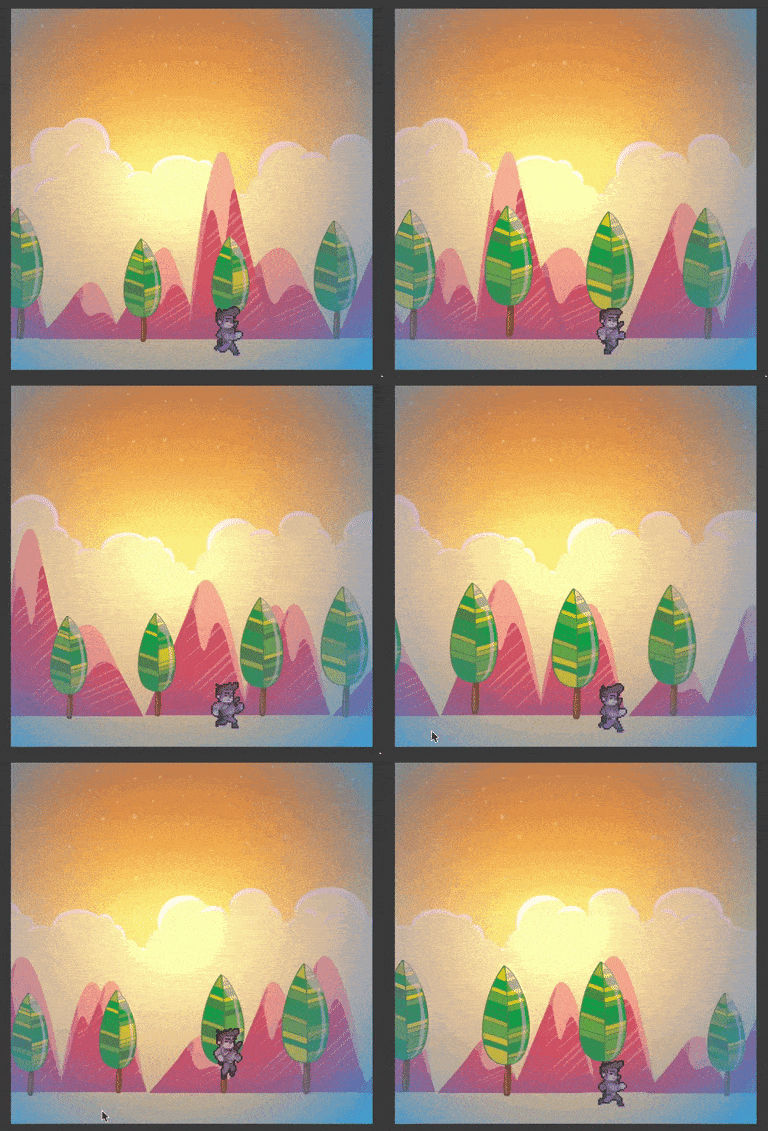
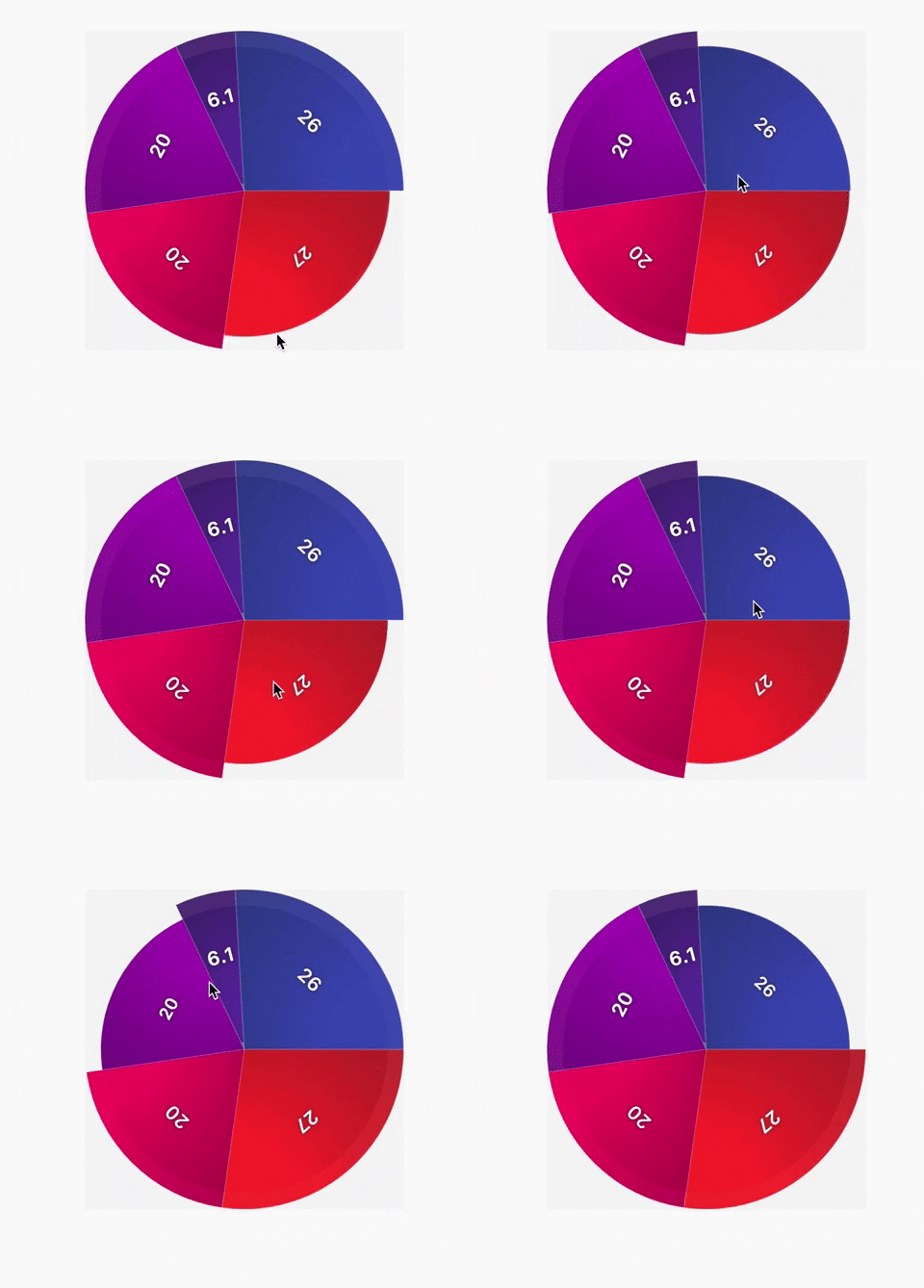
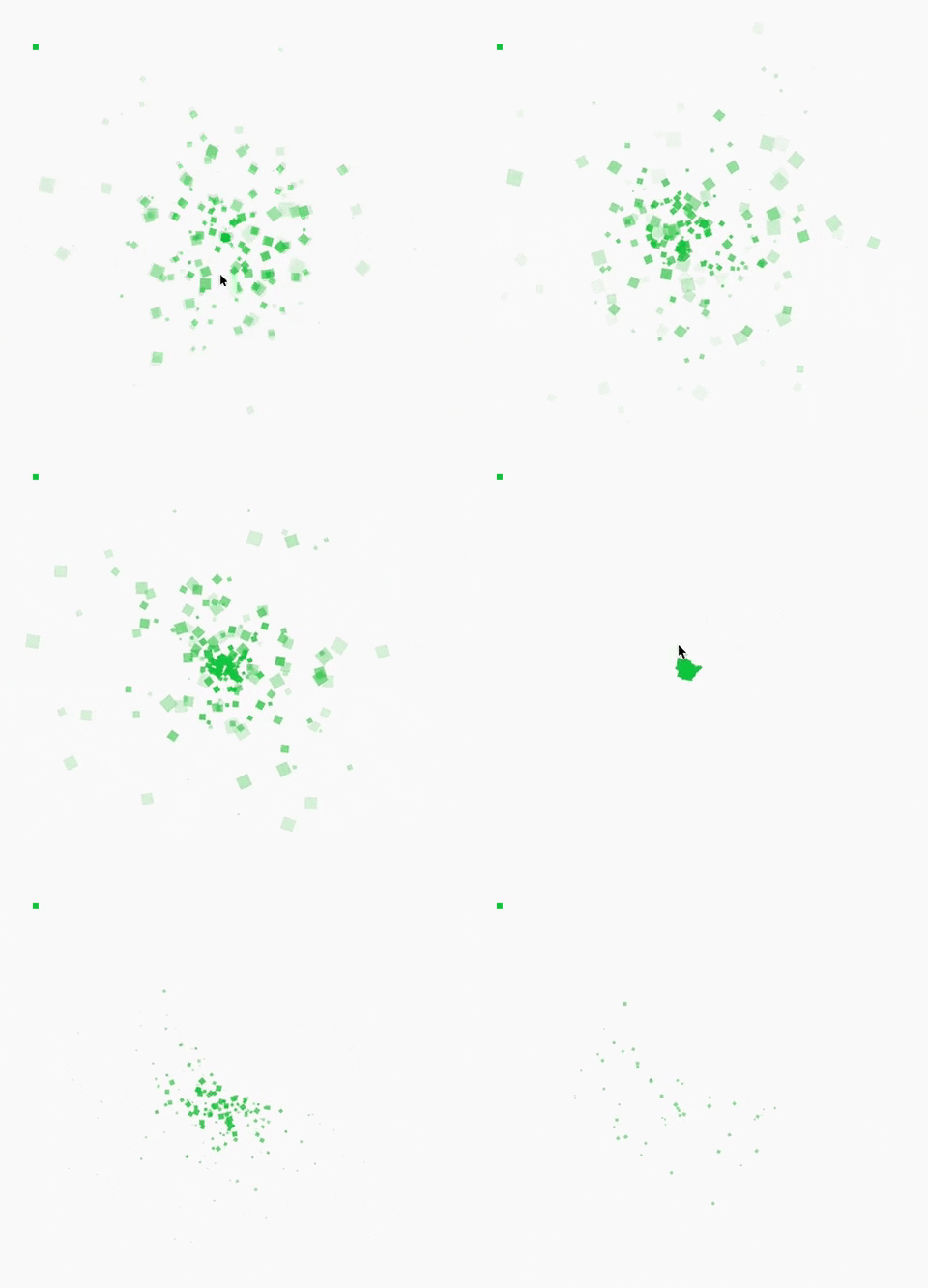
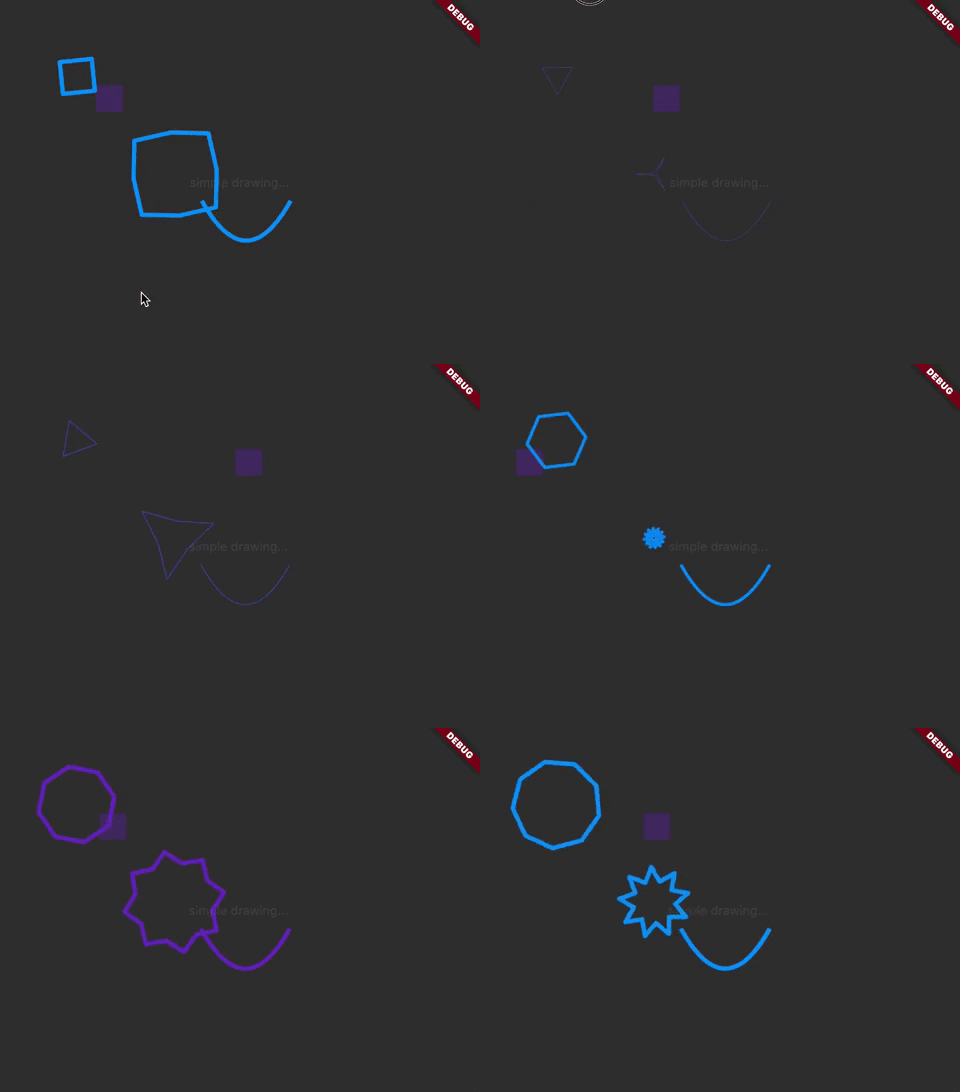
... jump to other gifs samples ...
GraphX™ is here to help you build custom drawings in your Flutter apps. Providing a great versatility to power those screen pixels to a different level.
It's inspired by the good-old Flash API, which forged my way into programming back in the days, and inspired many other rendering frameworks, in several languages through the years.
I was thinking how much I missed to "play" with code, to make things more organic, artistic, alive... I totally love Flutter, but I always feel that it requires too much boilerplate to make things move around (compared to what I used to code).
Even if GraphX™ is not an animation library (although has a small tween engine), nor a game engine,
It can help you build really awesome user experiences! It just runs on top of CustomPainter...
Using what Flutter SDK exposes from the SKIA engine through the Canvas, yet, gives you some "
framework" to run isolated from the Widget's world.
Can be used to simple draw a line, a circle, maybe a custom button, some splash effect on your UI, or even a full-blown game in a portion of the screen.
Mix and match with Flutter as you please, as GraphX™ uses CustomPainter, it is part of your
Widget's tree.
The repo is in early stages. You can check the changelog to get the latest updates.
GraphX has support for loading rootBundle assets:
ResourceLoader.loadBinary(assetId)
ResourceLoader.loadGif(assetId)
ResourceLoader.loadTextureAtlas(imagePath, xmlPath)
ResourceLoader.loadTexture(assetId)
ResourceLoader.loadImage(assetId)
ResourceLoader.loadString(assetId)
ResourceLoader.loadJson(assetId)
ResourceLoader.loadSvg(assetId)
As well as network images (SVG is not supported on non-SKIA targets):
ResourceLoader.loadNetworkTexture(url);
ResourceLoader.loadNetworkSvg(url);
ResourceLoader also stores in cache based on the assetId or url provided. You can pass cacheId
in most methods
to override that, once the resources loaded, you can access them with:
ResourceLoader.getTexture(id);
ResourceLoader.getSvg(id);
ResourceLoader.getAtlas(id);
ResourceLoader.getGif(id);
GraphX™ also provides "raw" support for Text rendering, using the StaticText class.
How does it work?
GraphX™ drives a CustomPainter inside. The idea is to simplify the usage of Flutter's Canvas,
plus adding the display list concept, very similar to the Widget Tree concept; so you can
imperatively code, manage and create more complex "Scenes".
The library has its own rendering cycle using Flutter's Ticker (pretty much
like AnimationController does), and each SceneWidgetBuilder does its own input capture and
processing (mouse, keyboard, touches). Even if it runs on the Widget tree, you can enable the flags
to capture mouse/touch input, or keystrokes events (if u wanna do some simple game, or desktop/web
tool).
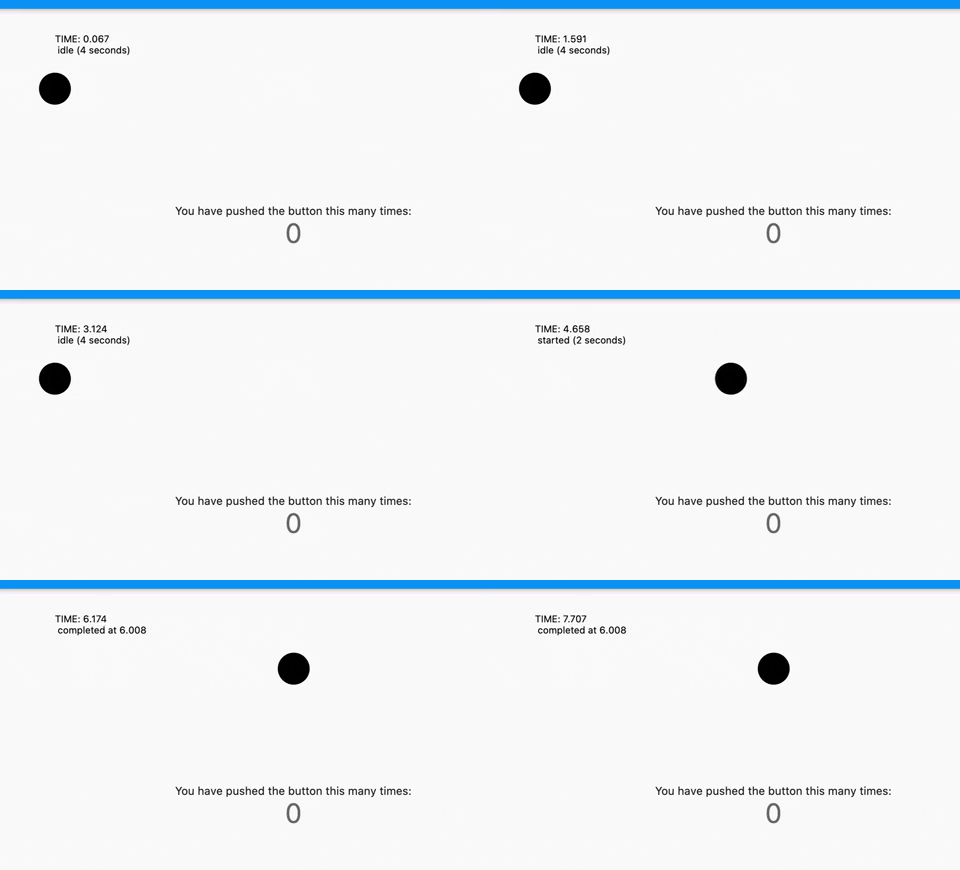
body:Center(
child:SceneBuilderWidget( /// wrap any Widget with SceneBuilderWidget builder: () =>SceneController(
back:GameSceneBack(), /// optional provide the background layer front:GameSceneFront(), /// optional provide the foreground layer ),
child:Column(
mainAxisAlignment:MainAxisAlignment.center,
children:<Widget>[
Text('You have pushed the button this many times:'),
Text('$_counter',style:Theme.of(context).textTheme.headline4),
],
),
),
),
GraphX™ is based on "Scenes", each SceneBuilderWidget requires a SceneController.
This controller is the initializer of the Scenes layers, which can be:
back(background painter),front(foreground painter),- or both.
Also takes a SceneConfig(), so you can configure what you need from the Widget's side.
You can make use of some predefined Scene configurators:
SceneConfig.static: If you plan to only use this scene to draw some graphics, like a background.SceneConfig.games: Activates all GraphX features, auto render and update, pointers and keyboard support.SceneConfig.tools: Shortcut of games, helpful if you wanna use it in some custom drawing editor, or similar with keyboard shortcuts.SceneConfig.interactive(default): Probably the most common setup for mobile, enables all features except keyboard support.SceneConfig.autoRender: Allows you to have a ticker running, and auto update the scene, with NO inputs (mouse/touch/keyboard), if you wanna have an animated Widget, or maybe if you wanna control it externally.
Each "Scene" has to extend Sprite, this root class represents the starting point of that
particular scene hierarchy. Think of it as MaterialApp widget is to all other children Widgets in
the tree.
Here we get into GraphX™ world, no more Widgets trees or immutable properties.
You can make custom UI widgets, games, or make use of GraphX to create a static drawing, like curved backgrounds, or complex shapes.
Is a good practice to override addedToStage() as your entry point, here the Scene is ready,
the root class has been added to the glorified stage, so you can access the Canvas size
through stage.stageWidth and stage.stageHeight, the keyboard manager (if available), and lots of
other properties, up to the SceneController that owns the scene (stage.scene.core, although,
that's irrelevant for now):
classGameSceneextendsSprite {
@overridevoidaddedToStage() {
/// Here you can access the `stage`, get the size of the /// current Scene, keyboard events, or any stage property /// You can initialize your DisplayObjects here to play /// "safe" if you need to access any stage property. }
For now, GraphX™ has a few classes for rendering in the "display list":
Like Shape (for "pen" drawings commands through it's graphics property), Sprite (create
hierarchies of rendering objects), StaticText (for Texts), GxIcon (for Flutter icons)
, Bitmap (for GTexture, which is a wrapper around dart:ui.Image), MovieClip(for Spritesheet
and Gif support), SvgShape (dependency for svg, package not included), SimpleParticleSystem (
to create optimized particles for games), and Flare/Rive render objects which will live in another
package/utility eventually to avoid dependencies.
By the way, in the previous example, GameScene is the root node in the display tree, the entry
point where DisplayObjects renders, and where you need to add your own objects.
For instance, to create a simple purple circle:
@overridevoidaddedToStage() {
var circle =Shape();
circle.graphics.lineStyle(2, Colors.purple.value)
/// access HEX value of Color ..drawCircle(0, 0, 20)
..endFill();
addChild(circle); // add the child to the rootScene.
}
Sprite internally extends from the abstract class DisplayObjectContainer, and as the name
implies, is a container that can contain more DisplayObjects. Yet, Shape is a DisplayObject (
another abstract class, and also, the root class of all rendering objects in GraphX), so it
can't contain children. That makes it a bit more performant on each painter step.
So, when you need to group objects, you should create Sprites and add children into it, even
other Sprites, that's the idea of GraphX after all, group rendering objects so you can
transform them independently or transform a parent Sprite (or subclass of it), and apply it to the
tree inside of it, transformations are accumulative from parent to child ...
The ability to translate, scale, rotate, skew a DisplayObject through his properties: x, y, width,
height, scaleX, scaleY, rotation, skewX, skewY, etc.
We could also use our root scene to draw things:
@overrideaddedToStage() {
graphics.beginFill(0x0000ff, .6)
..drawRoundRect(100, 100, 40, 40, 4)
..endFill();
...
}
Pointer signals has been "simplified" as Mouse events now... as it's super easy to work with single
touch / mouse interactions in DisplayObjects.
There are a bunch of signals to listen on each object... taken from AS3, and JS.
- onMouseDoubleClick
- onMouseClick
- onMouseDown
- onMouseUp
- onMouseMove
- onMouseOver
- onMouseOut
- onMouseScroll
They all emit a MouseInputData with all the needed info inside, like stage coordinates, or
translated local coordinates, which "mouse" button is pressed, etc.
Some demos are only using GraphX™ partially
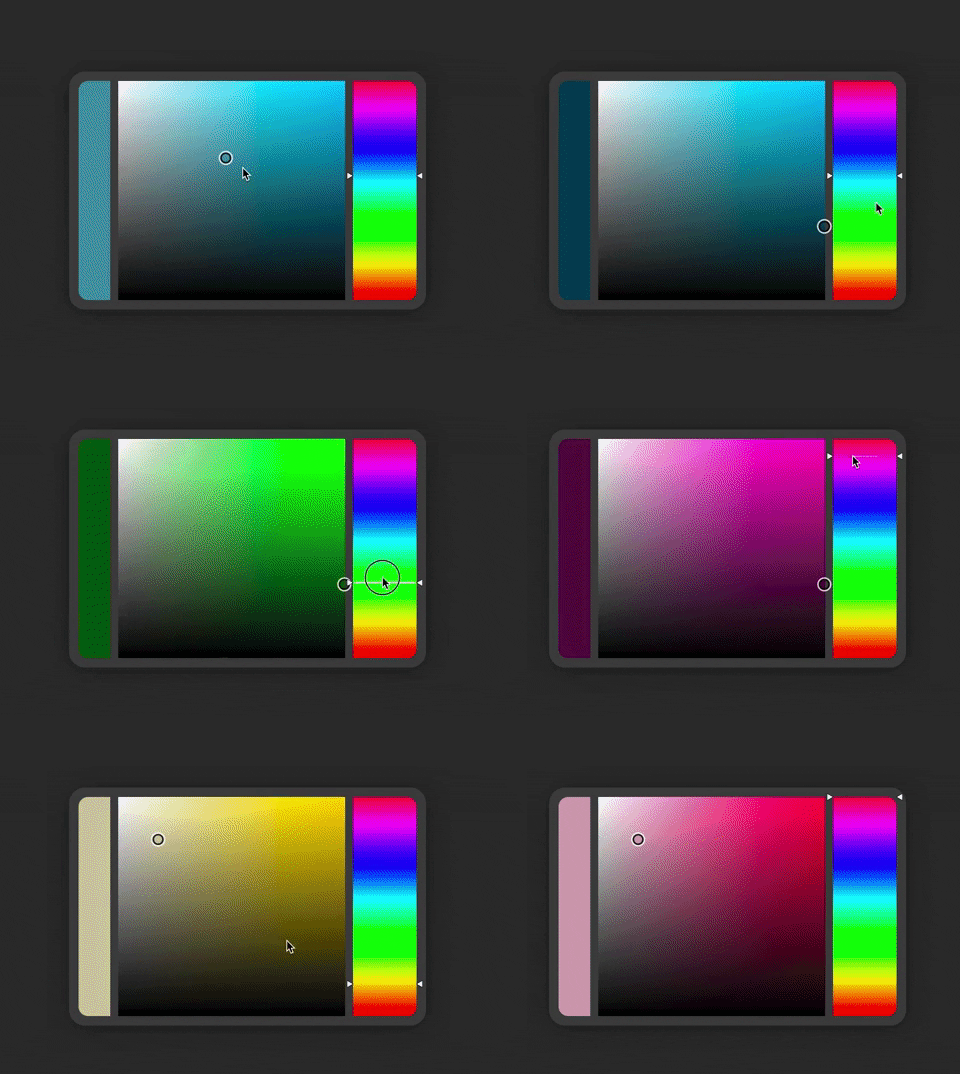
color spectrum ⇢ (based on SuperDeclarative! workshop)
controls > move: ARROWS, thrust: SHIFT, shoot: SPACEBAR, shield: U
controls > change altitude and rotation: ARROWS
Feel free to play around with the current API, even if it's still rough on edges and unoptimized, it might help you do things quicker.
SKIA is pretty powerful!
| **
Discord** | **
Telegram** |
| :----------------------------------------------------------------------------------------------------------------------------------------- | :------------------------------------------------------------------------------------------------------------------------------------------------------ |
| 

(Some demos uses GraphX's only for ticker, input events or initial scene graph, making usage of
direct Canvas calls)._
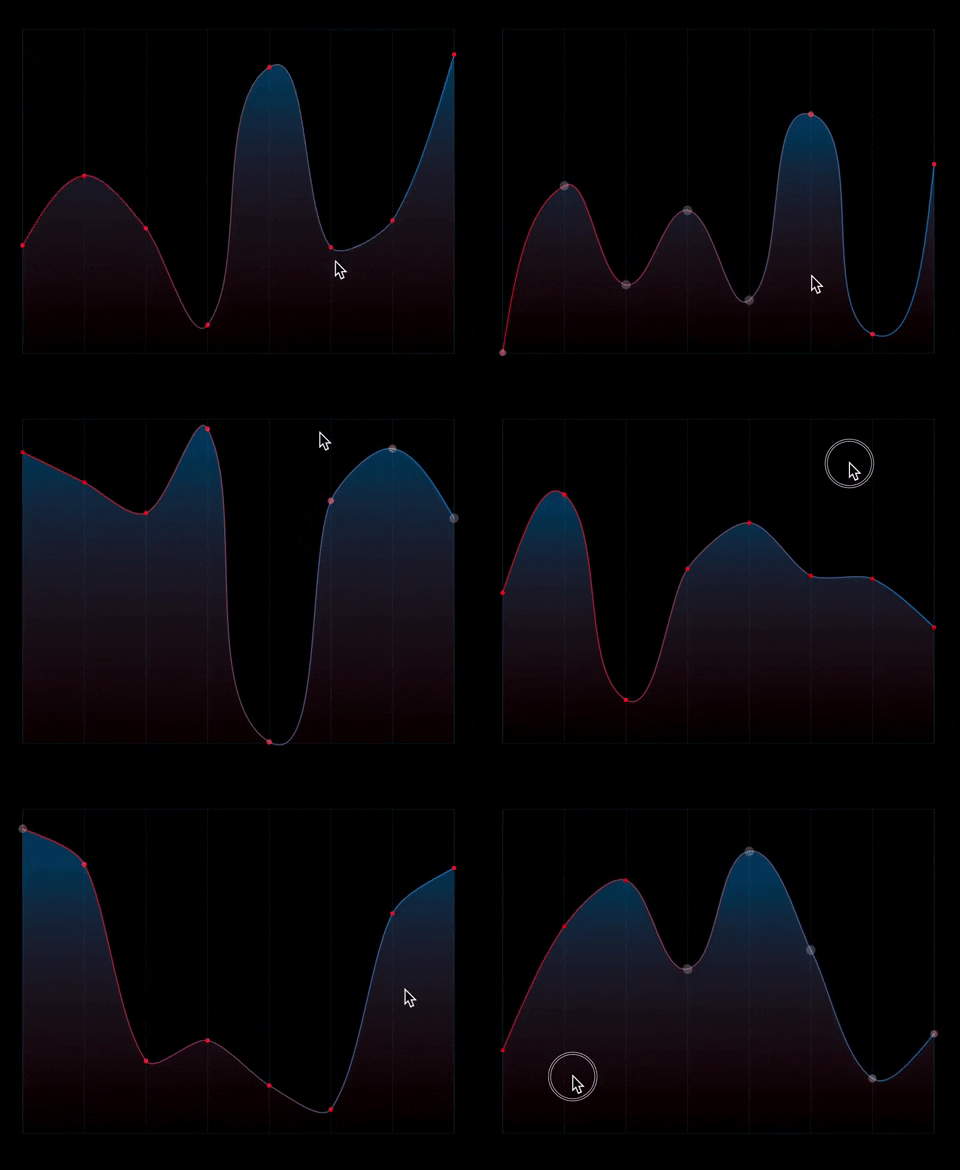
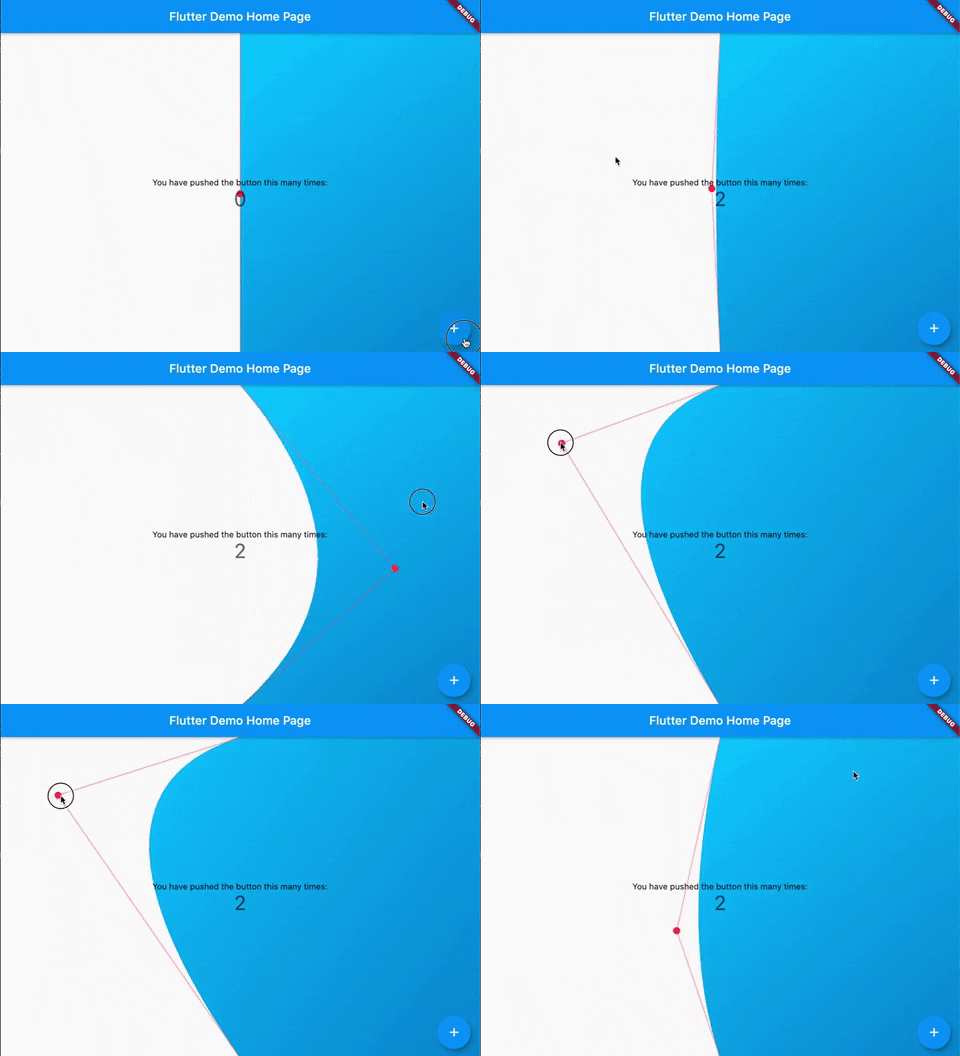
charts bezier + gradient
neumorphic button
3d card shadow
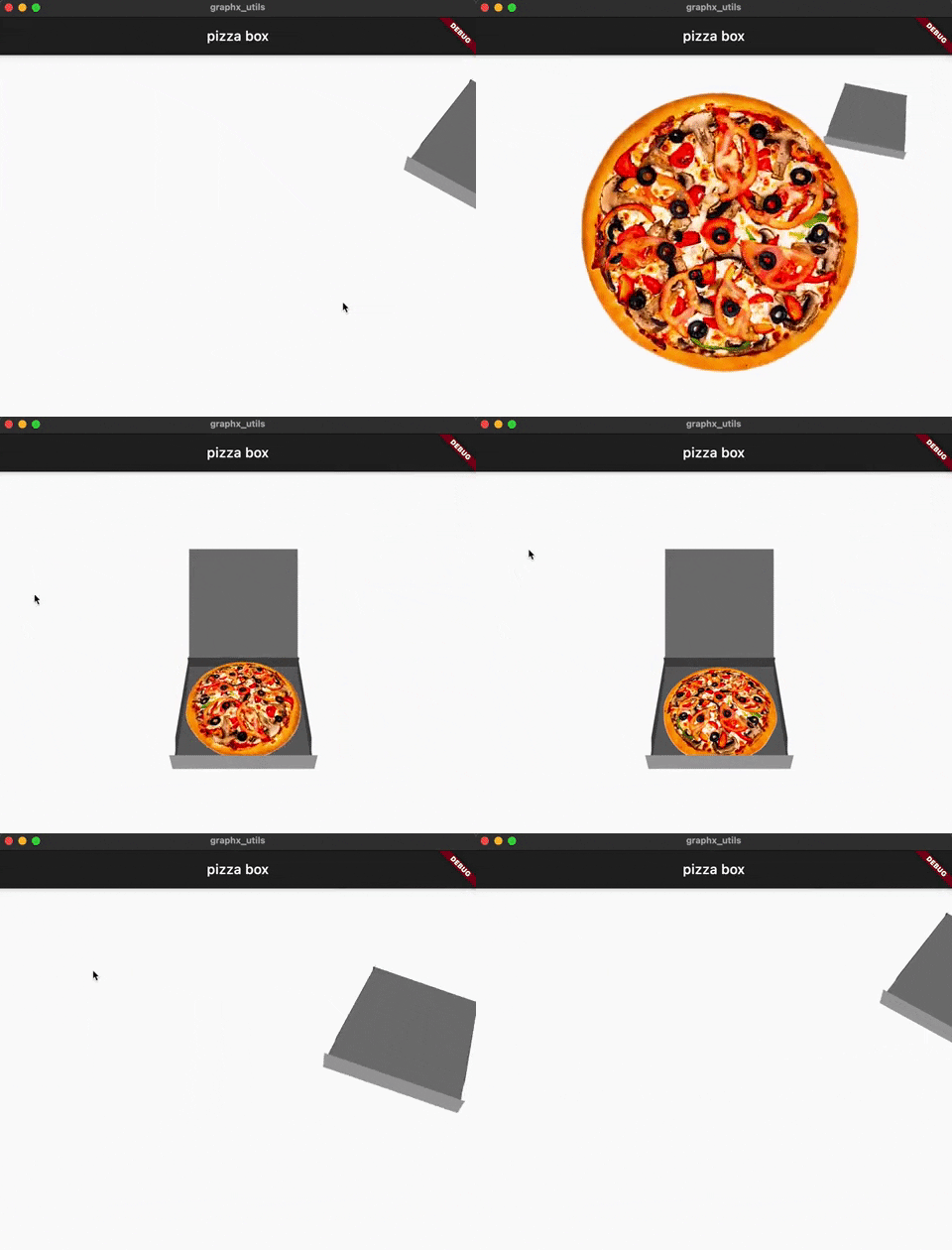
3d pizza box
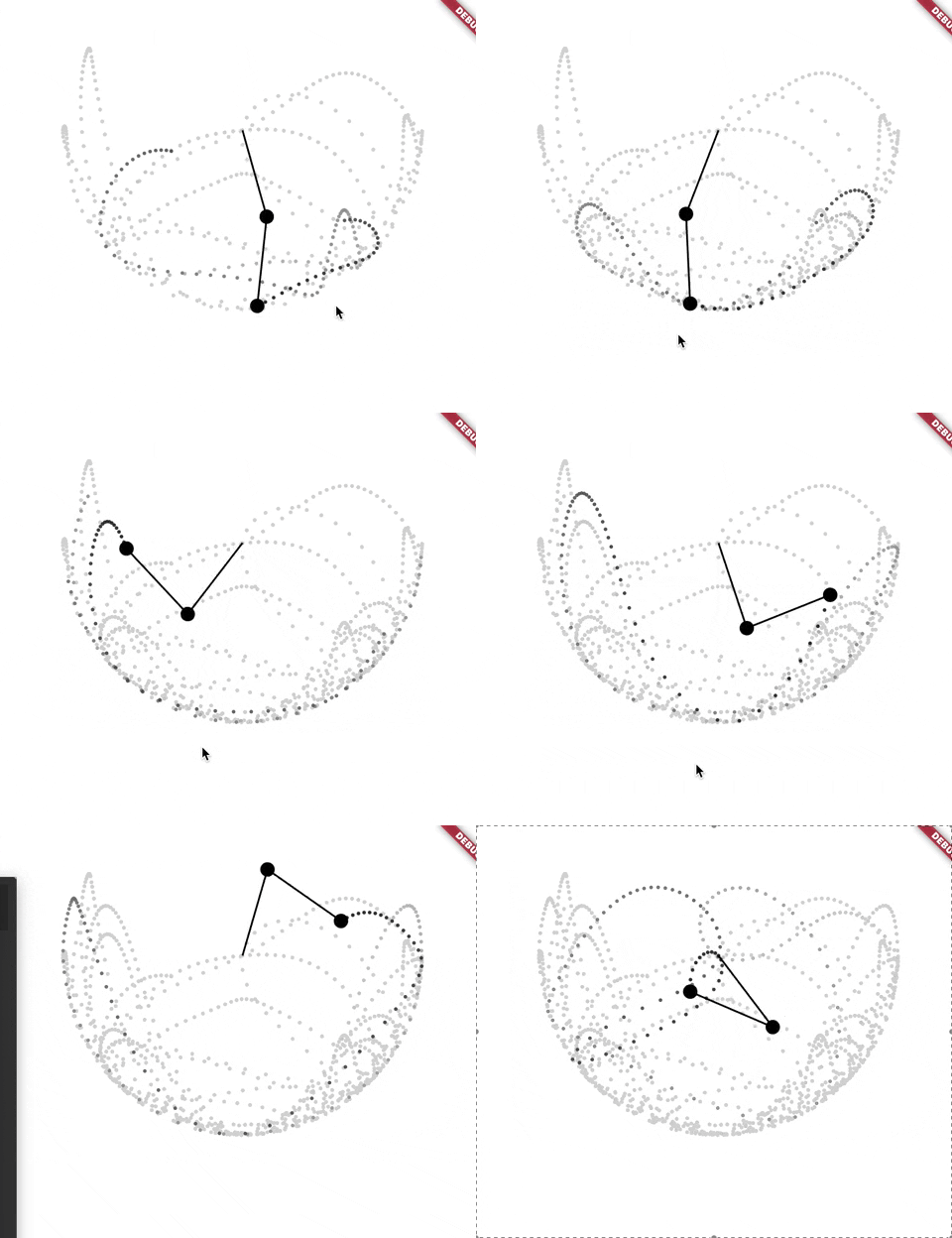
pendulum
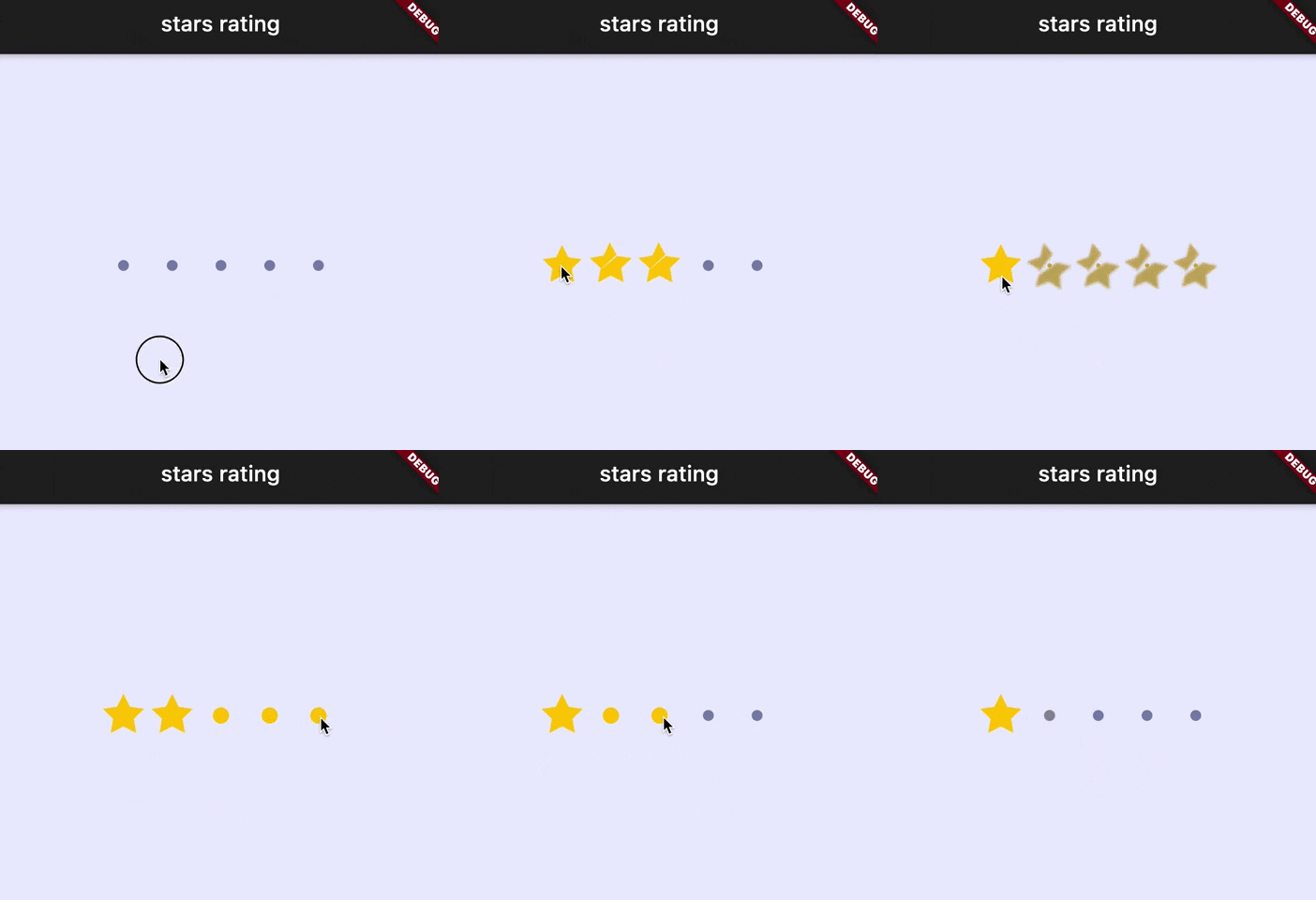
rating stars
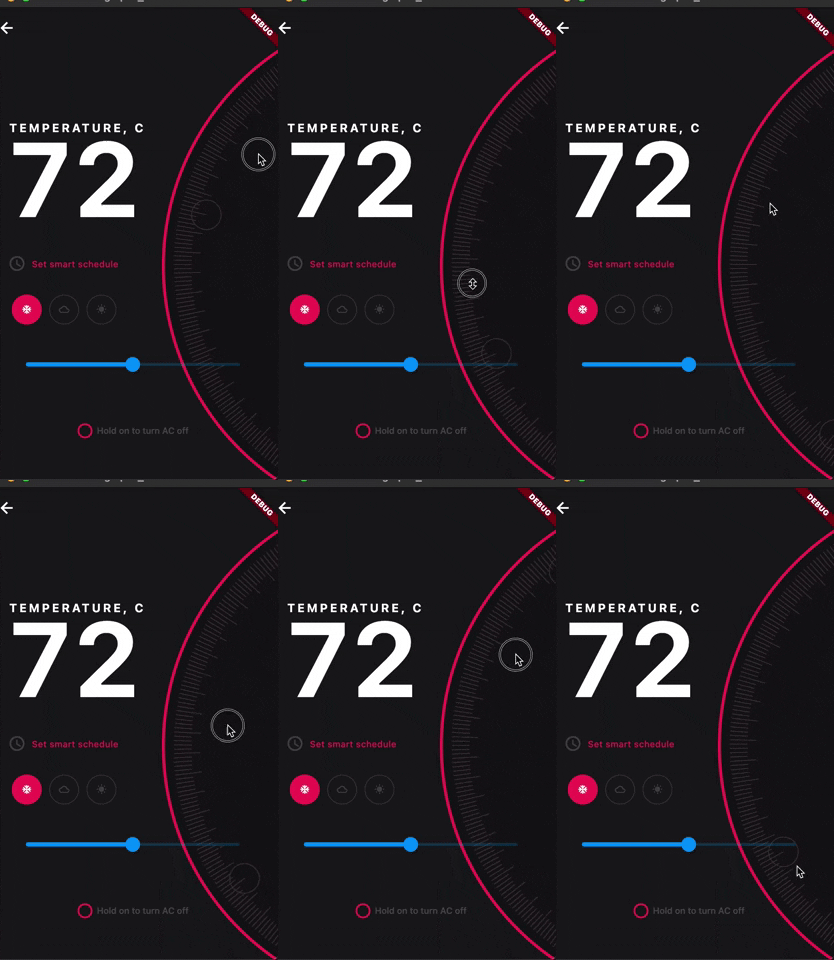
rotating dial
intro "universo flutter"
3d spiral loader
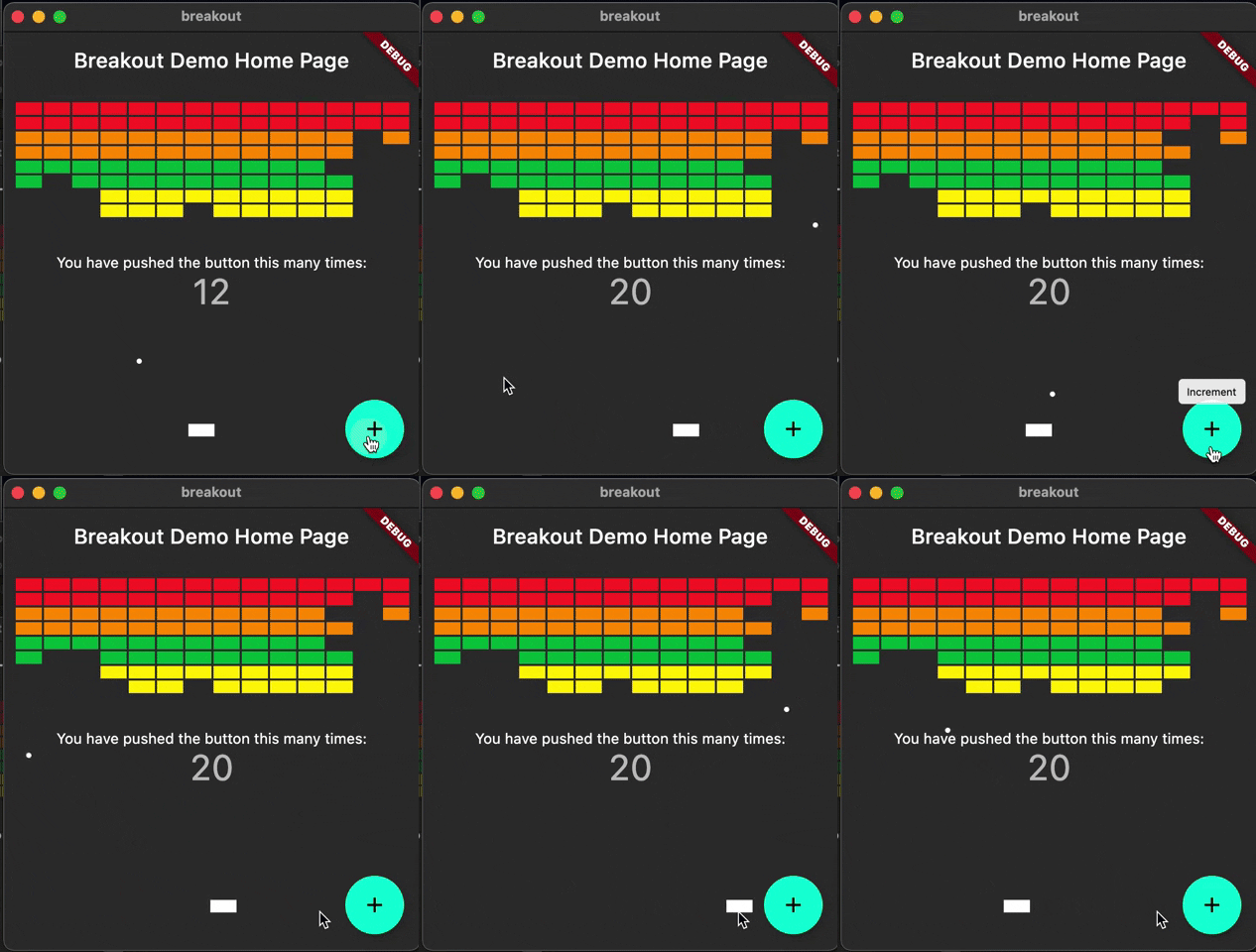
breakout game
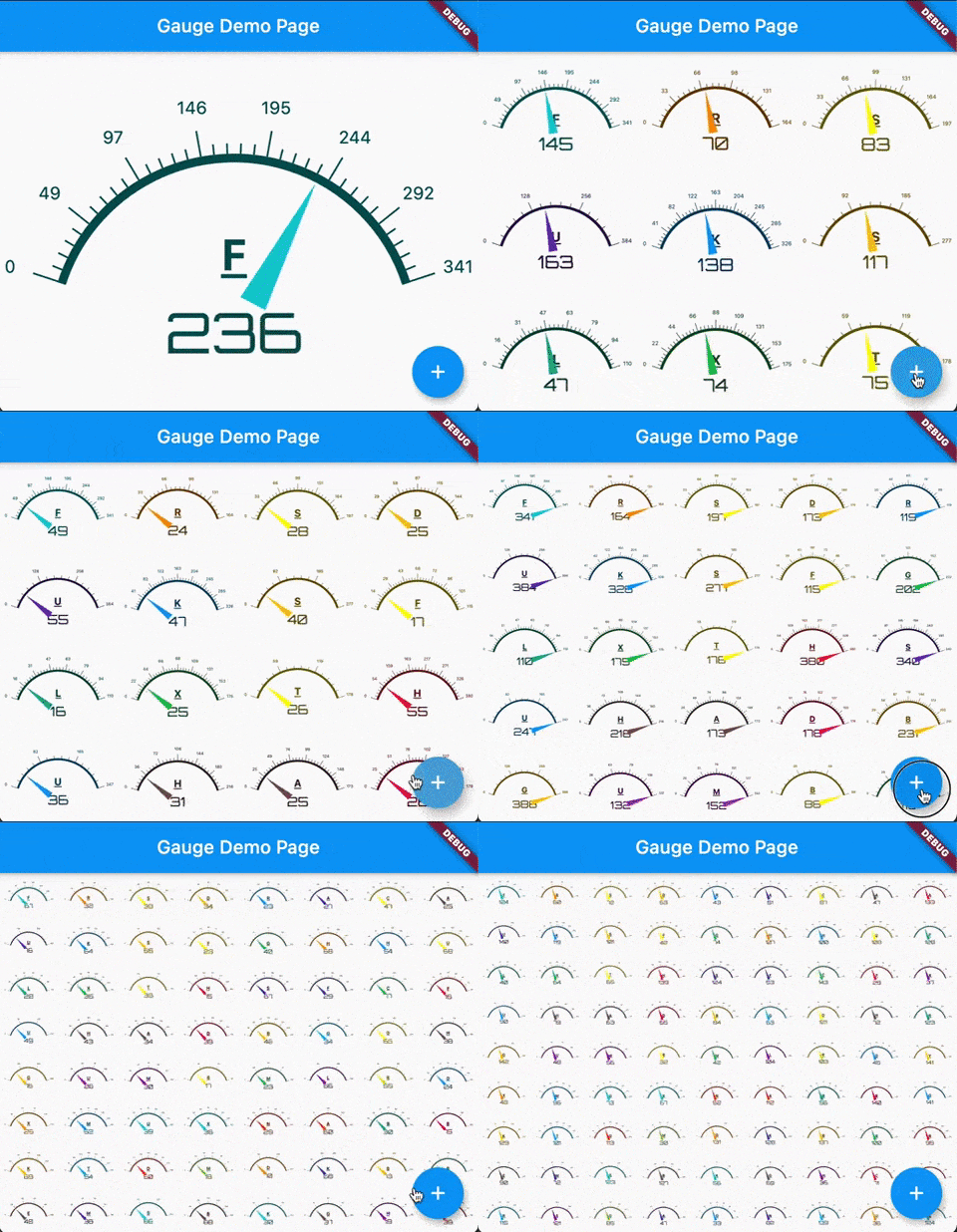
gauges
bubble loader
xmas counter
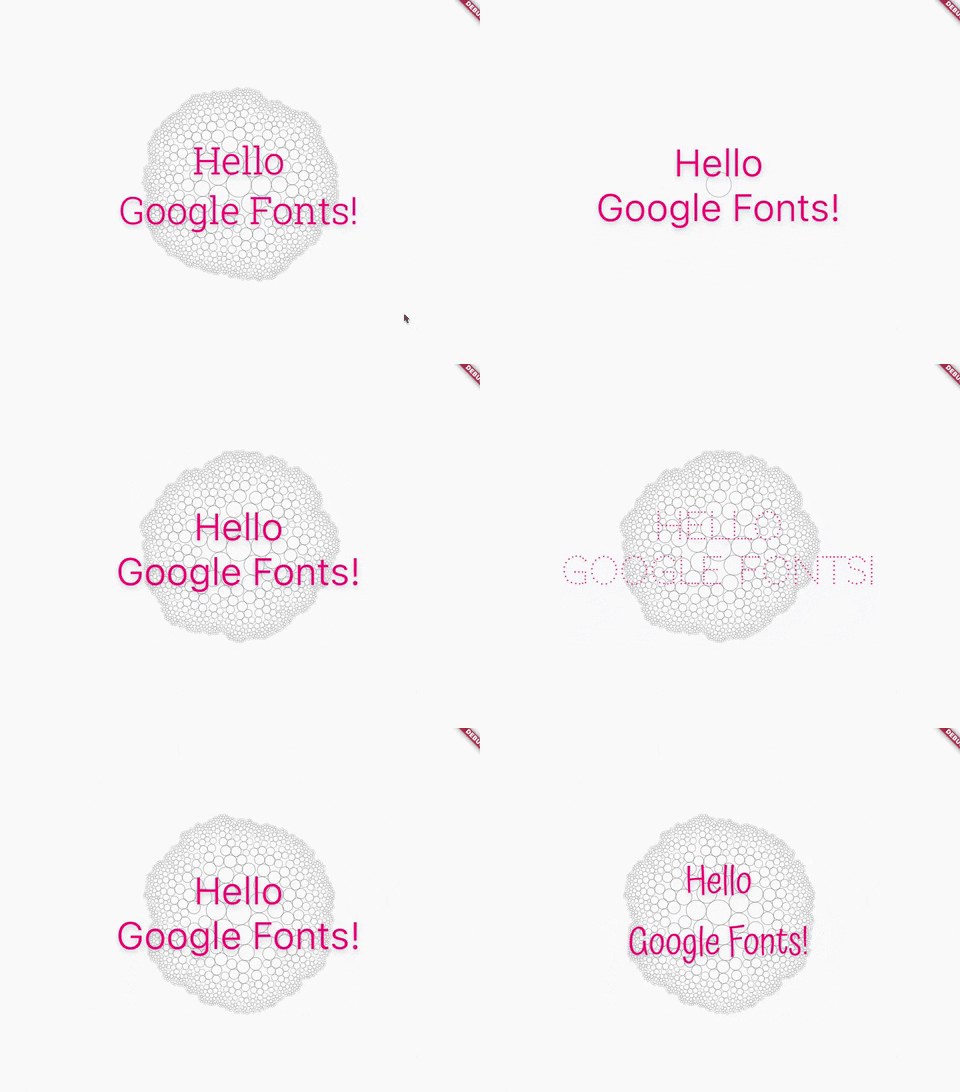
google fonts
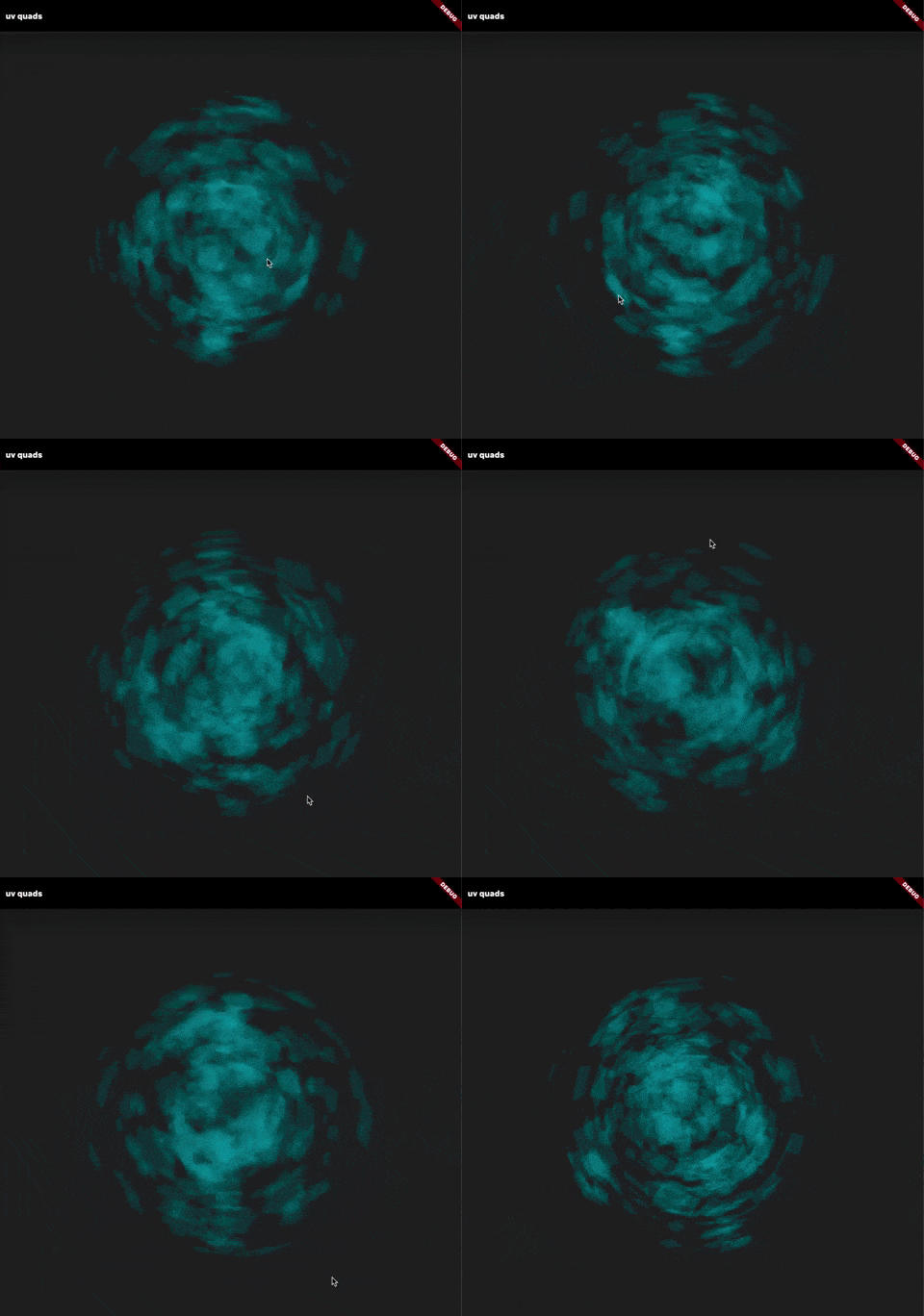
graphics.drawTriangles
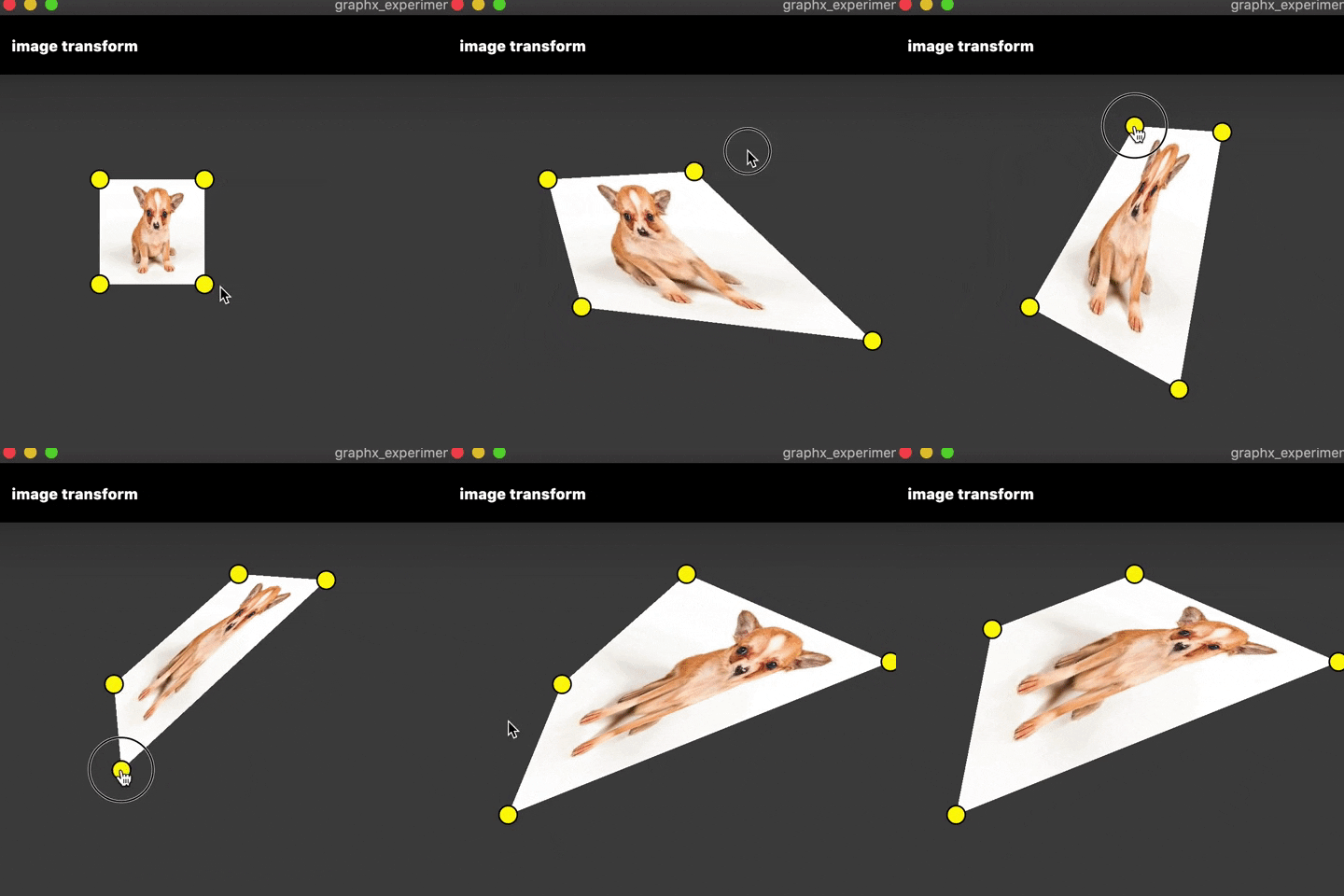
image transform
svg sample demo
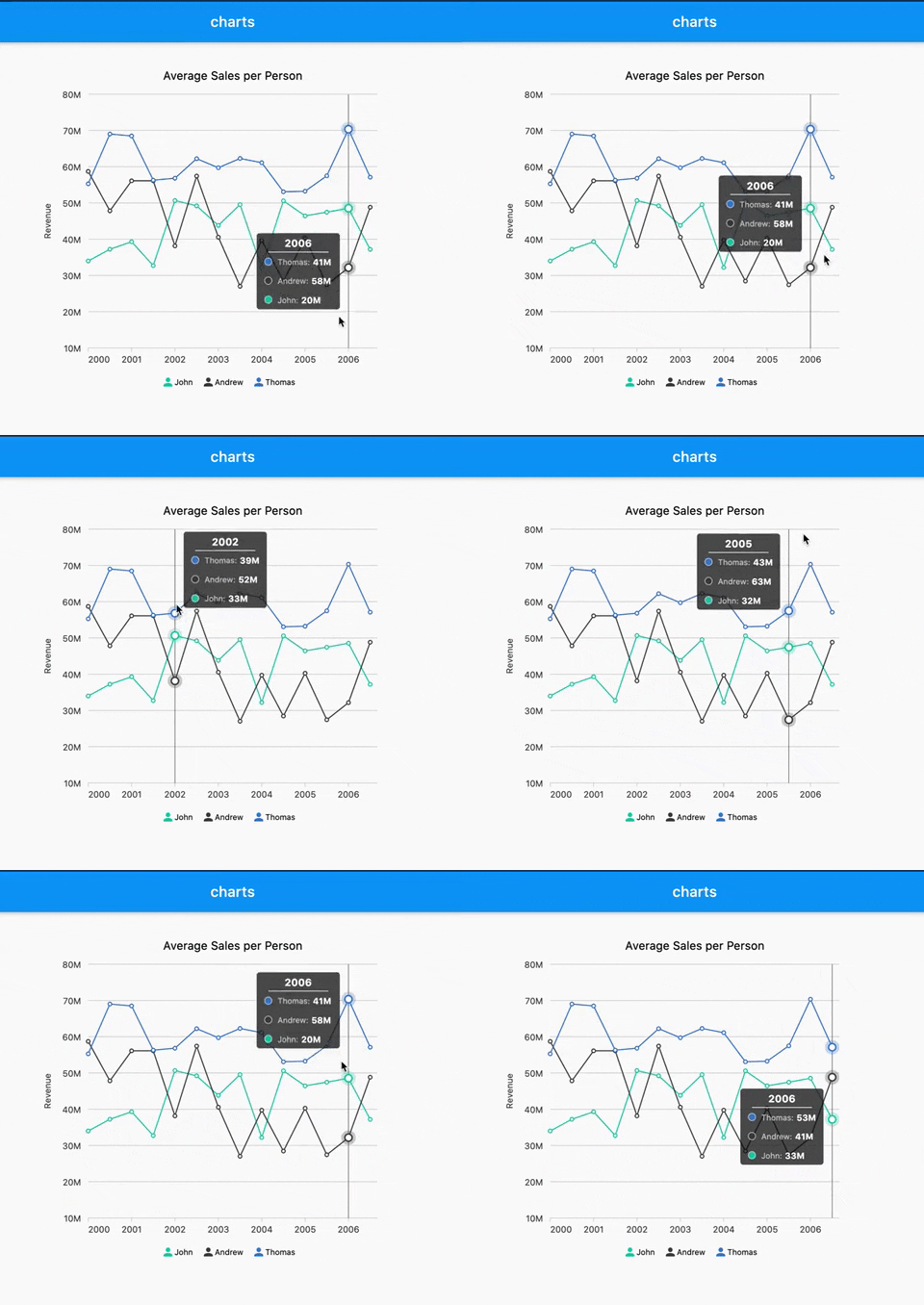
chart lines
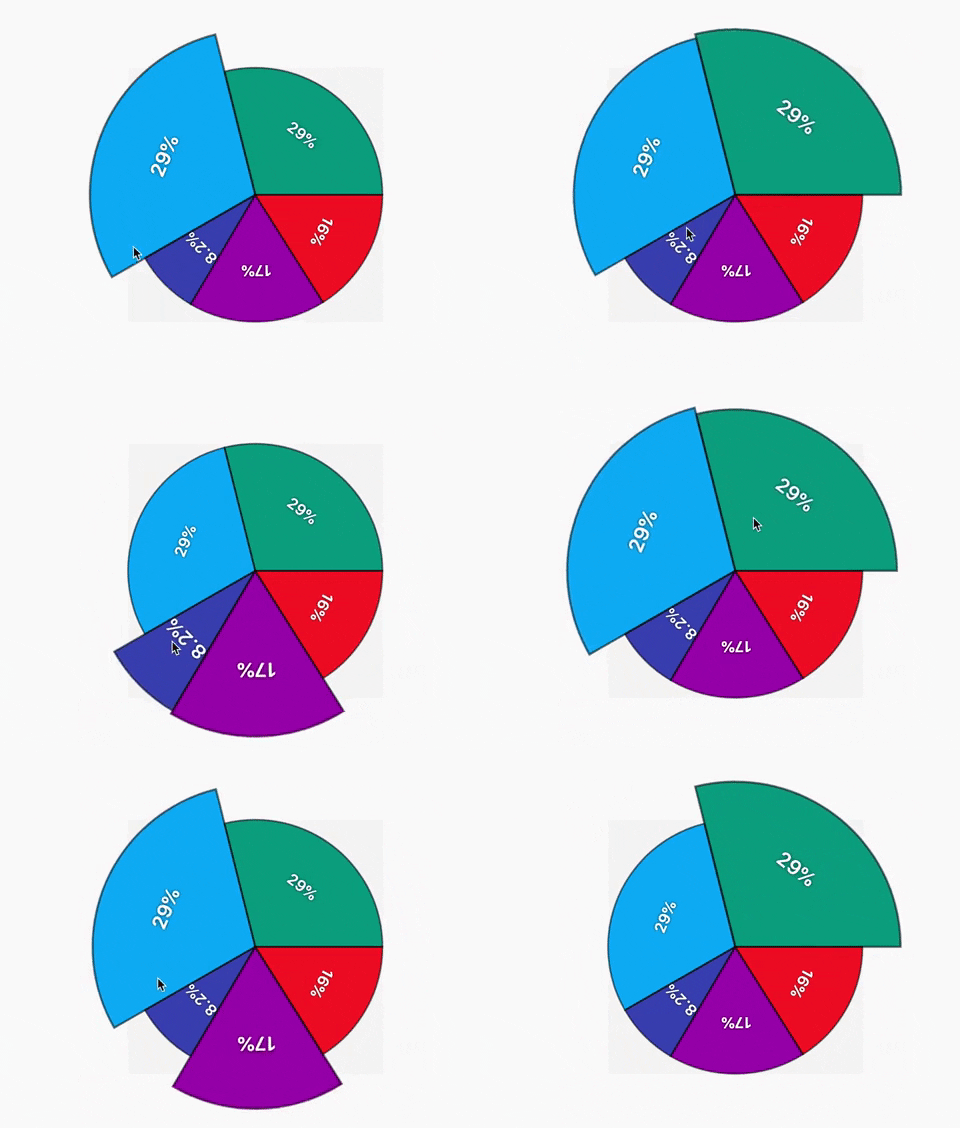
charts pie
mouse cursor support
debug objects bounds
demo sample tween
direction blur filter
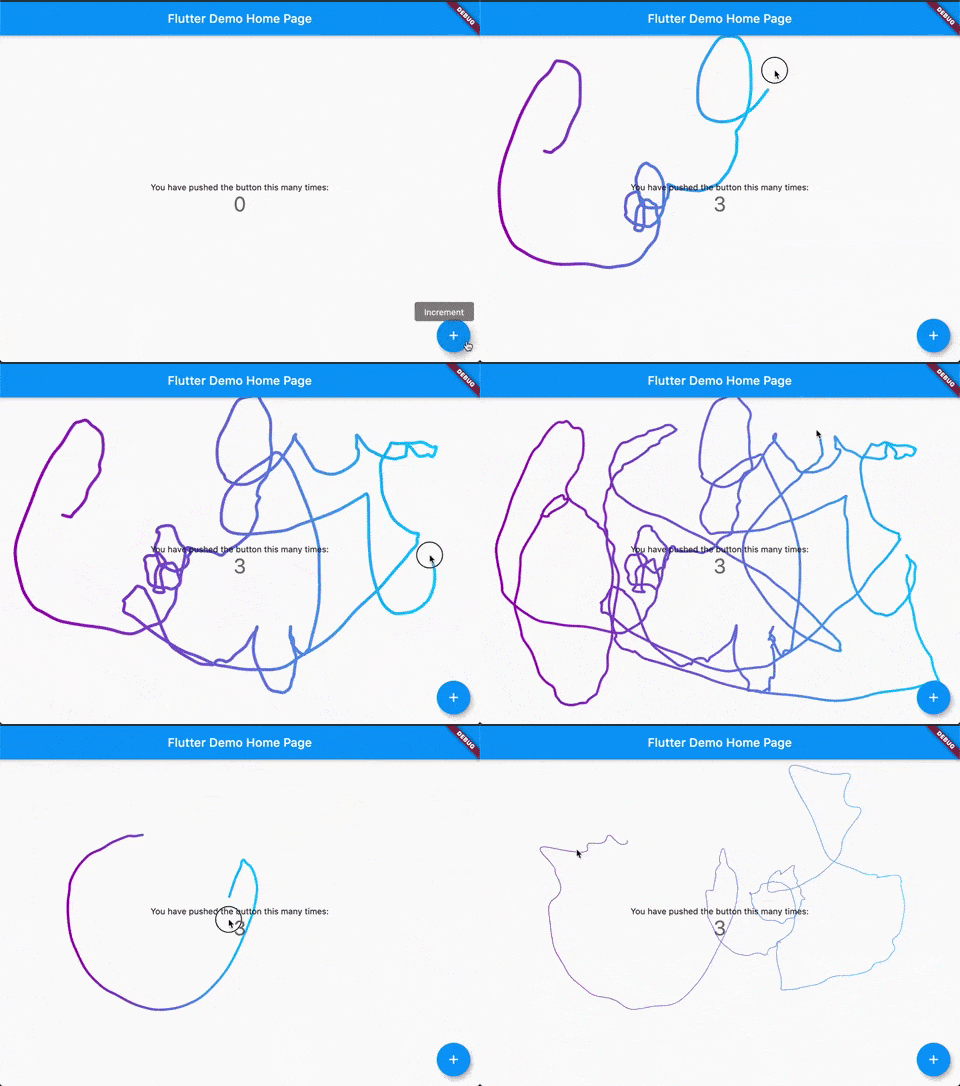
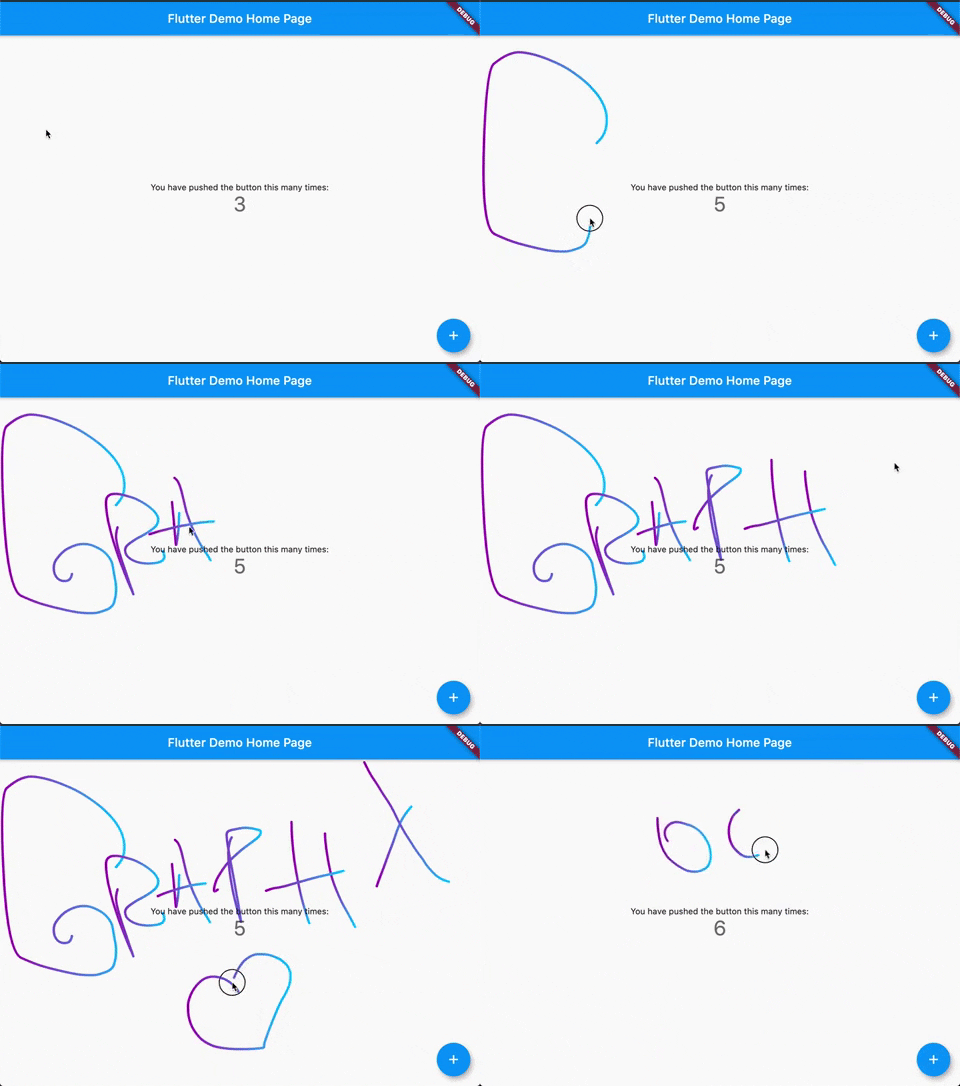
hand drawing v1
hand drawing v2
drawing api playful v2
elastic band
flare playback
flip child scenes
flutter widgets mix
icon with gradient paint
inverted masks
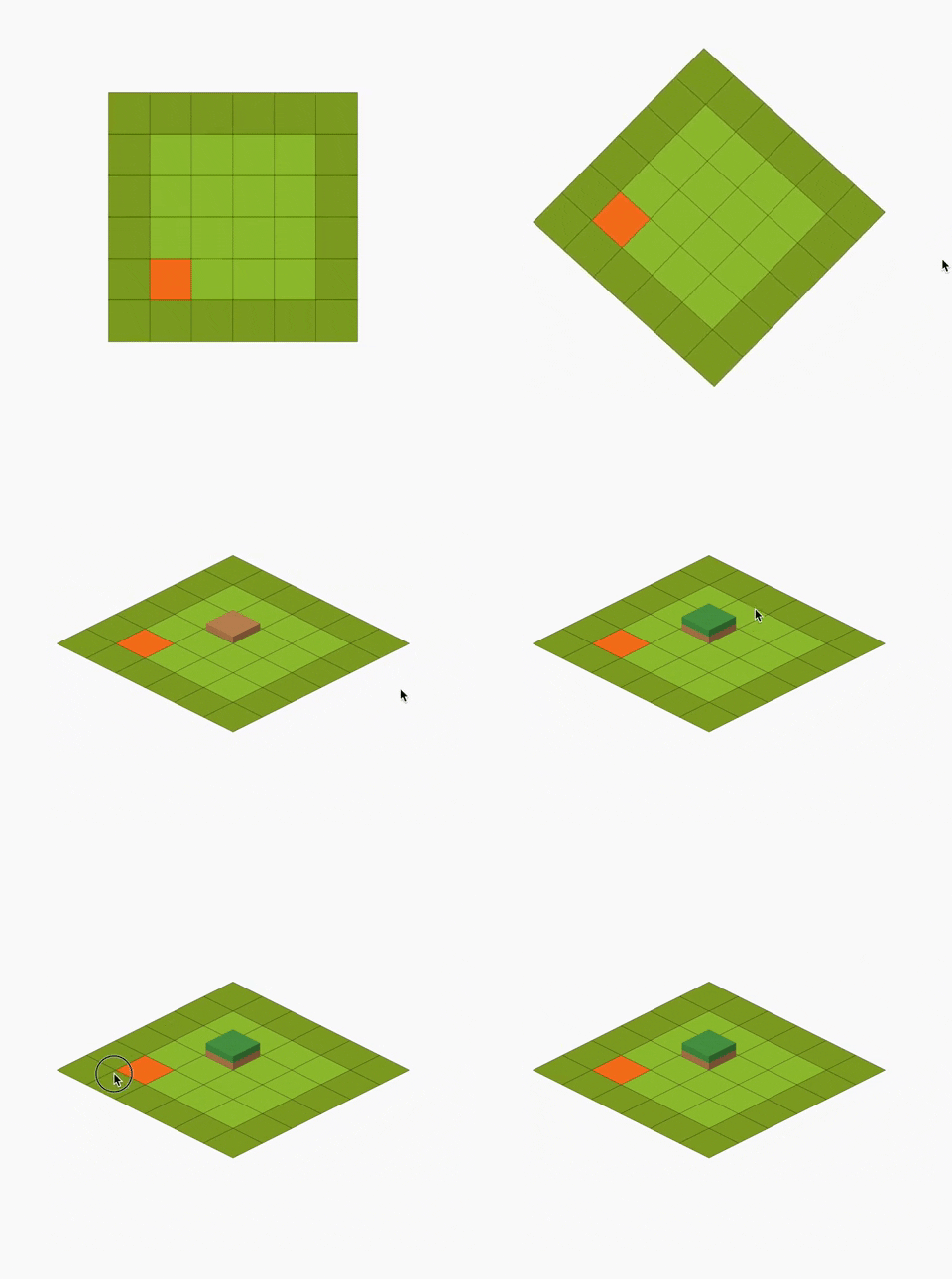
isometric demo
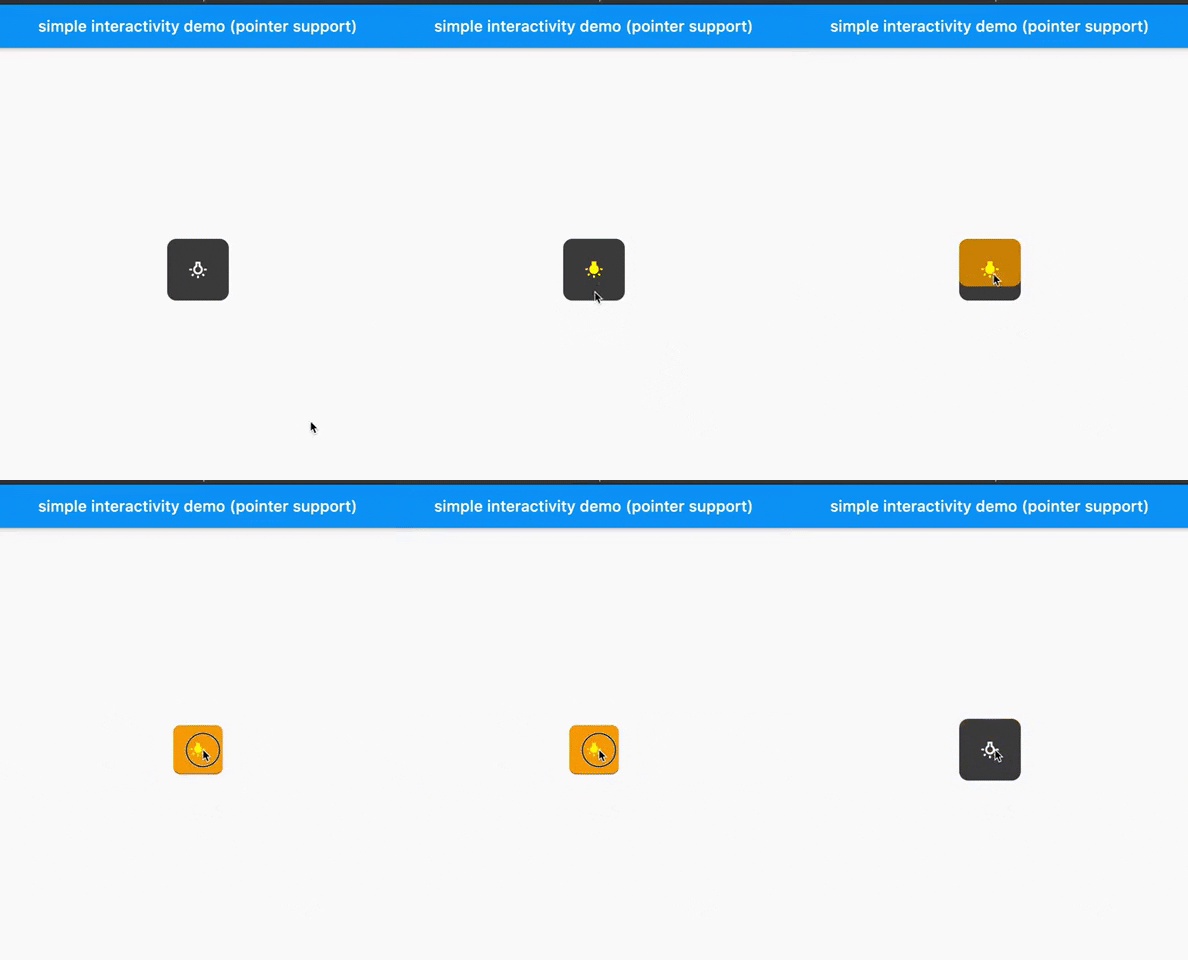
light button
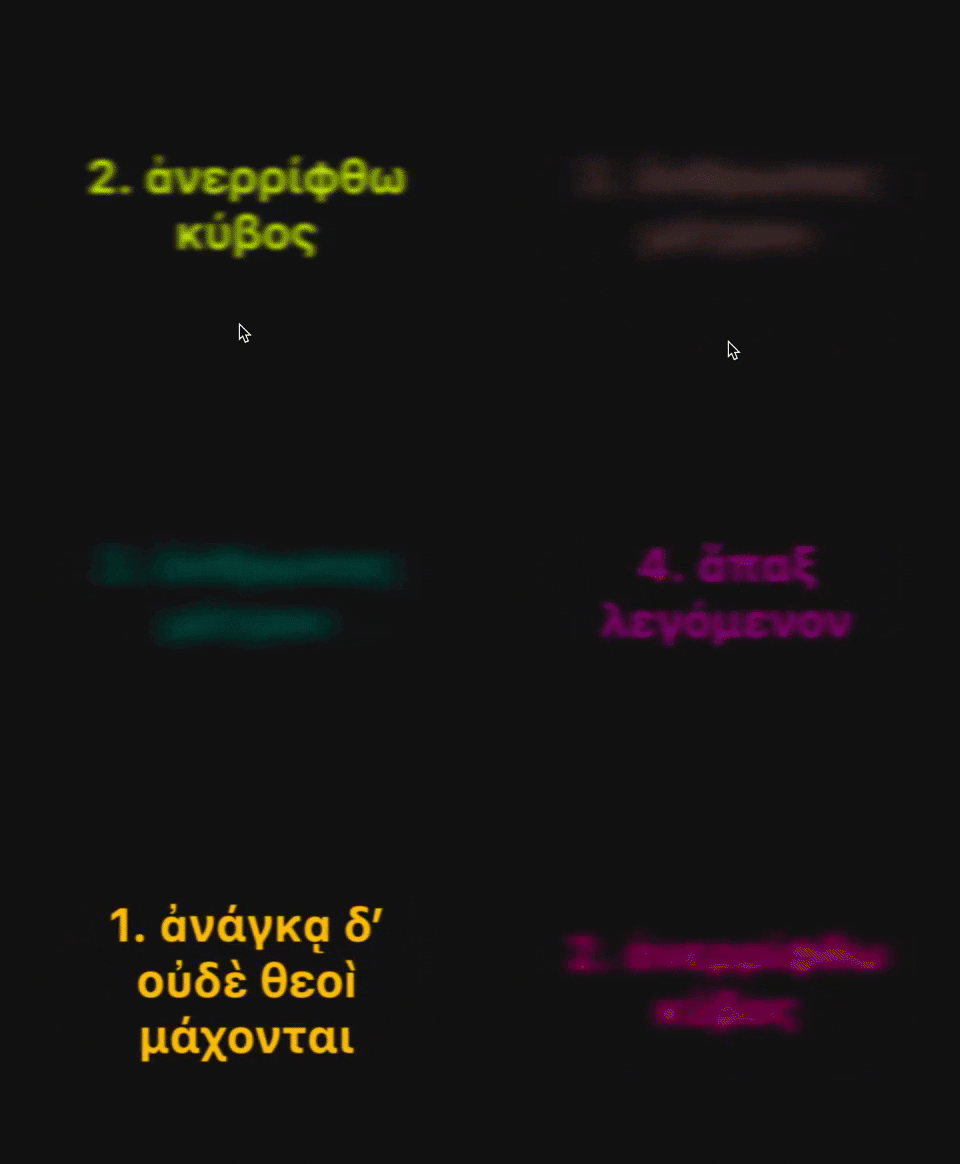
marquesina
menu with mask
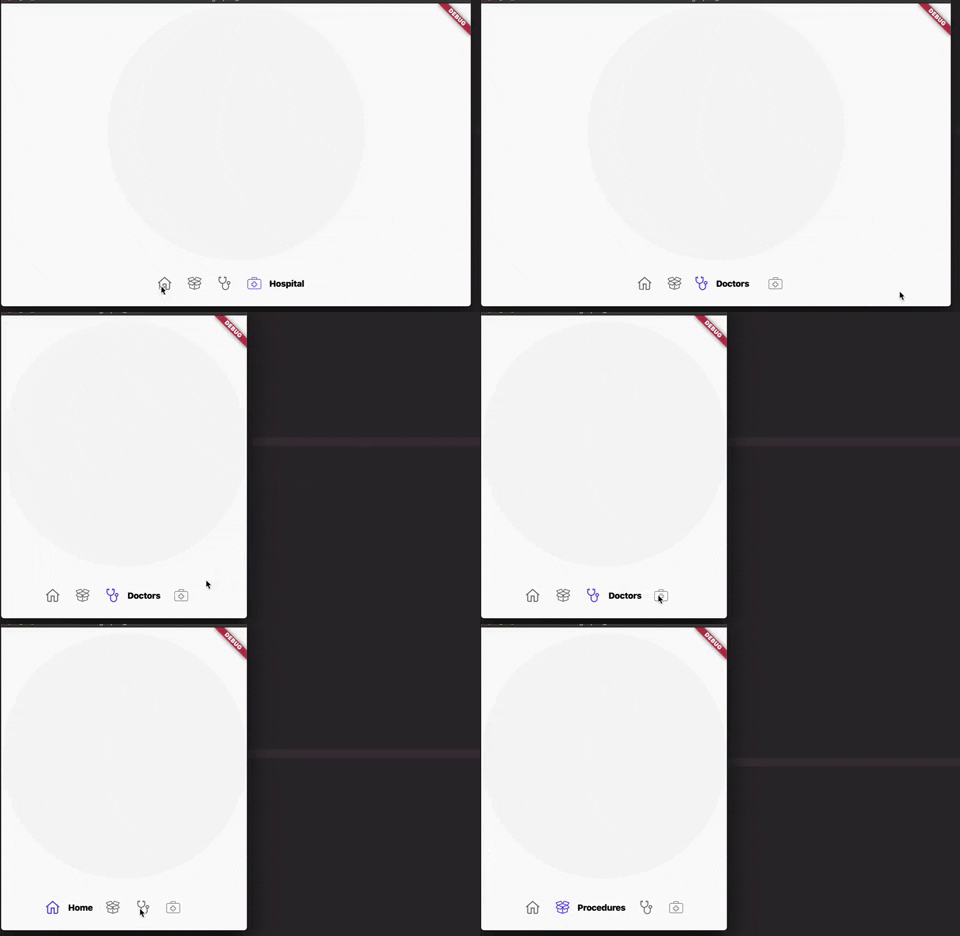
menu mouse test
nested transformations
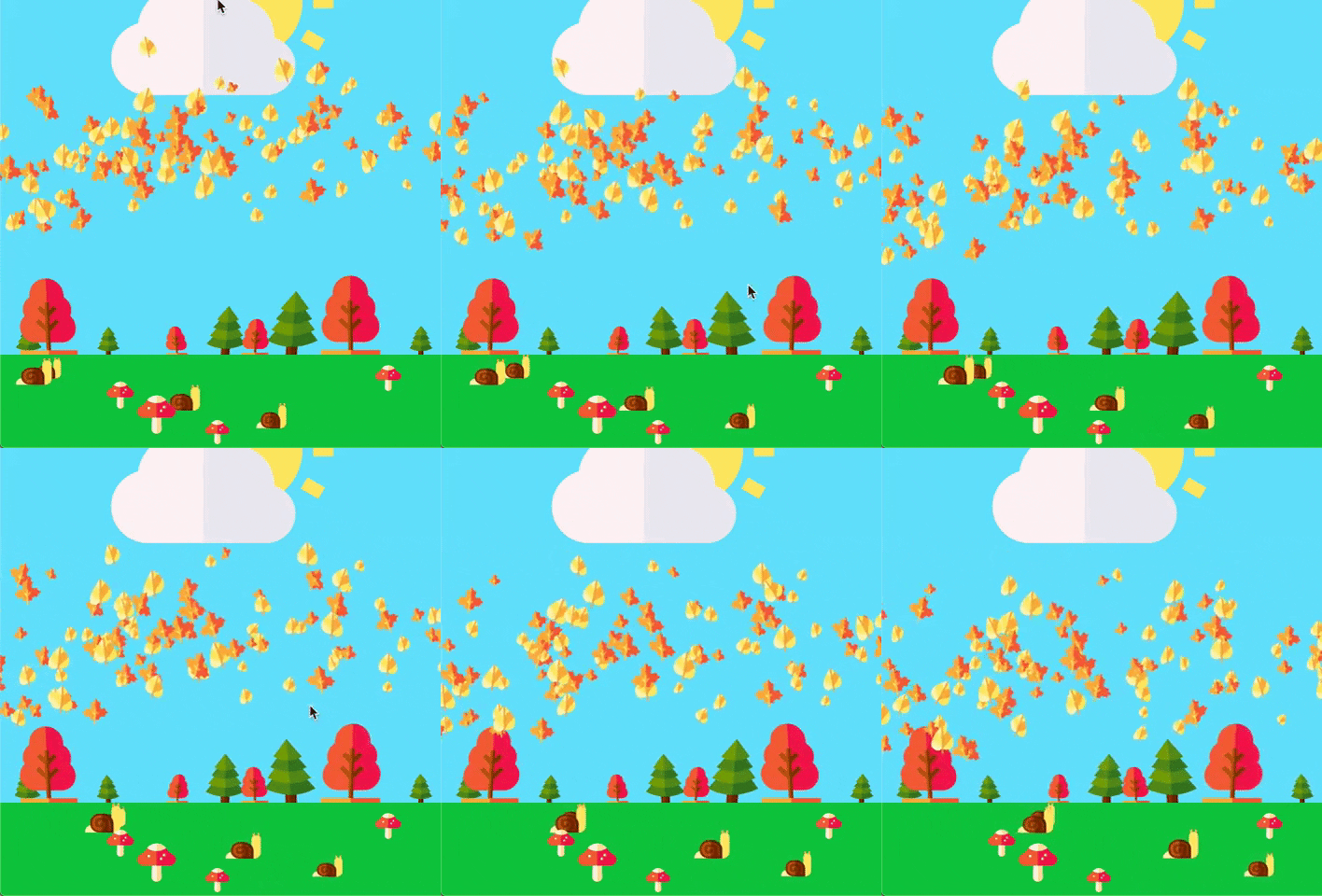
particles with alpha
particles blending
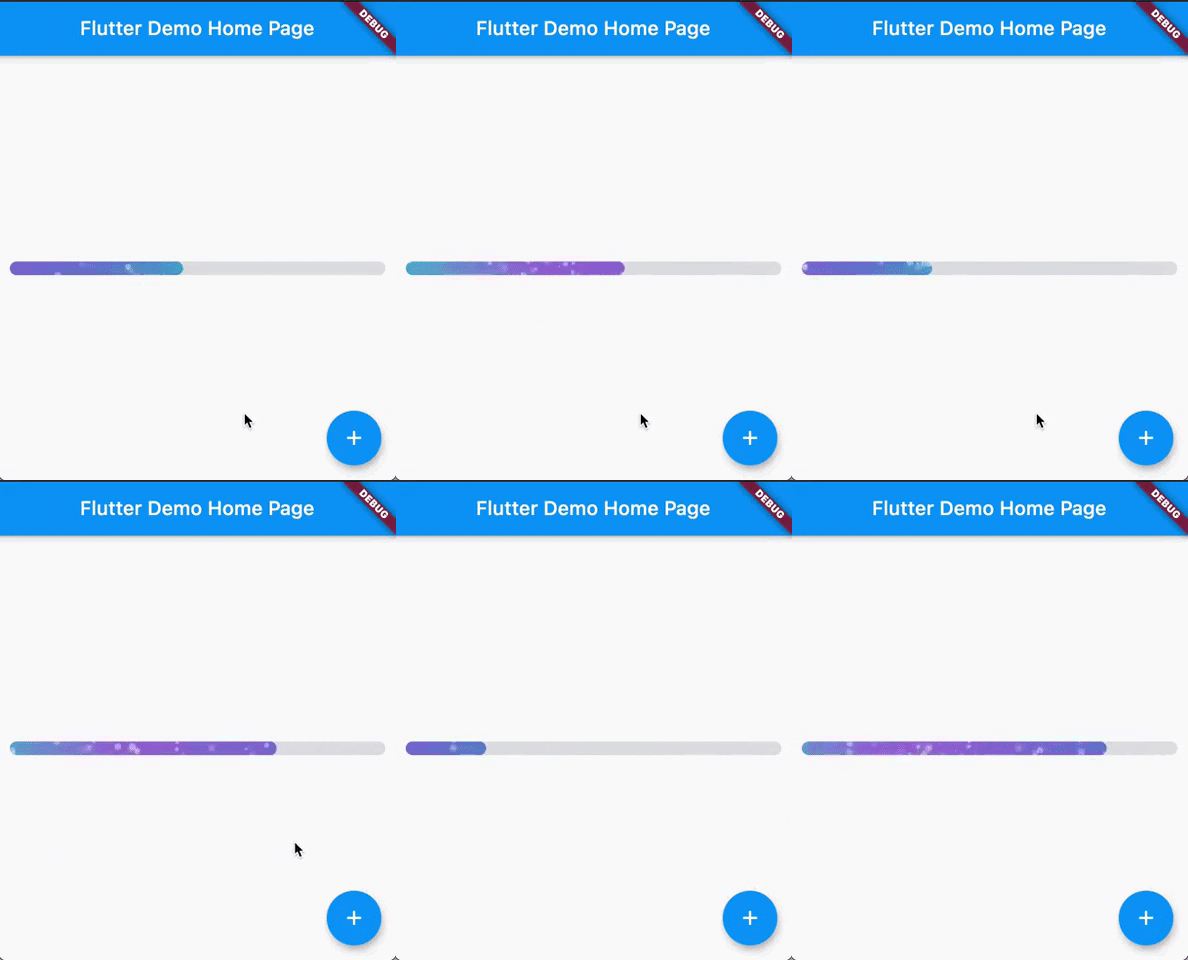
circular progress panel
rive playback
3d rotation
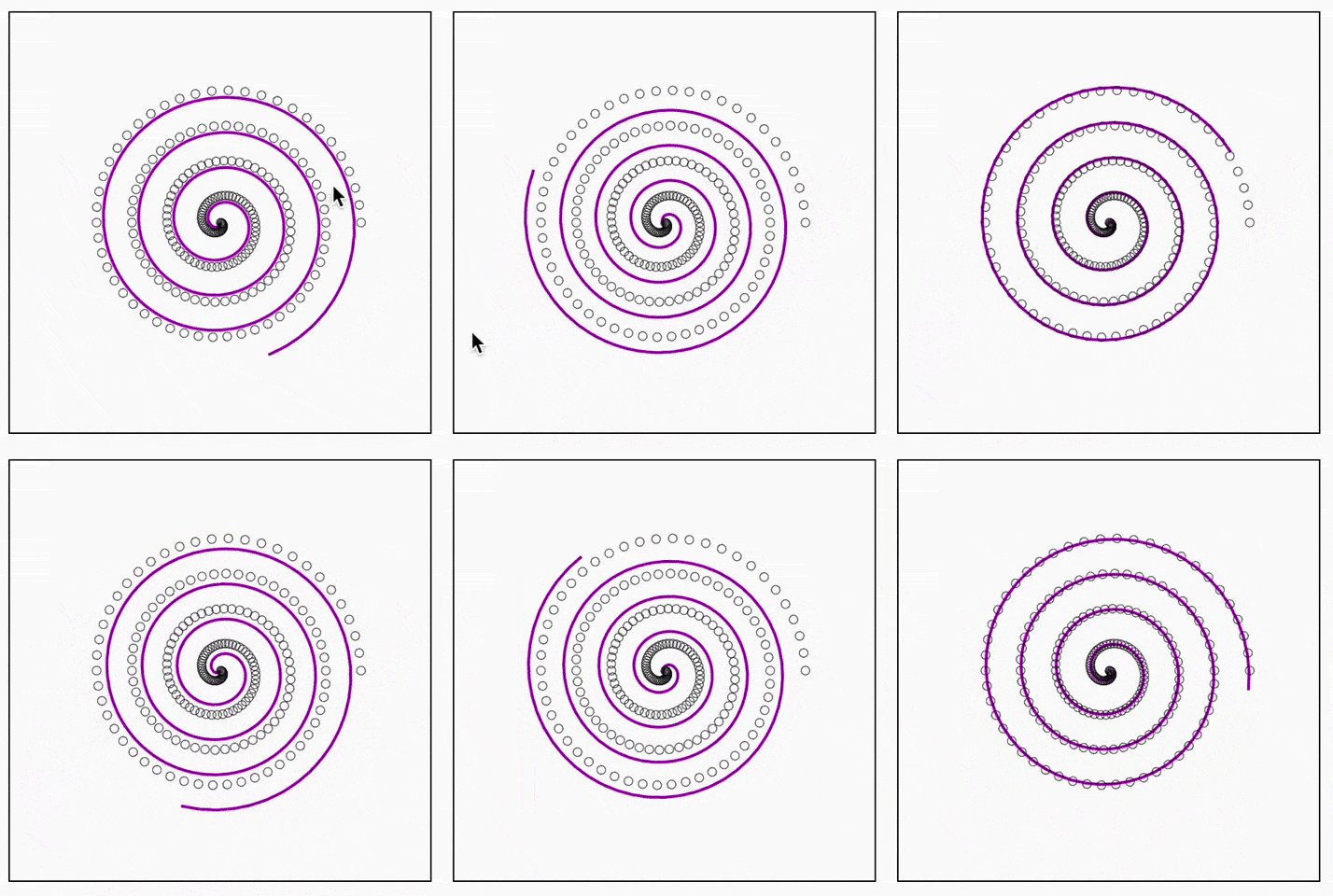
spiral
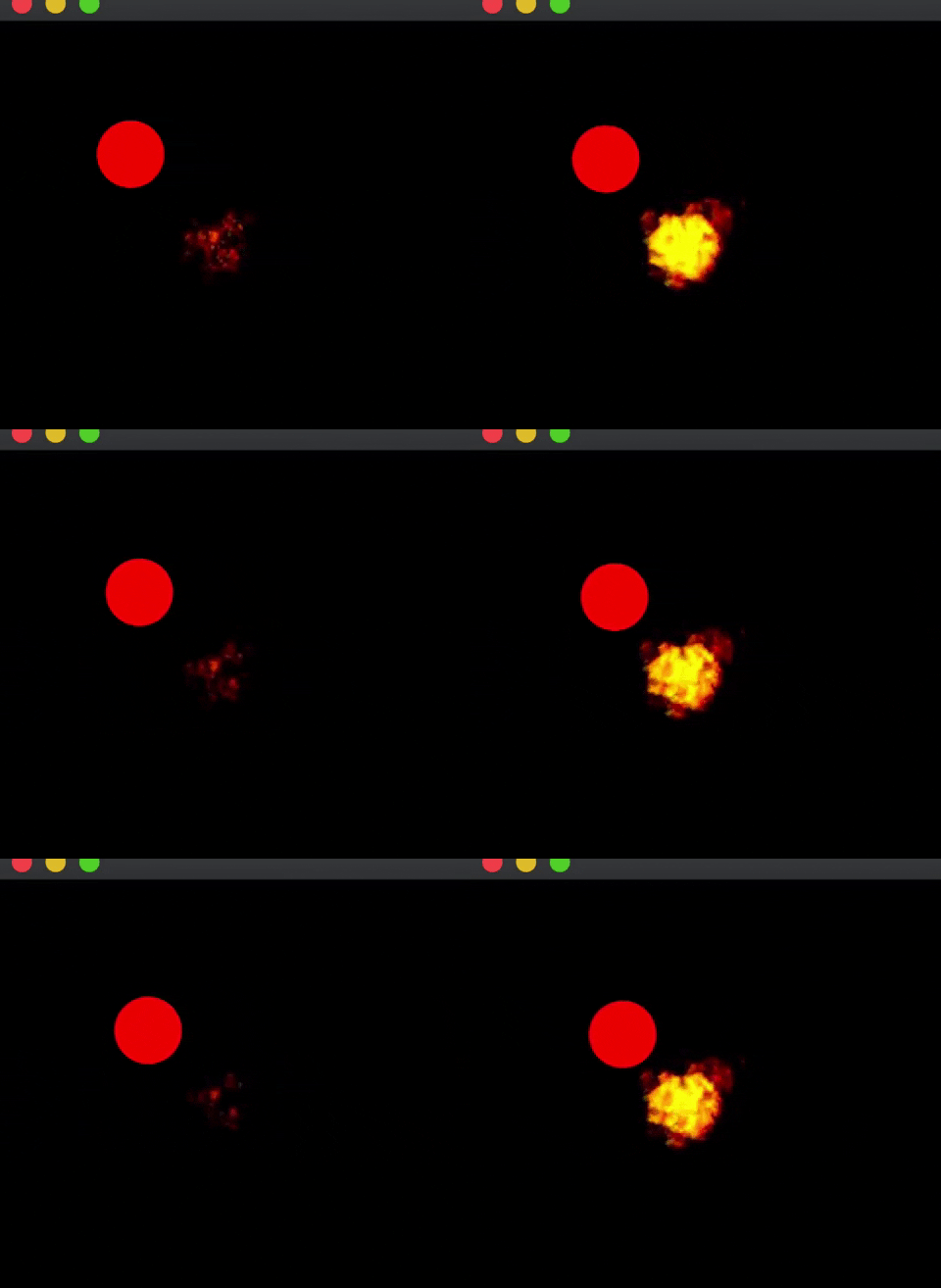
spritesheet explosion
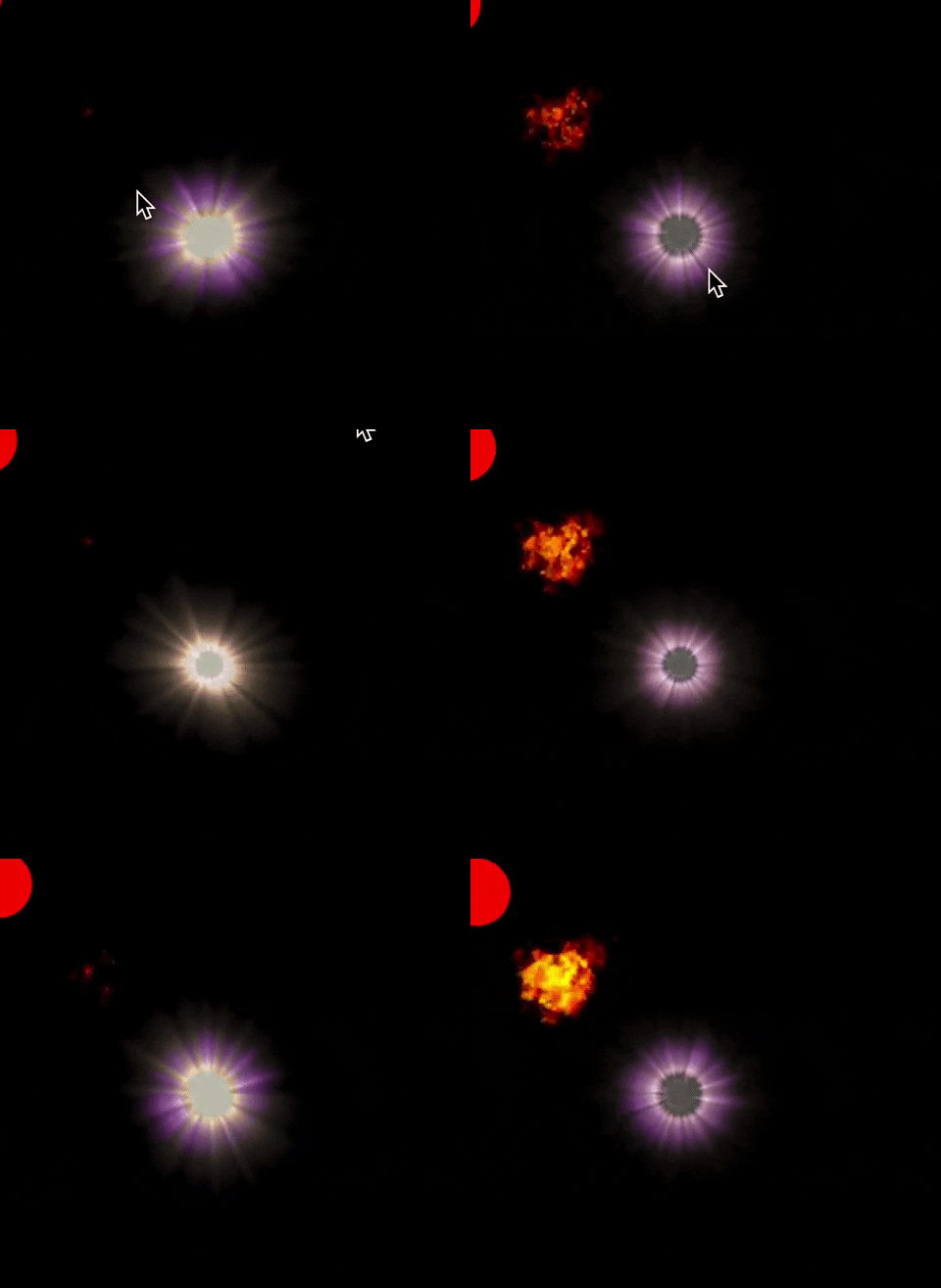
supernova tween
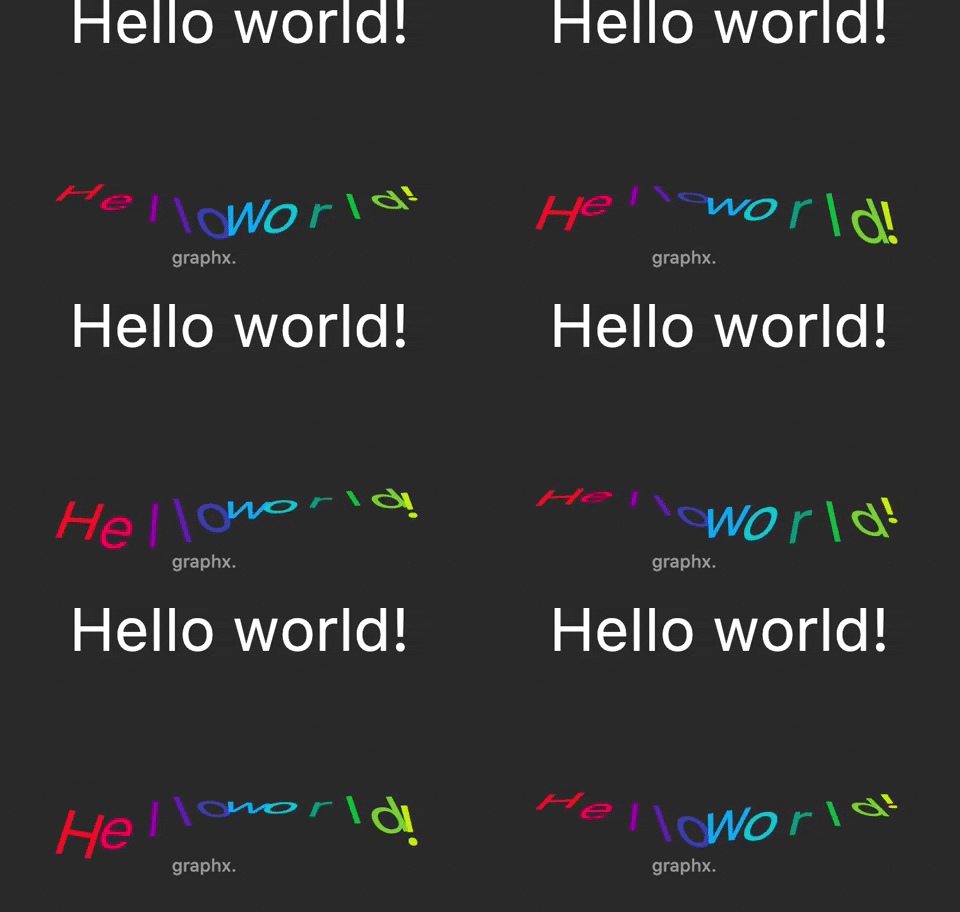
text rainbow
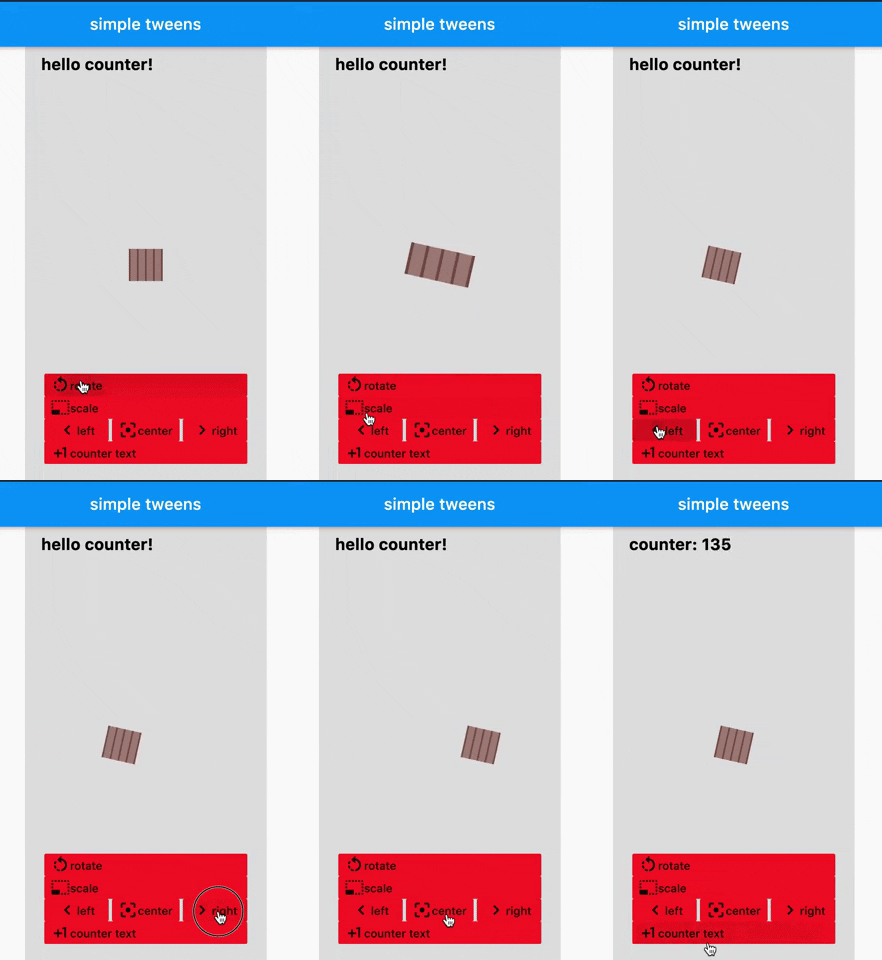
basic tween animation
tween behaviour
tween color
multiple scenes
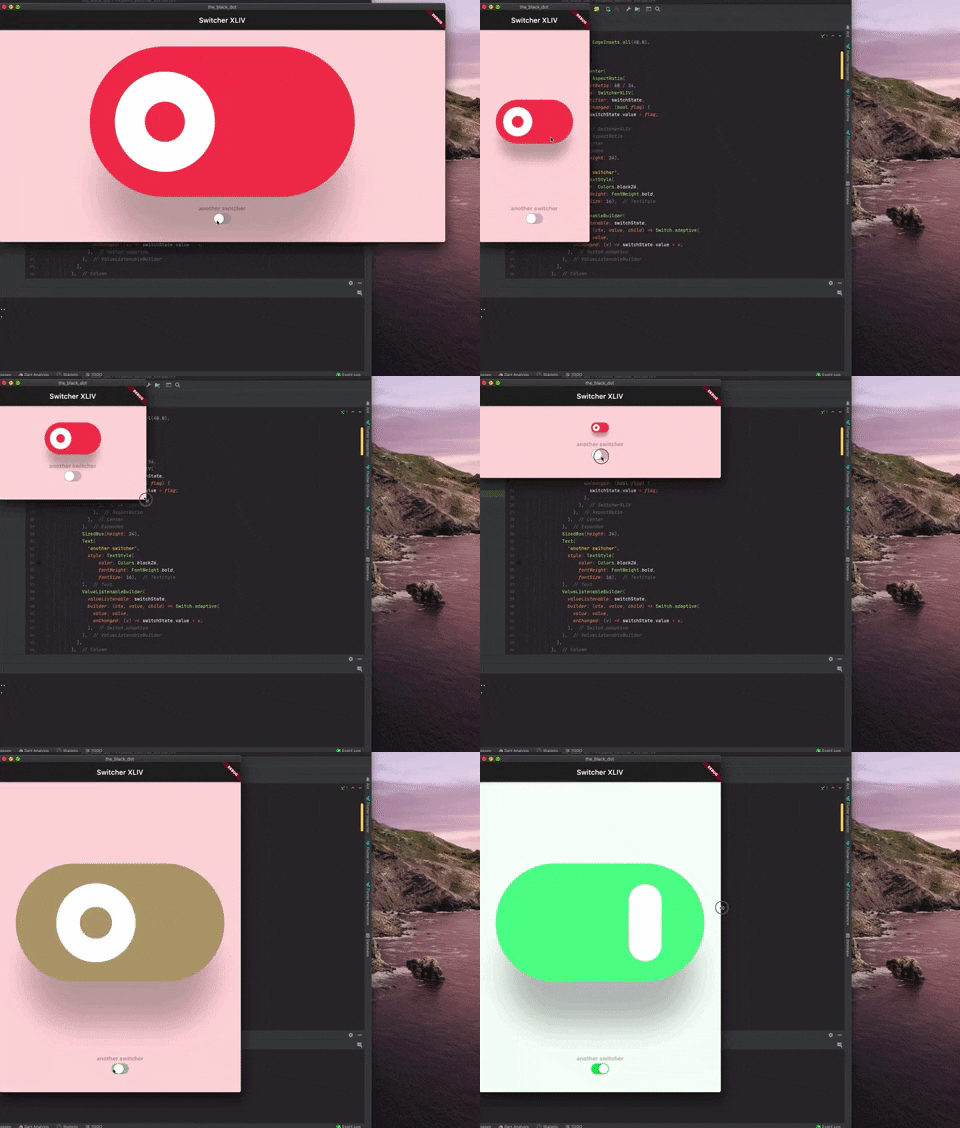
responsive switch










You can buymeacoffee or support GraphX™ via Paypal