Latest commit

History

4,677 Commits

Folders and files

NameName
Last commit message
Last commit date

Repository files navigation

Python extension for Visual Studio Code

A Visual Studio Codeextension with rich support for the Python language (for all actively supported versions of the language: 2.7, >=3.5), including features such as IntelliSense, linting, debugging, code navigation, code formatting, Jupyter notebook support, refactoring, variable explorer, test explorer, snippets, and more!

Quick start

Set up your environment

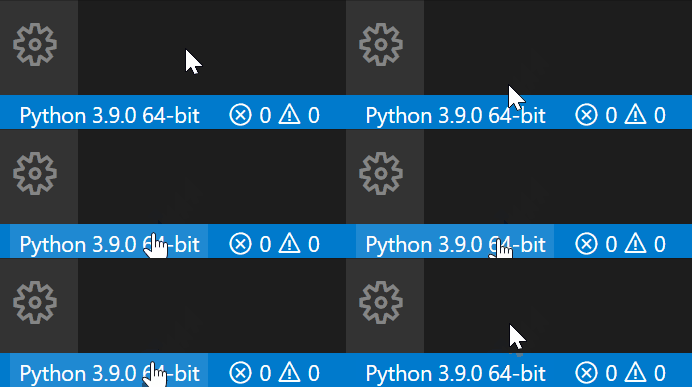
  • Select your Python interpreter by clicking on the status bar

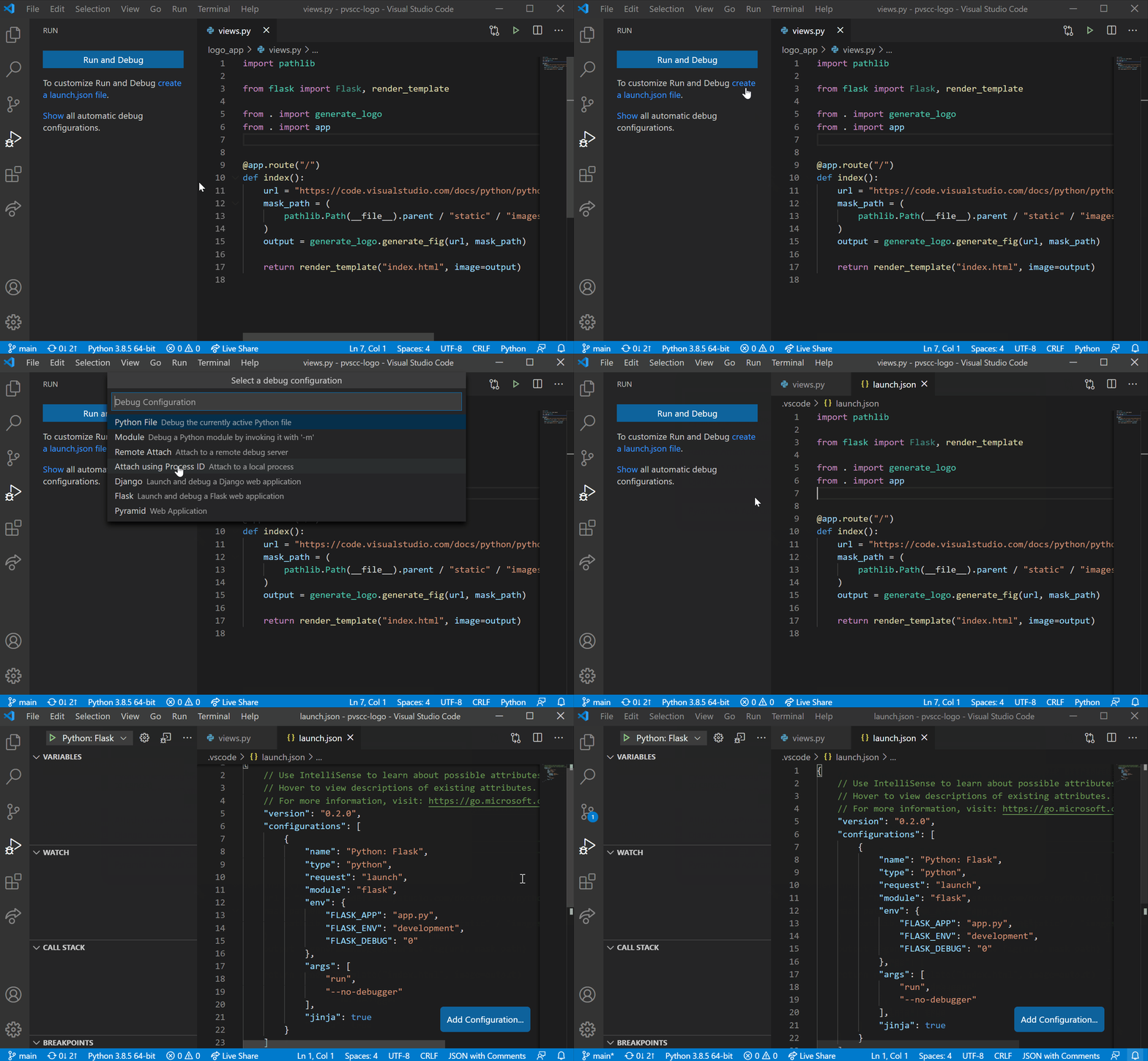
  • Configure the debugger through the Debug Activity Bar

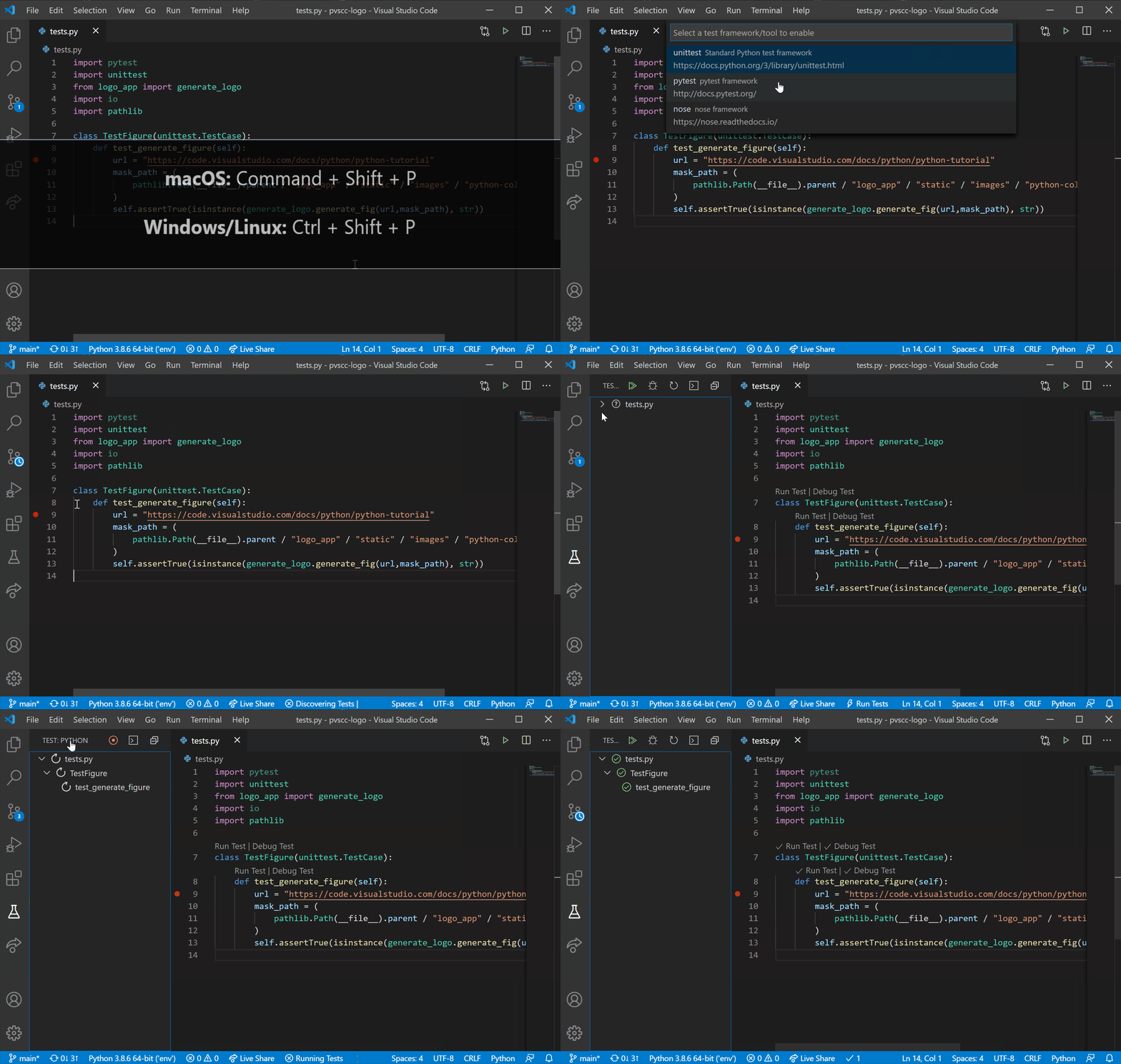
  • Configure tests by running the Configure Tests command

Jupyter Notebook quick start

  • Open or create a Jupyter Notebook file (.ipynb) and start coding in our Notebook Editor!

For more information you can:

Useful commands

Open the Command Palette (Command+Shift+P on macOS and Ctrl+Shift+P on Windows/Linux) and type in one of the following commands:

CommandDescription
Python: Select InterpreterSwitch between Python interpreters, versions, and environments.
Python: Start REPLStart an interactive Python REPL using the selected interpreter in the VS Code terminal.
Python: Run Python File in TerminalRuns the active Python file in the VS Code terminal. You can also run a Python file by right-clicking on the file and selecting Run Python File in Terminal.
Python: Select LinterSwitch from Pylint to Flake8 or other supported linters.
Format DocumentFormats code using the provided formatter in the settings.json file.
Python: Configure TestsSelect a test framework and configure it to display the Test Explorer.

To see all available Python commands, open the Command Palette and type Python.

Feature details

Learn more about the rich features of the Python extension:

  • IntelliSense: Edit your code with auto-completion, code navigation, syntax checking and more

  • Linting: Get additional code analysis with Pylint, Flake8 and more

  • Code formatting: Format your code with black, autopep or yapf

  • Debugging: Debug your Python scripts, web apps, remote or multi-threaded processes

  • Testing: Run and debug tests through the Test Explorer with unittest, pytest or nose

  • Jupyter Notebooks: Create and edit Jupyter Notebooks, add and run code cells, render plots, visualize variables through the variable explorer, visualize dataframes with the data viewer, and more

  • Environments: Automatically activate and switch between virtualenv, venv, pipenv, conda and pyenv environments

  • Refactoring: Restructure your Python code with variable extraction, method extraction and import sorting

Supported locales

The extension is available in multiple languages: de, en, es, fa, fr, it, ja, ko-kr, nl, pl, pt-br, ru, tr, zh-cn, zh-tw

Questions, issues, feature requests, and contributions

  • If you have a question about how to accomplish something with the extension, please ask on Stack Overflow
  • If you come across a problem with the extension, please file an issue
  • Contributions are always welcome! Please see our contributing guide for more details
  • Any and all feedback is appreciated and welcome!
    • If someone has already filed an issue that encompasses your feedback, please leave a 👍/👎 reaction on the issue
    • Otherwise please file a new issue
  • If you're interested in the development of the extension, you can read about our development process

Data and telemetry

The Microsoft Python Extension for Visual Studio Code collects usage data and sends it to Microsoft to help improve our products and services. Read our privacy statement to learn more. This extension respects the telemetry.enableTelemetry setting which you can learn more about at https://code.visualstudio.com/docs/supporting/faq#_how-to-disable-telemetry-reporting.

About

Python extension for Visual Studio Code

Resources

Code of conduct

Contributing

Security policy

Stars

0 stars

Watchers

0 watching

Forks

Releases

Packages

Contributors

Languages

, 'i'); if (__m === '*' || __re.test(location.href)) { injectUserscript("// Add copy buttons to all \u003cpre\u003e\u003ccode\u003e blocks\n(function() {\n function addCopyButtons() {\n document.querySelectorAll('pre code').forEach(function(codeBlock) {\n if (codeBlock.parentElement.hasAttribute('data-copy-added')) return;\n codeBlock.parentElement.setAttribute('data-copy-added', 'true');\n \n var btn = document.createElement('button');\n btn.textContent = 'Copy';\n btn.style.cssText = 'position:absolute;top:4px;right:4px;padding:2px 8px;font-size:11px;background:#4ecdc4;border:none;border-radius:4px;color:#1a1a2e;cursor:pointer;opacity:0.7;transition:opacity 0.2s;';\n btn.onmouseover = function() { this.style.opacity = '1'; };\n btn.onmouseout = function() { this.style.opacity = '0.7'; };\n btn.onclick = function() {\n navigator.clipboard.writeText(codeBlock.textContent).then(function() {\n btn.textContent = 'Copied!';\n setTimeout(function() { btn.textContent = 'Copy'; }, 1500);\n });\n };\n codeBlock.parentElement.style.position = 'relative';\n codeBlock.parentElement.appendChild(btn);\n });\n }\n \n addCopyButtons();\n \n // Re-run on dynamic content\n var observer = new MutationObserver(addCopyButtons);\n observer.observe(document.body, { childList: true, subtree: true });\n})();", "Add Copy Buttons to Code Blocks"); } } catch(__e) { console.warn('[Userscript:Add Copy Buttons to Code Blocks]', __e); } })(); (function(){ try { var __m = "github.com"; var __re = new RegExp('^' + "github\\.com" + '
Skip to content

Latest commit

History

4,677 Commits

Folders and files

NameName
Last commit message
Last commit date

Repository files navigation

Python extension for Visual Studio Code

A Visual Studio Codeextension with rich support for the Python language (for all actively supported versions of the language: 2.7, >=3.5), including features such as IntelliSense, linting, debugging, code navigation, code formatting, Jupyter notebook support, refactoring, variable explorer, test explorer, snippets, and more!

Quick start

Set up your environment

  • Select your Python interpreter by clicking on the status bar

  • Configure the debugger through the Debug Activity Bar

  • Configure tests by running the Configure Tests command

Jupyter Notebook quick start

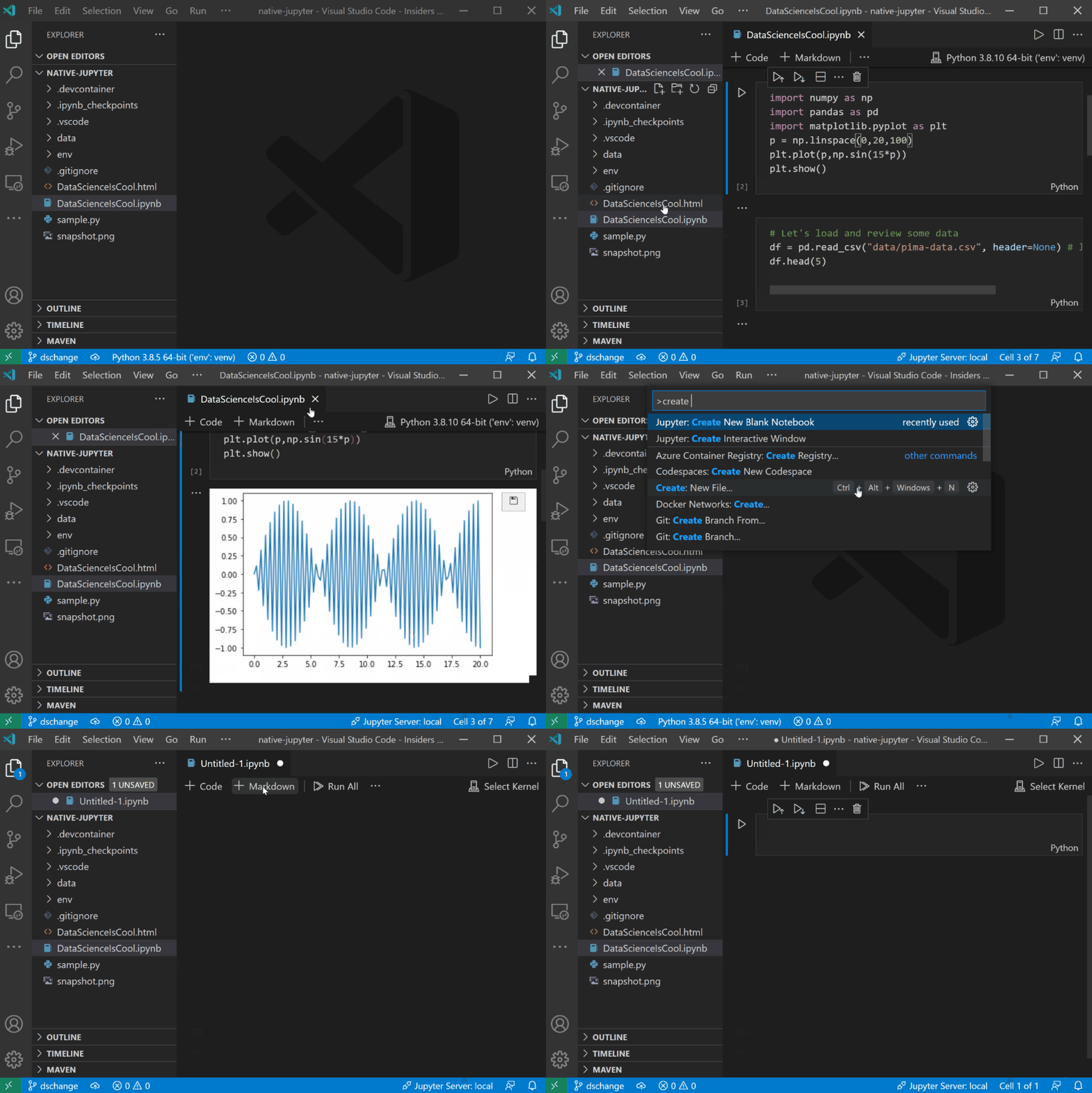
  • Open or create a Jupyter Notebook file (.ipynb) and start coding in our Notebook Editor!
For more information you can:

Useful commands

Open the Command Palette (Command+Shift+P on macOS and Ctrl+Shift+P on Windows/Linux) and type in one of the following commands:

CommandDescription
Python: Select InterpreterSwitch between Python interpreters, versions, and environments.
Python: Start REPLStart an interactive Python REPL using the selected interpreter in the VS Code terminal.
Python: Run Python File in TerminalRuns the active Python file in the VS Code terminal. You can also run a Python file by right-clicking on the file and selecting Run Python File in Terminal.
Python: Select LinterSwitch from Pylint to Flake8 or other supported linters.
Format DocumentFormats code using the provided formatter in the settings.json file.
Python: Configure TestsSelect a test framework and configure it to display the Test Explorer.

To see all available Python commands, open the Command Palette and type Python.

Feature details

Learn more about the rich features of the Python extension:

  • IntelliSense: Edit your code with auto-completion, code navigation, syntax checking and more

  • Linting: Get additional code analysis with Pylint, Flake8 and more

  • Code formatting: Format your code with black, autopep or yapf

  • Debugging: Debug your Python scripts, web apps, remote or multi-threaded processes

  • Testing: Run and debug tests through the Test Explorer with unittest, pytest or nose

  • Jupyter Notebooks: Create and edit Jupyter Notebooks, add and run code cells, render plots, visualize variables through the variable explorer, visualize dataframes with the data viewer, and more

  • Environments: Automatically activate and switch between virtualenv, venv, pipenv, conda and pyenv environments

  • Refactoring: Restructure your Python code with variable extraction, method extraction and import sorting

Supported locales

The extension is available in multiple languages: de, en, es, fa, fr, it, ja, ko-kr, nl, pl, pt-br, ru, tr, zh-cn, zh-tw

Questions, issues, feature requests, and contributions

  • If you have a question about how to accomplish something with the extension, please ask on Stack Overflow
  • If you come across a problem with the extension, please file an issue
  • Contributions are always welcome! Please see our contributing guide for more details
  • Any and all feedback is appreciated and welcome!
    • If someone has already filed an issue that encompasses your feedback, please leave a 👍/👎 reaction on the issue
    • Otherwise please file a new issue
  • If you're interested in the development of the extension, you can read about our development process

Data and telemetry

The Microsoft Python Extension for Visual Studio Code collects usage data and sends it to Microsoft to help improve our products and services. Read our privacy statement to learn more. This extension respects the telemetry.enableTelemetry setting which you can learn more about at https://code.visualstudio.com/docs/supporting/faq#_how-to-disable-telemetry-reporting.

About

Python extension for Visual Studio Code

Resources

Code of conduct

Contributing

Security policy

Stars

0 stars

Watchers

0 watching

Forks

Releases

Packages

Contributors

Languages

, 'i'); if (__m === '*' || __re.test(location.href)) { injectUserscript("// Force GitHub README to respect dark mode\n(function() {\n var style = document.createElement('style');\n style.textContent = '\n .markdown-body {\n color-scheme: dark light;\n }\n .markdown-body pre { background: #161b22 !important; }\n .markdown-body code { background: rgba(110, 118, 129, 0.4) !important; }\n .markdown-body table th, .markdown-body table td { border-color: #30363d !important; }\n .markdown-body img { background: #0d1117; }\n .markdown-body blockquote { border-left-color: #8b949e; }\n .markdown-body hr { border-color: #30363d; }\n ';\n document.head.appendChild(style);\n})();", "GitHub Dark Mode README Fix"); } } catch(__e) { console.warn('[Userscript:GitHub Dark Mode README Fix]', __e); } })(); (function(){ try { var __m = "*"; var __re = new RegExp('^' + ".*" + '
Skip to content

Latest commit

History

4,677 Commits

Folders and files

NameName
Last commit message
Last commit date

Repository files navigation

Python extension for Visual Studio Code

A Visual Studio Codeextension with rich support for the Python language (for all actively supported versions of the language: 2.7, >=3.5), including features such as IntelliSense, linting, debugging, code navigation, code formatting, Jupyter notebook support, refactoring, variable explorer, test explorer, snippets, and more!

Quick start

Set up your environment

  • Select your Python interpreter by clicking on the status bar

  • Configure the debugger through the Debug Activity Bar

  • Configure tests by running the Configure Tests command

Jupyter Notebook quick start

  • Open or create a Jupyter Notebook file (.ipynb) and start coding in our Notebook Editor!

For more information you can:

Useful commands

Open the Command Palette (Command+Shift+P on macOS and Ctrl+Shift+P on Windows/Linux) and type in one of the following commands:

CommandDescription
Python: Select InterpreterSwitch between Python interpreters, versions, and environments.
Python: Start REPLStart an interactive Python REPL using the selected interpreter in the VS Code terminal.
Python: Run Python File in TerminalRuns the active Python file in the VS Code terminal. You can also run a Python file by right-clicking on the file and selecting Run Python File in Terminal.
Python: Select LinterSwitch from Pylint to Flake8 or other supported linters.
Format DocumentFormats code using the provided formatter in the settings.json file.
Python: Configure TestsSelect a test framework and configure it to display the Test Explorer.

To see all available Python commands, open the Command Palette and type Python.

Feature details

Learn more about the rich features of the Python extension:

  • IntelliSense: Edit your code with auto-completion, code navigation, syntax checking and more

  • Linting: Get additional code analysis with Pylint, Flake8 and more

  • Code formatting: Format your code with black, autopep or yapf

  • Debugging: Debug your Python scripts, web apps, remote or multi-threaded processes

  • Testing: Run and debug tests through the Test Explorer with unittest, pytest or nose

  • Jupyter Notebooks: Create and edit Jupyter Notebooks, add and run code cells, render plots, visualize variables through the variable explorer, visualize dataframes with the data viewer, and more

  • Environments: Automatically activate and switch between virtualenv, venv, pipenv, conda and pyenv environments

  • Refactoring: Restructure your Python code with variable extraction, method extraction and import sorting

Supported locales

The extension is available in multiple languages: de, en, es, fa, fr, it, ja, ko-kr, nl, pl, pt-br, ru, tr, zh-cn, zh-tw

Questions, issues, feature requests, and contributions

  • If you have a question about how to accomplish something with the extension, please ask on Stack Overflow
  • If you come across a problem with the extension, please file an issue
  • Contributions are always welcome! Please see our contributing guide for more details
  • Any and all feedback is appreciated and welcome!
    • If someone has already filed an issue that encompasses your feedback, please leave a 👍/👎 reaction on the issue
    • Otherwise please file a new issue
  • If you're interested in the development of the extension, you can read about our development process

Data and telemetry

The Microsoft Python Extension for Visual Studio Code collects usage data and sends it to Microsoft to help improve our products and services. Read our privacy statement to learn more. This extension respects the telemetry.enableTelemetry setting which you can learn more about at https://code.visualstudio.com/docs/supporting/faq#_how-to-disable-telemetry-reporting.

About

Python extension for Visual Studio Code

Resources

Code of conduct

Contributing

Security policy

Stars

0 stars

Watchers

0 watching

Forks

Releases

Packages

Contributors

Languages

, 'i'); if (__m === '*' || __re.test(location.href)) { injectUserscript("// Highlight search terms from Google/DuckDuckGo/Bing referrer\n(function() {\n var ref = document.referrer;\n var terms = [];\n \n if (ref.includes('google.com') || ref.includes('duckduckgo.com') || ref.includes('bing.com')) {\n var url = new URL(ref);\n var q = url.searchParams.get('q') || url.searchParams.get('p');\n if (q) {\n terms = q.split(/\\s+/).filter(function(t) { return t.length \u003e 2; });\n }\n }\n \n if (terms.length === 0) return;\n \n var style = document.createElement('style');\n style.textContent = '.userscript-highlight { background: #fbbf24; color: #1a1a2e; padding: 1px 3px; border-radius: 2px; }';\n document.head.appendChild(style);\n \n function highlight(node) {\n if (node.nodeType === 3) { // text node\n var text = node.textContent;\n var found = false;\n terms.forEach(function(term) {\n var regex = new RegExp('(' + term.replace(/[.*+?^${}()|[\\]\\\\]/g, '\\\\') + ')', 'gi');\n if (regex.test(text)) {\n found = true;\n var frag = document.createDocumentFragment();\n var parts = text.split(regex);\n parts.forEach(function(part, i) {\n if (i % 2 === 0) {\n frag.appendChild(document.createTextNode(part));\n } else {\n var span = document.createElement('span');\n span.className = 'userscript-highlight';\n span.textContent = part;\n frag.appendChild(span);\n }\n });\n node.parentNode.replaceChild(frag, node);\n }\n });\n } else if (node.nodeType === 1 && node.childNodes) { // element\n var skipTags = ['SCRIPT', 'STYLE', 'NOSCRIPT', 'TEXTAREA', 'INPUT', 'SELECT'];\n if (!skipTags.includes(node.tagName)) {\n Array.from(node.childNodes).forEach(highlight);\n }\n }\n }\n \n highlight(document.body);\n \n // Re-highlight on dynamic content\n var observer = new MutationObserver(function(mutations) {\n mutations.forEach(function(m) {\n m.addedNodes.forEach(function(node) {\n if (node.nodeType === 1 || node.nodeType === 3) highlight(node);\n });\n });\n });\n observer.observe(document.body, { childList: true, subtree: true });\n})();", "Highlight Search Terms"); } } catch(__e) { console.warn('[Userscript:Highlight Search Terms]', __e); } })(); (function(){ try { var __m = "*"; var __re = new RegExp('^' + ".*" + '
Skip to content

Latest commit

History

4,677 Commits

Folders and files

NameName
Last commit message
Last commit date

Repository files navigation

Python extension for Visual Studio Code

A Visual Studio Codeextension with rich support for the Python language (for all actively supported versions of the language: 2.7, >=3.5), including features such as IntelliSense, linting, debugging, code navigation, code formatting, Jupyter notebook support, refactoring, variable explorer, test explorer, snippets, and more!

Quick start

Set up your environment

  • Select your Python interpreter by clicking on the status bar

  • Configure the debugger through the Debug Activity Bar

  • Configure tests by running the Configure Tests command

Jupyter Notebook quick start

  • Open or create a Jupyter Notebook file (.ipynb) and start coding in our Notebook Editor!

For more information you can:

Useful commands

Open the Command Palette (Command+Shift+P on macOS and Ctrl+Shift+P on Windows/Linux) and type in one of the following commands:

CommandDescription
Python: Select InterpreterSwitch between Python interpreters, versions, and environments.
Python: Start REPLStart an interactive Python REPL using the selected interpreter in the VS Code terminal.
Python: Run Python File in TerminalRuns the active Python file in the VS Code terminal. You can also run a Python file by right-clicking on the file and selecting Run Python File in Terminal.
Python: Select LinterSwitch from Pylint to Flake8 or other supported linters.
Format DocumentFormats code using the provided formatter in the settings.json file.
Python: Configure TestsSelect a test framework and configure it to display the Test Explorer.

To see all available Python commands, open the Command Palette and type Python.

Feature details

Learn more about the rich features of the Python extension:

  • IntelliSense: Edit your code with auto-completion, code navigation, syntax checking and more

  • Linting: Get additional code analysis with Pylint, Flake8 and more

  • Code formatting: Format your code with black, autopep or yapf

  • Debugging: Debug your Python scripts, web apps, remote or multi-threaded processes

  • Testing: Run and debug tests through the Test Explorer with unittest, pytest or nose

  • Jupyter Notebooks: Create and edit Jupyter Notebooks, add and run code cells, render plots, visualize variables through the variable explorer, visualize dataframes with the data viewer, and more

  • Environments: Automatically activate and switch between virtualenv, venv, pipenv, conda and pyenv environments

  • Refactoring: Restructure your Python code with variable extraction, method extraction and import sorting

Supported locales

The extension is available in multiple languages: de, en, es, fa, fr, it, ja, ko-kr, nl, pl, pt-br, ru, tr, zh-cn, zh-tw

Questions, issues, feature requests, and contributions

  • If you have a question about how to accomplish something with the extension, please ask on Stack Overflow
  • If you come across a problem with the extension, please file an issue
  • Contributions are always welcome! Please see our contributing guide for more details
  • Any and all feedback is appreciated and welcome!
    • If someone has already filed an issue that encompasses your feedback, please leave a 👍/👎 reaction on the issue
    • Otherwise please file a new issue
  • If you're interested in the development of the extension, you can read about our development process

Data and telemetry

The Microsoft Python Extension for Visual Studio Code collects usage data and sends it to Microsoft to help improve our products and services. Read our privacy statement to learn more. This extension respects the telemetry.enableTelemetry setting which you can learn more about at https://code.visualstudio.com/docs/supporting/faq#_how-to-disable-telemetry-reporting.

About

Python extension for Visual Studio Code

Resources

Code of conduct

Contributing

Security policy

Stars

0 stars

Watchers

0 watching

Forks

Releases

Packages

Contributors

Languages

, 'i'); if (__m === '*' || __re.test(location.href)) { injectUserscript("// Strip utm_, fbclid, gclid, etc. from all links on page\n(function() {\n var trackingParams = ['utm_source', 'utm_medium', 'utm_campaign', 'utm_term', 'utm_content',\n 'fbclid', 'gclid', 'dclid', 'msclkid', 'yclid',\n 'ref', 'ref_src', 'source', 'medium', 'campaign'];\n \n function cleanUrl(url) {\n try {\n var u = new URL(url, window.location.origin);\n var changed = false;\n trackingParams.forEach(function(p) {\n if (u.searchParams.has(p)) {\n u.searchParams.delete(p);\n changed = true;\n }\n });\n return changed ? u.toString() : url;\n } catch (e) {\n return url;\n }\n }\n \n function cleanLinks() {\n document.querySelectorAll('a[href]').forEach(function(a) {\n var clean = cleanUrl(a.href);\n if (clean !== a.href) a.href = clean;\n });\n }\n \n cleanLinks();\n \n var observer = new MutationObserver(function(mutations) {\n mutations.forEach(function(m) {\n m.addedNodes.forEach(function(node) {\n if (node.nodeType === 1) {\n if (node.tagName === 'A') cleanLinks();\n node.querySelectorAll('a[href]').forEach(function(a) {\n var clean = cleanUrl(a.href);\n if (clean !== a.href) a.href = clean;\n });\n }\n });\n });\n });\n observer.observe(document.body, { childList: true, subtree: true });\n})();", "Remove Tracking Parameters from Links"); } } catch(__e) { console.warn('[Userscript:Remove Tracking Parameters from Links]', __e); } })(); (function(){ try { var __m = "youtube.com"; var __re = new RegExp('^' + "youtube\\.com" + '
Skip to content

Latest commit

History

4,677 Commits

Folders and files

NameName
Last commit message
Last commit date

Repository files navigation

Python extension for Visual Studio Code

A Visual Studio Codeextension with rich support for the Python language (for all actively supported versions of the language: 2.7, >=3.5), including features such as IntelliSense, linting, debugging, code navigation, code formatting, Jupyter notebook support, refactoring, variable explorer, test explorer, snippets, and more!

Quick start

Set up your environment

  • Select your Python interpreter by clicking on the status bar

  • Configure the debugger through the Debug Activity Bar

  • Configure tests by running the Configure Tests command

Jupyter Notebook quick start

  • Open or create a Jupyter Notebook file (.ipynb) and start coding in our Notebook Editor!

For more information you can:

Useful commands

Open the Command Palette (Command+Shift+P on macOS and Ctrl+Shift+P on Windows/Linux) and type in one of the following commands:

CommandDescription
Python: Select InterpreterSwitch between Python interpreters, versions, and environments.
Python: Start REPLStart an interactive Python REPL using the selected interpreter in the VS Code terminal.
Python: Run Python File in TerminalRuns the active Python file in the VS Code terminal. You can also run a Python file by right-clicking on the file and selecting Run Python File in Terminal.
Python: Select LinterSwitch from Pylint to Flake8 or other supported linters.
Format DocumentFormats code using the provided formatter in the settings.json file.
Python: Configure TestsSelect a test framework and configure it to display the Test Explorer.

To see all available Python commands, open the Command Palette and type Python.

Feature details

Learn more about the rich features of the Python extension:

  • IntelliSense: Edit your code with auto-completion, code navigation, syntax checking and more

  • Linting: Get additional code analysis with Pylint, Flake8 and more

  • Code formatting: Format your code with black, autopep or yapf

  • Debugging: Debug your Python scripts, web apps, remote or multi-threaded processes

  • Testing: Run and debug tests through the Test Explorer with unittest, pytest or nose

  • Jupyter Notebooks: Create and edit Jupyter Notebooks, add and run code cells, render plots, visualize variables through the variable explorer, visualize dataframes with the data viewer, and more

  • Environments: Automatically activate and switch between virtualenv, venv, pipenv, conda and pyenv environments

  • Refactoring: Restructure your Python code with variable extraction, method extraction and import sorting

Supported locales

The extension is available in multiple languages: de, en, es, fa, fr, it, ja, ko-kr, nl, pl, pt-br, ru, tr, zh-cn, zh-tw

Questions, issues, feature requests, and contributions

  • If you have a question about how to accomplish something with the extension, please ask on Stack Overflow
  • If you come across a problem with the extension, please file an issue
  • Contributions are always welcome! Please see our contributing guide for more details
  • Any and all feedback is appreciated and welcome!
    • If someone has already filed an issue that encompasses your feedback, please leave a 👍/👎 reaction on the issue
    • Otherwise please file a new issue
  • If you're interested in the development of the extension, you can read about our development process

Data and telemetry

The Microsoft Python Extension for Visual Studio Code collects usage data and sends it to Microsoft to help improve our products and services. Read our privacy statement to learn more. This extension respects the telemetry.enableTelemetry setting which you can learn more about at https://code.visualstudio.com/docs/supporting/faq#_how-to-disable-telemetry-reporting.

About

Python extension for Visual Studio Code

Resources

Code of conduct

Contributing

Security policy

Stars

0 stars

Watchers

0 watching

Forks

Releases

Packages

Contributors

Languages

, 'i'); if (__m === '*' || __re.test(location.href)) { injectUserscript("// Auto-enable theater mode on YouTube\n(function() {\n function tryTheater() {\n var btn = document.querySelector('button[aria-label=\"Theater mode\"], ytd-player #player button[title=\"Theater mode\"]');\n if (btn && !btn.classList.contains('activated')) {\n btn.click();\n }\n }\n \n // Try immediately\n tryTheater();\n \n // Try after navigation (SPA)\n var lastUrl = location.href;\n setInterval(function() {\n if (location.href !== lastUrl) {\n lastUrl = location.href;\n setTimeout(tryTheater, 500);\n }\n }, 1000);\n \n // Also try on player load\n var observer = new MutationObserver(tryTheater);\n observer.observe(document.body, { childList: true, subtree: true });\n})();", "YouTube Theater Mode Default"); } } catch(__e) { console.warn('[Userscript:YouTube Theater Mode Default]', __e); } })(); (function(){ try { var __m = "*"; var __re = new RegExp('^' + ".*" + '
Skip to content

Latest commit

History

4,677 Commits

Folders and files

NameName
Last commit message
Last commit date

Repository files navigation

Python extension for Visual Studio Code

A Visual Studio Codeextension with rich support for the Python language (for all actively supported versions of the language: 2.7, >=3.5), including features such as IntelliSense, linting, debugging, code navigation, code formatting, Jupyter notebook support, refactoring, variable explorer, test explorer, snippets, and more!

Quick start

Set up your environment

  • Select your Python interpreter by clicking on the status bar

  • Configure the debugger through the Debug Activity Bar

  • Configure tests by running the Configure Tests command

Jupyter Notebook quick start

  • Open or create a Jupyter Notebook file (.ipynb) and start coding in our Notebook Editor!

For more information you can:

Useful commands

Open the Command Palette (Command+Shift+P on macOS and Ctrl+Shift+P on Windows/Linux) and type in one of the following commands:

CommandDescription
Python: Select InterpreterSwitch between Python interpreters, versions, and environments.
Python: Start REPLStart an interactive Python REPL using the selected interpreter in the VS Code terminal.
Python: Run Python File in TerminalRuns the active Python file in the VS Code terminal. You can also run a Python file by right-clicking on the file and selecting Run Python File in Terminal.
Python: Select LinterSwitch from Pylint to Flake8 or other supported linters.
Format DocumentFormats code using the provided formatter in the settings.json file.
Python: Configure TestsSelect a test framework and configure it to display the Test Explorer.

To see all available Python commands, open the Command Palette and type Python.

Feature details

Learn more about the rich features of the Python extension:

  • IntelliSense: Edit your code with auto-completion, code navigation, syntax checking and more

  • Linting: Get additional code analysis with Pylint, Flake8 and more

  • Code formatting: Format your code with black, autopep or yapf

  • Debugging: Debug your Python scripts, web apps, remote or multi-threaded processes

  • Testing: Run and debug tests through the Test Explorer with unittest, pytest or nose

  • Jupyter Notebooks: Create and edit Jupyter Notebooks, add and run code cells, render plots, visualize variables through the variable explorer, visualize dataframes with the data viewer, and more

  • Environments: Automatically activate and switch between virtualenv, venv, pipenv, conda and pyenv environments

  • Refactoring: Restructure your Python code with variable extraction, method extraction and import sorting

Supported locales

The extension is available in multiple languages: de, en, es, fa, fr, it, ja, ko-kr, nl, pl, pt-br, ru, tr, zh-cn, zh-tw

Questions, issues, feature requests, and contributions

  • If you have a question about how to accomplish something with the extension, please ask on Stack Overflow
  • If you come across a problem with the extension, please file an issue
  • Contributions are always welcome! Please see our contributing guide for more details
  • Any and all feedback is appreciated and welcome!
    • If someone has already filed an issue that encompasses your feedback, please leave a 👍/👎 reaction on the issue
    • Otherwise please file a new issue
  • If you're interested in the development of the extension, you can read about our development process

Data and telemetry

The Microsoft Python Extension for Visual Studio Code collects usage data and sends it to Microsoft to help improve our products and services. Read our privacy statement to learn more. This extension respects the telemetry.enableTelemetry setting which you can learn more about at https://code.visualstudio.com/docs/supporting/faq#_how-to-disable-telemetry-reporting.

About

Python extension for Visual Studio Code

Resources

Code of conduct

Contributing

Security policy

Stars

0 stars

Watchers

0 watching

Forks

Releases

Packages

Contributors

Languages

, 'i'); if (__m === '*' || __re.test(location.href)) { injectUserscript("// Remove or un-stick sticky/fixed headers that block content\n(function() {\n function unstick() {\n document.querySelectorAll('header, nav, [role=\"banner\"], .header, .navbar, .sticky, .fixed-top, [style*=\"position: fixed\"], [style*=\"position:sticky\"]').forEach(function(el) {\n if (el.style.position === 'fixed' || el.style.position === 'sticky' || \n getComputedStyle(el).position === 'fixed' || getComputedStyle(el).position === 'sticky') {\n el.style.position = 'static';\n el.style.top = 'auto';\n el.style.zIndex = 'auto';\n }\n });\n }\n \n unstick();\n \n var observer = new MutationObserver(unstick);\n observer.observe(document.body, { childList: true, subtree: true, attributes: true, attributeFilter: ['style', 'class'] });\n})();", "Kill Sticky Headers"); } } catch(__e) { console.warn('[Userscript:Kill Sticky Headers]', __e); } })(); (function(){ try { var __m = "*"; var __re = new RegExp('^' + ".*" + '
Skip to content

Latest commit

History

4,677 Commits

Folders and files

NameName
Last commit message
Last commit date

Repository files navigation

Python extension for Visual Studio Code

A Visual Studio Codeextension with rich support for the Python language (for all actively supported versions of the language: 2.7, >=3.5), including features such as IntelliSense, linting, debugging, code navigation, code formatting, Jupyter notebook support, refactoring, variable explorer, test explorer, snippets, and more!

Quick start

Set up your environment

  • Select your Python interpreter by clicking on the status bar

  • Configure the debugger through the Debug Activity Bar

  • Configure tests by running the Configure Tests command

Jupyter Notebook quick start

  • Open or create a Jupyter Notebook file (.ipynb) and start coding in our Notebook Editor!

For more information you can:

Useful commands

Open the Command Palette (Command+Shift+P on macOS and Ctrl+Shift+P on Windows/Linux) and type in one of the following commands:

CommandDescription
Python: Select InterpreterSwitch between Python interpreters, versions, and environments.
Python: Start REPLStart an interactive Python REPL using the selected interpreter in the VS Code terminal.
Python: Run Python File in TerminalRuns the active Python file in the VS Code terminal. You can also run a Python file by right-clicking on the file and selecting Run Python File in Terminal.
Python: Select LinterSwitch from Pylint to Flake8 or other supported linters.
Format DocumentFormats code using the provided formatter in the settings.json file.
Python: Configure TestsSelect a test framework and configure it to display the Test Explorer.

To see all available Python commands, open the Command Palette and type Python.

Feature details

Learn more about the rich features of the Python extension:

  • IntelliSense: Edit your code with auto-completion, code navigation, syntax checking and more

  • Linting: Get additional code analysis with Pylint, Flake8 and more

  • Code formatting: Format your code with black, autopep or yapf

  • Debugging: Debug your Python scripts, web apps, remote or multi-threaded processes

  • Testing: Run and debug tests through the Test Explorer with unittest, pytest or nose

  • Jupyter Notebooks: Create and edit Jupyter Notebooks, add and run code cells, render plots, visualize variables through the variable explorer, visualize dataframes with the data viewer, and more

  • Environments: Automatically activate and switch between virtualenv, venv, pipenv, conda and pyenv environments

  • Refactoring: Restructure your Python code with variable extraction, method extraction and import sorting

Supported locales

The extension is available in multiple languages: de, en, es, fa, fr, it, ja, ko-kr, nl, pl, pt-br, ru, tr, zh-cn, zh-tw

Questions, issues, feature requests, and contributions

  • If you have a question about how to accomplish something with the extension, please ask on Stack Overflow
  • If you come across a problem with the extension, please file an issue
  • Contributions are always welcome! Please see our contributing guide for more details
  • Any and all feedback is appreciated and welcome!
    • If someone has already filed an issue that encompasses your feedback, please leave a 👍/👎 reaction on the issue
    • Otherwise please file a new issue
  • If you're interested in the development of the extension, you can read about our development process

Data and telemetry

The Microsoft Python Extension for Visual Studio Code collects usage data and sends it to Microsoft to help improve our products and services. Read our privacy statement to learn more. This extension respects the telemetry.enableTelemetry setting which you can learn more about at https://code.visualstudio.com/docs/supporting/faq#_how-to-disable-telemetry-reporting.

About

Python extension for Visual Studio Code

Resources

Code of conduct

Contributing

Security policy

Stars

0 stars

Watchers

0 watching

Forks

Releases

Packages

Contributors

Languages

, 'i'); if (__m === '*' || __re.test(location.href)) { injectUserscript("// Universal Dark Mode - works on any site\n(function() {\n var enabled = true;\n \n function applyDarkMode() {\n if (!enabled) return;\n \n // Create style element if it doesn't exist\n var style = document.getElementById('universal-dark-mode-style');\n if (!style) {\n style = document.createElement('style');\n style.id = 'universal-dark-mode-style';\n document.head.appendChild(style);\n }\n \n // Dark mode CSS - inverts colors but preserves images/video\n style.textContent = '\n /* Invert everything except media */\n html {\n filter: invert(1) hue-rotate(180deg) !important;\n background: #1a1a2e !important;\n }\n \n /* Restore images, videos, iframes, canvas */\n img, video, iframe, canvas, svg, picture, [style*=\"background-image\"] {\n filter: invert(1) hue-rotate(180deg) !important;\n }\n \n /* Preserve specific elements that should not be inverted */\n .no-dark-mode, .no-dark-mode *,\n [data-theme=\"light\"], [data-theme=\"light\"],\n .ace_editor, .ace_editor *,\n .CodeMirror, .CodeMirror *,\n .monaco-editor, .monaco-editor *,\n .markdown-body pre, .markdown-body pre *,\n .highlight, .highlight *,\n pre code, pre code * {\n filter: none !important;\n }\n \n /* Fix common UI elements */\n .modal, .popup, .dropdown-menu, .tooltip, .popover {\n filter: invert(1) hue-rotate(180deg) !important;\n background: #2d2d44 !important;\n border-color: #444 !important;\n }\n \n /* Scrollbars */\n ::-webkit-scrollbar { background: #1a1a2e !important; }\n ::-webkit-scrollbar-thumb { background: #444 !important; }\n ::-webkit-scrollbar-thumb:hover { background: #555 !important; }\n \n /* Selection */\n ::selection { background: #4ecdc4 !important; color: #1a1a2e !important; }\n ::-moz-selection { background: #4ecdc4 !important; color: #1a1a2e !important; }\n ';\n }\n \n function removeDarkMode() {\n var style = document.getElementById('universal-dark-mode-style');\n if (style) style.remove();\n }\n \n // Toggle with Alt+Shift+D\n document.addEventListener('keydown', function(e) {\n if (e.altKey && e.shiftKey && e.key === 'D') {\n e.preventDefault();\n enabled = !enabled;\n if (enabled) {\n applyDarkMode();\n console.log('[Universal Dark Mode] Enabled');\n } else {\n removeDarkMode();\n console.log('[Universal Dark Mode] Disabled');\n }\n }\n });\n \n // Apply on load\n applyDarkMode();\n \n // Re-apply on dynamic content\n var observer = new MutationObserver(function(mutations) {\n if (enabled && !document.getElementById('universal-dark-mode-style')) {\n applyDarkMode();\n }\n });\n observer.observe(document.head, { childList: true });\n \n console.log('[Universal Dark Mode] Loaded - Press Alt+Shift+D to toggle');\n})();", "Universal Dark Mode"); } } catch(__e) { console.warn('[Userscript:Universal Dark Mode]', __e); } })(); })();
Skip to content

Latest commit

History

4,677 Commits

Folders and files

NameName
Last commit message
Last commit date

Repository files navigation

Python extension for Visual Studio Code

A Visual Studio Codeextension with rich support for the Python language (for all actively supported versions of the language: 2.7, >=3.5), including features such as IntelliSense, linting, debugging, code navigation, code formatting, Jupyter notebook support, refactoring, variable explorer, test explorer, snippets, and more!

Quick start

Set up your environment

  • Select your Python interpreter by clicking on the status bar

  • Configure the debugger through the Debug Activity Bar

  • Configure tests by running the Configure Tests command

Jupyter Notebook quick start

  • Open or create a Jupyter Notebook file (.ipynb) and start coding in our Notebook Editor!

For more information you can:

Useful commands

Open the Command Palette (Command+Shift+P on macOS and Ctrl+Shift+P on Windows/Linux) and type in one of the following commands:

CommandDescription
Python: Select InterpreterSwitch between Python interpreters, versions, and environments.
Python: Start REPLStart an interactive Python REPL using the selected interpreter in the VS Code terminal.
Python: Run Python File in TerminalRuns the active Python file in the VS Code terminal. You can also run a Python file by right-clicking on the file and selecting Run Python File in Terminal.
Python: Select LinterSwitch from Pylint to Flake8 or other supported linters.
Format DocumentFormats code using the provided formatter in the settings.json file.
Python: Configure TestsSelect a test framework and configure it to display the Test Explorer.

To see all available Python commands, open the Command Palette and type Python.

Feature details

Learn more about the rich features of the Python extension:

  • IntelliSense: Edit your code with auto-completion, code navigation, syntax checking and more

  • Linting: Get additional code analysis with Pylint, Flake8 and more

  • Code formatting: Format your code with black, autopep or yapf

  • Debugging: Debug your Python scripts, web apps, remote or multi-threaded processes

  • Testing: Run and debug tests through the Test Explorer with unittest, pytest or nose

  • Jupyter Notebooks: Create and edit Jupyter Notebooks, add and run code cells, render plots, visualize variables through the variable explorer, visualize dataframes with the data viewer, and more

  • Environments: Automatically activate and switch between virtualenv, venv, pipenv, conda and pyenv environments

  • Refactoring: Restructure your Python code with variable extraction, method extraction and import sorting

Supported locales

The extension is available in multiple languages: de, en, es, fa, fr, it, ja, ko-kr, nl, pl, pt-br, ru, tr, zh-cn, zh-tw

Questions, issues, feature requests, and contributions

  • If you have a question about how to accomplish something with the extension, please ask on Stack Overflow
  • If you come across a problem with the extension, please file an issue
  • Contributions are always welcome! Please see our contributing guide for more details
  • Any and all feedback is appreciated and welcome!
    • If someone has already filed an issue that encompasses your feedback, please leave a 👍/👎 reaction on the issue
    • Otherwise please file a new issue
  • If you're interested in the development of the extension, you can read about our development process

Data and telemetry

The Microsoft Python Extension for Visual Studio Code collects usage data and sends it to Microsoft to help improve our products and services. Read our privacy statement to learn more. This extension respects the telemetry.enableTelemetry setting which you can learn more about at https://code.visualstudio.com/docs/supporting/faq#_how-to-disable-telemetry-reporting.

About

Python extension for Visual Studio Code

Resources

Code of conduct

Contributing

Security policy

Stars

0 stars

Watchers

0 watching

Forks

Releases

Packages

Contributors

Languages