The Ultimate NeoVim Config for Colemak Users

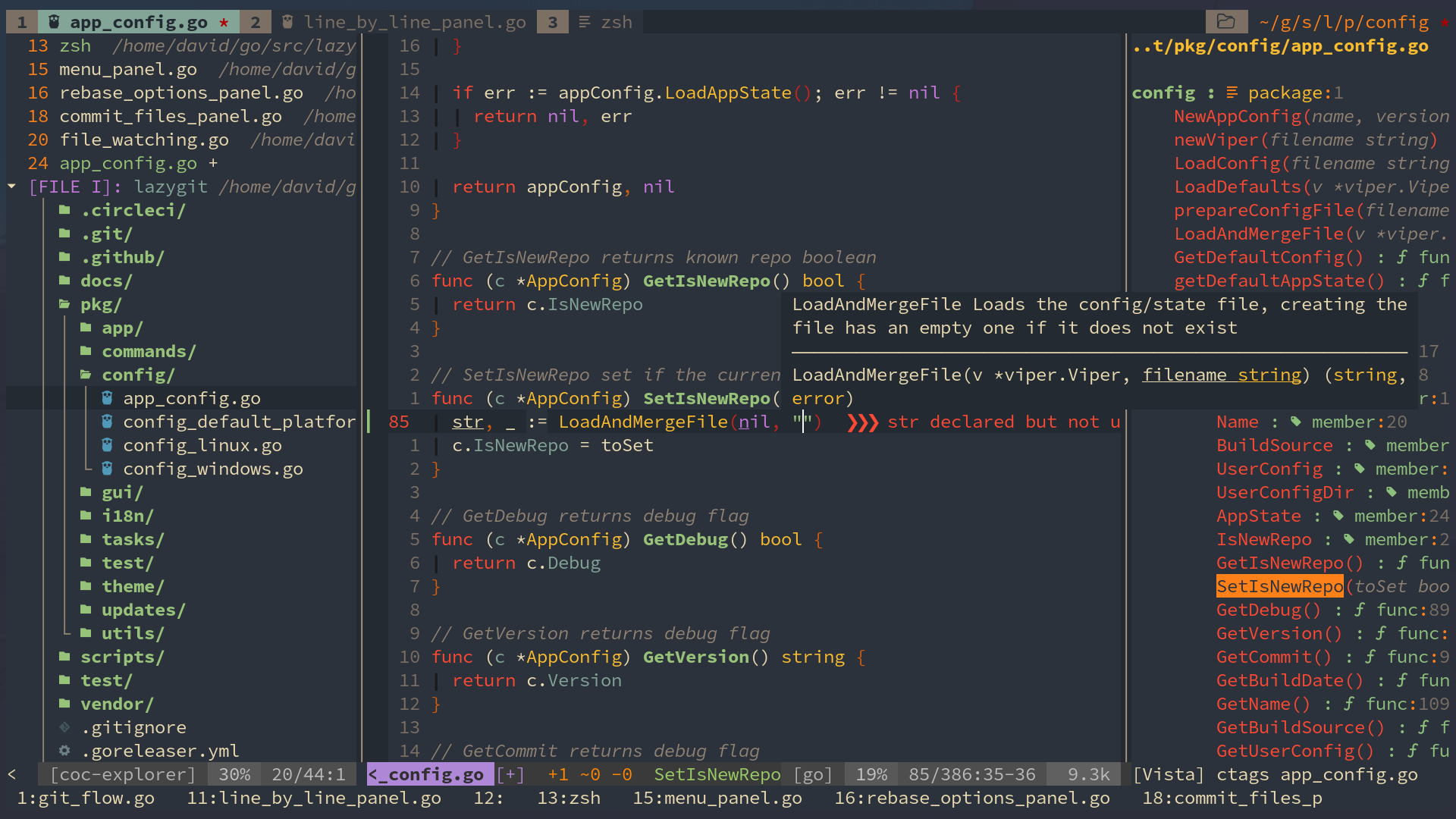
Please DO NOT just copy this configuration folder without really looking at it! Please, at least, read this README file!
- Requirements
- After Installation, You Need To
- After Installation, You Might Want To
- Keyboard Shortcuts
- Plugins Keybindings (Screenshots/GIF provided!)
- Custom Snippets
- Some Weird Stuff
- This nvim configuration REQUIRES NeoVim 0.6.0+
- Install
pip3, and dopip3 install --user pynvim - Install
node, and donpm install -g neovim - Install nerd-fonts (actually it's optional but it looks real good)
- Do
:checkhealth
- Install
debugpy(pip)
- Well, make sure you have python
- See
_machine_specific.vim
- Install
ctagsfor function/class/variable list
- Install
fzf - Install
ag(the_silver_searcher)
- Install
figletfor inputing text ASCII art - Install
xclipfor system clipboard access (Linuxandxorgonly)
k : switchs to INSERT : mode (same as key i in vanilla vim)
Q : quits current vim window (same as command :q in vanilla vim)
S : saves the current file (same as command :w in vanilla vim)
IMPORTANT
Since the i key has been mapped to k, every command (combination) that involves i should use k instead (for example, ciw should be ckw).
| Shortcut | Action | Equivalent |
|---|---|---|
u | Cursor up a terminal line | k |
e | Cursor down a terminal line | j |
n | Cursor left | h |
i | Cursor right | l |
U | Cursor up 5 terminal lines | 5k |
E | Cursor down 5 terminal lines | 5j |
N | Cursor to the start of the line | 0 |
I | Cursor to the end of the line | $ |
Ctrlu | Move the view port up 5 lines without moving the cursor | Ctrly |
Ctrle | Move the view port down 5 lines without moving the cursor | Ctrle |
h | Move to the end of this word | e |
W | Move cursor five words forward | 5w |
B | Move cursor five words forward | 5b |
| Shortcut | Action |
|---|---|
Ctrla | Move cursor to the end of the line |
Ctrlu | Move the character on the right of the cursor to the end of the line |
| Shortcut | Action |
|---|---|
l | undo |
< | Un-indent |
> | Indent |
SPACESPACE | Goto the next placeholder (<++>) |
| Shortcut | Action |
|---|---|
r | Compile/Run the current file |
SPACEsc | Toggle spell suggestion a |
SPACEdw | Find adjacent duplicated word |
SPACEtt | Convert every 4 Spaces to a tab |
SPACEo | Fold |
SPACE- | Previous quick-fix position |
SPACE+ | Next quick-fix position |
\p | Show the path of the current file |
SPACE/ | Create a new terminal below the current window |
| Shortcut | Action |
|---|---|
Y | Copy selected text to system clipboard |
| Shortcut | Action |
|---|---|
su | Create a new horizontal split screen and place it above the current window |
se | Create a new horizontal split screen and place it below the current window |
sn | Create a new vertical split screen and place it left to the current window |
si | Create a new vertical split screen and place it right to the current window |
sv | Set the two splits to be vertical |
sh | Set the two splits to be horizontal |
srv | Rotate splits and arrange splits vertically |
srh | Rotate splits and arrange splits horizontally |
| Shortcut | Action |
|---|---|
SPACE + w | Move cursor to the next window |
SPACE + n | Move cursor one window left |
SPACE + i | Move cursor one window right |
SPACE + u | Move cursor one window up |
SPACE + e | Move cursor one window down |
Use the arrow keys to resize the current window.
| Shortcut | Action |
|---|---|
Q | Close the current window |
SPACEq | Close the window below the current window. (The current window will be closed if there is no window below) |
| Shortcut | Action |
|---|---|
tu | Create a new tab |
tn | Go one tab left |
ti | Go One tab right |
tmn | Move tab left |
tmi | Move tab right |
| Shortcut | Action |
|---|---|
Ctrln | Escape from terminal input mode |
| Shortcut | Action |
|---|---|
Spacey | Get yank history list |
gd | Go to definition |
gr | List references |
gi | List implementation |
gy | Go to type definition |
Spacern | Rename a variable |
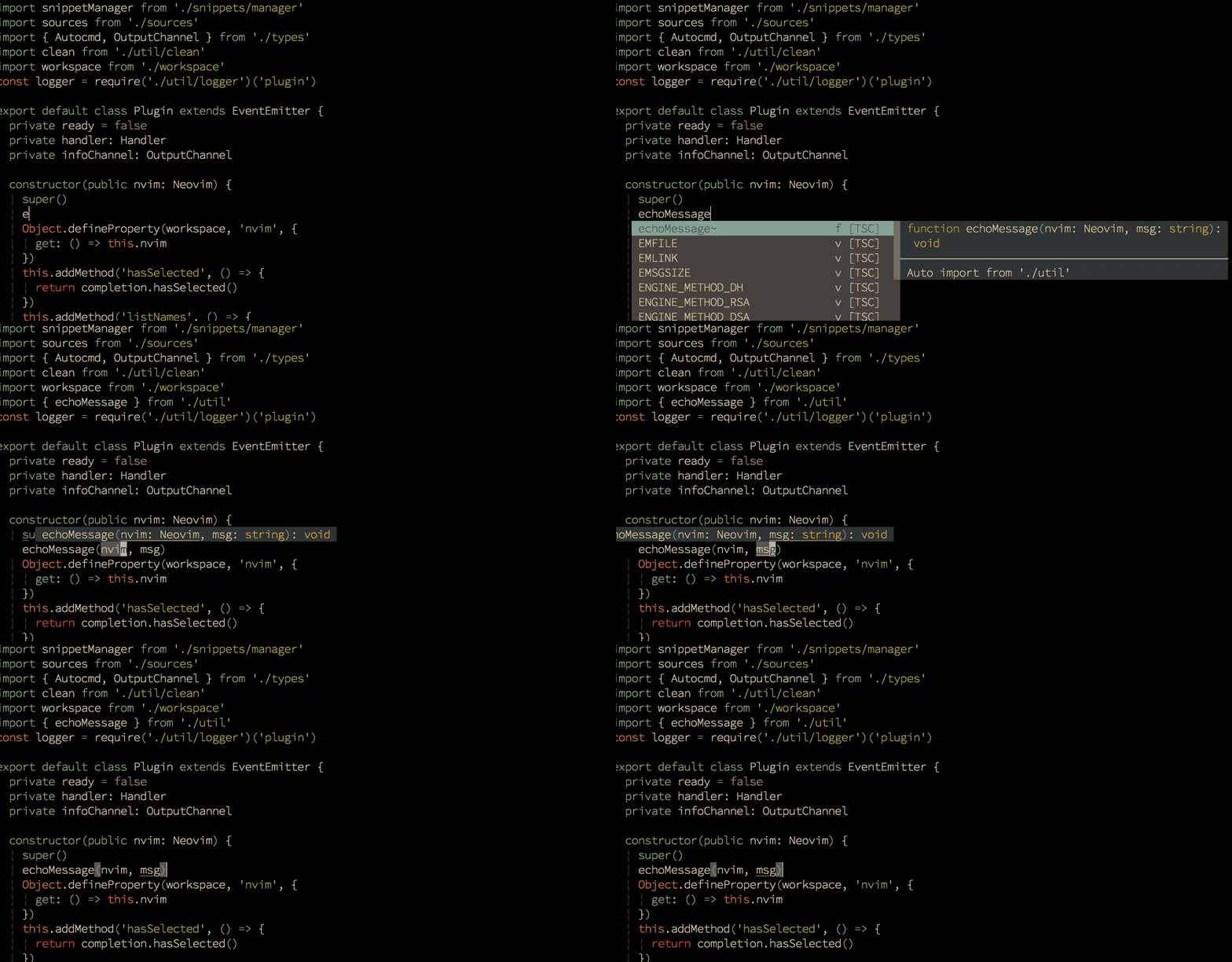
| Shortcut | Action |
|---|---|
Ctrle | Expand a snippet |
Ctrln | (in snippet) Previous Cursor position in snippet |
Ctrle | (in snippet) Next Cursor position in snippet |

| Shortcut | Action |
|---|---|
tt | Open file browser |
? | show help (in explorer) |

- Make sure you have ranger installed
Press R to open Ranger (file selector)
And Within rnvimr (ranger), you can:
| Shortcut | Action |
|---|---|
Ctrlt | Open the file in a new tab |
Ctrlx | Split up and down with the file |
Ctrlv | Split left and right with the file |

| Shortcut | Action |
|---|---|
Ctrlp | FZF Files |
Ctrlu | Move up 1 item |
Ctrle | Move down 1 item |
Ctrlw | FZF Buffers |
Ctrlf | FZF Files' Content |
Ctrlh | FZF Recent Files |
Ctrlt | FZF Tags |

| Shortcut | What it creates |
|---|---|
to | Cycle tab mode |
\p | Show current path |

| Shortcut | Action |
|---|---|
SPACEtm | Toggle table mode |
SPACEtr | Realign table |
See :help table-mode.txt for more.
| Shortcut | Action |
|---|---|
Shift + L | Open Undotree |
u | Newer Version |
e | Older Version |
| Shortcut | Action |
|---|---|
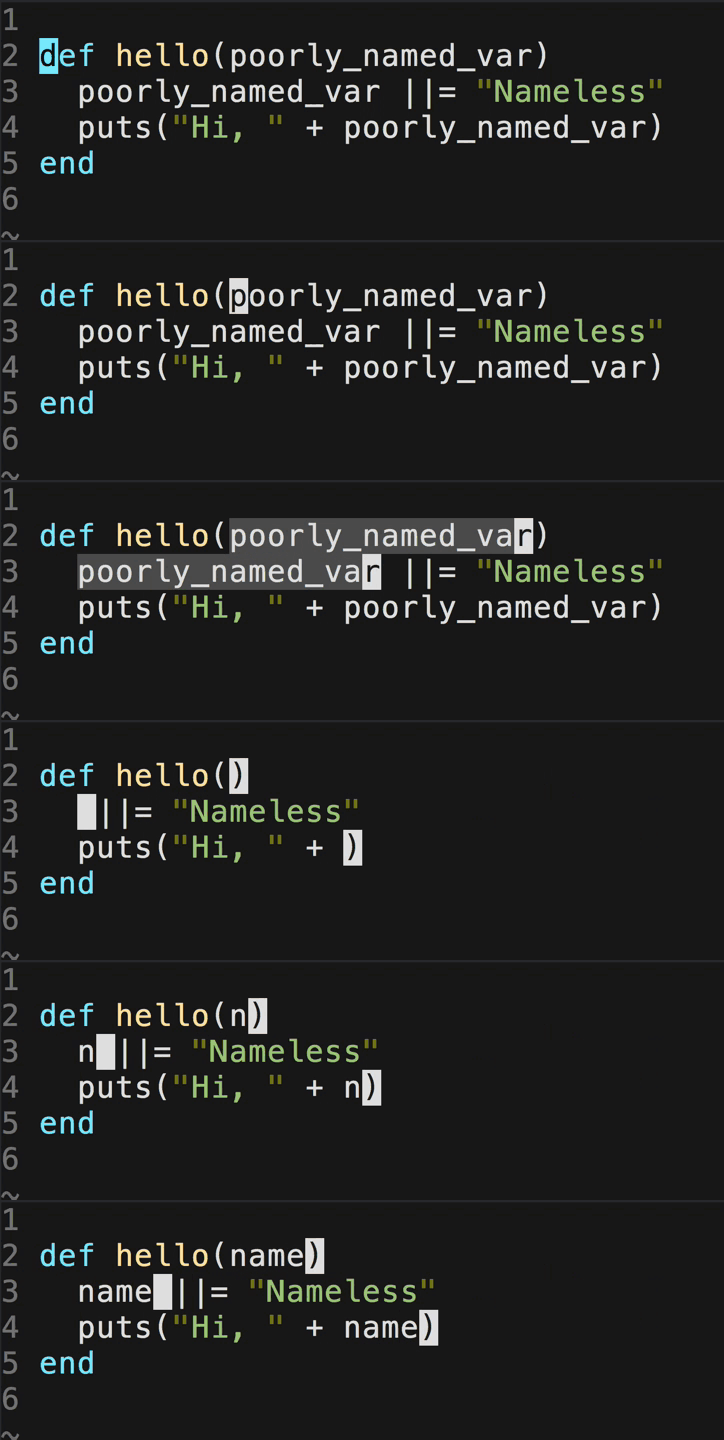
Ctrl+k | Select next key (multiple cursors) |
q | Deselect the current keys (multiple cursors) |
- | Select the previous key |
= | Select the next key |
Esc | Quit mutiple cursors |
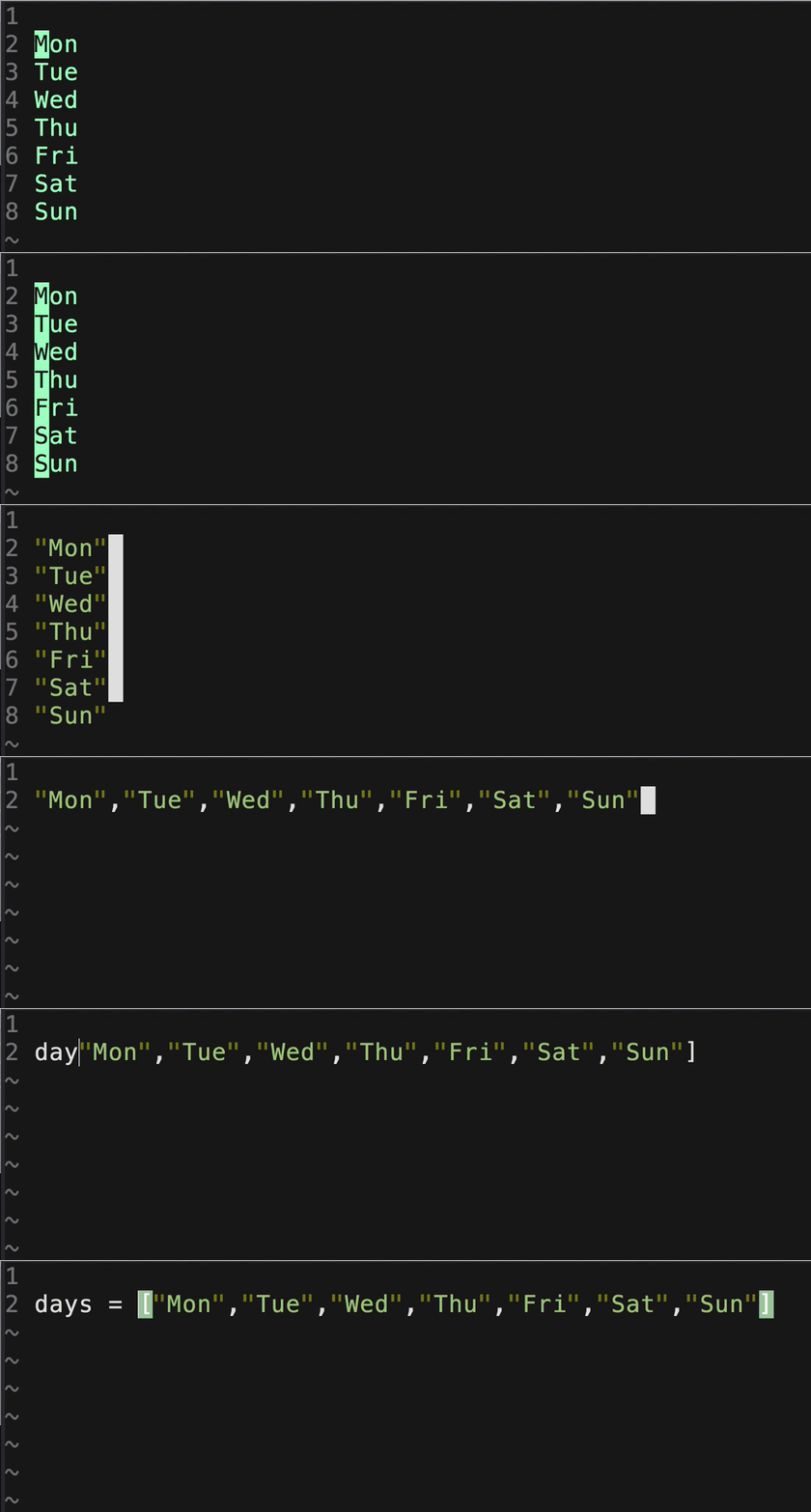
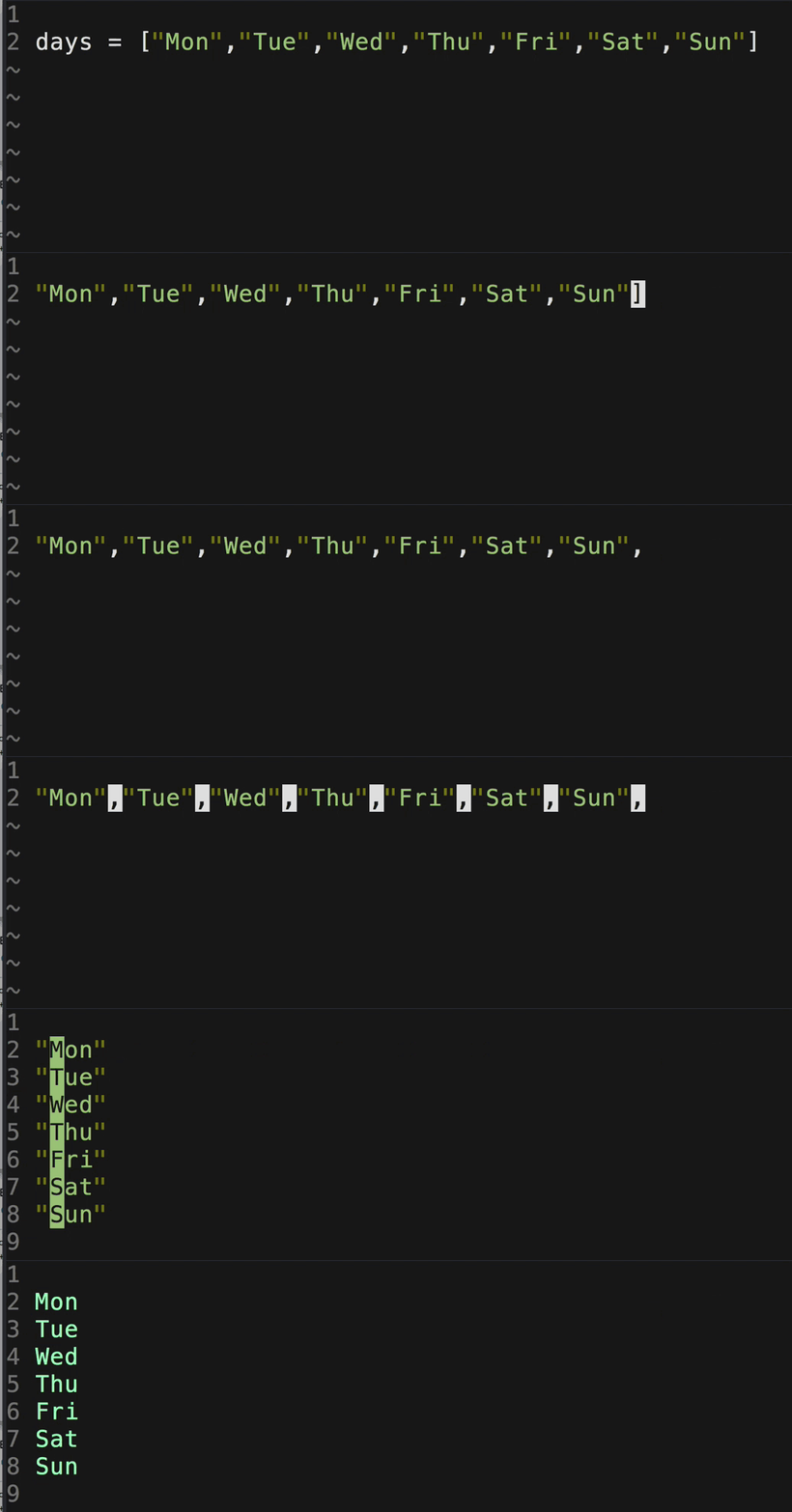
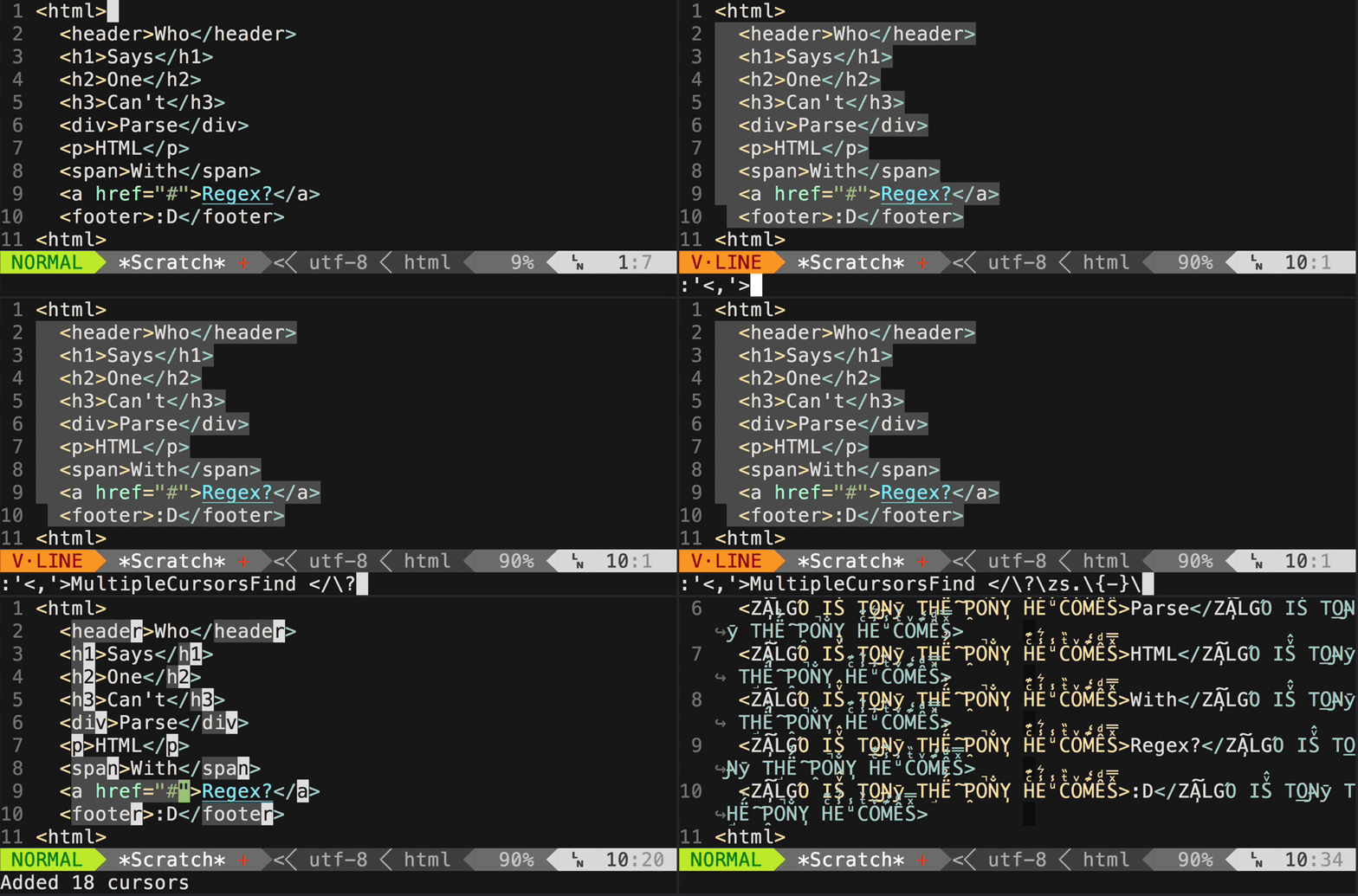
To add surround (string -> "string"):
string
press: yskw':
'string'
To change surround
'string'
press: cs'":
"string"
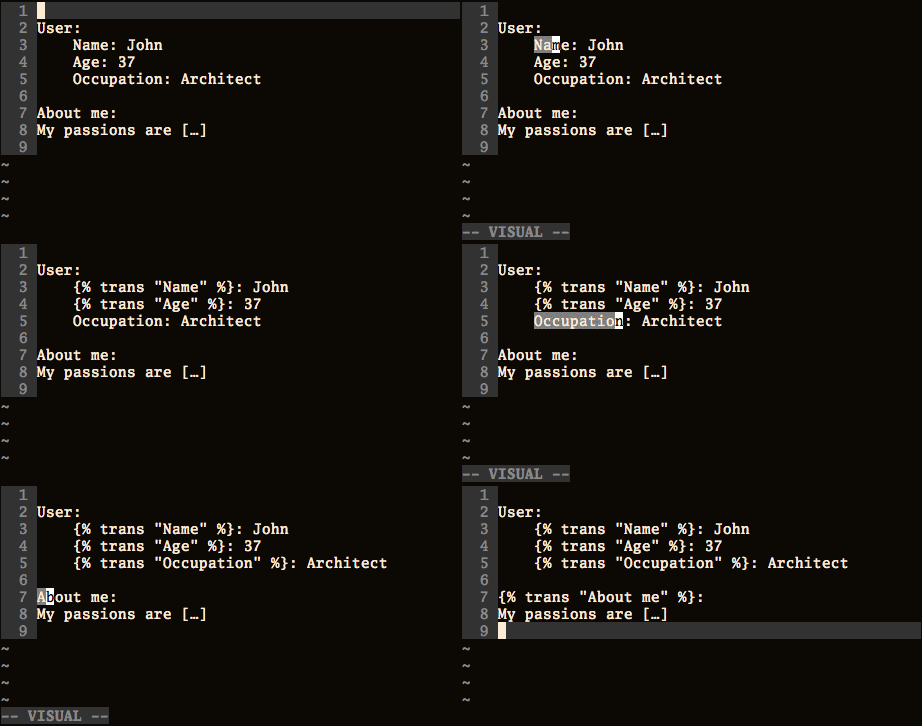
New operator: s:
You can execute s<motion> to substitute the text object provided by the motion with the contents of the default register (or an explicit register if provided). For example, you could execute skw to replace the current word under the cursor with the current yank, or skp to replace the paragraph, etc.
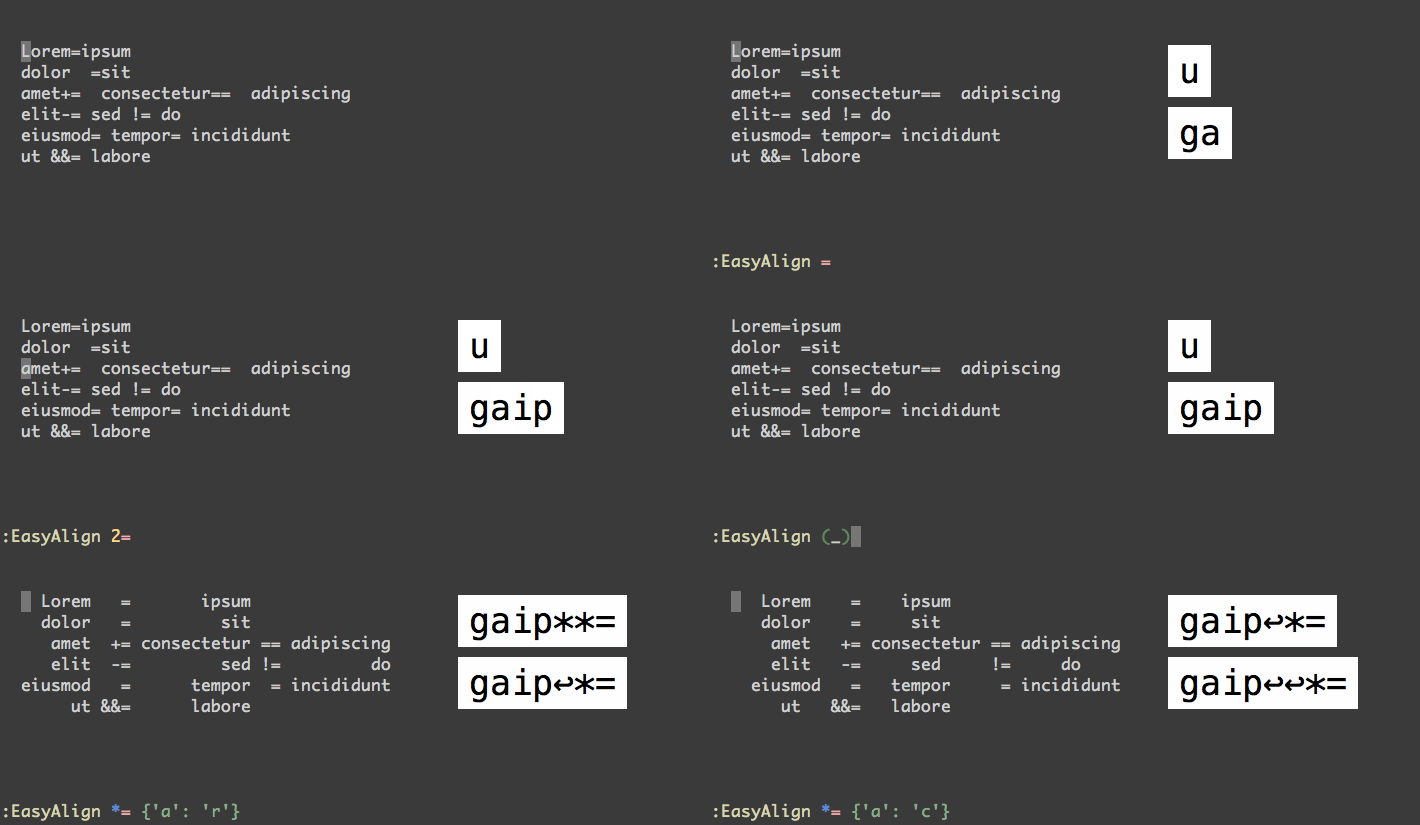
Press ga + symbol in normal or visual mode to align text based on symbol
Press \f to format code
In markdown files, type :Gen then tab, you'll see your options.

Press T to toggle function and variable list
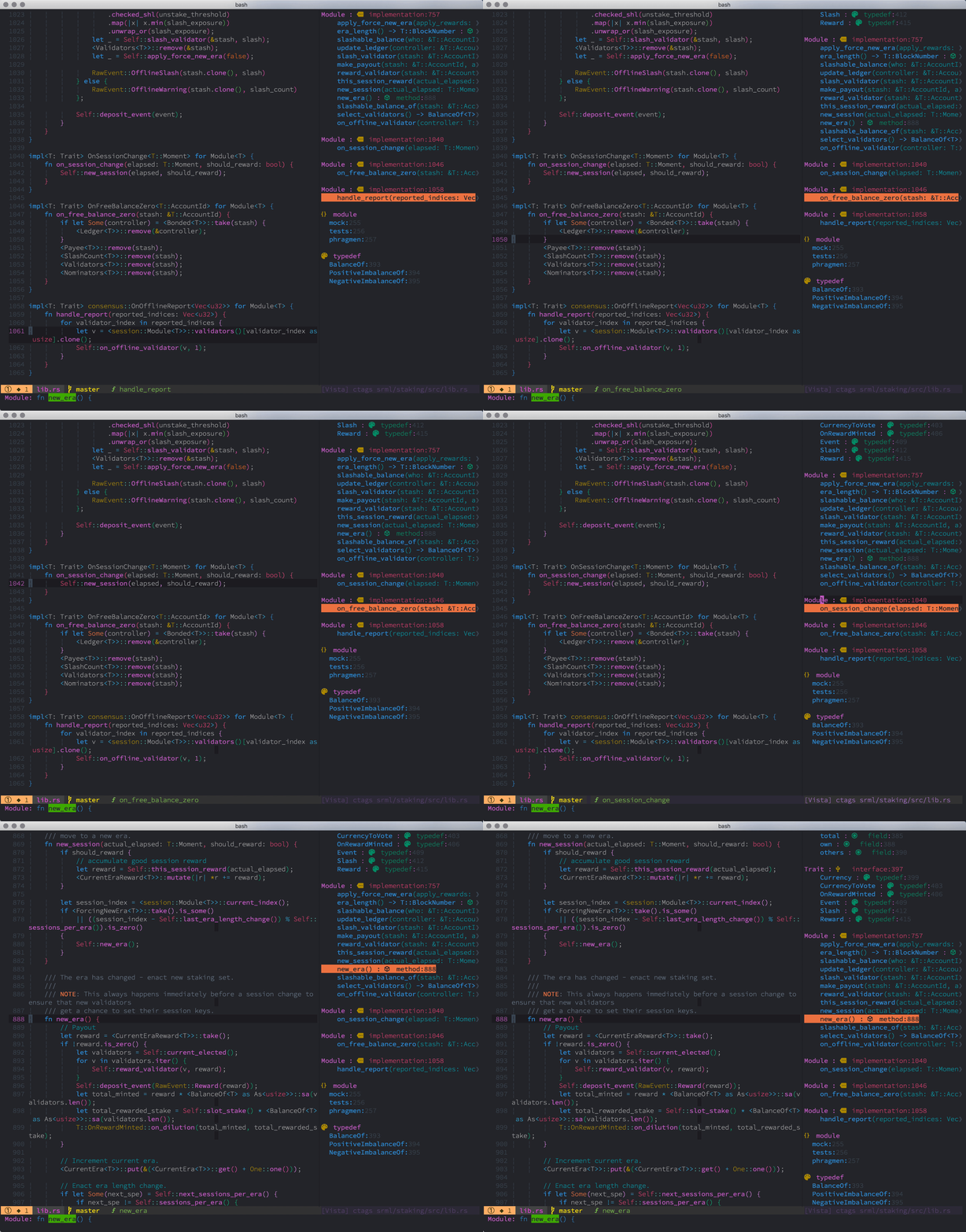
Press SPACEfr to search in cwd.

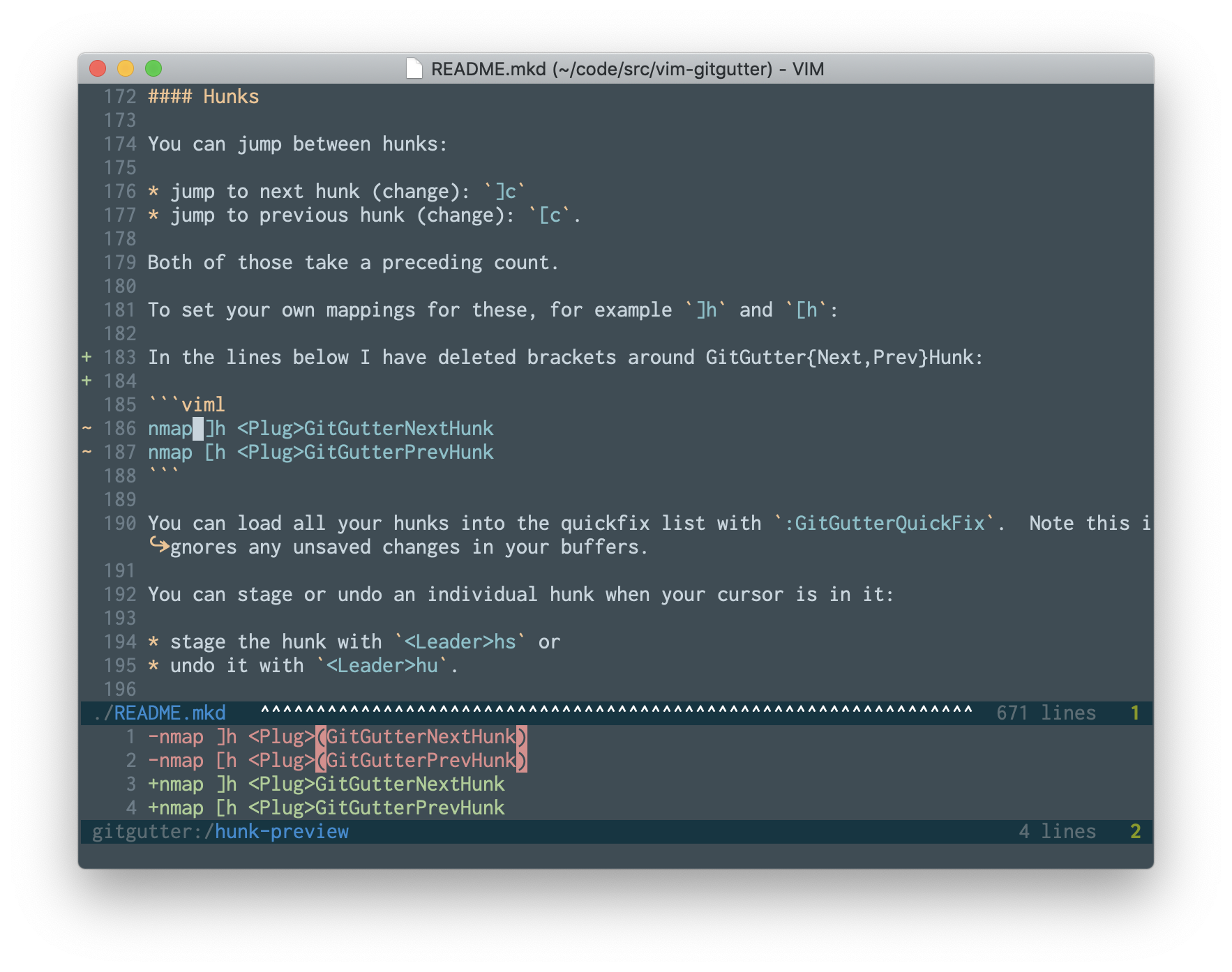
| Shortcut | Action |
|---|---|
H | Show git hunk at current line |
SPACEg- | Go to previous git hunk |
SPACEg+ | Go to next git hunk |
SPACEgf | Fold everything except hunks |
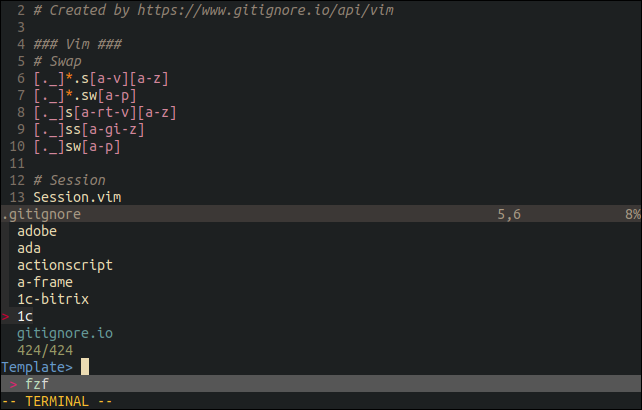
Press Spacegi to create a .gitignore file
| Shortcut | Action |
|---|---|
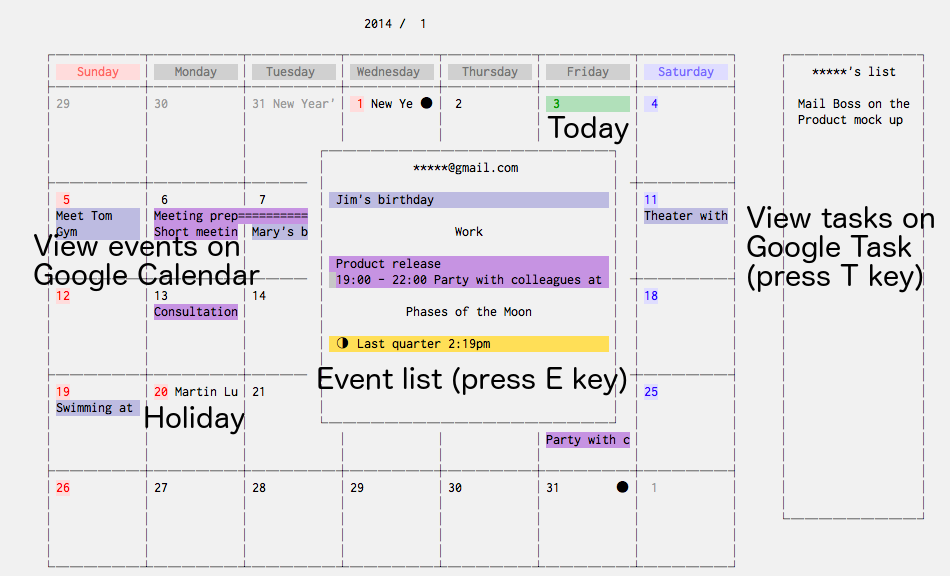
\\ | Show clock |
\c | Show calendar |
Press gy to toggle Goyo


Forgot to sudo vim ...? Just do :sudowrite or :sw
Press ts to translate word under cursor.

| Shortcut | What it creates |
|---|---|
,n | --- |
,b | Bold text |
,s | |
,i | italic text |
,d | code block |
,c | big block of code |
,m | - [ ] check mark |
,p | picture |
,a | link |
,1 | # H1 |
,2 | ## H2 |
,3 | ### H3 |
,4 | #### H4 |
,l | -------- |
,f to go to the next <++> (placeholder)
,w to go to the next <++> (placeholder) and then press Enter for you
tx Hello<Enter>
 _ _ _ _
| | | | ___| | | ___
| |_| |/ _ \ | |/ _ \
| _ | __/ | | (_) |
|_| |_|\___|_|_|\___/
This NeoVim configuration includes a customized vertical cursor movement tailored for Colemak users. It can be located in cursor.vim, and it serves as an alternative to the "number + up/down" key combination.
In order to move the cursor up x lines, press the [ key, and treat the middle row of the Colemak keyboard layout ("arstdhneio") as number 1 to 0. Press the numbers that you'd like your cursor to move (x) and press the space bar.
To move the cursor down, press the ' key instead of the [ key, and the rest would be the same.
Example:
| Shortcut | Action |
|---|---|
[aooSPACE | Move the cursor up 100 lines |
'arsSPACE | Move the cursor down 123 lines |
[doSPACE | Move the cursor up 50 lines |
Note: As of now, you may only move vertically up to 199 lines with this key configuration!