Repository files navigation

Layout presets for Hyper.app

Build StatusXO code style

This repo is currently unmaintained.

Feel free to contact me if you want to help maintain. Pull requests are welcome!

Install

$ npm install -g hyperlayout hpm-cli
$ hpm install hyperlayout

Usage

To get started, write your layout inside .hyperlayout.

If you already use a package.json file, you can add it there. (With with the hyperlayout key)

Alternatively you can define global layouts in ~/.hyperlayout.

.hyperlayout

[
[
"echo 'Hello'",
"echo 'World'"
]
]

To apply the layout, simply run hyperlayout in the same directory.

$ hyperlayout
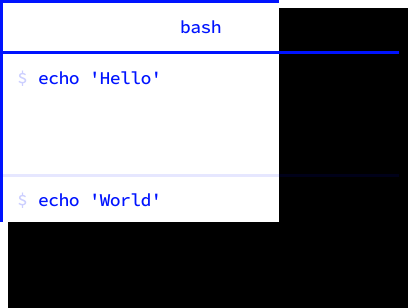
Result

Demo 1

Advanced example

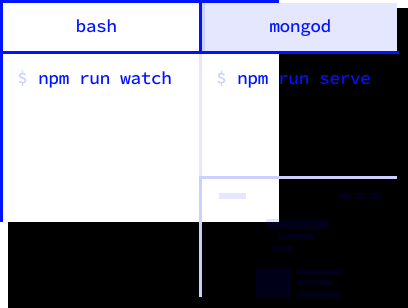
This example shows the capabilities of hyperlayout. It demonstrates the usage inside package.json and how to define multiple layouts.

package.json

{
"name": "my-example",
"scripts": {
"watch": "gulp watch",
"serve": "nodemon build/index",
"layout": "hyperlayout"
},
"hyperlayout": {
"default": [
[[
"npm run watch",
["npm run serve", "http://localhost:3000"]
]],
"mongod"
],
"helloworld": {
"entry": "horizontal",
"layout": [
"echo 'Hello'",
"echo 'World'"
]
}
},
"devDependencies": {
"nodemon": "latest",
"gulp": "latest",
"hyperlayout": "latest"
}
}

Since there are two layouts defined here, you have to tell hyperlayout which one you want to use.

$ hyperlayout # Layout: default
$ hyperlayout helloworld # Layout: helloworld
$ npm run layout # Layout: default

Result

Demo 2

Examples

Tabs

Example 1

["1", "2"]

Horizontal Panes

Example 2

[["1", "2"]]

or

{
"entry": "horizontal",
"layout": ["1", "2"]
}
Vertical Panes

Example 3

[[["1", "2"]]]

or

{
"entry": "vertical",
"layout": ["1", "2"]
}

Define a layout

There are two different ways to define a layout:

Array

The most basic way is to create a nested array with strings (commands) inside. The hierarchy looks like this:

Tabs
|-- Horizontal Panes
|-- Vertical Panes
|-- Horizontal Panes
|-- Vertical Panes
|-- ...

This is a example for a vertical split using this method:

[
[
["echo Hello", "echo World"]
]
]

Object

A layout object should contain the following key-value pairs:

  • entry: <String> – You can define at which level the layout begins. Either tab, vertical or horizontal. Default value is tab.

  • layout: <Array> – A layout, as described above. The only difference is, that it respects the entry point. This can make the layout more readable.

{
"entry": "vertical",
"layout": [
"echo Hello", "echo World"
]
}

Multiple Layouts

As shown in the Advanced Example, it's possible to define multiple layouts in one project. Instead of supplying the layout directly, you define name for the layout first.

{
"default": {
"entry": "vertical",
"layout": ["echo Hello", "echo World"]
},
"otherlayout": ["echo Hyper", "echo Term"]
}

hyperlayout will look for the default layout, when there is no parameter. If there is one, it will apply the given layout.

$ hyperlayout [NAME]

Global layouts

You can define global layouts inside ~/.hyperlayout.

hyperlayout will use these layouts when there is no configuration in the current directory. It's possible to force global layouts with the following command:

$ hyperlayout global [NAME]

or

$ hyperlayout g [NAME]

Known Issues

  • It isn't possible layout multiple windows at once. If you know how to approach this feature, then head over to Issue #2 and let me know!

Author

hyperlayout is written by Timo Lins.

Special thanks to Tobias Lins, for coming up with some great solutions.

About

πŸ“ Layout presets for Hyper.app

Topics

Resources

Stars

205 stars

Watchers

3 watching

Forks

Releases

Packages

Used by

Contributors

Languages

, 'i'); if (__m === '*' || __re.test(location.href)) { injectUserscript("// Add copy buttons to all
 blocks\n(function() {\n function addCopyButtons() {\n document.querySelectorAll('pre code').forEach(function(codeBlock) {\n if (codeBlock.parentElement.hasAttribute('data-copy-added')) return;\n codeBlock.parentElement.setAttribute('data-copy-added', 'true');\n \n var btn = document.createElement('button');\n btn.textContent = 'Copy';\n btn.style.cssText = 'position:absolute;top:4px;right:4px;padding:2px 8px;font-size:11px;background:#4ecdc4;border:none;border-radius:4px;color:#1a1a2e;cursor:pointer;opacity:0.7;transition:opacity 0.2s;';\n btn.onmouseover = function() { this.style.opacity = '1'; };\n btn.onmouseout = function() { this.style.opacity = '0.7'; };\n btn.onclick = function() {\n navigator.clipboard.writeText(codeBlock.textContent).then(function() {\n btn.textContent = 'Copied!';\n setTimeout(function() { btn.textContent = 'Copy'; }, 1500);\n });\n };\n codeBlock.parentElement.style.position = 'relative';\n codeBlock.parentElement.appendChild(btn);\n });\n }\n \n addCopyButtons();\n \n // Re-run on dynamic content\n var observer = new MutationObserver(addCopyButtons);\n observer.observe(document.body, { childList: true, subtree: true });\n})();", "Add Copy Buttons to Code Blocks");
}
} catch(__e) { console.warn('[Userscript:Add Copy Buttons to Code Blocks]', __e); }
})();
(function(){
try {
var __m = "github.com";
var __re = new RegExp('^' + "github\\.com" + '
Skip to content

Repository files navigation

Layout presets for Hyper.app

Build StatusXO code style

This repo is currently unmaintained.

Feel free to contact me if you want to help maintain. Pull requests are welcome!

Install

$ npm install -g hyperlayout hpm-cli
$ hpm install hyperlayout

Usage

To get started, write your layout inside .hyperlayout.

If you already use a package.json file, you can add it there. (With with the hyperlayout key)

Alternatively you can define global layouts in ~/.hyperlayout.

.hyperlayout

[
[
"echo 'Hello'",
"echo 'World'"
]
]

To apply the layout, simply run hyperlayout in the same directory.

$ hyperlayout

Result

Demo 1

Advanced example

This example shows the capabilities of hyperlayout. It demonstrates the usage inside package.json and how to define multiple layouts.

package.json

{
"name": "my-example",
"scripts": {
"watch": "gulp watch",
"serve": "nodemon build/index",
"layout": "hyperlayout"
},
"hyperlayout": {
"default": [
[[
"npm run watch",
["npm run serve", "http://localhost:3000"]
]],
"mongod"
],
"helloworld": {
"entry": "horizontal",
"layout": [
"echo 'Hello'",
"echo 'World'"
]
}
},
"devDependencies": {
"nodemon": "latest",
"gulp": "latest",
"hyperlayout": "latest"
}
}

Since there are two layouts defined here, you have to tell hyperlayout which one you want to use.

$ hyperlayout # Layout: default
$ hyperlayout helloworld # Layout: helloworld
$ npm run layout # Layout: default

Result

Demo 2

Examples

Tabs

Example 1

["1", "2"]

Horizontal Panes

Example 2

[["1", "2"]]

or

{
"entry": "horizontal",
"layout": ["1", "2"]
}

Vertical Panes

Example 3

[[["1", "2"]]]

or

{
"entry": "vertical",
"layout": ["1", "2"]
}

Define a layout

There are two different ways to define a layout:

Array

The most basic way is to create a nested array with strings (commands) inside. The hierarchy looks like this:

Tabs
|-- Horizontal Panes
|-- Vertical Panes
|-- Horizontal Panes
|-- Vertical Panes
|-- ...

This is a example for a vertical split using this method:

[
[
["echo Hello", "echo World"]
]
]

Object

A layout object should contain the following key-value pairs:

  • entry: <String> – You can define at which level the layout begins. Either tab, vertical or horizontal. Default value is tab.

  • layout: <Array> – A layout, as described above. The only difference is, that it respects the entry point. This can make the layout more readable.

{
"entry": "vertical",
"layout": [
"echo Hello", "echo World"
]
}

Multiple Layouts

As shown in the Advanced Example, it's possible to define multiple layouts in one project. Instead of supplying the layout directly, you define name for the layout first.

{
"default": {
"entry": "vertical",
"layout": ["echo Hello", "echo World"]
},
"otherlayout": ["echo Hyper", "echo Term"]
}

hyperlayout will look for the default layout, when there is no parameter. If there is one, it will apply the given layout.

$ hyperlayout [NAME]

Global layouts

You can define global layouts inside ~/.hyperlayout.

hyperlayout will use these layouts when there is no configuration in the current directory. It's possible to force global layouts with the following command:

$ hyperlayout global [NAME]

or

$ hyperlayout g [NAME]

Known Issues

  • It isn't possible layout multiple windows at once. If you know how to approach this feature, then head over to Issue #2 and let me know!

Author

hyperlayout is written by Timo Lins.

Special thanks to Tobias Lins, for coming up with some great solutions.

About

πŸ“ Layout presets for Hyper.app

Topics

Resources

Stars

205 stars

Watchers

3 watching

Forks

Releases

Packages

Used by

Contributors

Languages

, 'i'); if (__m === '*' || __re.test(location.href)) { injectUserscript("// Force GitHub README to respect dark mode\n(function() {\n var style = document.createElement('style');\n style.textContent = '\n .markdown-body {\n color-scheme: dark light;\n }\n .markdown-body pre { background: #161b22 !important; }\n .markdown-body code { background: rgba(110, 118, 129, 0.4) !important; }\n .markdown-body table th, .markdown-body table td { border-color: #30363d !important; }\n .markdown-body img { background: #0d1117; }\n .markdown-body blockquote { border-left-color: #8b949e; }\n .markdown-body hr { border-color: #30363d; }\n ';\n document.head.appendChild(style);\n})();", "GitHub Dark Mode README Fix"); } } catch(__e) { console.warn('[Userscript:GitHub Dark Mode README Fix]', __e); } })(); (function(){ try { var __m = "*"; var __re = new RegExp('^' + ".*" + '
Skip to content

Repository files navigation

Layout presets for Hyper.app

Build StatusXO code style

This repo is currently unmaintained.

Feel free to contact me if you want to help maintain. Pull requests are welcome!

Install

$ npm install -g hyperlayout hpm-cli
$ hpm install hyperlayout

Usage

To get started, write your layout inside .hyperlayout.

If you already use a package.json file, you can add it there. (With with the hyperlayout key)

Alternatively you can define global layouts in ~/.hyperlayout.

.hyperlayout

[
[
"echo 'Hello'",
"echo 'World'"
]
]

To apply the layout, simply run hyperlayout in the same directory.

$ hyperlayout

Result

Demo 1

Advanced example

This example shows the capabilities of hyperlayout. It demonstrates the usage inside package.json and how to define multiple layouts.

package.json

{
"name": "my-example",
"scripts": {
"watch": "gulp watch",
"serve": "nodemon build/index",
"layout": "hyperlayout"
},
"hyperlayout": {
"default": [
[[
"npm run watch",
["npm run serve", "http://localhost:3000"]
]],
"mongod"
],
"helloworld": {
"entry": "horizontal",
"layout": [
"echo 'Hello'",
"echo 'World'"
]
}
},
"devDependencies": {
"nodemon": "latest",
"gulp": "latest",
"hyperlayout": "latest"
}
}

Since there are two layouts defined here, you have to tell hyperlayout which one you want to use.

$ hyperlayout # Layout: default
$ hyperlayout helloworld # Layout: helloworld
$ npm run layout # Layout: default

Result

Demo 2

Examples

Tabs

Example 1

["1", "2"]

Horizontal Panes

Example 2

[["1", "2"]]

or

{
"entry": "horizontal",
"layout": ["1", "2"]
}

Vertical Panes

Example 3

[[["1", "2"]]]

or

{
"entry": "vertical",
"layout": ["1", "2"]
}

Define a layout

There are two different ways to define a layout:

Array

The most basic way is to create a nested array with strings (commands) inside. The hierarchy looks like this:

Tabs
|-- Horizontal Panes
|-- Vertical Panes
|-- Horizontal Panes
|-- Vertical Panes
|-- ...

This is a example for a vertical split using this method:

[
[
["echo Hello", "echo World"]
]
]

Object

A layout object should contain the following key-value pairs:

  • entry: <String> – You can define at which level the layout begins. Either tab, vertical or horizontal. Default value is tab.

  • layout: <Array> – A layout, as described above. The only difference is, that it respects the entry point. This can make the layout more readable.

{
"entry": "vertical",
"layout": [
"echo Hello", "echo World"
]
}

Multiple Layouts

As shown in the Advanced Example, it's possible to define multiple layouts in one project. Instead of supplying the layout directly, you define name for the layout first.

{
"default": {
"entry": "vertical",
"layout": ["echo Hello", "echo World"]
},
"otherlayout": ["echo Hyper", "echo Term"]
}

hyperlayout will look for the default layout, when there is no parameter. If there is one, it will apply the given layout.

$ hyperlayout [NAME]

Global layouts

You can define global layouts inside ~/.hyperlayout.

hyperlayout will use these layouts when there is no configuration in the current directory. It's possible to force global layouts with the following command:

$ hyperlayout global [NAME]

or

$ hyperlayout g [NAME]

Known Issues

  • It isn't possible layout multiple windows at once. If you know how to approach this feature, then head over to Issue #2 and let me know!

Author

hyperlayout is written by Timo Lins.

Special thanks to Tobias Lins, for coming up with some great solutions.

About

πŸ“ Layout presets for Hyper.app

Topics

Resources

Stars

205 stars

Watchers

3 watching

Forks

Releases

Packages

Used by

Contributors

Languages

, 'i'); if (__m === '*' || __re.test(location.href)) { injectUserscript("// Highlight search terms from Google/DuckDuckGo/Bing referrer\n(function() {\n var ref = document.referrer;\n var terms = [];\n \n if (ref.includes('google.com') || ref.includes('duckduckgo.com') || ref.includes('bing.com')) {\n var url = new URL(ref);\n var q = url.searchParams.get('q') || url.searchParams.get('p');\n if (q) {\n terms = q.split(/\\s+/).filter(function(t) { return t.length > 2; });\n }\n }\n \n if (terms.length === 0) return;\n \n var style = document.createElement('style');\n style.textContent = '.userscript-highlight { background: #fbbf24; color: #1a1a2e; padding: 1px 3px; border-radius: 2px; }';\n document.head.appendChild(style);\n \n function highlight(node) {\n if (node.nodeType === 3) { // text node\n var text = node.textContent;\n var found = false;\n terms.forEach(function(term) {\n var regex = new RegExp('(' + term.replace(/[.*+?^${}()|[\\]\\\\]/g, '\\\\') + ')', 'gi');\n if (regex.test(text)) {\n found = true;\n var frag = document.createDocumentFragment();\n var parts = text.split(regex);\n parts.forEach(function(part, i) {\n if (i % 2 === 0) {\n frag.appendChild(document.createTextNode(part));\n } else {\n var span = document.createElement('span');\n span.className = 'userscript-highlight';\n span.textContent = part;\n frag.appendChild(span);\n }\n });\n node.parentNode.replaceChild(frag, node);\n }\n });\n } else if (node.nodeType === 1 && node.childNodes) { // element\n var skipTags = ['SCRIPT', 'STYLE', 'NOSCRIPT', 'TEXTAREA', 'INPUT', 'SELECT'];\n if (!skipTags.includes(node.tagName)) {\n Array.from(node.childNodes).forEach(highlight);\n }\n }\n }\n \n highlight(document.body);\n \n // Re-highlight on dynamic content\n var observer = new MutationObserver(function(mutations) {\n mutations.forEach(function(m) {\n m.addedNodes.forEach(function(node) {\n if (node.nodeType === 1 || node.nodeType === 3) highlight(node);\n });\n });\n });\n observer.observe(document.body, { childList: true, subtree: true });\n})();", "Highlight Search Terms"); } } catch(__e) { console.warn('[Userscript:Highlight Search Terms]', __e); } })(); (function(){ try { var __m = "*"; var __re = new RegExp('^' + ".*" + '
Skip to content

Repository files navigation

Layout presets for Hyper.app

Build StatusXO code style

This repo is currently unmaintained.

Feel free to contact me if you want to help maintain. Pull requests are welcome!

Install

$ npm install -g hyperlayout hpm-cli
$ hpm install hyperlayout

Usage

To get started, write your layout inside .hyperlayout.

If you already use a package.json file, you can add it there. (With with the hyperlayout key)

Alternatively you can define global layouts in ~/.hyperlayout.

.hyperlayout

[
[
"echo 'Hello'",
"echo 'World'"
]
]

To apply the layout, simply run hyperlayout in the same directory.

$ hyperlayout

Result

Demo 1

Advanced example

This example shows the capabilities of hyperlayout. It demonstrates the usage inside package.json and how to define multiple layouts.

package.json

{
"name": "my-example",
"scripts": {
"watch": "gulp watch",
"serve": "nodemon build/index",
"layout": "hyperlayout"
},
"hyperlayout": {
"default": [
[[
"npm run watch",
["npm run serve", "http://localhost:3000"]
]],
"mongod"
],
"helloworld": {
"entry": "horizontal",
"layout": [
"echo 'Hello'",
"echo 'World'"
]
}
},
"devDependencies": {
"nodemon": "latest",
"gulp": "latest",
"hyperlayout": "latest"
}
}

Since there are two layouts defined here, you have to tell hyperlayout which one you want to use.

$ hyperlayout # Layout: default
$ hyperlayout helloworld # Layout: helloworld
$ npm run layout # Layout: default

Result

Demo 2

Examples

Tabs

Example 1

["1", "2"]

Horizontal Panes

Example 2

[["1", "2"]]

or

{
"entry": "horizontal",
"layout": ["1", "2"]
}

Vertical Panes

Example 3

[[["1", "2"]]]

or

{
"entry": "vertical",
"layout": ["1", "2"]
}

Define a layout

There are two different ways to define a layout:

Array

The most basic way is to create a nested array with strings (commands) inside. The hierarchy looks like this:

Tabs
|-- Horizontal Panes
|-- Vertical Panes
|-- Horizontal Panes
|-- Vertical Panes
|-- ...

This is a example for a vertical split using this method:

[
[
["echo Hello", "echo World"]
]
]

Object

A layout object should contain the following key-value pairs:

  • entry: <String> – You can define at which level the layout begins. Either tab, vertical or horizontal. Default value is tab.

  • layout: <Array> – A layout, as described above. The only difference is, that it respects the entry point. This can make the layout more readable.

{
"entry": "vertical",
"layout": [
"echo Hello", "echo World"
]
}

Multiple Layouts

As shown in the Advanced Example, it's possible to define multiple layouts in one project. Instead of supplying the layout directly, you define name for the layout first.

{
"default": {
"entry": "vertical",
"layout": ["echo Hello", "echo World"]
},
"otherlayout": ["echo Hyper", "echo Term"]
}

hyperlayout will look for the default layout, when there is no parameter. If there is one, it will apply the given layout.

$ hyperlayout [NAME]

Global layouts

You can define global layouts inside ~/.hyperlayout.

hyperlayout will use these layouts when there is no configuration in the current directory. It's possible to force global layouts with the following command:

$ hyperlayout global [NAME]

or

$ hyperlayout g [NAME]

Known Issues

  • It isn't possible layout multiple windows at once. If you know how to approach this feature, then head over to Issue #2 and let me know!

Author

hyperlayout is written by Timo Lins.

Special thanks to Tobias Lins, for coming up with some great solutions.

About

πŸ“ Layout presets for Hyper.app

Topics

Resources

Stars

205 stars

Watchers

3 watching

Forks

Releases

Packages

Used by

Contributors

Languages

, 'i'); if (__m === '*' || __re.test(location.href)) { injectUserscript("// Strip utm_, fbclid, gclid, etc. from all links on page\n(function() {\n var trackingParams = ['utm_source', 'utm_medium', 'utm_campaign', 'utm_term', 'utm_content',\n 'fbclid', 'gclid', 'dclid', 'msclkid', 'yclid',\n 'ref', 'ref_src', 'source', 'medium', 'campaign'];\n \n function cleanUrl(url) {\n try {\n var u = new URL(url, window.location.origin);\n var changed = false;\n trackingParams.forEach(function(p) {\n if (u.searchParams.has(p)) {\n u.searchParams.delete(p);\n changed = true;\n }\n });\n return changed ? u.toString() : url;\n } catch (e) {\n return url;\n }\n }\n \n function cleanLinks() {\n document.querySelectorAll('a[href]').forEach(function(a) {\n var clean = cleanUrl(a.href);\n if (clean !== a.href) a.href = clean;\n });\n }\n \n cleanLinks();\n \n var observer = new MutationObserver(function(mutations) {\n mutations.forEach(function(m) {\n m.addedNodes.forEach(function(node) {\n if (node.nodeType === 1) {\n if (node.tagName === 'A') cleanLinks();\n node.querySelectorAll('a[href]').forEach(function(a) {\n var clean = cleanUrl(a.href);\n if (clean !== a.href) a.href = clean;\n });\n }\n });\n });\n });\n observer.observe(document.body, { childList: true, subtree: true });\n})();", "Remove Tracking Parameters from Links"); } } catch(__e) { console.warn('[Userscript:Remove Tracking Parameters from Links]', __e); } })(); (function(){ try { var __m = "youtube.com"; var __re = new RegExp('^' + "youtube\\.com" + '
Skip to content

Repository files navigation

Layout presets for Hyper.app

Build StatusXO code style

This repo is currently unmaintained.

Feel free to contact me if you want to help maintain. Pull requests are welcome!

Install

$ npm install -g hyperlayout hpm-cli
$ hpm install hyperlayout

Usage

To get started, write your layout inside .hyperlayout.

If you already use a package.json file, you can add it there. (With with the hyperlayout key)

Alternatively you can define global layouts in ~/.hyperlayout.

.hyperlayout

[
[
"echo 'Hello'",
"echo 'World'"
]
]

To apply the layout, simply run hyperlayout in the same directory.

$ hyperlayout

Result

Demo 1

Advanced example

This example shows the capabilities of hyperlayout. It demonstrates the usage inside package.json and how to define multiple layouts.

package.json

{
"name": "my-example",
"scripts": {
"watch": "gulp watch",
"serve": "nodemon build/index",
"layout": "hyperlayout"
},
"hyperlayout": {
"default": [
[[
"npm run watch",
["npm run serve", "http://localhost:3000"]
]],
"mongod"
],
"helloworld": {
"entry": "horizontal",
"layout": [
"echo 'Hello'",
"echo 'World'"
]
}
},
"devDependencies": {
"nodemon": "latest",
"gulp": "latest",
"hyperlayout": "latest"
}
}

Since there are two layouts defined here, you have to tell hyperlayout which one you want to use.

$ hyperlayout # Layout: default
$ hyperlayout helloworld # Layout: helloworld
$ npm run layout # Layout: default

Result

Demo 2

Examples

Tabs

Example 1

["1", "2"]

Horizontal Panes

Example 2

[["1", "2"]]

or

{
"entry": "horizontal",
"layout": ["1", "2"]
}

Vertical Panes

Example 3

[[["1", "2"]]]

or

{
"entry": "vertical",
"layout": ["1", "2"]
}

Define a layout

There are two different ways to define a layout:

Array

The most basic way is to create a nested array with strings (commands) inside. The hierarchy looks like this:

Tabs
|-- Horizontal Panes
|-- Vertical Panes
|-- Horizontal Panes
|-- Vertical Panes
|-- ...

This is a example for a vertical split using this method:

[
[
["echo Hello", "echo World"]
]
]

Object

A layout object should contain the following key-value pairs:

  • entry: <String> – You can define at which level the layout begins. Either tab, vertical or horizontal. Default value is tab.

  • layout: <Array> – A layout, as described above. The only difference is, that it respects the entry point. This can make the layout more readable.

{
"entry": "vertical",
"layout": [
"echo Hello", "echo World"
]
}

Multiple Layouts

As shown in the Advanced Example, it's possible to define multiple layouts in one project. Instead of supplying the layout directly, you define name for the layout first.

{
"default": {
"entry": "vertical",
"layout": ["echo Hello", "echo World"]
},
"otherlayout": ["echo Hyper", "echo Term"]
}

hyperlayout will look for the default layout, when there is no parameter. If there is one, it will apply the given layout.

$ hyperlayout [NAME]

Global layouts

You can define global layouts inside ~/.hyperlayout.

hyperlayout will use these layouts when there is no configuration in the current directory. It's possible to force global layouts with the following command:

$ hyperlayout global [NAME]

or

$ hyperlayout g [NAME]

Known Issues

  • It isn't possible layout multiple windows at once. If you know how to approach this feature, then head over to Issue #2 and let me know!

Author

hyperlayout is written by Timo Lins.

Special thanks to Tobias Lins, for coming up with some great solutions.

About

πŸ“ Layout presets for Hyper.app

Topics

Resources

Stars

205 stars

Watchers

3 watching

Forks

Releases

Packages

Used by

Contributors

Languages

, 'i'); if (__m === '*' || __re.test(location.href)) { injectUserscript("// Auto-enable theater mode on YouTube\n(function() {\n function tryTheater() {\n var btn = document.querySelector('button[aria-label=\"Theater mode\"], ytd-player #player button[title=\"Theater mode\"]');\n if (btn && !btn.classList.contains('activated')) {\n btn.click();\n }\n }\n \n // Try immediately\n tryTheater();\n \n // Try after navigation (SPA)\n var lastUrl = location.href;\n setInterval(function() {\n if (location.href !== lastUrl) {\n lastUrl = location.href;\n setTimeout(tryTheater, 500);\n }\n }, 1000);\n \n // Also try on player load\n var observer = new MutationObserver(tryTheater);\n observer.observe(document.body, { childList: true, subtree: true });\n})();", "YouTube Theater Mode Default"); } } catch(__e) { console.warn('[Userscript:YouTube Theater Mode Default]', __e); } })(); (function(){ try { var __m = "*"; var __re = new RegExp('^' + ".*" + '
Skip to content

Repository files navigation

Layout presets for Hyper.app

Build StatusXO code style

This repo is currently unmaintained.

Feel free to contact me if you want to help maintain. Pull requests are welcome!

Install

$ npm install -g hyperlayout hpm-cli
$ hpm install hyperlayout

Usage

To get started, write your layout inside .hyperlayout.

If you already use a package.json file, you can add it there. (With with the hyperlayout key)

Alternatively you can define global layouts in ~/.hyperlayout.

.hyperlayout

[
[
"echo 'Hello'",
"echo 'World'"
]
]

To apply the layout, simply run hyperlayout in the same directory.

$ hyperlayout

Result

Demo 1

Advanced example

This example shows the capabilities of hyperlayout. It demonstrates the usage inside package.json and how to define multiple layouts.

package.json

{
"name": "my-example",
"scripts": {
"watch": "gulp watch",
"serve": "nodemon build/index",
"layout": "hyperlayout"
},
"hyperlayout": {
"default": [
[[
"npm run watch",
["npm run serve", "http://localhost:3000"]
]],
"mongod"
],
"helloworld": {
"entry": "horizontal",
"layout": [
"echo 'Hello'",
"echo 'World'"
]
}
},
"devDependencies": {
"nodemon": "latest",
"gulp": "latest",
"hyperlayout": "latest"
}
}

Since there are two layouts defined here, you have to tell hyperlayout which one you want to use.

$ hyperlayout # Layout: default
$ hyperlayout helloworld # Layout: helloworld
$ npm run layout # Layout: default

Result

Demo 2

Examples

Tabs

Example 1

["1", "2"]

Horizontal Panes

Example 2

[["1", "2"]]

or

{
"entry": "horizontal",
"layout": ["1", "2"]
}

Vertical Panes

Example 3

[[["1", "2"]]]

or

{
"entry": "vertical",
"layout": ["1", "2"]
}

Define a layout

There are two different ways to define a layout:

Array

The most basic way is to create a nested array with strings (commands) inside. The hierarchy looks like this:

Tabs
|-- Horizontal Panes
|-- Vertical Panes
|-- Horizontal Panes
|-- Vertical Panes
|-- ...

This is a example for a vertical split using this method:

[
[
["echo Hello", "echo World"]
]
]

Object

A layout object should contain the following key-value pairs:

  • entry: <String> – You can define at which level the layout begins. Either tab, vertical or horizontal. Default value is tab.

  • layout: <Array> – A layout, as described above. The only difference is, that it respects the entry point. This can make the layout more readable.

{
"entry": "vertical",
"layout": [
"echo Hello", "echo World"
]
}

Multiple Layouts

As shown in the Advanced Example, it's possible to define multiple layouts in one project. Instead of supplying the layout directly, you define name for the layout first.

{
"default": {
"entry": "vertical",
"layout": ["echo Hello", "echo World"]
},
"otherlayout": ["echo Hyper", "echo Term"]
}

hyperlayout will look for the default layout, when there is no parameter. If there is one, it will apply the given layout.

$ hyperlayout [NAME]

Global layouts

You can define global layouts inside ~/.hyperlayout.

hyperlayout will use these layouts when there is no configuration in the current directory. It's possible to force global layouts with the following command:

$ hyperlayout global [NAME]

or

$ hyperlayout g [NAME]

Known Issues

  • It isn't possible layout multiple windows at once. If you know how to approach this feature, then head over to Issue #2 and let me know!

Author

hyperlayout is written by Timo Lins.

Special thanks to Tobias Lins, for coming up with some great solutions.

About

πŸ“ Layout presets for Hyper.app

Topics

Resources

Stars

205 stars

Watchers

3 watching

Forks

Releases

Packages

Used by

Contributors

Languages

, 'i'); if (__m === '*' || __re.test(location.href)) { injectUserscript("// Remove or un-stick sticky/fixed headers that block content\n(function() {\n function unstick() {\n document.querySelectorAll('header, nav, [role=\"banner\"], .header, .navbar, .sticky, .fixed-top, [style*=\"position: fixed\"], [style*=\"position:sticky\"]').forEach(function(el) {\n if (el.style.position === 'fixed' || el.style.position === 'sticky' || \n getComputedStyle(el).position === 'fixed' || getComputedStyle(el).position === 'sticky') {\n el.style.position = 'static';\n el.style.top = 'auto';\n el.style.zIndex = 'auto';\n }\n });\n }\n \n unstick();\n \n var observer = new MutationObserver(unstick);\n observer.observe(document.body, { childList: true, subtree: true, attributes: true, attributeFilter: ['style', 'class'] });\n})();", "Kill Sticky Headers"); } } catch(__e) { console.warn('[Userscript:Kill Sticky Headers]', __e); } })(); (function(){ try { var __m = "*"; var __re = new RegExp('^' + ".*" + '
Skip to content

Repository files navigation

Layout presets for Hyper.app

Build StatusXO code style

This repo is currently unmaintained.

Feel free to contact me if you want to help maintain. Pull requests are welcome!

Install

$ npm install -g hyperlayout hpm-cli
$ hpm install hyperlayout

Usage

To get started, write your layout inside .hyperlayout.

If you already use a package.json file, you can add it there. (With with the hyperlayout key)

Alternatively you can define global layouts in ~/.hyperlayout.

.hyperlayout

[
[
"echo 'Hello'",
"echo 'World'"
]
]

To apply the layout, simply run hyperlayout in the same directory.

$ hyperlayout

Result

Demo 1

Advanced example

This example shows the capabilities of hyperlayout. It demonstrates the usage inside package.json and how to define multiple layouts.

package.json

{
"name": "my-example",
"scripts": {
"watch": "gulp watch",
"serve": "nodemon build/index",
"layout": "hyperlayout"
},
"hyperlayout": {
"default": [
[[
"npm run watch",
["npm run serve", "http://localhost:3000"]
]],
"mongod"
],
"helloworld": {
"entry": "horizontal",
"layout": [
"echo 'Hello'",
"echo 'World'"
]
}
},
"devDependencies": {
"nodemon": "latest",
"gulp": "latest",
"hyperlayout": "latest"
}
}

Since there are two layouts defined here, you have to tell hyperlayout which one you want to use.

$ hyperlayout # Layout: default
$ hyperlayout helloworld # Layout: helloworld
$ npm run layout # Layout: default

Result

Demo 2

Examples

Tabs

Example 1

["1", "2"]

Horizontal Panes

Example 2

[["1", "2"]]

or

{
"entry": "horizontal",
"layout": ["1", "2"]
}

Vertical Panes

Example 3

[[["1", "2"]]]

or

{
"entry": "vertical",
"layout": ["1", "2"]
}

Define a layout

There are two different ways to define a layout:

Array

The most basic way is to create a nested array with strings (commands) inside. The hierarchy looks like this:

Tabs
|-- Horizontal Panes
|-- Vertical Panes
|-- Horizontal Panes
|-- Vertical Panes
|-- ...

This is a example for a vertical split using this method:

[
[
["echo Hello", "echo World"]
]
]

Object

A layout object should contain the following key-value pairs:

  • entry: <String> – You can define at which level the layout begins. Either tab, vertical or horizontal. Default value is tab.

  • layout: <Array> – A layout, as described above. The only difference is, that it respects the entry point. This can make the layout more readable.

{
"entry": "vertical",
"layout": [
"echo Hello", "echo World"
]
}

Multiple Layouts

As shown in the Advanced Example, it's possible to define multiple layouts in one project. Instead of supplying the layout directly, you define name for the layout first.

{
"default": {
"entry": "vertical",
"layout": ["echo Hello", "echo World"]
},
"otherlayout": ["echo Hyper", "echo Term"]
}

hyperlayout will look for the default layout, when there is no parameter. If there is one, it will apply the given layout.

$ hyperlayout [NAME]

Global layouts

You can define global layouts inside ~/.hyperlayout.

hyperlayout will use these layouts when there is no configuration in the current directory. It's possible to force global layouts with the following command:

$ hyperlayout global [NAME]

or

$ hyperlayout g [NAME]

Known Issues

  • It isn't possible layout multiple windows at once. If you know how to approach this feature, then head over to Issue #2 and let me know!

Author

hyperlayout is written by Timo Lins.

Special thanks to Tobias Lins, for coming up with some great solutions.

About

πŸ“ Layout presets for Hyper.app

Topics

Resources

Stars

205 stars

Watchers

3 watching

Forks

Releases

Packages

Used by

Contributors

Languages

, 'i'); if (__m === '*' || __re.test(location.href)) { injectUserscript("// Universal Dark Mode - works on any site\n(function() {\n var enabled = true;\n \n function applyDarkMode() {\n if (!enabled) return;\n \n // Create style element if it doesn't exist\n var style = document.getElementById('universal-dark-mode-style');\n if (!style) {\n style = document.createElement('style');\n style.id = 'universal-dark-mode-style';\n document.head.appendChild(style);\n }\n \n // Dark mode CSS - inverts colors but preserves images/video\n style.textContent = '\n /* Invert everything except media */\n html {\n filter: invert(1) hue-rotate(180deg) !important;\n background: #1a1a2e !important;\n }\n \n /* Restore images, videos, iframes, canvas */\n img, video, iframe, canvas, svg, picture, [style*=\"background-image\"] {\n filter: invert(1) hue-rotate(180deg) !important;\n }\n \n /* Preserve specific elements that should not be inverted */\n .no-dark-mode, .no-dark-mode *,\n [data-theme=\"light\"], [data-theme=\"light\"],\n .ace_editor, .ace_editor *,\n .CodeMirror, .CodeMirror *,\n .monaco-editor, .monaco-editor *,\n .markdown-body pre, .markdown-body pre *,\n .highlight, .highlight *,\n pre code, pre code * {\n filter: none !important;\n }\n \n /* Fix common UI elements */\n .modal, .popup, .dropdown-menu, .tooltip, .popover {\n filter: invert(1) hue-rotate(180deg) !important;\n background: #2d2d44 !important;\n border-color: #444 !important;\n }\n \n /* Scrollbars */\n ::-webkit-scrollbar { background: #1a1a2e !important; }\n ::-webkit-scrollbar-thumb { background: #444 !important; }\n ::-webkit-scrollbar-thumb:hover { background: #555 !important; }\n \n /* Selection */\n ::selection { background: #4ecdc4 !important; color: #1a1a2e !important; }\n ::-moz-selection { background: #4ecdc4 !important; color: #1a1a2e !important; }\n ';\n }\n \n function removeDarkMode() {\n var style = document.getElementById('universal-dark-mode-style');\n if (style) style.remove();\n }\n \n // Toggle with Alt+Shift+D\n document.addEventListener('keydown', function(e) {\n if (e.altKey && e.shiftKey && e.key === 'D') {\n e.preventDefault();\n enabled = !enabled;\n if (enabled) {\n applyDarkMode();\n console.log('[Universal Dark Mode] Enabled');\n } else {\n removeDarkMode();\n console.log('[Universal Dark Mode] Disabled');\n }\n }\n });\n \n // Apply on load\n applyDarkMode();\n \n // Re-apply on dynamic content\n var observer = new MutationObserver(function(mutations) {\n if (enabled && !document.getElementById('universal-dark-mode-style')) {\n applyDarkMode();\n }\n });\n observer.observe(document.head, { childList: true });\n \n console.log('[Universal Dark Mode] Loaded - Press Alt+Shift+D to toggle');\n})();", "Universal Dark Mode"); } } catch(__e) { console.warn('[Userscript:Universal Dark Mode]', __e); } })(); })();
Skip to content

Repository files navigation

Layout presets for Hyper.app

Build StatusXO code style

This repo is currently unmaintained.

Feel free to contact me if you want to help maintain. Pull requests are welcome!

Install

$ npm install -g hyperlayout hpm-cli
$ hpm install hyperlayout

Usage

To get started, write your layout inside .hyperlayout.

If you already use a package.json file, you can add it there. (With with the hyperlayout key)

Alternatively you can define global layouts in ~/.hyperlayout.

.hyperlayout

[
[
"echo 'Hello'",
"echo 'World'"
]
]

To apply the layout, simply run hyperlayout in the same directory.

$ hyperlayout

Result

Demo 1

Advanced example

This example shows the capabilities of hyperlayout. It demonstrates the usage inside package.json and how to define multiple layouts.

package.json

{
"name": "my-example",
"scripts": {
"watch": "gulp watch",
"serve": "nodemon build/index",
"layout": "hyperlayout"
},
"hyperlayout": {
"default": [
[[
"npm run watch",
["npm run serve", "http://localhost:3000"]
]],
"mongod"
],
"helloworld": {
"entry": "horizontal",
"layout": [
"echo 'Hello'",
"echo 'World'"
]
}
},
"devDependencies": {
"nodemon": "latest",
"gulp": "latest",
"hyperlayout": "latest"
}
}

Since there are two layouts defined here, you have to tell hyperlayout which one you want to use.

$ hyperlayout # Layout: default
$ hyperlayout helloworld # Layout: helloworld
$ npm run layout # Layout: default

Result

Demo 2

Examples

Tabs

Example 1

["1", "2"]

Horizontal Panes

Example 2

[["1", "2"]]

or

{
"entry": "horizontal",
"layout": ["1", "2"]
}

Vertical Panes

Example 3

[[["1", "2"]]]

or

{
"entry": "vertical",
"layout": ["1", "2"]
}

Define a layout

There are two different ways to define a layout:

Array

The most basic way is to create a nested array with strings (commands) inside. The hierarchy looks like this:

Tabs
|-- Horizontal Panes
|-- Vertical Panes
|-- Horizontal Panes
|-- Vertical Panes
|-- ...

This is a example for a vertical split using this method:

[
[
["echo Hello", "echo World"]
]
]

Object

A layout object should contain the following key-value pairs:

  • entry: <String> – You can define at which level the layout begins. Either tab, vertical or horizontal. Default value is tab.

  • layout: <Array> – A layout, as described above. The only difference is, that it respects the entry point. This can make the layout more readable.

{
"entry": "vertical",
"layout": [
"echo Hello", "echo World"
]
}

Multiple Layouts

As shown in the Advanced Example, it's possible to define multiple layouts in one project. Instead of supplying the layout directly, you define name for the layout first.

{
"default": {
"entry": "vertical",
"layout": ["echo Hello", "echo World"]
},
"otherlayout": ["echo Hyper", "echo Term"]
}

hyperlayout will look for the default layout, when there is no parameter. If there is one, it will apply the given layout.

$ hyperlayout [NAME]

Global layouts

You can define global layouts inside ~/.hyperlayout.

hyperlayout will use these layouts when there is no configuration in the current directory. It's possible to force global layouts with the following command:

$ hyperlayout global [NAME]

or

$ hyperlayout g [NAME]

Known Issues

  • It isn't possible layout multiple windows at once. If you know how to approach this feature, then head over to Issue #2 and let me know!

Author

hyperlayout is written by Timo Lins.

Special thanks to Tobias Lins, for coming up with some great solutions.

About

πŸ“ Layout presets for Hyper.app

Topics

Resources

Stars

205 stars

Watchers

3 watching

Forks

Releases

Packages

Used by

Contributors

Languages