


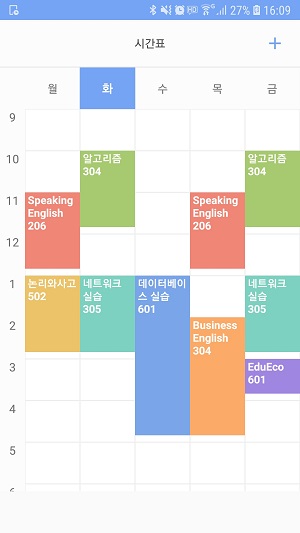
Android Library that creates simple time table.

Add it in your root build.gradle
allprojects {
repositories {
...
maven { url 'https://jitpack.io' }
}
}
Add the dependency
dependencies {
implementation 'com.github.tlaabs:TimetableView:1.0.3-fx1'
}Add following XML namespace inside your XML layout file.
xmlns:app="http://schemas.android.com/apk/res-auto"<com.github.tlaabs.timetableview.TimetableView
android:id="@+id/timetable"android:layout_width="match_parent"android:layout_height="wrap_content"app:column_count="6"app:row_count="12" />app:row_count="12"// sets number of table rows (default:12)app:column_count="6"// sets number of table column (default:6)app:cell_height="50dp"// sets table cell height (default:50dp)app:side_cell_width="30dp"// sets left side cell width (default:30dp)app:header_title="@array/my_header_title"// sets header title (default:eng)app:sticker_colors="@array/my_sticker_color"// sets schedule sticker colorsapp:start_time="9"// sets start time (range : 0 ~ 24)app:header_highlight_color="@color/highlight"// sets header highlight color (default : #74a4f3)app:header_highlight_image="@drawable/ic_kitty"// set header highlight image srcapp:header_highlight_image_size="36dp"// set header highlight image width,height(square)app:header_highlight_type="image"// set header highlight type - color/image (default : color)First, write a string-array as below on values/strings.xml.
<string-arrayname="my_header_title">
<item></item>
<item>Mon</item>
<item>Tue</item>
<item>Wed</item>
<item>Thu</item>
<item>Fri</item>
</string-array>
Then, apply that to timetable attribute.
<com.github.tlaabs.timetableview.TimetableView
android:id="@+id/timetable"android:layout_width="match_parent"android:layout_height="0dp"android:layout_weight="1"app:header_title="@array/my_header_title" />
OnStickerSelectedListener is invoked when clicked by user.
idx is used to edit or delete.
timetable.setOnStickerSelectEventListener(newTimetableView.OnStickerSelectedListener() {
@OverridepublicvoidOnStickerSelected(intidx, ArrayList<Schedule> schedules) {
// ...
}
});ArrayList<Schedule> schedules = newArrayList<Schedule>();
Scheduleschedule = newSchedule();
schedule.setClassTitle("Data Structure"); // sets subjectschedule.setClassPlace("IT-601"); // sets placeschedule.setProfessorName("Won Kim"); // sets professorschedule.setStartTime(newTime(10,0)); // sets the beginning of class time (hour,minute)schedule.setEndTime(newTime(13,30)); // sets the end of class time (hour,minute)schedules.add(schedule);
//.. add one or more schedulestimetable.add(schedules);Before you edit,you need to get a sticker idx by using OnStickerSelectedListener.
timetable.edit(idx,schedules);timetable.remove(idx);
timetable.removeAll(); // remove all items1.Color type(Default)
<com.github.tlaabs.timetableview.TimetableView
android:id="@+id/timetable"android:layout_width="match_parent"android:layout_height="0dp"android:layout_weight="1"app:header_highlight_type="color" />
2.Image type
<com.github.tlaabs.timetableview.TimetableView
android:id="@+id/timetable"android:layout_width="match_parent"android:layout_height="0dp"android:layout_weight="1"app:header_highlight_image="@drawable/ic_kitty"app:header_highlight_image_size="36dp"app:header_highlight_type="image" />
Then,
timetable.setHeaderHighlight(idx);Using SaveManager, you can save all timetable schdule datas in json format.
Stringjson = timetable.createSaveData(); // savetimetable.load(json); // restoreCopyright 2019 tlaabs
Licensed under the Apache License, Version 2.0 (the "License");
you may not use this file except in compliance with the License.
You may obtain a copy of the License at
http://www.apache.org/licenses/LICENSE-2.0
Unless required by applicable law or agreed to in writing, software
distributed under the License is distributed on an "AS IS" BASIS,
WITHOUT WARRANTIES OR CONDITIONS OF ANY KIND, either express or implied.
See the License for the specific language governing permissions and
limitations under the License.