
使用Kotlin编写的灵活易用的多状态布局。除了基本的内容视图、加载中视图、空数据视图、网络断开视图和错误视图外,也可以任意添加自定义的状态视图。
为了方便编写文档和读者理解,这里先把几个基本概念描述清楚:
- 状态视图:一个状态视图对应一种状态,比如加载中视图就只表示当前页面数据正在请求中;
- 状态布局:状态布局是状态视图的容器,一个状态布局中包含多个状态视图,比如
FrameStateLayout中就有加载中、空数据等若干个状态视图。
状态布局一共有如下三种:
FrameStateLayout:继承于FrameLayout;LinearStateLayout继承于LinearLayout;ConstraintStateLayout继承于ConstraintLayout。
这三种状态布局具有相同的状态视图,同时也具备父布局的特性。简单来说,你可以把FrameStateLayout看成是有多个状态的FrameLayout。
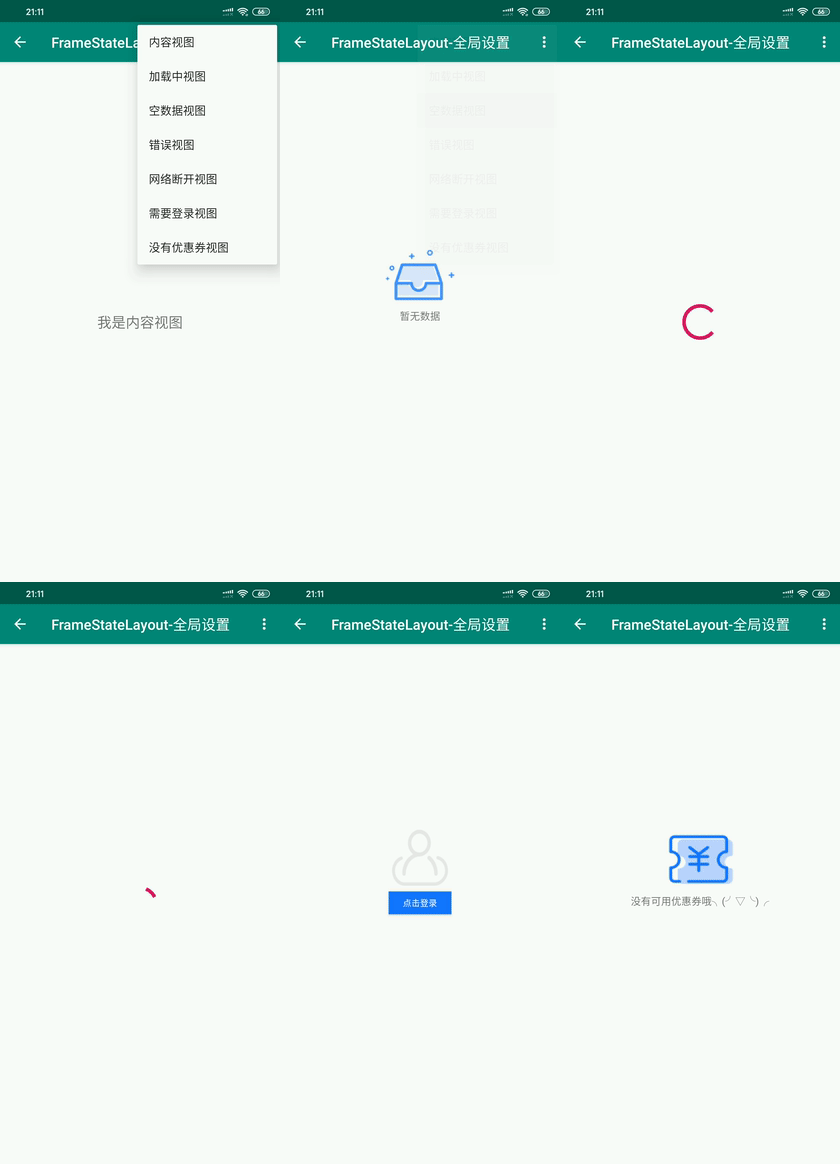
- 可以在内容视图、加载中视图、空数据视图、断网视图和错误视图等五种基本视图中切换,也可以添加其他自定义状态视图(比如代码示例中提供的需要登录视图和没有优惠券视图);
- 视图的属性可以全局设置,也可以在布局文件或者代码中局部设置;
- 支持设置提示文字;
- 空数据视图、网络断开视图和错误视图支持设置控件点击事件,可用于点击重连;
- 支持多种状态布局:
FrameStateLayout、LinearStateLayout和ConstraintLayout等,可以根据需求选用,减少布局嵌套。
效果图(Gif在GitHub中显示不出来,可以点击这里)
 allprojects {
repositories {
...
maven { url 'https://jitpack.io' }
}
}dependencies {
implementation 'com.ygq.sdk:multistatelayout:1.0.0-alpha04'
}一般来说,一个项目中的状态视图都是固定,所以推荐先编写好xml布局,然后在Application中配置MultiStateLayout
MultiStateLayout.init()
.setLoadingView(layoutId,hintTextId,hintText)
.setEmptyView(layoutId,hintTextId,hintText,clickViewIds)
.setErrorView(layoutId,hintTextId,hintText,clickViewIds)
.setNoNetworkView(layoutId,hintTextId,hintText,clickViewIds)如果需要添加自定义的状态视图,则可以调用addStateView()方法
MultiStateLayout.init()
...
.addStateView(STATE_NEED_LOGIN,R.layout.state_view_need_login,R.id.btnLogin) //自定义状态视图1:需要登录视图
.addStateView(STATE_NO_COUPON,R.layout.state_view_no_coupon) //自定义状态视图2:没有优惠券视图在需要使用状态布局的布局中添加(下面的代码都以FrameStateLayout为例):
<com.ygq.sdk.widget.FrameStateLayout xmlns:android="http://schemas.android.com/apk/res/android"xmlns:tools="http://schemas.android.com/tools"android:id="@+id/stateLayout"android:layout_width="match_parent"android:layout_height="match_parent"tools:context=".FrameStateActivity">
<TextViewandroid:layout_gravity="center"android:layout_width="wrap_content"android:layout_height="wrap_content"android:text="我是内容视图"android:textSize="20sp"
/>
</com.ygq.sdk.widget.FrameStateLayout>
然后在代码中调用即可:
//显示内容视图
stateLayout.showContent()
//显示加载中视图
stateLayout.showLoading()
//显示空数据视图
stateLayout.showEmpty()
//显示断网视图
stateLayout.showNoNetwork()
//显示错误视图
stateLayout.showError()
//获取当前的视图状态
stateLayout.currentState如果想临时改变某个视图,可以在xml布局中使用属性设置:
<?xml version="1.0" encoding="utf-8"?>
<com.ygq.sdk.widget.FrameStateLayout
xmlns:android="http://schemas.android.com/apk/res/android"xmlns:tools="http://schemas.android.com/tools"xmlns:app="http://schemas.android.com/apk/res-auto"android:id="@+id/stateLayout"android:layout_width="match_parent"android:layout_height="match_parent"app:msl_loadingView="@layout/state_view_loading"app:msl_emptyView="@layout/state_view_empty"app:msl_errorView="@layout/state_view_error"app:msl_noNetworkView="@layout/status_view_no_network"tools:context=".FrameStateActivity">
<TextViewandroid:layout_width="wrap_content"android:layout_height="wrap_content"android:layout_gravity="center"android:text="我是内容视图"android:textSize="20sp" />
</com.ygq.sdk.widget.FrameStateLayout>
或者在相应的方法中设置参数,比如需要修改加载中视图的布局并设置提示文字:
stateLayout.showLoading(R.layout.state_view_loading2,hintTextId =R.id.tvLoading,hintText ="玩命加载中……")/*** formerState:之前的状态* curState:当前状态*/
stateLayout.setOnViewStateChangeListener { formerState, curState -> }首先在全局配置的setXXXView方法或者showXXX()方法的clcilViewIds参数中传入需要设置监听事件的 Id,然后在下面的回调中监听即可:
//以showError(),需要设置点击事件的控件为R.id.btnError
stateLayout.showError(clickViewIds =*intArrayOf(R.id.btnError))
//监听回调
stateLayout.setOnViewsClickListener { state, view -> }
点击事件可以用于点击重连。
| 属性名称 | 作用 |
|---|---|
msl_loadingView | 设置加载中视图布局Id |
msl_emptyView | 设置空数据视图布局Id |
msl_errorView | 设置错误视图布局Id |
msl_noNetworkView | 设置断网视图布局Id |
| 属性名称 | 作用 |
|---|---|
currentState | 当前视图状态值 |
isContent | 当前是否是内容视图 |
isLoading | 当前是否是加载中视图 |
isEmpty | 当前是否是空数据视图 |
isError | 当前是否是错误视图 |
isNoNetwork | 当前是否是断网视图 |
下面是状态对应的常量值,开发者可以通过MultiStateLayout来调用。
constvalSTATE_CONTENT=0x000constvalSTATE_LOADING=0x001constvalSTATE_EMPTY=0x002constvalSTATE_ERROR=0x003constvalSTATE_NO_NETWORK=0x004MultiStateLayout为状态视图都提供了丰富的重载方法,以满足开发过程中的需求:
/** * 显示内容布局*/funshowContent()/** * @param view:视图对象 * @param layoutParams:视图布局参数 * @param hintTextId:显示提示文字的控件Id * @param hintText:提示文字*/funshowLoading(
view:View? = null,
layoutParams:ViewGroup.LayoutParams = defaultLayoutParams,
@IdRes hintTextId:Int = loadingInfo.hintId,
hintText:String? = loadingInfo.hintText
)
funshowLoading(
@LayoutRes layoutId:Int,
layoutParams:ViewGroup.LayoutParams = defaultLayoutParams,
@IdRes hintTextId:Int = NULL_RESOURCE_ID,
hintText:String? = loadingInfo.hintText
)
funshowLoading(hintText:String)
funshowLoading() /** * @param view:视图对象 * @param layoutParams:视图布局参数 * @param hintTextId:显示提示文字的控件Id * @param hintText:提示文字 * @param clickViewIds:需要设置点击事件的控件Id*/funshowEmpty(
view:View? = null,
layoutParams:ViewGroup.LayoutParams = defaultLayoutParams,
@IdRes hintTextId:Int = emptyInfo.hintId,
hintText:String? = emptyInfo.hintText,
@IdRes varargclickViewIds:Int
)
funshowEmpty(
@LayoutRes layoutId:Int,
layoutParams:ViewGroup.LayoutParams = defaultLayoutParams,
@IdRes hintTextId:Int = emptyInfo.hintId,
hintText:String? = emptyInfo.hintText,
@IdRes varargclickViewIds:Int
)
funshowEmpty(hintText:String)
funshowEmpty()/** * @param view:视图对象 * @param layoutParams:视图布局参数 * @param hintTextId:显示提示文字的控件Id * @param hintText:提示文字 * @param clickViewIds:需要设置点击事件的控件Id*/funshowError(
view:View? = null,
layoutParams:ViewGroup.LayoutParams = defaultLayoutParams,
@IdRes hintTextId:Int = errorInfo.hintId,
hintText:String? = errorInfo.hintText,
@IdRes varargclickViewIds:Int
)
funshowError(
@LayoutRes layoutId:Int,
layoutParams:ViewGroup.LayoutParams = defaultLayoutParams,
@IdRes hintTextId:Int = errorInfo.hintId,
hintText:String? = errorInfo.hintText,
@IdRes varargclickViewIds:Int
)
funshowError(hintText:String)
funshowError()/** * @param view:视图对象 * @param layoutParams:视图布局参数 * @param hintTextId:显示提示文字的控件Id * @param hintText:提示文字 * @param clickViewIds:需要设置点击事件的控件Id*/funshowNoNetwork(
view:View? = null,
layoutParams:ViewGroup.LayoutParams = defaultLayoutParams,
@IdRes hintTextId:Int = noNetworkInfo.hintId,
hintText:String? = noNetworkInfo.hintText,
@IdRes varargclickViewIds:Int
)
funshowNoNetwork(
@LayoutRes layoutId:Int,
layoutParams:ViewGroup.LayoutParams = defaultLayoutParams,
@IdRes hintTextId:Int = noNetworkInfo.hintId,
hintText:String? = noNetworkInfo.hintText,
@IdRes varargclickViewIds:Int
)
funshowNoNetwork(hintText:String)
funshowNoNetwork()/** * 显示自定义状态视图*/funshowStateView(state:Int)/** * 视图改变监听事件 * formerState:之前的状态 * curState:当前状态*/funsetOnViewStateChangeListener(listener: (formerState: Int, curState: Int) ->Unit) {
viewStateListener = listener
}/** * 设置点击事件*/funsetOnViewsClickListener(clickListener: (state: Int, view: View) ->Unit) {
this.clickListener = clickListener
}