

Notesystem takes away the struggle of having to convert markdown files to html using pandoc manually. It also has a checking mode which finds common markdown errors that occur when changing markdown flavours.
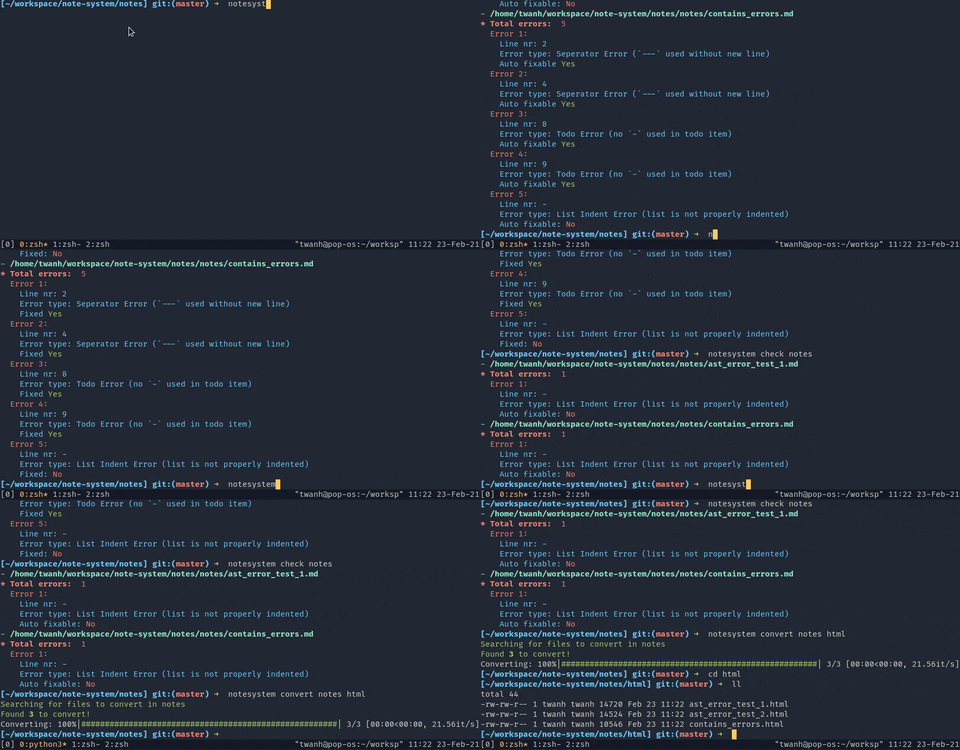
I have been taking notes in different ways over the years. I commonly use markdown for my notes but I have noticed that different software uses different flavours of markdown. For example dropbox paper an awesome online markdown note taking tool represents todo items without the dash. ([ ] Todo instead of - [ ] Todo). In pandoc markdown this is invalid and messes up the whole document. The aim for this project is to be able to fix common markdown errors and convert markdown files quickly using pandoc.
Notesystem is build to firstly convert and secondly find and fix errors in markdown files. It also allows you to search your notes for keywords, tags and topics.
The currently supported errors are:
| Error Name | Short Description | Checked | Auto fixable |
|---|---|---|---|
| Math Error | Inline math is displayed with $$...$$ instead of $...$ | ✅ | ✅ |
| Separator Error | No new line (\n) af a separator --- (causes it to be rendered as a broken table). | ✅ | ✅ |
| Todo Error | When there is no list indicator - before a todo item ([ ] Todo) | ✅ | ✅ |
| List Indent Error | When the root node of a list starts with indentation it is rendered as a code block | ✅ | ❌ |
| No newline before header Error | When there is no newline before a header | ✅ | ✅ |
| No space after header symbol | When there is no space used after the (last) header symbol (#) | ✅ | ✅ |
Since version 0.2.0 there is an upload mode that can be used to upload the notes to a server.
Notesystem can check for common errors (see above which errors are supported) and fix them automatically.
usage: notesystem check [-h] [--fix] [--disable-math-error] [--disable-todo-error] [--disable-seperator-error] [--disable-list-indent-error] [--disable-required-space-after-header-symbol] [--disable-newline-before-header-error] [--simple-errors] in
positional arguments:
in the file/folder to be checked
optional arguments:
-h, --help show this help message and exit
--fix, -f enables auto fixing for problems in the documents
--simple-errors show the errors in a shorter/simpler way
Disabled Errors:
Using these flags you can disable checking for certain errors
--disable-math-error Disable: Math Error (`$$` used)
--disable-todo-error Disable: Todo Error (no `-` used in todo item)
--disable-seperator-error
Disable: Seperator Error (`---` used without new line)
--disable-list-indent-error
Disable: List Indent Error (list is not properly indented)
--disable-required-space-after-header-symbol
Disable: No space used after header symbols (#)
--disable-newline-before-header-error
Disable: NewlineBeforeHeaderError (no newline before heading)
All of the errors as show in the table above can be disabled for checking.
For example math errors can be disabled using the --disable-math-error flag or adding the corresponding option to the config file.
Most errors can be automatically fixed using the --fix flag.
Notesystem converts markdown files to html files using pandoc. When given a directory notesystem converts all the files inside the directory. Also all the files in the subdirectories are converted and the directory is copied to the output directory.
usage: notesystem convert [-h] [--watch] [--pandoc-args ARGS] [--pandoc-template T] [--to-pdf] [--ignore-warnings] in out
positional arguments:
in the file/folder to be converted
out the path to write the converted file(s) to
optional arguments:
-h, --help show this help message and exit
--watch, -w enables watch mode (converts files that have changed)
--pandoc-args ARGS specify the arguments that need to based on to pandoc. E.g.: --pandoc-args='--standalone --preserve-tabs'
--pandoc-template T specify a template for pandoc to use in convertion. Default: GitHub.html5 (for md to html)
--to-pdf convert the markdown files to pdf instead of html. Note: No template is used by default.
--ignore-warnings ignore warnings from pandoc
For example: notesystem convert notes html_notes would convert all markdown files inside the folder notes to html and save them to the folder html_notes
Watch mode watches the given directory or file and triggers a convert when a file is changed or created. Note: before watching is started all files are converted first.
For example: notesystem convert notes html_notes -w would firstly convert all files and then watch the directory for changes
Pandoc has a lot of optional arguments that can be used to customize the documents. Using the --pandoc-args flag you can pass these arguments.
For example: notesystem convert notes html_notes --pandoc-args='--standalone --perserver-tabs'
Make sure however to not use the following arguments: -o, --from, --to, --template (for now), --mathjax
Pandoc allows you to use custom templates. Notesystem uses the GitHub.html5 template by default (see installation). However you can change what template you want to use using the --pandoc-template flag.
For example: notesystem convert notes html_notes --pandoc-template=my_template.html
Make sure that the template you want to use is installed in ~/.pandoc/templates or wherever your pandoc looks for templates.
Converting to pdf instead of html can be enabled using the --to-pdf flag.
Note that when converting to pdf no default template is used.
Templates can be used in when specified with the--pandoc-template flag.
Pandoc output a lot of warnings (by default), these are show by default but can de disabled using the --ignore-warnings flag.
Notesystem can search through your notes (markdown files).
usage: notesystem search [-h] [--tags TAGS] [--tag-delimiter D] [--topic TOPIC] [--title TITLE] [-i] [--full-path] pattern path
positional arguments:
pattern the pattern to search for
path the path to search in
optional arguments:
-h, --help show this help message and exit
--tags TAGS a space seperated list of tags to search for
--tag-delimiter D the delimter used to seperate tags, space by default
--topic TOPIC the topic (or subject) defined in the frontmatter to search for
--title TITLE the title defined in the frontmatter to search for
-i, --insensitive make the search case insensitive
--full-path show the full file path of the search results
Example call: notesystem search newton notes/ --topic physics. This would search for all notes containing the word newton with the topic (=subject) of physics.
In the front matter of the notes, tags can be defined using an space separated list (tags: <tag1> <tag2>).
When passing the --tags flag only documents containing the given tags and the given pattern are matched.
For example: notesystem search tunneling notes/ --tags="quantum"
In the front matter of the notes, topics (or subjects) can be defined. (e.g: topic: Math).
When passing the --topic flag only documents containing the given topic (or subject) are matched.
Note: topic can be replaced with subject in the notes front matter.
Titles of notes (as defined in the front matter) can also be used as a search criteria.
When --title is used only documents matching the title (not case sensitive) are matched (of course they also have to match the search pattern)
version 0.2.0+
Notesystem can upload your notes to notesystem server.
usage: notesystem upload [-h] [--username USERNAME] [--save-credentials] path url
positional arguments:
path the path to upload
url the url of the notesystem server
optional arguments:
-h, --help show this help message and exit
--username USERNAME the username to use for login (only availble when your password is saved already)
--save-credentials wether to save credentials (password) when you log in
Example use: notesystem upload . https://notes.example.com/. This would upload your notes from the current directory
to https://notes.example.com/. This server would have to be running notesystem server.
Credentials can be saved using the --save-credentials flag. When using this flag
for the first time you still have to put in your username and password but these will be saved.
When logging in the next time you can use --username <YOURUSERNAME> to login with the saved credentials linked to that username.
There are quit some options that can be passed to notesystem. A lot of these options can also be defined in a configuration file. The default file name of the config file is .notesystem.
notesystem is split up into multiple modes (check, convert and search). Each mode has its own options that have to be defined separately in the config file.
For example:
[general]
...
[convert]
...
[check]
...
[search]
...
[upload]
...
The configuration options that apply to all modes.
In the config file under the [general] heading.
| Name | Commandline | Config file | Default | Help |
|---|---|---|---|---|
| Verbose | -v,--verbose | verbose | False | Enables verbose mode, which prints out debug information |
| Visual mode | --no-visual | no_visual | False | Disables visual mode (default False means it's enabled by default) |
| Config file path | --config-file | - | .notesystem | The location of your config file |
The configuration options that apply to the check mode.
In the config file under the [check] heading.
| Name | Commandline | Config file | Default | Help |
|---|---|---|---|---|
| In path | in_path | - | - | The file/folder to be checked. |
| Fix | --fix, -f | fix | False | Enabled auto fixing the found errors. |
| Simple Errors | --simple-errors | simple_errors | False | Wether to show the errors in a shorter/simpler way. |
| Disable math errors | --disable-math-error | disable_math_error | False | When enabled (set to True) math errors are not checked. |
| Disable todo errors | --disable-todo-error | disable_todo_error | False | When enabled (set to True) todo errors are not checked. |
| Disable seperator error | --disable-seperator-error | disable_seperator_error | False | When enabled (set to True) separator errors are not checked. |
| Disable list indent error | --disable-list-indent-error | disable_list_indent_error | False | When enabled (set to True) list indentation errors are not checked. |
The configuration options that apply to convert mode.
In the config file under the [convert] heading.
| Name | Commandline | Config file | Default | Help |
|---|---|---|---|---|
| In | in_path | - | - | The file/folder to be converted (cannot be specified in the config file) |
| Out | out_path | - | - | The output folder, where the converted files are written to (cannot be specified in the config file) |
| Watch | --watch,-w | watch | False | Wether to watch the in_path for changed and convert changed files immediately |
| Pandoc arguments | --pandoc-args | pandoc_args | None | Arguments that need to be passed to pandoc. For example: --pandoc-args="--standalone" or in config file: pandoc_args="--standalone" |
| Pandoc template | --pandoc-template | pandoc_template | GitHub.html5 (only for markdown files) | The template to use for the conversion. |
| To PDF | --to-pdf | to_pdf | False | Wether to convert to pdf (default is False so files are converted to html) |
| Ignore warnings | --ignore-warnings | ignore_warnings | False | Ignore warnings from pandoc if True, default is False so warnings show up by default. |
The configuration options that apply to search mode.
In the config file under the [search] heading.
| Name | Commandline | Config file | Default | Help |
|---|---|---|---|---|
| Pattern | pattern | - | - | The pattern to search for |
| Path | path | - | - | The path to search in |
| Tags | --tags | - | - | The tags to search for (have to be in the document together with the pattern to match). The tags have to be a space sepperated list e.g: --tags="tag1 tag2" |
| Tags delimiter | --tag-delimter | tag_delimiter | ' ' | The delimiter used to separate tags in the front matter of the note and the --tags option. |
| Topic | --topic | - | - | The topic to search for (have to be in the document together with the pattern to match) |
| Title | --title | - | - | The title to search for (have to be in the document together with the pattern to match) |
| Case insensitive | -i, --insensitive | case_insensitive | False | Wether to match casing or not (by default search is case sensitive). |
| Show full path | --full-path | full_path | False | Wether to show the full path to the search result (file) |
| Name | Commandline | Config file | Default | Help |
|---|---|---|---|---|
| Path | path (required) | - | - | The path where the notes are stored that should be uploaded. |
| URL | url (required) | - | - | The url from the notesystem server to upload the notes to. |
| Username | --username | username | - | The username to use to sign in. (ONLY use this when the credentials are saved) |
| Save Credentials | --save-credentials | save_credentials | False | Wether to save the credentials that are used to log in. (Can be reused using --username) |
Because notesystem still is in development there is no prebuild package available yet.
Make sure you have pandoc installed already. For instructions to install pandoc see their documentation
After pandoc is installed install the GitHub.html5 template. For installation instructions see their documentation
Clone this github repository:
$ git clone git@github.com:twanh/note-systemInstall the requirements: It is recommended to use a virtual environment for the following steps
$ pip install -r requirements.txtAt this point you can run notesystem using:
$ python -m notesystem --helpTo install notesystem for usage outside of the notesystem git directory run:
$ pip install .Now you can use notesystem everywhere by running:
$ notesystem --help