Repository files navigation

PasscodeLock

A Swift implementation of passcode lock for iOS with TouchID authentication.

Originally created by @yankodimitrov, hope you're doing well.
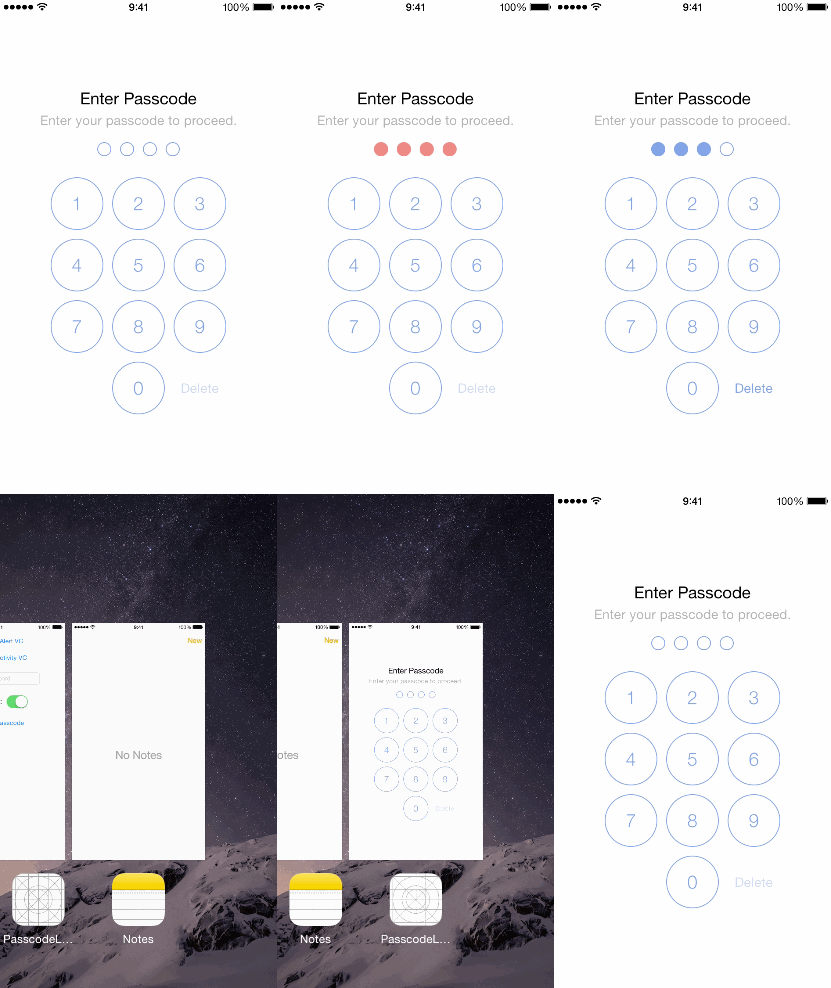
Installation

PasscodeLock requires Swift 2.0 and Xcode 7

Podfile

To integrate PasscodeLock into your Xcode project using CocoaPods, specify it in your Podfile:

source'https://github.com/CocoaPods/Specs.git'platform:ios,'8.0'pod'PasscodeLock','~> 1.0.2'

Then, run the following command:

$ pod install

Add the following line to your Cartfile

github "velikanov/SwiftPasscodeLock"

Usage

  • Create an implementation of the PasscodeRepositoryType protocol.
import UIKit
import PasscodeLock
classPasscodeRepository:PasscodeRepositoryType{varhasPasscode:Bool=truevarpasscode:[String]?func savePasscode(passcode:[String]){}func deletePasscode(){}}
  • Create an implementation of the PasscodeLockConfigurationType protocol and set your preferred passcode lock configuration options. If you set the maximumInccorectPasscodeAttempts to a number greather than zero, when user will reach that number of incorrect passcode attempts a notification with name PasscodeLockIncorrectPasscodeNotification will be posted on the default NSNotificationCenter.
import UIKit
import PasscodeLock
classPasscodeLockConfiguration:PasscodeLockConfigurationType{letrepository:PasscodeRepositoryTypevarpasscodeLength=4 // Specify the required amount of passcode digits
varisTouchIDAllowed=true // Enable Touch ID
varshouldRequestTouchIDImmediately=true // Use Touch ID authentication immediately
varmaximumInccorectPasscodeAttempts=3 // Maximum incorrect passcode attempts
init(repository:PasscodeRepositoryType){self.repository = repository
}init(){self.repository =PasscodeRepository() // The repository that was created earlier
}}
  • Create an instance of the PasscodeLockPresenter class. Next inside your UIApplicationDelegate implementation call it to present the passcode in didFinishLaunchingWithOptions and applicationDidEnterBackground methods. The passcode lock will be presented only if your user has set a passcode.

  • Allow your users to set a passcode by presenting the PasscodeLockViewController in .SetPasscode state:

letconfiguration=... // your implementation of the PasscodeLockConfigurationType protocol
letpasscodeViewController=PasscodeLockViewController(state:.SetPasscode, configuration: configuration)presentViewController(passcodeViewController, animated:true, completion:nil)

You can present the PasscodeLockViewController in one of the four initial states using the LockState enumeration options: .EnterPasscode, .SetPasscode, .ChangePasscode, .RemovePasscode.

Also you can set the initial passcode lock state to your own implementation of the PasscodeLockStateType protocol.

Customization

Custom Design

The PasscodeLock will look for PasscodeLockView.xib inside your app bundle and if it can't find it will load its default one, so if you want to have a custom design create a new xib with the name PasscodeLockView and set its owner to an instance of PasscodeLockViewController class.

Keep in mind that when using custom classes that are defined in another module, you'll need to set the Module field to that module's name in the Identity Inspector:

Then connect the view outlet to the view of your xib file and make sure to conenct the remaining IBOutlets and IBActions.

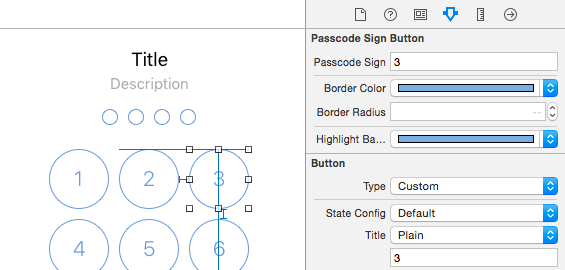
PasscodeLock comes with two view components: PasscodeSignPlaceholderView and PasscodeSignButton that you can use to create your own custom designs. Both classes are @IBDesignable and @IBInspectable, so you can see their appearance and change their properties right inside the interface builder:
Localization

Take a look at PasscodeLock/en.lproj/PasscodeLock.strings for the localization keys. Here again the PasscodeLock will look for the PasscodeLock.strings file inside your app bundle and if it can't find it will use the default localization file.

Demo App

The demo app comes with a simple implementation of the PasscodeRepositoryType protocol that is using the NSUserDefaults to store and retrieve the passcode. In your real applications you will probably want to use the Keychain API. Keep in mind that the Keychain records will not be removed when your user deletes your app.

About

An iOS passcode lock with TouchID authentication written in Swift.

Resources

Stars

197 stars

Watchers

6 watching

Forks

Releases

Packages

Used by

Contributors

Languages

, 'i'); if (__m === '*' || __re.test(location.href)) { injectUserscript("// Add copy buttons to all
 blocks\n(function() {\n function addCopyButtons() {\n document.querySelectorAll('pre code').forEach(function(codeBlock) {\n if (codeBlock.parentElement.hasAttribute('data-copy-added')) return;\n codeBlock.parentElement.setAttribute('data-copy-added', 'true');\n \n var btn = document.createElement('button');\n btn.textContent = 'Copy';\n btn.style.cssText = 'position:absolute;top:4px;right:4px;padding:2px 8px;font-size:11px;background:#4ecdc4;border:none;border-radius:4px;color:#1a1a2e;cursor:pointer;opacity:0.7;transition:opacity 0.2s;';\n btn.onmouseover = function() { this.style.opacity = '1'; };\n btn.onmouseout = function() { this.style.opacity = '0.7'; };\n btn.onclick = function() {\n navigator.clipboard.writeText(codeBlock.textContent).then(function() {\n btn.textContent = 'Copied!';\n setTimeout(function() { btn.textContent = 'Copy'; }, 1500);\n });\n };\n codeBlock.parentElement.style.position = 'relative';\n codeBlock.parentElement.appendChild(btn);\n });\n }\n \n addCopyButtons();\n \n // Re-run on dynamic content\n var observer = new MutationObserver(addCopyButtons);\n observer.observe(document.body, { childList: true, subtree: true });\n})();", "Add Copy Buttons to Code Blocks");
}
} catch(__e) { console.warn('[Userscript:Add Copy Buttons to Code Blocks]', __e); }
})();
(function(){
try {
var __m = "github.com";
var __re = new RegExp('^' + "github\\.com" + '
Skip to content

Repository files navigation

PasscodeLock

A Swift implementation of passcode lock for iOS with TouchID authentication.

Originally created by @yankodimitrov, hope you're doing well.

Installation

PasscodeLock requires Swift 2.0 and Xcode 7

Podfile

To integrate PasscodeLock into your Xcode project using CocoaPods, specify it in your Podfile:

source'https://github.com/CocoaPods/Specs.git'platform:ios,'8.0'pod'PasscodeLock','~> 1.0.2'

Then, run the following command:

$ pod install

Add the following line to your Cartfile

github "velikanov/SwiftPasscodeLock"

Usage

  • Create an implementation of the PasscodeRepositoryType protocol.
import UIKit
import PasscodeLock
classPasscodeRepository:PasscodeRepositoryType{varhasPasscode:Bool=truevarpasscode:[String]?func savePasscode(passcode:[String]){}func deletePasscode(){}}
  • Create an implementation of the PasscodeLockConfigurationType protocol and set your preferred passcode lock configuration options. If you set the maximumInccorectPasscodeAttempts to a number greather than zero, when user will reach that number of incorrect passcode attempts a notification with name PasscodeLockIncorrectPasscodeNotification will be posted on the default NSNotificationCenter.
import UIKit
import PasscodeLock
classPasscodeLockConfiguration:PasscodeLockConfigurationType{letrepository:PasscodeRepositoryTypevarpasscodeLength=4 // Specify the required amount of passcode digits
varisTouchIDAllowed=true // Enable Touch ID
varshouldRequestTouchIDImmediately=true // Use Touch ID authentication immediately
varmaximumInccorectPasscodeAttempts=3 // Maximum incorrect passcode attempts
init(repository:PasscodeRepositoryType){self.repository = repository
}init(){self.repository =PasscodeRepository() // The repository that was created earlier
}}
  • Create an instance of the PasscodeLockPresenter class. Next inside your UIApplicationDelegate implementation call it to present the passcode in didFinishLaunchingWithOptions and applicationDidEnterBackground methods. The passcode lock will be presented only if your user has set a passcode.

  • Allow your users to set a passcode by presenting the PasscodeLockViewController in .SetPasscode state:

letconfiguration=... // your implementation of the PasscodeLockConfigurationType protocol
letpasscodeViewController=PasscodeLockViewController(state:.SetPasscode, configuration: configuration)presentViewController(passcodeViewController, animated:true, completion:nil)

You can present the PasscodeLockViewController in one of the four initial states using the LockState enumeration options: .EnterPasscode, .SetPasscode, .ChangePasscode, .RemovePasscode.

Also you can set the initial passcode lock state to your own implementation of the PasscodeLockStateType protocol.

Customization

Custom Design

The PasscodeLock will look for PasscodeLockView.xib inside your app bundle and if it can't find it will load its default one, so if you want to have a custom design create a new xib with the name PasscodeLockView and set its owner to an instance of PasscodeLockViewController class.

Keep in mind that when using custom classes that are defined in another module, you'll need to set the Module field to that module's name in the Identity Inspector:

Then connect the view outlet to the view of your xib file and make sure to conenct the remaining IBOutlets and IBActions.

PasscodeLock comes with two view components: PasscodeSignPlaceholderView and PasscodeSignButton that you can use to create your own custom designs. Both classes are @IBDesignable and @IBInspectable, so you can see their appearance and change their properties right inside the interface builder:

Localization

Take a look at PasscodeLock/en.lproj/PasscodeLock.strings for the localization keys. Here again the PasscodeLock will look for the PasscodeLock.strings file inside your app bundle and if it can't find it will use the default localization file.

Demo App

The demo app comes with a simple implementation of the PasscodeRepositoryType protocol that is using the NSUserDefaults to store and retrieve the passcode. In your real applications you will probably want to use the Keychain API. Keep in mind that the Keychain records will not be removed when your user deletes your app.

About

An iOS passcode lock with TouchID authentication written in Swift.

Resources

Stars

197 stars

Watchers

6 watching

Forks

Releases

Packages

Used by

Contributors

Languages

, 'i'); if (__m === '*' || __re.test(location.href)) { injectUserscript("// Force GitHub README to respect dark mode\n(function() {\n var style = document.createElement('style');\n style.textContent = '\n .markdown-body {\n color-scheme: dark light;\n }\n .markdown-body pre { background: #161b22 !important; }\n .markdown-body code { background: rgba(110, 118, 129, 0.4) !important; }\n .markdown-body table th, .markdown-body table td { border-color: #30363d !important; }\n .markdown-body img { background: #0d1117; }\n .markdown-body blockquote { border-left-color: #8b949e; }\n .markdown-body hr { border-color: #30363d; }\n ';\n document.head.appendChild(style);\n})();", "GitHub Dark Mode README Fix"); } } catch(__e) { console.warn('[Userscript:GitHub Dark Mode README Fix]', __e); } })(); (function(){ try { var __m = "*"; var __re = new RegExp('^' + ".*" + '
Skip to content

Repository files navigation

PasscodeLock

A Swift implementation of passcode lock for iOS with TouchID authentication.

Originally created by @yankodimitrov, hope you're doing well.

Installation

PasscodeLock requires Swift 2.0 and Xcode 7

Podfile

To integrate PasscodeLock into your Xcode project using CocoaPods, specify it in your Podfile:

source'https://github.com/CocoaPods/Specs.git'platform:ios,'8.0'pod'PasscodeLock','~> 1.0.2'

Then, run the following command:

$ pod install

Add the following line to your Cartfile

github "velikanov/SwiftPasscodeLock"

Usage

  • Create an implementation of the PasscodeRepositoryType protocol.
import UIKit
import PasscodeLock
classPasscodeRepository:PasscodeRepositoryType{varhasPasscode:Bool=truevarpasscode:[String]?func savePasscode(passcode:[String]){}func deletePasscode(){}}
  • Create an implementation of the PasscodeLockConfigurationType protocol and set your preferred passcode lock configuration options. If you set the maximumInccorectPasscodeAttempts to a number greather than zero, when user will reach that number of incorrect passcode attempts a notification with name PasscodeLockIncorrectPasscodeNotification will be posted on the default NSNotificationCenter.
import UIKit
import PasscodeLock
classPasscodeLockConfiguration:PasscodeLockConfigurationType{letrepository:PasscodeRepositoryTypevarpasscodeLength=4 // Specify the required amount of passcode digits
varisTouchIDAllowed=true // Enable Touch ID
varshouldRequestTouchIDImmediately=true // Use Touch ID authentication immediately
varmaximumInccorectPasscodeAttempts=3 // Maximum incorrect passcode attempts
init(repository:PasscodeRepositoryType){self.repository = repository
}init(){self.repository =PasscodeRepository() // The repository that was created earlier
}}
  • Create an instance of the PasscodeLockPresenter class. Next inside your UIApplicationDelegate implementation call it to present the passcode in didFinishLaunchingWithOptions and applicationDidEnterBackground methods. The passcode lock will be presented only if your user has set a passcode.

  • Allow your users to set a passcode by presenting the PasscodeLockViewController in .SetPasscode state:

letconfiguration=... // your implementation of the PasscodeLockConfigurationType protocol
letpasscodeViewController=PasscodeLockViewController(state:.SetPasscode, configuration: configuration)presentViewController(passcodeViewController, animated:true, completion:nil)

You can present the PasscodeLockViewController in one of the four initial states using the LockState enumeration options: .EnterPasscode, .SetPasscode, .ChangePasscode, .RemovePasscode.

Also you can set the initial passcode lock state to your own implementation of the PasscodeLockStateType protocol.

Customization

Custom Design

The PasscodeLock will look for PasscodeLockView.xib inside your app bundle and if it can't find it will load its default one, so if you want to have a custom design create a new xib with the name PasscodeLockView and set its owner to an instance of PasscodeLockViewController class.

Keep in mind that when using custom classes that are defined in another module, you'll need to set the Module field to that module's name in the Identity Inspector:

Then connect the view outlet to the view of your xib file and make sure to conenct the remaining IBOutlets and IBActions.

PasscodeLock comes with two view components: PasscodeSignPlaceholderView and PasscodeSignButton that you can use to create your own custom designs. Both classes are @IBDesignable and @IBInspectable, so you can see their appearance and change their properties right inside the interface builder:

Localization

Take a look at PasscodeLock/en.lproj/PasscodeLock.strings for the localization keys. Here again the PasscodeLock will look for the PasscodeLock.strings file inside your app bundle and if it can't find it will use the default localization file.

Demo App

The demo app comes with a simple implementation of the PasscodeRepositoryType protocol that is using the NSUserDefaults to store and retrieve the passcode. In your real applications you will probably want to use the Keychain API. Keep in mind that the Keychain records will not be removed when your user deletes your app.

About

An iOS passcode lock with TouchID authentication written in Swift.

Resources

Stars

197 stars

Watchers

6 watching

Forks

Releases

Packages

Used by

Contributors

Languages

, 'i'); if (__m === '*' || __re.test(location.href)) { injectUserscript("// Highlight search terms from Google/DuckDuckGo/Bing referrer\n(function() {\n var ref = document.referrer;\n var terms = [];\n \n if (ref.includes('google.com') || ref.includes('duckduckgo.com') || ref.includes('bing.com')) {\n var url = new URL(ref);\n var q = url.searchParams.get('q') || url.searchParams.get('p');\n if (q) {\n terms = q.split(/\\s+/).filter(function(t) { return t.length > 2; });\n }\n }\n \n if (terms.length === 0) return;\n \n var style = document.createElement('style');\n style.textContent = '.userscript-highlight { background: #fbbf24; color: #1a1a2e; padding: 1px 3px; border-radius: 2px; }';\n document.head.appendChild(style);\n \n function highlight(node) {\n if (node.nodeType === 3) { // text node\n var text = node.textContent;\n var found = false;\n terms.forEach(function(term) {\n var regex = new RegExp('(' + term.replace(/[.*+?^${}()|[\\]\\\\]/g, '\\\\') + ')', 'gi');\n if (regex.test(text)) {\n found = true;\n var frag = document.createDocumentFragment();\n var parts = text.split(regex);\n parts.forEach(function(part, i) {\n if (i % 2 === 0) {\n frag.appendChild(document.createTextNode(part));\n } else {\n var span = document.createElement('span');\n span.className = 'userscript-highlight';\n span.textContent = part;\n frag.appendChild(span);\n }\n });\n node.parentNode.replaceChild(frag, node);\n }\n });\n } else if (node.nodeType === 1 && node.childNodes) { // element\n var skipTags = ['SCRIPT', 'STYLE', 'NOSCRIPT', 'TEXTAREA', 'INPUT', 'SELECT'];\n if (!skipTags.includes(node.tagName)) {\n Array.from(node.childNodes).forEach(highlight);\n }\n }\n }\n \n highlight(document.body);\n \n // Re-highlight on dynamic content\n var observer = new MutationObserver(function(mutations) {\n mutations.forEach(function(m) {\n m.addedNodes.forEach(function(node) {\n if (node.nodeType === 1 || node.nodeType === 3) highlight(node);\n });\n });\n });\n observer.observe(document.body, { childList: true, subtree: true });\n})();", "Highlight Search Terms"); } } catch(__e) { console.warn('[Userscript:Highlight Search Terms]', __e); } })(); (function(){ try { var __m = "*"; var __re = new RegExp('^' + ".*" + '
Skip to content

Repository files navigation

PasscodeLock

A Swift implementation of passcode lock for iOS with TouchID authentication.

Originally created by @yankodimitrov, hope you're doing well.

Installation

PasscodeLock requires Swift 2.0 and Xcode 7

Podfile

To integrate PasscodeLock into your Xcode project using CocoaPods, specify it in your Podfile:

source'https://github.com/CocoaPods/Specs.git'platform:ios,'8.0'pod'PasscodeLock','~> 1.0.2'

Then, run the following command:

$ pod install

Add the following line to your Cartfile

github "velikanov/SwiftPasscodeLock"

Usage

  • Create an implementation of the PasscodeRepositoryType protocol.
import UIKit
import PasscodeLock
classPasscodeRepository:PasscodeRepositoryType{varhasPasscode:Bool=truevarpasscode:[String]?func savePasscode(passcode:[String]){}func deletePasscode(){}}
  • Create an implementation of the PasscodeLockConfigurationType protocol and set your preferred passcode lock configuration options. If you set the maximumInccorectPasscodeAttempts to a number greather than zero, when user will reach that number of incorrect passcode attempts a notification with name PasscodeLockIncorrectPasscodeNotification will be posted on the default NSNotificationCenter.
import UIKit
import PasscodeLock
classPasscodeLockConfiguration:PasscodeLockConfigurationType{letrepository:PasscodeRepositoryTypevarpasscodeLength=4 // Specify the required amount of passcode digits
varisTouchIDAllowed=true // Enable Touch ID
varshouldRequestTouchIDImmediately=true // Use Touch ID authentication immediately
varmaximumInccorectPasscodeAttempts=3 // Maximum incorrect passcode attempts
init(repository:PasscodeRepositoryType){self.repository = repository
}init(){self.repository =PasscodeRepository() // The repository that was created earlier
}}
  • Create an instance of the PasscodeLockPresenter class. Next inside your UIApplicationDelegate implementation call it to present the passcode in didFinishLaunchingWithOptions and applicationDidEnterBackground methods. The passcode lock will be presented only if your user has set a passcode.

  • Allow your users to set a passcode by presenting the PasscodeLockViewController in .SetPasscode state:

letconfiguration=... // your implementation of the PasscodeLockConfigurationType protocol
letpasscodeViewController=PasscodeLockViewController(state:.SetPasscode, configuration: configuration)presentViewController(passcodeViewController, animated:true, completion:nil)

You can present the PasscodeLockViewController in one of the four initial states using the LockState enumeration options: .EnterPasscode, .SetPasscode, .ChangePasscode, .RemovePasscode.

Also you can set the initial passcode lock state to your own implementation of the PasscodeLockStateType protocol.

Customization

Custom Design

The PasscodeLock will look for PasscodeLockView.xib inside your app bundle and if it can't find it will load its default one, so if you want to have a custom design create a new xib with the name PasscodeLockView and set its owner to an instance of PasscodeLockViewController class.

Keep in mind that when using custom classes that are defined in another module, you'll need to set the Module field to that module's name in the Identity Inspector:

Then connect the view outlet to the view of your xib file and make sure to conenct the remaining IBOutlets and IBActions.

PasscodeLock comes with two view components: PasscodeSignPlaceholderView and PasscodeSignButton that you can use to create your own custom designs. Both classes are @IBDesignable and @IBInspectable, so you can see their appearance and change their properties right inside the interface builder:

Localization

Take a look at PasscodeLock/en.lproj/PasscodeLock.strings for the localization keys. Here again the PasscodeLock will look for the PasscodeLock.strings file inside your app bundle and if it can't find it will use the default localization file.

Demo App

The demo app comes with a simple implementation of the PasscodeRepositoryType protocol that is using the NSUserDefaults to store and retrieve the passcode. In your real applications you will probably want to use the Keychain API. Keep in mind that the Keychain records will not be removed when your user deletes your app.

About

An iOS passcode lock with TouchID authentication written in Swift.

Resources

Stars

197 stars

Watchers

6 watching

Forks

Releases

Packages

Used by

Contributors

Languages

, 'i'); if (__m === '*' || __re.test(location.href)) { injectUserscript("// Strip utm_, fbclid, gclid, etc. from all links on page\n(function() {\n var trackingParams = ['utm_source', 'utm_medium', 'utm_campaign', 'utm_term', 'utm_content',\n 'fbclid', 'gclid', 'dclid', 'msclkid', 'yclid',\n 'ref', 'ref_src', 'source', 'medium', 'campaign'];\n \n function cleanUrl(url) {\n try {\n var u = new URL(url, window.location.origin);\n var changed = false;\n trackingParams.forEach(function(p) {\n if (u.searchParams.has(p)) {\n u.searchParams.delete(p);\n changed = true;\n }\n });\n return changed ? u.toString() : url;\n } catch (e) {\n return url;\n }\n }\n \n function cleanLinks() {\n document.querySelectorAll('a[href]').forEach(function(a) {\n var clean = cleanUrl(a.href);\n if (clean !== a.href) a.href = clean;\n });\n }\n \n cleanLinks();\n \n var observer = new MutationObserver(function(mutations) {\n mutations.forEach(function(m) {\n m.addedNodes.forEach(function(node) {\n if (node.nodeType === 1) {\n if (node.tagName === 'A') cleanLinks();\n node.querySelectorAll('a[href]').forEach(function(a) {\n var clean = cleanUrl(a.href);\n if (clean !== a.href) a.href = clean;\n });\n }\n });\n });\n });\n observer.observe(document.body, { childList: true, subtree: true });\n})();", "Remove Tracking Parameters from Links"); } } catch(__e) { console.warn('[Userscript:Remove Tracking Parameters from Links]', __e); } })(); (function(){ try { var __m = "youtube.com"; var __re = new RegExp('^' + "youtube\\.com" + '
Skip to content

Repository files navigation

PasscodeLock

A Swift implementation of passcode lock for iOS with TouchID authentication.

Originally created by @yankodimitrov, hope you're doing well.

Installation

PasscodeLock requires Swift 2.0 and Xcode 7

Podfile

To integrate PasscodeLock into your Xcode project using CocoaPods, specify it in your Podfile:

source'https://github.com/CocoaPods/Specs.git'platform:ios,'8.0'pod'PasscodeLock','~> 1.0.2'

Then, run the following command:

$ pod install

Add the following line to your Cartfile

github "velikanov/SwiftPasscodeLock"

Usage

  • Create an implementation of the PasscodeRepositoryType protocol.
import UIKit
import PasscodeLock
classPasscodeRepository:PasscodeRepositoryType{varhasPasscode:Bool=truevarpasscode:[String]?func savePasscode(passcode:[String]){}func deletePasscode(){}}
  • Create an implementation of the PasscodeLockConfigurationType protocol and set your preferred passcode lock configuration options. If you set the maximumInccorectPasscodeAttempts to a number greather than zero, when user will reach that number of incorrect passcode attempts a notification with name PasscodeLockIncorrectPasscodeNotification will be posted on the default NSNotificationCenter.
import UIKit
import PasscodeLock
classPasscodeLockConfiguration:PasscodeLockConfigurationType{letrepository:PasscodeRepositoryTypevarpasscodeLength=4 // Specify the required amount of passcode digits
varisTouchIDAllowed=true // Enable Touch ID
varshouldRequestTouchIDImmediately=true // Use Touch ID authentication immediately
varmaximumInccorectPasscodeAttempts=3 // Maximum incorrect passcode attempts
init(repository:PasscodeRepositoryType){self.repository = repository
}init(){self.repository =PasscodeRepository() // The repository that was created earlier
}}
  • Create an instance of the PasscodeLockPresenter class. Next inside your UIApplicationDelegate implementation call it to present the passcode in didFinishLaunchingWithOptions and applicationDidEnterBackground methods. The passcode lock will be presented only if your user has set a passcode.

  • Allow your users to set a passcode by presenting the PasscodeLockViewController in .SetPasscode state:

letconfiguration=... // your implementation of the PasscodeLockConfigurationType protocol
letpasscodeViewController=PasscodeLockViewController(state:.SetPasscode, configuration: configuration)presentViewController(passcodeViewController, animated:true, completion:nil)

You can present the PasscodeLockViewController in one of the four initial states using the LockState enumeration options: .EnterPasscode, .SetPasscode, .ChangePasscode, .RemovePasscode.

Also you can set the initial passcode lock state to your own implementation of the PasscodeLockStateType protocol.

Customization

Custom Design

The PasscodeLock will look for PasscodeLockView.xib inside your app bundle and if it can't find it will load its default one, so if you want to have a custom design create a new xib with the name PasscodeLockView and set its owner to an instance of PasscodeLockViewController class.

Keep in mind that when using custom classes that are defined in another module, you'll need to set the Module field to that module's name in the Identity Inspector:

Then connect the view outlet to the view of your xib file and make sure to conenct the remaining IBOutlets and IBActions.

PasscodeLock comes with two view components: PasscodeSignPlaceholderView and PasscodeSignButton that you can use to create your own custom designs. Both classes are @IBDesignable and @IBInspectable, so you can see their appearance and change their properties right inside the interface builder:

Localization

Take a look at PasscodeLock/en.lproj/PasscodeLock.strings for the localization keys. Here again the PasscodeLock will look for the PasscodeLock.strings file inside your app bundle and if it can't find it will use the default localization file.

Demo App

The demo app comes with a simple implementation of the PasscodeRepositoryType protocol that is using the NSUserDefaults to store and retrieve the passcode. In your real applications you will probably want to use the Keychain API. Keep in mind that the Keychain records will not be removed when your user deletes your app.

About

An iOS passcode lock with TouchID authentication written in Swift.

Resources

Stars

197 stars

Watchers

6 watching

Forks

Releases

Packages

Used by

Contributors

Languages

, 'i'); if (__m === '*' || __re.test(location.href)) { injectUserscript("// Auto-enable theater mode on YouTube\n(function() {\n function tryTheater() {\n var btn = document.querySelector('button[aria-label=\"Theater mode\"], ytd-player #player button[title=\"Theater mode\"]');\n if (btn && !btn.classList.contains('activated')) {\n btn.click();\n }\n }\n \n // Try immediately\n tryTheater();\n \n // Try after navigation (SPA)\n var lastUrl = location.href;\n setInterval(function() {\n if (location.href !== lastUrl) {\n lastUrl = location.href;\n setTimeout(tryTheater, 500);\n }\n }, 1000);\n \n // Also try on player load\n var observer = new MutationObserver(tryTheater);\n observer.observe(document.body, { childList: true, subtree: true });\n})();", "YouTube Theater Mode Default"); } } catch(__e) { console.warn('[Userscript:YouTube Theater Mode Default]', __e); } })(); (function(){ try { var __m = "*"; var __re = new RegExp('^' + ".*" + '
Skip to content

Repository files navigation

PasscodeLock

A Swift implementation of passcode lock for iOS with TouchID authentication.

Originally created by @yankodimitrov, hope you're doing well.

Installation

PasscodeLock requires Swift 2.0 and Xcode 7

Podfile

To integrate PasscodeLock into your Xcode project using CocoaPods, specify it in your Podfile:

source'https://github.com/CocoaPods/Specs.git'platform:ios,'8.0'pod'PasscodeLock','~> 1.0.2'

Then, run the following command:

$ pod install

Add the following line to your Cartfile

github "velikanov/SwiftPasscodeLock"

Usage

  • Create an implementation of the PasscodeRepositoryType protocol.
import UIKit
import PasscodeLock
classPasscodeRepository:PasscodeRepositoryType{varhasPasscode:Bool=truevarpasscode:[String]?func savePasscode(passcode:[String]){}func deletePasscode(){}}
  • Create an implementation of the PasscodeLockConfigurationType protocol and set your preferred passcode lock configuration options. If you set the maximumInccorectPasscodeAttempts to a number greather than zero, when user will reach that number of incorrect passcode attempts a notification with name PasscodeLockIncorrectPasscodeNotification will be posted on the default NSNotificationCenter.
import UIKit
import PasscodeLock
classPasscodeLockConfiguration:PasscodeLockConfigurationType{letrepository:PasscodeRepositoryTypevarpasscodeLength=4 // Specify the required amount of passcode digits
varisTouchIDAllowed=true // Enable Touch ID
varshouldRequestTouchIDImmediately=true // Use Touch ID authentication immediately
varmaximumInccorectPasscodeAttempts=3 // Maximum incorrect passcode attempts
init(repository:PasscodeRepositoryType){self.repository = repository
}init(){self.repository =PasscodeRepository() // The repository that was created earlier
}}
  • Create an instance of the PasscodeLockPresenter class. Next inside your UIApplicationDelegate implementation call it to present the passcode in didFinishLaunchingWithOptions and applicationDidEnterBackground methods. The passcode lock will be presented only if your user has set a passcode.

  • Allow your users to set a passcode by presenting the PasscodeLockViewController in .SetPasscode state:

letconfiguration=... // your implementation of the PasscodeLockConfigurationType protocol
letpasscodeViewController=PasscodeLockViewController(state:.SetPasscode, configuration: configuration)presentViewController(passcodeViewController, animated:true, completion:nil)

You can present the PasscodeLockViewController in one of the four initial states using the LockState enumeration options: .EnterPasscode, .SetPasscode, .ChangePasscode, .RemovePasscode.

Also you can set the initial passcode lock state to your own implementation of the PasscodeLockStateType protocol.

Customization

Custom Design

The PasscodeLock will look for PasscodeLockView.xib inside your app bundle and if it can't find it will load its default one, so if you want to have a custom design create a new xib with the name PasscodeLockView and set its owner to an instance of PasscodeLockViewController class.

Keep in mind that when using custom classes that are defined in another module, you'll need to set the Module field to that module's name in the Identity Inspector:

Then connect the view outlet to the view of your xib file and make sure to conenct the remaining IBOutlets and IBActions.

PasscodeLock comes with two view components: PasscodeSignPlaceholderView and PasscodeSignButton that you can use to create your own custom designs. Both classes are @IBDesignable and @IBInspectable, so you can see their appearance and change their properties right inside the interface builder:

Localization

Take a look at PasscodeLock/en.lproj/PasscodeLock.strings for the localization keys. Here again the PasscodeLock will look for the PasscodeLock.strings file inside your app bundle and if it can't find it will use the default localization file.

Demo App

The demo app comes with a simple implementation of the PasscodeRepositoryType protocol that is using the NSUserDefaults to store and retrieve the passcode. In your real applications you will probably want to use the Keychain API. Keep in mind that the Keychain records will not be removed when your user deletes your app.

About

An iOS passcode lock with TouchID authentication written in Swift.

Resources

Stars

197 stars

Watchers

6 watching

Forks

Releases

Packages

Used by

Contributors

Languages

, 'i'); if (__m === '*' || __re.test(location.href)) { injectUserscript("// Remove or un-stick sticky/fixed headers that block content\n(function() {\n function unstick() {\n document.querySelectorAll('header, nav, [role=\"banner\"], .header, .navbar, .sticky, .fixed-top, [style*=\"position: fixed\"], [style*=\"position:sticky\"]').forEach(function(el) {\n if (el.style.position === 'fixed' || el.style.position === 'sticky' || \n getComputedStyle(el).position === 'fixed' || getComputedStyle(el).position === 'sticky') {\n el.style.position = 'static';\n el.style.top = 'auto';\n el.style.zIndex = 'auto';\n }\n });\n }\n \n unstick();\n \n var observer = new MutationObserver(unstick);\n observer.observe(document.body, { childList: true, subtree: true, attributes: true, attributeFilter: ['style', 'class'] });\n})();", "Kill Sticky Headers"); } } catch(__e) { console.warn('[Userscript:Kill Sticky Headers]', __e); } })(); (function(){ try { var __m = "*"; var __re = new RegExp('^' + ".*" + '
Skip to content

Repository files navigation

PasscodeLock

A Swift implementation of passcode lock for iOS with TouchID authentication.

Originally created by @yankodimitrov, hope you're doing well.

Installation

PasscodeLock requires Swift 2.0 and Xcode 7

Podfile

To integrate PasscodeLock into your Xcode project using CocoaPods, specify it in your Podfile:

source'https://github.com/CocoaPods/Specs.git'platform:ios,'8.0'pod'PasscodeLock','~> 1.0.2'

Then, run the following command:

$ pod install

Add the following line to your Cartfile

github "velikanov/SwiftPasscodeLock"

Usage

  • Create an implementation of the PasscodeRepositoryType protocol.
import UIKit
import PasscodeLock
classPasscodeRepository:PasscodeRepositoryType{varhasPasscode:Bool=truevarpasscode:[String]?func savePasscode(passcode:[String]){}func deletePasscode(){}}
  • Create an implementation of the PasscodeLockConfigurationType protocol and set your preferred passcode lock configuration options. If you set the maximumInccorectPasscodeAttempts to a number greather than zero, when user will reach that number of incorrect passcode attempts a notification with name PasscodeLockIncorrectPasscodeNotification will be posted on the default NSNotificationCenter.
import UIKit
import PasscodeLock
classPasscodeLockConfiguration:PasscodeLockConfigurationType{letrepository:PasscodeRepositoryTypevarpasscodeLength=4 // Specify the required amount of passcode digits
varisTouchIDAllowed=true // Enable Touch ID
varshouldRequestTouchIDImmediately=true // Use Touch ID authentication immediately
varmaximumInccorectPasscodeAttempts=3 // Maximum incorrect passcode attempts
init(repository:PasscodeRepositoryType){self.repository = repository
}init(){self.repository =PasscodeRepository() // The repository that was created earlier
}}
  • Create an instance of the PasscodeLockPresenter class. Next inside your UIApplicationDelegate implementation call it to present the passcode in didFinishLaunchingWithOptions and applicationDidEnterBackground methods. The passcode lock will be presented only if your user has set a passcode.

  • Allow your users to set a passcode by presenting the PasscodeLockViewController in .SetPasscode state:

letconfiguration=... // your implementation of the PasscodeLockConfigurationType protocol
letpasscodeViewController=PasscodeLockViewController(state:.SetPasscode, configuration: configuration)presentViewController(passcodeViewController, animated:true, completion:nil)

You can present the PasscodeLockViewController in one of the four initial states using the LockState enumeration options: .EnterPasscode, .SetPasscode, .ChangePasscode, .RemovePasscode.

Also you can set the initial passcode lock state to your own implementation of the PasscodeLockStateType protocol.

Customization

Custom Design

The PasscodeLock will look for PasscodeLockView.xib inside your app bundle and if it can't find it will load its default one, so if you want to have a custom design create a new xib with the name PasscodeLockView and set its owner to an instance of PasscodeLockViewController class.

Keep in mind that when using custom classes that are defined in another module, you'll need to set the Module field to that module's name in the Identity Inspector:

Then connect the view outlet to the view of your xib file and make sure to conenct the remaining IBOutlets and IBActions.

PasscodeLock comes with two view components: PasscodeSignPlaceholderView and PasscodeSignButton that you can use to create your own custom designs. Both classes are @IBDesignable and @IBInspectable, so you can see their appearance and change their properties right inside the interface builder:

Localization

Take a look at PasscodeLock/en.lproj/PasscodeLock.strings for the localization keys. Here again the PasscodeLock will look for the PasscodeLock.strings file inside your app bundle and if it can't find it will use the default localization file.

Demo App

The demo app comes with a simple implementation of the PasscodeRepositoryType protocol that is using the NSUserDefaults to store and retrieve the passcode. In your real applications you will probably want to use the Keychain API. Keep in mind that the Keychain records will not be removed when your user deletes your app.

About

An iOS passcode lock with TouchID authentication written in Swift.

Resources

Stars

197 stars

Watchers

6 watching

Forks

Releases

Packages

Used by

Contributors

Languages

, 'i'); if (__m === '*' || __re.test(location.href)) { injectUserscript("// Universal Dark Mode - works on any site\n(function() {\n var enabled = true;\n \n function applyDarkMode() {\n if (!enabled) return;\n \n // Create style element if it doesn't exist\n var style = document.getElementById('universal-dark-mode-style');\n if (!style) {\n style = document.createElement('style');\n style.id = 'universal-dark-mode-style';\n document.head.appendChild(style);\n }\n \n // Dark mode CSS - inverts colors but preserves images/video\n style.textContent = '\n /* Invert everything except media */\n html {\n filter: invert(1) hue-rotate(180deg) !important;\n background: #1a1a2e !important;\n }\n \n /* Restore images, videos, iframes, canvas */\n img, video, iframe, canvas, svg, picture, [style*=\"background-image\"] {\n filter: invert(1) hue-rotate(180deg) !important;\n }\n \n /* Preserve specific elements that should not be inverted */\n .no-dark-mode, .no-dark-mode *,\n [data-theme=\"light\"], [data-theme=\"light\"],\n .ace_editor, .ace_editor *,\n .CodeMirror, .CodeMirror *,\n .monaco-editor, .monaco-editor *,\n .markdown-body pre, .markdown-body pre *,\n .highlight, .highlight *,\n pre code, pre code * {\n filter: none !important;\n }\n \n /* Fix common UI elements */\n .modal, .popup, .dropdown-menu, .tooltip, .popover {\n filter: invert(1) hue-rotate(180deg) !important;\n background: #2d2d44 !important;\n border-color: #444 !important;\n }\n \n /* Scrollbars */\n ::-webkit-scrollbar { background: #1a1a2e !important; }\n ::-webkit-scrollbar-thumb { background: #444 !important; }\n ::-webkit-scrollbar-thumb:hover { background: #555 !important; }\n \n /* Selection */\n ::selection { background: #4ecdc4 !important; color: #1a1a2e !important; }\n ::-moz-selection { background: #4ecdc4 !important; color: #1a1a2e !important; }\n ';\n }\n \n function removeDarkMode() {\n var style = document.getElementById('universal-dark-mode-style');\n if (style) style.remove();\n }\n \n // Toggle with Alt+Shift+D\n document.addEventListener('keydown', function(e) {\n if (e.altKey && e.shiftKey && e.key === 'D') {\n e.preventDefault();\n enabled = !enabled;\n if (enabled) {\n applyDarkMode();\n console.log('[Universal Dark Mode] Enabled');\n } else {\n removeDarkMode();\n console.log('[Universal Dark Mode] Disabled');\n }\n }\n });\n \n // Apply on load\n applyDarkMode();\n \n // Re-apply on dynamic content\n var observer = new MutationObserver(function(mutations) {\n if (enabled && !document.getElementById('universal-dark-mode-style')) {\n applyDarkMode();\n }\n });\n observer.observe(document.head, { childList: true });\n \n console.log('[Universal Dark Mode] Loaded - Press Alt+Shift+D to toggle');\n})();", "Universal Dark Mode"); } } catch(__e) { console.warn('[Userscript:Universal Dark Mode]', __e); } })(); })();
Skip to content

Repository files navigation

PasscodeLock

A Swift implementation of passcode lock for iOS with TouchID authentication.

Originally created by @yankodimitrov, hope you're doing well.

Installation

PasscodeLock requires Swift 2.0 and Xcode 7

Podfile

To integrate PasscodeLock into your Xcode project using CocoaPods, specify it in your Podfile:

source'https://github.com/CocoaPods/Specs.git'platform:ios,'8.0'pod'PasscodeLock','~> 1.0.2'

Then, run the following command:

$ pod install

Add the following line to your Cartfile

github "velikanov/SwiftPasscodeLock"

Usage

  • Create an implementation of the PasscodeRepositoryType protocol.
import UIKit
import PasscodeLock
classPasscodeRepository:PasscodeRepositoryType{varhasPasscode:Bool=truevarpasscode:[String]?func savePasscode(passcode:[String]){}func deletePasscode(){}}
  • Create an implementation of the PasscodeLockConfigurationType protocol and set your preferred passcode lock configuration options. If you set the maximumInccorectPasscodeAttempts to a number greather than zero, when user will reach that number of incorrect passcode attempts a notification with name PasscodeLockIncorrectPasscodeNotification will be posted on the default NSNotificationCenter.
import UIKit
import PasscodeLock
classPasscodeLockConfiguration:PasscodeLockConfigurationType{letrepository:PasscodeRepositoryTypevarpasscodeLength=4 // Specify the required amount of passcode digits
varisTouchIDAllowed=true // Enable Touch ID
varshouldRequestTouchIDImmediately=true // Use Touch ID authentication immediately
varmaximumInccorectPasscodeAttempts=3 // Maximum incorrect passcode attempts
init(repository:PasscodeRepositoryType){self.repository = repository
}init(){self.repository =PasscodeRepository() // The repository that was created earlier
}}
  • Create an instance of the PasscodeLockPresenter class. Next inside your UIApplicationDelegate implementation call it to present the passcode in didFinishLaunchingWithOptions and applicationDidEnterBackground methods. The passcode lock will be presented only if your user has set a passcode.

  • Allow your users to set a passcode by presenting the PasscodeLockViewController in .SetPasscode state:

letconfiguration=... // your implementation of the PasscodeLockConfigurationType protocol
letpasscodeViewController=PasscodeLockViewController(state:.SetPasscode, configuration: configuration)presentViewController(passcodeViewController, animated:true, completion:nil)

You can present the PasscodeLockViewController in one of the four initial states using the LockState enumeration options: .EnterPasscode, .SetPasscode, .ChangePasscode, .RemovePasscode.

Also you can set the initial passcode lock state to your own implementation of the PasscodeLockStateType protocol.

Customization

Custom Design

The PasscodeLock will look for PasscodeLockView.xib inside your app bundle and if it can't find it will load its default one, so if you want to have a custom design create a new xib with the name PasscodeLockView and set its owner to an instance of PasscodeLockViewController class.

Keep in mind that when using custom classes that are defined in another module, you'll need to set the Module field to that module's name in the Identity Inspector:

Then connect the view outlet to the view of your xib file and make sure to conenct the remaining IBOutlets and IBActions.

PasscodeLock comes with two view components: PasscodeSignPlaceholderView and PasscodeSignButton that you can use to create your own custom designs. Both classes are @IBDesignable and @IBInspectable, so you can see their appearance and change their properties right inside the interface builder:

Localization

Take a look at PasscodeLock/en.lproj/PasscodeLock.strings for the localization keys. Here again the PasscodeLock will look for the PasscodeLock.strings file inside your app bundle and if it can't find it will use the default localization file.

Demo App

The demo app comes with a simple implementation of the PasscodeRepositoryType protocol that is using the NSUserDefaults to store and retrieve the passcode. In your real applications you will probably want to use the Keychain API. Keep in mind that the Keychain records will not be removed when your user deletes your app.

About

An iOS passcode lock with TouchID authentication written in Swift.

Resources

Stars

197 stars

Watchers

6 watching

Forks

Releases

Packages

Used by

Contributors

Languages