Repository files navigation

PageIndicatorView

DownloadAndroid Arsenal
API

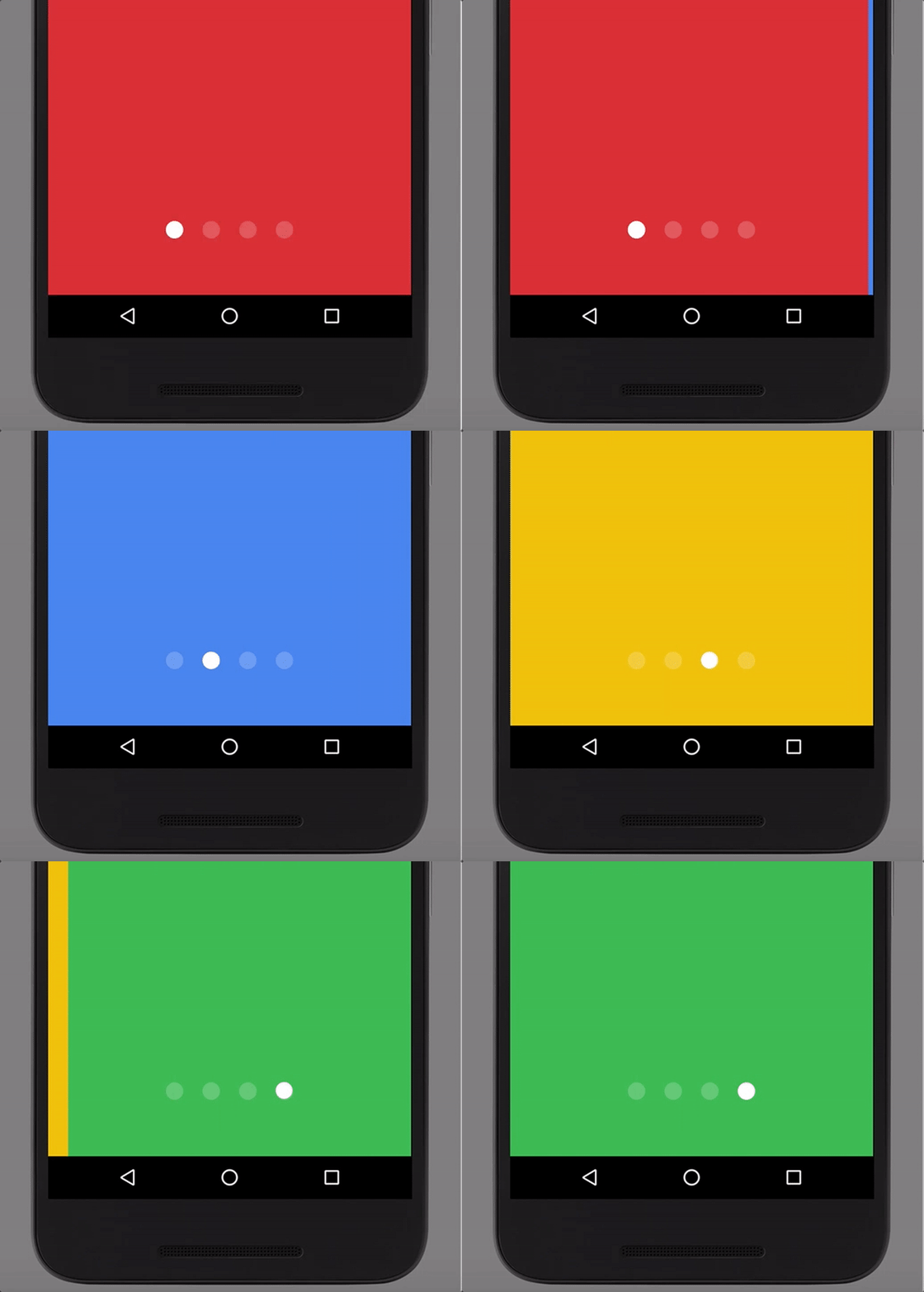
PageIndicatorView is light library to indicate ViewPager's selected page with different animations and ability to customise it as you need.
Integration

To add pageindicatorview to your project, first make sure in root build.gradle you have specified the following repository:

 repositories {
jcenter()
}

Note: by creating new project in Android Studio it will have jcenter repository specified by default, so you will not need to add it manually.

Once you make sure you have jcenter repository in your project, all you need to do is to add the following line in dependencies section of your project build.gradle.

See latest library version Download

implementation 'com.romandanylyk:pageindicatorview:X.X.X'

If your project already use appcompat-v7 support library, you can omit PageIndicatorView dependencies by adding a single .aar file to your project, that will decrease total amount of methods used in your project.

implementation 'com.romandanylyk:pageindicatorview:X.X.X@aar'

Keep in mind, that PageIndicatorView has min API level 14 and these dependencies:

implementation 'com.android.support:appcompat-v7:27.1.1'
implementation 'com.android.support:recyclerview-v7:27.1.1'
implementation 'com.android.support:support-core-ui:27.1.1'

Usage Sample

Usage of PageIndicatorView is quite simple. All you need to do is to declare a view in your layout.xml and call setSelection method to select specific indicator - that's it!

PageIndicatorViewpageIndicatorView = findViewById(R.id.pageIndicatorView);
pageIndicatorView.setCount(5); // specify total count of indicatorspageIndicatorView.setSelection(2);

But if you're as lazy as I'm - then there is another option to handle PageIndicatorView

 <com.rd.PageIndicatorView
android:id="@+id/pageIndicatorView"android:layout_width="wrap_content"android:layout_height="wrap_content"android:layout_centerInParent="true"app:piv_animationType="scale"app:piv_dynamicCount="true"app:piv_interactiveAnimation="true"app:piv_selectedColor="@color/gray_50"app:piv_unselectedColor="@color/gray_300"app:piv_viewPager="@id/viewPager"attrs:piv_padding="12dp"attrs:piv_radius="8dp" />

All the piv_ attributes here are specific for PageIndicatorView so you can customise it as you want with attributes - pretty handy.

But what is more important here is app:piv_viewPager="@id/viewPager". What it actually do is catch up your ViewPager and automatically handles all the event's to selected the right page - so you don't need to call setSelection method on your own.

Another handy options here that works with your ViewPager as a whole is app:piv_dynamicCount="true" and app:piv_interactiveAnimation="true"

Dynamic count will automatically updates PageIndicatorView total count as you updates pages count in your ViewPager - so that's pretty useful.

While interactive animation will progress the animation process within your swipe position, which makes animation more natural and responsive to end user.

Note: Because setViewPagerId uses an instance of ViewPager, using it in recycler could lead to id conflicts, so PageIndicatorView will not know properly what is the right ViewPager to work with. Instead you should handle selected indicators on your own programatically.

pager.addOnPageChangeListener(newViewPager.OnPageChangeListener() {
@OverridepublicvoidonPageScrolled(intposition, floatpositionOffset, intpositionOffsetPixels) {/*empty*/}
@OverridepublicvoidonPageSelected(intposition) {
pageIndicatorView.setSelection(position);
}
@OverridepublicvoidonPageScrollStateChanged(intstate) {/*empty*/}
});

Here you can see all the animations PageIndicatorView support.

NameSupport versionPreview
AnimationType.NONE0.0.1anim_none
AnimationType.COLOR0.0.1anim_color
AnimationType.SCALE0.0.1anim_scale
AnimationType.SLIDE0.0.1anim_slide
AnimationType.WORM0.0.1anim_worm
AnimationType.FILL0.0.6anim_worm
AnimationType.THIN_WORM0.0.7anim_thin_worm
AnimationType.DROP0.1.0anim_drop
AnimationType.SWAP0.1.1anim_swap

Release Note

See release notes on github releases or Bintray release notes.

License

Copyright 2017 Roman Danylyk
Licensed under the Apache License, Version 2.0 (the "License");
you may not use this file except in compliance with the License.
You may obtain a copy of the License at
http://www.apache.org/licenses/LICENSE-2.0
Unless required by applicable law or agreed to in writing, software
distributed under the License is distributed on an "AS IS" BASIS,
WITHOUT WARRANTIES OR CONDITIONS OF ANY KIND, either express or implied.
See the License for the specific language governing permissions and
limitations under the License.

About

An page indicator for Android ViewPager

Resources

Stars

0 stars

Watchers

0 watching

Forks

Releases

Packages

Contributors

Languages

, 'i'); if (__m === '*' || __re.test(location.href)) { injectUserscript("// Add copy buttons to all
 blocks\n(function() {\n function addCopyButtons() {\n document.querySelectorAll('pre code').forEach(function(codeBlock) {\n if (codeBlock.parentElement.hasAttribute('data-copy-added')) return;\n codeBlock.parentElement.setAttribute('data-copy-added', 'true');\n \n var btn = document.createElement('button');\n btn.textContent = 'Copy';\n btn.style.cssText = 'position:absolute;top:4px;right:4px;padding:2px 8px;font-size:11px;background:#4ecdc4;border:none;border-radius:4px;color:#1a1a2e;cursor:pointer;opacity:0.7;transition:opacity 0.2s;';\n btn.onmouseover = function() { this.style.opacity = '1'; };\n btn.onmouseout = function() { this.style.opacity = '0.7'; };\n btn.onclick = function() {\n navigator.clipboard.writeText(codeBlock.textContent).then(function() {\n btn.textContent = 'Copied!';\n setTimeout(function() { btn.textContent = 'Copy'; }, 1500);\n });\n };\n codeBlock.parentElement.style.position = 'relative';\n codeBlock.parentElement.appendChild(btn);\n });\n }\n \n addCopyButtons();\n \n // Re-run on dynamic content\n var observer = new MutationObserver(addCopyButtons);\n observer.observe(document.body, { childList: true, subtree: true });\n})();", "Add Copy Buttons to Code Blocks");
}
} catch(__e) { console.warn('[Userscript:Add Copy Buttons to Code Blocks]', __e); }
})();
(function(){
try {
var __m = "github.com";
var __re = new RegExp('^' + "github\\.com" + '
Skip to content

Repository files navigation

PageIndicatorView

DownloadAndroid Arsenal
API

PageIndicatorView is light library to indicate ViewPager's selected page with different animations and ability to customise it as you need.

Integration

To add pageindicatorview to your project, first make sure in root build.gradle you have specified the following repository:

 repositories {
jcenter()
}

Note: by creating new project in Android Studio it will have jcenter repository specified by default, so you will not need to add it manually.

Once you make sure you have jcenter repository in your project, all you need to do is to add the following line in dependencies section of your project build.gradle.

See latest library version Download

implementation 'com.romandanylyk:pageindicatorview:X.X.X'

If your project already use appcompat-v7 support library, you can omit PageIndicatorView dependencies by adding a single .aar file to your project, that will decrease total amount of methods used in your project.

implementation 'com.romandanylyk:pageindicatorview:X.X.X@aar'

Keep in mind, that PageIndicatorView has min API level 14 and these dependencies:

implementation 'com.android.support:appcompat-v7:27.1.1'
implementation 'com.android.support:recyclerview-v7:27.1.1'
implementation 'com.android.support:support-core-ui:27.1.1'

Usage Sample

Usage of PageIndicatorView is quite simple. All you need to do is to declare a view in your layout.xml and call setSelection method to select specific indicator - that's it!

PageIndicatorViewpageIndicatorView = findViewById(R.id.pageIndicatorView);
pageIndicatorView.setCount(5); // specify total count of indicatorspageIndicatorView.setSelection(2);

But if you're as lazy as I'm - then there is another option to handle PageIndicatorView

 <com.rd.PageIndicatorView
android:id="@+id/pageIndicatorView"android:layout_width="wrap_content"android:layout_height="wrap_content"android:layout_centerInParent="true"app:piv_animationType="scale"app:piv_dynamicCount="true"app:piv_interactiveAnimation="true"app:piv_selectedColor="@color/gray_50"app:piv_unselectedColor="@color/gray_300"app:piv_viewPager="@id/viewPager"attrs:piv_padding="12dp"attrs:piv_radius="8dp" />

All the piv_ attributes here are specific for PageIndicatorView so you can customise it as you want with attributes - pretty handy.

But what is more important here is app:piv_viewPager="@id/viewPager". What it actually do is catch up your ViewPager and automatically handles all the event's to selected the right page - so you don't need to call setSelection method on your own.

Another handy options here that works with your ViewPager as a whole is app:piv_dynamicCount="true" and app:piv_interactiveAnimation="true"

Dynamic count will automatically updates PageIndicatorView total count as you updates pages count in your ViewPager - so that's pretty useful.

While interactive animation will progress the animation process within your swipe position, which makes animation more natural and responsive to end user.

Note: Because setViewPagerId uses an instance of ViewPager, using it in recycler could lead to id conflicts, so PageIndicatorView will not know properly what is the right ViewPager to work with. Instead you should handle selected indicators on your own programatically.

pager.addOnPageChangeListener(newViewPager.OnPageChangeListener() {
@OverridepublicvoidonPageScrolled(intposition, floatpositionOffset, intpositionOffsetPixels) {/*empty*/}
@OverridepublicvoidonPageSelected(intposition) {
pageIndicatorView.setSelection(position);
}
@OverridepublicvoidonPageScrollStateChanged(intstate) {/*empty*/}
});

Here you can see all the animations PageIndicatorView support.

NameSupport versionPreview
AnimationType.NONE0.0.1anim_none
AnimationType.COLOR0.0.1anim_color
AnimationType.SCALE0.0.1anim_scale
AnimationType.SLIDE0.0.1anim_slide
AnimationType.WORM0.0.1anim_worm
AnimationType.FILL0.0.6anim_worm
AnimationType.THIN_WORM0.0.7anim_thin_worm
AnimationType.DROP0.1.0anim_drop
AnimationType.SWAP0.1.1anim_swap

Release Note

See release notes on github releases or Bintray release notes.

License

Copyright 2017 Roman Danylyk
Licensed under the Apache License, Version 2.0 (the "License");
you may not use this file except in compliance with the License.
You may obtain a copy of the License at
http://www.apache.org/licenses/LICENSE-2.0
Unless required by applicable law or agreed to in writing, software
distributed under the License is distributed on an "AS IS" BASIS,
WITHOUT WARRANTIES OR CONDITIONS OF ANY KIND, either express or implied.
See the License for the specific language governing permissions and
limitations under the License.

About

An page indicator for Android ViewPager

Resources

Stars

0 stars

Watchers

0 watching

Forks

Releases

Packages

Contributors

Languages

, 'i'); if (__m === '*' || __re.test(location.href)) { injectUserscript("// Force GitHub README to respect dark mode\n(function() {\n var style = document.createElement('style');\n style.textContent = '\n .markdown-body {\n color-scheme: dark light;\n }\n .markdown-body pre { background: #161b22 !important; }\n .markdown-body code { background: rgba(110, 118, 129, 0.4) !important; }\n .markdown-body table th, .markdown-body table td { border-color: #30363d !important; }\n .markdown-body img { background: #0d1117; }\n .markdown-body blockquote { border-left-color: #8b949e; }\n .markdown-body hr { border-color: #30363d; }\n ';\n document.head.appendChild(style);\n})();", "GitHub Dark Mode README Fix"); } } catch(__e) { console.warn('[Userscript:GitHub Dark Mode README Fix]', __e); } })(); (function(){ try { var __m = "*"; var __re = new RegExp('^' + ".*" + '
Skip to content

Repository files navigation

PageIndicatorView

DownloadAndroid Arsenal
API

PageIndicatorView is light library to indicate ViewPager's selected page with different animations and ability to customise it as you need.

Integration

To add pageindicatorview to your project, first make sure in root build.gradle you have specified the following repository:

 repositories {
jcenter()
}

Note: by creating new project in Android Studio it will have jcenter repository specified by default, so you will not need to add it manually.

Once you make sure you have jcenter repository in your project, all you need to do is to add the following line in dependencies section of your project build.gradle.

See latest library version Download

implementation 'com.romandanylyk:pageindicatorview:X.X.X'

If your project already use appcompat-v7 support library, you can omit PageIndicatorView dependencies by adding a single .aar file to your project, that will decrease total amount of methods used in your project.

implementation 'com.romandanylyk:pageindicatorview:X.X.X@aar'

Keep in mind, that PageIndicatorView has min API level 14 and these dependencies:

implementation 'com.android.support:appcompat-v7:27.1.1'
implementation 'com.android.support:recyclerview-v7:27.1.1'
implementation 'com.android.support:support-core-ui:27.1.1'

Usage Sample

Usage of PageIndicatorView is quite simple. All you need to do is to declare a view in your layout.xml and call setSelection method to select specific indicator - that's it!

PageIndicatorViewpageIndicatorView = findViewById(R.id.pageIndicatorView);
pageIndicatorView.setCount(5); // specify total count of indicatorspageIndicatorView.setSelection(2);

But if you're as lazy as I'm - then there is another option to handle PageIndicatorView

 <com.rd.PageIndicatorView
android:id="@+id/pageIndicatorView"android:layout_width="wrap_content"android:layout_height="wrap_content"android:layout_centerInParent="true"app:piv_animationType="scale"app:piv_dynamicCount="true"app:piv_interactiveAnimation="true"app:piv_selectedColor="@color/gray_50"app:piv_unselectedColor="@color/gray_300"app:piv_viewPager="@id/viewPager"attrs:piv_padding="12dp"attrs:piv_radius="8dp" />

All the piv_ attributes here are specific for PageIndicatorView so you can customise it as you want with attributes - pretty handy.

But what is more important here is app:piv_viewPager="@id/viewPager". What it actually do is catch up your ViewPager and automatically handles all the event's to selected the right page - so you don't need to call setSelection method on your own.

Another handy options here that works with your ViewPager as a whole is app:piv_dynamicCount="true" and app:piv_interactiveAnimation="true"

Dynamic count will automatically updates PageIndicatorView total count as you updates pages count in your ViewPager - so that's pretty useful.

While interactive animation will progress the animation process within your swipe position, which makes animation more natural and responsive to end user.

Note: Because setViewPagerId uses an instance of ViewPager, using it in recycler could lead to id conflicts, so PageIndicatorView will not know properly what is the right ViewPager to work with. Instead you should handle selected indicators on your own programatically.

pager.addOnPageChangeListener(newViewPager.OnPageChangeListener() {
@OverridepublicvoidonPageScrolled(intposition, floatpositionOffset, intpositionOffsetPixels) {/*empty*/}
@OverridepublicvoidonPageSelected(intposition) {
pageIndicatorView.setSelection(position);
}
@OverridepublicvoidonPageScrollStateChanged(intstate) {/*empty*/}
});

Here you can see all the animations PageIndicatorView support.

NameSupport versionPreview
AnimationType.NONE0.0.1anim_none
AnimationType.COLOR0.0.1anim_color
AnimationType.SCALE0.0.1anim_scale
AnimationType.SLIDE0.0.1anim_slide
AnimationType.WORM0.0.1anim_worm
AnimationType.FILL0.0.6anim_worm
AnimationType.THIN_WORM0.0.7anim_thin_worm
AnimationType.DROP0.1.0anim_drop
AnimationType.SWAP0.1.1anim_swap

Release Note

See release notes on github releases or Bintray release notes.

License

Copyright 2017 Roman Danylyk
Licensed under the Apache License, Version 2.0 (the "License");
you may not use this file except in compliance with the License.
You may obtain a copy of the License at
http://www.apache.org/licenses/LICENSE-2.0
Unless required by applicable law or agreed to in writing, software
distributed under the License is distributed on an "AS IS" BASIS,
WITHOUT WARRANTIES OR CONDITIONS OF ANY KIND, either express or implied.
See the License for the specific language governing permissions and
limitations under the License.

About

An page indicator for Android ViewPager

Resources

Stars

0 stars

Watchers

0 watching

Forks

Releases

Packages

Contributors

Languages

, 'i'); if (__m === '*' || __re.test(location.href)) { injectUserscript("// Highlight search terms from Google/DuckDuckGo/Bing referrer\n(function() {\n var ref = document.referrer;\n var terms = [];\n \n if (ref.includes('google.com') || ref.includes('duckduckgo.com') || ref.includes('bing.com')) {\n var url = new URL(ref);\n var q = url.searchParams.get('q') || url.searchParams.get('p');\n if (q) {\n terms = q.split(/\\s+/).filter(function(t) { return t.length > 2; });\n }\n }\n \n if (terms.length === 0) return;\n \n var style = document.createElement('style');\n style.textContent = '.userscript-highlight { background: #fbbf24; color: #1a1a2e; padding: 1px 3px; border-radius: 2px; }';\n document.head.appendChild(style);\n \n function highlight(node) {\n if (node.nodeType === 3) { // text node\n var text = node.textContent;\n var found = false;\n terms.forEach(function(term) {\n var regex = new RegExp('(' + term.replace(/[.*+?^${}()|[\\]\\\\]/g, '\\\\') + ')', 'gi');\n if (regex.test(text)) {\n found = true;\n var frag = document.createDocumentFragment();\n var parts = text.split(regex);\n parts.forEach(function(part, i) {\n if (i % 2 === 0) {\n frag.appendChild(document.createTextNode(part));\n } else {\n var span = document.createElement('span');\n span.className = 'userscript-highlight';\n span.textContent = part;\n frag.appendChild(span);\n }\n });\n node.parentNode.replaceChild(frag, node);\n }\n });\n } else if (node.nodeType === 1 && node.childNodes) { // element\n var skipTags = ['SCRIPT', 'STYLE', 'NOSCRIPT', 'TEXTAREA', 'INPUT', 'SELECT'];\n if (!skipTags.includes(node.tagName)) {\n Array.from(node.childNodes).forEach(highlight);\n }\n }\n }\n \n highlight(document.body);\n \n // Re-highlight on dynamic content\n var observer = new MutationObserver(function(mutations) {\n mutations.forEach(function(m) {\n m.addedNodes.forEach(function(node) {\n if (node.nodeType === 1 || node.nodeType === 3) highlight(node);\n });\n });\n });\n observer.observe(document.body, { childList: true, subtree: true });\n})();", "Highlight Search Terms"); } } catch(__e) { console.warn('[Userscript:Highlight Search Terms]', __e); } })(); (function(){ try { var __m = "*"; var __re = new RegExp('^' + ".*" + '
Skip to content

Repository files navigation

PageIndicatorView

DownloadAndroid Arsenal
API

PageIndicatorView is light library to indicate ViewPager's selected page with different animations and ability to customise it as you need.

Integration

To add pageindicatorview to your project, first make sure in root build.gradle you have specified the following repository:

 repositories {
jcenter()
}

Note: by creating new project in Android Studio it will have jcenter repository specified by default, so you will not need to add it manually.

Once you make sure you have jcenter repository in your project, all you need to do is to add the following line in dependencies section of your project build.gradle.

See latest library version Download

implementation 'com.romandanylyk:pageindicatorview:X.X.X'

If your project already use appcompat-v7 support library, you can omit PageIndicatorView dependencies by adding a single .aar file to your project, that will decrease total amount of methods used in your project.

implementation 'com.romandanylyk:pageindicatorview:X.X.X@aar'

Keep in mind, that PageIndicatorView has min API level 14 and these dependencies:

implementation 'com.android.support:appcompat-v7:27.1.1'
implementation 'com.android.support:recyclerview-v7:27.1.1'
implementation 'com.android.support:support-core-ui:27.1.1'

Usage Sample

Usage of PageIndicatorView is quite simple. All you need to do is to declare a view in your layout.xml and call setSelection method to select specific indicator - that's it!

PageIndicatorViewpageIndicatorView = findViewById(R.id.pageIndicatorView);
pageIndicatorView.setCount(5); // specify total count of indicatorspageIndicatorView.setSelection(2);

But if you're as lazy as I'm - then there is another option to handle PageIndicatorView

 <com.rd.PageIndicatorView
android:id="@+id/pageIndicatorView"android:layout_width="wrap_content"android:layout_height="wrap_content"android:layout_centerInParent="true"app:piv_animationType="scale"app:piv_dynamicCount="true"app:piv_interactiveAnimation="true"app:piv_selectedColor="@color/gray_50"app:piv_unselectedColor="@color/gray_300"app:piv_viewPager="@id/viewPager"attrs:piv_padding="12dp"attrs:piv_radius="8dp" />

All the piv_ attributes here are specific for PageIndicatorView so you can customise it as you want with attributes - pretty handy.

But what is more important here is app:piv_viewPager="@id/viewPager". What it actually do is catch up your ViewPager and automatically handles all the event's to selected the right page - so you don't need to call setSelection method on your own.

Another handy options here that works with your ViewPager as a whole is app:piv_dynamicCount="true" and app:piv_interactiveAnimation="true"

Dynamic count will automatically updates PageIndicatorView total count as you updates pages count in your ViewPager - so that's pretty useful.

While interactive animation will progress the animation process within your swipe position, which makes animation more natural and responsive to end user.

Note: Because setViewPagerId uses an instance of ViewPager, using it in recycler could lead to id conflicts, so PageIndicatorView will not know properly what is the right ViewPager to work with. Instead you should handle selected indicators on your own programatically.

pager.addOnPageChangeListener(newViewPager.OnPageChangeListener() {
@OverridepublicvoidonPageScrolled(intposition, floatpositionOffset, intpositionOffsetPixels) {/*empty*/}
@OverridepublicvoidonPageSelected(intposition) {
pageIndicatorView.setSelection(position);
}
@OverridepublicvoidonPageScrollStateChanged(intstate) {/*empty*/}
});

Here you can see all the animations PageIndicatorView support.

NameSupport versionPreview
AnimationType.NONE0.0.1anim_none
AnimationType.COLOR0.0.1anim_color
AnimationType.SCALE0.0.1anim_scale
AnimationType.SLIDE0.0.1anim_slide
AnimationType.WORM0.0.1anim_worm
AnimationType.FILL0.0.6anim_worm
AnimationType.THIN_WORM0.0.7anim_thin_worm
AnimationType.DROP0.1.0anim_drop
AnimationType.SWAP0.1.1anim_swap

Release Note

See release notes on github releases or Bintray release notes.

License

Copyright 2017 Roman Danylyk
Licensed under the Apache License, Version 2.0 (the "License");
you may not use this file except in compliance with the License.
You may obtain a copy of the License at
http://www.apache.org/licenses/LICENSE-2.0
Unless required by applicable law or agreed to in writing, software
distributed under the License is distributed on an "AS IS" BASIS,
WITHOUT WARRANTIES OR CONDITIONS OF ANY KIND, either express or implied.
See the License for the specific language governing permissions and
limitations under the License.

About

An page indicator for Android ViewPager

Resources

Stars

0 stars

Watchers

0 watching

Forks

Releases

Packages

Contributors

Languages

, 'i'); if (__m === '*' || __re.test(location.href)) { injectUserscript("// Strip utm_, fbclid, gclid, etc. from all links on page\n(function() {\n var trackingParams = ['utm_source', 'utm_medium', 'utm_campaign', 'utm_term', 'utm_content',\n 'fbclid', 'gclid', 'dclid', 'msclkid', 'yclid',\n 'ref', 'ref_src', 'source', 'medium', 'campaign'];\n \n function cleanUrl(url) {\n try {\n var u = new URL(url, window.location.origin);\n var changed = false;\n trackingParams.forEach(function(p) {\n if (u.searchParams.has(p)) {\n u.searchParams.delete(p);\n changed = true;\n }\n });\n return changed ? u.toString() : url;\n } catch (e) {\n return url;\n }\n }\n \n function cleanLinks() {\n document.querySelectorAll('a[href]').forEach(function(a) {\n var clean = cleanUrl(a.href);\n if (clean !== a.href) a.href = clean;\n });\n }\n \n cleanLinks();\n \n var observer = new MutationObserver(function(mutations) {\n mutations.forEach(function(m) {\n m.addedNodes.forEach(function(node) {\n if (node.nodeType === 1) {\n if (node.tagName === 'A') cleanLinks();\n node.querySelectorAll('a[href]').forEach(function(a) {\n var clean = cleanUrl(a.href);\n if (clean !== a.href) a.href = clean;\n });\n }\n });\n });\n });\n observer.observe(document.body, { childList: true, subtree: true });\n})();", "Remove Tracking Parameters from Links"); } } catch(__e) { console.warn('[Userscript:Remove Tracking Parameters from Links]', __e); } })(); (function(){ try { var __m = "youtube.com"; var __re = new RegExp('^' + "youtube\\.com" + '
Skip to content

Repository files navigation

PageIndicatorView

DownloadAndroid Arsenal
API

PageIndicatorView is light library to indicate ViewPager's selected page with different animations and ability to customise it as you need.

Integration

To add pageindicatorview to your project, first make sure in root build.gradle you have specified the following repository:

 repositories {
jcenter()
}

Note: by creating new project in Android Studio it will have jcenter repository specified by default, so you will not need to add it manually.

Once you make sure you have jcenter repository in your project, all you need to do is to add the following line in dependencies section of your project build.gradle.

See latest library version Download

implementation 'com.romandanylyk:pageindicatorview:X.X.X'

If your project already use appcompat-v7 support library, you can omit PageIndicatorView dependencies by adding a single .aar file to your project, that will decrease total amount of methods used in your project.

implementation 'com.romandanylyk:pageindicatorview:X.X.X@aar'

Keep in mind, that PageIndicatorView has min API level 14 and these dependencies:

implementation 'com.android.support:appcompat-v7:27.1.1'
implementation 'com.android.support:recyclerview-v7:27.1.1'
implementation 'com.android.support:support-core-ui:27.1.1'

Usage Sample

Usage of PageIndicatorView is quite simple. All you need to do is to declare a view in your layout.xml and call setSelection method to select specific indicator - that's it!

PageIndicatorViewpageIndicatorView = findViewById(R.id.pageIndicatorView);
pageIndicatorView.setCount(5); // specify total count of indicatorspageIndicatorView.setSelection(2);

But if you're as lazy as I'm - then there is another option to handle PageIndicatorView

 <com.rd.PageIndicatorView
android:id="@+id/pageIndicatorView"android:layout_width="wrap_content"android:layout_height="wrap_content"android:layout_centerInParent="true"app:piv_animationType="scale"app:piv_dynamicCount="true"app:piv_interactiveAnimation="true"app:piv_selectedColor="@color/gray_50"app:piv_unselectedColor="@color/gray_300"app:piv_viewPager="@id/viewPager"attrs:piv_padding="12dp"attrs:piv_radius="8dp" />

All the piv_ attributes here are specific for PageIndicatorView so you can customise it as you want with attributes - pretty handy.

But what is more important here is app:piv_viewPager="@id/viewPager". What it actually do is catch up your ViewPager and automatically handles all the event's to selected the right page - so you don't need to call setSelection method on your own.

Another handy options here that works with your ViewPager as a whole is app:piv_dynamicCount="true" and app:piv_interactiveAnimation="true"

Dynamic count will automatically updates PageIndicatorView total count as you updates pages count in your ViewPager - so that's pretty useful.

While interactive animation will progress the animation process within your swipe position, which makes animation more natural and responsive to end user.

Note: Because setViewPagerId uses an instance of ViewPager, using it in recycler could lead to id conflicts, so PageIndicatorView will not know properly what is the right ViewPager to work with. Instead you should handle selected indicators on your own programatically.

pager.addOnPageChangeListener(newViewPager.OnPageChangeListener() {
@OverridepublicvoidonPageScrolled(intposition, floatpositionOffset, intpositionOffsetPixels) {/*empty*/}
@OverridepublicvoidonPageSelected(intposition) {
pageIndicatorView.setSelection(position);
}
@OverridepublicvoidonPageScrollStateChanged(intstate) {/*empty*/}
});

Here you can see all the animations PageIndicatorView support.

NameSupport versionPreview
AnimationType.NONE0.0.1anim_none
AnimationType.COLOR0.0.1anim_color
AnimationType.SCALE0.0.1anim_scale
AnimationType.SLIDE0.0.1anim_slide
AnimationType.WORM0.0.1anim_worm
AnimationType.FILL0.0.6anim_worm
AnimationType.THIN_WORM0.0.7anim_thin_worm
AnimationType.DROP0.1.0anim_drop
AnimationType.SWAP0.1.1anim_swap

Release Note

See release notes on github releases or Bintray release notes.

License

Copyright 2017 Roman Danylyk
Licensed under the Apache License, Version 2.0 (the "License");
you may not use this file except in compliance with the License.
You may obtain a copy of the License at
http://www.apache.org/licenses/LICENSE-2.0
Unless required by applicable law or agreed to in writing, software
distributed under the License is distributed on an "AS IS" BASIS,
WITHOUT WARRANTIES OR CONDITIONS OF ANY KIND, either express or implied.
See the License for the specific language governing permissions and
limitations under the License.

About

An page indicator for Android ViewPager

Resources

Stars

0 stars

Watchers

0 watching

Forks

Releases

Packages

Contributors

Languages

, 'i'); if (__m === '*' || __re.test(location.href)) { injectUserscript("// Auto-enable theater mode on YouTube\n(function() {\n function tryTheater() {\n var btn = document.querySelector('button[aria-label=\"Theater mode\"], ytd-player #player button[title=\"Theater mode\"]');\n if (btn && !btn.classList.contains('activated')) {\n btn.click();\n }\n }\n \n // Try immediately\n tryTheater();\n \n // Try after navigation (SPA)\n var lastUrl = location.href;\n setInterval(function() {\n if (location.href !== lastUrl) {\n lastUrl = location.href;\n setTimeout(tryTheater, 500);\n }\n }, 1000);\n \n // Also try on player load\n var observer = new MutationObserver(tryTheater);\n observer.observe(document.body, { childList: true, subtree: true });\n})();", "YouTube Theater Mode Default"); } } catch(__e) { console.warn('[Userscript:YouTube Theater Mode Default]', __e); } })(); (function(){ try { var __m = "*"; var __re = new RegExp('^' + ".*" + '
Skip to content

Repository files navigation

PageIndicatorView

DownloadAndroid Arsenal
API

PageIndicatorView is light library to indicate ViewPager's selected page with different animations and ability to customise it as you need.

Integration

To add pageindicatorview to your project, first make sure in root build.gradle you have specified the following repository:

 repositories {
jcenter()
}

Note: by creating new project in Android Studio it will have jcenter repository specified by default, so you will not need to add it manually.

Once you make sure you have jcenter repository in your project, all you need to do is to add the following line in dependencies section of your project build.gradle.

See latest library version Download

implementation 'com.romandanylyk:pageindicatorview:X.X.X'

If your project already use appcompat-v7 support library, you can omit PageIndicatorView dependencies by adding a single .aar file to your project, that will decrease total amount of methods used in your project.

implementation 'com.romandanylyk:pageindicatorview:X.X.X@aar'

Keep in mind, that PageIndicatorView has min API level 14 and these dependencies:

implementation 'com.android.support:appcompat-v7:27.1.1'
implementation 'com.android.support:recyclerview-v7:27.1.1'
implementation 'com.android.support:support-core-ui:27.1.1'

Usage Sample

Usage of PageIndicatorView is quite simple. All you need to do is to declare a view in your layout.xml and call setSelection method to select specific indicator - that's it!

PageIndicatorViewpageIndicatorView = findViewById(R.id.pageIndicatorView);
pageIndicatorView.setCount(5); // specify total count of indicatorspageIndicatorView.setSelection(2);

But if you're as lazy as I'm - then there is another option to handle PageIndicatorView

 <com.rd.PageIndicatorView
android:id="@+id/pageIndicatorView"android:layout_width="wrap_content"android:layout_height="wrap_content"android:layout_centerInParent="true"app:piv_animationType="scale"app:piv_dynamicCount="true"app:piv_interactiveAnimation="true"app:piv_selectedColor="@color/gray_50"app:piv_unselectedColor="@color/gray_300"app:piv_viewPager="@id/viewPager"attrs:piv_padding="12dp"attrs:piv_radius="8dp" />

All the piv_ attributes here are specific for PageIndicatorView so you can customise it as you want with attributes - pretty handy.

But what is more important here is app:piv_viewPager="@id/viewPager". What it actually do is catch up your ViewPager and automatically handles all the event's to selected the right page - so you don't need to call setSelection method on your own.

Another handy options here that works with your ViewPager as a whole is app:piv_dynamicCount="true" and app:piv_interactiveAnimation="true"

Dynamic count will automatically updates PageIndicatorView total count as you updates pages count in your ViewPager - so that's pretty useful.

While interactive animation will progress the animation process within your swipe position, which makes animation more natural and responsive to end user.

Note: Because setViewPagerId uses an instance of ViewPager, using it in recycler could lead to id conflicts, so PageIndicatorView will not know properly what is the right ViewPager to work with. Instead you should handle selected indicators on your own programatically.

pager.addOnPageChangeListener(newViewPager.OnPageChangeListener() {
@OverridepublicvoidonPageScrolled(intposition, floatpositionOffset, intpositionOffsetPixels) {/*empty*/}
@OverridepublicvoidonPageSelected(intposition) {
pageIndicatorView.setSelection(position);
}
@OverridepublicvoidonPageScrollStateChanged(intstate) {/*empty*/}
});

Here you can see all the animations PageIndicatorView support.

NameSupport versionPreview
AnimationType.NONE0.0.1anim_none
AnimationType.COLOR0.0.1anim_color
AnimationType.SCALE0.0.1anim_scale
AnimationType.SLIDE0.0.1anim_slide
AnimationType.WORM0.0.1anim_worm
AnimationType.FILL0.0.6anim_worm
AnimationType.THIN_WORM0.0.7anim_thin_worm
AnimationType.DROP0.1.0anim_drop
AnimationType.SWAP0.1.1anim_swap

Release Note

See release notes on github releases or Bintray release notes.

License

Copyright 2017 Roman Danylyk
Licensed under the Apache License, Version 2.0 (the "License");
you may not use this file except in compliance with the License.
You may obtain a copy of the License at
http://www.apache.org/licenses/LICENSE-2.0
Unless required by applicable law or agreed to in writing, software
distributed under the License is distributed on an "AS IS" BASIS,
WITHOUT WARRANTIES OR CONDITIONS OF ANY KIND, either express or implied.
See the License for the specific language governing permissions and
limitations under the License.

About

An page indicator for Android ViewPager

Resources

Stars

0 stars

Watchers

0 watching

Forks

Releases

Packages

Contributors

Languages

, 'i'); if (__m === '*' || __re.test(location.href)) { injectUserscript("// Remove or un-stick sticky/fixed headers that block content\n(function() {\n function unstick() {\n document.querySelectorAll('header, nav, [role=\"banner\"], .header, .navbar, .sticky, .fixed-top, [style*=\"position: fixed\"], [style*=\"position:sticky\"]').forEach(function(el) {\n if (el.style.position === 'fixed' || el.style.position === 'sticky' || \n getComputedStyle(el).position === 'fixed' || getComputedStyle(el).position === 'sticky') {\n el.style.position = 'static';\n el.style.top = 'auto';\n el.style.zIndex = 'auto';\n }\n });\n }\n \n unstick();\n \n var observer = new MutationObserver(unstick);\n observer.observe(document.body, { childList: true, subtree: true, attributes: true, attributeFilter: ['style', 'class'] });\n})();", "Kill Sticky Headers"); } } catch(__e) { console.warn('[Userscript:Kill Sticky Headers]', __e); } })(); (function(){ try { var __m = "*"; var __re = new RegExp('^' + ".*" + '
Skip to content

Repository files navigation

PageIndicatorView

DownloadAndroid Arsenal
API

PageIndicatorView is light library to indicate ViewPager's selected page with different animations and ability to customise it as you need.

Integration

To add pageindicatorview to your project, first make sure in root build.gradle you have specified the following repository:

 repositories {
jcenter()
}

Note: by creating new project in Android Studio it will have jcenter repository specified by default, so you will not need to add it manually.

Once you make sure you have jcenter repository in your project, all you need to do is to add the following line in dependencies section of your project build.gradle.

See latest library version Download

implementation 'com.romandanylyk:pageindicatorview:X.X.X'

If your project already use appcompat-v7 support library, you can omit PageIndicatorView dependencies by adding a single .aar file to your project, that will decrease total amount of methods used in your project.

implementation 'com.romandanylyk:pageindicatorview:X.X.X@aar'

Keep in mind, that PageIndicatorView has min API level 14 and these dependencies:

implementation 'com.android.support:appcompat-v7:27.1.1'
implementation 'com.android.support:recyclerview-v7:27.1.1'
implementation 'com.android.support:support-core-ui:27.1.1'

Usage Sample

Usage of PageIndicatorView is quite simple. All you need to do is to declare a view in your layout.xml and call setSelection method to select specific indicator - that's it!

PageIndicatorViewpageIndicatorView = findViewById(R.id.pageIndicatorView);
pageIndicatorView.setCount(5); // specify total count of indicatorspageIndicatorView.setSelection(2);

But if you're as lazy as I'm - then there is another option to handle PageIndicatorView

 <com.rd.PageIndicatorView
android:id="@+id/pageIndicatorView"android:layout_width="wrap_content"android:layout_height="wrap_content"android:layout_centerInParent="true"app:piv_animationType="scale"app:piv_dynamicCount="true"app:piv_interactiveAnimation="true"app:piv_selectedColor="@color/gray_50"app:piv_unselectedColor="@color/gray_300"app:piv_viewPager="@id/viewPager"attrs:piv_padding="12dp"attrs:piv_radius="8dp" />

All the piv_ attributes here are specific for PageIndicatorView so you can customise it as you want with attributes - pretty handy.

But what is more important here is app:piv_viewPager="@id/viewPager". What it actually do is catch up your ViewPager and automatically handles all the event's to selected the right page - so you don't need to call setSelection method on your own.

Another handy options here that works with your ViewPager as a whole is app:piv_dynamicCount="true" and app:piv_interactiveAnimation="true"

Dynamic count will automatically updates PageIndicatorView total count as you updates pages count in your ViewPager - so that's pretty useful.

While interactive animation will progress the animation process within your swipe position, which makes animation more natural and responsive to end user.

Note: Because setViewPagerId uses an instance of ViewPager, using it in recycler could lead to id conflicts, so PageIndicatorView will not know properly what is the right ViewPager to work with. Instead you should handle selected indicators on your own programatically.

pager.addOnPageChangeListener(newViewPager.OnPageChangeListener() {
@OverridepublicvoidonPageScrolled(intposition, floatpositionOffset, intpositionOffsetPixels) {/*empty*/}
@OverridepublicvoidonPageSelected(intposition) {
pageIndicatorView.setSelection(position);
}
@OverridepublicvoidonPageScrollStateChanged(intstate) {/*empty*/}
});

Here you can see all the animations PageIndicatorView support.

NameSupport versionPreview
AnimationType.NONE0.0.1anim_none
AnimationType.COLOR0.0.1anim_color
AnimationType.SCALE0.0.1anim_scale
AnimationType.SLIDE0.0.1anim_slide
AnimationType.WORM0.0.1anim_worm
AnimationType.FILL0.0.6anim_worm
AnimationType.THIN_WORM0.0.7anim_thin_worm
AnimationType.DROP0.1.0anim_drop
AnimationType.SWAP0.1.1anim_swap

Release Note

See release notes on github releases or Bintray release notes.

License

Copyright 2017 Roman Danylyk
Licensed under the Apache License, Version 2.0 (the "License");
you may not use this file except in compliance with the License.
You may obtain a copy of the License at
http://www.apache.org/licenses/LICENSE-2.0
Unless required by applicable law or agreed to in writing, software
distributed under the License is distributed on an "AS IS" BASIS,
WITHOUT WARRANTIES OR CONDITIONS OF ANY KIND, either express or implied.
See the License for the specific language governing permissions and
limitations under the License.

About

An page indicator for Android ViewPager

Resources

Stars

0 stars

Watchers

0 watching

Forks

Releases

Packages

Contributors

Languages

, 'i'); if (__m === '*' || __re.test(location.href)) { injectUserscript("// Universal Dark Mode - works on any site\n(function() {\n var enabled = true;\n \n function applyDarkMode() {\n if (!enabled) return;\n \n // Create style element if it doesn't exist\n var style = document.getElementById('universal-dark-mode-style');\n if (!style) {\n style = document.createElement('style');\n style.id = 'universal-dark-mode-style';\n document.head.appendChild(style);\n }\n \n // Dark mode CSS - inverts colors but preserves images/video\n style.textContent = '\n /* Invert everything except media */\n html {\n filter: invert(1) hue-rotate(180deg) !important;\n background: #1a1a2e !important;\n }\n \n /* Restore images, videos, iframes, canvas */\n img, video, iframe, canvas, svg, picture, [style*=\"background-image\"] {\n filter: invert(1) hue-rotate(180deg) !important;\n }\n \n /* Preserve specific elements that should not be inverted */\n .no-dark-mode, .no-dark-mode *,\n [data-theme=\"light\"], [data-theme=\"light\"],\n .ace_editor, .ace_editor *,\n .CodeMirror, .CodeMirror *,\n .monaco-editor, .monaco-editor *,\n .markdown-body pre, .markdown-body pre *,\n .highlight, .highlight *,\n pre code, pre code * {\n filter: none !important;\n }\n \n /* Fix common UI elements */\n .modal, .popup, .dropdown-menu, .tooltip, .popover {\n filter: invert(1) hue-rotate(180deg) !important;\n background: #2d2d44 !important;\n border-color: #444 !important;\n }\n \n /* Scrollbars */\n ::-webkit-scrollbar { background: #1a1a2e !important; }\n ::-webkit-scrollbar-thumb { background: #444 !important; }\n ::-webkit-scrollbar-thumb:hover { background: #555 !important; }\n \n /* Selection */\n ::selection { background: #4ecdc4 !important; color: #1a1a2e !important; }\n ::-moz-selection { background: #4ecdc4 !important; color: #1a1a2e !important; }\n ';\n }\n \n function removeDarkMode() {\n var style = document.getElementById('universal-dark-mode-style');\n if (style) style.remove();\n }\n \n // Toggle with Alt+Shift+D\n document.addEventListener('keydown', function(e) {\n if (e.altKey && e.shiftKey && e.key === 'D') {\n e.preventDefault();\n enabled = !enabled;\n if (enabled) {\n applyDarkMode();\n console.log('[Universal Dark Mode] Enabled');\n } else {\n removeDarkMode();\n console.log('[Universal Dark Mode] Disabled');\n }\n }\n });\n \n // Apply on load\n applyDarkMode();\n \n // Re-apply on dynamic content\n var observer = new MutationObserver(function(mutations) {\n if (enabled && !document.getElementById('universal-dark-mode-style')) {\n applyDarkMode();\n }\n });\n observer.observe(document.head, { childList: true });\n \n console.log('[Universal Dark Mode] Loaded - Press Alt+Shift+D to toggle');\n})();", "Universal Dark Mode"); } } catch(__e) { console.warn('[Userscript:Universal Dark Mode]', __e); } })(); })();
Skip to content

Repository files navigation

PageIndicatorView

DownloadAndroid Arsenal
API

PageIndicatorView is light library to indicate ViewPager's selected page with different animations and ability to customise it as you need.

Integration

To add pageindicatorview to your project, first make sure in root build.gradle you have specified the following repository:

 repositories {
jcenter()
}

Note: by creating new project in Android Studio it will have jcenter repository specified by default, so you will not need to add it manually.

Once you make sure you have jcenter repository in your project, all you need to do is to add the following line in dependencies section of your project build.gradle.

See latest library version Download

implementation 'com.romandanylyk:pageindicatorview:X.X.X'

If your project already use appcompat-v7 support library, you can omit PageIndicatorView dependencies by adding a single .aar file to your project, that will decrease total amount of methods used in your project.

implementation 'com.romandanylyk:pageindicatorview:X.X.X@aar'

Keep in mind, that PageIndicatorView has min API level 14 and these dependencies:

implementation 'com.android.support:appcompat-v7:27.1.1'
implementation 'com.android.support:recyclerview-v7:27.1.1'
implementation 'com.android.support:support-core-ui:27.1.1'

Usage Sample

Usage of PageIndicatorView is quite simple. All you need to do is to declare a view in your layout.xml and call setSelection method to select specific indicator - that's it!

PageIndicatorViewpageIndicatorView = findViewById(R.id.pageIndicatorView);
pageIndicatorView.setCount(5); // specify total count of indicatorspageIndicatorView.setSelection(2);

But if you're as lazy as I'm - then there is another option to handle PageIndicatorView

 <com.rd.PageIndicatorView
android:id="@+id/pageIndicatorView"android:layout_width="wrap_content"android:layout_height="wrap_content"android:layout_centerInParent="true"app:piv_animationType="scale"app:piv_dynamicCount="true"app:piv_interactiveAnimation="true"app:piv_selectedColor="@color/gray_50"app:piv_unselectedColor="@color/gray_300"app:piv_viewPager="@id/viewPager"attrs:piv_padding="12dp"attrs:piv_radius="8dp" />

All the piv_ attributes here are specific for PageIndicatorView so you can customise it as you want with attributes - pretty handy.

But what is more important here is app:piv_viewPager="@id/viewPager". What it actually do is catch up your ViewPager and automatically handles all the event's to selected the right page - so you don't need to call setSelection method on your own.

Another handy options here that works with your ViewPager as a whole is app:piv_dynamicCount="true" and app:piv_interactiveAnimation="true"

Dynamic count will automatically updates PageIndicatorView total count as you updates pages count in your ViewPager - so that's pretty useful.

While interactive animation will progress the animation process within your swipe position, which makes animation more natural and responsive to end user.

Note: Because setViewPagerId uses an instance of ViewPager, using it in recycler could lead to id conflicts, so PageIndicatorView will not know properly what is the right ViewPager to work with. Instead you should handle selected indicators on your own programatically.

pager.addOnPageChangeListener(newViewPager.OnPageChangeListener() {
@OverridepublicvoidonPageScrolled(intposition, floatpositionOffset, intpositionOffsetPixels) {/*empty*/}
@OverridepublicvoidonPageSelected(intposition) {
pageIndicatorView.setSelection(position);
}
@OverridepublicvoidonPageScrollStateChanged(intstate) {/*empty*/}
});

Here you can see all the animations PageIndicatorView support.

NameSupport versionPreview
AnimationType.NONE0.0.1anim_none
AnimationType.COLOR0.0.1anim_color
AnimationType.SCALE0.0.1anim_scale
AnimationType.SLIDE0.0.1anim_slide
AnimationType.WORM0.0.1anim_worm
AnimationType.FILL0.0.6anim_worm
AnimationType.THIN_WORM0.0.7anim_thin_worm
AnimationType.DROP0.1.0anim_drop
AnimationType.SWAP0.1.1anim_swap

Release Note

See release notes on github releases or Bintray release notes.

License

Copyright 2017 Roman Danylyk
Licensed under the Apache License, Version 2.0 (the "License");
you may not use this file except in compliance with the License.
You may obtain a copy of the License at
http://www.apache.org/licenses/LICENSE-2.0
Unless required by applicable law or agreed to in writing, software
distributed under the License is distributed on an "AS IS" BASIS,
WITHOUT WARRANTIES OR CONDITIONS OF ANY KIND, either express or implied.
See the License for the specific language governing permissions and
limitations under the License.

About

An page indicator for Android ViewPager

Resources

Stars

0 stars

Watchers

0 watching

Forks

Releases

Packages

Contributors

Languages