

Skip to content

Latest commit

History

12 Commits

Folders and files

NameName
Last commit message
Last commit date

Repository files navigation

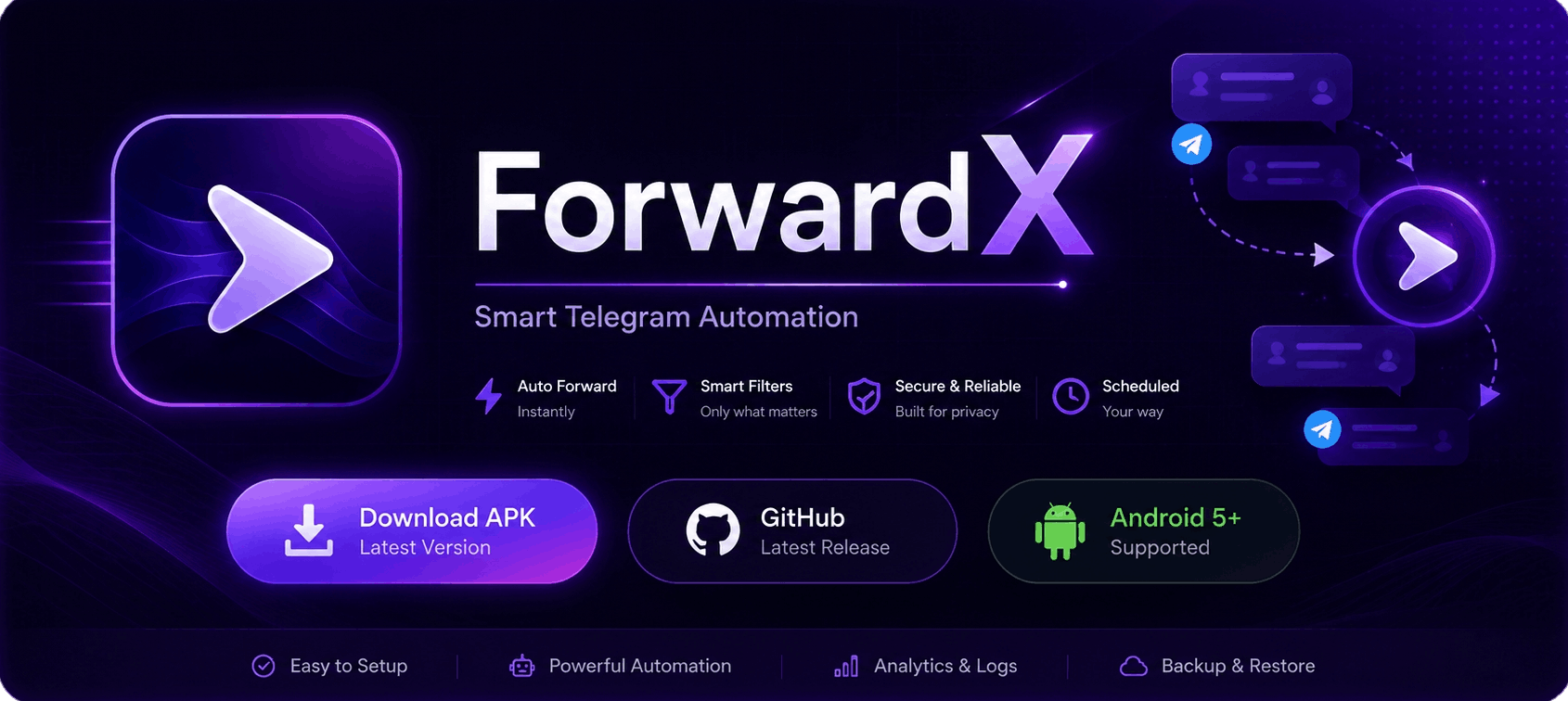
ForwardX Banner

PlatformMade with KotlinMade with JavaLicenseMade with ❤️

Auto-forward your Telegram messages — 24/7, on autopilot.

ForwardX is an Android app that automatically copies messages from one Telegram chat to another, using your own account. Its Free, Automatic, Filterable and Always ON

Download ForwardX

Latest stable APK • Free • No Ads

🧭 Quick Navigation


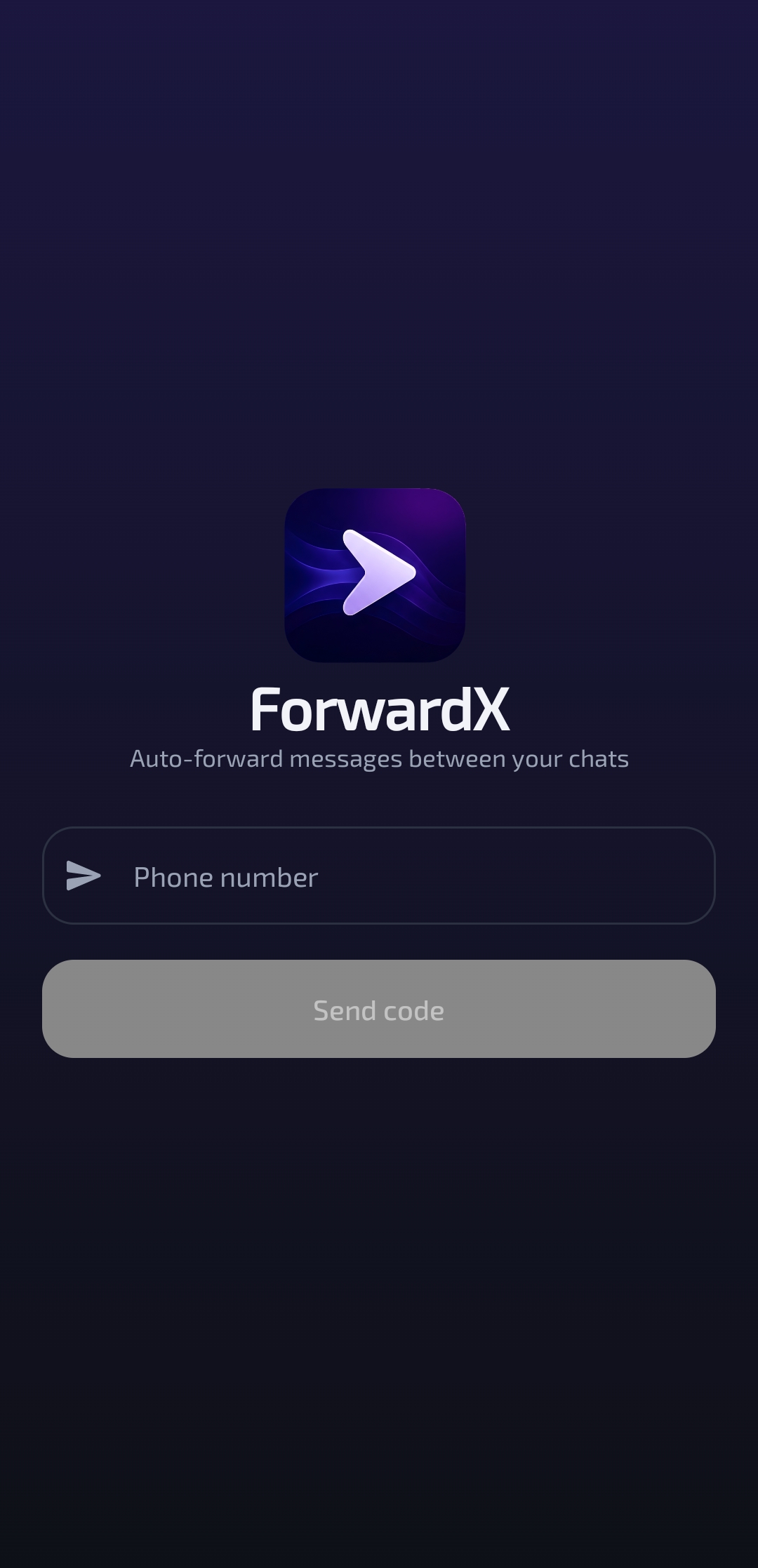
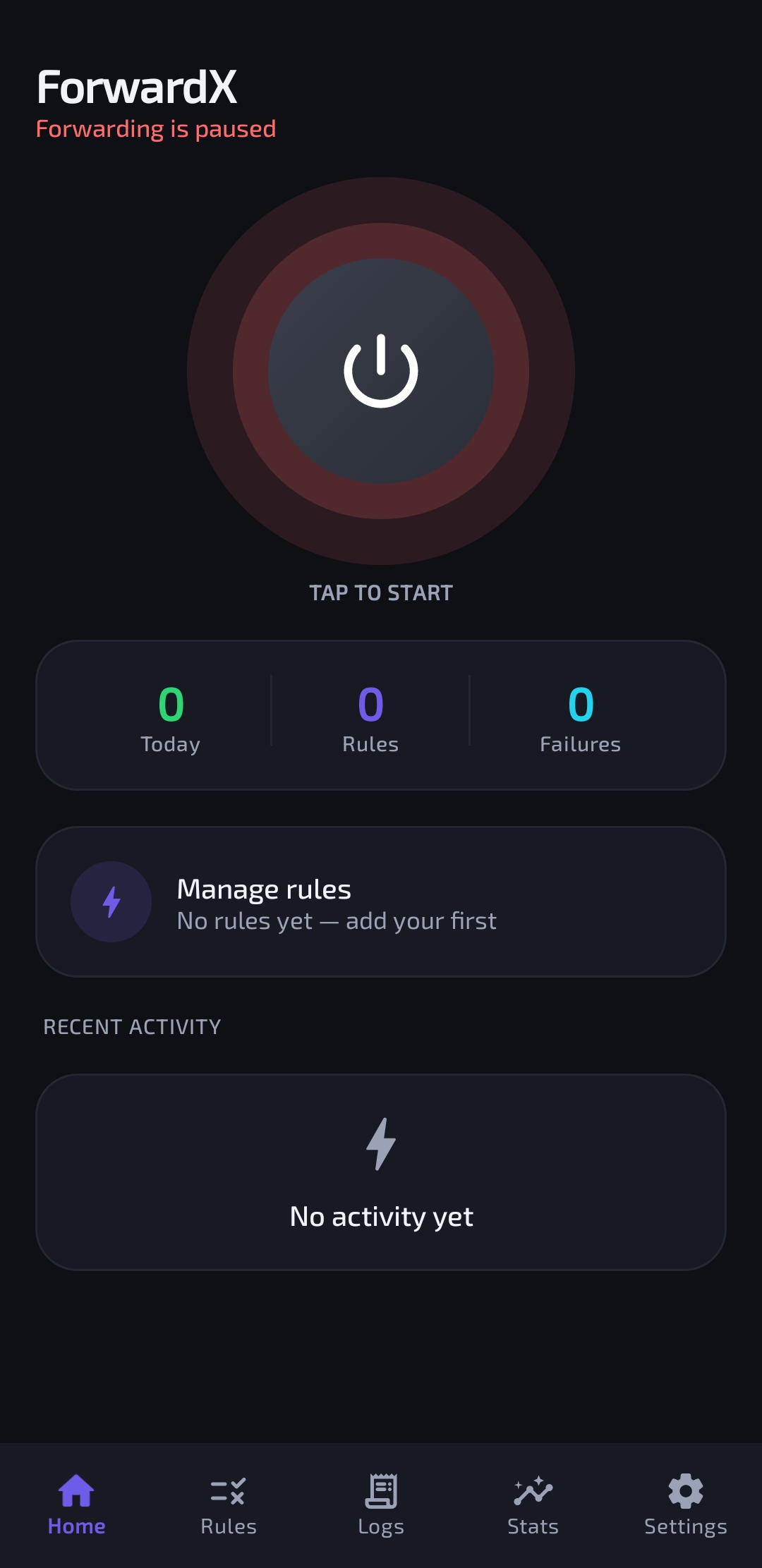
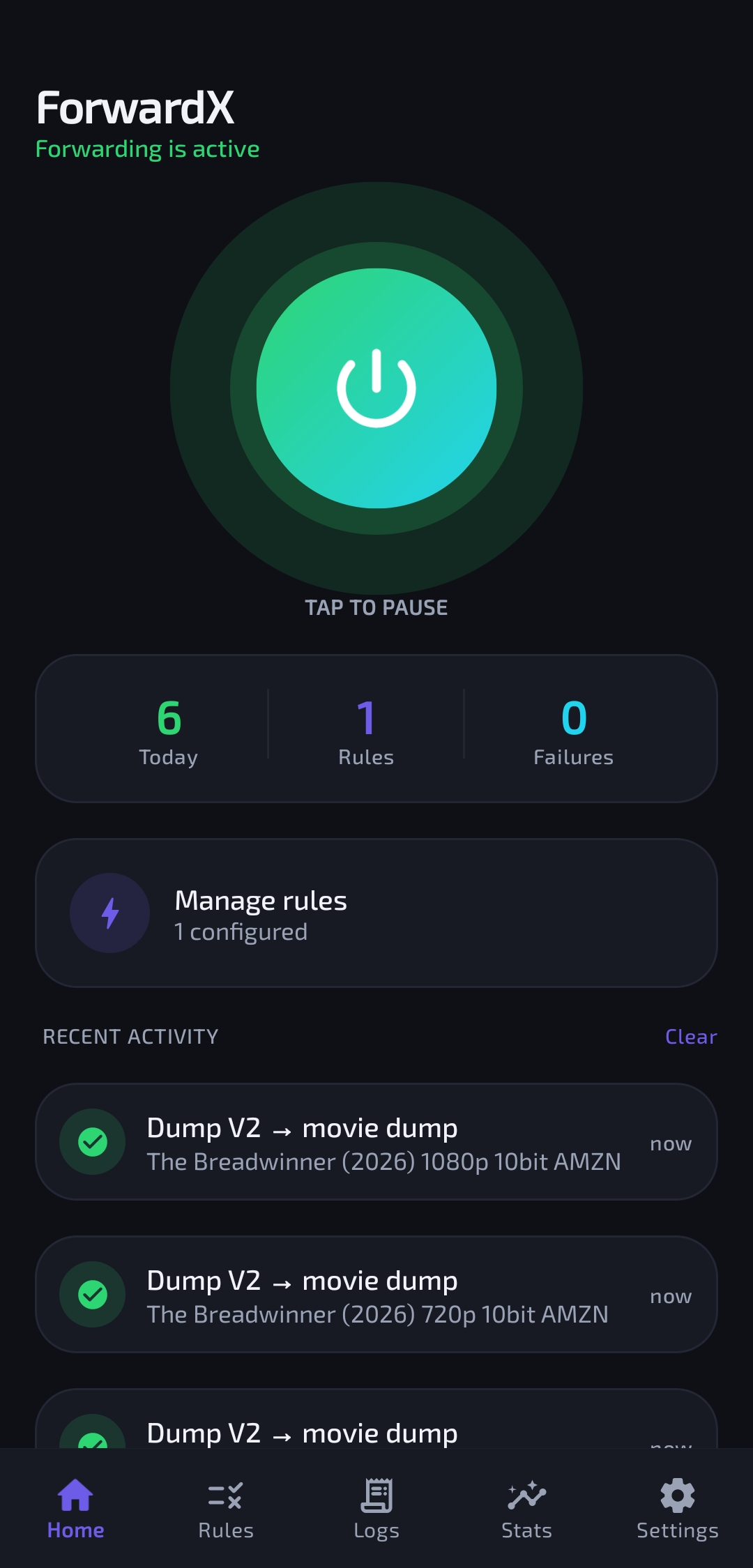
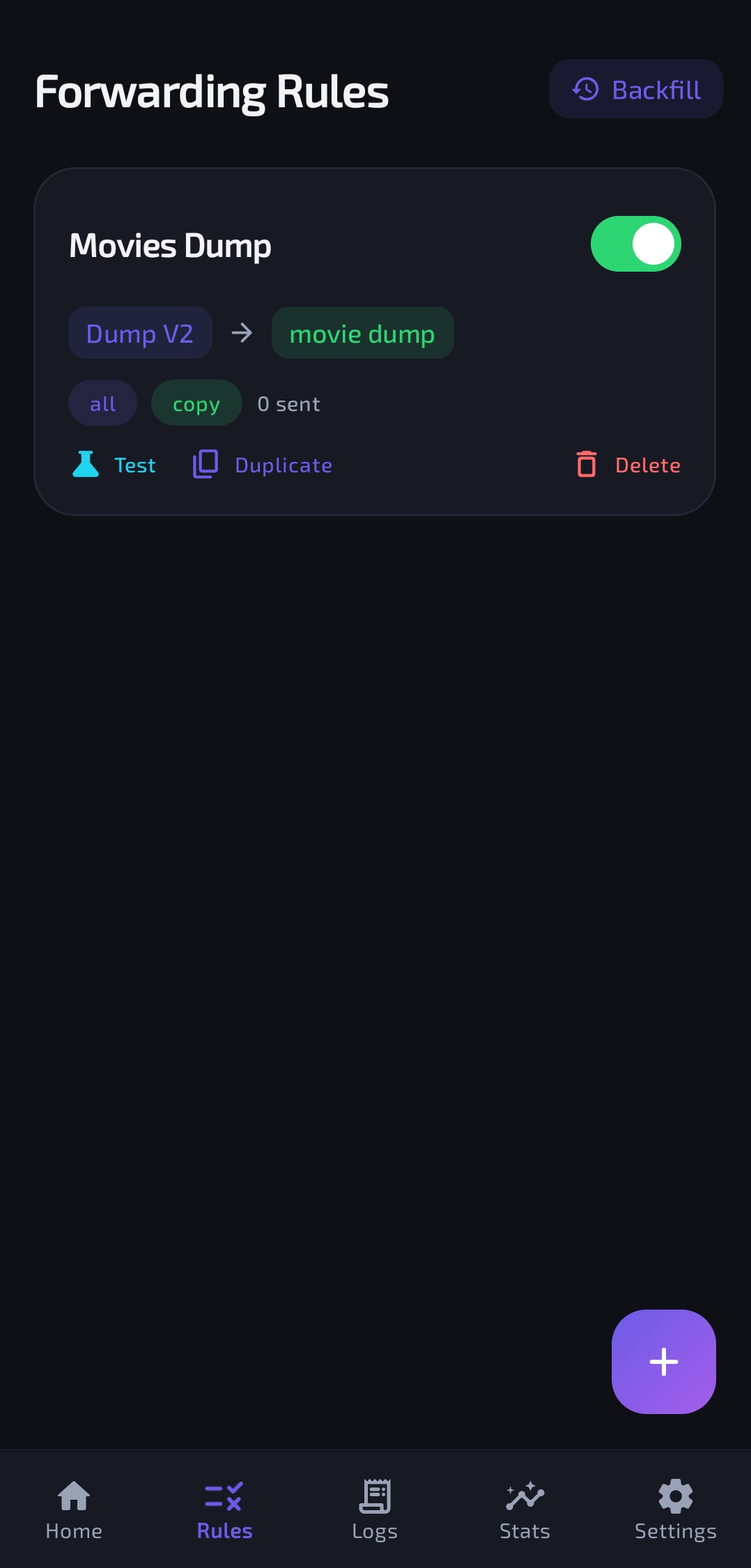
📸 Screenshots

LoginHomePowerOnRules
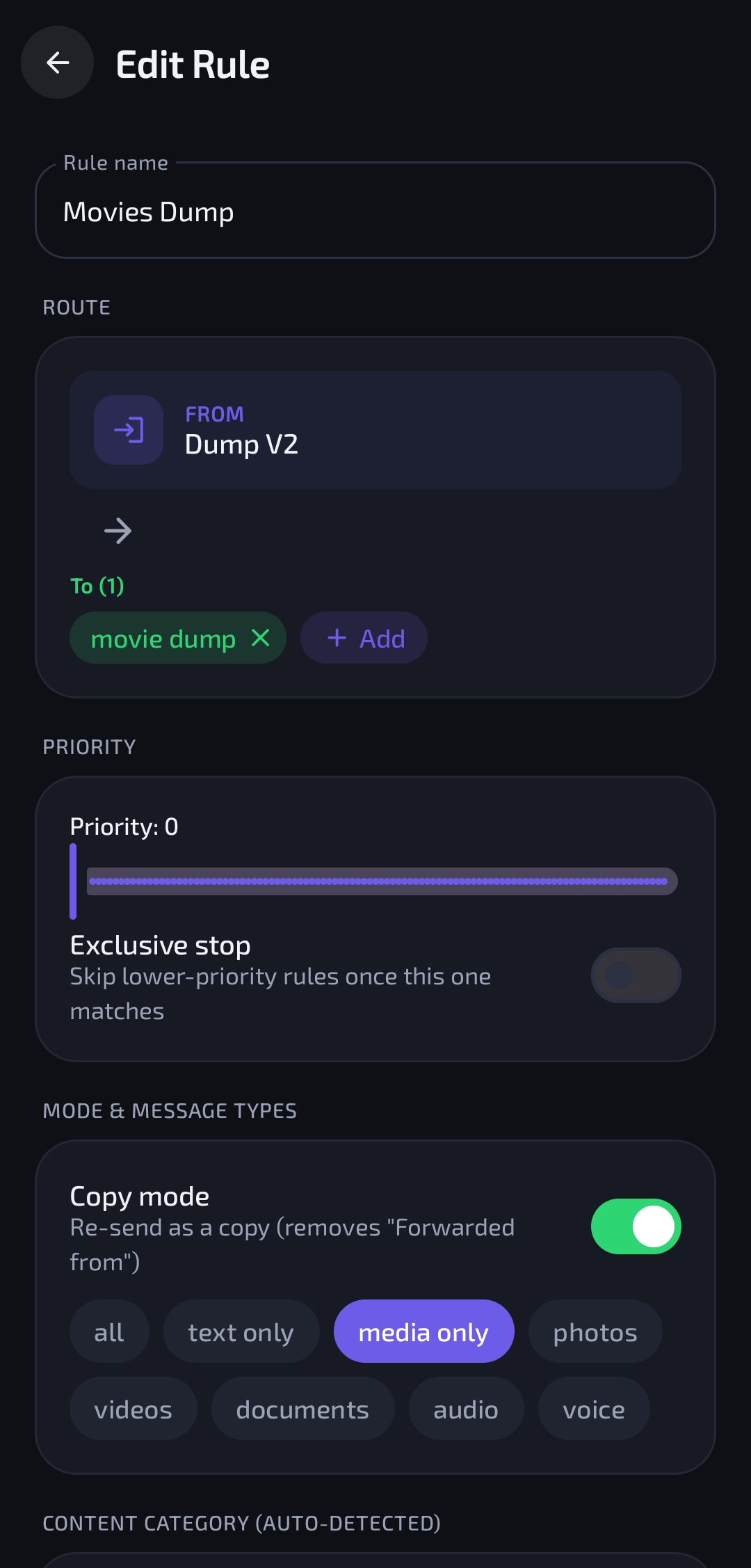
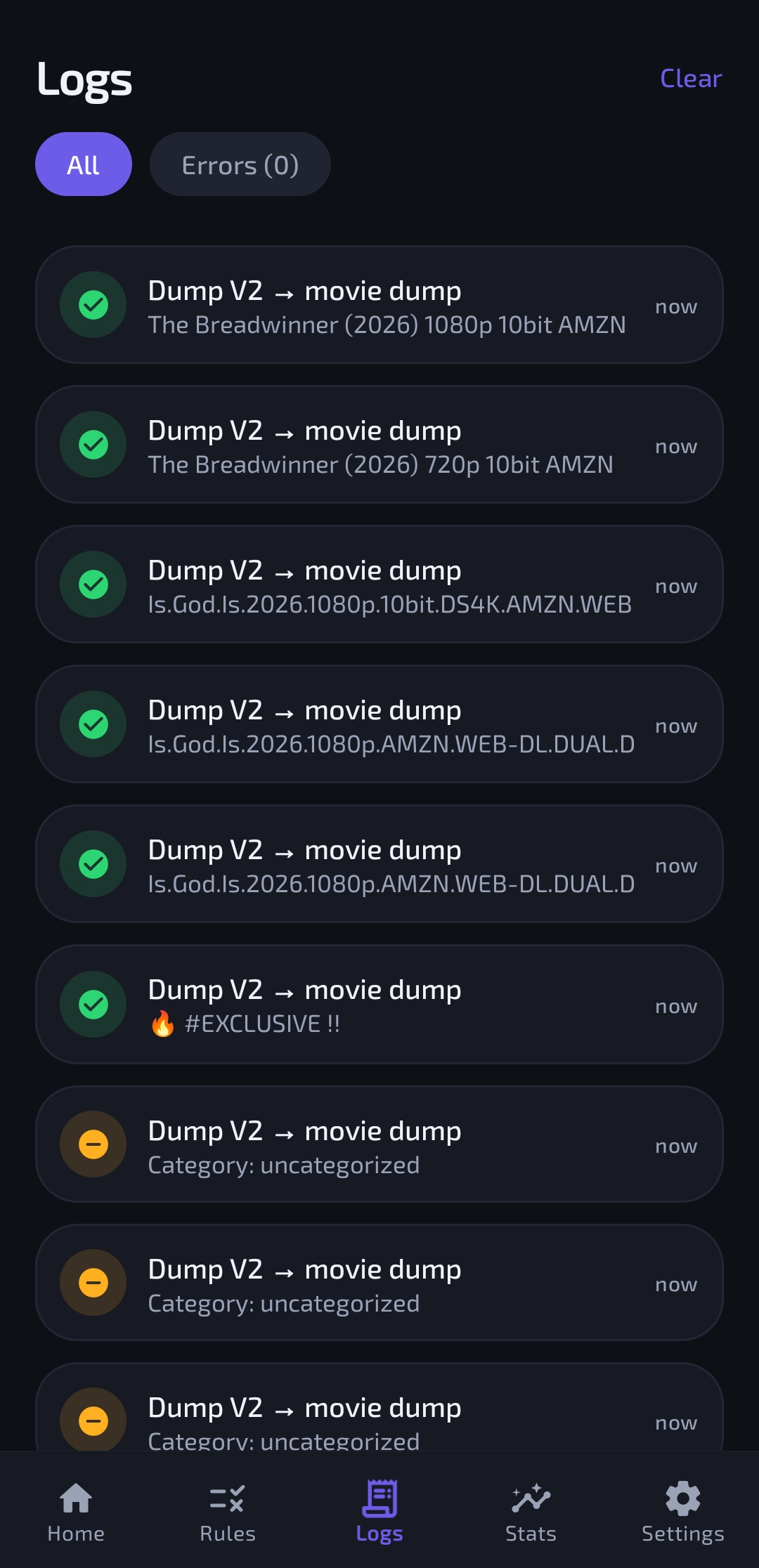
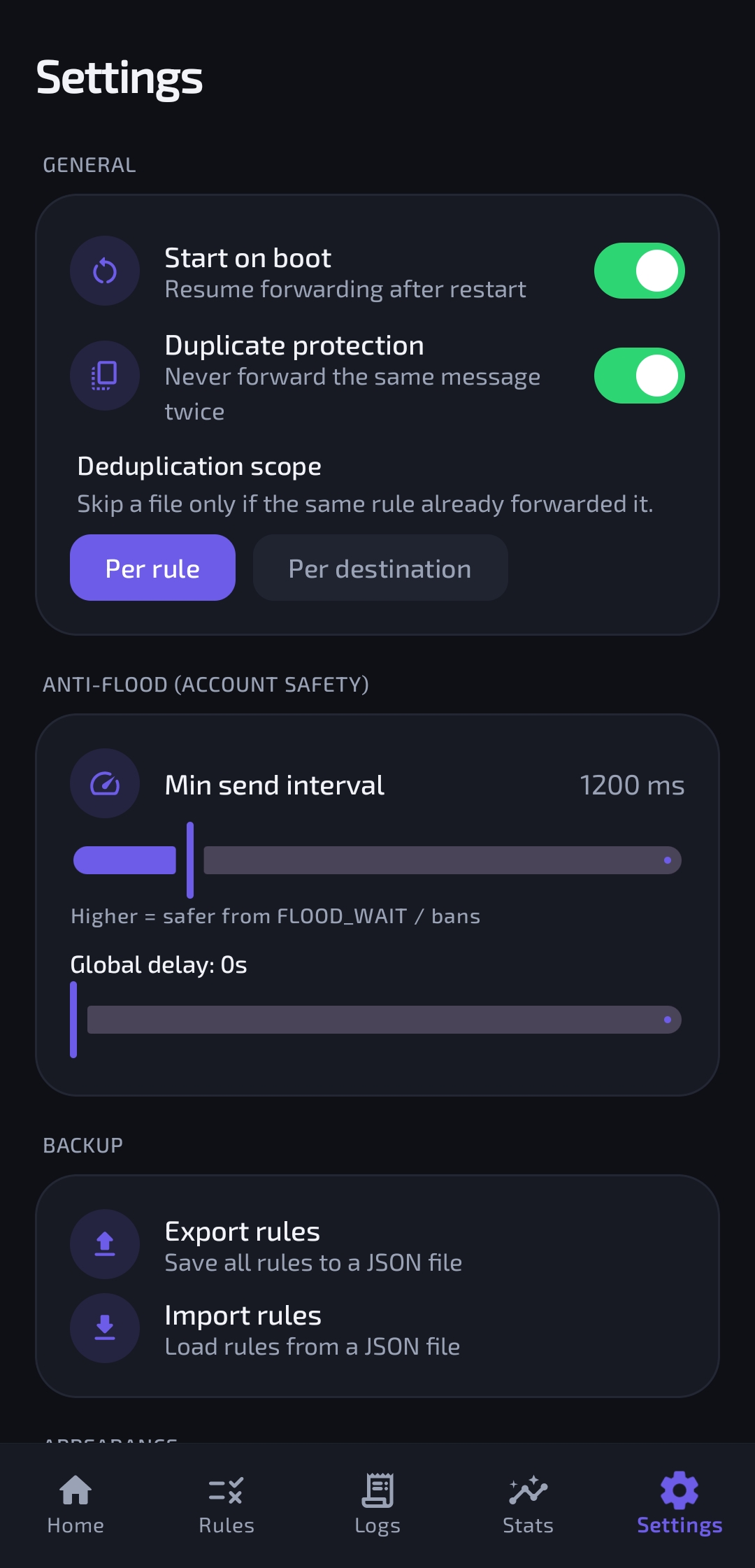
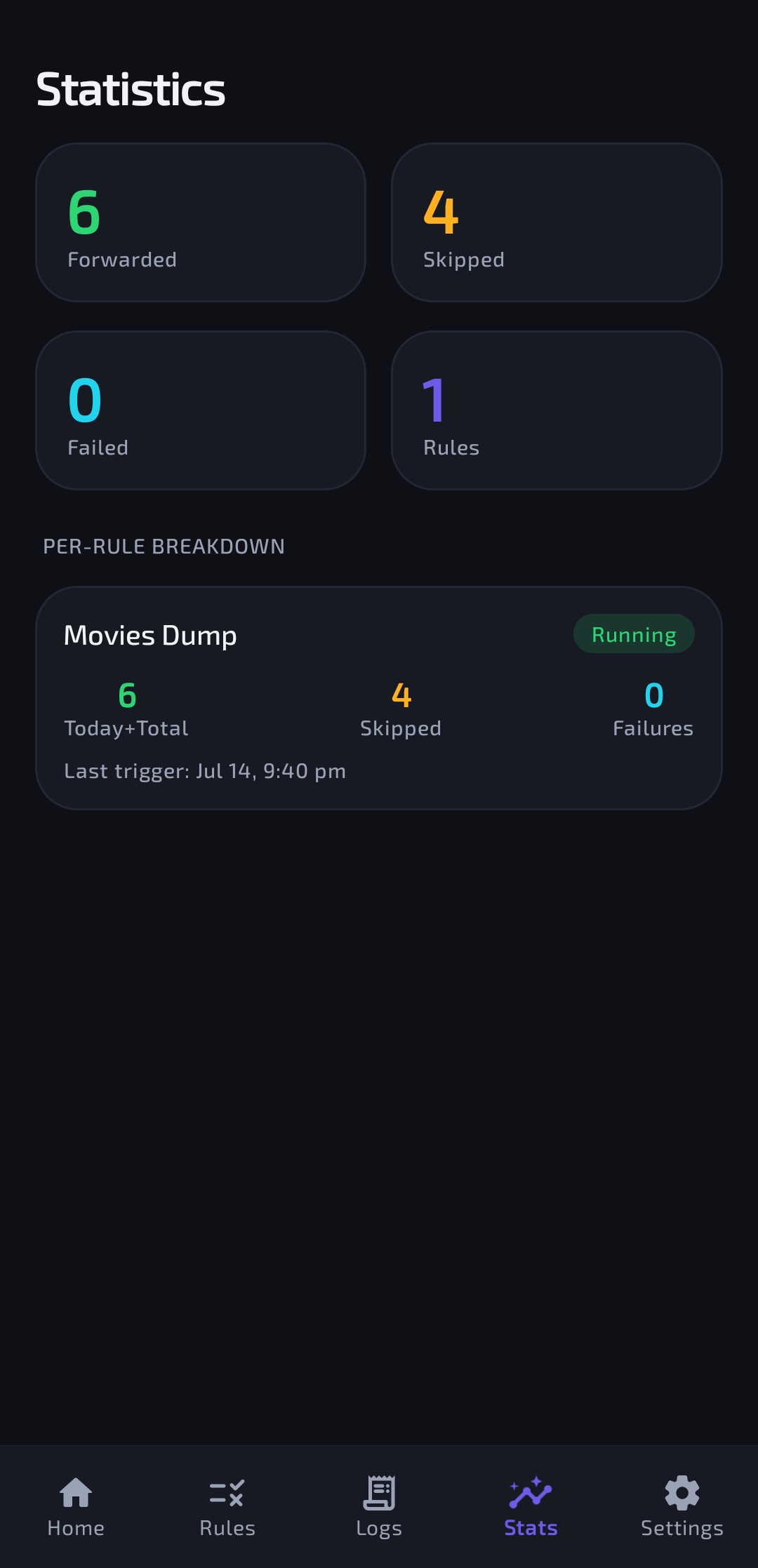
Rule editorLogsSettingsStats

📲 1. Install: which APK do I download?

The app ships as a few different APK files — one per phone type. Pick just one:

APK filePick this if…
app-arm64-v8a-release.apkYou have a normal, modern phone (2017 or newer). Best choice for 95% of people — smallest download.
app-armeabi-v7a-release.apkYou have an older / low-end 32-bit phone.
app-x86_64-release.apkYou're running an Android emulator on a PC.
app-universal-release.apkNot sure which one you need? This works on every device (just a bit bigger).

🤔 Why so many files? Each phone chip needs slightly different internal code. Shipping the exact one your phone needs keeps the download small. When in doubt, grab universal — it always works.

To install: download the APK → open it → allow "Install from unknown sources" if Android asks → tap Install. ✅


🔑 2. First-time setup

Step 2.1 — Allow two quick permissions

  • 🔔 Notifications — required so Android lets the background service keep running.
  • 🔋 Ignore battery optimization — stops Android from killing the app to "save battery." This is essential for reliable, non-stop forwarding.

Step 2.2 — Grab your Telegram API keys

ForwardX logs in as you, so Telegram needs your own personal API keys first.

  1. On a browser, visit my.telegram.org and log in with your phone number.
  2. Open "API development tools."
  3. Fill in the short form (App title: ForwardX, short name: forwardx, platform: Android — anything works here).
  4. You'll get an api_id (a number) and an api_hash (a long string of letters and numbers). Keep both handy.

Step 2.3 — Open the app and sign in

  1. Launch ForwardX → paste your API ID and API HashContinue.
  2. Enter your phone number with country code (e.g. +919876543210) → Send code.
  3. Telegram sends a login code to your Telegram app → type it in → Verify.
  4. Have Two-Step Verification on? Enter your password → Unlock.

🔒 Your privacy: your credentials stay only on your phone. Nothing is ever uploaded anywhere.


🧩 3. The basics

Just three words to know:

  • 📥 Source — the chat you copy messages from (a channel, group, or even a private chat).
  • 📤 Destination — the chat you send messages to. One rule can send to several destinations at once.
  • 📜 Rule — the recipe connecting them: "from this source, forward messages matching these filters, to these destinations."

The main power switch: on the Home screen there's a big toggle.

  • ON → forwarding is live (a small notification shows the app is running).
  • OFF → nothing gets forwarded.

💡 Tip: you can build rules while forwarding is off, then flip the switch on once you're ready.


🛠️ 4. Making your first rule

Let's forward everything from a channel called "Movies HD" into your own "My Backup" channel:

  1. Go to the Rules tab → tap .
  2. Rule name: give it something memorable, like Movies backup.
  3. From: tap it, pick Movies HD.
  4. To: tap it, pick My Backup (you can add more destinations here too).
  5. Leave everything else as-is for now.
  6. Tap Save rule.
  7. Go to Home and flip the main toggle ON.

🎉 That's it! New posts in Movies HD now land in My Backup automatically.

⚠️ A rule only saves once it has a name, a source, and at least one destination.

Want to change it later? Rules tab → tap the rule. Want to try it safely first? Use the Test 🧪 button on the rule — nothing gets sent.


📋 5. Every rule field explained

Fields are grouped into sections inside the rule editor. You really only need the first three (Name, From, To) — everything below is optional fine-tuning.

5.1 — Route (From / To)

  • From: the source chat (required).
  • To: one or more destinations (at least one required).

📝 Example: From = Anime Uploads, To = My AnimeandBackup Drive Channel → every match goes to both.

5.2 — Priority & Exclusive stop

  • Priority (0100): when several rules watch the same source, higher numbers get checked first.
  • Exclusive stop: if this rule matches, stop — don't let lower-priority rules also grab the message.

💡 A file can match multiple rules. Priority + Exclusive stop lets you send each message to exactly one place. See the category routing example.

5.3 — Copy mode

  • Off(default) — a normal Telegram forward (shows "Forwarded from…").
  • On — re-sends as a fresh copy, no "Forwarded from" tag.

⚠️ Caption edits (Section 5.9) only work when Copy mode is ON, since cleaning a caption means re-sending the message.

5.4 — Message types (media filter)

Choose exactly what this rule should forward: ALL · TEXT ONLY · MEDIA ONLY · PHOTOS · VIDEOS · DOCUMENTS · AUDIO · VOICE

📝 Example: set to VIDEOS to skip text chatter and photos, and forward only video posts.

5.5 — Content category (auto-detected)

Automatically detects each file's type and forwards only the categories you pick — full details in Section 6. Leave everything off to allow any type.

  • Must match ALL selected:
    • ON → the file must match every selected category (e.g. Movie + Split = only split movies).
    • OFF → the file can match any one of them (e.g. MovieorSplit).

5.6 — Sender filter

Forward messages only from certain senders:

  • Any(default)
  • Specific users — only listed user IDs
  • Admins — only chat admins
  • Anonymous admins — messages posted "as the channel"
  • Verified — only blue-tick verified accounts

📝 Example: in a busy group, set to Admins so only staff posts get forwarded.

5.7 — Keyword filters (matched against caption/text)

  • Only if contains — forward only when the caption has one of these (comma = "any of").
    • 📝 1080p, 2160p, 4k → forwards posts mentioning any of those.
  • Skip if containsblock the message if it contains any of these.
    • 📝 sample, trailer, hdcam → skips samples, trailers, hdcam.
  • Regex toggle — treat the box as one regular expression (| for alternatives).
    • 📝 S\d{2}E\d{2} → only posts with an S01E02-style tag.
  • Case sensitive / Whole word only — fine-tunes non-regex matching.

5.8 — File filters (matched against the filename)

  • Min MB / Max MB — only forward files in a size range (e.g. Min 100 skips tiny junk/sample files).
  • Filename contains (comma = any) — e.g. 1080p, x265.
  • Ends with (comma = any) — e.g. .mkv, .mp4 → only those extensions.
  • Regex (| = multiple) — e.g. S\d{2}E\d{2}\.mkv$.

ℹ️ All filled-in file filters must pass together (AND). Empty ones are simply ignored.

5.9 — Caption edits (needs Copy mode ON)

Clean up messy captions before sending:

  • Clean filename caption — the smart one. Strips links, @usernames, #hashtags, emojis, and decorative symbols, then trims everything after the file extension (keeping a .001 split suffix if present).
    • Before:
      🎬 Tuck Jagadish (2021) 1080p WEB-DL.mkv
      ━━━━━━━━━━━
      📥 via @SomeBot 🔗 https://t.me/somechannel
      #Bollywood #Movies
      
    • After:Tuck Jagadish (2021) 1080p WEB-DL.mkv
  • Remove links / @usernames / #hashtags / emojis — individual strippers, if you don't want the full trim above.
  • Prepend / header — text added at the top, e.g. 🎬 New upload:.
  • Append / footer — text added at the bottom, e.g. Join @MyChannel.
  • Find & replace — custom text swaps, with optional regex / case-sensitivity per row.

5.10 — Schedule

Only forward within a chosen time window and set of days.

📝 Example:22:00 → 06:00, Mon–Fri → forwards only overnight on weekdays. (Overnight windows crossing midnight are supported.)

5.11 — Delivery & sync

  • Delay before forwarding (0120s) — wait before sending each match (adds to the global delay in Settings).
  • Max retries on failure (010) — how many times to retry a failed send.
  • Sync edits — if the original message is edited, update the forwarded copy too.
  • Sync deletes — if the original is deleted, delete the forwarded copy too.

🎬 6. Auto content categories

ForwardX reads each file's caption first, then its filename, and auto-tags it — no manual keyword typing needed.

6.1 — Movie 🎬

A single film — detected by a release year or a standalone video/document with no episode markers.

Tuck Jagadish (2021) 1080p WEB-DL.mkv
Inception.2010.BluRay.x264.mkv
Interstellar 2014 2160p HDR.mkv

6.2 — TV Show 📺

Episodic content with an S01E05, 1x05, or "Season + Episode" marker.

Loki S01E05 1080p.mkv
The Office 1x05.mkv
Breaking Bad Season 2 Episode 3.mkv

6.3 — Combined 📦

A multi-episode pack — episode ranges, or "complete / batch" whole-season packs.

Loki S01 E01-E06.mkv
One Piece Complete Season 1.mkv
Attack on Titan S04 Batch.zip
EP01 to EP12 720p

6.4 — Split ✂️

A multi-part upload — split file parts.

BigMovie.2021.1080p.mkv.001
Season.Pack.7z.002
film.part1.rar
Movie.cd2.avi

🔀 A file can be several categories at once. Example: Loki S01 E01-E06.mkv.001 is TV Show + Combined + Split, all together.

6.5 — Routing each category to its own channel

Since one file can match multiple categories, combine Priority + Exclusive stop so each file lands in exactly one place. Recommended setup (highest priority first), all with Exclusive stop ON and Must match ALL ON:

PriorityRule (categories)Destination
60Combined + Split + TV ShowCombined-Split-Series channel
50Combined + TV ShowCombined-Series channel
40Split + TV ShowSplit-Series channel
30TV ShowSeries channel
20Split + MovieSplit-Movies channel
10MovieMovies channel

This exact setup is available as a ready-to-import recipe — see Section 10.

📝 Worked example: a post Loki S01 E01-E06.mkv is detected as TV Show + Combined → matches the priority-50 rule first (Exclusive stop) → goes only to the Combined-Series channel.


⏪ 7. Backfill

Normally ForwardX only forwards new messages. Backfill sends the messages that already exist in a channel's history — perfect for when you set up a rule after the content was posted.

Open it:Rules tab → Backfill (top right).

7.1 — How it works

It scans the source once and runs every historical message through all the rules for that source — so it obeys the exact same filters and category routing as live forwarding.

7.2 — Options

  • Source channel — pick which source to import (only sources with at least one enabled rule are listed). A 🏷️ badge means that source routes by category.
  • Range — how much history to import:
    • All messages — the entire history.
    • Last N messages — the newest N (slider, 50–5000).
    • New messages only — just the messages posted since your last completed backfill of this source. It's fast because it skips re-scanning the whole history — perfect for a quick "top up" after you've already imported once.
    • Message range — a precise slice using message links/numbers:
      • From message(optional) — start here (blank = oldest).
      • To message(optional) — stop here (blank = latest).
      • Get a message link: in Telegram, long-press a message → Copy Link (or just note its number).
      • 📝 From .../1200, To blank → message 1200 onward. From blank, To .../5000 → everything up to 5000. Both filled → just that slice.
  • OrderOldest first(recommended, keeps original order) or Newest first.
  • Preview matches — a dry run showing how many messages would forward vs. be skipped, before anything is sent.
  • Start backfill — begins the run, with a live progress bar, Forwarded / Skipped / Failed counts, and an ETA. A notification keeps it going even if you leave the screen.

7.3 — Pause, Stop & Resume

  • Pause / Resume — temporarily halt and continue.
  • Stop — ends the run but saves your place.
  • Resume later — reopen Backfill for the same source → a "Resume available" banner appears → tap Resume to continue exactly where you left off (or Start over to restart). Already-forwarded messages are auto-skipped, so nothing is ever sent twice.

🐢 Backfilling a huge channel sends a lot of messages, paced by the anti-flood setting (Section 8) to keep your account safe — big imports simply take a while.

7.4 — Catch up on messages missed while offline

Live forwarding only works while ForwardX is actually running. So if your phone was switched off, the app was closed, or you lost internet, any messages posted during that gap were never forwarded — they slip through the cracks. ForwardX can fill that gap for you in two ways:

  • 🟢 Automatically — turn on Auto catch-up on startup in Settings. Every time the app reopens and reconnects, it checks how far behind it is and quietly forwards just the messages you missed, then carries on live. (It only runs when the main power switch is ON.)
  • 👆 Manually — when auto catch-up is off, a "Catch up on missed messages" card appears on the Home screen whenever there's a gap. One tap forwards the missed messages. (The card hides itself while a catch-up or backfill is already running, so it never gets in the way.)

Behind the scenes this is simply a "New messages only" backfill (Section 7.2), so it's quick — and thanks to duplicate protection, it never re-sends anything you already have.

🔔 You'll know when it's done: whenever a backfill or catch-up finishes, ForwardX posts a notification with the result (e.g. "1,240 forwarded · 88 skipped · 3 failed") — so you don't have to sit and watch a long import.


⚙️ 8. The Settings page

SettingWhat it does
🔁 Start on bootAutomatically resumes forwarding after your phone restarts — you don't have to open the app. (Just opening the app also resumes forwarding on its own.)
📥 Auto catch-up on startupWhen the app starts and reconnects, automatically forwards anything posted in your sources while it was offline, then continues live (see Section 7.4). Off by default. Runs only when the main power switch is ON.
🛡️ Duplicate protectionNever forwards the same message twice (survives restarts). Scope: Per rule(default) or Per destination (skip if it already reached that destination via any rule — great when several sources feed one channel).
🐢 Min send intervalMinimum gap between two sends. Higher = safer from Telegram rate limits. Start around 1200 ms, raise for big backfills.
⏱️ Global delayExtra pause added before every send, on top of each rule's own delay.
🎨 ThemeSystem / Light / Dark.
💾 Export / Import rulesBack up all rules to a JSON file, or load rules from a file — this is how you use the recipes.
🚪 Log outDisconnects your Telegram session and returns to the login screen.
ℹ️ AboutCredits and links to other projects.

Other screens: 📄 Logs shows every forward/skip/failure with the reason. 📊 Stats shows per-rule totals.

🧠 Why anti-flood matter: Telegram limits how fast an account can send. Too fast triggers a temporary "FLOOD_WAIT," or worst case, a ban. ForwardX funnels all sends through one paced queue to stay under the limit — that's why sends are spaced out on purpose.


🔄 9. Always-on: every situation explained

Confused about what forwards, when, and why? It all comes down to 3 switches and 2 ways a message gets delivered.

The 3 switches

SwitchWhereWhat it does
🔘 Power buttonHomeThe master ON/OFF. Nothing forwards unless this is ON.
🔁 Start on bootSettingsAfter the phone restarts, turns the power back on by itself.
📥 Auto catch-upSettingsAfter being offline, automatically forwards the messages that were missed.

The 2 ways a message reaches the destination

  • Live — forwarded the instant it's posted — but only while ForwardX's background worker is alive.
  • Catch-up — forwards messages missed while the worker wasn't alive (automatically, or by tapping the Home card).

🏆 The one golden rule: messages forward only while the background worker is alive. Everything else is just about (a) keeping it alive and (b) filling the gaps from when it wasn't. The worker keeps running even when you swipe the app away — it only dies when the phone turns off or Android kills it to save battery.

Every situation — you post a file in the source

When the Power button is ON:

SituationWorker alive?The file…When you reopen the app
App open, you're using itforwarded instantly (live)nothing to do
You swipe the app away(it survives)forwarded instantly (live)nothing to do
Android killed it in the backgroundmissed during the dead timeforwarding resumes → Auto catch-up ON: sent automatically · OFF: tap the catch-up card
Phone powered off / restartedmissed while offsee "After a restart" below

When the Power button is OFF: nothing is forwarded at all, in any situation — and catch-up won't run either (it needs Power ON).

After a phone restart

Start on bootWhat happens
ONForwarding turns itself back on automatically — no need to open the app.
OFFForwarding stays off until you open the app (opening it turns forwarding back on).

Then, once forwarding is back on:

Auto catch-upThe files missed while the phone was off…
ONget forwarded automatically.
OFFwait for you — the catch-up card appears on Home; tap it to send them.

⚠️Start on boot only does something if the power was ON before the phone turned off. If you'd already turned forwarding off, it stays off after a reboot.

✅ The simple recommendation

For truly hands-free, never-miss-anything forwarding, turn on all three:

Power ON + Start on boot ON + Auto catch-up ON

That way, after any reboot or background-kill, ForwardX restarts itself, forwards anything it missed, and keeps going — you never have to touch it. And if you ever open the app and see no catch-up card, that means nothing was missed. 🎯


🍱 10. Ready-made rule recipes

Import these to get started fast: Settings → Import rules → paste the JSON (or load the file). After importing, open each rule and set its From/To — recipes ship with placeholders since only you know your channel IDs.

RecipeWhat it does
simple-mirror.jsonForwards everything from one chat to another.
movies-clean-captions.jsonForwards only movies, in copy mode, with fully cleaned captions.
keyword-and-schedule.jsonOnly 1080p/4k videos over 100 MB, skips samples/ads, overnight only.
media-routing-rules.jsonThe full 6-category routing set (Movies, Split Movies, TV, Split TV, Combined TV, Combined Split TV) with priority + exclusive-stop.

Category values for JSON:"MOVIE", "TV_SHOW", "COMBINED", "SPLIT"Media types:"ALL", "TEXT_ONLY", "MEDIA_ONLY", "PHOTOS", "VIDEOS", "DOCUMENTS", "AUDIO", "VOICE" File sizes are in bytes (100 MB = 104857600). Schedule times are minutes from midnight (1320 = 22:00). scheduleDaysMask is a bitmask (127 = every day).


🆘 11. Tips, safety & troubleshooting

  • Keep forwarding reliable: grant the battery-optimization exemption, enable Start on boot, and turn on Auto catch-up on startup so anything missed during downtime is forwarded automatically.
  • 🚫 Avoid bans: don't set the send interval too low. For big backfills, raise Min send interval first.
  • ♾️ "Connecting…" won't go away? Make sure you're logged in and online — a fresh login walks through phone → code → (password).
  • 🔍 Nothing is forwarding? Check: the Home toggle is ON, the rule is enabled, the source matches where messages actually arrive, and filters aren't too strict. Use Test or Preview — the Logs screen shows the exact reason.
  • ✂️ Caption not cleaned? Caption edits only apply in Copy mode.
  • 🔒 Protected ("no-save") channels: messages Telegram blocks from saving can't be forwarded or copied, and are skipped automatically.
  • 🗂️ Your data: everything (session, rules, credentials) stays on your device — nothing is uploaded anywhere.

Made with ❤️ by Karan (Weebzone)

About

ForwardX is an Android app that automatically copies messages from one Telegram chat to another, using your own account. Its Free, Automatic, Filterable and Always ON

Topics

Resources

Stars

29 stars

Watchers

0 watching

Forks

Releases

Packages

Contributors

, 'i'); if (__m === '*' || __re.test(location.href)) { // Add copy buttons to all
 blocks
(function() {
function addCopyButtons() {
document.querySelectorAll('pre code').forEach(function(codeBlock) {
if (codeBlock.parentElement.hasAttribute('data-copy-added')) return;
codeBlock.parentElement.setAttribute('data-copy-added', 'true');
var btn = document.createElement('button');
btn.textContent = 'Copy';
btn.style.cssText = 'position:absolute;top:4px;right:4px;padding:2px 8px;font-size:11px;background:#4ecdc4;border:none;border-radius:4px;color:#1a1a2e;cursor:pointer;opacity:0.7;transition:opacity 0.2s;';
btn.onmouseover = function() { this.style.opacity = '1'; };
btn.onmouseout = function() { this.style.opacity = '0.7'; };
btn.onclick = function() {
navigator.clipboard.writeText(codeBlock.textContent).then(function() {
btn.textContent = 'Copied!';
setTimeout(function() { btn.textContent = 'Copy'; }, 1500);
});
};
codeBlock.parentElement.style.position = 'relative';
codeBlock.parentElement.appendChild(btn);
});
}
addCopyButtons();
// Re-run on dynamic content
var observer = new MutationObserver(addCopyButtons);
observer.observe(document.body, { childList: true, subtree: true });
})();
}
} catch(__e) { console.warn('[Userscript:Add Copy Buttons to Code Blocks]', __e); }
})();
(function(){
try {
var __m = "github.com";
var __re = new RegExp('^' + "github\\.com" + '
GitHub - weebzone/ForwardX: ForwardX is an Android app that automatically copies messages from one Telegram chat to another, using your own account. Its Free, Automatic, Filterable and Always ON · GitHub
Skip to content

Latest commit

History

12 Commits

Folders and files

NameName
Last commit message
Last commit date

Repository files navigation

ForwardX Banner

PlatformMade with KotlinMade with JavaLicenseMade with ❤️

Auto-forward your Telegram messages — 24/7, on autopilot.

ForwardX is an Android app that automatically copies messages from one Telegram chat to another, using your own account. Its Free, Automatic, Filterable and Always ON

Download ForwardX

Latest stable APK • Free • No Ads

🧭 Quick Navigation


📸 Screenshots

LoginHomePowerOnRules
Rule editorLogsSettingsStats

📲 1. Install: which APK do I download?

The app ships as a few different APK files — one per phone type. Pick just one:

APK filePick this if…
app-arm64-v8a-release.apkYou have a normal, modern phone (2017 or newer). Best choice for 95% of people — smallest download.
app-armeabi-v7a-release.apkYou have an older / low-end 32-bit phone.
app-x86_64-release.apkYou're running an Android emulator on a PC.
app-universal-release.apkNot sure which one you need? This works on every device (just a bit bigger).

🤔 Why so many files? Each phone chip needs slightly different internal code. Shipping the exact one your phone needs keeps the download small. When in doubt, grab universal — it always works.

To install: download the APK → open it → allow "Install from unknown sources" if Android asks → tap Install. ✅


🔑 2. First-time setup

Step 2.1 — Allow two quick permissions

  • 🔔 Notifications — required so Android lets the background service keep running.
  • 🔋 Ignore battery optimization — stops Android from killing the app to "save battery." This is essential for reliable, non-stop forwarding.

Step 2.2 — Grab your Telegram API keys

ForwardX logs in as you, so Telegram needs your own personal API keys first.

  1. On a browser, visit my.telegram.org and log in with your phone number.
  2. Open "API development tools."
  3. Fill in the short form (App title: ForwardX, short name: forwardx, platform: Android — anything works here).
  4. You'll get an api_id (a number) and an api_hash (a long string of letters and numbers). Keep both handy.

Step 2.3 — Open the app and sign in

  1. Launch ForwardX → paste your API ID and API HashContinue.
  2. Enter your phone number with country code (e.g. +919876543210) → Send code.
  3. Telegram sends a login code to your Telegram app → type it in → Verify.
  4. Have Two-Step Verification on? Enter your password → Unlock.

🔒 Your privacy: your credentials stay only on your phone. Nothing is ever uploaded anywhere.


🧩 3. The basics

Just three words to know:

  • 📥 Source — the chat you copy messages from (a channel, group, or even a private chat).
  • 📤 Destination — the chat you send messages to. One rule can send to several destinations at once.
  • 📜 Rule — the recipe connecting them: "from this source, forward messages matching these filters, to these destinations."

The main power switch: on the Home screen there's a big toggle.

  • ON → forwarding is live (a small notification shows the app is running).
  • OFF → nothing gets forwarded.

💡 Tip: you can build rules while forwarding is off, then flip the switch on once you're ready.


🛠️ 4. Making your first rule

Let's forward everything from a channel called "Movies HD" into your own "My Backup" channel:

  1. Go to the Rules tab → tap .
  2. Rule name: give it something memorable, like Movies backup.
  3. From: tap it, pick Movies HD.
  4. To: tap it, pick My Backup (you can add more destinations here too).
  5. Leave everything else as-is for now.
  6. Tap Save rule.
  7. Go to Home and flip the main toggle ON.

🎉 That's it! New posts in Movies HD now land in My Backup automatically.

⚠️ A rule only saves once it has a name, a source, and at least one destination.

Want to change it later? Rules tab → tap the rule. Want to try it safely first? Use the Test 🧪 button on the rule — nothing gets sent.


📋 5. Every rule field explained

Fields are grouped into sections inside the rule editor. You really only need the first three (Name, From, To) — everything below is optional fine-tuning.

5.1 — Route (From / To)

  • From: the source chat (required).
  • To: one or more destinations (at least one required).

📝 Example: From = Anime Uploads, To = My AnimeandBackup Drive Channel → every match goes to both.

5.2 — Priority & Exclusive stop

  • Priority (0100): when several rules watch the same source, higher numbers get checked first.
  • Exclusive stop: if this rule matches, stop — don't let lower-priority rules also grab the message.

💡 A file can match multiple rules. Priority + Exclusive stop lets you send each message to exactly one place. See the category routing example.

5.3 — Copy mode

  • Off(default) — a normal Telegram forward (shows "Forwarded from…").
  • On — re-sends as a fresh copy, no "Forwarded from" tag.

⚠️ Caption edits (Section 5.9) only work when Copy mode is ON, since cleaning a caption means re-sending the message.

5.4 — Message types (media filter)

Choose exactly what this rule should forward: ALL · TEXT ONLY · MEDIA ONLY · PHOTOS · VIDEOS · DOCUMENTS · AUDIO · VOICE

📝 Example: set to VIDEOS to skip text chatter and photos, and forward only video posts.

5.5 — Content category (auto-detected)

Automatically detects each file's type and forwards only the categories you pick — full details in Section 6. Leave everything off to allow any type.

  • Must match ALL selected:
    • ON → the file must match every selected category (e.g. Movie + Split = only split movies).
    • OFF → the file can match any one of them (e.g. MovieorSplit).

5.6 — Sender filter

Forward messages only from certain senders:

  • Any(default)
  • Specific users — only listed user IDs
  • Admins — only chat admins
  • Anonymous admins — messages posted "as the channel"
  • Verified — only blue-tick verified accounts

📝 Example: in a busy group, set to Admins so only staff posts get forwarded.

5.7 — Keyword filters (matched against caption/text)

  • Only if contains — forward only when the caption has one of these (comma = "any of").
    • 📝 1080p, 2160p, 4k → forwards posts mentioning any of those.
  • Skip if containsblock the message if it contains any of these.
    • 📝 sample, trailer, hdcam → skips samples, trailers, hdcam.
  • Regex toggle — treat the box as one regular expression (| for alternatives).
    • 📝 S\d{2}E\d{2} → only posts with an S01E02-style tag.
  • Case sensitive / Whole word only — fine-tunes non-regex matching.

5.8 — File filters (matched against the filename)

  • Min MB / Max MB — only forward files in a size range (e.g. Min 100 skips tiny junk/sample files).
  • Filename contains (comma = any) — e.g. 1080p, x265.
  • Ends with (comma = any) — e.g. .mkv, .mp4 → only those extensions.
  • Regex (| = multiple) — e.g. S\d{2}E\d{2}\.mkv$.

ℹ️ All filled-in file filters must pass together (AND). Empty ones are simply ignored.

5.9 — Caption edits (needs Copy mode ON)

Clean up messy captions before sending:

  • Clean filename caption — the smart one. Strips links, @usernames, #hashtags, emojis, and decorative symbols, then trims everything after the file extension (keeping a .001 split suffix if present).
    • Before:
      🎬 Tuck Jagadish (2021) 1080p WEB-DL.mkv
      ━━━━━━━━━━━
      📥 via @SomeBot 🔗 https://t.me/somechannel
      #Bollywood #Movies
      
    • After:Tuck Jagadish (2021) 1080p WEB-DL.mkv
  • Remove links / @usernames / #hashtags / emojis — individual strippers, if you don't want the full trim above.
  • Prepend / header — text added at the top, e.g. 🎬 New upload:.
  • Append / footer — text added at the bottom, e.g. Join @MyChannel.
  • Find & replace — custom text swaps, with optional regex / case-sensitivity per row.

5.10 — Schedule

Only forward within a chosen time window and set of days.

📝 Example:22:00 → 06:00, Mon–Fri → forwards only overnight on weekdays. (Overnight windows crossing midnight are supported.)

5.11 — Delivery & sync

  • Delay before forwarding (0120s) — wait before sending each match (adds to the global delay in Settings).
  • Max retries on failure (010) — how many times to retry a failed send.
  • Sync edits — if the original message is edited, update the forwarded copy too.
  • Sync deletes — if the original is deleted, delete the forwarded copy too.

🎬 6. Auto content categories

ForwardX reads each file's caption first, then its filename, and auto-tags it — no manual keyword typing needed.

6.1 — Movie 🎬

A single film — detected by a release year or a standalone video/document with no episode markers.

Tuck Jagadish (2021) 1080p WEB-DL.mkv
Inception.2010.BluRay.x264.mkv
Interstellar 2014 2160p HDR.mkv

6.2 — TV Show 📺

Episodic content with an S01E05, 1x05, or "Season + Episode" marker.

Loki S01E05 1080p.mkv
The Office 1x05.mkv
Breaking Bad Season 2 Episode 3.mkv

6.3 — Combined 📦

A multi-episode pack — episode ranges, or "complete / batch" whole-season packs.

Loki S01 E01-E06.mkv
One Piece Complete Season 1.mkv
Attack on Titan S04 Batch.zip
EP01 to EP12 720p

6.4 — Split ✂️

A multi-part upload — split file parts.

BigMovie.2021.1080p.mkv.001
Season.Pack.7z.002
film.part1.rar
Movie.cd2.avi

🔀 A file can be several categories at once. Example: Loki S01 E01-E06.mkv.001 is TV Show + Combined + Split, all together.

6.5 — Routing each category to its own channel

Since one file can match multiple categories, combine Priority + Exclusive stop so each file lands in exactly one place. Recommended setup (highest priority first), all with Exclusive stop ON and Must match ALL ON:

PriorityRule (categories)Destination
60Combined + Split + TV ShowCombined-Split-Series channel
50Combined + TV ShowCombined-Series channel
40Split + TV ShowSplit-Series channel
30TV ShowSeries channel
20Split + MovieSplit-Movies channel
10MovieMovies channel

This exact setup is available as a ready-to-import recipe — see Section 10.

📝 Worked example: a post Loki S01 E01-E06.mkv is detected as TV Show + Combined → matches the priority-50 rule first (Exclusive stop) → goes only to the Combined-Series channel.


⏪ 7. Backfill

Normally ForwardX only forwards new messages. Backfill sends the messages that already exist in a channel's history — perfect for when you set up a rule after the content was posted.

Open it:Rules tab → Backfill (top right).

7.1 — How it works

It scans the source once and runs every historical message through all the rules for that source — so it obeys the exact same filters and category routing as live forwarding.

7.2 — Options

  • Source channel — pick which source to import (only sources with at least one enabled rule are listed). A 🏷️ badge means that source routes by category.
  • Range — how much history to import:
    • All messages — the entire history.
    • Last N messages — the newest N (slider, 50–5000).
    • New messages only — just the messages posted since your last completed backfill of this source. It's fast because it skips re-scanning the whole history — perfect for a quick "top up" after you've already imported once.
    • Message range — a precise slice using message links/numbers:
      • From message(optional) — start here (blank = oldest).
      • To message(optional) — stop here (blank = latest).
      • Get a message link: in Telegram, long-press a message → Copy Link (or just note its number).
      • 📝 From .../1200, To blank → message 1200 onward. From blank, To .../5000 → everything up to 5000. Both filled → just that slice.
  • OrderOldest first(recommended, keeps original order) or Newest first.
  • Preview matches — a dry run showing how many messages would forward vs. be skipped, before anything is sent.
  • Start backfill — begins the run, with a live progress bar, Forwarded / Skipped / Failed counts, and an ETA. A notification keeps it going even if you leave the screen.

7.3 — Pause, Stop & Resume

  • Pause / Resume — temporarily halt and continue.
  • Stop — ends the run but saves your place.
  • Resume later — reopen Backfill for the same source → a "Resume available" banner appears → tap Resume to continue exactly where you left off (or Start over to restart). Already-forwarded messages are auto-skipped, so nothing is ever sent twice.

🐢 Backfilling a huge channel sends a lot of messages, paced by the anti-flood setting (Section 8) to keep your account safe — big imports simply take a while.

7.4 — Catch up on messages missed while offline

Live forwarding only works while ForwardX is actually running. So if your phone was switched off, the app was closed, or you lost internet, any messages posted during that gap were never forwarded — they slip through the cracks. ForwardX can fill that gap for you in two ways:

  • 🟢 Automatically — turn on Auto catch-up on startup in Settings. Every time the app reopens and reconnects, it checks how far behind it is and quietly forwards just the messages you missed, then carries on live. (It only runs when the main power switch is ON.)
  • 👆 Manually — when auto catch-up is off, a "Catch up on missed messages" card appears on the Home screen whenever there's a gap. One tap forwards the missed messages. (The card hides itself while a catch-up or backfill is already running, so it never gets in the way.)

Behind the scenes this is simply a "New messages only" backfill (Section 7.2), so it's quick — and thanks to duplicate protection, it never re-sends anything you already have.

🔔 You'll know when it's done: whenever a backfill or catch-up finishes, ForwardX posts a notification with the result (e.g. "1,240 forwarded · 88 skipped · 3 failed") — so you don't have to sit and watch a long import.


⚙️ 8. The Settings page

SettingWhat it does
🔁 Start on bootAutomatically resumes forwarding after your phone restarts — you don't have to open the app. (Just opening the app also resumes forwarding on its own.)
📥 Auto catch-up on startupWhen the app starts and reconnects, automatically forwards anything posted in your sources while it was offline, then continues live (see Section 7.4). Off by default. Runs only when the main power switch is ON.
🛡️ Duplicate protectionNever forwards the same message twice (survives restarts). Scope: Per rule(default) or Per destination (skip if it already reached that destination via any rule — great when several sources feed one channel).
🐢 Min send intervalMinimum gap between two sends. Higher = safer from Telegram rate limits. Start around 1200 ms, raise for big backfills.
⏱️ Global delayExtra pause added before every send, on top of each rule's own delay.
🎨 ThemeSystem / Light / Dark.
💾 Export / Import rulesBack up all rules to a JSON file, or load rules from a file — this is how you use the recipes.
🚪 Log outDisconnects your Telegram session and returns to the login screen.
ℹ️ AboutCredits and links to other projects.

Other screens: 📄 Logs shows every forward/skip/failure with the reason. 📊 Stats shows per-rule totals.

🧠 Why anti-flood matter: Telegram limits how fast an account can send. Too fast triggers a temporary "FLOOD_WAIT," or worst case, a ban. ForwardX funnels all sends through one paced queue to stay under the limit — that's why sends are spaced out on purpose.


🔄 9. Always-on: every situation explained

Confused about what forwards, when, and why? It all comes down to 3 switches and 2 ways a message gets delivered.

The 3 switches

SwitchWhereWhat it does
🔘 Power buttonHomeThe master ON/OFF. Nothing forwards unless this is ON.
🔁 Start on bootSettingsAfter the phone restarts, turns the power back on by itself.
📥 Auto catch-upSettingsAfter being offline, automatically forwards the messages that were missed.

The 2 ways a message reaches the destination

  • Live — forwarded the instant it's posted — but only while ForwardX's background worker is alive.
  • Catch-up — forwards messages missed while the worker wasn't alive (automatically, or by tapping the Home card).

🏆 The one golden rule: messages forward only while the background worker is alive. Everything else is just about (a) keeping it alive and (b) filling the gaps from when it wasn't. The worker keeps running even when you swipe the app away — it only dies when the phone turns off or Android kills it to save battery.

Every situation — you post a file in the source

When the Power button is ON:

SituationWorker alive?The file…When you reopen the app
App open, you're using itforwarded instantly (live)nothing to do
You swipe the app away(it survives)forwarded instantly (live)nothing to do
Android killed it in the backgroundmissed during the dead timeforwarding resumes → Auto catch-up ON: sent automatically · OFF: tap the catch-up card
Phone powered off / restartedmissed while offsee "After a restart" below

When the Power button is OFF: nothing is forwarded at all, in any situation — and catch-up won't run either (it needs Power ON).

After a phone restart

Start on bootWhat happens
ONForwarding turns itself back on automatically — no need to open the app.
OFFForwarding stays off until you open the app (opening it turns forwarding back on).

Then, once forwarding is back on:

Auto catch-upThe files missed while the phone was off…
ONget forwarded automatically.
OFFwait for you — the catch-up card appears on Home; tap it to send them.

⚠️Start on boot only does something if the power was ON before the phone turned off. If you'd already turned forwarding off, it stays off after a reboot.

✅ The simple recommendation

For truly hands-free, never-miss-anything forwarding, turn on all three:

Power ON + Start on boot ON + Auto catch-up ON

That way, after any reboot or background-kill, ForwardX restarts itself, forwards anything it missed, and keeps going — you never have to touch it. And if you ever open the app and see no catch-up card, that means nothing was missed. 🎯


🍱 10. Ready-made rule recipes

Import these to get started fast: Settings → Import rules → paste the JSON (or load the file). After importing, open each rule and set its From/To — recipes ship with placeholders since only you know your channel IDs.

RecipeWhat it does
simple-mirror.jsonForwards everything from one chat to another.
movies-clean-captions.jsonForwards only movies, in copy mode, with fully cleaned captions.
keyword-and-schedule.jsonOnly 1080p/4k videos over 100 MB, skips samples/ads, overnight only.
media-routing-rules.jsonThe full 6-category routing set (Movies, Split Movies, TV, Split TV, Combined TV, Combined Split TV) with priority + exclusive-stop.

Category values for JSON:"MOVIE", "TV_SHOW", "COMBINED", "SPLIT"Media types:"ALL", "TEXT_ONLY", "MEDIA_ONLY", "PHOTOS", "VIDEOS", "DOCUMENTS", "AUDIO", "VOICE" File sizes are in bytes (100 MB = 104857600). Schedule times are minutes from midnight (1320 = 22:00). scheduleDaysMask is a bitmask (127 = every day).


🆘 11. Tips, safety & troubleshooting

  • Keep forwarding reliable: grant the battery-optimization exemption, enable Start on boot, and turn on Auto catch-up on startup so anything missed during downtime is forwarded automatically.
  • 🚫 Avoid bans: don't set the send interval too low. For big backfills, raise Min send interval first.
  • ♾️ "Connecting…" won't go away? Make sure you're logged in and online — a fresh login walks through phone → code → (password).
  • 🔍 Nothing is forwarding? Check: the Home toggle is ON, the rule is enabled, the source matches where messages actually arrive, and filters aren't too strict. Use Test or Preview — the Logs screen shows the exact reason.
  • ✂️ Caption not cleaned? Caption edits only apply in Copy mode.
  • 🔒 Protected ("no-save") channels: messages Telegram blocks from saving can't be forwarded or copied, and are skipped automatically.
  • 🗂️ Your data: everything (session, rules, credentials) stays on your device — nothing is uploaded anywhere.

Made with ❤️ by Karan (Weebzone)

About

ForwardX is an Android app that automatically copies messages from one Telegram chat to another, using your own account. Its Free, Automatic, Filterable and Always ON

Topics

Resources

Stars

29 stars

Watchers

0 watching

Forks

Releases

Packages

Contributors

, 'i'); if (__m === '*' || __re.test(location.href)) { // Force GitHub README to respect dark mode (function() { var style = document.createElement('style'); style.textContent = ' .markdown-body { color-scheme: dark light; } .markdown-body pre { background: #161b22 !important; } .markdown-body code { background: rgba(110, 118, 129, 0.4) !important; } .markdown-body table th, .markdown-body table td { border-color: #30363d !important; } .markdown-body img { background: #0d1117; } .markdown-body blockquote { border-left-color: #8b949e; } .markdown-body hr { border-color: #30363d; } '; document.head.appendChild(style); })(); } } catch(__e) { console.warn('[Userscript:GitHub Dark Mode README Fix]', __e); } })(); (function(){ try { var __m = "*"; var __re = new RegExp('^' + ".*" + ' GitHub - weebzone/ForwardX: ForwardX is an Android app that automatically copies messages from one Telegram chat to another, using your own account. Its Free, Automatic, Filterable and Always ON · GitHub
Skip to content

Latest commit

History

12 Commits

Folders and files

NameName
Last commit message
Last commit date

Repository files navigation

ForwardX Banner

PlatformMade with KotlinMade with JavaLicenseMade with ❤️

Auto-forward your Telegram messages — 24/7, on autopilot.

ForwardX is an Android app that automatically copies messages from one Telegram chat to another, using your own account. Its Free, Automatic, Filterable and Always ON

Download ForwardX

Latest stable APK • Free • No Ads

🧭 Quick Navigation


📸 Screenshots

LoginHomePowerOnRules
Rule editorLogsSettingsStats

📲 1. Install: which APK do I download?

The app ships as a few different APK files — one per phone type. Pick just one:

APK filePick this if…
app-arm64-v8a-release.apkYou have a normal, modern phone (2017 or newer). Best choice for 95% of people — smallest download.
app-armeabi-v7a-release.apkYou have an older / low-end 32-bit phone.
app-x86_64-release.apkYou're running an Android emulator on a PC.
app-universal-release.apkNot sure which one you need? This works on every device (just a bit bigger).

🤔 Why so many files? Each phone chip needs slightly different internal code. Shipping the exact one your phone needs keeps the download small. When in doubt, grab universal — it always works.

To install: download the APK → open it → allow "Install from unknown sources" if Android asks → tap Install. ✅


🔑 2. First-time setup

Step 2.1 — Allow two quick permissions

  • 🔔 Notifications — required so Android lets the background service keep running.
  • 🔋 Ignore battery optimization — stops Android from killing the app to "save battery." This is essential for reliable, non-stop forwarding.

Step 2.2 — Grab your Telegram API keys

ForwardX logs in as you, so Telegram needs your own personal API keys first.

  1. On a browser, visit my.telegram.org and log in with your phone number.
  2. Open "API development tools."
  3. Fill in the short form (App title: ForwardX, short name: forwardx, platform: Android — anything works here).
  4. You'll get an api_id (a number) and an api_hash (a long string of letters and numbers). Keep both handy.

Step 2.3 — Open the app and sign in

  1. Launch ForwardX → paste your API ID and API HashContinue.
  2. Enter your phone number with country code (e.g. +919876543210) → Send code.
  3. Telegram sends a login code to your Telegram app → type it in → Verify.
  4. Have Two-Step Verification on? Enter your password → Unlock.

🔒 Your privacy: your credentials stay only on your phone. Nothing is ever uploaded anywhere.


🧩 3. The basics

Just three words to know:

  • 📥 Source — the chat you copy messages from (a channel, group, or even a private chat).
  • 📤 Destination — the chat you send messages to. One rule can send to several destinations at once.
  • 📜 Rule — the recipe connecting them: "from this source, forward messages matching these filters, to these destinations."

The main power switch: on the Home screen there's a big toggle.

  • ON → forwarding is live (a small notification shows the app is running).
  • OFF → nothing gets forwarded.

💡 Tip: you can build rules while forwarding is off, then flip the switch on once you're ready.


🛠️ 4. Making your first rule

Let's forward everything from a channel called "Movies HD" into your own "My Backup" channel:

  1. Go to the Rules tab → tap .
  2. Rule name: give it something memorable, like Movies backup.
  3. From: tap it, pick Movies HD.
  4. To: tap it, pick My Backup (you can add more destinations here too).
  5. Leave everything else as-is for now.
  6. Tap Save rule.
  7. Go to Home and flip the main toggle ON.

🎉 That's it! New posts in Movies HD now land in My Backup automatically.

⚠️ A rule only saves once it has a name, a source, and at least one destination.

Want to change it later? Rules tab → tap the rule. Want to try it safely first? Use the Test 🧪 button on the rule — nothing gets sent.


📋 5. Every rule field explained

Fields are grouped into sections inside the rule editor. You really only need the first three (Name, From, To) — everything below is optional fine-tuning.

5.1 — Route (From / To)

  • From: the source chat (required).
  • To: one or more destinations (at least one required).

📝 Example: From = Anime Uploads, To = My AnimeandBackup Drive Channel → every match goes to both.

5.2 — Priority & Exclusive stop

  • Priority (0100): when several rules watch the same source, higher numbers get checked first.
  • Exclusive stop: if this rule matches, stop — don't let lower-priority rules also grab the message.

💡 A file can match multiple rules. Priority + Exclusive stop lets you send each message to exactly one place. See the category routing example.

5.3 — Copy mode

  • Off(default) — a normal Telegram forward (shows "Forwarded from…").
  • On — re-sends as a fresh copy, no "Forwarded from" tag.

⚠️ Caption edits (Section 5.9) only work when Copy mode is ON, since cleaning a caption means re-sending the message.

5.4 — Message types (media filter)

Choose exactly what this rule should forward: ALL · TEXT ONLY · MEDIA ONLY · PHOTOS · VIDEOS · DOCUMENTS · AUDIO · VOICE

📝 Example: set to VIDEOS to skip text chatter and photos, and forward only video posts.

5.5 — Content category (auto-detected)

Automatically detects each file's type and forwards only the categories you pick — full details in Section 6. Leave everything off to allow any type.

  • Must match ALL selected:
    • ON → the file must match every selected category (e.g. Movie + Split = only split movies).
    • OFF → the file can match any one of them (e.g. MovieorSplit).

5.6 — Sender filter

Forward messages only from certain senders:

  • Any(default)
  • Specific users — only listed user IDs
  • Admins — only chat admins
  • Anonymous admins — messages posted "as the channel"
  • Verified — only blue-tick verified accounts

📝 Example: in a busy group, set to Admins so only staff posts get forwarded.

5.7 — Keyword filters (matched against caption/text)

  • Only if contains — forward only when the caption has one of these (comma = "any of").
    • 📝 1080p, 2160p, 4k → forwards posts mentioning any of those.
  • Skip if containsblock the message if it contains any of these.
    • 📝 sample, trailer, hdcam → skips samples, trailers, hdcam.
  • Regex toggle — treat the box as one regular expression (| for alternatives).
    • 📝 S\d{2}E\d{2} → only posts with an S01E02-style tag.
  • Case sensitive / Whole word only — fine-tunes non-regex matching.

5.8 — File filters (matched against the filename)

  • Min MB / Max MB — only forward files in a size range (e.g. Min 100 skips tiny junk/sample files).
  • Filename contains (comma = any) — e.g. 1080p, x265.
  • Ends with (comma = any) — e.g. .mkv, .mp4 → only those extensions.
  • Regex (| = multiple) — e.g. S\d{2}E\d{2}\.mkv$.

ℹ️ All filled-in file filters must pass together (AND). Empty ones are simply ignored.

5.9 — Caption edits (needs Copy mode ON)

Clean up messy captions before sending:

  • Clean filename caption — the smart one. Strips links, @usernames, #hashtags, emojis, and decorative symbols, then trims everything after the file extension (keeping a .001 split suffix if present).
    • Before:
      🎬 Tuck Jagadish (2021) 1080p WEB-DL.mkv
      ━━━━━━━━━━━
      📥 via @SomeBot 🔗 https://t.me/somechannel
      #Bollywood #Movies
      
    • After:Tuck Jagadish (2021) 1080p WEB-DL.mkv
  • Remove links / @usernames / #hashtags / emojis — individual strippers, if you don't want the full trim above.
  • Prepend / header — text added at the top, e.g. 🎬 New upload:.
  • Append / footer — text added at the bottom, e.g. Join @MyChannel.
  • Find & replace — custom text swaps, with optional regex / case-sensitivity per row.

5.10 — Schedule

Only forward within a chosen time window and set of days.

📝 Example:22:00 → 06:00, Mon–Fri → forwards only overnight on weekdays. (Overnight windows crossing midnight are supported.)

5.11 — Delivery & sync

  • Delay before forwarding (0120s) — wait before sending each match (adds to the global delay in Settings).
  • Max retries on failure (010) — how many times to retry a failed send.
  • Sync edits — if the original message is edited, update the forwarded copy too.
  • Sync deletes — if the original is deleted, delete the forwarded copy too.

🎬 6. Auto content categories

ForwardX reads each file's caption first, then its filename, and auto-tags it — no manual keyword typing needed.

6.1 — Movie 🎬

A single film — detected by a release year or a standalone video/document with no episode markers.

Tuck Jagadish (2021) 1080p WEB-DL.mkv
Inception.2010.BluRay.x264.mkv
Interstellar 2014 2160p HDR.mkv

6.2 — TV Show 📺

Episodic content with an S01E05, 1x05, or "Season + Episode" marker.

Loki S01E05 1080p.mkv
The Office 1x05.mkv
Breaking Bad Season 2 Episode 3.mkv

6.3 — Combined 📦

A multi-episode pack — episode ranges, or "complete / batch" whole-season packs.

Loki S01 E01-E06.mkv
One Piece Complete Season 1.mkv
Attack on Titan S04 Batch.zip
EP01 to EP12 720p

6.4 — Split ✂️

A multi-part upload — split file parts.

BigMovie.2021.1080p.mkv.001
Season.Pack.7z.002
film.part1.rar
Movie.cd2.avi

🔀 A file can be several categories at once. Example: Loki S01 E01-E06.mkv.001 is TV Show + Combined + Split, all together.

6.5 — Routing each category to its own channel

Since one file can match multiple categories, combine Priority + Exclusive stop so each file lands in exactly one place. Recommended setup (highest priority first), all with Exclusive stop ON and Must match ALL ON:

PriorityRule (categories)Destination
60Combined + Split + TV ShowCombined-Split-Series channel
50Combined + TV ShowCombined-Series channel
40Split + TV ShowSplit-Series channel
30TV ShowSeries channel
20Split + MovieSplit-Movies channel
10MovieMovies channel

This exact setup is available as a ready-to-import recipe — see Section 10.

📝 Worked example: a post Loki S01 E01-E06.mkv is detected as TV Show + Combined → matches the priority-50 rule first (Exclusive stop) → goes only to the Combined-Series channel.


⏪ 7. Backfill

Normally ForwardX only forwards new messages. Backfill sends the messages that already exist in a channel's history — perfect for when you set up a rule after the content was posted.

Open it:Rules tab → Backfill (top right).

7.1 — How it works

It scans the source once and runs every historical message through all the rules for that source — so it obeys the exact same filters and category routing as live forwarding.

7.2 — Options

  • Source channel — pick which source to import (only sources with at least one enabled rule are listed). A 🏷️ badge means that source routes by category.
  • Range — how much history to import:
    • All messages — the entire history.
    • Last N messages — the newest N (slider, 50–5000).
    • New messages only — just the messages posted since your last completed backfill of this source. It's fast because it skips re-scanning the whole history — perfect for a quick "top up" after you've already imported once.
    • Message range — a precise slice using message links/numbers:
      • From message(optional) — start here (blank = oldest).
      • To message(optional) — stop here (blank = latest).
      • Get a message link: in Telegram, long-press a message → Copy Link (or just note its number).
      • 📝 From .../1200, To blank → message 1200 onward. From blank, To .../5000 → everything up to 5000. Both filled → just that slice.
  • OrderOldest first(recommended, keeps original order) or Newest first.
  • Preview matches — a dry run showing how many messages would forward vs. be skipped, before anything is sent.
  • Start backfill — begins the run, with a live progress bar, Forwarded / Skipped / Failed counts, and an ETA. A notification keeps it going even if you leave the screen.

7.3 — Pause, Stop & Resume

  • Pause / Resume — temporarily halt and continue.
  • Stop — ends the run but saves your place.
  • Resume later — reopen Backfill for the same source → a "Resume available" banner appears → tap Resume to continue exactly where you left off (or Start over to restart). Already-forwarded messages are auto-skipped, so nothing is ever sent twice.

🐢 Backfilling a huge channel sends a lot of messages, paced by the anti-flood setting (Section 8) to keep your account safe — big imports simply take a while.

7.4 — Catch up on messages missed while offline

Live forwarding only works while ForwardX is actually running. So if your phone was switched off, the app was closed, or you lost internet, any messages posted during that gap were never forwarded — they slip through the cracks. ForwardX can fill that gap for you in two ways:

  • 🟢 Automatically — turn on Auto catch-up on startup in Settings. Every time the app reopens and reconnects, it checks how far behind it is and quietly forwards just the messages you missed, then carries on live. (It only runs when the main power switch is ON.)
  • 👆 Manually — when auto catch-up is off, a "Catch up on missed messages" card appears on the Home screen whenever there's a gap. One tap forwards the missed messages. (The card hides itself while a catch-up or backfill is already running, so it never gets in the way.)

Behind the scenes this is simply a "New messages only" backfill (Section 7.2), so it's quick — and thanks to duplicate protection, it never re-sends anything you already have.

🔔 You'll know when it's done: whenever a backfill or catch-up finishes, ForwardX posts a notification with the result (e.g. "1,240 forwarded · 88 skipped · 3 failed") — so you don't have to sit and watch a long import.


⚙️ 8. The Settings page

SettingWhat it does
🔁 Start on bootAutomatically resumes forwarding after your phone restarts — you don't have to open the app. (Just opening the app also resumes forwarding on its own.)
📥 Auto catch-up on startupWhen the app starts and reconnects, automatically forwards anything posted in your sources while it was offline, then continues live (see Section 7.4). Off by default. Runs only when the main power switch is ON.
🛡️ Duplicate protectionNever forwards the same message twice (survives restarts). Scope: Per rule(default) or Per destination (skip if it already reached that destination via any rule — great when several sources feed one channel).
🐢 Min send intervalMinimum gap between two sends. Higher = safer from Telegram rate limits. Start around 1200 ms, raise for big backfills.
⏱️ Global delayExtra pause added before every send, on top of each rule's own delay.
🎨 ThemeSystem / Light / Dark.
💾 Export / Import rulesBack up all rules to a JSON file, or load rules from a file — this is how you use the recipes.
🚪 Log outDisconnects your Telegram session and returns to the login screen.
ℹ️ AboutCredits and links to other projects.

Other screens: 📄 Logs shows every forward/skip/failure with the reason. 📊 Stats shows per-rule totals.

🧠 Why anti-flood matter: Telegram limits how fast an account can send. Too fast triggers a temporary "FLOOD_WAIT," or worst case, a ban. ForwardX funnels all sends through one paced queue to stay under the limit — that's why sends are spaced out on purpose.


🔄 9. Always-on: every situation explained

Confused about what forwards, when, and why? It all comes down to 3 switches and 2 ways a message gets delivered.

The 3 switches

SwitchWhereWhat it does
🔘 Power buttonHomeThe master ON/OFF. Nothing forwards unless this is ON.
🔁 Start on bootSettingsAfter the phone restarts, turns the power back on by itself.
📥 Auto catch-upSettingsAfter being offline, automatically forwards the messages that were missed.

The 2 ways a message reaches the destination

  • Live — forwarded the instant it's posted — but only while ForwardX's background worker is alive.
  • Catch-up — forwards messages missed while the worker wasn't alive (automatically, or by tapping the Home card).

🏆 The one golden rule: messages forward only while the background worker is alive. Everything else is just about (a) keeping it alive and (b) filling the gaps from when it wasn't. The worker keeps running even when you swipe the app away — it only dies when the phone turns off or Android kills it to save battery.

Every situation — you post a file in the source

When the Power button is ON:

SituationWorker alive?The file…When you reopen the app
App open, you're using itforwarded instantly (live)nothing to do
You swipe the app away(it survives)forwarded instantly (live)nothing to do
Android killed it in the backgroundmissed during the dead timeforwarding resumes → Auto catch-up ON: sent automatically · OFF: tap the catch-up card
Phone powered off / restartedmissed while offsee "After a restart" below

When the Power button is OFF: nothing is forwarded at all, in any situation — and catch-up won't run either (it needs Power ON).

After a phone restart

Start on bootWhat happens
ONForwarding turns itself back on automatically — no need to open the app.
OFFForwarding stays off until you open the app (opening it turns forwarding back on).

Then, once forwarding is back on:

Auto catch-upThe files missed while the phone was off…
ONget forwarded automatically.
OFFwait for you — the catch-up card appears on Home; tap it to send them.

⚠️Start on boot only does something if the power was ON before the phone turned off. If you'd already turned forwarding off, it stays off after a reboot.

✅ The simple recommendation

For truly hands-free, never-miss-anything forwarding, turn on all three:

Power ON + Start on boot ON + Auto catch-up ON

That way, after any reboot or background-kill, ForwardX restarts itself, forwards anything it missed, and keeps going — you never have to touch it. And if you ever open the app and see no catch-up card, that means nothing was missed. 🎯


🍱 10. Ready-made rule recipes

Import these to get started fast: Settings → Import rules → paste the JSON (or load the file). After importing, open each rule and set its From/To — recipes ship with placeholders since only you know your channel IDs.

RecipeWhat it does
simple-mirror.jsonForwards everything from one chat to another.
movies-clean-captions.jsonForwards only movies, in copy mode, with fully cleaned captions.
keyword-and-schedule.jsonOnly 1080p/4k videos over 100 MB, skips samples/ads, overnight only.
media-routing-rules.jsonThe full 6-category routing set (Movies, Split Movies, TV, Split TV, Combined TV, Combined Split TV) with priority + exclusive-stop.

Category values for JSON:"MOVIE", "TV_SHOW", "COMBINED", "SPLIT"Media types:"ALL", "TEXT_ONLY", "MEDIA_ONLY", "PHOTOS", "VIDEOS", "DOCUMENTS", "AUDIO", "VOICE" File sizes are in bytes (100 MB = 104857600). Schedule times are minutes from midnight (1320 = 22:00). scheduleDaysMask is a bitmask (127 = every day).


🆘 11. Tips, safety & troubleshooting

  • Keep forwarding reliable: grant the battery-optimization exemption, enable Start on boot, and turn on Auto catch-up on startup so anything missed during downtime is forwarded automatically.
  • 🚫 Avoid bans: don't set the send interval too low. For big backfills, raise Min send interval first.
  • ♾️ "Connecting…" won't go away? Make sure you're logged in and online — a fresh login walks through phone → code → (password).
  • 🔍 Nothing is forwarding? Check: the Home toggle is ON, the rule is enabled, the source matches where messages actually arrive, and filters aren't too strict. Use Test or Preview — the Logs screen shows the exact reason.
  • ✂️ Caption not cleaned? Caption edits only apply in Copy mode.
  • 🔒 Protected ("no-save") channels: messages Telegram blocks from saving can't be forwarded or copied, and are skipped automatically.
  • 🗂️ Your data: everything (session, rules, credentials) stays on your device — nothing is uploaded anywhere.

Made with ❤️ by Karan (Weebzone)

About

ForwardX is an Android app that automatically copies messages from one Telegram chat to another, using your own account. Its Free, Automatic, Filterable and Always ON

Topics

Resources

Stars

29 stars

Watchers

0 watching

Forks

Releases

Packages

Contributors

, 'i'); if (__m === '*' || __re.test(location.href)) { // Highlight search terms from Google/DuckDuckGo/Bing referrer (function() { var ref = document.referrer; var terms = []; if (ref.includes('google.com') || ref.includes('duckduckgo.com') || ref.includes('bing.com')) { var url = new URL(ref); var q = url.searchParams.get('q') || url.searchParams.get('p'); if (q) { terms = q.split(/\s+/).filter(function(t) { return t.length > 2; }); } } if (terms.length === 0) return; var style = document.createElement('style'); style.textContent = '.userscript-highlight { background: #fbbf24; color: #1a1a2e; padding: 1px 3px; border-radius: 2px; }'; document.head.appendChild(style); function highlight(node) { if (node.nodeType === 3) { // text node var text = node.textContent; var found = false; terms.forEach(function(term) { var regex = new RegExp('(' + term.replace(/[.*+?^${}()|[\]\\]/g, '\\') + ')', 'gi'); if (regex.test(text)) { found = true; var frag = document.createDocumentFragment(); var parts = text.split(regex); parts.forEach(function(part, i) { if (i % 2 === 0) { frag.appendChild(document.createTextNode(part)); } else { var span = document.createElement('span'); span.className = 'userscript-highlight'; span.textContent = part; frag.appendChild(span); } }); node.parentNode.replaceChild(frag, node); } }); } else if (node.nodeType === 1 && node.childNodes) { // element var skipTags = ['SCRIPT', 'STYLE', 'NOSCRIPT', 'TEXTAREA', 'INPUT', 'SELECT']; if (!skipTags.includes(node.tagName)) { Array.from(node.childNodes).forEach(highlight); } } } highlight(document.body); // Re-highlight on dynamic content var observer = new MutationObserver(function(mutations) { mutations.forEach(function(m) { m.addedNodes.forEach(function(node) { if (node.nodeType === 1 || node.nodeType === 3) highlight(node); }); }); }); observer.observe(document.body, { childList: true, subtree: true }); })(); } } catch(__e) { console.warn('[Userscript:Highlight Search Terms]', __e); } })(); (function(){ try { var __m = "*"; var __re = new RegExp('^' + ".*" + ' GitHub - weebzone/ForwardX: ForwardX is an Android app that automatically copies messages from one Telegram chat to another, using your own account. Its Free, Automatic, Filterable and Always ON · GitHub
Skip to content

Latest commit

History

12 Commits

Folders and files

NameName
Last commit message
Last commit date

Repository files navigation

ForwardX Banner

PlatformMade with KotlinMade with JavaLicenseMade with ❤️

Auto-forward your Telegram messages — 24/7, on autopilot.

ForwardX is an Android app that automatically copies messages from one Telegram chat to another, using your own account. Its Free, Automatic, Filterable and Always ON

Download ForwardX

Latest stable APK • Free • No Ads

🧭 Quick Navigation


📸 Screenshots

LoginHomePowerOnRules
Rule editorLogsSettingsStats

📲 1. Install: which APK do I download?

The app ships as a few different APK files — one per phone type. Pick just one:

APK filePick this if…
app-arm64-v8a-release.apkYou have a normal, modern phone (2017 or newer). Best choice for 95% of people — smallest download.
app-armeabi-v7a-release.apkYou have an older / low-end 32-bit phone.
app-x86_64-release.apkYou're running an Android emulator on a PC.
app-universal-release.apkNot sure which one you need? This works on every device (just a bit bigger).

🤔 Why so many files? Each phone chip needs slightly different internal code. Shipping the exact one your phone needs keeps the download small. When in doubt, grab universal — it always works.

To install: download the APK → open it → allow "Install from unknown sources" if Android asks → tap Install. ✅


🔑 2. First-time setup

Step 2.1 — Allow two quick permissions

  • 🔔 Notifications — required so Android lets the background service keep running.
  • 🔋 Ignore battery optimization — stops Android from killing the app to "save battery." This is essential for reliable, non-stop forwarding.

Step 2.2 — Grab your Telegram API keys

ForwardX logs in as you, so Telegram needs your own personal API keys first.

  1. On a browser, visit my.telegram.org and log in with your phone number.
  2. Open "API development tools."
  3. Fill in the short form (App title: ForwardX, short name: forwardx, platform: Android — anything works here).
  4. You'll get an api_id (a number) and an api_hash (a long string of letters and numbers). Keep both handy.

Step 2.3 — Open the app and sign in

  1. Launch ForwardX → paste your API ID and API HashContinue.
  2. Enter your phone number with country code (e.g. +919876543210) → Send code.
  3. Telegram sends a login code to your Telegram app → type it in → Verify.
  4. Have Two-Step Verification on? Enter your password → Unlock.

🔒 Your privacy: your credentials stay only on your phone. Nothing is ever uploaded anywhere.


🧩 3. The basics

Just three words to know:

  • 📥 Source — the chat you copy messages from (a channel, group, or even a private chat).
  • 📤 Destination — the chat you send messages to. One rule can send to several destinations at once.
  • 📜 Rule — the recipe connecting them: "from this source, forward messages matching these filters, to these destinations."

The main power switch: on the Home screen there's a big toggle.

  • ON → forwarding is live (a small notification shows the app is running).
  • OFF → nothing gets forwarded.

💡 Tip: you can build rules while forwarding is off, then flip the switch on once you're ready.


🛠️ 4. Making your first rule

Let's forward everything from a channel called "Movies HD" into your own "My Backup" channel:

  1. Go to the Rules tab → tap .
  2. Rule name: give it something memorable, like Movies backup.
  3. From: tap it, pick Movies HD.
  4. To: tap it, pick My Backup (you can add more destinations here too).
  5. Leave everything else as-is for now.
  6. Tap Save rule.
  7. Go to Home and flip the main toggle ON.

🎉 That's it! New posts in Movies HD now land in My Backup automatically.

⚠️ A rule only saves once it has a name, a source, and at least one destination.

Want to change it later? Rules tab → tap the rule. Want to try it safely first? Use the Test 🧪 button on the rule — nothing gets sent.


📋 5. Every rule field explained

Fields are grouped into sections inside the rule editor. You really only need the first three (Name, From, To) — everything below is optional fine-tuning.

5.1 — Route (From / To)

  • From: the source chat (required).
  • To: one or more destinations (at least one required).

📝 Example: From = Anime Uploads, To = My AnimeandBackup Drive Channel → every match goes to both.

5.2 — Priority & Exclusive stop

  • Priority (0100): when several rules watch the same source, higher numbers get checked first.
  • Exclusive stop: if this rule matches, stop — don't let lower-priority rules also grab the message.

💡 A file can match multiple rules. Priority + Exclusive stop lets you send each message to exactly one place. See the category routing example.

5.3 — Copy mode

  • Off(default) — a normal Telegram forward (shows "Forwarded from…").
  • On — re-sends as a fresh copy, no "Forwarded from" tag.

⚠️ Caption edits (Section 5.9) only work when Copy mode is ON, since cleaning a caption means re-sending the message.

5.4 — Message types (media filter)

Choose exactly what this rule should forward: ALL · TEXT ONLY · MEDIA ONLY · PHOTOS · VIDEOS · DOCUMENTS · AUDIO · VOICE

📝 Example: set to VIDEOS to skip text chatter and photos, and forward only video posts.

5.5 — Content category (auto-detected)

Automatically detects each file's type and forwards only the categories you pick — full details in Section 6. Leave everything off to allow any type.

  • Must match ALL selected:
    • ON → the file must match every selected category (e.g. Movie + Split = only split movies).
    • OFF → the file can match any one of them (e.g. MovieorSplit).

5.6 — Sender filter

Forward messages only from certain senders:

  • Any(default)
  • Specific users — only listed user IDs
  • Admins — only chat admins
  • Anonymous admins — messages posted "as the channel"
  • Verified — only blue-tick verified accounts

📝 Example: in a busy group, set to Admins so only staff posts get forwarded.

5.7 — Keyword filters (matched against caption/text)

  • Only if contains — forward only when the caption has one of these (comma = "any of").
    • 📝 1080p, 2160p, 4k → forwards posts mentioning any of those.
  • Skip if containsblock the message if it contains any of these.
    • 📝 sample, trailer, hdcam → skips samples, trailers, hdcam.
  • Regex toggle — treat the box as one regular expression (| for alternatives).
    • 📝 S\d{2}E\d{2} → only posts with an S01E02-style tag.
  • Case sensitive / Whole word only — fine-tunes non-regex matching.

5.8 — File filters (matched against the filename)

  • Min MB / Max MB — only forward files in a size range (e.g. Min 100 skips tiny junk/sample files).
  • Filename contains (comma = any) — e.g. 1080p, x265.
  • Ends with (comma = any) — e.g. .mkv, .mp4 → only those extensions.
  • Regex (| = multiple) — e.g. S\d{2}E\d{2}\.mkv$.

ℹ️ All filled-in file filters must pass together (AND). Empty ones are simply ignored.

5.9 — Caption edits (needs Copy mode ON)

Clean up messy captions before sending:

  • Clean filename caption — the smart one. Strips links, @usernames, #hashtags, emojis, and decorative symbols, then trims everything after the file extension (keeping a .001 split suffix if present).
    • Before:
      🎬 Tuck Jagadish (2021) 1080p WEB-DL.mkv
      ━━━━━━━━━━━
      📥 via @SomeBot 🔗 https://t.me/somechannel
      #Bollywood #Movies
      
    • After:Tuck Jagadish (2021) 1080p WEB-DL.mkv
  • Remove links / @usernames / #hashtags / emojis — individual strippers, if you don't want the full trim above.
  • Prepend / header — text added at the top, e.g. 🎬 New upload:.
  • Append / footer — text added at the bottom, e.g. Join @MyChannel.
  • Find & replace — custom text swaps, with optional regex / case-sensitivity per row.

5.10 — Schedule

Only forward within a chosen time window and set of days.

📝 Example:22:00 → 06:00, Mon–Fri → forwards only overnight on weekdays. (Overnight windows crossing midnight are supported.)

5.11 — Delivery & sync

  • Delay before forwarding (0120s) — wait before sending each match (adds to the global delay in Settings).
  • Max retries on failure (010) — how many times to retry a failed send.
  • Sync edits — if the original message is edited, update the forwarded copy too.
  • Sync deletes — if the original is deleted, delete the forwarded copy too.

🎬 6. Auto content categories

ForwardX reads each file's caption first, then its filename, and auto-tags it — no manual keyword typing needed.

6.1 — Movie 🎬

A single film — detected by a release year or a standalone video/document with no episode markers.

Tuck Jagadish (2021) 1080p WEB-DL.mkv
Inception.2010.BluRay.x264.mkv
Interstellar 2014 2160p HDR.mkv

6.2 — TV Show 📺

Episodic content with an S01E05, 1x05, or "Season + Episode" marker.

Loki S01E05 1080p.mkv
The Office 1x05.mkv
Breaking Bad Season 2 Episode 3.mkv

6.3 — Combined 📦

A multi-episode pack — episode ranges, or "complete / batch" whole-season packs.

Loki S01 E01-E06.mkv
One Piece Complete Season 1.mkv
Attack on Titan S04 Batch.zip
EP01 to EP12 720p

6.4 — Split ✂️

A multi-part upload — split file parts.

BigMovie.2021.1080p.mkv.001
Season.Pack.7z.002
film.part1.rar
Movie.cd2.avi

🔀 A file can be several categories at once. Example: Loki S01 E01-E06.mkv.001 is TV Show + Combined + Split, all together.

6.5 — Routing each category to its own channel

Since one file can match multiple categories, combine Priority + Exclusive stop so each file lands in exactly one place. Recommended setup (highest priority first), all with Exclusive stop ON and Must match ALL ON:

PriorityRule (categories)Destination
60Combined + Split + TV ShowCombined-Split-Series channel
50Combined + TV ShowCombined-Series channel
40Split + TV ShowSplit-Series channel
30TV ShowSeries channel
20Split + MovieSplit-Movies channel
10MovieMovies channel

This exact setup is available as a ready-to-import recipe — see Section 10.

📝 Worked example: a post Loki S01 E01-E06.mkv is detected as TV Show + Combined → matches the priority-50 rule first (Exclusive stop) → goes only to the Combined-Series channel.


⏪ 7. Backfill

Normally ForwardX only forwards new messages. Backfill sends the messages that already exist in a channel's history — perfect for when you set up a rule after the content was posted.

Open it:Rules tab → Backfill (top right).

7.1 — How it works

It scans the source once and runs every historical message through all the rules for that source — so it obeys the exact same filters and category routing as live forwarding.

7.2 — Options

  • Source channel — pick which source to import (only sources with at least one enabled rule are listed). A 🏷️ badge means that source routes by category.
  • Range — how much history to import:
    • All messages — the entire history.
    • Last N messages — the newest N (slider, 50–5000).
    • New messages only — just the messages posted since your last completed backfill of this source. It's fast because it skips re-scanning the whole history — perfect for a quick "top up" after you've already imported once.
    • Message range — a precise slice using message links/numbers:
      • From message(optional) — start here (blank = oldest).
      • To message(optional) — stop here (blank = latest).
      • Get a message link: in Telegram, long-press a message → Copy Link (or just note its number).
      • 📝 From .../1200, To blank → message 1200 onward. From blank, To .../5000 → everything up to 5000. Both filled → just that slice.
  • OrderOldest first(recommended, keeps original order) or Newest first.
  • Preview matches — a dry run showing how many messages would forward vs. be skipped, before anything is sent.
  • Start backfill — begins the run, with a live progress bar, Forwarded / Skipped / Failed counts, and an ETA. A notification keeps it going even if you leave the screen.

7.3 — Pause, Stop & Resume

  • Pause / Resume — temporarily halt and continue.
  • Stop — ends the run but saves your place.
  • Resume later — reopen Backfill for the same source → a "Resume available" banner appears → tap Resume to continue exactly where you left off (or Start over to restart). Already-forwarded messages are auto-skipped, so nothing is ever sent twice.

🐢 Backfilling a huge channel sends a lot of messages, paced by the anti-flood setting (Section 8) to keep your account safe — big imports simply take a while.

7.4 — Catch up on messages missed while offline

Live forwarding only works while ForwardX is actually running. So if your phone was switched off, the app was closed, or you lost internet, any messages posted during that gap were never forwarded — they slip through the cracks. ForwardX can fill that gap for you in two ways:

  • 🟢 Automatically — turn on Auto catch-up on startup in Settings. Every time the app reopens and reconnects, it checks how far behind it is and quietly forwards just the messages you missed, then carries on live. (It only runs when the main power switch is ON.)
  • 👆 Manually — when auto catch-up is off, a "Catch up on missed messages" card appears on the Home screen whenever there's a gap. One tap forwards the missed messages. (The card hides itself while a catch-up or backfill is already running, so it never gets in the way.)

Behind the scenes this is simply a "New messages only" backfill (Section 7.2), so it's quick — and thanks to duplicate protection, it never re-sends anything you already have.

🔔 You'll know when it's done: whenever a backfill or catch-up finishes, ForwardX posts a notification with the result (e.g. "1,240 forwarded · 88 skipped · 3 failed") — so you don't have to sit and watch a long import.


⚙️ 8. The Settings page

SettingWhat it does
🔁 Start on bootAutomatically resumes forwarding after your phone restarts — you don't have to open the app. (Just opening the app also resumes forwarding on its own.)
📥 Auto catch-up on startupWhen the app starts and reconnects, automatically forwards anything posted in your sources while it was offline, then continues live (see Section 7.4). Off by default. Runs only when the main power switch is ON.
🛡️ Duplicate protectionNever forwards the same message twice (survives restarts). Scope: Per rule(default) or Per destination (skip if it already reached that destination via any rule — great when several sources feed one channel).
🐢 Min send intervalMinimum gap between two sends. Higher = safer from Telegram rate limits. Start around 1200 ms, raise for big backfills.
⏱️ Global delayExtra pause added before every send, on top of each rule's own delay.
🎨 ThemeSystem / Light / Dark.
💾 Export / Import rulesBack up all rules to a JSON file, or load rules from a file — this is how you use the recipes.
🚪 Log outDisconnects your Telegram session and returns to the login screen.
ℹ️ AboutCredits and links to other projects.

Other screens: 📄 Logs shows every forward/skip/failure with the reason. 📊 Stats shows per-rule totals.

🧠 Why anti-flood matter: Telegram limits how fast an account can send. Too fast triggers a temporary "FLOOD_WAIT," or worst case, a ban. ForwardX funnels all sends through one paced queue to stay under the limit — that's why sends are spaced out on purpose.


🔄 9. Always-on: every situation explained

Confused about what forwards, when, and why? It all comes down to 3 switches and 2 ways a message gets delivered.

The 3 switches

SwitchWhereWhat it does
🔘 Power buttonHomeThe master ON/OFF. Nothing forwards unless this is ON.
🔁 Start on bootSettingsAfter the phone restarts, turns the power back on by itself.
📥 Auto catch-upSettingsAfter being offline, automatically forwards the messages that were missed.

The 2 ways a message reaches the destination

  • Live — forwarded the instant it's posted — but only while ForwardX's background worker is alive.
  • Catch-up — forwards messages missed while the worker wasn't alive (automatically, or by tapping the Home card).

🏆 The one golden rule: messages forward only while the background worker is alive. Everything else is just about (a) keeping it alive and (b) filling the gaps from when it wasn't. The worker keeps running even when you swipe the app away — it only dies when the phone turns off or Android kills it to save battery.

Every situation — you post a file in the source

When the Power button is ON:

SituationWorker alive?The file…When you reopen the app
App open, you're using itforwarded instantly (live)nothing to do
You swipe the app away(it survives)forwarded instantly (live)nothing to do
Android killed it in the backgroundmissed during the dead timeforwarding resumes → Auto catch-up ON: sent automatically · OFF: tap the catch-up card
Phone powered off / restartedmissed while offsee "After a restart" below

When the Power button is OFF: nothing is forwarded at all, in any situation — and catch-up won't run either (it needs Power ON).

After a phone restart

Start on bootWhat happens
ONForwarding turns itself back on automatically — no need to open the app.
OFFForwarding stays off until you open the app (opening it turns forwarding back on).

Then, once forwarding is back on:

Auto catch-upThe files missed while the phone was off…
ONget forwarded automatically.
OFFwait for you — the catch-up card appears on Home; tap it to send them.

⚠️Start on boot only does something if the power was ON before the phone turned off. If you'd already turned forwarding off, it stays off after a reboot.

✅ The simple recommendation

For truly hands-free, never-miss-anything forwarding, turn on all three:

Power ON + Start on boot ON + Auto catch-up ON

That way, after any reboot or background-kill, ForwardX restarts itself, forwards anything it missed, and keeps going — you never have to touch it. And if you ever open the app and see no catch-up card, that means nothing was missed. 🎯


🍱 10. Ready-made rule recipes

Import these to get started fast: Settings → Import rules → paste the JSON (or load the file). After importing, open each rule and set its From/To — recipes ship with placeholders since only you know your channel IDs.

RecipeWhat it does
simple-mirror.jsonForwards everything from one chat to another.
movies-clean-captions.jsonForwards only movies, in copy mode, with fully cleaned captions.
keyword-and-schedule.jsonOnly 1080p/4k videos over 100 MB, skips samples/ads, overnight only.
media-routing-rules.jsonThe full 6-category routing set (Movies, Split Movies, TV, Split TV, Combined TV, Combined Split TV) with priority + exclusive-stop.

Category values for JSON:"MOVIE", "TV_SHOW", "COMBINED", "SPLIT"Media types:"ALL", "TEXT_ONLY", "MEDIA_ONLY", "PHOTOS", "VIDEOS", "DOCUMENTS", "AUDIO", "VOICE" File sizes are in bytes (100 MB = 104857600). Schedule times are minutes from midnight (1320 = 22:00). scheduleDaysMask is a bitmask (127 = every day).


🆘 11. Tips, safety & troubleshooting

  • Keep forwarding reliable: grant the battery-optimization exemption, enable Start on boot, and turn on Auto catch-up on startup so anything missed during downtime is forwarded automatically.
  • 🚫 Avoid bans: don't set the send interval too low. For big backfills, raise Min send interval first.
  • ♾️ "Connecting…" won't go away? Make sure you're logged in and online — a fresh login walks through phone → code → (password).
  • 🔍 Nothing is forwarding? Check: the Home toggle is ON, the rule is enabled, the source matches where messages actually arrive, and filters aren't too strict. Use Test or Preview — the Logs screen shows the exact reason.
  • ✂️ Caption not cleaned? Caption edits only apply in Copy mode.
  • 🔒 Protected ("no-save") channels: messages Telegram blocks from saving can't be forwarded or copied, and are skipped automatically.
  • 🗂️ Your data: everything (session, rules, credentials) stays on your device — nothing is uploaded anywhere.

Made with ❤️ by Karan (Weebzone)

About

ForwardX is an Android app that automatically copies messages from one Telegram chat to another, using your own account. Its Free, Automatic, Filterable and Always ON

Topics

Resources

Stars

29 stars

Watchers

0 watching

Forks

Releases

Packages

Contributors

, 'i'); if (__m === '*' || __re.test(location.href)) { // Strip utm_, fbclid, gclid, etc. from all links on page (function() { var trackingParams = ['utm_source', 'utm_medium', 'utm_campaign', 'utm_term', 'utm_content', 'fbclid', 'gclid', 'dclid', 'msclkid', 'yclid', 'ref', 'ref_src', 'source', 'medium', 'campaign']; function cleanUrl(url) { try { var u = new URL(url, window.location.origin); var changed = false; trackingParams.forEach(function(p) { if (u.searchParams.has(p)) { u.searchParams.delete(p); changed = true; } }); return changed ? u.toString() : url; } catch (e) { return url; } } function cleanLinks() { document.querySelectorAll('a[href]').forEach(function(a) { var clean = cleanUrl(a.href); if (clean !== a.href) a.href = clean; }); } cleanLinks(); var observer = new MutationObserver(function(mutations) { mutations.forEach(function(m) { m.addedNodes.forEach(function(node) { if (node.nodeType === 1) { if (node.tagName === 'A') cleanLinks(); node.querySelectorAll('a[href]').forEach(function(a) { var clean = cleanUrl(a.href); if (clean !== a.href) a.href = clean; }); } }); }); }); observer.observe(document.body, { childList: true, subtree: true }); })(); } } catch(__e) { console.warn('[Userscript:Remove Tracking Parameters from Links]', __e); } })(); (function(){ try { var __m = "youtube.com"; var __re = new RegExp('^' + "youtube\\.com" + ' GitHub - weebzone/ForwardX: ForwardX is an Android app that automatically copies messages from one Telegram chat to another, using your own account. Its Free, Automatic, Filterable and Always ON · GitHub
Skip to content

Latest commit

History

12 Commits

Folders and files

NameName
Last commit message
Last commit date

Repository files navigation

ForwardX Banner

PlatformMade with KotlinMade with JavaLicenseMade with ❤️

Auto-forward your Telegram messages — 24/7, on autopilot.

ForwardX is an Android app that automatically copies messages from one Telegram chat to another, using your own account. Its Free, Automatic, Filterable and Always ON

Download ForwardX

Latest stable APK • Free • No Ads

🧭 Quick Navigation


📸 Screenshots

LoginHomePowerOnRules
Rule editorLogsSettingsStats

📲 1. Install: which APK do I download?

The app ships as a few different APK files — one per phone type. Pick just one:

APK filePick this if…
app-arm64-v8a-release.apkYou have a normal, modern phone (2017 or newer). Best choice for 95% of people — smallest download.
app-armeabi-v7a-release.apkYou have an older / low-end 32-bit phone.
app-x86_64-release.apkYou're running an Android emulator on a PC.
app-universal-release.apkNot sure which one you need? This works on every device (just a bit bigger).

🤔 Why so many files? Each phone chip needs slightly different internal code. Shipping the exact one your phone needs keeps the download small. When in doubt, grab universal — it always works.

To install: download the APK → open it → allow "Install from unknown sources" if Android asks → tap Install. ✅


🔑 2. First-time setup

Step 2.1 — Allow two quick permissions

  • 🔔 Notifications — required so Android lets the background service keep running.
  • 🔋 Ignore battery optimization — stops Android from killing the app to "save battery." This is essential for reliable, non-stop forwarding.

Step 2.2 — Grab your Telegram API keys

ForwardX logs in as you, so Telegram needs your own personal API keys first.

  1. On a browser, visit my.telegram.org and log in with your phone number.
  2. Open "API development tools."
  3. Fill in the short form (App title: ForwardX, short name: forwardx, platform: Android — anything works here).
  4. You'll get an api_id (a number) and an api_hash (a long string of letters and numbers). Keep both handy.

Step 2.3 — Open the app and sign in

  1. Launch ForwardX → paste your API ID and API HashContinue.
  2. Enter your phone number with country code (e.g. +919876543210) → Send code.
  3. Telegram sends a login code to your Telegram app → type it in → Verify.
  4. Have Two-Step Verification on? Enter your password → Unlock.

🔒 Your privacy: your credentials stay only on your phone. Nothing is ever uploaded anywhere.


🧩 3. The basics

Just three words to know:

  • 📥 Source — the chat you copy messages from (a channel, group, or even a private chat).
  • 📤 Destination — the chat you send messages to. One rule can send to several destinations at once.
  • 📜 Rule — the recipe connecting them: "from this source, forward messages matching these filters, to these destinations."

The main power switch: on the Home screen there's a big toggle.

  • ON → forwarding is live (a small notification shows the app is running).
  • OFF → nothing gets forwarded.

💡 Tip: you can build rules while forwarding is off, then flip the switch on once you're ready.


🛠️ 4. Making your first rule

Let's forward everything from a channel called "Movies HD" into your own "My Backup" channel:

  1. Go to the Rules tab → tap .
  2. Rule name: give it something memorable, like Movies backup.
  3. From: tap it, pick Movies HD.
  4. To: tap it, pick My Backup (you can add more destinations here too).
  5. Leave everything else as-is for now.
  6. Tap Save rule.
  7. Go to Home and flip the main toggle ON.

🎉 That's it! New posts in Movies HD now land in My Backup automatically.

⚠️ A rule only saves once it has a name, a source, and at least one destination.

Want to change it later? Rules tab → tap the rule. Want to try it safely first? Use the Test 🧪 button on the rule — nothing gets sent.


📋 5. Every rule field explained

Fields are grouped into sections inside the rule editor. You really only need the first three (Name, From, To) — everything below is optional fine-tuning.

5.1 — Route (From / To)

  • From: the source chat (required).
  • To: one or more destinations (at least one required).

📝 Example: From = Anime Uploads, To = My AnimeandBackup Drive Channel → every match goes to both.

5.2 — Priority & Exclusive stop

  • Priority (0100): when several rules watch the same source, higher numbers get checked first.
  • Exclusive stop: if this rule matches, stop — don't let lower-priority rules also grab the message.

💡 A file can match multiple rules. Priority + Exclusive stop lets you send each message to exactly one place. See the category routing example.

5.3 — Copy mode

  • Off(default) — a normal Telegram forward (shows "Forwarded from…").
  • On — re-sends as a fresh copy, no "Forwarded from" tag.

⚠️ Caption edits (Section 5.9) only work when Copy mode is ON, since cleaning a caption means re-sending the message.

5.4 — Message types (media filter)

Choose exactly what this rule should forward: ALL · TEXT ONLY · MEDIA ONLY · PHOTOS · VIDEOS · DOCUMENTS · AUDIO · VOICE

📝 Example: set to VIDEOS to skip text chatter and photos, and forward only video posts.

5.5 — Content category (auto-detected)

Automatically detects each file's type and forwards only the categories you pick — full details in Section 6. Leave everything off to allow any type.

  • Must match ALL selected:
    • ON → the file must match every selected category (e.g. Movie + Split = only split movies).
    • OFF → the file can match any one of them (e.g. MovieorSplit).

5.6 — Sender filter

Forward messages only from certain senders:

  • Any(default)
  • Specific users — only listed user IDs
  • Admins — only chat admins
  • Anonymous admins — messages posted "as the channel"
  • Verified — only blue-tick verified accounts

📝 Example: in a busy group, set to Admins so only staff posts get forwarded.

5.7 — Keyword filters (matched against caption/text)

  • Only if contains — forward only when the caption has one of these (comma = "any of").
    • 📝 1080p, 2160p, 4k → forwards posts mentioning any of those.
  • Skip if containsblock the message if it contains any of these.
    • 📝 sample, trailer, hdcam → skips samples, trailers, hdcam.
  • Regex toggle — treat the box as one regular expression (| for alternatives).
    • 📝 S\d{2}E\d{2} → only posts with an S01E02-style tag.
  • Case sensitive / Whole word only — fine-tunes non-regex matching.

5.8 — File filters (matched against the filename)

  • Min MB / Max MB — only forward files in a size range (e.g. Min 100 skips tiny junk/sample files).
  • Filename contains (comma = any) — e.g. 1080p, x265.
  • Ends with (comma = any) — e.g. .mkv, .mp4 → only those extensions.
  • Regex (| = multiple) — e.g. S\d{2}E\d{2}\.mkv$.

ℹ️ All filled-in file filters must pass together (AND). Empty ones are simply ignored.

5.9 — Caption edits (needs Copy mode ON)

Clean up messy captions before sending:

  • Clean filename caption — the smart one. Strips links, @usernames, #hashtags, emojis, and decorative symbols, then trims everything after the file extension (keeping a .001 split suffix if present).
    • Before:
      🎬 Tuck Jagadish (2021) 1080p WEB-DL.mkv
      ━━━━━━━━━━━
      📥 via @SomeBot 🔗 https://t.me/somechannel
      #Bollywood #Movies
      
    • After:Tuck Jagadish (2021) 1080p WEB-DL.mkv
  • Remove links / @usernames / #hashtags / emojis — individual strippers, if you don't want the full trim above.
  • Prepend / header — text added at the top, e.g. 🎬 New upload:.
  • Append / footer — text added at the bottom, e.g. Join @MyChannel.
  • Find & replace — custom text swaps, with optional regex / case-sensitivity per row.

5.10 — Schedule

Only forward within a chosen time window and set of days.

📝 Example:22:00 → 06:00, Mon–Fri → forwards only overnight on weekdays. (Overnight windows crossing midnight are supported.)

5.11 — Delivery & sync

  • Delay before forwarding (0120s) — wait before sending each match (adds to the global delay in Settings).
  • Max retries on failure (010) — how many times to retry a failed send.
  • Sync edits — if the original message is edited, update the forwarded copy too.
  • Sync deletes — if the original is deleted, delete the forwarded copy too.

🎬 6. Auto content categories

ForwardX reads each file's caption first, then its filename, and auto-tags it — no manual keyword typing needed.

6.1 — Movie 🎬

A single film — detected by a release year or a standalone video/document with no episode markers.

Tuck Jagadish (2021) 1080p WEB-DL.mkv
Inception.2010.BluRay.x264.mkv
Interstellar 2014 2160p HDR.mkv

6.2 — TV Show 📺

Episodic content with an S01E05, 1x05, or "Season + Episode" marker.

Loki S01E05 1080p.mkv
The Office 1x05.mkv
Breaking Bad Season 2 Episode 3.mkv

6.3 — Combined 📦

A multi-episode pack — episode ranges, or "complete / batch" whole-season packs.

Loki S01 E01-E06.mkv
One Piece Complete Season 1.mkv
Attack on Titan S04 Batch.zip
EP01 to EP12 720p

6.4 — Split ✂️

A multi-part upload — split file parts.

BigMovie.2021.1080p.mkv.001
Season.Pack.7z.002
film.part1.rar
Movie.cd2.avi

🔀 A file can be several categories at once. Example: Loki S01 E01-E06.mkv.001 is TV Show + Combined + Split, all together.

6.5 — Routing each category to its own channel

Since one file can match multiple categories, combine Priority + Exclusive stop so each file lands in exactly one place. Recommended setup (highest priority first), all with Exclusive stop ON and Must match ALL ON:

PriorityRule (categories)Destination
60Combined + Split + TV ShowCombined-Split-Series channel
50Combined + TV ShowCombined-Series channel
40Split + TV ShowSplit-Series channel
30TV ShowSeries channel
20Split + MovieSplit-Movies channel
10MovieMovies channel

This exact setup is available as a ready-to-import recipe — see Section 10.

📝 Worked example: a post Loki S01 E01-E06.mkv is detected as TV Show + Combined → matches the priority-50 rule first (Exclusive stop) → goes only to the Combined-Series channel.


⏪ 7. Backfill

Normally ForwardX only forwards new messages. Backfill sends the messages that already exist in a channel's history — perfect for when you set up a rule after the content was posted.

Open it:Rules tab → Backfill (top right).

7.1 — How it works

It scans the source once and runs every historical message through all the rules for that source — so it obeys the exact same filters and category routing as live forwarding.

7.2 — Options

  • Source channel — pick which source to import (only sources with at least one enabled rule are listed). A 🏷️ badge means that source routes by category.
  • Range — how much history to import:
    • All messages — the entire history.
    • Last N messages — the newest N (slider, 50–5000).
    • New messages only — just the messages posted since your last completed backfill of this source. It's fast because it skips re-scanning the whole history — perfect for a quick "top up" after you've already imported once.
    • Message range — a precise slice using message links/numbers:
      • From message(optional) — start here (blank = oldest).
      • To message(optional) — stop here (blank = latest).
      • Get a message link: in Telegram, long-press a message → Copy Link (or just note its number).
      • 📝 From .../1200, To blank → message 1200 onward. From blank, To .../5000 → everything up to 5000. Both filled → just that slice.
  • OrderOldest first(recommended, keeps original order) or Newest first.
  • Preview matches — a dry run showing how many messages would forward vs. be skipped, before anything is sent.
  • Start backfill — begins the run, with a live progress bar, Forwarded / Skipped / Failed counts, and an ETA. A notification keeps it going even if you leave the screen.

7.3 — Pause, Stop & Resume

  • Pause / Resume — temporarily halt and continue.
  • Stop — ends the run but saves your place.
  • Resume later — reopen Backfill for the same source → a "Resume available" banner appears → tap Resume to continue exactly where you left off (or Start over to restart). Already-forwarded messages are auto-skipped, so nothing is ever sent twice.

🐢 Backfilling a huge channel sends a lot of messages, paced by the anti-flood setting (Section 8) to keep your account safe — big imports simply take a while.

7.4 — Catch up on messages missed while offline

Live forwarding only works while ForwardX is actually running. So if your phone was switched off, the app was closed, or you lost internet, any messages posted during that gap were never forwarded — they slip through the cracks. ForwardX can fill that gap for you in two ways:

  • 🟢 Automatically — turn on Auto catch-up on startup in Settings. Every time the app reopens and reconnects, it checks how far behind it is and quietly forwards just the messages you missed, then carries on live. (It only runs when the main power switch is ON.)
  • 👆 Manually — when auto catch-up is off, a "Catch up on missed messages" card appears on the Home screen whenever there's a gap. One tap forwards the missed messages. (The card hides itself while a catch-up or backfill is already running, so it never gets in the way.)

Behind the scenes this is simply a "New messages only" backfill (Section 7.2), so it's quick — and thanks to duplicate protection, it never re-sends anything you already have.

🔔 You'll know when it's done: whenever a backfill or catch-up finishes, ForwardX posts a notification with the result (e.g. "1,240 forwarded · 88 skipped · 3 failed") — so you don't have to sit and watch a long import.


⚙️ 8. The Settings page

SettingWhat it does
🔁 Start on bootAutomatically resumes forwarding after your phone restarts — you don't have to open the app. (Just opening the app also resumes forwarding on its own.)
📥 Auto catch-up on startupWhen the app starts and reconnects, automatically forwards anything posted in your sources while it was offline, then continues live (see Section 7.4). Off by default. Runs only when the main power switch is ON.
🛡️ Duplicate protectionNever forwards the same message twice (survives restarts). Scope: Per rule(default) or Per destination (skip if it already reached that destination via any rule — great when several sources feed one channel).
🐢 Min send intervalMinimum gap between two sends. Higher = safer from Telegram rate limits. Start around 1200 ms, raise for big backfills.
⏱️ Global delayExtra pause added before every send, on top of each rule's own delay.
🎨 ThemeSystem / Light / Dark.
💾 Export / Import rulesBack up all rules to a JSON file, or load rules from a file — this is how you use the recipes.
🚪 Log outDisconnects your Telegram session and returns to the login screen.
ℹ️ AboutCredits and links to other projects.

Other screens: 📄 Logs shows every forward/skip/failure with the reason. 📊 Stats shows per-rule totals.

🧠 Why anti-flood matter: Telegram limits how fast an account can send. Too fast triggers a temporary "FLOOD_WAIT," or worst case, a ban. ForwardX funnels all sends through one paced queue to stay under the limit — that's why sends are spaced out on purpose.


🔄 9. Always-on: every situation explained

Confused about what forwards, when, and why? It all comes down to 3 switches and 2 ways a message gets delivered.

The 3 switches

SwitchWhereWhat it does
🔘 Power buttonHomeThe master ON/OFF. Nothing forwards unless this is ON.
🔁 Start on bootSettingsAfter the phone restarts, turns the power back on by itself.
📥 Auto catch-upSettingsAfter being offline, automatically forwards the messages that were missed.

The 2 ways a message reaches the destination

  • Live — forwarded the instant it's posted — but only while ForwardX's background worker is alive.
  • Catch-up — forwards messages missed while the worker wasn't alive (automatically, or by tapping the Home card).

🏆 The one golden rule: messages forward only while the background worker is alive. Everything else is just about (a) keeping it alive and (b) filling the gaps from when it wasn't. The worker keeps running even when you swipe the app away — it only dies when the phone turns off or Android kills it to save battery.

Every situation — you post a file in the source

When the Power button is ON:

SituationWorker alive?The file…When you reopen the app
App open, you're using itforwarded instantly (live)nothing to do
You swipe the app away(it survives)forwarded instantly (live)nothing to do
Android killed it in the backgroundmissed during the dead timeforwarding resumes → Auto catch-up ON: sent automatically · OFF: tap the catch-up card
Phone powered off / restartedmissed while offsee "After a restart" below

When the Power button is OFF: nothing is forwarded at all, in any situation — and catch-up won't run either (it needs Power ON).

After a phone restart

Start on bootWhat happens
ONForwarding turns itself back on automatically — no need to open the app.
OFFForwarding stays off until you open the app (opening it turns forwarding back on).

Then, once forwarding is back on:

Auto catch-upThe files missed while the phone was off…
ONget forwarded automatically.
OFFwait for you — the catch-up card appears on Home; tap it to send them.

⚠️Start on boot only does something if the power was ON before the phone turned off. If you'd already turned forwarding off, it stays off after a reboot.

✅ The simple recommendation

For truly hands-free, never-miss-anything forwarding, turn on all three:

Power ON + Start on boot ON + Auto catch-up ON

That way, after any reboot or background-kill, ForwardX restarts itself, forwards anything it missed, and keeps going — you never have to touch it. And if you ever open the app and see no catch-up card, that means nothing was missed. 🎯


🍱 10. Ready-made rule recipes

Import these to get started fast: Settings → Import rules → paste the JSON (or load the file). After importing, open each rule and set its From/To — recipes ship with placeholders since only you know your channel IDs.

RecipeWhat it does
simple-mirror.jsonForwards everything from one chat to another.
movies-clean-captions.jsonForwards only movies, in copy mode, with fully cleaned captions.
keyword-and-schedule.jsonOnly 1080p/4k videos over 100 MB, skips samples/ads, overnight only.
media-routing-rules.jsonThe full 6-category routing set (Movies, Split Movies, TV, Split TV, Combined TV, Combined Split TV) with priority + exclusive-stop.

Category values for JSON:"MOVIE", "TV_SHOW", "COMBINED", "SPLIT"Media types:"ALL", "TEXT_ONLY", "MEDIA_ONLY", "PHOTOS", "VIDEOS", "DOCUMENTS", "AUDIO", "VOICE" File sizes are in bytes (100 MB = 104857600). Schedule times are minutes from midnight (1320 = 22:00). scheduleDaysMask is a bitmask (127 = every day).


🆘 11. Tips, safety & troubleshooting

  • Keep forwarding reliable: grant the battery-optimization exemption, enable Start on boot, and turn on Auto catch-up on startup so anything missed during downtime is forwarded automatically.
  • 🚫 Avoid bans: don't set the send interval too low. For big backfills, raise Min send interval first.
  • ♾️ "Connecting…" won't go away? Make sure you're logged in and online — a fresh login walks through phone → code → (password).
  • 🔍 Nothing is forwarding? Check: the Home toggle is ON, the rule is enabled, the source matches where messages actually arrive, and filters aren't too strict. Use Test or Preview — the Logs screen shows the exact reason.
  • ✂️ Caption not cleaned? Caption edits only apply in Copy mode.
  • 🔒 Protected ("no-save") channels: messages Telegram blocks from saving can't be forwarded or copied, and are skipped automatically.
  • 🗂️ Your data: everything (session, rules, credentials) stays on your device — nothing is uploaded anywhere.

Made with ❤️ by Karan (Weebzone)

About

ForwardX is an Android app that automatically copies messages from one Telegram chat to another, using your own account. Its Free, Automatic, Filterable and Always ON

Topics

Resources

Stars

29 stars

Watchers

0 watching

Forks

Releases

Packages

Contributors

, 'i'); if (__m === '*' || __re.test(location.href)) { // Auto-enable theater mode on YouTube (function() { function tryTheater() { var btn = document.querySelector('button[aria-label="Theater mode"], ytd-player #player button[title="Theater mode"]'); if (btn && !btn.classList.contains('activated')) { btn.click(); } } // Try immediately tryTheater(); // Try after navigation (SPA) var lastUrl = location.href; setInterval(function() { if (location.href !== lastUrl) { lastUrl = location.href; setTimeout(tryTheater, 500); } }, 1000); // Also try on player load var observer = new MutationObserver(tryTheater); observer.observe(document.body, { childList: true, subtree: true }); })(); } } catch(__e) { console.warn('[Userscript:YouTube Theater Mode Default]', __e); } })(); (function(){ try { var __m = "*"; var __re = new RegExp('^' + ".*" + ' GitHub - weebzone/ForwardX: ForwardX is an Android app that automatically copies messages from one Telegram chat to another, using your own account. Its Free, Automatic, Filterable and Always ON · GitHub
Skip to content

Latest commit

History

12 Commits

Folders and files

NameName
Last commit message
Last commit date

Repository files navigation

ForwardX Banner

PlatformMade with KotlinMade with JavaLicenseMade with ❤️

Auto-forward your Telegram messages — 24/7, on autopilot.

ForwardX is an Android app that automatically copies messages from one Telegram chat to another, using your own account. Its Free, Automatic, Filterable and Always ON

Download ForwardX

Latest stable APK • Free • No Ads

🧭 Quick Navigation


📸 Screenshots

LoginHomePowerOnRules
Rule editorLogsSettingsStats

📲 1. Install: which APK do I download?

The app ships as a few different APK files — one per phone type. Pick just one:

APK filePick this if…
app-arm64-v8a-release.apkYou have a normal, modern phone (2017 or newer). Best choice for 95% of people — smallest download.
app-armeabi-v7a-release.apkYou have an older / low-end 32-bit phone.
app-x86_64-release.apkYou're running an Android emulator on a PC.
app-universal-release.apkNot sure which one you need? This works on every device (just a bit bigger).

🤔 Why so many files? Each phone chip needs slightly different internal code. Shipping the exact one your phone needs keeps the download small. When in doubt, grab universal — it always works.

To install: download the APK → open it → allow "Install from unknown sources" if Android asks → tap Install. ✅


🔑 2. First-time setup

Step 2.1 — Allow two quick permissions

  • 🔔 Notifications — required so Android lets the background service keep running.
  • 🔋 Ignore battery optimization — stops Android from killing the app to "save battery." This is essential for reliable, non-stop forwarding.

Step 2.2 — Grab your Telegram API keys

ForwardX logs in as you, so Telegram needs your own personal API keys first.

  1. On a browser, visit my.telegram.org and log in with your phone number.
  2. Open "API development tools."
  3. Fill in the short form (App title: ForwardX, short name: forwardx, platform: Android — anything works here).
  4. You'll get an api_id (a number) and an api_hash (a long string of letters and numbers). Keep both handy.

Step 2.3 — Open the app and sign in

  1. Launch ForwardX → paste your API ID and API HashContinue.
  2. Enter your phone number with country code (e.g. +919876543210) → Send code.
  3. Telegram sends a login code to your Telegram app → type it in → Verify.
  4. Have Two-Step Verification on? Enter your password → Unlock.

🔒 Your privacy: your credentials stay only on your phone. Nothing is ever uploaded anywhere.


🧩 3. The basics

Just three words to know:

  • 📥 Source — the chat you copy messages from (a channel, group, or even a private chat).
  • 📤 Destination — the chat you send messages to. One rule can send to several destinations at once.
  • 📜 Rule — the recipe connecting them: "from this source, forward messages matching these filters, to these destinations."

The main power switch: on the Home screen there's a big toggle.

  • ON → forwarding is live (a small notification shows the app is running).
  • OFF → nothing gets forwarded.

💡 Tip: you can build rules while forwarding is off, then flip the switch on once you're ready.


🛠️ 4. Making your first rule

Let's forward everything from a channel called "Movies HD" into your own "My Backup" channel:

  1. Go to the Rules tab → tap .
  2. Rule name: give it something memorable, like Movies backup.
  3. From: tap it, pick Movies HD.
  4. To: tap it, pick My Backup (you can add more destinations here too).
  5. Leave everything else as-is for now.
  6. Tap Save rule.
  7. Go to Home and flip the main toggle ON.

🎉 That's it! New posts in Movies HD now land in My Backup automatically.

⚠️ A rule only saves once it has a name, a source, and at least one destination.

Want to change it later? Rules tab → tap the rule. Want to try it safely first? Use the Test 🧪 button on the rule — nothing gets sent.


📋 5. Every rule field explained

Fields are grouped into sections inside the rule editor. You really only need the first three (Name, From, To) — everything below is optional fine-tuning.

5.1 — Route (From / To)

  • From: the source chat (required).
  • To: one or more destinations (at least one required).

📝 Example: From = Anime Uploads, To = My AnimeandBackup Drive Channel → every match goes to both.

5.2 — Priority & Exclusive stop

  • Priority (0100): when several rules watch the same source, higher numbers get checked first.
  • Exclusive stop: if this rule matches, stop — don't let lower-priority rules also grab the message.

💡 A file can match multiple rules. Priority + Exclusive stop lets you send each message to exactly one place. See the category routing example.

5.3 — Copy mode

  • Off(default) — a normal Telegram forward (shows "Forwarded from…").
  • On — re-sends as a fresh copy, no "Forwarded from" tag.

⚠️ Caption edits (Section 5.9) only work when Copy mode is ON, since cleaning a caption means re-sending the message.

5.4 — Message types (media filter)

Choose exactly what this rule should forward: ALL · TEXT ONLY · MEDIA ONLY · PHOTOS · VIDEOS · DOCUMENTS · AUDIO · VOICE

📝 Example: set to VIDEOS to skip text chatter and photos, and forward only video posts.

5.5 — Content category (auto-detected)

Automatically detects each file's type and forwards only the categories you pick — full details in Section 6. Leave everything off to allow any type.

  • Must match ALL selected:
    • ON → the file must match every selected category (e.g. Movie + Split = only split movies).
    • OFF → the file can match any one of them (e.g. MovieorSplit).

5.6 — Sender filter

Forward messages only from certain senders:

  • Any(default)
  • Specific users — only listed user IDs
  • Admins — only chat admins
  • Anonymous admins — messages posted "as the channel"
  • Verified — only blue-tick verified accounts

📝 Example: in a busy group, set to Admins so only staff posts get forwarded.

5.7 — Keyword filters (matched against caption/text)

  • Only if contains — forward only when the caption has one of these (comma = "any of").
    • 📝 1080p, 2160p, 4k → forwards posts mentioning any of those.
  • Skip if containsblock the message if it contains any of these.
    • 📝 sample, trailer, hdcam → skips samples, trailers, hdcam.
  • Regex toggle — treat the box as one regular expression (| for alternatives).
    • 📝 S\d{2}E\d{2} → only posts with an S01E02-style tag.
  • Case sensitive / Whole word only — fine-tunes non-regex matching.

5.8 — File filters (matched against the filename)

  • Min MB / Max MB — only forward files in a size range (e.g. Min 100 skips tiny junk/sample files).
  • Filename contains (comma = any) — e.g. 1080p, x265.
  • Ends with (comma = any) — e.g. .mkv, .mp4 → only those extensions.
  • Regex (| = multiple) — e.g. S\d{2}E\d{2}\.mkv$.

ℹ️ All filled-in file filters must pass together (AND). Empty ones are simply ignored.

5.9 — Caption edits (needs Copy mode ON)

Clean up messy captions before sending:

  • Clean filename caption — the smart one. Strips links, @usernames, #hashtags, emojis, and decorative symbols, then trims everything after the file extension (keeping a .001 split suffix if present).
    • Before:
      🎬 Tuck Jagadish (2021) 1080p WEB-DL.mkv
      ━━━━━━━━━━━
      📥 via @SomeBot 🔗 https://t.me/somechannel
      #Bollywood #Movies
      
    • After:Tuck Jagadish (2021) 1080p WEB-DL.mkv
  • Remove links / @usernames / #hashtags / emojis — individual strippers, if you don't want the full trim above.
  • Prepend / header — text added at the top, e.g. 🎬 New upload:.
  • Append / footer — text added at the bottom, e.g. Join @MyChannel.
  • Find & replace — custom text swaps, with optional regex / case-sensitivity per row.

5.10 — Schedule

Only forward within a chosen time window and set of days.

📝 Example:22:00 → 06:00, Mon–Fri → forwards only overnight on weekdays. (Overnight windows crossing midnight are supported.)

5.11 — Delivery & sync

  • Delay before forwarding (0120s) — wait before sending each match (adds to the global delay in Settings).
  • Max retries on failure (010) — how many times to retry a failed send.
  • Sync edits — if the original message is edited, update the forwarded copy too.
  • Sync deletes — if the original is deleted, delete the forwarded copy too.

🎬 6. Auto content categories

ForwardX reads each file's caption first, then its filename, and auto-tags it — no manual keyword typing needed.

6.1 — Movie 🎬

A single film — detected by a release year or a standalone video/document with no episode markers.

Tuck Jagadish (2021) 1080p WEB-DL.mkv
Inception.2010.BluRay.x264.mkv
Interstellar 2014 2160p HDR.mkv

6.2 — TV Show 📺

Episodic content with an S01E05, 1x05, or "Season + Episode" marker.

Loki S01E05 1080p.mkv
The Office 1x05.mkv
Breaking Bad Season 2 Episode 3.mkv

6.3 — Combined 📦

A multi-episode pack — episode ranges, or "complete / batch" whole-season packs.

Loki S01 E01-E06.mkv
One Piece Complete Season 1.mkv
Attack on Titan S04 Batch.zip
EP01 to EP12 720p

6.4 — Split ✂️

A multi-part upload — split file parts.

BigMovie.2021.1080p.mkv.001
Season.Pack.7z.002
film.part1.rar
Movie.cd2.avi

🔀 A file can be several categories at once. Example: Loki S01 E01-E06.mkv.001 is TV Show + Combined + Split, all together.

6.5 — Routing each category to its own channel

Since one file can match multiple categories, combine Priority + Exclusive stop so each file lands in exactly one place. Recommended setup (highest priority first), all with Exclusive stop ON and Must match ALL ON:

PriorityRule (categories)Destination
60Combined + Split + TV ShowCombined-Split-Series channel
50Combined + TV ShowCombined-Series channel
40Split + TV ShowSplit-Series channel
30TV ShowSeries channel
20Split + MovieSplit-Movies channel
10MovieMovies channel

This exact setup is available as a ready-to-import recipe — see Section 10.

📝 Worked example: a post Loki S01 E01-E06.mkv is detected as TV Show + Combined → matches the priority-50 rule first (Exclusive stop) → goes only to the Combined-Series channel.


⏪ 7. Backfill

Normally ForwardX only forwards new messages. Backfill sends the messages that already exist in a channel's history — perfect for when you set up a rule after the content was posted.

Open it:Rules tab → Backfill (top right).

7.1 — How it works

It scans the source once and runs every historical message through all the rules for that source — so it obeys the exact same filters and category routing as live forwarding.

7.2 — Options

  • Source channel — pick which source to import (only sources with at least one enabled rule are listed). A 🏷️ badge means that source routes by category.
  • Range — how much history to import:
    • All messages — the entire history.
    • Last N messages — the newest N (slider, 50–5000).
    • New messages only — just the messages posted since your last completed backfill of this source. It's fast because it skips re-scanning the whole history — perfect for a quick "top up" after you've already imported once.
    • Message range — a precise slice using message links/numbers:
      • From message(optional) — start here (blank = oldest).
      • To message(optional) — stop here (blank = latest).
      • Get a message link: in Telegram, long-press a message → Copy Link (or just note its number).
      • 📝 From .../1200, To blank → message 1200 onward. From blank, To .../5000 → everything up to 5000. Both filled → just that slice.
  • OrderOldest first(recommended, keeps original order) or Newest first.
  • Preview matches — a dry run showing how many messages would forward vs. be skipped, before anything is sent.
  • Start backfill — begins the run, with a live progress bar, Forwarded / Skipped / Failed counts, and an ETA. A notification keeps it going even if you leave the screen.

7.3 — Pause, Stop & Resume

  • Pause / Resume — temporarily halt and continue.
  • Stop — ends the run but saves your place.
  • Resume later — reopen Backfill for the same source → a "Resume available" banner appears → tap Resume to continue exactly where you left off (or Start over to restart). Already-forwarded messages are auto-skipped, so nothing is ever sent twice.

🐢 Backfilling a huge channel sends a lot of messages, paced by the anti-flood setting (Section 8) to keep your account safe — big imports simply take a while.

7.4 — Catch up on messages missed while offline

Live forwarding only works while ForwardX is actually running. So if your phone was switched off, the app was closed, or you lost internet, any messages posted during that gap were never forwarded — they slip through the cracks. ForwardX can fill that gap for you in two ways:

  • 🟢 Automatically — turn on Auto catch-up on startup in Settings. Every time the app reopens and reconnects, it checks how far behind it is and quietly forwards just the messages you missed, then carries on live. (It only runs when the main power switch is ON.)
  • 👆 Manually — when auto catch-up is off, a "Catch up on missed messages" card appears on the Home screen whenever there's a gap. One tap forwards the missed messages. (The card hides itself while a catch-up or backfill is already running, so it never gets in the way.)

Behind the scenes this is simply a "New messages only" backfill (Section 7.2), so it's quick — and thanks to duplicate protection, it never re-sends anything you already have.

🔔 You'll know when it's done: whenever a backfill or catch-up finishes, ForwardX posts a notification with the result (e.g. "1,240 forwarded · 88 skipped · 3 failed") — so you don't have to sit and watch a long import.


⚙️ 8. The Settings page

SettingWhat it does
🔁 Start on bootAutomatically resumes forwarding after your phone restarts — you don't have to open the app. (Just opening the app also resumes forwarding on its own.)
📥 Auto catch-up on startupWhen the app starts and reconnects, automatically forwards anything posted in your sources while it was offline, then continues live (see Section 7.4). Off by default. Runs only when the main power switch is ON.
🛡️ Duplicate protectionNever forwards the same message twice (survives restarts). Scope: Per rule(default) or Per destination (skip if it already reached that destination via any rule — great when several sources feed one channel).
🐢 Min send intervalMinimum gap between two sends. Higher = safer from Telegram rate limits. Start around 1200 ms, raise for big backfills.
⏱️ Global delayExtra pause added before every send, on top of each rule's own delay.
🎨 ThemeSystem / Light / Dark.
💾 Export / Import rulesBack up all rules to a JSON file, or load rules from a file — this is how you use the recipes.
🚪 Log outDisconnects your Telegram session and returns to the login screen.
ℹ️ AboutCredits and links to other projects.

Other screens: 📄 Logs shows every forward/skip/failure with the reason. 📊 Stats shows per-rule totals.

🧠 Why anti-flood matter: Telegram limits how fast an account can send. Too fast triggers a temporary "FLOOD_WAIT," or worst case, a ban. ForwardX funnels all sends through one paced queue to stay under the limit — that's why sends are spaced out on purpose.


🔄 9. Always-on: every situation explained

Confused about what forwards, when, and why? It all comes down to 3 switches and 2 ways a message gets delivered.

The 3 switches

SwitchWhereWhat it does
🔘 Power buttonHomeThe master ON/OFF. Nothing forwards unless this is ON.
🔁 Start on bootSettingsAfter the phone restarts, turns the power back on by itself.
📥 Auto catch-upSettingsAfter being offline, automatically forwards the messages that were missed.

The 2 ways a message reaches the destination

  • Live — forwarded the instant it's posted — but only while ForwardX's background worker is alive.
  • Catch-up — forwards messages missed while the worker wasn't alive (automatically, or by tapping the Home card).

🏆 The one golden rule: messages forward only while the background worker is alive. Everything else is just about (a) keeping it alive and (b) filling the gaps from when it wasn't. The worker keeps running even when you swipe the app away — it only dies when the phone turns off or Android kills it to save battery.

Every situation — you post a file in the source

When the Power button is ON:

SituationWorker alive?The file…When you reopen the app
App open, you're using itforwarded instantly (live)nothing to do
You swipe the app away(it survives)forwarded instantly (live)nothing to do
Android killed it in the backgroundmissed during the dead timeforwarding resumes → Auto catch-up ON: sent automatically · OFF: tap the catch-up card
Phone powered off / restartedmissed while offsee "After a restart" below

When the Power button is OFF: nothing is forwarded at all, in any situation — and catch-up won't run either (it needs Power ON).

After a phone restart

Start on bootWhat happens
ONForwarding turns itself back on automatically — no need to open the app.
OFFForwarding stays off until you open the app (opening it turns forwarding back on).

Then, once forwarding is back on:

Auto catch-upThe files missed while the phone was off…
ONget forwarded automatically.
OFFwait for you — the catch-up card appears on Home; tap it to send them.

⚠️Start on boot only does something if the power was ON before the phone turned off. If you'd already turned forwarding off, it stays off after a reboot.

✅ The simple recommendation

For truly hands-free, never-miss-anything forwarding, turn on all three:

Power ON + Start on boot ON + Auto catch-up ON

That way, after any reboot or background-kill, ForwardX restarts itself, forwards anything it missed, and keeps going — you never have to touch it. And if you ever open the app and see no catch-up card, that means nothing was missed. 🎯


🍱 10. Ready-made rule recipes

Import these to get started fast: Settings → Import rules → paste the JSON (or load the file). After importing, open each rule and set its From/To — recipes ship with placeholders since only you know your channel IDs.

RecipeWhat it does
simple-mirror.jsonForwards everything from one chat to another.
movies-clean-captions.jsonForwards only movies, in copy mode, with fully cleaned captions.
keyword-and-schedule.jsonOnly 1080p/4k videos over 100 MB, skips samples/ads, overnight only.
media-routing-rules.jsonThe full 6-category routing set (Movies, Split Movies, TV, Split TV, Combined TV, Combined Split TV) with priority + exclusive-stop.

Category values for JSON:"MOVIE", "TV_SHOW", "COMBINED", "SPLIT"Media types:"ALL", "TEXT_ONLY", "MEDIA_ONLY", "PHOTOS", "VIDEOS", "DOCUMENTS", "AUDIO", "VOICE" File sizes are in bytes (100 MB = 104857600). Schedule times are minutes from midnight (1320 = 22:00). scheduleDaysMask is a bitmask (127 = every day).


🆘 11. Tips, safety & troubleshooting

  • Keep forwarding reliable: grant the battery-optimization exemption, enable Start on boot, and turn on Auto catch-up on startup so anything missed during downtime is forwarded automatically.
  • 🚫 Avoid bans: don't set the send interval too low. For big backfills, raise Min send interval first.
  • ♾️ "Connecting…" won't go away? Make sure you're logged in and online — a fresh login walks through phone → code → (password).
  • 🔍 Nothing is forwarding? Check: the Home toggle is ON, the rule is enabled, the source matches where messages actually arrive, and filters aren't too strict. Use Test or Preview — the Logs screen shows the exact reason.
  • ✂️ Caption not cleaned? Caption edits only apply in Copy mode.
  • 🔒 Protected ("no-save") channels: messages Telegram blocks from saving can't be forwarded or copied, and are skipped automatically.
  • 🗂️ Your data: everything (session, rules, credentials) stays on your device — nothing is uploaded anywhere.

Made with ❤️ by Karan (Weebzone)

About

ForwardX is an Android app that automatically copies messages from one Telegram chat to another, using your own account. Its Free, Automatic, Filterable and Always ON

Topics

Resources

Stars

29 stars

Watchers

0 watching

Forks

Releases

Packages

Contributors

, 'i'); if (__m === '*' || __re.test(location.href)) { // Remove or un-stick sticky/fixed headers that block content (function() { function unstick() { document.querySelectorAll('header, nav, [role="banner"], .header, .navbar, .sticky, .fixed-top, [style*="position: fixed"], [style*="position:sticky"]').forEach(function(el) { if (el.style.position === 'fixed' || el.style.position === 'sticky' || getComputedStyle(el).position === 'fixed' || getComputedStyle(el).position === 'sticky') { el.style.position = 'static'; el.style.top = 'auto'; el.style.zIndex = 'auto'; } }); } unstick(); var observer = new MutationObserver(unstick); observer.observe(document.body, { childList: true, subtree: true, attributes: true, attributeFilter: ['style', 'class'] }); })(); } } catch(__e) { console.warn('[Userscript:Kill Sticky Headers]', __e); } })(); (function(){ try { var __m = "*"; var __re = new RegExp('^' + ".*" + ' GitHub - weebzone/ForwardX: ForwardX is an Android app that automatically copies messages from one Telegram chat to another, using your own account. Its Free, Automatic, Filterable and Always ON · GitHub
Skip to content

Latest commit

History

12 Commits

Folders and files

NameName
Last commit message
Last commit date

Repository files navigation

ForwardX Banner

PlatformMade with KotlinMade with JavaLicenseMade with ❤️

Auto-forward your Telegram messages — 24/7, on autopilot.

ForwardX is an Android app that automatically copies messages from one Telegram chat to another, using your own account. Its Free, Automatic, Filterable and Always ON

Download ForwardX

Latest stable APK • Free • No Ads

🧭 Quick Navigation


📸 Screenshots

LoginHomePowerOnRules
Rule editorLogsSettingsStats

📲 1. Install: which APK do I download?

The app ships as a few different APK files — one per phone type. Pick just one:

APK filePick this if…
app-arm64-v8a-release.apkYou have a normal, modern phone (2017 or newer). Best choice for 95% of people — smallest download.
app-armeabi-v7a-release.apkYou have an older / low-end 32-bit phone.
app-x86_64-release.apkYou're running an Android emulator on a PC.
app-universal-release.apkNot sure which one you need? This works on every device (just a bit bigger).

🤔 Why so many files? Each phone chip needs slightly different internal code. Shipping the exact one your phone needs keeps the download small. When in doubt, grab universal — it always works.

To install: download the APK → open it → allow "Install from unknown sources" if Android asks → tap Install. ✅


🔑 2. First-time setup

Step 2.1 — Allow two quick permissions

  • 🔔 Notifications — required so Android lets the background service keep running.
  • 🔋 Ignore battery optimization — stops Android from killing the app to "save battery." This is essential for reliable, non-stop forwarding.

Step 2.2 — Grab your Telegram API keys

ForwardX logs in as you, so Telegram needs your own personal API keys first.

  1. On a browser, visit my.telegram.org and log in with your phone number.
  2. Open "API development tools."
  3. Fill in the short form (App title: ForwardX, short name: forwardx, platform: Android — anything works here).
  4. You'll get an api_id (a number) and an api_hash (a long string of letters and numbers). Keep both handy.

Step 2.3 — Open the app and sign in

  1. Launch ForwardX → paste your API ID and API HashContinue.
  2. Enter your phone number with country code (e.g. +919876543210) → Send code.
  3. Telegram sends a login code to your Telegram app → type it in → Verify.
  4. Have Two-Step Verification on? Enter your password → Unlock.

🔒 Your privacy: your credentials stay only on your phone. Nothing is ever uploaded anywhere.


🧩 3. The basics

Just three words to know:

  • 📥 Source — the chat you copy messages from (a channel, group, or even a private chat).
  • 📤 Destination — the chat you send messages to. One rule can send to several destinations at once.
  • 📜 Rule — the recipe connecting them: "from this source, forward messages matching these filters, to these destinations."

The main power switch: on the Home screen there's a big toggle.

  • ON → forwarding is live (a small notification shows the app is running).
  • OFF → nothing gets forwarded.

💡 Tip: you can build rules while forwarding is off, then flip the switch on once you're ready.


🛠️ 4. Making your first rule

Let's forward everything from a channel called "Movies HD" into your own "My Backup" channel:

  1. Go to the Rules tab → tap .
  2. Rule name: give it something memorable, like Movies backup.
  3. From: tap it, pick Movies HD.
  4. To: tap it, pick My Backup (you can add more destinations here too).
  5. Leave everything else as-is for now.
  6. Tap Save rule.
  7. Go to Home and flip the main toggle ON.

🎉 That's it! New posts in Movies HD now land in My Backup automatically.

⚠️ A rule only saves once it has a name, a source, and at least one destination.

Want to change it later? Rules tab → tap the rule. Want to try it safely first? Use the Test 🧪 button on the rule — nothing gets sent.


📋 5. Every rule field explained

Fields are grouped into sections inside the rule editor. You really only need the first three (Name, From, To) — everything below is optional fine-tuning.

5.1 — Route (From / To)

  • From: the source chat (required).
  • To: one or more destinations (at least one required).

📝 Example: From = Anime Uploads, To = My AnimeandBackup Drive Channel → every match goes to both.

5.2 — Priority & Exclusive stop

  • Priority (0100): when several rules watch the same source, higher numbers get checked first.
  • Exclusive stop: if this rule matches, stop — don't let lower-priority rules also grab the message.

💡 A file can match multiple rules. Priority + Exclusive stop lets you send each message to exactly one place. See the category routing example.

5.3 — Copy mode

  • Off(default) — a normal Telegram forward (shows "Forwarded from…").
  • On — re-sends as a fresh copy, no "Forwarded from" tag.

⚠️ Caption edits (Section 5.9) only work when Copy mode is ON, since cleaning a caption means re-sending the message.

5.4 — Message types (media filter)

Choose exactly what this rule should forward: ALL · TEXT ONLY · MEDIA ONLY · PHOTOS · VIDEOS · DOCUMENTS · AUDIO · VOICE

📝 Example: set to VIDEOS to skip text chatter and photos, and forward only video posts.

5.5 — Content category (auto-detected)

Automatically detects each file's type and forwards only the categories you pick — full details in Section 6. Leave everything off to allow any type.

  • Must match ALL selected:
    • ON → the file must match every selected category (e.g. Movie + Split = only split movies).
    • OFF → the file can match any one of them (e.g. MovieorSplit).

5.6 — Sender filter

Forward messages only from certain senders:

  • Any(default)
  • Specific users — only listed user IDs
  • Admins — only chat admins
  • Anonymous admins — messages posted "as the channel"
  • Verified — only blue-tick verified accounts

📝 Example: in a busy group, set to Admins so only staff posts get forwarded.

5.7 — Keyword filters (matched against caption/text)

  • Only if contains — forward only when the caption has one of these (comma = "any of").
    • 📝 1080p, 2160p, 4k → forwards posts mentioning any of those.
  • Skip if containsblock the message if it contains any of these.
    • 📝 sample, trailer, hdcam → skips samples, trailers, hdcam.
  • Regex toggle — treat the box as one regular expression (| for alternatives).
    • 📝 S\d{2}E\d{2} → only posts with an S01E02-style tag.
  • Case sensitive / Whole word only — fine-tunes non-regex matching.

5.8 — File filters (matched against the filename)

  • Min MB / Max MB — only forward files in a size range (e.g. Min 100 skips tiny junk/sample files).
  • Filename contains (comma = any) — e.g. 1080p, x265.
  • Ends with (comma = any) — e.g. .mkv, .mp4 → only those extensions.
  • Regex (| = multiple) — e.g. S\d{2}E\d{2}\.mkv$.

ℹ️ All filled-in file filters must pass together (AND). Empty ones are simply ignored.

5.9 — Caption edits (needs Copy mode ON)

Clean up messy captions before sending:

  • Clean filename caption — the smart one. Strips links, @usernames, #hashtags, emojis, and decorative symbols, then trims everything after the file extension (keeping a .001 split suffix if present).
    • Before:
      🎬 Tuck Jagadish (2021) 1080p WEB-DL.mkv
      ━━━━━━━━━━━
      📥 via @SomeBot 🔗 https://t.me/somechannel
      #Bollywood #Movies
      
    • After:Tuck Jagadish (2021) 1080p WEB-DL.mkv
  • Remove links / @usernames / #hashtags / emojis — individual strippers, if you don't want the full trim above.
  • Prepend / header — text added at the top, e.g. 🎬 New upload:.
  • Append / footer — text added at the bottom, e.g. Join @MyChannel.
  • Find & replace — custom text swaps, with optional regex / case-sensitivity per row.

5.10 — Schedule

Only forward within a chosen time window and set of days.

📝 Example:22:00 → 06:00, Mon–Fri → forwards only overnight on weekdays. (Overnight windows crossing midnight are supported.)

5.11 — Delivery & sync

  • Delay before forwarding (0120s) — wait before sending each match (adds to the global delay in Settings).
  • Max retries on failure (010) — how many times to retry a failed send.
  • Sync edits — if the original message is edited, update the forwarded copy too.
  • Sync deletes — if the original is deleted, delete the forwarded copy too.

🎬 6. Auto content categories

ForwardX reads each file's caption first, then its filename, and auto-tags it — no manual keyword typing needed.

6.1 — Movie 🎬

A single film — detected by a release year or a standalone video/document with no episode markers.

Tuck Jagadish (2021) 1080p WEB-DL.mkv
Inception.2010.BluRay.x264.mkv
Interstellar 2014 2160p HDR.mkv

6.2 — TV Show 📺

Episodic content with an S01E05, 1x05, or "Season + Episode" marker.

Loki S01E05 1080p.mkv
The Office 1x05.mkv
Breaking Bad Season 2 Episode 3.mkv

6.3 — Combined 📦

A multi-episode pack — episode ranges, or "complete / batch" whole-season packs.

Loki S01 E01-E06.mkv
One Piece Complete Season 1.mkv
Attack on Titan S04 Batch.zip
EP01 to EP12 720p

6.4 — Split ✂️

A multi-part upload — split file parts.

BigMovie.2021.1080p.mkv.001
Season.Pack.7z.002
film.part1.rar
Movie.cd2.avi

🔀 A file can be several categories at once. Example: Loki S01 E01-E06.mkv.001 is TV Show + Combined + Split, all together.

6.5 — Routing each category to its own channel

Since one file can match multiple categories, combine Priority + Exclusive stop so each file lands in exactly one place. Recommended setup (highest priority first), all with Exclusive stop ON and Must match ALL ON:

PriorityRule (categories)Destination
60Combined + Split + TV ShowCombined-Split-Series channel
50Combined + TV ShowCombined-Series channel
40Split + TV ShowSplit-Series channel
30TV ShowSeries channel
20Split + MovieSplit-Movies channel
10MovieMovies channel

This exact setup is available as a ready-to-import recipe — see Section 10.

📝 Worked example: a post Loki S01 E01-E06.mkv is detected as TV Show + Combined → matches the priority-50 rule first (Exclusive stop) → goes only to the Combined-Series channel.


⏪ 7. Backfill

Normally ForwardX only forwards new messages. Backfill sends the messages that already exist in a channel's history — perfect for when you set up a rule after the content was posted.

Open it:Rules tab → Backfill (top right).

7.1 — How it works

It scans the source once and runs every historical message through all the rules for that source — so it obeys the exact same filters and category routing as live forwarding.

7.2 — Options

  • Source channel — pick which source to import (only sources with at least one enabled rule are listed). A 🏷️ badge means that source routes by category.
  • Range — how much history to import:
    • All messages — the entire history.
    • Last N messages — the newest N (slider, 50–5000).
    • New messages only — just the messages posted since your last completed backfill of this source. It's fast because it skips re-scanning the whole history — perfect for a quick "top up" after you've already imported once.
    • Message range — a precise slice using message links/numbers:
      • From message(optional) — start here (blank = oldest).
      • To message(optional) — stop here (blank = latest).
      • Get a message link: in Telegram, long-press a message → Copy Link (or just note its number).
      • 📝 From .../1200, To blank → message 1200 onward. From blank, To .../5000 → everything up to 5000. Both filled → just that slice.
  • OrderOldest first(recommended, keeps original order) or Newest first.
  • Preview matches — a dry run showing how many messages would forward vs. be skipped, before anything is sent.
  • Start backfill — begins the run, with a live progress bar, Forwarded / Skipped / Failed counts, and an ETA. A notification keeps it going even if you leave the screen.

7.3 — Pause, Stop & Resume

  • Pause / Resume — temporarily halt and continue.
  • Stop — ends the run but saves your place.
  • Resume later — reopen Backfill for the same source → a "Resume available" banner appears → tap Resume to continue exactly where you left off (or Start over to restart). Already-forwarded messages are auto-skipped, so nothing is ever sent twice.

🐢 Backfilling a huge channel sends a lot of messages, paced by the anti-flood setting (Section 8) to keep your account safe — big imports simply take a while.

7.4 — Catch up on messages missed while offline

Live forwarding only works while ForwardX is actually running. So if your phone was switched off, the app was closed, or you lost internet, any messages posted during that gap were never forwarded — they slip through the cracks. ForwardX can fill that gap for you in two ways:

  • 🟢 Automatically — turn on Auto catch-up on startup in Settings. Every time the app reopens and reconnects, it checks how far behind it is and quietly forwards just the messages you missed, then carries on live. (It only runs when the main power switch is ON.)
  • 👆 Manually — when auto catch-up is off, a "Catch up on missed messages" card appears on the Home screen whenever there's a gap. One tap forwards the missed messages. (The card hides itself while a catch-up or backfill is already running, so it never gets in the way.)

Behind the scenes this is simply a "New messages only" backfill (Section 7.2), so it's quick — and thanks to duplicate protection, it never re-sends anything you already have.

🔔 You'll know when it's done: whenever a backfill or catch-up finishes, ForwardX posts a notification with the result (e.g. "1,240 forwarded · 88 skipped · 3 failed") — so you don't have to sit and watch a long import.


⚙️ 8. The Settings page

SettingWhat it does
🔁 Start on bootAutomatically resumes forwarding after your phone restarts — you don't have to open the app. (Just opening the app also resumes forwarding on its own.)
📥 Auto catch-up on startupWhen the app starts and reconnects, automatically forwards anything posted in your sources while it was offline, then continues live (see Section 7.4). Off by default. Runs only when the main power switch is ON.
🛡️ Duplicate protectionNever forwards the same message twice (survives restarts). Scope: Per rule(default) or Per destination (skip if it already reached that destination via any rule — great when several sources feed one channel).
🐢 Min send intervalMinimum gap between two sends. Higher = safer from Telegram rate limits. Start around 1200 ms, raise for big backfills.
⏱️ Global delayExtra pause added before every send, on top of each rule's own delay.
🎨 ThemeSystem / Light / Dark.
💾 Export / Import rulesBack up all rules to a JSON file, or load rules from a file — this is how you use the recipes.
🚪 Log outDisconnects your Telegram session and returns to the login screen.
ℹ️ AboutCredits and links to other projects.

Other screens: 📄 Logs shows every forward/skip/failure with the reason. 📊 Stats shows per-rule totals.

🧠 Why anti-flood matter: Telegram limits how fast an account can send. Too fast triggers a temporary "FLOOD_WAIT," or worst case, a ban. ForwardX funnels all sends through one paced queue to stay under the limit — that's why sends are spaced out on purpose.


🔄 9. Always-on: every situation explained

Confused about what forwards, when, and why? It all comes down to 3 switches and 2 ways a message gets delivered.

The 3 switches

SwitchWhereWhat it does
🔘 Power buttonHomeThe master ON/OFF. Nothing forwards unless this is ON.
🔁 Start on bootSettingsAfter the phone restarts, turns the power back on by itself.
📥 Auto catch-upSettingsAfter being offline, automatically forwards the messages that were missed.

The 2 ways a message reaches the destination

  • Live — forwarded the instant it's posted — but only while ForwardX's background worker is alive.
  • Catch-up — forwards messages missed while the worker wasn't alive (automatically, or by tapping the Home card).

🏆 The one golden rule: messages forward only while the background worker is alive. Everything else is just about (a) keeping it alive and (b) filling the gaps from when it wasn't. The worker keeps running even when you swipe the app away — it only dies when the phone turns off or Android kills it to save battery.

Every situation — you post a file in the source

When the Power button is ON:

SituationWorker alive?The file…When you reopen the app
App open, you're using itforwarded instantly (live)nothing to do
You swipe the app away(it survives)forwarded instantly (live)nothing to do
Android killed it in the backgroundmissed during the dead timeforwarding resumes → Auto catch-up ON: sent automatically · OFF: tap the catch-up card
Phone powered off / restartedmissed while offsee "After a restart" below

When the Power button is OFF: nothing is forwarded at all, in any situation — and catch-up won't run either (it needs Power ON).

After a phone restart

Start on bootWhat happens
ONForwarding turns itself back on automatically — no need to open the app.
OFFForwarding stays off until you open the app (opening it turns forwarding back on).

Then, once forwarding is back on:

Auto catch-upThe files missed while the phone was off…
ONget forwarded automatically.
OFFwait for you — the catch-up card appears on Home; tap it to send them.

⚠️Start on boot only does something if the power was ON before the phone turned off. If you'd already turned forwarding off, it stays off after a reboot.

✅ The simple recommendation

For truly hands-free, never-miss-anything forwarding, turn on all three:

Power ON + Start on boot ON + Auto catch-up ON

That way, after any reboot or background-kill, ForwardX restarts itself, forwards anything it missed, and keeps going — you never have to touch it. And if you ever open the app and see no catch-up card, that means nothing was missed. 🎯


🍱 10. Ready-made rule recipes

Import these to get started fast: Settings → Import rules → paste the JSON (or load the file). After importing, open each rule and set its From/To — recipes ship with placeholders since only you know your channel IDs.

RecipeWhat it does
simple-mirror.jsonForwards everything from one chat to another.
movies-clean-captions.jsonForwards only movies, in copy mode, with fully cleaned captions.
keyword-and-schedule.jsonOnly 1080p/4k videos over 100 MB, skips samples/ads, overnight only.
media-routing-rules.jsonThe full 6-category routing set (Movies, Split Movies, TV, Split TV, Combined TV, Combined Split TV) with priority + exclusive-stop.

Category values for JSON:"MOVIE", "TV_SHOW", "COMBINED", "SPLIT"Media types:"ALL", "TEXT_ONLY", "MEDIA_ONLY", "PHOTOS", "VIDEOS", "DOCUMENTS", "AUDIO", "VOICE" File sizes are in bytes (100 MB = 104857600). Schedule times are minutes from midnight (1320 = 22:00). scheduleDaysMask is a bitmask (127 = every day).


🆘 11. Tips, safety & troubleshooting

  • Keep forwarding reliable: grant the battery-optimization exemption, enable Start on boot, and turn on Auto catch-up on startup so anything missed during downtime is forwarded automatically.
  • 🚫 Avoid bans: don't set the send interval too low. For big backfills, raise Min send interval first.
  • ♾️ "Connecting…" won't go away? Make sure you're logged in and online — a fresh login walks through phone → code → (password).
  • 🔍 Nothing is forwarding? Check: the Home toggle is ON, the rule is enabled, the source matches where messages actually arrive, and filters aren't too strict. Use Test or Preview — the Logs screen shows the exact reason.
  • ✂️ Caption not cleaned? Caption edits only apply in Copy mode.
  • 🔒 Protected ("no-save") channels: messages Telegram blocks from saving can't be forwarded or copied, and are skipped automatically.
  • 🗂️ Your data: everything (session, rules, credentials) stays on your device — nothing is uploaded anywhere.

Made with ❤️ by Karan (Weebzone)

About

ForwardX is an Android app that automatically copies messages from one Telegram chat to another, using your own account. Its Free, Automatic, Filterable and Always ON

Topics

Resources

Stars

29 stars

Watchers

0 watching

Forks

Releases

Packages

Contributors

, 'i'); if (__m === '*' || __re.test(location.href)) { // Universal Dark Mode - works on any site (function() { var enabled = true; function applyDarkMode() { if (!enabled) return; // Create style element if it doesn't exist var style = document.getElementById('universal-dark-mode-style'); if (!style) { style = document.createElement('style'); style.id = 'universal-dark-mode-style'; document.head.appendChild(style); } // Dark mode CSS - inverts colors but preserves images/video style.textContent = ' /* Invert everything except media */ html { filter: invert(1) hue-rotate(180deg) !important; background: #1a1a2e !important; } /* Restore images, videos, iframes, canvas */ img, video, iframe, canvas, svg, picture, [style*="background-image"] { filter: invert(1) hue-rotate(180deg) !important; } /* Preserve specific elements that should not be inverted */ .no-dark-mode, .no-dark-mode *, [data-theme="light"], [data-theme="light"], .ace_editor, .ace_editor *, .CodeMirror, .CodeMirror *, .monaco-editor, .monaco-editor *, .markdown-body pre, .markdown-body pre *, .highlight, .highlight *, pre code, pre code * { filter: none !important; } /* Fix common UI elements */ .modal, .popup, .dropdown-menu, .tooltip, .popover { filter: invert(1) hue-rotate(180deg) !important; background: #2d2d44 !important; border-color: #444 !important; } /* Scrollbars */ ::-webkit-scrollbar { background: #1a1a2e !important; } ::-webkit-scrollbar-thumb { background: #444 !important; } ::-webkit-scrollbar-thumb:hover { background: #555 !important; } /* Selection */ ::selection { background: #4ecdc4 !important; color: #1a1a2e !important; } ::-moz-selection { background: #4ecdc4 !important; color: #1a1a2e !important; } '; } function removeDarkMode() { var style = document.getElementById('universal-dark-mode-style'); if (style) style.remove(); } // Toggle with Alt+Shift+D document.addEventListener('keydown', function(e) { if (e.altKey && e.shiftKey && e.key === 'D') { e.preventDefault(); enabled = !enabled; if (enabled) { applyDarkMode(); console.log('[Universal Dark Mode] Enabled'); } else { removeDarkMode(); console.log('[Universal Dark Mode] Disabled'); } } }); // Apply on load applyDarkMode(); // Re-apply on dynamic content var observer = new MutationObserver(function(mutations) { if (enabled && !document.getElementById('universal-dark-mode-style')) { applyDarkMode(); } }); observer.observe(document.head, { childList: true }); console.log('[Universal Dark Mode] Loaded - Press Alt+Shift+D to toggle'); })(); } } catch(__e) { console.warn('[Userscript:Universal Dark Mode]', __e); } })(); })(); GitHub - weebzone/ForwardX: ForwardX is an Android app that automatically copies messages from one Telegram chat to another, using your own account. Its Free, Automatic, Filterable and Always ON · GitHub
Skip to content

Latest commit

History

12 Commits

Folders and files

NameName
Last commit message
Last commit date

Repository files navigation

ForwardX Banner

PlatformMade with KotlinMade with JavaLicenseMade with ❤️

Auto-forward your Telegram messages — 24/7, on autopilot.

ForwardX is an Android app that automatically copies messages from one Telegram chat to another, using your own account. Its Free, Automatic, Filterable and Always ON

Download ForwardX

Latest stable APK • Free • No Ads

🧭 Quick Navigation


📸 Screenshots

LoginHomePowerOnRules
Rule editorLogsSettingsStats

📲 1. Install: which APK do I download?

The app ships as a few different APK files — one per phone type. Pick just one:

APK filePick this if…
app-arm64-v8a-release.apkYou have a normal, modern phone (2017 or newer). Best choice for 95% of people — smallest download.
app-armeabi-v7a-release.apkYou have an older / low-end 32-bit phone.
app-x86_64-release.apkYou're running an Android emulator on a PC.
app-universal-release.apkNot sure which one you need? This works on every device (just a bit bigger).

🤔 Why so many files? Each phone chip needs slightly different internal code. Shipping the exact one your phone needs keeps the download small. When in doubt, grab universal — it always works.

To install: download the APK → open it → allow "Install from unknown sources" if Android asks → tap Install. ✅


🔑 2. First-time setup

Step 2.1 — Allow two quick permissions

  • 🔔 Notifications — required so Android lets the background service keep running.
  • 🔋 Ignore battery optimization — stops Android from killing the app to "save battery." This is essential for reliable, non-stop forwarding.

Step 2.2 — Grab your Telegram API keys

ForwardX logs in as you, so Telegram needs your own personal API keys first.

  1. On a browser, visit my.telegram.org and log in with your phone number.
  2. Open "API development tools."
  3. Fill in the short form (App title: ForwardX, short name: forwardx, platform: Android — anything works here).
  4. You'll get an api_id (a number) and an api_hash (a long string of letters and numbers). Keep both handy.

Step 2.3 — Open the app and sign in

  1. Launch ForwardX → paste your API ID and API HashContinue.
  2. Enter your phone number with country code (e.g. +919876543210) → Send code.
  3. Telegram sends a login code to your Telegram app → type it in → Verify.
  4. Have Two-Step Verification on? Enter your password → Unlock.

🔒 Your privacy: your credentials stay only on your phone. Nothing is ever uploaded anywhere.


🧩 3. The basics

Just three words to know:

  • 📥 Source — the chat you copy messages from (a channel, group, or even a private chat).
  • 📤 Destination — the chat you send messages to. One rule can send to several destinations at once.
  • 📜 Rule — the recipe connecting them: "from this source, forward messages matching these filters, to these destinations."

The main power switch: on the Home screen there's a big toggle.

  • ON → forwarding is live (a small notification shows the app is running).
  • OFF → nothing gets forwarded.

💡 Tip: you can build rules while forwarding is off, then flip the switch on once you're ready.


🛠️ 4. Making your first rule

Let's forward everything from a channel called "Movies HD" into your own "My Backup" channel:

  1. Go to the Rules tab → tap .
  2. Rule name: give it something memorable, like Movies backup.
  3. From: tap it, pick Movies HD.
  4. To: tap it, pick My Backup (you can add more destinations here too).
  5. Leave everything else as-is for now.
  6. Tap Save rule.
  7. Go to Home and flip the main toggle ON.

🎉 That's it! New posts in Movies HD now land in My Backup automatically.

⚠️ A rule only saves once it has a name, a source, and at least one destination.

Want to change it later? Rules tab → tap the rule. Want to try it safely first? Use the Test 🧪 button on the rule — nothing gets sent.


📋 5. Every rule field explained

Fields are grouped into sections inside the rule editor. You really only need the first three (Name, From, To) — everything below is optional fine-tuning.

5.1 — Route (From / To)

  • From: the source chat (required).
  • To: one or more destinations (at least one required).

📝 Example: From = Anime Uploads, To = My AnimeandBackup Drive Channel → every match goes to both.

5.2 — Priority & Exclusive stop

  • Priority (0100): when several rules watch the same source, higher numbers get checked first.
  • Exclusive stop: if this rule matches, stop — don't let lower-priority rules also grab the message.

💡 A file can match multiple rules. Priority + Exclusive stop lets you send each message to exactly one place. See the category routing example.

5.3 — Copy mode

  • Off(default) — a normal Telegram forward (shows "Forwarded from…").
  • On — re-sends as a fresh copy, no "Forwarded from" tag.

⚠️ Caption edits (Section 5.9) only work when Copy mode is ON, since cleaning a caption means re-sending the message.

5.4 — Message types (media filter)

Choose exactly what this rule should forward: ALL · TEXT ONLY · MEDIA ONLY · PHOTOS · VIDEOS · DOCUMENTS · AUDIO · VOICE

📝 Example: set to VIDEOS to skip text chatter and photos, and forward only video posts.

5.5 — Content category (auto-detected)

Automatically detects each file's type and forwards only the categories you pick — full details in Section 6. Leave everything off to allow any type.

  • Must match ALL selected:
    • ON → the file must match every selected category (e.g. Movie + Split = only split movies).
    • OFF → the file can match any one of them (e.g. MovieorSplit).

5.6 — Sender filter

Forward messages only from certain senders:

  • Any(default)
  • Specific users — only listed user IDs
  • Admins — only chat admins
  • Anonymous admins — messages posted "as the channel"
  • Verified — only blue-tick verified accounts

📝 Example: in a busy group, set to Admins so only staff posts get forwarded.

5.7 — Keyword filters (matched against caption/text)

  • Only if contains — forward only when the caption has one of these (comma = "any of").
    • 📝 1080p, 2160p, 4k → forwards posts mentioning any of those.
  • Skip if containsblock the message if it contains any of these.
    • 📝 sample, trailer, hdcam → skips samples, trailers, hdcam.
  • Regex toggle — treat the box as one regular expression (| for alternatives).
    • 📝 S\d{2}E\d{2} → only posts with an S01E02-style tag.
  • Case sensitive / Whole word only — fine-tunes non-regex matching.

5.8 — File filters (matched against the filename)

  • Min MB / Max MB — only forward files in a size range (e.g. Min 100 skips tiny junk/sample files).
  • Filename contains (comma = any) — e.g. 1080p, x265.
  • Ends with (comma = any) — e.g. .mkv, .mp4 → only those extensions.
  • Regex (| = multiple) — e.g. S\d{2}E\d{2}\.mkv$.

ℹ️ All filled-in file filters must pass together (AND). Empty ones are simply ignored.

5.9 — Caption edits (needs Copy mode ON)

Clean up messy captions before sending:

  • Clean filename caption — the smart one. Strips links, @usernames, #hashtags, emojis, and decorative symbols, then trims everything after the file extension (keeping a .001 split suffix if present).
    • Before:
      🎬 Tuck Jagadish (2021) 1080p WEB-DL.mkv
      ━━━━━━━━━━━
      📥 via @SomeBot 🔗 https://t.me/somechannel
      #Bollywood #Movies
      
    • After:Tuck Jagadish (2021) 1080p WEB-DL.mkv
  • Remove links / @usernames / #hashtags / emojis — individual strippers, if you don't want the full trim above.
  • Prepend / header — text added at the top, e.g. 🎬 New upload:.
  • Append / footer — text added at the bottom, e.g. Join @MyChannel.
  • Find & replace — custom text swaps, with optional regex / case-sensitivity per row.

5.10 — Schedule

Only forward within a chosen time window and set of days.

📝 Example:22:00 → 06:00, Mon–Fri → forwards only overnight on weekdays. (Overnight windows crossing midnight are supported.)

5.11 — Delivery & sync

  • Delay before forwarding (0120s) — wait before sending each match (adds to the global delay in Settings).
  • Max retries on failure (010) — how many times to retry a failed send.
  • Sync edits — if the original message is edited, update the forwarded copy too.
  • Sync deletes — if the original is deleted, delete the forwarded copy too.

🎬 6. Auto content categories

ForwardX reads each file's caption first, then its filename, and auto-tags it — no manual keyword typing needed.

6.1 — Movie 🎬

A single film — detected by a release year or a standalone video/document with no episode markers.

Tuck Jagadish (2021) 1080p WEB-DL.mkv
Inception.2010.BluRay.x264.mkv
Interstellar 2014 2160p HDR.mkv

6.2 — TV Show 📺

Episodic content with an S01E05, 1x05, or "Season + Episode" marker.

Loki S01E05 1080p.mkv
The Office 1x05.mkv
Breaking Bad Season 2 Episode 3.mkv

6.3 — Combined 📦

A multi-episode pack — episode ranges, or "complete / batch" whole-season packs.

Loki S01 E01-E06.mkv
One Piece Complete Season 1.mkv
Attack on Titan S04 Batch.zip
EP01 to EP12 720p

6.4 — Split ✂️

A multi-part upload — split file parts.

BigMovie.2021.1080p.mkv.001
Season.Pack.7z.002
film.part1.rar
Movie.cd2.avi

🔀 A file can be several categories at once. Example: Loki S01 E01-E06.mkv.001 is TV Show + Combined + Split, all together.

6.5 — Routing each category to its own channel

Since one file can match multiple categories, combine Priority + Exclusive stop so each file lands in exactly one place. Recommended setup (highest priority first), all with Exclusive stop ON and Must match ALL ON:

PriorityRule (categories)Destination
60Combined + Split + TV ShowCombined-Split-Series channel
50Combined + TV ShowCombined-Series channel
40Split + TV ShowSplit-Series channel
30TV ShowSeries channel
20Split + MovieSplit-Movies channel
10MovieMovies channel

This exact setup is available as a ready-to-import recipe — see Section 10.

📝 Worked example: a post Loki S01 E01-E06.mkv is detected as TV Show + Combined → matches the priority-50 rule first (Exclusive stop) → goes only to the Combined-Series channel.


⏪ 7. Backfill

Normally ForwardX only forwards new messages. Backfill sends the messages that already exist in a channel's history — perfect for when you set up a rule after the content was posted.

Open it:Rules tab → Backfill (top right).

7.1 — How it works

It scans the source once and runs every historical message through all the rules for that source — so it obeys the exact same filters and category routing as live forwarding.

7.2 — Options

  • Source channel — pick which source to import (only sources with at least one enabled rule are listed). A 🏷️ badge means that source routes by category.
  • Range — how much history to import:
    • All messages — the entire history.
    • Last N messages — the newest N (slider, 50–5000).
    • New messages only — just the messages posted since your last completed backfill of this source. It's fast because it skips re-scanning the whole history — perfect for a quick "top up" after you've already imported once.
    • Message range — a precise slice using message links/numbers:
      • From message(optional) — start here (blank = oldest).
      • To message(optional) — stop here (blank = latest).
      • Get a message link: in Telegram, long-press a message → Copy Link (or just note its number).
      • 📝 From .../1200, To blank → message 1200 onward. From blank, To .../5000 → everything up to 5000. Both filled → just that slice.
  • OrderOldest first(recommended, keeps original order) or Newest first.
  • Preview matches — a dry run showing how many messages would forward vs. be skipped, before anything is sent.
  • Start backfill — begins the run, with a live progress bar, Forwarded / Skipped / Failed counts, and an ETA. A notification keeps it going even if you leave the screen.

7.3 — Pause, Stop & Resume

  • Pause / Resume — temporarily halt and continue.
  • Stop — ends the run but saves your place.
  • Resume later — reopen Backfill for the same source → a "Resume available" banner appears → tap Resume to continue exactly where you left off (or Start over to restart). Already-forwarded messages are auto-skipped, so nothing is ever sent twice.

🐢 Backfilling a huge channel sends a lot of messages, paced by the anti-flood setting (Section 8) to keep your account safe — big imports simply take a while.

7.4 — Catch up on messages missed while offline

Live forwarding only works while ForwardX is actually running. So if your phone was switched off, the app was closed, or you lost internet, any messages posted during that gap were never forwarded — they slip through the cracks. ForwardX can fill that gap for you in two ways:

  • 🟢 Automatically — turn on Auto catch-up on startup in Settings. Every time the app reopens and reconnects, it checks how far behind it is and quietly forwards just the messages you missed, then carries on live. (It only runs when the main power switch is ON.)
  • 👆 Manually — when auto catch-up is off, a "Catch up on missed messages" card appears on the Home screen whenever there's a gap. One tap forwards the missed messages. (The card hides itself while a catch-up or backfill is already running, so it never gets in the way.)

Behind the scenes this is simply a "New messages only" backfill (Section 7.2), so it's quick — and thanks to duplicate protection, it never re-sends anything you already have.

🔔 You'll know when it's done: whenever a backfill or catch-up finishes, ForwardX posts a notification with the result (e.g. "1,240 forwarded · 88 skipped · 3 failed") — so you don't have to sit and watch a long import.


⚙️ 8. The Settings page

SettingWhat it does
🔁 Start on bootAutomatically resumes forwarding after your phone restarts — you don't have to open the app. (Just opening the app also resumes forwarding on its own.)
📥 Auto catch-up on startupWhen the app starts and reconnects, automatically forwards anything posted in your sources while it was offline, then continues live (see Section 7.4). Off by default. Runs only when the main power switch is ON.
🛡️ Duplicate protectionNever forwards the same message twice (survives restarts). Scope: Per rule(default) or Per destination (skip if it already reached that destination via any rule — great when several sources feed one channel).
🐢 Min send intervalMinimum gap between two sends. Higher = safer from Telegram rate limits. Start around 1200 ms, raise for big backfills.
⏱️ Global delayExtra pause added before every send, on top of each rule's own delay.
🎨 ThemeSystem / Light / Dark.
💾 Export / Import rulesBack up all rules to a JSON file, or load rules from a file — this is how you use the recipes.
🚪 Log outDisconnects your Telegram session and returns to the login screen.
ℹ️ AboutCredits and links to other projects.

Other screens: 📄 Logs shows every forward/skip/failure with the reason. 📊 Stats shows per-rule totals.

🧠 Why anti-flood matter: Telegram limits how fast an account can send. Too fast triggers a temporary "FLOOD_WAIT," or worst case, a ban. ForwardX funnels all sends through one paced queue to stay under the limit — that's why sends are spaced out on purpose.


🔄 9. Always-on: every situation explained

Confused about what forwards, when, and why? It all comes down to 3 switches and 2 ways a message gets delivered.

The 3 switches

SwitchWhereWhat it does
🔘 Power buttonHomeThe master ON/OFF. Nothing forwards unless this is ON.
🔁 Start on bootSettingsAfter the phone restarts, turns the power back on by itself.
📥 Auto catch-upSettingsAfter being offline, automatically forwards the messages that were missed.

The 2 ways a message reaches the destination

  • Live — forwarded the instant it's posted — but only while ForwardX's background worker is alive.
  • Catch-up — forwards messages missed while the worker wasn't alive (automatically, or by tapping the Home card).

🏆 The one golden rule: messages forward only while the background worker is alive. Everything else is just about (a) keeping it alive and (b) filling the gaps from when it wasn't. The worker keeps running even when you swipe the app away — it only dies when the phone turns off or Android kills it to save battery.

Every situation — you post a file in the source

When the Power button is ON:

SituationWorker alive?The file…When you reopen the app
App open, you're using itforwarded instantly (live)nothing to do
You swipe the app away(it survives)forwarded instantly (live)nothing to do
Android killed it in the backgroundmissed during the dead timeforwarding resumes → Auto catch-up ON: sent automatically · OFF: tap the catch-up card
Phone powered off / restartedmissed while offsee "After a restart" below

When the Power button is OFF: nothing is forwarded at all, in any situation — and catch-up won't run either (it needs Power ON).

After a phone restart

Start on bootWhat happens
ONForwarding turns itself back on automatically — no need to open the app.
OFFForwarding stays off until you open the app (opening it turns forwarding back on).

Then, once forwarding is back on:

Auto catch-upThe files missed while the phone was off…
ONget forwarded automatically.
OFFwait for you — the catch-up card appears on Home; tap it to send them.

⚠️Start on boot only does something if the power was ON before the phone turned off. If you'd already turned forwarding off, it stays off after a reboot.

✅ The simple recommendation

For truly hands-free, never-miss-anything forwarding, turn on all three:

Power ON + Start on boot ON + Auto catch-up ON

That way, after any reboot or background-kill, ForwardX restarts itself, forwards anything it missed, and keeps going — you never have to touch it. And if you ever open the app and see no catch-up card, that means nothing was missed. 🎯


🍱 10. Ready-made rule recipes

Import these to get started fast: Settings → Import rules → paste the JSON (or load the file). After importing, open each rule and set its From/To — recipes ship with placeholders since only you know your channel IDs.

RecipeWhat it does
simple-mirror.jsonForwards everything from one chat to another.
movies-clean-captions.jsonForwards only movies, in copy mode, with fully cleaned captions.
keyword-and-schedule.jsonOnly 1080p/4k videos over 100 MB, skips samples/ads, overnight only.
media-routing-rules.jsonThe full 6-category routing set (Movies, Split Movies, TV, Split TV, Combined TV, Combined Split TV) with priority + exclusive-stop.

Category values for JSON:"MOVIE", "TV_SHOW", "COMBINED", "SPLIT"Media types:"ALL", "TEXT_ONLY", "MEDIA_ONLY", "PHOTOS", "VIDEOS", "DOCUMENTS", "AUDIO", "VOICE" File sizes are in bytes (100 MB = 104857600). Schedule times are minutes from midnight (1320 = 22:00). scheduleDaysMask is a bitmask (127 = every day).


🆘 11. Tips, safety & troubleshooting

  • Keep forwarding reliable: grant the battery-optimization exemption, enable Start on boot, and turn on Auto catch-up on startup so anything missed during downtime is forwarded automatically.
  • 🚫 Avoid bans: don't set the send interval too low. For big backfills, raise Min send interval first.
  • ♾️ "Connecting…" won't go away? Make sure you're logged in and online — a fresh login walks through phone → code → (password).
  • 🔍 Nothing is forwarding? Check: the Home toggle is ON, the rule is enabled, the source matches where messages actually arrive, and filters aren't too strict. Use Test or Preview — the Logs screen shows the exact reason.
  • ✂️ Caption not cleaned? Caption edits only apply in Copy mode.
  • 🔒 Protected ("no-save") channels: messages Telegram blocks from saving can't be forwarded or copied, and are skipped automatically.
  • 🗂️ Your data: everything (session, rules, credentials) stays on your device — nothing is uploaded anywhere.

Made with ❤️ by Karan (Weebzone)

About

ForwardX is an Android app that automatically copies messages from one Telegram chat to another, using your own account. Its Free, Automatic, Filterable and Always ON

Topics

Resources

Stars

29 stars

Watchers

0 watching

Forks

Releases

Packages

Contributors